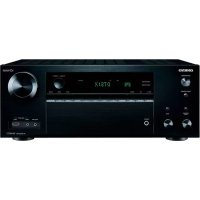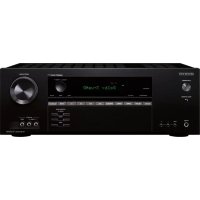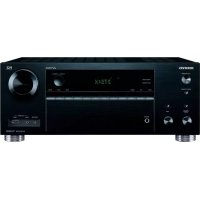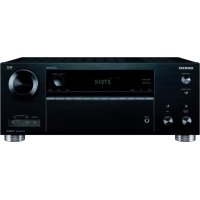
TXRZ610 - AV receiver ONKYO - Free user manual and instructions
Find the device manual for free TXRZ610 ONKYO in PDF.



| Product type | Audio-video receiver |
| Brand | Onkyo |
| Model | TX-RZ610 |
| Output power | 170 W per channel (6 ohms, 1 kHz, 0.9% THD, 7 channels) |
| Number of channels | 7.2 (7 channels + 2 subwoofer outputs) |
| Supported audio formats | Dolby Atmos, DTS:X (via update), Dolby TrueHD, DTS-HD Master Audio, LPCM, DSD, FLAC, WAV |
| HDMI inputs | 6 inputs (including 1 on front), 2 outputs (MAIN/SUB) |
| Maximum video resolution | 4K (3840 x 2160) with HDCP 2.2 |
| Network functions | Wi-Fi, Ethernet, AirPlay, Internet Radio (TuneIn), Music Server, USB |
| Bluetooth | Yes, unspecified version, range 15 m |
| Built-in radio | AM/FM with presets (40 stations) |
| Speaker calibration | AccuEQ with supplied microphone |
| Multizone | Zone 2 (pre-out or direct speakers) |
| Connectivity | HDMI, component, composite, optical, coaxial, analog audio, phono (MM), RS232, IR, 12V trigger |
| Speaker impedance | 6 to 16 ohms |
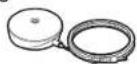
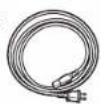
| Supplied accessories | Remote control (RC-911R), AAA batteries (x2), FM antenna, AM loop antenna, AccuEQ microphone, power cord |
| Power consumption | Approximately 650 W (estimate for max power) |
| Maintenance and cleaning | Disconnect before cleaning, use a dry soft cloth |
| Safety | Do not obstruct openings, respect speaker impedance, do not expose to moisture |
| Repairability and updates | Firmware update via network (DTS:X supported later) |
| General information | Dolby Atmos certification, HDCP 2.2 compatible, HDMI CEC, ARC |
Frequently Asked Questions - TXRZ610 ONKYO
User questions about TXRZ610 ONKYO
0 question about this device. Answer the ones you know or ask your own.
Ask a new question about this device
Download the instructions for your AV receiver in PDF format for free! Find your manual TXRZ610 - ONKYO and take your electronic device back in hand. On this page are published all the documents necessary for the use of your device. TXRZ610 by ONKYO.
USER MANUAL TXRZ610 ONKYO
Step1: Choose your Speaker Layout 3
Step2: Connect the Speakers 9
Step3: Connect the TV 11
Step4: Connect the AV Components ..... 13
Step5: Connect Other Cables 17
Setup
Step6: Power On & Initial Setup 18
HDMI Setup 19
Playback
Basic Playback 20
Network Functions ......21
Others 23
Part Names
Front Panel 25
Rear Panel 26
Remote Controller 27
Display 27
This manual includes information needed when starting up and also instructions for frequently used operations. The "Advanced Manual" is available on the internet with details about the playback features/listening modes/settings details, specifications, and troubleshooting.
The Advanced Manual is created in a format that makes it easy to read on a PC or Smartphone.
AV RECEIVER
TX-RZ610
ONKYO
http://www.onkyo.com/manual/txrz610/adv/en.html
Advanced Manual found here
> Before start > Hookup > Setup > Playback > Part Names
natural_image
Illustration of an open cardboard box with a downward arrow and a separate photo of a radio device (no text or symbols)2
3
4
5
6
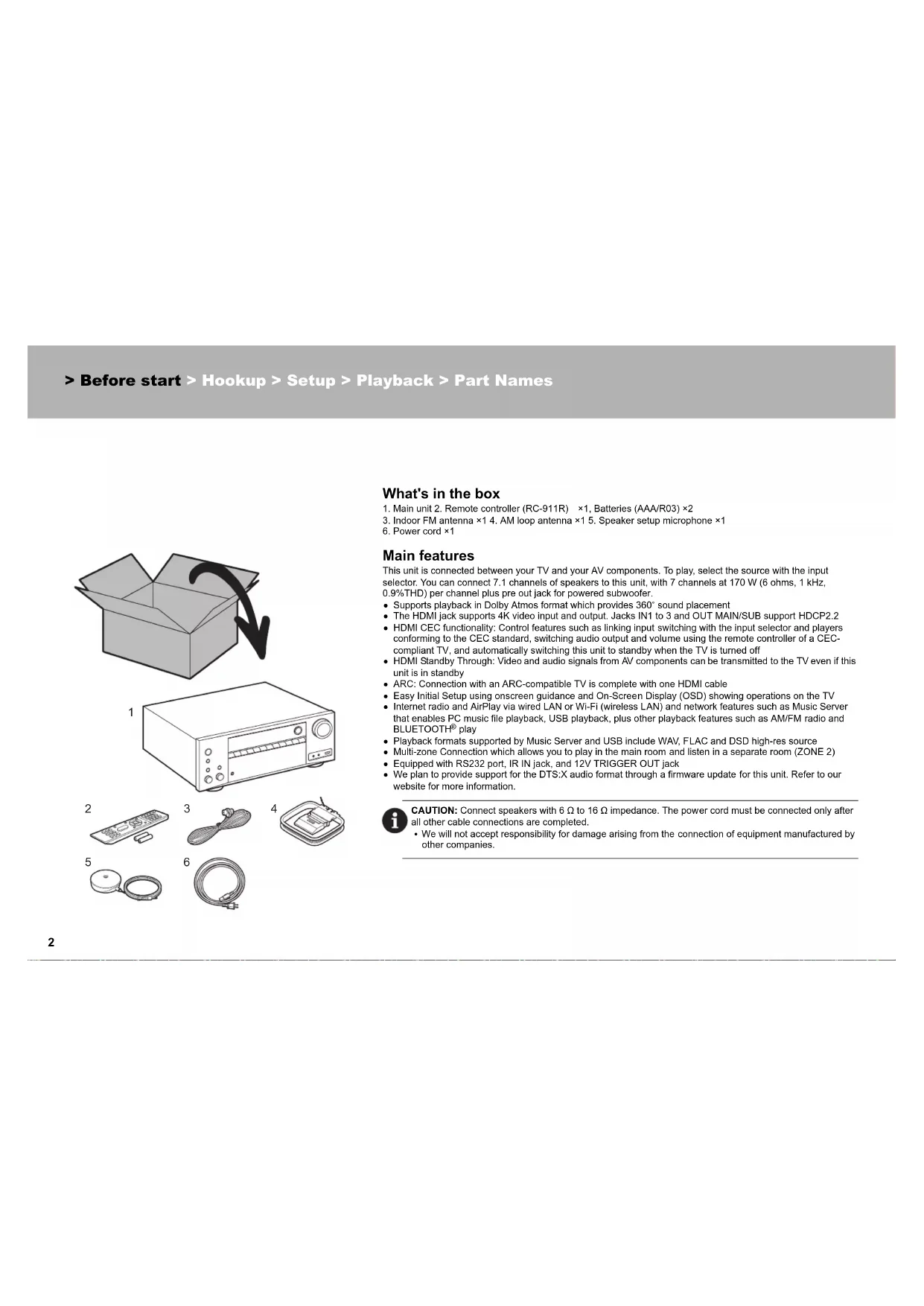
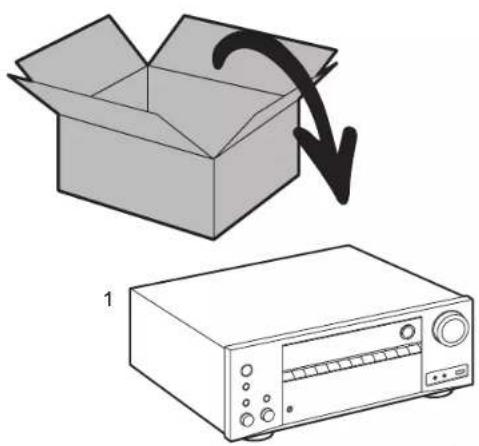
What's in the box
-
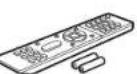
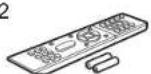
Main unit 2. Remote controller (RC-911R) ×1, Batteries (AAA/R03) ×2
-
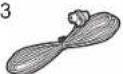
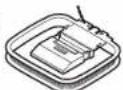
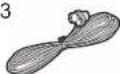
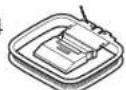
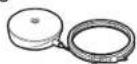
Indoor FM antenna ×1 4. AM loop antenna ×1 5. Speaker setup microphone ×1
-
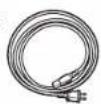
Power cord ×1
Main features
This unit is connected between your TV and your AV components. To play, select the source with the input selector. You can connect 7.1 channels of speakers to this unit, with 7 channels at 170 W (6 ohms, 1 kHz, 0.9%THD) per channel plus pre out jack for powered subwoofer.
• Supports playback in Dolby Atmos format which provides 360° sound placement
- The HDMI jack supports 4K video input and output. Jacks IN1 to 3 and OUT MAIN/SUB support HDCP2.2
- HDMI CEC functionality: Control features such as linking input switching with the input selector and players conforming to the CEC standard, switching audio output and volume using the remote controller of a CEC-compliant TV, and automatically switching this unit to standby when the TV is turned off
- HDMI Standby Through: Video and audio signals from AV components can be transmitted to the TV even if this unit is in standby
- ARC: Connection with an ARC-compatible TV is complete with one HDMI cable
- Easy Initial Setup using onscreen guidance and On-Screen Display (OSD) showing operations on the TV
- Internet radio and AirPlay via wired LAN or Wi-Fi (wireless LAN) and network features such as Music Server that enables PC music file playback, USB playback, plus other playback features such as AM/FM radio and BLUETOOTH® play
- Playback formats supported by Music Server and USB include WAV, FLAC and DSD high-res source
- Multi-zone Connection which allows you to play in the main room and listen in a separate room (ZONE 2)
• Equipped with RS232 port, IR IN jack, and 12V TRIGGER OUT jack
- We plan to provide support for the DTS:X audio format through a firmware update for this unit. Refer to our website for more information.

CAUTION: Connect speakers with 6 Ω to 16 Ω impedance. The power cord must be connected only after all other cable connections are completed.
- We will not accept responsibility for damage arising from the connection of equipment manufactured by other companies.
Before start > Hookup > Setup > Playback > Part Names
Step1: Choose your Speaker Layout
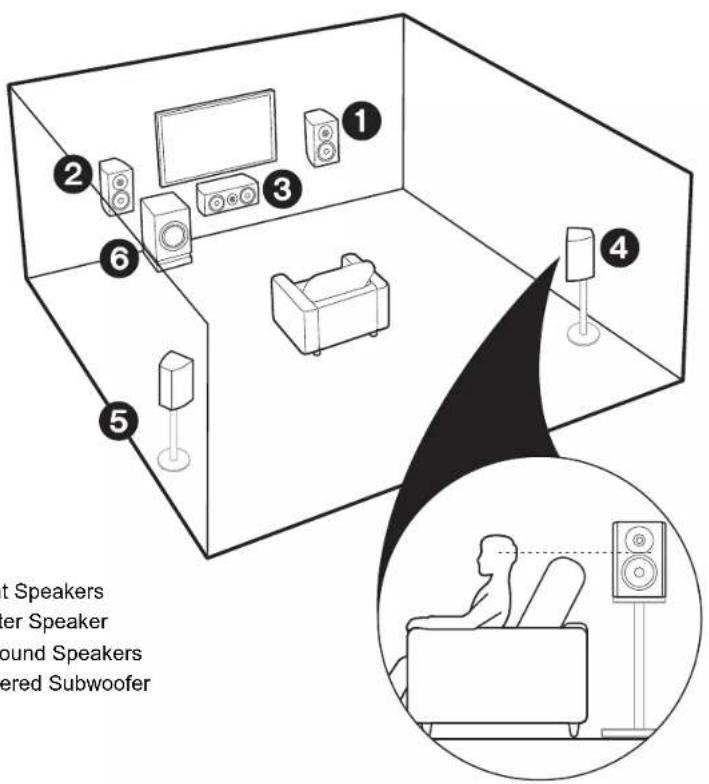
①② Front Speakers
3 Center Speaker
4 5 Surround Speakers
6 Powered Subwoofer

For 5.1-Channel System
This is a 5.1-channel system that is the basic surround system. Front speakers output front stereo sound and a center speaker outputs center sound such as dialogs and vocals. Surround speakers create back sound field. Powered subwoofer reproduces bass sounds and creates rich sound field. The front speakers should be positioned at ear height, while the surround speakers should be positioned just above ear height. Center speaker should be set up facing the listening position. Place the powered subwoofer towards the front. Placing it between the center speaker and a front speaker gives you a natural sound even when playing music.
- The front speakers, center speaker, and surround speakers are counted as 5 channels, and the powered subwoofer is counted as 0.1 of a channel, giving us the name 5.1ch system.
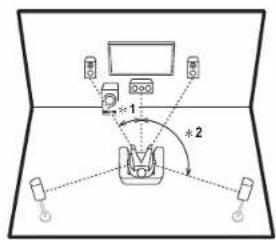
* 1:22" to 30", * 2:120"

Go To "Hookup" (→P9)
Before start > Hookup > Setup > Playback > Part Names
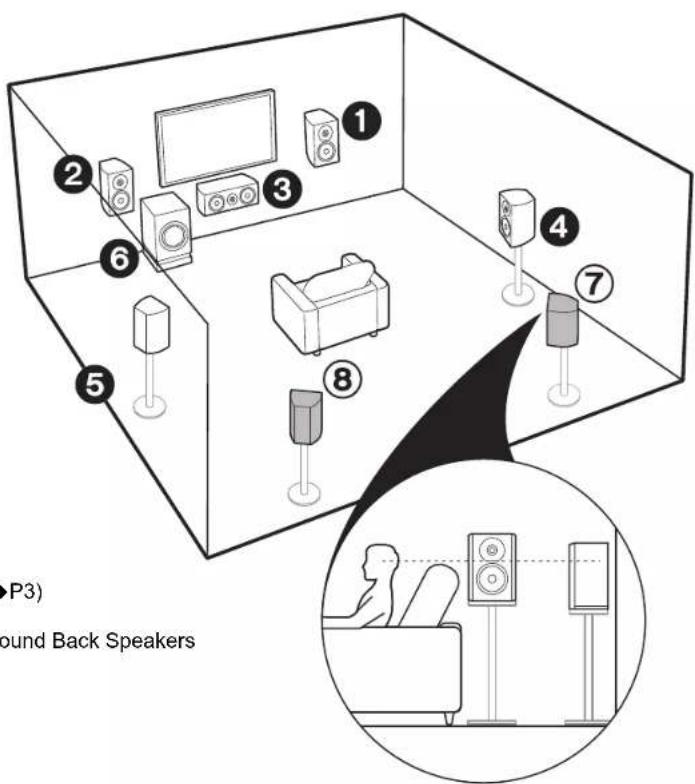
① - ⑥ (→P3)
⑦⑧ Surround Back Speakers
For 7.1-Channel System (with Surround Back Speakers)
This is a system with surround back speakers added to the basic 5.1-channel system. The connection of surround back speakers improves the sense of envelopment and connectivity of sound created by the back sound field and provides a more real sound field. You can select the Dolby Atmos listening mode, which realizes the most up-to-date 3D surround sound, when the input format is Dolby Atmos. With formats other than Dolby Atmos, you can still create a sound field by outputting sound from the surround back speakers when you select the Dolby Surround listening mode. The optimal positioning is for surround back speakers to be at ear height. Place the surround speakers in a more slightly forward position than you would in a 5.1-channel system.
- If you are including surround back speakers in the setup, surround speakers are required.
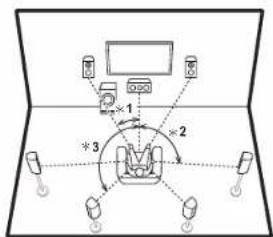
* 1: 22° to 30°, * 2: 90° to 110°, * 3: 135° to 150°
Go To "Hookup" (→P9)
Before start > Hookup > Setup > Playback > Part Names
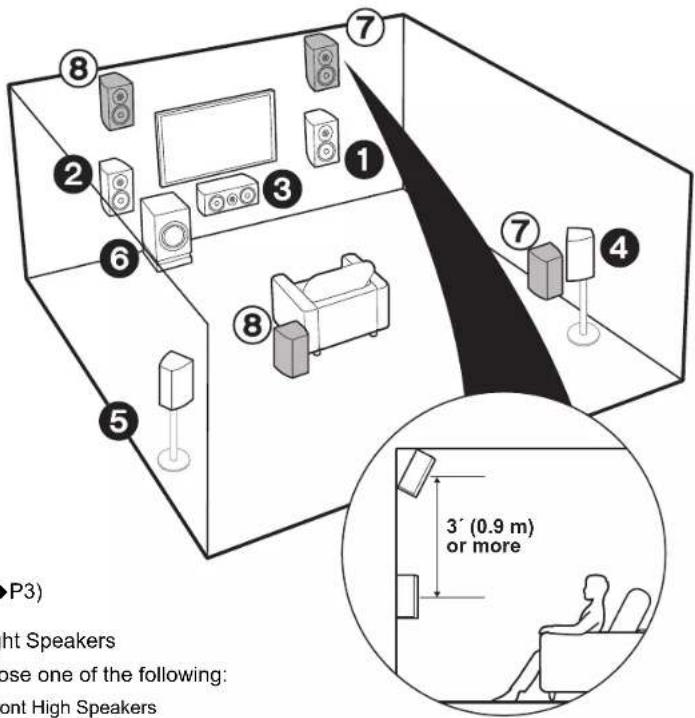
① - ⑥ (→P3)
⑦⑧ Height Speakers
Choose one of the following:
- Front High Speakers
- Rear High Speakers

For 7.1-Channel System (with Height Speakers-A)
En
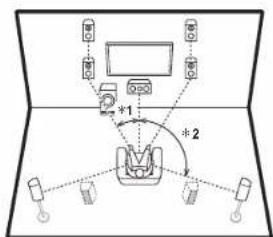
This is a basic 5.1-channel system with the addition of height speakers, either as front high speakers or rear high speakers. Select which speakers to setup according to the environment of the room. You can select the Dolby Atmos listening mode (5.1.2 channel playback), which realizes the most up-to-date 3D surround sound including overhead sounds, when the input format is Dolby Atmos. With formats other than Dolby Atmos, you can still create a sound field by outputting sound from the height speakers when you select the Dolby Surround listening mode. Front high speakers or rear high speakers should be situated at least 0.9 m higher than the front speakers. Front high speakers should be situated directly above the front speakers and the distance between the rear high speakers should match the distance between the front speakers. Both should be set up facing the listening position.
flowchart
graph TD
    A["Sensor 1"] --> B["Device 1"]
    C["Sensor 2"] --> D["Device 2"]
    E["Sensor 3"] --> F["Device 3"]
    G["Sensor 4"] --> H["Device 4"]
    I["Sensor 5"] --> J["Device 5"]
    K["Sensor 6"] --> L["Device 6"]
    M["Sensor 7"] --> N["Device 7"]
    O["Sensor 8"] --> P["Device 8"]
    Q["Sensor 9"] --> R["Device 9"]
    S["Sensor 10"] --> T["Device 10"]
    U["Sensor 11"] --> V["Device 11"]
    W["Sensor 12"] --> X["Device 12"]
    Y["Sensor 13"] --> Z["Device 13"]
    AA["Sensor 14"] --> AB["Device 14"]
    AC["Sensor 15"] --> AD["Device 15"]
    AE["Sensor 16"] --> AF["Device 16"]
    AG["Sensor 17"] --> AH["Device 17"]
    AI["Sensor 18"] --> AJ["Device 18"]
    AK["Sensor 19"] --> AL["Device 19"]
    AM["Sensor 20"] --> AN["Device 20"]
× 1:22^ to 30^, × 2:120^

Go To "Hookup" (→P9)
Before start > Hookup > Setup > Playback > Part Names
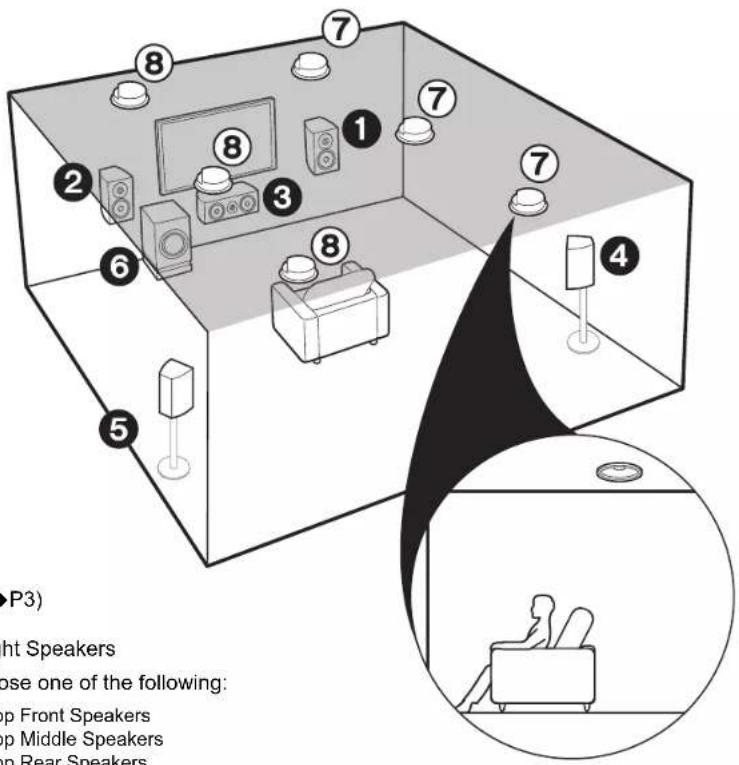
① - ⑥ (→P3)
⑦⑧ Height Speakers
Choose one of the following:
- Top Front Speakers
• Top Middle Speakers
• Top Rear Speakers

For 7.1-Channel System (with Height Speakers-B)
This is a basic 5.1-channel system using ceiling speakers, for example, with the addition of height speakers, either as top front speakers, top middle speakers, or top rear speakers. Select which speakers to setup according to the environment of the room. You can select the Dolby Atmos listening mode (5.1.2 channel playback), which realizes the most up-to-date 3D surround sound including overhead sounds, when the input format is Dolby Atmos. With formats other than Dolby Atmos, you can still create a sound field by outputting sound from the height speakers when you select the Dolby Surround listening mode. Fit top front speakers on the ceiling forward of the seating position, top middle speakers on the ceiling directly above the seating position, and top rear speakers on the ceiling behind the seating position. The distance between each pair should match the distance between the two front speakers.
• Dolby Laboratories recommends placing this type of height speakers to obtain the best Dolby Atmos effect.
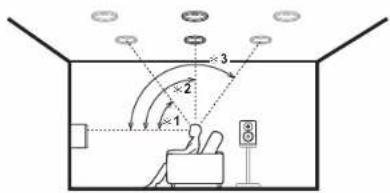
* 1: 30° to 55°, * 2: 65° to 100°, * 3: 125° to 150°

Go To "Hookup" (→P9)
Before start > Hookup > Setup > Playback > Part Names
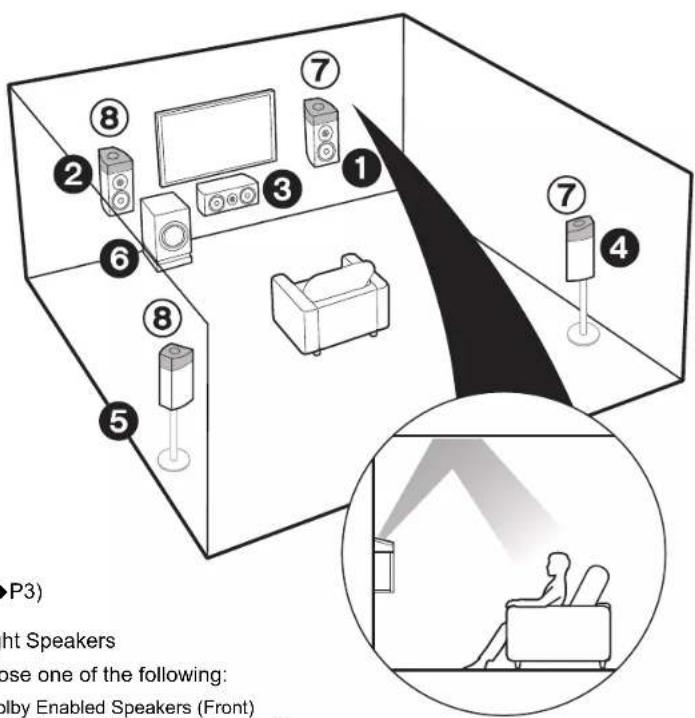
① - ⑥ (→P3)
⑦⑧ Height Speakers
Choose one of the following:
• Dolby Enabled Speakers (Front)
• Dolby Enabled Speakers (Surround)

For 7.1-Channel System (with Height Speakers-C)
This is a basic 5.1-channel system using Dolby enabled speakers, with the addition of height speakers, either as Dolby enabled speakers (front) or Dolby enabled speakers (surround). Select which speakers to setup according to the environment of the room. Dolby enabled speakers are special speakers designed to face the ceiling so that sound is heard after bouncing off the ceiling so that sound appears to be coming from overhead. You can select the Dolby Atmos listening mode (5.1.2 channel playback), which realizes the most up-to-date 3D surround sound including overhead sounds, when the input format is Dolby Atmos. With formats other than Dolby Atmos, you can still create a sound field by outputting sound from the height speakers when you select the Dolby Surround listening mode. Place them either above the front speakers or above the surround speakers.
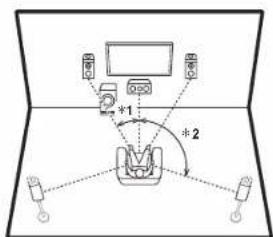
* 1: 22° to 30°, * 2: 120°

Go To "Hookup" (→P9)
Before start > Hookup > Setup > Playback > Part Names
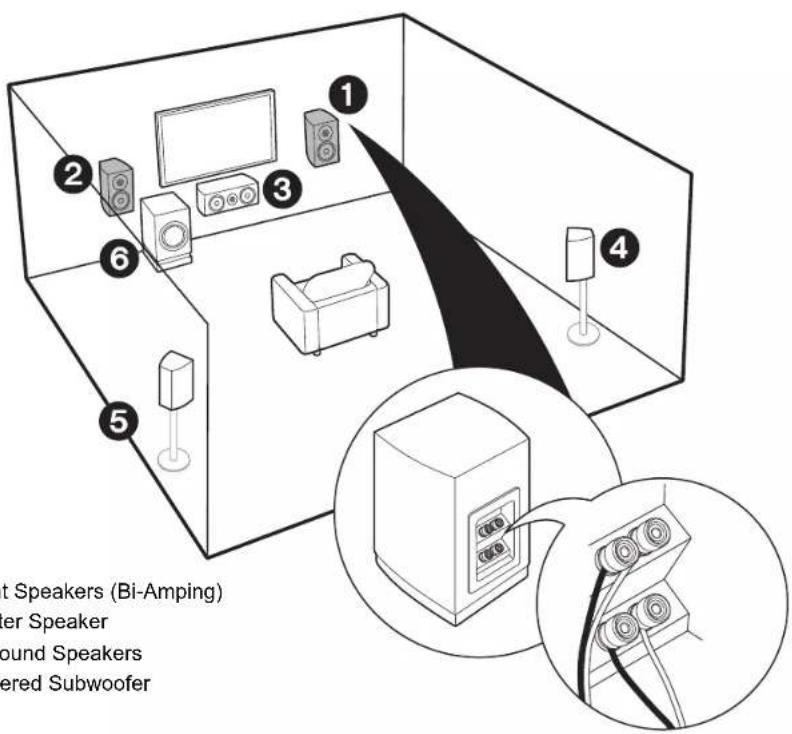

For Bi-Amping the Speakers
It is possible to connect front speakers supporting bi-amping to improve quality of the bass and treble. The maximum number of channels available with this connection is 5.1 because Bi-Amping speakers require one amplifier for the tweeter jacks and one amplifier for the woofer jacks. The effects and placements for speakers are the same as the 5.1-channel plan that doesn't use Bi-Amping speakers.
- If you connect to speakers supporting Bi-Amping, speaker output in ZONE (→P16) is not possible.
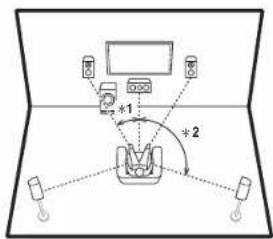
× 1:22^ to 30^, × 2:120^

Go To "Hookup" (→ P10)
①② Front Speakers (Bi-Amping)
3 Center Speaker
4 5 Surround Speakers
6 Powered Subwoofer
Before start > Hookup > Setup > Playback > Part Names
Step2: Connect the Speakers
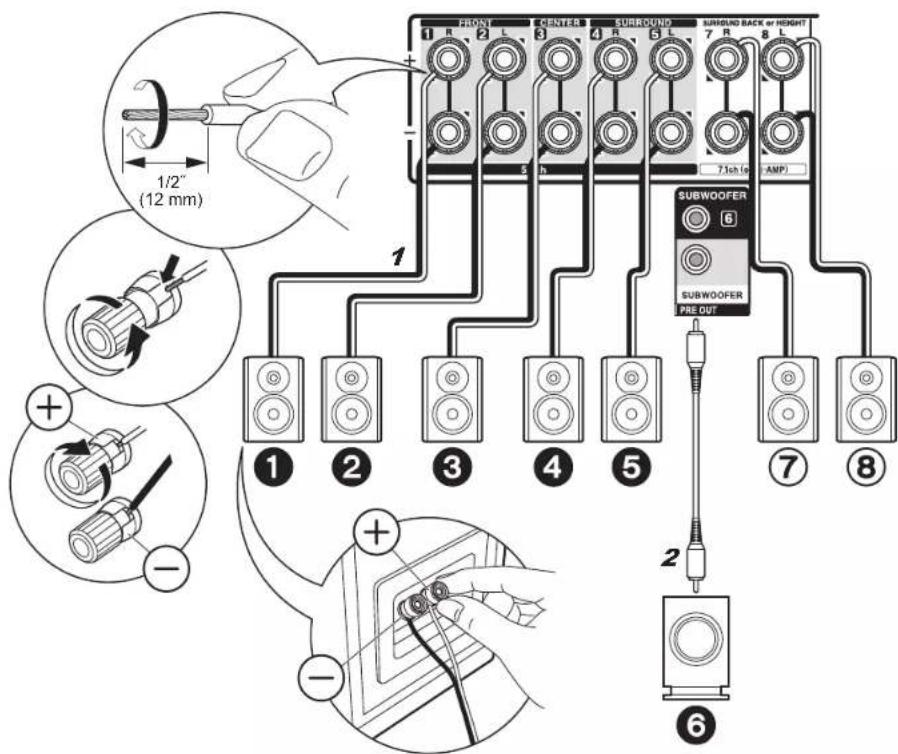
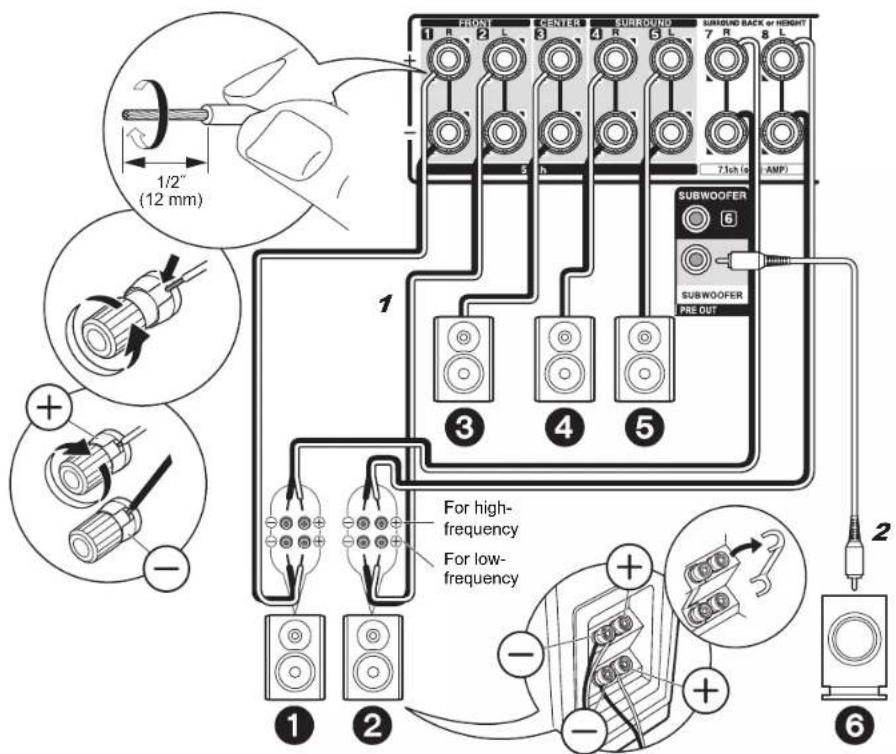
1 Speaker cable, 2 Subwoofer cable

in case of:
Pages 3 to 7
Connect 123456 for a 5.1-channel system. For a 7.1-channel system, select either surround back speakers or height speakers, and connect ⑦⑧. Up to two powered subwoofers can be connected. The same signal is output from each of the SUBWOOFER jacks.

Setup
• The speaker configuration is set to
12345678 audio output by default. If there are speakers you won't be connecting, you need to change the settings in Initial Setup, "1. AccuEQ Room Calibration" (→P18) so that the audio from those speakers you are not connecting is sent to other speakers.
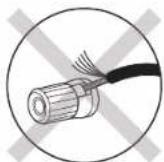
Make sure the exposed wires of the speakers do not stick out of the speaker terminals when connecting. If the exposed wires of the speakers touch the rear panel or the + and - wires touch each other, the protection circuit will be activated.
Before start > Hookup > Setup > Playback > Part Names
1 Speaker cable, 2 Subwoofer cable
in case of: Page 8
Connect front speakers compatible with Bi-Amping connection to the FRONT jacks and the SURROUND BACK or HEIGHT jacks. Make sure you remove the jumper bar fitted between the woofer jacks and tweeter jacks of the front speakers. In case of Bi-Amping connection, refer to the instruction manual of your speakers. Up to two powered subwoofers can be connected. The same signal is output from each of the SUBWOOFER jacks.
Setup • Bi-Amping connection requires you to change some settings. Select "Yes" in "Bi-Amp" in "1. AccuEQ Room Calibration" (→P18) in the Initial Setup.
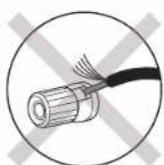
Make sure the exposed wires of the speakers do not stick out of the speaker terminals when connecting. If the exposed wires of the speakers touch the rear panel or the + and - wires touch each other, the protection circuit will be activated.
Before start
Hookup
Setup
Playback
Part Names
Step3: Connect the TV
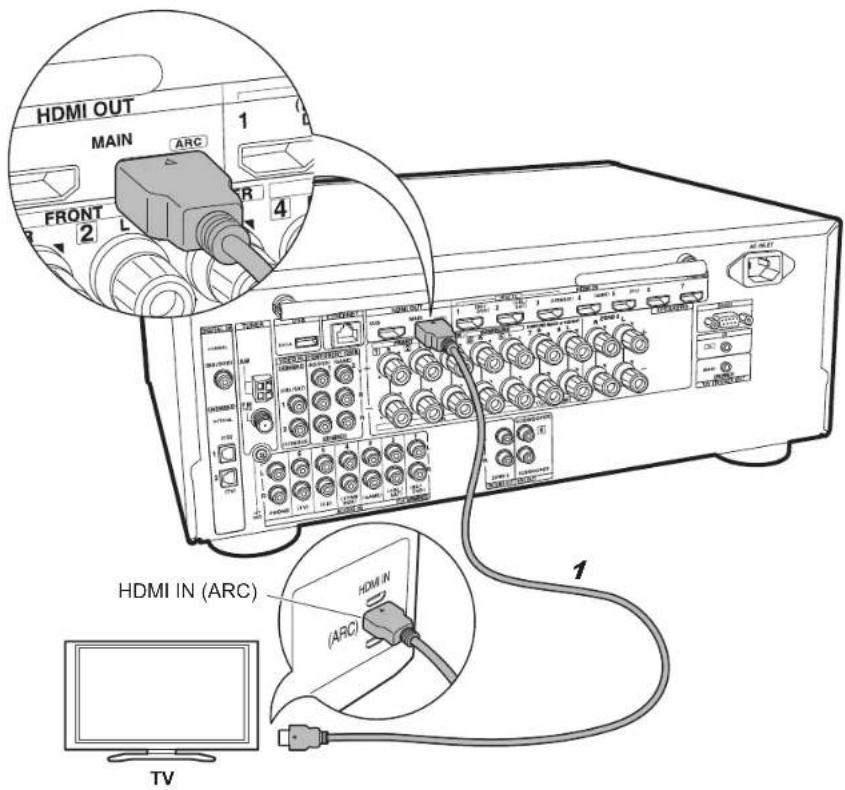
1 HDMI cable

if you have: ARC TV
This unit is connected between your TV and AV components. If you connect two or more AV components, you can select the video displayed on the TV and the audio output from this unit by changing the input selector. Shown here are the connections for a TV that supports the ARC (Audio Return Channel) feature. By connecting with a single HDMI cable, you can not only output the video input to this unit to the TV, but you can also play the sound from the TV through this unit.
Choose an HDMI IN jack on the TV that supports ARC when connecting.

Setup
- Settings are required to use the ARC function. Select "Yes" in "5. Audio Return Channel" (→P19) in the Initial Setup.
- Please refer to the TV's operation manual for directions on connections and setup for the TV.
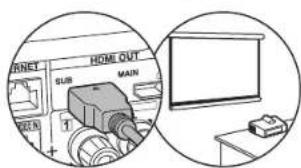
Another TV or projector can be connected to the HDMI OUT SUB jack. This jack does not support ARC. For details about how to output the video to a connected device (→P20)
Before start > Hookup > Setup > Playback > Part Names
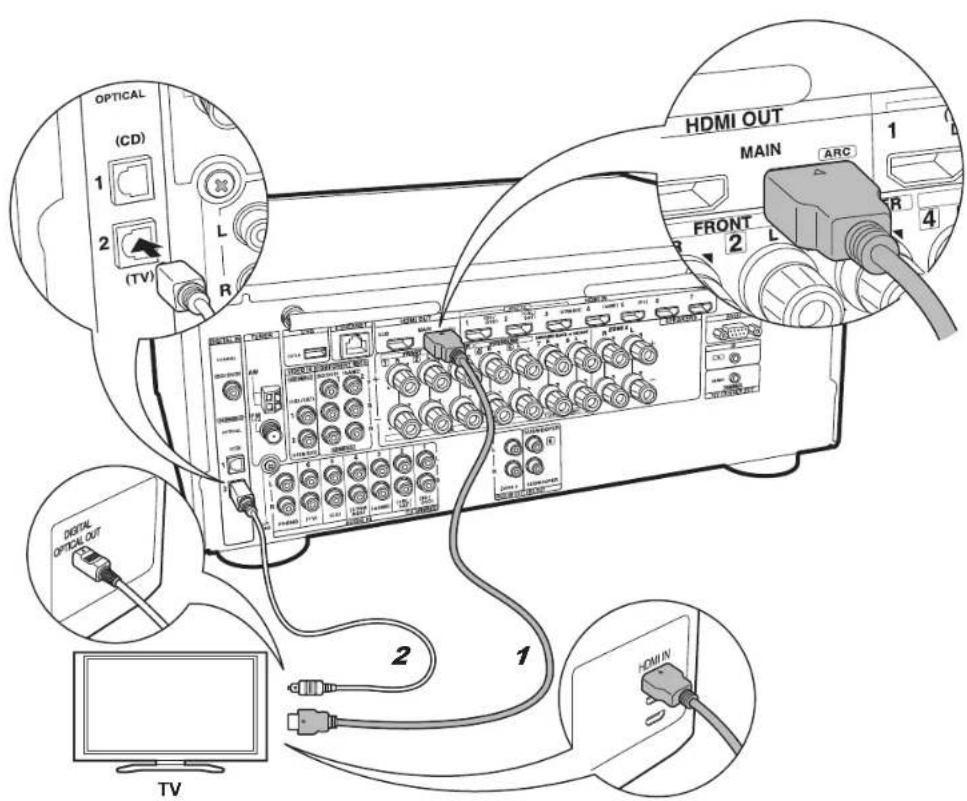
1 HDMI cable, 2 Digital optical cable
if you have: Non-ARC TV
This unit is connected between your TV and AV components. If you connect two or more AV components, you can select the video displayed on the TV and the audio output from this unit by changing the input selector. This describes the connections for a TV that does not support the ARC (Audio Return Channel) feature. By connecting with both an HDMI cable and a digital optical cable, you can not only output the video input to this unit to the TV, but you can also play the sound from the TV through this unit.
If the TV doesn't have a DIGITAL OPTICAL OUT jack, use an analog audio cable and connect the TV's ANALOG AUDIO OUT jack to the AUDIO IN TV jack on this unit.
- Connection with a digital optical cable is not necessary if you will watch TV through a device such as a cable set-top box (that is, not use a tuner built into the TV).
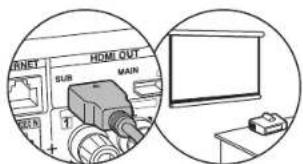
Another TV or projector can be connected to the HDMI OUT SUB jack. This jack does not support ARC. For details about how to output the video to a connected device (→P20)
Before start > Hookup > Setup > Playback > Part Names
Step4: Connect the AV Components
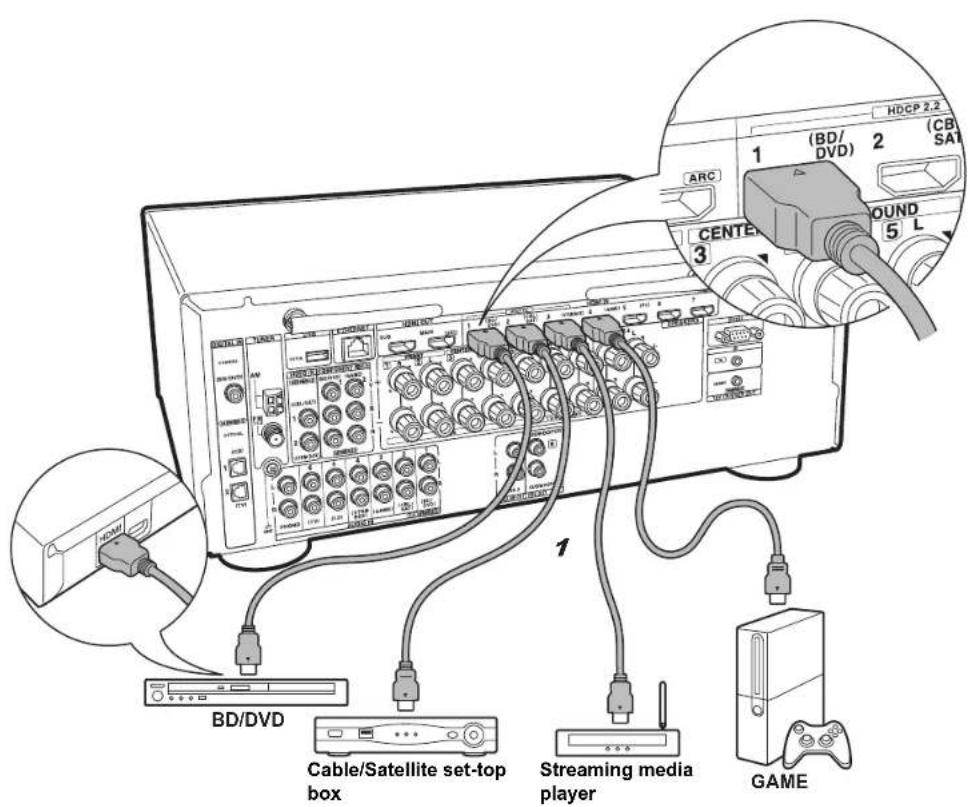
1 HDMI cable

if you have: HDMI AV Components
This is an example of connection with an AV component that has an HDMI jack. With connection to an AV component that conforms with the CEC (Consumer Electronics Control) standard, you can use features such as the HDMI CEC feature that links with the input selector, and the HDMI Standby Through feature which allows you to play video and audio from AV components on the TV even when this unit is in standby mode.
- To play 4K or 1080p video, use a high speed HDMI cable. Further, to enjoy HDCP2.2 compatible video, connect to the HDMI IN1 to IN3 jacks.

Setup
- HDMI setup→P19) is required to use the HDMI CEC and HDMI Standby Through features. Make settings after all connections are complete.
- To enjoy digital surround sound including Dolby Digital, audio output should be set to "Bitstream output" on the connected Blu-ray Disc player or other device.
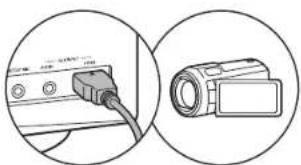
natural_image
Diagram showing a cable inserted into a device and a camera module, both enclosed in circular frames (no text or symbols)You can connect a device such as a video camera to the AUX INPUT HDMI jack on the front panel.
Before start > Hookup > Setup > Playback > Part Names
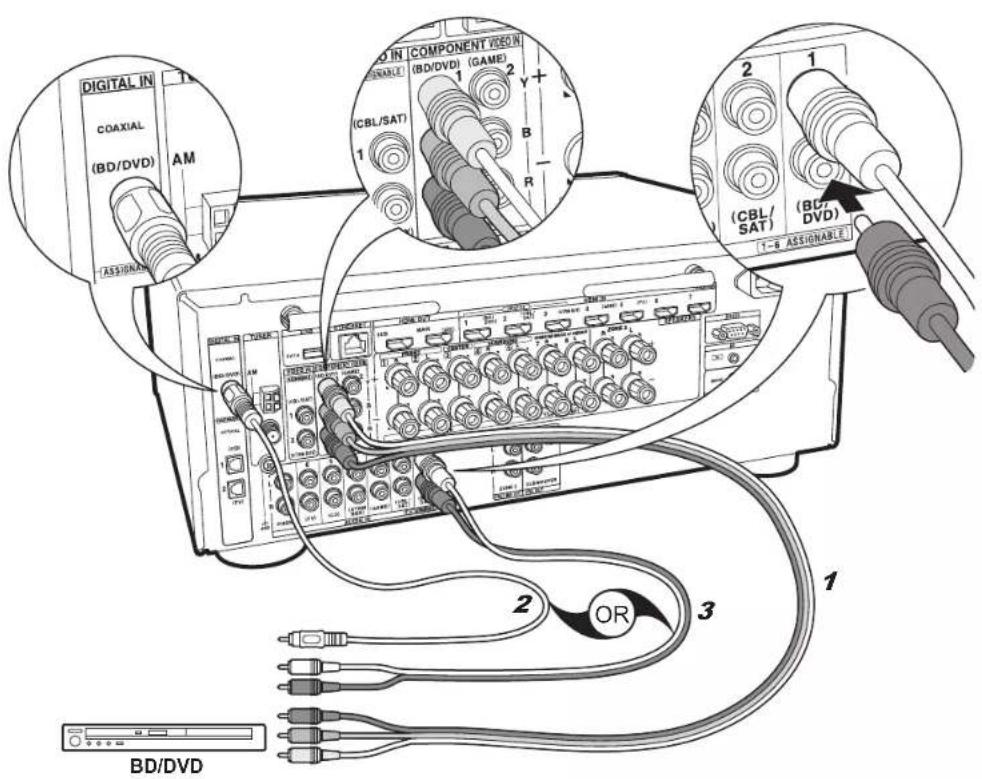
1 Component video cable, 2 Digital coaxial cable, 3 Analog audio cable

if you have:
Non-HDMI AV Components
This is an example of connection with an AV component that does not have an HDMI jack. Make the connections to the AV component to match the jacks it has. When video input connection is to the BD/DVD jack, the audio input connection should also be to the BD/DVD jacks, and so on, so that you connect the video input jacks to the jacks with the same name as the audio input jacks. Note that video signals input to the VIDEO IN jack or the COMPONENT VIDEO IN jacks will be upconverted to HDMI signals and then output from the HDMI OUT jack.
- To enjoy digital surround playback in formats such as Dolby Digital, you need to make a connection for audio signals with a digital coaxial cable or digital optical cable.

Setup
- The COMPONENT VIDEO IN jacks are compatible only with 480i or 576i resolution. When you input video signals to the COMPONENT VIDEO IN jacks, set the output resolution of the player to 480i or 576i. Select interlace if there is no option for 480i, etc. If your player does not support 480i or 576i output, use the VIDEO IN jack.
- To enjoy digital surround sound including Dolby Digital, audio output should be set to "Bitstream output" on the connected Blu-ray Disc Player or other device.
Before start > Hookup > Setup > Playback > Part Names
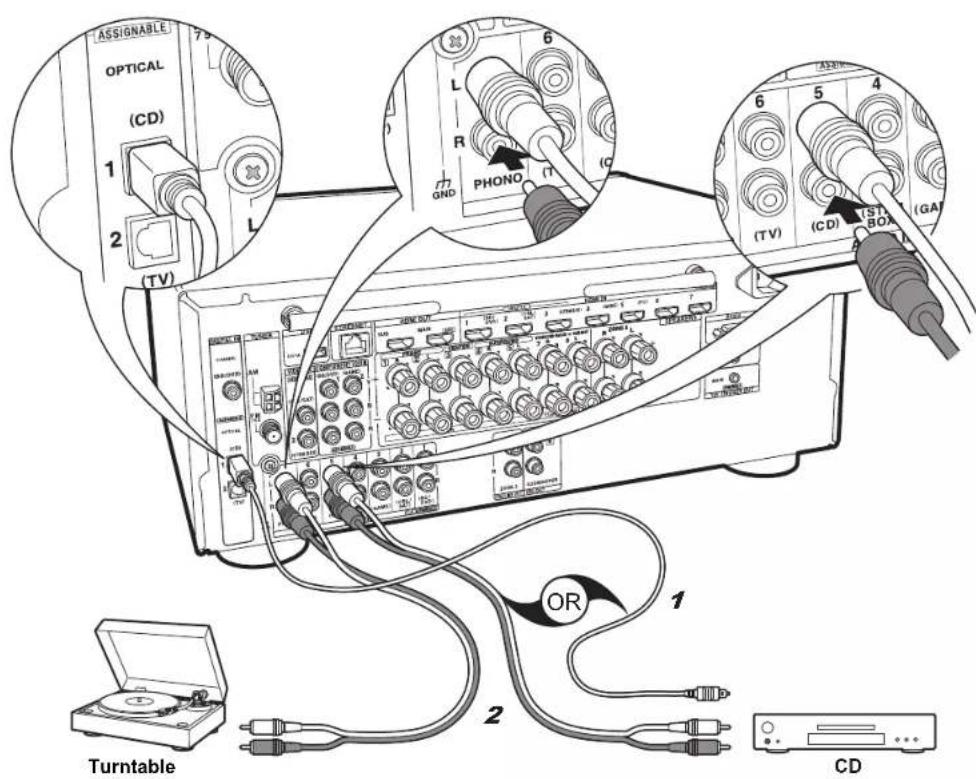
1 Digital optical cable, 2 Analog audio cable

if you have: Audio Components
Example of a connection with an audio component. Connect a CD player using a digital optical cable or analog audio cable. You can also connect a turntable that has an MM-type cartridge to the PHONO jack.
- If the turntable has a built-in audio equalizer, connect it to another AUDIO IN jack. Further, if the turntable uses an MC type cartridge, install an audio equalizer compatible with the MC type cartridge between the unit and the turntable, then connect to any AUDIO IN jack other than the PHONO jack.
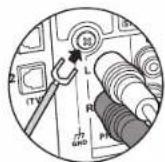
If the turntable has a ground wire, connect it to the GND terminal of this unit.
Before start > Hookup > Setup > Playback > Part Names
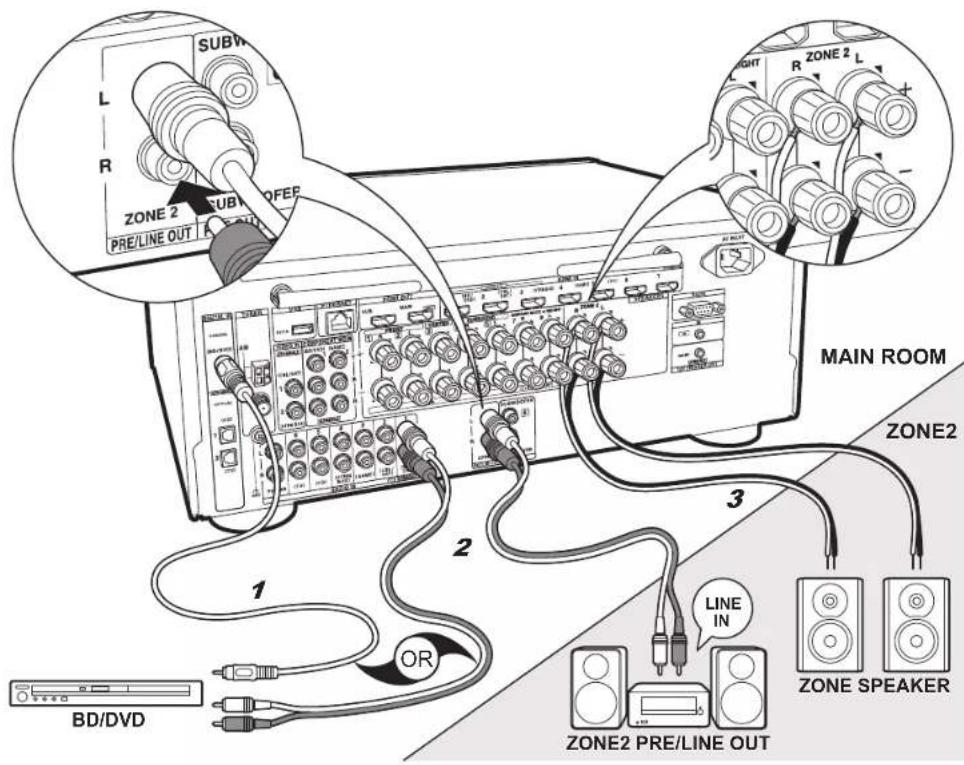
1 Digital coaxial cable, 2 Analog audio cable, 3 Speaker cable

Multi-zone Connection
You can enjoy audio in the separate room by, for example, playing a Blu-ray Disc player in the main room (where this unit is located) and listening to internet radio in the separate room (ZONE 2).
- The audio from AV components can only be output to ZONE 2 when the input is analog or 2 ch PCM audio signals.
Connections with an AV component
When outputting the audio of an external AV component to ZONE 2, you need to connect using an analog audio cable or digital optical cable, or digital coaxial cable.
ZONE 2 PRE/LINE OUT
It is possible to play 2 ch source in a separate room while 7.1 ch source is being played in the main room. Connect the ZONE 2 PRE/LINE OUT jacks of the unit and the LINE IN jacks of the pre-main amplifier or the power amplifier in a separate room with an analog audio cable.
ZONE SPEAKER
It is possible to connect speakers in a separate room and play 2 ch sources.
- You can play through a maximum of 5.1 channels in the main room during ZONE 2 playback. Listening modes such as the Dolby Atmos modes cannot be selected.
- When Bi-Amping connection is used for the front speakers, you cannot output to speakers in ZONE.

Setup
- Settings are required in Initial Setup, "4. Multi Zone Setup" (→P19) to enjoy this feature.
- When you have connected AV components to this unit using digital optical cables or digital coaxial cables, change the settings on the AV components so that they output PCM signals if you want to output their audio to ZONE 2.
Before start
Hookup
Setup
Playback
Part Names
Step5: Connect Other Cables
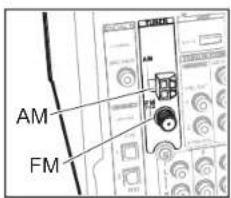
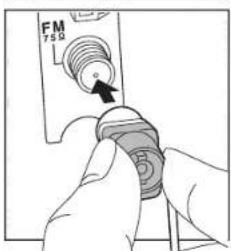
Antenna Hookup
Move the antenna around while playing the radio to find the position with the best reception. Use a thumb tack or similar to attach the indoor FM antenna to a wall.
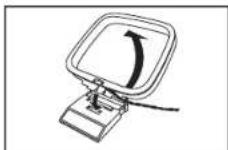
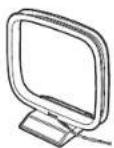
AM loop antenna
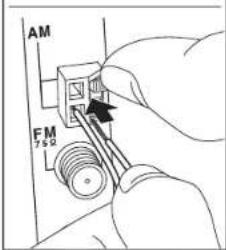
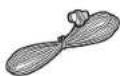
Indoor FM antenna
Network Hookup
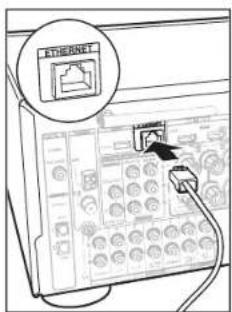
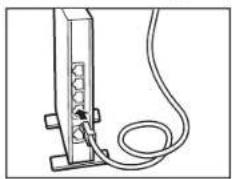
Connect this unit to the network using wired LAN or Wi-Fi (wireless LAN). You can enjoy network features such as internet radio, Music Server, and AirPlay by connecting the unit to the network.
If you connect by wired LAN, connect with an Ethernet cable to the ETHERNET port as shown in the illustration. To connect by Wi-Fi, then after selecting "Wireless" in "3."
Network Connection" (→P19) in Initial Setup, select the desired setting method and follow the onscreen instructions to configure the connection.
natural_image
Simple line drawing of a vertical device with a coiled cable and connector (no text or symbols)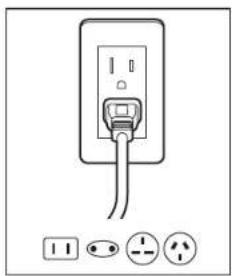
natural_image
Simple line drawing of an electrical outlet with three terminal symbols below (no text or labels)Power Cord Hookup
This unit includes removable power cords. Connect the power cord to the power outlet after completing all other connections. Connect the power cord to AC INLET of the unit and then connect to the outlet. Always disconnect the outlet side first when disconnecting the power cord.
Before start
Hookup
Setup
Playback
Part Names
Step6: Power On & Initial Setup
Initial Setup starts automatically
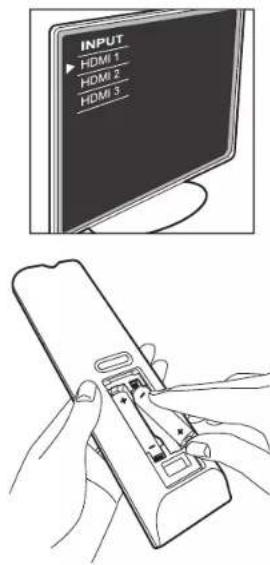
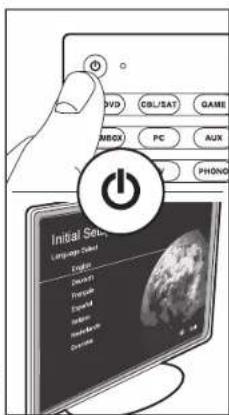
Once all connections are complete, change the TV's input to the input for this unit, inset batteries in the remote controller, and press ⏻ to turn the power on. When you turn the unit on for the first time, Initial Setup is automatically shown on the TV to enable you to make settings required for startup using simple operations following onscreen guidance.
These instructions will guide you through some items that you need to check beforehand. Read beforehand so the setup goes smoothly.
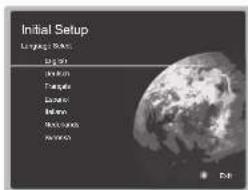
Operation
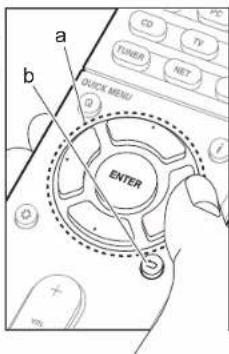
Select the item with the cursors of the remote controller and press ENTER (a). To return to the previous screen, press *.
To redo the Initial Setup
If you terminate the procedure on the way or want to change a setting made during Initial Setup, press 📄 on the remote controller, select "7. Miscellaneous" – "Initial Setup", and press ENTER.
1. AccuEQ Room Calibration
Place the supplied speaker setup microphone in the listening position, measure the test tones emitted by the speakers, then the unit automatically sets the optimum volume level for each speaker, the crossover frequencies, and the distance from the listening position. This also enables correction of distortion caused by the acoustic environment of the room.
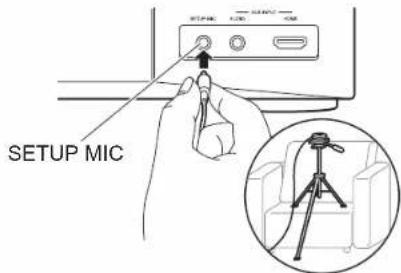
- Use a tripod or similar to place the speaker setup microphone at ear height.
- The subwoofer sound may not be detected since it is extremely low frequencies. Set the subwoofer volume to more than halfway.
- Calibration takes several minutes to be completed. The speakers emit the test tone at high volume during measurement, so be careful of your surroundings. Keep the room as quiet as possible during measurement. If the measurement is interrupted, turn off the household appliances.
Before start
Hookup
Setup
Playback
Part Names
2. Source Connection
Check that each input source is connected correctly. Follow the guidance, select the input you want to confirm, start play of the selected player, and confirm that the images appear on the TV and that sound is played.
3. Network Connection
Set up Wi-Fi connection with an access point such as a wireless LAN router. There are the following two methods of connecting by Wi-Fi:
"Scan Networks": Search for an access point from this unit. Find out the SSID of the access point beforehand. "Use iOS Device (iOS7 or later)": Share the iOS device's Wi-Fi settings with this unit.
If you select "Scan Networks", there are a further two choices of connection method. Check the following.
- "Enter Password"Enter the password (or key) of the access point to connect.
- "Push Button" If the access point has an automatic connection button, you can connect without entering a password.
- If the SSID of the access point is not displayed, then in the screen listing the SSIDs, select "Other..." with the cursor on the remote controller and press ENTER, then follow the onscreen instructions.
Keyboard input
![Wi-Fi Setup SSID abc d c f g h i j k l m n n p q r * t u v w x y 123 4 5 6 7 8 9 00 - * , - ' : 10 [ ] = ← → ← OK/An When please select the OK on All Eraso All](/content/2026/03/527607/images/328c2fe0e22d338ddb6d9172cee1c9c61d8adfb9d37b9d38488e12731f6055af.jpg)
To switch between upper and lower case, select "A/a" on the screen and press ENTER. To select whether to mask the password with " * " or display it in plain text, press MEMORY on the remote controller. Press CLEAR to delete all the input characters.
- A confirmation screen asking you to agree to the privacy policy is displayed during network setting. Select "Yes" and press ENTER to indicate agreement.
4. Multi Zone Setup
When you want to enjoy audio in a room other than the main room, set the audio output method for the separate room (ZONE 2). If you have connected speakers in a separate room with speaker cable, select "Using AV Receiver". If you have connected a pre-main amplifier in a separate room with an analog audio cable, select "with External Premain Amplifier". If you have connected a power amplifier, select "with External Power Amplifier".
5. Audio Return Channel
If you have connected a TV that supports ARC, select "Yes". This unit's ARC setting turns on and you can listen to the TV's audio through this unit.
HDMI Setup
HDMI CEC
Make this setting to enable the control feature for devices complying with the CEC standard. This is set to on automatically if you have selected "Yes" in "5. Audio Return Channel" in the Initial Setup.
Press the ⚙ button on the remote controller to set "5. Hardware" – "HDMI" – "HDMI CEC" to "On" on the TV screen. Also enable the CEC control feature on the CEC device you have connected.
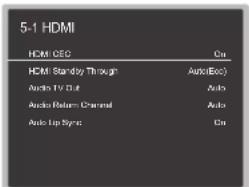
HDMI Standby Through
Even if this unit is in standby, the input signals from AV components are transmitted to the TV.
- "Auto" / "Auto (Eco)"Select one of these settings when connected AV components comply with the CEC standard. Irrespective of the input selector selected immediately before switching the unit to standby, you can transmit the input signals from AV components to the TV. Select "Auto (Eco)" if the TV is also CEC-compliant. You can reduce power consumption in standby mode.
- "Input selector names for BD/DVD, etc." You can transmit the input signals from the set input selector to the TV. It can be selected when "HDMI CEC" is set to "Off".
- "Last"You can transfer the input signals of the input selector selected immediately prior to the unit being switched to standby. It can be selected when "HDMI CEC" is set to "Off". With this setting, you can switch the input selector even in the standby mode.
To exit the settings, press ⚙.
Before start
Hookup
Setup
Playback
Part Names
Basic Playback
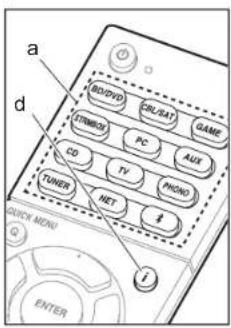
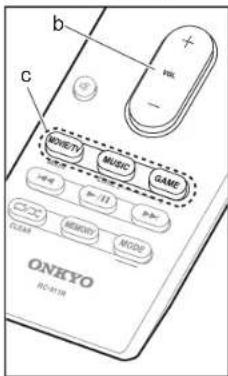
- Switch the input on the TV to that assigned to the unit.
- Press the input selector (a) on the remote controller with the same name as the jack to which you connected the player to switch the input.
For example, press BD/DVD to play the player connected to the BD/DVD jack. Press TV to listen the TV's sound.
- When the CEC link function works, the input switches automatically when you have connected a CEC compliant TV and player to this unit using HDMI connection.
- Start play on the player.
- Use VOL+/- (b) to adjust the volume.
When a TV is connected to the HDMI OUT SUB jack
Press Q on the remote controller to display the Quick Menu, and set "Other" – "HDMI Out" to either "SUB" or "MAIN+SUB".
Listening Mode
This unit is equipped with a variety of listening modes, and you can select the optimum listening mode for movies, TV, music, and games by repeatedly pressing the MOVIE/TV, MUSIC, and GAME buttons (c). For details on the listening modes, see the Advanced Manual. This section introduces some of the popular modes.
Dolby Digital/DTS modes
When the input signal is a digital surround format such as Dolby Digital or DTS, you can select the listening mode that suits the input signal. Dolby Digital is displayed for Dolby
Digital and DTS-HD Master Audio is displayed for DTS-HD Master Audio. The output is Stereo for 2-channel input signals.
Direct
This listening mode can be selected for all input signals. It shuts down processing that affects sound quality to deliver a playback sound quality closer to sources. Speakers play the sound field according to the number of channels in the input signal, so there would be output from only the front speakers for a 2 ch signal, for example.
Dolby Surround/DTS Neural:X
These listening modes allow you to expand the playback signal to 5.1 channels or 7.1 channels to suit the connected speaker configuration when the input signal is 2 channels or 5.1 channels.
- We plan to provide support for the DTS Neural:X a firmware update for this unit. You can select Neo:6 Cinema and Neo:6 Music until the update.
Original surround modes
You can select listening modes such as the All Ch Stereo mode where a stereo image is played from both the front and the rear, and Orchestra (only with the MUSIC button) which is best for playback of classical and opera pieces.
The listening mode last selected for the source is remembered for each of the MOVIE/TV, MUSIC, and GAME buttons. If content you play is not supported by the listening mode you selected last, the listening mode that is standard for that content is selected automatically. Press (d) repeatedly to switch the display of the main unit in order of:
Input source & volume
| BD/DVD | 25 |
| Listening mode | |
| Dolby D | |
| Signal format | |
| Dolby D | 5.1 |
| Sampling frequency | |
| fs: | 48kHz |
| Input signal resolution | |
| 1080P/60 | 16:9 |
Before start
Hookup
Setup
Playback
Part Names
Network Functions
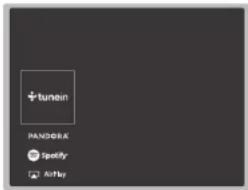
Network Services
- Switch the input on the TV to that assigned to the unit.
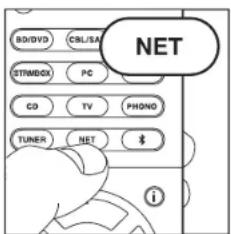
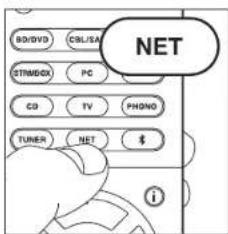
- Press NET to display the network service list screen.
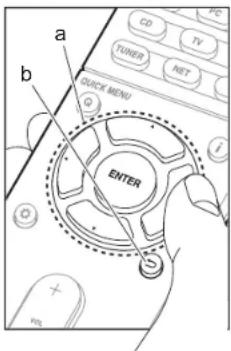
- Select the item with the cursors of the remote controller and press ENTER to confirm your selection (a). To return to the previous screen, press ☐.
Internet Radio
When this unit is connected to a network, you can listen to Tuneln or other preregistered Internet radio services. After selecting the desired service, follow the on-screen instructions, using the cursors to select radio stations and programs, then press ENTER to play. Play starts when 100% is displayed for buffering.
Music Server
You can play music files stored on home-network compliant PCs or NAS devices connected to the same network as this unit. Select the server with the cursors, select the desired music file and press ENTER to start playback. Play starts when 100% is displayed for buffering.
- This unit is compatible with Windows Media ^
Player 11 or 12 network servers or NAS that are compatible with home network functionality. You may need to make some settings in advance to use Windows Media ^® Player 11 or 12. Enable media streaming for this player in Windows Media ^® Player. For details, see the Advanced Manual.
USB
Play music files on a USB storage device. Connect the USB storage device to the USB jack on the rear of the unit, select USB in the list of network services, and press ENTER to confirm. Select the desired folder or music file with the cursors, and press ENTER to confirm and start playback.
- Operation cannot be guaranteed for all USB storage devices.
- This unit can use USB storage devices that comply with the USB mass storage device class standard. The unit is also compatible with USB storage devices using the FAT16 or FAT32 file system formats.

Notes:
• Network services become selectable after the network starts up even if they cannot be selected first.
- Functionality may be introduced by firmware updates and service providers may cease services, meaning that some network services and content may become unavailable in the future. Furthermore, available services may vary depending on your area of residence.
Before start
Hookup
Setup
Playback
Part Names
natural_image
Illustration of hands holding a smartphone displaying a play button and playback icon (no text or symbols)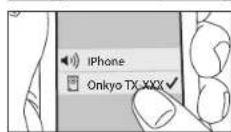
AirPlay
You can wirelessly enjoy the music files on an iPhone ^® , iPod touch ^® , or iPad ^® connected to the same access point as this unit.
- Update the OS version on your iOS device to the latest version.
-
Connect the iOS device to the access point.
-
Press NET
-
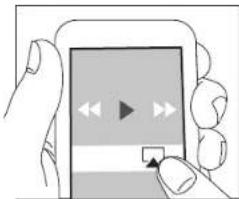
Tap the AirPlay icon ☑ in the control center of the iOS device and select this unit from the list of devices displayed, and tap "Done".
-
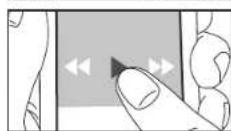
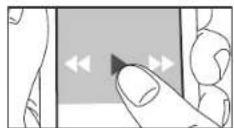
Play the music files on the iOS device.
- The default status is for the Network Standby feature to be on, so when you do steps 3 and 4 above, this unit automatically comes on and input switches to "NET". To reduce the amount of power consumed in standby mode, press the Button on the remote controller, then in the Setup menu displayed set "5. Hardware" – "Power Management" – "Network Standby" to "Of".
- Due to the characteristics of AirPlay wireless technology, the sound produced on this unit may slightly be behind the sound played on the AirPlay-enabled device.
You can also play back music files on the computer with iTunes (Ver. 10.2 or later). Before operation, make sure this unit and the PC are connected to the same network, then press NET on this unit. Next, click the AirPlay icon in iTunes, select this unit from the list of devices displayed, and start play of a music file.
BLUETOOTH® Playback
Pairing
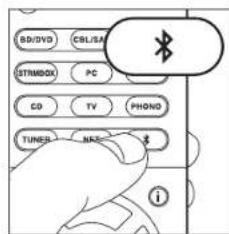
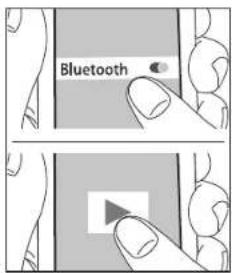
- When you press the button on the remote controller, "Now Pairing..." is displayed on this unit's display, and the pairing mode is enabled.
Now Pairing...
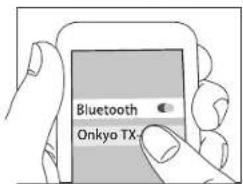
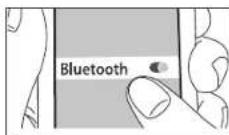
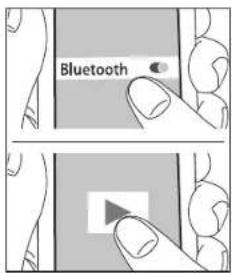
- Enable (turn on) the BLUETOOTH function of the BLUETOOTH enabled device, then select this unit from amongst the devices displayed. If a password is requested, enter "0000".
- To connect another BLUETOOTH enabled device, press and hold the button until "Now Pairing..." is displayed, then perform step 2 above. This unit can store the data of up to 8 paired devices. - The coverage area is 48 feet (15 meters). Note that connection is not always guaranteed with all BLUETOOTH enabled devices.
Playing Back
-
When the unit is on, connect the BLUETOOTH enabled device.
-
The input selector of this unit will be automatically switched to "BLUETOOTH".
-
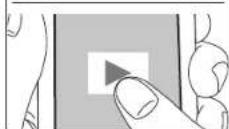
Play music. Increase the volume of the BLUETOOTH enabled device to an appropriate level.
- Due to the characteristics of BLUETOOTH wireless technology, the sound produced on this unit may slightly be behind the sound played on the BLUETOOTH enabled device.
Before start
Hookup
Setup
Playback
Part Names
Others
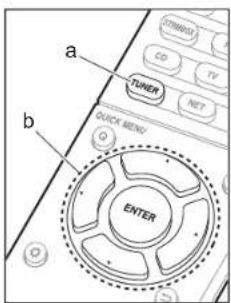
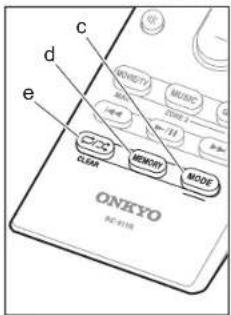
Listening To the Radio
- Press TUNER (a) on the remote controller repeatedly to select either "AM" or "FM" on the display.
- Press MODE (c) on the remote controller, so that the "TunMode: Auto" is displayed on the display.
- When you press the ▲/▼ cursor (b) buttons on the remote controller, automatic tuning starts, and searching stops when a station is found. When tuned into a radio station, the "TUNED" indicator on the display lights.
You can preset up to 40 stations.
- Tune into the AM/FM radio station you want to register.
- Press MEMORY (d) on the remote controller so that the preset number on the display flashes.
-
While the preset number is flashing (about 8 seconds), repeatedly press the ◀/▶ cursor (b) buttons on the remote controller to select a number between 1 and 40
-
Press MEMORY (d) again on the remote controller to register the station. When registered, the preset number stops flashing. To select a preset radio station, press the ◀ /▶ cursor (b) buttons on the remote controller.
- To delete a preset station, press the ◀/▶ cursor (b) buttons on the remote controller to select the preset number you want to delete, press MEMORY (d) on the remote controller and then press CLEAR (e) while the preset number is flashing. When deleted, the number on the display goes off.
Frequency step setting
Press the 📷 button on the remote controller to select "7. Miscellaneous" – "Tuner" – "AM/FM Frequency Step" and select the frequency step for your area. Note that when this setting is changed, all radio presets are deleted.
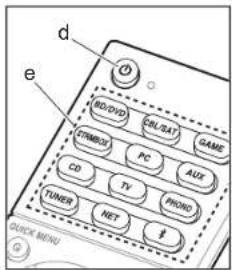
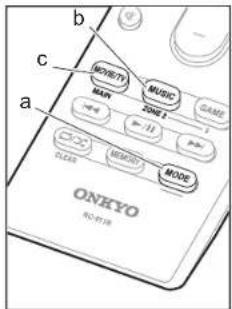
Multi-zone
If you haven't made the Multi Zone settings in Initial Setup (→P19), change the settings according to the audio output method to the separate room (ZONE 2). If you have connected speakers in a separate room with speaker cable, press the button on the remote control, then select "Zone 2" in "2. Speaker" - "Configuration" - "Zone Speaker". If you have connected a power amplifier in a separate room with an analog audio cable, then set "6. Multi Zone" - "Zone 2" - "Output Level" to "Variable" if you want to be able to adjust the volume on this unit.
Play
- While holding down MODE (a) on the remote controller, press ZONE 2 (b) for 3 or more seconds until the remote indicator blinks twice.
- The remote controller switches to the mode for controlling ZONE 2.

To return the remote controller to main room control mode: While holding down MODE (a) on the remote controller, press MAIN (c) for 3 seconds or more until the remote indicator flashes once.
- Point the remote controller at the main unit and press ⏻ (d).
"Z2" lights on the main unit display.
21
- Press the input selector button (e) of the input to be played in the separate room. To control on the main unit, press ZONE 2 and within 8 seconds, press the input selector button of the input to be played in a separate room. To play the same source in the main room and separate room, press ZONE 2 on the main unit twice.
- You cannot select different inputs for the main room and separate room with the "NET" or "BLUETOOTH" input selector. You cannot select different stations for
Before start
Hookup
Setup
Playback
Part Names
the main room and separate room with the AM/FM radio. When you select an input or station for the separate room, the main room also switches.
- DSD and Dolby TrueHD audio signals are not output to ZONE 2 when selected with the "NET" input selector.
4. To adjust the volume on this unit, adjust with VOL+/- on the remote controller. To control on the main unit, press ZONE 2 and adjust with the MASTER VOLUME control within 8 seconds.
- If ZONE 2 is on, power consumption during standby becomes larger than normal.
To turn off the function
Press ⏻ while in the mode for controlling ZONE 2 on the remote controller.
Playing in ZONE 2 only
If you turn the unit to standby during multi-zone playback, the Z2 indicator is dimmed and the playback mode is switched to playback in a separate room only. Setting ZONE 2 to on while this unit is in standby will also switch the playback mode to the same setting.
Others
To adjust the sound quality
It is possible to enhance or moderate the bass and treble of front speakers. Press TONE on the main unit several times to select the desired setting from "Bass" and "Treble", and turn the TONE dial to adjust. You can adjust the sound quality of the connected power amplifier when you turn ZONE 2 on.
Quick Menu
By pressing Q on the remote controller during play, you can adjust frequently used settings, such as the sound quality, using on-screen menus. Select the item with the cursors of the remote controller and press ENTER to confirm your selection. To return to the previous screen, press
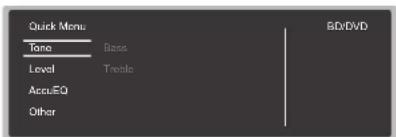
- You can adjust the sound quality with "Tone". "Other" includes settings such as "A/V Sync" that allows you to adjust the audio delay when the video is behind the audio, "Music Optimizer" that provides better sound quality for compressed audio, and "HDMI Out" which allows you to select the HDMI OUT terminal to output from.
When the unit is operating erratically (Resetting the unit)
Restarting the unit may help it operate more smoothly. To restart the unit, turn it to standby, and then press ON/STANDBY on the main unit for at least 5 seconds. (The unit's settings will be maintained.) If there is no improvement even after the unit is restarted, try disconnecting and reconnecting the power cords of the unit and connected equipment. When there is still no improvement, resetting the unit to the status at the time of shipment may solve the problem. If you reset the unit status, your preferences will be reset to the defaults. Note them down before the operation below.
How to reset the unit
- While holding down CBL/SAT on the main unit, press ⏻ ON/STANDBY on the main unit.
- "Clear" appears on the display and the unit returns to standby. Do not unplug the power cord until "Clear" disappears from the display.
To reset the remote controller, while holding down MODE, press Ctrl the remote indicator flash twice (about 3 seconds).
> Before start > Hookup > Setup > Playback > Part Names
Front Panel
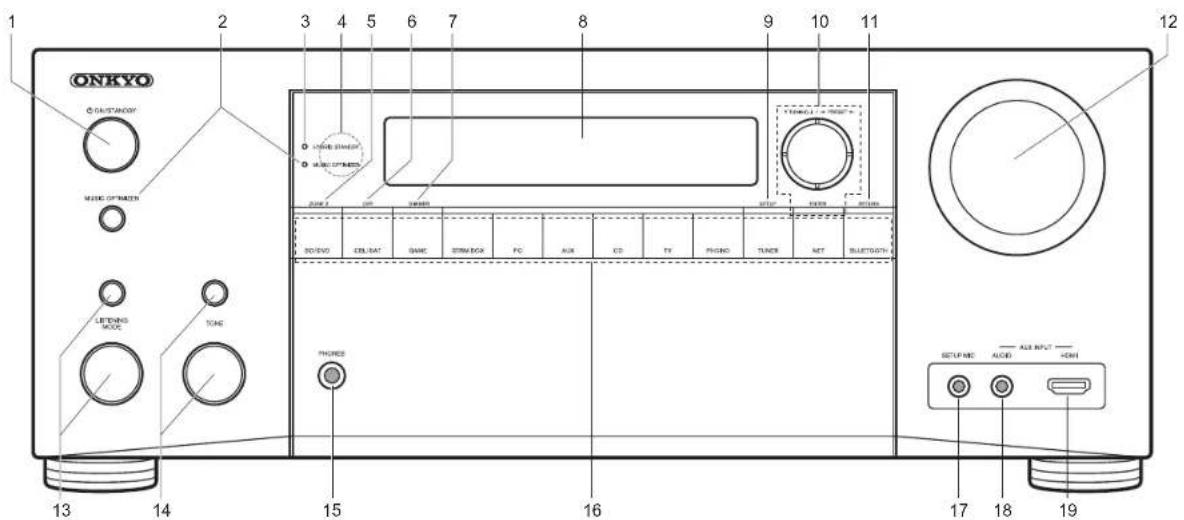
- ON/STANDBY button: Turns the unit on or into standby mode.
- MUSIC OPTIMIZER button/indicator: Turns on/off the Music Optimizer function that provides better sound quality for compressed audio.
- HYBRID STANDBY indicator: Lights if the unit enters standby mode when the features are enabled that continue to work when this unit is in standby, such as HDMI Standby Through and Network Standby.
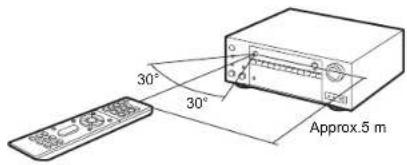
- Remote control sensor
- ZONE 2 button: Controls the multi-zone function. (→P23)
- OFF button: Switches the multi-zone function off.
- DIMMER button: You can adjust the brightness of the display in three steps. It cannot be turned off completely.
-
Display (→P27)
-
SETUP button: Displays the Setup menu.
- Cursor buttons (▼ TUNING ▲ / ◀ PRESET ▶ button) and ENTER button: Select the item with the cursors and press ENTER to confirm your selection. When using the TUNER, select the frequency with ▼ TUNING ▲, or select preset stations with ◀ PRESET ▶.
- RETURN button: Returns the display to the previous state.
- MASTER VOLUME: Allows you to adjust the volume.
13.(Up) LISTENING MODE button / (Down) LISTENING MODE dial: Allows you to select the listening mode. Press the button repeatedly to select a category from "Movie/TV", "Music", "Game", then turn the dial to change the mode. (→P20)
14.(Up) TONE button / (Down) TONE dial: Adjusts the high
tone and low tone. Press the button repeatedly to select the item to adjust from "Bass" and "Treble", and turn the dial to adjust.
15. PHONES jack: Stereo headphones with a standard plug (1/4 inch or 6.3 mm) are connected.
16. Input selector button: Switch the input to be played.
17. SETUP MIC jack: The supplied speaker setup microphone is connected.
18.AUX INPUT AUDIO jack: You can play the audio from an external player by connecting using a stereo mini plug cable.
19.AUX INPUT HDMI jack: Connect to a video camera, etc., using a HDMI cable.
> Before start > Hookup > Setup > Playback > Part Names
Rear Panel
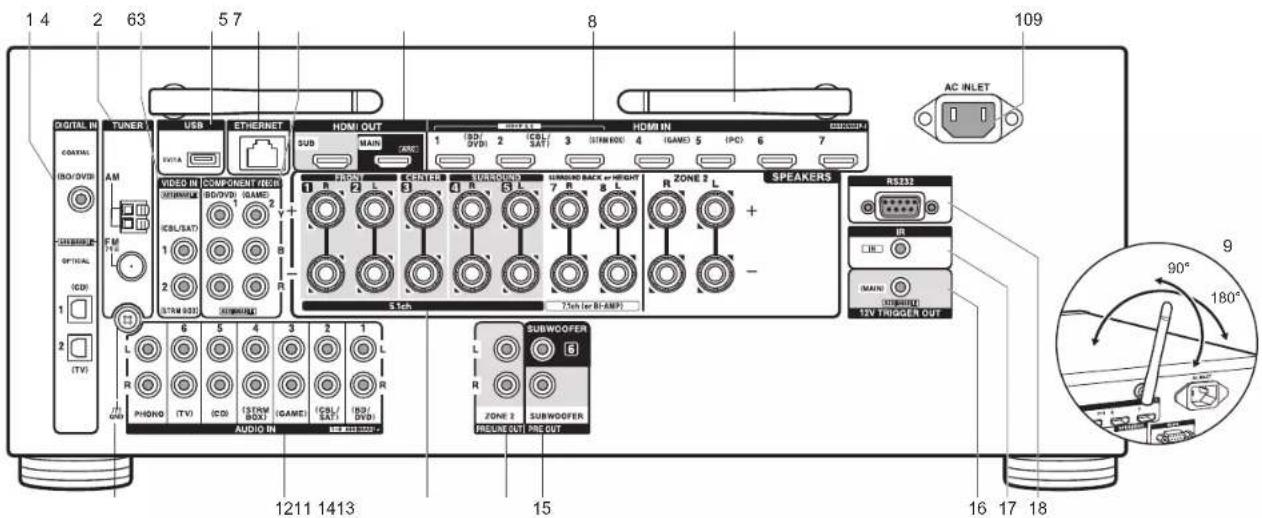
- DIGITAL IN OPTICAL/COAXIAL jacks: Input TV or AV component digital audio signals with a digital optical cable or digital coaxial cable.
- TUNER AM/FM 75Ω terminal: The supplied antennas are connected.
- VIDEO IN jacks: Input the AV component video signals with an analog video cable.
- USB port: A USB storage device is connected so that music files stored in it can be played. You can also supply power (5V/1A) to USB devices with a USB cable.
- ETHERNET port: Connect to the network with an Ethernet cable.
- COMPONENT VIDEO IN jacks: Input the video signals from AV components with a component video cable.
- HDMI OUT jacks: Transmit video signals and audio
signals with a HDMI cable connected to a monitor such as a TV or projector.
8. HDMI IN jacks: Transmit video signals and audio signals with a HDMI cable connected to an AV component.
9. Wireless antenna: Used for Wi-Fi connection or when using a BLUETOOTH enabled device. Adjust their angles according to the connection status.
10. AC INLET: The supplied power cord is connected.
11. GND terminal: The ground wire of the turntable is connected.
12. AUDIO IN jacks: Input TV or AV component audio signals with an analog audio cable.
13.SPEAKERS terminals: Connect speakers with speaker cables. You can connect the multichannel speakers for the main room and the speakers for a separate room
(ZONE 2). (Compatible with banana plugs)
14.ZONE 2 PRE/LINE OUT jack: Output audio signals with an analog audio cable to a pre-main amplifier or a power amplifier in a separate room (ZONE 2). (→P16)
15. SUBWOOFER PRE OUT jack: Connect a powered subwoofer with a subwoofer cable. Up to two powered subwoofers can be connected. The same signal is output from each of the SUBWOOFER PRE OUT jacks.
16.12V TRIGGER OUT jack: Allows you to connect a device with 12V trigger input jack to enable link operation between the device and the unit.
17. IR IN port: Allows you to connect a multiroom remote control kit.
18.RS232 port: For connection to the home control system.
> Before start > Hookup > Setup > Playback > Part Names
Remote Controller
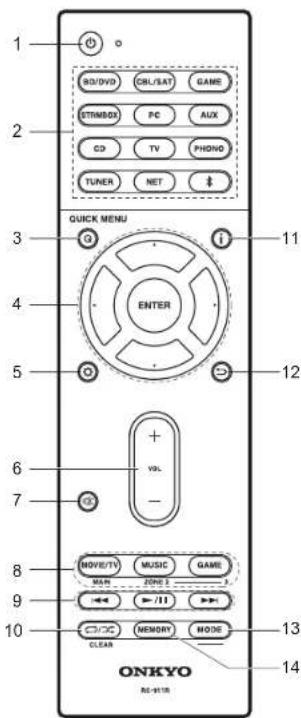
- ⏻ button: Turns the unit on or into standby mode.
- Input selector buttons: Switches the input to be played.
- Q (QUICK MENU) button: You can perform common settings on the TV screen. (→P24)
- Cursor buttons and ENTER button: Select the item with the cursors and press ENTER to confirm your selection.
- button: Displays the Setup menu.
- Volume buttons: Allows you to adjust the volume. This button also cancels the muting.
- button: Temporarily mutes audio. Press again to cancel muting.
- LISTENING MODE buttons: Allows you to select the listening mode. (→P20) MAIN/ZONE 2 buttons: Controls the multi-zone function. (→P23)
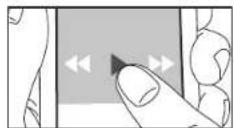
- Play button: You can start play of the Music Server or USB.
- 📄/☒ button: You can start repeat or random play of the Music Server or USB. CLEAR button: Deletes all characters you have entered when entering text on the TV screen.
- i button: Switches the information on the display.
- ➕ button: Returns the display to the previous state.
- MODE button: Switches tuning to a station between automatic tuning and manual tuning.
- MEMORY button: Registers a radio station.
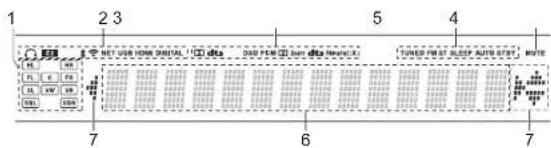
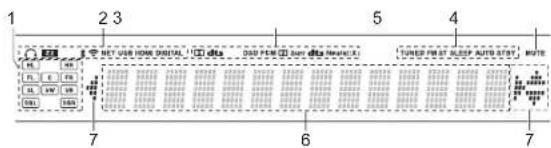
Display
-
Speaker/Channel display: Displays the output channel that corresponds to the selected listening mode.
-
Lights in the following conditions.
Q: When headphones are connected.
Z2: When ZONE 2 is on.
*: When connected by BLUETOOTH.
: When connected by Wi-Fi.
NET: When "NET" is selected with the input selector and the unit is connected to the network. It will flash if the connection to the network is not correct.
USB: When "NET" is selected with the input selector and the unit is connected by USB and the USB device is selected. Flashes if the USB is not properly connected.
HDMI: When HDMI signals are input and the HDMI input is selected. DIGITAL: When digital signals are input and the digital input is selected.
-
Lights according to the type of input digital audio signals and the listening mode.
-
Lights in the following conditions.
TUNED: Receiving AM/FM radio.
FM ST: Receiving FM stereo.
SLEEP: When the sleep timer is set.
AUTO STBY: Auto Standby is on.
-
Flashes when muting is on.
-
Displays various information of the input signals.
-
This may light when performing operations with the "NET" input selector.
License and Trademark Information
DOLBY
Manufactured under license from Dolby Laboratories. Dolby, Dolby Atmos, Dolby Surround and the double-D symbol are trademarks of Dolby Laboratories.

For DTS patents, see http://patents.dts.com. Manufactured under license from DTS, Inc. DTS, the Symbol, DTS in combination with the Symbol, DTS:X, and the DTS:X logo are registered trademarks or trademarks of DTS, Inc. in the United States and/or other countries. © DTS, Inc. All Rights Reserved.

"CINEMA FILTER" and "CINEMA FILTER (logo)" are trademarks of Onkyo Corporation.

"VLSC" and "VLSC (logo)" are trademarks of Onkyo Corporation.
HDMI®
The terms HDMI and HDMI High-Definition Multimedia Interface, and the HDMI Logo are trademarks or registered trademarks of HDMI Licensing LLC in the United States and other countries.

The Wi-Fi CERTIFIED Logo is a certification mark of the Wi-Fi Alliance.


AirPlay, iPad, iPhone, and iPod touch are trademarks of Apple Inc., registered in the U.S. and other countries.
iPad Air and iPad mini are trademarks of Apple Inc.
"Made for iPod", "Made for iPhone" and "Made for iPad" mean that an electronic accessory has been designed to connect specifically to iPod, iPhone, or iPad, respectively, and has been certified by the developer to meet Apple performance standards. Apple is not responsible for the operation of this device or its compliance with safety and regulatory standards.
Please note that the use of this accessory with iPod, iPhone or iPad may affect wireless performance.
AirPlay works with iPhone, iPad, and iPod touch with iOS 4.3.3 or later, Mac with OS X Mountain Lion or later, and PC with iTunes 10.2.2 or later.
Apple, Apple TV and Safari are trademarks of Apple Inc., registered in the U.S. and other countries.
Bluetooth
The BLUETOOTH® word mark and logos are registered trademarks owned by Bluetooth SIG, Inc. and any use of such marks by Onkyo Corporation is under license. Other trademarks and trade names are those of their respective owners.
Onkyo Corporation does not guarantee BLUETOOTH compatibility between the AV receiver and all BLUETOOTH enabled devices. For compatibility between the AV receiver and another device with BLUETOOTH technology, consult the device's documentation and dealer. In some countries, there may be restrictions on using BLUETOOTH devices. Check with your local authorities.
PANDORA, the PANDORA logo, and the Pandora trade dress are trademarks or registered trademarks of Pandora Media, Inc. Used with permission.

The product with this logo is conformed to Hi-Res Audio standard defined by Japan Audio Society. This logo is used under license from Japan Audio Society.
This product is protected by certain intellectual property rights of Microsoft. Use or distribution of such technology outside of this product is prohibited without a license from Microsoft.
Windows and the Windows logo are trademarks of the Microsoft group of companies.
QR Code is a registered trademark of DENSO WAVE INCORPORATED.
"x.v.Color" and "x.v.Color" logo are trademarks of Sony Corporation.
DSD and the Direct Stream Digital logo are trademarks of Sony Corporation. MPEG Layer-3 audio coding technology licensed from Fraunhofer IIS and Thomson.
AccuEQ. Music Optimizer, RIHD and WRAT are trademarks of Onkyo
Corporation.
*All other trademarks are the property of their respective owners.*
Through this device you are able to link to other services or websites which are not under the control of any company which has designed, manufactured or distributed/have distributed this device, and its affiliates (collectively.
"Company"). We have no control over the nature, content and availability of those services. The inclusion of any links does not necessarily imply a recommendation or endorse the views expressed within them.
All information, content and services available through this device belong to third parties and are protected by copyright, patent, trademark and/or other intellectual property laws of applicable countries.
The information, content and services provided through this device are for your personal, noncommercial use only. Any information, content or services may not be used in any manner other than previously approved by the appropriate content owner or service provider.
You may not modify, copy, republish, translate, exploit, create derivative works, upload, post, transmit, sell or distribute in any manner any information, content or services available through this device, unless expressly permitted by the appropriate copyright, patent, trademark and/or other intellectual property owner, including, without limitation, content owner or service provider. THE CONTENT AND SERVICES AVAILABLE THROUGH THIS DEVICE ARE PROVIDED "AS IS".
COMPANY DOES NOT WARRANT INFORMATION, CONTENT OR SERVICES SO PROVIDED, EITHER EXPRESSLY OR IMPLIEDLY, FOR ANY PURPOSE.
COMPANY EXPRESSLY DISCLAIMS ANY WARRANTIES, EXPRESS OR IMPLIED, INCLUDING BUT NOT LIMITED TO, WARRANTIES OF TITLE, NON-INFRINGEMENT, MERCHANTABILITY OR FITNESS FOR A PARTICULAR PURPOSE.
Company makes no representation or warranty of any kind, express or implied, about the completeness, accuracy, validity, legality, reliability, suitability or availability with respect to the information, content or services available through this device. Company shall not be liable, whether in contract or tort, including negligence and strict liability, for any direct, indirect, special, incidental or consequential damages or any other damages arising out of, or in connection with, any information contained in, or as a result of the use of any content or service by you or any third party, even if Company has been advised of the possibility of such damages, nor shall Company be liable for any third party claims against users of this device or any third party. In no event shall Company be responsible nor liable for, without limiting the generality of the foregoing, any interruption or suspension of any information, content or service available through this device. Company is neither responsible nor liable for customer service related to the information, content and services available through this device. Any question or request for service relating to the information, content or services should be made directly to the appropriate content owners and services providers.
natural_image
Illustration of an open box with a downward arrow and a separate photo of a radio device (no text or symbols)2
3
4
5
6
natural_image
Diagram showing a device with an attached cable and a camera module, both enclosed in circular frames (no text or symbols)Raccordement multizone
natural_image
Simple line drawing of a vertical device with a coiled cable and connector (no text or symbols)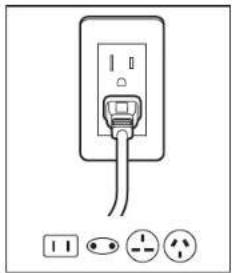
natural_image
Diagram of a wall socket with three terminal plugs and three power outlets below (no text or labels)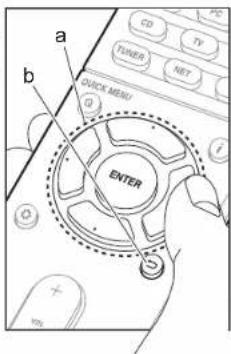
Pour refaire la configuration initiale
Fonctionnement
Dolby Surround/DTS Neural:X
natural_image
Illustration of hands holding a smartphone with playback controls (no text or symbols)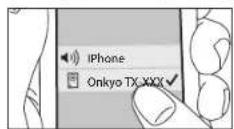
AirPlay
Lecture BLUETOOTH®
Jumelage
Manufactured under license from Dolby Laboratories. Dolby, Dolby Atmos, Dolby Surround and the double-D symbol are trademarks of Dolby Laboratories.

For DTS patents, see http://patents.dts.com. Manufactured under license from DTS, Inc. DTS, the Symbol, DTS in combination with the Symbol, DTS:X, and the DTS:X logo are registered trademarks or trademarks of DTS, Inc. in the United States and/or other countries. © DTS, Inc. All Rights Reserved.

"CINEMA FILTER" and "CINEMA FILTER (logo)" are trademarks of Onkyo Corporation.

"VLSC" and "VLSC (logo)" are trademarks of Onkyo Corporation.
HDMI®
The terms HDMI and HDMI High-Definition Multimedia Interface, and the HDMI Logo are trademarks or registered trademarks of HDMI Licensing LLC in the United States and other countries.
The Wi-Fi CERTIFIED Logo is a certification mark of the Wi-Fi Alliance.


AirPlay, iPad, iPhone, and iPod touch are trademarks of Apple Inc., registered in the U.S. and other countries.
iPad Air and iPad mini are trademarks of Apple Inc.
"Made for iPod", "Made for iPhone" and "Made for iPad" mean that an electronic accessory has been designed to connect specifically to iPod, iPhone, or iPad, respectively, and has been certified by the developer to meet Apple performance standards. Apple is not responsible for the operation of this device or its compliance with safety and regulatory standards.
Please note that the use of this accessory with iPod, iPhone or iPad may affect wireless performance.
AirPlay works with iPhone, iPad, and iPod touch with iOS 4.3.3 or later, Mac with OS X Mountain Lion or later, and PC with iTunes 10.2.2 or later.
Apple, Apple TV and Safari are trademarks of Apple Inc., registered in the U.S. and other countries.
Bluetooth
The BLUETOOTH ^® word mark and logos are registered trademarks owned by Bluetooth SIG, Inc. and any use of such marks by Onkyo Corporation is under license. Other trademarks and trade names are those of their respective owners.
Onkyo Corporation does not guarantee BLUETOOTH compatibility between the AV receiver and all BLUETOOTH enabled devices. For compatibility between the AV receiver and another device with BLUETOOTH technology, consult the device's documentation and dealer. In some countries, there may be restrictions on using BLUETOOTH devices. Check with your local authorities.
PANDORA, the PANDORA logo, and the Pandora trade dress are trademarks or registered trademarks of Pandora Media, Inc. Used with permission.

The product with this logo is conformed to Hi-Res Audio standard defined by Japan Audio Society. This logo is used under license from Japan Audio Society.
This product is protected by certain intellectual property rights of Microsoft. Use or distribution of such technology outside of this product is prohibited without a license from Microsoft.
Windows and the Windows logo are trademarks of the Microsoft group of companies.
QR Code is a registered trademark of DENSO WAVE INCORPORATED.
"x.v.Color" and "x.v.Color" logo are trademarks of Sony Corporation. DSD and the Direct Stream Digital logo are trademarks of Sony Corporation.
MPEG Layer-3 audio coding technology licensed from Fraunhofer IIS and Thomson.
AccuEQ, Music Optimizer, RIHD and WRAT are trademarks of Onkyo Corporation.
*All other trademarks are the property of their respective owners.*
* 1: 22° a 30°, * 2: 120°

* 1: 22" a 30", * 2: 90' a 110", * 3: 135' a 150"
* 1: 22° a 30°, * 2: 120°

* 1: 22° a 30°, * 2: 120°

natural_image
Diagram showing a device connected to a cable and a camera, both enclosed in circular frames (no text or symbols)1 Cable de vídeo componente, 2 Cable coaxial digital, 3 Cable de audio analógico

Si tiene:
Componentes AV no HDMI
natural_image
Simple line drawing of a vertical connector with a coiled cable and internal components (no text or symbols)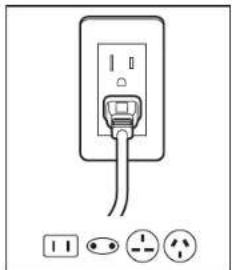
natural_image
Diagram of a wall socket with three terminal symbols below (no text or labels)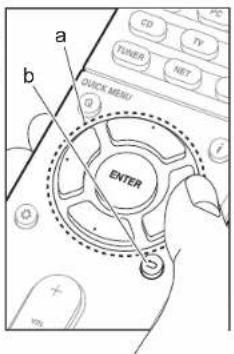
Initial Setup se inicia automáticamente
Dolby Surround/DTS Neural:X
natural_image
Illustration of hands holding a smartphone with playback controls and a play button (no text or symbols)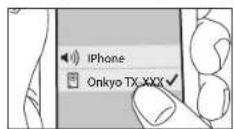
AirPlay
Multizona
Pantalla
Manufactured under license from Dolby Laboratories. Dolby, Dolby Atmos, Dolby Surround and the double-D symbol are trademarks of Dolby Laboratories.
dtsX
For DTS patents, see http://patents.dts.com. Manufactured under license from DTS, Inc. DTS, the Symbol, DTS in combination with the Symbol, DTS:X, and the DTS:X logo are registered trademarks or trademarks of DTS, Inc. in the United States and/or other countries. © DTS, Inc. All Rights Reserved.
CINEMA FILTER
"CINEMA FILTER" and "CINEMA FILTER (logo)" are trademarks of Onkyo Corporation.
VLSC
"VLSC" and "VLSC (logo)" are trademarks of Onkyo Corporation.
HDMI
The terms HDMI and HDMI High-Definition Multimedia Interface, and the HDMI Logo are trademarks or registered trademarks of HDMI Licensing LLC in the United States and other countries.
WiFi CERTIFIED
The Wi-Fi CERTIFIED Logo is a certification mark of the Wi-Fi Alliance.


AirPlay, iPad, iPhone, and iPod touch are trademarks of Apple Inc., registered in the U.S. and other countries.
iPad Air and iPad mini are trademarks of Apple Inc.
"Made for iPod", "Made for iPhone" and "Made for iPad" mean that an electronic accessory has been designed to connect specifically to iPod, iPhone, or iPad, respectively, and has been certified by the developer to meet Apple performance standards. Apple is not responsible for the operation of this device or its compliance with safety and regulatory standards.
Please note that the use of this accessory with iPod, iPhone or iPad may affect wireless performance.
AirPlay works with iPhone, iPad, and iPod touch with iOS 4.3.3 or later, Mac with OS X Mountain Lion or later, and PC with iTunes 10.2.2 or later.
Apple, Apple TV and Safari are trademarks of Apple Inc., registered in the U.S. and other countries.
Bluetooth
The BLUETOOTH ^® word mark and logos are registered trademarks owned by Bluetooth SIG, Inc. and any use of such marks by Onkyo Corporation is under license. Other trademarks and trade names are those of their respective owners.
Onkyo Corporation does not guarantee BLUETOOTH compatibility between the AV receiver and all BLUETOOTH enabled devices. For compatibility between the AV receiver and another device with BLUETOOTH technology, consult the device's documentation and dealer. In some countries, there may be restrictions on using BLUETOOTH devices. Check with your local authorities.
PANDORA, the PANDORA logo, and the Pandora trade dress are trademarks or registered trademarks of Pandora Media, Inc. Used with permission.
Hi-Res AUDIO
The product with this logo is conformed to Hi-Res Audio standard defined by Japan Audio Society. This logo is used under license from Japan Audio Society.
This product is protected by certain intellectual property rights of Microsoft. Use or distribution of such technology outside of this product is prohibited without a license from Microsoft.
Windows and the Windows logo are trademarks of the Microsoft group of companies.
QR Code is a registered trademark of DENSO WAVE INCORPORATED.
"x.v.Color" and "x.v.Color" logo are trademarks of Sony Corporation. DSD and the Direct Stream Digital logo are trademarks of Sony Corporation.
MPEG Layer-3 audio coding technology licensed from Fraunhofer IIS and Thomson.
AccuEQ, Music Optimizer, RIHD and WRAT are trademarks of Onkyo Corporation.
*All other trademarks are the property of their respective owners.*
18 Park Way, Upper Saddle River, N.J. 07458, U.S.A.
For Dealer, Service, Order and all other Business Inquiries:
Tel: 201-785-2600 Fax: 201-785-2650
http://www.us.onkyo.com/
For Product Support Team Only:
1-800-229-1687
http://www.us.onkyo.com/
Gutenbergstrasse 3, 82178 Puchheim, Germany
Tel: +49-8142-4401-0 Fax: +49-8142-4208-213
http://www.eu.onkyo.com/
Anteros Building, Odyssey Business Park, West End Road, South Ruislip, Middlesex,
HA4 6QQ United Kingdom
Tel: +44 (0)871-200-1996 Fax: +44 (0)871-200-1995
For Product Support only: +44 (0)208-836-3510
http://www.uk.onkyo.com/en/
- Avenue de Marais F - 95816 Argenteuil Cedex FRANCE
For Product Support only: +33 969 368 138
Unit 1033, 10/F, Star House, No 3, Salisbury Road, Tsim Sha Tsui Kowloon, Hong Kong.
Tel: +852-2429-3118 Fax: +852-2428-9039
http://www.hk.onkyo.com/
302, Building 1, 20 North Chaling Rd., Xuhui District, Shanghai, China 200032,
Tel: +86-21-52131366 Fax: +86-21-52130396
http://www.cn.onkyo.com/
Please contact an Onkyo distributor referring to Onkyo SUPPORT site.
http://www.intl.onkyo.com/support/
Корпорация О энд Пи
The above-mentioned information is subject to change without prior notice.
Visit the Onkyo web site for the latest update.
(C) Copyright 2016 Onkyo & Pioneer Corporation Japan. All rights reserved. Onkyo group has established its Privacy Policy, available at [http://www.onkyo.com/privacy/]
Printed in Malaysia / Imprimé en Malaisie / Напечатано в Малайзии