
PIXMA E4240 - Printer CANON - Free user manual and instructions
Find the device manual for free PIXMA E4240 CANON in PDF.
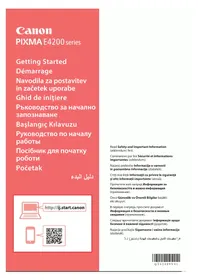



| Product Type | Inkjet Multifunction Printer |
| Brand | Canon |
| Model | PIXMA E4240 |
| Dimensions (W x D x H) | Approx. 426 x 306 x 145 mm |
| Weight | Approx. 3.5 kg |
| Power Supply | 100-240 V AC, 50/60 Hz |
| Power Consumption (standby) | Approx. 10 W |
| Main Functions | Print, Scan, Copy, Fax |
| Connectivity | Wi-Fi, USB 2.0 |
| Ink Type | FINE cartridges (black and color) |
| Paper Tray Capacity | 100 sheets (plain paper) |
| Print Speed (black) | Up to 8 ipm |
| Print Speed (color) | Up to 4 ipm |
| Print Resolution | Up to 4800 x 1200 dpi |
| Display | LCD Screen |
| Maintenance | Print head alignment via software |
| Safety | Do not touch electrical contacts; keep minimum distance of 5 cm from wall |
| Spare Parts and Repairability | User-replaceable FINE cartridges |
| General Information | Manual available in multiple languages; online support at http://ij.start.canon |
Frequently Asked Questions - PIXMA E4240 CANON
User questions about PIXMA E4240 CANON
0 question about this device. Answer the ones you know or ask your own.
Ask a new question about this device
Download the instructions for your Printer in PDF format for free! Find your manual PIXMA E4240 - CANON and take your electronic device back in hand. On this page are published all the documents necessary for the use of your device. PIXMA E4240 by CANON.
USER MANUAL PIXMA E4240 CANON
Read Safety and Important Information (addendum) first.
Connecting with Computer and Smartphone/Tablet.. page 4
Instructional Videos
Instructional Videos
Instructional Videos
Instructional Videos
Instructional Videos
Instructional Videos
Instructional Videos
Instructional Videos
Instructional Videos
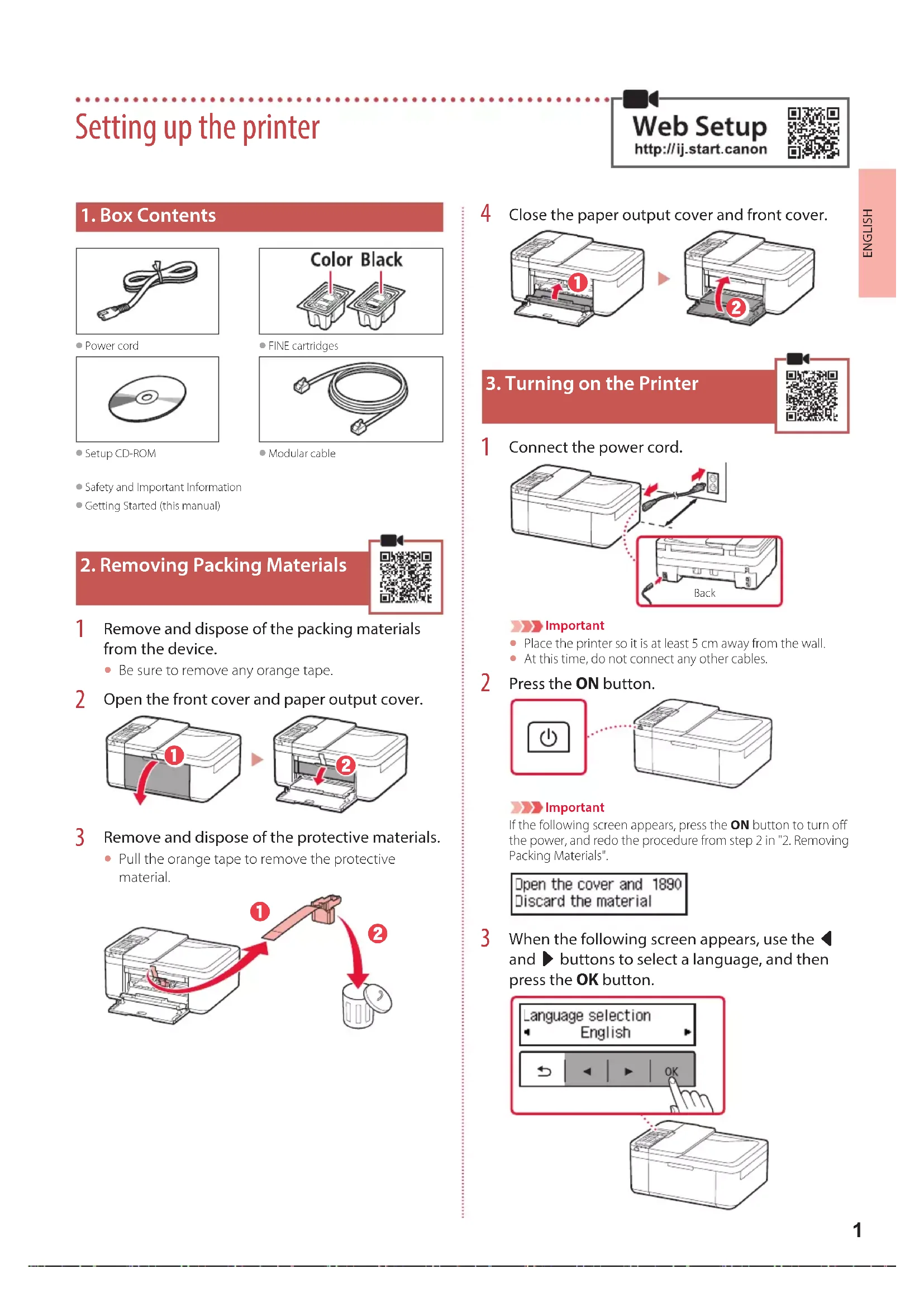
Setting up the printer
1. Box Contents
Power cord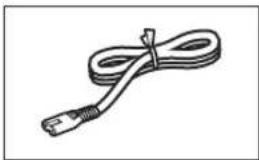
FINE cartridges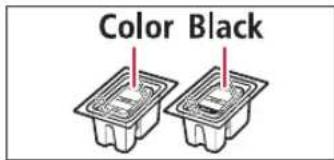
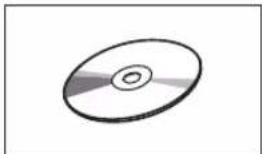
Setup CD-ROM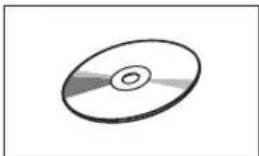
Modular cable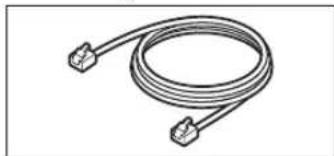
Safety and Important Information, Getting Started (this manual)
2. Removing Packing Materials
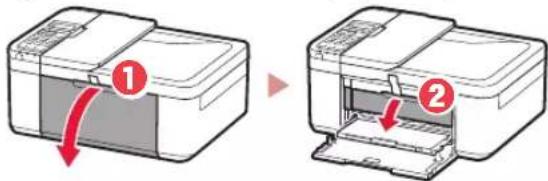
1. Remove and dispose of the packing materials from the device.
- Be sure to remove any orange tape.
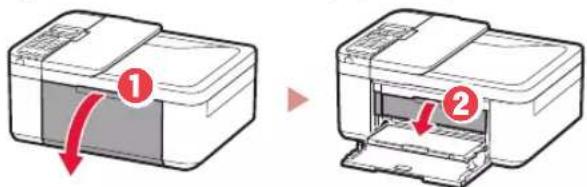
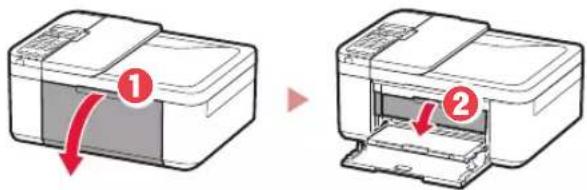
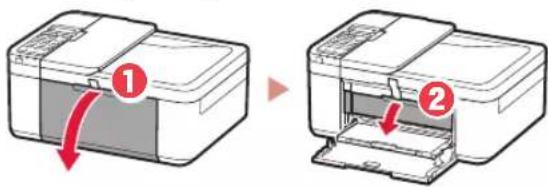
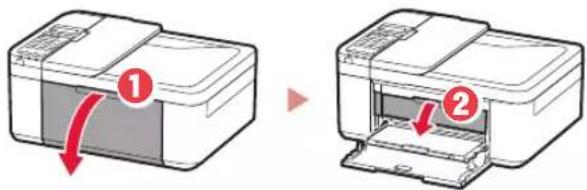
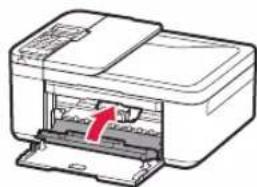
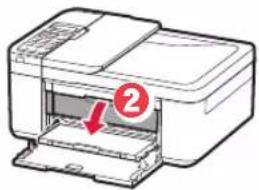
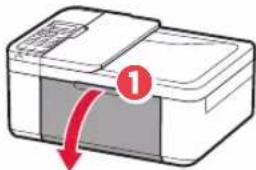
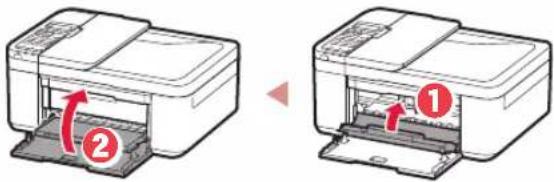
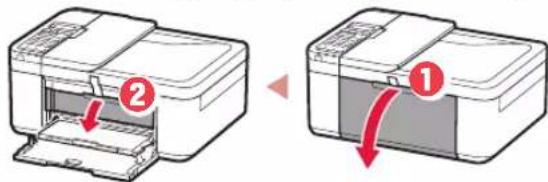
2. Open the front cover and paper output cover.
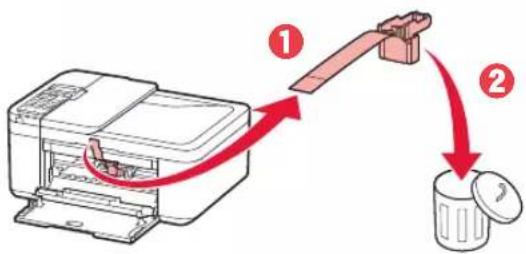
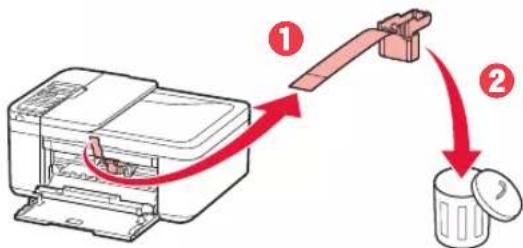
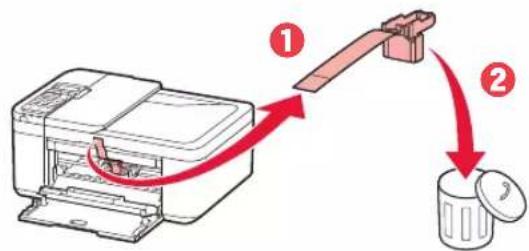
3. Remove and dispose of the protective materials.
- Pull the orange tape to remove the protective material.
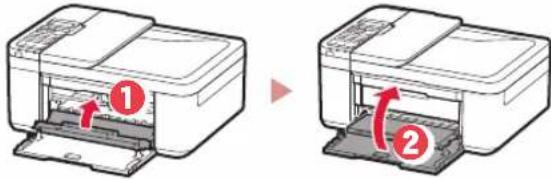
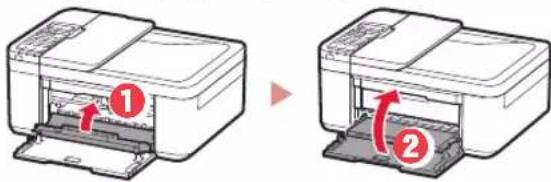
4. Close the paper output cover and front cover.
3. Turning on the Printer
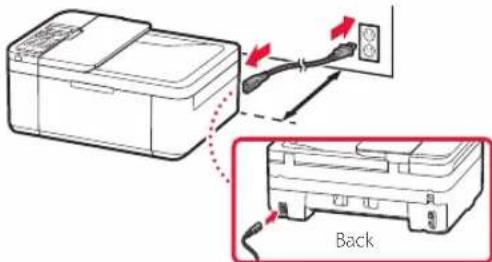
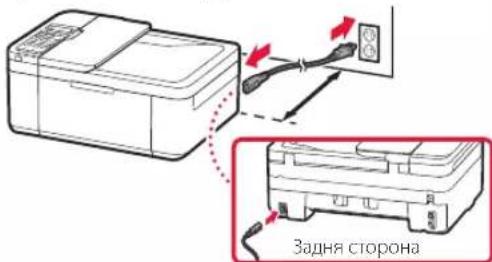
1. Connect the power cord.

Important
- Place the printer so it is at least 5 cm away from the wall.
- At this time, do not connect any other cables.
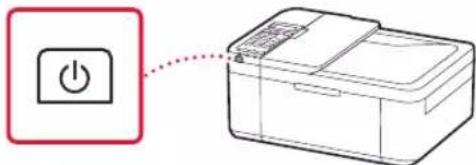
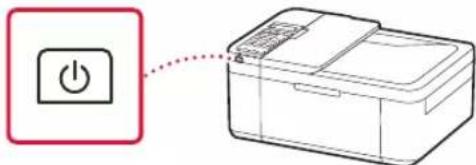
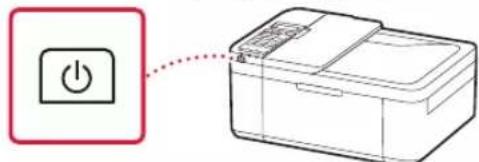
2 Press the ON button.

Important
If the following screen appears, press the ON button to turn off the power, and redo the procedure from step 2 in "2. Removing Packing Materials".
Open the cover and discard the material.
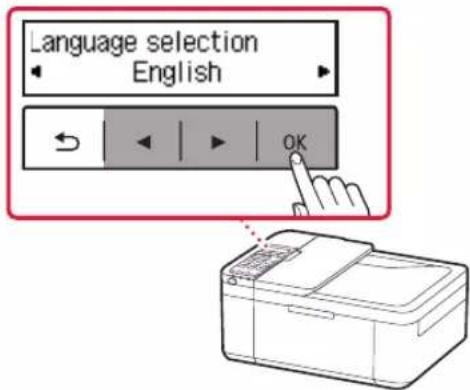
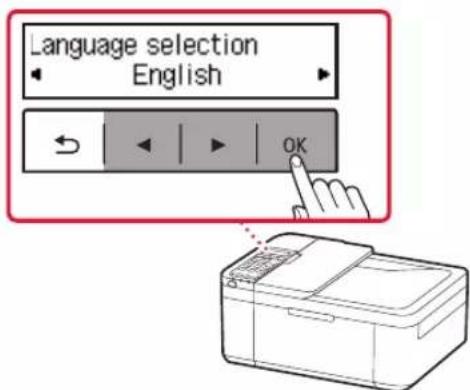
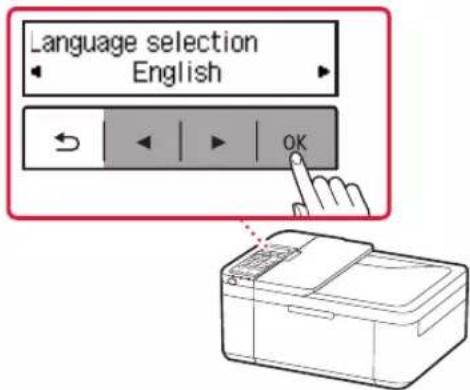
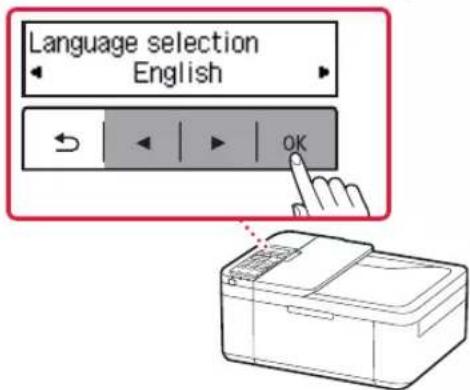
3 When the following screen appears, use the left and right buttons to select a language, and then press the OK button.
Setting up the printer
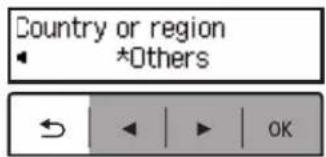
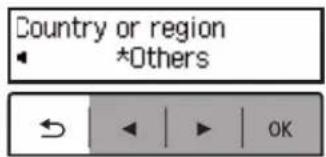
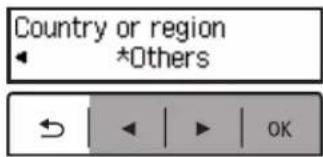
4 If the following screen appears, select your country or region, and then press the OK button.
4. Installing the FINE Cartridges
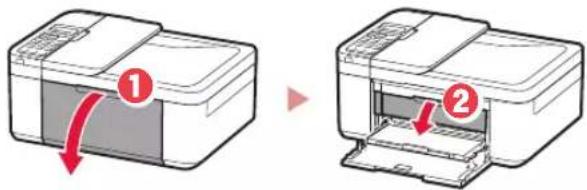
1 Open the front cover and paper output cover.
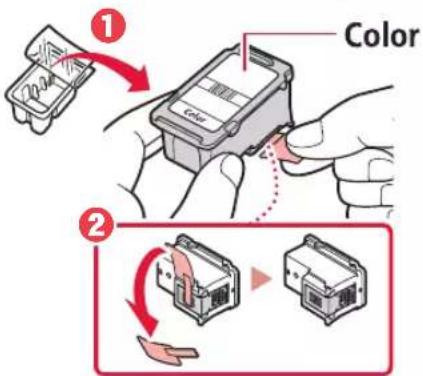
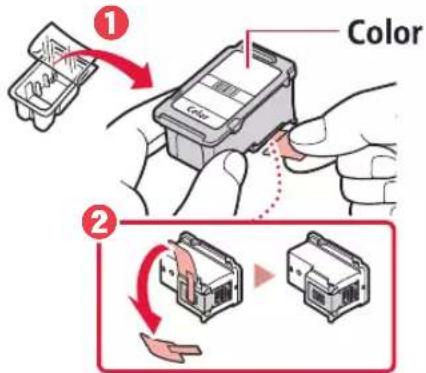
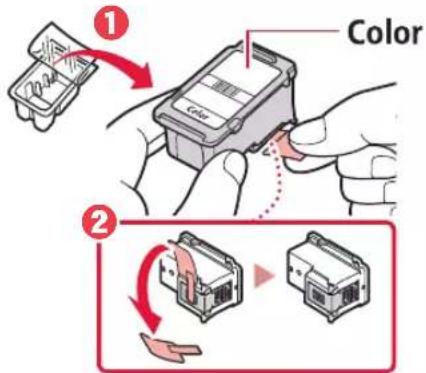
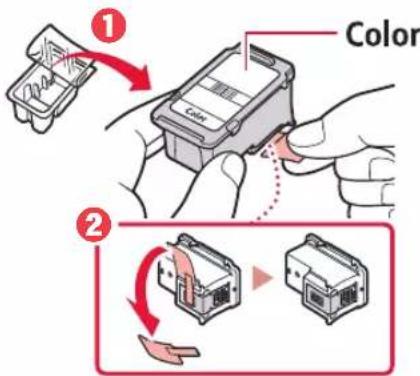
2 Remove the color FINE cartridge from the container and remove the protective tape.
Important
- Do not touch the ink on the protective tape. It could stain your hands or surrounding objects.
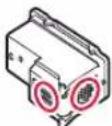
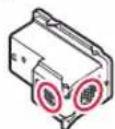
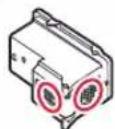
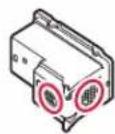
- Do not touch the areas shown in the figure. Otherwise, the printer may not print correctly.
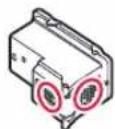
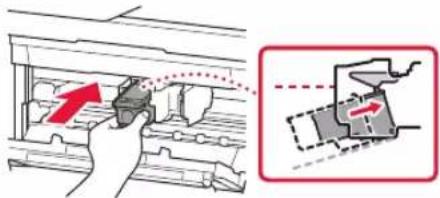
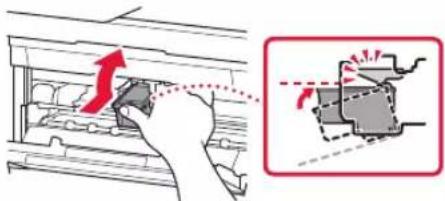
3 Install the color FINE cartridge.
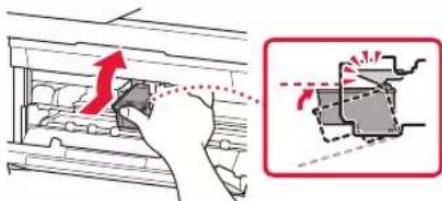
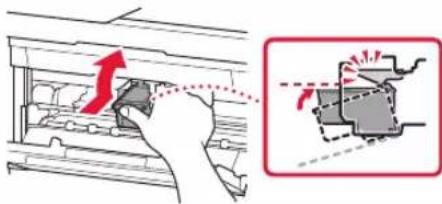
The color FINE cartridge goes on the left. - Tilt the FINE cartridge upward at an angle and insert it into the FINE cartridge holder.
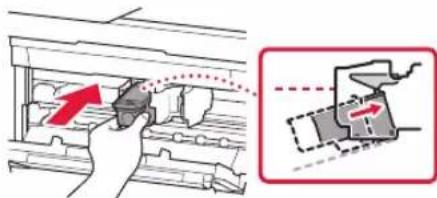
- Insert it all the way and press it upward until it clicks.
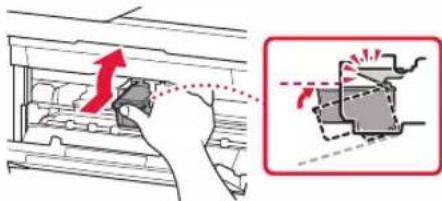
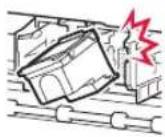
Important
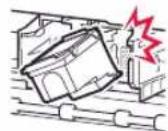
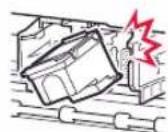
Do not bump the FINE cartridge. Doing so may cause a malfunction.
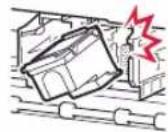
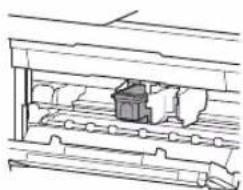
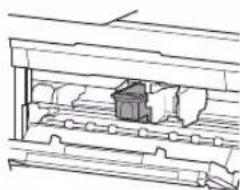
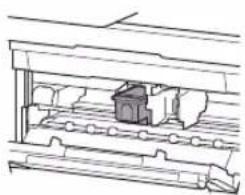
4 Confirm that the FINE cartridge is straight and level.
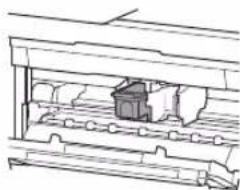
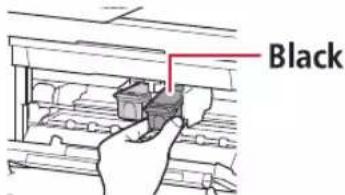
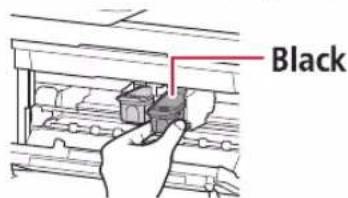
5 Repeat steps 2 to 4 to install the black FINE cartridge.
The black FINE cartridge goes on the right.
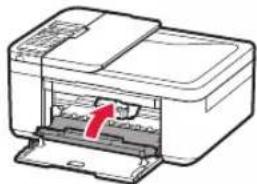
6 Close the paper output cover.
Important
If the following screen appears, return to step 3 in "4. Installing the FINE Cartridges" and confirm that the color and black FINE cartridges are positioned correctly.
Install the cartridges pro 168A
5. Loading Paper
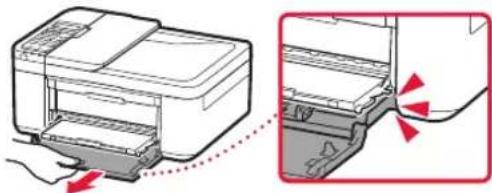
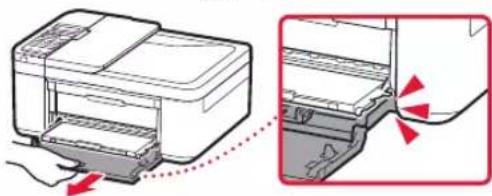
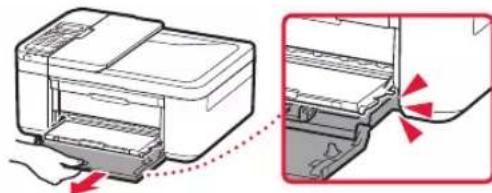
Pull out the cassette until it stops.
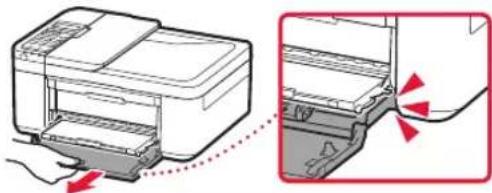
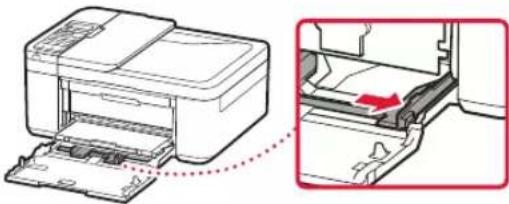
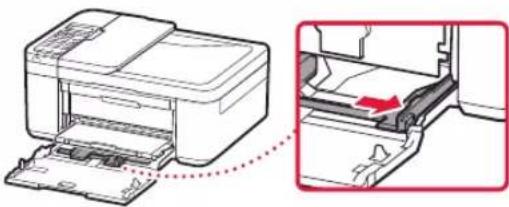
2 Slide apart the paper guides.
- Grip the right paper guide and move it to the right edge.
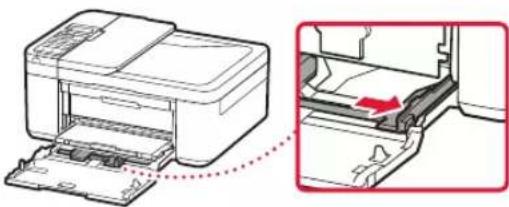
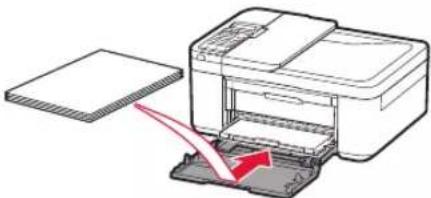
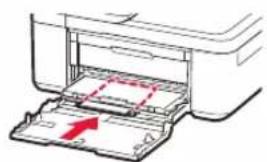
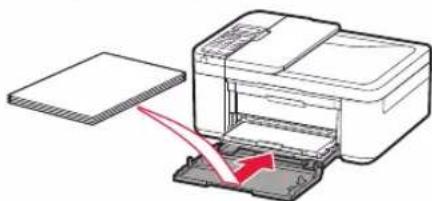
3 Load paper.
- Load plain LTR or A4 size paper with the print side facing down.
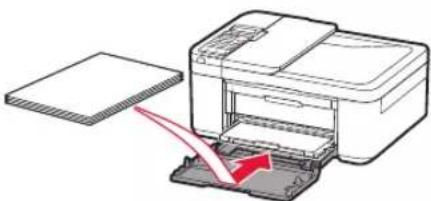
- Push the paper all the way into the cassette, and then slide the right paper guide against the edge of the paper stack.
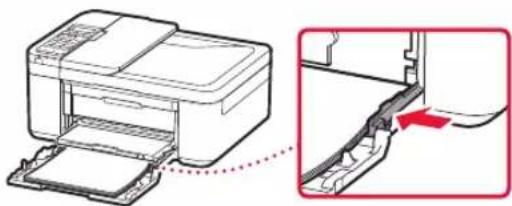
4 Push in the cassette.
The arrow (▷) on the front cover should align with the front edge of the printer.
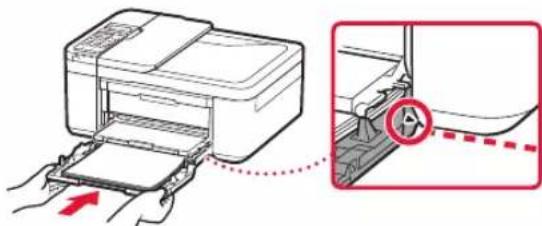
5 Pull out the paper output support of the paper output tray.
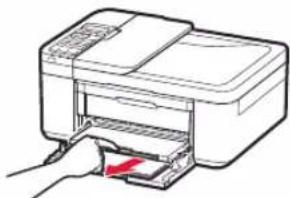
6 Open the output tray extension.
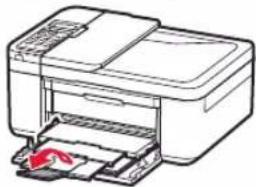
7 Check that the following screen appears, and then press the OK button.
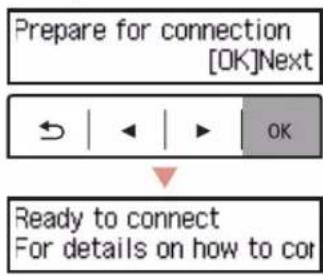
Setting up the printer
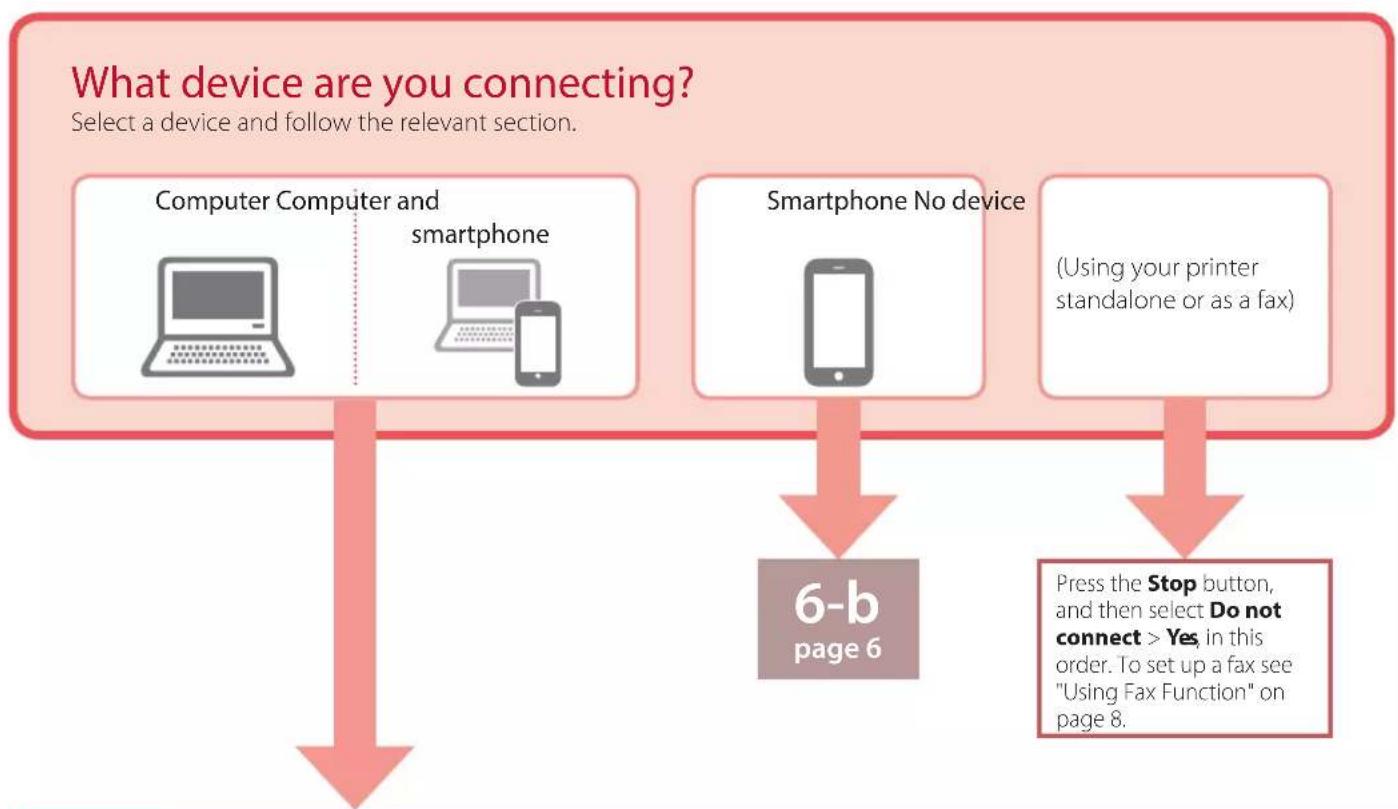
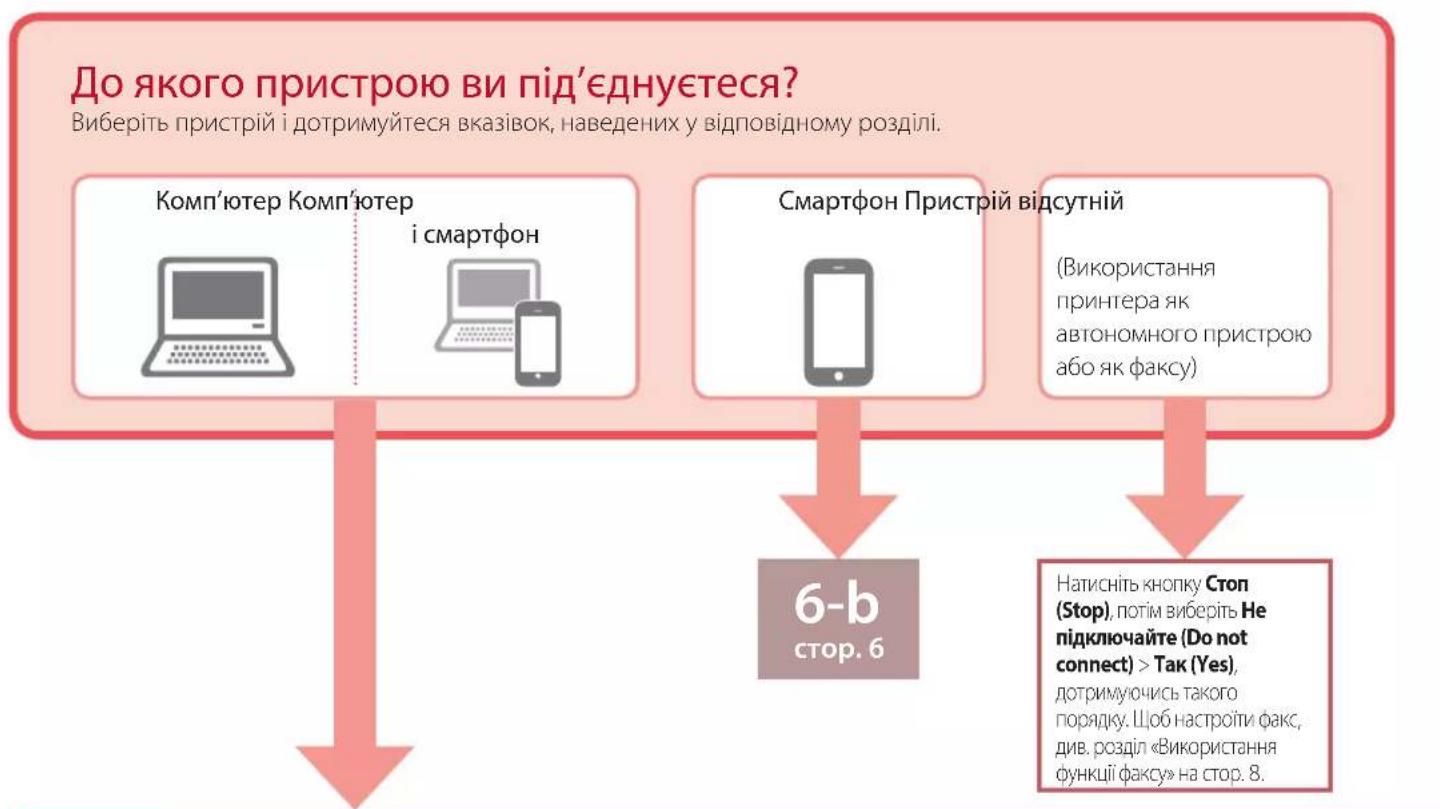
6-a
Connecting to a Computer
If you are using multiple computers, perform these steps on each computer. There are two methods: "A Online Setup" and "B Using the Setup CD-ROM (Windows Only) Provided".

Online Setup
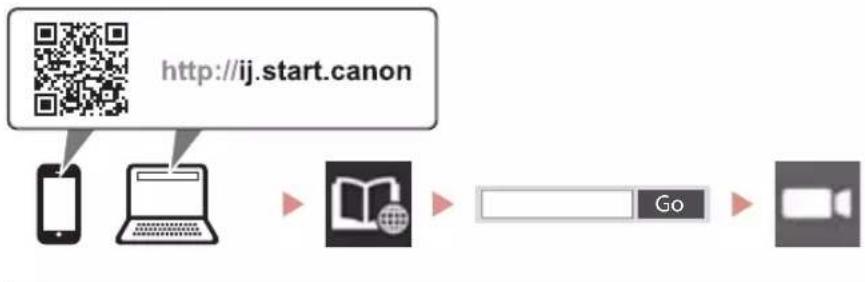
1 Access the Canon website from a computer.
http://ij.start.canon
2 Select Set Up. 3 Enter your printer's model name and click Go. 4 Click Start.
5 Click If you have already prepared your printer, go to Connect.
Note
When you are using a computer with Windows (except for Windows 10 S) or macOS, proceed to the next step. When you are using a computer with another OS, continue the setup by following the on-screen instructions.
6 Click Download.
The setup file is downloaded to your computer.
7 Run the downloaded file. 8 Proceed to step 9 on page 5.

Using the Setup CD-ROM (Windows Only) Provided
1 Insert the Setup CD-ROM into your computer.
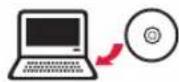
2 Follow the instructions for your version of Windows.
Windows 10/Windows 8.1
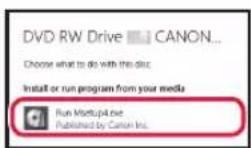
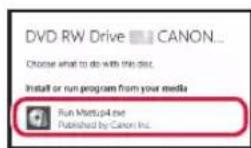
Click on the following message when it appears on the right-hand side of your computer screen.
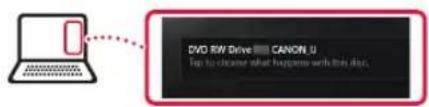

Note
If the message does not appear (or is no longer visible), click the File Explorer icon in the taskbar. On the left-hand side of the window, click This PC. Double-click the CD icon that is displayed on the right-hand side (when the content of the CD is displayed, and then double-click Msetup4.exe). Proceed to 3.

Click Run Msetup4.exe.
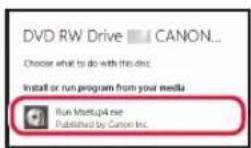
3 If the User Account Control dialog box appears, click Yes.

Click Start Setup.
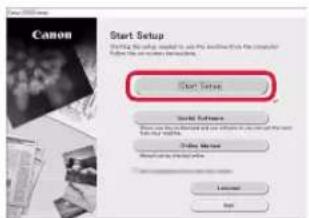
10 Follow the on-screen instructions.
These operations may take some time.
Windows 7
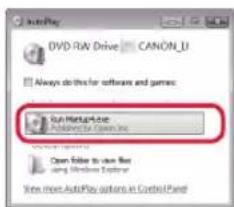
1 Click Run Msetup4.exe.
- When the AutoPlay screen appears, click Run Msetup4.exe.
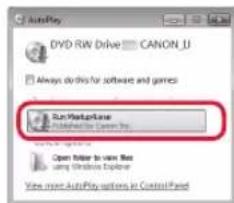

If the AutoPlay screen does not appear, in the Start menu, click Computer. On the right-hand side of the window, double-click the CD icon (when the content of the CD is displayed, double-click Msetup4.exe).
If the User Account Control dialog box appears, click Continue.
3 Proceed to step 9 below.
11 When the following screen appears, click Exit.
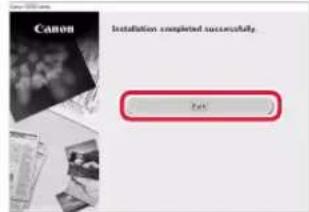
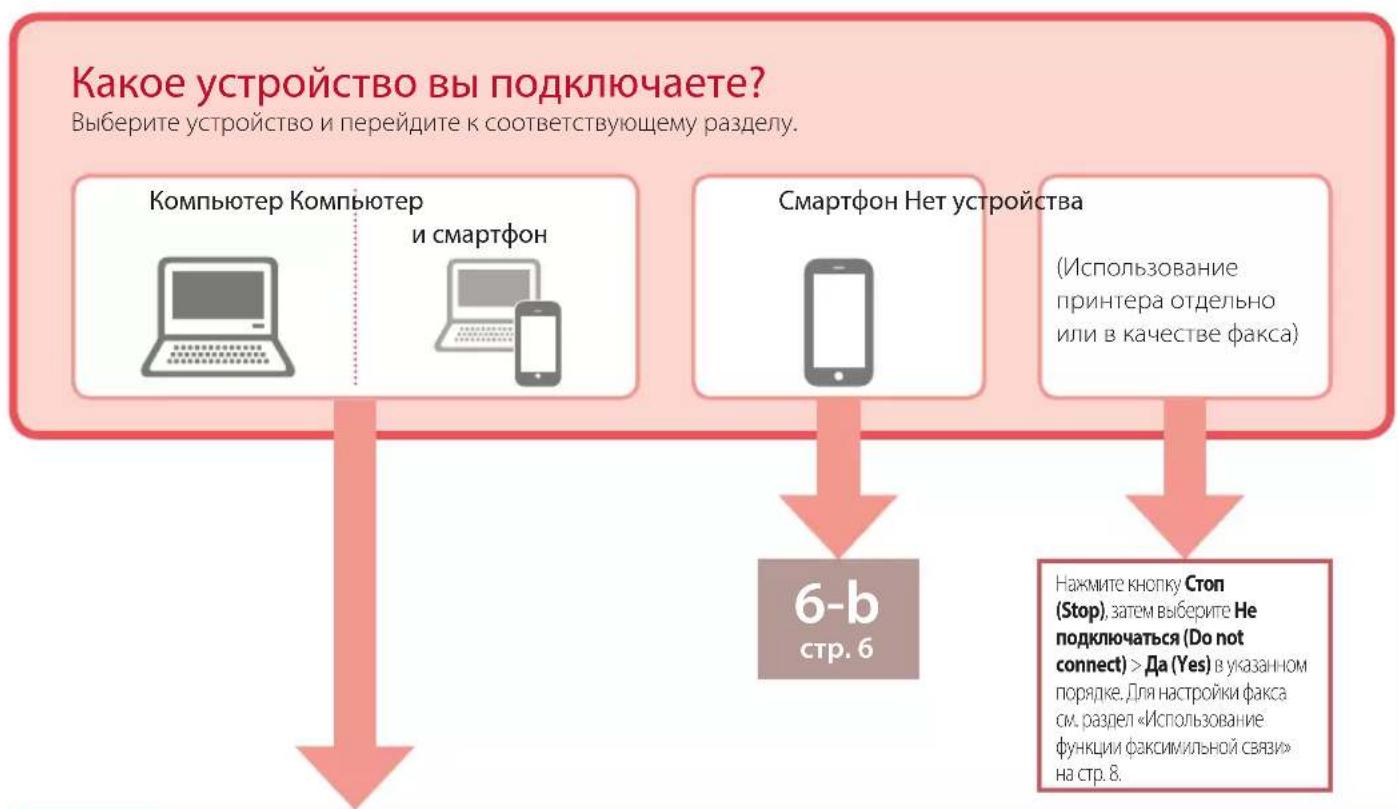
- Your printer is now connected to your computer. To connect a smartphone as well, see "6-b. Connecting to a Smartphone" on page 6. To set up a fax, see "Using Fax Function" on page 8.
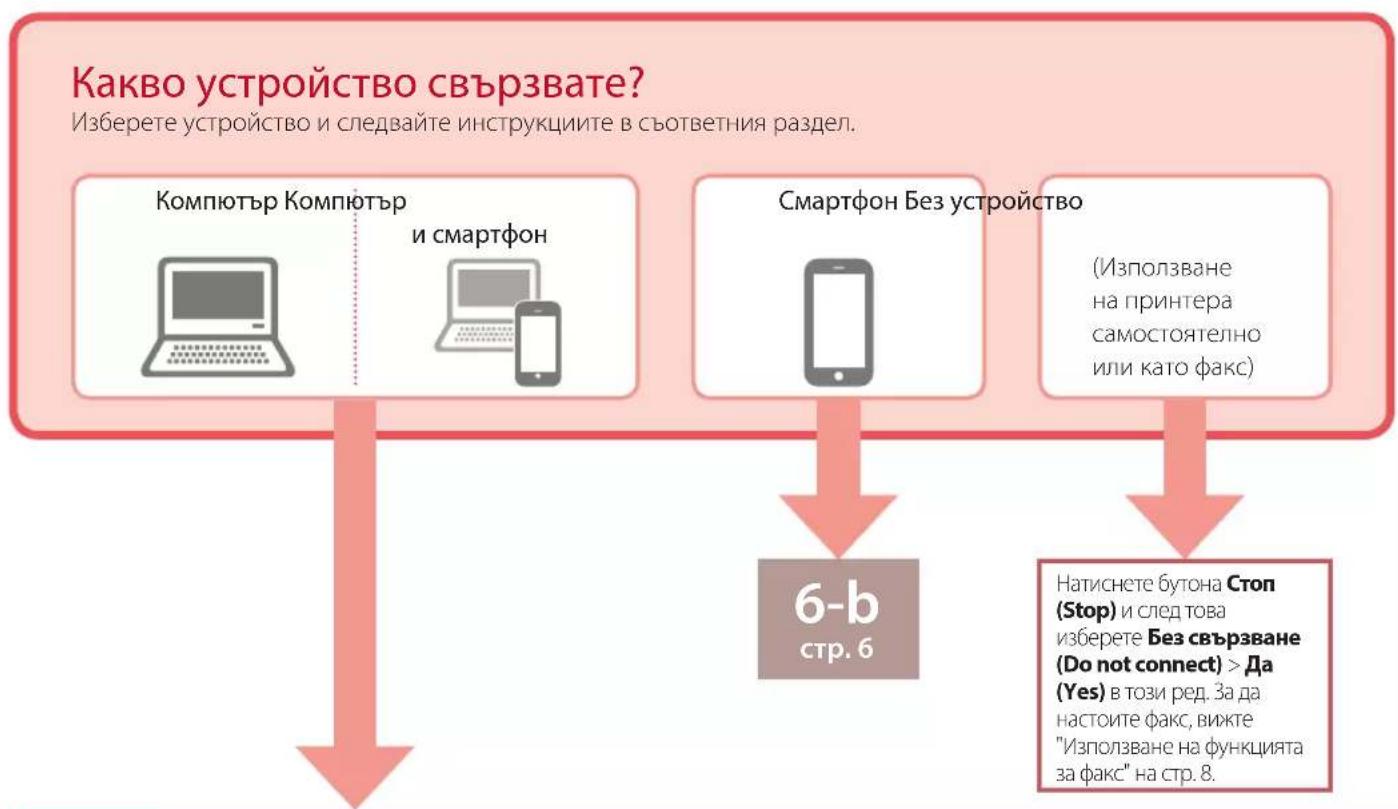
6-b
Connecting to a Smartphone
If you are using multiple smartphones, perform these steps on each smartphone.
Prepare the following before starting.
1. Enable the Wi-Fi setting on your smartphone. 2. Connect your smartphone to the wireless router (if you have a wireless router). * See your smartphone and wireless router manuals for more details on these procedures.
1. Install the "Canon PRINT Inkjet/SELPHY" app on your smartphone.
iOS
Search for "Canon PRINT" in the App Store.
Android
Search for "Canon PRINT" in Google Play.
Note
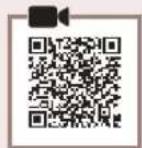
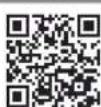
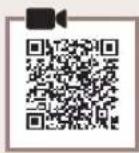
You can also access the Canon website by scanning the QR code shown on the right to download the app.

2. Check the printer's screen as you proceed through the steps.
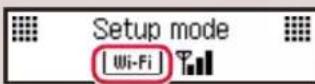
If the following screen appears
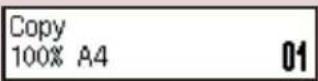
Press the Setup button and check the screen that appears.
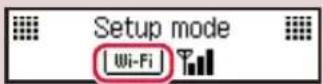
If appears,

If this screen does not appear,

If the following screen appears
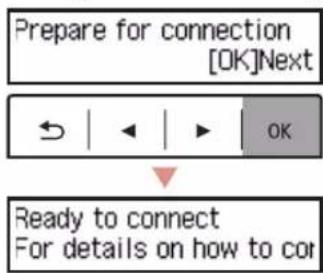
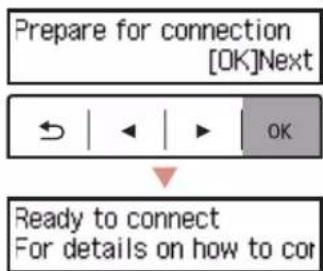
Ready to connect
Ready to connect
For details on how to connect,

Note
The printer's screen turns off when the printer is idle for 10 minutes. Press a button (except the ON button) on the operation panel to turn on the screen. If the screen remains off for a long time, the printer cannot communicate via Wi-Fi connection. For details, see "Frequently Asked Questions" at http://j.start.canon/.

3 Open the installed app.
4 Follow the on-screen instructions to add your printer.
5 Check that the following screen appears.

- Your printer is now connected to your smartphone. To print photos, see "Loading Photo Paper" on page 8. To set up a fax, see "Using Fax Function" on page 8.

Procedures vary for iOS and Android. Follow the instructions for your operating system.
iOS
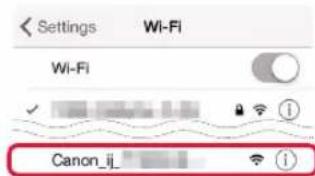
3 Tap Settings on your smartphone's home screen, and tap Canon_ij_XXXX in the Wi-Fi settings.
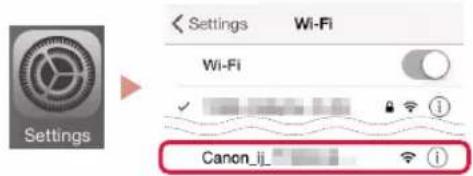
Note
If Canon_ij_XXXX does not appear, follow the procedure in E and then search for Canon_ij_XXXX again.
4 Open the installed app.
The printer is registered with the most appropriate connection method for the environment you are using.
5 Check that the following screen appears.

- Your printer is now connected to your smartphone. To print photos, see "Loading Photo Paper" on page 8. To set up a fax, see "Using Fax Function" on page 8.

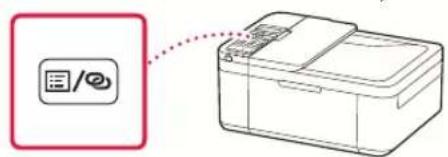
3 Press and hold the Menu/Wireless connect button for about 3 seconds.
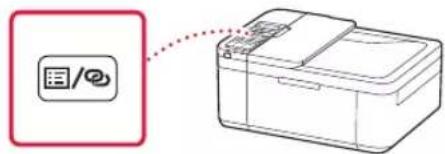
4 When "Follow the instructions on the PC or smartphone, etc." appears on the printer's screen, proceed to D
Loading Photo Paper
1 Pull out the cassette until it stops. 2 Slide apart the paper guides.
- Grip the right paper guide and move it to the right edge.
3 Load photo paper.
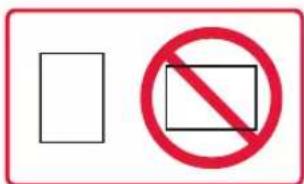
- Load photo paper in portrait orientation with the print side facing down, and place it in the center of the cassette.
- Push the paper all the way into the cassette, and then slide the right paper guide against the edge of the paper stack.
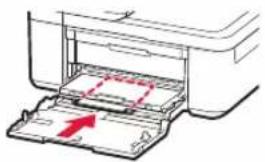
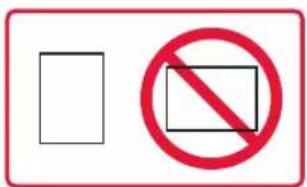
4 Push in the cassette. The arrow (▷) on the front cover should align with the front edge of the printer. 5 Pull out the paper output support of the paper output tray. 6 Open the output tray extension. 7 When the following screen appears, press the OK button.
Register the cassette pa [OK]Next
8 Select the paper size and type, and press the OK button.
Size: L Type: Glossy
Using Fax Function
The fax function of your printer requires setup. Refer to either of the following manuals.
Online Manual
Access the Canon website.
http://ij.start.canon
Click. 3 Enter your printer's model name and click Go. Click FAX Setup Guide
On-screen Manual (installed on your computer)
The following is an example using Windows 10.
0 Click the Start button. Click All apps > Canon E4200 series On-screen Manual in this order, and then open the User's Manual. 3ClickFAX Setup Guide.
If Print Results Are Unsatisfactory
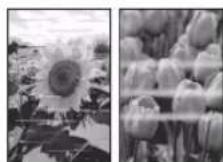
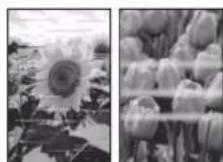
Perform Print Head Alignment if straight lines are crooked or colors are inconsistent, or print results are otherwise not what you expected.
For details, click the Maintenance on the Online Manual and refer to If Printing Is Faint or Uneven > Aligning the Print Head.
Refer to the back cover for how to open the Online Manual.
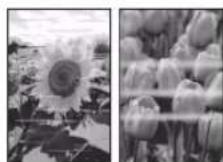
Lines Are Misaligned

Uneven or Streaked Colors
Printer Configuration
Open the cover and discard the material.
When the following screen appears, use the buttons to select the language and press the OK button.
Click Run Msetup4.exe.
Register the cassette and press [OK] Next.
Select the paper size and type, then press the OK button.
Size: L Type: Glossy
Open the cover and discard the material.
For details on how to correct


Register the cassette and press [OK] Next.
Size: L Type: Glossy
Using the fax function
Press the ON button.
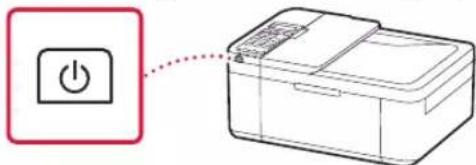

Important
If the message is displayed, press the button to turn on (ON) to enable the protection, and repeat the procedure from step 2 in "Removing the packaging materials".
Open the cover and 1890 Discard the material
3 When the message screen is displayed, use the buttons ↓ and ▷ to select the language, then press the OK button.
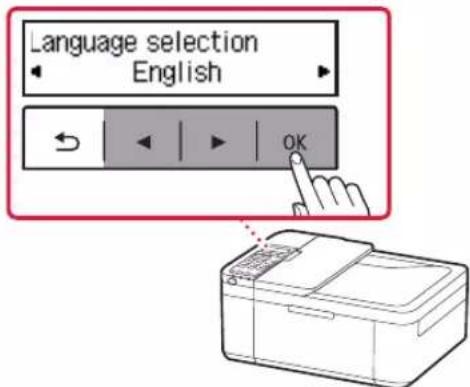
Printer setup
4 If the message screen is displayed, select the country or region, and then press the OK button.
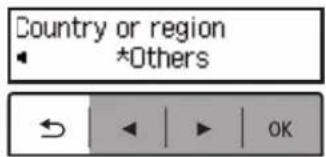
4. Installing the FINE cartridges
1 Open the front cover of the paper output slot.
2 Remove the FINE cartridge from the packaging and place it on the table.
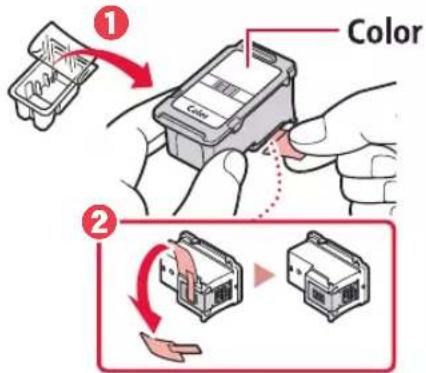

Important
Do not touch the electrical contacts on the cartridge; otherwise, the printer may be damaged.
Do not touch the area shown in the figure. Otherwise, the printer may not print correctly.
3 Install the color FINE cartridge.
The color FINE cartridge is installed on the left. - Gently tilt the FINE cartridge upward and install it into the color FINE cartridge slot.
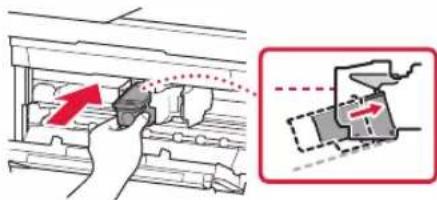
Press firmly until it clicks.
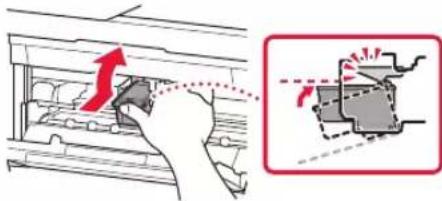

Check the FINE cartridges. This may cause malfunction.

4 Make sure the FINE cartridge is correctly installed and horizontally aligned.
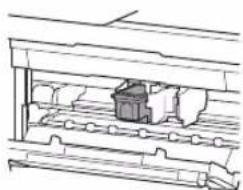
5 Repeat steps 2 to 4 to install the black FINE cartridge.
- The black FINE cartridge is installed from the right.
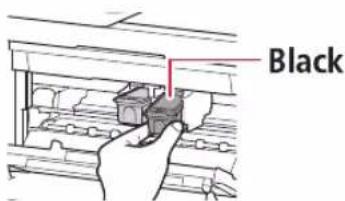
6 Close the paper output tray.
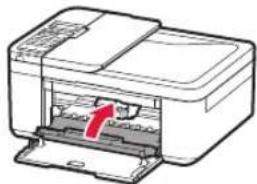

Important
If an error message appears, return to step 3 in "4. Installing the FINE Cartridges" and make sure the black and color FINE cartridges are installed correctly.
Install the cartridges pro 168A
5. Loading Paper
1 Pull out the paper cassette until it stops.
2 Slide the paper guides.
Hold the paper guide and slide it to the mark.
3 Load paper.
Load plain paper of size LTR or A4 with the print side facing up.
By the text in the cassette, follow the instructions to load the paper according to the paper type.
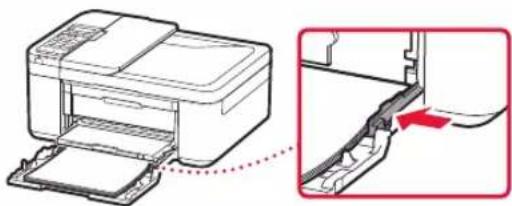
4. Pull the cassette out.
Align the arrow () on the paper guide with the arrow mark on the cassette.
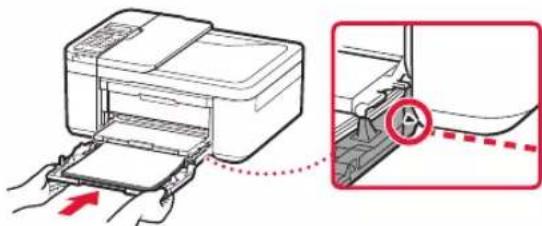
5. Slide the paper guide to fit the paper size of the paper loaded in the cassette.
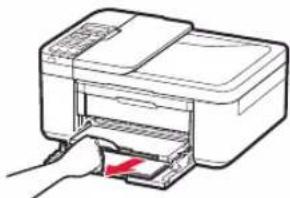
6. Open the output tray.
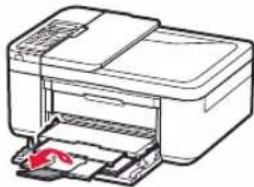
7. Check that the paper is displayed correctly, then press the OK button.
6-a
Connecting to a computer
If you are using multiple computers, perform these steps on each of them.
There are two methods - "Easy Setup" and "Install from the provided CD-ROM (Windows only)".

Easy Setup
1. Turn on the computer.
http://ij.start.canon
2. Select Setup. 3. Enter the model name of the printer and click Next. 4. Click Next.
5. Click If you have already set up the printer, select Connect.
If you are using a computer with Windows (except Windows 10 S) or macOS, proceed to the next step. If you are using a computer with another operating system, continue setting up by following the on-screen instructions.
6 Right-click on the icon and select Open. 7 Start the installation. 8 Proceed to the next step. 9 On page 5.

Using the provided installation kit (see for Windows)
1 Insert the installation kit into the computer.

2 Follow the instructions for your version of Windows.
Windows 10/Windows 8.1
1 Click the message when it appears on the computer screen.
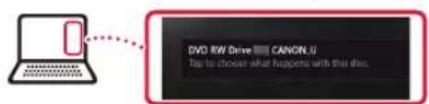
If the message does not appear (or is not visible), click on the File Explorer icon in the taskbar, then click on This PC on the left side. Double-click on the drive icon when it appears (when the drive contents appear, double-click on Msetup4.exe). Proceed to
Click on Run Msetup4.exe
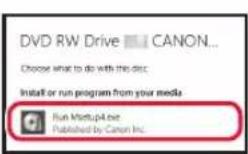
3 If the User Account Control dialog appears, click Yes.
Windows 7
1 Click on Run Msetup4.exe.
When the AutoPlay screen appears automatically, click on Run Msetup4.exe.
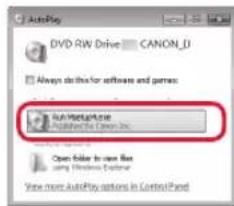
If the AutoPlay dialog does not appear, in the Start menu, right-click Computer. On the desktop, right-click the CD-ROM drive icon (when the CD-ROM icon appears, right-click Setup.exe).
If the User Account Control dialog appears, click Continue.
Proceed to step 9.
9 Click Start Setup.
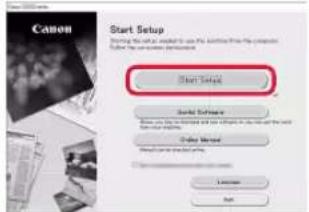
10 Follow the on-screen instructions.
These operations may take some time.
11 When the final screen appears, click Exit.
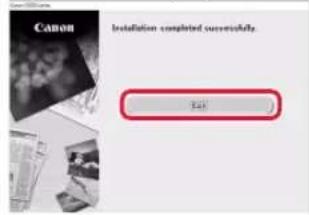
The printer is now connected to the computer. To connect to a smartphone, see "6-b. Connecting to a Smartphone" on page 6. To use the fax function, see "Using the Fax Function" on page 8.
6-b
Connecting to a Smartphone
If you use multiple smartphones, perform these steps for each one.
Prepare before starting.
1 Turn on the Wi-Fi setting on the smartphone. Connect the smartphone to the wireless router (if you have a wireless router). See the smartphone and wireless router manuals for more details on these procedures.
1 Install the "Canon PRINT Inkjet/SELPHY" application on the smartphone.
iOS: Download "Canon PRINT" from the App Store.
Android: Download "Canon PRINT" from Google Play.
Follow the instructions displayed on the Canon screen to scan the QR code and install the application.

2. Check the printer screen while navigating through the steps.
If a special screen appears
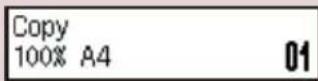
Press the Setup button and select the screen that will appear.
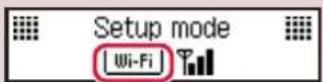
If it appears
If it does not appear
If a special screen appears

Ready to connect
Ready to connect
For details on how to connect
Note
The printer screen turns off when the printer is in standby for more than 10 minutes. Press the power button (with the ON indicator) to turn the screen on. If the screen shows that the network cannot communicate via Wi-Fi, see "Frequently Asked Questions" at "http://j.start.canon".

3. Follow the on-screen instructions.
4. Follow the on-screen instructions to add the printer.
5. Check that the screen displays correctly.

Now the printer is connected to your smartphone. To print photos, see "Printing Photos" on page 8. To use the fax function, see "Using the Fax Function" on page 8.

The procedures differ for iOS and Android. Follow the instructions for your operating system.
iOS
Open Settings on the home screen of your smartphone and tap Canon_ij_XXXX in the Wi-Fi settings.


Note
If Canon_ij_XXXX does not appear, follow the procedure again and search for Canon_ij_XXXX again.
4. Open the installed application.
The printer is registered using the simplest connection method depending on the environment you are using.
5. Check that the screen displays correctly.

Now the printer is connected to your smartphone. To print photos, see "Printing Photos" on page 8. To use the fax function, see "Using the Fax Function" on page 8.

3. Press and hold the Menu button (Menu) / Wireless connect for about 3 seconds.
4. When "Follow the instructions on the computer or smartphone, etc." appears on the printer's display, proceed with
1. Insert the paper cassette until it clicks into place. 2. Distribute the paper guides for the cassette.
Hold the paper guide for the cassette and slide it to the paper size.
3. Load the paper cassette.
Load the paper cassette with the print side facing down, and place it in the center of the cassette. Push the paper guides in the cassette until they touch the paper. Then, pull the paper guides to the paper size and adjust them.
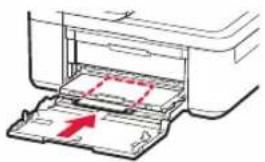
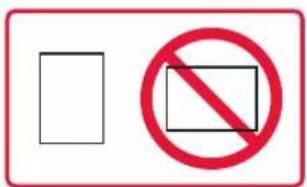
4. Insert the cassette into the printer. - The arrow () on the front cover must align with the front cover mark. 5. Pull out the new paper tray for the paper from the paper tray. 6. Open the cover of the paper tray. 7. When the paper appears, press the OK button.
Register the cassette and press OK]Next
8. Select the paper size and type, and press the OK button.
Size: L Type: Glossy
Using the fax function
The fax function of the printer requires setup. Follow one of the following procedures.
Quick setup guide
Connect the telephone line to the printer.
2. Press the Menu button on the printer, and then press the Setup button. 4. Press the Fax Setup guide.
Quick setup guide (installed on the computer)
Example of the operating screen in Windows 10.
1. Click the Start button. 2. Click All apps > Canon E4200 series > Online Manual. 3. Click the User's Guide. 4. Click the Setup Guide.
If the print results are unsatisfactory
Perform Print Head Alignment if the lines are misaligned, the colors are uneven, or the print results differ from what is expected.
For details, click the link in the Online Manual and see "If the print results are blurred or uneven > Print Head Alignment."
See the section on how to open the Online Manual.
Lines are misaligned

Colors are uneven or faded
Adjusting the Printer
1. Package contents
Power cord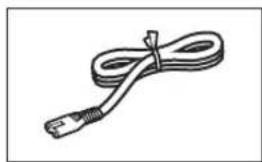
FINE cartridge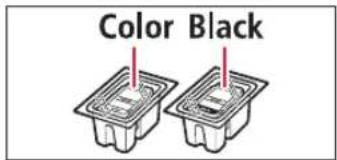
Setup CD-ROM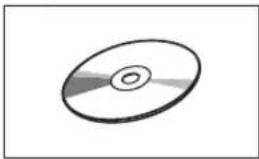
Modular cable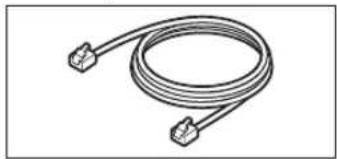
Open the cover and remove the material.
For details on how to cor

Not
Register the cassette pa [OK]Next
Size: L Type: Glossy
Using the Fax Function
Place the printer on a stable surface. At this stage, do not connect any other cables.
2 Press the ON button.
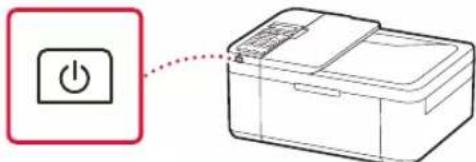

Warning!
If the following screen does not appear, press the ON button to turn on the printer, then repeat the procedure, starting from step 2 in the section "2. Removing Packaging Materials".
Open the cover and 1890 Discard the material
3 If the screen shown below appears, select the language using the buttons, then press the OK button.
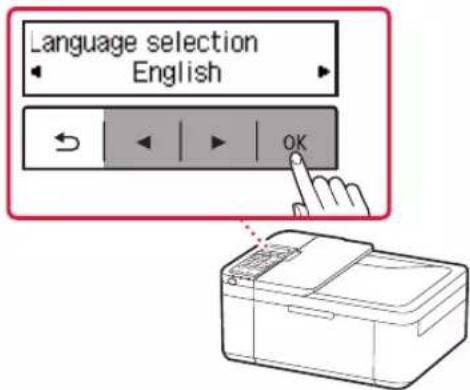
Printer Setup
4 If the screen shown below appears, select your country or region and press the OK button.
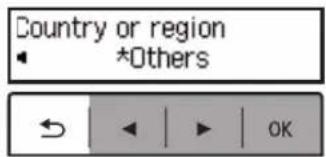
4. Installing the FINE Cartridges
1 Open the front cover and the paper output tray cover.
2 Remove the protective tape from the FINE cartridges and remove the protective tape.
Caution!
Do not touch the protective tape. It may stain your hands or surrounding objects.
Do not touch the areas shown in the figure. Otherwise, the printer may not work correctly.
3 Install the FINE cartridge holder.
The FINE cartridge holder is placed on the left. - Tilt the FINE cartridge upward at an angle and insert it into the FINE cartridge holder.
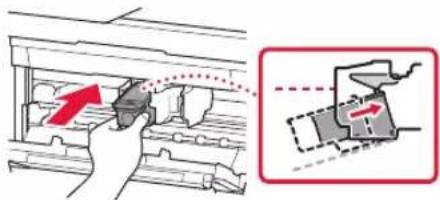
Insert it all the way and press it up until it clicks.
Caution!
Do not hit the FINE cartridge. This may cause errors.
4 Make sure the FINE cartridge is installed correctly and at the proper level.
5 Repeat steps 2-4 to install the black FINE cartridge.
- The black FINE cartridge is placed on the right.
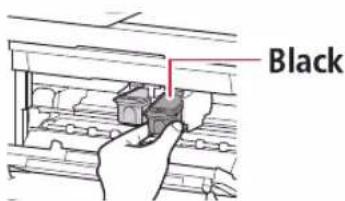
6 Close the paper output cover.
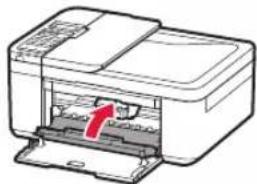
Caution!
If the screen does not display correctly, return to step 3 of section "4. Installing the FINE Cartridges" and make sure the black FINE cartridge is installed correctly.
Install the cartridges pro 168A
1 Insert the cartridges until they stop.
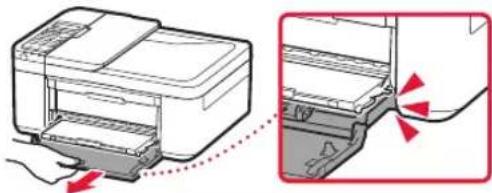
2 Slide the paper guides.
Take the right paper guide and move it to the right edge.
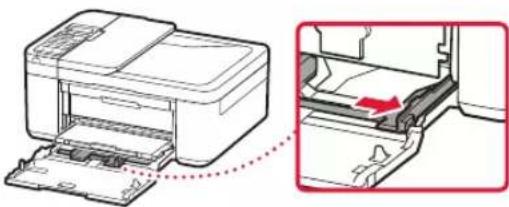
3 Load the paper.
Load the paper with the printable side facing down.
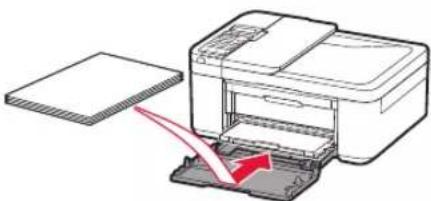
Slide the paper into the cassette until it stops, then slide the right paper guide to the edge of the paper stack.
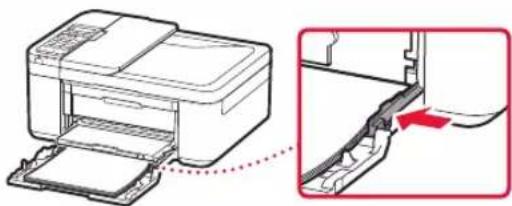
4 Insert the cassette.
The arrow () on the front cover should be aligned with the front edge of the printer.
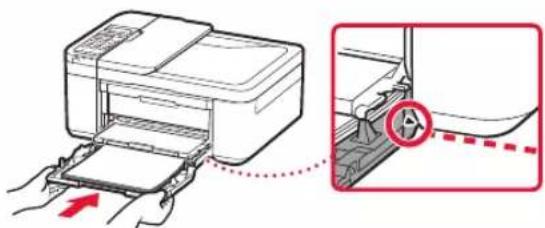
5 Pull out the paper output tray.
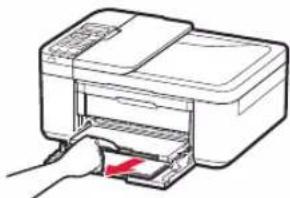
6 Open the auxiliary paper output tray.
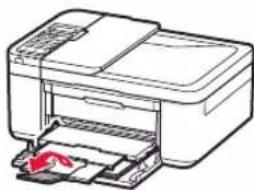
7 Wait for the following screen to appear and press the OK button.
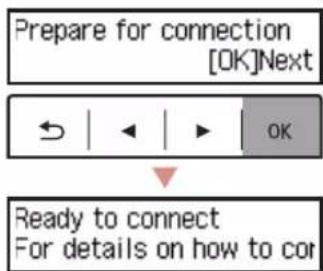
6-a
2 Follow the instructions for your version of Windows.
Windows 10/Windows 8.1
1. In the right part of the printer window, the following message appears. Press it.
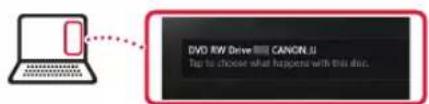
Note: If the message does not appear (or is no longer displayed), press the File Explorer icon on the taskbar. In the left part of the window that opens, press This PC. Double-press the CD-ROM icon on the right (when the contents of the CD-ROM are displayed, then double-press Msetup4.exe). Proceed to step 3.
2. Run Msetup4.exe
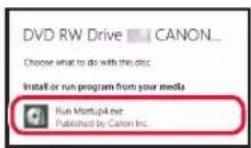
3. When the User Account Control dialog box appears, press Yes.
Register the cassette, then press [OK] [Next]
8. Select the paper size and type, then press the OK button.
Size: L Type: Glossy
Using the Wireless LAN function
It is necessary to configure the wireless LAN function on your printer. See one of the following manuals.
Online Manual
Open the Canon website.
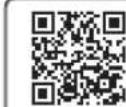
http://ij.start.canon
2. Press. Enter the model name of your printer, then press Search. Press the setup manual.
Electronic Manual (installed on your computer)
Here is an example for Windows 10.
1. Click the Start button. 2. Click All apps > Canon E4200 series Electronic Manual in the specified order, and then open the User's Guide. 3. Click the Fax Settings Guide.
If the print quality is unsatisfactory
If the printed lines are misaligned or the colors are uneven, or if the print results differ from the displayed images, perform the Print Head Alignment procedure.
For more detailed information, click Maintenance on the screen of the manual and see the section 'If printing has become faint or uneven > Print Head Alignment'.
For information on how to open the manual, see the back cover.
Uneven lines

Uneven color or stripes
Printer settings
1. Remove the box
Buttons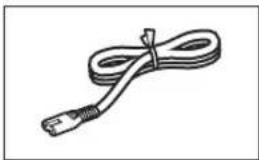
FINE cartridges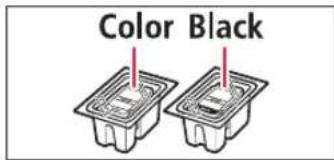
CD-ROM with installation program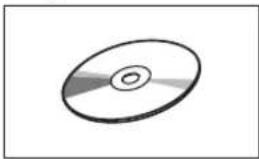
Modular cable for connection - Important: This guide is a supplement to the main guide.
2. Remove the packaging materials
1 Remove and dispose of the packaging material from the device.
- Be sure to remove the transport locking screw.
2 Open the front cover of the mechanism drive lever.
3 Remove and dispose of the protective material.
Pull the transport locking screw to release the protective material.
4 Close the mechanism drive lever and the front cover.
3. Turning on the printer
1 Connect the power cord.

IMPORTANT
Place the printer at least 5 cm away from the wall. - This prevents damage to other cables.
2 Press the ON button.

IMPORTANT
If the screen does not display as shown below, press the ON button to turn off the power, and repeat the procedure from step 2 in section «2. Removing the packaging materials».
3 When the screen appears as shown below, use the buttons to select the mode, then press the OK button.
Printer setup
To set up the printer, select your country or region and press the OK button.
4. Installing FINE Cartridges
1 Open the front cover and the paper output tray.
2 Remove the FINE cartridge from its packaging and remove the protective tape.

Important
Do not touch the protective tape. It may stain your hands or the surrounding area.
Do not touch the area indicated in the illustration, otherwise the printer may not function properly.
3 Install the FINE cartridge.
The FINE cartridge must be installed horizontally. Tilt the cartridge slightly and insert it into the slot until it clicks into place.
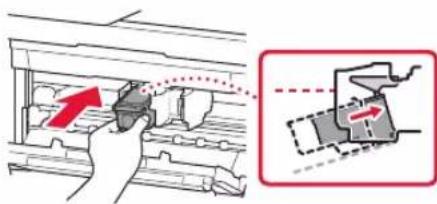
Insert it fully and press it firmly until you hear a click.

Important
Do not force the FINE cartridge. Such actions may cause it to malfunction.
4 Check that the FINE cartridge is installed correctly.
5 Repeat steps 2-4 to install the other FINE cartridge.
Open the cartridge access door.
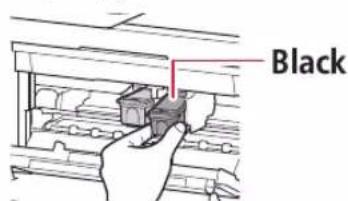
Close the cartridge access door.


Important
Make sure the cartridges are installed correctly by following the steps in section "4. Installing FINE Cartridges" and verify that the color and shape of the FINE cartridges are placed correctly.
Install the cartridges pro 168A
5. Loading Paper
1. Pull the cassette out completely.
2. Slide the paper guides outward.
Remove the paper guide for the paper size and press it into the right slot.
3. Load the paper.
Load the paper with the print side facing down, in LTR or A4 size.
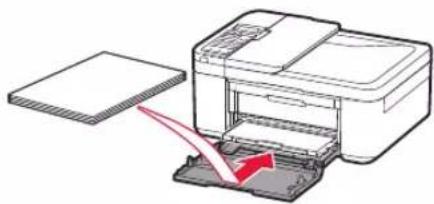
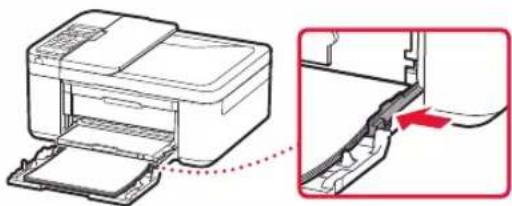
- Slide the paper guides to fit the paper size, and align the paper guides with the paper stack edges.
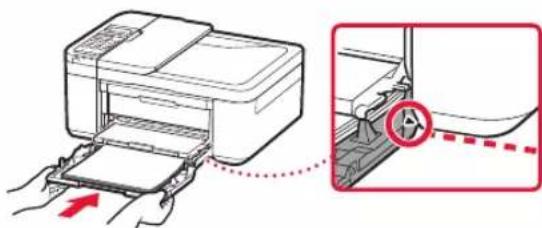
4. Insert the cassette.
The arrow mark () on the front cover should align with the front edge of the printer.
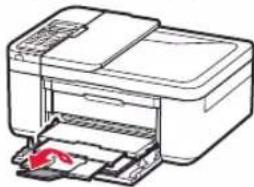
5. Pull out the paper output tray.

6. Press the power button of the printer.
7. When the screen prompts, select the language and press the OK button.
6-a
Connecting to a computer
If you use a computer, perform these steps on each one. There are two methods: setup via the Internet and using the included CD-ROM with the setup program (Windows only).

Setup via the Internet
1. Go to the Canon website from your computer.
http://ij.start.canon
2. Click Setup. 3. Enter the model name of your printer and click Next. 4. Click Start.
5. Click if you have already set up the printer, and go to the section "Connection".
Note
If your computer has Windows (except Windows 10 S) or macOS, proceed to the next step. If your computer has another operating system, continue setup following the on-screen instructions.
6. Click Download. The setup file will be downloaded to your computer. 7. Run the downloaded file. 8. Proceed to step 9 on page 5.

Using the included CD-ROM with the setup program (Windows only), which is included in the package.
1. Insert the CD-ROM with the setup program into your computer.
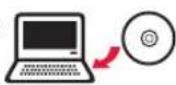
2. On your computer, click the Start button.
Windows 10/Windows 8.1
If the installation wizard does not appear automatically on your computer screen,
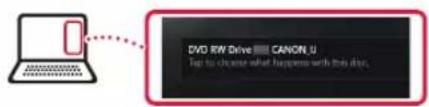
Note
If the dialog box does not appear (or becomes unavailable after a while), click the File Explorer icon on the taskbar. In the window that opens, click This PC. Then click the CD/DVD drive icon that appears on the right (if the contents of the CD/DVD are displayed, click Msetup4.exe). Proceed to step
Click Run Msetup4.exe.
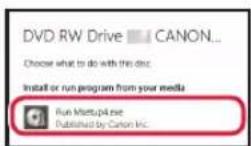
When the User Account Control dialog box appears, click Yes.
Windows 7
1. Click Run Msetup4.exe.
If the AutoPlay dialog box appears, click Run Msetup4.exe.
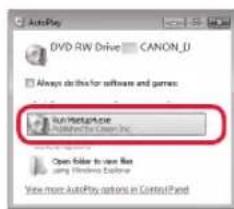
Note
If the AutoPlay dialog box does not appear, in the Start menu click Computer. Then click the CD/DVD drive icon on the right (if the contents of the CD/DVD are displayed, click Msetup4.exe).
2. When the User Account Control dialog box appears, click Continue.
3. Proceed to step 9 below.
9. Click Start Setup.
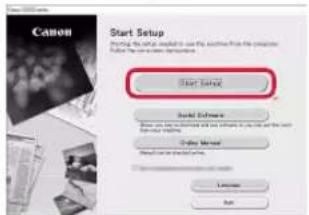
10 Turn on the printer and wait for it to appear on the screen.
This may take a few moments.
11 When the printer name appears on the screen, press Exit.
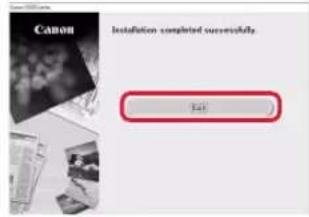
Now your printer is connected to the computer. To print from a smartphone as well, see Section 6. For the procedure to connect a smartphone, see Section 6. To set up fax, see Section "Using the Fax Function" on page 8.
6-b
Procedure for connecting to a smartphone
If you use multiple smartphones, perform these steps on each one.
First, perform the following preparatory steps.
Enable the Wi-Fi function on your smartphone*. Depending on the wireless router, connect to the router first. * For detailed information on these procedures, see the manuals for your smartphone and wireless router.
1 Install the "Canon PRINT Inkjet/SELPHY" application on your smartphone.
iOS
Find the "Canon PRINT" application in the App Store.

Find the "Canon PRINT" application in Google Play.

Note
To install the application, you can also visit the Canon website by scanning the QR code shown on the right.

2 Press the power button to turn the printer on.
When the message appears on the screen:
Press the Setup button and follow the on-screen instructions.
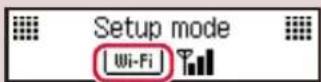
When the icon appears:
When the icon appears:
When the message appears on the screen:
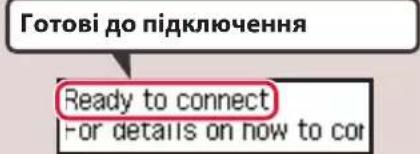

Printing
The printer screen turns off if the printer has been idle for about 10 minutes. To turn the screen back on, press any button (except the ON button) on the control panel. If the icon appears, the printer cannot establish a Wi-Fi connection. For detailed information, see the section "Frequently Asked Questions" at http://ij.start.canon.

3 Open the installed software.
4 Follow the on-screen instructions to complete the printer setup.
5 When the message appears on the screen:

The printer is now connected to your smartphone. To print photos, see the section "Printing Photos" on page 8. To configure fax settings, see the section "Using Fax Functions" on page 8.

The procedures for iOS and Android differ. Follow the instructions for your operating system.
iOS
3 First, tap the Settings icon on your smartphone's home screen, then tap Canon_ij_XXXX in the Wi-Fi settings.
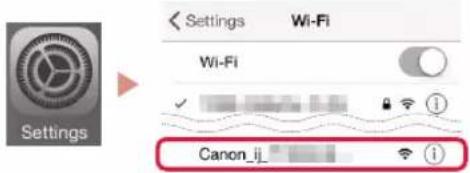
If the Canon_ijXXXX does not appear, wait a while, then perform the procedure again from step 3.
4 Open the installed application.
The printer is registered using the connection method that best suits your environment.
5 The home screen icon will appear on the screen.

Android
3 Open the installed application.
- The printer is registered using the connection method that best suits your environment.
Note
If the message "No printer has been added. Perform printer setup?" does not appear after starting the application, wait a while, then perform the procedure described in step E and check the smartphone operation.
4 The home screen icon will appear on the screen.

Printer setup. For details, see "Loading Paper" on page 8. - For faxing, see "Using Fax Functions" on page 8.

3 Press and hold the Menu (Menu) / Wireless connect button for 3 seconds.

4 Proceed to the screen "Follow Instructions on Printer or Smartphone" on the printer screen.
Loading Paper
1 Load paper. 2 Adjust the paper guides to the paper size.
Pull out the paper guides for the paper and slide them to the right edge.
3 Load the paper.
Load the paper with the print side facing up, and slide it to the center of the cassette. - Slide the paper fully into the cassette and move the right paper guide to the edge of the paper stack.
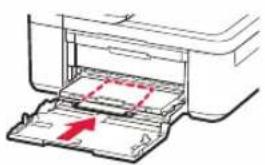
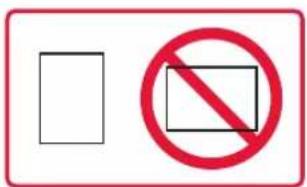
4 Insert the cassette. The mark () on the front cover will appear from the front edge of the printer. 5 Pull out the paper output tray. 6 Open the output tray extension. 7 When the message appears on the screen, press the OK button.
Register the cassette press OK]Next
8 Select the paper size and type, then press the OK button.
Size: L Type: Glossy
Using the Fax Function
To use the fax function on your printer, you need to set it up. For related information, refer to one of the manuals listed below.
Online Manual
1 Access the Canon website.
http://ij.start.canon
Click.
Enter the model name of your printer and click Search.

Manual and Setup CD-ROM.
Manual (installed on your computer)
The following explains the procedure in Windows 10.
Click the Start button. Click All apps > Canon E4200 series Manual, following the procedure, and then click User's Manual. Click Manual and Setup CD-ROM.
When the following screen appears, use the buttons to select the language, then press the OK button.
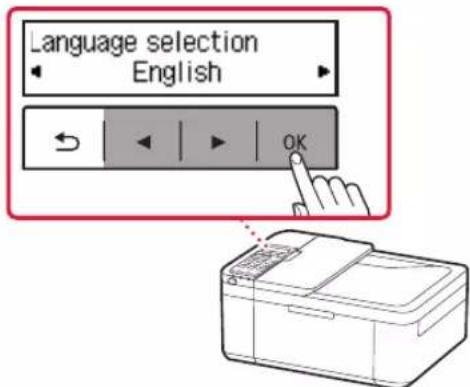
Setting Up the Printer
If the following screen appears, select the country or region, then press the OK button.
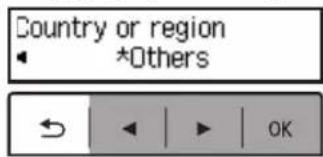
Register the cassette, then press [OK] and [Next].
Select the paper size and type, then press the OK button.
Size: L Type: Glossy
Register the cassette, then press [OK] and [Next].
Press OK.
Size: L Type: Glossy
Therefore, the area of triangle AOB equals the area of triangle COD plus the area of triangle BOC minus the area of triangle BOC.
Therefore, a1 = 2, and a(n+1) = a(n)/1 + a(n)/2.
Windows 10
(Start)
Canon E4200 series < (All apps)
Canon 25
http://ij.start.canon



Android
3
Just a day of the day
gaaa aill aull lla, aulia
quadrilateral

aiaai aai jn rnnn nnnn nn nnnn nnnn
"No printer has been added. Perform printer setup?"
y
ailll llll jiee
4

iOS
(Settings)
Canon_ij_XXXX 1
.Wi-Fi 1
quadrilateral

GJCanon_ijXXXX 2
Canon_ijXXXXX
.
all
Jusai jyj Jusai yj ball
1402111 111 111 111
4
Aailll aalil l 1
5

8aia 1
8a
Jc 100000000000000000000000000000000000000000000000000000
"Follow the instructions on the PC aalal al or smartphone, etc."
D

3
/(Menu) (Wireless connect)
3
Sijie juiy
Sicla 15 glnlllaoe aljy piaia aai gaaiaa iis
6-b
a
*siil 1i 1e Wi-Fi 1e!
(SLN 1
10 10 aalalln sll aalall aalalalalalalalal alalal gall (ON) jll lae) jll alalal alalal alalal alalal alalal alalal alalal alalal alalal alalal alalal alalal alalal alalal alalal alalal alalal alalal alalal alalal alalal alalal alalal alalal alalal alalal alalal alalal alalal alalal alalal alalal alalal alal
ailll aillll 1
(Setup)
C. ①②
(图-1) f( x) = 1/x
aill lll jie b no sae

aal 8 aai y

3
4
(Windows)

Windows 7
Msetup4.exe
(Run Msetup4.exe)
(00)
(Run Msetup4.exe) Msetup4.exe
(AutoPlay)
Computer)
a
.Msetup4.exe
(a) (User Account Control)
.Continue)
3

3 (Msetup4.exe
J 2
Msetup4.exe
(Run Msetup4.exe)
Prepare for connection [OK]Next


Ready to connect For details on how to co

Install the cartridges pro 168A
5
1
2

2
A4 LTR
FINE
FINE
J 1
pale
FINE jolal 1000000000000000
- 12c
FINE FIO
FINE 42
FINE
3
4 00
FINE 4
Therefore, g(x) = y^2 + (1/x)x^2 + (1/x)x^2 + ... + (1/x)
aFINE a
aayaae aee
y
y

1
http://ij.start.canon

solo 1olalglg joljol

a.b1 J.3
1


j 5 1 5
(ON) juj川

(ON) 2
Open the cover and 1890 Discard the material
y 1
OK

a1 · b · ( 1 - x) = 0
FINE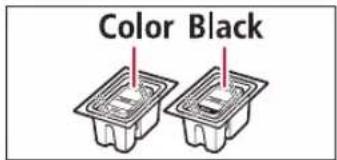
J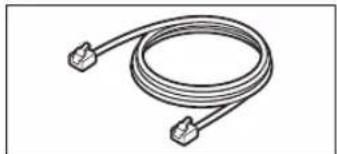
()
Aa 21
1
2
3

Access Online Manual, Open the online manual, Access the online manual, Access the document, Open the manual, Access the document, Online manual
Access the online manual, Access the online manual, Access the online manual, Access the document, Open the manual, Online manual
From your browser
From the "Canon E4200 series Online Manual" desktop shortcut
Working personnel OT npekn pIOT "Canon E4200 series Online Manual"
From the "Canon E4200 series Online Manual" desktop shortcut
From the "Canon E4200 series Online Manual" desktop shortcut
Online Manual for Canon E4200 series (Canon E4200 series Online Manual) on the worktop
Canon E4200 series Online Manual shortcut on the desktop
- SETTING UP THE PRINTER
- BOX CONTENTS
- REMOVING PACKING MATERIALS
- TURNING ON THE PRINTER
- IMPORTANT
- INSTALLING THE FINE CARTRIDGES
- CLOSE THE PAPER OUTPUT COVER
- LOADING PAPER
- PULL OUT THE CASSETTE UNTIL IT STOPS
- SLIDE APART THE PAPER GUIDES
- LOAD PAPER
- PUSH IN THE CASSETTE
- PULL OUT THE PAPER OUTPUT SUPPORT OF THE PAPER OUTPUT TRAY
- OPEN THE OUTPUT TRAY EXTENSION
- CHECK THAT THE FOLLOWING SCREEN APPEARS, AND THEN PRESS THE OK BUTTON
- A
- CONNECTING TO A COMPUTER
- ONLINE SETUP
- CLICK IF YOU HAVE ALREADY PREPARED YOUR PRINTER, GO TO CONNECT
- NOTE
- CLICK DOWNLOAD
- USING THE SETUP CD-ROM (WINDOWS ONLY) PROVIDED
- WINDOWS 10/WINDOWS
- CLICK START SETUP
- WINDOWS
- B
- CONNECTING TO A SMARTPHONE
- INSTALL THE "CANON PRINT INKJET/SELPHY" APP ON YOUR SMARTPHONE
- CHECK THE PRINTER'S SCREEN AS YOU PROCEED THROUGH THE STEPS
- CHECK THAT THE FOLLOWING SCREEN APPEARS
- IOS
- LOADING PHOTO PAPER
- USING FAX FUNCTION
- IF PRINT RESULTS ARE UNSATISFACTORY
- PRINTER CONFIGURATION
- USING THE FAX FUNCTION
- PRINTER SETUP
- CLOSE THE PAPER OUTPUT TRAY
- PULL OUT THE PAPER CASSETTE UNTIL IT STOPS
- SLIDE THE PAPER GUIDES
- PULL THE CASSETTE OUT
- SLIDE THE PAPER GUIDE TO FIT THE PAPER SIZE OF THE PAPER LOADED IN THE CASSETTE
- OPEN THE OUTPUT TRAY
- CHECK THAT THE PAPER IS DISPLAYED CORRECTLY, THEN PRESS THE OK BUTTON
- EASY SETUP
- USING THE PROVIDED INSTALLATION KIT (SEE FOR WINDOWS)
- INSTALL THE "CANON PRINT INKJET/SELPHY" APPLICATION ON THE SMARTPHONE
- CHECK THE PRINTER SCREEN WHILE NAVIGATING THROUGH THE STEPS
- CHECK THAT THE SCREEN DISPLAYS CORRECTLY
- IF THE PRINT RESULTS ARE UNSATISFACTORY
- ADJUSTING THE PRINTER
- PACKAGE CONTENTS
- NOT
- WARNING
- CAUTION
- INSERT THE CARTRIDGES UNTIL THEY STOP
- LOAD THE PAPER
- INSERT THE CASSETTE
- PULL OUT THE PAPER OUTPUT TRAY
- OPEN THE AUXILIARY PAPER OUTPUT TRAY
- WAIT FOR THE FOLLOWING SCREEN TO APPEAR AND PRESS THE OK BUTTON
- USING THE WIRELESS LAN FUNCTION
- IF THE PRINT QUALITY IS UNSATISFACTORY
- PRINTER SETTINGS
- REMOVE THE BOX
- REMOVE THE PACKAGING MATERIALS
- INSTALLING FINE CARTRIDGES
- CLOSE THE CARTRIDGE ACCESS DOOR
- PULL THE CASSETTE OUT COMPLETELY
- SLIDE THE PAPER GUIDES OUTWARD
- PRESS THE POWER BUTTON OF THE PRINTER
- WHEN THE SCREEN PROMPTS, SELECT THE LANGUAGE AND PRESS THE OK BUTTON
- SETUP VIA THE INTERNET
- PROCEDURE FOR CONNECTING TO A SMARTPHONE
- INSTALL THE "CANON PRINT INKJET/SELPHY" APPLICATION ON YOUR SMARTPHONE
- PRESS THE POWER BUTTON TO TURN THE PRINTER ON
- PRINTING
- OPEN THE INSTALLED SOFTWARE
- FOLLOW THE ON-SCREEN INSTRUCTIONS TO COMPLETE THE PRINTER SETUP
- WHEN THE MESSAGE APPEARS ON THE SCREEN
- ANDROID
- SIJIE JUIY
- (WINDOWS)
- MSETUP4.EXE
- (RUN MSETUP4.EXE)
- (RUN MSETUP4.EXE) MSETUP4.EXE
- (USER ACCOUNT CONTROL)
- CONTINUE)
- HTTP://IJ.START.CANON
- A.B1 J
- A1 · B · ( 1 - X)
- AA
Brand : CANON
Model : PIXMA E4240
Category : Printer