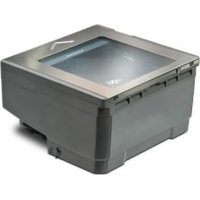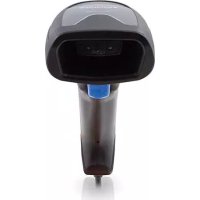
QuickScan QS2500 - Barcode scanner DATALOGIC - Free user manual and instructions
Find the device manual for free QuickScan QS2500 DATALOGIC in PDF.



User questions about QuickScan QS2500 DATALOGIC
0 question about this device. Answer the ones you know or ask your own.
Ask a new question about this device
Download the instructions for your Barcode scanner in PDF format for free! Find your manual QuickScan QS2500 - DATALOGIC and take your electronic device back in hand. On this page are published all the documents necessary for the use of your device. QuickScan QS2500 by DATALOGIC.
USER MANUAL QuickScan QS2500 DATALOGIC
Datalogic Scanning, Inc.
959 Terry Street
Eugene, Oregon 97402
Telephone: (541) 683-5700
Fax: (541) 345-7140
An Unpublished Work - All rights reserved. No part of the contents of this documentation or the procedures described therein may be reproduced or transmitted in any form or by any means without prior written permission of Datalogic Scanning, Inc. or its subsidiaries or affiliates ("Datalogic" or "Datalogic Scanning"). Owners of Datalogic products are hereby granted a non-exclusive, revocable license to reproduce and transmit this documentation for the purchaser's own internal business purposes. Purchaser shall not remove or alter any proprietary notices, including copyright notices, contained in this documentation and shall ensure that all notices appear on any reproductions of the documentation.
Should future revisions of this manual be published, you can acquire printed versions by contacting your Datalogic representative. Electronic versions may either be downloadable from the Datalogic website (www.scanning.datalogic.com) or provided on appropriate media. If you visit our website and would like to make comments or suggestions about this or other Datalogic publications, please let us know via the "Contact Datalogic" page.
Disclaimer
Datalogic has taken reasonable measures to provide information in this manual that is complete and accurate, however, Datalogic reserves the right to change any specification at any time without prior notice.
Datalogic is a registered trademark of Datalogic S.p.A. and the Datalogic logo is a trademark of Datalogic S.p.A. all licensed to Datalogic Scanning, Inc. All other trademarks and trade names referred to herein are property of their respective owners.
Patents
This product may be covered by one or more of the following patents: 6,293,467 • 6,612,495 • 6,705,527 • Other Patents Pending
Power Supply
Models require either a Listed class II or class III with a Limited Power Source (LPS).
For the safety certification to be valid, class III input power sources must be IEC/ EN60950-1 (EN 60335-series, EN 60065 or relevant) approved.
Input: 100 - 240 VAC Output: 4.5 - 14 VDC (check scanner voltage option)
Max. Current: 1.0 A Max. Power: 14 W
Alimentation
Max. Current: 1.0 A Max. Power: 14 W
Netzteil
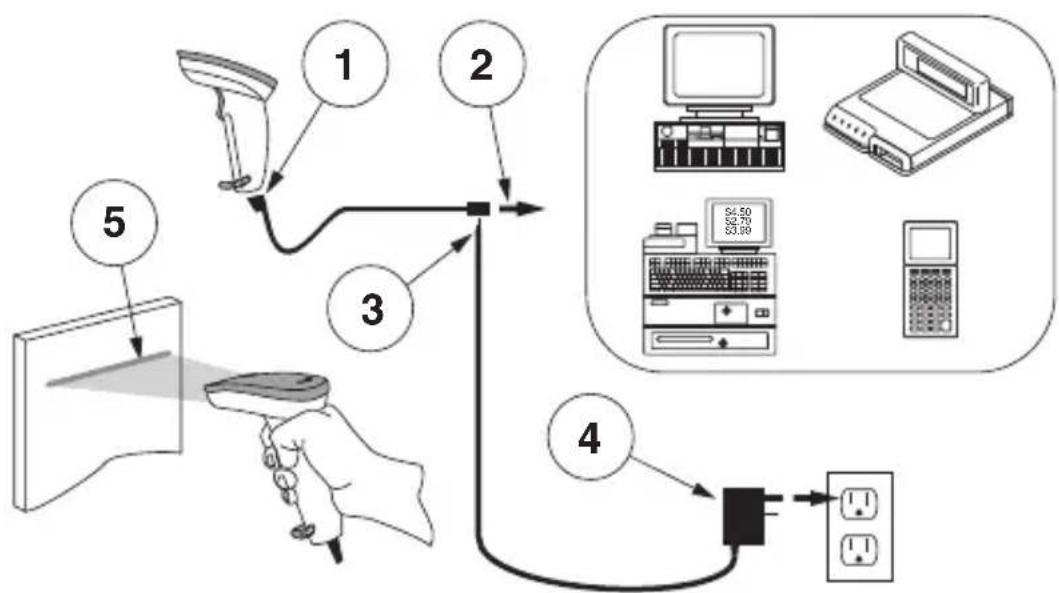
The QS2500 Linear Imager bar code scanner is an easy to use handheld scanner. The following figure shows the steps for installing the scanner. Turn off the host computer before connecting the scanner. Consult the host terminal's manual if necessary.
-
Connect the interface (I/F) cable to the scanner.
-
Connect the I/F cable to the terminal's communication port.
-
Connect the power cord to the I/F cable connector if required. Scanners that use power off the terminal (P.O.T.) do not require a power supply.
-
If required, connect the AC adaptor to the wall outlet.
-
To verify operation, point the scanner at a bar code and pull the trigger. The scanner should emit a single beep indicating that the label has been scanned successfully.
The scanner installation is complete.
How to Scan
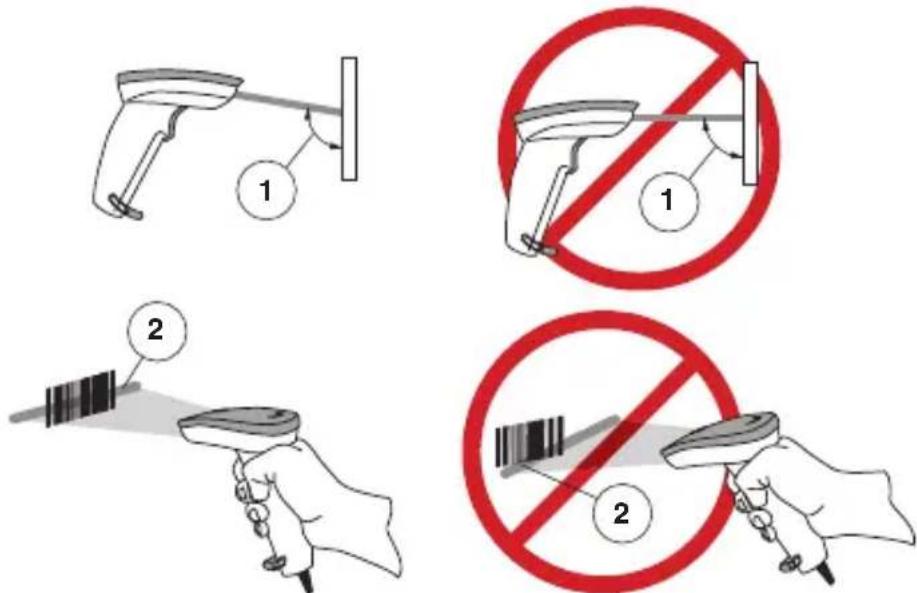
The figure below shows the right and wrong ways to scan.
-
The scanner must be pointed at a slight angle to the bar code so that the light reflects off the bar code can be "seen" by the scanner. Do not hold the scanner perpendicular to the bar code.
-
The scan beam must cross the entire label. The scanner cannot read the bar code data without seeing the entire label.
Scanning PDF417 Bar Codes
To read a PDF417 bar code, aim the scan line at the top of the bar code, and in a smooth motion, pull the scan line through the bar code. You will hear a series of ticks, followed by a final beep when the bar code's content has
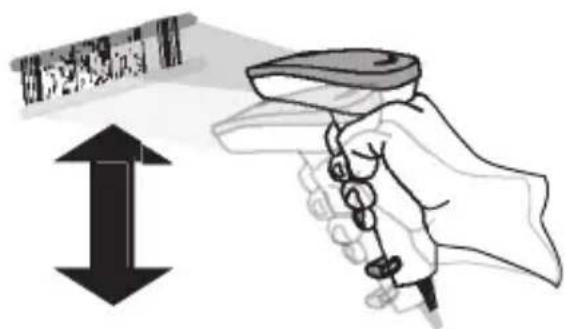
been completely decoded. You may need to sweep the bar code several times in order to complete the read.
Troubleshooting
If the scanner is not operating properly, the following checks should be performed:
- Since the scanner can receive its power from the host computer (Power Off the Terminal—P.O.T.), it will not operate without the system power on. If the scanner uses an external power supply and the external power supply has failed, the scanner will not operate.
- If an external power supply is used, exchange the power supply with a known good power supply and retest the scanner.
- If the scanner receives power from the host (P.O.T.), connect the scanner to a known good host and retest.
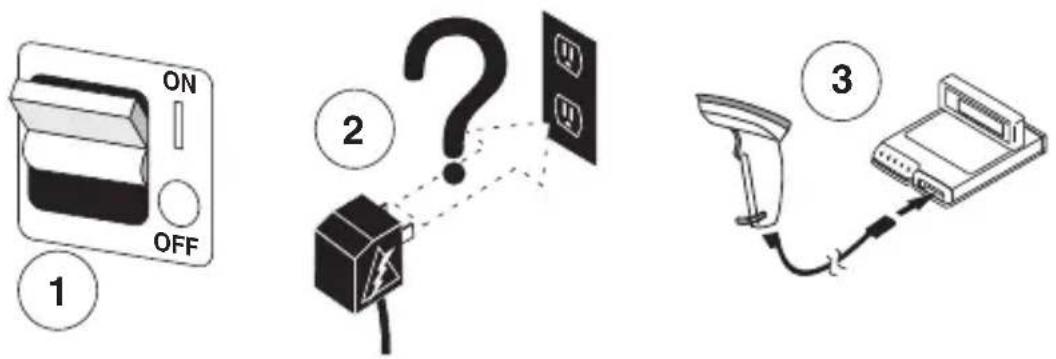
- Verify that the interface cable is securely attached to the host. Consult your technical support personnel or refer to your host system manual to verify the proper connection for the scanner.
- Verify that the interface cable is securely attached to the scanner.
-
Check that the labels are of sufficient quality to be recognized by the scanner. Wrinkled, smudged, or torn labels can cause the scanner to not read at all. Scan a known good label to check the scanner's read operation.
-
Ensure that the scanner's interface type is compatible with the host terminal by consulting your POS system manual and/or the scanner's Product Reference Guide found on the CD included with your scanner.
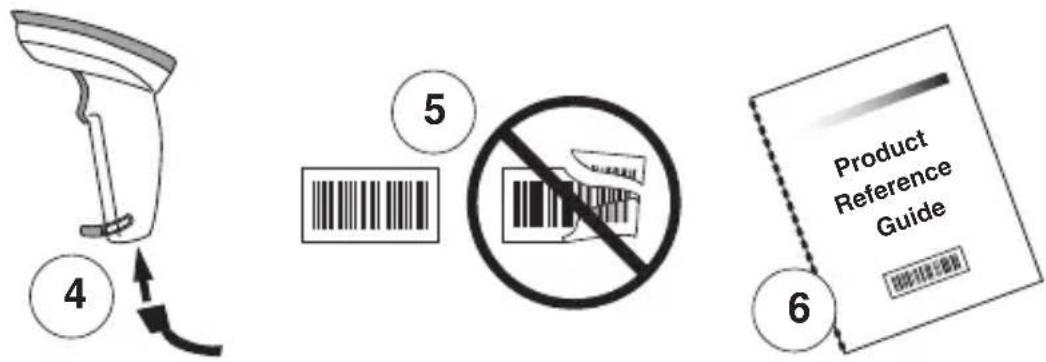
If the scanner still does not function properly, contact your local supplier or Datalogic Customer Support Services.
Compliance Statement
This device complies with Part 15 rules. Operation is subject to the following conditions:
- This device may not cause harmful interference; and
- This device must accept any interference received, including interference that may cause undesired operation.
Disturbi in radiofrequency
CLASS 1 LED PRODUCT APPARECCHIO LED CLASSE 1
LED KLASSE 1 APPAREL A LED DE CLASSE 1
EN60825-1/All:1996
Instalación
DECLARATION OF CONFORMITY
DATALOGIC
Datalogic hereby declares that the Equipment specified below has been tested and found compliant to the following Directives and Standards:
EU Directives: EMC 89/336/EEC Low Voltage 73/23/EEC
Standards: EN 55022:1998 - Generic Emission CISPR 22:1997 - Generic Emission EN 55024 - Generic Immunity - ITE EN 61000-3-2 - Harmonic Current EN 61000-3-3 - Voltage Fluctuation/Flicker EN 60825-1:1996 - LED Safety
Equipment Type: Handheld Linear Imager Barcode Scanning Equipment
Products: Quickscan 2500 (QS2500)
Placed into EU Service: April 2007 under the Datalogic trademark. May 2002 under the PSC trademark.
Responsible Datalogic Scanning, Inc. 959 Terry St. Eugene, OR Manufacturer: USA


Australia
Datalogic Scanning Pty Ltd
North Ryde, Australia
Telephone: [61] (2) 9870 3200
Fax: [61] (2) 9878 8688
France and Benelux
Datalogic Scanning Sarl
LES ULIS Cedex, France
Telephone: [33].01.64.86.71.00
Fax: [33].01.64 46.72.44
Germany
Vimercate (MI), Italy
Telephone: [39] (0) 39/62903.1
Fax: [39] (0) 39/6859496
Japan
Datalogic Scanning KK
Shinagawa, Tokyo, Japan
Telephone: 81 (0)3 3491 6761
Fax: 81 (0)3 3491 6656
Latin America
Datalogic Scanning, Inc
Miami, Florida, USA
Telephone: (305) 591-3222
Fax: (305) 591-3007
Spain and Portugal
Datalogic Scanning Sarl Sucursal en España
Madrid, Spain
Telephone: 34 91 746 28 60
Fax: 34 91 742 35 33
United Kingdom
Datalogic Scanning LTD
Watford, England
Telephone: 44 (0) 1923 809500
Fax: 44 (0) 1923 809 505

DATALOGIC
www.scanning.datalogic.com
Datalogic Scanning, Inc.
959 Terry Street
Eugene, OR 97402
Telephone: (541) 683-5700
©2004-2007 Datalogic Scanning, Inc. R44-2808 (Rev. A) 5/07