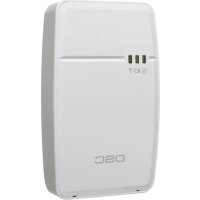
WS4920 - Wifi repeater DSC - Free user manual and instructions
Find the device manual for free WS4920 DSC in PDF.



| Product Type | Wireless Repeater for Alarm System |
| Brand | DSC |
| Model | WS4920 |
| Operating Frequency | 433.92 MHz |
| Dimensions (H x W x D) | 17.68 x 11.35 x 3.38 cm |
| Weight | 0.35 kg |
| AC Power | Plug-in Class II transformer: 120 VAC/60 Hz or 230 VAC/50 Hz, output 16-18 VAC/20 VA |
| Backup Battery | Ni-MH rechargeable 4.8 V / 2.1 Ah |
| Battery Life | 24 hours |
| Recording Capacity | Up to 164 one-way wireless devices |
| Operating Temperature | -10 °C to +55 °C |
| Operating Humidity | 5% to 93% RH (non-condensing) |
| LED Indicators | Green (power), red (battery/zone), yellow (RF jamming) |
| Security Features | Wall and cover tamper, RF jamming detection, activatable wall tamper |
| Compatibility | DSC one-way devices: contacts, detectors, keypads, etc. (see manual) |
| Mounting | Wall mounting with screws and anchors supplied |
| Box Contents | WS4920 (battery included), transformer, mounting kit, instructions |
| Warranty | 12 months limited |
| Maintenance | Clean with a dry cloth. Unplug before cleaning. |
| Replaceable Parts | Backup battery (replace every 3 to 5 years) |
Frequently Asked Questions - WS4920 DSC
User questions about WS4920 DSC
0 question about this device. Answer the ones you know or ask your own.
Ask a new question about this device
Download the instructions for your Wifi repeater in PDF format for free! Find your manual WS4920 - DSC and take your electronic device back in hand. On this page are published all the documents necessary for the use of your device. WS4920 by DSC.
USER MANUAL WS4920 DSC
natural_image
Line drawing of a rectangular device with rounded corners and internal components, no text or symbols present.NOTE: Use these instructions in conjunction with the installation manual of the alarm panel with which this equipment is intended to be used.
WARNING: READ and SAVE These Instructions! Follow All WARNINGS AND INSTRUCTIONS specified within this document and/or on the equipment.
SAFETY INSTRUCTIONS for WS4920 WIRELESS REPEATER
IMPORTANT:
This equipment, WS4920 WIRELESS REPEATER 1.0, shall be installed and used within an environment that provides the pollution degree max 2 and overvoltages category II NON HAZARDOUS LOCATIONS, indoor only. The equipment is FIXED and DIRECT PLUG IN powered from the mains; it is designed to be installed by Service Persons only; Service Person is defined as a person having the appropriate technical training and experience necessary to be aware of hazards to which that person may be exposed in performing a task and of measures to minimize the risks to that person or other persons.
- The equipment is installed in a FIRE ENCLOSURE.
- If during the installation a knockout is removed, it is the installer's responsibility to ensure that the same degree of protection for the enclosure is provided by the use of bushings, fittings, etc.
-
The enclosure must be secured to the building structure before operation.
-
Internal wiring must be routed in a manner that prevents:
-
Excessive strain on wire and on terminal connections
-
Loosening of terminal and connections
• Damage of conductor insulation -
The end-user and/or installer are responsible for ensuring that the disposal of the used batteries (battery pack) is made according to the waste recovery and recycling regulations applicable to the intended market.
WARNING: When using equipment connected to the MAINS, always follow basic safety instructions. Refer to the SAFETY INSTRUCTIONS provided with this product; save them for (future) reference. Instruct the end-user regarding the safety precautions that shall be observed when operating this equipment.
SAFETY precautions required during installation:
- NEVER install this equipment during a lightning storm!
- NEVER touch uninsulated wires or terminals unless the direct plug in transformer has been disconnected.
- Ensure that cables are positioned so that accidents cannot occur. Connected cables must NOT be subject to excessive mechanical strain.
- Use only the power supply provided with this equipment. Use of unauthorized power supplies may damage the WS4920.
- The AC socket/outlet powering the equipment shall be located near the equipment and shall be easily accessible.
- Do NOT locate this product where persons will walk on the secondary circuit cable(s).
- Do NOT use extension cords to plug in the power supply of this equipment.
- AVOID setting up the equipment near heaters, air conditioners, ventilators, and/or refrigerators
- Do NOT connect to electrical outlets on the same circuit as large appliances.
- Do NOT select a place exposed to direct sunlight, excessive heat, moisture, vapors, chemicals or dust.
- Do NOT install this Equipment near water. (e.g., bath tub, wash bowl, kitchen/laundry sink, in a wet basement, or near swimming pool, etc.).
- Do NOT install this equipment and its accessories in areas where there is a risk of explosion.
- Do NOT connect this equipment to electrical outlets controlled by wall switches or automatic timers; avoid interference sources.
WARNING: THIS EQUIPMENT HAS NO MAINS ON/OFF SWITCH. THE PLUG OF THE DIRECT PLUG-IN POWER SUPPLY IS INTENDED TO SERVE AS THE DISCONNECTING DEVICE IF THE EQUIPMENT MUST BE QUICKLY DISCONNECTED. IT IS IMPERATIVE THAT ACCESS TO THE MAINS PLUG AND ASSOCIATED MAINS SOCKET/OUTLET IS NEVER OBSTRUCTED.
The WS4920 is compatible with the following DSC wireless devices:
| Door/ Window Contact Alarm Panel Wireless Receiver | ||
| ULWS4945 | ULPC1616/PC1832/PC1864 | ULRF5132-433 |
| ULWS4965 | ULSCW9045-433 | ULRFK5500-433 |
| WS4975W* | ULSCW9047-433 | ULRFK5501-433 |
| EV-DW4975** | ULPC9155-433 | ULRFK5508-433 |
| EV-DW4917 | ULPC4020-433 | ULRFK5516-433 |
| WS4925 | PC4010-433 | ULRF4164-433 |
| EV-DW4955 | SCW9055-57(D)(G)(I)-433 | PC5132-433RF5108-433RF5501-433 |
| Motion Detector Wireless Key Smoke Detector | ||
| ULWLS914-433 | ULWS4939 | ***ULWS4916 |
| ULWS4904(P) | WS4949 | ***ULWS4926 |
| WS4904M | WS4959 | |
| WS4969 | ||
| WS4979 | ||
| Glassbreak Detector CO Detector Hold-Up Alarm | ||
| ULWLS912L-433 | ***WS4913 WLS928-433 | |
| Shock Sensor Flood | Sensor Panic Pendant | |
| EV-DW4927 | WS4985 | ULWS4938 |
| EV-DW4927SS | WS4938-2W | |
| UL Only these UL/ULC listed devices are to be used with UL/ULC listed systems.* Not available in North America, South America and New Zealand.** Available in North America, South America and New Zealand only.*** For Residential Fire installations, two WS4920's must be used. | ||
NOTE: WS4920 is not compatible with 2-way devices.
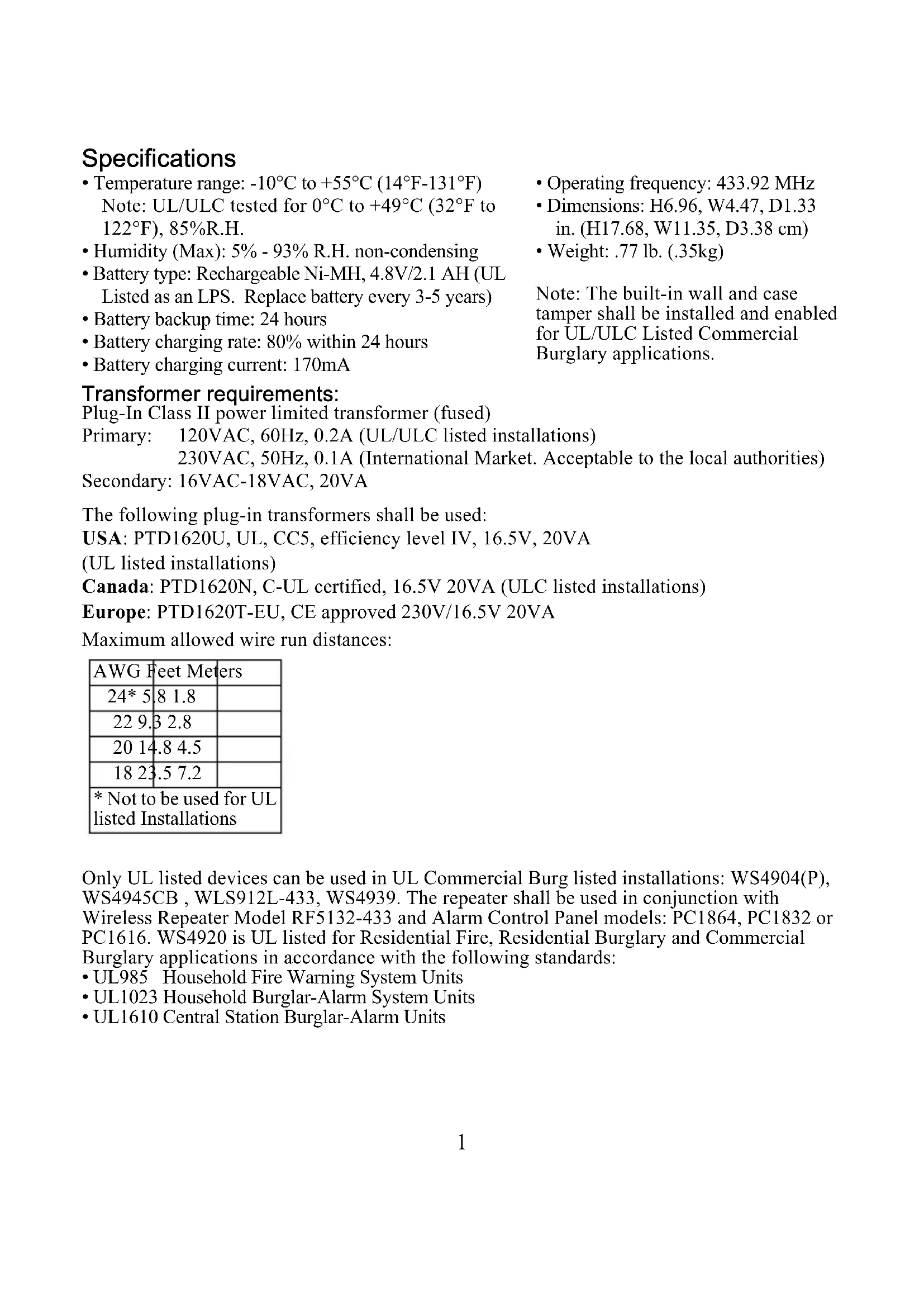
Specifications
- Temperature range: -10^ to +55^ (14°F-131°F) Note: UL/ULC tested for 0^ to +49^ (32°F to 122°F), 85%R.H.
• Humidity (Max): 5% - 93% R.H. non-condensing - Battery type: Rechargeable Ni-MH, 4.8V/2.1 AH (UL Listed as an LPS. Replace battery every 3-5 years)
- Battery backup time: 24 hours
• Battery charging rate: 80% within 24 hours -
Battery charging current: 170mA
-
Operating frequency: 433.92 MHz
- Dimensions: H6.96, W4.47, D1.33 in. (H17.68, W11.35, D3.38 cm)
• Weight: .77 lb. (.35kg)
Note: The built-in wall and case tamper shall be installed and enabled for UL/ULC Listed Commercial Burglary applications.
Transformer requirements:
Plug-In Class II power limited transformer (fused)
Primary: 120VAC, 60Hz, 0.2A (UL/ULC listed installations)
230VAC, 50Hz, 0.1A (International Market. Acceptable to the local authorities)
Secondary: 16VAC-18VAC, 20VA
The following plug-in transformers shall be used:
USA: PTD1620U, UL, CC5, efficiency level IV, 16.5V, 20VA
(UL listed installations)
Canada: PTD1620N, C-UL certified, 16.5V 20VA (ULC listed installations)
Europe: PTD1620T-EU, CE approved 230V/16.5V 20VA
Maximum allowed wire run distances:
| AWG Feet Meters | |
| 24* 5.8 1.8 | |
| 22 9.3 2.8 | |
| 20 14.8 4.5 | |
| 18 23.5 7.2 | |
| * Not to be used for UL listed Installations | |
Only UL listed devices can be used in UL Commercial Burg listed installations: WS4904(P), WS4945CB, WLS912L-433, WS4939. The repeater shall be used in conjunction with Wireless Repeater Model RF5132-433 and Alarm Control Panel models: PC1864, PC1832 or PC1616. WS4920 is UL listed for Residential Fire, Residential Burglary and Commercial Burglary applications in accordance with the following standards:
• UL985 Household Fire Warning System Units
• UL1023 Household Burglar-Alarm System Units
• UL1610 Central Station Burglar-Alarm Units
Introduction
The WS4920 is a wireless repeater designed to extend the range of DSC one-way wireless transmitters and to improve signal quality between the transmitter and receiver. Use the WS4920 to remedy transmission problems caused by excessive noise or other interference, or by long distances between devices and receivers. The maximum recommended number of WS4920's per alarm system is 4.
Each enrolled WS4920 occupies a zone slot. The WS4920 does not increase the number of supported wireless zones. This is determined by the control panel's wireless receiver. Only zones requiring repeat functionality need to be enrolled on the WS4920. Ensure these zones are enrolled on both the WS4920 and the receiver/control panel.
Unpacking
Ensure your package includes the following:
• One WS4920 (rechargeable Ni-MH battery included)
- One direct plug-in transformer (Not included in all configurations)
- Mounting hardware pack, including plastic wall plugs and screws
- Installation instructions
Controls and Indicators
The WS4920 has three LEDs on the front. The meaning of these LEDs is different when in normal operational mode (cover on) than when in Installer mode (cover off). See the table below for descriptions of LED functionality. The wall tamper must be closed for the LEDs to operate.
Figure 1: LED Indicators
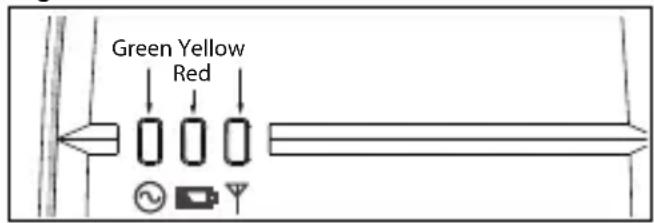
Table 1: LED Definitions
| LED | Normal Mode (cover on) | LED | Installer Mode (cover off) |
Green | On: AC presentFlashing: No AC, battery goodOff: No AC and dead battery | Green√ | 1 flash: EnrolledFlashing: Placement test active |
Red On | On: Battery not connectedOff: Battery good (if AC on)Flashing: Low battery | Red Fl× | flashing: Zone not enrolled |
| Yellow[23AY] | On: RF jam presentOff: No RF jam | Yellow▼ | On: Repeater placement test “bad”Off: Repeater placement test “good”Flashing: Sporadic interference or valid transmission packets detected |
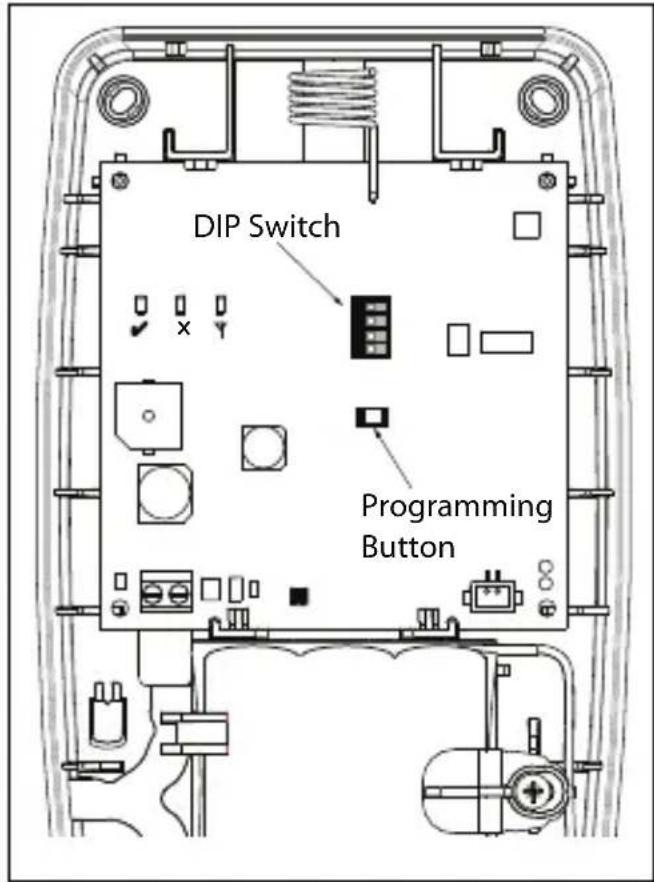
The WS4920 includes a Programming button used to place it into Enroll/Placement modes. A 4-position DIP switch is also provided to set the following options:
Table 2: DIP Switch Settings
| Switch | ON OFF | |
| 1 Wall tamper enabled Wall tamper disabled | ||
| 2 RF Jam notification not sent to receiver | RF Jam notification sent to receiver* | |
| 3 Compatible with RF4164, RF5108, RF5132, RFK55xx, SCW 9045/47, and ALEXOR PC9155 receivers | Compatible with IMPASSA SCW9055/ SCW9057 | |
| 4 For installations with 1 WS4920 | For installations with Multiple WS4920's | |
The default for all switches is ON.
* RF Jam notification required for UL Residential Fire operation.
Figure 2: Internal Controls
Installation
Install the WS4920 in the following order.
NOTE: When enrolling and placement testing the WS4920 with the alarm panel, refer to the compatible control panel installation instructions for the appropriate programming sections.
Step 1: Temporarily Mounting the WS4920
Select a suitable location for the WS4920. Use the following list as a guide:
- Locate device near a power outlet
- Location should be free from vibration and shock
- Mount on a flat, stable surface
- Ideal location is mid-way between the wireless transmitter and receiver. The minimum distance between the WS4920 and the receiver should be no less than 1 meter (3.28 feet)
Do not permanently mount the WS4920 until it has been placement tested. Temporarily mount the unit using tape or other non-permanent, non-marking method. If the selected location fails the placement test, the device must be repositioned.
Step 2: Connecting Power
Connect back-up battery first then AC.
To connect the battery:
-
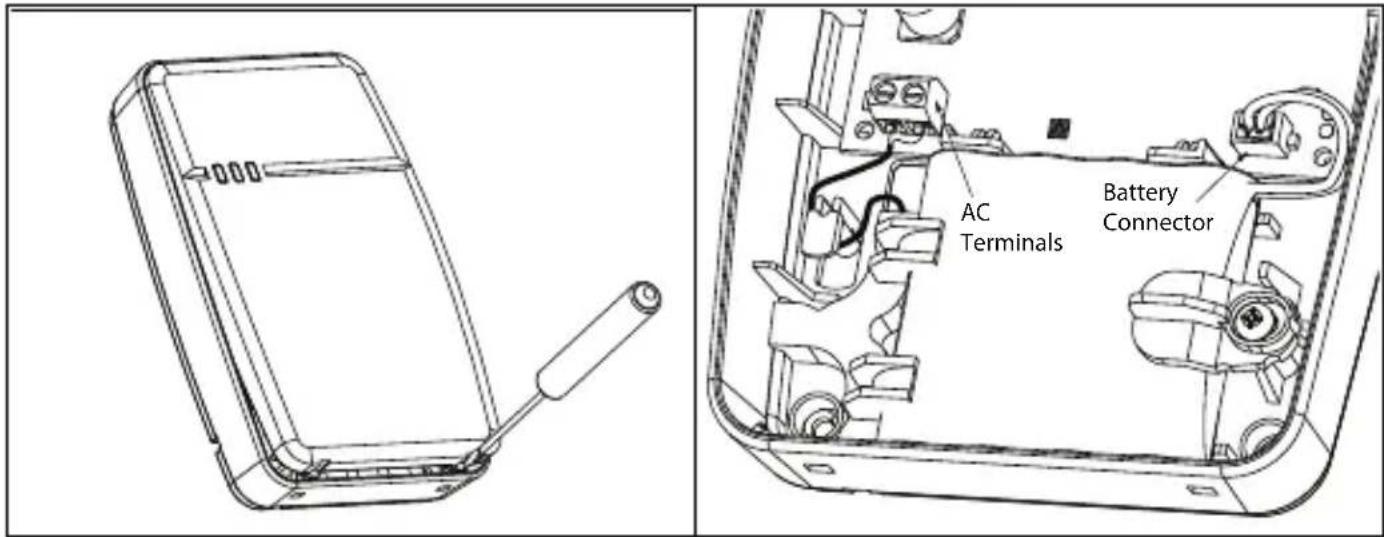
Gently open front cover using small slotted screwdriver in holes provided (see Figure 3).
-
Attach battery cable to connector on PC board.
Depending on the charge state of the battery, a low battery trouble condition may be registered on initial power up. The trouble may take several hours to clear.
Figure 3: Removing the Cover Figure 4: Power Connections
To connect the AC adaptor:
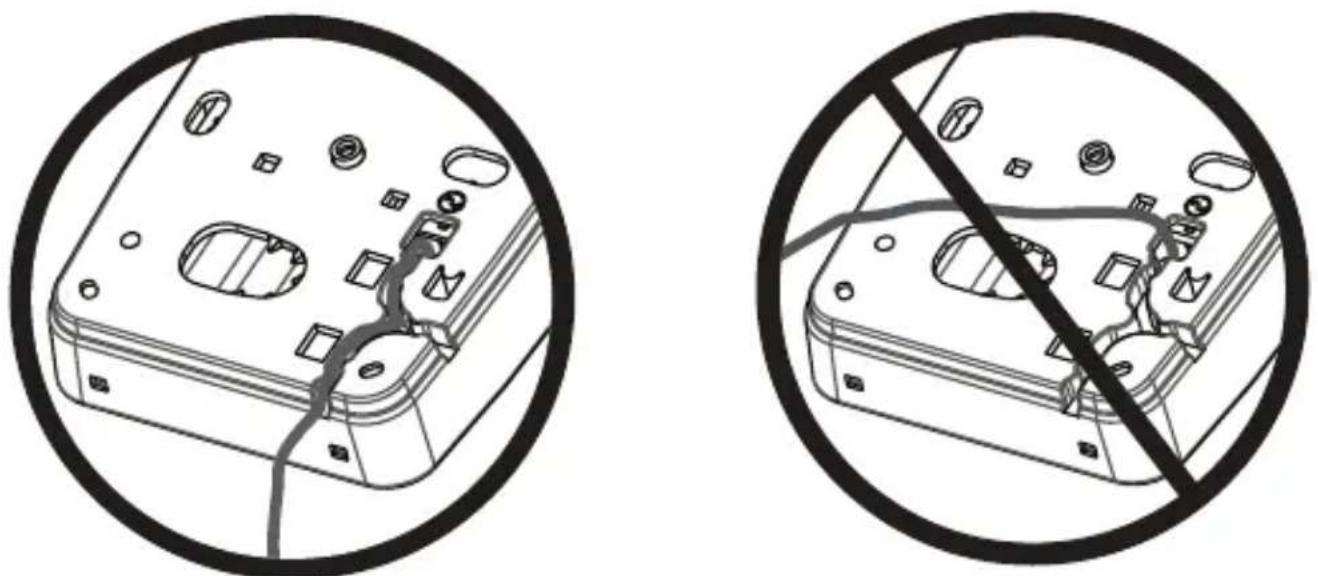
- Run AC wire through channel on back of WS4920 and pass through hole in enclosure.
Figure 5: Wire Routing
natural_image
Two circular diagrams showing a device interior with labeled components and a diagonal line indicating prohibition (no text or symbols present)- Connect AC wires to terminals on PC board (see Figure 4).
- Route wire around retaining bracket to secure.
- Plug AC adaptor into wall outlet.
Step 3: WS4920 Repeater Placement Testing (Interference Detection)
Repeater placement test ensures the WS4920 is located in an area with low noise and interference and can successfully receive signals from one-way wireless devices.
To perform a Repeater placement test:
- Press and hold Programming button for 1 second to enter Programming mode. The “Mode Entered” tone sounds (1 long beep). Repeater placement test is continuously active until Programming mode is exited, times out after 4 hours or cover is put back on unit.
- If RF traffic level or noise floor level is too high, the yellow LED lights steadily. If this occurs, reposition unit until yellow LED turns off.
- To exit Enroll/Placement mode, press Programming button again for 1 second or place cover back on WS4920. The “Mode Exited” (3 beeps) tone sounds.
Step 4: Enrolling the WS4920 with the Alarm Panel
The WS4920 has a six-digit electronic serial number (ESN) that must be input to the alarm panel during enrollment.
To quick enroll the WS4920 (available on selected alarm panels):
- Enter Wireless Enrollment mode on alarm panel (see panel installation instructions).
- Tamper WS4920 to transmit ESN.
- Confirm ESN on alarm panel. Panel prompts for zone number.
- Select and accept zone number for WS4920 to complete enrollment.
To manually enroll WS4920, consult alarm panel installation manual.
NOTE: For PowerSeries, Alexor, MAXSYS and SCW9045/47, use the serial number beginning with “2”. For the Impassa (SCW9055/SCW9057) use the serial number beginning with “A”.
NOTE: (For non-UL listed installations) Non-alarm zone type 26 is recommended. With this zone type, loss of AC or a low battery condition are not reported to the central station. The alarm panel does not show a trouble for the zone but will indicate it as open. Select the Force Arm attribute for this zone. Program a zone label to identify the WS4920. e.g., “Rpter 1 Pwr Trbl.”
NOTE: (For UL listed installations) If AC loss and low battery must be reported to the central station, use a 24-hour zone type. Ensure the Audible attribute is set to silent.
Step 5: Placement Testing the WS4920
For optimal performance between the WS4920 and the alarm panel, the RF signal between the two units should be as free from interference as possible.
To test the RF link between the WS4920 and the alarm panel:
-
Place alarm panel into placement test (see panel installation instructions) and select zone where WS4920 is enrolled.
-
Tamper the WS4920.
- If alarm panel receives a strong signal, panel siren squawks once and “Location is Good” is displayed on alarm keypad.
- If alarm panel receives a weak signal, panel siren squawks three times and “Location is Bad” is displayed on alarm keypad.
- If alarm system indicates a weak signal or no response, check panel programming or reposition WS4920 and repeat test. WS4920 should only be placed in location where multiple good results are received.
Step 6: Quick Enroll/Placement Testing Devices
Up to 164 1-way wireless devices can be enrolled on the WS4920. During the first 4 hours of power up, the WS4920 can be placed into Enroll/Placement Test modes. After the 4 hour time-out, access to these modes is denied and the unit must be powered up again to enter Enroll/Placement mode.
NOTE: DLS cannot be used to enroll wireless devices on the WS4920. All wireless devices being enrolled on the WS4920 must also be enrolled on the receiver/control panel.
To both enroll and placement test a device at the same time:
-
Press and hold Programming button for 1 second. "Mode Entered" tone (1 long beep) sounds. The WS4920 is now in Enroll/Programming mode.
-
Trip and restore zone to be enrolled 3 times:
-
Door and window contact - open/close or tamper/restore
• PIR and other stationary devices - tamper/restore - Panic pendant - 3 to 4 button presses
-
Wireless key - 3 separate button presses
-
Red LED (X) flashes until zone is enrolled. Once WS4920 has received signal from zone, Green LED (● lights for 1 second and sounder emits “Zone Enrolled” (low to high) tone.
NOTE:
- If another zone is tripped during the enroll sequence, the enroll process must be restarted by tripping and restoring the appropriate zone 3 times.
• A WS4920 can not enroll another WS4920. - Stationary (permanently mounted) devices should only be enrolled with one WS4920. The only exception is in (UL/ULC) Residential Fire installations, where smoke and CO detectors that are enrolled with a WS4920 must be enrolled with at least two WS4920's.
- Fobs and panic pendants may be enrolled with multiple WS4920's.
- If an enrollment is attempted after all 164 device slots have been filled, the WS4920 emits a 2-second error tone and all three LEDs light for 20 seconds to indicate that no further devices may be enrolled.
- After zone is enrolled, trip again to perform placement test (to test the signal between the wireless device and the WS4920). Green LED flashes if signal is received.
- If “Good Zone Placement” tone (1 beep) sounds, device location is satisfactory and unit may be permanently mounted.
- If “Bad Zone Placement” tone (3 loud beeps) sounds, reposition device and trip zone again. Continue until “Good Zone Placement” (1 beep) tone sounds.
- Repeat steps 2-4 to enroll and placement test other zones.
- To exit, press Programming button again for 1 second or place cover back on WS4920. “Mode Exited” (3 beeps) tone sounds.
NOTE: If the WS4920 tone can not be heard while testing the device, set the alarm panel into individual placement test mode using the WS4920 serial number. The WS4920 placement test results are sounded through the alarm panel siren.
- Although good results may be obtained on the WS4920, bad results are still possible from the alarm panel due to collisions.
- Subsequent violations from an enrolled zone while the WS4920 is in programming mode will initiate a placement test.
Global Placement Testing Devices
Conduct placement testing with doors and windows both open and closed to ensure acceptable placement. To placement test a 1-way wireless device after the initial Enroll/Placement test process:
- Place the alarm panel into individual placement test mode for the WS4920 zone (see control panel installation instructions).
- Press and hold Programming button for 1 second. “Mode Entered” tone (1 long beep) sounds. WS4920 is now in global placement test mode. Each zone enrolled on WS4920 gives placement test result when tripped.
- If “Good Zone Placement” tone (1 beep) sounds, device location is satisfactory and unit may be permanently mounted.
- If “Bad Zone Placement” (3 loud beeps) tone sounds, reposition device and trip zone again. Continue until “Good Zone Placement” tone (1 beep) sounds.
- To exit, press Programming button again for 1 second or place cover back on the WS4920. "Mode Exited" (3 beeps) tone sounds.
Step 7: Mounting the WS4920
Permanently mount the WS4920 only after completing multiple successful placement tests. To mount the WS4920:
- Ensure AC wire is run through channel on back of WS4920.
- Remove front cover and secure unit to wall through mounting holes using all 4 wall plugs and screws provided.
- Place cover back on WS4920.
- Plug AC adaptor into unswitched AC outlet.
Restoring the WS4920 to Factory Defaults
To restore factory default settings:
- Within 1 minute of power up, press and hold Programming button for 10 seconds. Sounder beeps after first second to indicate WS4920 is in Installer mode. After 10 seconds, WS4920 emits double long tone and all LEDs light.
- Release Programming button and immediately press and hold again for 10 seconds. After 10 seconds, WS4920 emits a 4-second tone and all three LEDs flash.
NOTE: The second button press must occur within 20 seconds of the first or the WS4920 will exit Enroll/Placement mode. - WS4920 beeps three times and LEDs return to normal state, indicating Installer mode exit. If Installer mode exits before reset is complete, due either to time-out or tamper, repeat procedure.
Replacing the Battery
Replace the backup battery when it no longer holds its charge.
To replace the battery:
- Disconnect WS4920 from AC.
- Remove front cover from device.
- Disconnect battery cable from connector.
- Loosen screw on battery retention bracket and rotate aside.
- Lift battery out of holder and insert new one.
- Reposition retention arm and tighten screw.
- Attach battery cable to connector on PC board.
- Snap front cover back into place.
- Re-connect WS4920 to AC.
Limited Warranty
Digital Security Controls warrants that for a period of 12 months from the date of purchase, the product shall be free of defects in materials and workmanship under normal use and that in fulfilment of any breach of such warranty, Digital Security Controls shall, at its option, repair or replace the defective equipment upon return of the equipment to its repair depot. This warranty applies only to defects in parts and workmanship and not to damage incurred in shipping or handling, or damage due to causes beyond the control of Digital Security Controls such as lightning, excessive voltage, mechanical shock, water damage, or damage arising out of abuse, alteration or improper application of the equipment. The foregoing warranty shall apply only to the original buyer, and is and shall be in lieu of any and all other warranties, whether expressed or implied and of all other obligations or liabilities on the part of Digital Security Controls. Digital Security Controls neither assumes responsibility for, nor authorizes any other person purporting to act on its behalf to modify or to change this warranty, nor to assume for it any other warranty or liability concerning this product.
In no event shall Digital Security Controls be liable for any direct, indirect or consequential damages, loss of anticipated profits, loss of time or any other losses incurred by the buyer in connection with the purchase, installation or operation or failure of this product.
Warning: Digital Security Controls recommends that the entire system be completely tested on a regular basis. However, despite frequent testing, and due to, but not limited to, criminal tampering or electrical disruption, it is possible for this product to fail to perform as expected.
Important Information: Changes or modifications not expressly approved by Digital Security Controls could void the user's authority to operate this equipment. IMPORTANT - READ CAREFULLY: DSC Software purchased with or without Products and Components is Copyrighted and is purchased under the following license terms:
End User License Agreement
This End-User License Agreement (EULA) is a legal agreement between You (the company, individual or entity who acquired the SOFTWARE and any related HARDWARE) and Digital Security Controls (DSC) a division of Tyco Safety Products Canada Ltd., the manufacturer of the integrated security systems and the developer of the software and any related products or components ('HARDWARE') which you acquired.
If the DSC software product ('SOFTWARE PRODUCT' or 'SOFTWARE') is intended to be accompanied by HARDWARE, and is NOT accompanied by new HARDWARE. You may not use, copy or install the SOFTWARE PRODUCT. The SOFTWARE PRODUCT includes computer software, and may include associated media, printed materials, and 'online' or electronic documentation.
Any software provided along with the SOFTWARE PRODUCT that is associated with a separate EULA is licensed to You under the terms of that license agreement. By installing, copying, downloading, storing, accessing, or otherwise using the SOFTWARE PRODUCT, You agree unconditionally to be bound by the terms of this EULA, even if this EULA is deemed to be a modification of any previous arrangement or contract. If You do not agree to the terms of this EULA, DSC is unwilling to license the SOFTWARE PRODUCT to You, and You have no right to use it.
SOFTWARE PRODUCT LICENSE
The SOFTWARE PRODUCT is protected by copyright laws and international copyright treaties, as well as other intellectual property laws and treaties. The SOFTWARE PRODUCT is licensed, not sold.
- GRANT OF LICENSE This EULA grants You the following rights:
(a)Software Installation and Use - For each license You acquire, You may have only one copy of the SOFTWARE PRODUCT installed.
(b) Storage/Network Use - The SOFTWARE PRODUCT may not be installed, accessed, displayed, run, shared or used concurrently on or from different computers, including a workstation, terminal or other digital electronic device ("Device"). In other words, if You have several workstations, You will have to acquire a license for each workstation where the SOFTWARE will be used.
(c)Backup Copy - You may make back-up copies of the SOFTWARE PRODUCT, but You may only have one copy per license installed at any given time. You may use the back-up copy solely for archival purposes. Except as expressly provided in this EULA, You may not otherwise make copies of the SOFTWARE PRODUCT, including the printed materials accompanying the SOFTWARE.
2. DESCRIPTION OF OTHER RIGHTS AND LIMITATIONS
(a)Limitations on Reverse Engineering, Decompilation and Disassembly - You may not reverse engineer, decompile, or disassemble the SOFTWARE PRODUCT, except and only to the extent that such activity is expressly permitted by applicable law notwithstanding this limitation. You may not make any changes or modifications to the Software, without the written permission of an officer of DSC. You may not remove any proprietary notices, marks or labels from the Software Product. You shall institute reasonable measures to ensure compliance with the terms and conditions of this EULA.
(b)Separation of Components - The SOFTWARE PRODUCT is licensed as a single product. Its component parts may not be separated for use on more than one HARDWARE unit.
(c) Single INTEGRATED PRODUCT - If You acquired this SOFTWARE with HARDWARE, then the SOFTWARE PRODUCT is licensed with the HARDWARE as a single integrated product. In this case, the SOFTWARE PRODUCT may only be used with the HARDWARE as set forth in this EULA.
(d)Rental - You may not rent, lease or lend the SOFTWARE PRODUCT. You may not make it available to others or post it on a server or web site.
(e)Software Product Transfer - You may transfer all of Your rights under this EULA only as part of a permanent sale or transfer of the HARDWARE, provided You retain no copies, You transfer all of the SOFTWARE PRODUCT (including all component parts, the media and printed materials, any upgrades and this EULA), and provided the recipient agrees to the terms of this EULA. If the SOFTWARE PRODUCT is an upgrade, any transfer must also include all prior versions of the SOFTWARE PRODUCT.
(f)Termination - Without prejudice to any other rights, DSC may terminate this EULA if You fail to comply with the terms and conditions of this EULA. In such event, You must destroy all copies of the SOFTWARE PRODUCT and all of its component parts.
(g)Trademarks - This EÚLA does not grant You any rights in connection with any trademarks or service marks of DSC or its suppliers.
-
COPYRIGHT - All title and intellectual property rights in and to the SOFTWARE PRODUCT (including but not limited to any images, photographs, and text incorporated into the SOFTWARE PRODUCT), the accompanying printed materials, and any copies of the SOFTWARE PRODUCT, are owned by DSC or its suppliers. You may not copy the printed materials accompanying the SOFTWARE PRODUCT. All title and intellectual property rights in and to the content which may be accessed through use of the SOFTWARE PRODUCT are the property of the respective content owner and may be protected by applicable copyright or other intellectual property laws and treaties. This EULA grants You no rights to use such content. All rights not expressly granted under this EULA are reserved by DSC and its suppliers.
-
EXPORT RESTRICTIONS - You agree that You will not export or re-export the SOFTWARE PRODUCT to any country, person, or entity subject to Canadian export restrictions.
-
CHOICE OF LAW - This Software License Agreement is governed by the laws of the Province of Ontario, Canada.
-
ARBITRATION - All disputes arising in connection with this Agreement shall be determined by final and binding arbitration in accordance with the Arbitration Act, and the parties agree to be bound by the arbitrator's decision. The place of arbitration shall be Toronto, Canada, and the language of the arbitration shall be English.
7. LIMITED WARRANTY
(a) NO WARRANTY - DSC PROVIDES THE SOFTWARE "AS IS" WITHOUT WARRANTY. DSC DOES NOT WARRANT THAT THE SOFTWARE WILL MEET YOUR REQUIREMENTS OR THAT OPERATION OF THE SOFTWARE WILL BE UNINTERRUPTED OR ERROR-FREE.
(b) CHANGES IN OPERATING ENVIRONMENT - DSC shall not be responsible for problems caused by changes in the operating characteristics of the HARDWARE, or for problems in the interaction of the SOFTWARE PRODUCT with non-DSC-SOFTWARE or HARDWARE PRODUCTS.
(c) LIMITATION OF LIABILITY; WARRANTY REFLECTS ALLOCATION OF RISK - IN ANY EVENT, IF ANY STATUTE IMPLIES WARRANTIES OR CONDITIONS NOT STATED IN THIS LICENSE AGREEMENT, DSC'S ENTIRE LIABILITY UNDER ANY PROVISION OF THIS LICENSE AGREEMENT SHALL BE LIMITED TO THE GREATER OF THE AMOUNT ACTUALLY PAID BY YOU TO LICENSE THE SOFTWARE PRODUCT AND FIVE CANADIAN DOLLARS (CAD\$5.00). BECAUSE SOME JURISDICTIONS DO NOT ALLOW THE EXCLUSION OR LIMITATION OF LIABILITY FOR CONSEQUENTIAL OR INCIDENTAL DAMAGES, THE ABOVE LIMITATION MAY NOT APPLY TO YOU.
(d) DISCLAIMER OF WARRANTIES - THIS WARRANTY CONTAINS THE ENTIRE WARRANTY AND SHALL BE IN LIEU OF ANY AND ALL OTHER WARRANTIES, WHETHER EXPRESSED OR IMPLIED (INCLUDING ALL IMPLIED WARRANTIES OF MERCHANTABILITY OR FITNESS FOR A PARTICULAR PURPOSE) AND OF ALL OTHER OBLIGATIONS OR LIABILITIES ON THE PART OF DSC. DSC MAKES NO OTHER WARRANTIES. DSC NEITHER ASSUMES NOR AUTHORIZES ANY OTHER PERSON PURPORTING TO ACT ON ITS BEHALF TO MODIFY OR TO CHANGE THIS WARRANTY. NOR TO ASSUME FOR IT ANY OTHER WARRANTY OR LIABILITY CONCERNING THIS SOFTWARE PRODUCT.
(e) EXCLUSIVE REMEDY AND LIMITATION OF WARRANTY - UNDER NO CIRCUMSTANCES SHALL DSC BE LIABLE FOR ANY SPECIAL, INCIDENTAL, ANY CONSEQUENTIAL OR INDIRECT DAMAGES BASED UPON BREACH, BREACH OF CONTRACT, NEGLIGENCE, STRICT LIABILITY, OR ANY OTHER LEGAL THEORY. SUCH DAMAGES INCLUDE, BUT ARE NOT LIMITED TO, LOSS OF PROFITS, LOSS OF THE SOFTWARE PRODUCT OR
ANY ASSOCIATED EQUIPMENT, COST OF CAPITAL, COST OF SUBSTITUTE OR REPLACEMENT EQUIPMENT, FACILITIES OR SERVICES, DOWN TIME, PURCHASERS TIME, THE CLAIMS OF THIRD PARTIES, INCLUDING CUSTOMERS, AND INJURY TO PROPERTY. WARNING: DSC recommends that the entire system be completely tested on a regular basis. However, despite frequent testing, and due to, but not limited to, criminal tampering or electrical disruption, it is possible for this SOFTWARE PRODUCT to fail to perform as expected.
FCC COMPLIANCE STATEMENT
CAUTION: CHANGES OR MODIFICATIONS NOT EXPRESSLY APPROVED BY DIGITAL SECURITY CONTROLS COULD VOID YOUR AUTHORITY TO USE THIS EQUIPMENT. This equipment generates and uses radio frequency energy and if not installed and used properly, in strict accordance with the manufacturer's instructions, may cause interference to radio and television reception. It has been type tested and found to comply with the limits for Class B device in accordance with the specifications in Subpart "B" of Part 15 of FCC Rules, which are designed to provide reasonable protection against such interference in any residential installation. However, there is no guarantee that interference will not occur in a particular installation. If this equipment does cause interference to television or radio reception, which can be determined by turning the equipment off and on, the user is encouraged to try to correct the interference by one or more of the following measurers: Re-orient the receiving antenna, relocate the alarm control with respect to the receiver, move the alarm control away from the receiver, connect the alarm control into a different outlet so that alarm control and receiver are on different circuits.
If necessary, the user should consult the dealer or an experienced radio/television technician for additional suggestions. The user may find the following booklet prepared by the FCC helpful: "How to Identify and Resolve Radio/Television Interference Problems." This booklet is available from the U.S. Government Printing Office, Washington, D.C. 20402, Stock # 004-000-00345-4.
Industry Canada Compliance Statement
This Class B digital apparatus complies with Canadian ICES-003.
The term IC before the radio certification number signifies that the Industry Canada technical specifications were met.
The trademarks, logos, and service marks displayed on this document are registered in the United States [or other countries]. Any misuse of the trademarks is strictly prohibited and Tyco International Ltd. will aggressively enforce its intellectual property rights to the fullest extent of the law, including pursuit of criminal prosecution wherever necessary. All trademarks not owned by Tyco International Ltd. are the property of their respective owners, and are used with permission or allowed under applicable laws. Product offerings and specifications are subject to change without notice. Actual products may vary from photos. Not all products include all features. Availability varies by region; contact your sales representative.
© 2013 Tyco International Ltd. and its Respective Companies. All Rights Reserved.

A Tyco International Company
Technical Support:
www.dsc.com
Printed in Canada
1-800-387-3630 (Canada, US)
905-760-3000 (Intl.)
WS4920 v1.0
natural_image
Front view of a rectangular electronic device with control panel and indicator lights (no text or symbols)natural_image
Top-down line drawing of a rectangular device with rounded corners and internal components (no text or symbols)natural_image
Two circular diagrams showing a device interior with internal components and a diagonal line indicating prohibition (no text or symbols present)natural_image
Line drawing of a rectangular device with rounded corners and internal compartments, no text or symbols present.natural_image
Two circular diagrams showing a device interior with circuit traces and connectors, one marked with a diagonal line (no text or symbols present)natural_image
Line drawing of a rectangular device with rounded corners and internal components, no text or symbols present.natural_image
Two circular diagrams showing a device interior with circuit breakers and connectors, one marked with a diagonal line (no text or symbols)Hereby, DSC, declares that this device is in compliance with the requirements and other relevant provisions of Directive 1999/5/EC.
The complete R&TTE Declaration of Conformity can be found http://www.dsc.com/listings_index.aspx


- SAFETY INSTRUCTIONS for WS4920 WIRELESS REPEATER
- IMPORTANT:
- Specifications
- Transformer requirements:
- Introduction
- Unpacking
- Controls and Indicators
- Installation
- Step 1: Temporarily Mounting the WS4920
- Step 2: Connecting Power
- Step 3: WS4920 Repeater Placement Testing (Interference Detection)
- Step 4: Enrolling the WS4920 with the Alarm Panel
- Step 5: Placement Testing the WS4920
- Step 6: Quick Enroll/Placement Testing Devices
- NOTE:
- Global Placement Testing Devices
- Step 7: Mounting the WS4920
- Restoring the WS4920 to Factory Defaults
- Replacing the Battery
- Limited Warranty
- End User License Agreement
- SOFTWARE PRODUCT LICENSE
- DESCRIPTION OF OTHER RIGHTS AND LIMITATIONS
- LIMITED WARRANTY
- FCC COMPLIANCE STATEMENT
- Industry Canada Compliance Statement
- WS4920 v1.0
Brand : DSC
Model : WS4920
Category : Wifi repeater