
512504 - Surveillance Camera THOMSON - Free user manual and instructions
Find the device manual for free 512504 THOMSON in PDF.
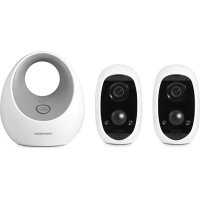

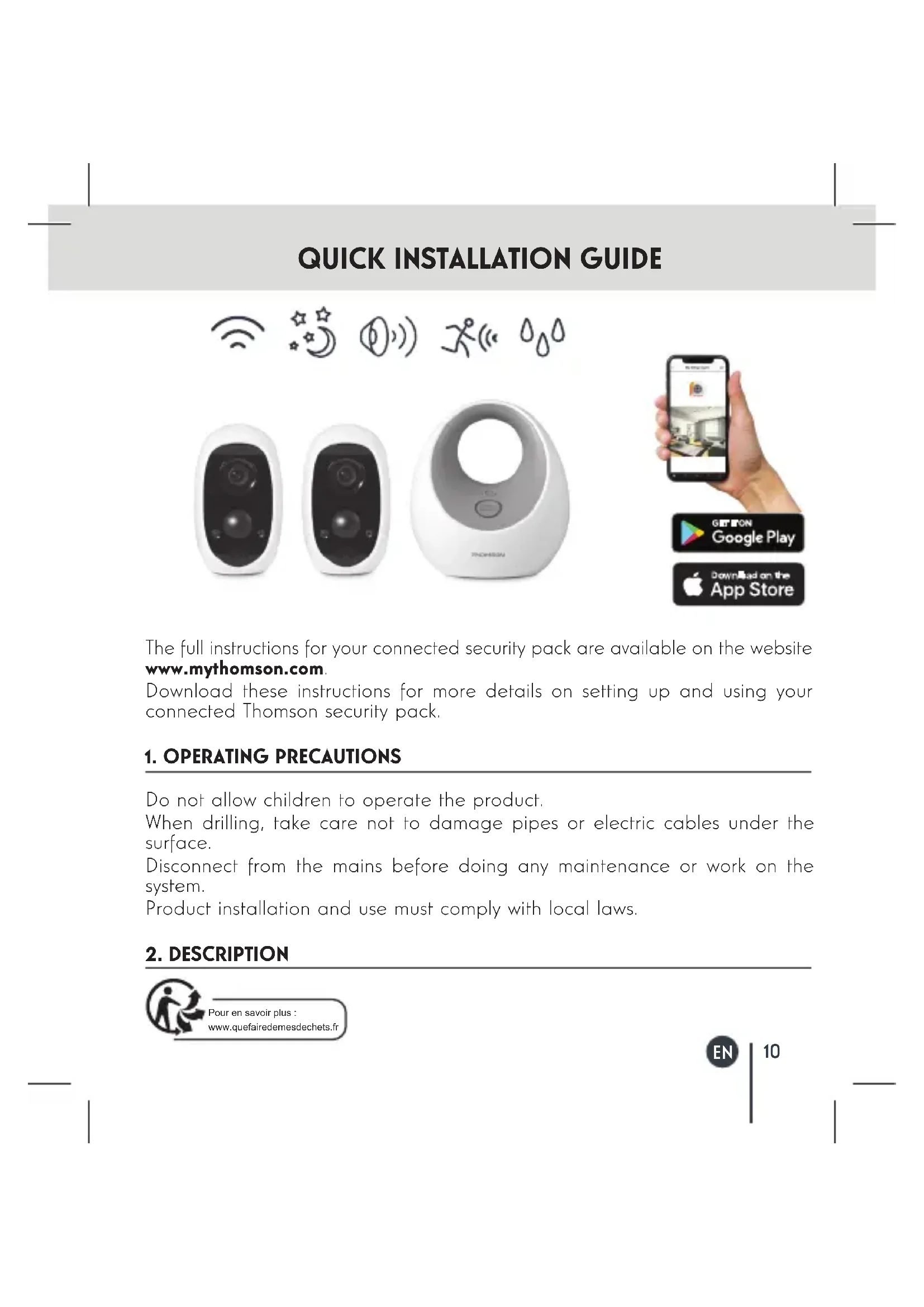


| Product type | 1080p FullHD standalone IP cameras pack |
| Brand | Thomson |
| Model | 512504 |
| Base power supply | Mains adapter 230V~50Hz / USB 5Vdc 2A |
| Camera power supply | Integrated rechargeable batteries (battery packs included) |
| Video resolution | 1080p FullHD |
| Main features | Night vision, motion detection, microSD card recording, live viewing via Link home app |
| Storage | microSD card (not included) |
| Connectivity | WiFi (via base connected to network) |
| Pack contents | 2 cameras, 1 connection base, 2 mains adapters, 2 USB cables, 1 network cable, wall plugs, screws, 2 magnetic mounts, 2 battery packs |
| Installation | Wall mounting or placement on a flat surface; base near an internet connection |
| App | Link home (iOS and Android) |
| Security code | Unique 6-letter code printed on each camera's battery |
| Camera LED indicator | Solid red (startup), solid blue (reading), slow blue (operating), slow red (charging/network error), fast blue (ready for configuration), fast red (error/low battery) |
| Maintenance and cleaning | Disconnect before maintenance; clean with a soft dry cloth |
| Safety | Do not let children handle; when drilling, avoid cables and pipes; installation in accordance with local legislation |
| General information | RED conformity statement (2014/53/EU); Thomson brand under license from TECHNICOLOR S.A. |
Frequently Asked Questions - 512504 THOMSON
User questions about 512504 THOMSON
0 question about this device. Answer the ones you know or ask your own.
Ask a new question about this device
Download the instructions for your Surveillance Camera in PDF format for free! Find your manual 512504 - THOMSON and take your electronic device back in hand. On this page are published all the documents necessary for the use of your device. 512504 by THOMSON.
USER MANUAL 512504 THOMSON
Alexandre Chaverot, president

QUICK INSTALLATION GUIDE


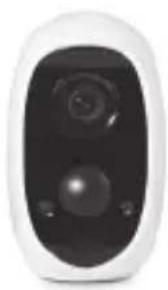
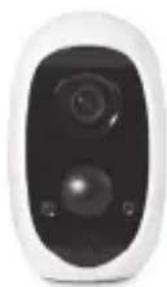

The full instructions for your connected security pack are available on the website www.mythomson.com.
Download these instructions for more details on setting up and using your connected Thomson security pack.
1. OPERATING PRECAUTIONS
Do not allow children to operate the product.
When drilling, take care not to damage pipes or electric cables under the surface.
Disconnect from the mains before doing any maintenance or work on the system.
Product installation and use must comply with local laws.
2. DESCRIPTION

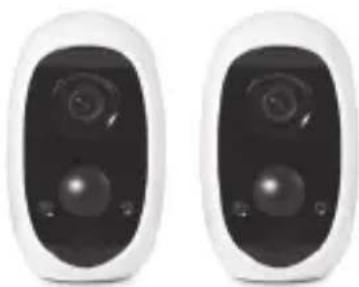
| 1 | Cameras |
| 2 | Connection base |
| 3 | 230Vac 50Hz / USB 5Vdc 2A power adapter for powering the base and spot charging the camera batteries |
| 4 | USB cables for powering the base and spot charging the camera batteries |
| 5 | Network cable for the base |
| 6 | Wall plugs for mounting the camera |
| 7 | Screws for mounting the camera |
| 8 | Magnetic bracket |
| 9 | Camera battery packs |
3. INSTALLING THE CAMERAS
Make sure the cameras are properly secured to prevent them from falling. The cameras are designed to be attached to the wall using the provided hardware or placed on a flat horizontal surface.
INSTALLING THE BASE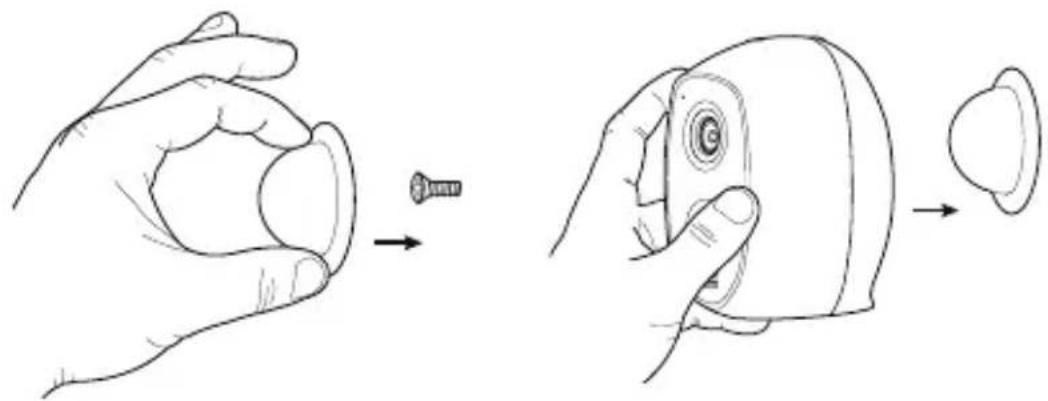
The base is designed to be placed near an internet hub. Connect the network and power cable.
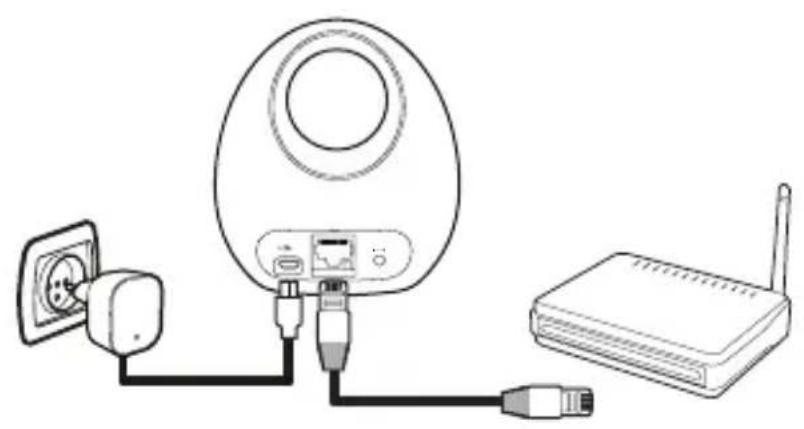

4. CONFIGURATION

Download the Link Home application from the App Store or Google Play, then launch the application.
Create an account by clicking on "New user registration" and then on "Sign up using your email address". Then follow the on-screen instructions and carefully choose a login password.
While creating an account, a verification code will be sent to the email address you enter. Check your spam folder if you don't receive the email in your inbox.
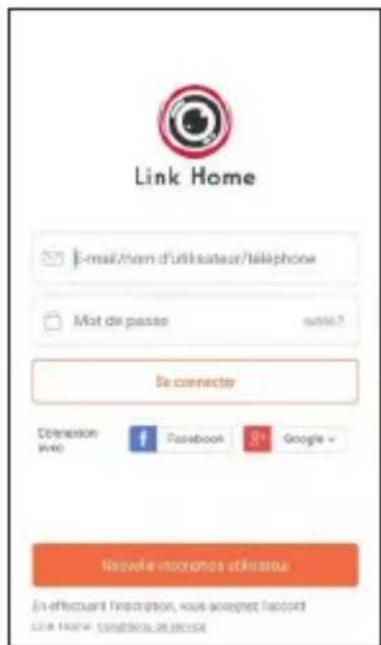
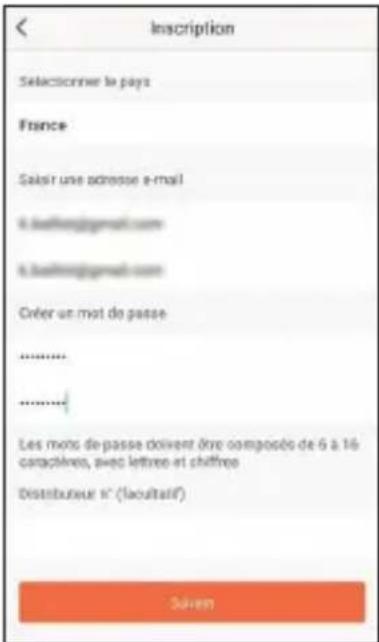
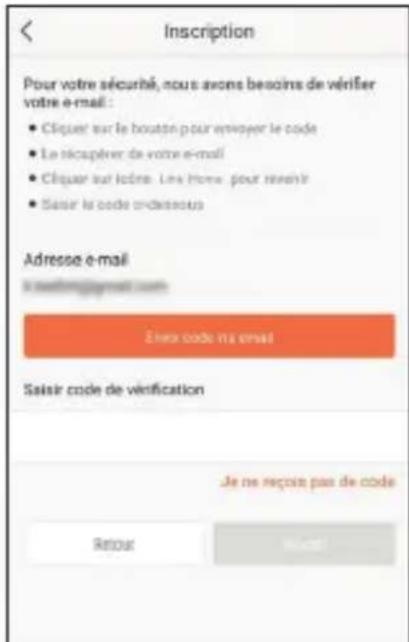
Once you have created and confirmed your account, log in and click on the "+" icon to pair your connection base. The app will ask you to scan the QR code under the base.

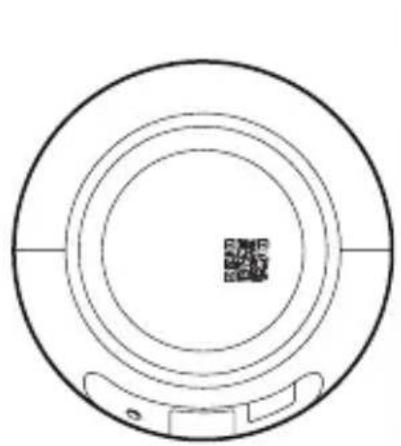
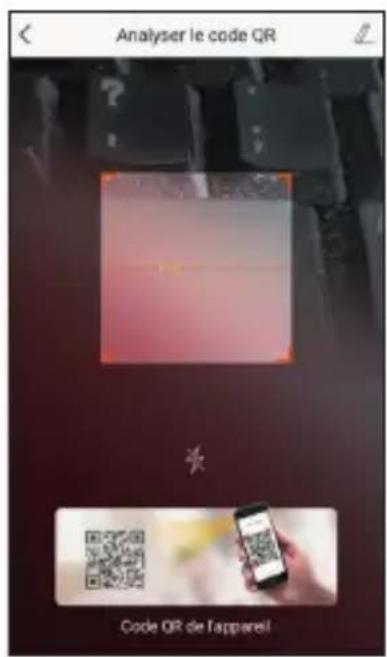
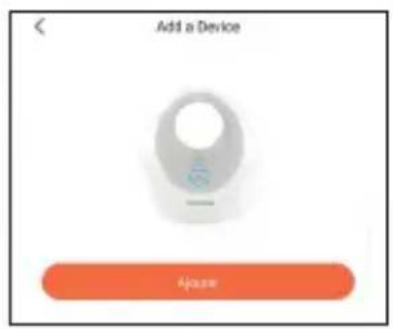
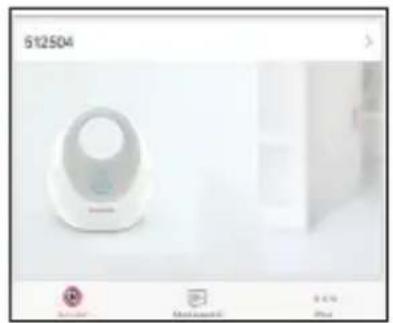
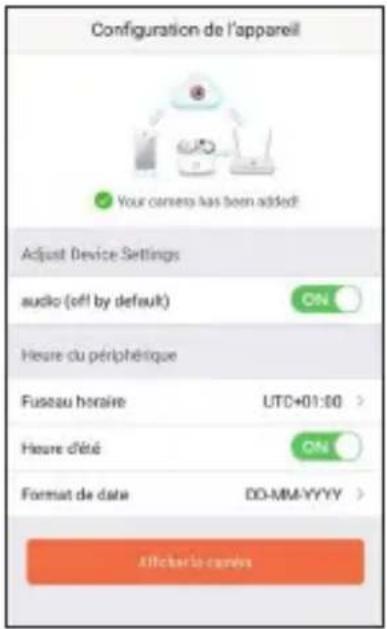
The base automatically pairs to the account in a few seconds. Finish configuration by updating the time and date format.
Once you've finished adding the base, click on your base in the list, then pair each camera by clicking on the + icon on the right.
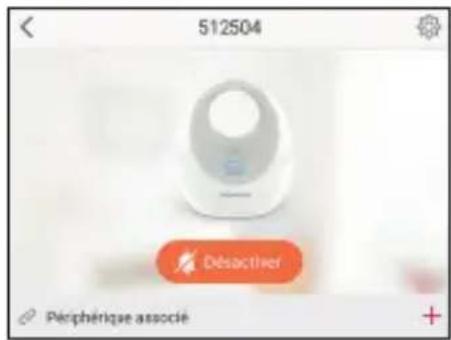
Then press and hold the "Sync" button on the camera you wish to pair until you hear a sound message, then follow the on-screen instructions on your smartphone.
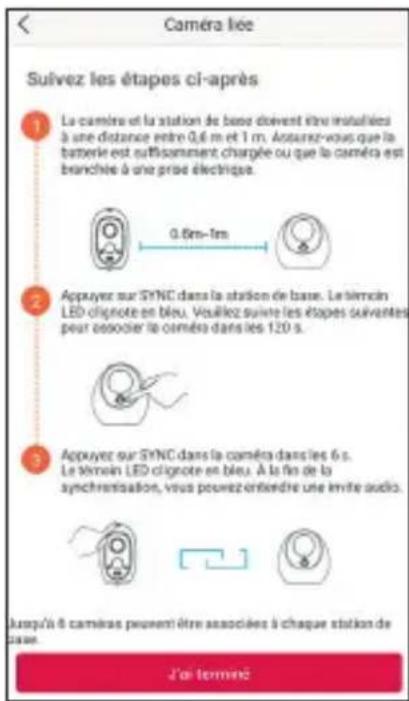
Each camera paired with your base appears next to it in the list of available devices in the application.

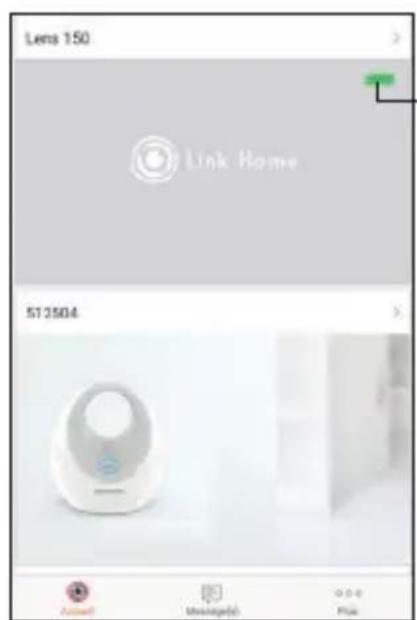
Battery charger
Click your camera's thumbnail to view its live feed.
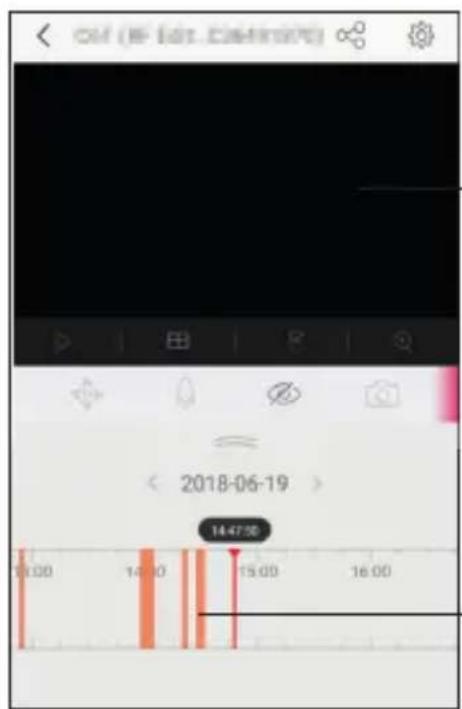
Live video
If a microSD card was inserted into the camera, the colored bands show the presence of motion detection recordings. Slide from left to right to choose a spot and play the corresponding video.
Note: for security reasons, the app asks for a security code when launching for the first time. This unique 6-letter code is located on the camera's battery.
The indicator light on the front of the camera shows its state:
Solid red: the camera is starting up. Solid blue: reading in progress. Slow flashing blue: the camera is operating. Slow flashing red: the battery is charging. If the camera is not powered up, there may be a network access problem. Fast flashing blue: the camera is ready to be configured. Fast flashing red: an error has occurred or the battery is low.
The battery's state of charge is also indicated in the application in the list of paired cameras.
5. DECLARATION OF CONFORMITY
Declaration of conformity with the RED Directive
SMART HOME FRANCE
hereby declares that the equipment designated below:
1080p Full HD stand-alone IP camera pack 512504
Complies with the RED 2014/53/EU directive and that its conformity has been assessed pursuant to the applicable standards in force:
EN60950-1: 2006+A11: 2009+A1: 2010+A12: 2011+A2: 2013
EN62311:2008
EN301 489-1 V2.1.1:2017-02
EN301 489-17 V3.1.1:2017-03
EN300 328 V2.1.1:2016-11
Chambray les Tours on 20/03/2019
Alexandre Chaverot, CEO


QUICK INSTALLATION GUIDE






Brand : THOMSON
Model : 512504
Category : Surveillance Camera