BFH250 - Smartwatch DENVER - Free user manual and instructions
Find the device manual for free BFH250 DENVER in PDF.



| Product type | Smartwatch |
| Brand | Denver |
| Model | BFH250 |
| Power supply | Rechargeable lithium-ion battery via USB cable with charging contacts |
| Main functions | Pedometer, heart rate, message notifications, multisport (walking, running, climbing, cycling), sedentary reminder, drink water reminder, alarm, gesture control, phone search |
| Connectivity | Bluetooth 2.402-2.480 GHz |
| App | Denver Smart Life (Android and iOS) |
| Sensors | Heart rate sensor (pulse sensor) |
| Care and cleaning | Wipe with a soft, dry cloth. Avoid chemicals. |
| Safety | Do not expose to excessive moisture. Follow battery disposal instructions. |
| General information | Compliant with directive 2014/53/EU. Manufacturer: Denver Electronics A/S, Omega 5A, Soeften, DK-8382 Hinnerup, Denmark. |
Frequently Asked Questions - BFH250 DENVER
User questions about BFH250 DENVER
0 question about this device. Answer the ones you know or ask your own.
Ask a new question about this device
Download the instructions for your Smartwatch in PDF format for free! Find your manual BFH250 - DENVER and take your electronic device back in hand. On this page are published all the documents necessary for the use of your device. BFH250 by DENVER.
USER MANUAL BFH250 DENVER
If the user manual is not printed in your local language, then please enter our website to see if it is found online under the model you have. The website address is: www.denver-electronics.com
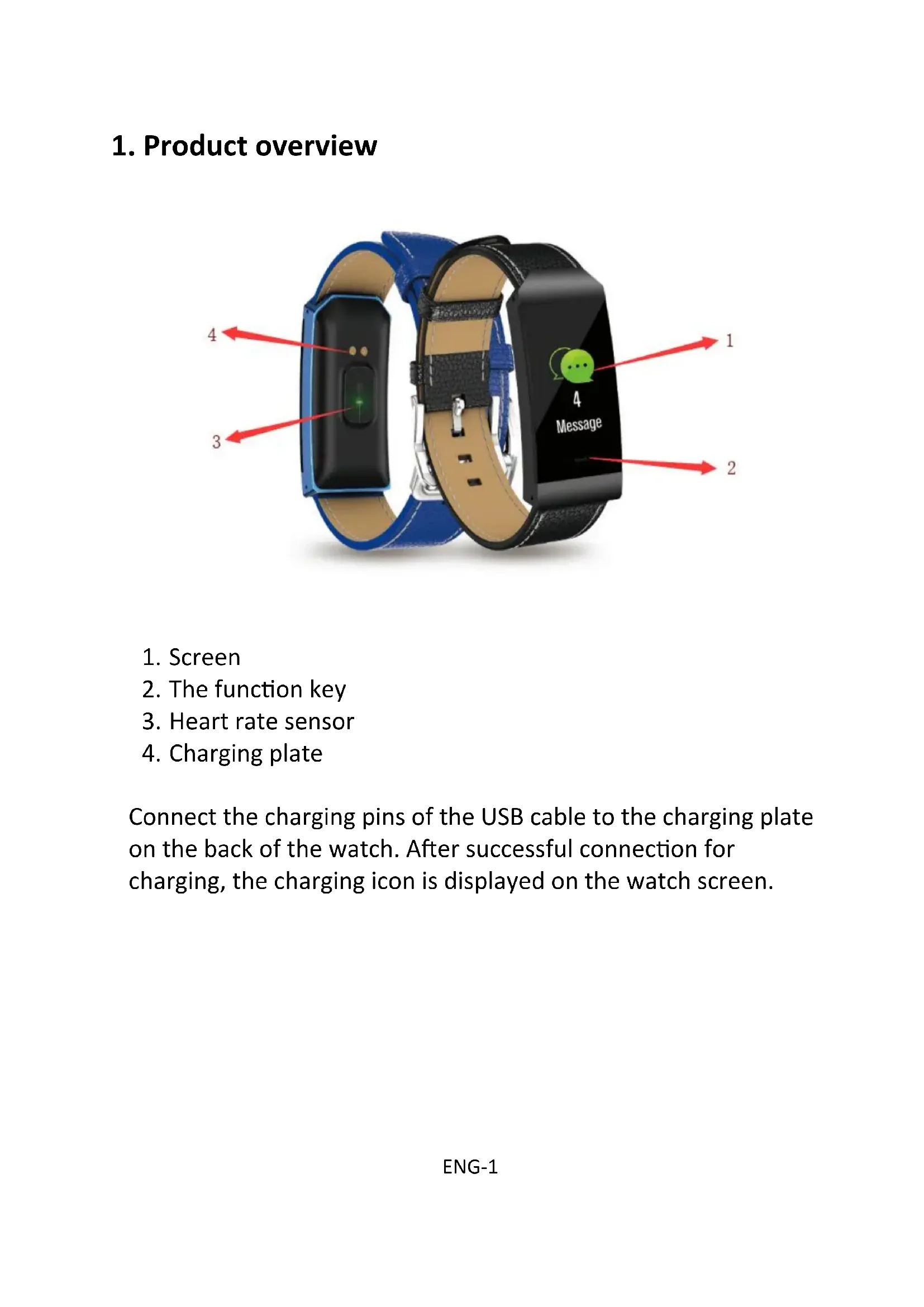
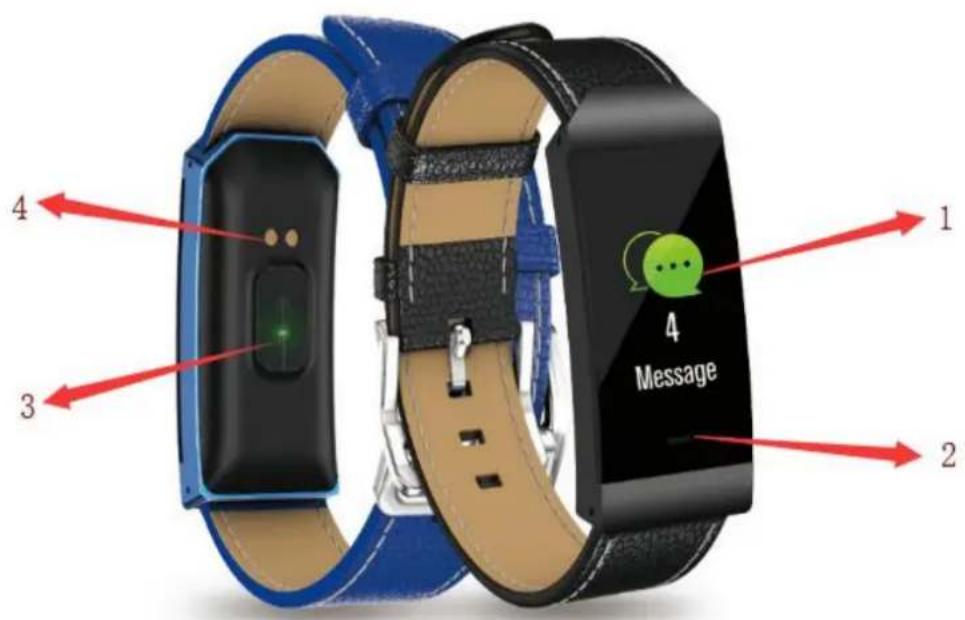
1. Product overview
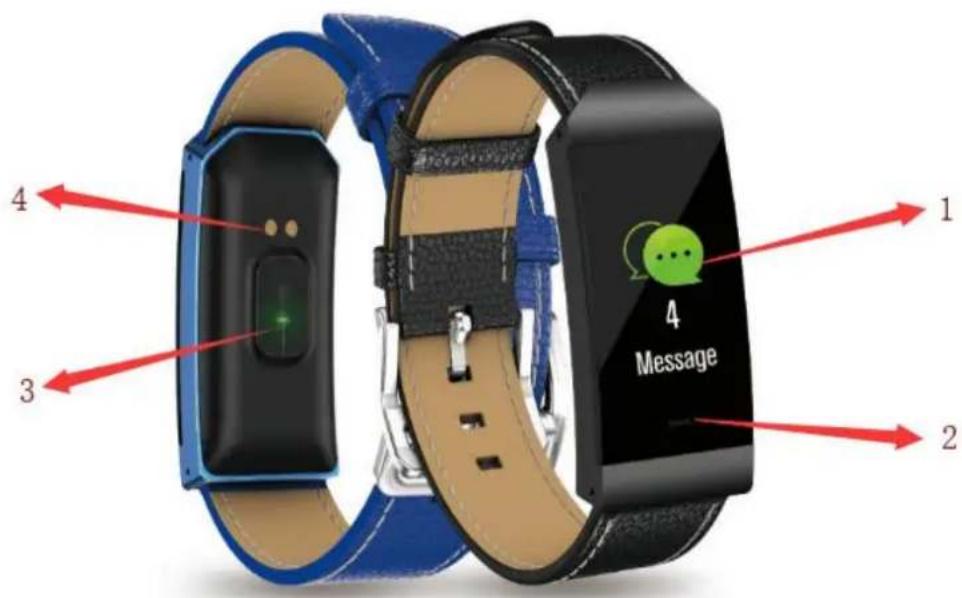
- Screen
- The function key
- Heart rate sensor
- Charging plate
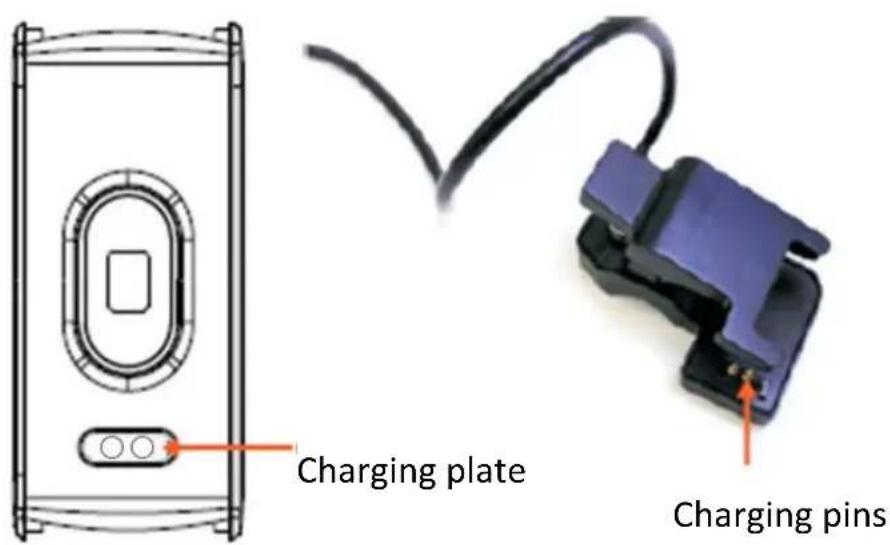
Connect the charging pins of the USB cable to the charging plate on the back of the watch. After successful connection for charging, the charging icon is displayed on the watch screen.
2. Pairing
To synchronize data between the watch and your mobile phone, install "Denver Smart Life" app to connect the watch to your mobile phone.
2.1 Install the app
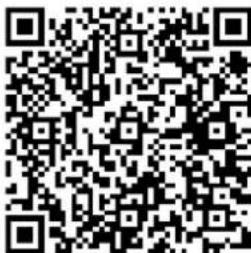
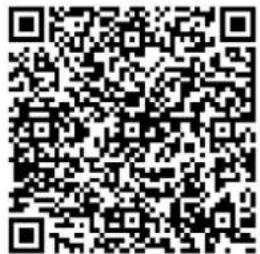
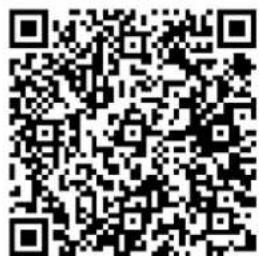
Search and install "Denver Smart Life" app from Google Play or App store. Or scan the following QR code to install the app directly.
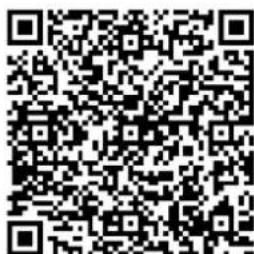
for Android for iOS
2.2 Connect the watch to your mobile phone
- Enable Bluetooth on your smart phone.
- Launch "Denver Smart Life" on your smart phone, set your
ENG-2
profile in the Settings option.
- Tap "Connect device" in the Settings option.
- Select the name of this watch to connect
- Follow on-screen instructions to complete connection of the watch.
3. Access the features
- Press repeatedly the function key to toggle through the main menu pages.
- Long press the function key to confirm selection, or enter sub-options pages.
Note: when the watch screen is turned off, raise your hand, or press the function key to turn on the screen.
4. Description of features
Watch face
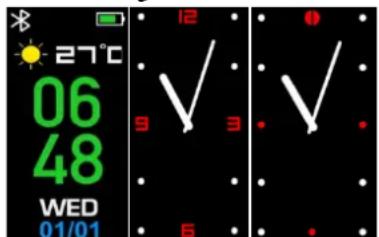
On a watch face, long press the function key to access watch face options, then press the function key to select your favorite watch face.
Pedometer
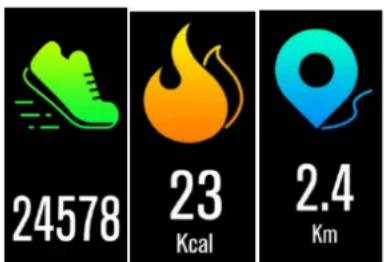
The watch automatically record steps taken, calories burnt and distance travelled.
Press the function key to switch between steps, calories and distance pages
The data measured can be synchronized to the App.
Heart rate
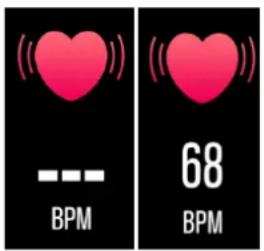
Press the function key to switch to the heart rate page, and it starts measuring your heart rate. The data measured can be synchronized to the App.
Message
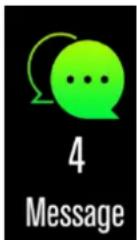
Press the function key to switch to the message page.
The notification includes incoming calls, and new messages from SMS, QQ, WeChat and WhatsApp.
Multi-Sport

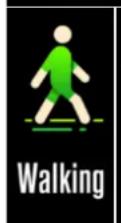
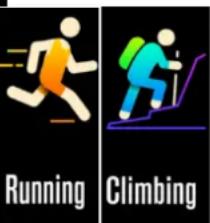
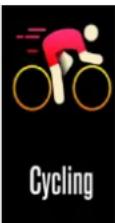
On the Sports page, long press the function key to enter a
particular sport mode.
Four sport modes are offered: walking, running, climbing, cycling. To exit a sport mode, press the function key and the data is recorded.
Note: If the sport time is less than 1 minute, the data is not recorded.
More features
Long press the function key to enter sub-options of the "More" page. The options include the features mentioned below.
About
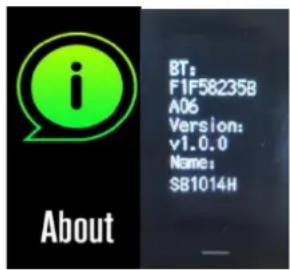
Long press the function key to show the BT Mac address, device name and firmware vision of the watch.
Power off
Long press the function key to turn off the watch.
Find Phone
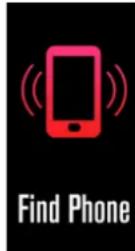
If the watch is connected to the App, the "Find Phone" page has more options. Long press the function key, then your android phone rings. If you use an iPhone, you must display your Denver Smart Life display on the screen.
Sedentary reminder

Set detailed requirements on the App for sedentary reminder, such as start/end time, interval and repeat setting. When the sedentary time arrives, the watch vibrates to remind you.
Water warning

Set detailed requirements on the App for water drinking reminder, such as start/end time, interval and repeat setting. When water drinking time arrives, the watch vibrates.
Alarm
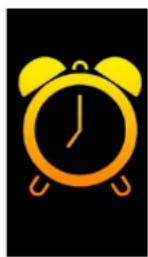
You can set five alarms on the App. When alarm time arrives, the watch vibrates and the alarm icon on the watch screen is animated.
Gesture control
You can set the gesture control style on the App to turn on the watch screen.
- Raising hand: while raising your hand, the screen is turned on.
- Turning wrist: while turning your wrist toward you, the screen is turned on.
ALL RIGHTS RESERVED, COPYRIGHT DENVER ELECTRONICS A/S
DENVER
denver-electronics.com
Electric and electronic equipment and included batteries contains materials, components and substances that can be hazardous to your health and the environment, if the waste material (discarded electric and electronic equipment and batteries) is not handled correctly.
Electric and electronic equipment and batteries is marked with the crossed out trash can symbol, seen below. This symbol signifies that electric and electronic equipment and batteries should not be disposed of with other household waste, but should be disposed of separately.
As the end user it is important that you submit your used batteries to the appropriate and designated facility. In this manner you make sure that the batteries are recycled in accordance with legislature and will not harm the environment.
All cities have established collection points, where electric and electronic equipment and batteries can either be submitted free
of charge at recycling stations and other collection sites, or be collected from the households. Additional information is available at the technical department of your city.
Hereby, Inter Sales A/S declares that the radio equipment type BFH-250 is in compliance with Directive 2014/53/EU. The full text of the EU declaration of conformity is available at the following internet address: www.denver-electronics.com and then click the search ICON on top line of website. Write model number: BFH-250
Now enter product page, and red directive is found under downloads/other downloads.
Operating Frequency Range: 2.402 GHz-2.480 GHz Max Output Power: 4.0dBm Warning Lithium battery inside
DENVER ELECTRONICS A/S
Omega 5A, Soeften
DK-8382 Hinnerup
Denmark
www.facebook.com/denverelelectronics
DENVER
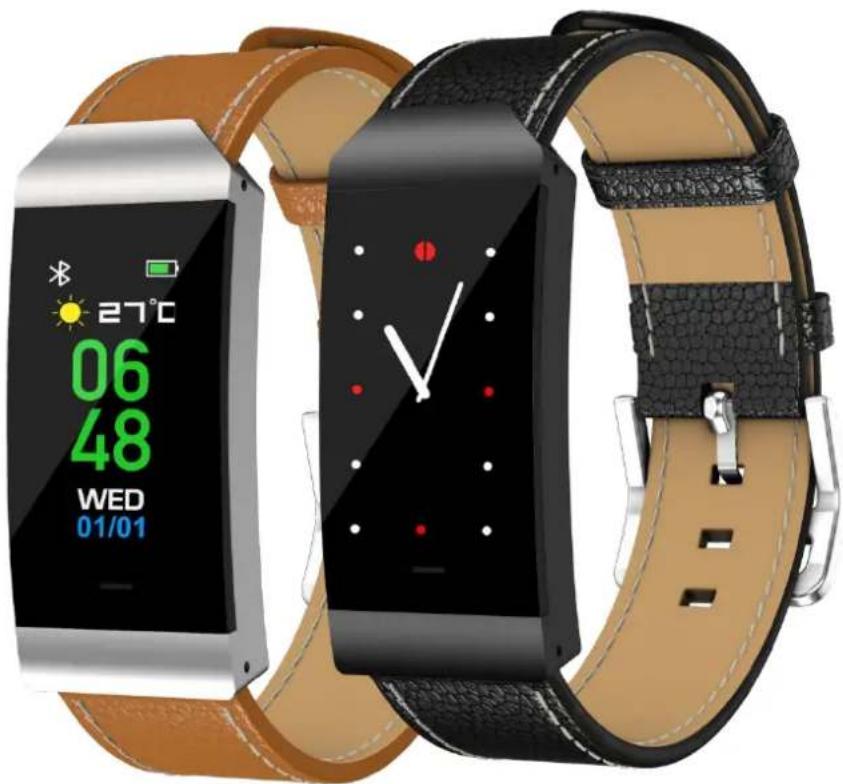
BFH-250 FITNESSBAND
Bedienungsanleitung
www.denver-electronics.com
1. Produktübersicht
denver-electronics.com
denver-electronics.com
denver-electronics.com
denver-electronics.com
denver-electronics.com
denver-electronics.com
2.1 Installation of appen
Søg after appen "Denver Smart Life" hos Google Play eller App store, og installer den. Eller scan fölgende QR-kode for at installerèe appen direkte.
Til Android Til iOS
denver-electronics.com
C E
denver-electronics.com
C E
denver-electronics.com
3. Aceder as functionalities
denver-electronics.com
- Product overview
- Pairing
- Install the app
- Connect the watch to your mobile phone
- Access the features
- Description of features
- Watch face
- Pedometer
- Heart rate
- Message
- Multi-Sport
- More features
- About
- Power off
- Find Phone
- Sedentary reminder
- Water warning
- Alarm
- Gesture control
- ALL RIGHTS RESERVED, COPYRIGHT DENVER ELECTRONICS A/S
- DENVER
- Bedienungsanleitung
- Produktübersicht
- Installation of appen
- denver-electronics.com
- C E
- Aceder as functionalities
Brand : DENVER
Model : BFH250
Category : Smartwatch