GPSCS1KA - Other camera accessories SONY - Free user manual and instructions
Find the device manual for free GPSCS1KA SONY in PDF.


| Product Type | Portable GPS unit for camera |
| Brand | Sony |
| Model | GPSCS1KA (GPS-CS1) |
| Dimensions | 87 × 36 × 36 mm |
| Power source | LR6 alkaline battery (AA size) or HR6 NiMH battery (AA size) (×1), USB power when connected |
| Battery life | Approx. 10 h (alkaline) / 14 h (NiMH) at 25°C |
| Reception frequency | 1,575.42 MHz (L1 band, C/A code) |
| Memory capacity | Approx. 31 MB (approx. 360 hours of recording) |
| Recording interval | Approx. 15 seconds |
| Interface | USB 2.0 full speed |
| Operating temperature | 0 to 40°C |
| Storage temperature | -20 to +60°C |
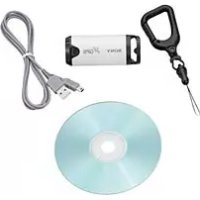
| Package contents | GPS unit, carabiner, USB cable, software CD-ROM, documentation |
| Main functions | GPS log recording, applying coordinates to images, viewing on map |
| Supplied software | GPS Image Tracker, Picture Motion Browser |
| Compatibility | JPEG Exif 2.1 or later images (Sony devices recommended) |
| Cleaning | Soft cloth lightly moistened with water, avoid solvents |
| Safety | Do not expose to moisture; observe battery polarity; WEEE recycling |
| Technical support | Sony website (http://www.sony.net/) |
Frequently Asked Questions - GPSCS1KA SONY
User questions about GPSCS1KA SONY
0 question about this device. Answer the ones you know or ask your own.
Ask a new question about this device
Download the instructions for your Other camera accessories in PDF format for free! Find your manual GPSCS1KA - SONY and take your electronic device back in hand. On this page are published all the documents necessary for the use of your device. GPSCS1KA by SONY.
USER MANUAL GPSCS1KA SONY
Operating Instructions
Mode d'emploi
GB
FR
http://www.sony.net/

Printed on 70% recycled paper using VOC (Volatile Organic Compound)-free vegetable oil based ink.
Printed in Japan © 2007 Sony Corporation
GPS-CS1KA
English
Before operating the unit, please read this manual thoroughly, and retain it for future reference.
WARNING
To reduce fire or shock hazard, do not expose the unit to rain or moisture.
For Customers in the U.S.A.
If you have any questions about this product, you may call:
Sony Customer Information Services Center
1-800-222-SONY (7669)
The number below is for the FCC related matters only.
Regulatory Information
Declaration of Conformity
Trade Name: SONY
Model No.:GPS-CS1
Responsible Party: Sony Electronics Inc.
Address: 16530 Via Esprillo, San Diego CA 92127 U.S.A
Telephone number: 858-942-2230
This device complies with Part 15 of the FCC Rules. Operation is subject to the following two conditions: (1) This device may not cause harmful interference, and (2) this device must accept any interference received, including interference that may cause undesired operation.
CAUTION
You are cautioned that any changes or modifications not expressly approved in this manual could void your authority to operate this equipment.
Note:
This equipment has been tested and found to comply with the limits for a Class B digital device, pursuant to Part 15 of the FCC Rules.
These limits are designed to provide reasonable protection against harmful interference in a residential installation. This equipment generates, uses, and can radiate radio frequency energy and, if not installed and used in accordance with the instructions, may cause harmful interference to radio communications. However, there is no guarantee that interference will not occur in a particular installation. If this equipment does cause harmful interference to radio or television reception, which can be determined by turning the equipment off and on, the user is encouraged to try to correct the interference by one or more of the following measures:
– Reorient or relocate the receiving antenna.
- Increase the separation between the equipment and receiver.
- Connect the equipment into an outlet on a circuit different from that to which the receiver is connected.
- Consult the dealer or an experienced radio/TV technician for help.
The supplied interface cable must be used with the equipment in order to comply with the limits for a digital device pursuant to Subpart B of Part 15 of FCC Rules.
For Customers in Canada
This Class B digital apparatus complies with Canadian ICES-003.
For Customers in Europe
CE
Hereby, Sony Corporation, declares that this GPS-CS1 GPS unit is in compliance with the essential requirements and other relevant provisions of the Directive 1999/5/EC.
For details, please access the following URL:
http://www.compliance.sony.de/
This product has been tested and found compliant with the limits set out in the R&TTE Directive for using connection cables shorter than 3 meters (9.8 feet).
Disposal of Old Electrical & Electronic Equipment (Applicable in the European Union and other European countries with separate collection systems)

natural_image
Symbol of a trash bin crossed out by two crossed lines (no text or labels)
This symbol on the product or on its packaging indicates that this product shall not be treated as household waste. Instead it shall be handed over to the applicable collection point for the recycling of electrical and electronic equipment. By ensuring this product is disposed of correctly, you will help prevent potential negative consequences for the environment and human health, which could otherwise be caused by inappropriate waste handling of this product. The recycling of materials will help to conserve natural resources. For more detailed information about recycling of this product, please contact your local Civic Office, your household waste disposal service or the shop where you purchased the product.
Table of contents
Features 6
Precautions 8
What is GPS?...... 11
Preparing
Identifying parts.... 14
Attaching the carabiner 15
Inserting a battery 16
Using the unit
Record the GPS log using the GPS unit 18
Using the software
Using the supplied software 22
Installing the supplied software 23
Importing pictures to your computer to enjoy the pictures on the map 25
Additional information
Trouble shooting 33
Specifications 35
Features
This unit is a portable GPS unit to receive and record position information.
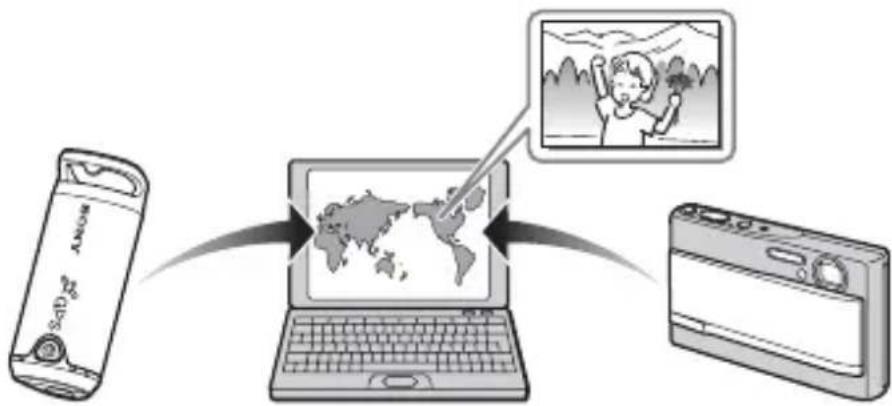
Using this unit and the supplied software, you can:
- Check the locations of where you took pictures on a trip, etc.
- Apply position information to the pictures you took, organize the pictures by shooting date, and edit them on the computer.
flowchart
graph TD
    A["Smartphone"] --> B["World Map"]
    B --> C["Screen Image"]
    style A fill:#f9f,stroke:#333
    style B fill:#ccf,stroke:#333
    style C fill:#cfc,stroke:#333
1 Record the GPS log using the GPS unit (page 18)
Turn on the unit, before you start taking pictures with your digital camera, camcorder or digital single lens reflex camera (hereinafter collectively called “camera”). The unit records the GPS log (moving route) during your trip until the power is turned off.
2 Import pictures to the computer using “Picture Motion Browser” (page 25)
Launch the supplied software (Picture Motion Browser) on the computer. Then, connect the camera to the computer with a USB connection. You can easily import the pictures to your computer from your camera.

Apply position information to the pictures using “GPS Image Tracker” (page 28)
- Launch the supplied software (GPS Image Tracker) and import the GPS log recorded on the unit to your computer.
- Match the imported pictures with the GPS log files, then apply the position information of where you took the pictures.

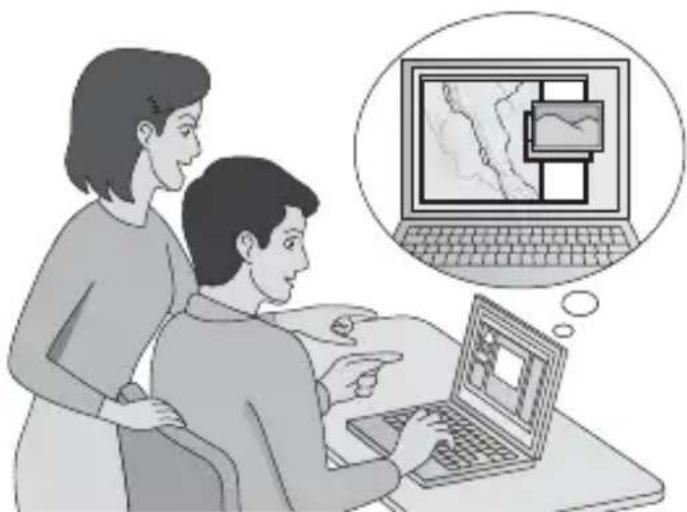
Check your pictures on the map using “Picture Motion Browser” (page 31)
You can easily check the locations of where you took the pictures on the map using the “Map View” function of “Picture Motion Browser”.
natural_image
Illustration of two people using a laptop with a thought bubble showing a map or diagram on the screen (no text or symbols present)Precautions
When using this unit, please keep the following in mind.
On a battery
A battery is not supplied
An LR6 (size AA) alkaline battery or an HR6 (size AA) Nickel-Metal Hydride battery is necessary for recording log data in this unit. Purchase a battery before using the unit.
Notes on a Nickel-Metal Hydride battery
- Charge the Nickel-Metal Hydride battery before using the unit for the first time. Refer to instructions supplied with the battery on charging.
- The battery can be charged even if it is not completely discharged. Also, even if the battery is not fully charged, you can use the partially charged capacity of the battery as is.
- If you do not intend to use the battery for a long time, use up the existing charge and remove it from the unit, then store it in a cool, dry place. This is to maintain the battery's functions.
On recorded data on the unit
If you turn the power off or remove the battery while using the unit, the log data may be damaged. Be sure to replace the battery with a new one after you turn the power off.
Compensation for damaged log data will not be made
If position information (GPS log files) is not recorded properly due to malfunction of the recording memory or the system, compensation for damaged log data or pictures with position information will not be made.
On use and storage
- Before you use the unit, make sure that the unit works properly by checking its operation.
- Do not shake or strike this unit hard. In addition to malfunctions and an inability to record the log, this may cause recorded data breakdown.
- This unit is neither dust-proof, nor splash-proof, nor water-proof.
Do not use/store the unit in the following places.
- In an extremely hot, cold or humid place In places such as in a car parked in the sun, the unit body may become deformed and this may cause a malfunction.
- Under direct sunlight or near a heater
The unit may become discolored or deformed, and this may cause a malfunction.
• Near strong magnetic place - In sandy or dusty places Be careful not to let sand or dust get into the unit. This may cause the unit to malfunction, and in some cases this malfunction cannot be repaired.
On carrying the unit
- Do not sit on a chair etc., with the unit in the back pocket of your pants or skirt, as this may cause malfunction or damage the unit.
On cleaning the unit
Cleaning the unit surface
Clean the unit surface with a soft cloth slightly moistened with water, then wipe the surface with a dry cloth. Do not use the following as they may damage the finish or the casing.
- Chemical products such as thinner, benzine, alcohol, disposable cloths, insect repellent, sunscreen or insecticide, etc.
- Do not touch the unit with the above on your hand.
- Do not leave the unit in contact with rubber or vinyl for a long time.
Note on applying position information to still images taken with digital still cameras or digital video cameras other than Sony products
We cannot guarantee the processing of still images taken with non-Sony digital still cameras or digital video cameras with the supplied software. If you apply position information to these images, some of the data information may be changed. This may happen even if the files are Exif 2.1-compliant JPEG files taken with non-Sony products. If you copy the processed images to your digital still camera or digital video camera to view, or try using with the accompanying software, some of the functions may become unavailable.
We recommend that you save the images under different file names after applying position information, or backup the images before processing. Also please note that the functions which will be unavailable after processing with the program depend on each manufacturer.
What is GPS?
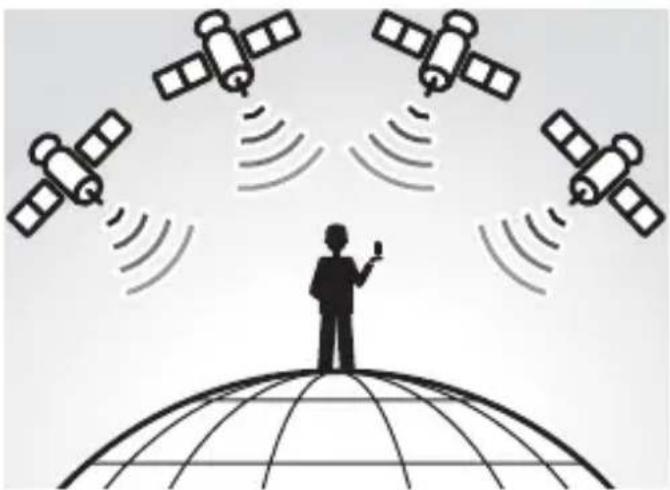
The GPS is a navigational system that calculates position from accurate US aviation satellites. This system allows you to track down your exact location on the earth. The GPS satellites are located in six orbits, 20,000 km above us. The GPS consists of a total of 24 GPS satellites: Four of the satellites are placed into each orbit, and at least three satellites are required to pinpoint your location. A GPS receiver receives radio signals from the satellites, and calculates the present location based on the orbital information (almanac data) and travel time of the signals, etc.
natural_image
Silhouette of a person standing on a globe with multiple satellites emitting signal waves (no text or symbols)Measuring a location is called “tracking”. A GPS receiver can track down the location’s latitude and longitude by receiving signals from three satellites.
Notes
- The positions of GPS satellites vary. Depending on the location and time you use a GPS receiver, it may take longer for tracking or the receiver may not track the location at all.
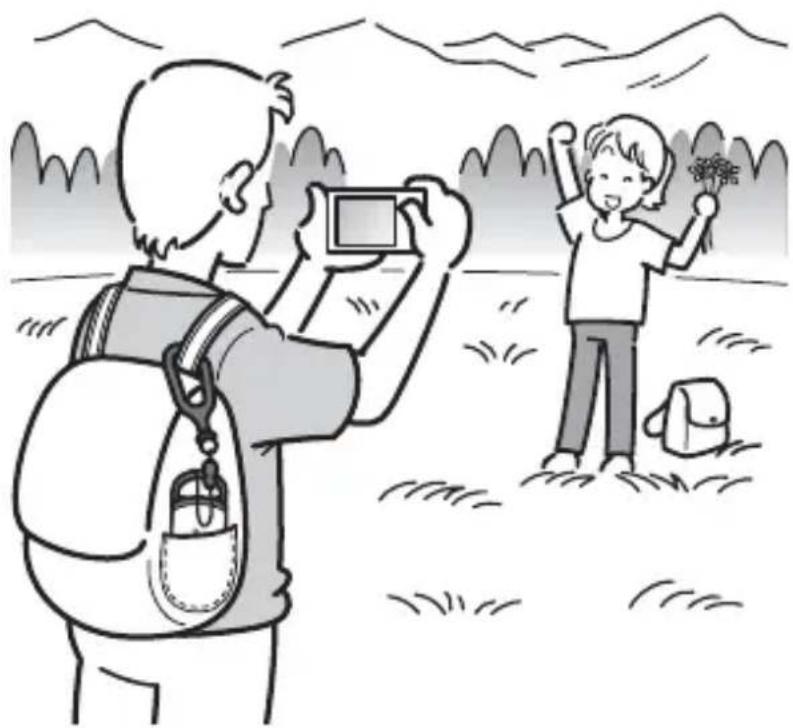
- “GPS” is the system tracking location by receiving radio signals from GPS satellites. Avoid using the unit in the places where radio signals are blocked or reflected, such as a shadowy place surrounded by buildings or trees, etc. Use the unit in open sky environments.
natural_image
Illustration of a child and a person outdoors, one taking a photo with a smartphone, no text or symbols present- You may not record a GPS log at the locations or in the situations where the radio signals from the GPS satellites do not reach to the unit as follows.
- In tunnels, indoors or under shades of buildings.
- Between tall buildings or at narrow streets surrounded by buildings.
- At underground locations, surrounded by dense trees, under an elevated bridge or at the locations where magnetic fields are generated such as near high voltage cables.
- Near the devices that generate the radio signals of the same frequency band as the unit: near the 1.5 GHz band mobile telephones, etc.
- The unit may not track when you are moving at the speed of about 500 km/hour (300 miles/hour) or faster.
On tracking errors
Error caused by position of GPS satellites
The unit automatically tracks your present location when the unit receives radio signals from three or more GPS satellites. The tracking error caused by the GPS satellites is about to ±10 m. Depending on the environment of the location, the tracking error can be greater. In this case, your actual location may not match with the location on the map based on GPS information.
Error during tracking process
This unit records position information every fifteen seconds.
When you have a picture taken at any moment other than the moments when the unit records your position, the position information at that moment can be provided using the supplied software “GPS Image Tracker”. A rough position can be calculated by measuring the distances between the locations before and after the picture is taken. In this case, the actual position may not match completely with the location on the map based on GPS information.
On error due to incorrect clock setting on a camera
When the clock setting on your camera is incorrect, you cannot apply the correct position information to the pictures. The position information is applied to the pictures based on the time information of the GPS log files and the time stamps of the pictures. So if the time stamps are incorrect, you cannot match the pictures with the GPS log files properly. Adjust the clock setting of your camera properly. Refer to the operating instructions of your camera on how to set the clock settings.
- When you changed the clock setting of your camera abroad, etc., modify the time stamp of the pictures to time setting of the GPS log using “Picture Motion Browser”.
Preparing
Identifying parts
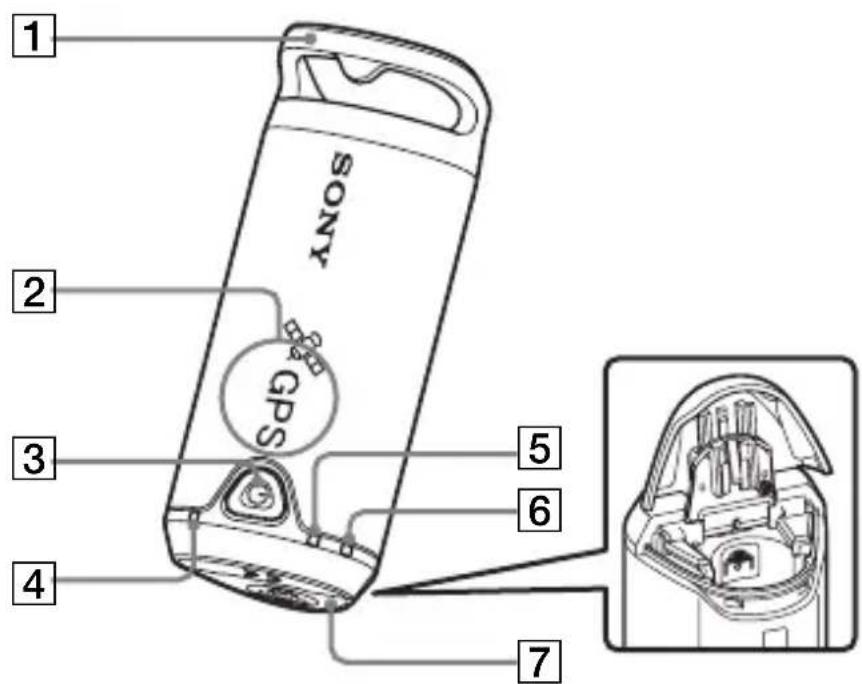
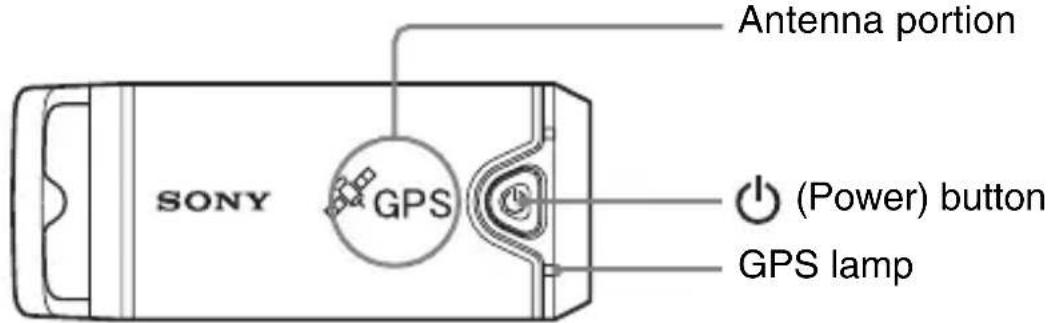
1 Carabiner attachment loop 2 Antenna portion
3 (Power) button 4 GPS lamp
5 BATT (Battery) lamp 6 MEM FULL (Memory Full) lamp
7 Battery cover
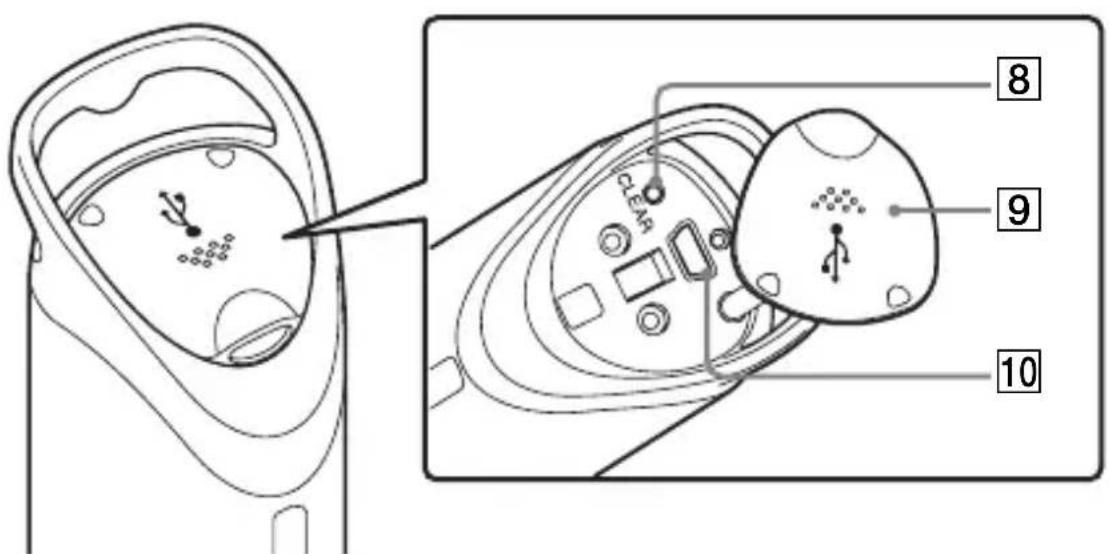
8 CLEAR button
10 ♂ (USB) jack
9 Jack cover
Attaching the carabiner
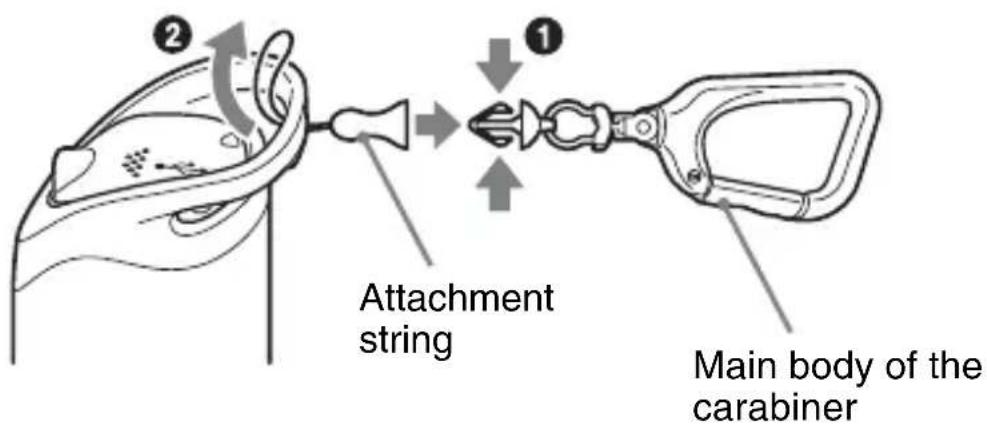
Attach the supplied carabiner to the carabiner attachment loop of the unit in the following procedure.
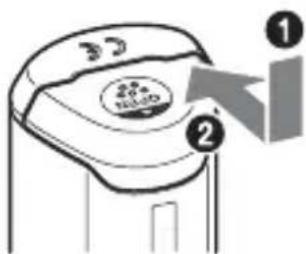
1 Detach the attachment string from the main body of the carabiner as illustrated below (①) and draw the string through the carabiner attachment loop of the unit (②).
GB
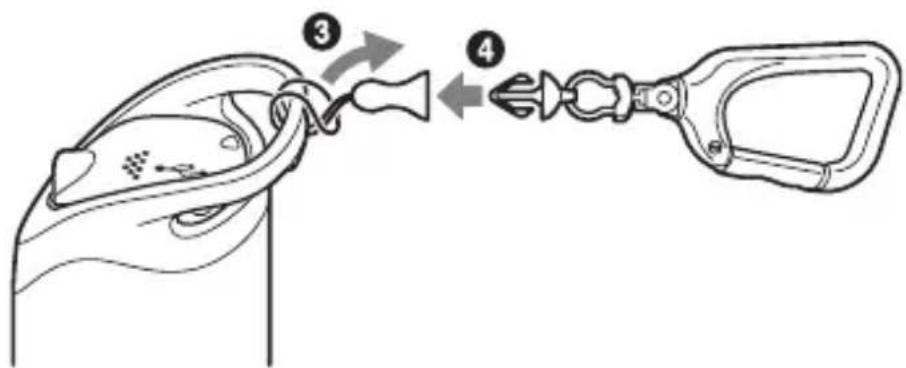
2 Thread the carabiner string through the carabiner loop (③), then attach it in the main body (④).
Inserting a battery
The following batteries are acceptable.
- LR6 (size AA) alkaline battery*
- HR6 (size AA) Nickel-Metal Hydride battery (recommended for use at low temperatures)
* When an LR6 (size AA) alkaline battery is used, the battery life is shorter at a low temperature.
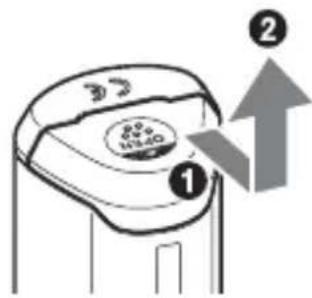
1 Slide the battery cover.
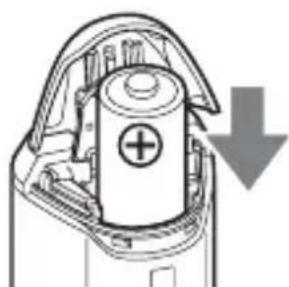
2 Insert a battery into the unit with the + side of the battery facing up.
natural_image
Diagram of a battery internal structure with a plus sign and downward arrow indicating rotation (no text or symbols)3 Close the battery cover.
To remove the battery
Turn the power off and hold the unit with the battery cover up, then remove the battery.
Be sure not to drop the battery.
Battery duration
(When used at 25 °C (77 °F))
| LR6 (size AA) Sony alkaline battery (not supplied) | HR6 (size AA) Sony Nickel-Metal Hydride battery (not supplied) |
| about 10 hours about 14 hours |
- When you use the unit at low temperatures, we recommend you use a Nickel-Metal Hydride battery.
- The battery duration may differ from the above depending on the situation or the environmental condition.
Cautions
If you mishandle the battery, there is a danger of leakage or explosion. Be sure to observe the following.
- Insert a battery with the correct polarity +/-.
- Do not charge a dry battery.
- Remove the battery when you do not use the unit for a long time.
Otherwise, it may result in leakage of the battery.
Record the GPS log using the GPS unit
This unit can record your position and time (GPS log files) in the internal memory. When you turn on the power, tracking starts, and GPS log recording starts. The unit tracks the location automatically and records the position every fifteen seconds after tracking starts.
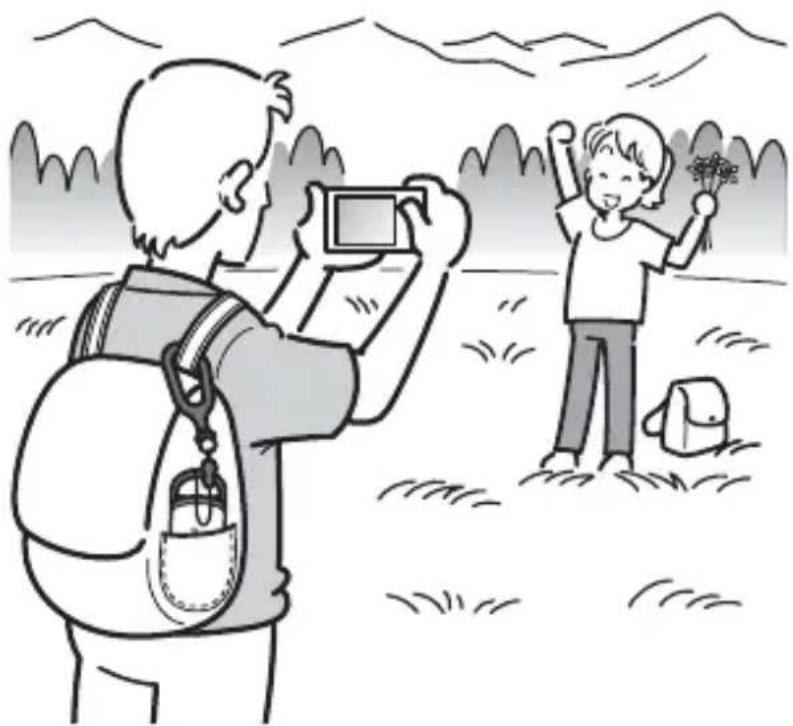
1 Press the (Power) button longer to turn on the unit.
Direct the antenna portion of the unit to the sky in open sky environments and hold it for about a minute until the GPS lamp is in the tracking process.
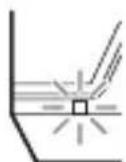
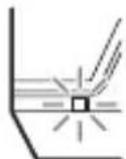
The GPS lamp status differs as illustrated below depending on the operating status of the unit.
While tracking\*
flashes once slowly
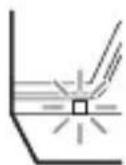

2 seconds
flashes once slowly
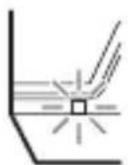
While searching\*
flashes twice rapidly

1 second
flashes twice rapidly
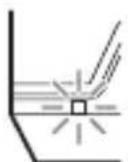
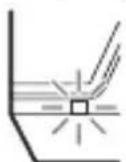
* tracking: the unit is tracking and recording the GPS log.
searching: the unit is searching for the GPS satellites and GPS log recording hasn't started.
- When it is difficult to make tracking and while the GPS lamp is in searching, direct the antenna portion of the unit upward and wait for a while. If the unit cannot track even after waiting for five minutes, you may be in a location where the radio signals from GPS satellites cannot be reached. Change the location and try again.
2 Take pictures with a camera.
natural_image
Illustration of a child taking a photo with a backpack, another person holding flowers in the background (no text or symbols)GB
3 Press the ⏻ (Power) button longer to turn the unit off after using.
- The GPS log recorded on the unit is stored as a log file during the time the unit is turned on.
Tips
- Tracking may be difficult depending on the environmental condition. Check the status of the GPS lamp at times.
- You can merge two GPS log files recorded separately due to on/off of the power into one file using the supplied software. The position information will be completed by this procedure. Be aware that once you merge the log files into one, it cannot be separated again.
Checking remaining battery power
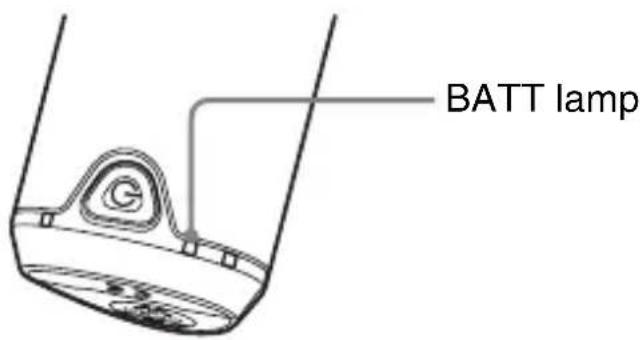
- You can check the remaining battery power on the status of the BATT lamp by pressing (Power) button shorter with the power turned on.
Lights in green: 70 % or more power remains.*
Flashes green: 20 % to 70 % power remains.*
When the available remaining power becomes 20 % or lower, the BATT lamp flashes red. When the remaining power becomes even lower, the BATT lamp flashes more frequently and the unit is deactivated for tracking. Replace the battery with a new one.
* This function may not operate properly when using a Nickel-Metal Hydride battery.
The unit consumes more battery power while searching than while tracking.
Even if the unit calculates the remaining battery power and makes the BATT lamp flash red while searching, when the unit switches from searching to tracking, you may be able to use the unit longer.
On the recording memory
The unit can record GPS log files up to about 360 hours.
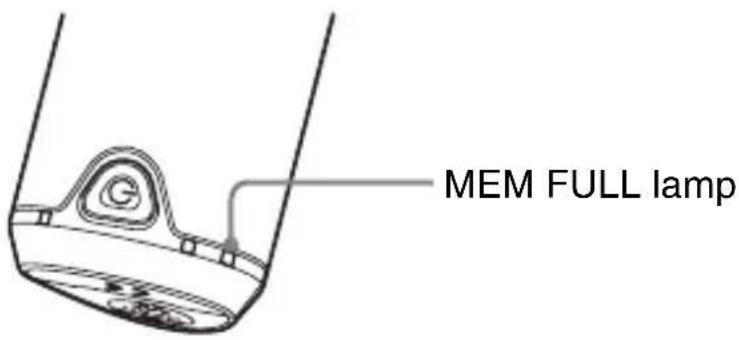
- When the available internal memory becomes 10 % or lower, the MEM FULL lamp flashes red. When the internal memory becomes full, the power is turned off automatically after the MEM FULL lamp lights up for a minute.
- If you press the CLEAR button (page 14) longer with an object with a tapered tip while the power is turned on, all the GPS log files in the recording memory will be erased and the power goes off automatically.
GB
Cautions on carrying the unit
- When you carry the unit, direct and hold the antenna-side upward or outward.
- You can use the unit being covered with cloth, etc.
- The unit cannot receive radio signals when it is in a metallic bag such as an attache case, or when it is covered with a metallic object.
- Do not use the supplied carabiner for any other purpose.
Using the software
Using the supplied software
You can view the GPS log files recorded in the unit on the computer and check the locations of where you took pictures on the map using the supplied software.
This section describes the English version of screen contents.
The supplied CD-ROM contains software applications, “GPS Image Tracker” and “Picture Motion Browser”.
"GPS Image Tracker"
You can import the GPS log recorded in the unit to your computer, view and manage the GPS log files. You can apply position information to the pictures you took with your camera.
"Picture Motion Browser"
You can organize pictures on a calendar by shooting date on the computer to view them. Using the “Map View” function, you can check the positions of the still images with their position information on the map. You can also retouch, print pictures and delete the position information attached to the pictures.
Recommended computer environment
The following environment is recommended for using the supplied software.
OS (pre-installed): Microsoft Windows 2000 Professional/XP Home Edition/XP Professional
CPU/Memory: Pentium III 500 MHz or faster/128 MB or more (Pentium III 800 MHz or faster/256 MB or more is recommended)
Hard Disk: Disk space required for installation – approximately 200 MB
Display: 1024 × 768 dots or more, High Color (16-bit color) or more
Notes on connecting the unit to a computer
- Operations are not guaranteed for all the recommended computer environments mentioned above.
- If you connect two or more USB devices to a single computer at the same time, some devices, including your camera, may not operate, depending on the types of USB devices you are using.
- Operations are not guaranteed when using a USB hub.
- When your computer resumes from a suspend or sleep mode, communication between the unit and your computer may not recover at the same time.
Installing the supplied software
Install the supplied software in the following procedures.
- Shut down all application software in use.
- Log on to a computer as Administrator.
Installing "GPS Image Tracker" and "Picture Motion Browser"
1 Turn on your computer, and insert the supplied CD-ROM into the CD-ROM drive.
The "Choose Setup Language" screen appears.
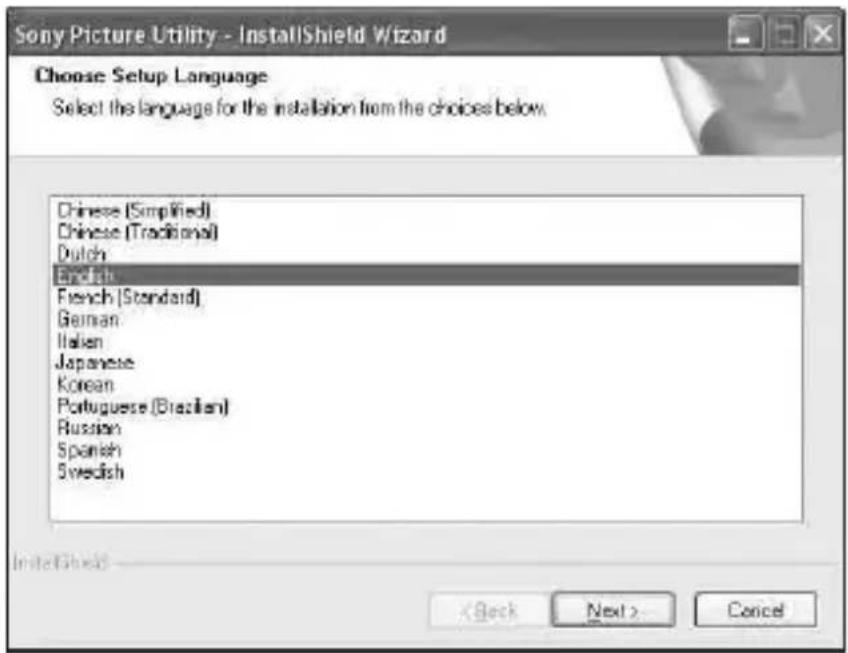
- If it does not appear, double-click [My Computer] [SONYPICTUTIL].
2 Select the desired language, then click [Next].
The “License Agreement” screen appears.
Read the agreement carefully. If you accept the terms of this agreement, click the radio button next to [I accept the terms of the license agreement] and then click [Next].
3 Follow the instructions on the screen to complete the installation.
- When the restarting confirmation message appears, restart the computer by following the instructions on the screen.
- DirectX may be installed depending on system environment of your computer.
4 Remove the CD-ROM after the installation.
Importing pictures to your computer to enjoy the pictures on the map
Follow the steps below to import pictures, apply the position information to the pictures, and check the position information of the pictures on the map.
Step 1: Connect the camera to the computer and import the pictures using the supplied software, “Picture Motion Browser” (page 25).
Step 2: Connect the unit to the computer and import GPS log files to the supplied software, “GPS Image Tracker”. Apply position information to the imported pictures using “GPS Image Tracker” (page 28).
Step 3: You can check the position information of where you took pictures on the map using the “Map View” function of “Picture Motion Browser” (page 31).
- For details on the software, refer to the help files of “GPS Image Tracker” and “Picture Motion Browser”.
Step1: Import pictures to the computer using “Picture Motion Browser”
- For details on the software, refer to the help files of “Picture Motion Browser”.
1 Launch "Picture Motion Browser" on the computer.
Double-click the (Picture Motion Browser) icon on the desktop. Or, from the Start menu: Click [Start] → [All Programs] (in Windows 2000, [Programs]) → [Sony Picture Utility] → [Picture Motion Browser].
2 Make sure "Media Check Tool"\* is running.
Look for a (Media Check Tool) icon in the taskbar.
* “Media Check Tool” is a program that automatically detects and imports images when a “Memory Stick” is inserted or when the camera is connected.
- If there is no icon: Click [Start] [All Programs] (in Windows 2000, [Programs]) [Sony Picture Utility] [Tools] [Media Check Tool].
3 Connect the camera and the computer with a USB connection.
After the camera is automatically detected, the [Import Images] screen is displayed.
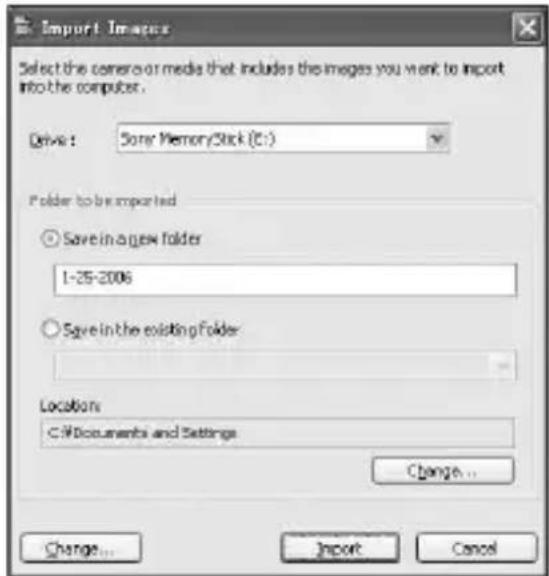
- In Windows XP, if the AutoPlay Wizard appears, close it.
4 Import the pictures.
To start importing pictures, click the [Import] button.
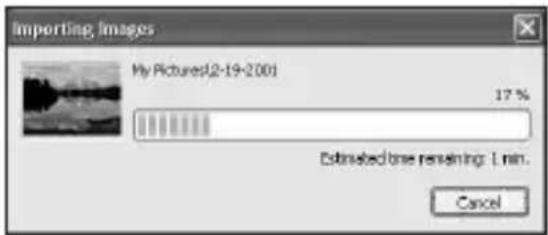
By default, pictures are imported into a folder created in “My Pictures” that is named with the date of importing.
To change the “Folder to be imported”, choose [Import Settings] → [Location for Imported Images] from the [File] menu.
GB
5 Check the imported pictures.
When importing is complete, "Picture Motion Browser" starts.
Thumbnails of the imported pictures are displayed.
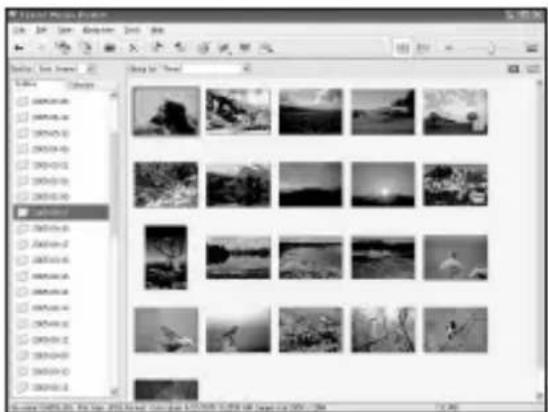
- The “My Pictures” folder is set as the default folder in “Viewed folders”.
- You can double-click a thumbnail to display the image by itself.
Preparing images stored on the computer for viewing
To view them, register the folder that contains the images as one of the “Viewed folders”.
1 Click the icon on the main screen, or choose [Register Folders to View] from the [File] menu.
The settings screen for "Viewed folders" registration is displayed.
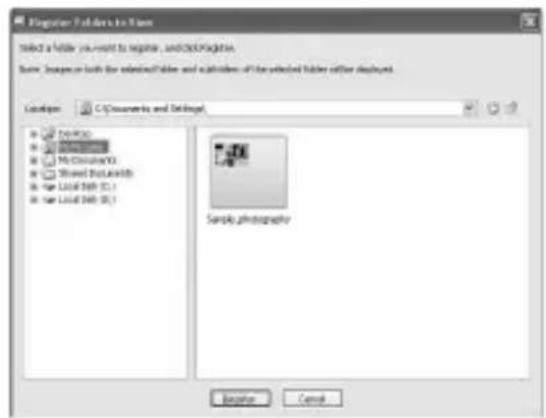
2 Specify the folder with images for importing to register the folder as one of the “Viewed folders”.
3 Click [OK].
The image information is registered in the database.
- Images in any subfolders of “Viewed folders” are also registered.
Step 2: Apply position information to the pictures using "GPS Image Tracker"
Connect the unit to the computer and import GPS log files to the supplied software, “GPS Image Tracker”. You can then apply the position information to the imported pictures.
- For details on the software, refer to the help files of “GPS Image Tracker”.
- When connecting the unit to the computer, it does not need a battery as the power is supplied from the computer.
1 Launch "GPS Image Tracker".
Double-click the 📞 icon on the desktop, or click [Start] → [All Programs] (for Windows 2000, [Programs]) → [Sony Picture Utility] → [GPS Image Tracker].
2 Connect the unit to the computer.
Pull out the jack cover as illustrated in the following and connect the unit with the GPS log files to the computer using the supplied USB cable.
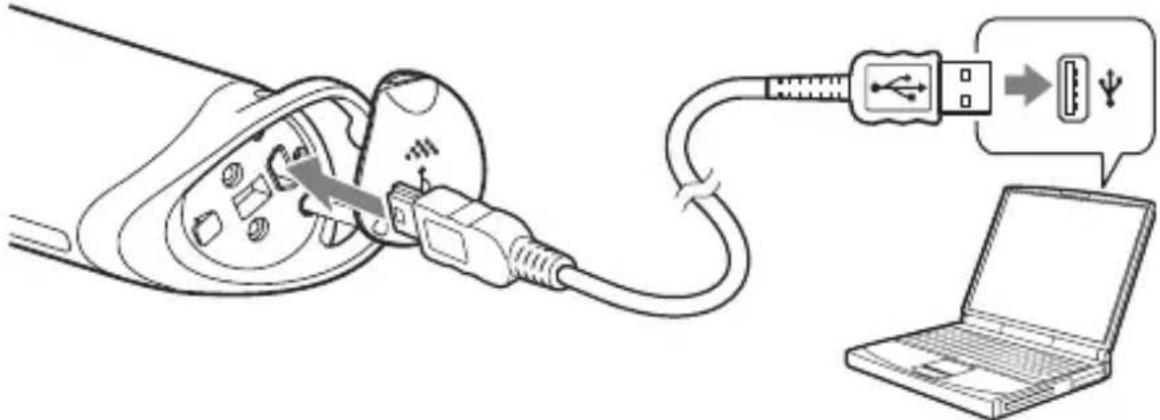
Note
The screen of the removable disk may appear, be sure not to update the data in the GPS folder.
3 Import the GPS log files.
Click [OK] on the "Log File Import" window.
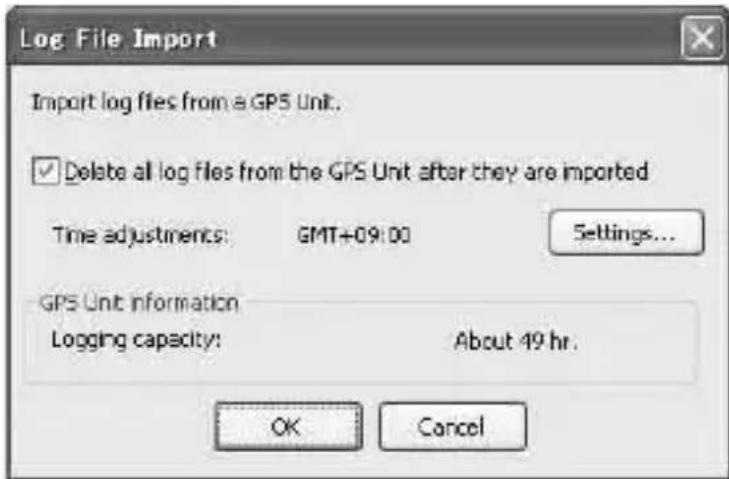
4 Delete the USB connection.
①Double-click on the tasktray.

② Click ⬆ (USB Mass Storage Device) → [Stop].
③Confirm the device on the confirmation window, then click [OK].
④Click [OK].
The unit is disconnected from the computer.
- Step ④ is unnecessary for Windows XP.
5 Add pictures and apply position information to the pictures.
Click [Add Picture Files...] on the main window and specify the picture files saved on the computer to import the files.
Click [Save All...] to save the still pictures with position information added. If the pictures are saved properly, the pictures are deleted from the list on the main window.
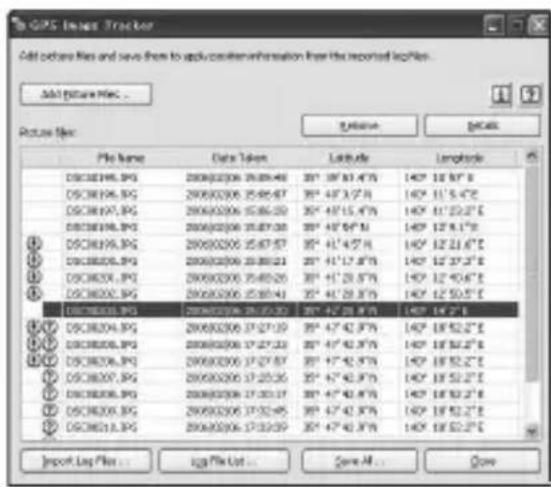
Step 3: Check your pictures on the map using “Picture Motion Browser”
1 Launch "Picture Motion Browser" on the computer.
Double-click the (Picture Motion Browser) icon on the desktop.
Or, from the Start menu: Click [Start] → [All Programs] (in Windows 2000,
[Programs])→ [Sony Picture Utility] → [Picture Motion Browser].
2 Select the still images that you want to display on the map.
On “Map View”, you can only display still images with position information as indicated by thumbnails showing the icon.
3 Click the icon.
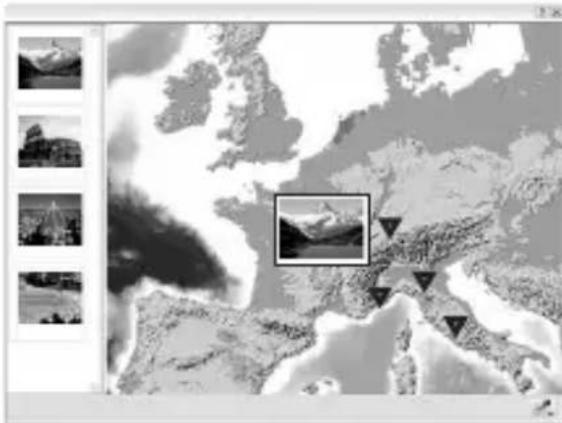
natural_image
Satellite view of Europe with mountain ranges and a highlighted inset image (no text or symbols)• The above map is a sample image.
The "Map View" main window appears.
You can also start the program by right-clicking on a still image in the image display area of “Picture Motion Browser” and then selecting [Map View] from the displayed menu.
In addition, you can add and display still images with position information by dragging and dropping them to the “Map View” main window.
To delete the position information
You can delete the position information from the pictures with the position information.
Follow the steps below to delete the position information.
① Launch “Picture Motion Browser” on the computer.
② Select the still image with the icon on its thumbnail from which you want to delete the position information, and right-click it. The menu is displayed.
③ Click [Delete Position Information]. The position information will be deleted.
Technical support
Additional information on this product and answers to frequently asked questions can be found at the Sony Customer Support Website.
http://www.sony.net/
Additional information
Trouble shooting
If you run into any problem using the unit, use the following table to troubleshoot the problem. If the problem persists, contact your Sony dealer or local authorized Sony service facility.
A recorded log file is missing.
- You may have used the unit in the locations where the GPS unit cannot track. Avoid using the unit in the locations such as in tunnels, underground locations or among obstructions such as tall buildings or trees.
The unit cannot receive radio signals from GPS satellites.
- You may be in a location where the radio signals from GPS satellites cannot be reached.
Avoid using the unit in the locations such as in tunnels, underground locations or among obstructions such as tall buildings or trees.
It takes much time to receive radio signals from GPS satellites.
- It may take a long time to track the location depending on the positions of GPS satellites. For details, refer to “What is GPS?” on page 11.
You press the (Power) button, but the unit is not turned on.
- There may be a bad contact between the battery cover and the battery. Open the battery cover and re-insert the battery.
- You may have used a battery with lower remaining power. Replace the battery with a new one.
- The battery may not be inserted properly. Insert a battery properly according to the procedures in “Inserting a battery” (page 16).
Your computer does not recognize the unit.
- Your computer may not properly recognize the unit because you connected the unit and your computer with the USB cable before you started your computer. Disconnect the USB cable and restart your computer, then connect the USB cable again.
The pictures are not displayed at the correct position (Tracking error is large).
- You may not apply the accurate position information to the pictures in the following (page 13).
- The clock setting of the camera is incorrect. You can change the date and time of your pictures using “Picture Motion Browser”. Set the date and time correctly, then match the pictures and the GPS log files again. For details on changing date and time, refer to the help files of “Picture Motion Browser”.
- The setting of time adjustments (time zone or daylight saving time) is incorrect. Using “GPS Image Tracker”, set the time adjustments of the GPS log file correctly, then match the pictures and GPS log files again. For details on the software, refer to the help files of “GPS Image Tracker”.
- The GPS log file was not recorded when taking pictures.
- There is a certain limitation to the accuracy of the position information applied by “GPS Image Tracker” due to the following reasons.
- This unit records position information every fifteen seconds. If you have a picture taken at any moment other than when the unit records your position, a rough position is estimated by calculation.
- The GPS unit itself has tracking error. At locations surrounded by tall buildings, etc. the tracking accuracy may deteriorate.
Specifications
Power
LR6 (size AA) alkaline battery or HR6 (size AA) Nickel-Metal Hydride battery × 1 (Power is supplied from the USB bus power while in the USB connection.)
Power consumption
Approx. 0.3 W (Operating on a battery)
Operating time on a battery (When used at 25 °C (77 °F))
Approx. 10 hours (When using an LR6 (size AA) Sony alkaline battery), Approx. 14 hours (When using an HR6 (size AA) Sony Nickel-Metal Hydride battery) Operating time may differ depending on the situation or the environmental condition.
Receiving frequency
1575.42 MHz (L1 band, C/A code)
Receiving method
12 channel all-in-view tracking
Receiving sensitivity
-150 dBm or less (average, while tracking)
Interface
USB 2.0 full speed
Memory capacity
Approx. 31 MB
Logging interval
Approx. 15 seconds
Operating temperatures
Approx. 0 to 40 °C (32 to 104 °F)
Storage temperature
Approx. -20 to +60^ (-4 to +140^)
Dimensions
Approx. 87 mm × 36 mm × 36 mm ( 3^1/2 × 1^7/16 × 1^7/_16 inches) (w/h/d, excluding the projecting parts)
Mass
Approx. 55 g (2 oz) (excluding a battery)
Supported image format
JPEG format file compatible with Exif 2.1 or later
(Warranty is not applicable to images taken with non-Sony cameras.)
Included items
• GPS Unit (GPS-CS1) (1)
- Carabiner (1)
- USB cable (1)
- Set of printed documentation
- “GPS Image Tracker” and “Picture Motion Browser” installer disc
Design and specifications are subject to change without notice.
Trademarks
- Microsoft, Windows are either registered trademarks or trademarks of Microsoft Corporation in the United States and/or other countries.
- Pentium is a trademark or registered trademark of Intel Corporation.
- In addition, system and product names used in this manual are, in general, trademarks or registered trademarks of their respective developers or manufacturers. However, the ^TM or ^® marks are not used in all cases in this manual.
Français
natural_image
Simple line drawing of a trash bin with two crossed lines indicating no waste or prohibition (no text or symbols)
natural_image
Illustration of two people using a laptop with a thought bubble showing a map on the screen (no text or symbols present)Précautions
natural_image
Silhouette of a person standing on a globe with multiple satellites emitting signals (no text or symbols)natural_image
Illustration of a child and a person outdoors, one taking a photo with a smartphone, the other holding flowers (no text or symbols)natural_image
Diagram of a battery inside a device with an arrow indicating downward motion (no text or symbols present)natural_image
Illustration of a child and a person outdoors, one taking a photo with a smartphone, the other holding flowers (no text or symbols)Remarque
4 Annulez la connexion USB.
natural_image
Satellite or aerial grayscale map view showing Europe with a highlighted mountain range and inset photos of landscapes (no text or symbols visible)(l/h/p, parties saillantes non comprises)
Poids
Environ 55 g (2 oz) (batterie non comprise)

- English
- WARNING
- For Customers in the U.S.A.
- Regulatory Information
- Declaration of Conformity
- CAUTION
- Note:
- For Customers in Canada
- For Customers in Europe
- CE
- Disposal of Old Electrical & Electronic Equipment (Applicable in the European Union and other European countries with separate collection systems)
- Table of contents
- Preparing
- Using the unit
- Using the software
- Additional information
- Features
- Using this unit and the supplied software, you can:
- Record the GPS log using the GPS unit (page 18)
- Import pictures to the computer using “Picture Motion Browser” (page 25)
- Apply position information to the pictures using “GPS Image Tracker” (page 28)
- Check your pictures on the map using “Picture Motion Browser” (page 31)
- Precautions
- On a battery
- A battery is not supplied
- Notes on a Nickel-Metal Hydride battery
- On recorded data on the unit
- Compensation for damaged log data will not be made
- On use and storage
- On carrying the unit
- On cleaning the unit
- Cleaning the unit surface
- Note on applying position information to still images taken with digital still cameras or digital video cameras other than Sony products
- What is GPS?
- Notes
- On tracking errors
- Error caused by position of GPS satellites
- Error during tracking process
- On error due to incorrect clock setting on a camera
- Identifying parts
- Attaching the carabiner
- Inserting a battery
- Slide the battery cover.
- Insert a battery into the unit with the + side of the battery facing up.
- Close the battery cover.
- To remove the battery
- Cautions
- Record the GPS log using the GPS unit
- Press the (Power) button longer to turn on the unit.
- While tracking\*
- While searching\*
- Take pictures with a camera.
- Press the ⏻ (Power) button longer to turn the unit off after using.
- Tips
- Checking remaining battery power
- On the recording memory
- Cautions on carrying the unit
- Using the supplied software
- "GPS Image Tracker"
- "Picture Motion Browser"
- Recommended computer environment
- Notes on connecting the unit to a computer
- Installing the supplied software
- Turn on your computer, and insert the supplied CD-ROM into the CD-ROM drive.
- Select the desired language, then click [Next].
- Follow the instructions on the screen to complete the installation.
- Remove the CD-ROM after the installation.
- Importing pictures to your computer to enjoy the pictures on the map
- Step1: Import pictures to the computer using “Picture Motion Browser”
- Launch "Picture Motion Browser" on the computer.
- Make sure "Media Check Tool"\* is running.
- Connect the camera and the computer with a USB connection.
- Import the pictures.
- Check the imported pictures.
- Preparing images stored on the computer for viewing
- Click the icon on the main screen, or choose [Register Folders to View] from the [File] menu.
- Specify the folder with images for importing to register the folder as one of the “Viewed folders”.
- Click [OK].
- Step 2: Apply position information to the pictures using "GPS Image Tracker"
- Launch "GPS Image Tracker".
- Connect the unit to the computer.
- Note
- Import the GPS log files.
- Delete the USB connection.
- Add pictures and apply position information to the pictures.
- Step 3: Check your pictures on the map using “Picture Motion Browser”
- Select the still images that you want to display on the map.
- Click the icon.
- To delete the position information
- Technical support
- Trouble shooting
- A recorded log file is missing.
- The unit cannot receive radio signals from GPS satellites.
- It takes much time to receive radio signals from GPS satellites.
- You press the (Power) button, but the unit is not turned on.
- Your computer does not recognize the unit.
- The pictures are not displayed at the correct position (Tracking error is large).
- Specifications
- Power
- Power consumption
- Operating time on a battery (When used at 25 °C (77 °F))
- Receiving frequency
- Receiving method
- Receiving sensitivity
- Interface
- Memory capacity
- Logging interval
- Operating temperatures
- Storage temperature
- Dimensions
- Mass
- Supported image format
- Included items
- Trademarks
- Français
- Précautions
- Remarque
- Annulez la connexion USB.
- Poids
Brand : SONY
Model : GPSCS1KA
Category : Other camera accessories