INEW997DC - Browser ALPINE - Free user manual and instructions
Find the device manual for free INEW997DC ALPINE in PDF.



User questions about INEW997DC ALPINE
0 question about this device. Answer the ones you know or ask your own.
Ask a new question about this device
Download the instructions for your Browser in PDF format for free! Find your manual INEW997DC - ALPINE and take your electronic device back in hand. On this page are published all the documents necessary for the use of your device. INEW997DC by ALPINE.
USER MANUAL INEW997DC ALPINE
KPATKOE CINPABOUHOE PYKOBOJCTBO
SKROCONA INSTRUKCJA DLA UZYTKOWNIKA
Contents
WARNING 2
CAUTION 3
Getting Started 4
Favourite Function. 6
Registering Items 6
Radio/RDS Operation 7
DAB/DAB+/DMB Operation 8
USB Flash drive Operation (Optional) 9
HDMI Device (DVD Player) Operation (Optional) 10
iPod/iPhone Operation (Optional) 11
Hands-Free Phone Control 12
Map Functions 13
Navigation Menu. 14
Setting a Destination 15
Specifications 16
IMPORTANT
Please record the serial number of your unit in the space provided below and keep it as a permanent record.
SERIAL NUMBER:
ISO SERIAL NUMBER: AL
INSTALLATION DATE:
INSTALLATION TECHNICIAN:
PLACE OF PURCHASE:
For details on all functions, refer to the Owner's Manual stored in the supplied CD-ROM. (As it is data CD, the CD cannot be used for playing back music and images on the player.) If required, an ALPINE dealer will readily provide you with a print out of the Owner's Manual contained in the CD-ROM.

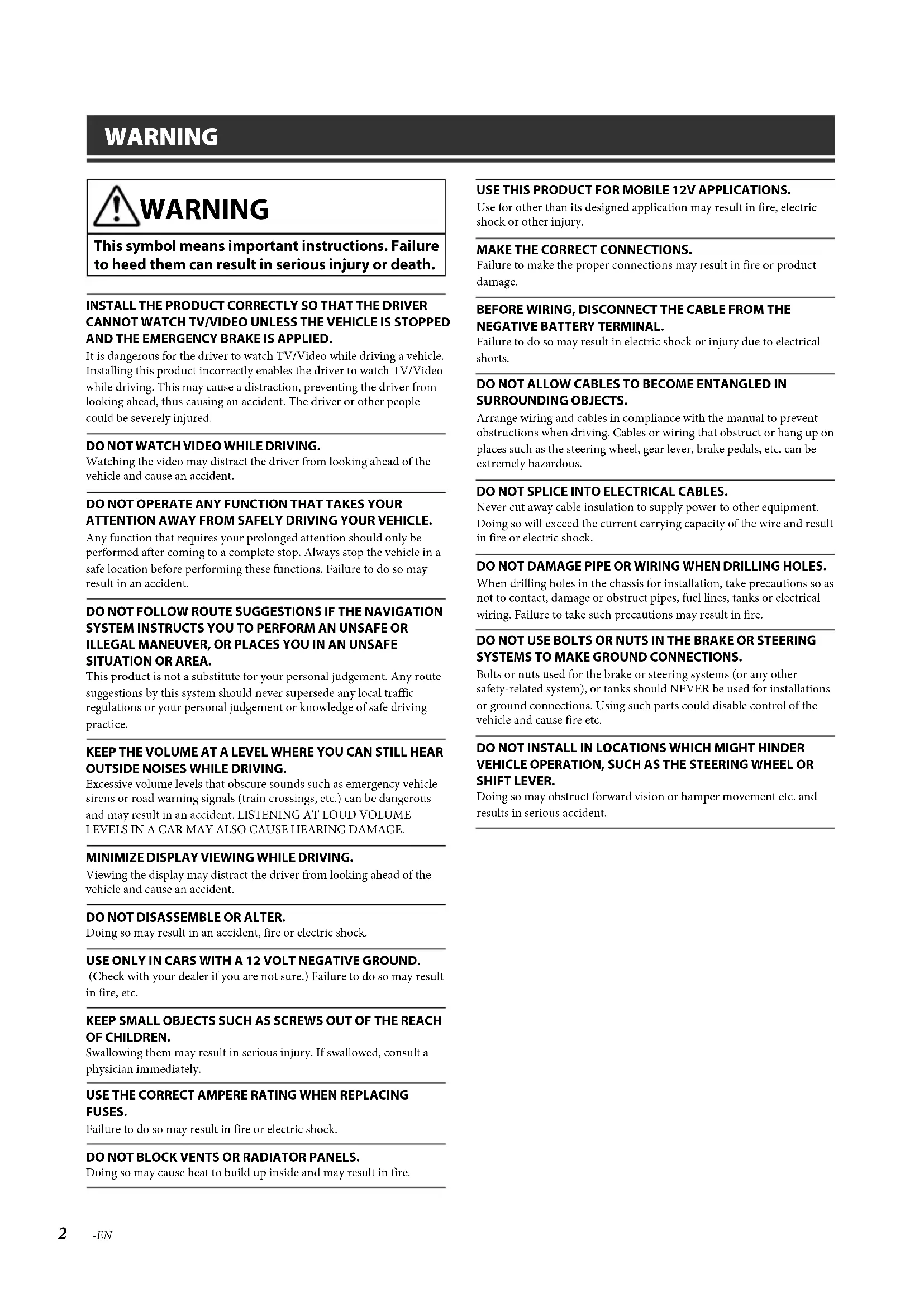
WARNING
This symbol means important instructions. Failure to heed them can result in serious injury or death.
INSTALL THE PRODUCT CORRECTLY SO THAT THE DRIVER CANNOT WATCH TV/VIDEO UNLESS THE VEHICLE IS STOPPED AND THE EMERGENCY BRAKE IS APPLIED.
It is dangerous for the driver to watch TV/Video while driving a vehicle. Installing this product incorrectly enables the driver to watch TV/Video while driving. This may cause a distraction, preventing the driver from looking ahead, thus causing an accident. The driver or other people could be severely injured.
DO NOT WATCH VIDEO WHILE DRIVING.
Watching the video may distract the driver from looking ahead of the vehicle and cause an accident.
DO NOT OPERATE ANY FUNCTION THAT TAKES YOUR ATTENTION AWAY FROM SAFELY DRIVING YOUR VEHICLE.
Any function that requires your prolonged attention should only be performed after coming to a complete stop. Always stop the vehicle in a safe location before performing these functions. Failure to do so may result in an accident.
DO NOT FOLLOW ROUTE SUGGESTIONS IF THE NAVIGATION SYSTEM INSTRUCTS YOU TO PERFORM AN UNSAFE OR ILLEGAL MANEUVER, OR PLACES YOU IN AN UNSAFE SITUATION OR AREA.
This product is not a substitute for your personal judgement. Any route suggestions by this system should never supersede any local traffic regulations or your personal judgement or knowledge of safe driving practice.
KEEP THE VOLUME AT A LEVEL WHERE YOU CAN STILL HEAR OUTSIDE NOISES WHILE DRIVING.
Excessive volume levels that obscure sounds such as emergency vehicle sirens or road warning signals (train crossings, etc.) can be dangerous and may result in an accident. LISTENING AT LOUD VOLUME LEVELS IN A CAR MAY ALSO CAUSE HEARING DAMAGE.
MINIMIZE DISPLAY VIEWING WHILE DRIVING.
Viewing the display may distract the driver from looking ahead of the vehicle and cause an accident.
DO NOT DISASSEMBLE OR ALTER.
Doing so may result in an accident, fire or electric shock.
USE ONLY IN CARS WITH A 12 VOLT NEGATIVE GROUND.
(Check with your dealer if you are not sure.) Failure to do so may result in fire, etc.
KEEP SMALL OBJECTS SUCH AS SCREWS OUT OF THE REACH OF CHILDREN.
Swallowing them may result in serious injury. If swallowed, consult a physician immediately.
USE THE CORRECT AMPERE RATING WHEN REPLACING FUSES.
Failure to do so may result in fire or electric shock.
DO NOT BLOCK VENTS OR RADIATOR PANELS.
Doing so may cause heat to build up inside and may result in fire.
USE THIS PRODUCT FOR MOBILE 12V APPLICATIONS.
Use for other than its designed application may result in fire, electric shock or other injury.
MAKE THE CORRECT CONNECTIONS.
Failure to make the proper connections may result in fire or product damage.
BEFORE WIRING, DISCONNECT THE CABLE FROM THE NEGATIVE BATTERY TERMINAL.
Failure to do so may result in electric shock or injury due to electrical shorts.
DO NOT ALLOW CABLES TO BECOME ENTANGLED IN SURROUNDING OBJECTS.
Arrange wiring and cables in compliance with the manual to prevent obstructions when driving. Cables or wiring that obstruct or hang up on places such as the steering wheel, gear lever, brake pedals, etc. can be extremely hazardous.
DO NOT SPLICE INTO ELECTRICAL CABLES.
Never cut away cable insulation to supply power to other equipment.
Doing so will exceed the current carrying capacity of the wire and result in fire or electric shock.
DO NOT DAMAGE PIPE OR WIRING WHEN DRILLING HOLES.
When drilling holes in the chassis for installation, take precautions so as not to contact, damage or obstruct pipes, fuel lines, tanks or electrical wiring. Failure to take such precautions may result in fire.
DO NOT USE BOLTS OR NUTS IN THE BRAKE OR STEERING SYSTEMS TO MAKE GROUND CONNECTIONS.
Bolts or nuts used for the brake or steering systems (or any other safety-related system), or tanks should NEVER be used for installations or ground connections. Using such parts could disable control of the vehicle and cause fire etc.
DO NOT INSTALL IN LOCATIONS WHICH MIGHT HINDER VEHICLE OPERATION, SUCH AS THE STEERING WHEEL OR SHIFT LEVER.
Doing so may obstruct forward vision or hamper movement etc. and results in serious accident.

CAUTION
This symbol means important instructions. Failure to heed them can result in injury or material property damage.
HALT USE IMMEDIATELY IF A PROBLEM APPEARS.
Failure to do so may cause personal injury or damage to the product. Return it to your authorized Alpine dealer or the nearest Alpine Service Center for repairing.
HAVETHE WIRING AND INSTALLATIONDONE BY EXPERTS.
The wiring and installation of this unit requires special technical skill and experience. To ensure safety, always contact the dealer where you purchased this product to have the work done.
USE SPECIFIED ACCESSORY PARTS AND INSTALL THEM SECURELY.
Be sure to use only the specified accessory parts. Use of other than designated parts may damage this unit internally or may not securely install the unit in place. This may cause parts to become loose resulting in hazards or product failure.
ARRANGE THE WIRING SO IT IS NOT CRIMPED OR PINCHED BY A SHARP METAL EDGE.
Route the cables and wiring away from moving parts (like the seat rails) or sharp or pointed edges. This will prevent crimping and damage to the wiring. If wiring passes through a hole in metal, use a rubber grommet to prevent the wire's insulation from being cut by the metal edge of the hole.
DO NOT INSTALL IN LOCATIONS WITH HIGH MOISTURE OR DUST.
Avoid installing the unit in locations with high incidence of moisture or dust. Moisture or dust that penetrates into this unit may result in product failure.
Getting Started
Location of Controls
The screen design used in the Owner's Manual may differ from the actual screen.
For X801D-U/INE-W997D For X701D
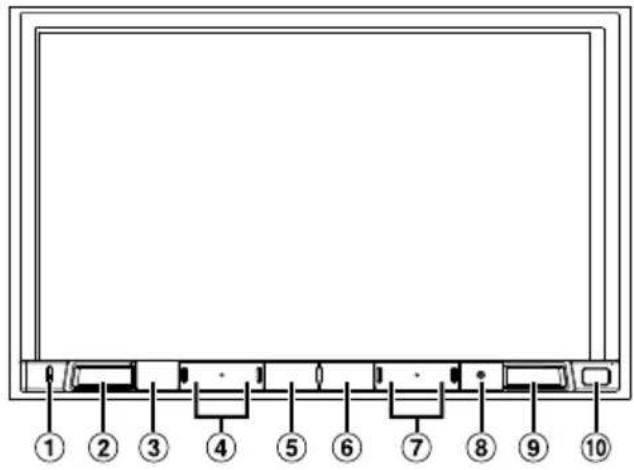
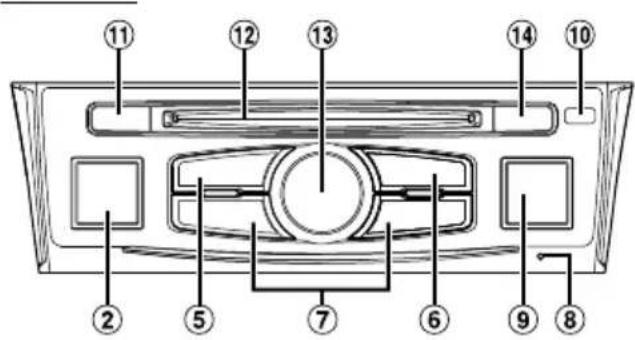
① Microphone
Used for Hands-free or Voice Control modes.
For X701D, the microphone is built into the left side of the monitor.
2 (AudioO)/(Voice Recognition mode) button
Displays the Audio/Visual screen. If the Audio/Visual screen is already displayed, changes the source.
When a hands-free phone with Voice Recognition is connected, press and hold for at least 2 seconds to switch to the Voice Recognition mode.
(3) (MUTE) button (X801D-U/INE-W997D only)
Press to activate/deactivate the mute mode.
(4) / (DOWN/UP) button (X801D-U/INE-W997D only)
Press to adjust the volume.
(5) (Favourite) button
Recalls the Favourite screen.
-
Press and hold this button for at least 2 seconds to switch to the Climate screen. (displayed only on the X801D-U/INE-W997D when connected to the optional CAN Interface box.)
-
Press and hold this button for at least 2 seconds to switch to Vehicle info mode. (X701D only)
6 MENU/ (Power Off) button
Recalls the Menu screen.
Press and hold this button for at least 5 seconds to turn the power off.
7 /bokn
Press to seek down/up a station in radio mode or down/up a track, chapter, etc., in other audio/visual sources.
RESET switch
The system of this unit is reset.
9 (NAV/NAV) button
Recalls the navigation map screen.
Press again to switch to Navigation menu screen.
Press and hold this button for at least 2 seconds to change to Go Home route screen. (If Home is not set yet, it will change to the Home setting screen.)
For details of navigation operations, refer to "Navigation System OM" in the CD-ROM.
Remote Sensor
Point the remote control transmitter towards the remote sensor within a range of 2 meters.
CAM (CAMERA) button (X701D only)
Use to display the camera image.
12 Disc Slot (X701D with DVE-5300X only)
13 Rotary encoder/MUTE button (X701D only)
Adjust the volume by turning to the left or right. Press to activate/deactivate MUTE mode.
(14) (Eject) button (X701D with DVE-5300X only)
Ejects a disc.
1 Turn the ignition key to the ACC or ON position.
The system is turned on.
2 Press and hold the MENU button for at least 5 seconds to turn the power off.
Switching the Audio Sources Screen to a Dedicated Screen
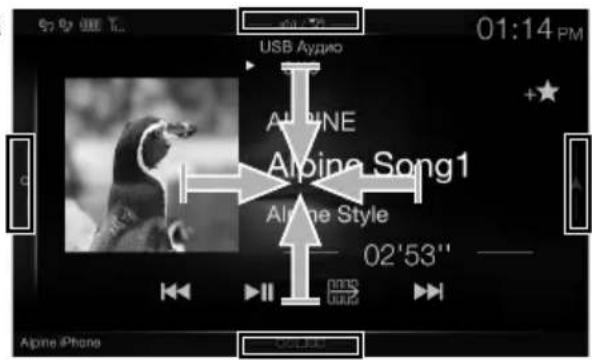
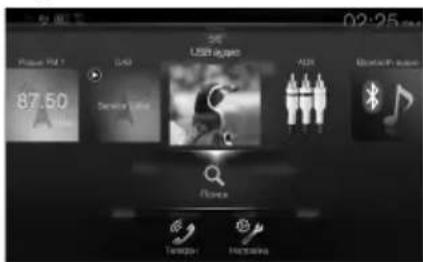
You can switch the Audio Sources screen to a dedicated screen by touching the icon on one of the four edges of the screen, or by swiping vertically or horizontally.
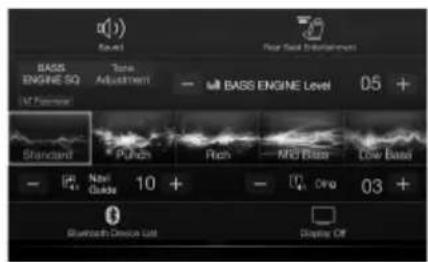
Shortcut Setup Screen
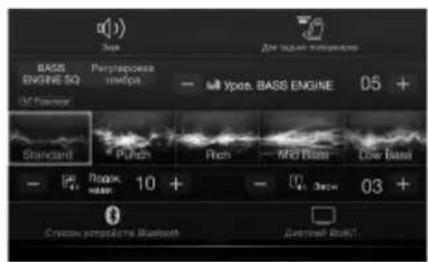
You can set the Sound Setup or Rear Seat Entertainment System.
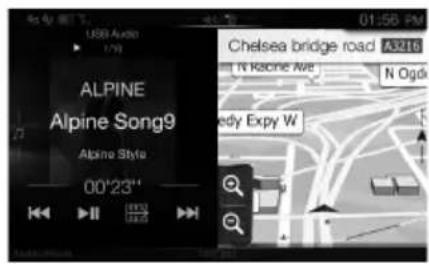
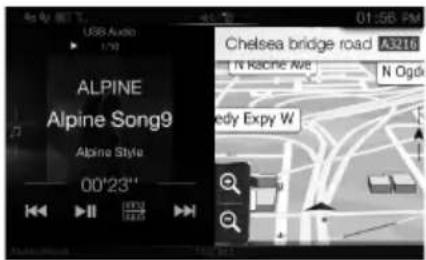
Dual Screen
You can switch between the displayed screens on the Dual Screen.
(USB Audio)
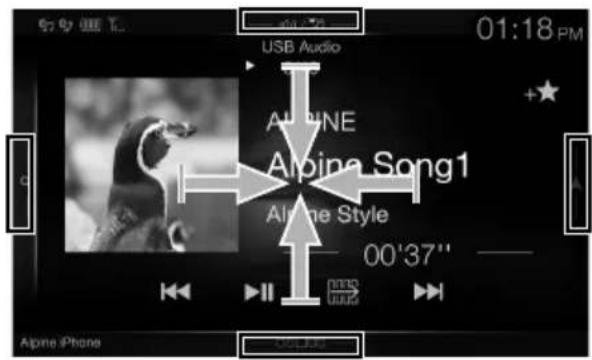
Audio Sources Screen
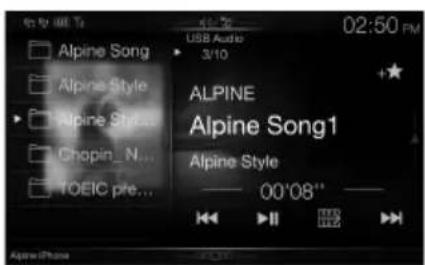
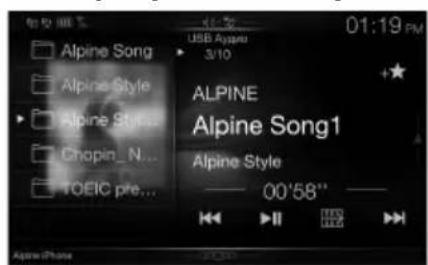
Preset button or Quick Search mode Screen*

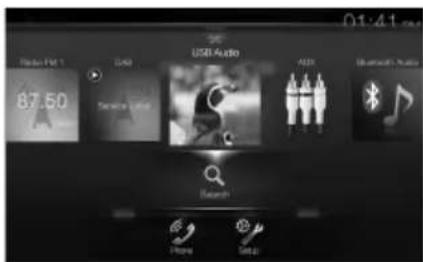
Menu Screen
You can make settings on the Menu Screen.
- The Search mode differs depending on the audio source. For details, see the operating instructions of the audio source.
Favourite Function
This unit enables you to recall functions easily by registering frequently used items such as the Audio source, the navigation search function, etc. to the Favourite screen. You can recall any of these items easily.
1 Press the (Favourite) button.
The Favourite screen is displayed.
Favourite screen example
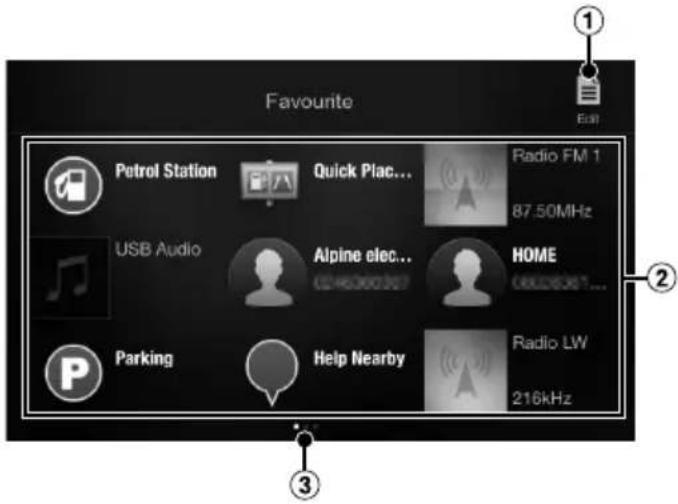
1 Changes to the Edit screen used for registering items or changing names.
Favourite registration item
3 Indicates the location of the currently displayed Favourite screen.
Swipe to the left and right to change the pages. You can add up to 6 pages.
Registering Items
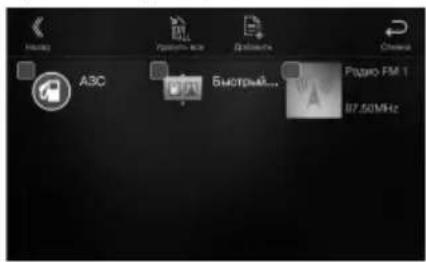
1 Touch [] (Edit).
A checkbox is displayed on the upper left area of the registration icon and it changes to Edit mode.
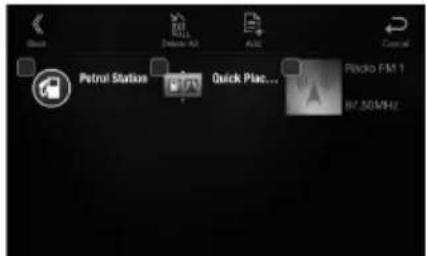
2 Touch [] (Add).
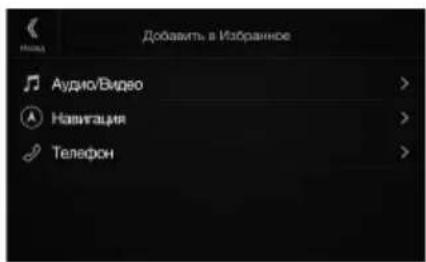
The items to be added (categories) are displayed.
3 Touch the desired item to be added (category).
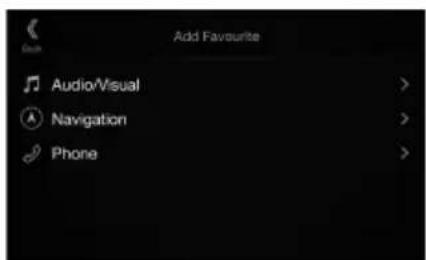
4 Choose the desired item to be added.
For details on the items to be added, refer to "Editing the Favourite Screen" in the Owner's Manual.
- You can add up to 54 items.
- You cannot register an item more than once.
5 After editing is complete, touch [ ] (Back).
6 After the caption for the confirmation is displayed, touch [OK].
7 Editing is complete and the screen switches to the Favourite screen.
- If you touch [Cancel] while editing, the screen switches to the previous Favourite Edit screen.
Radio/RDS Operation
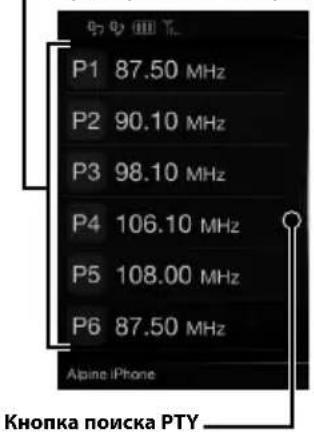
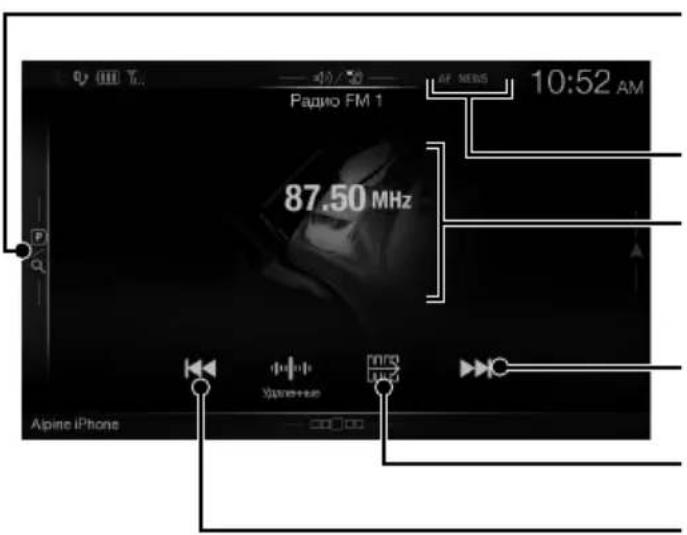
Preset button
Displays the preset stations with a short touch.
Touch for at least 2 seconds to memorise the current station as a preset station.
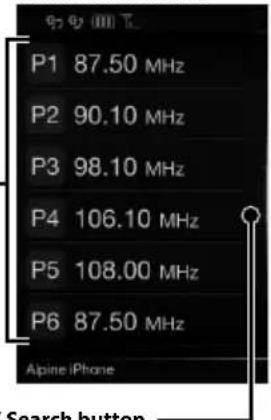
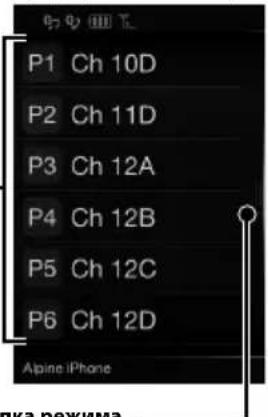
Preset mode screen
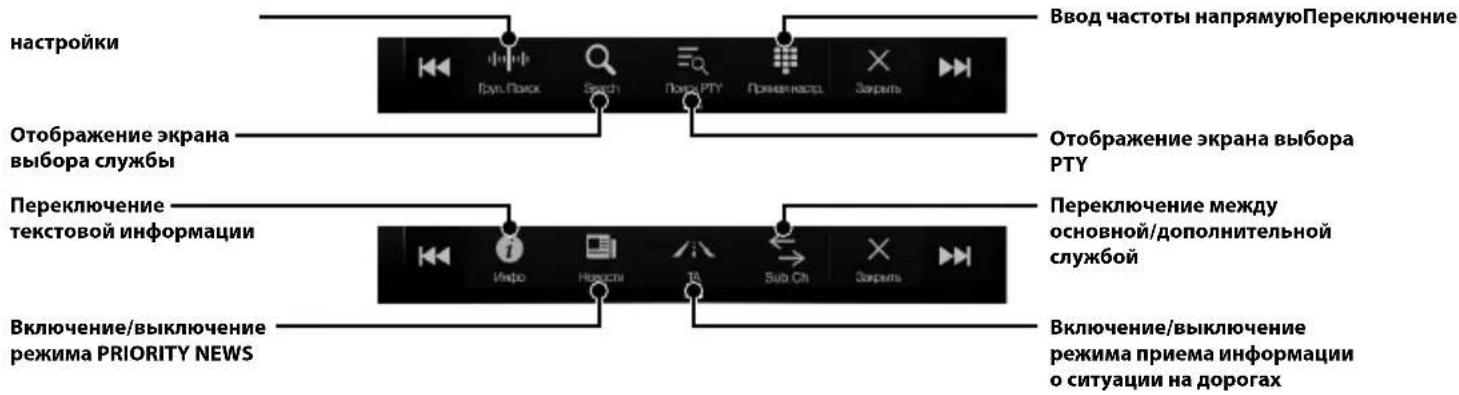
PTY Search button
Swipe to the right when you use the PTY list screen.

Preset mode button
Touch or swipe to the right when you use the Preset mode screen.

RDS indicator
Information display
Increases frequency
Switches Function button
Decreases frequency

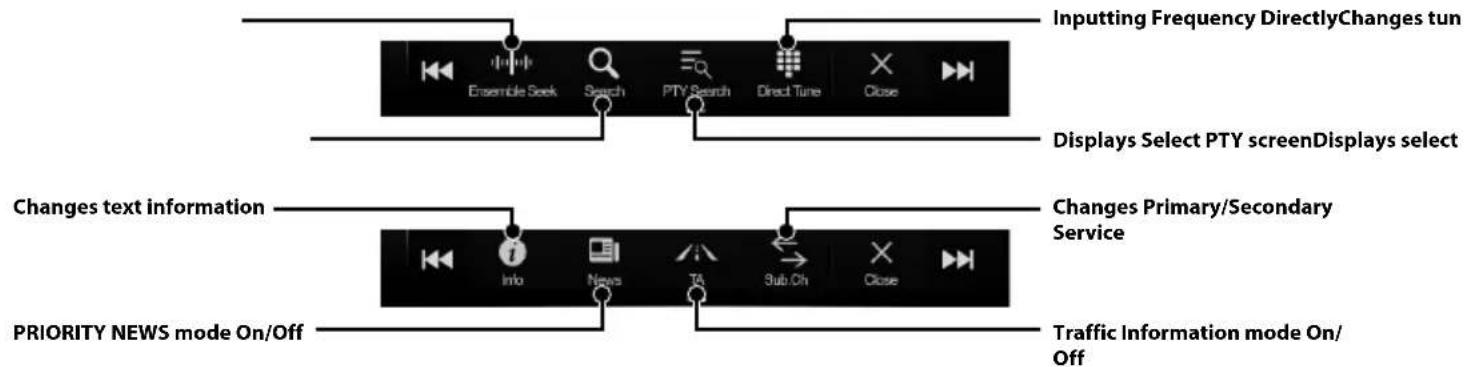
PRIORITY NEWS mode On/Off
Memorises stations
automatically
AF mode On/OffTraffic Information mode
DAB/DAB+/DMB Operation
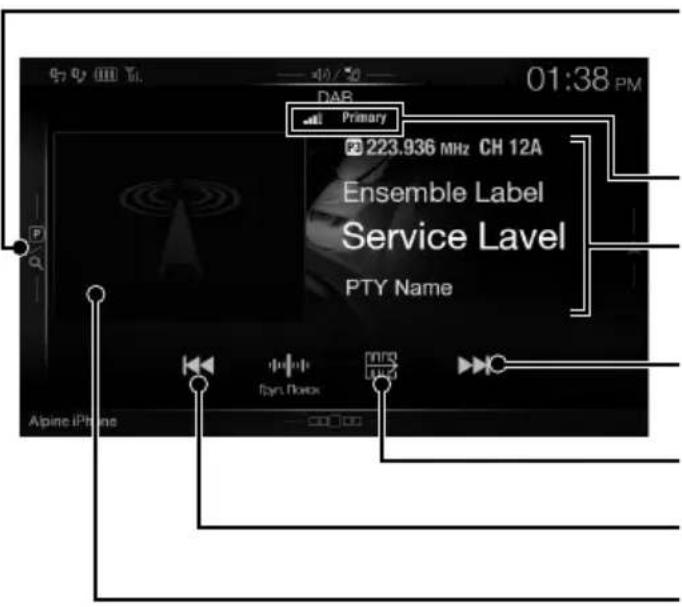
Preset button
Displays the preset service with a short touch.
Touch for at least 2 seconds to memorise the current service as a preset station.
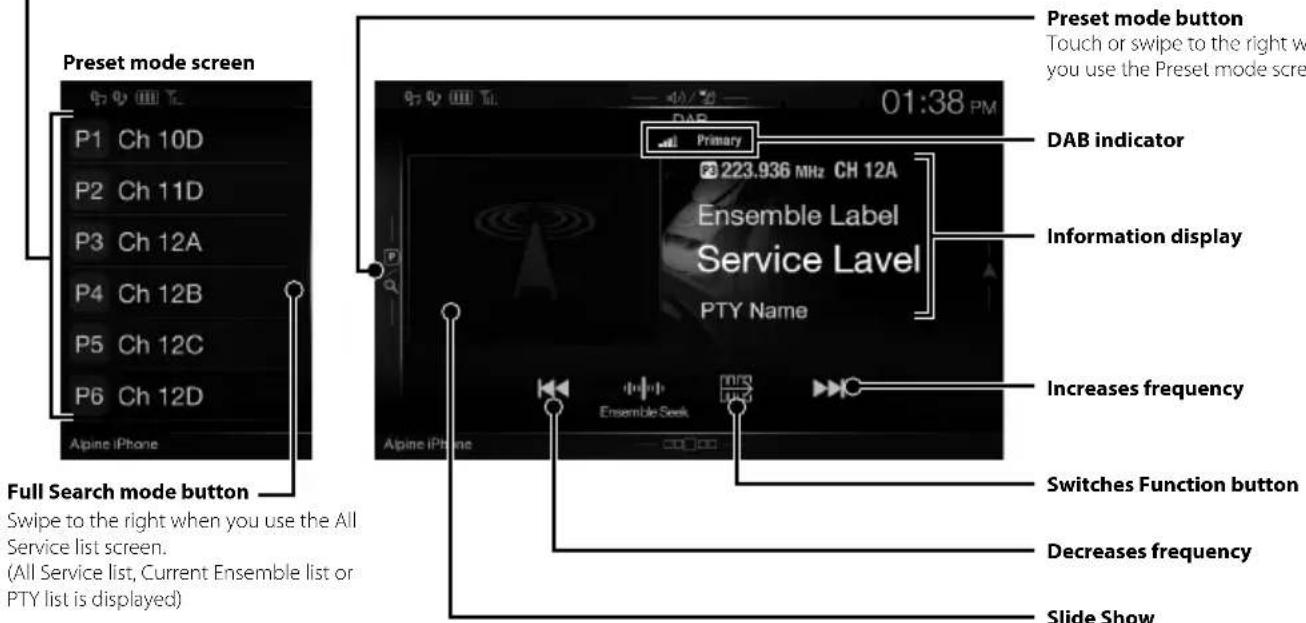
DAB indicator
Information display
Increases frequency
Switches Function button
Decreases frequency
Slide Show
Preset mode button
Touch or swipe to the right when you use the Preset mode screen.
Displays the programme information, artist photos, and advertisements that are synchronised with the Service component currently being received.*
- They may not be displayed, depending on the Service component currently being received.
USB Flash drive Operation (Optional)
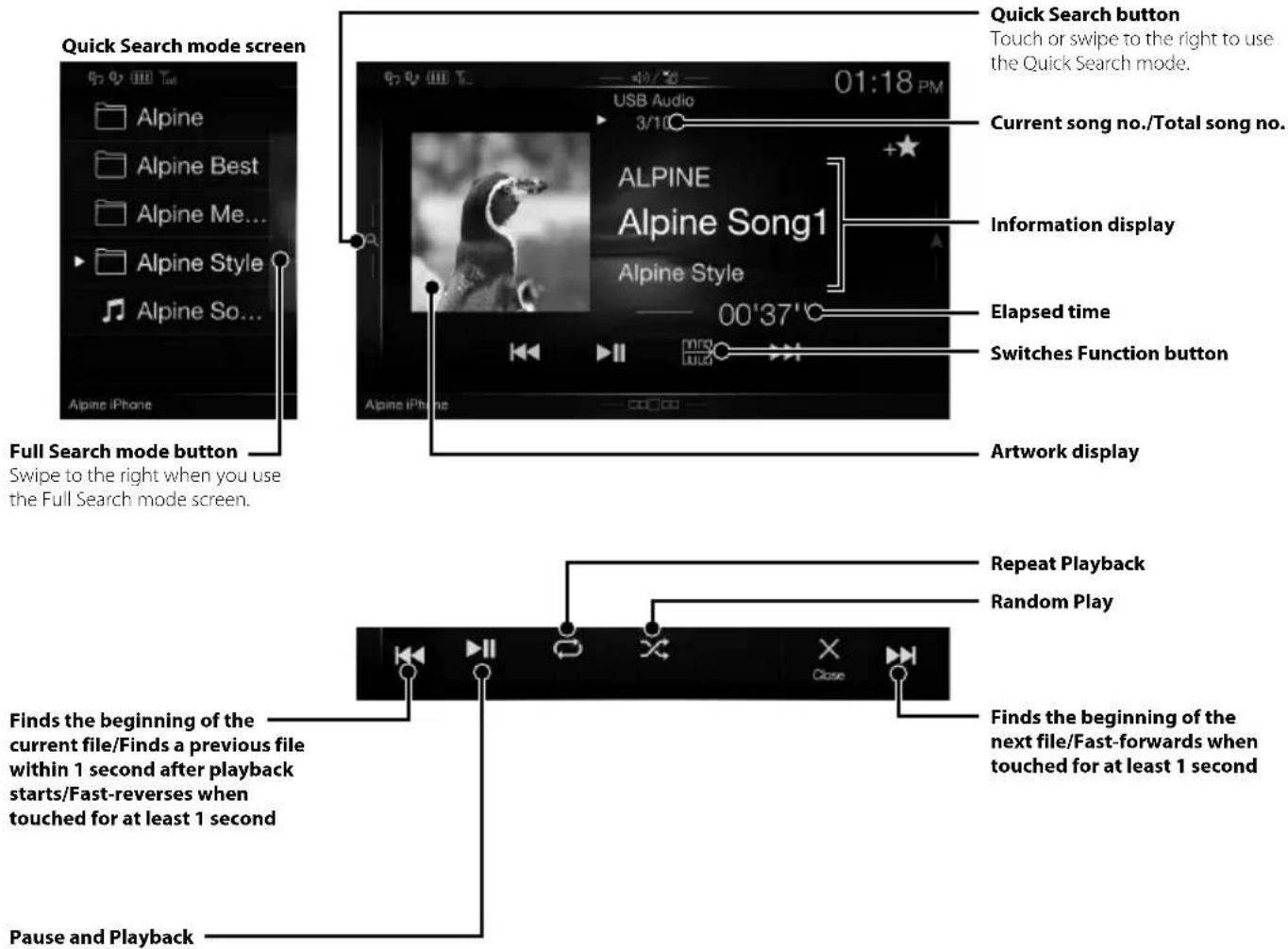
You can play back music files (MP3/WMA/AAC/FLAC) stored in a USB flash drive on the internal player of this system
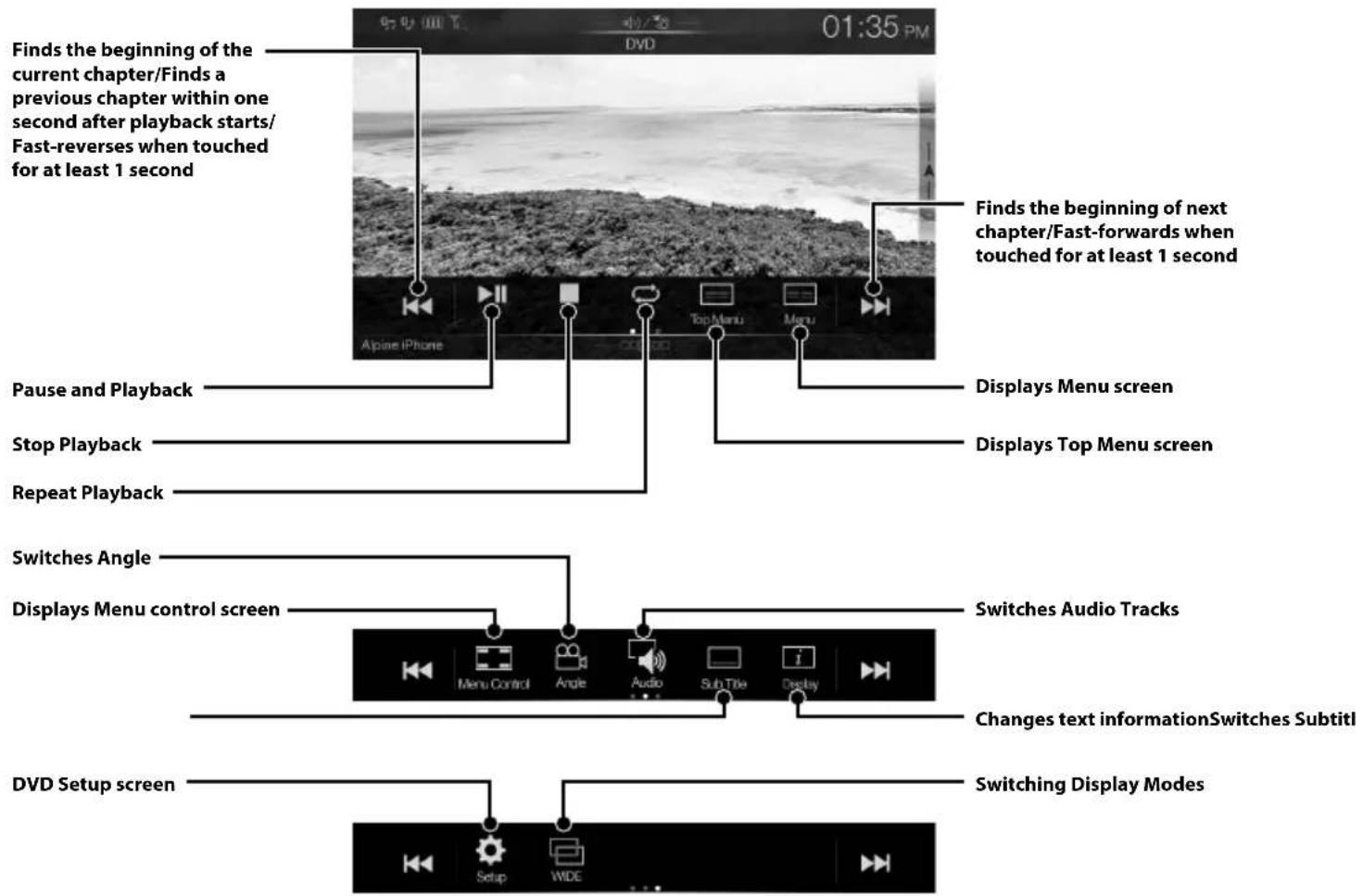
HDMI Device (DVD Player) Operation (Optional)
When you connect an optional DVE-5300 (DVD Player), you can operate it from the unit.
iPod/iPhone Operation (Optional)
A separately sold USB iPod/iPhone AV cable (KCU-461iV) or a separately sold Lightning to USB cable (KCU-471i) is required depending on the type of iPod/iPhone.
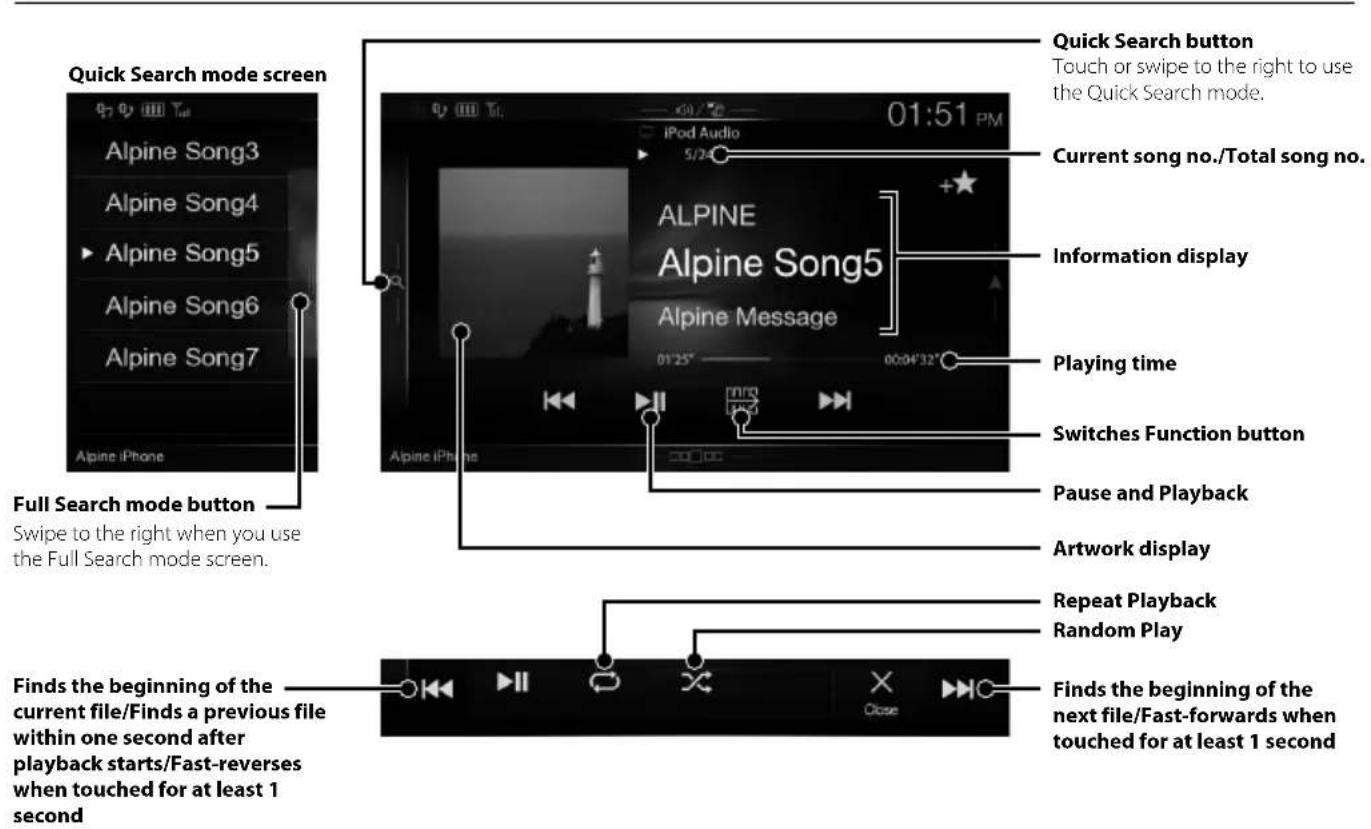
Audio mode
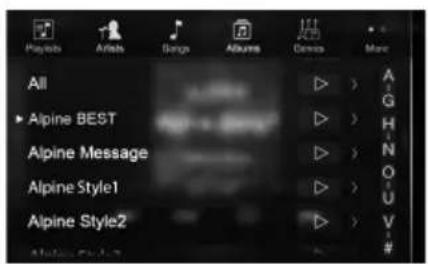
Searching for a Music File (Full Search Mode)
For example: Searching by Artist name
1 Touch [Artists] in the Full Search mode screen.
2 Touch the desired artist's name.
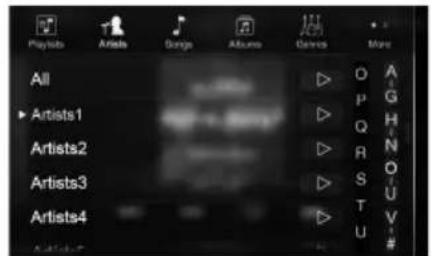
The Albums search screen of the selected artist is displayed.
Touching J of the desired artist will play back all songs of the selected artist.
3 Touch the desired album's name.
All songs of the selected album are displayed. Touching ] of the desired album will play back all songs of the selected album.
4 Touch the desired song's name.
The selected song is played back.
- Touching [ ] of "All" will play back all songs in the list.
Hands-Free Phone Control
Hands-free calls are possible when using an HFP (Hands-Free Profile) compatible mobile phone with this unit.
How to connect to a BLUETOOTH compatible device (Pairing)
The BLUETOOTH function is always available on this unit.
You can, therefore, search for a BLUETOOTH device for pairing at any time.
1 Touch [Setup] button on the Menu screen.
![ALPINE INEW997DC - Touch [Setup] button on the Menu screen. - 1](/content/2026/03/507385/images/36ebc1694b8787ea394f40aca0a8b7858889e4b5db9e0c443c400b3e28da3540.jpg)
2 Touch [Bluetooth].
- Make sure the "Bluetooth" setting is "On".
3 Touch [Set Bluetooth Device].
![ALPINE INEW997DC - Touch [Set Bluetooth Device]. - 1](/content/2026/03/507385/images/1228ea703d6a5707f5de1fce1f09f51c6e8379e3380462bd6948f63c83877ddd.jpg)
4 Touch [ ] (Search) of "No Device."
![ALPINE INEW997DC - Touch [ ] (Search) of "No Device." - 1](/content/2026/03/507385/images/01efaa1269dec367543ef96a702e972660ed1bf3475b6890f118de446f2b719b.jpg)
5 Touch [ ] (Audio), [ ] (Hands-free) or [Both) of the device you want to connect from the list.
Audio: Sets for use as an Audio device.
Hands-free: Sets for use as a Hands Free Device.
Both: Sets for use as both an Audio device and Hands Free Device.
6 When the device registration is complete, a message appears and the device returns to normal mode.
- You can register up to 5 BLUETOOTH compatible mobile phones.
- The BLUETOOTH registration process differs depending on the device version and SSP (Simple Secure Pairing). If a 4 or 6 character Passcode appears on this device, enter the Passcode using the BLUETOOTH compatible device. If a 6 character Passkey appears on this device, make sure the same passkey is displayed on the BLUETOOTH compatible device and touch "Yes."
Answering a Call
1 An incoming call triggers the ringtone and an incoming call display.
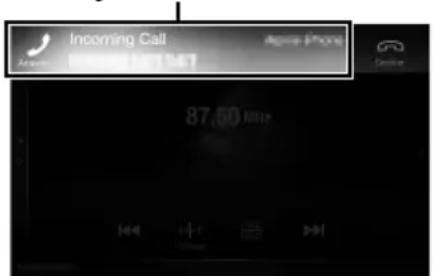
Incoming call notification screen
2 Touch incoming call notification screen.
The call starts.
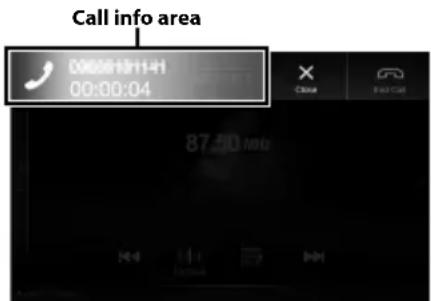
By touching the call info area during phone call, you can change to the Phone Operation screen and adjust the speech volume, etc.
Hanging up the Telephone
1 Touch [A] (End Call).
The call finishes.
Map Functions
Below is an overview of different buttons and icons on the map display. For more detailed information about this screen, please see the Owner's Manual.
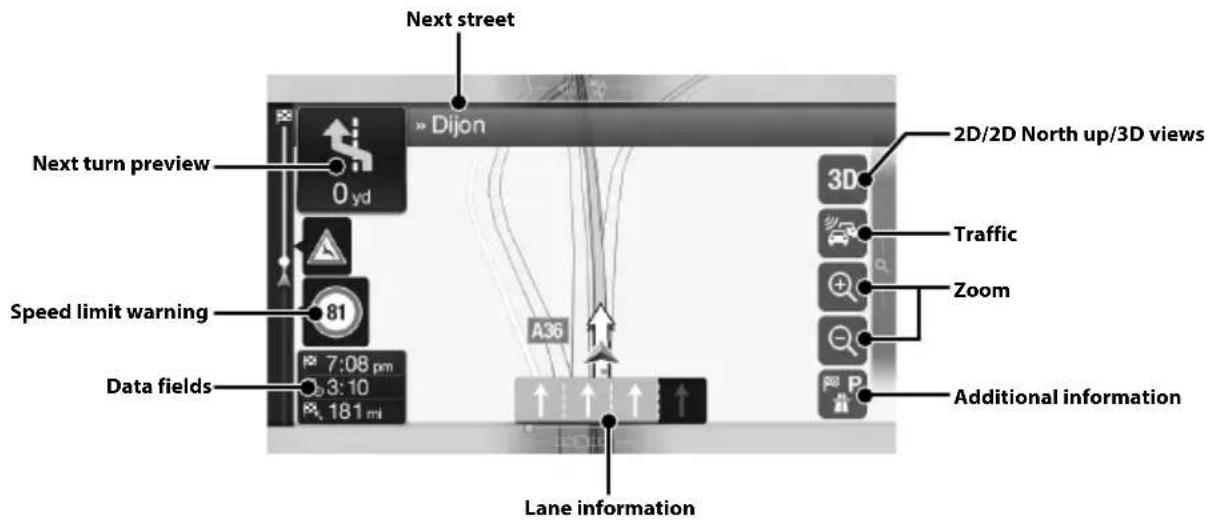

Navigation Menu
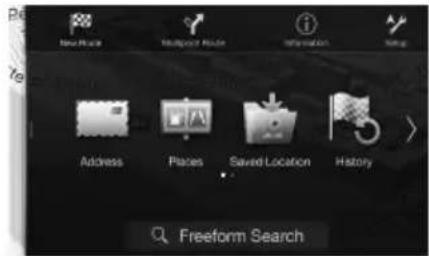
To access the Navigation Menu, touch on the right edge of the map screen or swipe to the left. Alternatively, press the button.
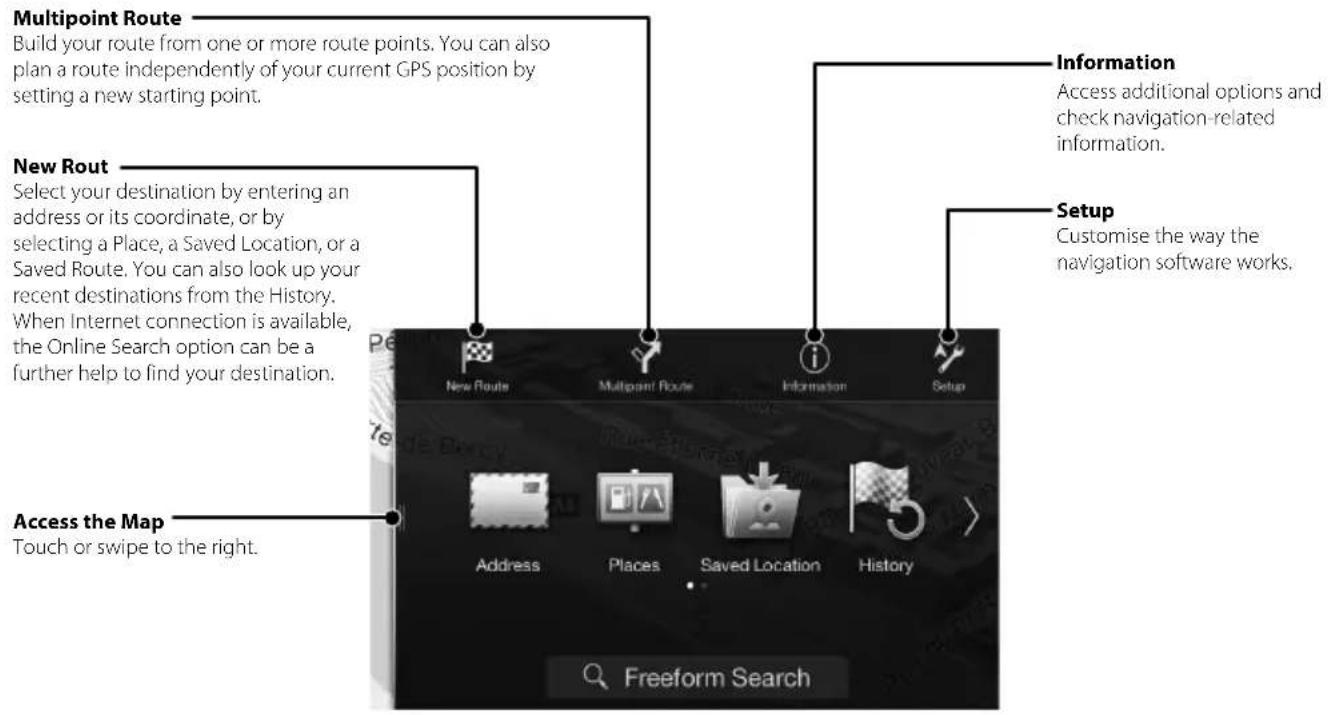
Setting a Destination
The following example describes how to search for a destination when choosing [Town/Postcode] from [Address].
- You can search and narrow down the Country/State by starting from [Country/State].
1 Touch [New Route] from the Navigation Menu.
2 Touch [Address].
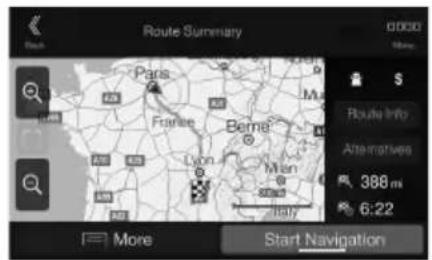
7 Touch [More] to modify the route parameters, or touch [Start Navigation] to start your journey.
3 Touch [Town/Postcode].
4 Enter the town name or postcode.
- Touch to play the candidate list.
5 Enter the desired street name.
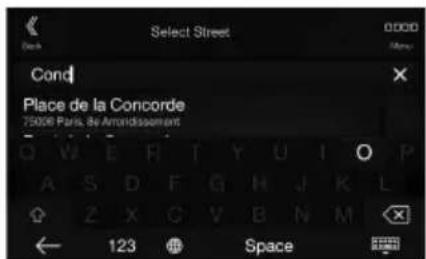
- Touch to play the candidate list.
6 Enter the house number or crossing street.
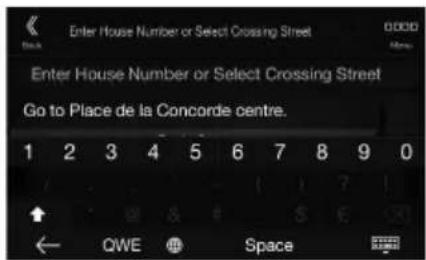
The route is calculated, and a map appears, showing the entire route. Here you can check route information and route alternatives.
Specifications
MONITOR SECTION
Screen Size 8" (X801D-U)
7" (X701D/INE-W997D)
LCD Type Transparent type TN LCD
Operation System TFT active matrix
Number of Picture Elements 1,152,000 pcs.
(800× 480× 3 RGB)
Effective Number of Picture Elements
99% or more
Illumination System LED
FM TUNER SECTION
Tuning Range 87.5 - 108.0 MHz
Mono Usable Sensitivity 8.1 dBf (0.7 V/75 ohms)
50 dB Quieting Sensitivity 12 dBf (1.1 V/75 ohms)
Alternate Channel Selectivity 80 dB
Signal-to-Noise Ratio 65 dB
Stereo Separation 35 dB
Capture Ratio 2.0 dB
MW TUNER SECTION
Tuning Range 531-1,602 kHz
Usable Sensitivity 25.1 V / 28 dBf
LWTUNERSECTION
Tuning Range 153-281 kHz
Sensitivity (IEC Standard) 31.6 V/30 dBf
USB SECTION
USB requirements USB 2.0
Max. Power Consumption 1,500 mA (CDP Support)
USB Class USB (Play From Device)/
USB (Mass Storage Class)
File System FAT16/32
Number of Channels 2-Channels (Stereo)
Frequency Response* 5 - 20,000Hz (±1 dB)
Total Harmonic Distortion 0.008% (at 1 kHz)
Dynamic Range 95 dB (at 1 kHz)
Signal-to-Noise Ratio 100 dB
Channel Separation 85 dB (at 1 kHz)
*1 Frequency response may differ depending on the encoder software/bit rate.
HDMI SECTION
Input Format 720p/480p/VGA
Output Format 480p
GPS SECTION
GPS Reception frequency 1,575.42 ±1 MHz
GPS Reception sensitivity -130 dB max.
Bluetooth SECTION
Bluetooth Specification Bluetooth V2.1+EDR
Output Power +4 dBm Max. (Power class 2)
Profile HFP (Hands-Free Profile)
OPP (Object Push Profile)
PBAP (Phone Book Access Profile)
A2DP (Advanced Audio
Distribution Profile)
AVRCP (Audio/Video Remote
Control Profile)
SPP (Serial Port Profile)
GENERAL
Power Requirement 14.4V DC
(11-16 V allowable)
Operating temperature
-4°F to +140°F
(-20^ to +60^)
Maximum Power Output
50W×4
Weight
2.9 kg (X801D-U)
2.7 kg (INE-W997D)
Audio output level
Preout (Front, Rear):
4V/10k ohms (max.)
Preout (Subwoofer):
4V/10k ohms (max.)
CHASSIS SIZE
Width 178mm
Height 100 mm
Depth 164 mm
NOSE SIZE
Width 190 mm (X801D-U)
170 mm (INE-W997D)
Height 121 mm (X801
96 mm (INE-W997D)
Depth 22 mm (X801D-U)
17 mm (INE-W997D)
-
Due to continuous product improvement, specifications and design are subject to change without notice.
-
The LCD panel is manufactured using an extremely high precision manufacturing technology. Its effective pixel ratio is over 99.99% . This means that there is a possibility that 0.01% of the pixels could be either always ON or OFF.
X701D with DVE-5300X
CD/DVD SECTION
Frequency Response CD: 5 - 20,000 Hz (±1 dB)
Wow & Flutter (% WRMS) Below measurable limits
Total Harmonic Distortion 0.02% (at 1 kHz)
Dynamic Range 95 dB (at 1 kHz)
Channel Separation 65 dB (at 1 kHz)
Horizontal resolution 500 lines or greater
Video output level 1Vp-p (75 ohms)
Video S/N ratio DVD: 60 dB
Audio S/N ratio 95 dB
PICKUP
Wave length DVD:665 nm
CD:800 nm
Laser power CLASS II
REMOTE CONTROL
Battery Type CR2025 battery
Width 42mm
Height 90 mm
Depth 11.6 mm
Weight 50 g (battery excluded)
X801D-U/X701D/INE-W997D
Made for

iPodiPhone

HOMI
HIGH-DEFINITION MULTIMEDIA INTERFACE
DAB+
Digital Audio Broadcasting
Bluetooth

MP3 AAC

Plays
Windows
Media
Maps for Life
For Optional DVE-5300X
Made for

iPod iPhone

HOMI
HIGH-DEFINITION MULTIMEDIA INTERFACE
DAB+
Digital Audio Broadcasting
Bluetooth

MP3 AAC

Plays
Window
Maps for Life

dtts
2.0+Digital Out

DOLBY.
DIGITAL

VIDEO

DIGITALVIDEO

DIGITAL AUDIO
TEXT
- Windows Media, and the Windows logo are trademarks, or registered trademarks of Microsoft Corporation in the United States and/or other countries.
- iPhone, iPod, iPod classic, iPod nano and iPod touch are trademarks of Apple Inc., registered in the U.S. and other countries.
- "Made for iPod," and "Made for iPhone," mean that an electronic accessory has been designed to connect specifically to iPod, or iPhone, respectively, and has been certified by the developer to meet Apple performance standards. Apple is not responsible for the operation of this device or its compliance with safety and regulatory standards. Please note that the use of this accessory with iPod, or iPhone may affect wireless performance.
Android is a trademark of Google Inc. - The Bluetooth® word mark and logos are registered trademarks owned by the Bluetooth SIG, Inc. and any use of such marks by Alpine Electronics, Inc. is under license.
- The terms HDMI and HDMI High-Definition Multimedia Interface, and the HDMI Logo are trademarks or registered trademarks of HDMI Licensing, LLC in the United States and other countries.
- MPEG Layer-3 audio coding technology licensed from Fraunhofer IIS and Thomson. Supply of this product only conveys a license for private, non-commercial use and does not convey a license nor imply any right to use this product in any commercial (i.e. revenue-generation) real time broadcasting (terrestrial, satellite, cable and/or any other media), broadcasting/streaming via internet, intranets and/or other networks or in other electronic content distribution systems, such as pay-audio or audio-on-demand applications. An independent license for such use is required. For details, please visit http://www.mp3licensing.com
©1987-2014 HERE. All rights reserved.
X701D with DVE-5300X
- This item incorporates copy protection technology that is protected by U.S. patents and other intellectual property rights of Rovi Corporation. Reverse engineering and disassembly are prohibited.
- Manufactured under license from Dolby Laboratories. Dolby and the double-D symbol are trademarks of Dolby Laboratories.
- For DTS patents, see http://patents.dts.com. Manufactured under license from DTS Licensing Limited. DTS, the Symbol, & DTS and the Symbol together are registered trademarks, and DTS Digital Surround is a trademark of DTS, Inc. ©DTS, Inc. All Rights Reserved.
DVD is a trademark of DVD Format/Logo Licensing Corporation.
Inhalt
PBAP (Phone Book Access Profile)
A2DP (Advanced Audio
Distribution Profile)
AVRCP (Audio/Video Remote
Control Profile)
SPP (Serial Port Profile)
ALLGEMEINES
Spanningsversorgung
Digital Audio Broadcasting
Bluetooth

MP3 AAC

Plays
Windows
Media
Maps for Life
Digital Audio Broadcasting
Bluetooth

MP3 AAC

Plays
WIND
Maps for Life

dt
2.0+Digital Out

DOLBY.
DIGITAL

VIDEO

DIGITALVIDEO

DIGITAL AUDIO
TEXT
DATE D'INSTALLATION:
TECHNICIEN D'INSTALLATION:
LIEU D'ACHAT:
3 Bouton (SILENCIEUX) (X801D-U/INE-W997D unquipment)
Digital Audio Broadcasting

Bluetooth

MP3
AAC

Plays
Windows
Media
Maps for Life
Digital Audio Broadcasting

Bluetooth

MP3
AAC

Plays
WIND
Maps for Life

dtts
2.0+Digital Out

DOLBY.
DIGITAL

VIDEO

DIGITALVIDEO

DIGITAL AUDIO
TEXT
1 Toque [] (Editor).
(Mass Storage Class)
PBAP (Phone Book Access Profile)
A2DP (Advanced Audio
Distribution Profile)
AVRCP (Audio/Video Remote
Control Profile)
SPP (Serial Port Profile)
GENERAL
Alimentación 14,4VCC (11-16 V margen permissible)
Digital Audio Broadcasting
Bluetooth

MP3 AAC

Plays
Windows
Media
Maps for Life
Para DVE-5300X optional
Made for

iPod iPhone

HOMI
HIGH-DEFINITION MULTIMEDIA INTERFACE
DAB+
Digital Audio Broadcasting
Bluetooth

MP3 AAC

Plays
WIND
Maps for Life

dt
2.0+Digital Out

DOLBY.
DIGITAL

VIDEO

DIGITALVIDEO

DIGITAL AUDIO
TEXT
PBAP (Phone Book Access Profile)
A2DP (Advanced Audio
Distribution Profile)
AVRCP (Audio/Video Remote
Control Profile)
SPP (Serial Port Profile)
SPECIFICHE GENERALI
Digital Audio Broadcasting

Bluetooth

MP3
AAC

Plays
Windows
Media
Maps for Life
Digital Audio Broadcasting

Bluetooth

MP3
AAC

Plays
Window
Maps for Life

dtts
2.0+Digital Out

DOLBY.
DIGITAL

VIDEO

DIGITALVIDEO

DIGITAL AUDIO
TEXT
INSTALLATIONSTEKNIKER:
INKÖPSSTÄLLE:
4 / (NER/OPP)-knapp (endast X801D-U/ INE-W997D)
4 Tryck pa [ ] (Sok) after "No Device".
![ALPINE INEW997DC - Tryck pa [ ] (Sok) after "No Device". - 1](/content/2026/03/507385/images/a1baf62f0e172c18dc7ae1ea7220ad2d1bc9d18369fc7874c9f950b636375643.jpg)
5 Peka pa [ ] (Audio), [ ] (Handsfree) aller [71] (Bada) for den enchet pa listan du vill ansluta.
Digital Audio Broadcasting
![ALPINE INEW997DC - Peka pa [ ] (Audio), [ ] (Handsfree) aller [71] (Bada) for den enchet pa listan du vill ansluta. - 1](/content/2026/03/507385/images/fae76ce771ba091c6a0e051b5faca16b398e66453c167c71f852a9f2aa482ca1.jpg)
Bluetooth
![ALPINE INEW997DC - Peka pa [ ] (Audio), [ ] (Handsfree) aller [71] (Bada) for den enchet pa listan du vill ansluta. - 2](/content/2026/03/507385/images/b16216a22f6b2549ba7e74885417da674bdb3d7dfa3fced9f1963b8ae04d3286.jpg)
MP3
AAC
![ALPINE INEW997DC - Peka pa [ ] (Audio), [ ] (Handsfree) aller [71] (Bada) for den enchet pa listan du vill ansluta. - 3](/content/2026/03/507385/images/ef1bc01978e33518e2476e00c7079c383978f16e674ae94517f1d783a8a2bde5.jpg)
Plays
Windows
Media
Maps for Life
Digital Audio Broadcasting
![ALPINE INEW997DC - Peka pa [ ] (Audio), [ ] (Handsfree) aller [71] (Bada) for den enchet pa listan du vill ansluta. - 4](/content/2026/03/507385/images/fecbcd2bbf0373bf99c12d9cb9ad7382073452494f59eb8fd12cd01d56c9d6f4.jpg)
Bluetooth
![ALPINE INEW997DC - Peka pa [ ] (Audio), [ ] (Handsfree) aller [71] (Bada) for den enchet pa listan du vill ansluta. - 5](/content/2026/03/507385/images/b95943354e71388a8ecaf3ee48758f99e5c61852204844a7ac88f505021aa922.jpg)
MP3
AAC
![ALPINE INEW997DC - Peka pa [ ] (Audio), [ ] (Handsfree) aller [71] (Bada) for den enchet pa listan du vill ansluta. - 6](/content/2026/03/507385/images/9f58b3b2526d59fe437bfb10bf8d551ae542b0bc6481eafa2b17ae63840742aa.jpg)
Plays
www.
Methylation
Maps for Life
![ALPINE INEW997DC - Peka pa [ ] (Audio), [ ] (Handsfree) aller [71] (Bada) for den enchet pa listan du vill ansluta. - 7](/content/2026/03/507385/images/709a125744ece125da88c51dd3fd725476f269fb7dbd6d73ff2b292ff350b3d9.jpg)
dtts
2.0+Digital Out
![ALPINE INEW997DC - Peka pa [ ] (Audio), [ ] (Handsfree) aller [71] (Bada) for den enchet pa listan du vill ansluta. - 8](/content/2026/03/507385/images/0db4d44bfd2df5603864319d298e57319dda920adb7f01e16f1a26e83b278273.jpg)
DOLBY.
DIGITAL
![ALPINE INEW997DC - Peka pa [ ] (Audio), [ ] (Handsfree) aller [71] (Bada) for den enchet pa listan du vill ansluta. - 9](/content/2026/03/507385/images/8bdf14dcf91b8508aa54d8c8a7765b9386b4dd69b6ab44115ae47dbd6042a22a.jpg)
VIDEO
![ALPINE INEW997DC - Peka pa [ ] (Audio), [ ] (Handsfree) aller [71] (Bada) for den enchet pa listan du vill ansluta. - 10](/content/2026/03/507385/images/4025ccf8e32913e49621af997d1d028c52ed6be3b5f1649efab622ac163966aa.jpg)
DIGITALVIDEO
![ALPINE INEW997DC - Peka pa [ ] (Audio), [ ] (Handsfree) aller [71] (Bada) for den enchet pa listan du vill ansluta. - 11](/content/2026/03/507385/images/b9b0a42e2b2b04bcfd056ce21320730ae0ad722ceaefa1e195b3c5ae23eafa23.jpg)
DIGITAL AUDIO
TEXT
(3) (DEMPEN)-knop (alleen X801D-U/INE-W997D)
4 / (OMLAAG/OMHOOG)-knop (alleen X801D-U/INE-W997D)
USB (Mass Storage Class)
Bestandssysteme FAT16/32
Digital Audio Broadcasting
![ALPINE INEW997DC - Peka pa [ ] (Audio), [ ] (Handsfree) aller [71] (Bada) for den enchet pa listan du vill ansluta. - 12](/content/2026/03/507385/images/603b921717c330f8470445bc480498f43aef6d540d5675c8a54cc527ac1d2207.jpg)
Bluetooth
![ALPINE INEW997DC - Peka pa [ ] (Audio), [ ] (Handsfree) aller [71] (Bada) for den enchet pa listan du vill ansluta. - 13](/content/2026/03/507385/images/fcbe440350ea8991bbcc60fbeb0ed40a503168e42cdce16c85b1dbbcf2c55545.jpg)
MP3
AAC
![ALPINE INEW997DC - Peka pa [ ] (Audio), [ ] (Handsfree) aller [71] (Bada) for den enchet pa listan du vill ansluta. - 14](/content/2026/03/507385/images/bb060b563d8c0479074726b4e62d9c26061a9633b79382d814d8a57676977173.jpg)
Plays
Windows
Media
Maps for Life
Digital Audio Broadcasting
![ALPINE INEW997DC - Peka pa [ ] (Audio), [ ] (Handsfree) aller [71] (Bada) for den enchet pa listan du vill ansluta. - 15](/content/2026/03/507385/images/fa2c1d5714395564c231124aa27a0df62b7c30926598eaadf0820b2b822a5190.jpg)
Bluetooth
![ALPINE INEW997DC - Peka pa [ ] (Audio), [ ] (Handsfree) aller [71] (Bada) for den enchet pa listan du vill ansluta. - 16](/content/2026/03/507385/images/b613b83a3b19e8d3e9edbccbe84d97a05bfb79562346a0b08ca941315484fe0c.jpg)
MP3
AAC
![ALPINE INEW997DC - Peka pa [ ] (Audio), [ ] (Handsfree) aller [71] (Bada) for den enchet pa listan du vill ansluta. - 17](/content/2026/03/507385/images/82a962edf9695ee6d204eb846ec5755a6a27f09cce12133877394435e8bc3e25.jpg)
Plays
Window
Maps for Life
![ALPINE INEW997DC - Peka pa [ ] (Audio), [ ] (Handsfree) aller [71] (Bada) for den enchet pa listan du vill ansluta. - 1](/content/2026/03/507385/images/579d851c4a3198d64b6056e0c3c44abd414ca0483ac713289ec0df5303ba77de.jpg)
dtts
2.0+Digital Out
![ALPINE INEW997DC - Peka pa [ ] (Audio), [ ] (Handsfree) aller [71] (Bada) for den enchet pa listan du vill ansluta. - 2](/content/2026/03/507385/images/118a42ca6912e3974683fd9add2ee21825bc02b23ebd636335ea725ee05a9845.jpg)
DOLBY.
DIGITAL
![ALPINE INEW997DC - Peka pa [ ] (Audio), [ ] (Handsfree) aller [71] (Bada) for den enchet pa listan du vill ansluta. - 3](/content/2026/03/507385/images/8920ecf2a64e614d450e3e5ecd310515d7faf95342cc86eb76a0247959b7420e.jpg)
VIDEO
![ALPINE INEW997DC - Peka pa [ ] (Audio), [ ] (Handsfree) aller [71] (Bada) for den enchet pa listan du vill ansluta. - 4](/content/2026/03/507385/images/4703063f2fed6454fa07cc0b0b9f1b350df97ddd7e5fce4a2e92866b90e9d34d.jpg)
DIGITALVIDEO
![ALPINE INEW997DC - Peka pa [ ] (Audio), [ ] (Handsfree) aller [71] (Bada) for den enchet pa listan du vill ansluta. - 5](/content/2026/03/507385/images/7e1cb364fa082047671e4106a78621f950d8574d37d524f86680dc9d9191c4b5.jpg)
DIGITAL AUDIO
TEXT
B pOHTNBOM cIyae BO3MOKeH HArpeB BHyTpEHINX IeTaJIe, KOTOpB MOKeT IpuBeCTN K Bo3rOpaHHIO.
NcNoB3yIe 3TOT NPOyKT TOnbKO IABTOMOBJIeI CBOPTOBOI CETbIO HANPRJxEHEM 12 B.
HeIpaBnHbOe HcIIIOB3OBaHHe MoKeT IpiBeCTN K Bo3ropaHIO, IopaaKeHHIO 3JIeKtpuYeCKM TOKOM IIIN DpyTM TpaBMam.
BbINOJIHrIe ITPABUNJbHbIe IOdKlIOUeHnA.
HeipabHbHoeIOKIOueHne MoKeT PnBecTN K Bo3ropaHIO HIOBpeKdEHIO pOdykTA.
IPEEDIOKJIQUHNEIMPOBOIDOBOTCOEINHHTE KABELBOTOTPUCATEJbHOrO NOJIOCABATAPEN.
HecobIOJIeHHe 3TOrO Tpe6oBAHHaMOKeI PtNBeCTn K IopaKeHHIO 3JIeKtpuueckm TOKOM HIN K TpaBMe BCJIeCTBNE KOpOTKOTo 3aMbKaHHa.
HE DONYCKAITE CNIETEHNA KABENEIC HAXOJAUUMNCR PADOM IPEMETAMN.
IpoBOkny KabeHn Heo6xHmO pa3MeCTHB COOTBeTcTBn C ykaaHHMn B pyKOBODCTBE, YTO6b H36eKaTb BO3MOKHbIX IpeNTCTBn H NOMEX BO BpEm BoKDeHn. Ka6Hn H IpPOBoKa, KOtopa 6IOKpyET IOCTyN KpyEBOmy KOlecy, pbTuary IpeKeKluOeHn IpeDaU, IIeAaTHTOPMo3a H T.D., MOY T cTaB IIpHuHHOIIaCHOH cHTyaHnn 3a pyJeM.
④ KhoNka /DOWN/UP (Tolbko dny X801D-U/INE-W997D)
Perynupobka rpoMKoCTM.
⑤ Khonka★ (N36paHHoe)
IpeeknioueHne Ha kpaH "N36paHHoe".
Haxmte udepknaBte 3ty KhoNky He Mehee 2 ceKynd, OTO6bI OT6pa3ntb EKpaH "KnMaT" (OT6pkaKaETc TOnko Ha X801D-U/INE-W997D npn NOKIOUeHN K DOONHHTeNbHOMy INTEpeChOMy 6lOKy CAN).
HaxMnte n ydepKnBaIte 3Ty KhoNky He MeHee 2 ceKyH, YTO6bl OTO6pa3nTb EKpaH "JaHHbIe aBTOM." (ToIbKO dna X701D).
⑥ Khonka MENU/ (otknouehne nTaHna)
IpeeknueHHe HaKpaH MeHIO.
HaxMMte uydepKnBaIte 3Ty KhoNky He MeHee 5 CEkyH, yTO6bl OTKnIOHTb NITaHne.
⑦ Khonka
Haxmte, yTo6bI nepeTn no CnNcKy paNocTaHnBn3/BBepx B pexnme paNIO nJU YTO6bI nepeTnBn3/BBepx No CnNcKy DOpOKeK, rnaB n T. d B npromnCTOuHke ayDnO/BNdeo.
⑧ KHonKa RESET
BocTaHOBHeHcNCTeMbI 3TOrO yCTPOiCTBa.
Khonka (NAVI/NAV)
OTKpbTne 3kpaHa C KapToH HABrAun.
Haxmte eue pa3,HTo6bI npeeyK 3kpaHy MeHO HABnraUN.
HaKMTe n ydepKnBaIte 3Ty KONKy He MeHee 2 ckyH, YTO6bl NpeuTu Ha 3kpaH MappTyOB "Omoi".
(Ecnn npaMeTp "Dom" eue He yctaHOBneH, OTO6pa3NTc8KpAH yCTaHOBKN npaMeTpa "DOM")
IINI NOUYEHN IONOHHTeHbHO INHOpMaUN O pa6ote CNTEmb HABnraCm.PyKOBoDCTBO NIOB3OBAteJI CNCTeMb HABnraCm"Ha DnCKe CD-ROM.
10 DaTuk DNCTAHUONHOYnpaBHeHn
HarpabBte nepeaTnK nybTa dncTaHNOHHORo ynpabHeHa DaTcNK Dc pacctOHHNdo 2 MetpoB.
11 KHONKa CAM
(CAMERA) (Tonbko X701D)
IcnoJIb3yInTe nIN OTO6paXeHnN INO6paXeHnKamepbI.
12 Cnot dna da nka (Tolbko dna X701D c DVE-5300X)
13 BpauaouicpepyaTOp/KNonKa MUTE (ToIbko dnaX701D)
IIOBepHnTe peryJrTop BneBO n BnpaBO, TTo6bl HAcTPOITb yPOBeHb rPOMKoCTN.
HaKMITE, UTO6bI BKJIOUHTb/BbIKJIOUHTb peKIM OTKNIOUeHn 3Byka (MUTE).
14 KhoNka DVE-5300X)
(N3BneueHne) (TOnbko dny X701D c
VcnoIb3yETcIaIuN3BneHEnIuNcKa.
1 NobeprnTe KIOU 3aXnraHnB nOIOxKeHne ACC nn ON.
CnCTemaBKNIOHTCA.
2 Haxmnte n ydepkmbaTe KhoNky MENU B TeueHne He Mehee 5 ckyH, TTo6bl BbIKIOHTb yCTpoIcTBO.
IpeekloueHne 3KpaHa nCTOuHNKOB 3Byka Ha Heo6XoIMbI 3KpaH
Mожно Nepeклочь ᵓКран�СTOчнков 3ВуКа Ha Heo6xODmbl ᵓКран, KocHyBwncb 3Haчka Ha OДHOM N3 YeTbIpx KpaEB ᵓКран ИИnpeTaunB ᵓКран NO BepTKaJI INI TROPINHTaJI.
3KpaH HactpoKu 6bictporo Bbl3Oba
Moxho yctahOBntb NaCTPOky 3Byka nnCnCTeMy dna 3aHnX naCCaxIpOB.

3KpaH NcToUHKnOB 3ByKa
(USB Aydno)
Дбоьнй Экран
HaDBOHOM 3KpaHE MoXHO nepeKIOUaTbCa MEJy OTobpaKaemMbIMN 3KpaHaMn.
Khonnka npedBapnteIbHoi NaCTpoKn uNn 3KpaH pexmHa 6bictporo noncka*

3KpaH MeHIO
Ha 3KpaHe MeHIO MOXHO BbINONHrTb HAcTpOuKn.
- Pekum noucka pa3nuaemc8 3abucumocmu om ucmouhka 36yka. Дя поуеня dononhumenbnoi unfopmauu cm. uncmpykuu no ekcnnyamaauu umouhka 36yka.
Функця"ИЗбразноe"
DaHoe yctpoiCTBO NO3BOJRAET NOnyATb npocToI DOCTyn K FyHKUaM,do6abJraHa 3KpaH "U36paHHe" qacto IcnoJIb3yEmblE 3JeMeHTbl, Hapnimep nTOuHNK 3Byka, FyHKUIO NOnCKa HABnraCmN T.D. 3TO No3BOJRAET 6bICTPO BbIpaTb HyKbI 3JeMeHT.
1 Haxmte KhoNky (V6paHoe).
OTo6pa3ntcAekpah "U36paHoe".
■Пример Экрана "Избразноe"

① NepexoHa3KpaH“PeKaTnp."Jndo6aBHeHH 3NeMeHTOB Mnn N3MeHeHH Ha3BaHn.
2 ΘnementbI,do6aBneHHbIe Ha 3KpaH "M36paHHOe"
3 YkaaHne NOOKeHHN OTO6paXaEMOROB HactoIIM MOMENT 3KpaHa "U36paHHe".
PpOBeIe BnEBo HnBnBaBO, Yo6bI CmEHnTb CTpaHnUy. MoKHO Do6aBnTb Do 6 CTpaHnU.
Добavenец лем entob
1 KocHTecb [] (PedaKTHnp.).
OTo6pa3ntcA fnaKoB B cepxHneJeBOI o6NaCTn 3HaUka Do6aBHeHn I npOn3OJTe NpeKIOUeHne B pexm "PeJaKTnp."
2KocHTecb[](DobuTb).
OTo6pa3aTcIdo6abJnEMbIe 3IeMeHTbI (kaTeOpIn).
3 KocHTecb Tpe6yemoro 3nemeHtA,TO6bI do6aBntb erO (kateropna).
4 BbI6epuTe Tpe6yembl 3JeMeHr, YTO6bl do6aBntb erO.
Длп поуени дононiteльно Ифорmaци Odoabajrembix АlemehTax CM. pa3dJI "PedaTnpobAHne ekpaHa "N36paHHoe"" BpykoBOIDCTBE NOlb3OBaTeHn.
MOXHOIO6aBnTbdo543neMeHToB.
-Добавиь симementsбогеоногopa3a Heyyaactcra.
5 Nocne 3aBepweHnpeaKtupobanna KocHTecb (Ha3a).
6 Nocne oTo6paXeHn noTBepeKdaUoSei HAdnnC KoCHiTecb [OK].
7 PedaKtpoBaHne 6yTeT 3aBepseHo n npOn30iTeT nepexoK kKpaHy "I36paHHoe".
- Ecni BO Bpempaedakmupoaba Kocymbca [P (Ommena), npou3ouidem nepexod K npdebuoyemy 3kpany pedakmuobaua 3nemeumoe 3kpana "H36panoe".
Pa6ota c paamo/RDS
KhoNka npedBaPnteBHOH NaCTpOKn
KopoTkoe kacaHne oTo6pa3nI npeBapntelho HAcTpoEHhHe CTaHm.
Kochntecb u ydepkabai TeueHHe Me Hee 2 cekyH, UTo6bl 3aONMHHTb TckuyIO CTaHUYIO NdoBaNTb ee B CnCOK npEnBapntbHO HAcTpoEHbIX.
3KpaH pexnma
npeBapuTeNbHnHaCTpoKn
PpoaeTe BnpaBO,TO6bI nepeTNI KkpaHcynckcPA TPY.
Khonka pexkma
PepBapntenbHoh HactpoKn KocHTeB UIN PPOBEJNTe BnPaBO, UTO6bI nepeTNI K 3KpaHy peXIMAPpeBapntenbHOH NaCTPOKN.
UHmkaTopRDS
HhphiMaunOHhbI 3KpaH
YBENHueyactoTbi
CmeHa yHKUHOHaIbHoi KHONK
ymeHbWeHne yacToTbi


Bknouehne/BbiknoueHne pexnma npema Hhopmaun o cntyaun Ha doporax
Bknouehne/Bbkiouehne pekma AF
Pa6ota c DAB/DAB+/DMB
KhoNka npedBapntelbHoi NaCTpoKn
Kopotkoe kacaHne oTo6pa3nI ppeBaPntelbHo HacTpoEHHyO cnJxky.
Kochntecb nyepkmbaBte He MeHee 2 cekyH, TIObbl TaONMHnTB Tekyuio cyxby H doabnBee B CnCOK npedBaPteNbHO HAcTpoEHbIX.
3KpaHpeXnMa
PpeBapntelbHn HactpouKn
Khonnka pexkma pacwnpeHHoro noncka
PpOeIteBnPABO,HTo6bIpeepTNK 3kpaHcyCNcKa BCex CnyK6 (OTOpaNTCa CNcOK BCex CnyK6, TeKyuN CNcOK Nn CNcOK PTY).
Khonka pexkma
PepBaPteBHOH HAcTPOKn KocHeBvI npoBeNTe BnpABo, UTo6bI nepeTNI K3kPaHy pexIMAppeBaPteBHOH NaCtPOKn.
UHdkaTop DAB
HnΦopMaunOHbI kpaH
YBENUEHue yactotbl
CmeHa yHKUHOHaIbHoi KHONK
ymeHbweHne yacToTbl
Cnain-woy
OTo6paXaeTcHΦopMaunrO
Iporpamme,foTOrpaFIM
NCJOLNHITEnaPcknAMhBle
06bJIeHNnCnHXPOHn3NpyEmble
CO CnyKe6HbIM KOMNoHEtOM,
IPINHMaaEMbIM BHaCToHmM
Momet.
* Ohu moeym he omobpaqkambc8 3abucumocmu om clyke6h02 komnohehma, npuHumaem02 hacmoaui Momehm.
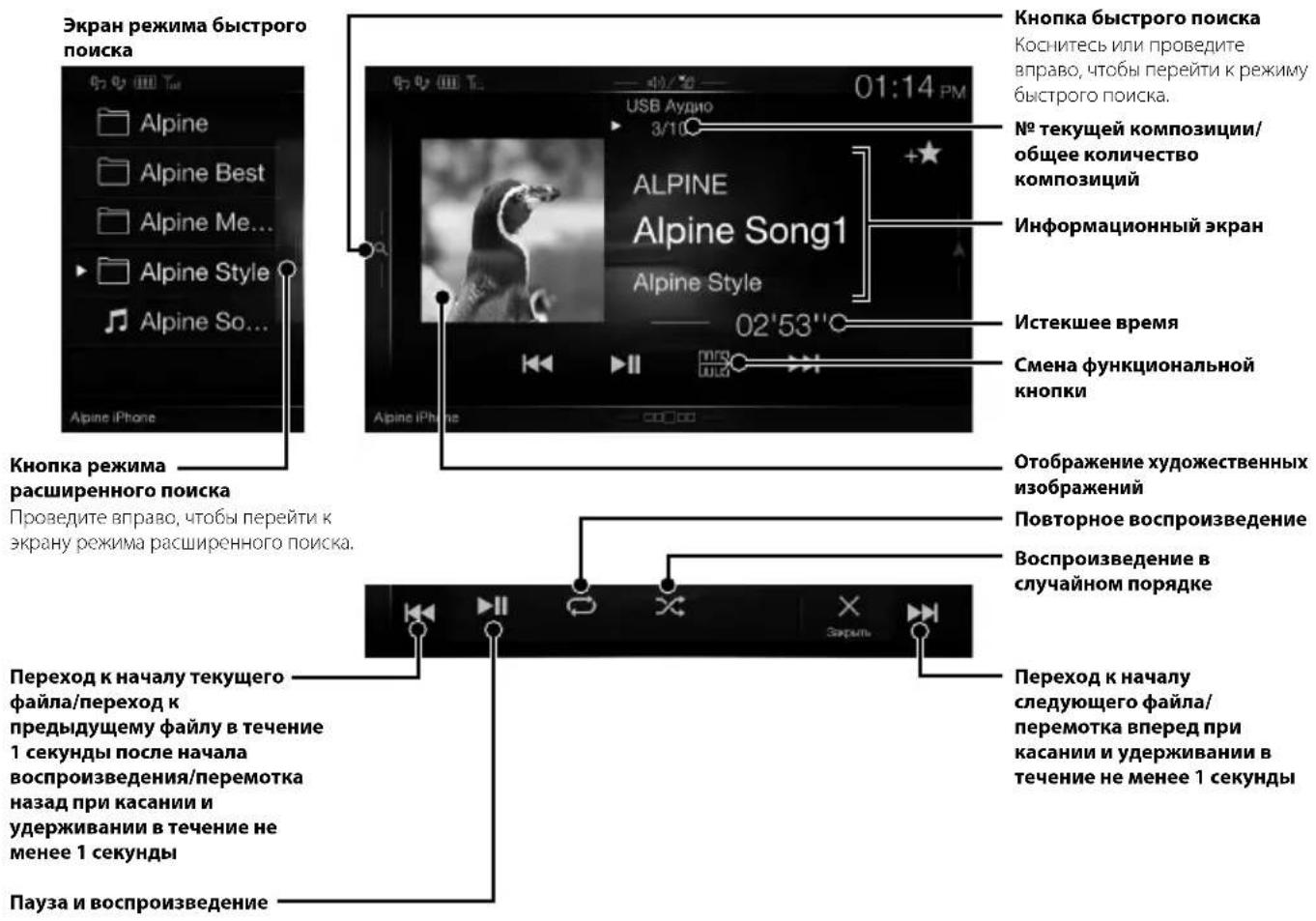
Pa60Ta c Φлэш-нakоNTelem USB (прнобpeетаetсдОпоЛнтьhoe)
Ectb BO3MOXHOCTb BOCPON3BOINb ayinofaJnbl (MP3/WMA/AAC/FLAC), 3anncnHbIe Ha fniH-NAKOHTe USB,Ha BCTpoEHOM nneepe daHHoN cNCTembl.
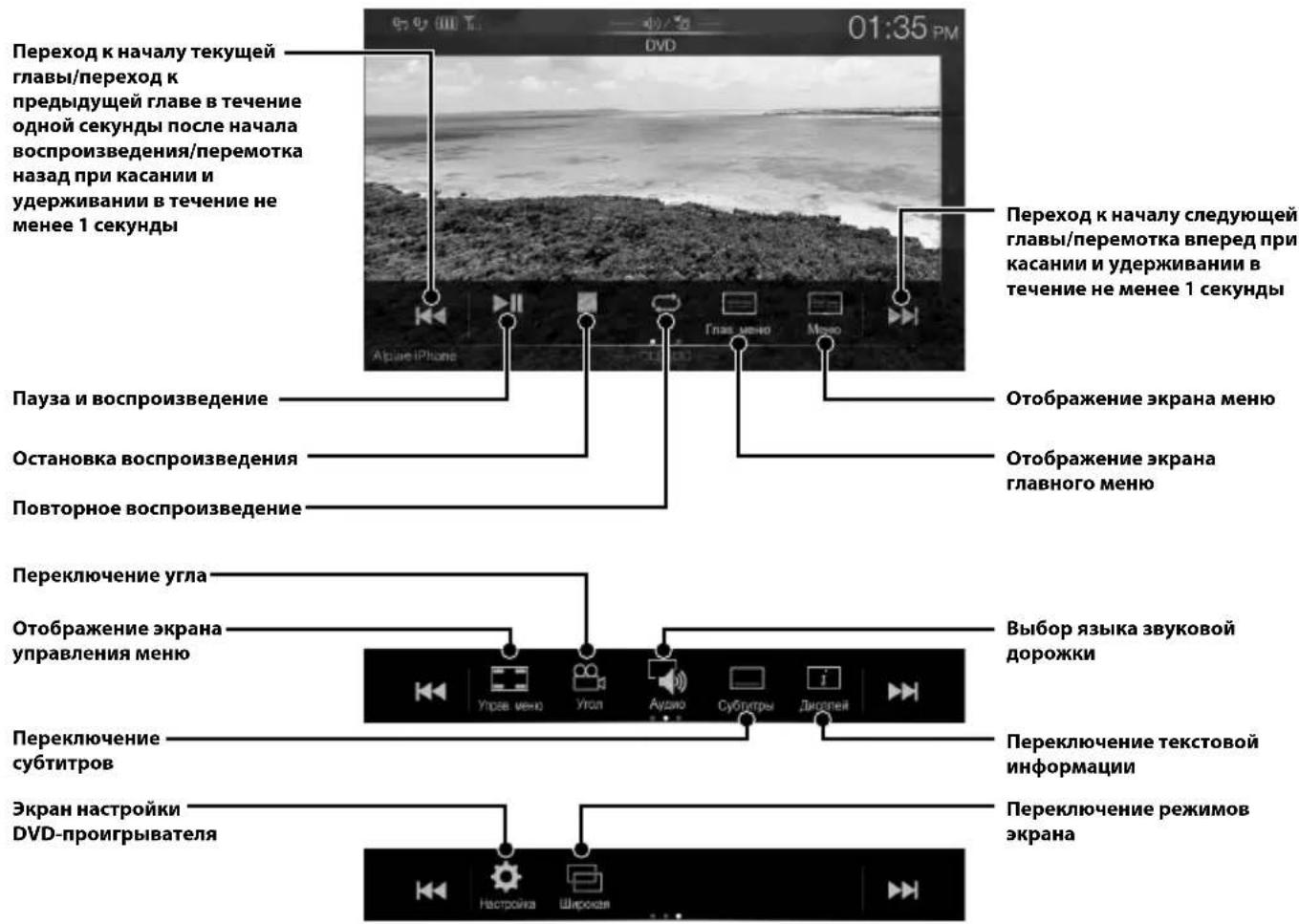
Pa6oTa c ycTpoIcTBom HDMI (DVD-mpoIrpbIbAteJIem) (npno6peTaETcraDOnOJIHNTeJbHo)
Pn noKluueHnn DOnonHntbHoro npounrpbaTeaDVE-5300 (DVD-nponrpbaTeB) mMOxHo ynpabTb C daHHoro yctpoiCTBa.
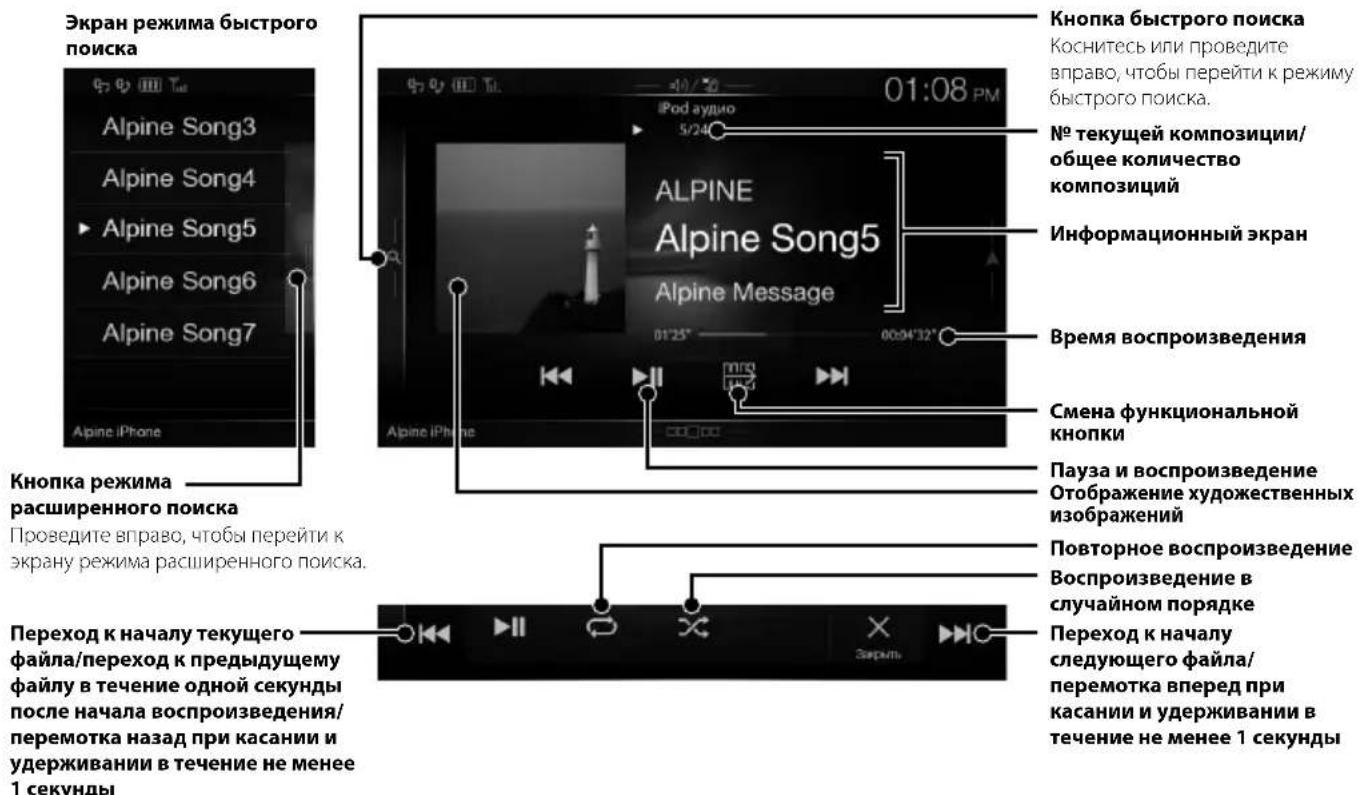
Pa6oTa c iPod/iPhone (npno6peTaetcra donoJHnTeIbHo)
B 3aBvncmoctn ot moen iPod/iPhone notpe6yetc hannue npno6petaemoro doonHntelho Ka6eJr USB-AV dans iPod/iPhone (KCU-461iV) nnn npno6petaemoro doonHntelho Ka6eJr Lightning-USB (KCU-471i).
Pexim aydno
KoIueCTBO 3nEMeHTOB N3O6paXeHn
1152000 nukcen
(800× 480× 3 RGB)
Daktnueckoe konuectBO 3nementOB n3o6paXeHHN
He MeHee 99%
CnCTema nooncbetkn LED
FM-TIOHEP
Huaon HacpoK 87,5-108,0M
Noporobar yBCTBNTeHOBtO OHORO KaHa
8.1DΦBΓ(0,7MKB/75OM)
Npororobar yBCTbTeNbHocTb 50 dB
12D6ΦBT(1,1MKB/75OM)
U36npaTeJIbHOCTaJIbTePHTaNBHORO KaHana
80 dB
OTHOWeHnCunHan/Unym 65dB
IpepexoHoe 3aTyxhaHne MeKny KaHaanMSTEReo
35dB
Ko3ΦΦuIeHt3axBaTa
2.0dB
MW-TIOHEP
UyBCTBNTeJIbHOCTb (CTaHdapt IEC)
31,6 mKB/30ДБΦВТ
USB
Tpe6oBaHnK USB 2.0
MaKcImaJIbHaI NOtpe6nEma MoUHOCTb
1500 mA (noДeprKka CDP)
Knacc USB USB (Bocnpn3BeJeHne c
yctpoiCTBa)/
USB (Knacc MaccobOri namTn)
Фаиновая с anticema FAT16/32
KoJIueCTBO KaHaIIOB 2 KaHaJa (Ctepeo)
YacToTHaXapakTepeTnKa*5-20000Γu(±1dB)
CymMaHbI KO3ΦΦnUneHT rapMOHnueCKnx nCKaKeHH
0.008% (npn 1 KfU)
DnHaMueeckn Dnana3OH 95dB (npn1Kt)
OTHOeHnCunHan/ym 100 dB
Pa3deneHne KaHIOB
85 dB (npn 1 KfU)
*1 YactoTHaXapaKTepeNtKa MoKeT OTINuTaBcB 3aBnCmOCTn OT IpoIpaMMHO oEcecNeHn yCTpoNCTBa KOINPOBaHn/CKOpocTn Hepeaun 6nt.
HDMI
BxOJHOHΦOpMaT
720p/480p/VGA
BbIXoHNOHΦOpMaT
480p
GPS
Uactota npnemGaPS 1575,42±1M
UyBCTBNTeJIbHOCTb npHema GPS
MaKc.-130 dB
Bluetooth
TexHnueckne xapaKTePncTnKn Bluetooth
Bluetooth V2.1+EDR
BbIXOHaMouHOCtB
MaKc. +4 1bM (KlaCC MOUHOCTn 2)
PpOΦnB
OPP (npofoiNb dny nepeaun
HFP (npoΦnJIb rapHnTpybl)
aainob)
PBAP (pnoynb nna o6meHa
3aINcIMN B TeNEoHHbIX KHnRAx)
A2DP (paunpeHnbl npoΦnbl
pacnpoctpaehnaydno)
AVRCP (npoΦnMb nIcTaHnOHHOrO
ynpabneHnaydno/Bndeo)
SPP (npofo nocneobatbHoro
nopTa)
OblnE
IoppeBnemmaMOUHOCb 14,4B NOCTOHHORTOKA
(Donyckcaetc11-16B)
Paboua remnepatypa
OT-20°C 10 +60°C
MaKcImaJIbHaBbIXOdHaMOLHOCtB
50BT×4
Bec
2,9K(X801D-U)
2,7 kr (INE-W997D)
ypoBHeB BbIXoHOrO ayDIOcRHaHa
PepBaPntBbHbBbIXoD (pOHT, TbI):
4B/10KOM(MaKC.)
PepBapnTeNbHbY BbXoN (ca6Bypep):
4B/10KOM(MaKC.)
PA3MEP KOPITYCA
山uHa 178MM
BbICota 100MM
Iy6nHa 164MM
PA3MEP BbICTyIaIOUeI YACTN
山nHa 190MM(X801D-U)
170MM (INE-W997D)
BbCota 121 MM (X801D-U)
96 MM (INE-W997D)
Ipy6nHa 22MM(X801D-U)
17 MM (INE-W997D)
-
13-3a HenpebuBHO2O coBepueHcmboBaHua npodykma e2o mexHuueckue xapakmepucmuu u du3aun Moym u3MeHnmbc63 npedbapumelbHO2O yBedomneua.
-
Panaheb LCD u3zomobena no cbepxmouho mexhnoeuu. Koiuecmbo ofofkekmubhx nuKceneu npebbuaaem 99,99%. 3mo 03nauaem, ymo cyuecmbyem bepormnoocmb hauuua 0,01% nuKcenei, komopbte bceda bknouenbu unu bceda bblknoeBu.
X701D c DVE-5300X
CD/DVD
YachToTHaXapaKTepeNCTnKa CD:5-20000 _U (±1dB)
Ko3ΦΦUneHT DeToHaUm (%cp-KB)
Hnke n3mePMoI npedela
CymMaPHyI KO3ΦΦNUEHT rapMOHnueCKnx nCKaXeHm
0.02% (npn 1 kT)
DnHaMueeckn Dnana3OH 95 dB (npn 1KtU)
Pa3deneHne KaHaIOB 65dB (npn1 KfU)
Topn3oHTaBHOe pa3peWeHne 500nnn nn60bwe
YpOBeHb BbIXoHOro CnHana 1 Vp-p (75 OM)
OTHOWeHne CnHAn/WM BInDeOcnHana
DVD:60 dB
OTHOWeHne CunHan/Unym ayDnOcmHana
95dB
ONTNUCHECKN 3BYKOCHMATEJIb
ДиHA BONHb DVD:665 HM
CD:800HM
MoHocTb na3epa CLASS II
IyIbT DnCTAHUHOHHOYYPABJIeHnA
Tin 6atapen 6atapenCR2025
山HnHa 42
MM
BbICota 90 MM
Iy6Hb 11,6 MM
Bec 50r(6e36aapei)
Cpok cnjkb daHHoro n3dennra - Tpu rona.
X801D-U/X701D/INE-W997D
Made for

iPodiPhone

HOMI
HIGH-DEFINITION MULTIMEDIA INTERFACE
DAB+
Digital Audio Broadcasting

Bluetooth

Maps for Life
MP3
AAC

Plays
Windows
Media
Digital Audio Broadcasting

Bluetooth

MP3
AAC

Plays
Window
Maps for Life

dtts
2.0+Digital Out

DOLBY.
DIGITAL

VIDEO

DIGITALVIDEO

DIGITAL AUDIO
TEXT
- Windows Media and Windows Webmaster TOBAPHbIMN 3HaKaMn ININ 3apeINCTpnpOBaHHbIMN TOBAPHbIMN 3HaKaMn Microsoft Corporation B CUSA IN ININ DpyInx CTpaHax.
iPhone, iPod, iPod classic, iPod nano n iPod touch
YBJIHOTcT TOBAPHbIMN 3HaKaMn KOpnpaun Apple Inc., 3apeINCTpnpoBaHHbIMN B CIIJA n npyrrnx ctpaHax.
"Made for iPod" and "Made for iPhone" 03haaot,уTo Злектоньий akcesсуар pa3pa6oTaH спeцально дя юкlioуеня К устpoCTBy iPod и iPhone COOTBETCTBEHNO,и СерТиФицЮВан pa3pa6oTчКOM Кak yIDOBIeTBOpAIOUДУЕКСПИYATAUVOHHbIM Стандам Apple.КорпацяApple He HeceT OTBETCTBEHHOCTN 3a pa6Oу ДанHOrO yCTpoIcTBa ИИ ERO COOTBETCTBNE CTaHДapTAM 6e3OПaCHOCTN I peRyJIaTINHBHbIM HOpMaM.ИМeIte B BVHy,ЧTO ИСПОЛБЗОВАнUE DAнHOrO akcesсура c iPod и iPhone может NOВлЯТь Ha pa6Oу 6ecPpOBoDHoH CBa3N.
Android ABnEeTcra TobapHbIM 3HaKoM Google Inc.
CnoBechbln 3nK n JorotnbI Bluetooth® ABnIoTc3apeRnCTpnpOBaHbIMn TOBapHbIMn 3HaKaMn KopnapuNn Bluetooth SIG, Inc. n cNoJb3yIoTcKopnpauee Alpine Electronics, Inc. no liueH3nn. - TepmnbHbHDMI n HDMl High-Definition Multimedia Interface, a TaKke IorotnHDMI ABnIOTc TobapHbIMn 3HaKaMn KOMnHnHDMI Licensing LLC, 3apeNCTpnpoBaHHbIMn B CUSA n npynx cTpaHax.
- LInueH3nHa TexHONOrnKOdIpOBAHN 3Byka MPEG Layer-3 nOnyuEHa ot Fraunhofer IIS u Thomson. Ppi NoCTabKe 3TOrO npOdykTa npedOCTaBnIeTcR naueH3n Ha uactHoe, HeKOMMepueckoe NcNoJIb3OBaHne u He npedOCTaBnIeTcRA nueH3n u He NpOpa3yMeBaIOTc KaKne-lN6o npaba Ha NCNoJIb3OBaHne DaHHoro npOdykTa B cEnx KOMpeUeCKoro (T.e. dNra NOlyeHna npi6bln) paINOBeAuaHbBpeAHom BpeMeHn (Ha3emHOro, cnTyTHNKOBoro, KaBeJIbHOro u/Unn INHOro), WnpOKoRo BeuHaHn uNl NOTOKOBn PepeDaU daHHbIX uepe3 INtepHeT, INTPacETn u/Unn INhle CETn Unn DpyrHe cEt n pacnPedeHn EJNeKTPOHNO CODepKaHn, TaKne KAK npINOJKeHn 3BykoBOCnpOn3BeDeHn 3a pNaTy uNl NO Tpe6OBaHIO. Dnra Takoro NCNoJIb3OBaHn Tpe6yETc OTDenbHa r nnueH3n. Dnra NOlyeHn DOnonHTeNbHO nHΦOpMaun nocTe NTbe Be6-caIT http://www.mp3licensing.com
© 1987-2014 HERE. Bce npaba 3aunueHbl.
X701D c DVE-5300X
B 3TOM yCTpoNCTBe npImeHReTcRA TexHONoIg3aUHTbI OT KOnIpOBaHN, 3aUuSeHHa NaTeHTAmn CUSA n DpyrMM NpabAMn Ha INTEJIeKTyAJIbHyIO CO6CTBeHHocTb Rovi Corporation. BocctaHOBJeHne aIropNTMa paOtbl n pa3bOpKa yCTpoNCTBa 3anpeueHbl.
- I3roToBneHNO NO liueH3nN KOMpaHnN Dolby Laboratories. "Dolby" nДвонОс cIMBOI "D"ЯВлгOTcT ToBapHbIMn 3HaKaAMn Dolby Laboratories.
-Дя получении Инфорmaци O nateHTax DTS noceTite Be6-caNT http://patents.dts.com. Пронзveedo no liuehenDTS Licensing Limited. DTS, cIMBON, a TakaKe DTS BmecTe C cIMBOJOMЯBIAOTc3apernctpnpoBaHHbIM TOBapHbIM 3HaKaMn, a DTS Digital Surroundявлгется TOBapHbIM 3HaKOM Kopnpaun DTS, Inc. © DTS, Inc. Bce npaba 3auniuhebl.
DVD ABJIaETcT ToBapHbIM 3HaKOM DVD Format/Logo Licensing Corporation.
OOO «KoMaHnBaBoHaH3a»
HΦopMaζη o cepBnchbIX ΒeHTpax
DocTyHa Ha caIte www.alpine.ru
Spistresci
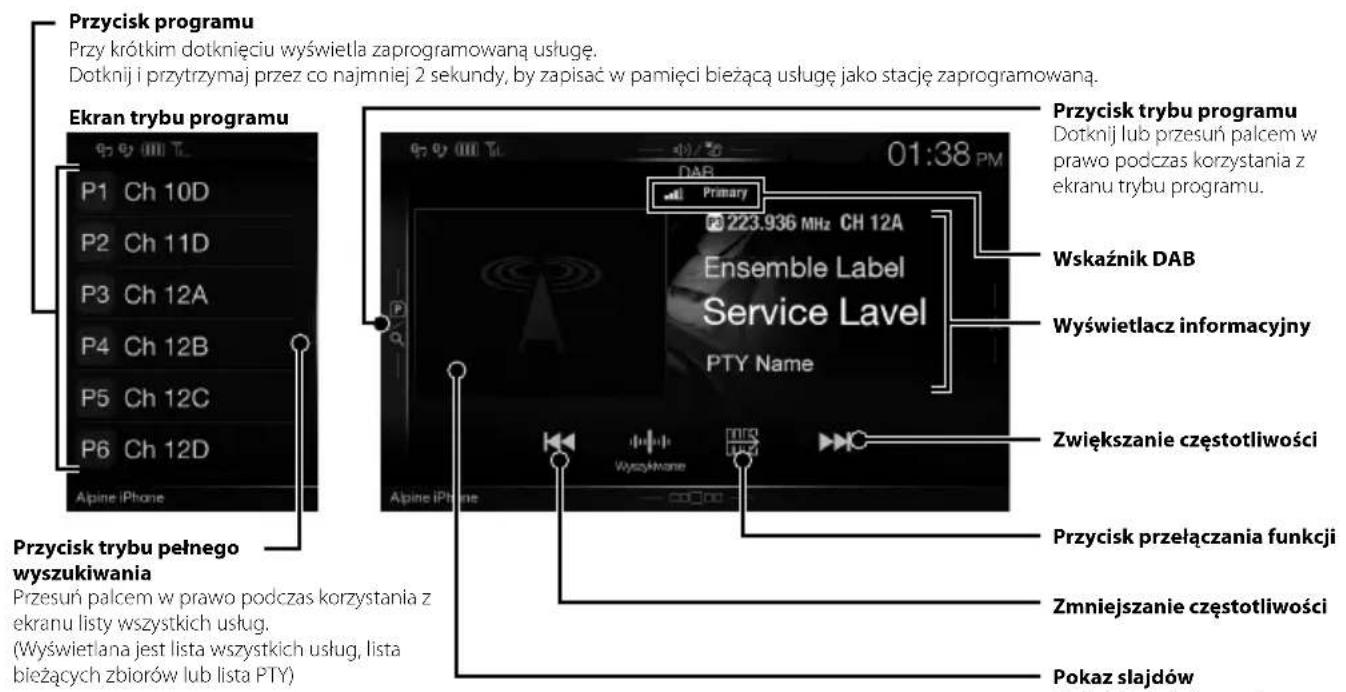
Obsluga DAB/DAB+/DMB
Digital Audio Broadcasting

Bluetooth

Maps for Life
MP3 AAC

Plays
Windows
Media
Digital Audio Broadcasting

Bluetooth

MP3 AAC

Plays
Window
Maps for Life

dtts
2.0+Digital Out

DOLBY.
DIGITAL

VIDEO

DIGITALVIDEO

DIGITAL AUDIO
TEXT
161-165 Princes Highway,
Hallam Victoria 3803, Australia
Phone 03-8787-1200
ALPINE ELECTRONICS GmbH
Alpine House Fletchamstead Highway,
Coventry CV4 9TW, U.K.
www.alpine.co.uk
ALPINE ELECTRONICS France S.A.R.L.