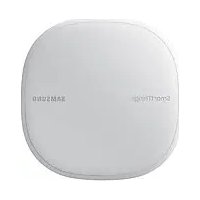
SmartThings Wifi ETWV525 - Router SAMSUNG - Free user manual and instructions
Find the device manual for free SmartThings Wifi ETWV525 SAMSUNG in PDF.



| Brand | Samsung |
| Model | SmartThings Wifi ETWV525 |
| Product type | WiFi router with smart home hub |
| Power supply | AC adapter 12 V / 2.1 A (AC/DC) |
| Wireless technologies | WiFi, Bluetooth, Z-Wave, Zigbee |
| Ports | 1 WAN Ethernet port (RJ45) |
| WiFi coverage | Up to 140 m² (in wooden buildings) |
| Max number of additional hubs | 31 |
| Control app | SmartThings (Android, iOS) |
| Compatibility | IoT devices (Z-Wave, Zigbee), smart home appliances |
| Main functions | Automations, schedules, remote control, notifications |
| Indicator light | Indicates status: green (active), flashing (starting), red (error) |
| Safety | Use approved Samsung adapter; unplug if not in use |
| Maintenance tips | Keep away from heat sources, do not obstruct |
| Copyright | © Samsung Electronics, 2018 |
Frequently Asked Questions - SmartThings Wifi ETWV525 SAMSUNG
User questions about SmartThings Wifi ETWV525 SAMSUNG
0 question about this device. Answer the ones you know or ask your own.
Ask a new question about this device
Download the instructions for your Router in PDF format for free! Find your manual SmartThings Wifi ETWV525 - SAMSUNG and take your electronic device back in hand. On this page are published all the documents necessary for the use of your device. SmartThings Wifi ETWV525 by SAMSUNG.
USER MANUAL SmartThings Wifi ETWV525 SAMSUNG
Please read this manual before using the device to ensure safe and proper use.
- Images may differ in appearance from the actual product. Content is subject to change without prior notice.
- Before using the Wi-Fi hub, make sure it is compatible with your device.
- The Wi-Fi hub's performance may differ depending on the environment.
- This product includes certain free/open source software. To see the instructions for viewing the open source licence, go to the Samsung website (opensource.samsung.com).
Instructional icons

Warning: situations that could cause injury to yourself or others

Caution: situations that could cause damage to your device or other equipment

Notice: notes, usage tips, or additional information
About SmartThings Wifi
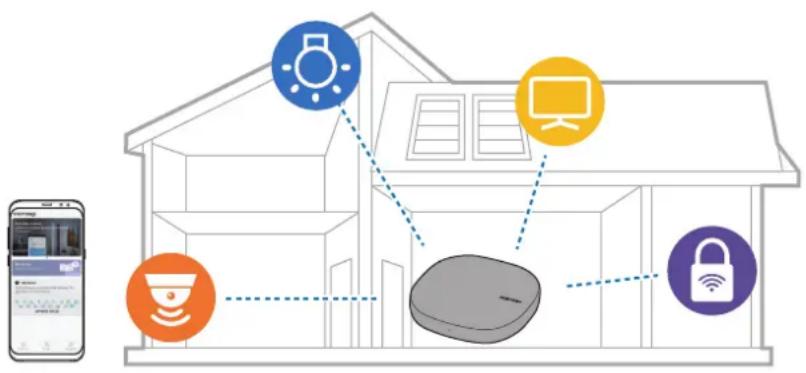
The SmartThings Wifi is a Wi-Fi router that can connect your smartphone to your smart home appliances via Wi-Fi. You can also connect Internet of Things (IoT) devices to this Wi-Fi hub via the Samsung SmartThings Hub feature.
For larger homes, you can connect more Wi-Fi hubs.
Package contents
Check the product box for the following items:
Wi-Fi hub
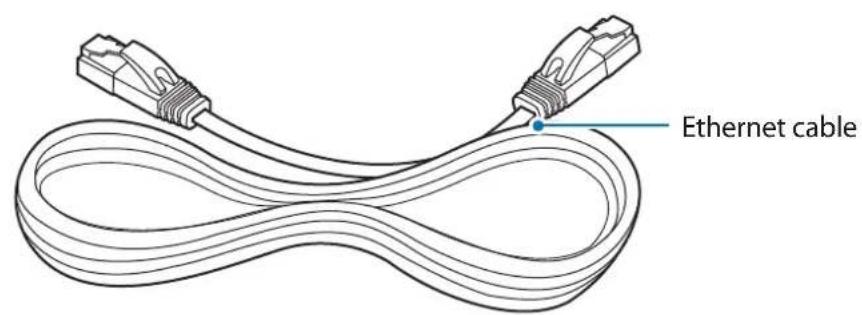
- Ethernet cable
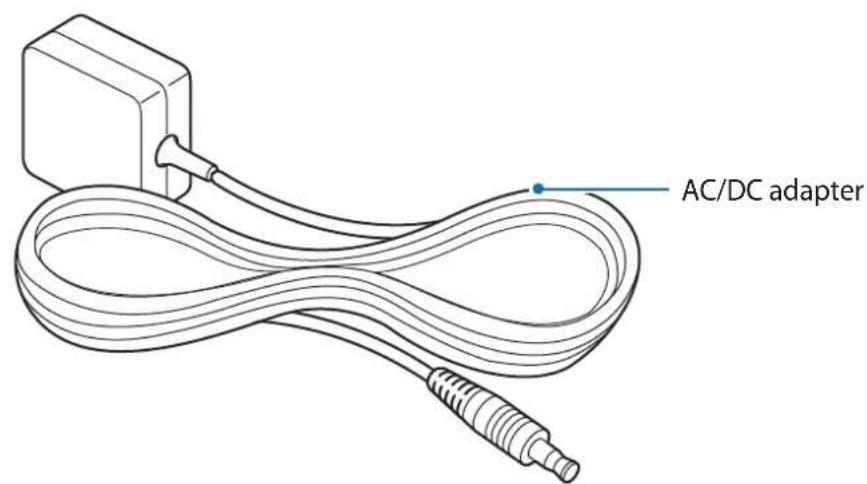
- AC/DC adapter (hereafter "adapter")
- Quick start guide

- The items supplied with the device and any available accessories may vary depending on the region or service provider.
- The supplied items are designed only for this device and may not be compatible with other devices.
- Appearances and specifications are subject to change without prior notice.
- You can purchase additional accessories from your local Samsung retailer. Make sure they are compatible with the device before purchase.
- Use only Samsung-approved accessories. Using unapproved accessories may cause the performance problems and malfunctions that are not covered by the warranty.
- Availability of all accessories is subject to change depending entirely on manufacturing companies. For more information about available accessories, refer to the Samsung website.
Device layout
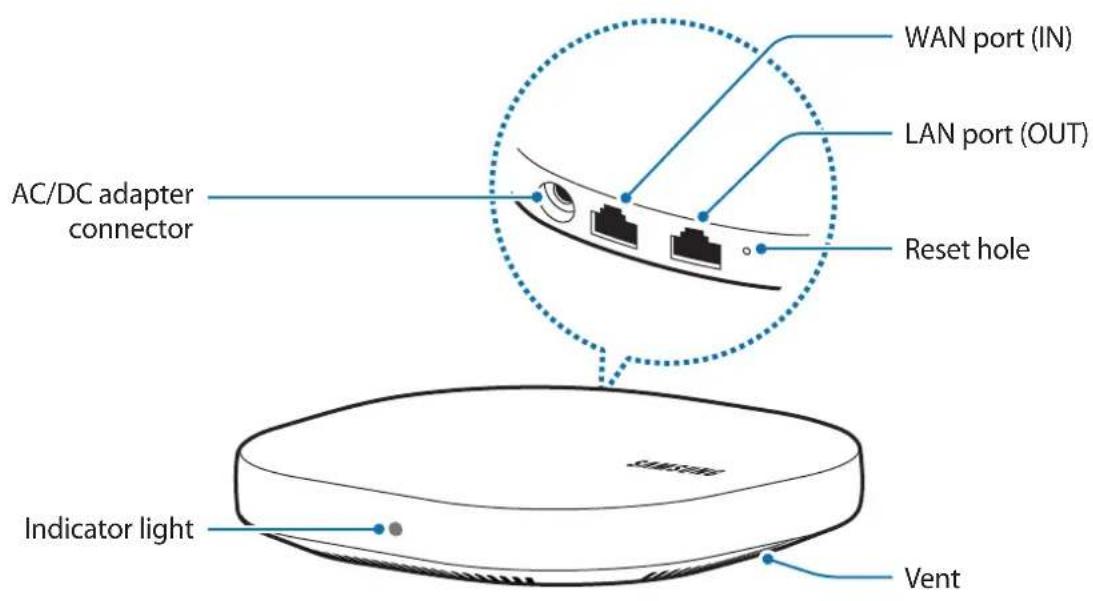

The appearance and internal structure of the product may vary depending on the model.
Indicator light
The indicator light alerts you to the Wi-Fi hub status.
| Colour Status |
| Green Power on, Working |
| Flashes green Booting/resetting the system |
| Flashes green and red Waiting for devices to connect |
| Flashes red Function error |
Connecting the Wi-Fi hub with a mobile device
To connect the Wi-Fi hub with a mobile device, you must install the SmartThings app on the mobile device. You can download the app from Galaxy Apps, Play Store, or App Store.

- You must register and sign in to your Samsung account to use the SmartThings app.
- Supported features may vary depending on your mobile device and its operating system.
Wi-Fi hub
1 Connect one end of the Ethernet cable to the hub's WAN port (IN) and the other end to the modem's LAN port.
2 Connect the adapter to the Wi-Fi hub.
The Wi-Fi hub will turn on and the indicator light will flash green.

Use only Samsung-approved adapters (12 V/2.1 A or higher).

- You can use the Wi-Fi hub only when you connect the Wi-Fi hub to an adapter.
- If the Wi-Fi hub overheats for a prolonged period, the Wi-Fi hub may automatically turn off or reset. When this happens continually, disconnect the adapter from the Wi-Fi hub and contact a Samsung Service Centre.
- To save energy, unplug the adapter when not in use. The adapter does not have a power switch, so you must unplug the adapter from the electric socket when not in use to avoid wasting power. The adapter should remain close to the electric socket and be easily accessible while using it.
Mobile device
3 Launch the SmartThings app on the mobile device.
4 Follow the pop-up window's instructions to turn on the Wi-Fi and Bluetooth auto on feature.
When you launch the SmartThings app, the Wi-Fi and Bluetooth features will be automatically activated.
5 The Wi-Fi hub will be detected automatically. TapADD NOW.
If the Wi-Fi hub is not detected, tap Add device on the dashboard. Then, tap under ADD DEVICE MANUALLY - Wi-Fi/Hub SmartThings Wifi, and tap your Wi-Fi hub's name.
During setup, get within 4.6m of the hub.
6 Enter a network name and password to assign to the Wi-Fi hub.
7 Follow the on-screen instructions to complete the connection.
Adding additional Wi-Fi hubs
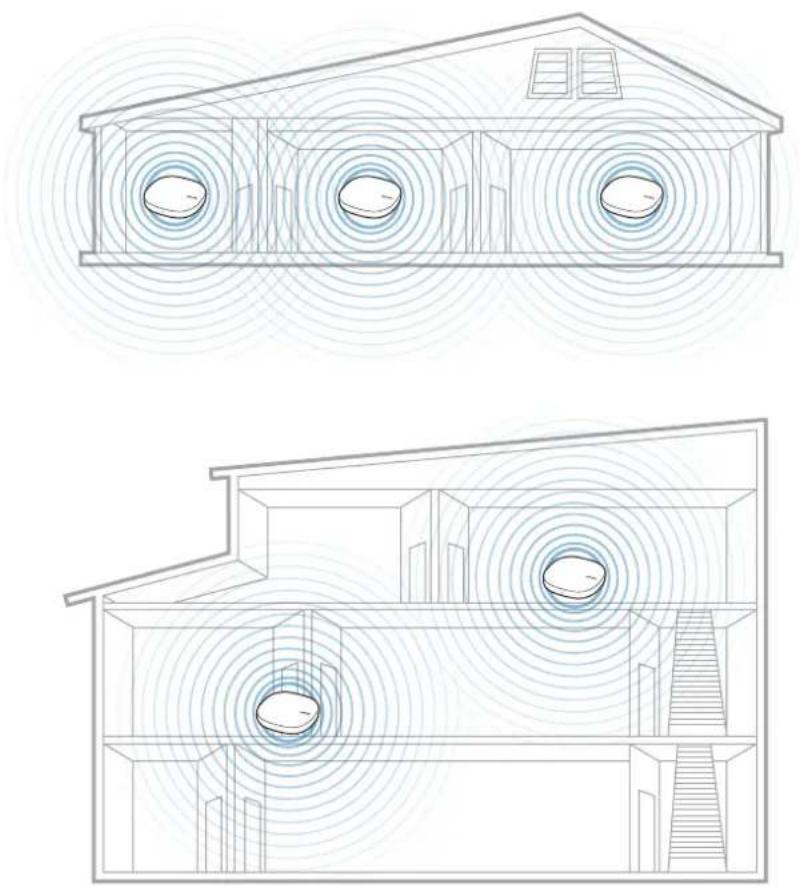
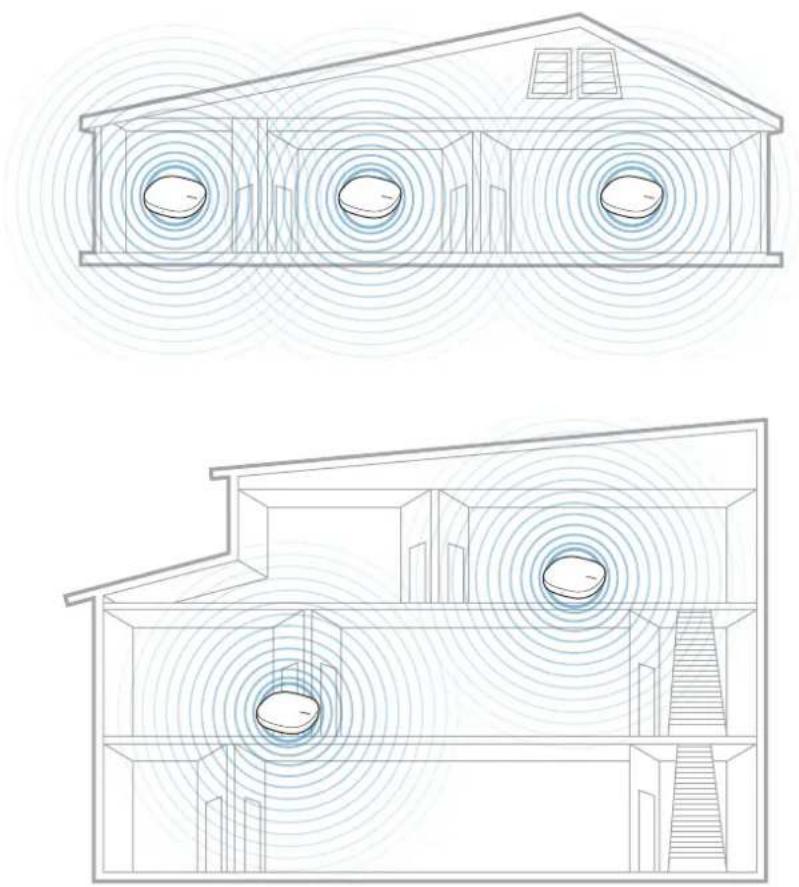
One Wi-Fi hub can cover a 140m^2 connection range (based on timber buildings) but can differ depending on the usage environment.
Install an additional Wi-Fi hub to connect to a larger area beyond the connection range with a Wi-Fi network.
1 Connect the AC/DC adapter to the additional Wi-Fi hub.
2 On the mobile device, launch the SmartThings app and follow the on-screen instructions to complete the connection.
During setup, get within 4.6m of the hub.

You can connect up to 31 additional Wi-Fi hubs.
Notices for connecting a Wi-Fi hub
- Install a Wi-Fi hub near the devices to be registered.
- When you add additional Wi-Fi hubs, install them within the connection range.
- Do not place obstacles between the Wi-Fi hub and the devices to be registered.
- Obstacles such as the human bodies, walls, corners, or fences can weaken the signals.
- When using the Wi-Fi hub, it should be connected via the Ethernet cable.
Notices for using Bluetooth
- To avoid problems when connecting your Wi-Fi hub to another device, place the devices close to each other.
- Ensure that your Wi-Fi hub and the other Bluetooth device are within the maximum Bluetooth range (5 m). The distance may vary depending on the environment the devices are used in.
- Ensure that there are no obstacles between the Wi-Fi hub and a connected device, including human bodies, walls, corners, or fences.
- Bluetooth uses the same frequency as some industrial, scientific, medical, and low power products and interference may occur when making connections near these types of products.
- Some devices, especially those that are not tested or approved by the Bluetooth SIG, may be incompatible with your Wi-Fi hub.
Registering Internet of Things (IoT) devices and smart home appliances
Using the SmartThings app
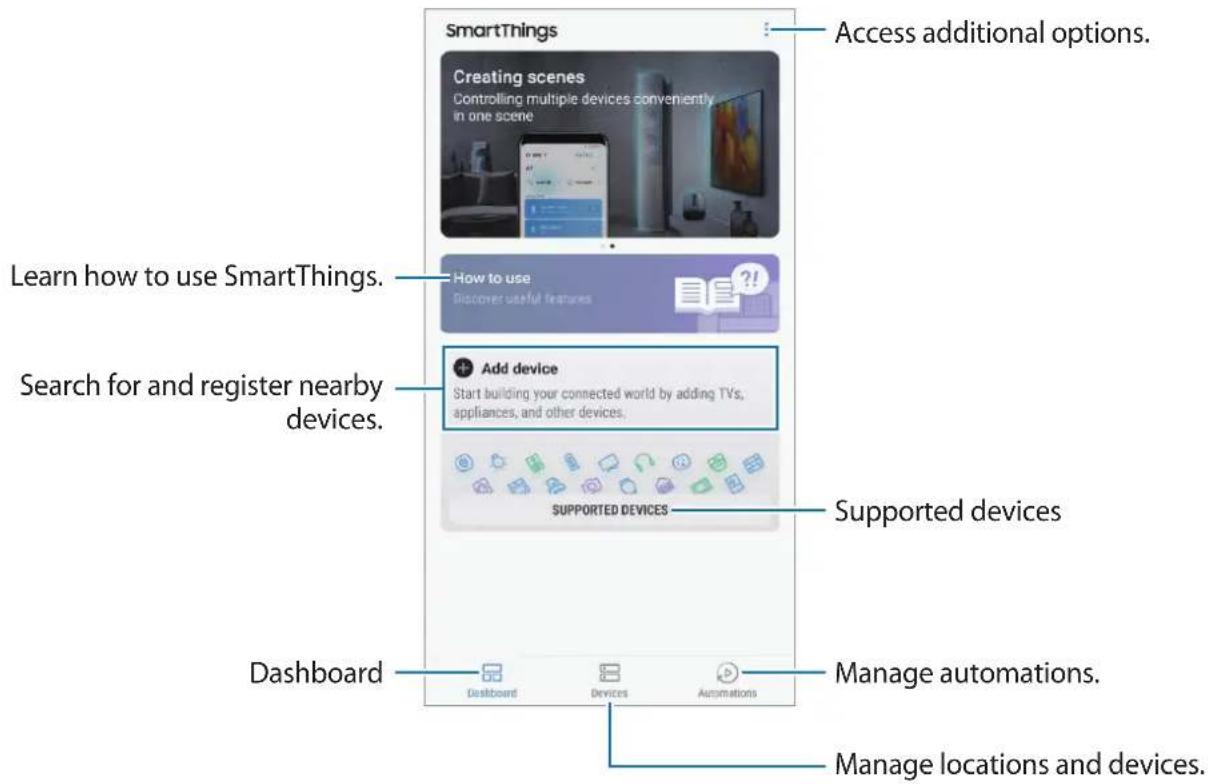
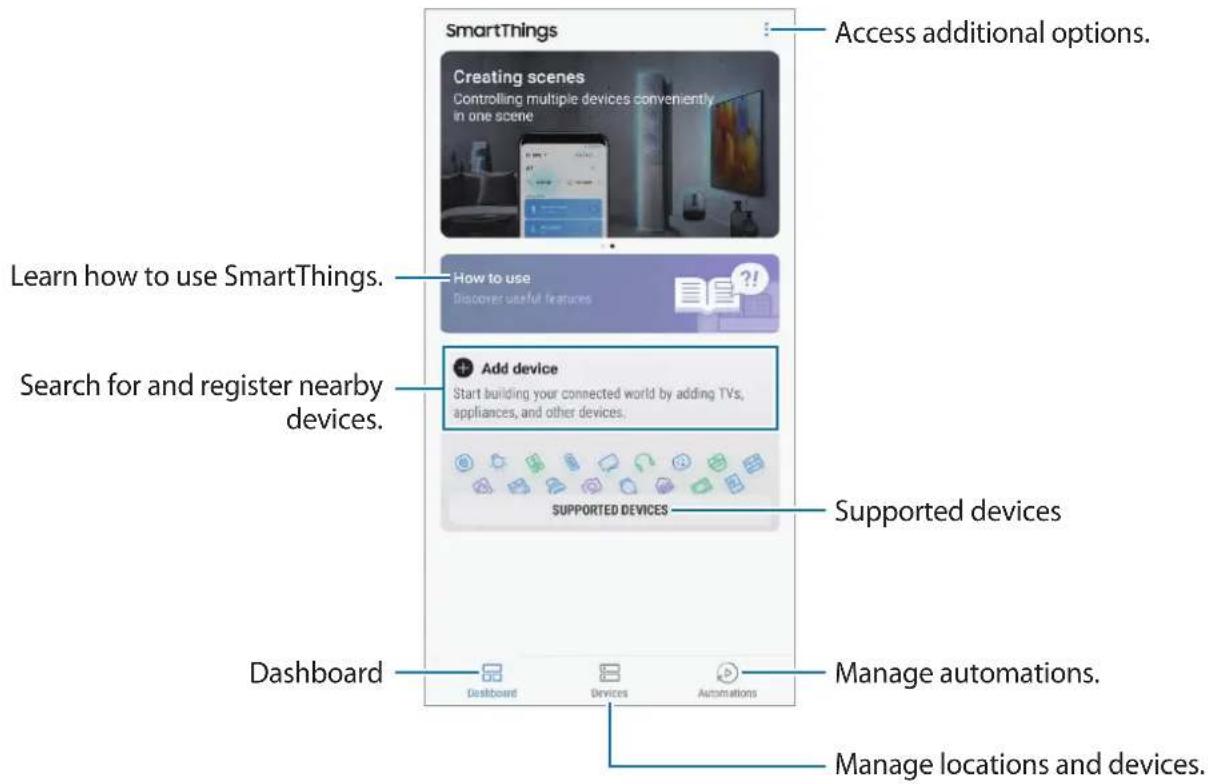
Register Internet of Things (IoT) devices and smart home appliances to the SmartThings app on your mobile device, and check their status or control them. To control the devices by location, such as your home or office, create a location and assign registered devices to it. You can also set a scene to control many devices at the same time or set an automation to perform actions automatically at a preset time.
Configuring the dashboard and the SmartThings app
Configure the dashboard and the SmartThings app settings. On the dashboard, tap and use the following options.
- Manage dashboard: Set the items to show on the dashboard.
- Notifications: View the notifications from the SmartThings app. You can also change the notification settings.
- Tips: View the useful SmartThings tips.
- How to use: Learn how to use the SmartThings app.
- Settings: Access information about the SmartThings app and Samsung account information. You can also set the SmartThings panel to be displayed on the notification panel.
- Notices: View the notices from the SmartThings service.
- Contact us: Ask questions or view frequently asked questions.
Registering devices
Registering smart home appliances via Wi-Fi
Register smart home appliances that support Wi-Fi to the SmartThings app and control them. For instructions on how to register devices, refer to the other devices' user manuals.

- To view the supported devices, tap SUPPORTED DEVICES on the dashboard.
- Connected devices' own errors or defects are not covered by the Samsung warranty. When errors or defects occur on the connected devices, contact the device's manufacturer.
Registering IoT devices via the Samsung SmartThings Hub feature
Register the Internet of Things (IoT) devices that support Z-Wave, Zigbee, LAN, or Cloud-to-Cloud to the SmartThings app and control them.
1 On the dashboard, tap Add device.
2 Tap under ADD DEVICE MANUALLY.
3 Select a category of the device to register.
Alternatively, enter the device's name in the search input field and tapADD next to your device.
4 Follow the on-screen instructions to complete the registration.

- The Samsung SmartThings Hub feature may not be available depending on the region. Visit www.samsung.com for details.
- You can only register the IoT devices approved by Samsung. Download the SmartThings app to see a list of supported devices.
Refer to the other devices' user manuals for instructions on how to pair with them. - To learn more about the Samsung SmartThings Hub feature, visit support.smartthings.com.
Controlling the registered devices
1 On the SmartThings screen, tap Devices.
2 On the registered devices list, tap a device.
The controller for the device will be downloaded.
3 With the downloaded controller, remotely control the registered devices via the SmartThings app.
Creating locations
You can register devices by location and manage them.
1 On the SmartThings screen, tap Devices.
2 Tap ALL DEVICES Add location.
3 Enter a location name and select an icon for the location.
4 Tap Geolocation to select a location on the map and tap DONE.
5 Tap SAVE.
Your location will be added.
6 Tap ADD DEVICE to register devices.
If you want to manage the location room by room, tap Add room, and set the room and devices for it.
Inviting members to the created location
Invite other members to the created location to control the devices and scenes assigned to that location.
1 On the SmartThings screen, tap Devices.
2 Tap ALL DEVICES and scroll up or down to select a location.
3 Tap: Invite member.
4 Tap Enter Samsung account ID, enter the Samsung account for the person you want to invite, and then tap.
You can invite users by scanning the QR code. TapCREATE QR CODE and invite other users to scan it.

- You can only invite the users login the Samsung account via SmartThings app.
- To accept the invitation, on the SmartThings screen, tap the invitation pop-up and tap ACCEPT. To accept the invitation by scanning the QR code, on the dashboard, tap Settings Accept invitation (QR code) and then scan the QR code.
5 Follow the on-screen instruction to complete the invitation.
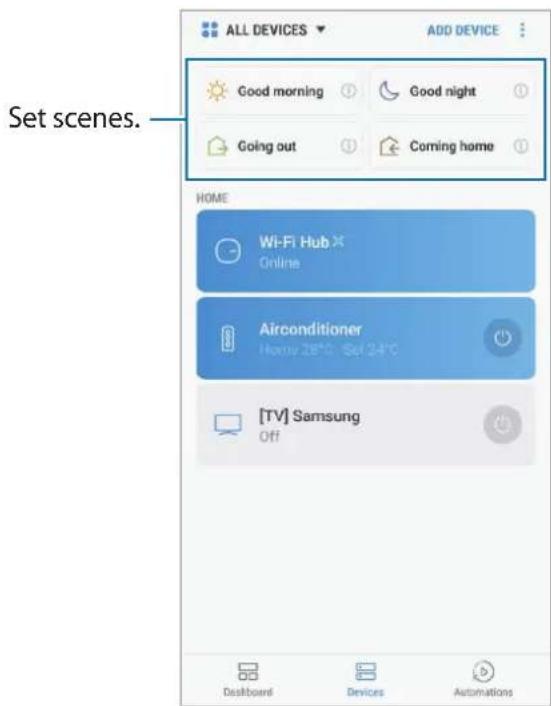
Setting and running scenes
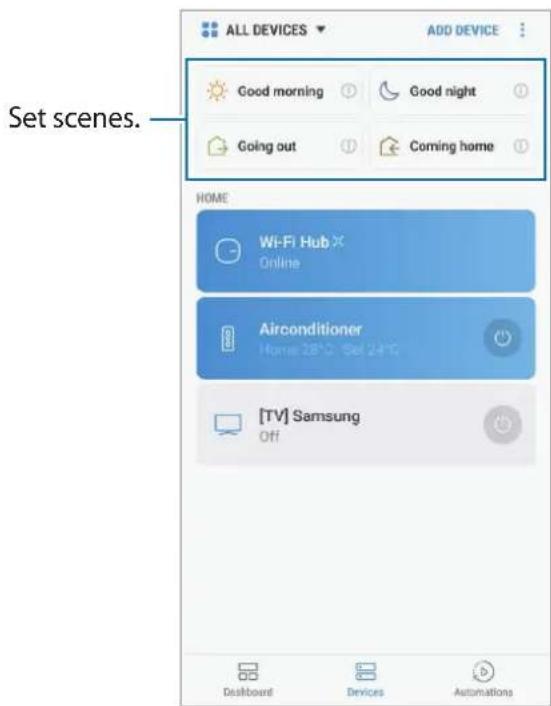
Set a scene to operate multiple devices at once. To set a scene, you should create locations. Refer to Creating locations for more information.
1 On the SmartThings screen, tap Devices.
2 Tap ALL DEVICES and scroll up or down to select a location.
3 Tap Add scene.
The screen for setting scenes will appear.
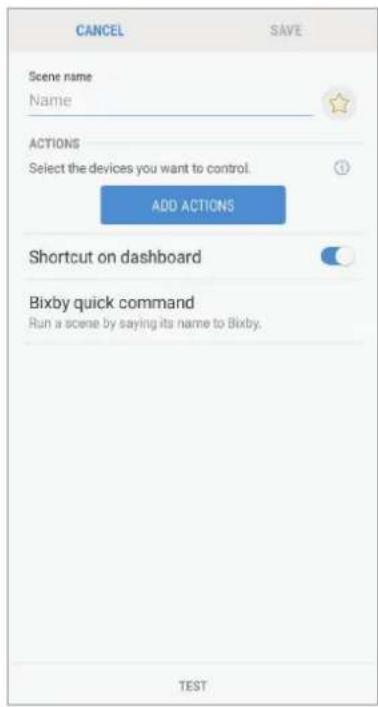
4 Enter the scene's title, select an icon for the scene, and then tap ADD ACTIONS.
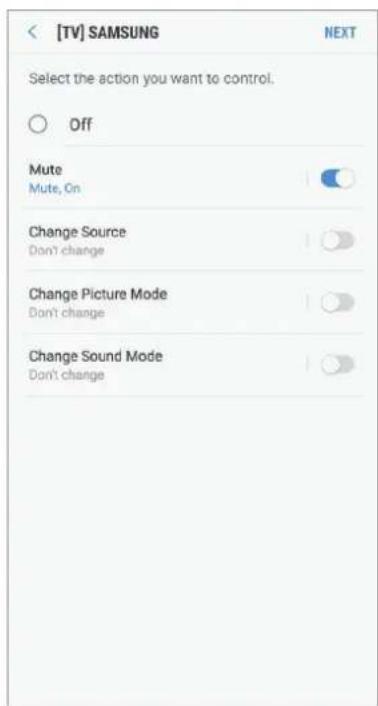
5 Select a device and an action to be operated, and then tap NEXT.
For example, select a TV and a robot vacuum cleaner and the corresponding actions to be operated.
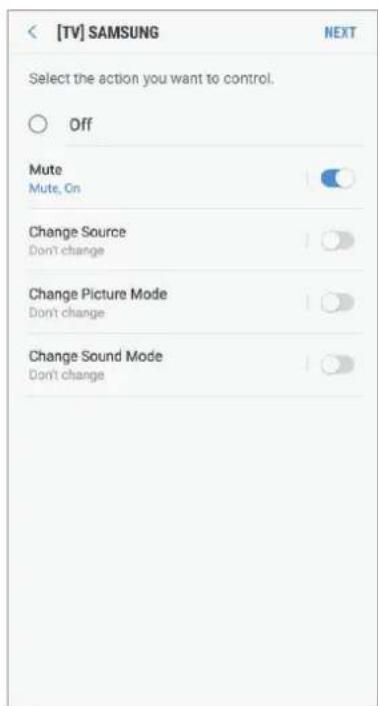
6 Tap the Shortcut on dashboard switch to view the scene on the dashboard.
7 Tap Bixby quick command to run the scene by saying the scene name to Bixby and tap SAVE.
8 Tap TEST at the bottom of the screen to test whether the action is operated as it is set up.
9 Tap SAVE.
The scene is set. You can view the set scene on the designated location screen.
Activating scenes
1 On the SmartThings screen, tap Devices.
2 Tap ALL DEVICES and scroll up or down to select a location that has the scene you want to activate.
3 Select a scene to activate.
The devices you set will operate in accordance with the scene.
Managing devices and locations
You can manage locations and their assigned devices and scenes.
1 On the SmartThings screen, tap Devices.
2 Tap ALL DEVICES and scroll up or down to select a location.
3 Tap Edit and use the following options.
- Location name: Change the location name and its icon.
- Geolocation: View or change the location on the map.
- Show location summary on dashboard: Set to show the location card on the dashboard.
SCENES: Change the scene information or delete the scene. - DEVICES: Change the device information or delete the device from the assigned location.
MEMBERS: View the members to share the location. You can also invite others. - REMOVE LOCATION: Delete the location.

- To connect a Z-Wave device to another device, on the currently connected mobile device, remove the device from the SmartThings app to exclude it. When you remove the device from the SmartThings app, the instructions for exclusion will be provided via a URL. Follow the instructions to exclude the Z-Wave device. If you reset the Wi-Fi hub, you should exclude the Z-Wave device and reconnect (re-include) it. For instructions on how to exclude Z-Wave devices, refer respective Z-Wave device's user manual or contact the device's manufacturer.
- For additional Z-Wave network utility functions, visit www.smartthings.com.
- The Wi-Fi hub automatically sends an Association Set for Lifeline/group1 for 4 nodes after adding a device that supports Association.
Setting automations
Set an automation for devices assigned to a location to automatically perform actions at a specific condition.
1 On the SmartThings screen, tap Automations.
2 Tap ADD.

Some automations may be set by default depending on the region.
3 Select a location to set an automation.
4 Tap CUSTOM AUTOMATION
The screen for setting conditions will appear.

Select the automation under RECOMMENDED to set automations recommended by SmartThings.
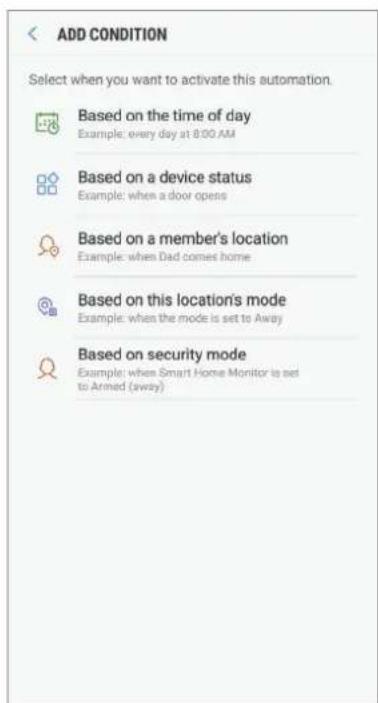
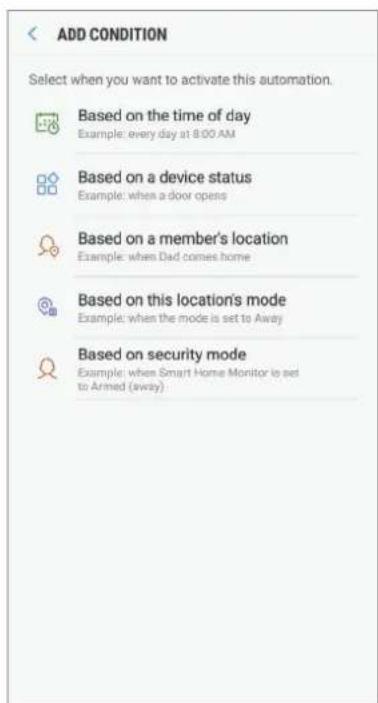
5 Select a condition to set an automation.
- Based on the time of day: Set the condition based on the time. Refer to Setting automations based on the time of day.
- Based on a device status: Set the condition based on a device status. Refer to Setting automations based on a device status.
- Based on a member's location: Set the condition based on a member's location. Refer to Setting automations based on a member's location.
- Based on this location's mode. Set the condition based on the mode of the current location. Refer to Setting automations based on the location's mode.
- Based on security mode: Set the condition based on Smart Home Monitor's security mode. Refer to Setting automations based on Smart Home Monitor's security mode.

This feature may not be available depending on the region.
Setting automations based on the time of day
The automation is activated at the preset time. For example, you can set the audio to play music every day at 7:00 AM.
1 On the condition screen, tap Based on the time of day.
2 Set the time for the automation to activate and tap NEXT.
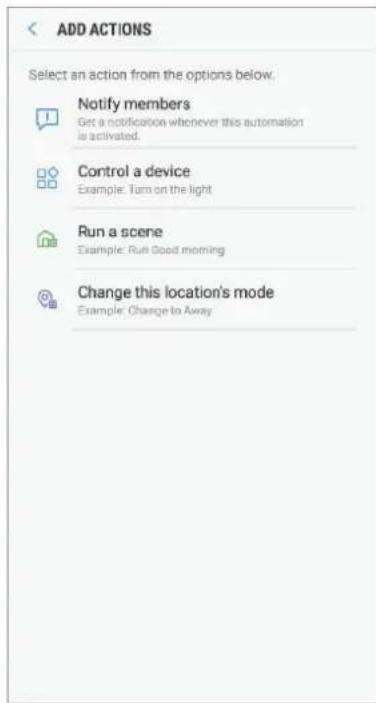
3 Tap ADD next to Then to set actions to perform at the preset time. The screen for setting actions will appear.
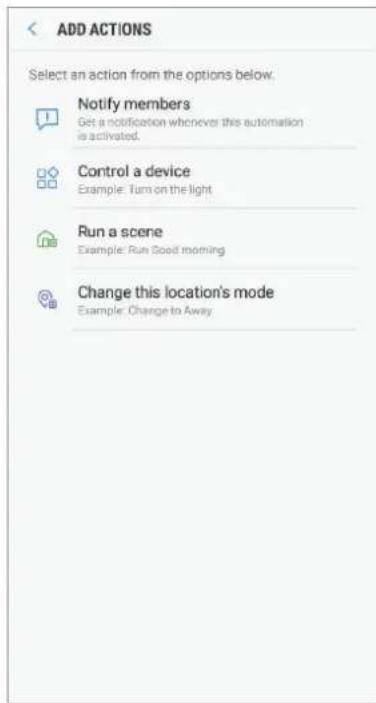
4 Select an action from the options.
- Notify members: Receive and send a notification to the members in the location when devices perform an action according to the automation.
Control a device: Set a device to perform a certain action at the preset condition. - Run a scene: Select a scene to activate at the preset condition. You can use this option only when there are scenes already.
- Change this location's mode Change the location's mode at the preset condition.
5 Tap SAVE.
The assigned devices will operate in accordance with the set automation.
Setting automations based on a device status
The automation is activated when the device you select is in the certain condition. For example, you can set the lamp light to turn on when the door opens.
1 On the condition screen, tap Based on a device status.
2 Select a device and its condition.
3 Select an action from the options.
4 Tap SAVE.
The assigned devices will operate in accordance with the set automation.
Setting automations based on a member's location
The automation is activated when the members you select leave or arrive at the location. For example, you can set the robot vacuum to operate when Dad comes home.
1 On the condition screen, tap Based on a member's location.
2 Tap Which members?, select the members, and then tap DONE.
3 Tap When?, select an option, and then tap NEXT.
4 Tap ADD next to Then to set actions to perform at the preset condition.
5 Select an action from the options.
6 Tap SAVE.
The assigned devices will operate in accordance with the set automation.
Setting automations based on the location's mode
The automation is activated when the mode of the current location changes to the preset mode. For example, you can set the air conditioner to turn off when the location's mode is set to Away.

To view the location's mode, on the SmartThings screen, tapDevices ALL DEVICES and select the location you want. The location's mode will appear at the top of the screen.
1 On the condition screen, tap Based on this location's mode
2 Select a location mode to use as a condition and tap NEXT.
3 Tap ADD next to Then to set actions to perform at the preset condition.
4 Select an action from the options.
5 Tap SAVE.
The assigned devices will operate in accordance with the set automation.
Setting automations based on Smart Home Monitor's security mode
The automation is activated when Smart Home Monitor's security mode changes to the preset mode. For example, you can set the window to automatically lock when Smart Home Monitor's security mode is set to Armed (away).
1 On the condition screen, tap Based on security mode.
2 Select a security mode to use as a condition and tap NEXT.
3 Tap ADD next to Then to set actions to perform at the preset condition.
4 Select an action from the options.
5 Tap SAVE.
The assigned devices will operate in accordance with the set automation.
Managing automations
You can view the set automations and manage them.
On the SmartThings screen, tap Automations.
- Tap the switch next to the automation to activate or deactivate it.
- Tap the automation to change its details.
- Tap Edit name to change the automation's name. Edit name appears only when there are automations you manually added.
- Tap Delete to delete the automation.
Configuring the Samsung SmartThings Hub feature
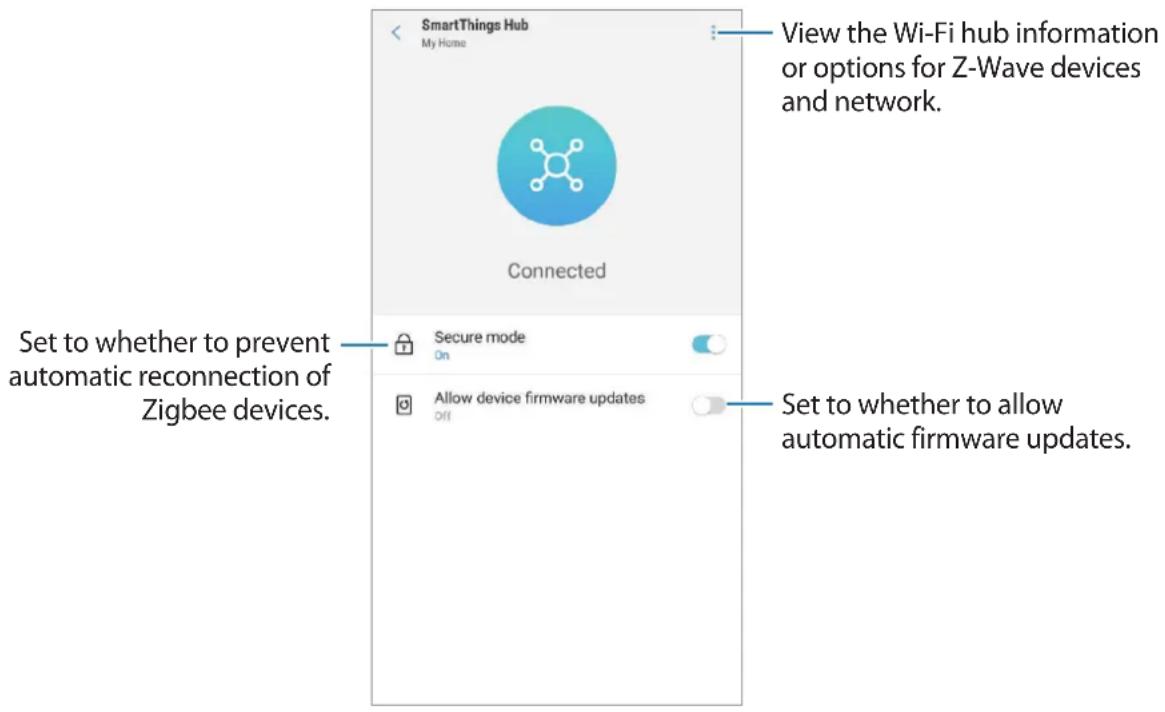
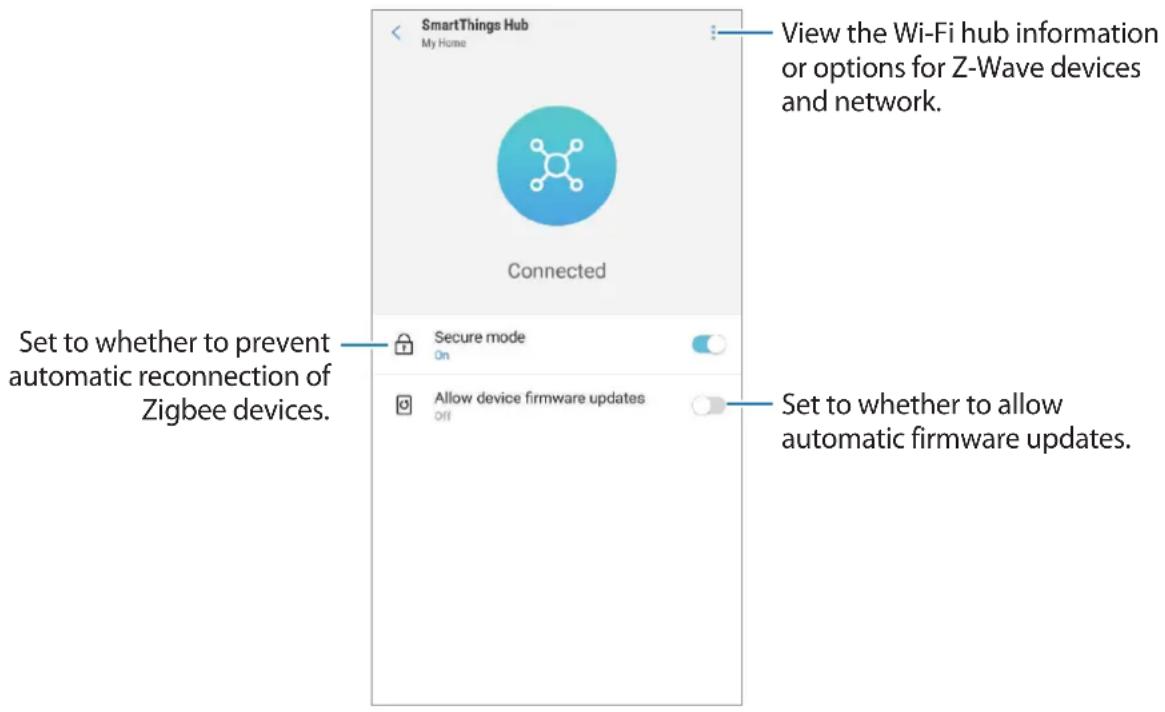
You can configure the detailed settings of the Samsung SmartThings Hub feature of the Wi-Fi hub.
1 On the SmartThings screen, tap Devices.
2 On the registered devices list, tap the Wi-Fi hub.
3 Tap Use SmartThings Hub.
4 Select an option and configure the Samsung SmartThings Hub feature.
Practical usage of the SmartThings app
Use the SmartThings app to make your life easier and more comfortable. Create automations based on your routine, or easily control the registered devices from anywhere.
- If you want to ensure that the office is cool when you arrive on a hot summer's day, turn on the connected air conditioner via the SmartThings app before you arrive.
- If you want to come home to a clean house, turn on the connected robot vacuum cleaner via the SmartThings app before you get home.
- If you want to improve your home security, create an automation for motion sensors to operate at bedtime and activate the notification feature. When the motion sensors detect unexpected movements, they will notify you.
Using the Wi-Fi router feature
Configuring the Wi-Fi router feature
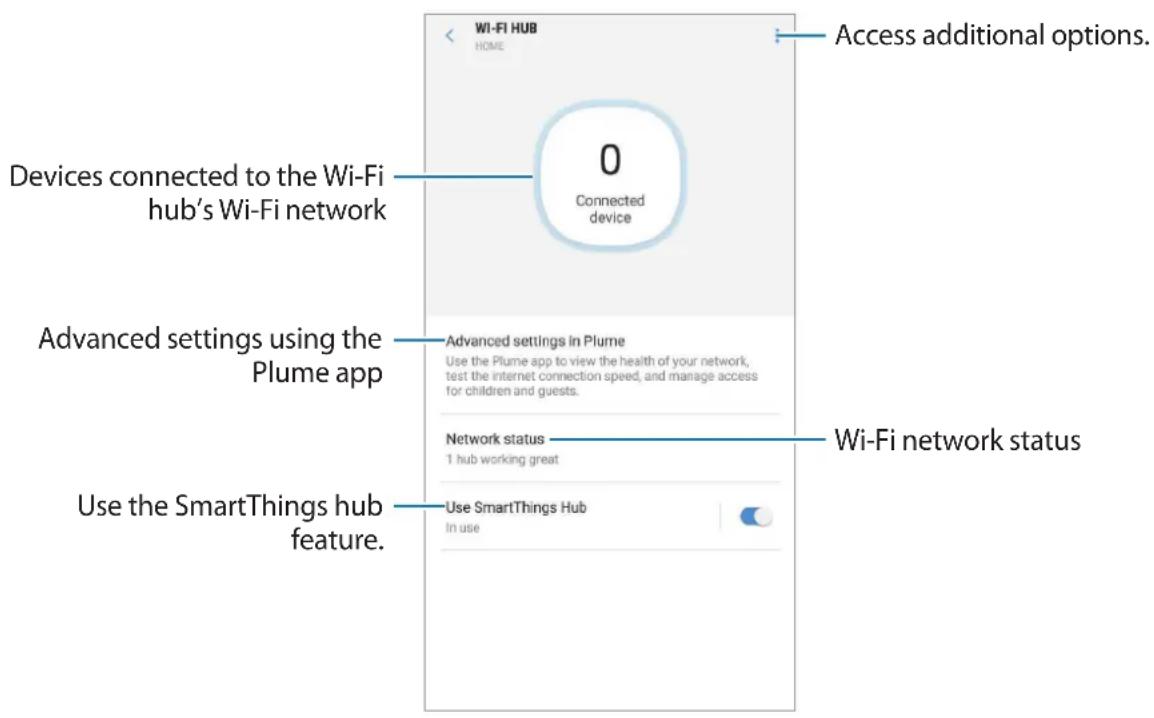
You can configure the detailed settings of the Wi-Fi hub's Wi-Fi router feature.
1 On the SmartThings screen, tap Devices.
2 On the registered devices list, tap the Wi-Fi hub.
When you use the Wi-Fi router feature of the Wi-Fi hub for the first time, tap the Wi-Fi hub to download the controller for it.
3 Select an option and configure the Wi-Fi router feature.
Advanced settings of the Wi-Fi router feature
You can configure the advanced settings of the Wi-Fi router feature using the Plume app. You can also manage the Wi-Fi hub's Wi-Fi network by assigning authorities and adding different passwords. You can download the Plume app from Galaxy Apps, Play Store, or App Store.
1 On the SmartThings screen, tap Devices.
2 On the registered devices list, tap the Wi-Fi hub.
3 Tap Advanced settings in Plume.
The Plume app will appear.
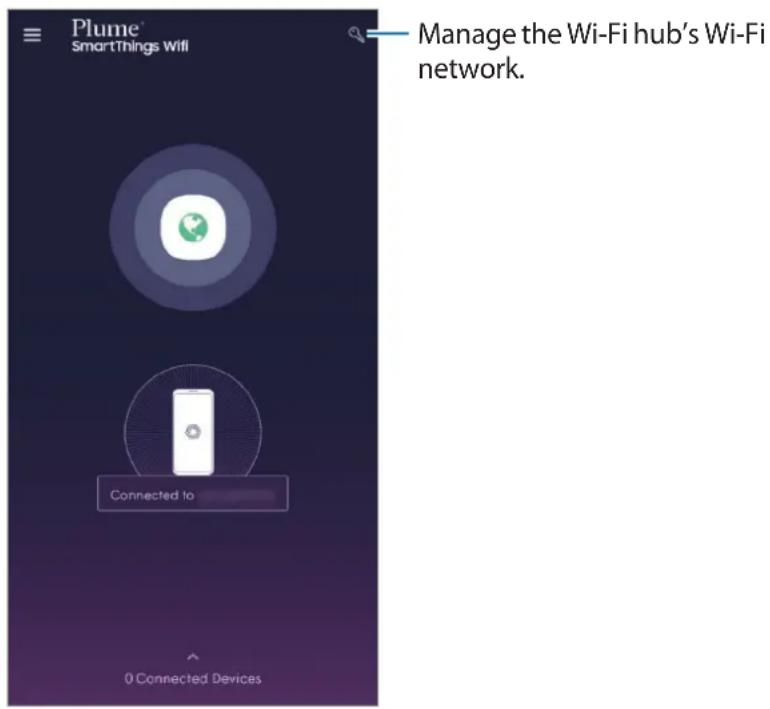

Once you have entered the Plume app through the SmartThings app, you can launch the Plume app right away and manage the Wi-Fi network without using the SmartThings app.
Assigning full authority to connected smartphones
You can give authority to the connected smartphone to use the Wi-Fi hub's Wi-Fi network and to control the registered devices and scenes without any restrictions.
1 Launch the Plume app and tap
2 Tap on the Home tab to add a password for using the Wi-Fi hub's Wi-Fi network without any restrictions.

You can add more than one password.
3 Enter a password and tap
4 The connected smartphone can use the Wi-Fi hub's Wi-Fi network.
Assigning limited authority to connected smartphones
You can add a guest network to use the Wi-Fi hub's Wi-Fi network. You can select the connected smartphones to control the registered devices and scenes.
1 Launch the Plume app and tap
2 Tap on the Guest tab to add a password for a guest network.

You can add more than one password.
3 Enter details.
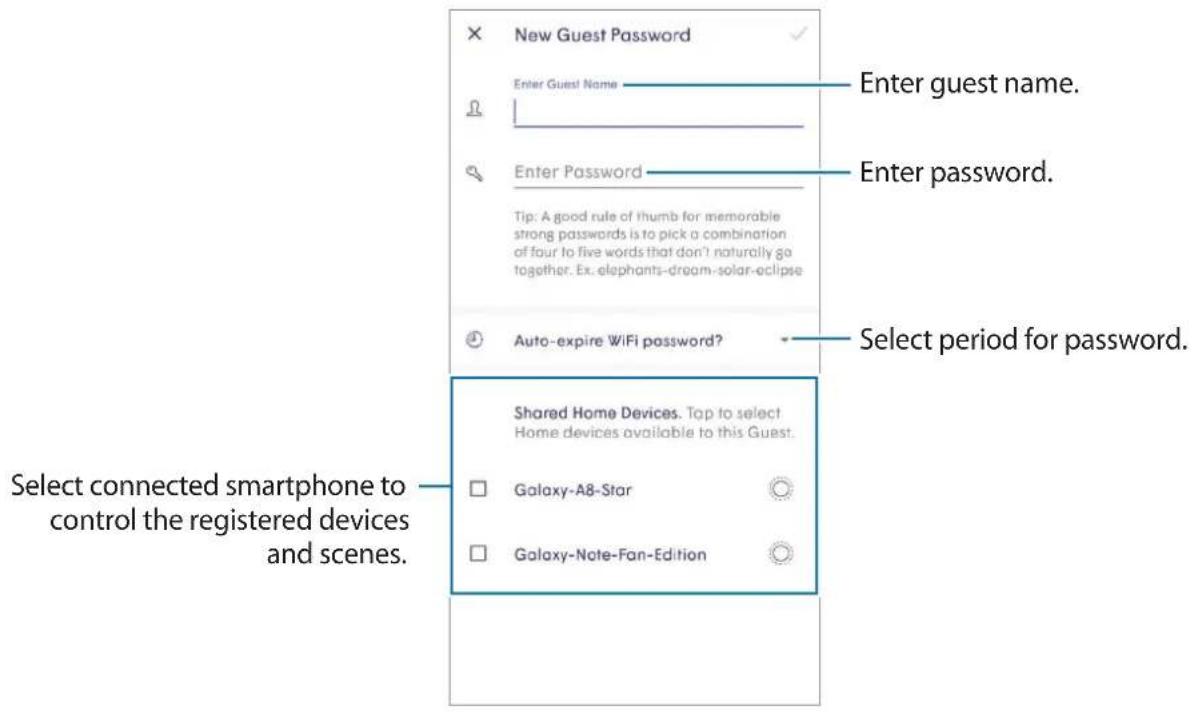
4 Tap
5 The connected smartphone can use the Wi-Fi hub's Wi-Fi network.
Restricting authority to connected smartphones
You can allow the connected smartphone to use the Wi-Fi hub's Wi-Fi network. However, the connected smartphones cannot control the registered devices and scenes.
1 Launch the Plume app and tap
2 Tap on the Internet Only tab to add a password to use the Wi-Fi network.

You can add more than one password.
3 Enter a password and select a period for the password.
4 Tap
5 The connected smartphone can use the Wi-Fi hub's Wi-Fi network.
Appendix
Troubleshooting
Before contacting a Samsung Service Centre, please attempt the following solutions.
Your Wi-Fi hub freezes
If the Wi-Fi hub freezes or hangs, disconnect the adapter from the Wi-Fi hub and reconnect it.
Close the SmartThings app completely on your mobile device and restart it.
If your Wi-Fi hub is frozen and unresponsive, insert a pin into the Reset hole more than 8 seconds.
If the tips above do not solve the problem, contact a Samsung Service Centre.
Your Wi-Fi hub is not connected with a router
This Wi-Fi hub only supports SmartThings routers. Connect only the SmartThings Wifi.
Your Wi-Fi hub is not detected by the SmartThings app
- If the Wi-Fi hub freezes or hangs, disconnect the adapter from the Wi-Fi hub and reconnect it.
- Close the SmartThings app completely on your mobile device and restart it.
- If your Wi-Fi hub is frozen and unresponsive, insert a pin into the Reset hole.
- Ensure that the other devices are within the maximum connection range.
If the tips above do not solve the problem, contact a Samsung Service Centre.
Other devices cannot connect to the SmartThings app
- On the other device, disconnect from the Wi-Fi network and reconnect to it.
- Turn the device off and turn it on.
The connection is often disconnected
- If there are obstacles between the devices, the operating distance may be reduced.
- Ensure that the other devices are within the maximum connection range.
- When using the Wi-Fi hub with other devices, the connection may be affected by electromagnetic waves. Use the Wi-Fi hub in environments with fewer wireless devices present.
The Wi-Fi hub works differently as described in the manual
Available functions may differ depending on the connected device.
The Wi-Fi is too slow
There may be several different issues that are causing slow Wi-Fi speed. Check some of the possible causes below:
- Wi-Fi hub location: Place the Wi-Fi hub in an open space and as close to the Wi-Fi supported devices as possible. Any obstacles located between Wi-Fi connected devices and the Wi-Fi hub may slow down the Wi-Fi speed.
- Number of connected devices: When many Wi-Fi supported devices are connected to a single Wi-Fi hub, they are all sharing Internet access at limited speed. This can cause your Wi-Fi speed to slow down.
- Modem speed: Even if the Wi-Fi connection status is stable, when the modem's Internet speed is slow, the Wi-Fi speed may decrease. Try to reboot the modem or measure the speed at different times of the day.
- Ethernet cable: The Ethernet cable included in the package can support up to 1 Gbps, but some Ethernet cables do not. Connect the modem using the Ethernet cable supplied in the package.
- Ethernet port: Check the speed supported by the Ethernet port on the modem or on the Ethernet switch connected to the Wi-Fi hub. When the Ethernet speed is slow, the Wi-Fi hub may also slow down.
- Check whether there is anything placed on top of the Wi-Fi hub or whether the Wi-Fi hub is located in an area that may be warmed by outdoor heat. When the Wi-Fi hub gets hot, the CPU speed may be adjusted temporarily to stop it from overheating.
- Unplug the power adapter from the Wi-Fi hub and connect it again.
Copyright
Copyright © 2018 Samsung Electronics
This manual is protected under international copyright laws.
No part of this manual may be reproduced, distributed, translated, or transmitted in any form or by any means, electronic or mechanical, including photocopying, recording, or storing in any information storage and retrieval system, without the prior written permission of Samsung Electronics.
Trademarks
- SAMSUNG and the SAMSUNG logo are registered trademarks of Samsung Electronics.
- Bluetooth® is a registered trademark of Bluetooth SIG, Inc. worldwide.
- Wi-Fi®, Wi-Fi CERTIFIED™, and the Wi-Fi logo are registered trademarks of the Wi-Fi Alliance.
- Z-Wave and Z-Wave Plus are registered trademarks of Silicon Laboratories and its subsidiaries in the United States and other countries.
- All other trademarks and copyrights are the property of their respective owners.
Erste Schritte
Copyright © 2018 Samsung Electronics
Copyright © 2018 Samsung Electronics
Configurary executar escalas
Los demás dispositivos noSEOSEOSEOSEOSEOSEOSEOSEOSEOSEOSEOSEOSEOSEOSEOSEOSEOSEOSEOSEOSEOSEOSEOSEOSEOSEOSEOSEOSEOSEOSEOSEOSEOSEOSEOSEOSEOSEOSEOSEOSEOSEOSEOSEOSEOSEOSEOSEOSEOSEOSEOSEOSEOSEOSEOSEOSEOSEOSEOSEOSEOSEOSEOSEOSEOSEOSEOSEOSEOSEOSEOSEOSEOSEOSEOSEOSEOSEOSEOSEOSEOSEOSEOSEOSEOSEOSEOSEOSEOSEOSEOSEOSEOSEOSEOSEOSEOSEOSEOSEO SEO
Copyright © 2018 Samsung Electronics
Copyright © 2018 Samsung Electronics
Telif hakki © 2018 Samsung Electronics
Please read this manual before using the device to ensure safe and proper use.
- Images may differ in appearance from the actual product. Content is subject to change without prior notice.
- Before using the Wi-Fi hub, make sure it is compatible with your device.
- The Wi-Fi hub's performance may differ depending on the environment.
- This product includes certain free/open source software. To see the instructions for viewing the open source license, go to the Samsung website (opensource.samsung.com).
Instructional icons

Warning: situations that could cause injury to yourself or others

Caution: situations that could cause damage to your device or other equipment

Notice: notes, usage tips, or additional information
About SmartThings Wifi
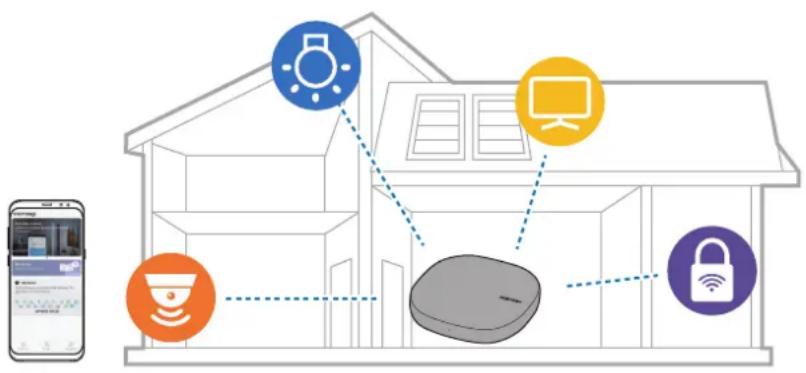
The SmartThings Wifi is a Wi-Fi router that can connect your smartphone to your smart home appliances via Wi-Fi. You can also connect Internet of Things (IoT) devices to this Wi-Fi hub via the Samsung SmartThings Hub feature.
For larger homes, you can connect more Wi-Fi hubs.
Package contents
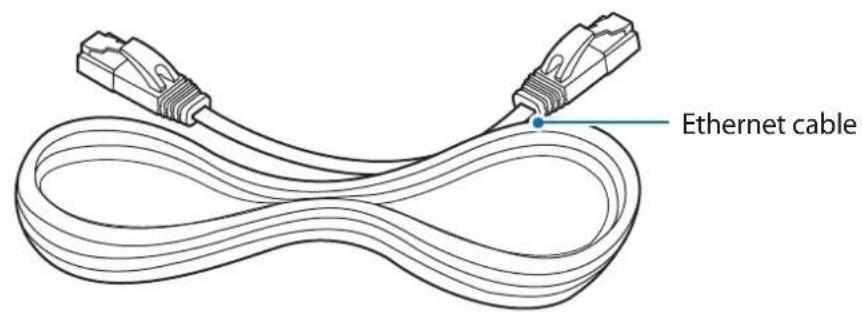
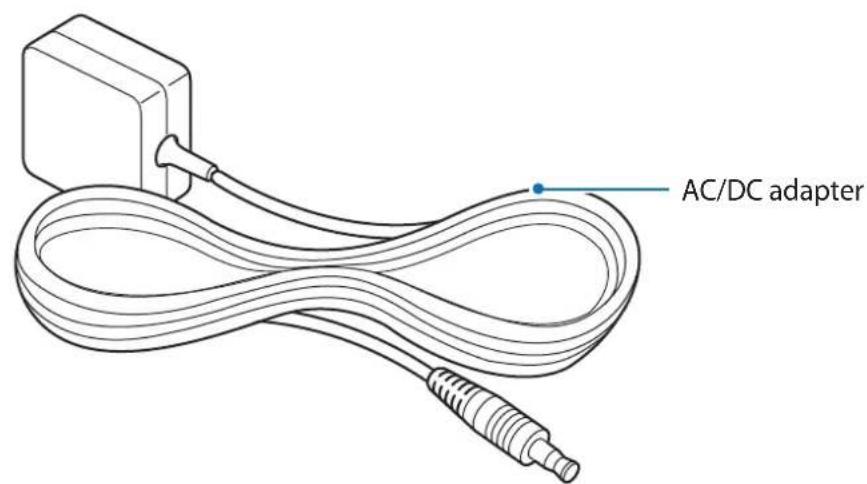
Check the product box for the following items:
Wi-Fi hub
- Ethernet cable
- AC/DC adapter (hereafter "adapter")
- Quick start guide

- The items supplied with the device and any available accessories may vary depending on the region or service provider.
- The supplied items are designed only for this device and may not be compatible with other devices.
- Appearances and specifications are subject to change without prior notice.
- You can purchase additional accessories from your local Samsung retailer. Make sure they are compatible with the device before purchase.
- Use only Samsung-approved accessories. Using unapproved accessories may cause the performance problems and malfunctions that are not covered by the warranty.
- Availability of all accessories is subject to change depending entirely on manufacturing companies. For more information about available accessories, refer to the Samsung website.
Device layout


The appearance and internal structure of the product may vary depending on the model.
Indicator light
The indicator light alerts you to the Wi-Fi hub status.
| Color Status |
| Green Power on, Working |
| Flashes green Booting/resetting the system |
| Flashes green and red Waiting for devices to connect |
| Flashes red Function error |
Connecting the Wi-Fi hub with a mobile device
To connect the Wi-Fi hub with a mobile device, you must install the SmartThings app on the mobile device. You can download the app from Galaxy Apps, Play Store, or App Store.

- You must register and sign in to your Samsung account to use the SmartThings app.
- Supported features may vary depending on your mobile device and its operating system.
Wi-Fi hub
1 Connect one end of the Ethernet cable to the hub's WAN port (IN) and the other end to the modem's LAN port.
2 Connect the adapter to the Wi-Fi hub.
The Wi-Fi hub will turn on and the indicator light will flash green.

Use only Samsung-approved adapters (12 V/2.1 A or higher).

- You can use the Wi-Fi hub only when you connect the Wi-Fi hub to an adapter.
- If the Wi-Fi hub overheats for a prolonged period, the Wi-Fi hub may automatically turn off or reset. When this happens continually, disconnect the adapter from the Wi-Fi hub and contact a Samsung Service Center.
- To save energy, unplug the adapter when not in use. The adapter does not have a power switch, so you must unplug the adapter from the electric socket when not in use to avoid wasting power. The adapter should remain close to the electric socket and be easily accessible while using it.
Mobile device
3 Launch the SmartThings app on the mobile device.
4 Follow the pop-up window's instructions to turn on the Wi-Fi and Bluetooth auto on feature.
When you launch the SmartThings app, the Wi-Fi and Bluetooth features will be automatically activated.
5 The Wi-Fi hub will be detected automatically. TapADD NOW.
If the Wi-Fi hub is not detected, tap Add device on the dashboard. Then, tap under ADD DEVICE MANUALLY -Wi-Fi/Hub SmartThings Wifi, and tap your Wi-Fi hub's name.
During setup, get within 15 ft of the hub.
6 Enter a network name and password to assign to the Wi-Fi hub.
7 Follow the on-screen instructions to complete the connection.
Adding additional Wi-Fi hubs
One Wi-Fi hub can cover a 140m^2 connection range (based on timber buildings) but can differ depending on the usage environment.
Install an additional Wi-Fi hub to connect to a larger area beyond the connection range with a Wi-Fi network.
1 Connect the AC/DC adapter to the additional Wi-Fi hub.
2 On the mobile device, launch the SmartThings app and follow the on-screen instructions to complete the connection.
During setup, get within 15 ft of the hub.

You can connect up to 31 additional Wi-Fi hubs.
Notices for connecting a Wi-Fi hub
- Install a Wi-Fi hub near the devices to be registered.
- When you add additional Wi-Fi hubs, install them within the connection range.
- Do not place obstacles between the Wi-Fi hub and the devices to be registered.
- Obstacles such as the human bodies, walls, corners, or fences can weaken the signals.
- When using the Wi-Fi hub, it should be connected via the Ethernet cable.
Notices for using Bluetooth
- To avoid problems when connecting your Wi-Fi hub to another device, place the devices close to each other.
- Ensure that your Wi-Fi hub and the other Bluetooth device are within the maximum Bluetooth range (5 m). The distance may vary depending on the environment the devices are used in.
- Ensure that there are no obstacles between the Wi-Fi hub and a connected device, including human bodies, walls, corners, or fences.
- Bluetooth uses the same frequency as some industrial, scientific, medical, and low power products and interference may occur when making connections near these types of products.
- Some devices, especially those that are not tested or approved by the Bluetooth SIG, may be incompatible with your Wi-Fi hub.
Registering Internet of Things (IoT) devices and smart home appliances
Using the SmartThings app
Register Internet of Things (IoT) devices and smart home appliances to the SmartThings app on your mobile device, and check their status or control them. To control the devices by location, such as your home or office, create a location and assign registered devices to it. You can also set a scene to control many devices at the same time or set an automation to perform actions automatically at a preset time.
Configuring the dashboard and the SmartThings app
Configure the dashboard and the SmartThings app settings. On the dashboard, tap and use the following options.
- Manage dashboard: Set the items to show on the dashboard.
- Notifications: View the notifications from the SmartThings app. You can also change the notification settings.
- Tips: View the useful SmartThings tips.
- How to use: Learn how to use the SmartThings app.
- Settings: Access information about the SmartThings app and Samsung account information. You can also set the SmartThings panel to be displayed on the notification panel.
- Notices: View the notices from the SmartThings service.
- Contact us: Ask questions or view frequently asked questions.
Registering devices
Registering smart home appliances via Wi-Fi
Register smart home appliances that support Wi-Fi to the SmartThings app and control them. For instructions on how to register devices, refer to the other devices' user manuals.

- To view the supported devices, tap SUPPORTED DEVICES on the dashboard.
- Connected devices' own errors or defects are not covered by the Samsung warranty. When errors or defects occur on the connected devices, contact the device's manufacturer.
Registering IoT devices via the Samsung SmartThings Hub feature
Register the Internet of Things (IoT) devices that support Z-Wave, Zigbee, LAN, or Cloud-to-Cloud to the SmartThings app and control them.
1 On the dashboard, tap Add device.
2 Tap under ADD DEVICE MANUALLY.
3 Select a category of the device to register.
Alternatively, enter the device's name in the search input field and tapADD next to your device.
4 Follow the on-screen instructions to complete the registration.

- The Samsung SmartThings Hub feature may not be available depending on the region. Visit www.samsung.com for details.
- You can only register the IoT devices approved by Samsung. Download the SmartThings app to see a list of supported devices.
Refer to the other devices' user manuals for instructions on how to pair with them. - To learn more about the Samsung SmartThings Hub feature, visit support.smartthings.com.
Controlling the registered devices
1 On the SmartThings screen, tap Devices.
2 On the registered devices list, tap a device.
The controller for the device will be downloaded.
3 With the downloaded controller, remotely control the registered devices via the SmartThings app.
Creating locations
You can register devices by location and manage them.
1 On the SmartThings screen, tap Devices.
2 Tap ALL DEVICES Add location.
3 Enter a location name and select an icon for the location.
4 Tap Geolocation to select a location on the map and tap DONE.
5 Tap SAVE.
Your location will be added.
6 Tap ADD DEVICE to register devices.
If you want to manage the location room by room, tap Add room, and set the room and devices for it.
Inviting members to the created location
Invite other members to the created location to control the devices and scenes assigned to that location.
1 On the SmartThings screen, tap Devices.
2 Tap ALL DEVICES and scroll up or down to select a location.
3 Tap: Invite member.
4 Tap Enter Samsung account ID, enter the Samsung account for the person you want to invite, and then tap.
You can invite users by scanning the QR code. TapCREATE QR CODE and invite other users to scan it.

- You can only invite the users login the Samsung account via SmartThings app.
- To accept the invitation, on the SmartThings screen, tap the invitation pop-up and tap ACCEPT. To accept the invitation by scanning the QR code, on the dashboard, tap Settings Accept invitation (QR code) and then scan the QR code.
5 Follow the on-screen instruction to complete the invitation.
Setting and running scenes
Set a scene to operate multiple devices at once. To set a scene, you should create locations. Refer to Creating locations for more information.
1 On the SmartThings screen, tap Devices.
2 Tap ALL DEVICES and scroll up or down to select a location.
3 Tap Add scene.
The screen for setting scenes will appear.
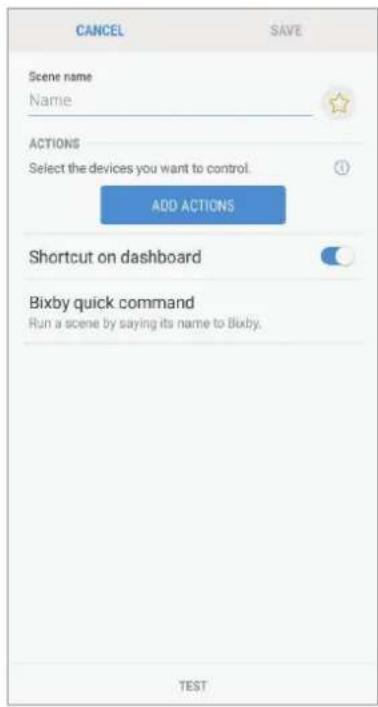
4 Enter the scene's title, select an icon for the scene, and then tap ADD ACTIONS.
5 Select a device and an action to be operated, and then tap NEXT.
For example, select a TV and a robot vacuum cleaner and the corresponding actions to be operated.
6 Tap the Shortcut on dashboard switch to view the scene on the dashboard.
7 Tap Bixby quick command to run the scene by saying the scene name to Bixby and tap SAVE.
8 Tap TEST at the bottom of the screen to test whether the action is operated as it is set up.
9 Tap SAVE.
The scene is set. You can view the set scene on the designated location screen.
Activating scenes
1 On the SmartThings screen, tap Devices.
2 Tap ALL DEVICES and scroll up or down to select a location that has the scene you want to activate.
3 Select a scene to activate.
The devices you set will operate in accordance with the scene.
Managing devices and locations
You can manage locations and their assigned devices and scenes.
1 On the SmartThings screen, tap Devices.
2 Tap ALL DEVICES and scroll up or down to select a location.
3 Tap Edit and use the following options.
- Location name: Change the location name and its icon.
- Geolocation: View or change the location on the map.
- Show location summary on dashboard: Set to show the location card on the dashboard.
SCENES: Change the scene information or delete the scene. - DEVICES: Change the device information or delete the device from the assigned location.
MEMBERS: View the members to share the location. You can also invite others. - REMOVE LOCATION: Delete the location.

- To connect a Z-Wave device to another device, on the currently connected mobile device, remove the device from the SmartThings app to exclude it. When you remove the device from the SmartThings app, the instructions for exclusion will be provided via a URL. Follow the instructions to exclude the Z-Wave device. If you reset the Wi-Fi hub, you should exclude the Z-Wave device and reconnect (re-include) it. For instructions on how to exclude Z-Wave devices, refer respective Z-Wave device's user manual or contact the device's manufacturer.
- For additional Z-Wave network utility functions, visit www.smartthings.com.
- The Wi-Fi hub automatically sends an Association Set for Lifeline/group1 for 4 nodes after adding a device that supports Association.
Setting automations
Set an automation for devices assigned to a location to automatically perform actions at a specific condition.
1 On the SmartThings screen, tap Automations.
2 Tap ADD.

Some automations may be set by default depending on the region.
3 Select a location to set an automation.
4 Tap CUSTOM AUTOMATION
The screen for setting conditions will appear.

Select the automation under RECOMMENDED to set automations recommended by SmartThings.
5 Select a condition to set an automation.
- Based on the time of day: Set the condition based on the time. Refer to Setting automations based on the time of day.
- Based on a device status: Set the condition based on a device status. Refer to Setting automations based on a device status.
- Based on a member's location: Set the condition based on a member's location. Refer to Setting automations based on a member's location.
- Based on this location's mode. Set the condition based on the mode of the current location. Refer to Setting automations based on the location's mode.
- Based on security mode: Set the condition based on Smart Home Monitor's security mode. Refer to Setting automations based on Smart Home Monitor's security mode.

This feature may not be available depending on the region.
Setting automations based on the time of day
The automation is activated at the preset time. For example, you can set the audio to play music every day at 7:00 AM.
1 On the condition screen, tap Based on the time of day.
2 Set the time for the automation to activate and tap NEXT.
3 Tap ADD next to Then to set actions to perform at the preset time. The screen for setting actions will appear.
4 Select an action from the options.
- Notify members: Receive and send a notification to the members in the location when devices perform an action according to the automation.
Control a device: Set a device to perform a certain action at the preset condition. - Run a scene: Select a scene to activate at the preset condition. You can use this option only when there are scenes already.
- Change this location's mode Change the location's mode at the preset condition.
5 Tap SAVE.
The assigned devices will operate in accordance with the set automation.
Setting automations based on a device status
The automation is activated when the device you select is in the certain condition. For example, you can set the lamp light to turn on when the door opens.
1 On the condition screen, tap Based on a device status.
2 Select a device and its condition.
3 Select an action from the options.
4 Tap SAVE.
The assigned devices will operate in accordance with the set automation.
Setting automations based on a member's location
The automation is activated when the members you select leave or arrive at the location. For example, you can set the robot vacuum to operate when Dad comes home.
1 On the condition screen, tap Based on a member's location.
2 Tap Which members?, select the members, and then tap DONE.
3 Tap When?, select an option, and then tap NEXT.
4 Tap ADD next to Then to set actions to perform at the preset condition.
5 Select an action from the options.
6 Tap SAVE.
The assigned devices will operate in accordance with the set automation.
Setting automations based on the location's mode
The automation is activated when the mode of the current location changes to the preset mode. For example, you can set the air conditioner to turn off when the location's mode is set to Away.

To view the location's mode, on the SmartThings screen, tapDevices ALL DEVICES and select the location you want. The location's mode will appear at the top of the screen.
1 On the condition screen, tap Based on this location's mode
2 Select a location mode to use as a condition and tap NEXT.
3 Tap ADD next to Then to set actions to perform at the preset condition.
4 Select an action from the options.
5 Tap SAVE.
The assigned devices will operate in accordance with the set automation.
Setting automations based on Smart Home Monitor's security mode
The automation is activated when Smart Home Monitor's security mode changes to the preset mode. For example, you can set the window to automatically lock when Smart Home Monitor's security mode is set to Armed (away).
1 On the condition screen, tap Based on security mode.
2 Select a security mode to use as a condition and tap NEXT.
3 Tap ADD next to Then to set actions to perform at the preset condition.
4 Select an action from the options.
5 Tap SAVE.
The assigned devices will operate in accordance with the set automation.
Managing automations
You can view the set automations and manage them.
On the SmartThings screen, tap Automations.
- Tap the switch next to the automation to activate or deactivate it.
- Tap the automation to change its details.
- Tap Edit name to change the automation's name. Edit name appears only when there are automations you manually added.
- Tap Delete to delete the automation.
Configuring the Samsung SmartThings Hub feature
You can configure the detailed settings of the Samsung SmartThings Hub feature of the Wi-Fi hub.
1 On the SmartThings screen, tap Devices.
2 On the registered devices list, tap the Wi-Fi hub.
3 Tap Use SmartThings Hub.
4 Select an option and configure the Samsung SmartThings Hub feature.
Practical usage of the SmartThings app
Use the SmartThings app to make your life easier and more comfortable. Create automations based on your routine, or easily control the registered devices from anywhere.
- If you want to ensure that the office is cool when you arrive on a hot summer's day, turn on the connected air conditioner via the SmartThings app before you arrive.
- If you want to come home to a clean house, turn on the connected robot vacuum cleaner via the SmartThings app before you get home.
- If you want to improve your home security, create an automation for motion sensors to operate at bedtime and activate the notification feature. When the motion sensors detect unexpected movements, they will notify you.
Using the Wi-Fi router feature
Configuring the Wi-Fi router feature
You can configure the detailed settings of the Wi-Fi hub's Wi-Fi router feature.
1 On the SmartThings screen, tap Devices.
2 On the registered devices list, tap the Wi-Fi hub.
When you use the Wi-Fi router feature of the Wi-Fi hub for the first time, tap the Wi-Fi hub to download the controller for it.
3 Select an option and configure the Wi-Fi router feature.
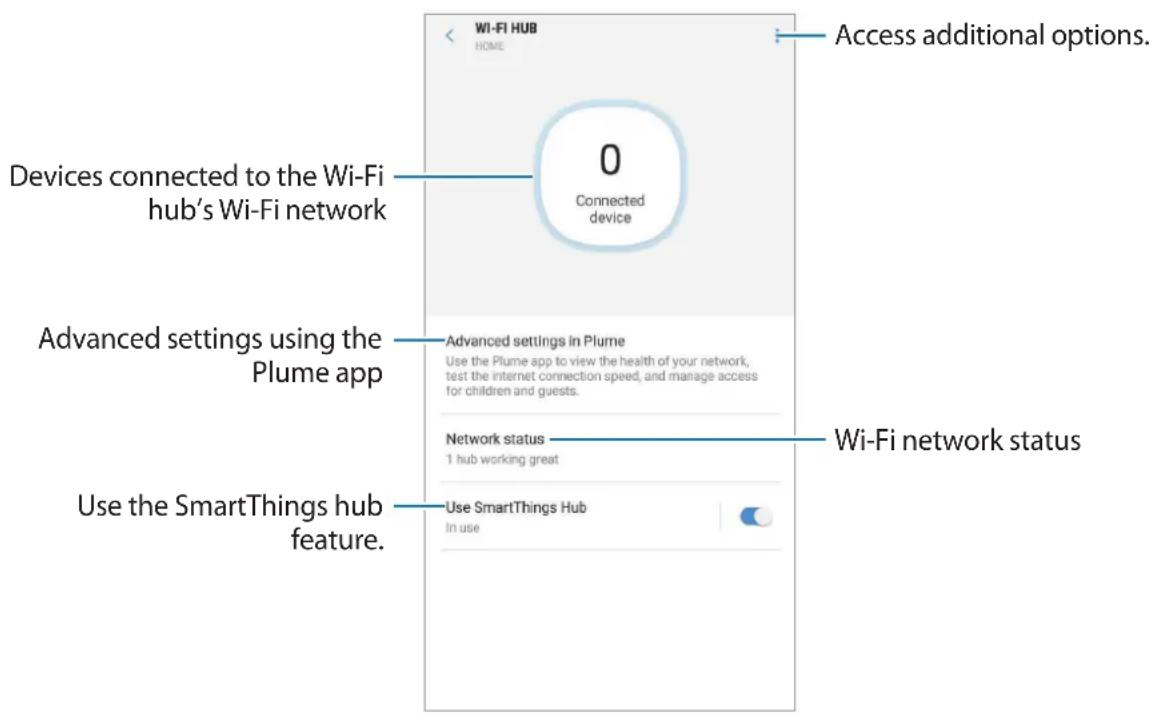
Advanced settings of the Wi-Fi router feature
You can configure the advanced settings of the Wi-Fi router feature using the Plume app. You can also manage the Wi-Fi hub's Wi-Fi network by assigning authorities and adding different passwords. You can download the Plume app from Galaxy Apps, Play Store, or App Store.
1 On the SmartThings screen, tap Devices.
2 On the registered devices list, tap the Wi-Fi hub.
3 Tap Advanced settings in Plume.
The Plume app will appear.
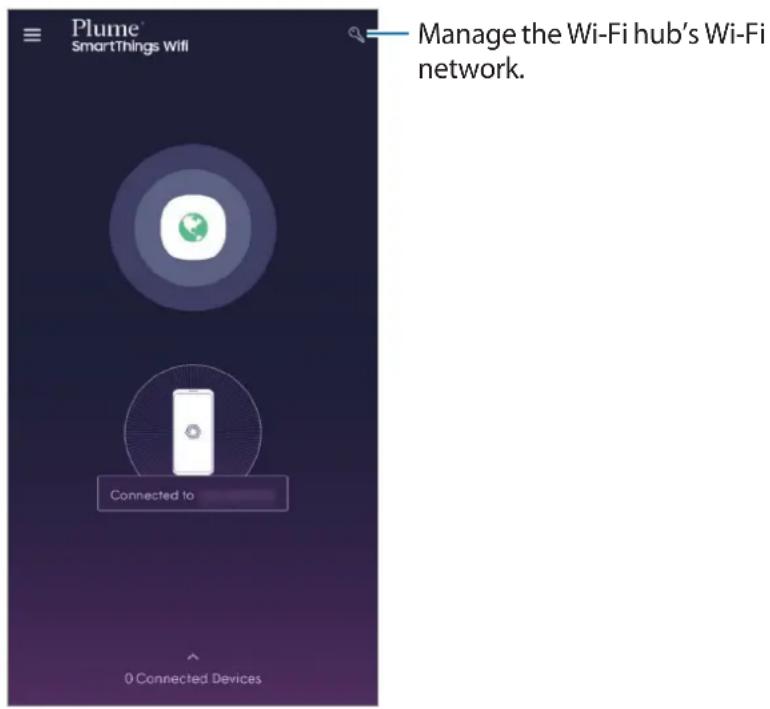

Once you have entered the Plume app through the SmartThings app, you can launch the Plume app right away and manage the Wi-Fi network without using the SmartThings app.
Assigning full authority to connected smartphones
You can give authority to the connected smartphone to use the Wi-Fi hub's Wi-Fi network and to control the registered devices and scenes without any restrictions.
1 Launch the Plume app and tap 念
2 Tap on the Home tab to add a password for using the Wi-Fi hub's Wi-Fi network without any restrictions.

You can add more than one password.
3 Enter a password and tap
4 The connected smartphone can use the Wi-Fi hub's Wi-Fi network.
Assigning limited authority to connected smartphones
You can add a guest network to use the Wi-Fi hub's Wi-Fi network. You can select the connected smartphones to control the registered devices and scenes.
1 Launch the Plume app and tap
2 Tap on the Guest tab to add a password for a guest network.

You can add more than one password.
3 Enter details.
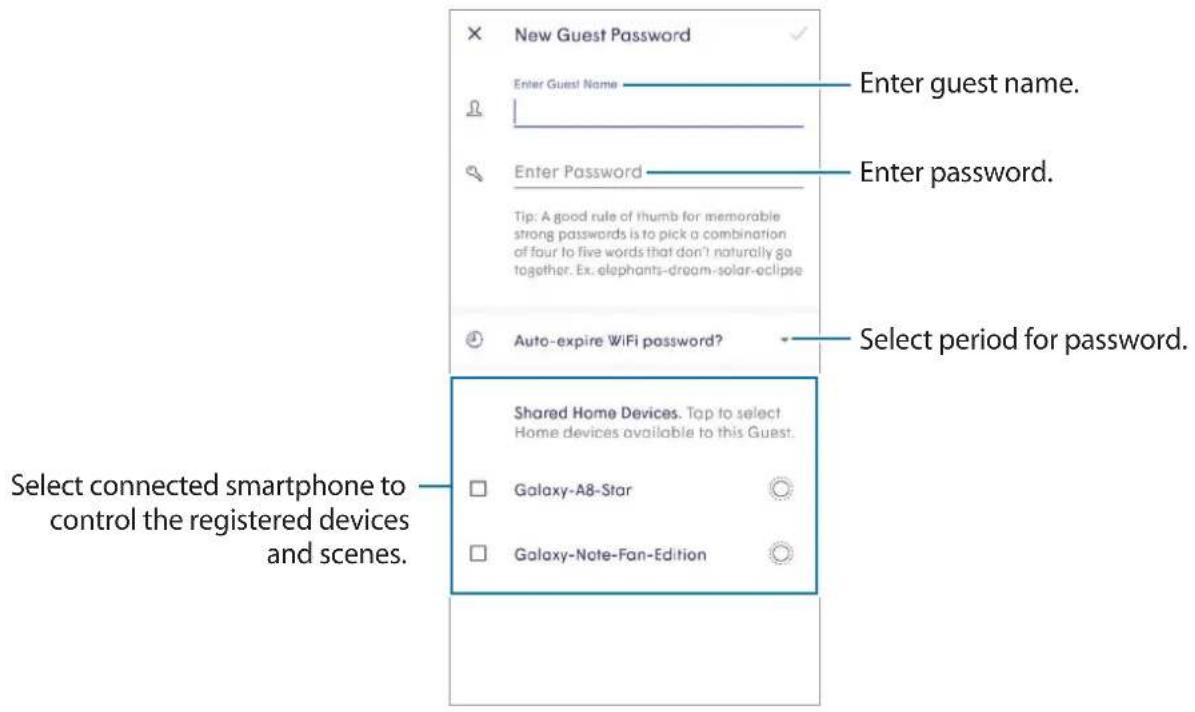
4 Tap
5 The connected smartphone can use the Wi-Fi hub's Wi-Fi network.
Restricting authority to connected smartphones
You can allow the connected smartphone to use the Wi-Fi hub's Wi-Fi network. However, the connected smartphones cannot control the registered devices and scenes.
1 Launch the Plume app and tap
2 Tap on the Internet Only tab to add a password to use the Wi-Fi network.

You can add more than one password.
3 Enter a password and select a period for the password.
4 Tap
5 The connected smartphone can use the Wi-Fi hub's Wi-Fi network.
Appendix
Troubleshooting
Before contacting a Samsung Service Center, please attempt the following solutions.
Your Wi-Fi hub freezes
If the Wi-Fi hub freezes or hangs, disconnect the adapter from the Wi-Fi hub and reconnect it.
Close the SmartThings app completely on your mobile device and restart it.
If your Wi-Fi hub is frozen and unresponsive, insert a pin into the Reset hole more than 8 seconds.
If the tips above do not solve the problem, contact a Samsung Service Center.
Your Wi-Fi hub is not connected with a router
This Wi-Fi hub only supports SmartThings routers. Connect only the SmartThings Wifi.
Your Wi-Fi hub is not detected by the SmartThings app
- If the Wi-Fi hub freezes or hangs, disconnect the adapter from the Wi-Fi hub and reconnect it.
- Close the SmartThings app completely on your mobile device and restart it.
- If your Wi-Fi hub is frozen and unresponsive, insert a pin into the Reset hole.
- Ensure that the other devices are within the maximum connection range.
If the tips above do not solve the problem, contact a Samsung Service Center.
Other devices cannot connect to the SmartThings app
- On the other device, disconnect from the Wi-Fi network and reconnect to it.
- Turn the device off and turn it on.
The connection is often disconnected
- If there are obstacles between the devices, the operating distance may be reduced.
- Ensure that the other devices are within the maximum connection range.
- When using the Wi-Fi hub with other devices, the connection may be affected by electromagnetic waves. Use the Wi-Fi hub in environments with fewer wireless devices present.
The Wi-Fi hub works differently as described in the manual
Available functions may differ depending on the connected device.
The Wi-Fi is too slow
There may be several different issues that are causing slow Wi-Fi speed. Check some of the possible causes below:
- Wi-Fi hub location: Place the Wi-Fi hub in an open space and as close to the Wi-Fi supported devices as possible. Any obstacles located between Wi-Fi connected devices and the Wi-Fi hub may slow down the Wi-Fi speed.
- Number of connected devices: When many Wi-Fi supported devices are connected to a single Wi-Fi hub, they are all sharing Internet access at limited speed. This can cause your Wi-Fi speed to slow down.
- Modem speed: Even if the Wi-Fi connection status is stable, when the modem's Internet speed is slow, the Wi-Fi speed may decrease. Try to reboot the modem or measure the speed at different times of the day.
- Ethernet cable: The Ethernet cable included in the package can support up to 1 Gbps, but some Ethernet cables do not. Connect the modem using the Ethernet cable supplied in the package.
- Ethernet port: Check the speed supported by the Ethernet port on the modem or on the Ethernet switch connected to the Wi-Fi hub. When the Ethernet speed is slow, the Wi-Fi hub may also slow down.
- Check whether there is anything placed on top of the Wi-Fi hub or whether the Wi-Fi hub is located in an area that may be warmed by outdoor heat. When the Wi-Fi hub gets hot, the CPU speed may be adjusted temporarily to stop it from overheating.
- Unplug the power adapter from the Wi-Fi hub and connect it again.
Copyright
Copyright © 2018 Samsung Electronics
This manual is protected under international copyright laws.
No part of this manual may be reproduced, distributed, translated, or transmitted in any form or by any means, electronic or mechanical, including photocopying, recording, or storing in any information storage and retrieval system, without the prior written permission of Samsung Electronics.
Trademarks
- SAMSUNG and the SAMSUNG logo are registered trademarks of Samsung Electronics.
- Bluetooth® is a registered trademark of Bluetooth SIG, Inc. worldwide.
- Wi-Fi®, Wi-Fi CERTIFIED™, and the Wi-Fi logo are registered trademarks of the Wi-Fi Alliance.
- Z-Wave and Z-Wave Plus are registered trademarks of Silicon Laboratories and its subsidiaries in the United States and other countries.
- All other trademarks and copyrights are the property of their respective owners.
Para comenzar
Configurary executar escalas
Copyright © 2018 Samsung Electronics


- Instructional icons
- About SmartThings Wifi
- Package contents
- Device layout
- Indicator light
- Connecting the Wi-Fi hub with a mobile device
- Wi-Fi hub
- Mobile device
- Adding additional Wi-Fi hubs
- Notices for connecting a Wi-Fi hub
- Notices for using Bluetooth
- Registering Internet of Things (IoT) devices and smart home appliances
- Using the SmartThings app
- Configuring the dashboard and the SmartThings app
- Registering devices
- Registering smart home appliances via Wi-Fi
- Registering IoT devices via the Samsung SmartThings Hub feature
- Controlling the registered devices
- Creating locations
- Inviting members to the created location
- Setting and running scenes
- Activating scenes
- Managing devices and locations
- Setting automations
- Select a condition to set an automation.
- Setting automations based on the time of day
- Setting automations based on a device status
- Setting automations based on a member's location
- Setting automations based on the location's mode
- Setting automations based on Smart Home Monitor's security mode
- Managing automations
- Configuring the Samsung SmartThings Hub feature
- Select an option and configure the Samsung SmartThings Hub feature.
- Practical usage of the SmartThings app
- Using the Wi-Fi router feature
- Configuring the Wi-Fi router feature
- Advanced settings of the Wi-Fi router feature
- Assigning full authority to connected smartphones
- Assigning limited authority to connected smartphones
- Enter details.
- Tap
- Restricting authority to connected smartphones
- Appendix
- Troubleshooting
- Your Wi-Fi hub freezes
- Your Wi-Fi hub is not connected with a router
- Your Wi-Fi hub is not detected by the SmartThings app
- Other devices cannot connect to the SmartThings app
- The connection is often disconnected
- The Wi-Fi hub works differently as described in the manual
- The Wi-Fi is too slow
- Copyright
- Trademarks
- Erste Schritte
- Configurary executar escalas
- Los demás dispositivos noSEOSEOSEOSEOSEOSEOSEOSEOSEOSEOSEOSEOSEOSEOSEOSEOSEOSEOSEOSEOSEOSEOSEOSEOSEOSEOSEOSEOSEOSEOSEOSEOSEOSEOSEOSEOSEOSEOSEOSEOSEOSEOSEOSEOSEOSEOSEOSEOSEOSEOSEOSEOSEOSEOSEOSEOSEOSEOSEOSEOSEOSEOSEOSEOSEOSEOSEOSEOSEOSEOSEOSEOSEOSEOSEOSEOSEOSEOSEOSEOSEOSEOSEOSEOSEOSEOSEOSEOSEOSEOSEOSEOSEOSEOSEOSEOSEOSEOSEOSEO SEO
- Para comenzar
Brand : SAMSUNG
Model : SmartThings Wifi ETWV525
Category : Router