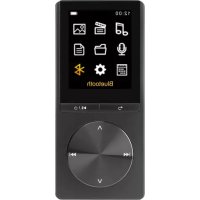
MP1820BT - Mp3 player Difrnce - Free user manual and instructions
Find the device manual for free MP1820BT Difrnce in PDF.



| Product Type | MP3/MP4 Player with Bluetooth |
| Brand | Difrnce |
| Model | MP1820BT |
| Screen | LCD TFT 1.77 inch (128 x 160 pixels) |
| Supported audio formats | MP3, WMA, WAV, FLAC, APE |
| Supported video formats | AMV |
| Supported image formats | JPG, BMP, GIF |
| Internal memory | 4 GB Flash |
| Battery | Built-in rechargeable lithium 250 mAh |
| Battery life | Approximately 8 hours (full charge) |
| Connection port | High-speed Micro USB 2.0 |
| Bluetooth | Yes, version 2.4 GHz (2402-2480 MHz), max power 3.30 dBm |
| Main functions | Audio playback, video playback, photo viewing, voice recording, e-book reader, calendar, Bluetooth |
| Equalizer | EQ presets |
| Voice recording | WAV format (32 or 128 kbps) |
| Available languages | Multilingual |
| Care and cleaning | Clean with a soft, dry cloth. Do not expose to moisture or extreme temperatures. |
| Safety | Do not disassemble the device. Use only a compatible charger. Keep out of reach of children. |
| Spare parts and repairability | Not specified. In case of issue, contact customer service. |
| General information | Compliant with directive 2014/53/EU. Declaration of conformity available online. |
Frequently Asked Questions - MP1820BT Difrnce
User questions about MP1820BT Difrnce
0 question about this device. Answer the ones you know or ask your own.
Ask a new question about this device
Download the instructions for your Mp3 player in PDF format for free! Find your manual MP1820BT - Difrnce and take your electronic device back in hand. On this page are published all the documents necessary for the use of your device. MP1820BT by Difrnce.
USER MANUAL MP1820BT Difrnce
1.77 inch 128*160 TFT LCD display
Audio playback: MP3,WMA,WAV,FLAC,APE
VideoPlayback:AMV
Picture viewer: JPG,BMP,GIF
Video recorder function and E-book reader
- Support multiple languages and preset EQ
- Micro USB port, 2.0 high speed
- 250mAh Built-in rechargeable battery;
4GB Built-in flash memory
Appearance of the player
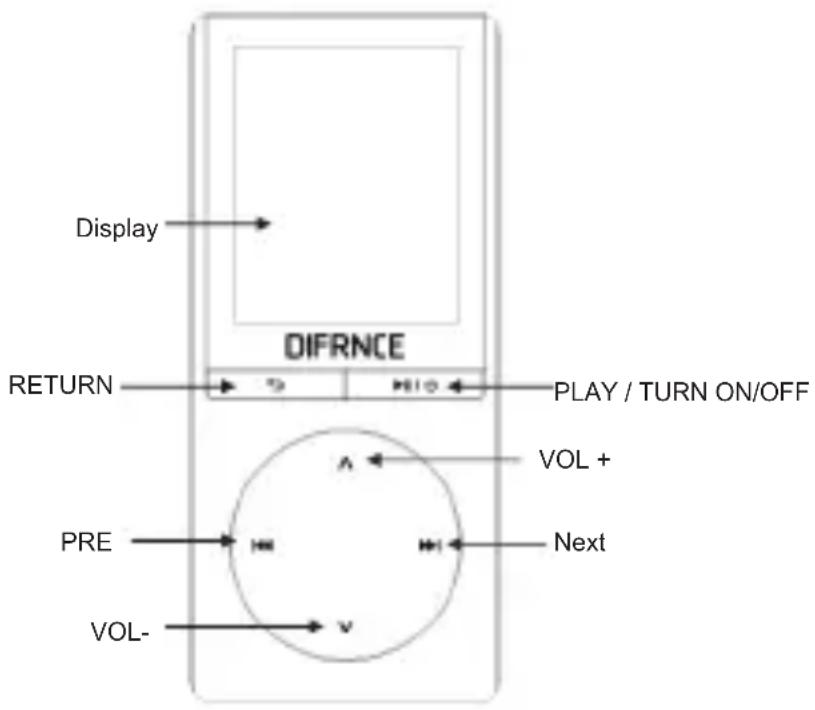
Button Definition
- “ ” button: Back to previous menu
- “ 串 ” button: Select and enter into different modes/Play/Pause/Power On & Off(press and hold)
- "NEXT" button: Press to skip to next file; press and hold to fast forward; Move to right in menu options
- "PRE" button: Press to skip to previous file; press and hold to fast backward; Move to left in menu options
- "VOL+" button: Increase volume
- "VOL-" button: Decrease volume
Battery Level Indicator

Battery is full.
Low battery; the player should be charged as soon as possible.
Important: Charge the player for at least 8 hours before using it for the first time.
Basic Operation
To turn off the player, press and hold the H6 button until the display shuts off.
Remark: "Hold" means long press around 2 seconds.
Music
MusicPlayback controls
- PRE button: Previous track /Rewind (hold)
- NEXT button: Next track /Fast forward (hold)
- button: Enter into music playing submenu, Play /Pause
- button: Return to last viewed menu
- VOL+ button: Increase volume
- VOL- button: Decrease volume
Music Playing Submenu
Press button in Music menu to enter into music playing submenu as below:

Music sub menu
No matter music is PAUSED or PLAYING, long press the button to access music menu 2 where you can select from the following options:
Play mode
Sound settings
Add to playlist
Remove from playlist
Delete
Video
To watch movies, select Video from the main menu and press the button to confirm.
The video playback screen will be displayed
Movie playback controls
- PRE button: previous video /Rewind (hold)
- NEXT button: next video /Fast forward (hold)
- button: Play /Pause
- button: Go back to previous menu/enter menu 2 (hold)
- VOL+ button: Increase volume
- VOL- button: Decrease volume
Movie Submenu
In this submenu, press button to start the movie.
While a video is PAUSED, hold the button to access the video menu where you can select from the following options:
Repeat: video repeat options
Delete file: delete a single video file
Delete all: delete all video files
Pictures
To view pictures, select Pictures from the main menu and press H0 button to enter the photo browser.
- Use the PRE or NEXT button to scroll through the ROOT folder and select a photo you would like to view, and press the button.
- Use the PRE or NEXT button to scroll through your pictures.
- Press the button to return to the ROOT folder.
Photo menu
While in the ROOT folder, long press the button to access the photo menu where you can select from the following options.
Brightness: Adjust brightness
Slideshow settings: Adjust playback method
Delete picture
Update playlist
Recordings
To record voice memos, select Recordings from the main menu and press the button to enter the recording mode.
-
Press the button to start recording.
-
To pause the recording, press the button again.
- To save the recording and exit to the main menu, press the button.

If "Capacity is full" is shown on the display, it means no space for saving the recorded files, need to delete other documents to release space.

If "Content is full" is shown on the display, it means there are 99 files in this folder, and case change to other folder for saving.
Record types
| 32K BPS | Wav format. Average sound quality. |
| 128K BPS | Wav format. Middle quality |
Play
To play back recorded voice memos, select Recordings library from the main menu and press the button to enter the voice memos mode.
Voice playback controls
- PRE button: previous memo /Rewind (hold)
- NEXT button: next memo /Fast forward (hold)
- button: Play or pause recording
- button: Go back to previous menu /Save recording (hold)
- VOL+ button: Increase volume
- VOL- button: Decrease volume
Folder view
Press button to open Folder, you can find all of file in the folder.
E-book
The E-book mode allows reading text files. To use this mode please follow below instructions:
- Use the PRE or NEXT button to scroll through the ROOT folder and select a text you would like to read, and then press the button to confirm.
- Use the PRE or NEXT button to scroll through your texts.
- Press the button to return to the ROOT folder.
While in ROOT folder, long press the button to access the e-book menu where you can select from the following options.
Playsetting: Setting the time to turn page automatically
Delete e-book: Delete
Book select: Select bookmark
Delete bookmark
Add bookmark
Page select
Calendar
Press button to open the calendar.
Settings
In the Settings menu you can customize various player settings:
- Display setting
- Set off
- Date & time
Volume limit - Language
Information - Format the device
Factory settings
Bluetooth
Press button to enter into Bluetooth, you can press button to enter sub-menus:
Bluetooth switch control
Search for device
Device List
All songs
Select Bluetooth switch control, and press button to enter the submenu:
-
Bluetooth open
-
Bluetooth off
Select Bluetooth open, the icon will appear on the player, and then select "Select for device". Turn on the Bluetooth device you hope to connect with, the player will show the Bluetooth device name and then conned it. After connected, the Bluetooth device will play the songs which the mp4 player plays.
Please notice - All products are subject to change without any notice. We take reservations for errors and omissions in the manual.
ALL RIGHTS RESERVED, COPYRIGHT DENVER ELECTRONICS A/S
DIFRNCE

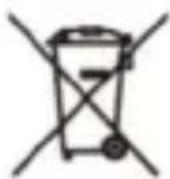

Electric and electronic equipment and included batteries contains materials, components and substances that can be hazardous to your health and the environment, if the waste material (discarded electric and electronic equipment and batteries) is not handled correctly.
Electric and electronic equipment and batteries is marked with the crossed out trash can symbol, seen above. This symbol signifies that electric and electronic equipment and batteries should not be disposed of with other household waste, but should be disposed of separately.
As the end user it is important that you submit your used batteries to the appropriate and designated facility. In this manner you make sure that the batteries are recycled in accordance with legislature and will not harm the environment.
All cities have established collection points, where electric and electronic equipment and batteries can either be submitted free of charge at recycling stations and other collection sites, or be collected from the households. Additional information is available at the technical department of your city.
Hereby, Inter Sales A/S declares that the radio equipment type MP-1820BT BLACK is in compliance with Directive 2014/53/EU. The full text of the EU declaration of conformity is available at the following internet address: www.denver-electronics.com/red-directives/difrnce-mp1820BT
Operating Frequency Range: 2402-2480GHz Max Output Power: 3.30dBm
Warning: Lithium battery inside
INTER SALES A/S
Omega 5A, Soeften
DK-8382 Hinnerup
Denmark