USER MANUAL Mixtour Reloop
AIIn-One Controller with Audio Interface for iOS / Android / Mac for djay
QUICK START GUIDE
INSTALLATION & SETUP
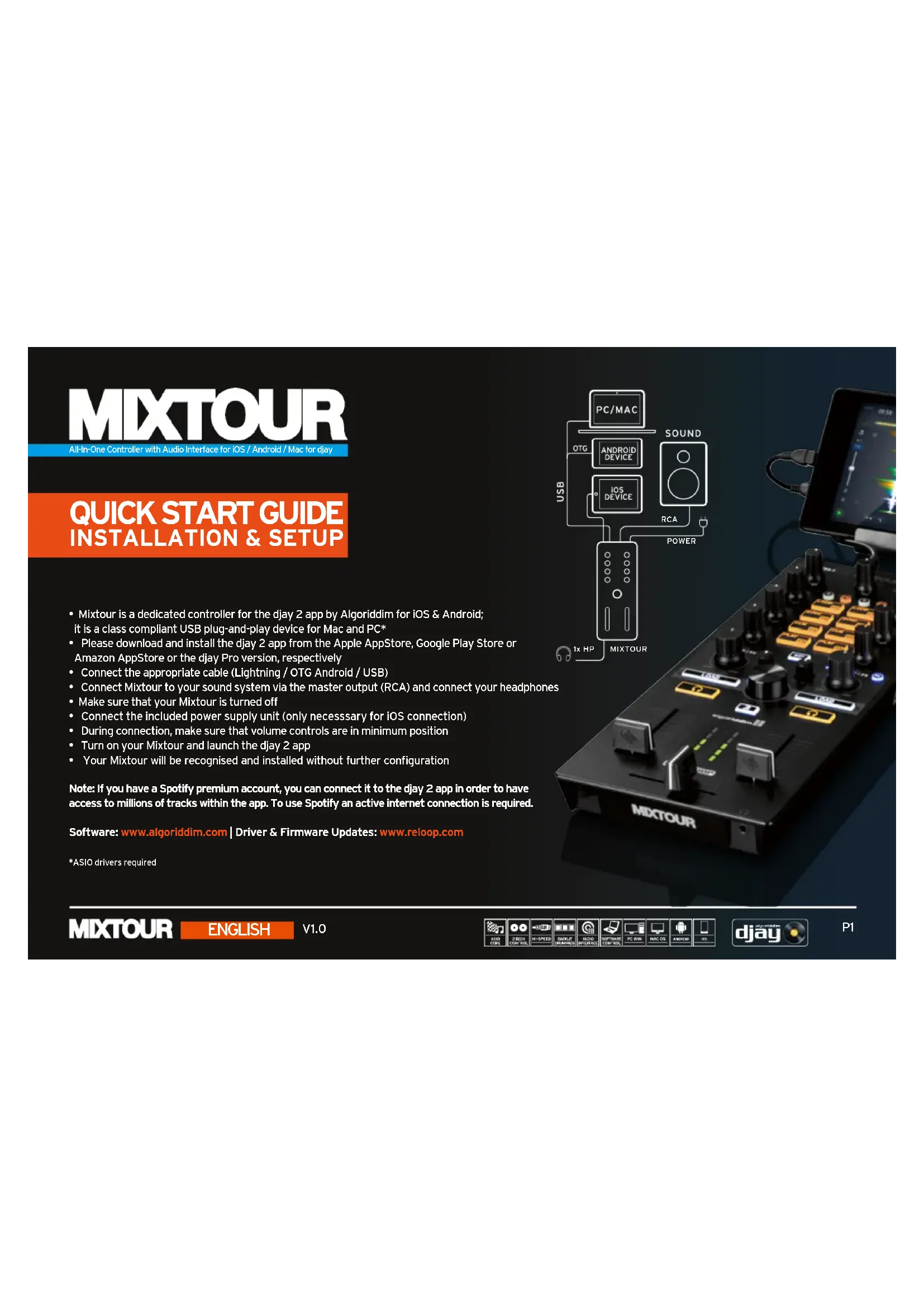
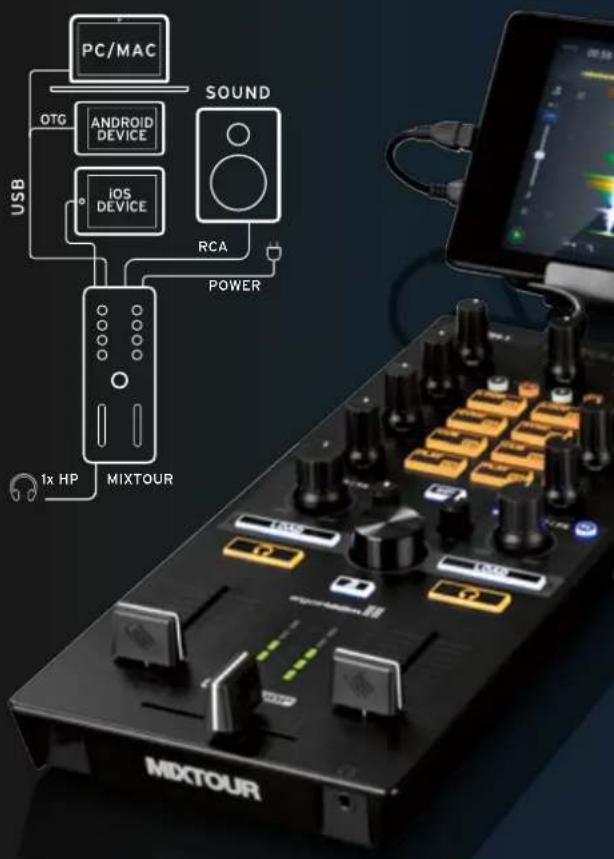
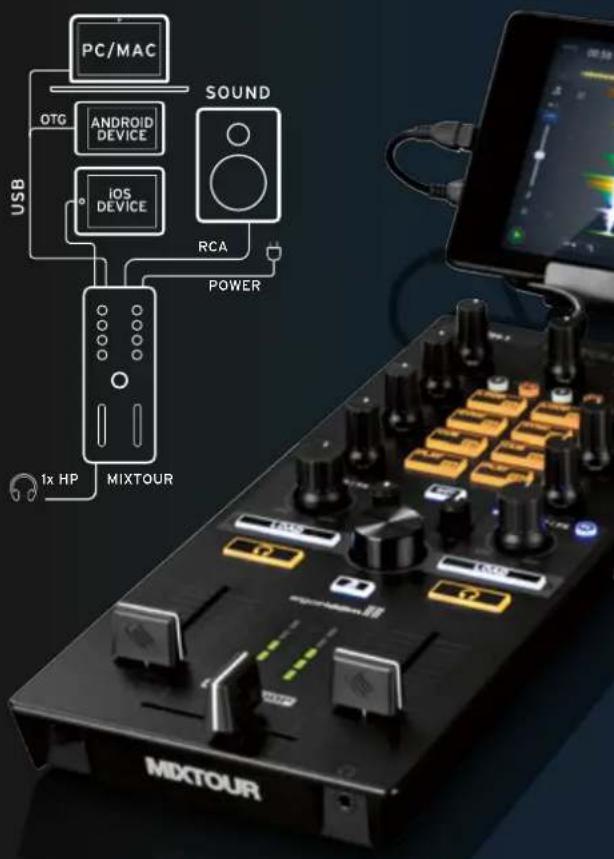
- Mixtour is a dedicated controller for the djay 2 app by Algoriddim for iOS & Android; it is a class compliant USB plug-and-play device for Mac and PC*
- Please download and install the djay 2 app from the Apple AppStore, Google Play Store or Amazon AppStore or the djay Pro version, respectively
- Connect the appropriate cable (Lightning / OTG Android / USB)
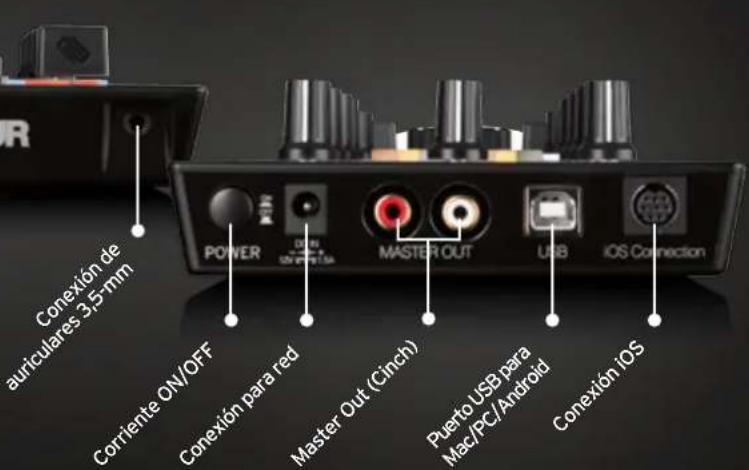
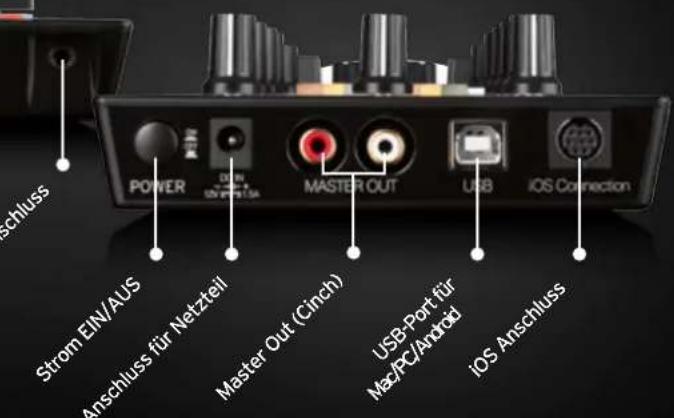
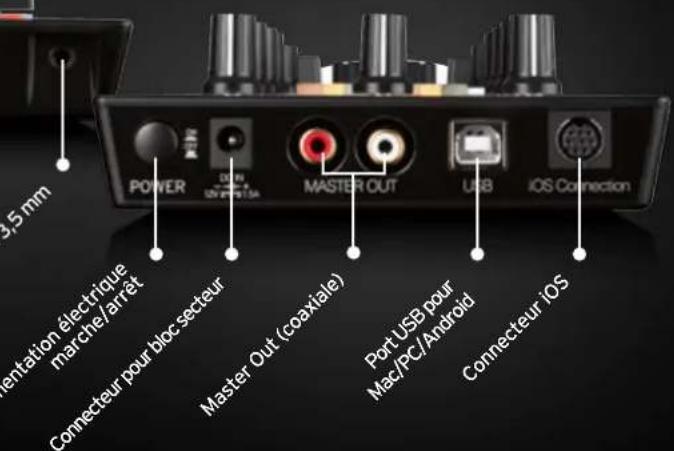
- Connect Mixtour to your sound system via the master output (RCA) and connect your headphones
Make sure that your Mixtour is turned off
- Connect the included power supply unit (only necessary for iOS connection)
- During connection, make sure that volume controls are in minimum position
- Turn on your Mixtour and launch the djay 2 app
- Your Mixtour will be recognised and installed without further configuration
Note: If you have a Spotify premium account, you can connect it to the djay 2 app in order to have access to millions of tracks within the app. To use Spotify an active Internet connection is required.
Software: www.algorlddlm.com | Driver & Firmware Updates: www.reloop.com
*ASIO drivers required
QUICK START GUIDE
MIXER SECTION
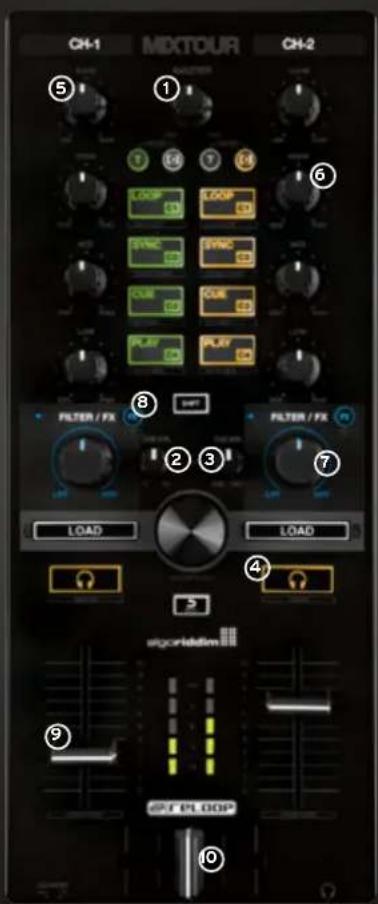
- MASTER Controls the master output volume.
- CUE VOL. Controls your headphones volume.
- CUE MIX Mixes the headphones signal between your selected channel and the master output signal.
- CUE Allows you to monitor each deck via your headphones. SHIFT + CUE left/right = Preview/Queue Preview: Lets you directly monitor the currently selected track in your playlist without having to load it. Queue: Loads the track into the waiting queue tab.
- GAIN Fine adjusts the input volume for each deck.
- EQ Controls the high, mid and low frequencies.
- FILTER This effect filters out high frequencies (turn left) or low frequencies (turn right). The blue LED will light up when the Filter is adjusted.
- FILTER FX Adds an effect to the Filter. The chosen effect can be selected within the Effect 1 slot for each deck.
- LINEFADER Adjusts channel volume. SHIFT+LINEFADER = FADER-START: Hold SHIFT and bring up a linefader to automatically start the track from the temporary cue point. Bring the line fader down and the track returns to the temporary cue point and goes into pause mode.
- CROSSFADE ENables you to fade between your decks.
QUICK START GUIDE
NAVIGATION SECTION
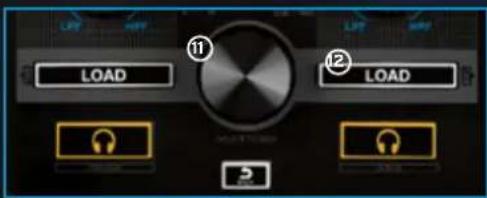
- TRACK SELECT Use the Track Select Encoder to browse through your iTunes / Spotify library.
- LOAD 1/2 Press 1 or 2 to load tracks onto either deck. SHIFT ^+ LOAD1/2: Herewith you can jump between the various media library tabs.
TRIGGER CUE & TRANSPORT SECTION
- AUTO LOOP By pressing, it becomes instantly active, according to the length. Pressing again deactivates auto loop.
SHIFT+AUTO LOOP = HALF LOOP: Divides loop length in half.
-
SYNC Sync automatically matches a track to the BPM of the other deck. SHIFT+SYNC = DOUBLE LOOP: Doubles the loop length of the current active loop.
-
CUE Pressing CUE will take you to the last set cue point. If no cue point was set, one will now be set automatically at the current paused position. SHIFT+CUE = SET GRID: Sets a grid point at the selected position.
- PLAY/PAUSE Press to launch and pause your track. SHIFT+PLAY/PAUSE = RETURN TO START: Returns to the start of the track.
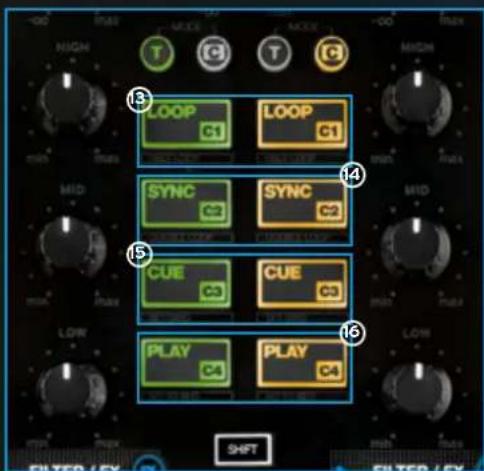
TRANSPORT MODE (T) (LEDs = ORANGE)
HOT CUE MODE (C) (LEDS = GREEN)
Press a pad to set a HOT CUE (C1-C4) & trigger when set.
Press SHIFT+CUE (C1-C4) to delete a HOT CUE.
QUICK START GUIDE
FURTHER FUNCTIONS
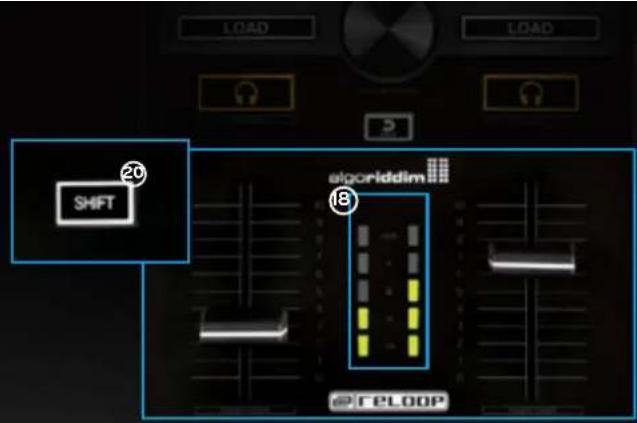
- VU-METER Shows the current level of either deck PFL or master signal.
- VU-METER SWITCH Toggles the VU-Meter between PFL and master metering.
- SHIFT When the SHIFT-button is pressed, a different function is accessible.
CONNECTIONS
APPENDIX
Reloop Mixtour also offers 3rd Party software support like VirtualDJ and Traktor Pro. ASIO drivers and latest mappings are available on www.reloop.com
Mac, Mac OS, iTunes and iPod are registered trademarks of Apple Inc., registered in the U.S. and other countries. iOS is a trademark or registered trademark of Ciscooin the U.S. and other countries, where it is used under license. Windows, Windows Vista and DirectXound are registered trademarks of Microsoft Corporation in the United States and/or other countries. All other trade marks are the property of their respective owners and use of them does not imply affiliation with or endorsement by them.
MIXTOUR
AIIn-One Controller with Audio Interface for iOS / Android / Mac for djay
QUICK START GUIDE
INSTALLATION & SETUP
Mac, Mac OS, iTunes and iPod are registered trademarks of Apple Inc., registered in the U.S. and other countries. iOS is a trademark or registered trademark of Cisco in the U.S. and other countries, where it is used under license. Windows, Windows Vista and DirectX2 are registered trademarks of Microsoft Corporation in the United States and/or other countries. All other trade marks are the property of their respective owners and use of them does not imply affiliation with or endorsement by them.
MIXTOUR
AIIn-One Controller with Audio Interface for iOS / Android / Mac for djay
QUICK START GUIDE INSTALLATION & SETUP
*ASIO drivers required
QUICK START GUIDE
SECTION MIXER
Mac, Mac OS, iTunes and iPod are registered trademarks of Apple Inc., registered in the U.S. and other countries. iOS is a trademark or registered trademark of Cisco in the U.S. and other countries, where it is used under license. Windows, Windows Vista and DirectX2 are registered trademarks of Microsoft Corporation in the United States and/or other countries. All other trade marks are the property of their respective owners and use of them does not imply affiliation with or endorsement by them.
MIXTOUR
AIIn-One Controller with Audio Interface for iOS / Android / Mac for djay
QUICK START GUIDE INSTALLATION & SETUP
*ASIO drivers required
QUICK START GUIDE
SECCIONDEMEZCLA
Mac, Mac OS, iTunes and iPod are registered trademarks of Apple Inc., registered in the U.S. and other countries. iOS is a trademark or registered trademark of Ciscooin the U.S.and other countries, where it is used under license. Windows, Windows Vista and DirectXound are registered trademarks of Microsoft Corporation in the United States and/or other countries. All other trade marks are the property of their respective owners and use of them does not imply affiliation with or endorsement by them.