DKR 2000 BT DAB+ - Radio GRUNDIG - Free user manual and instructions
Find the device manual for free DKR 2000 BT DAB+ GRUNDIG in PDF.


User questions about DKR 2000 BT DAB+ GRUNDIG
0 question about this device. Answer the ones you know or ask your own.
Ask a new question about this device
Download the instructions for your Radio in PDF format for free! Find your manual DKR 2000 BT DAB+ - GRUNDIG and take your electronic device back in hand. On this page are published all the documents necessary for the use of your device. DKR 2000 BT DAB+ by GRUNDIG.
USER MANUAL DKR 2000 BT DAB+ GRUNDIG
Output: DC 6.0V =2.0A 12.0W
Hardware-Version: REV1.0
CD-Gerät
Freqenzgang: 30 Hz ... 20 kHz
B×H×T:296×77×202,5mm
Gewicht ca.: 1,4 kg
Please read this user manual first!
Dear Valued Customer,
Thank you for preferring this Grundig appliance. We hope that you get the best results from your appliance which has been manufactured with high quality and state-of-the-art technology. For this reason, please read this entire user manual and all other accompanying documents carefully before using the appliance and keep it as a reference for future use. If you handover the appliance to someone else, give the user manual as well. Follow the instructions by paying attention to all the information and warnings in the user manual.
Remember that this user manual may also apply to other models. Differences between models are explicitly described in the manual.
Meanings of the Symbols
Following symbols are used in various sections of this user manual:

Important information and useful hints about usage.

WARNING:Warnings against dangerous situations concerning the security of life and property.
Please note the following instructions when setting up the system:
This device is designed for the playback of audio signals. Any other use is expressly prohibited.
Make sure the device is protected from dripping or splashing water.
- Do not place any vessels such as vases on the device. These may be knocked over and spill fluid on the electrical components, thus presenting a safety risk.
- Do not place any naked flames such as candles on the device.
Only use the device in a moderate climate.
- Ensure that the device is adequately ventilated by placing it at least 10cm from any other object. Do not cover the device with newspapers, table cloths, curtains, etc.
If malfunctions occur due to static electricity charges or fast transient (burst), reset the device. To do this, pull out the power plug and connect it again after a few seconds.
- When deciding where to place the device, please note that furniture surfaces are covered by various types of varnish and plastic, most of which contain chemical additives. These additives can corrode the device supports, leaving residues on the furniture surfaces which can be difficult or impossible to remove.
- Do not use any cleaning agent, as this may damage the casing. Clean the device with a clean, dry cloth.
- Never open the device casing. The manufacturer will not accept any liability for damage resulting from improper handling.
Make sure the power plug is freely accessible.
- Do not put or insert any foreign bodies on the disc tray or into the CD compartment of the device.
- Bringing the device in from the cold can cause condensation on the CD lens, which prevents it from playing. Give the device time to warm up.
The CD mechanism contains self-lubricating bearings, which must not be oiled or greased.
The light source of this product is not replaceable; when the light source reaches its end of life the whole luminaire shall be replaced. if the external flexible cable or cord of this
luminaire is damaged, it shall be exclusively replaced by manufacturer or his service agent or a similar qualified person in order to avoid a hazard.
Attention should be drawn to the environmental aspects of battery disposal.
DO NOT INGEST THE BATTERY, CHEMICAL BURN HAZARD.
Thunderstorms are a danger to all electrical devices. Even if the product is switched off, it can be damaged by a lightning strike to themains. Always remove the power plug duringa thunder storm.Do not expose the battery to extreme heat, such as for example sunlight, radiators, fire, etc.
- Keep new and used batteries out of reach of children.
If the battery compartment cannot be closed safely, do not continue to use the device and keep out of reach of children.
Caution: Danger of explosion if battery is incorrectly replaced. Replace only with the same or equivalent type.
RF Exposure Warning
This equipment must be installed and operated in accordance with provided manual. The device comprised a built-in antenna and must not be co-located or operating in conjunction with any other antenna or transmitter.
The only way to completely disconnect the device from the mains is to unplug the mains cable.
The device should be installed and operated such that a minimum separation distance of 20 cm is maintained between the radiator (antenna) and the user's or nearby person's body at all times for RF exposure safety.
The Product can be used all over EU without any restriction.
Please read the entire manualcarefully before operating this device.
| Item Description | ||
| 1 Mounting Plate for wall cupboard mount | ||
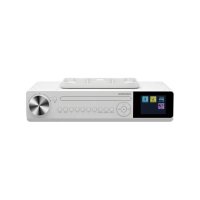
| 2 Main Device | ||
| 3 Wire Antenna for DAB/FM | ||
| 4 DC IN for DC 6V, 2A - mains adapter connection | ||
| 5 Micro USB for factory service use only | ||
| 6 Display Display the current status | ||
| 8 In CD/BI mode: Short press to beginning of track/previous track. Long press to fast backward for CD track. In DAB/FM mode: Short press to call Station List/Fine Tune+. Long press to search previous FM station. In Menu/Option page: Short press to previous option. | ||
| 18 | OK -/+ | Rotates the knob: adjust the volume. Confirms the setting: In DAB/FM mode: Long press to enter ATS/AMS mode. In Menu page: rotates knob clockwise or anticlockwise to scoll the menu/option or adjusts option value. Short press the knob to confirm the selection. In Clock Alarm mode: Short press the knob to enter snooze mode. |
| 19 | Left Bass Radiator | |
| 20 | Right Bass Radiator | |
| 21 | Lighting Bar | |
| 22 | Left Loud Speaker | |
| 23 | Right Loud Speaker |
OVERVIEW - REMOTE CONTROL
Install battery into remote control unit
1 Use your thumb to press the lid of the battery compartment and pull it out. Install 2 × AAA type 1.5V battery into the battery compartment, taking care to insert it with the right polarity and position.
- Risk of explosion if battery replaced by an incorrect type. Dispose of used batteries according to the instructions.
Caution:
Do not ingest the battery, Chemical Burn Hazard.
- Keep new and used batteries away from children. If the battery compartment does not close securely, stop using the product and keep it away from children.
- If you think batteries might have been swallowed or placed inside any part of the body, seek immediate medical attention.
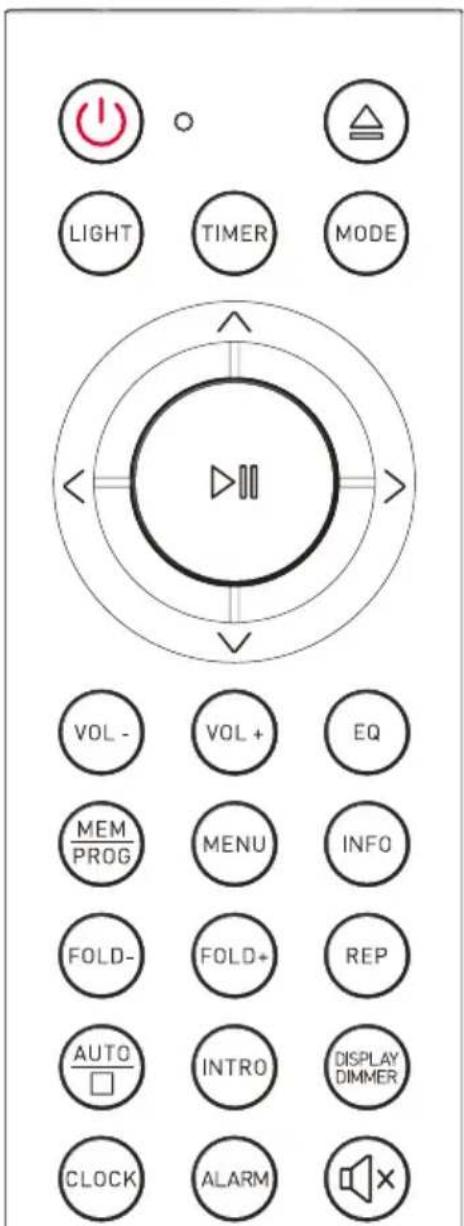
GRUNDIG
| Short press long press | ||
| ① | Power On/ Off (Standby) | - |
| △ | Disc tray Open/Close | |
| LIGHT | ||
| TIMER | ||
| MODE | ||
| ^ | DAB: Call next station | - |
| FM: Manual tune+ | Auto tune a station (low) | |
| BT: nil - | ||
| CD: nil - | ||
| Menu/Op- tion move up | - | |
| √ | DAB: Call previous sta- tion | - |
| FM: Manual tune- | Auto tune a station (high) | |
| BT: nil - | ||
| CD: nil - | ||
| Menu/Op- tion move down | - | |
| ◇III | DAB/FM: nil ATS/AMS | |
| BT: Play/ Pause | - | |
| CD: Play/ Pause | Fast forward | |
| Menu/Op- tion: Enter/ Move right | - | |
| < | DAB: nil - | |
| Radio: Man-ual tune+ | Auto tune a station (high) | |
| BT: Next track | - | |
| CD: Next track | Fast forward | |
| Menu/Option: Enter/Move right | - | |
| > | DAB: nil - | |
| Radio: Man-ual tune+ | Auto tune a station (high) | |
| BT: Next track | - | |
| CD: Next track | Fast forward | |
| Menu/Option: Enter/Move right | - | |
| VOL- | Volume level step decrease | Volume level decrease |
| VOL+ | Volume level step increase | Volume level increase |
| EQ | Switch Equal-ize to next option | - |
| MEM/PROG | DAB/FM: Recall preset listCD: Save program tracks | Recall save to preset listOpen pro-gram tracks |
| MENU | DAB/FM/ BT/CD: Call/Exit mode menu | - |
| INFO | DAB/FM: Information switch | - |
| BT: Status/ Date switch | - | |
| CD: Informa-tion switch | - | |
| FOLD - | CD: select Previous folder | - |
| FOLD + | CD: select Next folder | - |
| REP | CD: Switch Repeat mode | - |
| AUTO /☐ | DAB: nil DAB: ATS | |
| FM: Auto tune next sta-tion | FM: AMS | |
| BT: nil - | ||
| CD: Stop - | ||
| INTRO | CD: Introdu-c-tion/Cancel play | - |
| DISPLAY DIMMER | Display back-light level set (low/Mid/High) | - |
| CLOCK | Call option: Time/Date set | - |
| ALARM | Call Alarm menu/Alarm Stop | - |
| ☐× | Volume mute - | |
The device is designed to be mounted on the underside of a wall cupboard or shelf unit. You will need the four supplied screws to mount the device.
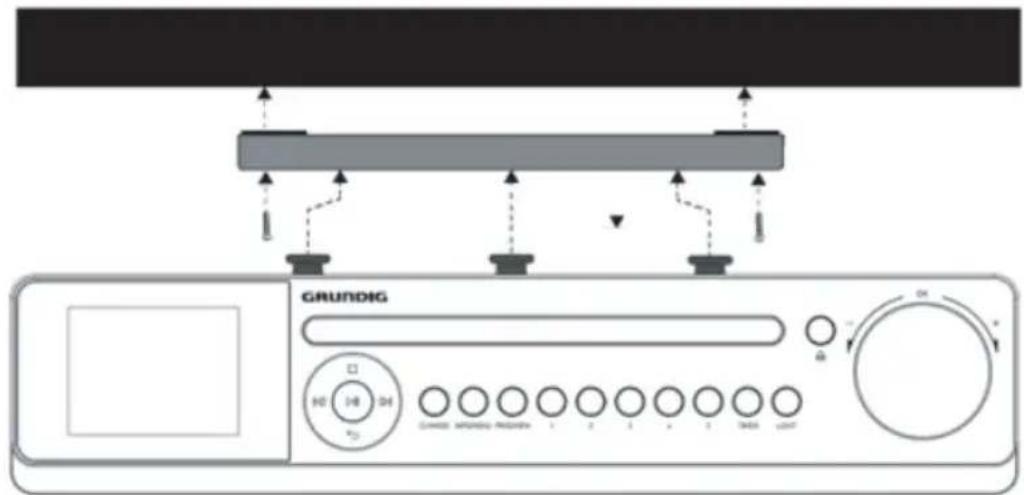
1 Select a space close to a mains power socket.
2 Remove the bracket from the device by pulling it to the rear.
3 The installation height of device should be less than 2m
4 Use the bracket to mark the drill holes.
5 Check that the position is correct using the device.
6 Drill four holes where you made your markings on the underside of the shelf unit in order to fix the screws.
7 Screw the mounting bracket to the bottom of the cupboard or shelf.
8 Now place the device retaining pins onto the mounting bracket and carefully push it back until it stops.
Warning!
- Never mount the device above a hob or any other heat or steam source (for example, electric kettles, etc.).
Never allow the mains cable to hang over a cooker hob or other heat source.
Adjusting/Fixing the antenna (wire type)
The number and quality of broadcast stations depends on the reception conditions at the location of the device as well as the radio antenna. Optimum reception can be achieved with the wire type antenna when it is fixed and placed at the right position.
1 Precise alignment of the wire type antenna is important, especially in the fringe areas of the DAB/ FM reception. Check the position of the nearest radio mast at your region could need.
2 Then locates the wire type antenna facing the radio mast if possible
3 Attach the main wire of antenna run horizontally to the cupboard or shelf by the provided wire fixer (4pcs). (See below example picture).
4 Radio reception may be restricted in bad weather.

Device's mains power connection and settings
Mains adapter connection - first installation
Place the connection cable's DC plug in the socket DC IN, 6V = 2A and the mains adapter into a properly installed 230V ~ 50Hz earthed power socket which is accessible at all times.
1 When the device is connected power at first time, the device starts at the standby mode.
- Display:
and then <00:00 (blinking) > and - In background operation, the device starts to search DAB and FM radio stations for auto time sync function.
2 The time will be updated automatically in minutes.
- Display: < Current Time and Date (if available) >.
Note:
If the radio station signal is too weak, the time will not be sync. In this case, the blinking < 00:00> and < Time is not set > will keep show on the display.
Then the time need consider be set manually.
Tuning and storing radio stations (DAB and FM) – first installation
When the device is connected to power source for the first time or after factory reset; as defaulted the Auto Tuning System will start to scan the whole DAB bandwidth. The device will then scan the FM waveband. The time is updated automatically.
1 Once power source is connected, the device starts at the standby mode. (when you use the device for the first time)
2 Long press the 1 / MODE* button, for 3 seconds, to switch the device on.
3 The device starts the Auto Tuning System functions to scan the whole DAB bandwidth and stores the found stations in the station list (program list).
4 After the full scan processing completed, the device is used DAB mode and the first received station for listen.
5 Rotates the OK knob to / + on product or press VOL- / VOL+ on remote control to set the desired volume level when necessary.
Storing DAB radio stations to presets
After the automatic station search, all radio stations will be stored in the station list (program list). You can store your favored DAB radio stations into presets memory 1-30.
In DAB mode, short press the / button on product or / on remote control to open the station list menu directly.
- Display: Station list.
2 Select the desired station (e.g. BBC 6 Music) by / or rotates the OK knob, short press the OK to confirm.
3 The selected station is used as current station.
-Display:e.g. < BBC6Music >
4 Now, long press the PROG/MEM to open the < Save to Preset > menu.
- Display: Save to Preset < 1 - 30 . (Contents) >.
5 Then choose the desired preset number (e.g. 4. Empty) by or rotates the OK knob, short press the OK to confirm.
- Display: < Preset 4 saved >.
6 Repeat the same steps 1-5 for complete the others desired stations which you want to preset.
Note:
button on remote control is same function as OK< button on product.
Store preset 1, 2, 3, 4 or 5
Directly store to preset
1 When you found a favored DAB or FM station during listen.
2 You can simply long press one of the number buttons (1, 2, 3, 4, or 5) to directly store the listening station into preset memory.
- Display: < Preset (Number) stored >.
3 You can use this function whatever you want, however the previous record will be overwritten if used.
Access preset 1, 2, 3, 4 or 5
Directly access preset
1 In DAB/FM mode, short press one of the number buttons (1, 2, 3, 4, or 5) to directly access the favored DAB/FM stations stored in
presets memory for listen.
2 The device switch to the selected preset station at same time.
Programming DAB radio stations - manually
1 In DAB mode, long press the INFO/MENU button on product or short press MENU button on remote control to open the menu.
2 Select the option < Manual tune > by «√» « or rotates the OK knob, short press the OK to confirm.
-Display: e.g. < 5A 174.928MHz - 13F 239.200MHz > (list of channel and frequency of a DAB radio station).
3 Select the desired channel/frequency by or rotates the OK knob, short press the OK to confirm.
-Display: < the signal strength (Selected channel's signal quality)
4 Short press the OK again to confirm.
5 The DAB radio station of the selected channel will be stored into Station list (program list).
Note:
button on remote control is same function as OK button on product.
Tuning and storing FM radio stations
1 In FM mode, long press the OK on product or AUTO / on remote control button to start the Auto Memory Station (AMS) directly.
- The automatic station scan starts and searches the FM waveband and store the first 30 radio stations as presets 1 to 30 (if available).
2 After the scanning process completed, the device set the first received station for listen.
Note:
You can select whether the device will scan radio stations with Strong Station Only or All Stations from the menu of FM mode. To do this;
3 Long press the >INFO/MENU « or short press >MENU « button to open the menu.
4 Select the option «Scan Setting« by «/» or rotates the OK knob, short press the OK to confirm.
- Display: and
.
5 Select the desired option (e.g. Strong Station Only) by / or rotates the OK knob, short press the OK to confirm.
6 To close the menu, short press the >INFO/MENU « or »MENU « button.
7 And now, long press the OK button to start the Auto Memory Station (AMS) again for scan the FM waveband and store the first 30 radio stations with a strong signal as presets 1 to 30 (if available).
or
8 Long press the / / / / / button to search the available previous/next radio station.
- The automatic station search starts and stops at the previous/next station with a strong signal.
or
Press briefly the / / / or / button until you have found the frequency you want. (The frequency changes in steps of 0.05MHz )
Note:
button on remote control is same function as OK< button on product.
Tuning and storing DAB and FM radio stations - after a removal
After the automatic station search, all radio stations will be stored in the station list (program list). That is reasonable, if you will use the device in another place or search for new DAB radio stations.
1 Long press the / ODE* button, for 3 seconds, to switch the device on.
2 Short press the × / MODE button to open the mode menu.
- Display:
.
3 Select the DAB / FM mode icon by / / or rotates the OK knob, short press the OK to confirm.
4 In DAB / FM mode, long press the OK or AUTO / button to start the Auto Tuning System directly.
- The automatic station scan starts for searches and stores the radio stations.
5 After the scanning process completed, the device set the first received station of DAB/FM for listen.
Note:
> button on remote control is same function as OK button on product.
Updating the time - automatically
The device will update the time automatically, when a time signal is received for a DAB/FM station.
General functions
Switching On and Off
1 Long press the / MODE< button, for 3 second, to switch the device On/Off (standby).
Adjusting the volume
1 Rotates the OK knob to - / + on product or press VOL - / VOL + on remote control to set the volume level.
- Display: < The current volume > (shown for 2 seconds).
Mute the volume
1 Short press the button to mute the volume.
2 Short press the button again to resume volume from mute mode.
DAB mode
Note:
-
按钮 on remote control is same function as OK<按钮 on product.
Selecting DAB mode
1 To select the DAB mode, short press the MODE< button to open the mode menu.
- Display: < Mode Select Interface >.
2 Then press / / or rotates the OK knob to select DAB icon and short press OK button to enter mode.
- Display: < DAB interface>.
Selecting DAB radio station
1 To select the desired station from the station list, short press the / / or / button to open the station list.
- Display: < Station List >.
2 Then press / / or rotates the OK knob to select the desired station and short press the OK to confirm.
3 The device switch to the desired station at same time.
Displaying DAB station information
1 To display information on the current DAB station, short press the INFO/MENU button on product or INFO button on remote control repeatedly.
-Display: The following display appears in succession: Information from the provider (e.g. the title of the song, the e-mail address), the signal strength, the genre, the ensemble (e.g. BR Bayern), the current channel and frequency, the bit rate, the broadcasting format, the current time and date.
Setting Dynamic Range Control (DRC) for DAB stations
When you activate Dynamic Range Control, you can hear lower sounds better in a loud environment.
1 In DAB mode, long press INFO/MENU or short press 已 button to open the DAB menu.
2 Rotates the OK knob or press / to select the option DRC and short press the OK to confirm.
- Display: < High, Low and Off > .
3 Select the desired option (e.g. High) by rotates the OK knob or press OK/ and short press the OK to confirm.
4 Option select closed and back to menu, you can see High (yellow highlighted) show behind the DRC option.
Note:
The DAB station must support DRC.
FM mode
Note:
button on remote control is same function as OK button on product.
Selecting FM mode
1 To select the FM mode, short press the MODE< button to open the mode menu.
- Display: < Mode Select Interface
2 Press / / or rotates the OK knob to select the FM mode icon and short press OK button to confirm.
- Display: < FM radio interface >.
Selecting stored stations
1 Short press the PROG/MEM button to open the preset recall menu.
- Display: < Preset Recall > and < number: Frequency (list) >.
2 Select the station's frequency you want by rotates the OK knob or press / and short press the OK to confirm.
3 The device switch to the selected station at same time.
Displaying RDS station information
RDS (Radio Data System) is an information system which is transmitted additionally by most FM stations.
Note:
It may take some time before all RDS information is available. GRUNDIG has no influence on the correctness of such information.
1 Short press the INFO/MENU or INFO button repeatedly to display information on the current FM station.
- Display: The following display appears in succession: The name of the radio station, radio text (if offered), station type (PTY), the signal strength, the frequency, mono/stereo, the current time and date.
Note:
按钮 on remote control is same function as OK button on product.
You can use Bluetooth to play tracks wirelessly from external devices such as the MP3 players or mobile phones with Bluetooth on this device.
Selecting BT mode
1 Short press the / / MODE* button to open the mode menu.
- Display: < Mode Selects Interface >.
2 Select the Bluetooth mode icon by press / / or rotates the OK knob and short press the OK button to confirm.
- Display: < Bluetooth Searching >.
Connecting Bluetooth devices
1 Now enable the Bluetooth function on your external device and carry out the pairing process. Refer to the instructions for your external device for more information. This device system's name is "Grundig DKR 2000".
2 The pairing process is now complete, and the external device can now be used with the kitchen radio.
- Display: < Bluetooth Connected >.
3 Start the Bluetooth audio streaming playback from the external device by related player.
4 Rotates the OK knob or press VOL- / + on remote control to set the desired volume level when necessary.
5 To stop audio steaming via Bluetooth, either switch off the Bluetooth function on the external device or switch the kitchen speaker return to DAB/FM/CD/Standby mode as wish.
Note:
For the best results, adjust the external device's volume to maximum, then uses the kitchen speaker's volume control as main volume level adjustment.
Disconnect from paired external device (for new pairing)
1 Long press the button to disconnect the Bluetooth connection directly, in this case, the Kitchen device will switch back into Bluetooth Searching mode.
- Display: < Bluetooth Searching >.
2 Now you can pair the Kitchen Radio with another external device as want to.
Note:
In Bluetooth mode, the kitchen speaker will be switched back to standby mode in 15 minutes if the Bluetooth function is in disconnected mode or no operation activity.
General Control
You can control how tracks are played and the volume range on your external device and on the kitchen radio. In principle, these buttons on the device are intended for control via Bluetooth:
| OK knob | - | Rotates anti-clockwise to reduce volume. |
| + | Rotates clockwise to increase volume. | |
| Buttons | III | Short press to pause/resume playback. |
| «« | Short press to previous file. (If you use Apple Music APP to play music, short press to playback current file from beginning, Short press twice to previous file.) | |
| »I | Short press to playback next file. |
You also can control when you use remote control.
| Buttons | VOL- | Short press to reduce volume. |
| VOL+ | Short press to increase volume. | |
| ▷III | Short press to pause/resume playback. | |
| < | Short press to previous file. (If you use Apple Music APP to play music, short press to playback current file from beginning, Short press twice to previous file.) | |
| > | Short press to playback next file. |
Using CDs
The device is suitable for music CDs displaying the logo shown here (CD-DA) and for CD-Rs and CD-RWs with audio data.
- When burning CD-R and CD-RW with audio files, various problems may arise which could lead to interference in playback. This can be caused by faulty software or hardware settings or by the CD being used. Should such problems arise, contact the customer services of your CD burner or software manufacturer or look for relevant information, for example on the Internet. When you are making audio CDs, observe all legal guidelines and ensure that the copyright of third parties is not infringed.
Always keep the CD tray closed to prevent dust from collecting on the laser optics. Do not attach adhesive labels to CDs. Keep the surfaces of CDs clean. You can play standard 12 cm CDs on your device. An adapter is not necessary.
CD-DA
Selecting the CD mode and playback
1 Short press the × 1 / MODE< button to open the mode menu.
- Display: < Mode Select Interface >.
2 Select the CD mode icon by press / or rotates the OK knob and short press the OK to confirm.
- Display: < CD Interface > .
3 Short press the button to slide the disc tray out from compartment.
Note:
The button control function is disabled if not in CD mode.
4 Insert a CD into disc tray with its label side facing upwards.
5 Short press the button to slide the disc tray back into compartment and the CD will be loaded and reading automatically.
6 After the reading, the CD playback is starting automatically.
- Display: < Track, Time plays >; < information (if available)/Date >.
Playback and Stop
1 Short press the button to pause during playback. Short press the button again to resume playback.
2 Short press the button to stop playback.
Play current track from beginning (Repeating current track)
1 During track playback, short press the or button the track is repeated from the beginning.
Selecting another track (Previous/Next)
1 During playback, short press or keep pressing the / button until the number of the track you want to hear appears in the display. or
2 On remote control, use the / button to do so.
3. The selected track (file) starts playback automatically.
Fast Backward/Forward (Searching for a passage within a track)
1 During playback, long press the / / or / button until you find the passage you want to hear.
- Playback starts from selected passage when you release the button.
Program a track memory and playback a track memory
You can create a track memory of up to 20 tracks for the current CD in any order you choose and then play them back in that sequence. A track may be stored more than once. Program is only possible in the CD stop mode.
1 In CD stop mode, long press the PROG/MEM button to call up the program function.
-Display: < P1TO1>.(T01 flashes)
2 Then, select a track (e.g. T03) by short press the / / / or / > button. And then, short press the PROG/MEM button to save the selected track into program (P01).
- T03 is programmed into P01.
-P02 show up for next program track and the previous programmed track flashes (e.g. T03).
Maximum 20 programs allow saving by in order (P01-P20).
3 To save more tracks, repeat steps 2 to 3.
4 When the desired program tracks completed, short press the button to confirm.
5 Once confirm, the programs playback be starting automatically with the first programmed track or file until all programmed tracks playback have finished.
- The track memory programs will keep and show again in display once playback finished, it can reuse and/or for change if you want to.
6 Short press the button to playback again the programs if you want to.
or
7 Press the button to end the program track function
Adding tracks - Program track
During track memory keep show in display and 20 programs memory is not fully utilized, and then you can continue to add the desired tracks and save them in the remaining program memory.
1 During track memory keep show in display;
-Display:e.g. < PO8T12>(T12 flashes)
2 Which display show P08 ~ P20 are not programmed, you can select an additional track by short press the «/» or «/» button. And then short press the «PROG/MEM« button to save the selected track into program (P08).
3 Repeat steps 2 to 3 to save more additional tracks as you desired.
4 Short press the button or OK knob to confirm.
5 Once confirm, the programs playback be starting automatically.
Note:
Same track can be stored into different program number if you want to repeat that track even more times.
Changing the track selection - Program track
1 During track memory keep show in display;
-Display:e.g. < P08T12>.(T12 flashes)
2 Short press the PROG/MEM button repeatedly can switch the program's number cyclery (e.g. from P01 to P08).
3 Then you can change or regroups those tracks and programs as you desired by short press the «/» or «/» button and short press the PROG/MEM« button to do so.
Deleting the track memory (To end program memory)
Press the button:
- While in programming.
- Program is in playback.
Repeat Mode (Repeating track)
The CD function provided track's repeat function (no repeat, repeat one, repeat all and repeat all random) can be set. Repeat function is only possible on Remote Control.
1 During playback, short press REP< button repeatedly on remote control to select the desired repeat mode;
Repeat 1 (Repeating track)
If repeat 1 selected.
- Display: < symbols = Repeat 1 >.
2 The selected repeat mode starts immediately at the same time.
Repeat all (Repeating all tracks)
If repeat all selected.
- Display: < symbols = Repeat all >.
2 The selected repeat mode starts immediately at the same time.
Random all (Playing tracks in random order)
If random selected.
- Display: < symbols = Repeat all >.
2 The selected repeat mode starts immediately at the same time.
To end repeat mode (Back to in-order playing tracks)
1 To end the repeat mode function, short press REP button repeatedly on remote control until all repeat symbols disappear on display.
2 The playback is back to normal (in-order plays method) at the same time.
Intro (Playing tracks introduction)
The CD function provided 10 seconds introduction tracks play. INTRO function is only possible on Remote Control.
Start Intro playback
1 During playback, short press the INTRO button on remote control to start the introduction.
- Display:
2 All tracks will play for 10 seconds each track by in order.
3 Let device playback until finished or press the button to quit this function.
To end the intro playback
1 During INTRO playback, short press the INTRO button again on remote control to end the introduction function.
2 The playback is back to normal from the current playing track.
Note:
The INTRO function is disabled if random function is in using.
MP3 Disc
The device is suitable for CDRs and CD-RWs with MP3 and WMA file formats.
In MP3 mode, the terms
"album" and "file" are very important. "Album" corresponds to a folder on a PC, "File" to a file on a PC or a CD-DA track. The device reads MP3 files with a maximum of 255 files per album. An MP3 CD may not contain more than 512 files or albums in total.
When burning CD-R and CD-RWs with audio files, various problems may arise which could lead to interference in playback. This can be caused by faulty software or hardware settings or by the CD being used. Should such problems arise, contact the customer services of your CD burner or software manufacturer or look for relevant information, for example on the Internet. When you are making audio CDs, observe all legal guidelines and ensure that the copyright of third parties is not infringed.
MP3 Disc playback
1 In CD mode, Short press the button to slide the disc tray out from compartment.
2 Insert a MP3 disc into disc tray with its label side facing upwards.
3 Short press the button to slide the disc tray back into compartment and the CD will be loaded and reading automatically.
4 After the reading, the CD playback is starting automatically.
Display: < Folder, Track, Time plays > and < ID3 information (if available)/Date>.
Playback and Stop
1 Short press the button to pause playback during playback. Short press the button again to resume playback.
2 Short press the button to stop playback.
Note:
In CD mode, the kitchen speaker will be switched back to standby mode in 15 minutes if the CD function is in disconnected mode or no operation activity.
Selecting files
1 During playback, short press the button until the number of the file (track) file you want to hear and appears in the display.
or
2 On remote control, use the / button to do so.
3 The selected track (file) starts playback automatically.
Viewing playing file information (ID3)
1 During file (track) playback, short press the INFO/MENU or INFO button repeatedly, on main device or remote control, to view the playing file's information (if want to).
Note:
The device support to show ID3 tags/information:
- File name or No file name if no info.
- Album name or No Album if no info.
- Artist name or No Artist if no info.
- Title name or No title if no info.
- Date or Date flash if not set.
Selecting folder (album) and file (track)
The CD function provided Folder up and down selects function. Folder change function is only possible on Remote Control.
1 During playback, press the FOLD or FOLD button on remote control until the number of the folder (album) you want to hear and appears on the display.
2 The first file of selected folder (album) starts playback automatically.
3 To selects desired file (track), short press the × / button repeatedly on remote control until the desired file (track) you want to hear and appears on the display. (file information will be displaying on screen if available)
4 The selected file (track) starts playback automatically.
5 Short press the AUTO/ button to end the playback and you will see the total number of folders and files (e.g. F20 T240) are showing on display.
Note:
button on remote control is same function as OK button on product.
Cooking timer (Countdown)
The device has a cooking timer function, which allows up to 300 minutes countdown time until to alarming.
Activating the cooking timer
1 In power On mode, short press the TIMER button to open the timer menu.
- Display: < TIMER > and < 00:00 >.
2 And then, rotates the OK knob or press / to select desired minutes (00:00 ~ 300:00) you want and short press the OK button to confirm. The cooking timer is activated.
- Small timer symbol appears in status bar of screen for identify.
3 The timer interface will be come up on screen at last 60 seconds countdown for time reminding.
- Display:
4 The timer alarm will sound when the countdown time go back to 00:00.
Checking the remain time
1 In current mode interface, short press the «TIMER« button repeatedly can open and close the timer interface.
2 When the timer has set, and it opened.
Display:
Deactivating the cooking timer
1 Short press the TIMER button to open timer interface.
Display:
2 Rotates the OK knob or press / / to set the timer time back to 00:00.
or
3 Long press the MODE button to switch off (standby) the device to switch off the cooking timer early.
Sleep timer
Note: button on remote control is same function as OK button on product.
The device has a sleep timer, which switches it off at a preset time. The switch off time can be set in a range between 15 to 90 minutes or off.
Activating the sleep timer
1 In power on mode, long press the >INFO/MENU or short press >MENUb button to open the menu.
- Display: < DAB/FM/BT/CD menu >.
2 Select the option < System Settings > by rotates the OK knob or press / and short press OK button to confirm.
3 Select the option < Sleep > by rotates the OK knob or press / / and short press OK button to open the Set Sleep timer interface.
- Display: < Sleep Timer Off >.
- Option: < 15/30/45/60/90 (minutes) >.
4 Select the desired option (e.g. 60 minutes) by rotates the OK knob or press OK button to confirm. (Choose < Sleep timer Off > will deactivate the sleep timer)
5 The sleep timer is activated. To close the set menu, short press the INFO/MENU or MENU< button.
6 The small symbol with time frame appears in status bar of screen.
Deactivating the sleep timer
1 To switch off the sleep timer early, long press the MODE button on product or short press the on remote control to switch off the device.
Alarm 1/2 set
Note:
button on remote control is same function as OK button on product.
1 In DAB/FM/BT/CD mode, long press the INFO/MENU or short press MENU button to open the menu. Display: < DAB/FM/BT/CD menu >.
2 Select the option < System Settings > by rotates the OK knob or press / and short press OK button to confirm. Display: < Options>.
3 Select the option < Alarm > by rotates the OK knob or press > / > and short press OK button to open Alarm menu.
- Display: < Alarm: Alarm 1 and Alarm 2 >
Turn On the Alarm 1/2 function
1 Select the option < Alarm1/2> to set by rotates the OK knob or press / / and press the OK button to enter the option Display: Alarm 1/2 info.
2 Select the option (Alarm) by rotates the OK knob or press / and short press the OK button repeatedly to choose On. The Alarm 1/2 is activated.
Select alarm frequency
1 Select the option < Frequency > by rotates the OK knob or press / and short press the OK button to open the option.
Display: Frequency < Daily, Once, Weekends and Weekdays>.
2 Select the desired option (e.g. Daily) by rotates the OK knob or press / / and short press the OK button to confirm.
Select wake up time
1 Select the option < Wake Up time by .... rotates the OK knob or press // 1 V and short press the OK button to open .. the option.
- Display: Wake Up time < e.g. 00 : 00 > hour flashes.
2 Select the desired hours (e.g. 08:00) by rotates the OK knob or press / and short press the OK to confirm.
Display: < e.g. 08 : 00 > minute flashes.
3 Select the desired minutes (e.g. 08:30) by rotates the OK knob or press / and short press the OK to confirm.
Select alarm source
1 Select the option < Source > by rotates the OK knob or press > / > and short press the OK button to open the option.
Display: Source < Buzzer, Digital Radio (DAB) and FM>.
2 Select the desired option (e.g. Buzzer) by rotates the OK knob or press / and short press the OK button to confirm.
Select Duration
1 Select the option < Duration > by rotates the OK knob or press / and short press the OK button to open the option.
Display: duration < 15 , 30, 45, 60, 90 and 120 (minutes) >.
2 Select the desired option by rotates the OK knob or press / / and short press the OK button to confirm.
Set alarm volume
1 Select the option < Volume > by rotates the OK knob or press ^ 一 /一 and short press the OK button to open the option.
Display:
2 Rotates the OK knob or press / to select the desired volume level for alarm, and then short press the OK button to confirm. The Alarm set is completed.
3 To close the Alarm set menu, short press the INFO/MENU « or »MENU « button.
4 The Alarm1/2 is activated and the Alarm 1 and/or Alarm 2 symbol will be appearing in status bar of screen (depending on the alarm what have activated).
Interrupting the alarm (Snoopze)
Note: button on remote control is same function as OK button on product.
1 While the alarm is sound, short press the OK.
2 The alarm signal (radio station, or signal) stops.
3 The alarm signal goes on again at five-minute intervals (overall alarm duration is 30 minutes).
Note: the time interval of snooze can choose by the total number what you are press/pressing the OK button.
- Short the button once to set 5 minutes intervals.
- Short press the button twice to set 10 minutes intervals.
- Short press the button three times to set 15 minutes intervals.
- Short press the button four times to set 20 minutes intervals.
- Short press the button five times to set 25 minutes intervals.
- Short press the button six times to set 30 minutes intervals.
End the alarm
1 Short press the / ODE< button to end the alarm while it is sound.
2 The alarm signal (radio station, or signal) stops.
3 The alarm retains the set time.
Activating and deactivating the alarm
Note: button on remote control is same function as OK button on product.
1 In DAB/FM/BT/CD mode, long press the INFO/MENU or short press MENU button to open the menu.
Display: < DAB/FM/BT/CD menu >.
2 Select the option < System Settings by rotates the OK knob or press / and short press OK button to confirm.
Display: < options > .
3 Select the option < Alarm > by rotates the OK knob or press > / > and short press OK button to open Alarm menu.
Display: < Alarm: Alarm 1 and Alarm 2 >.
4 Select the option < Alarm 1 > or < Alarm 2 > you want by rotates the OK knob or press // and short press the OK button to open the option wizard menu.
Display: < ALARM 1/2 info. >
5 Select the option < Alarm > by rotates the OK knob or press > / > and then short press the OK button repeatedly can select On and Off.
- Select On to activating the Alarm 1/2 function.
Select Off to deactivate the Alarm 1/2 function.
6 To close the Alarm set menu, short press the INFO/MENU « or »MENU « button.
Equaliser
Switching Equaliser
1 To select different EQ effects, simply short press the EQ button repeatedly on remote control until the satisfy EQ effect is heard.
or
2 On main device, open the < System settings > menu > choose < Equaliser > - > choose option < Normal, Classical Jazz Pop, Rock or Speech > which is desired and short press the OK button to confirm.
Lighting
Switching the lighting On/Off
1 Short Press the LIGHT button to switches the integrated lighting on the underside of the device on or off.
Note: This light is only designed for the presentation of foodstuffs and not for room lighting.
Changing Language
Note: button on remote control is same function as OK button on product.
1 In DAB/FM/BT/CD mode, long press the INFO/MENU or short press MENU button to open the menu.
Display:
2 Select the option < System Settings > by rotates the OK knob or press / and short press OK button to confirm.
Display: < Options > .
3 Then select the option < Language > by rotates the OK knob or press / and short press the OK to confirm.
Display: < Current used Language >.
4 Select the desired language by rotates the OK knob or press / and short press the OK to confirm.
5 Short press the INFO/MENU or MENU button to end menu and back to mode interface.
Adjust the display lighting settings.
Note: button on remote control is same function as OK button on product.
1 In DAB/FM/BT/CD mode, long press the INFO/MENU or short press MENU button to open the menu.
Display: < DAB/FM/BT/CD menu >.
2 Select the option < System Settings > by rotates the OK knob or press / and short press OK button to confirm.
Display: < Options >
3 Select the option < Backlight > by rotates the OK knob or press / and short press the OK to confirm.
Display:Backlight < Options>
Time Out
4 Rotates the OK knob or press / to select option < Time Out > and short press the OK to confirm.
Display: < On, 10, 20, 30, 45, 60, 90, 120 or 180 seconds >.
5 Select the desired option by rotates the OK knob or press / / and short press the OK to confirm. (Choose On to deactivate the time out)
On Level
6 Rotates the OK knob or press / to select option < On Level > and short press the OK to confirm.
Display: < Low, Medium and High >.
7 Select the desired option by rotates the OK knob or press / / and short press the OK to confirm.
Dim Level
8 Rotates the OK knob or press / / to select option < Dim Level> and short press the OK to confirm.
Display: << Low, Medium and High>.
9 Select the desired option by rotates the OK knob or press / and short press the OK to confirm.
10 The display lighting setting is completed. Short press the INFO/MENU or MENU button to close the menu.
Call up the software version
Note: button on remote control is same function as OK button on product.
1 In DAB/FM/BT/CD mode, long press the INFO/MENU or short press MENU button to open the menu.
Display: < DAB/FM/BT/CD menu >.
2 Select the option < System Settings by rotates the OK knob or press / and short press OK button to confirm.
Display: < Options > .
3 Select the option < SW version > by rotates the OK knob or press / and short press the OK to confirm.
Display: < current version number >.
4 Short press the INFO/MENU or MENU button to close the menu.
Deleting all settings (Reset)
Note: button on remote control is same function as OK button on product.
1 In DAB/FM/BT/CD mode, long press the INFO/MENU or short press MENU button to open the menu.
Display: < DAB/FM/BT/CD menu >.
2 Select the option < System Settings by rotates the OK knob or press / and short press OK button to confirm.
Display: < Options >
3 Select the option < Factory Reset > by rotates the OK knob or press / and short press the OK to confirm.
Display: < Factory Reset? > and < Yes No > .
4 Select the option < Yes > by rotates the OK knob or press / and short press the OK to confirm.
Display: < Restarting > appear for seconds
5 The device will turn back to standby automatically.
Removing DAB radio stations from the program list
Note: button on remote control is same function as OK button on product.
If you move to a different part of the country, you should remove DAB radio stations, which are no longer available from the program list.
These DAB radio stations are marked with "?"
1 In DAB mode, long press the INFO/MENU « or short press >MENU« button to open the Digital Radio menu.
Display: Digital Radio < Options >
2 Select the option < Prune Invalid > by rotates the OK knob or press / and short press the OK to confirm.
Display: < Proceed to prune the invalid station? ≥ and < Yes No >
3 Select the option < Yes > by rotates the OK knob or press > / > and short press the OK to confirm.
4 The prune invalid function is done. Short press the INFO/MENU or MENU button to close the menu.
Time/Date settings
Note: button on remote control is same function as OK button on product.
1 In DAB/FM/BT/CD mode, long press the INFO/MENU « or short press » MENU « button to open the menu.
Display: < DAB/FM/BT/CD menu >
2 Select the option < System Settings> by rotates the OK knob or press / and short press OK button to confirm.
Display: < Options > .
3 Select the option < Time/Date > by rotates the OK knob or press > / > and short press the OK to confirm.
Display: Time/Date < Options>
Set 12 or 24 hours
4 Select the option < Set 12/24 hour > by rotates the OK knob or press / and short press the OK button to confirm.
Display: < 12 hour and < 24 hour
5 Select the desired clock format (12 hour or 24 hour) by rotates the OK knob or press / and short press the OK to confirm.
Set Date Format
6 Select the option < Set Date Format > by rotates the OK knob or press / and short press the OK button to confirm.
Display: < DD-MM-YYYY > and < MM-DD-YYYY > .
7 Select the desired date format by rotates the OK knob or press / and short press the OK to confirm.
Clock Style
8 Select the option < Clock Style > by rotates the rotates the OK knob or press / / √ and short press the OK button to confirm.
Display: Clock style < Normal Digital, Big Digital, Classic Analog, Modern Analog >.
9 Select the desired clock style by rotates the OK knob or press / and short press the OK to confirm.
Auto Update
The device will normally update the time automatically, when a time signal is received. You can select from which source (DAB, FM) the update starts, or you can disable this function.
10 Select the option < Auto Update by rotates the OK knob or press / and confirm by short press the OK to confirm.
Display: < from Any, from Digital Radio, from FM and No Update >.
11 Select the desired source by rotates the OK knob or press / and short press the OK button to confirm. (choose < No update > if you want to disable the auto time update function)
12. Short press the INFO/MENU or MENU button to close the menu.
If a fault occurs, first see whether you can resolve the problem yourself. You might find this overview useful.
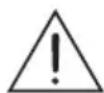
CAUTION! Risk of injury!
Opening the device can cause injuries.
| Fault Possible cause/action | |
| GENERAL INFORMATION No function | - If the device has been disrupted by a thunderstorm, a static charge or another external factor, follow this procedure to resolve the problem: Disconnect the mains adapter and then plug it in again. |
| No sound - The volume may be set too low or in mute mode. - In Bluetooth mode: Set the volume of the external device to the maximum and then control the volume using the kitchen radio. | |
| RADIO Poor radio reception | - Weak radio signal. Adjust the wire antenna to optimize the radio reception. - Interference from electrical devices such as television, neon lamps, computer etc. - If necessary, select another location to improve the radio signal. |
| BLUETOOTH No connection | - Take care to ensure that all settings have been made correctly on all devices. The Bluetooth® function may be deactivated on the external device. Activate this, if necessary. - Check whether the device to be connected is switched on and is in search mode. |
| CD No playback or reading error | - The CD may be damaged or dirty. |
| Skipping tracks - A stored track memory is being played. | - The RANDOM function is activated. |
| CD-Rs or CD-RWs are not being played back, or being played back incorrectly | - The CD is faulty, or the software or hardware settings were incorrect during burning. |
| MP3 MP3 CD plays too fast or slowly | - The sampling frequency of 44.1 kHz was not used. |
Compliance with the WEEE Directive and Disposing of the Waste Product:
This product complies with EU WEEE Directive (2012/19/EU). This product bears a classification symbol for waste electrical and electronic equipment (WEEE).
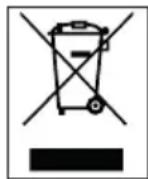
This symbol indicates that this product shall not be disposed with other household wastes at the end of its service life. Used device must be returned to official collection point for recycling of electrical
and electronic devices. To find these collection systems please contact to your local authorities or retailer where the product was purchased. Each household performs important role in recovering and recycling of old appliance. Appropriate disposal of used appliance helps prevent potential negative consequences for the environment and human health.
Compliance with RoHS Directive
The product you have purchased complies with EU RoHS Directive (2011/65/EU). It does not contain harmful and prohibited materials specified in the Directive.
Package information

Packaging materials of the product are manufactured from recyclable materials in accordance with our National Environment Regulations. Do not dispose of the packag
ing materials together with the domestic or other wastes. Take them to the packaging material collection points designated by the local authorities.
Technical data
This device is noise-suppressed according to the applicable EU directives.
This product fulfils the European directives 2014/53/EU, 2009/125/EC and 2011/65/EU.
Never open the device casing. The manufacturer will not accept any liability for damage resulting from improper handling.
You can find the CE declaration of conformity for the device in the form of a pdf file on the Grundig Homepage www.grundig.com/downloads/doc.
The type plate is located on the bottom of the device
Power supply
AC Adaptor
Manufacturer: Dongguan Guanjin Electronics Technology Co., Ltd.
Model: K15V060200G
Input: 100 - 240V^ 50 / 60Hz 0.45 A
Output: DC 6.0V =2.0A 12.0 W
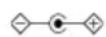
Average active efficiency: 83.51%
Efficiency at low load (10%) .. 80.92%
No-load power consumption: 0.06W
Power Output:
DIN 45324, 10% THD 2X3 W
Display :
2.4'' Color TFT, White backlight
Max. power consumption:
Operating < 12W , Stand-by < 1.0W
Another condition < 1.0W
LED Power: 2W
Frequency band:
DAB/DAB+ Band III: 174.928 - 239.200 MHz
FM: 87.5 - 108.0 MHz, support RDS
Bluetooth: 2.402 - 2.480 GHz
Station Memory:
DAB/DAB+: 30presets, FM: 30presets
Maximum transmitted power:
Bluetooth: < 5dBm
Bluetooth:
Version: 5.0
Firmware version: SW020
Hardware version: REV1.0
CD unit
Frequency response: 30Hz ... 20kHz
Noise voltage ratio: ≥ 96 dBA
MP3/WMA Folder and track:
Max. 256 folders and 999 tracks per CD
File system/folder management:
ISO 9660 Level 1 compatible
Remote Control :
Control Range: Max. 5 meters linear distance
Battery: Size AAA, DC 1.5V x 2 pcs
Operating Humidity: 40 - 85%
Operating Ambient Temperature:
10-40°C
Dimension and weight:
W×H×D:296×77×202.5mm
Weight approx.: 1.4kg
Technical and design modifications reserved.
General information on laser devices
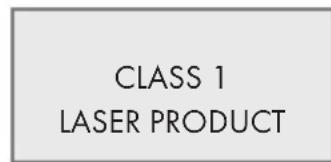
This device is a CLASS1 LASER PRODUCT. This means that the laser is designed in such a way as
to ensure that the maximum permissible emission value cannot be exceeded under any circumstances.
Caution:
If operating devices or methods other than those specified here are employed, it may lead to dangerous exposure to emissions.
This device emits laser radiation. Because of the danger of eye injuries, the unit may only be opened or serviced by trained personnel.
If settings other than those stated here are used or other procedures are carried out, this may lead to dangerous exposure to radiation.
Chere cliente, cher client,