ANMR18HA - Television LG - Free user manual and instructions
Find the device manual for free ANMR18HA LG in PDF.



| Product Type | Magic Remote Remote Control |
| Brand | LG |
| Model | AN-MR18HA |
| Power Supply | 2 AA 1.5V alkaline batteries |
| Operating Frequency | 2.400 GHz to 2.4835 GHz |
| Maximum Output Power | 4 dBm |
| Number of Channels | 40 |
| Operating Temperature Range | 0°C to 40°C |
| Maximum Range | 10 meters |
| Main Functions | On-screen pointer, voice recognition, OK wheel, navigation keys, volume and channel control, quick access to apps |
| Maintenance and Cleaning | Clean with a soft, dry cloth. Do not use chemicals. |
| Safety | Do not expose batteries to excessive heat. Do not disassemble batteries. Observe polarity. |
| Spare Parts | AA alkaline batteries (not included with the product) |
| Repairability | No user-serviceable parts. In case of malfunction, contact customer service. |
| Included Accessories | Remote control, AA alkaline batteries, user manual |
Frequently Asked Questions - ANMR18HA LG
User questions about ANMR18HA LG
0 question about this device. Answer the ones you know or ask your own.
Ask a new question about this device
Download the instructions for your Television in PDF format for free! Find your manual ANMR18HA - LG and take your electronic device back in hand. On this page are published all the documents necessary for the use of your device. ANMR18HA by LG.
USER MANUAL ANMR18HA LG
Please read this manual carefully before using your remote and retain it for future reference.
AN-MR18HA
Accessories
The remote control image shown may differ from the actual product. (Depending on country)
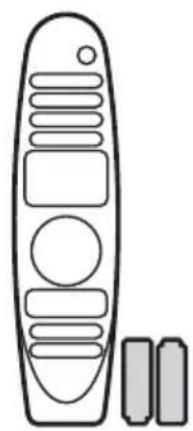
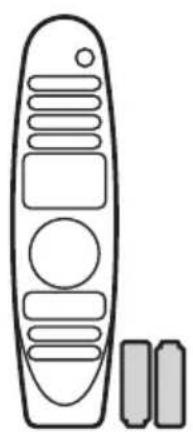
Magic Remote and Alkaline Batteries (AA) Owner's manual

- Contents in this manual may be changed without prior notice due to upgrade of product functions.
Battery
1. Installing Batteries
Please read this manual carefully.
-
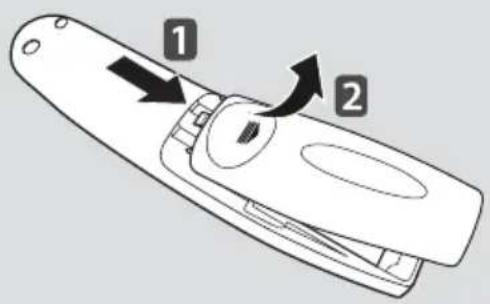
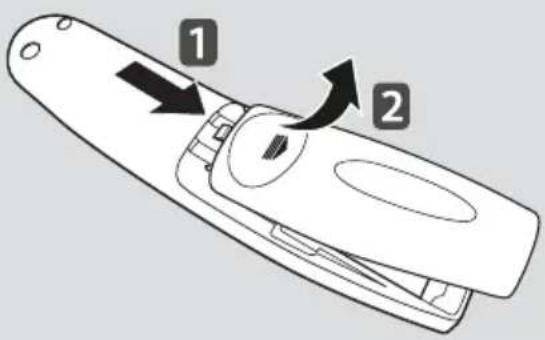
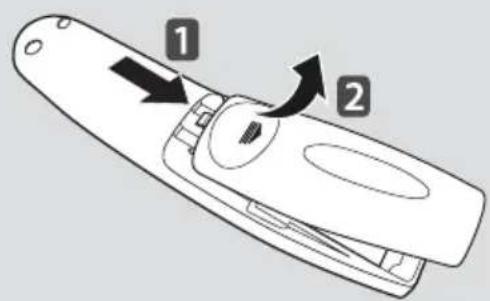
Press the top of the battery cover, slide it back, and lift the cover as shown below.
To replace batteries, open the battery cover, replace alkaline batteries (1.5 V, AA) matching ^+ and ends to the label inside the compartment, and close the battery cover. Be sure to point the remote control at the remote control sensor on the TV. -
To remove the batteries, perform the installation actions in reverse. Don't mix old or used batteries with new ones. Close the cover securely.
- Open the battery cover to find the label.
2. Precautions
- After replacement of the batteries, pair the remote control and use it in accordance with user manual.
- If the unit does not operate after replacement of batteries, reattempt pairing in accordance with the user manual.
-
If the remote controller is not being used for prolonged period of time, remove the batteries from the unit.
-
Do not dismantle or expose the batteries to heat.
-
Do not drop or exert extreme impact on the batteries. This may cause the case to be damaged.
- Do not immerse the batteries in water.
- There is danger of explosion if batteries are inserted incorrectly.
- Properly dispose of used batteries.
- Failure to match the correct polarities of the battery may cause the battery to burst or leak, resulting in fire, personal injury, or ambient pollution.
Remote Description
- The remote control image shown may differ from the actual product.
The order of description may differ from the actual product. -
Some buttons and services may not be provided depending on models or regions.
-
To use the button, press and hold for more than 3 seconds.
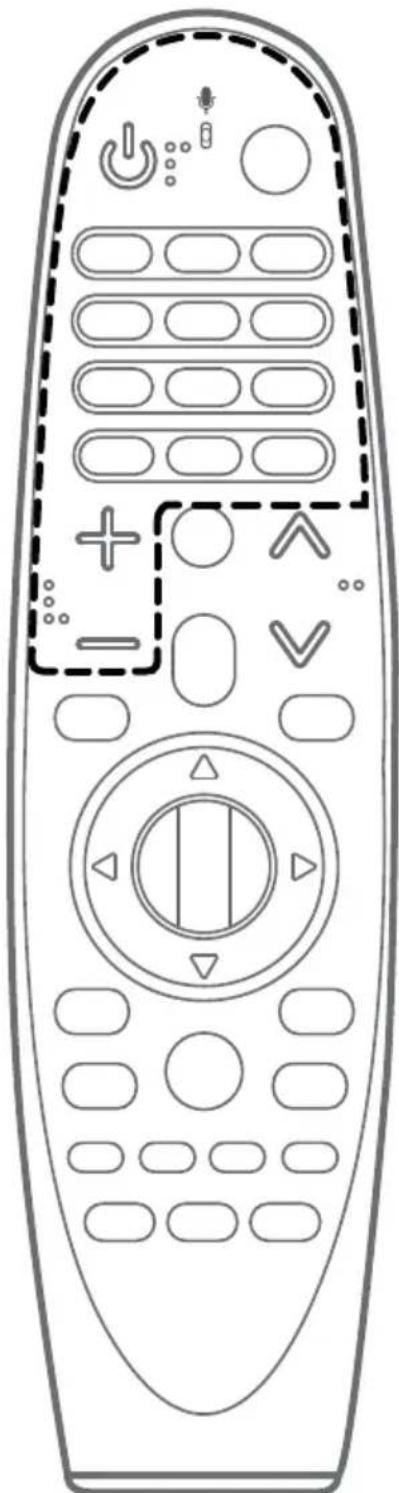
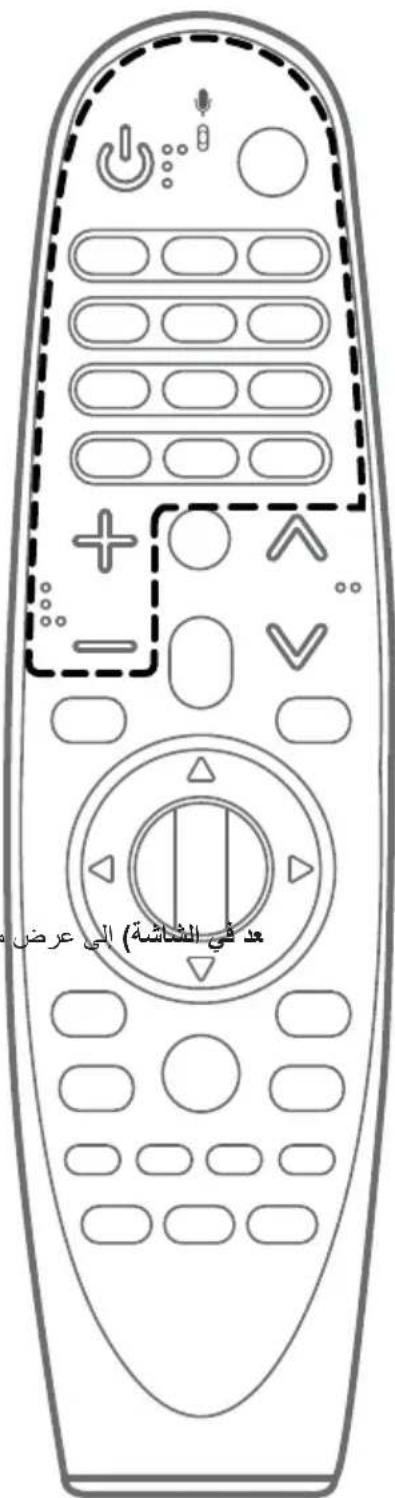
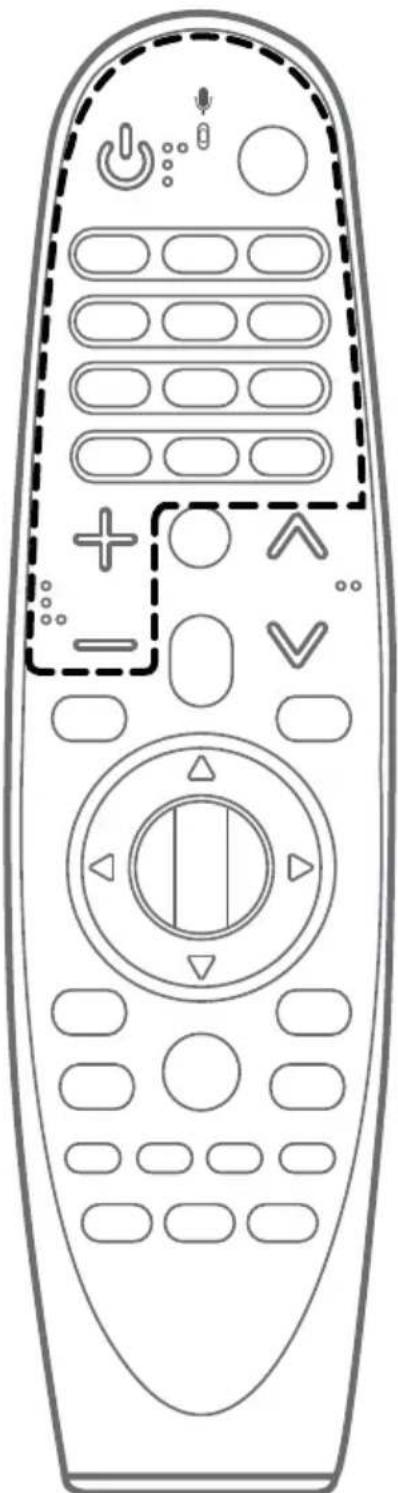
(Power)
Turns the TV on or off.
Input)
Changes the input source.
Number buttons
Enters numbers.
(Dash)
Inserts a (Dash) between numbers such as 2-1 and 2-2.
LIST
Accesses the saved channels or programmes list.
Screen Remote)
Displays the Screen Remote.
Accesses the Universal Control Menu in some regions.
QUICK ACCESS*
You can access the application or Live TV channel by using the number buttons as registered. (Depending on country)
AD*
Audio descriptions function will be enabled.
- Pressing and holding the (Screen Remote) button displays the SAP (Secondary Audio Programme) feature. (Applicable to North America)
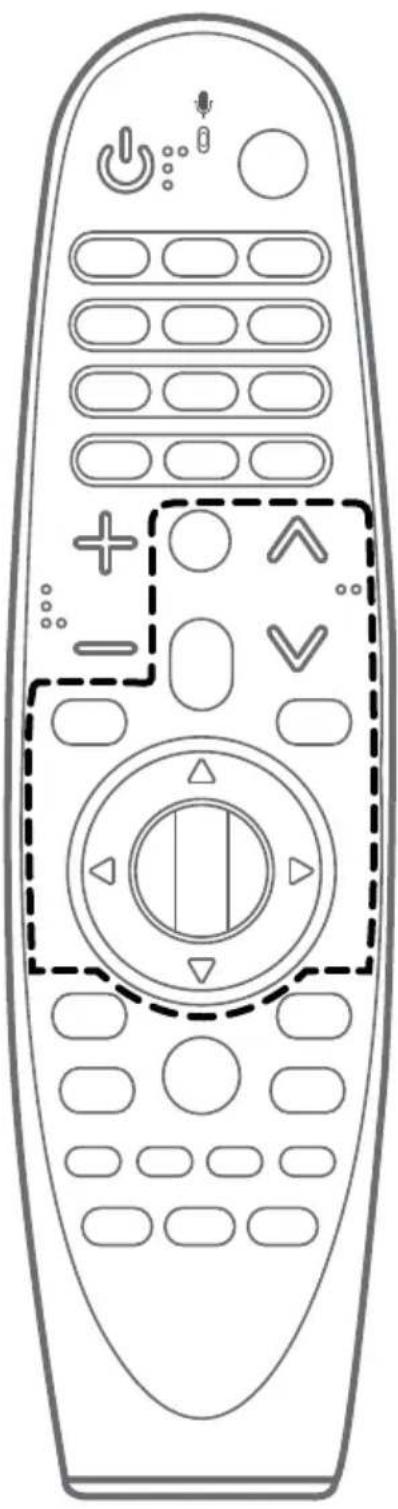
+VOL/△=
Adjusts the volume level.
(Mute)
Mutes all sounds.
\* (Mute)
Accesses the Accessibility menu. (Depending on country)
CH/P
Scrolls through the saved channels or programmes.
PORTAL
Displays and removes hotel interactive menu.
\* (Voice Recognition)
Once the voice display bar is activated on the TV screen, press and hold the button and speak your command out loud.
Network connection is required to use the voice recognition function.
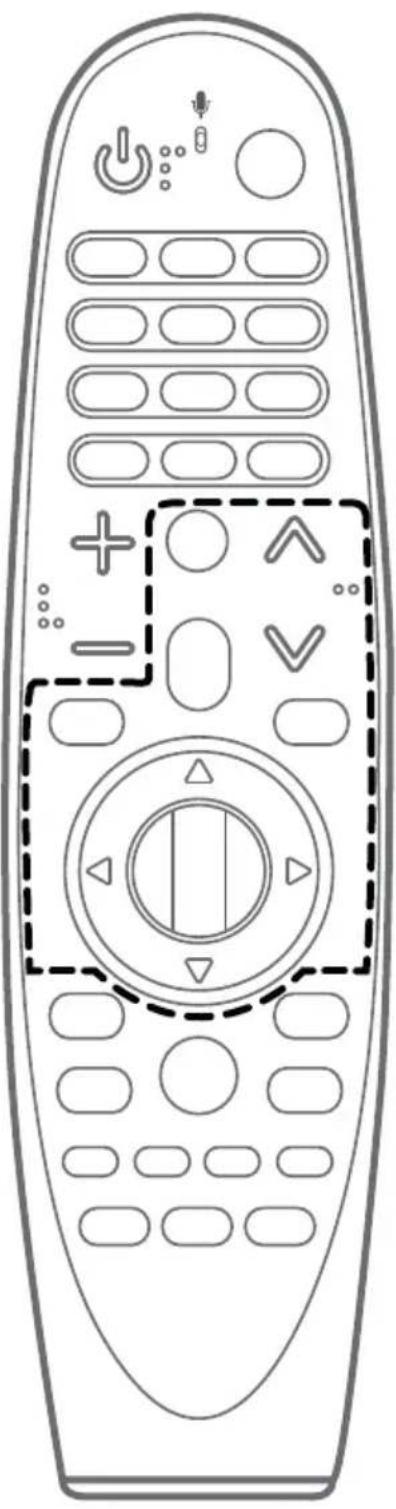
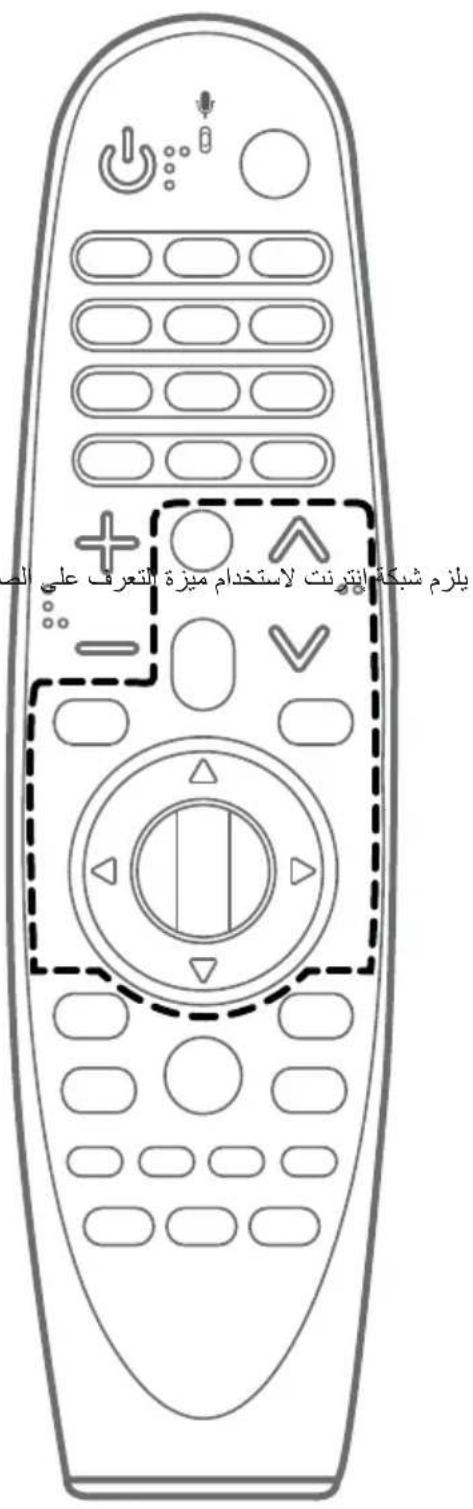
(Q.Settings)
Accesses the quick settings.
\* (Q.Settings)
Displays the All Settings menu. (Depending on country)
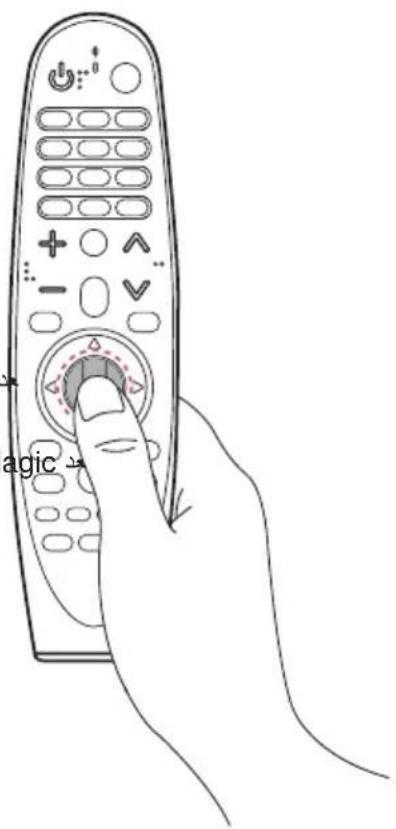
Wheel (OK)
Press the center of the Wheel (OK) button to select a menu.
You can change channels or programmes by using the Wheel (OK) button.
△ (up/down/left/right)
Press the up, down, left, or right button to scroll the menu.
If you press (\triangle \triangle \triangle \triangle \triangle \triangle \triangle \triangle \triangle \triangle \triangle \triangle \triangle \triangle \triangle \triangle \triangle \triangle \triangle \triangle \triangle \triangle \triangle \triangle \triangle \triangle \triangle \triangle \triangle \triangle \triangle \triangle \triangle \triangle \triangle \triangle \triangle \triangle \triangle \triangle \triangle \triangle \triangle \triangle \triangle \triangle \triangle \triangle \triangle \triangle \triangle
To display the pointer on the screen again, shake the Magic Remote to the left and right.
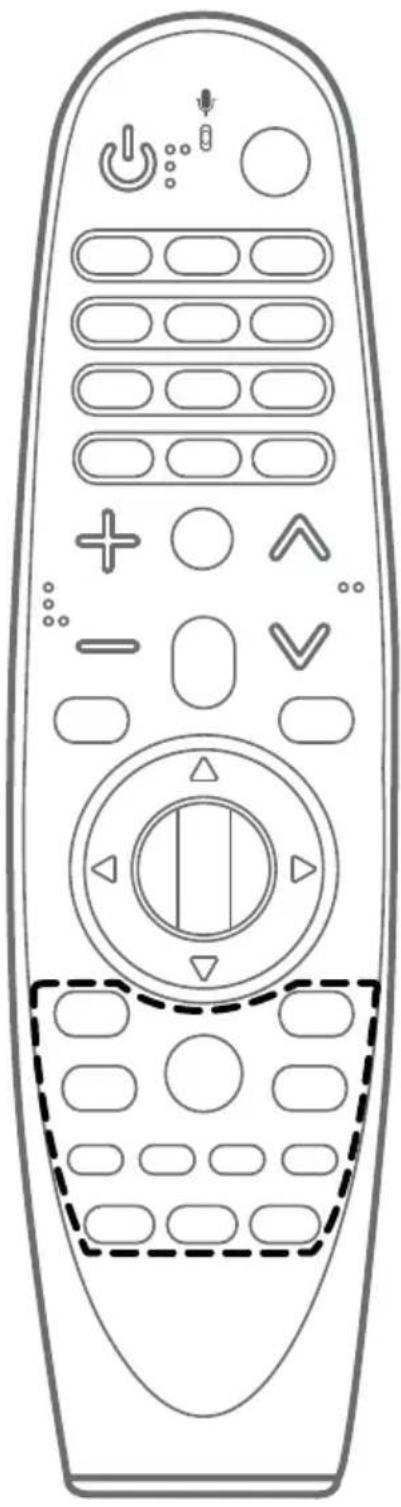
BACK
Returns to the previous level.
BACK*
Clearly on-screen displays and returns to last input viewing.
GUIDE
Shows channels or programmes guide.
CAPTION
Activates or deactivates the subtitles.

(Home)
Accesses the Home menu.

* (Home)
Shows the previous history. (Depending on country)
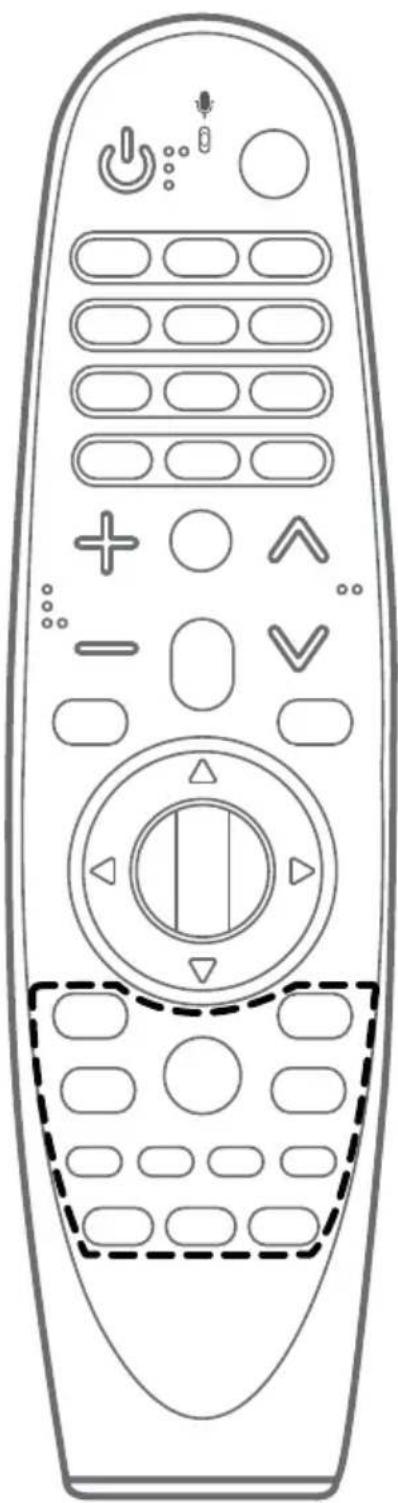
RATIO
Resizes an image.
① INFO
Shows information on the current programme.
Coloured buttons
These access special functions in some menus.

rol buttons (▶,II)

m = 311
Controls media contents.
TEXT / T.OPT (Teletext Buttons)
These buttons are used for teletext.
SUBT. (Subtitles)
Recalls your preferred subtitle in digital mode.
Using
1. How to Register (Pair) or Deregister (Unpair)
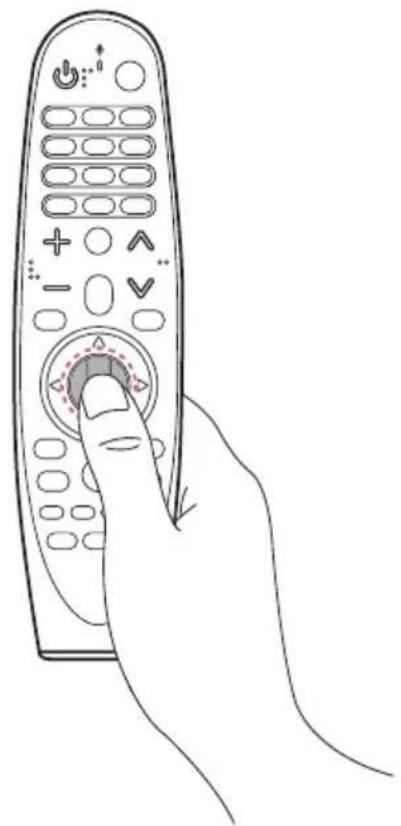
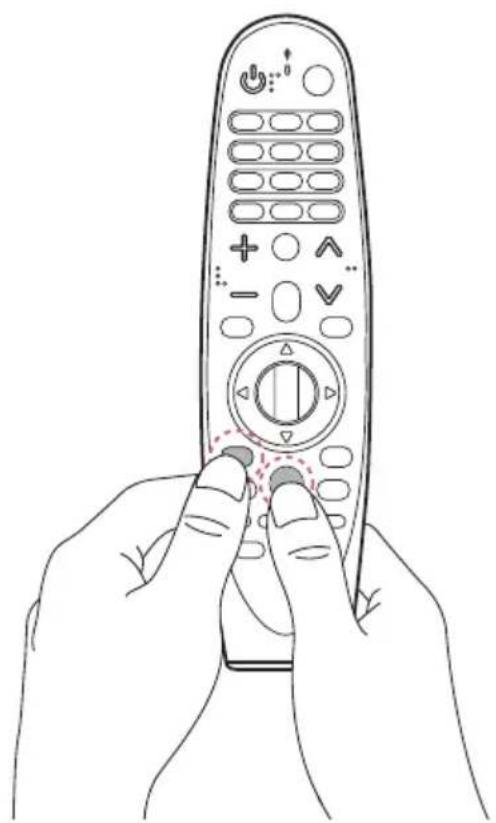
How to Register (pair) the Magic Remote
To use the Magic Remote, first pair it with your TV.
1 Put batteries into the Magic Remote and turn the TV on.
2 Point the Magic Remote at your TV and press the Wheel (OK) on the remote control.
- If the TV fails to register the Magic Remote, try again after turning the TV off and back on.
How to Deregister (unpair) the Magic Remote
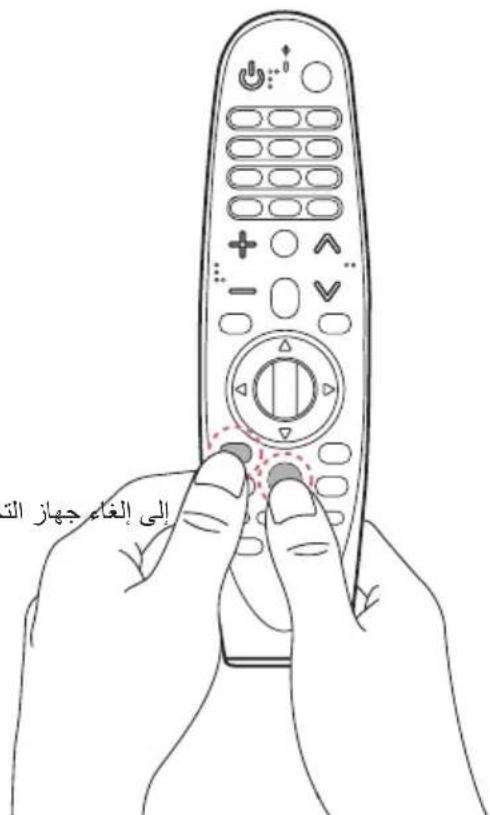
Press and hold the ome) and butts at the same time for five seconds, to unpair the Magic Remote with your TV.
- Pressing and holding tGUIDE button will let you cancel and re-register Magic Remote at once.
2. How to Use

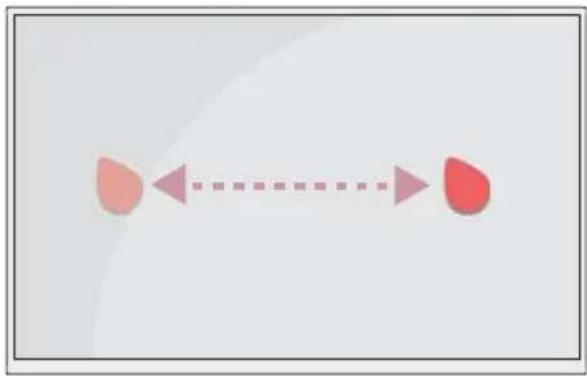
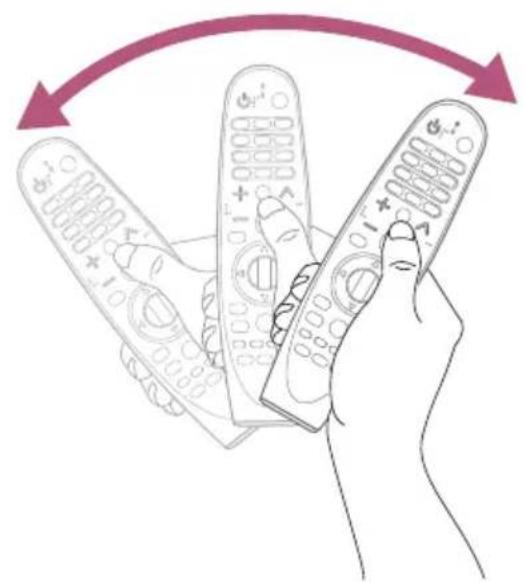
-
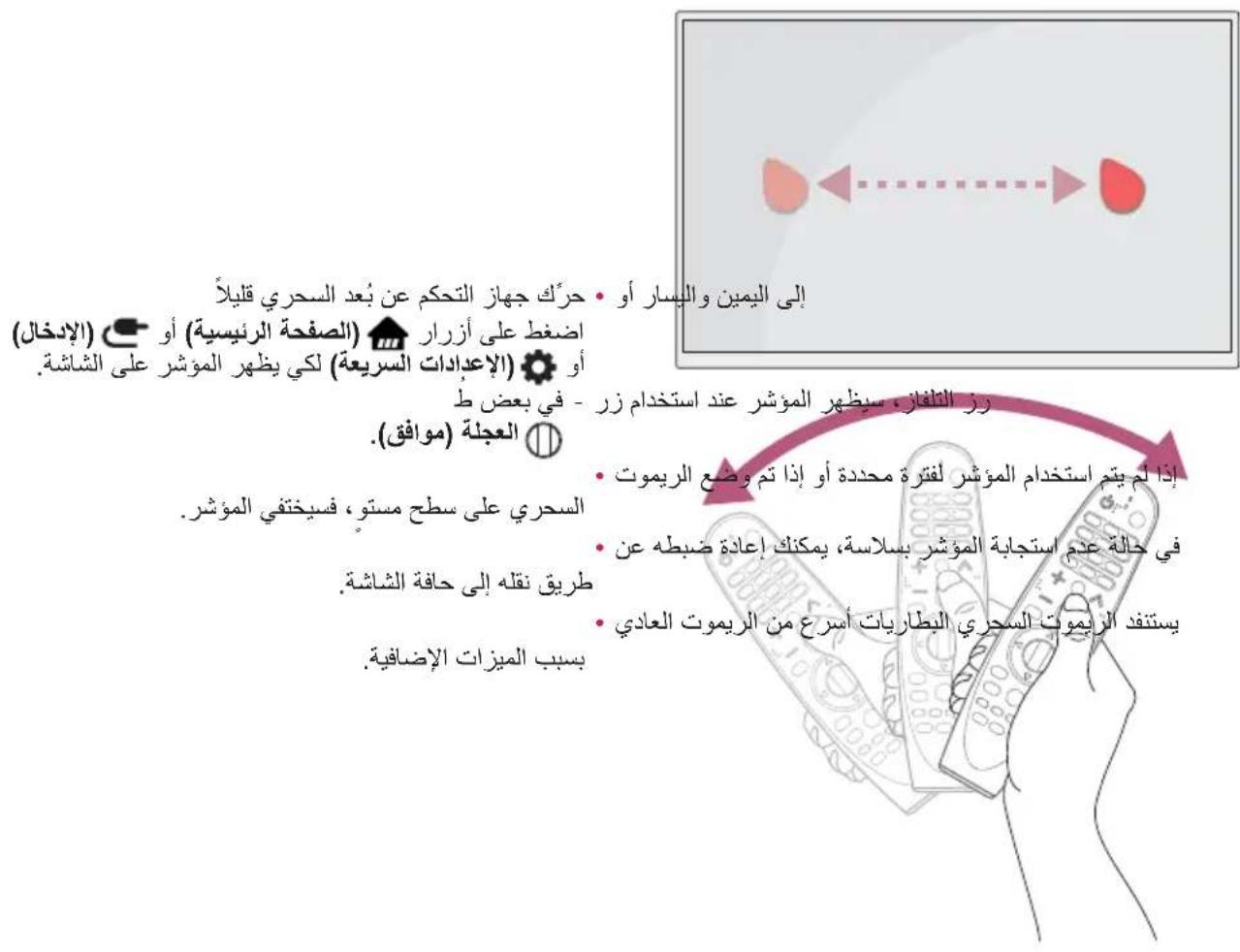
Shake the Magic Remote slightly to the right and left or press (Home), (Input), or (Q. Settings) buttons to make the pointer appear on the screen.
-
In some TV models, the pointer will appear when you turn the Wheel (OK) button.
If the pointer has not been used for a certain period of time or Magic Remote is placed on a flat surface, then the pointer will disappear. - If the pointer is not responding smoothly, you can reset the pointer by moving it to the edge of the screen.
The Magic Remote depletes batteries faster than a normal remote due to the additional features.
Precautions To Take
- Use the remote control within the specified range (within 10m ).
- You may experience communication failures when using the device outside the coverage area or if there are obstacles within the coverage area.
- You may experience communication failures depending on the accessories.
- Devices such as a microwave oven and wireless LAN operate in the same frequency band (2.4 GHz) as the Magic Remote. This may cause communication failures.
- The Magic Remote may not work properly if a wireless router (AP) is within 1m of the TV. Your wireless router should be more than 1m away from the TV.
- Do not disassemble or heat the batteries.
- Do not drop the battery. Avoid extreme shocks to the battery.
- Inserting a battery in the wrong way may result in explosion.
Specifications
| CATEGORIES DETAILS | |
| Model No. AN-MR18HA | |
| Range of frequency 2.400 GHz to 2.4835 GHz | |
| Output Power (Max.) 4 dBm | |
| Channel 40 channels | |
| Power source AA 1.5 V, 2 alkaline batteries are used | |
| Operational temperature range 0 °C to 40 °C |


Life's Good
OWNER'S MANUAL
Magic Remote
Please read this manual carefully before using your remote and retain it for future reference.
AN-MR18HA
Accessories
The remote control image shown may differ from the actual product. (Depending upon country)
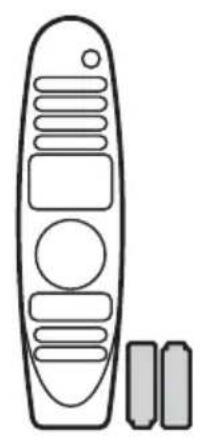
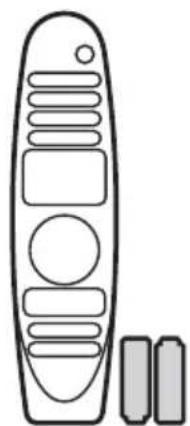
Magic Remote and Alkaline Batteries (AA) Owner's manual

- Contents in this manual may be changed without prior notice due to upgrade of product functions.
Battery
1. Installing Batteries
Please read this manual carefully.
-
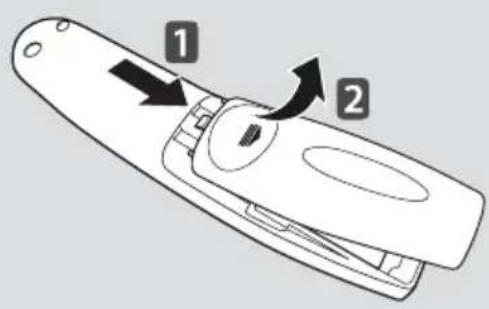
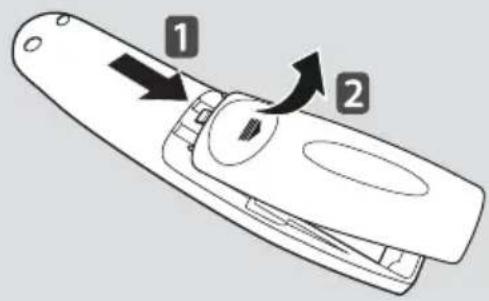
Press the top of the battery cover, slide it back, and lift the cover as shown below.
To replace batteries, open the battery cover, replace alkaline batteries (1.5 V, AA) matching ^+ and ends to the label inside the compartment, and close the battery cover. Be sure to point the remote control at the remote control sensor on the TV. -
To remove the batteries, perform the installation actions in reverse. Don't mix old or used batteries with new ones. Close the cover securely.
- Open the battery cover to find the label.
2. Precautions
- After replacement of the batteries, pair the remote control and use it in accordance with user manual.
- If the unit does not operate after replacement of batteries, reattempt pairing in accordance with the user manual.
-
If the remote controller is not being used for prolonged period of time, remove the batteries from the unit.
-
Do not dismantle or expose the batteries to heat.
- Do not drop or exert extreme impact on the batteries. This may cause the case to be damaged.
- Do not immerse the batteries in water.
- There is danger of explosion if batteries are inserted incorrectly.
- Properly dispose of used batteries.
- Failure to match the correct polarities of the battery may cause the battery to burst or leak, resulting in fire, personal injury, or ambient pollution.
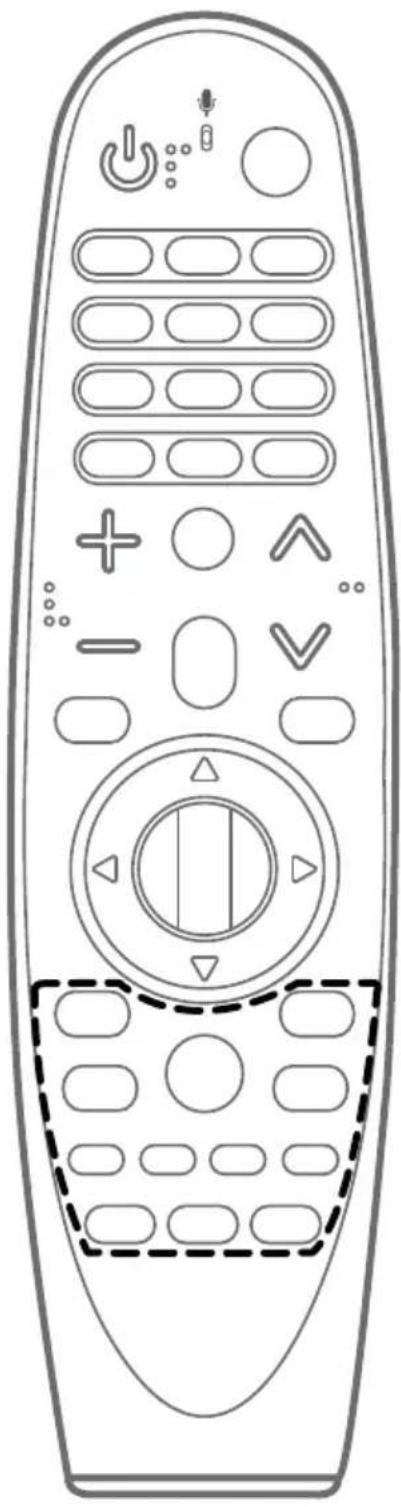
Remote Description
- The remote control image shown may differ from the actual product.
The order of description may differ from the actual product. -
Some buttons and services may not be provided depending on models or regions.
-
To use the button, press and hold for more than 3 seconds.
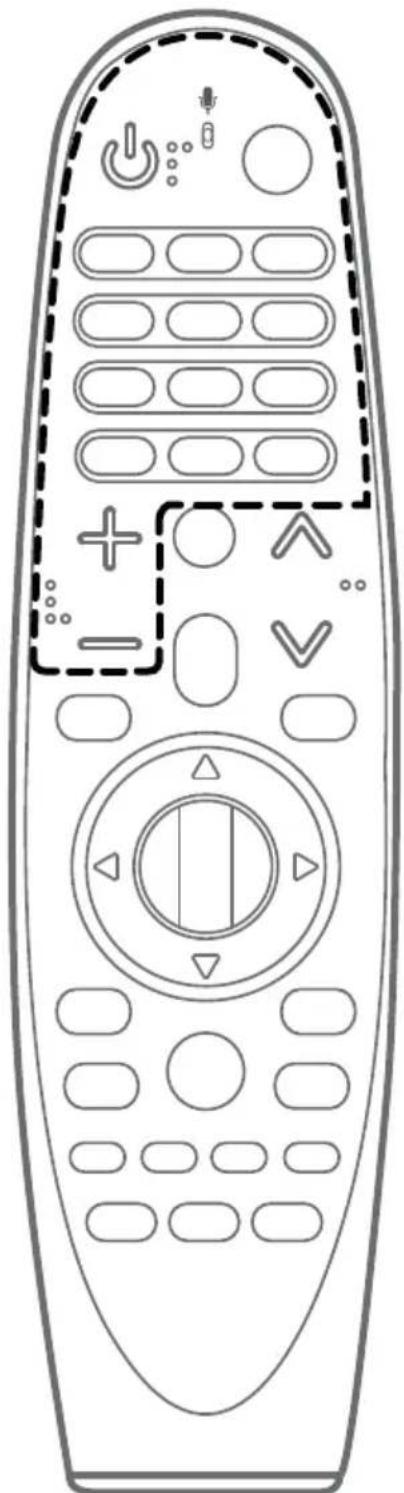

(Power)
Turns the TV on or off.

(Input)
Changes the input source.
Number buttons
Enters numbers.

(Dash)
Inserts a (Dash) between numbers such as 2-1 and 2-2.
LIST
Accesses the saved channels or programs list.

(Screen Remote)
Displays the Screen Remote.
Accesses the Universal Control Menu in some regions.
QUICK ACCESS*
You can access the application or Live TV channel by using the number buttons as registered. (Depending upon country)

Audio descriptions function will be enabled.
- Pressing and holding the (Screen Remote) button displays the SAP (Secondary Audio Program) feature. (Applicable to North America)

VOL/
Adjusts the volume level.

Mutes all sounds.

Accesses the Accessibility menu. (Depending upon country)

Scrolls through the saved channels or programs.
PORTAL
Displays and removes Pro:Centric Application.

Once the voice display bar is activated on the TV screen, press and hold the button and speak your command out loud.
Network connection is required to use the voice recognition function.

Accesses the quick settings. (Depending upon country)

Displays the All Settings menu.
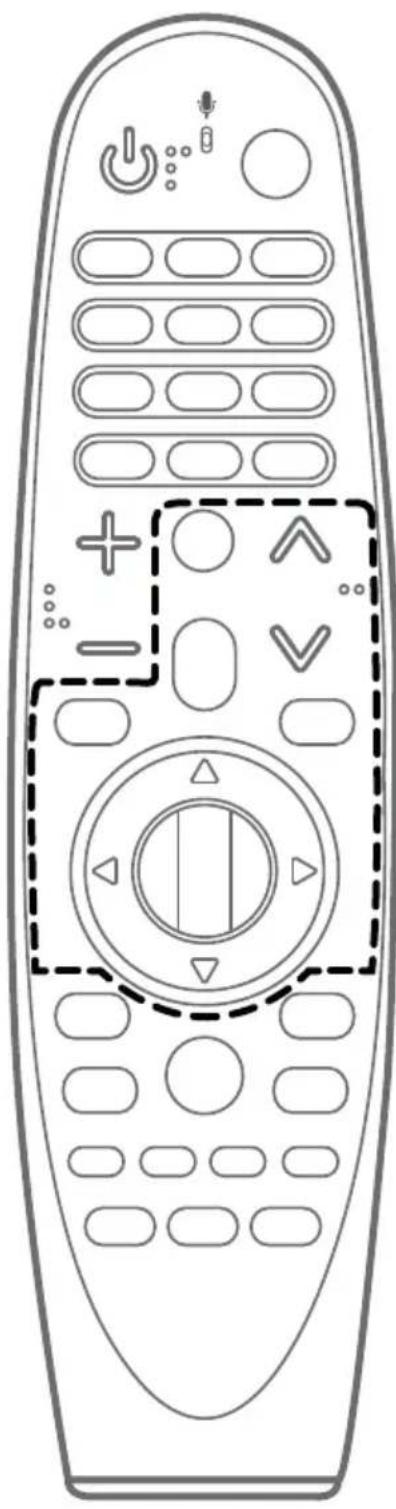
Press the center of the Wheel (OK) button to select a menu.
You can change channels or programs by using the Wheel (OK) button.

Press the up, down, left, or right button to scroll the menu.
If you press buttons while the pointer is in use, the pointer will disappear from the screen and the Magic Remote will operate like a general remote control.
To display the pointer on the screen again, shake the Magic Remote to the left and right.
BACK
Returns to the previous level.
BACK*
Cleared on-screen displays and returns to last input viewing.
GUIDE
Shows channels or programs guide.
CAPTION
Activates or deactivates the subtitles.

(Home)
Accesses the Home menu.

* (Home)
Shows the previous history. (Depending upon country)
RATIO
Resizes an image.
① INFO
Shows information on the current program.
Color buttons
These access special functions in some menus.
Control buttons (▶,||
Controls media contents.
TEXT / T.OPT (Teletext Buttons)
These buttons are used for teletext.
SUBT. (Subtitles)
Recalls your preferred subtitle in digital mode.
Using
1. How to register (pair) or deregister (unpair)
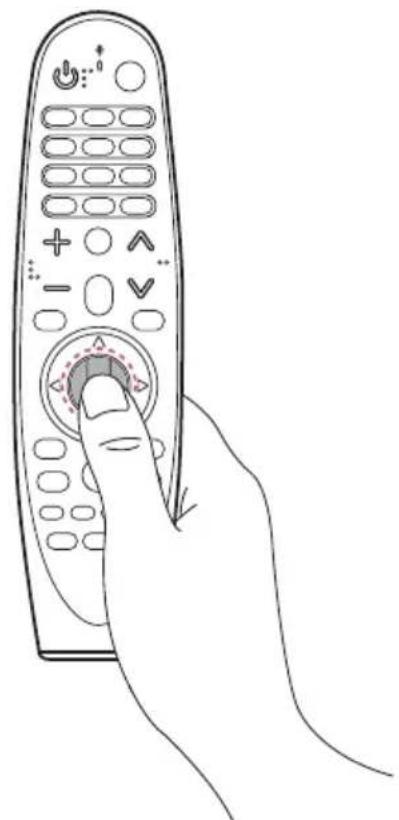
How to Register (pair) the Magic Remote
To use the Magic Remote, first pair it with your TV.
1 Put batteries into the Magic Remote and turn the TV on.
2 Point the Magic Remote at your TV and press the Wheel (OK) on the remote control.
- If the TV fails to register the Magic Remote, try again after turning the TV off and back on.
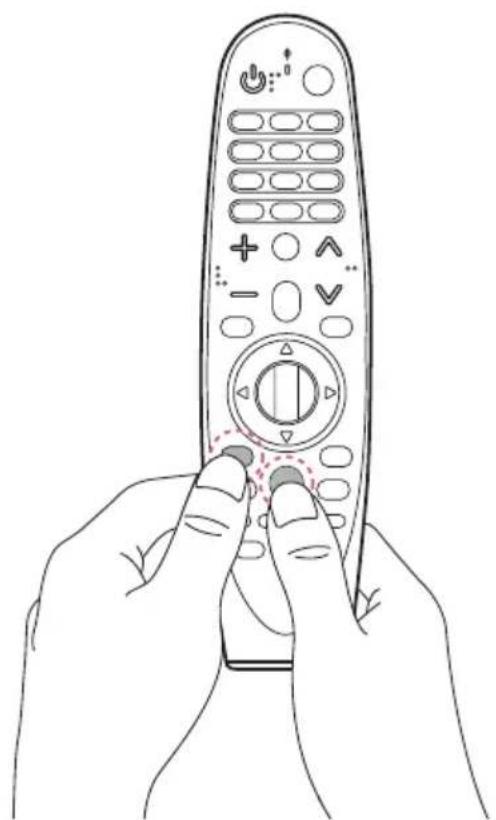
How to deregister (unpair) the Magic Remote
Press and hold the oome) and b at the same time for five seconds, to unpair the Magic Remote with your TV.
- Pressing and holding tGUIDE button will let you cancel and re-register Magic Remote at once.
2. How to use
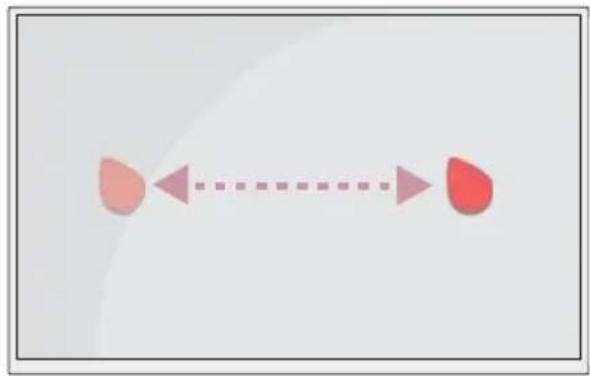
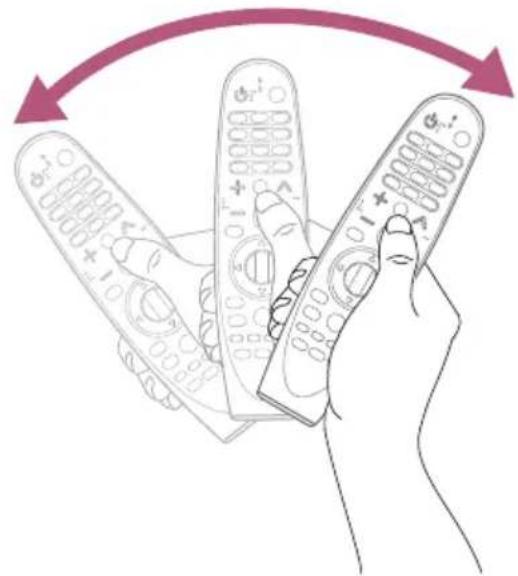
- Shake the Magic Remote slightly to the right and left or press (Home), (Input), or (Q. Settings) buttons to make the pointer appear on the screen.
- In some TV models, the pointer will appear when you turn the Wheel (OK) button.
- If the pointer has not been used for a certain period of time or Magic Remote is placed on a flat surface, then the pointer will disappear.
- If the pointer is not responding smoothly, you can reset the pointer by moving it to the edge of the screen.
The Magic Remote depletes batteries faster than a normal remote due to the additional features.
Precautions To Take
- Use the remote control within the specified range (within 10m (393.7 inches)).
- You may experience communication failures when using the device outside the coverage area or if there are obstacles within the coverage area.
- You may experience communication failures depending on the accessories.
Devices such as a microwave oven and wireless LAN operate in the same frequency band (2.4 GHz) as the Magic Remote. This may cause communication failures. - The Magic Remote may not work properly if a wireless router (AP) is within 1 m (39.3 inches) of the TV. Your wireless router should be more than 1 m (39.3 inches) away from the TV.
- Do not disassemble or heat the batteries.
- Do not drop the battery. Avoid extreme shocks to the battery.
- Inserting a battery in the wrong way may result in explosion.
Specifications
| CATEGORIES DETAILS | |
| Model No. AN-MR18HA | |
| Range of frequency 2.400 GHz to 2.4835 GHz | |
| Output Power (Max.) 4 dBm | |
| Channel 40 channels | |
| Power source AA 1.5 V, 2 alkaline batteries are used | |
| Operational temperature range 0 °C to 40 °C (32 °F to 104 °F) |


Life's Good
all
(Magic Remote)
g j 111
Jaaannn
AN-MR18HA

(AA wao) aaglll jyjll yjll lgl
1
jagjglalbce jagglallgicbeol .
.0151 j 1
1.5) 4
g j 1
jieill 2gall
Aaiy jlll lj y aaiy jil jaiy jaiy jaiy
- a1 + a2 + a3 = 6,a4 + a5 + a6 = 8
.
J 1
125·Aulilia 45
(ailll kol) (glll call) SAP
VOL/△
()
1
()
()
CH/P
a#
PORTAL
aiei iiaai aiaia all j
()
j jll gde yghbaiai, jaiil aiaie ge gwaal jaaa
1
()
a
()

()
(3)

a 100
()
(/j/)
aill jlll l l l l l l l l l
a a a a a a a a a a a a a a a a a a a a a
aee
y
BACK
gull 5 gull
\*BACK
J 1
GUIDE
.
CAPTION
eell j 1jill lii
(a)

aaiy jll aaii aai 1
()

()
RATIO
5.2.11 all
① INFO
aalalalalalalalalalalalalalalalalal
ai = ( a1 + 2) + ( a_2 + 2)
aill jia aaii iil 1jgai jai gai
(,1
)
bllw y 1
(cIgss)TEXT/T.OPT
a
SUBT.
a
()()
()
aJ 5iMagic 2000
50ill yjll 1g jy
J 1
s 15
BACK. (a a a a a) 1 j j j j j j j j j j j j j j j j j j j j j j j j j j j j j j j j j j j j j j j j j j j j j j j j j j j j j
GUIDE jll ic jnil bial g 1 1
gicla
① 10
Aabiald Jldgge g jyabill abio jjglal plaiuic Juaikia 1
iLi Juaai Jia 4
2.4) 111111111111111111111
Juaai Jia
jge ggi jai jia aai jao (Jgagabai) sl 4g jge gaa gai laa
jellil jao jio jia jia jia jia jie
S_ OBC = 12 · CD · BC = CD.
yui 1i jilai bai y i j
i 1
HaTnucheTe kanaeTo Ha 6aTeepnra OTo rOpHaTa CToHa, Nb3HeTe ro nIOBnHHeTe kanaeTo, KaKTo e NOKa3aHo No-dOly.
3a da cmeHnte 6aTeepnnte,otBopeTe kanaeTo,cmHeTe aIkaHnTe 6aTeepn (1,5VAA),kato cna3nte CbOTBeTCTBnETo Ha KInMeNTe +N Hocouehn Bbpx Ta6enKaTa BOTdeHneTo, CnEi KoETo 3aTBopTe KaNaeTo.BuHaRn HacOuaBaiTe DnCTaHcUHOHTo ynpabLeHne KbM ceH3Opa My Bbpxy TeJeBn3opa.
3aДa n3BaIte 6aTePnIte, n3BbPweTe DeiCTBnraTa 3a NOCTaBHe B o6paTHa nocKa. He cMecBaIte CTapu nn nNn N3NoI3BaHn 6aTePnC HOBn TaKnBa. 3aTbOpTe Do6pe Kanaka.
- OTbopete Kanaka Ha 6aTepuNTe, 3a da oTKpneTe MapKnpOBkata.
2.ПрееднаЗн Меркn
Cle dcmHa Ha 6aTeepnTa n3non3BaIte dNCTaHcNOHHOT ynpabHe cIe d CDBoRAHe B CbOTBeTCTBHe C pkoBDCTBOTo Ha notpe6ntela.
Ako yctpoCTBOTO He pa6OTn CneI cMHa Ha 6aTePnra, ONNTaIe Da CDBOte OTHOBOCBOTBECTBNE CpKBOODCTBOTO Ha Notpe6nten.
Ako nctaHOnHOTo ynpabJeHne He ce n3no3Ba npOdbJxnteHbBpeMe, npenopbUHTeH0 e da n3BaAnTe 6atepnaTa oYCTpoCTBOTO.
He pa3rno6BaIte u He HarpBaIte 6aTepeyra.
He n3nyckaIte 6atepnaTa n He ynpaxKHaBaiTe npekomepeH hATnck Bbpxy Hea ToBa MoKe da npuHnPiOBpeDa Ha BbHnHOTIO NOKPNTne.
He notanTne 6aTepyraBbB Boda.
Ako 6atepnaTae nocTaBeHa HnPaBnHc,cbIeCTbByBa pnck Oekcnno3n.
N3XBpIyTe N3nOJI3BaHITe 6aTePN NO NOxOJa, NaH.N.
- HecnataBaHTo Ha npabunHIne noJIOcN Ha 6aTePnraTAMoKe da npuynHn pbcBaHe nn n3TuHaHe Ha 6aTePnraTa, KOeTo Da IOBeDe Do noXap, HapaHbAbe nn 3AmbpcBaHe Ha OKoHNaTa cpea.
PpeOCTaBA DOCTbI Do MeHTo DOM.
\* (Hauano)
Ioka3Ba npexoHaTa xpoHOnorna. (B 3aBnCmOcT OdbpxaBaTa)
RATIO
Ipeopa3MepeBaTe n3o6paKeHne.
① INFO
Ioka3Ba INHΦOpMaζη OTHOCHO pa6OteμaTa B MOMeHTa Iporpama.
UBETHN6yTOHn
CTX BIN3aTe BCNEUaJIHn FyHKUN Ha HAKO NMeHOTa.
ByToHn 3a ynpabHeHne (I,II
UnpablaBaMmTmEduHOcbDbpKaHne.
TEXT/T.OPT (ByToHn 3a TEJETEKCT)
Te3n 6yToHc e n3non3BaT 3a TeNeTeKCT.
SUBT.(Cy6TuTp)
Ioka3Ba npednoHTaHnTe O T BAC cy6TnTpN B uΦpoB peKIM.
Activa ou desactiva as legends.

(Inicio)
Tnnaaannnnnnaananaananaananaananaananaananaananaananaananaananaananaananaananaananaananaananaananaananaananaananaananaananaananaananaananaananaananaananaananaananaananaananaananaananaananaananaananaananaananaananaananaananaananaananaananaananaananaananaananaananaanaraannnna
AN-MR18HA
a
nwnnnnaaunnaananaananaananaananaananaananaananaananaananaananaananaananaananaananaananaananaananaananaananaananaananaananaananaananaananaananaananaananaananaananaananaananaananaananaananaananaananaananaananaananaananaananaananaananaananaananaananaananaananaananaanaraann
wunnuuuaaunnaaannn (AA)

- 1
1. n5n
·
- nuaa aauuauauau uauunnnaa
unuuaaunauan uunuuuunauan uuuuuuuuuuuuuuuuuuuuuuuuuuuuuuuuuuuuuuuuuuuuuuuuuuuuuuuuuuuuuuuuuuuuuuuuuuuuuuuuuuuuuuuuuuuuuuuuuuuuuuuuuuuuuuuuuuuuuuuuuuuuuuuuuuuuuuuuuuuuuuuuuuuuuuuuuuuuuuuuuuuuuuuuuuuuuuuuuuuuuuuuuuuuuuuuuuuuuuuUU
ununununununununun unun
-
2. 2
nnaaannnnnnaananaananaananaananaananaananaananaananaananaananaananaananaananaananaananaananaananaananaananaananaananaananaananaananaananaananaananaananaananaananaananaananaananaananaananaananaananaananaananaananaananaananaananaananaananaananaananaananaananaananaanaraannnnaaa
- 1
- nlaanlunnaaunnauuunnnn uunununnaaannnna
·aunnnnunununununununununununununun
·aunnnnnaanannnnaanennnnnnnnnnnnnnnnnnnnnnnnnnnnnnnnnnnnnnnnnnnnnnnnnnnnnnnnnnnnnnnnnnnnnnnnnnnnnnnnnnnnnnnnnnnnnnnnnnnnnnnnnnnnnnnnnn
·
·nnaaunnaeuaananaeaaannnnnaaee
·n
- nssaaauuuaaunnnaanrnnnnaaannnnaaennnnaaannnnaaannnnaaannnnaaannnnaaannnnaaannnnaaannnnaaannnnaaannnnaaannnnaaannnnaaannnnaaannnnaaannnnaaannnnaaannnnaaannnnaaannnnaaannnnaaannnnaaannnnaaannnnaaannnnaaannnnaaannnnaa ann
nabunnu
·n
·
·
*unnuuunnnn 3
(wovnu)
1
()
山
山
Jau
()
Jau () 2-1 2-2
LIST
yuaanuun
()
4
Universal Control Menu
QUICK ACCESS*
nunnnnnaaunnnnnaaunnnnnaeauvLive TV nannnnnnnnnnnnn nnnuuun (
AD*
wnnnnnaeennnnneaeaaee
* nnsn (snnnnna) nnaaannnauu SAP (nuuunnu
VOL/△
山
()
*()
CH/PV
PORTAL