
BX4 - Monitor M-AUDIO - Free user manual and instructions
Find the device manual for free BX4 M-AUDIO in PDF.


| Product Type | Active 2-way Studio Monitor |
| Brand | M-Audio |
| Model | BX4 BT |
| Category | Nearfield Monitor |
| Power Supply | Mains via included power cable |
| Input Connectivity | RCA inputs, 6.35mm TRS inputs, 3.5mm TRS auxiliary input |
| Output Connectivity | 3.5mm headphone output, 3.5mm TS output to passive speaker |
| Bluetooth | Yes, with automatic pairing and reconnection |
| Equalization | Treble and bass adjustments (buttons on rear panel) |
| Sleep Mode | Automatic after 25 minutes of inactivity |
| Foam Feet | Included for stabilizing speakers and acoustic decoupling |
| Tweeter | Tweeter (type not specified) |
| Woofer | 4.5-inch Woofer (approximate) |
| Rear Port | Bass reflex vent to enhance low frequencies |
| Active Speaker Position Selector | Allows setting the active speaker to the left or right |
| Status LED | Power (white) and Bluetooth (blinking or solid blue) |
| Materials | Wood (approximate) with black finish |
| Dimensions (approx.) | 250 x 180 x 200 mm (estimated) |
| Weight (approx.) | 3.5 kg per speaker (estimated) |
Frequently Asked Questions - BX4 M-AUDIO
User questions about BX4 M-AUDIO
0 question about this device. Answer the ones you know or ask your own.
Ask a new question about this device
Download the instructions for your Monitor in PDF format for free! Find your manual BX4 - M-AUDIO and take your electronic device back in hand. On this page are published all the documents necessary for the use of your device. BX4 by M-AUDIO.
USER MANUAL BX4 M-AUDIO
User Guide (English)
Introduction
Box Contents
| BX4 BT Speakers (Stereo Pair) | 1/8” to 1/8” TRS Aux Cable |
| Foam Feet | 1/8” TRS to RCA Cable |
| 2-Prong IEC Power Cable | User Guide |
| 1/8” TS Speaker Interconnect Cable | Safety & Warranty Manual |
Product Registration and Support
To download your included software, follow the instructions below:
- Visit m-audio.com/softwaredownload.
- Follow the on-screen instructions to register your product.
- Upon successful registration, any applicable software downloads, product codes and promotions will show in your account.
Note: A high-speed internet connection is recommended. If you need assistance, do not return your product to the dealer. Instead, please contact our helpful technical support team by visiting m-audio.com/support.
Setup
The configuration and placement of your BX4 BT monitors on speaker stands or your desktop workstation may affect the performance of the speakers. Use the following tips to achieve the best performance out of your BX4 BT monitors.
Tip: If possible, place your BX4 BT monitors on speaker stands instead of your desktop. Desks tend to resonate sympathetically at low frequencies and may adversely affect the bass response of your monitors. If speaker stands are not possible due to space restrictions and you notice a buildup in bass, try placing the monitors on isolation pads to acoustically de-couple the monitors from the desk.
Precautions
- Correct Power Operation: Since the BX4 BT contains amplifiers, it must be connected to a power outlet. Before connecting power, please make sure that the Vol/Power knob is set to the off position.
- Standby Mode: BX4 BT includes a Standby Mode to conserve energy used when powered on but not in use for 25 minutes. To wake from Standby Mode, simply begin playing audio at any level for 3-5 seconds and BX4 BT will resume normal functionality.
- Foam Feet: In order to maximize physical stability, we recommend you use the provided foam feet on the bottoms of the BX4 BT monitors.
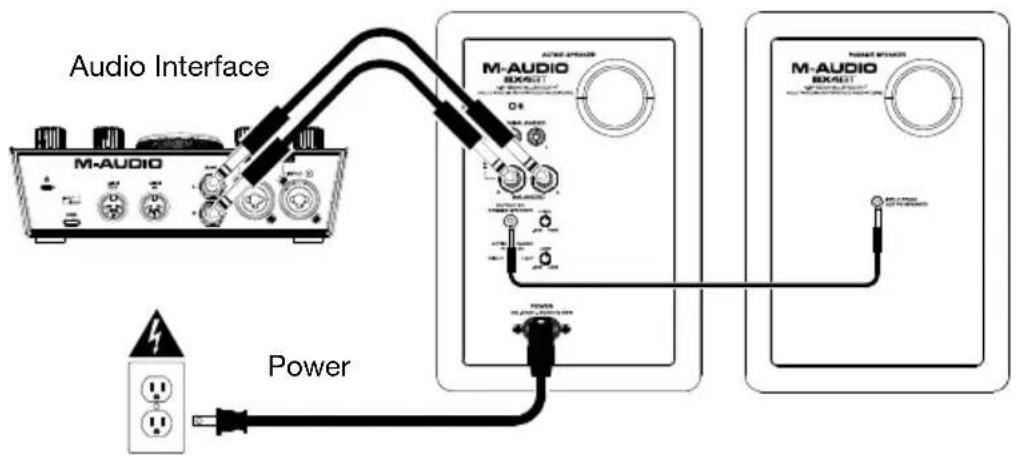
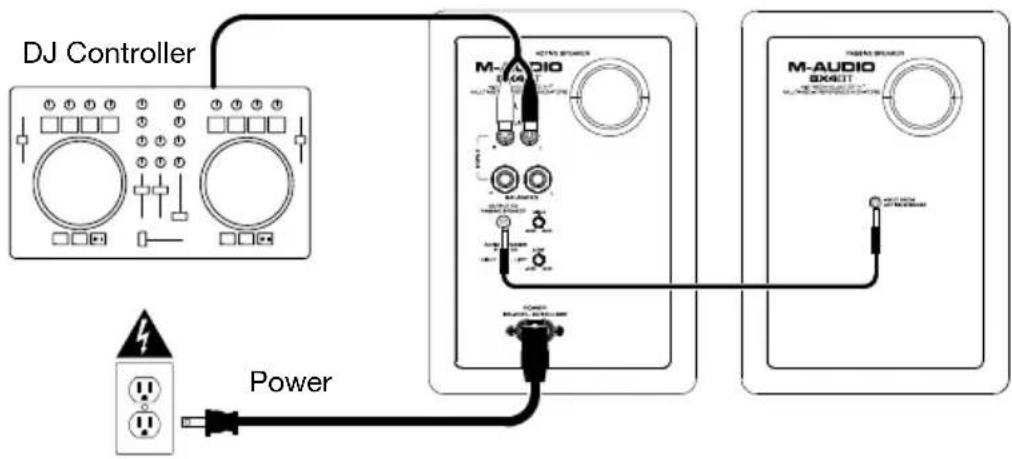
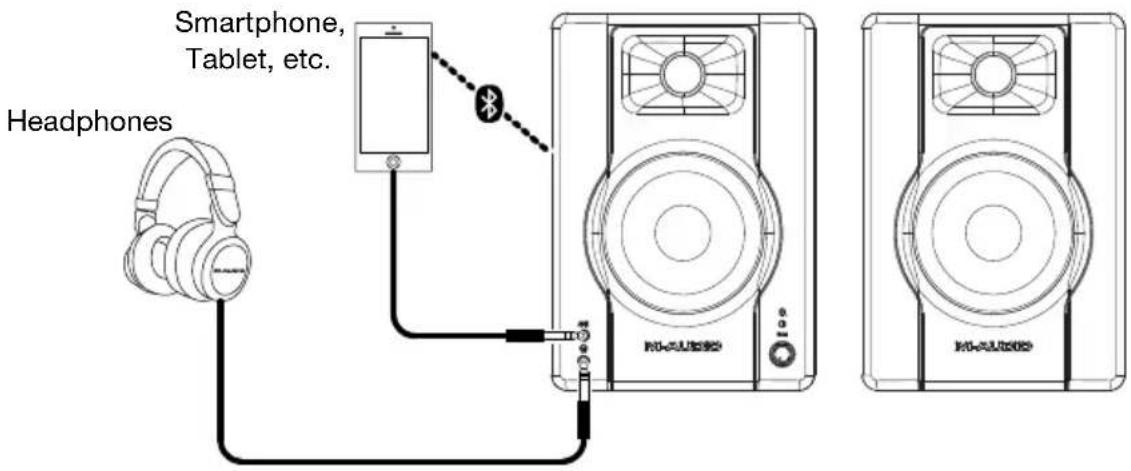
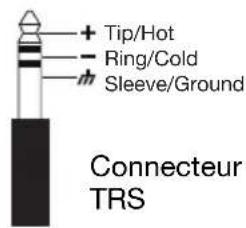
- Connecting to a Computer Sound Card or Other Audio Output Device: Your BX4 BT speakers have a variety of inputs for use with a multitude of devices. Before connecting the BX4 BT speakers, make sure the power from the computer or other output device has been turned off and the BX4 BT speakers are also turned off. Connect the RCA or 1/4" (6.35 mm) input jacks to the corresponding output connectors of a computer sound card, portable music player, etc. You can also use the included 1/8" (3.5 mm) TRS stereo aux cable to connect a secondary audio device to the Aux input on the front of the BX4 BT or connect via Bluetooth®.
Speaker Placement
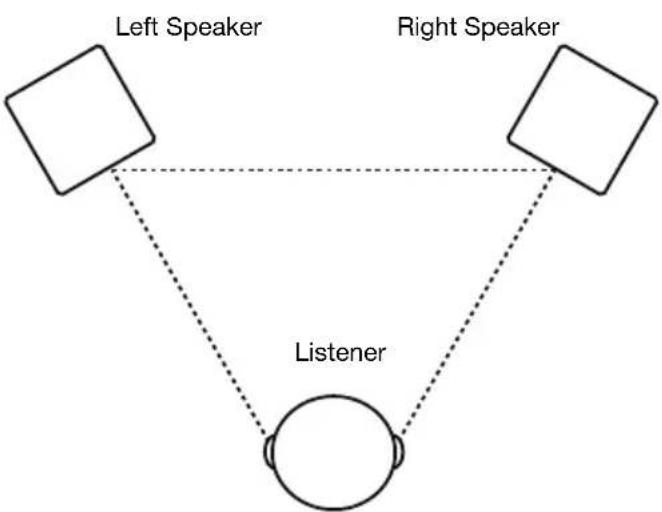
The placement of your speakers has a huge impact on how well they will perform in your studio. Although nearfield studio monitors are designed to be more forgiving when it comes to placement, you should do your best to make sure they form an equilateral triangle relative to your head. In other words, make sure that each speaker is equally distant from both your head as well as the other speaker. Once each speaker has been placed, rotate the speakers slightly so that the drivers are pointing toward the listener.
Take a look at the diagram on the right. Notice that the distance from the listener's head to each speaker is the same as the distance between the left and right speakers. Also note that the speakers are turned slightly so that the drivers are facing the listener. This is an ideal setup but if it is not practical (or possible) to do this, try to match this setup as closely as possible.
flowchart
graph TD
    A["Left Speaker"] --> B["Listener"]
    C["Right Speaker"] --> B
    B --> D["Speaker Circle"]
    style A fill:#fff,stroke:#000
    style C fill:#fff,stroke:#000
    style D fill:#fff,stroke:#000
The speakers and listener should be at the three corners of a triangle having equal length sides.
Speaker Height
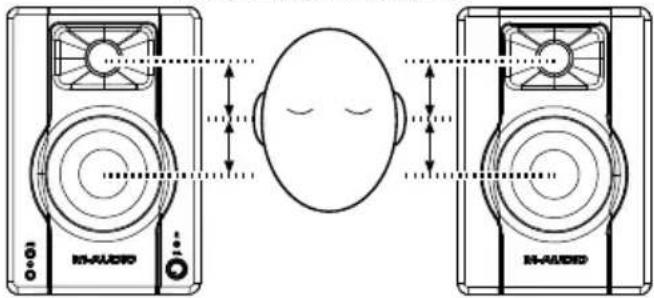
The ideal height for BX4 BT is so that the speaker is parallel to the ground and that the midpoint of the woofer and tweeter is at ear-height.
The diagram to the right demonstrates the ideal placement height of the speakers relative to the listener. Notice that the listener's ears are directly between the woofer and tweeter.
Tweeter/Woofer midpoint
Speaker Orientation
If possible, place the BX4 BT monitors in their upright position and avoid laying the speakers on their sides. The BX4 BT woofer and tweeter are vertically aligned and will provide the best performance when the speakers are placed upright. Placing them on their sides may create strong reflections from nearby surfaces resulting in spectrally unbalanced sound.
If your BX4 BT monitors must be oriented horizontally due to space or line-of-sight considerations, place the speakers so that their tweeters are on the "inside" to improve imaging.
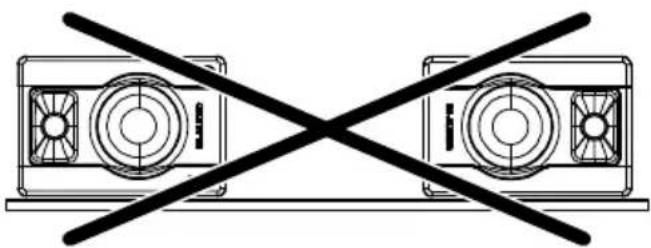
natural_image
Diagram of two identical air purifiers with a diagonal line crossing each other, no text or symbols present.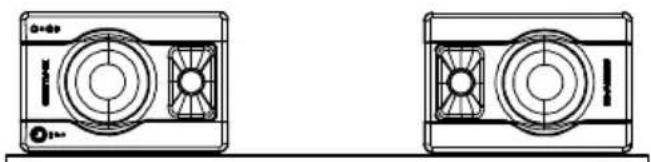
natural_image
Technical line drawing of two front-mounted air purifiers with fan profiles (no text or symbols)Connection Diagrams
Items not listed under Introduction > Box Contents are sold separately.
Example 1 - Connecting to an Audio Interface
Example 2 - Connecting to A DJ Controller
flowchart
graph TD
    A["DJ Controller"] -->|Power| B["M-AUDIO BX40T"]
    A --> C["M-AUDIO BX40T"]
    D["Power"] --> B
    D --> C
Example 3 - Connecting to an Auxiliary Media Player
Features
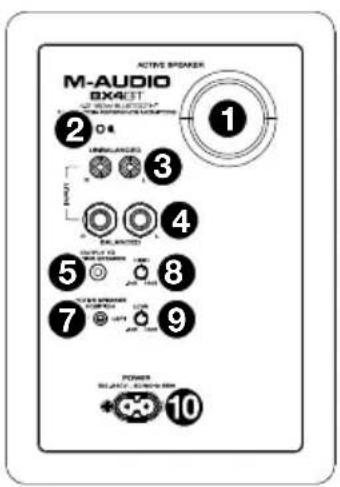
Rear Panel
- Rear Port: The rear port enhances the bass generated by the woofer, increasing the low frequencies. Make sure these ports are not obstructed since this will adversely affect bass response.
- Bluetooth Button: Press this button to disconnect a paired Bluetooth device and enter pairing mode. See Pairing a Bluetooth Device for more information.
- RCA Inputs: Use the included audio cable or other RCA cables (sold separately) to connect external sound sources to these inputs.
- 1/4" (6.35 mm) TRS Inputs: Use 1/4" (6.35 mm) audio cables (sold separately) to connect external sound sources to these inputs.
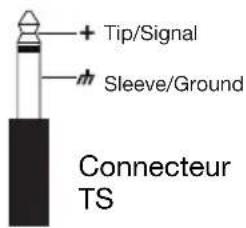
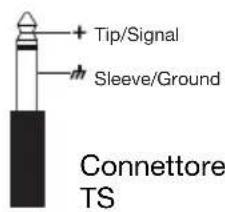
- 1/8" (3.5 mm) TS Output to Passive Speaker: This is the audio connection to the passive speaker. Use the included 1/8" (3.5 mm) TS interconnection cable to connect the active speaker to the passive speaker.
- 1/8" (3.5 mm) TS Input from Active Speaker: Use the included 1/8" (3.5 mm) TS interconnection cable to connect the active speaker to this passive speaker.
- Active Speaker Position: Adjust this to set the position for the active speaker in the stereo field. This allows you to choose to have the active speaker on either your left or right depending on your preferences and where your connections are.
- High EQ: Turn this knob to boost or cut the high-frequency equalization of the speakers.
- Low EQ: Turn this knob to boost or cut the low-frequency equalization of the speakers.
- Power Connector: Plug the included 2-prong IEC power cable here.
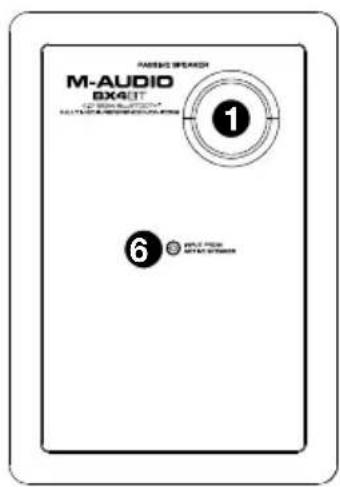
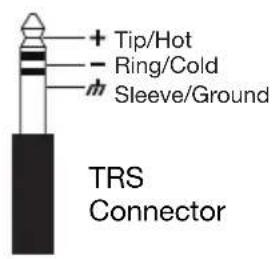
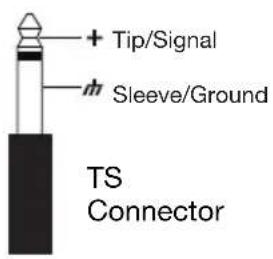
Front Panel
-
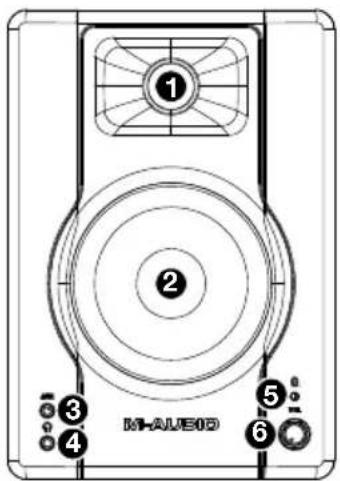
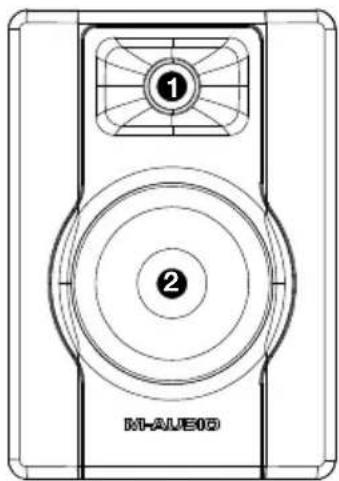
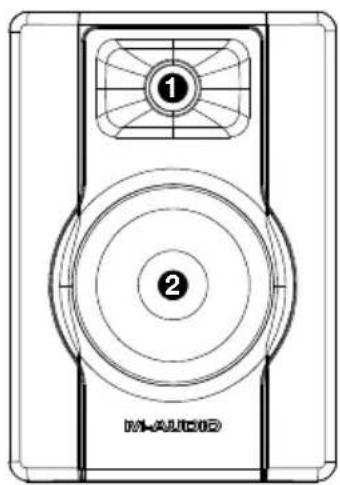
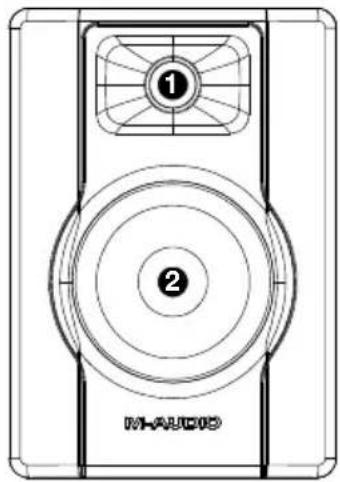
Tweeter: This outputs the high frequencies.
-
Woofer: This outputs the low frequencies.
-
1/8" (3.5 mm) TRS Aux Input: This stereo 1/8" (3.5 mm) TRS input can be used to connect a CD player, MP3 player, or other audio source.
-
Headphones: Connect your 1/8" (3.5 mm) headphones to this output to hear the mix through your headphones. Note that while headphones are connected to BX4 BT, you will not be able to hear sound out of your speakers until the headphones are disconnected.
natural_image
Technical line drawing of a device with labeled components (1 and 2), no readable text or symbols beyond labels-
Power/Bluetooth LED: This LED will illuminate when the speakers are turned on. When pairing to a Bluetooth device the LED will flash blue, and when pairing is successful it will be lit solid blue.
-
Vol/Power: This knob is used to turn the speakers on and adjust their volume. To turn on, simply turn up the knob. You will feel a click when the speakers turn on. A LED on the speaker will illuminate. To turn off, simply turn the volume all the way down; the LED will turn off to let you know that the speakers are off.
Pairing a Bluetooth Device
-
Turn on your Bluetooth device.
-
Power on BX4 BT and press the Bluetooth button to go into pairing mode to search for Bluetooth devices. You will know you are in pairing mode when the Power/Bluetooth LED is flashing blue.
Note: If you have previously paired a device, BX4 BT will reconnect automatically.
-
Navigate to your Bluetooth device's setup screen, find BX4 BT and connect. If your Bluetooth device prompts for a pairing code, enter 0000.
-
The Power/Bluetooth LED will be lit solid blue when a device is "paired" to BX4 BT.
To disconnect a paired Bluetooth device and enter pairing mode, press the Bluetooth button. To connect to another device, repeat step 3.
flowchart
graph TD
    A["Square Node"] --> C["Circle"]
    B["Square Node"] --> C["Circle"]
    C["Circle"] -.-> D["Oyente"]
    style C fill:#fff,stroke:#000
    style D fill:#fff,stroke:#000
natural_image
Pure electrical circuit lines without any symbols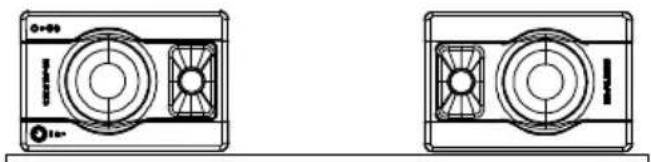
natural_image
Technical line drawing of two front-mounted air purifiers with fan blades and ventilation grilles (no text or symbols)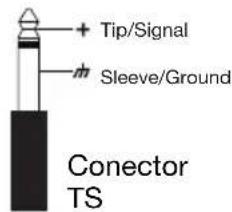
Panel frontal
natural_image
Technical line drawing of a device with labeled components (no readable text or symbols)natural_image
Diagram of two identical air purifiers with a diagonal line crossing each other, no text or symbols present.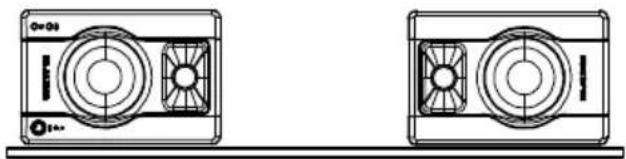
natural_image
Technical line drawing of two front-mounted air purifiers with fan blades and ventilation grilles (no text or symbols)Schéma de connexion
natural_image
Technical line drawing of a speaker or audio device with two circular components labeled ① and ②, no readable text or symbols beyond labels.natural_image
Diagram of two air purifiers crossed by a black X-shaped line (no text or symbols)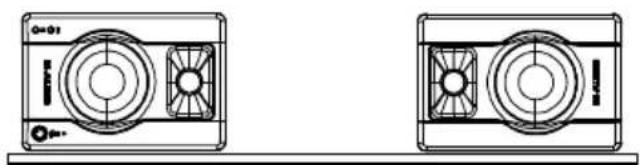
natural_image
Technical line drawing of two front-mounted air purifiers with fan blades and ventilation slots (no text or symbols)Caratteristiche
Pannello posteriore
Pannello anteriore
natural_image
Pure electrical circuit lines without any symbols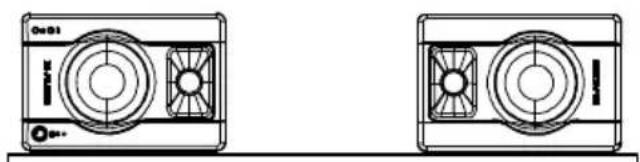
natural_image
Technical line drawing of two front-mounted air purifiers with fan blades and ventilation slots (no text or symbols)Anschlussdiagramm
natural_image
Line drawing of a speaker with two circular components labeled 1 and 2, marked with 'MAUDIO' at the bottom (no other text or symbols)Technical Specifications
| Frequency Response | 69 Hz – 22 kHz |
| Output Power | 120 W (total peak), 2 x 25 W (RMS) |
| LF Driver | 4.5” / 114.3 mm |
| HF Driver | 1” / 25.4 mm; silk dome |
| Audio Inputs 1 RCA stereo input pair | |
| 2 1/4" (6.35 mm) TRS inputs | |
| 1 1/8" (3.5 mm) stereo auxiliary input | |
| Headphone Output | 1/8” (3.5 mm) stereo output |
| Interconnection Cable | 1/8” (3.5 mm) TRS |
| Bluetooth Range | 100’ (30.5 m) |
| Power | 100–240 VAC, 50/60 Hz, 85 W |
| Dimensions(width x depth x height, per speaker) | 6.1” x 6.9” x 8.9” |
| 156 x 175 x 225 mm | |
| Weight(per pair of speakers) | 9.83 lbs. |
| 4.46 kg | |
Specifications are subject to change without notice.
Trademarks & Licenses
M-Audio is a trademark of inMusic Brands, Inc., registered in the U.S. and other countries.
The Bluetooth word mark and logos are owned by the Bluetooth SIG, Inc. and any use of such marks by M-Audio is under license.
All other product or company names are trademarks or registered trademarks of their respective owners.
m-audio.com


- User Guide (English)
- Introduction
- Box Contents
- Product Registration and Support
- Setup
- Precautions
- Speaker Placement
- Speaker Height
- Speaker Orientation
- Connection Diagrams
- Features
- Rear Panel
- Front Panel
- Pairing a Bluetooth Device
- Panel frontal
- Schéma de connexion
- Caratteristiche
- Pannello posteriore
- Pannello anteriore
- Anschlussdiagramm
- Trademarks & Licenses
- m-audio.com
Brand : M-AUDIO
Model : BX4
Category : Monitor