XBOX 360 WIRELESS NETWORKING ADAPTER STAND - Console MICROSOFT - Free user manual and instructions
Find the device manual for free XBOX 360 WIRELESS NETWORKING ADAPTER STAND MICROSOFT in PDF.



| Product type | Wireless network adapter for Xbox 360 console |
| Brand | Microsoft |
| Model | Xbox 360 Wireless Networking Adapter Stand |
| Compatibility | Xbox 360 console only |
| Wireless standards | 802.11a/b/g |
| Frequency bands | Dual band 2.4 GHz and 5 GHz |
| Maximum data rate | Up to 54 Mbps (802.11a/g) |
| Wireless security | WEP, WPA |
| Connectivity | USB connector (power and data), swivel antenna |
| Dimensions (approx.) | 10 x 5 x 3 cm (unfolded antenna included) |
| Weight (approx.) | 80 g |
| Power supply | Via USB port of the Xbox 360 console |
| Power consumption | 2.5 W (max) |
| Status LEDs | Steady green (connected), steady red (ready), blinking red (hardware problem) |
| Main functions | Wireless connection to Xbox Live or home network, wireless multiplayer gaming (ad-hoc), dual band to reduce interference |
| Installation | Attach to the back of the Xbox 360 console, USB plug-in |
| Care and cleaning | Clean with a soft, dry cloth. Do not use liquids or abrasive products. |
| Safety | Do not attempt to disassemble. Use only with compatible routers/access points. Maintain distances to avoid interference. |
| Spare parts and repairability | Not user serviceable. Contact Xbox support for any issues. |
| General information | © 2006 Microsoft Corporation. Trademarks: Microsoft, Xbox, Xbox 360, Xbox Live, Windows. |
Frequently Asked Questions - XBOX 360 WIRELESS NETWORKING ADAPTER STAND MICROSOFT
User questions about XBOX 360 WIRELESS NETWORKING ADAPTER STAND MICROSOFT
0 question about this device. Answer the ones you know or ask your own.
Ask a new question about this device
Download the instructions for your Console in PDF format for free! Find your manual XBOX 360 WIRELESS NETWORKING ADAPTER STAND - MICROSOFT and take your electronic device back in hand. On this page are published all the documents necessary for the use of your device. XBOX 360 WIRELESS NETWORKING ADAPTER STAND by MICROSOFT.
USER MANUAL XBOX 360 WIRELESS NETWORKING ADAPTER STAND MICROSOFT
ENGLISH Xbox 360 Wireless Networking Adapter
The Xbox 360 Wireless Networking Adapter lets you play head-to-head wirelessly-on Xbox Live®, or on your home network. It is for use exclusively with the Xbox 360^TM video game and entertainment system. Your Xbox 360 Wireless Networking Adapter features:
- Dual band 5-GHz and 2.4-GHz signal.
802.11a/b/g wireless home network compatibility. - Radio collaboration with Xbox 360 wireless controllers for worry-free integration.
NOTE
- To use the Xbox 360 Wireless Networking Adapter with Xbox Live, you must have a high-speed Internet connection (cable or DSL).
- Not all Internet service providers (ISPs) allow you to share a high-speed connection between multiple devices. Make sure you check with your ISP first.
- To further enhance your Xbox 360 wireless experience, consider also using the Xbox 360 Wireless Controller and Xbox 360 Media Remote, sold separately.

WARNING
Before using this product, read this manual and the Xbox 360 console manuals for important safety and health information. Keep all manuals for future reference. For replacement manuals, go to www.xbox.com/support or call Xbox Customer Support (see "If You Need More Help").
The limited warranty covering this peripheral is contained in the Xbox 360 Warranty manual (Volume 2).
Dispose of this product in accordance with local and national disposal regulations (if any), including those governing the recovery and recycling of waste electrical and electronic equipment (WEEE).
ATTACH THE ADAPTER TO YOUR CONSOLE
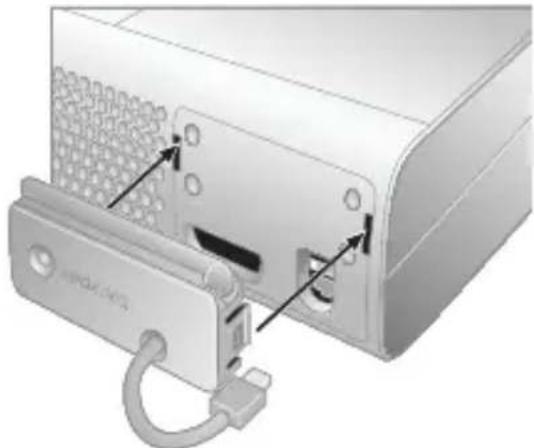
Your wireless networking adapter is designed to attach directly to the back of your console.

Do Not Use to Lift Console
Do not use the Wireless Networking Adapter or its antenna to lift the console. It can break and you could drop the console.
To attach your adapter:
1 Press the tabs on the adapter into the two slots on the back of the console.
2 Connect the USB connector into the USB port next to the adapter.
3 Flip up the antenna.
SET UP A NEW WIRELESS HOME NETWORK
Home wireless networks are also called infrastructure networks. In an infrastructure network, a wireless access point, wireless gateway, or wireless router distributes your Internet connection to your wireless home computer and devices. With a wireless networking adapter, your console becomes one of the wireless devices on your home network.
NOTE
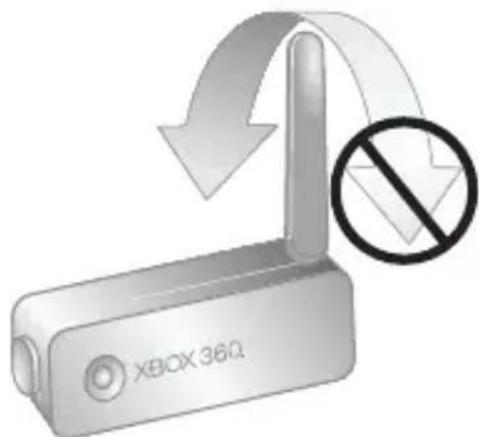
The antenna is designed to swivel on only one axis. Do not swivel the antenna in any direction other than parallel with the adapter.
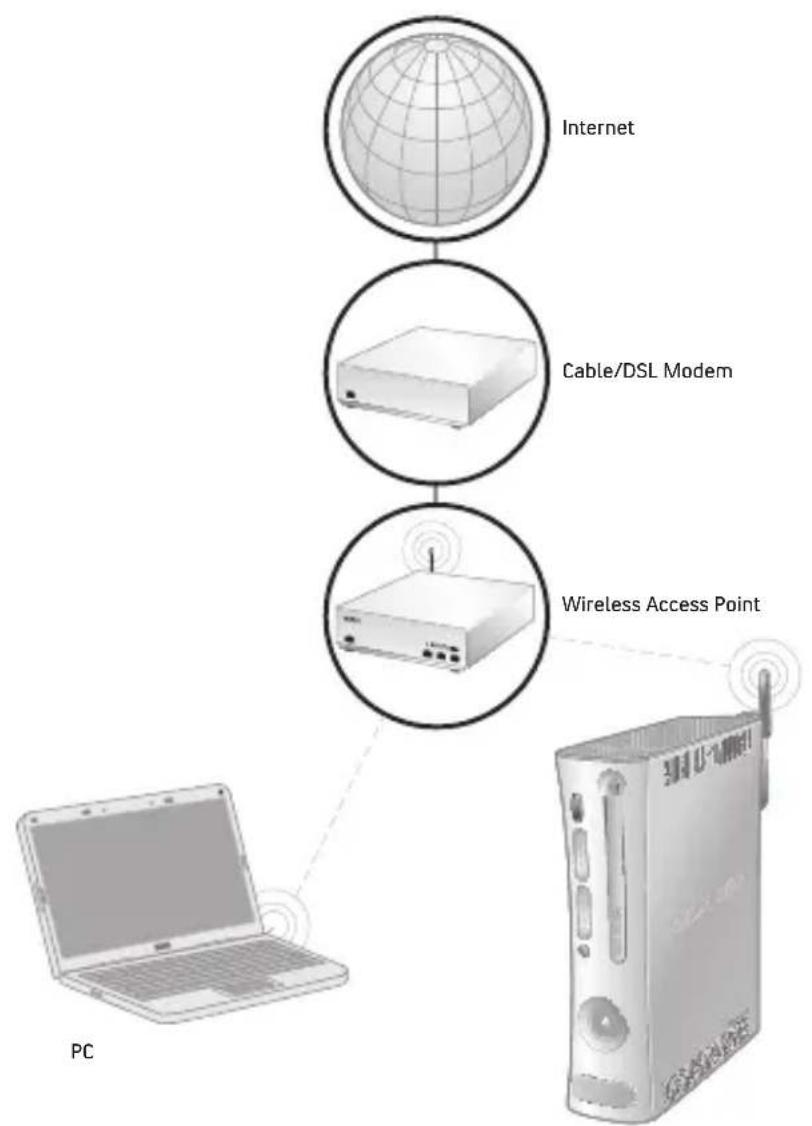
If you don't have an existing home wireless network yet, you'll want to make a few decisions before you get started. Specifically, you'll need to
decide on the wireless standard you'll use, the network hardware you'll need, and your network security.
Wireless Network Basics
Your wireless networking adapter communicates by radio transmission. Radio waves travel in all directions and can be transmitted through walls and floors. The radio signal weakens rapidly as it travels through structures, especially masonry, such as stone and brick. Metal objects, such as refrigerators and mirrors, reflect radio signals, preventing straight path communication. The layout of your home can be a factor in what wireless network standard you choose.
Choose a Wireless Network Standard
The Xbox 360 Wireless Networking Adapter conforms to all three current wireless network standards (802.11a, 802.11b, and 802.11g), and so works with networking devices that support any of these standards. (802.11 is a series of radio communication standards developed by the Institute of Electrical and Electronics Engineers (IEEE) for wireless local area networks.) The main features that distinguish these standards are connection speed and radio frequency.
Standard
Connection speed
Radio frequency band
802.11a Up to 54 Mbps 5 GHz
802.11b Up to 11 Mbps 2.4 GHz
802.11g Up to 54 Mbps 2.4 GHz
NOTE
Connection speeds are quoted only in reference to IEEE standards. The speeds quoted are the maximum attainable under ideal environmental conditions and at close distances. In addition, the standards specify usable payload data rates that are less than half the connection speed. Your usable connection speed will be significantly lower than the IEEE standards quoted.
When selecting your wireless network, keep a few guidelines in mind:
1 The 802.11a standard offers the same speed as 802.11g. A 5-GHz band (802.11a) is also less susceptible to interference from common devices, such as 2.4-GHz cordless telephones, cell phones, and microwave ovens. Further, in areas where neighboring wireless networks can be detected, interference can be a problem. Because of the limited number of channels and the popularity of 2.4-GHz networks, a 5-GHz network is likely to experience less interference from a neighboring wireless network than a 2.4-GHz network and provide a better overall wireless connection.
2 An 802.11g wireless network is compatible with both 802.11g and 802.11b devices. However, any 802.11b devices operating on your 802.11g network will slow it down. If you have a dual-band router (with both 802.11a and 802.11g bands), try using your Xbox 360 console and wireless networking adapter on the 802.11a band and your other devices on the 802.11g and 802.11b bands. The Xbox 360 console in this configuration will have the maximum bandwidth while remaining networked with other devices on 802.11g or 802.11b.
3 If you use wireless controllers, you may get better performance using 802.11a (5-GHz band) for your network connection, since the wireless controllers operate on the 2.4-GHz band.
Choose Your Network Hardware
Consider the following guidelines when purchasing network hardware:
-
Use an Xbox 360 compatible access point or router (802.11 a+g recommended). For more information about approved Xbox compatible access points or routers, go to www.xbox.com/setup.
-
Some Xbox compatible routers are dual-band a+g (dual-band 24-GHz/5-GHz, 802.11a + 802.11g/b). Using a dual-band router lets you configure your console to achieve maximum bandwidth and the best possible connection. This is particularly important if you are using Microsoft® Windows® XP Media Center or Windows Media Connect with your console for activities like watching TV. For more information, go to www.xbox.com/pcsetup.
-
When using a dual a + g access point or router, make sure the 802.11a and 802.11g networks have unique network names (SSIDs).
Make Your Wireless Network Secure
Because wireless networks use radio signals, it is possible for other wireless network devices outside your immediate area to pick up the signals and either connect to your network or capture the network traffic. To help prevent unauthorized connections and reduce the possibility of eavesdroppers listening in on your network traffic:
-
Locate your router or access point toward the center of your home. This decreases the strength of the signal outside your home.
-
Enable wireless security on your router or access point. Your wireless networking adapter supports WPA and WEP security. When you enable wireless security, you establish a key that "encrypted" the data being wirelessly transmitted so that it is decipherable only by computers with the same key. Furthermore, WPA automatically changes keys on a frequent basis, making your system more secure.
CONNECT TO YOUR NEW WIRELESS NETWORK OR AN EXISTING WIRELESS NETWORK
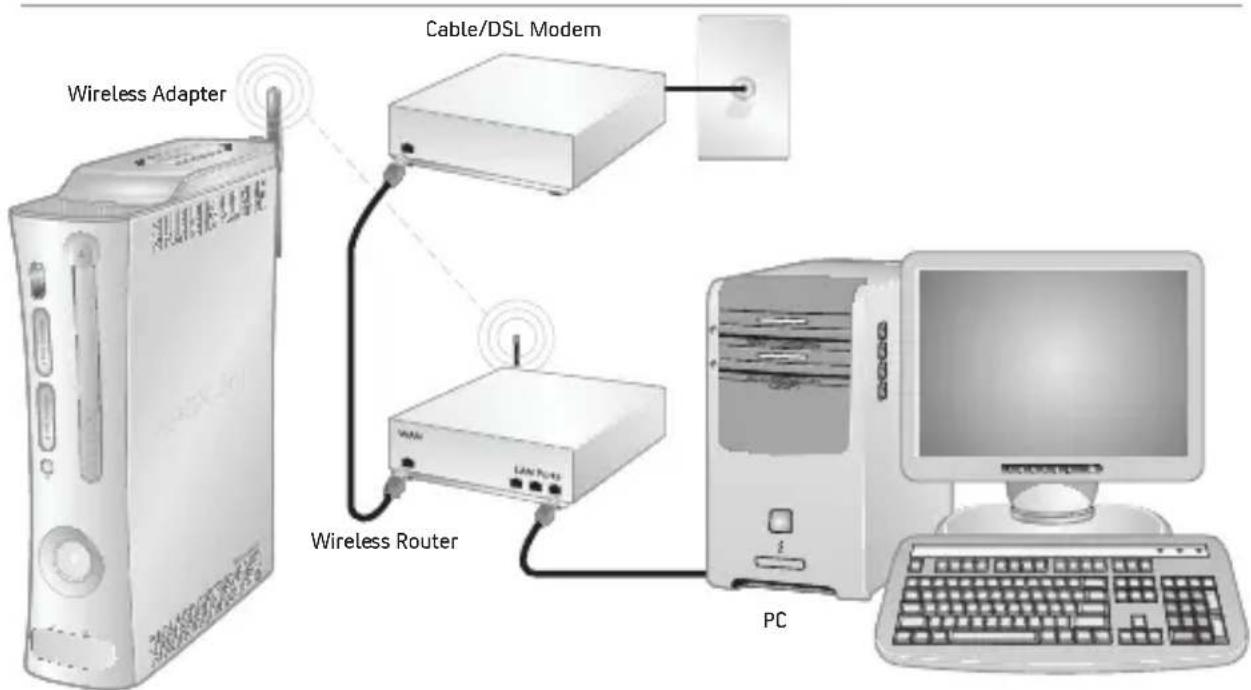
Connecting your Xbox 360 console to a new or existing wireless network is easy as long as you know what your wireless network settings are. Use the spaces provided under "Your Network Settings" to write down these settings before you begin.
NOTE
You can access most of your wireless network settings on the set-up screens for your wireless access point. Check your device documentation for instructions about how to reach the device set-up screen. If your network was set up by someone else, contact the installer for a user name and password to access the set-up screens of your wireless access point.
To connect your console to a wireless network:
1 Turn on your console and any wireless networking devices (such as an access point or router).
2 Attach the wireless networking adapter to the back of your console (see "Attach the Adapter to Your Console").
3 Go to the System area to enter your network settings.
4 If all settings are correct, exit the System area. Your console should now be connected to your wireless network.
Your Network Settings
Use this section to record your network settings. All computers and devices accessing the network with a wireless connection need to use the same wireless network settings.
Workgroup name:
802.11g/b Network
Wireless network name (SSID):
Wireless security setting:
Wireless channel (system link networks only):
802.11a Network
Wireless network name (SSID):
Wireless security setting:
Wireless channel (system link networks only):
CONNECT YOUR CONSOLE TO ANOTHER CONSOLE
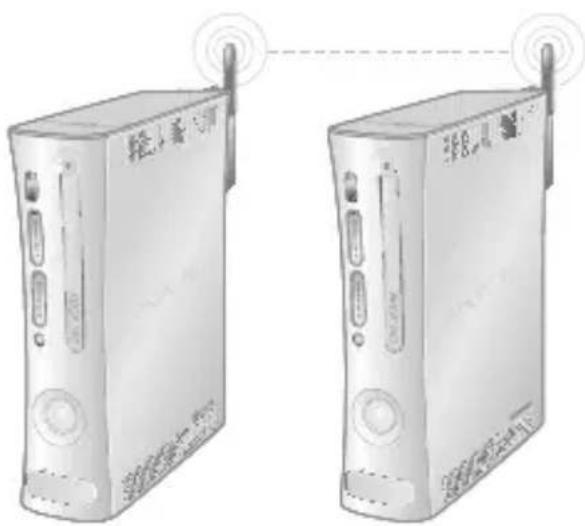
Console-to console system link wireless networks are also known as ad-hoc networks. In ad-hoc networks, a wireless adapter on one device connects directly to a wireless adapter on another device. An Internet connection isn't shared with this type of network, and the console-to console system link connection is typically temporary.
For console-to-console system link play, you need:
- Two Xbox 360 consoles.
- Two Xbox 360 Wireless Networking Adapters.
- An Xbox 360 game that supports system link play.
To wirelessly connect your console to another console:
1 Attach a wireless networking adapter to the back of each console (see "Attach the Adapter to Your Console").
2 On each console, go to the System area to enter your network settings. (They will be the same for each console.)
3 If all settings are correct, exit the System area. The consoles should now be wirelessly connected to each other.
TROUBLESHOOTING
If you encounter problems, try the possible solutions provided below.
For help with a game that supports console-to-conSOLE system link play, see the game's Web site or documentation. For help signing up or connecting to Xbox Live, go to www.xbox.com/setup.
Console Doesn't Detect Wireless Network
You might be out of range of your wireless network. Place your Xbox 360 console in the same room as your wireless router or second Xbox 360 console and try again.
Make sure that your router is broadcasting a wireless network name (SSID). The wireless router broadcast of theSSID might be disabled. See your router documentation for information about enablingSSID broadcast.
Console Doesn't Recognize Wireless Networking Adapter
Make sure the power light on the adapter is on. If it isn't, check the USB connection. Try disconnecting the adapter cable and connecting it again.
Signal Is Intermittent
Some wireless devices using the 2.4-GHz radio frequency band (including the wireless adapter (MN-740) designed for the original Xbox console, most 2.4-GHz phones, some cell phones, and microwave ovens) may cause interference with your wireless networking adapter. If you experience network performance issues, try moving your 2.4-GHz device(s) away from your console (or vice versa). Or, upgrade your wireless network for 802.11a/g operation and set your adapter to operate on 802.11a, where less interference and improved throughput is available.
Before relocating your console or wireless access point:
Imagine a straight line between your Xbox 360 console and the access point.
- Locate your console and access point or router so that as few obstructions as possible exist along the straight line.
- Allow no more than two walls or two floors between the wireless adapter and the central access point.
TV Pauses When Used with Console and Windows Media Center
When connecting a Windows Media Center-based PC to an 802.11 a+g access point or router, use 802.11a for the Windows Media Center-based PC and 802.11g for your other wireless devices, such as laptop computers.
Unable to Save Network Settings or Password
Restore the factory defaults on the wireless networking adapter. When you go to the System area to restore the factory defaults, the adapter status light will blink green and red, and then turn solid red to indicate that the defaults have been restored.
NOTE
Restoring factory defaults on the adapter will override your current adapter settings.
Wireless Security Settings Rejected
When entering your wireless security settings, remember that WEP keys must be in hexadecimal (0-9, A-F) format and WPA passphrases may be alphanumeric (consisting of both letters and numbers).
Status Light Indications
The status lights on the Xbox 360 Wireless Networking Adapter indicate the following:
- Green steady: Adapter is on and connected to a wireless access point (infrastructure) or another wireless device (ad-hoc).
- Red steady: Adapter is ready to be connected to a wireless network.
- Red blinking: Hardware failure.
IF YOU NEED MORE HELP
Please go to www.xbox.com/support or call the Xbox Customer Support number:
United States and Canada: 1-800-4MY-XBOX (1-800-469-9269) TTY users: 1-866-740-XBOX (1-866-740-9269)
Mexico: 001-866-745-83-12
TTY users: 001-866-251-26-21
Colombia: 01-800-912-1830
Do not take your Xbox 360 console or its peripherals to your retailer for repair or service unless instructed to do so by an Xbox Customer Support representative.
Do Not Attempt Repairs
Do not attempt to take apart, service, or modify the Xbox 360 console, power supply, or its peripherals in any way. Doing so could present the risk of serious injury or death from electric shock or fire, and it will void your warranty.
FOR CUSTOMERS IN THE UNITED STATES
This device complies with Part 15 of the FCC Rules. Operation is subject to the following two conditions:
(1) This device may not cause harmful interference, and (2) this device must accept any interference received, including interference that may cause undesired operation.
Trade Name: Microsoft Corp.
Address: One Microsoft Way Redmond, WA 98052 U.S.A.
Responsible Microsoft Corporation Party:
Telephone (800) 4MY-XBOX No.:
NOTE
Any changes or modifications made on the system not expressly approved by the manufacturer could void the user's authority to operate the equipment.
Exposure to radio frequency radiation
To comply with FCC RF exposure compliance requirements, a separation distance of at least 20cm must be maintained between the antenna of this device and all persons. This device must not be co-located or operating in conjunction with any other antenna or transmitter.
FOR CUSTOMERS IN CANADA
This device complies with RSS 210 of Industry Canada (IC).
Operation is subject to the following two conditions:
(1) This device may not cause interference, and (2) this device must accept any interference, including interference that may cause undesired operation of this device.

Exposure to radiofrequency radiation
The installer of this radio equipment must ensure that the antenna is located or pointed such that it does not emit RF field in excess of Health Canada limits for the general population; consult Safety Code 6, obtainable from Health Canada's website at www.hc-sc.gc.ca/rpb.
COPYRIGHT
Information in this document, including URL and other Internet Web site references, is subject to change without notice. Unless otherwise noted, the example companies, organizations, products, domain names, e-mail addresses, logos, people, places and events depicted herein are fictitious, and no association with any real company, organization, product, domain name, e-mail address, logo, person, place or event is intended or should be inferred. Complying with all applicable copyright laws is the responsibility of the user. Without limiting the rights under copyright, no part of this document may be reproduced, stored in or introduced into a retrieval system, or transmitted in any form or by any means (electronic, mechanical, photocopying, recording, or otherwise), or for any purpose, without the express written permission of Microsoft Corporation.
Microsoft may have patents, patent applications, trademarks, copyrights, or other intellectual property rights covering subject matter in this document. Except as expressly provided in any written license agreement from Microsoft, the furnishing of this document does not give you any license to these patents, trademarks, copyrights, or other intellectual property. © 2006 Microsoft Corporation. All rights reserved. Microsoft, Windows, Xbox, Xbox 360, Xbox Live, the Xbox logos, and the Xbox Live logo are either registered trademarks or trademarks of Microsoft Corporation in the United States and/or other countries.
FRANÇAIS
- ENGLISH Xbox 360 Wireless Networking Adapter
- NOTE
- WARNING
- ATTACH THE ADAPTER TO YOUR CONSOLE
- Do Not Use to Lift Console
- To attach your adapter:
- SET UP A NEW WIRELESS HOME NETWORK
- Wireless Network Basics
- Choose a Wireless Network Standard
- Standard
- Connection speed
- Radio frequency band
- Choose Your Network Hardware
- Make Your Wireless Network Secure
- CONNECT TO YOUR NEW WIRELESS NETWORK OR AN EXISTING WIRELESS NETWORK
- Your Network Settings
- CONNECT YOUR CONSOLE TO ANOTHER CONSOLE
- TROUBLESHOOTING
- Console Doesn't Detect Wireless Network
- Console Doesn't Recognize Wireless Networking Adapter
- Signal Is Intermittent
- TV Pauses When Used with Console and Windows Media Center
- Unable to Save Network Settings or Password
- Wireless Security Settings Rejected
- Status Light Indications
- IF YOU NEED MORE HELP
- Do Not Attempt Repairs
- FOR CUSTOMERS IN THE UNITED STATES
- Exposure to radio frequency radiation
- FOR CUSTOMERS IN CANADA
- Exposure to radiofrequency radiation
- COPYRIGHT
- FRANÇAIS
Brand : MICROSOFT
Model : XBOX 360 WIRELESS NETWORKING ADAPTER STAND
Category : Console