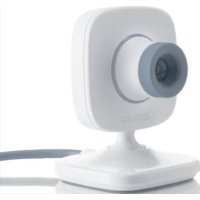
Xbox 360 Live vision - Console MICROSOFT - Free user manual and instructions
Find the device manual for free Xbox 360 Live vision MICROSOFT in PDF.



| Product Type | Camera for Xbox 360 console |
| Brand | Microsoft |
| Model | Xbox 360 Live Vision |
| Main Functions | Video chat, picture messages, photo snapshots |
| Connectivity | Hi-Speed USB 2.0 |
| Compatibility | Xbox 360 console and PC running Windows XP SP2 |
| Power supply | Via USB port of the console or PC |
| Weight | Approximately 200 g |
| Dimensions (L x W x H) | Approximately 10 x 5 x 5 cm |
| Material | Plastic |
| Light indicator | Light ring (lights up in video/photo mode) |
| Video resolution | VGA (640 x 480) or lower |
| Focus | Manual by rotating the lens |
| Maintenance and cleaning | Dry or slightly damp cloth for the housing; soft cloth for the lens |
| Safety | Do not expose to intense prolonged light; do not touch the lens with fingers; do not attempt to repair yourself |
| Parental control | Family settings to block video communications |
| Warranty | Xbox 360 limited warranty (see guide) |
| Spare parts and repairability | Not designed for user repair; no disassembly allowed |
| Required software | Xbox 360 system update or Windows XP SP2 driver |
| General information | Official Microsoft camera for Xbox 360, enables video chat and photos |
Frequently Asked Questions - Xbox 360 Live vision MICROSOFT
User questions about Xbox 360 Live vision MICROSOFT
0 question about this device. Answer the ones you know or ask your own.
Ask a new question about this device
Download the instructions for your Console in PDF format for free! Find your manual Xbox 360 Live vision - MICROSOFT and take your electronic device back in hand. On this page are published all the documents necessary for the use of your device. Xbox 360 Live vision by MICROSOFT.
USER MANUAL Xbox 360 Live vision MICROSOFT
natural_image
Abstract 3D sphere with intersecting angular lines, rendered in grayscale (no text or symbols)XBOX 360™
XBOX LIVE VISION

natural_image
Abstract concentric circular pattern with gradient shading (no text or symbols)
Thanks for choosing the Xbox LIVE Vision camera. Xbox LIVE Vision adds video to your Xbox 360 system and games, including:
• Video chat and picture messages.
- Photo snapshots.
- Family Settings for privacy and parental control of communication and user-created content.
To enable Xbox LIVE Vision on your Xbox 360 console, get the latest Xbox 360 system software by signing in to Xbox LIVE® with any membership and consenting to download it directly to your console.

WARNING
Before using this product, read this manual and the Xbox 360 console manuals for important safety and health information. Keep all manuals for future reference. For replacement manuals, go to www.xbox.com/support or call Xbox Customer Support (see "If You Need More Help").
The limited warranty covering this product is contained in the Xbox 360 Warranty manual (Volume 2) and is available online at www.xbox.com/support.
Arrange the camera cable so that people and pets are not likely to trip over or accidentally pull on it as they move around or walk through the area. When the camera is not in use, you may need to disconnect the cable from the console to keep it out of the reach of children and pets. Do not allow children to play with the camera cable or wrap the cable around themselves.
Do not touch the camera cable terminals or camera lens with your fingers or allow metal parts to touch them. Doing so may damage the camera.
Never force a cable connector into a port. If the connector doesn't easily connect, flip it over and try again.
Before you can use your camera with your Xbox 360 system, make sure you've signed in to Xbox LIVE to automatically receive the latest Xbox LIVE update. For more information about connecting to Xbox LIVE, see your Xbox 360 Setup manual (Volume 1).
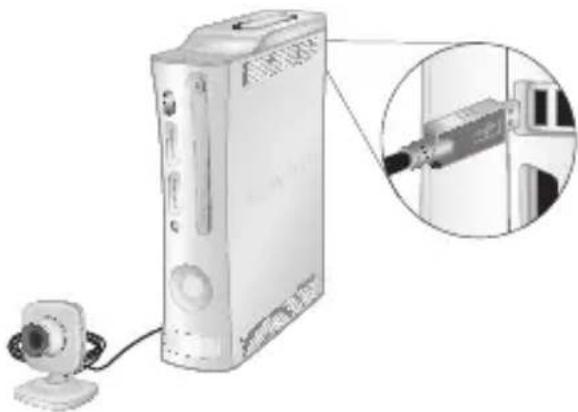
To connect to an Xbox 360 console:
1 Turn on your Xbox 360 console with no disc in the tray. When the Xbox Dashboard appears, connect the camera cable to one of the console's USB ports. If possible, use a rear port for the camera so that the front ports are left available for wired controllers and media devices. The Ring of Light on the camera will blink while the camera is being recognized by the system.
natural_image
Illustration of a desktop computer tower with an inset close-up showing its cable and drive (no text or symbols visible)2 Position the camera on a stable base, pointed towards you or what you want to shoot. The Ring of Light on the camera will glow when actively shooting video.
3 For audio, connect the Xbox 360 Headset according to the instructions in your Xbox 360 Headset manual.
NOTES
- To get started, select Xbox LIVE Vision from the Xbox LIVE area of the Xbox Dashboard after connecting the camera to your console. To test video and confi gure additional Xbox LIVE Vision settings, select Xbox LIVE Vision from the System area of the Xbox Dashboard. If no selection for Xbox LIVE Vision exists, get the latest system software update by signing in to Xbox LIVE and consenting to the download.
- When the camera's light ring is illuminated, the camera is shooting video.
- The camera can be damaged if exposed to extremely bright light over an extended period of time.
Family Settings and other options can help you control the Xbox LIVE Vision experience for everyone. Here are steps you can take:
Block video communications for Xbox LIVE child accounts
Simply go to the System area of the Xbox Dashboard and select Family Settings.
Set communications to Friends Only
For any profile, you can change your preference to communicate online only with people on your friends list. This means that only your friends' voice and video will be received. Press the Xbox Guide button, then select a profile and choose Edit Gamer Profile. Change the Privacy Settings for Communication to Friends Only.
Block all communications
From within games, you can quickly mute all communications to no longer hear—or see—anyone. For more information, see your game documentation or game camera options menu.
File a complaint
If you encounter someone who breaks the Xbox LIVE Code of Conduct, you can file a complaint. All complaints are reviewed by Xbox LIVE. However, Xbox LIVE policy does not disclose the status or results of individual complaints. Press the Xbox Guide button, then select another gamer's profile and choose File Complaint.
natural_image
Illustration of a desktop computer setup with a tower, keyboard, and monitor connected to a rack-mounted device (no text or symbols visible)To connect to a PC:
1 Turn on your PC and connect the camera cable to an available USB 2.0 (Hi-Speed) port. Microsoft® Windows® XP will display the Found New Hardware Wizard. In the wizard, select the options to allow Windows Update to automatically find and install the free Xbox LIVE Vision driver file. Your computer needs this file in order to work with the camera.
2 Position the camera on a stable base, pointed towards you or what you want to shoot. The Ring of Light on the camera will glow when actively shooting video.
NOTES
- To test video and configure additional Xbox LIVE Vision settings on your PC, click Start, My Computer, USB Video Device.
- You must connect the camera to a USB 2.0 (Hi-Speed) port. Earlier
versions of USB are not supported.
- The Xbox LIVE Vision camera works only with PCs running Windows XP SP2.
- Initial setup requires the installation of a driver file. To automatically find and install the Xbox LIVE Vision driver file, use the Found New Hardware Wizard, which launches automatically the first time you plug in the camera.
- If you have a microphone connected to your computer, you can use it for audio in conjunction with your Xbox LIVE Vision camera.
CLEANING YOUR CAMERA
Clean only with a dry or slightly damp cloth. Using cleaning solutions or attempting to clean connectors may damage your camera. For the lens, use only soft, dry, lint-free cloth or lens paper.
TROUBLESHOOTING
If you encounter problems, try the possible solutions provided below.
No Picture
Make sure the camera cable connector is connected securely to a controller port on your console.
Blurry or Poor Video Quality
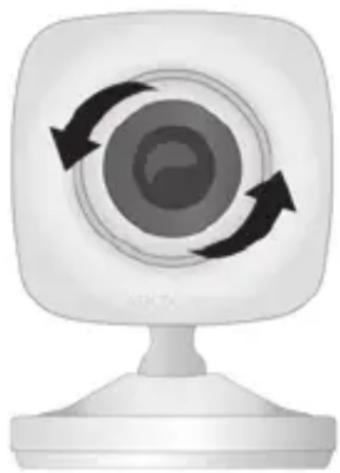
- Make sure the focus is adjusted on the camera lens. In general, turning the lens clockwise moves the focal point farther out and turning it counterclockwise moves the focal point closer in.
natural_image
White webcam with three black circular arrows on a circular screen (no text or symbols)- Clean the camera lens if it becomes dirty, being careful to avoid scratching the lens surface.
• Video quality can be improved by shooting in a well-lit area. - Position the camera in a well-ventilated location near room-temperature.
- Do not point the camera directly at a bright light or window.
No Light Ring Indication
The light ring only illuminates when the camera is actively shooting video or capturing a still picture.
IF YOU NEED MORE HELP
Go to www.xbox.com/support or call Xbox Customer Support:
• United States and Canada: 1-800-4MY-XBOX (1-800-469-9269)
TTY users: 1-866-740-XBOX (1-866-740-9269)
• Mexico: 001-866-745-83-12 (TTY users: 001-866-251-26-21)
• Colombia: 01-800-912-1830
• Brazil: 0800-891-9835
• Chile: 1230-020-6001
Do not take your Xbox 360 console or its accessories to your retailer for repair or service unless instructed to do so by an Xbox Customer Support representative.

Do Not Attempt Repairs
Do not attempt to take apart, service, or modify the Xbox 360 console, power supply, or its accessories in any way. Doing so could present the risk of serious injury or death from electric shock or fire, and it will void your warranty.
DISPOSAL OF WASTE ELECTRICAL AND ELECTRONIC EQUIPMENT
This symbol means that the disposal of this product may be regulated. Disposal with household waste may therefore be restricted. It is your responsibility to comply with applicable recycling law or regulations pertaining to electrical and electronic waste. Separate collection and recycling will help to conserve natural resources and prevent potential
negative consequences for human health and the environment, which inappropriate disposal could cause due to the possible presence of hazardous substances in electrical and electronic equipment. For more information about where to drop off your electrical and electronic waste, please contact your
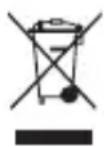
local city/municipality office, your household waste disposal service, or the shop where you purchased this product.
FOR CUSTOMERS IN THE UNITED STATES
This device complies with Part 15 of the FCC Rules. Operation is subject to the following two conditions:
(1) This device may not cause harmful interference, and
(2) This device must accept any interference received, including interference that may cause undesired operation.
Trade Name: Microsoft Corp.
Address: One Microsoft Way Redmond, WA 98052 U.S.A.
Responsible
Party: Microsoft Corporation
Telephone
No.: (800) 4MY-XBOX
This equipment has been tested and found to comply with the limits for a Class B digital device, pursuant to Part 15 of the FCC rules. These limits are designed to provide reasonable protection against harmful interference in a residential installation. This equipment generates, uses, and can radiate radio frequency energy and, if not installed and used in accordance with the instructions, may cause harmful interference to radio communications. However, there is no guarantee that interference will not occur in a particular installation. If this equipment does cause harmful interference to radio or television reception, which can be determined by turning the equipment off and on,
the user is encouraged to try to correct the interference by one or more of the following measures:
- Reorient or relocate the receiving antenna.
- Increase the separation between the equipment and receiver.
- Connect the equipment into an outlet on a circuit different from that to which the receiver is connected.
- Consult the dealer or an experienced radio/TV technician for help.
Caution
Any changes or modifications made on the system not expressly approved by the manufacturer could void the user's authority to operate the equipment.
FOR CUSTOMERS IN CANADA
This Class B digital apparatus complies with Canadian ICES-003.
COPYRIGHT
Information in this document, including URL and other Internet Web site references, is subject to change without notice. Unless otherwise noted, the example companies, organizations, products, domain names, e-mail addresses, logos, people, places and events depicted herein are fictitious, and no association with any real company, organization, product, domain name, e-mail address, logo, person, place or event is intended or should be inferred. Complying with all applicable copyright laws is the responsibility of the user. Without limiting the rights under copyright, no part of this document may be reproduced, stored in or introduced into a retrieval system, or transmitted in any form or by any means (electronic, mechanical, photocopying, recording, or otherwise), or for any purpose, without the express written permission of Microsoft Corporation.
Microsoft may have patents, patent applications, trademarks, copyrights, or other intellectual property rights covering subject matter in this document. Except as expressly provided in any written license agreement from Microsoft, the furnishing of this document does not give you any license to these patents, trademarks, copyrights, or other intellectual property.
© 2007 Microsoft Corporation. All rights reserved. Microsoft, Windows, Xbox, Xbox 360, Xbox LIVE, the Xbox logos, and the Xbox LIVE logo are either registered trademarks or trademarks of Microsoft Corporation in the United States and/or other countries.
FRANÇAIS
Xbox LIVE Vision
natural_image
Illustration of a desktop computer tower connected to a webcam, with an inset close-up showing a cable inserted into a wall-mounted device (no text or symbols visible)natural_image
Illustration of a desktop computer setup with a tower, monitor, keyboard, and mouse (no text or symbols)natural_image
White webcam icon with circular arrows indicating refresh or rotation (no text or symbols)responsible: Microsoft Corporation
N° de
natural_image
Illustration of a desktop computer tower with an inset close-up showing a cable inserted into a wall-mounted device (no text or symbols visible)natural_image
Illustration of a desktop computer setup with a tower, keyboard, and monitor connected to a device (no text or symbols visible)natural_image
White webcam icon with three curved arrows on a circular screen (no text or symbols)natural_image
Illustration of a desktop computer tower with a webcam and an inset close-up showing a cable inserted into a wall-mounted device (no text or symbols visible)natural_image
Illustration of a desktop computer setup with a tower, keyboard, and monitor connected to a device (no text or symbols visible)natural_image
White webcam icon with circular arrows on top, no text or symbols presentTelephone: (800) 4MY-XBOX
- XBOX 360™
- WARNING
- NOTES
- Block video communications for Xbox LIVE child accounts
- Set communications to Friends Only
- Block all communications
- File a complaint
- To connect to a PC:
- CLEANING YOUR CAMERA
- TROUBLESHOOTING
- No Picture
- Blurry or Poor Video Quality
- No Light Ring Indication
- IF YOU NEED MORE HELP
- Do Not Attempt Repairs
- DISPOSAL OF WASTE ELECTRICAL AND ELECTRONIC EQUIPMENT
- FOR CUSTOMERS IN THE UNITED STATES
- Responsible
- Telephone
- Caution
- FOR CUSTOMERS IN CANADA
- COPYRIGHT
- FRANÇAIS
- Xbox LIVE Vision
- N° de
Brand : MICROSOFT
Model : Xbox 360 Live vision
Category : Console