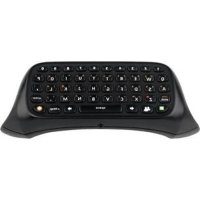
Xbox 360 Chatpad - Console MICROSOFT - Free user manual and instructions
Find the device manual for free Xbox 360 Chatpad MICROSOFT in PDF.



| Product Type | Messaging keyboard for Xbox 360 controller |
| Brand | Microsoft |
| Model | Xbox 360 Chatpad (Messenger Keyboard) |
| Compatibility | Xbox 360 controllers with "Created by Xbox" stamp |
| Dimensions (approx.) | 15.2 cm x 5.1 cm x 1.3 cm |
| Weight (approx.) | 110 g |
| Power | Via Xbox 360 controller (no additional batteries needed) |
| Audio jack | 2.5 mm jack for compatible headset |
| Backlight | Yes (white, activates when typing) |
| Special keys | Windows Live Messenger, SHIFT, ORANGE, GREEN |
| Available languages | English, French (depending on model) |
| Main functions | Text input, instant messaging, voice chat |
| Care and cleaning | Wipe with a soft, dry cloth |
| Safety | Do not disassemble; hearing risk if volume high |
| Limited warranty | Included (see Xbox 360 Warranty Guide) |
| System requirements | Xbox 360 console, Xbox LIVE subscription for messaging |
| Included accessories | Keyboard only (controller sold separately) |
| General information | Designed for quick thumb typing |
Frequently Asked Questions - Xbox 360 Chatpad MICROSOFT
User questions about Xbox 360 Chatpad MICROSOFT
0 question about this device. Answer the ones you know or ask your own.
Ask a new question about this device
Download the instructions for your Console in PDF format for free! Find your manual Xbox 360 Chatpad - MICROSOFT and take your electronic device back in hand. On this page are published all the documents necessary for the use of your device. Xbox 360 Chatpad by MICROSOFT.
USER MANUAL Xbox 360 Chatpad MICROSOFT
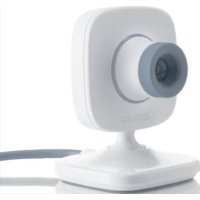
Thanks for choosing the Xbox 360 Chatpad. Chatpad attaches to the back of your Xbox 360 wired or wireless controller to enable in-game text messaging, instant messaging, and other text entry. The keypad is optimized for fast, thumbs-only typing.
To use Chatpad for messaging, you need an Xbox LIVE® membership. For information about Xbox LIVE, see your Xbox 360 Setup manual (Volume 1). You will also need either an Xbox 360 Controller or Xbox 360 Wireless Controller, both sold separately.
Chatpad offers:
-
A dedicated Windows Live™ Messenger button for instant access to in-game text messaging and Windows Live Messenger instant messaging on Xbox 360.
An audio jack for use with any headset that uses a standard 2.5-mm connector.
Backlit keys. -
Tactile confirmation of each button press.
NOTE
Only controllers with the Created by Xbox stamp are compatible with
Chatpad. Only products manufactured by Microsoft will bear this stamp.


WARNING
Before using this product, read this manual and the Xbox 360 console manuals for important safety and health information. Keep all manuals for future reference. For replacement manuals, go to www.xbox.com/support or call Xbox Customer Support (see "If You Need More Help").
The limited warranty covering this product is contained in the Xbox 360 Warranty manual (Volume 2) and is available online at www.xbox.com/support.
UPDATE YOUR CONSOLE
Before you connect Chatpad to your controller, make sure your Xbox 360 console is up to date by connecting to Xbox LIVE. For more information about connecting to Xbox LIVE, see your Xbox 360 Setup manual (Volume 1).
CONNECT CHATPAD TO A CONTROLLER
Once you've connected your console to Xbox LIVE and completed any system updates, you're ready to connect Chatpad to a controller.
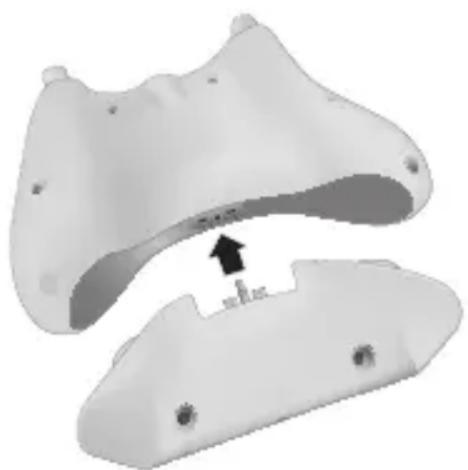
1 Turn over both your controller and your Chatpad so the bottoms face up.
2 Align the Chatpad connector plug with the controller's expansion port. Align the two posts on the Chatpad with the holes on the controller.
3 Gently but firmly push the Chatpad onto the controller with even pressure until they snap together.
NOTE
If your console is not connected to the Internet or if you are not a subscriber to Xbox LIVE, you can download the Chatpad update to your PC, burn it to a CD, and install it on your console. For more info, go to www.xbox.com/update.
You may need to use firm pressure to fully seat the Chatpad onto the controller. A fully-seated Chatpad will have no gaps between it and the edges of the controller.
Once Chatpad is connected to a powered controller, it is ready to use.
Connect a Headset
The 2.5-mm audio jack on Chatpad lets you connect headsets such as the revised Xbox 360 Headset with inline volume control or a mobile phone headset. Xbox 360 Chatpad does not work with the original Xbox 360 Headset with volume controls on the cable connector. For more information, see the instruction manual for your headset.
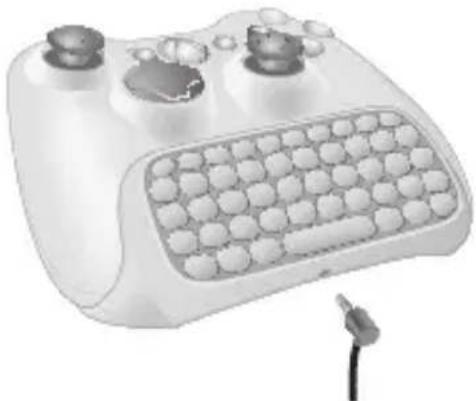
To connect a headset, plug the headset's connector into the 2.5-mm connector jack on Chatpad.
Hearing Loss
Extended exposure to high volumes when using a headset may result in temporary or permanent hearing loss. Some unapproved third-party headsets may produce higher sound levels than approved Xbox 360 Headsets.
USING CHATPAD
Keyboard
As with a standard PC keyboard, Chatpad characters are lower case by default and the SHIFT button is your access to capital letters.
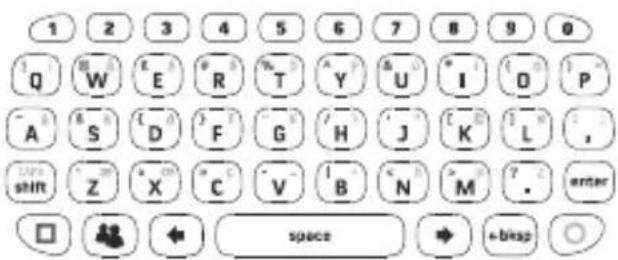
English Keyboard
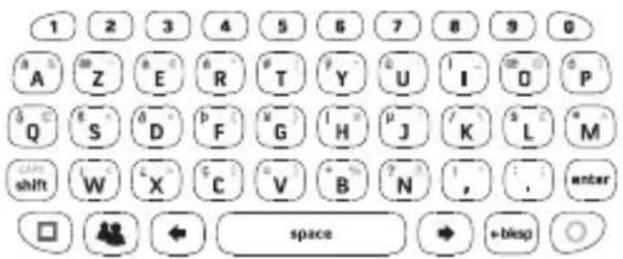
French Keyboard
In addition to standard keys like those for numbers, space, and backspace, Chatpad provides two "modifier" keys other than SHIFT: AMBER and GREEN. These keys toggle between standard key values (white characters) and special characters (amber or green colored characters printed on the keys).
Also featured on the Chatpad is the Windows Live Messenger button. Press this button to access instant messaging. The Windows Live Messenger button also lights up whenever you receive an instant message.
For information about using Chatpad with a particular game, see your game manual.
Special Characters
When you press the SHIFT, AMBER, or GREEN key once, the subsequent
key press will produce a character in your selected mode (upper-case or special). The second and following key presses will be in the normal (lower-case) mode.
To enter caps lock mode, press the AMBER key and then press the SHIFT (CAPS) key. Press this key combination again to return to normal mode.
The SHIFT, AMBER, and GREEN keys illuminate to signify that the keypad is in a particular mode.
To add a diacritic (accent mark) to a letter, press the key combination for the diacritic, then press the letter to apply the diacritical mark to. For example, to enter ü on an English chatpad, press the GREEN key, the G key (the umlaut character is printed in green on this key), and then the U key.
Backlight
Chatpad's white backlight enables use in dark rooms. Pressing any key on the Chatpad will activate the backlight, which will stay on for several seconds after each press.
TROUBLESHOOTING
If you encounter problems, try the possible solutions provided below.
Keypad Uses Incorrect Language Set
The Chatpad keypad is pre-configured for a specific set of language characters. To determine the language set for your Chatpad, see the sticker on the underside of the device.
Keypad Doesn't Work
Make sure Chatpad is connected securely to your controller.
Voice Chat Doesn't Work
Make sure your headset connector is plugged in securely and that Chatpad is connected securely to your controller. Check the mute button on the headset control to make sure the microphone is on.
Make sure that the mute function in the Xbox 360 console is not activated. Confirm that you are properly signed into Xbox LIVE and that Family Settings or privacy settings are not preventing voice communication.
IF YOU NEED MORE HELP
Go to www.xbox.com/support or call Xbox Customer Support:
United States and Canada: 1-800-4MY-XBOX (1-800-469-9269) TTY users: 1-866-740-XBOX (1-866-740-9269)
Do not take your Xbox 360 console or its accessories to your retailer for repair or service unless instructed to do so by an Xbox Customer Support representative.

Do Not Attempt Repairs
Do not attempt to take apart, service, or modify the Xbox 360 console, power supply, or its accessories in any way. Doing so could present the risk of serious injury or death from electric shock or fire, and it will void your warranty.
DISPOSAL OF WASTE ELECTRICAL AND ELECTRONIC EQUIPMENT
This symbol means that the disposal of this product may be regulated. Disposal with household waste may therefore be restricted. It is your responsibility to comply with applicable recycling law or regulations pertaining to electrical and electronic waste. Separate collection and recycling will help to conserve natural resources and prevent potential negative consequences for human health and the environment, which inappropriate disposal could cause due to the possible presence of hazardous substances in electrical and electronic equipment. For more information about where to drop off your electrical and electronic waste, please contact your local city/municipality office, your
household waste disposal service, or the shop where you purchased this product.
FOR CUSTOMERS IN THE UNITED STATES
This device complies with Part 15 of the FCC Rules. Operation is subject to the following two conditions:
(1) This device may not cause harmful interference, and
(2) This device must accept any interference received, including interference that may cause undesired operation.
Trade Name: Microsoft Corp.
Responsible Microsoft Corporation Party:
Address: One Microsoft Way Redmond, WA 98052 U.S.A.
Telephone (800) 4MY-XBOX No.:
This equipment has been tested and found to comply with the limits for a Class B digital device, pursuant to Part 15 of the FCC rules. These limits are designed to provide reasonable protection against harmful interference in a residential installation. This equipment generates, uses, and can radiate radio frequency energy and, if
not installed and used in accordance with the instructions, may cause harmful interference to radio communications. However, there is no guarantee that interference will not occur in a particular installation. If this equipment does cause harmful interference to radio or television reception, which can be determined by turning the equipment off and on, the user is encouraged to try to correct the interference by one or more of the following measures:
Reorient or relocate the receiving antenna.
- Increase the separation between the equipment and receiver.
- Connect the equipment into an outlet on a circuit different from that to which the receiver is connected.
- Consult the dealer or an experienced radio/TV technician for help.
Caution: Any changes or modifications made on the system not expressly approved by the
manufacturer could void the user's authority to operate the equipment.
FOR CUSTOMERS IN CANADA
This Class B digital apparatus complies with Canadian ICES-003.
COPYRIGHT
Information in this document, including URL and other Internet Web site references, is subject to change without notice. Unless otherwise noted, the example companies, organizations, products, domain names, e-mail addresses, logos, people, places and events depicted herein are fictitious, and no association with any real company, organization, product, domain name, e-mail address, logo, person, place or event is intended or should be inferred. Complying with all applicable copyright laws is the responsibility of the user. Without limiting the rights under copyright, no part of this document may be reproduced, stored in or introduced into a retrieval system, or transmitted in any form or by any means (electronic, mechanical, photocopying, recording, or otherwise), or for any purpose, without the express written permission of Microsoft Corporation.
Microsoft may have patents, patent applications, trademarks, copyrights, or other intellectual property rights covering subject matter in this document. Except as expressly provided in any written license agreement from Microsoft, the furnishing of this document does not give you any license to these patents, trademarks, copyrights, or other intellectual property.
© 2008 Microsoft Corporation. All rights reserved.
Microsoft, Xbox, Xbox 360, Xbox LIVE, the Xbox logos, the Xbox LIVE logo, Windows, Windows Live, Windows Vista, and the Windows Live Messenger icon are trademarks of the Microsoft group of companies.
FRANÇAIS
Clavier Messenger Xbox 360
- Chatpad offers:
- NOTE
- WARNING
- UPDATE YOUR CONSOLE
- CONNECT CHATPAD TO A CONTROLLER
- Connect a Headset
- Hearing Loss
- USING CHATPAD
- Keyboard
- French Keyboard
- Special Characters
- Backlight
- TROUBLESHOOTING
- Keypad Uses Incorrect Language Set
- Keypad Doesn't Work
- Voice Chat Doesn't Work
- IF YOU NEED MORE HELP
- Do Not Attempt Repairs
- DISPOSAL OF WASTE ELECTRICAL AND ELECTRONIC EQUIPMENT
- FOR CUSTOMERS IN THE UNITED STATES
- FOR CUSTOMERS IN CANADA
- COPYRIGHT
- FRANÇAIS
- Clavier Messenger Xbox 360
Brand : MICROSOFT
Model : Xbox 360 Chatpad
Category : Console