WS07VCA - Bluetooth speaker THOMSON - Free user manual and instructions
Find the device manual for free WS07VCA THOMSON in PDF.


User questions about WS07VCA THOMSON
0 question about this device. Answer the ones you know or ask your own.
Ask a new question about this device
Download the instructions for your Bluetooth speaker in PDF format for free! Find your manual WS07VCA - THOMSON and take your electronic device back in hand. On this page are published all the documents necessary for the use of your device. WS07VCA by THOMSON.
USER MANUAL WS07VCA THOMSON
natural_image
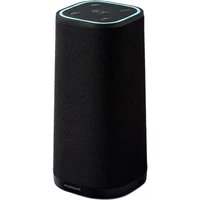
Black cylindrical smart speaker with green-lit head and black textured body (no visible text or symbols)MODE D'EMPLOI
LISEZ COMPLÈTEMENT CE MANUEL D'UTILISATION AVANT D'UTILISER CET APPAREIL ET CONSERVEZ CE LIVRET POUR VOUS Y RÉFÉRER ULTÉRIEUREMENT.
Table des matières
Démarrage 1
natural_image
Simple line drawing of a rectangular object with a flat top and two base supports (no text or symbols)Enceinte WS07VCA Câble de recharge Micro USB
natural_image
Line drawing of a USB cable with two USB ports and a USB switch (no text or symbols)
natural_image
Simple line drawing of two connected audio/video cables (no text or symbols)natural_image
Diagram showing connection between a computer monitor and an Ethernet device via USB cable, with a lightning bolt indicating power (no text or symbols present)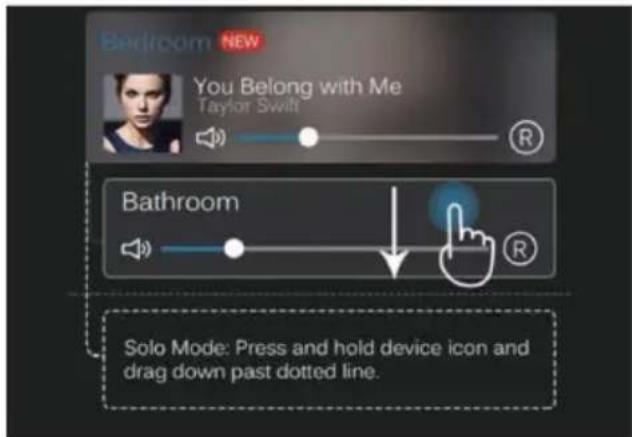
Couplage Bluetooth
https://www.spotify.com/connect/thirdparty-licenses
EN : https://www.bigben-interactive.co.uk/support/

Fabricant : Bigben Interactive FRANCE
396, Rue de la Voyette, C.R.T. 2 Fretin, CS 90414 - 59814 LESQUIN Cedex, France
natural_image
Black cylindrical smart speaker with green-lit head and black textured body (no visible text or symbols)OPERATING INSTRUCTIONS
PLEASE READ THIS USER MANUAL CAREFULLY BEFORE OPERATING THIS UNIT AND RETAIN FOR FUTURE REFERENCE
Contents
Getting Started 1
Safety and Notice 1
Care for your product 2
What's in the box 2
Device Controls 3
Basic operation 3
Charging the speaker 4
Power Caution 4
Connecting your speaker to the network
The apps Main Interface 8
Using Spotify 9
Using Deezer 9
Using Presets 10
Switching between Multi Mode and Solo Mode 10
Pairing with Bluetooth
Connecting with the Auxiliary Cable
Using the Speaker with Alexa
Specifications 11
Remarks:
Getting Started
- Remove the appliance from the box.
- Remove any packaging from the product.
- Place the packaging inside the box and dispose of safely.
Safety and Notice
Read and understand all instructions before you use this product. If damage is caused by failure to follow the instructions, the warranty does not apply.

Warning
- Read, follow and keep these instructions.
- Follow all warnings.
- Do not use this apparatus near water.
- Do not block any ventilation openings. Install in accordance with the manufacturer's instructions.
- Do not install near any heat sources such as radiators, heat registers, stoves, or other apparatus (including amplifiers) that produce heat.
- Protect the power cord from being walked on or pinched, particularly at plugs, and the point where they exit from the apparatus.
- Ensure that you always have easy access to the power cord, plug or adaptor to disconnect this apparatus from the power.
- Only use the accessories specified or supplied by the manufacturer.
- Unplug this apparatus during lightning storms or when unused for long periods of time.
- Never remove the casing of this apparatus.
- Refer all servicing to qualified service personnel. Servicing is required when the apparatus has been damaged in anyway, such as power-supply cord or plug is damaged, liquid has been spilled or objects have fallen into the apparatus, apparatus has been exposed to rain or moisture, does not operate normally, or has been dropped.
- Never lubricate any part of this apparatus.
- Apparatus shall not be exposed to dripping or splashing.
- Do not place any sources of danger on the apparatus (e.g. liquid filled objects, lighted candles).
- Make sure there is enough free space around the product for ventilation.
- The rating label is placed on the rear side of apparatus.
Care for your product
- Always unplug the appliance when not in use and before cleaning.
- Do not play music at excessive volume levels as damage to hearing and or the equipment may occur.
- Do not use this unit in wet or damp conditions.
- Always disconnect the unit from the mains power supply before cleaning. Clean the appliance with a soft, lint free cloth. Do not use abrasives or harsh cleaners.
What's in the box
Check and identify the contents of your package.
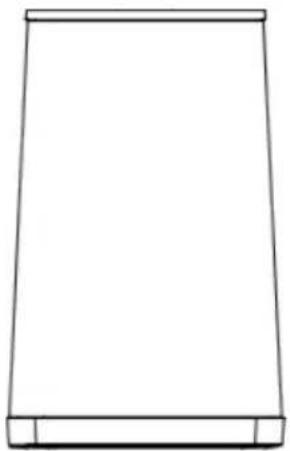
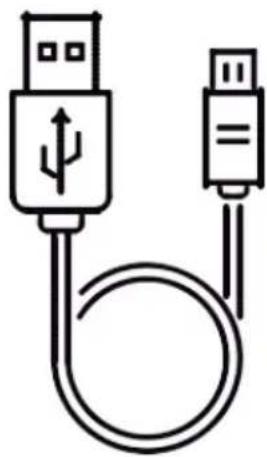
WS07VCA Speaker Micro USB Charge cable
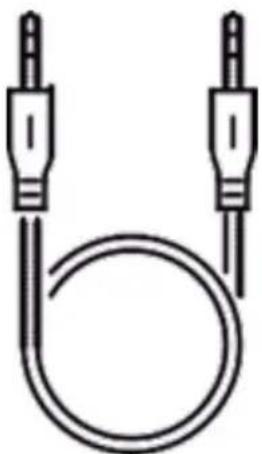
WS07VCA User Manual 3.5mm Jack audio cable
natural_image
Simple line drawing of a rectangular object with a flat top and two base legs (no text or symbols)WS07VCA speaker Micro USB Charge cable
natural_image
Simple line drawing of a USB cable with two USB connectors (no text or symbols)
WS07VCA User Manual 3.5 mm Jack audio cable
natural_image
Simple line drawing of two connected audio/video cables (no text or symbols)Device Controls
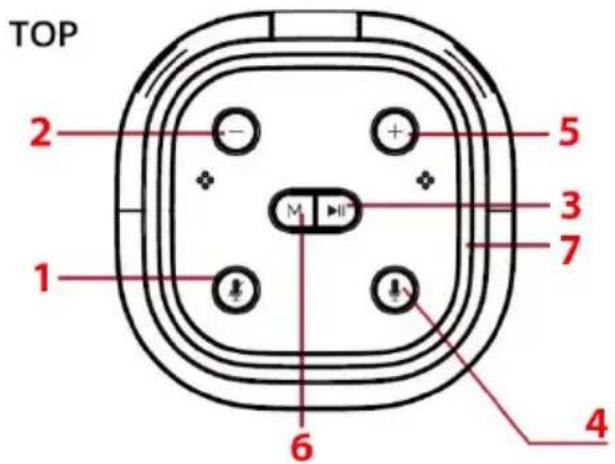
- Mute\ unmute Alexa
- Decrease volume
- Alexa activation
- Increase volume
- Change mode (Wi-Fi \ Bluetooth)
- Colour ring
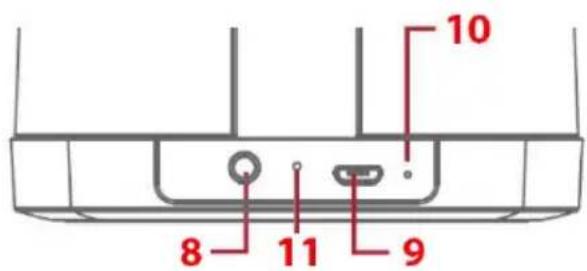
- 3.5mm Aux jack
- Micro USB charge port
- Charging LED indicator
-
Reset hole
-
Long press Power on \ off. Play and pause music
Basic operation
Powering ON/OFF
- Long press the button to power the speaker ON or OFF.
Changing Input Modes
- Quick press the [M] button to change between Wi-Fi Bluetooth, and Auxiliary input modes.
Adjusting Volume
- Long press the [+] and [-] buttons to adjust the volume or use the controls on your paired device or in app controls.
Using Alexa (Alexa ONLY)
- After it is set up, Alexa can be activated with your voice or by pressing the Alexa button for immediate access.
To mute/unmute the voice access, press the mute button.
- Press the mic button to immediately access Alexa without voice activation.
Playing Music
To play music with the speaker, please refer to the 'connecting to the speaker' section of this user guide. Music can be played via the THOMSON Smart Audio mobile app, pairing your device via Bluetooth, or by connecting a 3.5mm auxiliary cable.
Charging the speaker
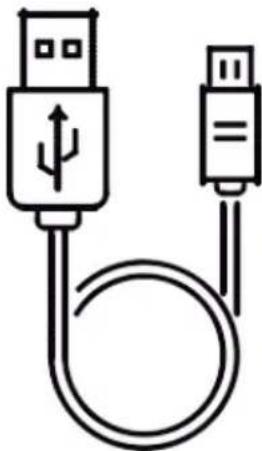
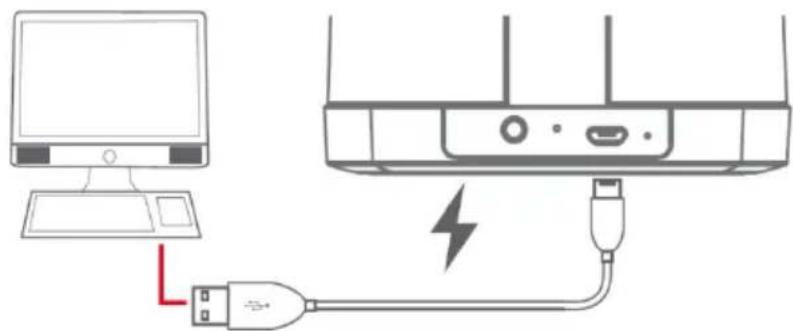
To charge the speaker, attach the small end of the supplied micro-USB cable to the USB charging port on the rear of the speaker
Attach the large end to the USB port on a computer, USB charging device, or 5V USB adaptor. The LED indicator will turn RED while charging and turn OFF when fully charged.
natural_image
Diagram showing connection between a computer monitor and an Ethernet device via USB cable, with a lightning bolt indicating the connection (no text or symbols present)Make sure that your speaker is charged for about 3-5 hours before first use.
Power Caution
- Risk of danger! Make sure that the power voltage of your charger corresponds to the voltage printed on the rating label.
- Risk of electric shock! When you unplug the AC power cord always pull the plug from the socket.
Auto standby
The product automatically switches to standby if:
• No button is pressed for 10 minutes,
- No audio from a connected device for 10 minutes.
Connecting your speaker to the network
Connecting with the THOMSON Smart Audio app
- Search for the Smart Audio app in Google Play Store (Android)
Or Apple APP Store (iOS). Download and install.


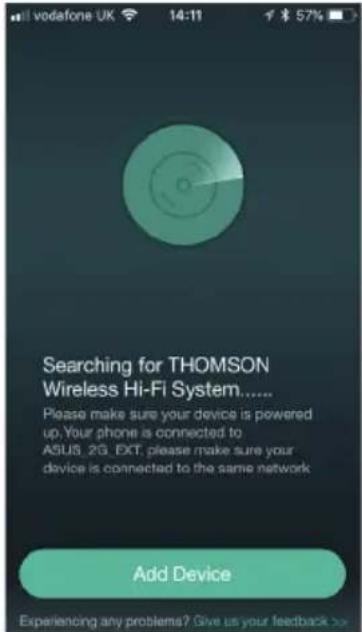
- Power up your speaker and wait for the voice prompt to advise that you are in set up mode. Launch the app so it can search for your new speaker.
Press the 'Add Device' button and confirm that you wish to add a new Thomson speaker.
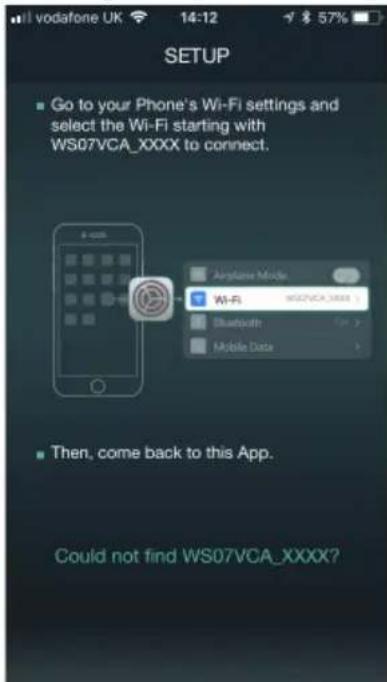
- The app will direct you to go to the Wi-Fi settings page. Go to the Wi-Fi settings on your phone and connect your mobile phone to the speaker. Look for the Wi-Fi name Thomson WS07VCAXXXX Note that it is best to have your speaker close to your router during this part to ensure a good Wi-Fi signal.
-
Once you are connected, the speaker will tell you and you can return to the app to continue set up.
-
Select your home Wi-Fi network and enter the correct password for your Wi-Fi.
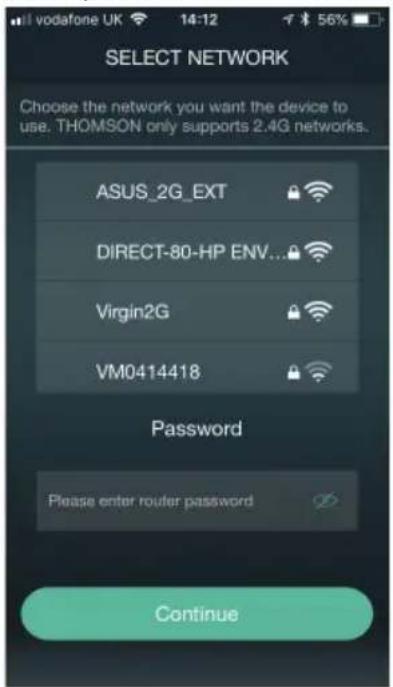
- If connection is successful, the speaker will tell you that it is connected to your network. It will also show you the signal strength from your router to your speaker. Press 'Next' to complete set up.
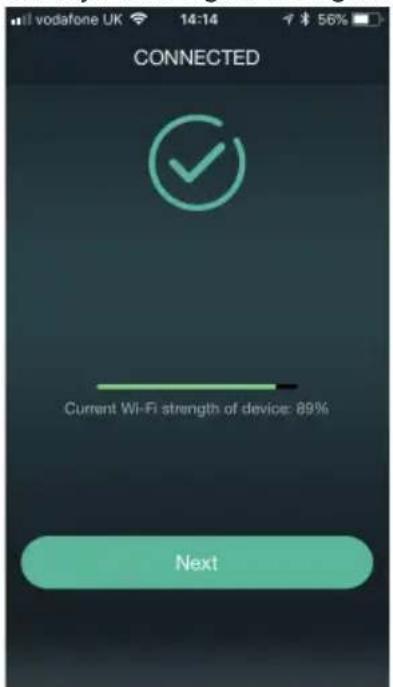
NOTE
Once the speaker is successfully connected, its SSID (Wi-Fi name) will be automatically hidden for network security. If you would like the speaker to release its SSID and be visible again, press and hold the [M] button until the voice prompt" Entering set up mode, follow the instructions to set up" is heard.
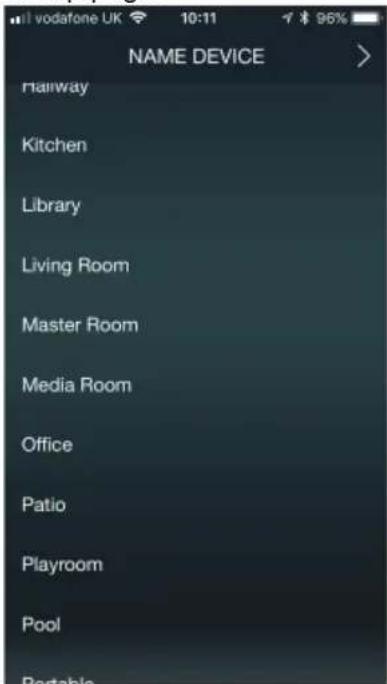
You can then re-name your speaker or name it according to the room it is located in, i.e. Kitchen speaker or Bedroom speaker. Once named, press the icon in the top right to go to the Alexa account set up page.
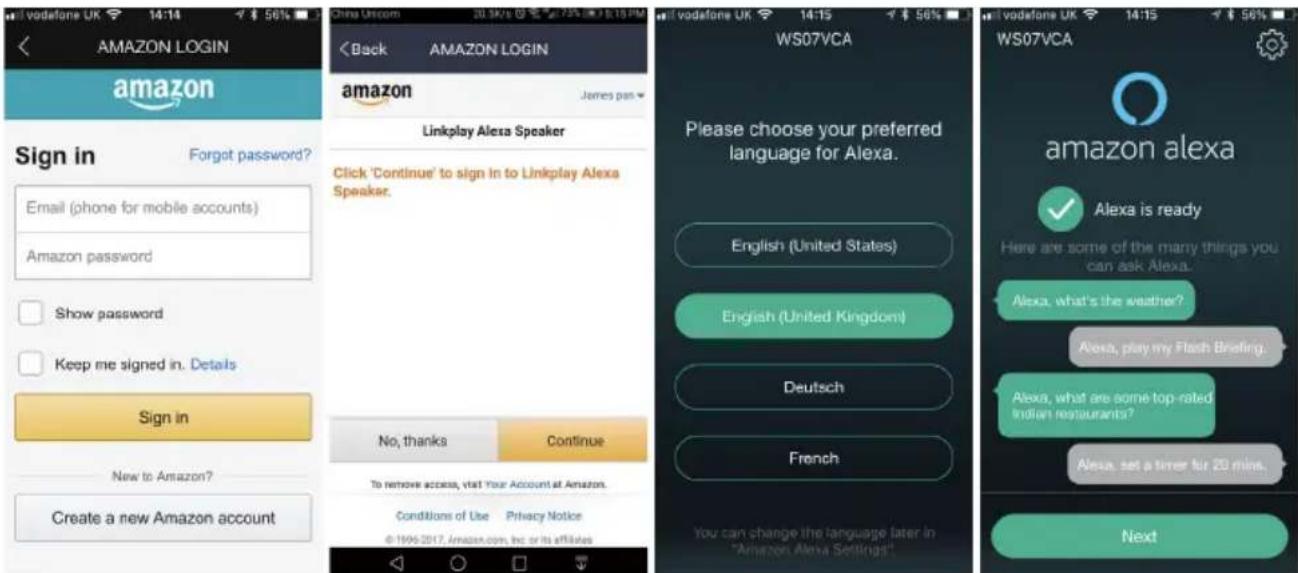
- You need to have an active Amazon account to use the Alexa service, so if you do not already have an account you will need to sign up. If you have an account, just follow the onscreen instructions to link your speaker to your account.
Note: You will also need to install the Alexa app to enable certain services, so please ensure that you also install this on the same mobile device. If you do not yet have and Amazon account, you can skip this part for now and set up later.
- Once you have completed the set-up, your speaker will appear in the device list of your app. From here you can see all of the Thomson Smart audio speakers connected to your network.
The apps Main Interface
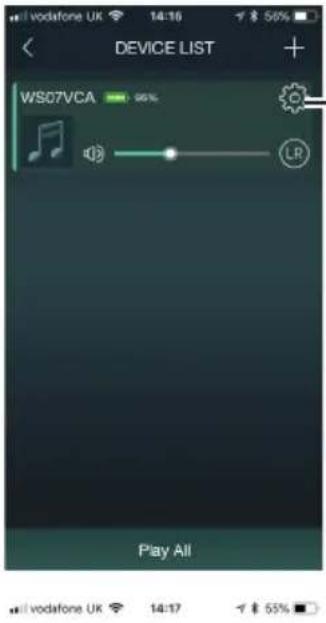
Select here to enter the speaker settings
The speaker battery level is displayed next to the speaker name
Control the volume level with the slider control
Press the LR button if you have 2 speakers and wish to split them to left and right channels
If you wish to add another Thomson Smart Audio speaker to your network, press the + icon in the top right corner.
WS07VCA

Rename

Speaker Info

Preset Content

Amazon Alexa Settings

Sleep Timer

BACK
Rename your speaker
Check the full connection details
Select your pre-sets
Adjust your Alexa settings
Set a sleep timer
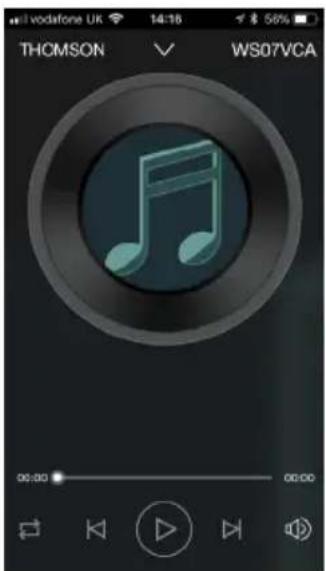
Sweep right to access the player screen.
Here you can control the playback from your selected music source
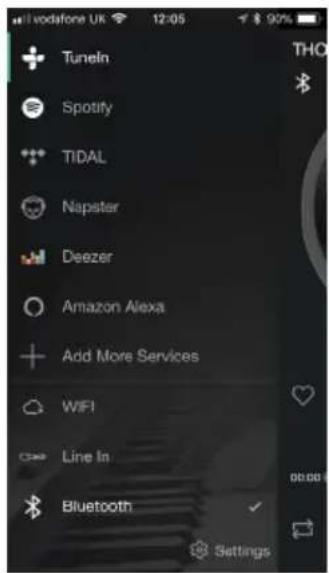
Swipe right again to access your music sources including local stored music and your favourite streaming services.
Select My music to play music from your device or local network
Select Tune in for Internet Radio
Select Spotify, Deezer, Tidal etc for streaming from your preferred streaming service.
Using Spotify

Listen out loud with Spotify Connect
- Connect your Thomson speaker to your Wi-Fi network.
- Open up the Spotify app on your phone, tablet or laptop using the same wifi network.
- Play a song and select Devices Available.
- Select your Thomson speaker and start listening.
Note: Ensure that you have the Spotify app installed on your device and that you have signed up to a premium account.
Using Deezer

A Deezer subscription is required to use Deezer on your device.
- Head to deezer.com/offers and sign up to start your free trial*
- Install the Deezer app on your device.
- Launch the Smart audio app and on the device list page, swipe right twice.
- Select Deezer from the options list and input your login details to launch Deezer.
-
Select your music.
-
Select the Audio option at the bottom left of the app page and then select your Thomson speaker from the devices list and start listening.
Note: Ensure that you have a signed up to a Deezer Premium account for the best experience. Also note that you can launch the Deezer app directly and then follow steps 5 and 6.
*Offer only available to new subscribers who have never benefited from any previous Deezer trial or promotion. At the end of the trial period, you will be charged £9.99 per month unless you opt out. T&Cs are available here: deezer.com/legal/cgu
Using Presets
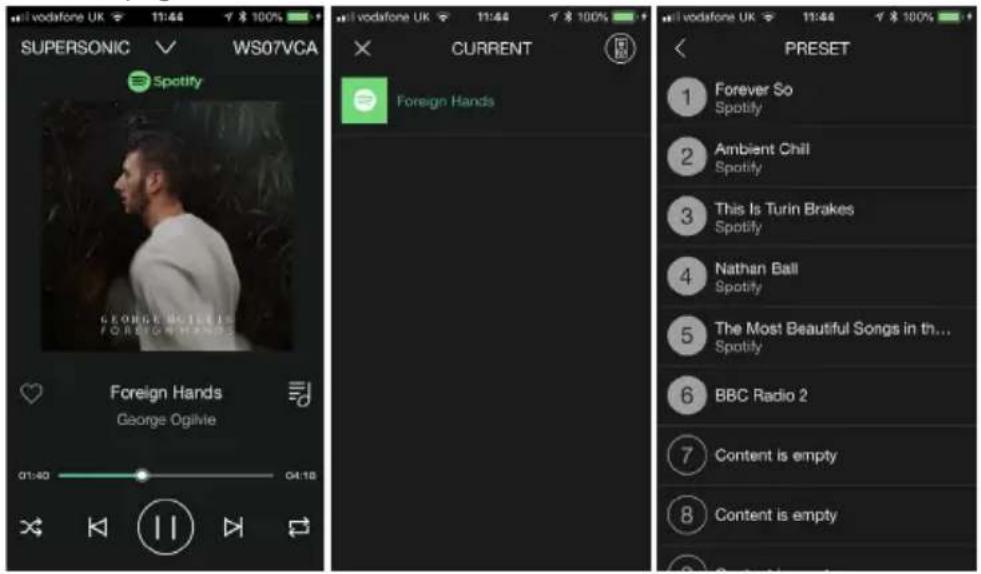
Favourite songs and albums from Spotify and radio stations from Tune In can be saved in the Preset Content section.
To do this, on the player screen, select the note icon right side of the song name.
Then select the preset icon in the top right of the screen.
Then select any preset position to save your selection. You can then directly launch your favourites from this page.
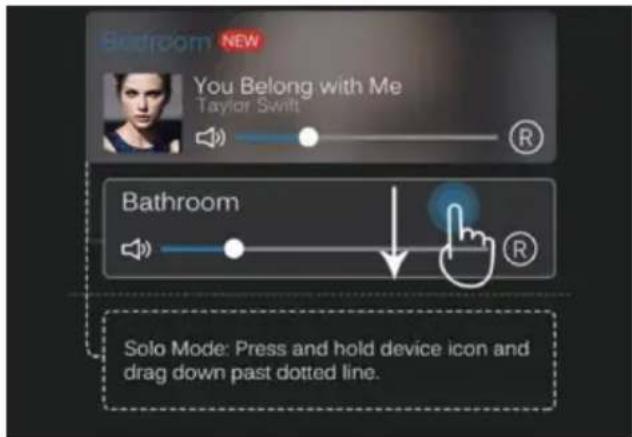
Switching between Multi Mode and Solo Mode
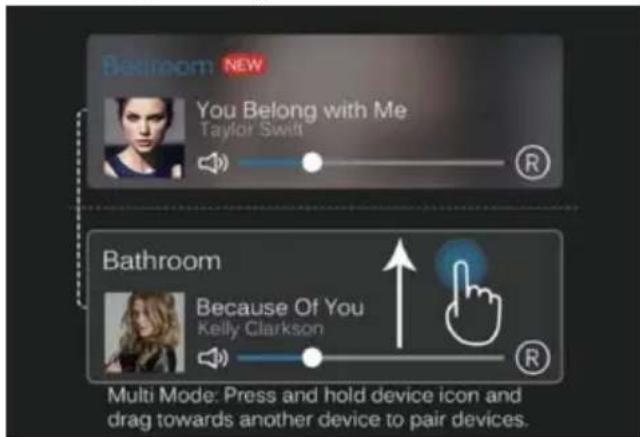
If you have added an additional Thomson Smart Audio speaker to your network, you can either play different music on each speaker or sync them to play the same track by grouping them.
To group your speakers, simply press and hold one named speaker on your device list and then drag it onto the 2nd speaker in the list. They will then be synced and will play the same track.
If you wish to separate them into Left and Right channels, press the LR button to make one speaker left and 1 speaker right for a true stereo effect.
Pairing with Bluetooth
Press the M button to change from Wi-Fi mode to Bluetooth mode.
The light ring will change to flashing Blue and the speaker will tell you that you are in Bluetooth mode.
Go to the Bluetooth settings on your device and search for Thomson WS07 in the Bluetooth list.
When Bluetooth is connected the speaker will tell you and the Blue light will stop flashing. It will remain solid blue when in Bluetooth mode. You can then play music from your device, but you must be with 10 metres or connection will be lost.
Your speaker will automatically connect in future if you set it to Bluetooth mode.
Note that Alexa voice control mode will not work in Bluetooth mode.
Connecting with the Auxiliary Cable
To directly connect your music device to the speaker, attach the supplied audio cable to the 3.5mm input the rear of the speaker and connect the other end to your device.
The light ring will then turn green to indicate it is in Aux mode.
Using the Speaker with Alexa
Once you have logged into and set up Alexa through the THOMSON Smart Audio, you may interact with Alexa by giving vocal commands.
You may ask questions such “Alexa, what is the weather?” or make requests, such as “Alexa, play some music” or “Alexa, set a reminder”.
NOTE: In order to use control your music streaming service with voice control, you will need to link your account to your Amazon account. Install and launch the official Alexa app, so to settings and scroll down to Music and Media and input your account details.
You can also press the mic button to speak to Alexa. You then don't need to say 'Alexa' each time.
Note: For best results with Alexa voice, keep the speaker volume around 75% in the Smart Audio app.
While using the speaker in conjunction with Alexa, the colour ring will display different colours to visually communicate its actions:
No Colour - Alexa Is Idle
Solid light blue - Alexa Is listening
Flashing light Blue -Alexa is thinking
Flashing light blue and Blue - Alexa is speaking
Amber - Alexa has encountered an error
Solid Red - Microphone is off
For further tutorials on how to user Alexa or to adjust your Alexa settings, please consult Amazon's Alexa website, alexa.amazon.com
Specifications
Features
• Alexa Enabled Speaker (Far-field)
- Desktop Wi-Fi/Bluetooth Speaker
• Built-In 2 MIC array
• Light ring Indicator
• DLNA, Air-Play and UPnP
- Multi Room Function
- Spotify, TuneIn,
- Deezer, Tidal
- Software Updates via OTA
Specifications
- Output: 5W RMS
- Driver Unit: 2.25" * 1
• Size: 95 x 95 x 190mm
• Built-in Li-ion Battery: 3.7V/2200mAh
• Frequency: 80Hz -20KHz - S/N: ≥75dB
- Bluetooth Version: V2.1 + EDR
- Bluetooth Range: ≥ 10m
Remark: The maximum connection distance is around 10 meters. Please place your Bluetooth speaker as close as possible to this device to avoid connection getting disturbed.
Remarks:
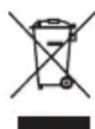
Do not discard the electrical and electronic appliances in the regular waste disposal.
• Take them to a collection point.
- Some components in these appliances may be hazardous to health and the environment.
In order to save energy when the unit has no sound output for a while, the unit will be switched to stand-by automatically. It can be switched ON by using the POWER selector again.
If there is an incoming call while WS07VCA is connected to your cell phone for music playback, it will pause at once when you answer the call and resume after the call ended. Sometimes it will pause after end the call. It depends on your cell phone.
The Bluetooth® word, mark and logo are registered trademarks owned by Bluetooth SIG, Inc. and any use of such marks by Bigben Interactive is under license. Other trademarks and trade names are those of their respective owners.
Hereby, Bigben Interactive SA, declares that the WS07VCA device complies with the essential requirements of the directive 1995/5/EC of the European Parliament and of the Council of 9 March 1999 on radio equipment and telecommunications terminal equipment and the mutual recognition of their conformity.
THOMSON is a trademark of TECHNICOLOR SA or its affiliates used under license to Bigben Interactive.
The Spotify Software is subject to third party licenses found here: https://www.spotify.com/connect/thirdparty-licenses
You can find the information on the plate located at the back of the unit.
The undersigned, Bigben Interactive declares that the radio equipment of the WS07VCA type complies with the 2014/53/EU directive.
The complete text is available at www.bigben.fr/support
To download the full statement, please visit our website:
EN : https://www.bigben-interactive.co.uk/support/
OTHER LANGUAGES : https://www.bigbeninteractive.com/support/
Manufactured by BIGBEN INTERACTIVE SA
396, Rue de la Voyette
CRT2 - FRETIN
CS 90414
59814 LESQUIN Cedex - France
www.bigben.eu
Made in China

Fabricant : Bigben Interactive FRANCE
396, Rue de la Voyette, C.R.T. 2 Fretin, CS 90414 - 59814 LESQUIN Cedex, France