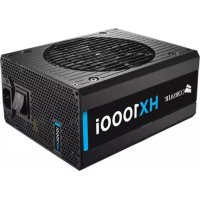
HX1000i - Power Supply (PC) CORSAIR - Free user manual and instructions
Find the device manual for free HX1000i CORSAIR in PDF.



| Product Type | PC Power Supply |
| Brand | Corsair |
| Model | HX1000i |
| Total Power | 1000 W |
| Certification | 80 PLUS Platinum |
| Form Factor | ATX 3.0 |
| Modularity | Fully Modular |
| Dimensions (L x W x H) | 180 mm x 150 mm x 86 mm |
| Nominal AC Input | 100 - 240 V a.c. |
| Input Current | 13 - 6.5 A |
| Frequency | 47 - 63 Hz |
| +12V Output | 83.3 A, 999.6 W |
| +5V Output | 25 A |
| +3.3V Output | 25 A |
| -12V Output | 0.3 A, 3.6 W |
| +5Vsb Output | 3.0 A, 15 W |
| Protections | OVP, OCP, OTP, SCP, OPP, catastrophic failure |
| Included Connectors | 1x ATX 24-pin, 2x EPS/ATX12V 8-pin (4+4), 1x 12VHPWR (12+4), 2x PCIe 8-pin (6+2), 2x SATA (4 connectors), 2x PATA (4-pin), 1x USB Type-C |
| Management Software | iCUE (monitoring, fan profile, OCP single rail/multi-rail) |
| Package Contents | Power supply, AC cable, DC cables, cable ties, USB cable, mounting screws, safety manual |
Frequently Asked Questions - HX1000i CORSAIR
User questions about HX1000i CORSAIR
0 question about this device. Answer the ones you know or ask your own.
Ask a new question about this device
Download the instructions for your Power Supply (PC) in PDF format for free! Find your manual HX1000i - CORSAIR and take your electronic device back in hand. On this page are published all the documents necessary for the use of your device. HX1000i by CORSAIR.
USER MANUAL HX1000i CORSAIR
CORSAIR HXi Series fully modular ATX 3.0 power supplies deliver reliable 80 PLUS Platinum efficient power to your system.
SAFETY AND PROTECTION
Over-Voltage Protection (OVP)
Over-voltage protection for the 12V, 5V, and 3.3V DC outputs is required to comply with the ATX specification. OVP shuts down the PSU in the event that the DC outputs exceed a set level, determined by the PSU manufacturer.
Over-Current Protection (OCP)
OCP is featured on the 3.3V, 5V, and 12V rails. OCP ensures that the output of the DC voltage rails remains within safe operating limits.
Over-Temperature Protection (OTP)
OTP ensures that the PSU will shut down when the internal temperature reaches a set point. This is usually as a result of internal current overloading or a fan failure.
Short-Circuit Protection (SCP)
A short-circuit is defined as any output impedance of less than 0.1 ohms. Amongst other things, SCP ensures that the PSU shuts down should the 3.3V, 5V, and 12V rails short to any other rail, or to ground. It also ensures that no damage should occur to the unit, or your PC's components in the event of a short.
Over Power Protection (OPP)
Over power protection shuts off the PSU when the power drawn is between 115% and 135% of the rated power.
Catastrophic Failure Protection
PSU must have protection circuitry to shut down safely to prevent damage from any catastrophic failures such as flame, excessive smoke, charred PCB, fused PCB conductor, startling noise, emission of molten material, etc.
HX1000i INCLUDED HARDWARE AND SPECIFICATIONS
Dimensions: 180mm(L) x 150mm(W) x 86mm(H)
Package Contents: Power Supply, AC Cable, DC Cables, Cable Ties, USB Cable, Mounting Screws, Safety Leaflet
| CORSAIR HX1000i POWER TABLE MAX LOAD MAX OUTPUT | ||||
| MODEL RPS0131 +3.3V | 25A | 150W | ||
| PART NO. | 75-005684 | +5V | 25A | |
| AC INPUT RATING | 100 - 240V a.c. | +12V | 83.3A | 999.6W |
| INPUT CURRENT | 13 - 6.5A | -12V | 0.3A | 3.6W |
| FREQUENCY | 47 - 63Hz | +5Vsb | 3.0A | 15W |
| TOTAL POWER: 1000W | ||||

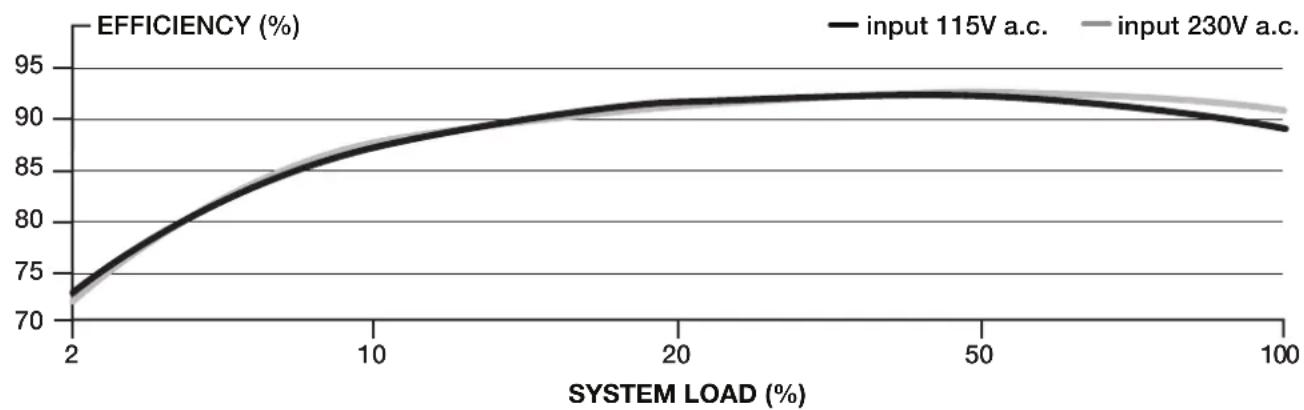
CORSAIR HX1000i POWER SUPPLY EFFICIENCY
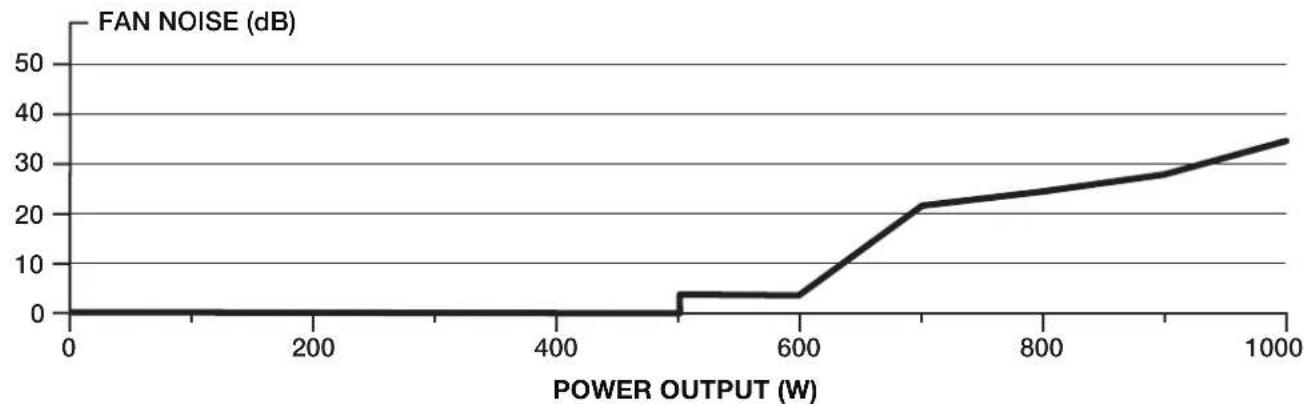
CORSAIR HX1000i POWER SUPPLY FAN NOISE CURVE
HX1500i INCLUDED HARDWARE AND SPECIFICATIONS
Dimensions: 200mm(L) x 150mm(W) x 86mm(H)
Package Contents: Power Supply, AC Cable, DC Cables, Cable Ties, USB Cable, Mounting Screws, Safety Leaflet
| CORSAIR HX1500i POWER TABLE MAX LOAD MAX OUTPUT | ||||
| MODEL RPS0132 +3.3V | 25A | 150W | ||
| PART NO. | 75-005686 | +5V | 25A | |
| AC INPUT RATING | 100 - 240V a.c. | +12V | 125A | 1500W |
| INPUT CURRENT | 15 - 9A | -12V | 0.3A | 3.6W |
| FREQUENCY | 47 - 63Hz | +5Vsb | 3.5A | 17.5W |
| TOTAL POWER 1500W 115V a.c. - 240V a.c. TOTAL POWER 1200W 100V a.c. - 115V a.c. | ||||
CORSAIR HX1500i POWER SUPPLY EFFICIENCY
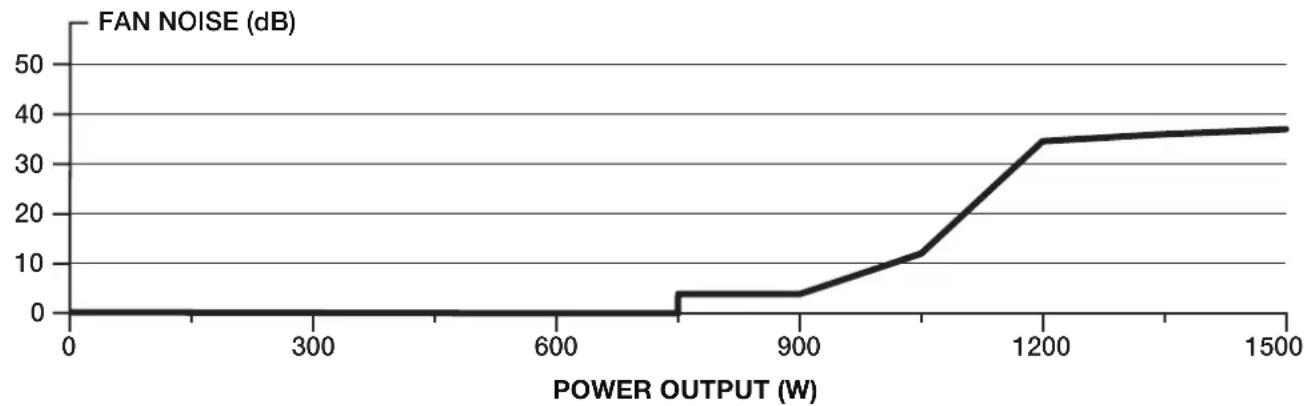
CORSAIR HX1500i POWER SUPPLY FAN NOISE CURVE
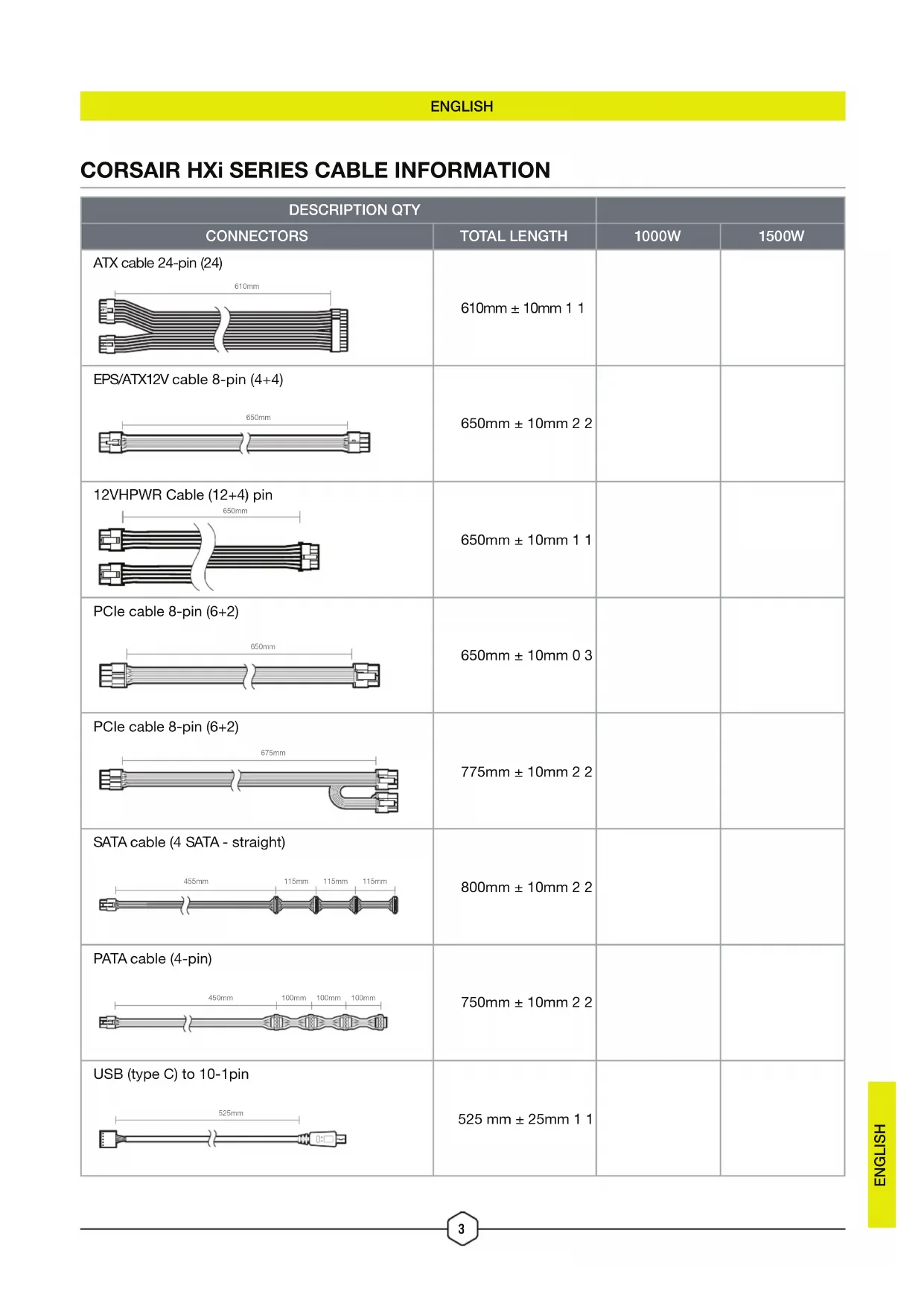
CORSAIR HXi SERIES CABLE INFORMATION
| DESCRIPTION QTY | |||
| CONNECTORS | TOTAL LENGTH | 1000W | 1500W |
| ATX cable 24-pin (24)610mm | 610mm ± 10mm 1 1 | ||
| EPS/ATX12V cable 8-pin (4+4)650mm | 650mm ± 10mm 2 2 | ||
| 12VHPWR Cable (12+4) pin650mm | 650mm ± 10mm 1 1 | ||
| PCIe cable 8-pin (6+2)650mm | 650mm ± 10mm 0 3 | ||
| PCIe cable 8-pin (6+2)675mm | 775mm ± 10mm 2 2 | ||
| SATA cable (4 SATA - straight)455mm | 800mm ± 10mm 2 2 | ||
| PATA cable (4-pin)450mm | 750mm ± 10mm 2 2 | ||
| USB (type C) to 10-1pin525mm | 525 mm ± 25mm 1 1 | ||
INSTALLING YOUR NEW HXi SERIES POWER SUPPLY
STEP 1: REMOVING YOUR EXISTING PSU
Warning! To ensure proper function, only use the DC cables included with your new PSU, unless your old cables are genuine CORSAIR cables of the same type. Please confirm your existing cables' type before using them!
If you are building a new system, skip to Step 2:
- Disconnect the AC power cord from your wall outlet or UPS and from the existing power supply.
- Disconnect all the power cables from your video card, motherboard and all other peripherals.
- Follow the directions in your chassis manual and uninstall your existing PSU.
- Proceed to Step 2.
STEP 2: INSTALLING THE NEW POWER SUPPLY
- Make sure the power supply's AC power cable is not connected.
- Follow the directions in your chassis manual and install the power supply with the screws provided.
- Connect the 24-pin (ATX) cable to the motherboard. Connect the 8-pin +12V (EPS12V) cable to the motherboard.
a. If your motherboard has an eight-pin +12V socket, connect the eight-pin cable directly to your motherboard.
b. If your motherboard has a four-pin socket, detach the four-pin from the eight-pin cable, and then plug this four-pin cable directly to your motherboard.
c. Some motherboards will require a mix of 8+4 pins, use as many EPS12V cables as necessary and do not mistake them for PCIe cables.
- Connect the peripheral cables, PCI-Express cables, and SATA cables.
a. Connect the SATA cables to your SATA SSD or hard drive's power sockets.
b. Connect the PCI-Express cables to the power sockets of your PCI-Express video cards if required.
c. Connect the peripheral cables to any peripherals requiring a 4-pin connector.
d. Make sure all the cables are tightly connected. Be sure to save any unused modular cables for future component additions.
5. Connect the AC power cord to the power supply and turn it on by pushing the switch to the ON position (marked with "I").
ICUE
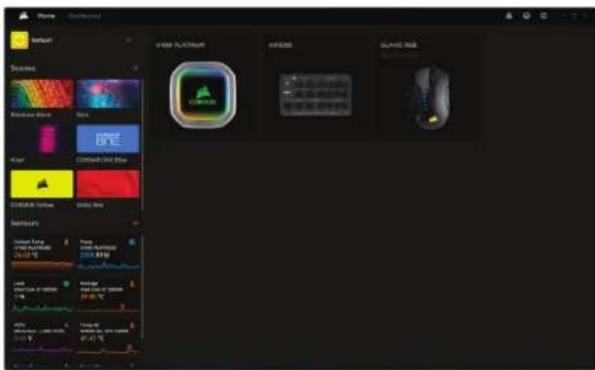
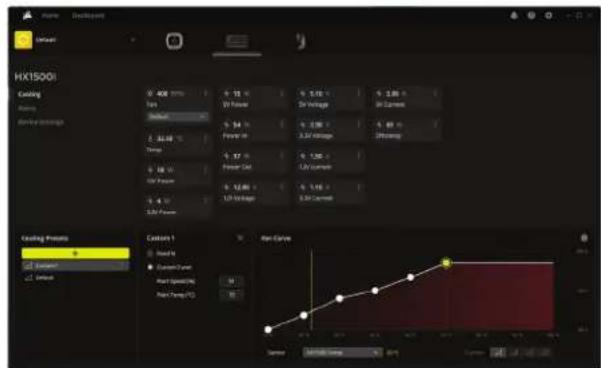
The HXi power supply boasts a range of connectivity options for any system, users can take advantage of CORSAIR's robust iCUE software to monitor power settings, toggle between single to multi-rail overcurrent protection (OCP) on-the-fly, or create custom fan profiles.
-
Connect the included USB-C cable to the power supply and MB.
-
Launch iCUE, make sure it's updated to the latest version.
-
From Home screen, select HXi power supply to the right.
-
Cooling - Adjust Fan Curve and create custom Cooling Presets. Sensor tiles to the right are rearrangeable, simply drag and move the tile to the desired position.
- Alerts - Create custom alerts profile. 6. Device Settings - Toggle between Single Rail OCP and Multi-Rail OCP under PSU Mode.
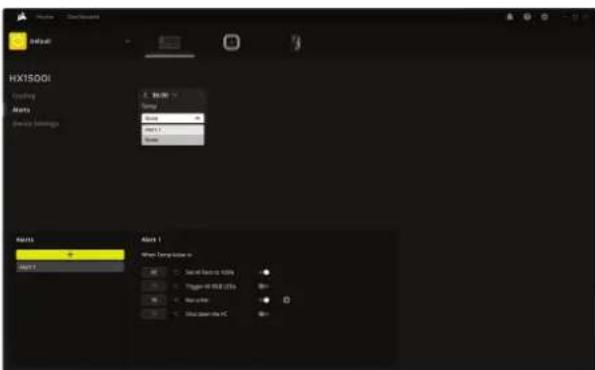
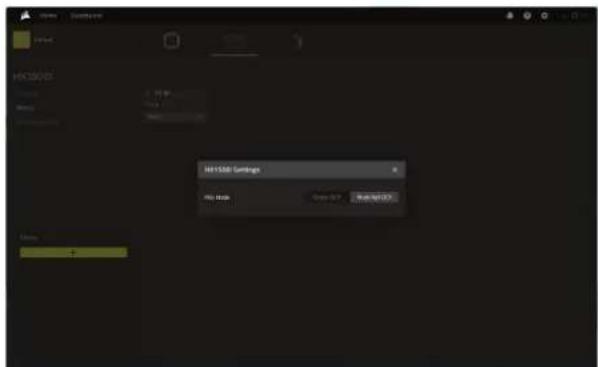
TABLE DES MATIÈRES
HX1000i
HX1500i
INSTALLATION
iCUE
NOUS VOUS REMERCIONS D'AVoir ACHETÉ LE BLOC D'ALIMENTATION CORSAIR HXi SERIES!
| DESCRIPICQN CTD. | |||
| CONECTORES | LONGITUD TOTAL | 1000W | 1500W |
| Cable ATX de 24 pines (24)610mm | 610mm ± 10mm 1 1 | ||
| Cable EPS/ATX12V de 8 pines (4+4)650mm | 650mm ± 10mm 3 3 | ||
| Cable 12VHPWR (12+4) pines650mm | 650mm ± 10mm 1 1 | ||
| Cable PCIe de 8 pines (6+2)650mm | 650mm ± 10mm 0 3 | ||
| Cable PCIe de 8 pines (6+2)675mm | 775mm ± 10mm 3 3 | ||
| Cable SATA (4 SATA rectos)455mm 115mm 115mm 115mm | 800mm ± 10mm 2 2 | ||
| Cable PATA (4 pines)450mm 100mm 100mm 100mm | 750mm ± 10mm 2 2 | ||
| USB Type-C a 10-1 pines525mm | 525 mm ± 25mm 1 1 | ||
CORSAIR HXi Series fully modular ATX 3.0 power supplies deliver reliable 80 PLUS Platinum efficient power to your system.
安全和防護
- 過電壓防護(OVP)
© 2023 CORSAIR MEMORY, Inc. All rights reserved. CORSAIR and the sails logo are registered trademarks of CORSAIR in the United States and/or other countries. All other trademarks are the property of their respective owners. Product may vary slightly from those pictured.
49-002658 AA

- SAFETY AND PROTECTION
- HX1000i INCLUDED HARDWARE AND SPECIFICATIONS
- HX1500i INCLUDED HARDWARE AND SPECIFICATIONS
- INSTALLING YOUR NEW HXi SERIES POWER SUPPLY
- STEP 1: REMOVING YOUR EXISTING PSU
- STEP 2: INSTALLING THE NEW POWER SUPPLY
- ICUE
- TABLE DES MATIÈRES
- NOUS VOUS REMERCIONS D'AVoir ACHETÉ LE BLOC D'ALIMENTATION CORSAIR HXi SERIES!
- 安全和防護
Brand : CORSAIR
Model : HX1000i
Category : Power Supply (PC)