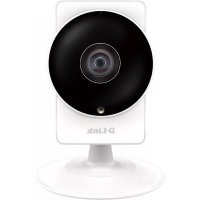
DCS8200LH - Surveillance Camera D-LINK - Free user manual and instructions
Find the device manual for free DCS8200LH D-LINK in PDF.



| Product type | Panoramic HD surveillance camera |
| Brand | D-Link |
| Model | DCS8200LH |
| Video resolution | HD 720p (1280 x 720) |
| Viewing angle | 180° panoramic |
| Night vision | Yes, with infrared LED |
| Two-way audio | Yes, built-in microphone and speaker |
| Connectivity | Wi-Fi 802.11ac/n/g/a |
| Supported protocols | WPS for simplified setup |
| Mobile app | mydlink Home (iOS/Android) |
| Power supply | 5 V DC, 1 A via micro USB |
| Dimensions | 70 x 70 x 120 mm (approx.) |
| Weight | 125 g (approx.) |
| Operating temperature | 0 °C to 40 °C |
| Motion detection | Yes, via app |
| Recording | On cloud (via mydlink) or microSD card (not included) |
| Reset | Reset button accessible with a paperclip |
| Maintenance and cleaning | Clean the lens with a soft, dry cloth |
| Security | Hardware reset to erase all data |
| Spare parts and repairability | No spare parts planned; contact technical support |
| General information | Quick setup via mydlink Home app |
Frequently Asked Questions - DCS8200LH D-LINK
User questions about DCS8200LH D-LINK
0 question about this device. Answer the ones you know or ask your own.
Ask a new question about this device
Download the instructions for your Surveillance Camera in PDF format for free! Find your manual DCS8200LH - D-LINK and take your electronic device back in hand. On this page are published all the documents necessary for the use of your device. DCS8200LH by D-LINK.
USER MANUAL DCS8200LH D-LINK
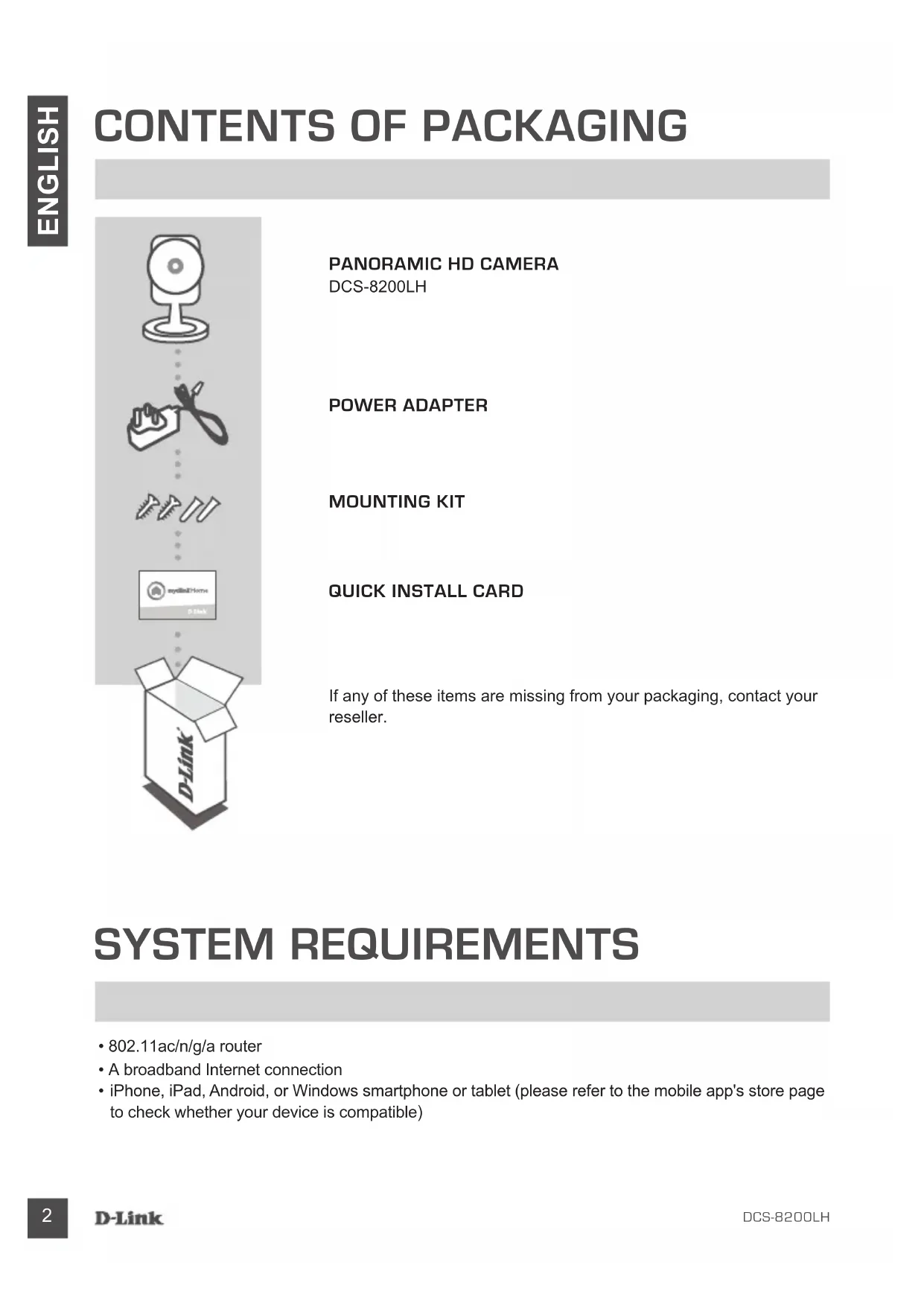
If any of these items are missing from your packaging, contact your reseller.
SYSTEM REQUIREMENTS
- 802.11ac/n/g/a router
- A broadband Internet connection
- iPhone, iPad, Android, or Windows smartphone or tablet (please refer to the mobile app's store page to check whether your device is compatible)
PRODUCT SETUP
CONNECTING YOUR PANORAMIC HD CAMERA
Please follow the instructions below to set up your Panoramic HD Camera.
Step 1: On your mobile device, download mydlink Home by going to mydblinkhomeapp.dlink.com, or by searching for mydlink Home in the iTunes App Store or Google Play.
mydlinkhomeapp.dlink.com
Step 2: Launch the mydlink Home app and create a new account or sign in to your existing account.
iOS: If you are asked about allowing the app to access your location, select Allow.
Android: Make sure location services are turned on in your phone's settings.
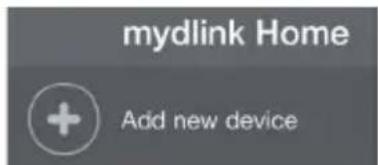
Step 3: After logging in, tap the Settings icon in the top-left corner, select Add New Device, and follow the instructions.
When you are asked to scan a QR code, use the code on the Quick Install Card in your package, or on the label attached to your device.
Congratulations, your Panoramic HD Camera is now ready to use!
Be sure to check the dlink.com/mydlinkhomehelp website periodically for the latest firmware updates to keep your product secure and up to date with the latest features.
Note: If you experience issues registering this camera with your mydlink account, or if you purchased an open box or resold unit, perform a hard reset by pressing and holding the reset button on the device for 10 seconds while the device is powered on. If you are returning the device to the place of purchase, please perform the hard reset procedure to clear the device of any personal data.
WPS SETUP
Alternatively, you may create a WPS connection if your router or access point supports WPS. To create a WPS connection:
Step 1:
Press and hold the WPS button on the back of the camera for three seconds. The green WPS status LED above the button will blink.
Step 2:
Press the WPS button on your wireless router or access point within 60 seconds. On some routers, you may need to log into the web interface and then click an onscreen button to activate the WPS feature. If you are not sure where the WPS button is on your router or access point, please refer to your router's user manual.
The DCS-8200LH will automatically create a wireless connection to your router. The green LED will flash while the camera is connecting, and will turn solid green when the camera is connected.
TROUBLESHOOTING
SETUP AND CONFIGURATION PROBLEMS
The IR night vision lights on the camera may be reflecting off of a nearby surface or window. Try repositioning your camera to avoid reflections or glare.
- WHAT CAN I DO IF I FORGET MY CAMERA PASSWORD?
If you forget your camera password, you will need to perform a hard reset of your camera. This process will change all your settings back to the factory defaults.
To reset your camera, please use an unfolded paperclip to press and hold the RESET button for at least 10 seconds while your camera is plugged in.
- WHAT APP DOES THE DCS-8200LH WORK WITH?
The DCS-8200LH works with the mydlink Home app.
- WHERE CAN I FIND THE MYDLINK HOME APP?
You may download the free mydlink Home app from the App store (iOS) or Google Play Store (Android). Search for the mydlink Home app by typing in "mydlink" or "mydlink home".
- HOW DOES THE CAMERA WORK WHILE I AM AWAY FROM HOME?
Remote access of the DCS-8200LH is enabled once you have registered and linked your Camera through mydlink. You will be able to control your Camera from anywhere using your iOS or Android device.*
*Your DCS-8200LH must be connected to your home Wi-Fi network for remote access.
TECHNICAL SUPPORT
dlink.com/support
PACKUNGSHALT
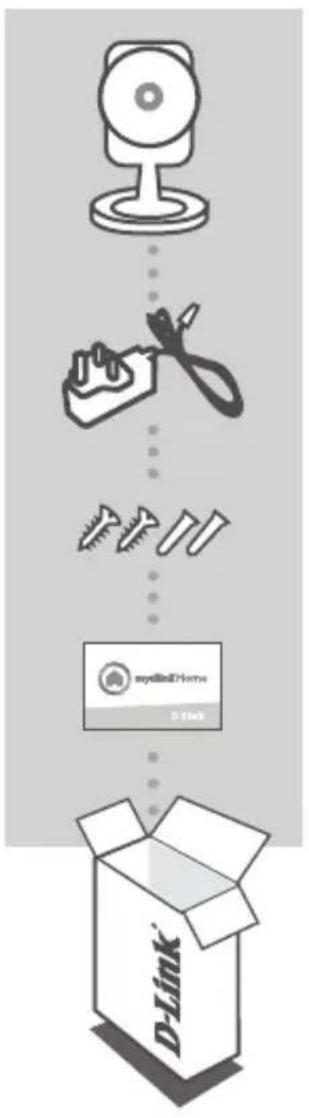
MYDLINK HOME 180^ HD CAMERA DCS-8200LH
NETZTEIL
MONTAGESET
INSTALLATIONSKARTE
CONFIGURATION DU PRODUIT
CONNEXION DE VOTRE CAMÉRA HD PANORAMIQUE
SYSTEME M V E R E I S T E N
INDSTILLING AF PRODUKTET
CONFIGAREA CONEXIUNII WPS

Brand : D-LINK
Model : DCS8200LH
Category : Surveillance Camera