42HDW10 - Monitor HITACHI - Free user manual and instructions
Find the device manual for free 42HDW10 HITACHI in PDF.


| Product Type | Plasma Screen Monitor |
| Brand | HITACHI |
| Model | 42HDW10 |
| Screen Size (diagonal) | 42 inches (1059 mm) |
| Resolution | 1024 x 1024 pixels |
| Dimensions (W x H x D) without stand | 1030 x 636 x 89 mm |
| Weight without stand | 31 kg |
| Weight with optional stand | 35 kg |
| Power Supply | AC 100-120 / 200-240 V (auto), 50/60 Hz |
| Power Consumption (operation) | 360 W (sound off) |
| Power Consumption (standby) | 5 W or less |
| Video Inputs | RGB (D-sub 15-pin + BNC), Composite, S-Video, Component (Y/Pb/Pr) |
| Audio Inputs | 3.5 mm stereo jacks (RGB) and RCA (video) |
| Built-in Audio Output | 8 W + 8 W (8 Ω) |
| Key Features | Remote control, OSD, power saving (ENERGY STAR, VESA DPMS), multiple screen formats, automatic settings memory |
| Recommended Cleaning | Turn off and unplug, use a soft dry cloth without alcohol or ammonia |
| Safety | Do not disassemble, avoid water and foreign objects, use only with a suitable mounting support |
| Supplied Accessories | Remote control, AA batteries x2, power cord, warranty card |
| Optional Mounting | Table stand (CMPAD05), wall mounts (CMPAK04/05/14), ceiling mount (CMPAT04) |
| Repairability | Have it repaired by a qualified professional |
| PC Signal Compatibility | VGA, SVGA, XGA, SXGA, UXGA up to 1600x1200 |
| Video Signal Compatibility | NTSC, PAL, SECAM, 480i/p, 720p, 1080i, 1035i |
Frequently Asked Questions - 42HDW10 HITACHI
User questions about 42HDW10 HITACHI
0 question about this device. Answer the ones you know or ask your own.
Ask a new question about this device
Download the instructions for your Monitor in PDF format for free! Find your manual 42HDW10 - HITACHI and take your electronic device back in hand. On this page are published all the documents necessary for the use of your device. 42HDW10 by HITACHI.
USER MANUAL 42HDW10 HITACHI
Home Electronics Division
1855 Dornoch Court
San Diego, CA 92154
Tel:1-800-HITACHI
(1-800-448-2244)
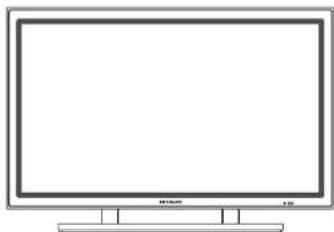
The stand is an option.
READ THE INSTRUCTIONS INSIDE CAREFULLY.
KEEP THIS USER MANUAL FOR FUTURE REFERENCE.
For future reference, record the serial number of your monitor.
SERIAL NO.
The serial number is located on the rear of the monitor.
This monitor is ENERGY STAR compliant when used with a computer equipped with VESA DPMS.
The ENERGY STAR® emblem does not represent EPA endorsement of any product or service.
As an ENERGY STAR® Partner, Hitachi, Ltd. has determined that this product meets the ENERGY STAR® guidelines for energy efficiency.
NOTE:
The information in this manual is subject to change without notice. The manufacturer assumes no responsibility for any errors that may appear in this manual.
TRADEMARK ACKNOWLEDGEMENT
VGA and XGA are registered trademarks of International Business Machines Corporation.
APPLE and Macintosh are registered trademarks of Apple Computer, Inc.
VESA is a trademark of a nonprofit organization, Video Electronics Standard Association.
All brand or product names are trademarks or registered trademarks of their respective holders.
HINWEIS:
This monitor is designed to be safe to use. However, due to high voltage of about 400V fire or serious injury may occur unless you use this monitor in the proper way. Please follow the instructions shown below in order to avoid injury.

Keep the safety guideline
Do not use the monitor if it fails
If you find something unusual,
- If smoke comes out,
- If there is a strange smell,
- If water enters the case,
- If you drop the monitor or damage the cabinet,
(1) Turn off the monitor
(2) Disconnect the power plug from the mains
(3) Request repair
Warning and Caution are indicated in this guide and monitor itself.

WARNING
Fire or electric shock may cause death or serious injury unless you follow the instruction.

CAUTION
Electric shock or other accidents may cause serious injury or damage of your properties.

WARNING
Fire or electric shock may cause death or serious injury unless you follow the instruction below.
- If something smells strange or smoke comes from the monitor:
Turn off the monitor and disconnect the power plug from the mains immediately.
Contact service center after confirming that the smoking has stopped.
If you continue to operate the monitor with such abnormal condition, it may cause fire or you may receive an electric shock.
- Do not drop water or a foreign substance on to the monitor.
If you drop water or a foreign substance on to the monitor, it may cause fire or an electric shock.
If it happens turn off the monitor and disconnect the power plug from the mains and ask service center for instruction.
- Do not put the monitor on an unstable place.
If you put the monitor on an uneven or unstable place, it may fall down and you may be injured.
Put the monitor on a flat surface strong enough to take the weight.
SAFETY GUIDELINES(continued)
- Do not apply shock to the monitor.
- Do not use monitor if glass is broken or damaged.
If no picture, glass broken, smoke or something is smelling after applying shock to the monitor, turn off the monitor and disconnect the power plug from the mains immediately. Then, call the service center.
If you continue to operate the monitor with such abnormal conditions, it may cause fire or you may receive an electric shock.
- Do not disassemble or modify the monitor.
There is high voltage portion inside of the monitor. Disassembling or modification of the monitor may cause fire or electric shock.
- Do not use the monitor in wet environment.
If you use the monitor in a wet place such as bath or shower room, it may cause fire or electric shock. Using the monitor beside a window when snowing or raining or by a seaside are not recommended.
- Do not damage or modify the power cord.
If you put something heavy on the power cord or pull, squeeze, heat the cord, it may be damaged and it may cause fire or electric shock.
If the power cord is damaged, call service center.
Fire or electric shock may cause death or serious injury unless you follow the instruction.
- The enclosed power cord must be used!
Failure to do so may cause electric shock hazard or fire hazard.
In USA/Canada, use a UL LISTED/CSA LABELLED or CERTIFIED power cord set meeting the following specifications:
Rating: min. 125V, 10A, Length: max. 3.0m , Type: SVT or SJT
Plug type: NEMA 5-15P figure, Parallel blade, Grounding type
In Europe or 200V area, a proper European standard approved power cord is to be used with this monitor.
For a rated current up to 6A , a type not lighter than H05VV-F 3G 0.75mm^2 or H05VVH2-F 3G 0.75mm^2 must be used.
- Use only the correct voltage power outlet with safety ground connection!
100 - 120 V for USA, Canada, etc.
200 - 240 V for Europe, etc.
(This monitor will automatically adjust to the input voltage 100 - 120 / 200 - 240V.)
- Be careful of power cord connection!
Before inserting the plug of the power cord into a socket of the correct voltage, check that the connection portion of the power cord is clean (with no dust). Then, insert the plug of power cord into the socket firmly, otherwise it may cause electric shock or fire hazard.
- Do not touch the power plug when lightning is close to you.
You may receive an electric shock.
- Do not touch the power plug with wet hands.
You may receive an electric shock.
- Do not obstruct a ventilation hole.
If you obstruct a ventilation hole during the operation of the monitor or just after switching off the power, it may cause a fire or electric shock due to heating up the monitor.
- Do not put the monitor screen side up.
- Do not put the monitor on a shelf or in a cabinet without adequate ventilation of 4 inches top, sides, bottom and rear.
- Do not put the monitor on a carpet or mattress.
- Do not cover the monitor with a cloth.

CAUTION
Electric shock or other accidents may cause serious injury or damage to your property.
- Disconnect the power plug from the mains when you move the monitor.
Moveing the monitor without disconnecting the power plug from the mains may damage the cord and cause a fire or electric shock. You are advised to move the monitor with two persons.
Handle with care when you move the monitor, particularly take care of glass screen.
- When you disconnect the power plug.
You have to grasp the power plug itself, do not pull the power cord.
If you pull the power cord, you may damage it and it may cause a fire or an electric shock.
Do not touch the power plug just after disconnecting it from the mains or you may receive electric shock.
- Disconnect the power plug from the mains when you don't use the monitor for a long time.
This is for your safety.
- Do not put the monitor in atmosphere with soot, steam, high humidity, and dust.
It may cause a fire or electric shock.
- Do not put the monitor in high temperature atmosphere.
Do not put the monitor in the place exposed to the direct rays of the sun for a long period of time. Heat may cause a fire, transformation, or melting of the monitor.
- Do not put things on the monitor.
Do not put things on the monitor or give some shock to the monitor.
The monitor may fall down or drop from a desk. And it may cause injury.
SAFETY GUIDELINES(continued)

CAUTION
You may have serious injury or your property may be damaged unless you follow the instruction below.
- Do not coil or wind the power cord.
This may cause excessive heat resulting in a fire.
- Caution for 200 - 240V operation only
This equipment relies on the protective devices in the building installation for short - circuit and over - current protection. Refer to the following table for the suitable number and location of the protective devices which should be provided in the building installation.
INFORMATIVE EXAMPLES OF PROTECTIVE DEVICES IN SINGLE - PHASE EQUIPMENT OR SUB - ASSEMBLIES
| Protection against | Minimum number of fuses or circuit - breaker poles | Location | |
| Case A: Equipment to be connected to POWER SYSTEMS with earthed neutral reliably identified, except for Case C below. | Earth faults 1 | Phase conductor | |
| Overcurrent 1 | Either of the two conductors | ||
| Case B: Equipment to be connected to any supply, including IT POWER SYSTEMS and supplies with reversible plugs, except for Case C below. | Earth faults 2 | Both conductors | |
| Overcurrent 1 | Either of the two conductors | ||
| Case C: Equipment to be connected to 3 - wire power systems with earthed neutral reliably identified. | Earth faults 2 | Each phase conductor | |
| Overcurrent 2 | Each phase conductor |
Verify that the protective devices in the building installation meets the conditions in the table prior to installing the equipment.
- Remove the power cord for complete isolation!
For complete isolation from the mains, remove the power cord from the monitor or from the wall socket.
PRECAUTIONS
- Installation environment
Do not obstruct a ventilation hole.
Do not put the monitor on carpet or blanket, or near a curtain which has a possibility of obstructing a ventilation hole of the monitor.
Do not put the monitor in the following places.
- Hot places such as near heater, place exposed to the direct rays of the sun.
- A place where the temperature is widely changing.
- Places with soot, dust or high humidity.
- Poor air ventilation place.
- Place near fire.
- A wet place such as bathroom, or shower room.
- Place where you can trip over it.
- Always vibrating or strongly vibrating places.
Distorted or unstable places.
How to view the monitor.
If you use the monitor in too dark a room, your eyes may become tired.
Please use it in a reasonably bright room.
Avoid direct rays of the sun to the screen in order to prevent eye fatigue.
Your eyes will get fatigued after viewing the monitor for long period of time.
Relax your eyes by viewing away from the monitor from time to time.
Please watch the monitor in downward direction.
Note on image retention
The plasma monitor illuminates phosphor to display images. The phosphor has a finite illumination life. After extended periods of illumination, the brightness of the phosphor will be degraded to such extent that stationary images would burn-in that part of the screen as grayed-out images.
Tips to prevent such image retention are:
- Do not display images having sharp brightness differences or high-contrast images, such as monochrome characters and graphic patterns, for long.
- Do not leave stationary images appearing for long, but try to refresh them at appropriate intervals of time, or try to move them using screen saver function.
- Turn down the contrast and brightness controls.
- How to clean the monitor.
Before cleaning the monitor, turn off the monitor and disconnect the power plug from the mains.
When cleaning the monitor, do not spray directly the screen or cabinet with cleaner.
Use a clean, dust free, dry and soft cloth. If it is not enough, then use a cloth with non-alcoholic or non-ammonia detergent.
Do not rub the surface of the screen with ball-point-pen or screw-driver etc.
SAFETY GUIDELINES(continued)
- Prevention of an obstacle to Radio receivers
This monitor has been designed pursuant to the FCC class B Rules (see page VII). This is to prevent a problem to Radio receivers.
If this monitor cause a problem to Radio receivers, then take the following steps:
- Keep the monitor away from Radio.
- Adjust Radio antennas in order for the monitor not to receive interference.
- The antenna cable of Radio should be kept away from the monitor.
- Use a coaxial cable for antenna.
You can check if this monitor influences Radio receivers by turning off all other equipment other than the monitor.
If you find a problem receiving Radio when using the monitor, check the instructions mentioned above.
- Precautions for the monitor
- Confirm the connector is fixed tightly when the signal cable is connected.
Also confirm the screws on the connector are tightened. - Plug the power cord of the monitor into a different socket from that for other equipment, such as Radio etc..
- Use a plug with ground terminal and make sure that it connects to the ground.
- Precaution during transportation
Please pay attention when you transport this monitor because it is heavy.
Furthermore, use the original carton box and its packaging materials when the monitor is transported.
Failure to transport the monitor in any carton except the original carton may result in damage to the monitor.
Save the original carton box and all packing material.
FCC (Federal Communications Commission) STATEMENT WARNING For model 42HDW10
WARNING : This equipment has been tested and found to comply with the limits for a Class B digital device, pursuant to Part 15 of the FCC Rules. These limits are designed to provide reasonable protection against harmful interference in a residential installation. This equipment generates, uses, and can radiate radio frequency energy and, if not installed and used in accordance with the instructions, may cause harmful interference to radio communications.
However, there is no guarantee that interference will not occur in a particular installation. If this equipment does cause harmful interference to radio or television reception, which can be determined by turning the equipment off and on, the user is encouraged to try to correct the interference by one or more of the following measures:
- Reorient or relocate the receiving antenna.
- Increase the separation between the equipment and receiver.
- Connect the equipment into an outlet on a circuit different from that to which the receive is connected.
- Consult the dealer or an experienced radio / TV technician for help.
Instructions to Users : This equipment complies with the requirements of FCC (Federal Communication Commission) regulations, provided that following conditions are met.
Video inputs : The input signal amplitude must not exceed the specified level.
CAUTION : Changes or modifications not expressly approved by the party responsible for compliance could void the user's authority to operate the equipment.
Declaration of Conformity
According to 47CFR, Part 2 and 15 for
Class B Personal Computers and
Peripherals; and / or
CPU Boards and Power Supplies used
with Class B Personal Computers:
We: Hitachi America, Ltd. Home Electronics Division
Located at: 1855 Dornoch Court, San Diego, CA 92154-9967, U.S.A.
Telephone: 1-800-HITACHI
Declare under sole responsibility that the product identified herein, complies with 47CFR Part 2 and 15 of the FCC rules as a Class B digital device. Each product marketed, is identical to the representative unit tested and found to be compliant with the standards. Records maintained continue to reflect the equipment being produced can be expected to be within the variation accepted, due to quantity production and testing on a statistical basis as required by 47CFR § 2.909. Operation is subject to the following two conditions: (1) This device may not cause harmful interference, and (2) This device must accept any interference received, including interference that may cause undesired operation. The above named party is responsible for ensuring that the equipment complies with the standards of 47CFR § 1 5.101 to 15.109.
Trade name: Plasma Display Monitor
Model Number: 42HDW10
Installation. 3
Anti-tumble measures 3
Component Names 4
Installation and Cabling 6
Handling the Remote Controller 8
OPERATING INSTRUCTIONS 9
Turning Power On and Off 9
Input Selection 10
Volume Adjustment 10
Sound Mute 10
Contrast Adjustment 11
Size Selection 11
Input Signal Status Display 11
On-Screen Display System 12
OTHER FEATURES 20
Automatic store 20
Reset (Settings Initialization) 21
Signal Check 21
Power Save Mode 22
Sound Mode 22
TROUBLESHOOTING 23
Symptoms That Seemingly Appear to be Failures 23
Actions to Correct Abnormal Displays 25
PRODUCT SPECIFICATIONS 27
Signal Input 28
Recommended Signal List 29
Notes about This Manual
- The information in this manual is subject to change without notice.
- While meticulous care has been taken in the preparation of this manual, you are requested to notify your dealer or us should you have any comments, views or questions about our product.
- Fully understand the prerequisites to using the product, such as hardware and software specifications and constraints, in using the product. We are not held liable for damages caused by improper handling of the product.
- Reproduction of this manual in whole or in part without our prior written permission is prohibited.
- The product names mentioned in this manual may be trademarks or registered trademarks of their respective owners.
The following features are provided by the color Plasma Display Monitor.
Large-screen, high-definition plasma display panel
The 42-inch color plasma display panel, with a resolution of 1024(H) × 1024(V) pixels, creates a high-definition, large-screen (aspect ratio : 16:9) and low-profile flat display. Free from electromagnetic interferences from geomagnetic sources and ambient power lines, the panel produces high-quality display images free from color misconvergence and display distortion.
Multimedia input support
The monitor is provided with a mini-D-Sub connector and a BNC connector for RGB input, and a Composite/S-video-connector and a COMPONENT connector for video input. A composite video output connector is also available for loop-through. Speaker output terminal is also provided. Simultaneous connection to multiple devices, ranging from computers to video equipment, is possible.
Multiscan converter and Flexible Control LSI
The multiscan converter provides a broad multiscan range of signals, from video signals (15 kHz) to PC analog video signals. Video input is subjected to signal processing by a dedicated LSI to offer better video quality.
Easy-to-use remote controller and on screen display system
The remote controller included cases the work of setting display controls. Further, the on-screen display system, displays the status of signal reception and display control settings in an easy-to-view fashion.
Power saving system
The International ENERGY STAR® power saver feature saves power consumption automatically when input signals are not available. When connected to a VESA DPMS-compliant PC, the monitor cuts its power consumption while it is idle.
STANDARD ACCESSORIES
This product is complete with the display monitor, plus the accessories shown below.
- If any of these accessories is missing, please contact your dealer.
User manual (this book)
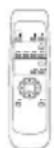
Remote-control transmitter

Size AA batteries x 2
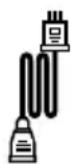
Power cable
Warranty Card
- Read the user manual (this book) and keep them in a safe place for handy reference.
- Retain the packing materials for use in future shipping or relocation.
Installation
■ No stand is provided with this product. When installing the monitor, use the optional Desk-top Stand (CMPAD05), Wall Mount Unit (horizontal-mount CMPAK04 or CMPAK05, vertical/horizontal-mount CMPAK14), or Ceiling Mount Unit (CMPAT04).
The Desk-top Stand has been used for the illustrations in this manual.
| WARNING | ·Use one of the special mount units to install this product. A mount of insufficient strength or inadequate design can cause overturning or dropping and result in fire, electrical shock or injury. Please note that our company assumes absolutely no responsibility for personal injuries or property damage caused by use of other mount units or improper installation. |
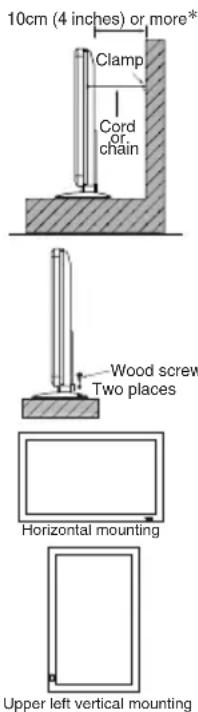
| CAUTIONS | ·Installation of the wall mount unit and ceiling mount unit can be dangerous, so do not attempt this work yourself. Ask your dealer to provide the name of a qualified installer. ·In order to prevent an internal temperature increase, maintain a space of 10cm (4 inches : For a desktop set-up) or more between the sides and other objects such as walls, etc., so that the ventilation holes are not blocked.* |
Anti-tumble measures

CAUTIONS
- Have this unit mounted in a stable place. Take measures to prevent it from tumbling down to avoid possible physical injury.
Securing to a wall or pillar
1) Using a commercially available cord, chain and clamp, secure the set to a firm wall or pillar.
Securing desktop
1) Using wood screws (two), fasten the set to the clamping screw holes on the rear of the stand as shown.
2)Using commercially available wood screws, secure the set firmly in position.
Using the optional vertical-mount unit (CMPAK14)
Using the optional wall-mount unit (CMPAK14) allows set to mount on wall surfaces as shown at right.
1) Make at least four sets of commercial anchor bolts and screws available to meet various kinds of walls to mount on.
2) Read the instructions supplied with the wall-mount unit carefully to optimally locate the plasma display on a wall surface.
3) Prepare the wall surface for anchoring and drilling as needed, as shown in the sketches.
- Make sure that an adequate wall surface strength and a screw holding strength are available.
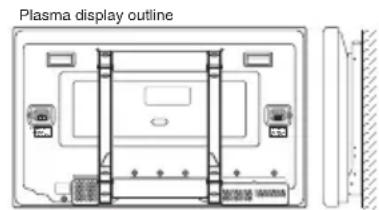
Upper left vertical mounting
Horizontal mounting
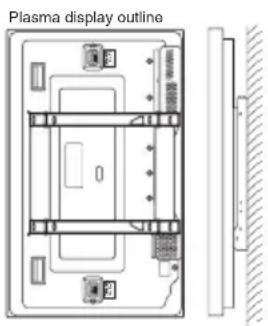
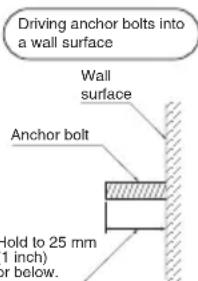
CAUTION
- The mounted unit should have the indicating lamp at its bottom. Otherwise, an elevated internal temperature rise could cause the unit to fail or fire.
INSTALLATION INSTRUCTIONS (continued)
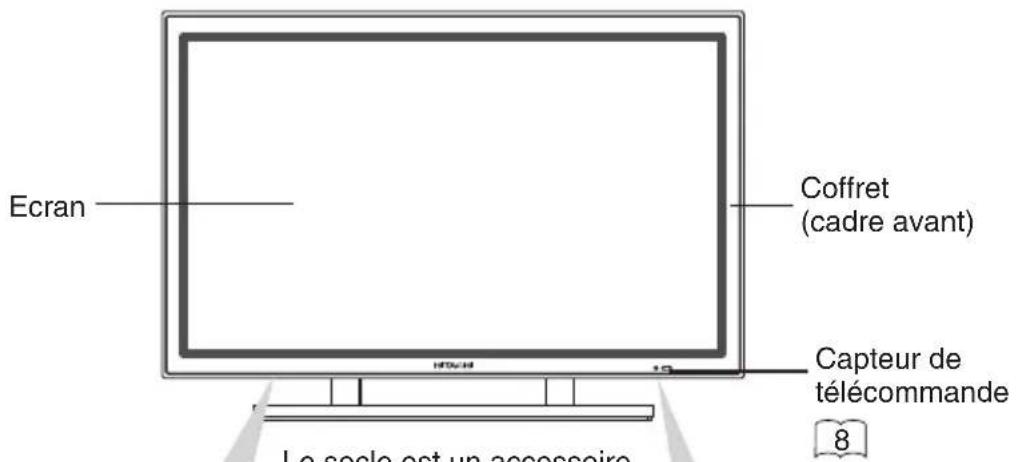
Component Names
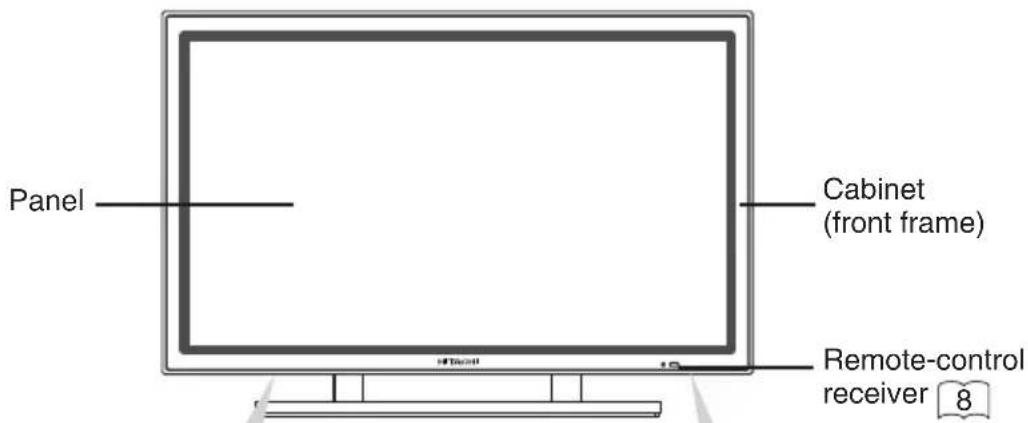
Front
The stand is an Optional
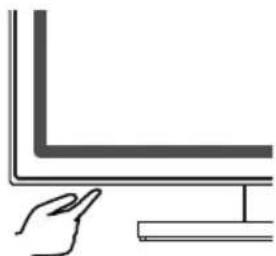
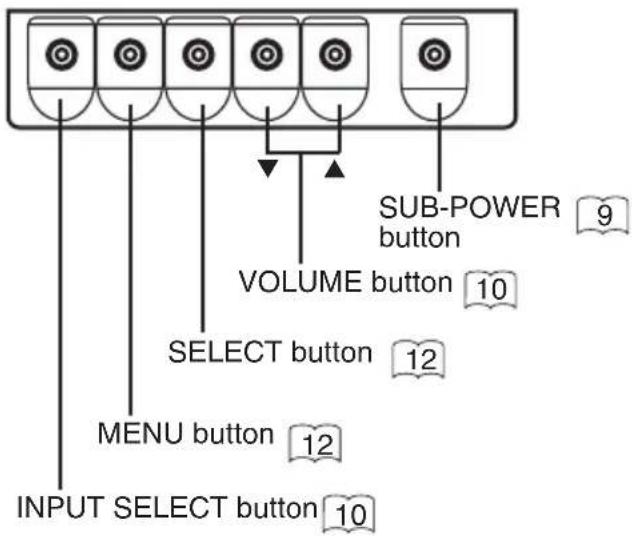
Control panel
Adjustment buttons are located on the bottom.
The inner side of the cover is provided with indications to distinguish the adjustment buttons.
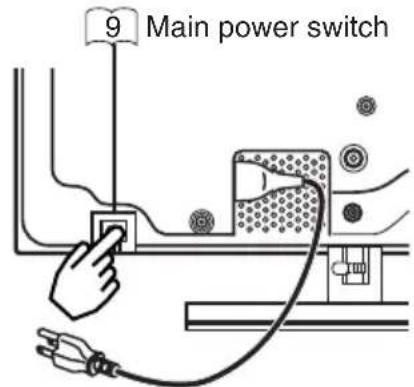
The main power switch is located at the back, on the lower surface.
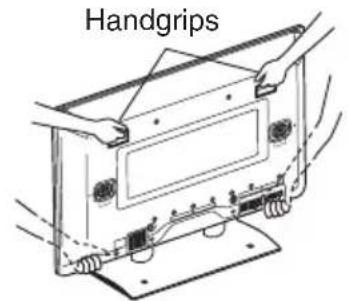
Caution when moving the main unit
- As this product is heavy, whenever it is moved, two people are required to transport it safely.
- Whenever the unit is moved it should be lifted forwards using the two handgrips at the back, and the unit should then be held at the base on both sides for stability.
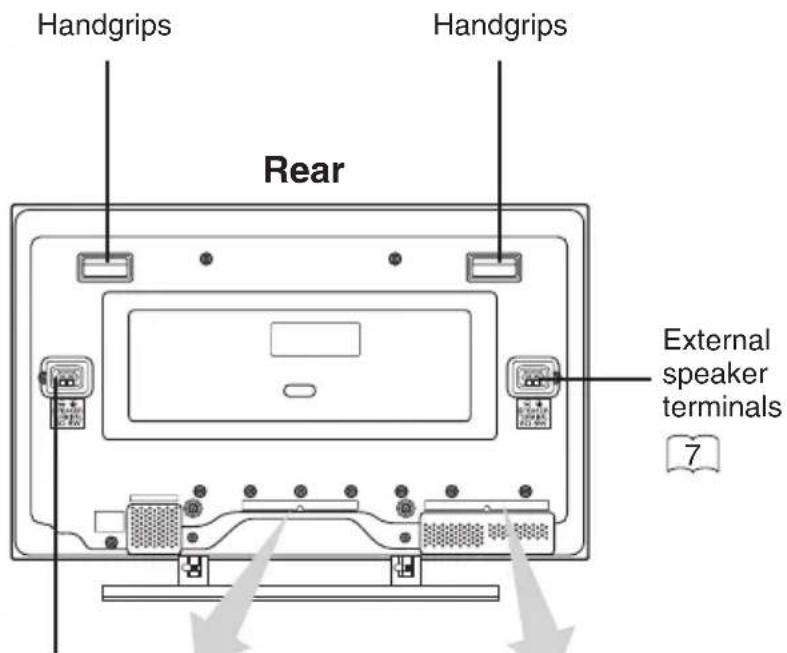
External speaker terminals
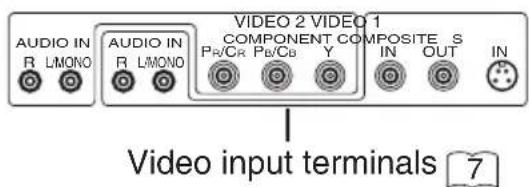
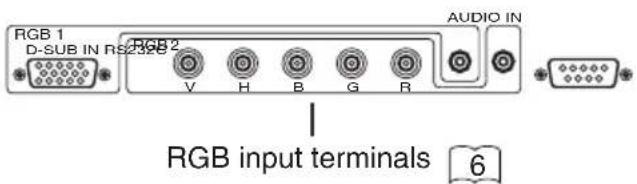
External device connection terminals
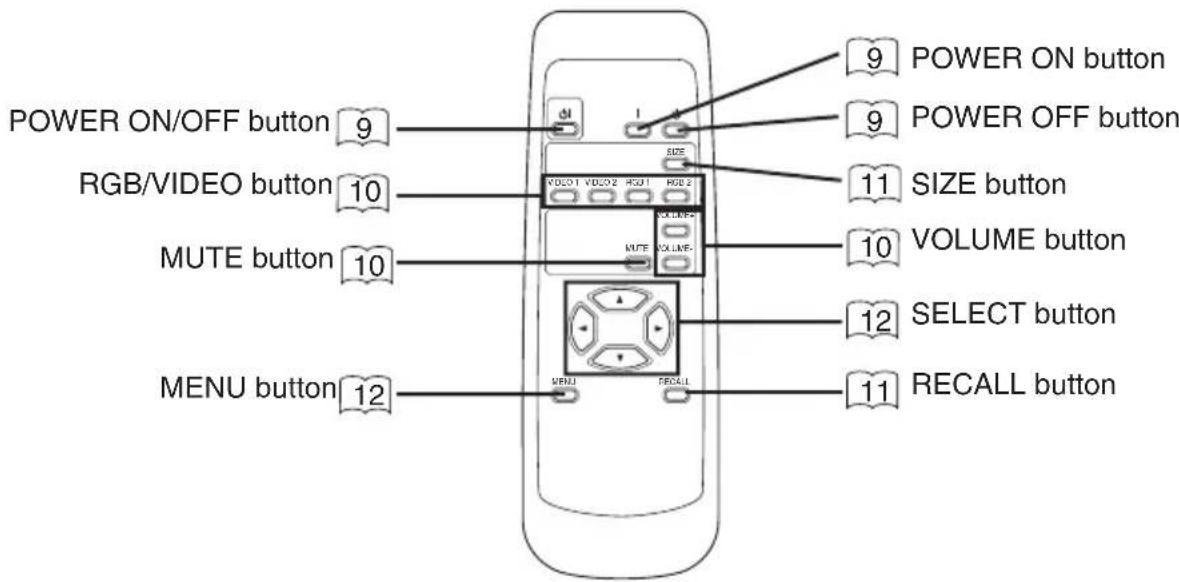
Remote controller
INSTALLATION INSTRUCTIONS (continued)
Installation and Cabling
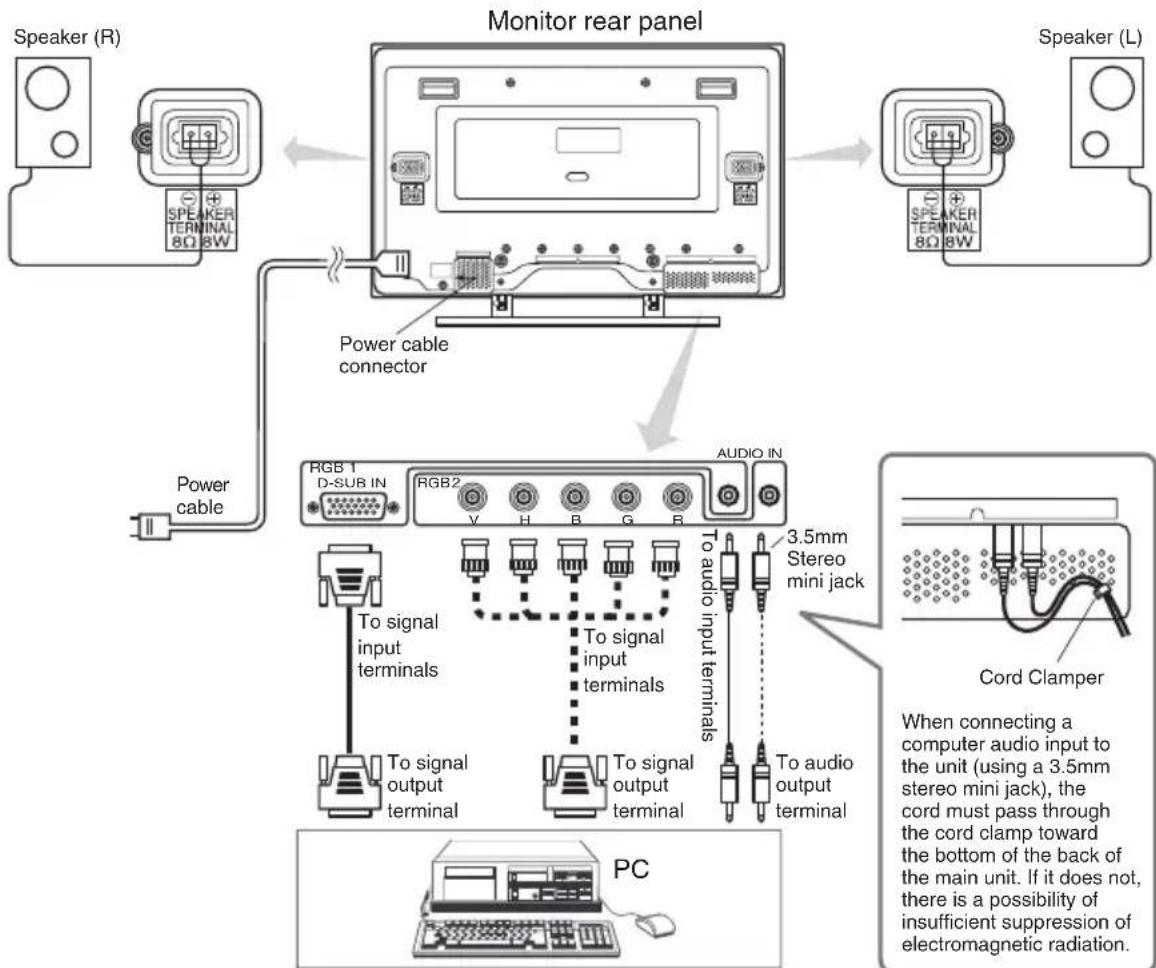
Connecting to a PC
■Read SAFETY GUIDELINES ( [Vib) carefully to ensure maximum safety before proceeding to these steps:
1) Make sure that the display signals produced by your PC meet the specifications of this product.
- For the specifications of this product, see Product Specifications (2728).
2) Choose an appropriate site and install the product on a level table where the stand is secure.
- Install the monitor to have ready access to a power socket available.
3) Make sure that your PC's power switch is off.
4) Interconnect the signal input terminal (RGB1) on the monitor rear panel and the display signal output terminal of the PC to each other using the signal cable included.
- Optional cables are needed to connect to the RGB2 input and audio input terminals.
- If the signal cable included does not match your PC, consult your dealer after reading the section "Signal Input". 28
5) Insert one end of the power cable included into the rear-panel power cable connector and the other end into a power socket.
6) Turn on the monitor, then the PC to make sure that a display image appears on the monitor screen.
- For instructions on turning on the monitor and adjusting its display images, see "Operating Instructions" (9 to 19).
Connecting to Video Equipment
(such as a Laser Disc player, a DVD player, a DSS, or a Video Camera)
■Read SAFETY GUIDELINES ( to ) carefully to ensure maximum safety before proceeding to these steps:
1) Choose an appropriate site and install the product on a level table where the stand is secure.
- Install the monitor to have ready access to a power socket available.
2) Make sure that the video equipment's power switch is off.
3) Interconnect the signal input terminal on the monitor rear panel and the video equipment's signal output terminal to each other using an commercially available video cable.
4) Insert one end of the power cable included into the rear-panel power cable connector and the other end into a power socket.
5) Turn on the monitor, then the video equipment's to make sure that a display image appears on the monitor screen.
- For instructions on turning on the monitor and adjusting its display images, see "Operating Instructions" (9 to 19).
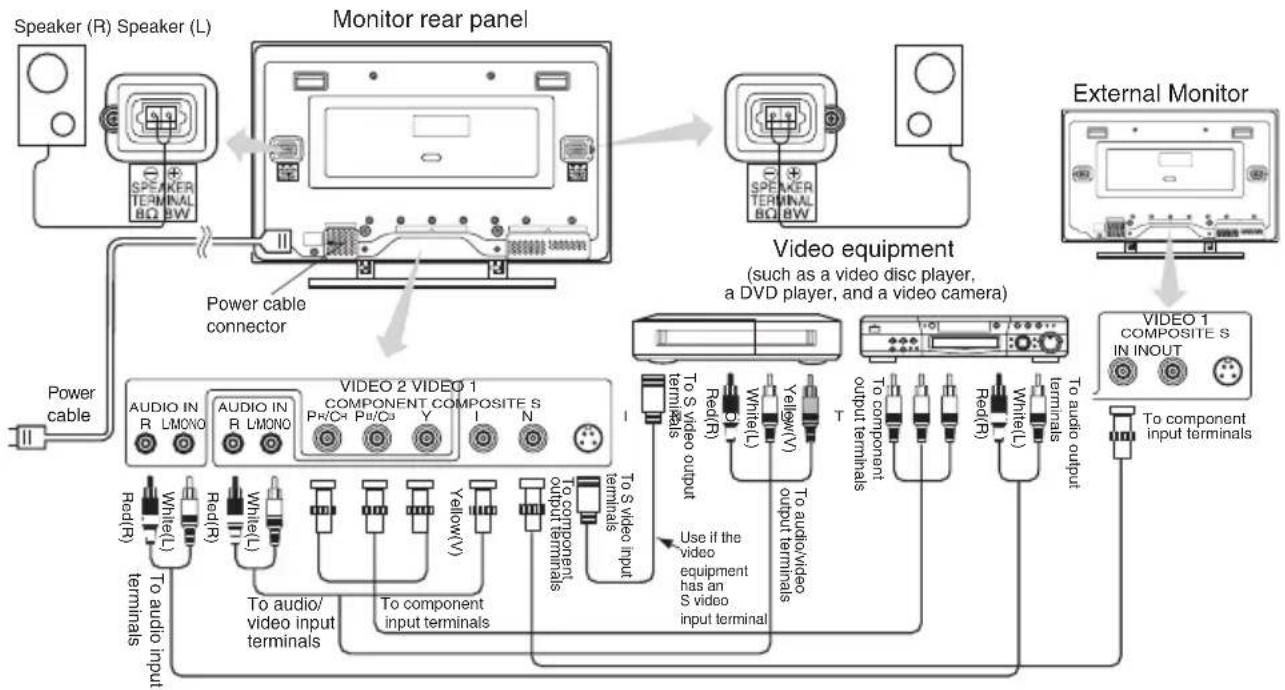
- If video equipment with an S video output terminal is used, cabling by the S video cable is recommended to provide finer video quality. (If an S video input terminal and a video input terminal connect to the monitor at the same time, S video input would govern.)
- If video equipment is equipped with component video output (Y, PB, PR or Y, CB, CR), please connect to the corresponding color (Y, PB, PR) input jack on the component input of the monitor.
- If the VIDEO1 OUT terminal is connected to an external monitor with a 75 Ohm terminal, it is possible to view the same image as on the main unit. If an external monitor is not being used, the cable must be removed from the VIDEO OUT terminal. The image will appear white as saturation level is reached.
NOTE: Y to Y, P_B - C_B to P_B , PR - CR to PR.
INSTALLATION INSTRUCTIONS (continued)
Handling the Remote Controller
Loading Batteries
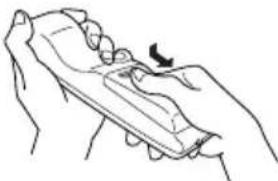
1) Open the battery cover.
- Slide the battery cover towards the arrow mark while pressing it.
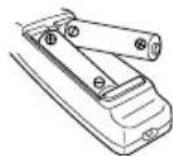
2) Load batteries.
- Load two Size AA batteries included observing the correct polarities.
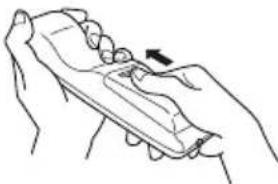
3) Close the battery cover.
- Slide back the battery cover towards the arrow mark.
Handling the Remote Controller
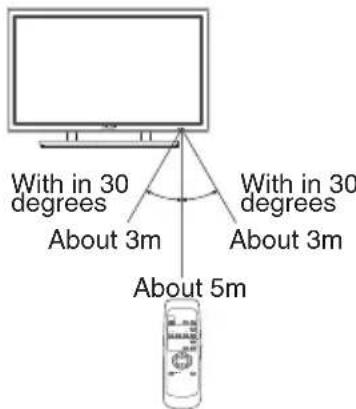
- Use the remote controller within about 5m from front of the unit's remote-control sensor and within 30 degrees on both sides.
| CAUTIONS | •Do not use new and old batteries together. The batteries could explode or leak, resulting in fires, physical injury, or stains. •When loading batteries, observe their correct polarities as marked on the product. If loaded in the wrong direction, the batteries could explode or leak, resulting in fires, physical injury, or stains. |
| TIPS | •Do not drop or impact the remote controller. •Do not splash the remote controller with water or put it on a wet object to avoid possible failures. •Before leaving the remote controller out of use for an extended period of time, remove the batteries from it. •If the remote controller begins to lack responsiveness, replace the batteries. •Strong light such as direct sunlight impinging on the photoreceptor of the remote control can cause operational failure. Position this unit to avoid direct contact with such light. |
OPERATING INSTRUCTIONS
Turning Power On and Off
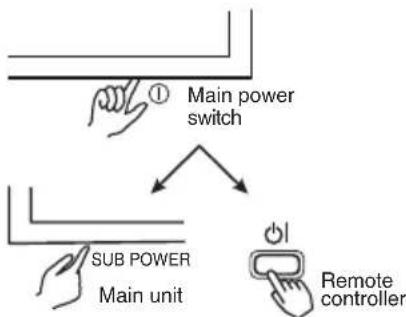
To turn the monitor power ON, press the main power switch (on the monitor main unit to ON, and then press the SUB POWER button or the button on the remote control.
To turn the monitor power OFF, press the SUB POWER button or the button on the remote control, and then press the main power switch (on the monitor main unit to OFF.
- During normal use, the main power switch ( is set in the ON position, and the monitor can then be turned ON/OFF using the SUB POWER button or the button on the remote control.
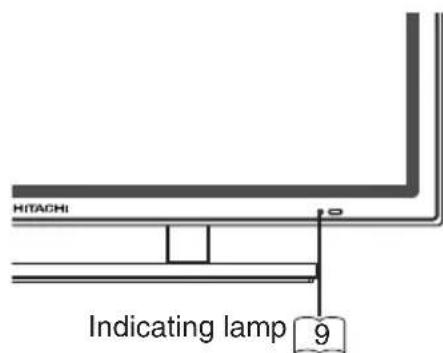
| Indicating lamp | Power status Operating | |
| Off Off | When the main power switch is set to OFF. | |
| Lights red | Off(standby) | When the main power switch (is ON, and the button on the remote control or the SUB POWER button on the underside of the front of the frame is OFF. |
| Lights or blinks green | On | When the main power switch (is ON, and the button on the remote control or the SUB POWER button on the underside of the front of the frame is ON. |
- When the indicating lamp blinks in green or the message "POWER SAVE" or "OUT OF FREQUENCY" appears on the screen, there is something unusual about the status of reception. See "Symptoms That Seemingly Appear to be Failures." 23
| TIPS | ·Avoid repeatedly turning the monitor on and off at short time intervals. Failures might result from such operation. ·Turn off the main power switch (◎before leaving the monitor out of use for an extended period of time. ·If a power failure occurs while the main unit is running, it would be powered on upon recovery from the failure. Turn off the unit main power switch before leaving the main unit. |
OPERATING INSTRUCTIONS (continued)
Input Selection
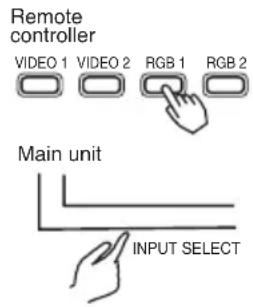
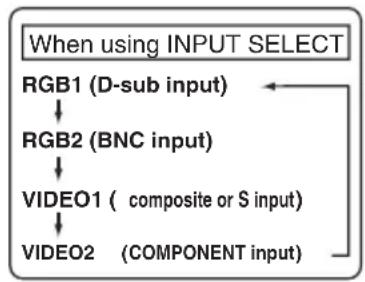
The input is switched by pressing the RGB1, RGB2,VIDEO1 orVIDEO2 button on the remote control. Pressing the INPUT SELECT button on the monitor main unit switches the input in the order of
$$ \begin{array}{l}\text {R G B 1} \rightarrow \text {R G B 2} \rightarrow \text {V I D E O 1} \rightarrow\\text {V I D E O 2} \rightarrow \text {R G B 1}.\end{array} $$
- When the same signal is input to RGB1 and RGB2, the phase may in some cases shift slightly but this is not a malfunction. In such case, readjust the PHASE of the one being used.
Volume Adjustment
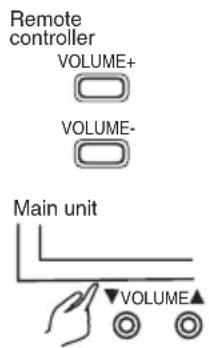
■While the on-screen display system, (12) is not on display, press the remote controller VOLUME button or the main unit VOLUME button or to adjust the sound volume.
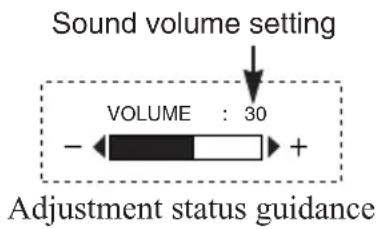
- The adjustment status will be displayed as guidance while you press these buttons.
- While the guidance is on display, press or to turn up the volume.
- While the guidance is on display, press or to turn down the volume.
- You can also adjust the sound volume setting via the on-screen display system 14.
- The sound volume adjustment mode will exit when no keys are entered for 5 seconds. (The adjustment status guidance will disappear automatically.)
Sound Mute
■Press the remote controller MUTE button to mute the sound temporarily.
-
When you press the button, [MUTE] (pink) and the status of volume setting will be displayed in a guidance image.
-
While the sound is muted, press the button to turn down the volume.
-
While the sound is muted, press the button to cancel the mute.
-
You can also adjust the sound volume setting of the mute via the on-screen display system [14].
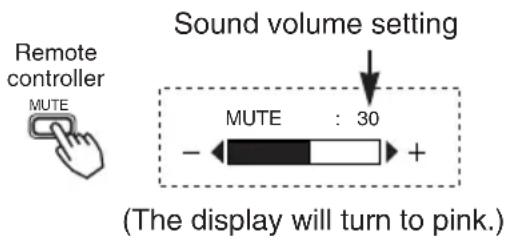
Press the remote controller MUTE button once again and the mute will be canceled and the guidance will change to VOLUME (blue), enabling the volume to be heard.
- When MUTE is used, the guide display will continue for 5 sec. and then turn off.
Contrast Adjustment
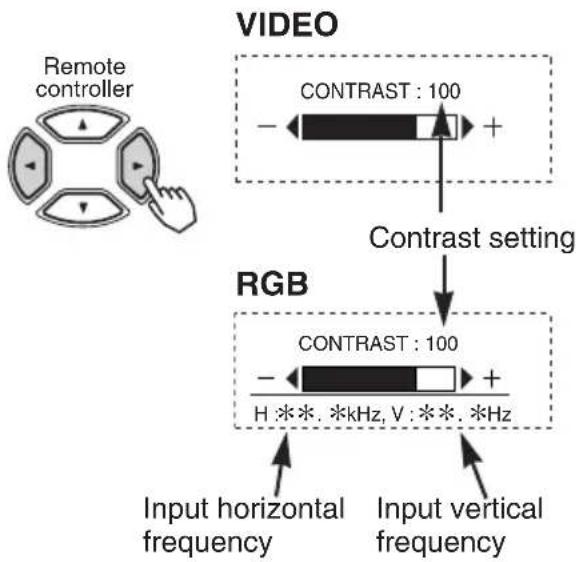
■While the on-screen display system 12, is not on display, press the remote controller SELECT button to adjust the contrast.
- When you press these buttons, the status of contrast adjustment and the input horizontal (H) and vertical (V) frequencies of the input signal will be displayed in a guidance image. (For RGB input only)
- While the guidance is on display, press the key to narrow the difference between darkness and brightness.
- While the guidance is on display, press the key to widen the difference between darkness and brightness.
- You can also adjust the contrast setting via the on-screen display system [13].
- The contrast adjustment mode will exit when no keys are entered for 5 seconds. (The adjustment status guidance will disappear automatically.)
Adjustment status guidance
Size Selection
Each press on the SIZE button on the remote control switches the display size of the screen (or the display area) in the following order. The selected mode is displayed in the lower part of the screen.
RGB signal input
NORMAL FULL ZOOM

VIDEO signal input

Remote controller

FULL
Depending on the signal type, sometimes it may not be possible to change screen size. Sometimes certain sizes may be unavailable. 15 16
Input Signal Status Display
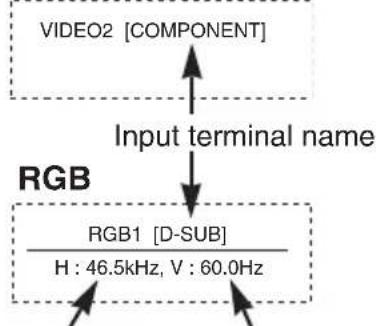
Press the remote controller RECALL button to display the status of input signals on the screen.
Press the remote controller RECALL button once again to exit the screen display.
- The Menu will clear 5 seconds later.
VIDEO
Input horizontal frequency
Input vertical frequency
OPERATING INSTRUCTIONS (continued)
On-Screen Display System
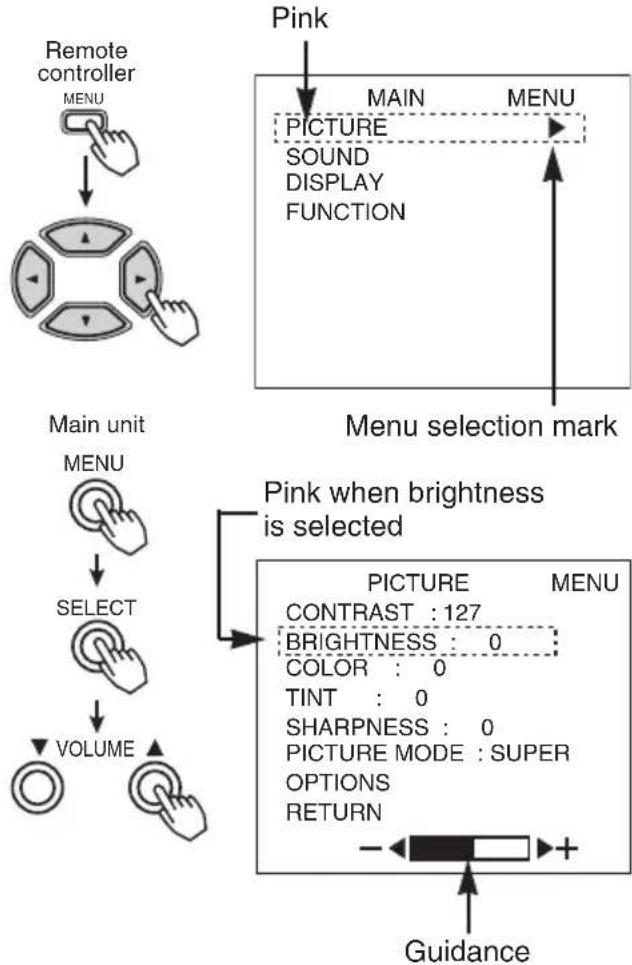
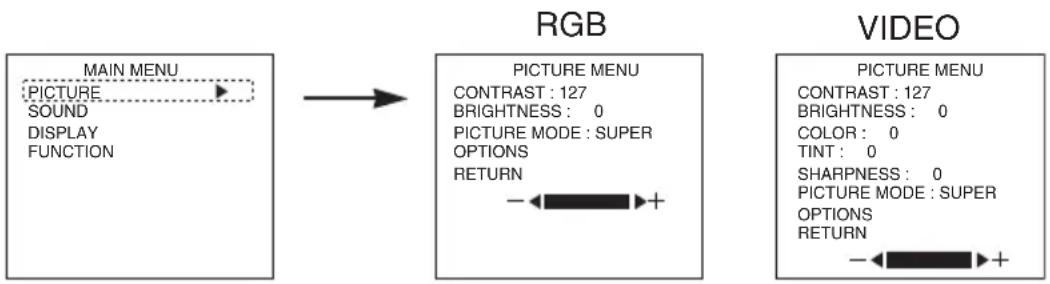
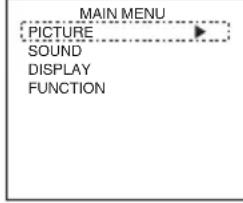
Press the MENU button to open an MAIN MENU allowing you to complete various adjustments and settings using the SELECT buttons (The , and keys of the remote controller or the SELECT or VOLUME button of the main unit.).
- Press the SELECT button of the main unit (OK key of the remote controller) to select an item by moving the pink text.
-
Press the VOLUME button and the and keys of the main unit ( key of the remote control) to adjust or set the selected item, or to switch the menu.
-
When a choice is followed by " : ", it indicates that the choice can be adjusted or changed.
- When a choice is followed by a menu can be opened by pressing the remote-controller SELECT button or the main unit SELECT button and VOLUME button.
- When [RETURN] is selected, press the remote-controller button SELECT to the main unit SELECT button and VOLUME button to exit to the original menu
For information on adjusting and setting choices, see 13 to 19.
Press the MENU button once again to exit the MAIN MENU.
The MAIN MENU will close automatically when no keys are entered for 10 seconds.
| HINTS | ·Image retention can occur if the same image is displayed for an extended time. To reduce this possibility, change the display contents at suitable intervals. You are recommended to use the built-in screen saver function. ·If special images created on a PC or any other equipment (such as those composed of a checker-flag pattern) are displayed across the screen, the hue may be varied depending on the contrast or brightness setting. |
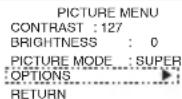
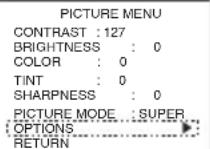
PICTURE MENU
| Selected characters | Setup hint | ||
| CONTRAST | Narrows the gap between brightness and darkness. | Broadens the gap between brightness and darkness. | Adjust for maximum visibility to suit the ambient brightness. |
| BRIGHTNESS | Black is subdued for increased overall darkness. | Black is set off for increased overall brightness. | Adjust to prevent black from spreading across the screen. |
| COLOR | Lightens colors. Darkens colors. | Adjust for desired density, somewhat for lighter colors for a natural look. | |
| TINT | Enhances red and weakens green. | Enhances green and weakens red. | Adjust for a nice looking skin color. |
| SHARPNESS | Softens display images. Sharpens display images. | Normally set to middle, and towards - for increased softness. | |
| PICTURE MODE | Set to NORMAL Set to SUPER Normally set to SUPER. | ||
OPERATING INSTRUCTIONS (continued)
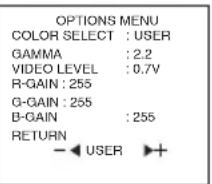
OPTIONS MENU
RGB
RGB
VIDEO
VIDEO
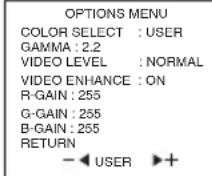
| Selected characters | Setup hint | ||
| COLOR SELECT | COOL NORM WARM→USER | Normally set to COOL. | |
| GAMMA | 1.0→2.2→2.8 | Normally set to 2.2. | |
| VIDEO LEVEL | VIDEO | Normally set to NORMAL. If white is found to spread across the screen, set to +10% or +20%. | |
| NORMAL→+10%→+20% | |||
| RGB | Normally set to 0.7 V. If white is found to spread across the screen, set to 1.0 V. | ||
| Set to 0.7 V. | Set to 1.0 V. | ||
| VIDEO ENHANCE | Set to OFF | Set to ON | ON enhances vertical lines. Normally set to ON. |
| R-GAIN* | Red is weakened. | Red is strengthened. | Sets the color adjustment selected by the user with COLOR SELECT. USER mode takes effect automatically when an attempt is made to set a gain. |
| G-GAIN* | Green is weakened. | Green is strengthened. | |
| B-GAIN* | Blue is weakened. | Blue is strengthened. | |
*The respective individual R.G.B. setting can not be under 255.
SOUND MENU
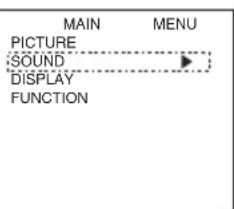

SOUND MENU
VOLUME:20
BALANCE:0
TREBLE: 0
BASS:0
MUTE LEVEL: 0
RETURN

| Selected characters | Setup hint | ||
| VOLUME | Turns down the volume. Turns up the volume. | Adjust for the desired sound volume. 10 | |
| BALANCE | Suppresses right-side sound. Suppresses left-side sound. | Adjust to taste. | |
| TREBLE | Suppresses treble. Enhances treble. | ||
| BASS | Suppresses bass. Enhances bass. | ||
| MUTE VOLUME | Turns down the sound volume. Minimum 0. Turns up the sound volume. Maximum pre-mute sound volume. | Varies the sound volume when the MUTE button is pressed. 10 | |
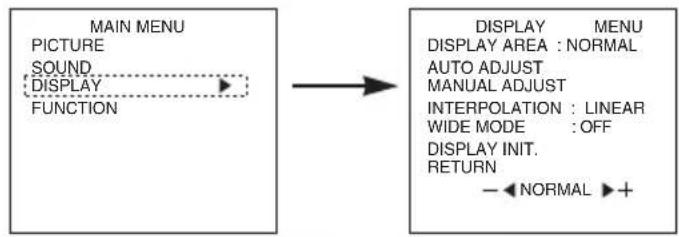
DISPLAY MENU (RGB)
| Selected characters | Setup hint | ||
| DISPLAY AREA | NORMAL ZOOMFULL | Set to FULL to display images across the screen for gaining an overview of the overall images. | |
| AUTO ADJUST * | ADJUST OK? | Adjusts the CLOCK, PHASE, etc. automatically. | |
| Set to YES. Set to NO. | |||
| INTERPOLATION | Set to DOUBLE. Set to LINEAR. | Set to DOUBLE to see characters or images crisp or to LINEAR to view them smooth. | |
| WIDE MODE ** | Set to OFF. Set to ON. | Only displayed when VGA (60 Hz) or WIDE VGA signals are input. Natural images can be enjoyed when set to ON when WIDE VGA signals are input. Set to OFF when VGA (60 Hz) signals are input. | |
| DISPLAY INIT. | INITIALIZE? | Clear the user signal preset data. 21 | |
| Set to YES. Clears all DISPLAY MENU adjustment values except DISPLAY AREA and exits to the DISPLAY MENU. | Set to NO. Exits to the DISPLAY MENU, without clearing the menu adjustment values. | ||
- Depending on the type of signal displayed, displays may not be optimized through automatic adjustment. Apply MANUAL ADJUST to optimize them. 16
- 1080/60i signal doesn't exit the display of AUTO ADJUST. Apply MANUAL ADJUST in this case.
** When WIDE MODE is set to ON, the display area mode becomes FULL and switching of the size is not possible.
Displays According to Selected DISPLAY AREA (RGB input)
| Resolution Overall display Partial display | |||
| Display FULL NORMAL ZOOM | |||
| 640 X 480 (VGA) | SXGA X: Y = 5:4 Others X: Y = 4:3 | Data area The V.Posi setting allows for upward and downward scrolling. | |
| 800 X 600 (SVGA) | |||
| 1024 X 768 (XGA) | |||
| 1280 X 1024 (SXGA) | |||
| 1600 X 1200 (UXGA) | |||
- Signal processing is carried out for compression (pixel thinning) or zoom, etc. for the above signal displays.
OPERATING INSTRUCTIONS (continued)
MANUAL ADJUST MENU (RGB)
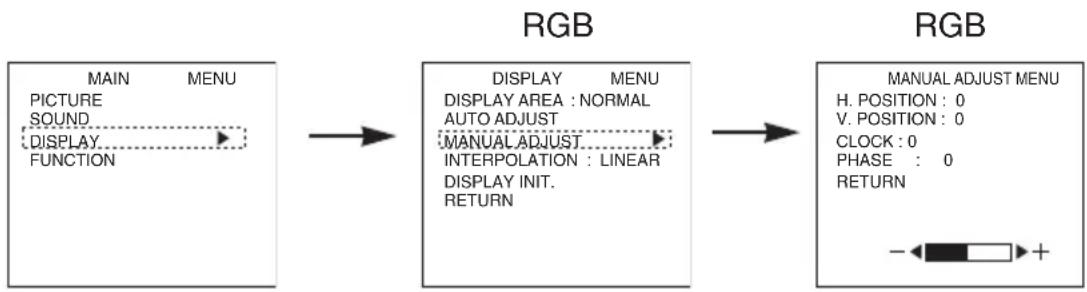
| Selected characters | Setup hint | ||
| H.POPOSITION | Moves the horizontal position to left. | Moves the horizontal position to right. | Adjust the left-side display position. |
| V.POPOSITION | Moves down the vertical position. | Moves up the vertical position. | Adjust the vertical display position. |
| CLOCK | Reduces the dot clock frequency (shrinks the right side). | Increases the dot clock frequency (expands the right side). | Adjust for maximum character clarity. |
| PHASE | Slows the dot clock phase (shifts slightly to left). | Advances the dot clock phase (shifts slightly to right). | Adjust for clear character visibility. |
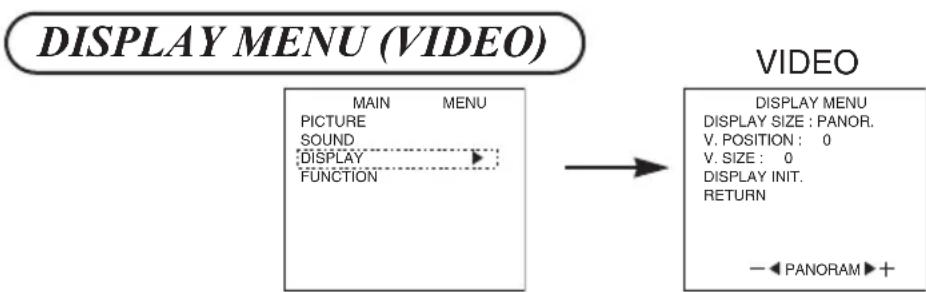
| Selected characters | Setup hint | ||
| DISPLAY SIZE | 4:3 PANORAM.MOVIE1-FULL MOVIE2 | Select to suit the aspect ratio of the video software. | |
| V.POPOSITION (PANORAM/MOVIE1/MOVIE2) | Adjust the vertical position when subtitles cannot be read. | ||
| V.SIZE (PANORAM/MOVIE1/MOVIE2) | Adjust until the black band (blanking) at the top and bottom is no longer visible. |
- Composite / S signal (video1 input) and component (SD1 480i) signal applicable for all size modes.
- For component (HD1: 480p) signals, the display mode is selectable among 4:3, MOVIE1, and FULL.
- For component (HD3: 1035i, 1080i, 720p) signals, the display mode is not selectable.
- If an S1 or S2 image is input from the S image of video1, the S1 image would be set to FULL, and the S2 image would be set to MOVIE1.
Displays by Selecting the DISPLAY SIZE (VIDEO input)
| When you want to | Set the display size to | Input signal | Display screen | Remarks |
| Play a 4:3 image in a 16:9 screen faithfully. | 4:3 | (4:3 signal) | (○○○) | Blanking occurs on both sides. |
| Play a 4:3 image in a 16:9 screen with the height and width of the middle of the screen enlarged on equal scales and with both sides appearing somewhat enlarged. | PANOR. (Panoramic) | (○○○) | ||
| The 16:9 VISTA size image in the 4:3 image is faithfully reproduced on the 16:9 screen. | MOVIE1 | (Vista) | (○○○) | • The 4:3 image is called a letterbox image. • In some cases, some slight blanking may remain at the top and bottom. |
| The 21:9 Cinema size image in the 4:3 image is expanded vertically on the 16:9 screen. | MOVIE2 | (Cinema) | (○○○) | In some cases, some slight blanking may remain at the top and bottom. |
| Play a 4:3 image faithfully in a 16:9 screen in the standard vertical size and horizontally squeezed.* | FULL | (Squeezez) | (○○○) | * An image with an aspect ratio of 16:9 shrunk horizontally to 4:3 to display in a 4:3 screen |
| TIPS | Using a wide-screen monitor ·This monitor has a screen mode selection feature. If an incompatible screen mode is selected to play certain software, such as a TV program, the image would appear different from the original. Take this into consideration when making screen mode choices. ·Use of this monitor in its enlarged display mode with the wide feature enabled in coffee shops, hotels and other establishments for commercial or pubic viewing purposes could infringe on the copyright holder's right protected by Copyright Law. ·When a normal 4:3 image is displayed over the entire screen in the PANOR. mode, not the Wide mode, parts of the periphery of the image may disappear and/or appear distorted in some cases. Use the 4:3 mode to view images, which were created in 4:3 mode. This mode allows 4:3 content to be viewed without picture distortion. |
OPERATING INSTRUCTIONS (continued)
FUNCTION MENU
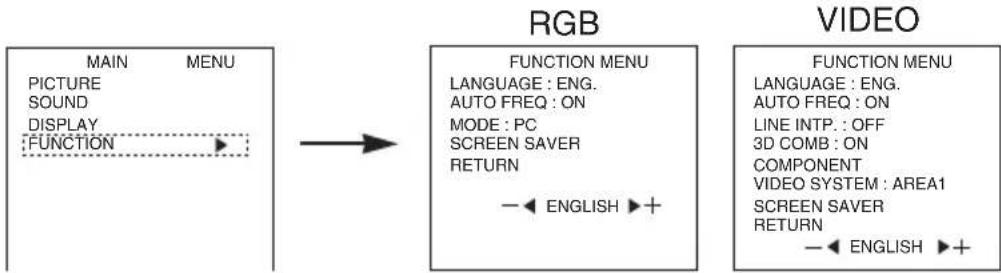
| Selected characters | Setupint △ □ | ||
| LANGUAGE | ENG.(ENGLISH) → D.(DEUTSCH) → ITAL.(ITALIANO) → ESP.(ESPÁÑOL) → FRA.(FRANÇAIS) → | The default is ENG(English). | |
| AUTO FREQ.(RGB input only) | Set to OFFThe frequency of a new signal is not displayed as it is received. | Set to ON.The frequency of a new signal is displayed as it is received. | Set to OFF if you find the frequency display appearing upon signal change annoying. |
| MODE(RGB input only) | PC MOVIE | The mode function added to the Function Menu allows for a smooth playback of movies from 60 Hz XGA input when it is set to MOVIE.Normally, keep the function menu set to PC (OFF mode). Set it to MOVIE(ON) when playing movies. | |
| LINE INTP. | Set to OFF. Set to ON. | Set to ON when playing a 3D-video disc. Set to OFF in most cases. | |
| 3D COMB | Set to OFF. Set to ON. | Set to OFF if video images appear unnatural. Set to ON in most cases. | |
| VIDEO SYSTEM | N-PAL AREA1M-PAL AREA24-NTSC NTSCSECAM PAL | Switch the color system to suit the input system in video input mode VIDEO1.Normally, set to AREA1.The input signal system will be automatically recognized to display input images on the screen(Japan, Europe, and North America).(Choose AREA2 in South America.)If the input signal contains much noise or has a low level at AREA1, 2 and the operation is found erratic,set to match the input system. | |
| Selected characters | Setup hint △ ▽ | △ □ □ | |
| COMPONENT SD1(480i) | Set to Cb/Cr to suit the Y/Cb/Cr signals. | Set to Pb/Pr to suit the Y/Pb/Pr signals. | The default is Y/Cb/Cr. |
| COMPONENT SD2(European SDTV) | |||
| COMPONENT HD1(480p) | |||
| COMPONENT HD2(720p) | The default is Y/Pb/Pr. | ||
| COMPONENT HD3(1080i) |
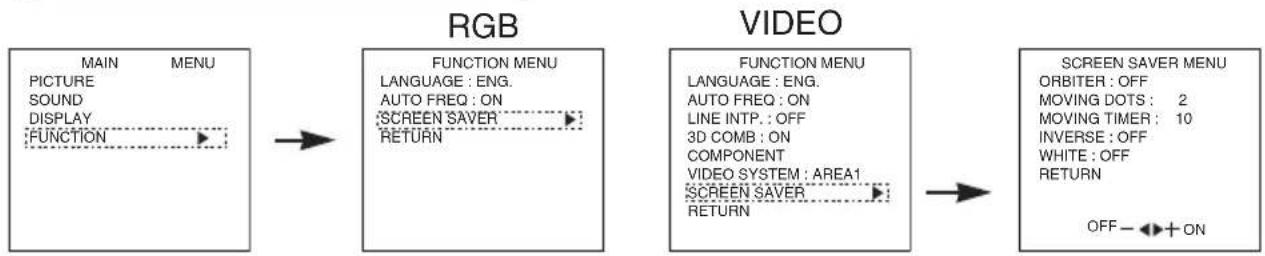
SCREENSAVERMENU
| Selected characters | △△△ | △△△ | Setup hint |
| ORBITER | Set to OFF. | Set to ON. | Set to ON when high image retention potential exists such as static or still image displayed long period of time. |
| MOVING DOTS | 1←2←3 | Adjust as desired. | |
| Reduces the amount of movement. | Increases the amount of movement. | ||
| MOVING TIMER | Reduces the time interval. | Increases the time interval. | Shift time can be set from 1 min. to 60 min. (Use zero (0) to check the shift range. Shift time will be approx. 1 sec.) |
| INVERSE | 60←OFF←ON | Normally set to OFF. If 60 is selected, the set enters a power wait state 60 minutes later, with its settings canceled. When a still picture has been displayed for long before ON is selected to display the same still picture, INVERSE or WHITE helps prevent the still picture from baking into the panel. The set stops when input signal flow is interrupted. | |
| WHITE | |||
Automatic Store
Approximately 1 sec. after adjustment is completed, the adjustments will be recorded as shown in the table below.
| Item Display | Registration condition | Reproduction condition | |
| Sound volume | VOLUME | ||
| Sound balance | BALANCE | ||
| Treble | TREBLE | ||
| Bass | BASS | ||
| Mute volume | MUTE LEVEL | ||
| Input status automatic display | AUTO FREQ. | ||
| Line correction | LINE INTP. | One set can be recorded. | During normal signal reception. |
| Three-dimensional Y/C separation | 3D COMB | ||
| HD signal | COMPONENT | ||
| Language selection | LANGUAGE | ||
| Contrast | CONTRAST | One set can be recorded during common RGB1, RGB2 input; one set of two can be recorded during normal signal reception with commonVIDEO 1,VIDEO 2 input. | During normal signal reception. |
| Brightness | BRIGHTNESS | ||
| Color temperature | COLOR SELECT | ||
| Gamma correction | GAMMA | ||
| Input signal level | VIDEO LEVEL | ||
| Color | COLOR | One set can be recorded during commonVIDEO 1,VIDEO 2 input. | During normal signal reception. |
| Tint | TINT | ||
| Sharpness | SHARPNESS | ||
| Video enhance | VIDEO ENHANCE | ||
| Display area | DISPLAY AREA | ||
| Display size | DISPLAY SIZE | ||
| Horizontal position | H POSITION | One group can be recorded for each signal mode. | During recording and when the same signal mode is detected. |
| Vertical position | V. POSITION | ||
| Dot clock frequency | CLOCK | ||
| Dot clock phase | PHASE | ||
| Verical size | V. SIZE |
- The previously recorded items will be lost.
- The signal mode can be identified by the horizontal/vertical sync frequency and the sync signal polarity. Different signals with which all the elements are the same or similar will be handled as the same signal.
- RGB1 and RGB2 inputs have common elements that can be recorded for each signal mode. Because of this, when the contents are recorded with RGB1 (or RGB2), there may be loss of adjustment during RGB2 (or RGB1) reception in the same signal mode.
Reset (Settings Initialization)
The on-screen display system shown to the right will be displayed when the
SELECT button is used to select DISPLAY and moreover DISPLAY INIT is selected from the On-screen Display System 12. If the key (select YES) of the SELECT button is pressed at this time, the user adjustment values in the table below for the signal currently being received will be deleted and the factory settings will be restored.
INITIALIZE?
YES-+NO
- Pressing the key (select NO) cancels deletion and returns the DISPLAY MENU.
| DISPLAY menu item Display Application | |
| Horizontal position H POSITION RGB1, RGB2 | |
| Vertical position V POSITION RGB1, RGB2,VIDEO1,VIDEO2 | |
| Dot clock frequency CLOCK RGB1, RGB2 | |
| Dot clock phase PHASE RGB1, RGB2 | |
| Vertical size V. SIZEVIDEO1,VIDEO2 |
Signal Check
Changes in the signal status are displayed on the screen as they arise.
| Status Display | play Action | |
| The input signal was switched or the RECALL button was pressed after AUTO FREQ was turned on. | ·The input terminal and the horizontal and vertical frequencies are displayed in a guidance image. | - |
| A sync signal could not be detected. | ·The guidance message “POWER SAVE” is displayed for about 5 seconds. ·In the event of continued absence of a sync signal, the power indicating lamp flickers and the monitor enters power save mode. | ·Check the power switch of the PC and its status of connection. |
| The input signal does not meet display specifications or erratic. | ·The guidance message “OUT OF FREQUENCY” is displayed. | ·Check the input signal specifications once again. 27 ~ 30 |
RGB
RGB1 [D-SUB]
H:46.5kHz,V:60.0Hz
VIDEO
VIDEO1
Either VIDEO or SVIDEO is displayed onVIDEO input.
POWER SAVE
OUT OF FREQUENCY
OTHERFEATURES (continued)
Power Save Mode
■When the RGB input is selected
- When this unit is connected to a VESA DPMS computer, the Power Save (Off) mode can be set to be activated automatically when the computer is not being used to reduce power consumption by this unit.
| RGB sync signal | Horizontal Yes No Yes No | |||
| Vertical Yes Yes No No | ||||
| Video signal | Active (normal display) | Blank (no video) | ||
| Operation mode On Off | ||||
| Indicating lamp Lights | green Blinks green | |||
| Power consumption | 360W (Sound off) | 5W or less | ||
■When the Video Input is selected
- When there is no video signal input, the power-saving system operates to reduce the power consumed by the sunit.
| Video signal Yes No | ||
| Screen display Active (normal display) Blank (no video) | ||
| Operation mode On Off | ||
| Indicating lamp | Lights green | Blinks green |
| Power consumption 360W (Sound off) | 5W or less | |
Sound Mode
■If you press the MENU button while the monitor has power save mode turned off, sound output is enabled by cancelling the off setting of power save mode.
- When the monitor enters sound mode, it displays a mode indication on the screen.
- In sound mode, sound volume can be adjusted.
Remote controller

SOUND MODE
Press the MENU button to cancel sound mode.
- Power save mode is enabled when sound mode is canceled.
- If an input signal is available, the monitor displays the input signal by canceling sound mode automatically.
Remote controller

POWER SAVE
Symptoms That Seemingly Appear to be Failures
■Make the checks suggested below depending on the symptoms observed. If the symptoms remain uncorrected, contact your dealer.

WARNING
- Customer servicing can be hazardous.
| Symptom Point to check | See page | |
| ·No picture with the power-indicating lamp off. | ·Check the way the power cable is connected. ·Press the power switch. | 6 7 9 |
| ·The message “POWER SAVE” is displayed. ·No picture with the power indicating lamp flickering in green. | No sync signal is detected. ·Check the way the signal cable is connected. ·Make sure that the switch of the computer, imaging equipment, etc., is turned on. ·Make sure the computer is not in the power-saving mode. ·Check to see if the input selection matches the connection terminal. | 6 7 9 10 21 28 |
| ·The message “OUT OF FREQUENCY” is displayed. | An input signal is not received normally. ·Check to see if the input signal matches the monitor specifications. ·Check the way the signal cable is connected. | 6 7 21 |
| ·The power indicating lamp is normally lit but no picture. | ·Check the contrast and brightness settings (adjust them for higher contrast and brightness). ·Check the way the signal cable is connected. | 6 7 11 13 |
| ·The display image appears flowing slantwise. ·Text displayed across the screen appears vertically streaked, with the characters in vertical columns blurred. | ·Adjust the dot clock frequency and phase. (Adjust the dot clock frequency first, the dot clock phase next.) (RGB input) | 15 16 25 |
| ·Text displayed across the screen appears blurred. ·A fine pattern flickers when displayed on the screen. | ·Adjust the dot clock phase for the clearest viewing. (RGB input) | 15 16 26 |
| ·The remote controller does not work. | ·Check to see if the batteries are loaded in the remote controller in opposite direction. ·Check to see if the batteries in the remote controller are OK. | 8 |
TROUBLESHOOTING (continued)
| Symptom Point to check | See page | |
| The temperature of the display panel surface is high. | The plasma display panel is lighting the phosphors by the discharge of internal radiation. In some cases, this may cause the temperature of the panel surface to increase. Please note that this is not a malfunction. | - |
| There are locations on the screen that are different from the periphery (*)Points that do not light, points with brightness different from that of the periphery, points with color different from that of the periphery, etc. | High-precision technology is used to manufacture the plasma display panel, However in some cases, there are minor defects in some parts of the screen. Please note that this is not a malfunction. | - |
| Vertical stripes appear, depending on the screen contents. | The plasma display panel is lighting the phosphors by the discharge of internal radiation. Depending on the screen contents, in rare cases this may cause vertical stripes to appear because of failure to light. Please note that this is not a malfunction. | - |
| Coarse horizontal stripes appear in FULL display. | Adjusting the phase will reduce the horizontal stripes.(RGB input) | 16 |
| The display dims to make the picture invisible during special playback of a VCR (FF, REW). | This condition may occur when the unit is connected to a VCR with component output, such as 480i, but it is not a failure. But when it occurs, switch to composite output or S1 (S2) output). | - |
| Flickering in the form of horizontal lines oscillating up and down. | If the direct frequency from the computer is below 85Hz, try a higher frequency (upper limit 85Hz). There may be a slight attenuation of the current image. | - |
| The fan motor is noisy. | Use the fan that controls the temperature in the main body to lower the temperature of this unit. If the ambient temperature is high, the noise from the motor increases as the rotation speed increases. This is not a malfunction. | - |
| The top of the monitor heats up. | When used for long periods of time, the top of the monitor may heat up. This is not a malfunction. | - |
Actions to Correct Abnormal Displays
Depending on the kind of system equipment used, images may not be displayed normally. In this case, make the adjustments suggested below.
| Symptom 1 | Text displayed across the screen appears vertically streaked, with some characters blurred (figure 1). The display image appears flowing (figure 2) (RGB input). |
| Example | Figure 1 Vertical streaks Before adjustment Some characters are blurred. ABCDEFGHIJ abcdefgABCDEFGabcd ABCDEFGHIJ abcdefgABCDEFGabcd After adjustment All characters appear crisp now. After adjustment All characters are blurred. |
| Adjustment procedure | 1) Press MENU button to open the MAIN MENU. 2) Press SELECT button several times to choose DISPLAY. 3) Press to open the DISPLAY MENU. 4) Press to choose AUTO ADJUST. 5) Press ADJUST OK) (Adjust the by displaying a fine pattern, such as a character string, or vertical streak pattern across the screen.) |
| If AUTO ADJUST does not work well. 6) Press MENU button to open the MAIN MENU. 7) Press SELECT button several times to choose DISPLAY. 8) Press to open the DISPLAY MENU. 9) Press to choose MANUAL ADJUST. 10) Press to open the MANUAL ADJUST MENU. 11) Press several times to choose CLOCK. (Adjust the clock by displaying a fine pattern, such as a character string, or vertical streak pattern across the screen.) 12) Press to make the text appear uniform across the screen. 13) If the text appears blurred across the screen, make the adjustment instructed in Symptom 2. |
- The display image may be momentarily disturbed during clock adjustment but this is not a failure.
TROUBLESHOOTING (continued)
| Symptom 2 | Text displayed across the screen appears blurred in its entirety (figure 2). A fine pattern flickers when displayed on the screen (figure 3). | |
| Example | Figure 2 | Before adjustment ABC After adjustment ABC |
| Adjustment procedure | 1) Press MENU button to open the MAIN MENU. 2) Press SELECT button several times to choose DISPLAY. 3) Press to open the DISPLAY MENU. 4) Press to choose AUTO ADJUST. 5) Press ADJUST OK) (Adjust the by displaying a fine pattern, such as a character string, or vertical streak pattern across the screen.) | |
| If AUTO ADJUST does not work well. 6) Press MENU button to open the MAIN MENU. 7) Press SELECT button several times to choose DISPLAY. 8) Press to open the DISPLAY MENU. 9) Press to choose MANUAL ADJUST. 10) Press to open the MANUAL ADJUST MENU. 11) Press several times to choose PHASE. (Adjust the phase by displaying a fine pattern, such as a character string, or vertical streak pattern across the screen.) | ||
| 12) Press to make the text appear clean across the screen. | 12) Press to make the text appear without flickering. | |
■Product specifications and designs are subject to change without notice.
| Type PD1 (42HDW10) | |||
| Panel | Display dimensions | Approx. 42 inches (922 mm (H), vertical 522 mm (V), diagonal 1059 mm) | |
| Resolution 1024 (H) x 1024 (V) pixels | |||
| Input signals | Input terminals | RGB input VIDEO input | |
| RGB one-line two input terminals(D-sub 15-pin) (BNC)RGB audio two-line two input terminals(left, right)(3.5mm Stereo mini jack) | Video 1 video input terminal (BNC)Video 1 audio input terminals (left, right)(RCA)Video 1 S video input terminal (S)Video 2 video input terminals(Y) (Pb/Cb) (Pr/Cr) (BNC)Video 2 audio input terminals (left, right)(RCA) | ||
| Video signals | 0.7 V/1.0 Vp, analog RGB(horizontal: 24kHz to 107kHz,vertical: 50Hz to 85Hz) 1080/50i, 1080/60i | NTSC, NTSC-4.43, M-PAL, PAL, N-PAL,SECAM, 480/60i, 480/60p, 720/60p,1080/60i, 1035/60i, 575/50i | |
| Sync signals | H/V separate, TTL level [2KΩ] | - | |
| H/V composite, TTL level [2KΩ] | - | ||
| Sync on green, 0.3 Vp-p [75Ω] | - | ||
| Video output Signal | - | Through output (BNC) forVIDEO1 input signals. | |
| Recommended Signal 27 | modes 10 [28] | [75] | |
| Audio output terminal 8W | V + 8W (8Ω) | ||
| Input power | AC100 - 120 / 200 - 240V(automatically selected) 4A / 2.2APower consumption 360W (Sound off) | ||
| External dimensions 103 | 0 (W) x 636 (H)x 89 (D) (mm) (excluding the stand) | ||
| Mass 31kg (excluding the) | stand), 35kg (When mounted on optional stand.) | ||
| Ambient conditions | Temperature | Operating : 5°C to 35°C, Storage : 0°C to 40°C | |
| Relative humidity | Operating : 20% to 80%, Storage : 20% to 90% (non-condensing) | ||
- The monitor takes at least 30 minutes to attain the status of optimal picture quality.
PRODUCT SPECIFICATIONS (continued)
Signal Input
■RGB terminal (D-sub 15-pin connector)
| Pin Input signal |
| 1 R. video |
| 2 G. video or sync on green |
| 3 B. video |
| 4 No connection |
| 5 No connection |
| 6 R.GND |
| 7 G.GND |
| 8 B.GND |
| 9 No connection |
| 10 GND |
| 11 No connection |
| 12 [SDA] |
| 13 H. sync or H/V composite sync |
| 14 V(sync. [V.CLK] |
| 15 [SCL] |
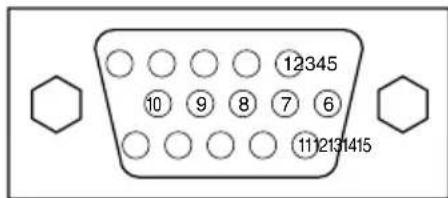
- When different kinds of input signals are simultaneously input to the monitor via a graphics board or the like, the monitor will automatically select the signals in the following priority order:
| Sync signal type Priority | |
| H/V separate sync. | 1 |
| H/V composite sync. | 2 |
| sync.on Green * | 3 |
*Even in the case of the recommended signals shown on the following page, there may be instances when correct display is not possible. In this case, use H/V separate sync, H/V composite sync.
■RGB terminal (BNC connector)

V(sync.

H. sync or H/V composite sync

B. video

G. video or sync on green

R. video
■S-input connector pin specifications
| Pin Input signal | |
| 1 | Y |
| 2 Y-GND | |
| 3 | C |
| 4 C-GND | |
| Frame | GND |
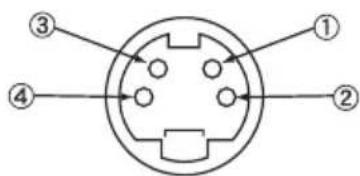
■Serial connector pin specifications
| Pin | Input signal | Remarks |
| 1 | No connection | |
| 2 | RXD | Unit←PC |
| 3 | TXD | Unit→PC |
| 4 | No connection | |
| 5 | GND | Unit GND←PC GND |
| 6 | No connection | |
| 7 | No connection | |
| 8 | No connection | |
| 9 | No connection |
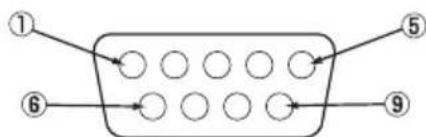
Recommended Signal List
The following are recommended for use with this moniter RGB signal input (RGB1 or RGB2 signal input)
| No. | Signal mode | Horizontal frequency (kHz) | Dot clock frequency (MHz) | Remarks | ||
| Signal Name | Resolution | Vertical frequency (Hz) | ||||
| 1 | VGA40 X 480 59.94 | 640 X 400 70.031.47 25.18 | ||||
| 2 | W-VGA 864 X 480 | 59.94 31.47 34.24 | ||||
| 3 | W-VGA 864 X 480 | 59.94 31.47 34.24 | ||||
| 4 | 40 X 480 75.00 | 640 X 480 72.81 37.86 31.50 | ||||
| 5 | 640 X 480 85.01 | 37.50 31.50 | ||||
| 6 | 640 X 480 85.02 | 43.27 36.00 | ||||
| 7 | 800 X 600 60.32 | 37.88 40.00 | ||||
| 8 | 800 X 600 72.19 | 48.08 50.00 | ||||
| 9 | 800 X 600 75.00 | 46.88 49.50 | ||||
| 10 | 800 X 600 85.06 | 53.67 56.25 | ||||
| 11 | 1024 X 768 60.00 | 48.36 65.00 | ||||
| 12 | 1024 X 768 70.00 VESA | 756.48 75.00 | ||||
| 13 | 1024 X 768 75.00 | 60.02 78.75 | ||||
| 14 | 1024 X 768 85.00 | 68.68 94.50 | ||||
| 15 | 1152 X 864 75.00 | 67.50 108.00 | ||||
| 16 | 1280 X 1024 60.00 | 02 63.98 108.00 | ||||
| 17 | 1280 X 1024 75.00 | 03 79.98 135.00 | ||||
| 18 | 1280 X 1024 85.00 | 02 91.15 157.50 | ||||
| 19 | 1600 X 1200 60.00 | 00 75.00 162.00 | ||||
| 20 | 1600 X 1200 75.00 | 00 93.75 202.50 | ||||
| 21 | 1600 X 1200 85.00 | 00 106.25 229.50 | ||||
| 22 | 32 X 624 74.55 Macintosh | 640 X 480 66.67 35.00 30.24 | ||||
| 23 | 1024 X 768 75.1 | 49.72 57.28 | ||||
| 24 | 1152 X 870 75.00 | 1 60.24 80.00 | ||||
| 25 | 1080 / 60i | 1080i 60.00 | 33.75 74.25 | Only in the case of H/V separate sync | ||
| 27 | 1080 / 50i | 1080i 50.00 | 28.13 74.25 | |||
Recommended Signal List (continued)
Composite / S input (VIDEO 1 input)
| No. | Signal mode | Horizontal frequency (kHz) | Dot clock frequency (MHz) | Remarks | ||
| Signal Name | Resolution | Vertical frequency (Hz) | ||||
| 1 | NTSC NTSC-4.43 M-PAL | 525 59.94 | 15.73 - | |||
| 2 | PAL N-PAL SECAM | 625 50.00 | 15.63 - | |||
Component input (VIDEO 1 input)
| No. | Signal mode | Horizontal frequency (kHz) | Dot clock frequency (MHz) | Remarks | ||
| Signal Name | Resolution | Vertical frequency (Hz) | ||||
| 1 | 480/60i | 4 15.73 - | ||||
| 2 | 575/50i | 575 50.00 - | 15.63 - | |||
| 3 | 480/60p | 4 31.47 - | ||||
| 4 | 720/60p | 720 59.94 - | 44.96 - | |||
| 5 | 1080/60i | 1080 - | 60.00 | 33.75 | - | |
| 6 | 1035/60i | 1035 - | 60.00 | 33.75 | - | |
- The type of video board or connecting cable used may not allow for correct displays adjustment of H POSITION, V. POSITION, CLOCK and PHASE.
- The monitor may fail to display an animation image correctly when a signal having a vertical frequency of 85Hz or higher is input to it.
- The monitor differentiates the signal modes according to the horizontal and vertical frequencies and the horizontal and vertical sync signal polarities. Note that different signals having all these elements alike may be handled as the same signal.
- Displaying images with more than 512 lines of vertical resolution at Full display (compressed display) can result in the interpolation of stripes.
- Use of this monitor with the input signal timings specified below is recommended. A predefined setting may not be reproduced correctly with an extremely long front porch or back porch or with an extremely short data display time.
| Front porch Sync width Back porch Blanking width | |||||
| Horizontal timing | Horizontal frequency 24 kHz to 52 kHz | 0.2 μs or more 1.0 | -4.0 μs 1.2 μs or more | 3.5 μs or more | |
| Horizontal frequency 52 kHz to 107 kHz | 0.2 μs or more 0.8 | -3.0 μs 1.1 μs or more | 2.3 μs or more | ||
| Vertical timing | 9 μs or more | 25 μs or more | 400 μs or more | 450 μs or more | |
CONTENTS
INSTRUCTIONS DE SÉCURITÉ VIII
CONTENTS 1
PARTICULARITIES 2
ACCESSIONS STANDARD 2
INSTRUCTIONS D'INSTALLATION 3
CARACTERISTIQUES DU PRODUIT 27
INSTRUCTIONS D'INSTALLATION (suite)
Nom des parties
Avant
Panneau de commande
INSTRUCTIONS D'INSTALLATION (suite)
INSTRUCTIONS D'INSTALLATION (suite)
INSTRUCTIONS DE FONCTIONNEMMENT (suite)
INSTRUCTIONS DE FONCTIONNEMMENT (suite)
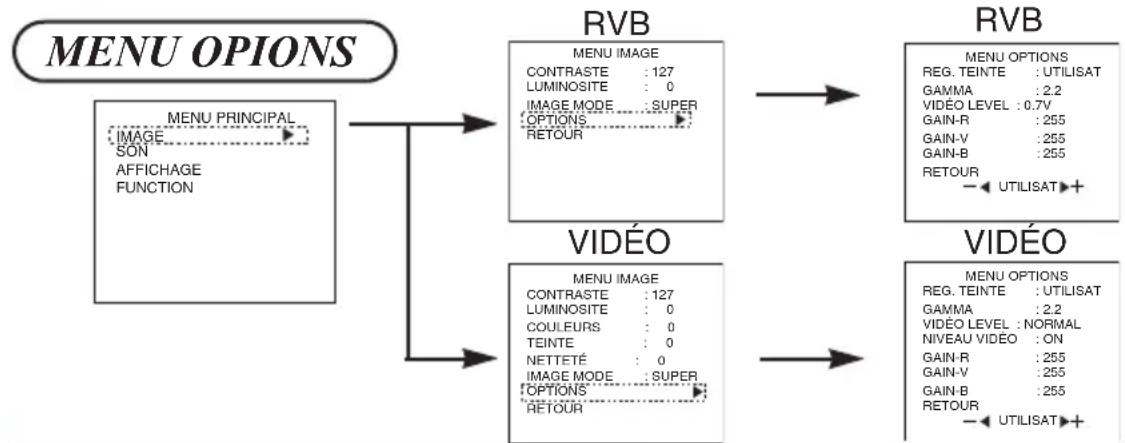
INSTRUCTIONS DE FONCTIONNEMMENT (suite)
MANUAL ADJUSTMENT MENU (RVB)
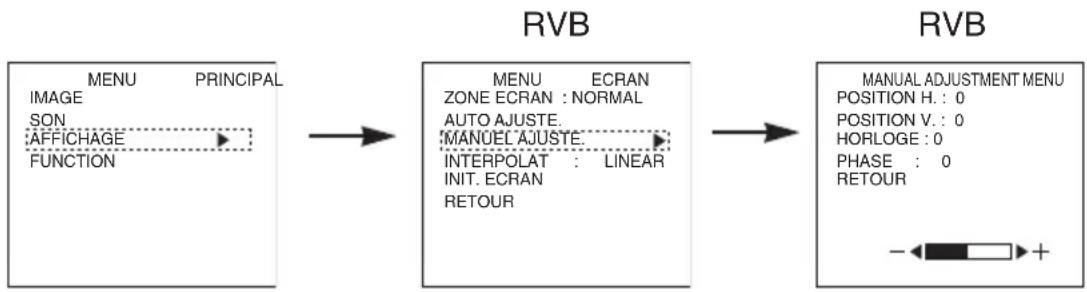
MENUECRAN(VIDEO)
INSTRUCTIONS DE FONCTIONNEMMENT (suite)
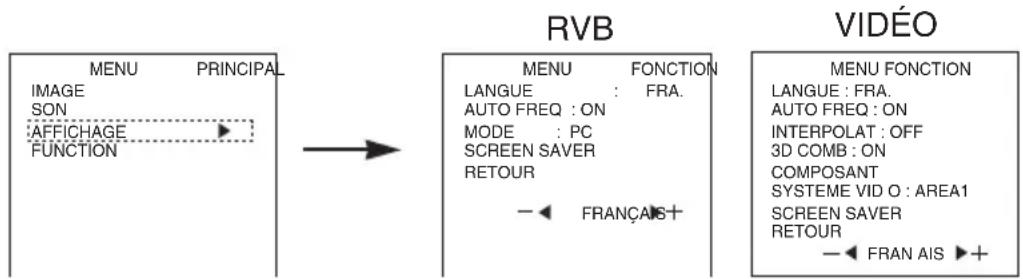
MENUFONCTION
$$ \begin{array}{l} \text {I N I T I A L I S E R ?} \ \text {O U I - \triangleleft + N O N} \end{array} $$