
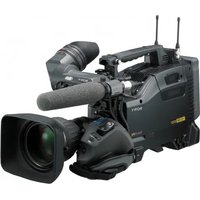
NEXFS100PK - Camcorder SONY - Free user manual and instructions
Find the device manual for free NEXFS100PK SONY in PDF.
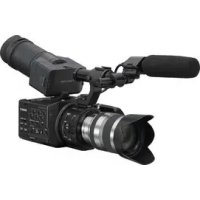



| Product Type | Camcorder |
| Brand | Sony |
| Model | NEX-FS100PK |
| Frame System | Selectable 60i (NTSC) or 50i (PAL) |
| HD Recording Format | 1080/60p, 1080/50p, 1080/30p, 1080/25p, 1080/24p |
| Slow & Quick Motion Function | Frames per second from 1 to 60 (60i) or 1 to 50 (50i) |
| Autofocus | Phase detection AF with LA-EA2 adapter (sold separately) |
| AF Micro Adjustment | Fine adjustment of autofocus per lens (from -20 to +20) |
| Gain Management | GAIN (dB) or ISO (sensitivity) selection |
| ISO Setting | ISO values for H, M, L positions (e.g., L: ISO500, M: ISO1600, H: ISO3200) |
| Aspect Markers | 1.66:1, 1.85:1, 2.35:1 |
| Expanded Focus | Magnification ×4, ×8, or ×4/×8 |
| Display Units | Focal distance in meters or feet; shutter speed in seconds or degrees |
| Camera Profile | Save/load/delete profiles (up to 99) on memory card |
| Zebra/Peaking Output | Output signal with zebra and peaking information via HDMI, COMPONENT, VIDEO OUT |
| Firmware Update | Add functions like SEL. 60i/50i, AF MICRO ADJUSTMENT, GAIN/ISO SELECTION, etc. |
| Lens Compatibility | A-mount lenses with LA-EA2 adapter; Sony, Minolta, Konica-Minolta lenses |
Frequently Asked Questions - NEXFS100PK SONY
User questions about NEXFS100PK SONY
0 question about this device. Answer the ones you know or ask your own.
Ask a new question about this device
Download the instructions for your Camcorder in PDF format for free! Find your manual NEXFS100PK - SONY and take your electronic device back in hand. On this page are published all the documents necessary for the use of your device. NEXFS100PK by SONY.
USER MANUAL NEXFS100PK SONY
Interchangeable Lens Digital HD Video Camera Recorder
| [60i] | [50i] |
| 1080/60p PS | 1080/50p PS |
| 1080/60i FX | 1080/50i FX |
| 1080/60i FH | 1080/50i FH |
| 1080/60i HQ | 1080/50i HQ |
| [60i] | [50i] |
| 1080/60i LP | 1080/50i LP |
| 1080/30p FX | 1080/25p FX |
| 1080/30p FH | 1080/25p FH |
| 1080/24p FX | - |
| 1080/24p FH | - |
| 720/60p FX | 720/50p FX |
| 720/60p FH | 720/50p FH |
Shutter speed setting values
| [60i] | [50i] | |
| FRAME RATE(单位:fps) | 1, 2, 4, 8, 15,30, 60 | 1, 2, 3, 6, 12,25, 50 |
| REC FORMAT | 1080/60p PS,1080/30p FX,1080/30p FH,1080/24p FX,1080/24p FH | 1080/50p PS,1080/25p FX,1080/25p FH |
1080p/480i, 720p/480i, 1080i/480i, 480p, 480i
When [50i] is selected
■ HDMI/COMPONENT
1080p/576i, 720p/576i, 1080i/576i, 576p, 576i
Other additional functions
New functions have been added to your camcorder by the firmware update. The new functions and their respective operations are described here.
Please refer to the Operating Guide of your camcorder.
60i or 50i selectable
60i/50i SEL
[60i/50i SEL] has been added to the [OTHERS] menu and allows you to select the TV color system of the area where you are using your camcorder.
| [60i] (default setting*) | To use the camcorder as an NTSC system |
| [50i] (default setting**) | To use the camcorder as a PAL system |
* NEX-FS100U/FS100N/FS100UK/FS100NK ** NEX-FS100E/FS100P/FS100EK/FS100PK - When you change the setting, the camcorder will turn off and then on again automatically. - When any recording media is formatted or recorded with the [60i] setting, you cannot record on or play from that media with the PAL system. When any recording media is formatted or recorded with the [50i] setting, you cannot record on or play from that media with the NTSC system. If the [A movie with a different video signal format from this device has been recorded. Movie recording disabled.] message appears when you switch the setting between [60i] and [50i], use another recording medium or select [MEDIA FORMAT]. - If you select [MEDIA FORMAT], the protected movies are also deleted. - When you select [50i], [TC FORMAT] is set to [NDF] automatically.
Differences incurred by changing the setting of [60i/50i SEL]
Changing the setting of [60i/50i SEL] influences the settings and recording results as follows.
Recording format with high definition image quality (HD)
| [60i] [50i] |
| 1080/60p PS 1080/50p PS |
| 1080/60i FX 1080/50i FX |
| 1080/60i FH 1080/50i FH |
| 1080/60i HQ 1080/50i HQ |
| 1080/60i LP 1080/50i LP |
| 1080/30p FX 1080/25p FX |
| 1080/30p FH 1080/25p FH |
| 1080/24p FX - |
| 1080/24p FH - |
| 720/60p FX 720/50p FX |
| 720/60p FH 720/50p FH |
Shutter speed
The shutter speed level remains the same, however, the shutter speed at each level changes as follows.
| Level | 60i/60p/30p | 24p | 50i/50p/25p |
| 0 | - | 3 | - |
| 1 | 4 | 6 | 3 |
| 2 8 12 | 6 | ||
| 3 | 15 | 24 | |
| 4 | 30 | 40 | |
| 5 | 60 | 48 | |
| 6 | 90 | 50 | |
| 7 | 100 60 | 100 | |
| 8 | 125 96 | 120 | |
| 9 | 180 | 100 | 150 |
| 10 | 250 | 120 | 215 |
| 11 | 350 | 144 | 300 |
| 12 500 192 425 | |||
| 13 725 200 600 | |||
| 14 1000 288 1000 | |||
| 15 1500 400 1250 | |||
| 16 2000 576 1750 | |||
| 17 3000 1200 2500 | |||
| 18 4000 2400 3500 | |||
| 19 6000 4800 6000 | |||
| 20 10000 10000 10000 | |||
Slow & Quick Motion recording
| [60i] [50i] | ||
| FRAME | 1, 2, 4, 8, 15, | 1, 2, 3, 6, 12, |
| RATE | 30, 60 | 25, 50 |
| (unit: fps) | ||
| REC | 1080/60p PS, | 1080/50p PS, |
| FORMAT | 1080/30p FX, | 1080/25p FX, |
| 1080/30p FH, | 1080/25p FH | |
| 1080/24p FX, | ||
| 1080/24p FH | ||
Playback speed of the movies recorded with Slow & Quick Motion function
When [60i] is selected
| FRAME RATE | REC FORMAT | ||
| 24p 30p 60p | |||
| 60 40% Slow 50% Slow 100% | |||
| (Standard) | |||
| 30 80% Slow 100% | 200% | ||
| (Standard) | Quick | ||
| 15 160% | 200% | 400% | |
| Quick | Quick | Quick | |
| 8 300% | 375% | 750% | |
| Quick | Quick | Quick | |
| 4 600% | 750% | 1500% | |
| Quick | Quick | Quick | |
| 2 1200% | 1500% | 3000% | |
| Quick | Quick | Quick | |
| FRAME RATE | REC FORMAT | ||
| 24p 30p 60p | |||
| 1 2400% | 3000% | 6000% | |
| Quick | Quick | Quick | |
When [50i] is selected
| FRAME RATE | REC FORMAT | |
| 25p 50p | ||
| 50 50% Slow 100% (Standard) | ||
| 25 100% (Standard) | 200% Quick | |
| 12 208% Quick | 417% Quick | |
| 6 | 417% Quick | 833% Quick |
| 3 | 833% Quick | 1667% Quick |
| 2 | 1250% Quick | 2500% Quick |
| 1 | 2500% Quick | 5000% Quick |
Approximate playback stream length of Slow & Quick Motion recording
When [60i] is selected Unit: h (hour) min (minute)
| FRAME RATE | REC FORMAT | ||
| 24p 30p 60p | |||
| 60 | 13 h | 13 h | 13 h |
| 30 | 13 h | 13 h | 6 h 30 min |
| 15 | 8 h 6 min | 6 h 30 min | 3 h 18 min |
| 8 | 4 h 6 min | 3 h 18 min | 1 h 36 min |
| 4 | 2 h | 1 h 36 min | 48 min |
| 2 | 1 h 6 min | 54 min | 24 min |
| 1 | 30 min | 24 min | 12 min |
When [50i] is selected
Unit: h (hour) min (minute)
| FRAME RATE | REC FORMAT | |
| 25p 50p | ||
| 50 13 h 13 h | ||
| 25 13 h 6 h 30 min | ||
| 12 | 6 h 30 min | 3 h 18 min |
| 25p | 50p | |
| 6 3 h 18 min 1 h 36 min | ||
| 3 1 h 36 min 48 min | ||
| 2 1 h 6 min 30 min | ||
| 1 30 min 18 min | ||
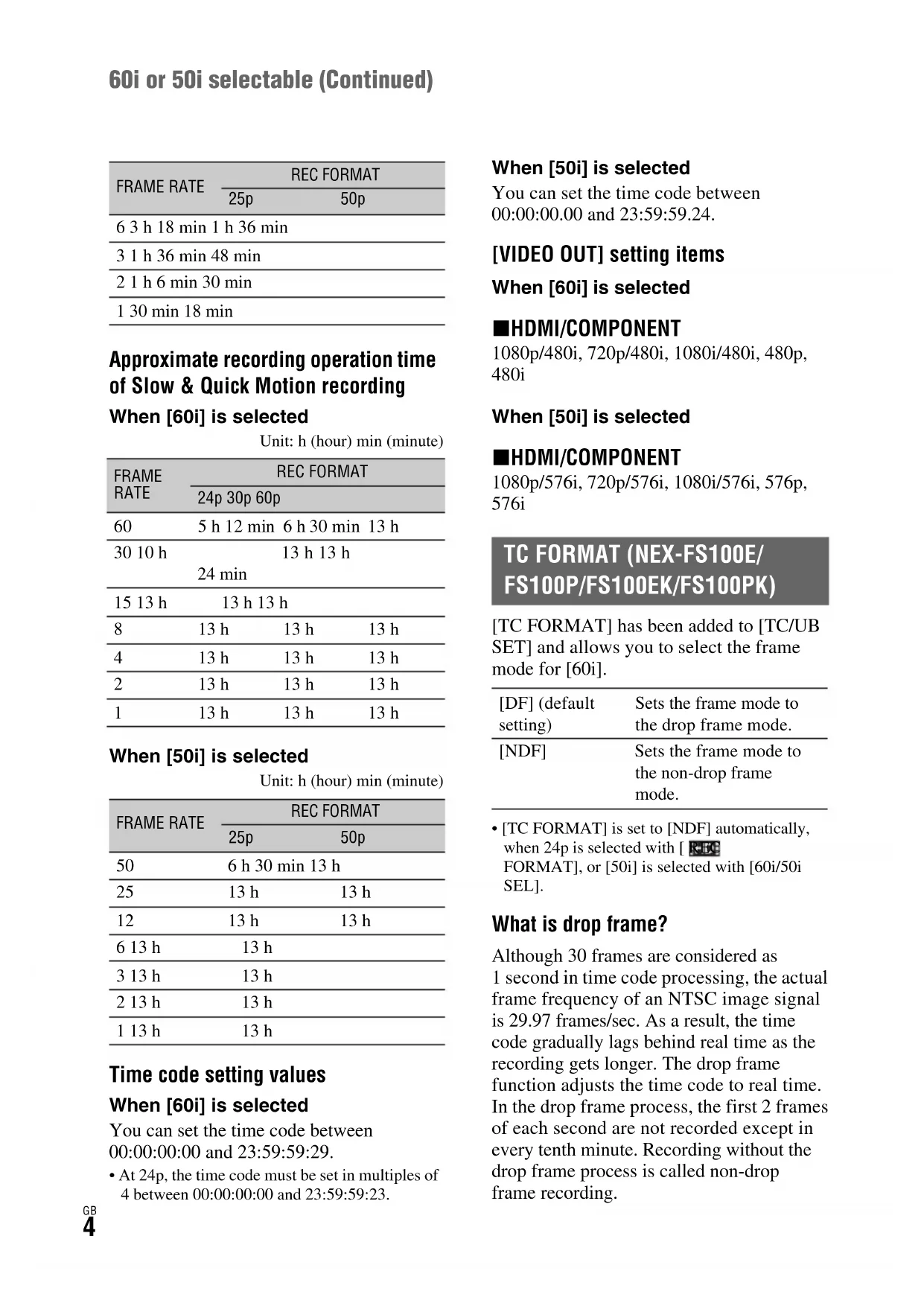
Approximate recording operation time of Slow & Quick Motion recording When [60i] is selected
Unit: h (hour) min (minute)
| FRAME RATE | REC FORMAT | ||
| 24p 30p 60p | |||
| 60 | 5 h 12 min | 6 h 30 min | 13 h |
| 30 10 h | 13 h 13 h | ||
| 24 min | |||
| 15 13 h | 13 h 13 h | ||
| 8 | 13 h | 13 h | 13 h |
| 4 | 13 h | 13 h | 13 h |
| 2 | 13 h | 13 h | 13 h |
| 1 | 13 h | 13 h | 13 h |
When [50i] is selected
Unit: h (hour) min (minute)
| FRAME RATE | REC FORMAT | |
| 25p | 50p | |
| 50 | 6 h 30 min 13 h | |
| 25 | 13 h | 13 h |
| 12 | 13 h | 13 h |
| 6 13 h | 13 h | |
| 3 13 h | 13 h | |
| 2 13 h | 13 h | |
| 1 13 h | 13 h | |
Time code setting values
When [60i] is selected
You can set the time code between 00:00:00:00 and 23:59:59:29.
- At 24p, the time code must be set in multiples of 4 between 00:00:00:00 and 23:59:59:23.
When [50i] is selected
You can set the time code between 00:00:00.00 and 23:59:59.24.
[VIDEO OUT] setting items
When [60i] is selected
■HDMI/COMPONENT
1080p/480i, 720p/480i, 1080i/480i, 480p, 480i
When [50i] is selected
■HDMI/COMPONENT
1080p/576i, 720p/576i, 1080i/576i, 576p, 576i
TC FORMAT (NEX-FS100E/FS100P/FS100EK/FS100PK)
[TC FORMAT] has been added to [TC/UB SET] and allows you to select the frame mode for [60i].
| [DF] (default setting) | Sets the frame mode to the drop frame mode. |
| [NDF] | Sets the frame mode to the non-drop frame mode. |
- [TC FORMAT] is set to [NDF] automatically, when 24p is selected with [FORMAT], or [50i] is selected with [60i/50i SEL].
What is drop frame?
Although 30 frames are considered as 1 second in time code processing, the actual frame frequency of an NTSC image signal is 29.97 frames/sec. As a result, the time code gradually lags behind real time as the recording gets longer. The drop frame function adjusts the time code to real time. In the drop frame process, the first 2 frames of each second are not recorded except in every tenth minute. Recording without the drop frame process is called non-drop frame recording.
Compatibility with the LA-EA2 Mount Adaptor
Using an A-mount lens with the LA-EA2 Mount Adaptor (sold separately), you can take advantage of the phase-detection AF feature to shoot images. The available functions differ depending on the lens.
| Functions |
| Autofocus Available |
| AF system Phase-detection AF |
| Switching to autofocus SAM: switchable on the lensSSM: must be switched on the lens and with the FOCUS switch of the camcorderOther lenses: switchable with the FOCUS switch of the camcorder |
- For details, refer to the operating instructions supplied with the Mount Adaptor.
- You may not be able to use the LA-EA2 Mount Adaptor with certain lenses. You may not use autofocusing with certain lenses attached via the Mount Adaptor. Consult your Sony dealer or local authorized Sony service facility for advice on compatible lenses.
- Aperture is set to F3.5 when you record movies with autofocusing. When you are using a lens with an F3.5 or smaller F-stop, aperture is set to the maximum F-stop of the lens. When you want to set your own value for aperture, select manual focusing. Adjusting the aperture during recording may cause the noise or turn the screen brighter.
- The noise of the camcorder and lens in the autofocusing operation may be recorded. You can eliminate the noise by setting the AUTO/MANUAL switch to MANUAL, and then the AUDIO LEVEL dial to 0 before recording.
- It may take a long time or may be difficult for the camcorder to focus, depending on the lens used or the subject.
AF MICRO ADJUSTMENT
[AF MICRO ADJUSTMENT] has been added to the [CAMERA SET] menu. This allows you to adjust and register an autofocused position for each lens, when using an A-mount lens with the LA-EA2 Mount Adaptor (sold separately).
| [ON/OFF] Sets whether or not to use the [AF MICRO ADJUSTMENT] function.Select [ON] to use it. (The default setting is [OFF].) |
| [AMOUNT] Allows you to select an optimum value between -20 and +20. Selecting a larger value shifts the autofocused position away from the camcorder.Selecting a smaller value shifts the autofocused position closer to the camcorder. |
[CLEAR ALL] Clears the value you set.
- It is recommended that you adjust the position under actual shooting conditions.
- When you attach a lens for which you have already registered a value, the registered value appears on the screen. [± 0] appears for lens for which a value has yet to be registered.
- When 30 lenses have been registered, [AMOUNT] turns gray and you cannot select this time. If you want to register another lens, you must first clear a value. Attach a lens of the value to be cleared and select [± 0] . If you want to clear all registered values, select [CLEAR ALL].
- Use [AF MICRO ADJUSTMENT] with Sony, Minolta, and Konika-Minolta lenses only. If you use [AF MICRO ADJUSTMENT] with other brands of lenses, the registered value may be affected.
- You cannot set [AF MICRO ADJUSTMENT] individually for a Sony, Minolta, and Konika-Minolta lens of the same specification.
Compatibility with the LA-EA2 Mount Adaptor (Continued)
VERSION DISPLAY
[VERSION DISPLAY] has been added to the [OTHERS] menu and allows you to display the version of your camcorder, and the lens and Mount Adaptor attached.
- To check the version of the lens or Mount Adaptor, first set the camcorder to the recording mode and then select [VERSION DISPLAY].
AF area display
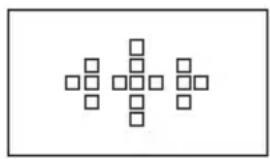
When using an A-mount lens with the LA-EA2 Mount Adaptor (sold separately), the camcorder displays in-focus frames. The frame of the area that is in focus turns green.
Manual focusingAutofocusing
GAIN/ISO SEL
[GAIN/ISO SEL] has been added to the [CAMERA SET] menu and allows you to handle gain in ISO sensitivity.
[GAIN]
Handles gain in dB.
(default setting)
[ISO] Handles gain in ISO sensitivity (recommended exposure index). The gain value displayed in ISO sensitivity takes effect, instead of dB.
- Set the AUTO/MANUAL switch to MANUAL to set this item.
- Selecting [ISO] makes the following changes.
- Cancels the [GAIN SET] setting, and activates the [ISO SET] setting
- Cancels the [AGC LIMIT] setting, and activates the [AUTO ISO LIMIT] setting
ISO SET
[ISO SET] has been added to the [CAMERA SET] menu and allows you to set ISO values for H, M, and L positions of the GAIN switch by 1/3EV.
- The default settings are [H] ISO3200, [M] ISO1600, and [L] ISO500.
- The value you can select depends on the [GAMMA] setting of PICTURE PROFILE as follows.
- [STANDARD]: from ISO500 to ISO16000
- [CINEMATONE1]: from ISO500 to ISO16000 – [CINEMATONE2]: from ISO400 to ISO12800
- ITU709 : from ISO500 to ISO16000
- You can set this item when [ISO] is selected in [GAIN/ISO SEL].
- You can set this item independently from the value you set with [GAIN SET].
AUTO ISO LIMIT
[AUTO ISO LIMIT] has been added to the [CAMERA SET] menu and allows you to set the highest value to be selected for auto ISO by 1/3EV.
- The value you can select depends on the [GAMMA] setting of PICTURE PROFILE as follows.
- [STANDARD]: from ISO500 to ISO12800
- [CINEMATONE1]: from ISO500 to ISO12800 – [CINEMATONE2]: from ISO400 to ISO10000 – ITU709 : from ISO500 to ISO12800
- You can set this item when [ISO] is selected in [GAIN/ISO SEL].
- You can set this item independently from the value you set with [AGC LIMIT].
MARKER
Three aspect ratios [1.66:1]/[1.85:1]/[2.35:1] have been added. To select an aspect ratio, select the [DISPLAY SET] menu → [MARKER] → [ASPECT].
EXPANDED FOCUS MAG
[EXPANDED FOCUS MAG] has been added to the [DISPLAY SET] menu and allows you to set the magnification rate for expanded focus. Also, you can move the position to be focused on with the ◀/▶/▲/▼/EXEC buttons.
[×4.0] Displays at 4 times.
[×8.0] Displays at 8 times.
[×4.0/×8.0] Each time you press the EXPANDED FOCUS button, the magnification rate changes in the order of 4 times → 8 times → OFF (original size).
FOCUS DISPLAY
[FOCUS DISPLAY] has been added to the [DISPLAY SET] menu and allows you to set the unit of focal distance to be displayed.
[METER] Displays the focal distance in meters.
(default setting)
[FEET] Displays the focal distance in feet.
SHUTTER DISPLAY
[SHUTTER DISPLAY] has been added to the [DISPLAY SET] menu and allows you to set the unit of shutter speed to be displayed.
[SECOND] Displays the shutter speed in seconds.
(default setting)
[DEGREE] Displays the shutter speed in degrees. The shutter speed equal to the period that your camcorder reads image data from the image sensor is defined as 360 degrees.
- 1/60 second is defined as 360 degrees when a frame rate of 60 is selected with [REC FORMAT].
- 1/30 second is defined as 360 degrees when a frame rate of 30 is selected with [REC FORMAT].
- 1/24 second is defined as 360 degrees when a frame rate of 24 is selected with [REC FORMAT].
- 1/50 second is defined as 360 degrees when a frame rate of 50 is selected with [REC FORMAT].
- 1/25 second is defined as 360 degrees when a frame rate of 25 is selected with [REC FORMAT].
- When you press the DATA CODE button, the shutter speed is displayed in seconds, regardless of this setting.
- Shutter speeds slower than 360 degrees are displayed in multiples of 360 degrees, such as 360 degrees x 2.
CAMERA PROFILE
[CAMERA PROFILE] has been added to the [OTHERS] menu. [CAMERA PROFILE] allows you to save up to 99 profiles, as file numbers 01 to 99. Each profile can contain settings for the menu, PICTURE PROFILE, buttons, etc. The camera profiles are stored on a memory card.
[LOAD] Selects and loads the camera profile from the memory card.
[SAVE] Saves or rewrites the camera profile on the memory card.
[DELETE] Deletes the camera profile on the memory card.
- There is no compatibility between the camera profiles set in different settings of [60i/50i SEL], and those of different versions of camcorder. You can check the version of your camcorder with [VERSION DISPLAY] in the [OTHERS] menu.
- You may not be able to see a particular file, if you change the file name on a computer or turn off the camcorder while the camera profile is being saved or deleted.
- You cannot load a camera profile saved with a different model or edited on a computer.
- You cannot edit a camera profile of your camcorder saved on a memory card on a computer.
- If you format a memory card, the camera profiles saved in it are also deleted.
Zebra/Peaking output
You can output zebra and peaking information from the HDMI, COMPONENT, and VIDEO OUT jacks. Select the [DISPLAY SET] menu → [DISPLAY OUTPUT] → [ALL OUTPUT].
| [60i] [50i] |
| 1080/60p PS 1080/50p PS |
| 1080/60i FX 1080/50i FX |
| 1080/60i FH 1080/50i FH |
| 1080/60i HQ 1080/50i HQ |
| 1080/60i LP 1080/50i LP |
| 1080/30p FX 1080/25p FX |
| 1080/30p FH 1080/25p FH |
| 1080/24p FX - |
| 1080/24p FH - |
| 720/60p FX 720/50p FX |
| 720/60p FH 720/50p FH |
1080p/480i, 720p/480i, 1080i/480i, 480p, 480i
1080p/576i, 720p/576i, 1080i/576i, 576p, 576i
TC FORMAT (NEX-FS100E/FS100P/FS100EK/FS100PK)
Manual focus/Autofocus
| [60i] [50i] |
| 1080/60p PS 1080/50p PS |
| 1080/60i FX 1080/50i FX |
| 1080/60i FH 1080/50i FH |
| 1080/60i HQ 1080/50i HQ |
| 1080/60i LP 1080/50i LP |
| 1080/30p FX 1080/25p FX |
| 1080/30p FH 1080/25p FH |
| 1080/24p FX - |
| 1080/24p FH - |
| 720/60p FX 720/50p FX |
| 720/60p FH 720/50p FH |
Shutter speed
| [60i] [50i] | ||
| BILD-FREQUENZ (Einheit: fps) | 1, 2, 4, 8, 15, 30, 60 | 1, 2, 3, 6, 12, 25, 50 |
| AUFN. FORMAT | 1080/60p PS, 1080/30p FX, 1080/30p FH, 1080/24p FX, 1080/24p FH | 1080/50p PS, 1080/25p FX, 1080/25p FH |
1080p/480i, 720p/480i, 1080i/480i, 480p, 480i
1080p/576i, 720p/576i, 1080i/576i, 576p, 576i
TC FORMAT (NEX-FS100E/FS100P/FS100EK/FS100PK)
Manual focus/Autofocus
| [60i] [50i] |
| 1080/60p PS 1080/50p PS |
| 1080/60i FX 1080/50i FX |
| 1080/60i FH 1080/50i FH |
| 1080/60i HQ 1080/50i HQ |
| 1080/60i LP 1080/50i LP |
| 1080/30p FX 1080/25p FX |
| 1080/30p FH 1080/25p FH |
| 1080/24p FX - |
| 1080/24p FH - |
| 720/60p FX 720/50p FX |
| 720/60p FH 720/50p FH |
| [60i] [50i] | ||
| IMÁGENES | 1, 2, 4, 8, 15, | 1, 2, 3, 6, 12, |
| P. | 30, 60 | 25, 50 |
| SECUNDO(unidad: fps) | ||
| FORM. | 1080/60p PS, | 1080/50p PS, |
| GRAB. | 1080/30p FX, | 1080/25p FX, |
| 1080/30p FH, | 1080/25p FH | |
| 1080/24p FX, | ||
| 1080/24p FH | ||
1080p/480i, 720p/480i, 1080i/480i, 480p, 480i
1080p/576i, 720p/576i, 1080i/576i, 576p, 576i
TC FORMAT (NEX-FS100E/FS100P/FS100EK/FS100PK)
| [60i] [50i] |
| 1080/60p PS 1080/50p PS |
| 1080/60i FX 1080/50i FX |
| 1080/60i FH 1080/50i FH |
| 1080/60i HQ 1080/50i HQ |
| 1080/60i LP 1080/50i LP |
| 1080/30p FX 1080/25p FX |
| 1080/30p FH 1080/25p FH |
| 1080/24p FX - |
| 1080/24p FH - |
| 720/60p FX 720/50p FX |
| 720/60p FH 720/50p FH |
| [60i] [50i] | ||
| FREQUEN-ZA DI QUADRO (unità: fps) | 1, 2, 4, 8, 15, 30, 60 | 1, 2, 3, 6, 12, 25, 50 |
| FORMATO REG. | 1080/60p PS, 1080/30p FX, 1080/30p FH, 1080/24p FX, 1080/24p FH | 1080/50p PS, 1080/25p FX, 1080/25p FH |
1080p/480i, 720p/480i, 1080i/480i, 480p, 480i
1080p/576i, 720p/576i, 1080i/576i, 576p, 576i
TC FORMAT (NEX-FS100E/FS100P/FS100EK/FS100PK)
GAIN/ISO SELECT
WIDE FOCUS MACRO INPUT
| [60i] | [50i] |
| 1080/60p | PS 1080/50p PS |
| 1080/60i | FX 1080/50i FX |
| 1080/60i | FH 1080/50i FH |
| 1080/60i | HQ 1080/50i HQ |
| [60i] | [50i] |
| 1080/60i | LP 1080/50i LP |
| 1080/30p | FX 1080/25p FX |
| 1080/30p | FH 1080/25p FH |
| 1080/24p | FX - |
| 1080/24p | FH - |
| 720/60p | FX 720/50p FX |
| 720/60p | FH 720/50p FH |
Shutter speed
| [60i] | [50i] | |
| 帧速率(单位:fps) | 1, 2, 4, 8,15, 30, 60 | 1, 2, 3, 6,12, 25, 50 |
| 拍摄格式 | 1080/60p PS,1080/30p FX,1080/30p FH,1080/24p FX,1080/24p FH | 1080/50p PS,1080/25p FX,1080/25p FH |
1080p/480i, 720p/480i, 1080i/480i, 480p, 480i
When [50i] is selected
■HDMI/COMPONENT
1080p/576i, 720p/576i, 1080i/576i, 576p, 576i
TC FORMAT (NEX-FS100E/FS100P/FS100EK/FS100PK)
GAIN/ISO SELECT
- INTERCHANGEABLE LENS DIGITAL HD VIDEO CAMERA RECORDER
- SHUTTER SPEED SETTING VALUES
- WHEN [50I] IS SELECTED
- HDMI/COMPONENT
- OTHER ADDITIONAL FUNCTIONS
- I OR 50I SELECTABLE
- I/50I SEL
- DIFFERENCES INCURRED BY CHANGING THE SETTING OF [60I/50I SEL]
- SHUTTER SPEED
- PLAYBACK SPEED OF THE MOVIES RECORDED WITH SLOW & QUICK MOTION FUNCTION
- APPROXIMATE PLAYBACK STREAM LENGTH OF SLOW & QUICK MOTION RECORDING
- APPROXIMATE RECORDING OPERATION TIME OF SLOW & QUICK MOTION RECORDING WHEN [60I] IS SELECTED
- TIME CODE SETTING VALUES
- WHEN [60I] IS SELECTED
- [VIDEO OUT] SETTING ITEMS
- TC FORMAT (NEX-FS100E/FS100P/FS100EK/FS100PK)
- WHAT IS DROP FRAME
- COMPATIBILITY WITH THE LA-EA2 MOUNT ADAPTOR
- AF MICRO ADJUSTMENT
- [CLEAR ALL] CLEARS THE VALUE YOU SET
- COMPATIBILITY WITH THE LA-EA2 MOUNT ADAPTOR (CONTINUED)
- VERSION DISPLAY
- AF AREA DISPLAY
- GAIN/ISO SEL
- ISO SET
- AUTO ISO LIMIT
- MARKER
- EXPANDED FOCUS MAG
- FOCUS DISPLAY
- SHUTTER DISPLAY
- CAMERA PROFILE
- ZEBRA/PEAKING OUTPUT
- GAIN/ISO SELECT
- WIDE FOCUS MACRO INPUT
Brand : SONY
Model : NEXFS100PK
Category : Camcorder