
ROG Chakram - Keyboard ASUS - Free user manual and instructions
Find the device manual for free ROG Chakram ASUS in PDF.
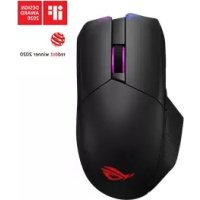


| Product Type | Gaming mouse |
| Brand | ASUS |
| Model | ROG Chakram |
| Connectivity | Wired (USB-C), Wireless RF 2.4 GHz, Bluetooth |
| Sensor | Optical |
| DPI Resolution | 100 to 16,000 DPI (adjustable in 100 DPI steps) |
| Number of buttons | 6 (left, right, scroll wheel, back, forward, DPI) + analog stick |
| Analog stick | Yes (removable) |
| Scroll wheel | Yes |
| Lighting | RGB (LED) |
| Battery | Rechargeable (USB-C or Qi wireless charging) |
| Customization software | Armoury II |
| Built-in profiles | 3 (mouse, mouse + stick, game controller) |
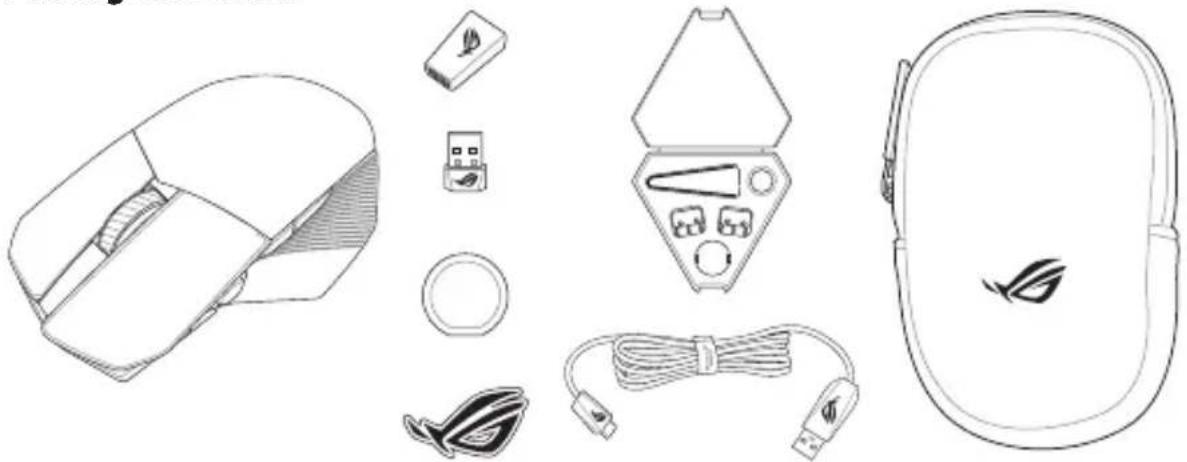
| Box contents | Mouse, USB-C cable, USB dongle, documentation |
| Cleaning | Dry, soft cloth |
| Safety | Compliant with RF, CE, ISED standards |
| Warranty | Depending on country (see ASUS website) |
Frequently Asked Questions - ROG Chakram ASUS
User questions about ROG Chakram ASUS
0 question about this device. Answer the ones you know or ask your own.
Ask a new question about this device
Download the instructions for your Keyboard in PDF format for free! Find your manual ROG Chakram - ASUS and take your electronic device back in hand. On this page are published all the documents necessary for the use of your device. ROG Chakram by ASUS.
USER MANUAL ROG Chakram ASUS
Replacing the switches. 4
Storing the USB dongle 4
Replacing the Logo Plate 4
English 5
繁體中文 8
简体中文 10
日本語 12
15
Francais. 16
Deutsch 18
Italiano. 20
Espanol 22
Portugues do Brasil 24
Pycckn 26
Čestina 28
Dutch 30
Finnish 32
Hungarian 34
Norwegian 36
Polish 38
Romanian 40
Swedish 42
Ukrainian 44
Arabic 46
Turkish 48
Slovak 50
Notices 52
Warranty Form 59
Package contents
Replacing the switches
NOTE: Refer to www.asus.com for the list of compatible switches.
1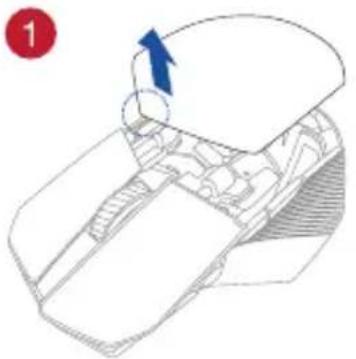
2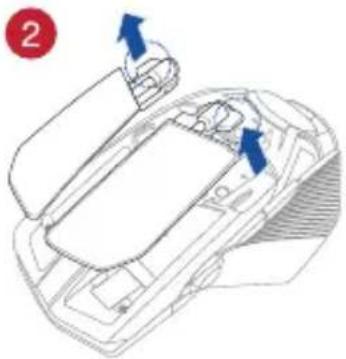
3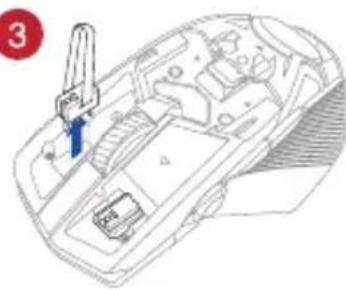
4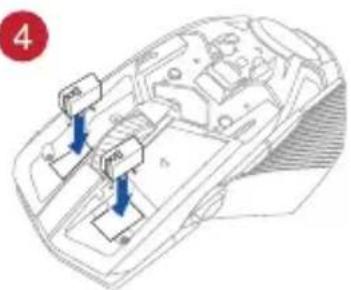
IMPORTANT!
- Ensure to install the switch with its button facing the front of the mouse.
- Ensure that the switches are seated properly on the switch sockets.
Storing the USB dongle Replacing the Logo Plate
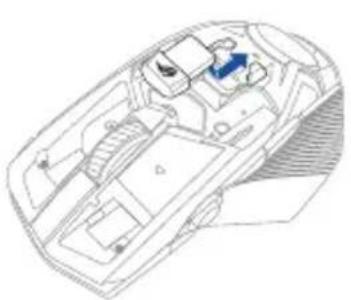
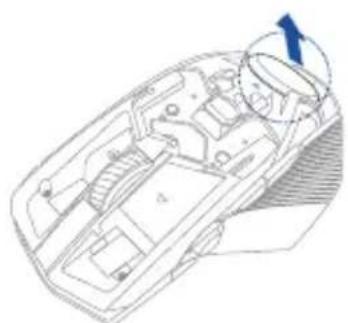
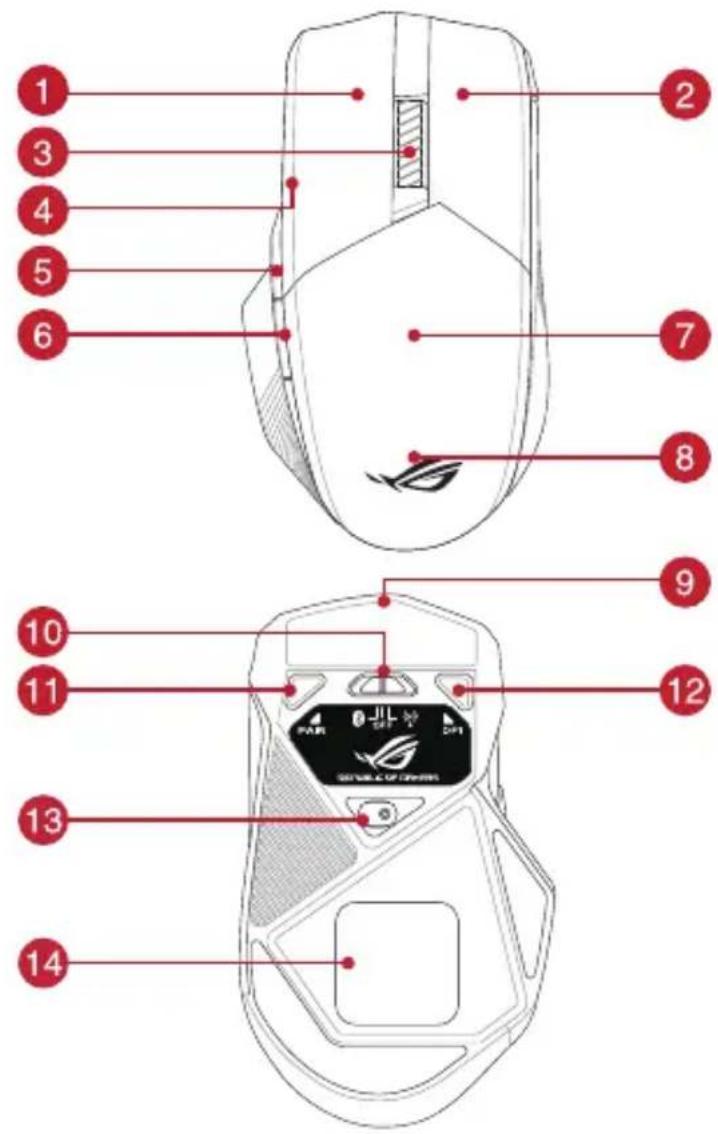
Device features
| 1 | Left button |
| 2 | Right button |
| 3 | Scroll wheel |
| 4 | Analogue stick (hidden) |
| 5 | Forward button |
| 6 | Backward button |
| 7 | USB dongle (hidden) |
| 8 | Logo plate (hidden) |
| 9 | USB Type-CTM |
| 10 | Connection mode switch |
| 11 | Pairing button |
| 12 | DPI button |
| 13 | Optical sensor |
| 14 | Qi wireless charging area |

Connecting your gaming mouse
Setting up your gaming mouse as a wired mouse
Connect the bundled USB Type-C™ to Type-A cable to your gaming mouse and a USB port on your computer
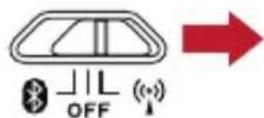
Setting up your gaming mouse as a RF wireless mouse
- Connect the USB dongle to a USB port on your computer.
- Set the connection switch to the RF 2.4G Wireless mode.
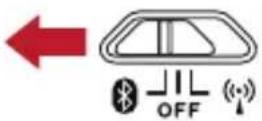
Setting up your gaming mouse as a Bluetooth wireless mouse
Set the connection switch to the Bluetooth mode.
NOTE: To pair your gaming mouse to a different device, press and hold the Pairing button for 3 seconds until the LEDs on your gaming mouse start to blink blue. Once your gaming mouse has been successfully paired, the LED indicator on your gaming mouse will light up blue for 3 seconds.
Gaming mouse profiles
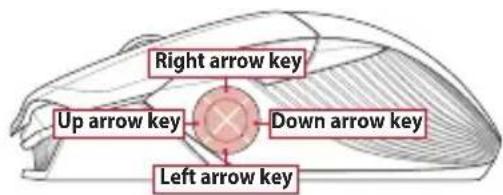
NOTE: The mouse buttons and analogue stick can be assigned to other functions using ROG Armoury II.
| Profile Default lighting effect Default function | |
| Profile 1 | 11 + 6 Wave Mouse and 4 keyboard direction keys |
| Profile Default lighting effect Default function | ||
| Profile 2 | 11 + 5 | Color cycle Mouse and analogue stick |
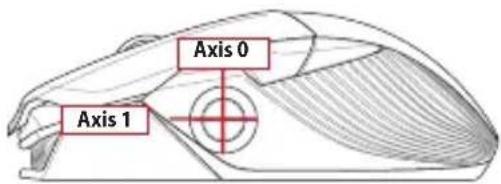
| Profile Default lighting effect Default function | ||
| Profile 3 | 11 + 3 | Comet (blue) Gamepad |
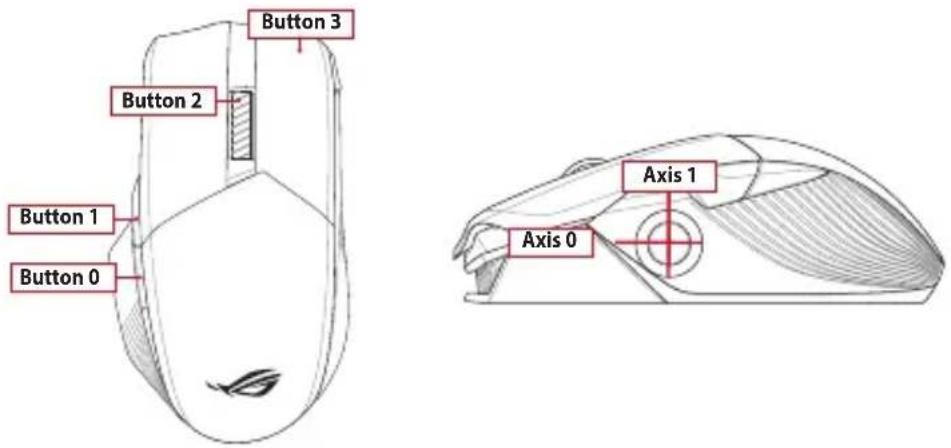
Mapping your gaming mouse as a gamepad for Steam
You can setup your gaming mouse as a gamepad for Steam using the gamepad profile (defaulted to Profile 3).
NOTE: You may customize your gamepad profile or reset it to the default Profile 3 using ROG Armoury II.
- Connect your gaming mouse to your computer.
- Launch Steam, then go to Settings > Controller > GENERAL CONTROLLER SETTINGS.
- Switch your gaming mouse profile to your gamepad profile (defaulted to Profile 3).
- Check the Xbox Configuration Support and Generic Gamepad Configuration Support options.
- Under Detected Controllers, select ROG CHAKRAM: Generic Gamepad.
- Map the Backward button, Forward button, Scroll wheel click, and Right button on your gaming mouse to the Primary Action, Go back, Tertiary, and Secondary Action commands.
- Map the x-axis and y-axis of the analog stick to the Left Stick X and Left Stick Y commands.
- Press Esc on your keyboard, then click SAVE to complete.
Specifications*
| Resolution DPI 1 DPI 2 DPI 3 (Default) DPI 4 | |
| 100 DPI to 16000 DPI 400 DPI 800 DPI 1600 DPI 3200 DPI |
- You may customize the DPI settings for DPI 1-4 through Armoury II or the DPI On-The-Scroll tuning function.
Using the DPI On-The-Scroll tuning function
The DPI On-The-Scroll tuning function allows you to customize the DPI of your gaming mouse without using Armoury II.
- Press and hold the DPI button for 3 seconds until the LEDs on your gaming mouse light up.
- Scroll the scroll wheel forwards or backwards to adjust the DPI. The LED color hue on your scroll wheel will differ depending on the DPI adjustment.
NOTE:
The DPI increments at 100 DPI per scroll forwards and decrements at 100 DPI per scroll backwards. The DPI ranges from 100 DPI (blue) to 16000 DPI (red).
- Press the DPI button once you have finished customizing the DPI value to save the changes made.
Battery Status
The LEDs on your gaming mouse will turn red (breathing) when the battery power is below 25% in Bluetooth or RF 2.4G mode. You may charge your gaming mouse by using the bundled USB cable or any Qi wireless charger.
Updating the firmware and customization
- Connect your gaming mouse to your computer using the bundled cable.
- Download and install the Armoury II software from https://www.asus.com/Keyboards-Mice/ROG-Chakram/HelpDeskDownload.
- Follow the software instructions to update your gaming mouse's firmware.
- Customize your gaming mouse using Armoury II.
Product name (Chinese): Gaming Mouse
Model: P704
Input parameters: 5Vdc, 900mA
Device functions
| 1 | 左鍵ROG銘板(隱藏式) | 8 |
| 2 | 右鍵USB Type-C | 9 |
| 3 | 滾輪連線模式切換開關 | 10 |
| 4 | 搖桿(側面)配對按鈕 | 11 |
| 5 | 向前按鈕DPI按鈕 | 12 |
| 6 | 向後按鈕光學感測器 | 13 |
| 7 | USB無線訊號接收器(隱藏式)Qi無線充電區域 | |
Connect your gaming mouse
Set your gaming mouse as a wired mouse
Gaming mouse profiles
DPI resolution: DPI 1, DPI 2, DPI 3 (default), DPI 4
100 DPI to 16000 DPI
400 DPI, 800 DPI, 1600 DPI, 3200 DPI
Conduct the Bluetooth wireless mouse cable.
Install the dongle to enable the Bluetooth wireless mode.
NOTE: To pair the mouse with another device, press and hold the pairing button for 3 seconds until the LED on the mouse starts blinking blue. The mouse will be successfully paired when the LED indicator on the mouse turns solid blue for 3 seconds.
Mouse profiles
(Aaalalalalal) SETTINGS
(3 1
Aollll lglg ggs 2Xbox ggs
Aolal ROG CHAKRAM (a) Detected Controllers .5
(1) Right (2) Scroll wheel (3) Forward Backward
Tertiary (G) Go back (g) Primary Action
(1) Secondary Action, (2)
.https://www.asus.com/Keyboards-Mice/ROG-Chakram/HelpDeskCDFDownload
.3
Armoury II 1234567890
Aygit Özellikleri
Keep the device away from liquid, humidity, or moisture. Operate the device only within the specific temperature range of 0°C (32°F) to 40°C (104°F). When the device exceeds the maximum temperature, unplug or switch off the device to let it cool down.
Safety Instructions
About the accessories
The accessories packed together with this product have been designed and their safety is verified for use in connection with this product. Also, never use the accessories for other products. Otherwise, electric shock or fire may be caused.
Limitation of Liability
Circumstances may arise where because of a default on ASUS' part or other liability, you are entitled to recover damages from ASUS. In each such instance, regardless of the basis on which you are entitled to claim damages from ASUS, ASUS is liable for no more than damages for bodily injury (including death) and damage to real property and tangible personal property; or any other actual and direct damages resulted from omission or failure of performing legal duties under this Warranty Statement, up to the listed contract price of each product. ASUS will only be responsible for or indemnify you for loss, damages or claims based in contract, tort or infringement under this Warranty Statement.
This limit also applies to ASUS' suppliers and its reseller. It is the maximum for which ASUS, its suppliers, and your reseller are collectively responsible.
UNDER NO CIRCUMSTANCES IS ASUS LIABLE FOR ANY OF THE FOLLOWING: (1) THIRD-PARTY CLAIMS AGAINST YOU FOR DAMAGES; (2) LOSS OF, OR DAMAGE TO, YOUR RECORDS OR DATA; OR (3) SPECIAL, INCIDENTAL, OR INDIRECT DAMAGES OR FOR ANY ECONOMIC CONSEQUENTIAL DAMAGES (INCLUDING LOST PROFITS OR SAVINGS), EVEN IF ASUS, ITS SUPPLIERS OR YOUR RESELLER IS INFORMED OF THEIR POSSIBILITY.
RF Exposure Warning
The equipment complies with FCC RF exposure limits set forth for an uncontrolled environment. The equipment must not be co-located or operating in conjunction with any other antenna or transmitter.
REACH
Complying with the REACH (Registration, Evaluation, Authorisation, and Restriction of Chemicals) regulatory framework, we published the chemical substances in our products at ASUS REACH website at http://csr.asus.com/english/REACH.htm.
ASUS Recycling/Takeback Services
ASUS recycling and takeback programs come from our commitment to the highest standards for protecting our environment. We believe in providing solutions for you to be able to responsibly recycle our products, batteries, other components as well as the packaging materials. Please go to http://csr.asus.com/english/Takeback.htm for detailed recycling information in different regions.
Lithium-Ion Battery Warning
CAUTION: Danger of explosion if battery is incorrectly replaced. Replace only with the same or equivalent type recommended by the manufacturer. Dispose of used batteries according to the manufacturer's instructions.
Federal Communications Commission Statement
This device complies with Part 15 of the FCC Rules. Operation is subject to the following two conditions:
This device may not cause harmful interference. - This device must accept any interference received including interference that may cause undesired operation. This equipment has been tested and found to comply with the limits for a Class B digital device, pursuant to Part 15 of the FCC Rules. These limits are designed to provide reasonable protection against harmful interference in a residential installation. This equipment generates, uses and can radiate radio frequency energy and, if not installed and used in accordance with manufacturer's instructions, may cause harmful interference to radio communications. However, there is no guarantee that interference will not occur in a particular installation. If this equipment does cause harmful interference to radio or television reception, which can be determined by turning the equipment off and on, the user is encouraged to try to correct the interference by one or more of the following measures:
Reorient or relocate the receiving antenna. - Increase the separation between the equipment and receiver. - Connect the equipment to an outlet on a circuit different from that to which the receiver is connected. - Consult the dealer or an experienced radio/TV technician for help.
CAUTION! Any changes or modifications not expressly approved by the grantee of this device could void the user's authority to operate the equipment.
Radio Frequency (RF) Exposure Information
The radiated output power of the Wireless Device is below the Innovation, Science and Economic Development Canada (ISED) radio frequency exposure limits. The Wireless Device should be used in such a manner such that the potential for human contact during normal operation is minimized.
This device has also been evaluated and shown compliant with the ISED RF Exposure limits under portable exposure conditions. (antennas are less than 20 cm of a person's body).
Compliance Statement of Innovation, Science and Economic Development Canada (ISED)
This device complies with Innovation, Science and Economic Development Canada licence exempt RSS standard(s). Operation is subject to the following two conditions: (1) this device may not cause interference, and (2) this device must accept any interference, including interference that may cause undesired operation of the device. CAN ICES-3(B)/NMB-3(B)
DO NOT throw the device in municipal waste. This product has been designed to enable proper reuse of parts and recycling. The symbol of the crossed out wheeled bin indicates that the product (electrical, electronic equipment and mercury-containing button cell battery) should not be placed in municipal waste. Check local regulations for disposal of electronic products.

DO NOT throw the device in fire. DO NOT short circuit the contacts. DO NOT disassemble the device.
BSMI
Low-power radio-wave radiating machinery management regulations
Article 12
NCC: Taiwan Wireless Statement
Warning statement for wireless equipment
VCCI Class B Statement
Warning: VCCI Class B equipment (Japan)
KC: Korea Warning Statement

R-C-MSQ-P794 R-C-MSQ-P704DONGLE
Ukraine Certification Logo

EAC Certification Logo

RF Output table
| Function Frequency Maximum Output Power (EIRP) | ||
| 2.4GHz wireless | (2403 - 2480MHz) - Mouse 5 dBm | |
| (2403 - 2480 MHz) - Dongle 4 dBm | ||
| Bluetooth (2402 - 2480 MHz) - Mouse 4 dBm | ||
Wireless Operation Channel for Different Domains
The wireless operation channel of this mouse is universal worldwide: 2.402-2.480 GHz, Ch02 to Ch80.
CE Mark Warning

Simplified EU Declaration of Conformity
ASUSTek Computer Inc. hereby declares that this device is in compliance with the essential requirements and other relevant provisions of Directive 2014/53/EU. Full text of EU declaration of conformity is available at https://www.asus.com/support/
https://www.asus.com/support/
EU Declaration of Conformity
Hereby, ASUSTek Computer Inc. declares that this device is in compliance with the essential requirements and other relevant provisions of Directive 2014/53/EU. The full text of the EU declaration of conformity is available at the following address: https://www.asus.com/support/
https://www.asus.com/support/
Address: 4F, No. 150, Li-Te Road, Peitou, Taipei 112, Taiwan
Telephone: +886-2-2894-3447
Fax: +886-2-2890-7798
Web site: www.asus.com
Technical Support
Telephone: +86-21-38429911
Fax: +86-21-5866-8722, ext. 9101#
Online support: https://www.asus.com/support/Product/ContactUs/Services/questionform/?lang=en
ASUS COMPUTER INTERNATIONAL (America)
Address: 48720 Kato Rd., Fremont, CA 94538, USA
Telephone: +1-510-739-3777
Fax: +1-510-608-4555
Web site: http://www.asus.com/us/
Technical Support
Support fax: +1-812-284-0883
Telephone: +1-812-282-2787
Online support: https://www.asus.com/support/Product/ContactUs/Services/questionform/?lang=en-us
ASUS COMPUTER GmbH (Germany and Austria)
Address: Harkort Str. 21-23, 40880 Ratingen, Germany
Fax: +49-2102-959931
Web site: http://www.asus.com/de
Online contact: http://eu-rma.asus.com/sales
Technical Support
Telephone +49-2102-5789555
Support Fax +49-2102-959911
Online support https://www.asus.com/support/Product/ContactUs/Services/questionform/?lang=de
Technical Support in Russia
Hotline of the Technical Support Service in Russia:
Toll-free number for calls within Russia: 8-800-100-2787
User support phone in Moscow: +7 (495) 231-1999
Working hours: Mon-Fri, 09:00 - 21:00 (Moscow time)
Official ASUS websites in Russia:
www.asus.ru
ASUS Warranty Information Form
Mr./Mrs./Ms./Miss:
Telephone Number:
Address:
E-mail:
Purchase Date: / / (DD/MM/YYYY)
Dealer's Name:
Dealer's Telephone Number:
Dealer's Address:
Serial Number
This ASUS manufacturer warranty (hereafter referred to as the "Warranty") is granted by ASUSTeK Computer Inc. (hereafter referred to as "ASUS") to the purchaser (hereafter referred to as "You") of the accessory of ASUS computer system, tablet, and phone (hereafter referred to as the "Product"). This warranty card is being delivered with the Product, subject to the following terms and conditions. ASUS accredited Service Agents and Repair Centers will provide the services covered under this Warranty.
Important: Please store this card in a secured location for future reference. ASUS reserves the right to request this document before accepting replacement requests.
Warranty Period of the Product:
This Warranty applies for the period indicated on the Product page of ASUS official website at http://www.asus.com/entry.htm > select country of purchase > click "Service" to support site > click "Accessory Warranty Information" ("Warranty Period") from the date the Product was first purchased by an end-customer ("Date of Purchase"), please visit the Product purchased country of ASUS Official Website for the details. If proof of purchase cannot be provided, the manufacture date as recorded by ASUS will be deemed to be the start of the Warranty Period.
Statutory Rights
This Warranty is given independently of any statutory rights that may apply in the country of purchase and does not affect or limit such statutory rights in any manner whatsoever.
1. General
ASUS warrants the Product to be free from defects in workmanship and materials for the Warranty Period. The Warranty does not cover bundled accessories, which were delivered together with the Product such as: cables, bag, mouse etc. If the Product fails during normal and proper use within the Warranty Period, ASUS will repair or replace the defective parts of the Product, or the Product itself, with new or reconditioned parts or products that are functionally equivalent or superior to those originally supplied.
This Warranty applies only if the Product was newly manufactured on the Date of Purchase and not sold as used, refurbished or manufacturing seconds. Please keep the original purchase invoice and this warranty card for future service request. This Warranty does not include failure caused by improper installation, operation, cleaning or maintenance, accident, damage, misuse, abuse, non-ASUS modifications to the product, any software programs, normal wear and tear or any other event, act, default or omission outside ASUS' control. For further details, see section 4 of this Warranty Card.
All components that an ASUS Service Center repaired or replaced will be under warranty for three months or for the remainder of the warranty period, whichever is applicable. The Repair Center may recover the originally configured operation system bundled with the Product. ASUS will not restore or transfer any data or software from the Product's original storage media. If the Product is replaced or refund, all user generated data may be permanently deleted.
If the Product is under Warranty, You hereby agree to transfer the ownership of replaced defective parts and such parts shall automatically become the property of ASUS.
2. Customer Responsibility
When using the Product
- Read the user manual first and use the Product only according to the user manual. Periodically back up your data stored on the Product. Technical support hotline phone number can be found at http://www.asus.com/support.
- Ensure that You have fully backed up all the data stored on Your Product and removed any personal, confidential, or proprietary information before any service process is started. You agree that ASUS may delete any data, software, or programs installed on the Product without restoring them. ASUS shall not be held liable for the permanent loss, damage, or misuse of your data.
- Pack the Product in safe and stable packaging and make sure that all accessories are in the package. The original packaging may be useful for this purpose. ASUS shall have no liability for the loss, damage or destruction of accessories or removable storage devices, unless they are caused by willful of gross negligent acts by ASUS.
3. Warranty Service
When you have the defective Product, you have to take this ASUS Warranty card or proof of purchase to the place where you bought the product to swap a new product.
4. Exclusions from this Limited Warranty Service
ASUS does not warrant uninterrupted or error-free operation of this Product, The Warranty only covers technical hardware issues during the Warranty Period and in normal use conditions. It applies to firmware issues but not to any other software issues or customer induced damages or circumstances such as but not limited to:
(a) Damage caused to this Product(s) by you or any non-authorized third party; (b) The serial number of the Product, components or accessories has been altered, cancelled or removed;
(c) Obsolescence; (d) Damage (accidental or otherwise) to the Product that does not impact the Product's operation and functions, such as without limitation to rust, change in color, texture or finish, wear and tear, and gradual deterioration; (e) Damage to the Product caused by improper installation, improper connection or malfunction of a peripheral device such as printer, optical drive, network card, or USB device, etc.
5. Limitation of Liability
Except as provided in this Warranty and to the maximum extent permitted by law, ASUS is not responsible for direct, special, incidental or consequential damages resulting from any breach of warranty or condition, or under any other legal theory, including but not limited to loss of use; loss of revenue; loss of actual or anticipated profits (including loss of profits on contracts); loss of the use of money; loss of anticipated savings; loss of business; loss of opportunity; loss of goodwill; loss of reputation; loss of, damage to or corruption of data; or any indirect or consequential loss or damage whatsoever caused including the replacement of equipment and property, any costs of recovering or reproducing any data stored on or used with the Product. The foregoing limitation shall not apply to death or personal injury claims, or any statutory liability for intentional and gross negligent acts and/or omissions by ASUS. Some jurisdictions do not allow the exclusion or limitation of incidental or consequential damages; to the extent such jurisdiction is governing this Warranty the above limitations do not apply to You.
6. Privacy
It is necessary for ASUS to collect, process, and use Your personal data in order to facilitate the requested service; and for this purpose Your personal data may be transferred to, stored, processed or used by ASUS' affiliated companies or ASUS' service providers who may be located in a different country to you. ASUS committed that all said transfer, storage, process or use of Your personal data shall be subject to applicable laws on privacy protection and personal data security and the "ASUS Privacy Policy". Please access and read the ASUS Privacy Policy at: http://www.asus.com/Terms_of_Use_Notice_Privacy_Policy/Privacy_Policy/
7. Warranty and Support
This Warranty applies in the country of purchase.
Product purchased in European Union is eligible for ASUS Warranty Service within European Union.
In this Warranty:
Service procedures may vary by country. Some service and/or replacement products may not be available in all countries. Some countries may have fees and restrictions that apply at the time of service; please visit the ASUS Support site at http://www.asus.com/support for more details.
ASUS reserves the right to interpret the provisions in this ASUS Warranty Information. The information in this warranty card may change without prior notice. Please visit the ASUS Support site at http://www.asus.com/support for current and complete ASUS warranty information.
8. ASUS Contact Details
This Warranty is provided by:
ASUSTeK Computer Inc.
No.15, Li-Te Road, Peitou
Taipei 112, Taiwan
Phone: +886-2-2894-3447
WARNING: This product may contain chemicals known to the State of California to cause cancer, and birth defects or other reproductive harm. Wash hands after handling.
#
ASUS Product Service Manual
Name (Mr./Ms./Miss): Contact Phone:
Contact Address: E-mail:
Purchase Date: / (Year/Month/Day)
Dealer Name:
Dealer Contact Phone:
Dealer Address:
Barcode

(http://www.asus.com/jp/support/Article/775/)
Name:
Product Serial Number (Home)
(Office)
(
Date:
Address:
E-mail:
※Please fill in the necessary items.
https://account.asus.com/
Regarding the handling of personal information
https://www.asus.com/jp/support/
Mr./Mrs./Ms./Miss:
E-mail:
SGA
SIRIIL
No. 15, Li-Te Road, Peitou
Taipei 112, Taiwan
Phone: +886-2-2894-3447
No. 15, Li-Te Road, Peitou
Taipei 112, Taiwan
Phone: +886-2-2894-3447

No.15, Li-Te Road, Peitou
Taipei 112, Taiwan
Phone: +886-2-2894-3447
2. Customer Responsibilities
No. 15 Li-Te Road, Peitou
Taipei 112, Taiwan
Phone: +886-2-2894-3447
No. 15, Li-Te Road, Peitou
Taipei 112, Taiwan
Phone: +886-2-2894-3447
15, Li-Te Road, Peitou
Taipei 112, Taiwan
Phone: +886-2-2894-3447
No.15, Li-Te Road, Peitou
Taipei 112, Taiwan
Phone: +886-2-2894-3447
No.15, Li-Te Road, Peitou
Taipei 112, Taiwan
Phone: +886-2-2894-3447
No. 15, Li-Te Road, Peitou
Taipei 112, Taiwan
Phone: +886-2-2894-3447
Mr./Mrs./Ms.:
Telephone number:
Address:
E-mail address:
Purchase date: / (DD/MM/YY)
Dealer's name:
Dealer's telephone number:
Dealer's address:
Serial number
No. 15, Li-Te Road, Peitou
Taipei 112, Taiwan
Phone: +886-2-2894-3447
No. 15, Li-Te Road, Peitou
Taipei 112, Taiwan
Phone: +886-2-2894-3447
No. 15, Li-Te Road, Peitou
Taipei 112, Taiwan
Phone: +886-2-2894-3447
ASUS
No.15, Li-Te Road, Peitou
Taipei 112, Taiwan
Phone: +886-2-2894-3447
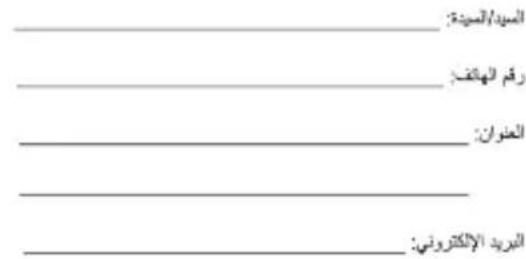
Mr./Ms.:
Phone Number
Address:
Email:
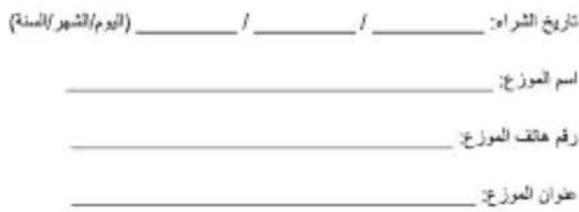
Purchase Date: / / (DD/MM/YYYY)
Seller's Name:
Seller's Phone Number:
Seller's Address:
Serial Number


- PACKAGE CONTENTS
- REPLACING THE SWITCHES
- IMPORTANT
- STORING THE USB DONGLE REPLACING THE LOGO PLATE
- DEVICE FEATURES
- CONNECTING YOUR GAMING MOUSE
- SETTING UP YOUR GAMING MOUSE AS A RF WIRELESS MOUSE
- SETTING UP YOUR GAMING MOUSE AS A BLUETOOTH WIRELESS MOUSE
- GAMING MOUSE PROFILES
- MAPPING YOUR GAMING MOUSE AS A GAMEPAD FOR STEAM
- SPECIFICATIONS
- USING THE DPI ON-THE-SCROLL TUNING FUNCTION
- NOTE
- BATTERY STATUS
- UPDATING THE FIRMWARE AND CUSTOMIZATION
- DEVICE FUNCTIONS
- CONNECT YOUR GAMING MOUSE
- SET YOUR GAMING MOUSE AS A WIRED MOUSE
- CONDUCT THE BLUETOOTH WIRELESS MOUSE CABLE
- MOUSE PROFILES
- AYGIT ÖZELLIKLERI
- SAFETY INSTRUCTIONS
- ABOUT THE ACCESSORIES
- LIMITATION OF LIABILITY
- RF EXPOSURE WARNING
- REACH
- ASUS RECYCLING/TAKEBACK SERVICES
- LITHIUM-ION BATTERY WARNING
- FEDERAL COMMUNICATIONS COMMISSION STATEMENT
- RADIO FREQUENCY (RF) EXPOSURE INFORMATION
- COMPLIANCE STATEMENT OF INNOVATION, SCIENCE AND ECONOMIC DEVELOPMENT CANADA (ISED)
- BSMI
- ARTICLE
- NCC: TAIWAN WIRELESS STATEMENT
- WARNING STATEMENT FOR WIRELESS EQUIPMENT
- VCCI CLASS B STATEMENT
- KC: KOREA WARNING STATEMENT
- UKRAINE CERTIFICATION LOGO
- EAC CERTIFICATION LOGO
- RF OUTPUT TABLE
- WIRELESS OPERATION CHANNEL FOR DIFFERENT DOMAINS
- CE MARK WARNING
- SIMPLIFIED EU DECLARATION OF CONFORMITY
- EU DECLARATION OF CONFORMITY
- TECHNICAL SUPPORT
- ASUS COMPUTER INTERNATIONAL (AMERICA)
- ASUS COMPUTER GMBH (GERMANY AND AUSTRIA)
- TECHNICAL SUPPORT IN RUSSIA
- OFFICIAL ASUS WEBSITES IN RUSSIA
- ASUS WARRANTY INFORMATION FORM
- SERIAL NUMBER
- IMPORTANT: PLEASE STORE THIS CARD IN A SECURED LOCATION FOR FUTURE REFERENCE. ASUS RESERVES THE RIGHT TO REQUEST THIS DOCUMENT BEFORE ACCEPTING REPLACEMENT REQUESTS
- WARRANTY PERIOD OF THE PRODUCT
- STATUTORY RIGHTS
- GENERAL
- CUSTOMER RESPONSIBILITY
- WHEN USING THE PRODUCT
- WARRANTY SERVICE
- EXCLUSIONS FROM THIS LIMITED WARRANTY SERVICE
- PRIVACY
- WARRANTY AND SUPPORT
- ASUS CONTACT DETAILS
- THIS WARRANTY IS PROVIDED BY
- ASUS PRODUCT SERVICE MANUAL
- BARCODE
- REGARDING THE HANDLING OF PERSONAL INFORMATION
- SIRIIL
- CUSTOMER RESPONSIBILITIES
- ASUS
Brand : ASUS
Model : ROG Chakram
Category : Keyboard