
Strix Tactic Pro - Keyboard ASUS - Free user manual and instructions
Find the device manual for free Strix Tactic Pro ASUS in PDF.


| Product Type | Gaming Keyboard |
| Switch Type | Mechanical (Cherry MX RGB or similar) |
| Layout | Full-size (104 keys) |
| Backlighting | Per-key RGB, customizable |
| Programmable Keys | Dedicated macro keys and key remapping |
| On-board Memory | Yes, for profile storage |
| Polling Rate | 1000 Hz |
| Anti-Ghosting | Full N-key rollover |
| Connection | USB 2.0 (wired) |
| Wrist Rest | Detachable, padded |
| Cable Length | 1.8 m braided |
| Dimensions (W x D x H) | 460 x 200 x 40 mm |
| Weight | 1.2 kg |
| Power Source | USB bus power |
| Operating System Support | Windows 7/8/10/11, macOS (limited) |
| Software | ASUS Armoury Crate |
| Durability | 50 million keystrokes |
| Keycap Material | ABS double-shot |
| Pass-through | USB 2.0 port |
| Audio Jack | Headphone and microphone |
| Cleaning Instructions | Wipe with a soft, dry cloth; avoid liquids |
| Safety Warnings | Do not expose to water or extreme heat |
| Spare Parts | Keycaps available; switches not user-replaceable |
| Repairability | Professional repair recommended for internal components |
Frequently Asked Questions - Strix Tactic Pro ASUS
User questions about Strix Tactic Pro ASUS
0 question about this device. Answer the ones you know or ask your own.
Ask a new question about this device
Download the instructions for your Keyboard in PDF format for free! Find your manual Strix Tactic Pro - ASUS and take your electronic device back in hand. On this page are published all the documents necessary for the use of your device. Strix Tactic Pro by ASUS.
USER MANUAL Strix Tactic Pro ASUS
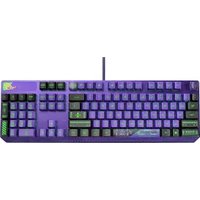
ASUS Strix Tactic Pro Gaming Keyboard

User Guide
E9420
First Edition (V1)
May 2014
Copyright © 2014 ASUSTeK Computer Inc. All Rights Reserved.
No part of this manual, including the products and software described in it, may be reproduced, transmitted, transcribed, stored in a retrieval system, or translated into any language in any form or by any means, except documentation kept by the purchaser for backup purposes, without the express written permission of ASUSTeK Computer Inc. ("ASUS").
Product warranty or service will not be extended if: (1) the product is repaired, modified or altered, unless such repair, modification of alteration is authorized in writing by ASUS; or (2) the serial number of the product is defaced or missing.
ASUS PROVIDES THIS MANUAL "AS IS" WITHOUT WARRANTY OF ANY KIND, EITHER EXPRESS OR IMPLIED, INCLUDING BUT NOT LIMITED TO THE IMPLIED WARRANTIES OR CONDITIONS OF MERCHANTABILITY OR FITNESS FOR A PARTICULAR PURPOSE. IN NO EVENT SHALL ASUS, ITS DIRECTORS, OFFICERS, EMPLOYEES OR AGENTS BE LIABLE FOR ANY INDIRECT, SPECIAL, INCIDENTAL, OR CONSEQUENTIAL DAMAGES (INCLUDING DAMAGES FOR LOSS OF PROFITS, LOSS OF BUSINESS, LOSS OF USE OR DATA, INTERRUPTION OF BUSINESS AND THE LIKE), EVEN IF ASUS HAS BEEN ADVISED OF THE POSSIBILITY OF SUCH DAMAGES ARISING FROM ANY DEFECT OR ERROR IN THIS MANUAL OR PRODUCT.
SPECIFICATIONS AND INFORMATION CONTAINED IN THIS MANUAL ARE FURNISHED FOR INFORMATIONAL USE ONLY, AND ARE SUBJECT TO CHANGE AT ANY TIME WITHOUT NOTICE, AND SHOULD NOT BE CONSTRUED AS A COMMITMENT BY ASUS. ASUS ASSUMES NO RESPONSIBILITY OR LIABILITY FOR ANY ERRORS OR INACCURACIES THAT MAY APPEAR IN THIS MANUAL, INCLUDING THE PRODUCTS AND SOFTWARE DESCRIBED IN IT.
Products and corporate names appearing in this manual may or may not be registered trademarks or copyrights of their respective companies, and are used only for identification or explanation and to the owners' benefit, without intent to infringe.
Contact Information
ASUSTeK COMPUTER INC.
Address 15 Li-Te Road, Peitou, Taipei, Taiwan 11259
Telephone +886-2-2894-3447
Fax +886-2-2890-7798
E-mail info@asus.com.tw
Web site http://www.asus.com/tw
Technical Support
Telephone +86-21-38429911
Online support http://www.asus.com/tw/support/
ASUS COMPUTER INTERNATIONAL (America)
Address 800 Corporate Way, Fremont, CA 94539, USA
Telephone +1-510-739-3777
Fax +1-510-608-4555
Web site http://www.asus.com/us/
Technical Support
Telephone +1-812-282-2787
Support fax +1-812-284-0883
Online support http://www.service.asus.com/
ASUS COMPUTER GmbH (Germany and Austria)
Address: Harkort Str. 21-23, D-40880 Ratingen, Germany
Fax: +49-2102-959931
Website: http://www.asus.com/de
Online contact: http://eu-rma.asus.com/sales
Technical Support
Telephone (Components): +49-2102-5789555
Telephone Germany (Systems/Notebooks/Eee/LCD): +49-2102-5789557
Telephone Austria (Systems/Notebooks/Eee/LCD): +43-820-240513
Support Fax: +49-2102-959911
Online support: support.asus.com
Contents
Notices....5
Package Contents....7
System Requirements ....7
Product Features ....7
Knowing your Strix Tactic Pro Gaming Keyboard ....8
Using Your Keyboard....9
Driver Configuration 11
Safety and Maintenance 14
Notices
Federal Communications Commission Statement
This device complies with Part 15 of the FCC Rules. Operation is subject to the following two conditions:
• This device may not cause harmful interference, and • This device must accept any interference received, including interference that may cause undesired operation.
This equipment has been tested and found to comply with the limits for a Class B digital device, pursuant to Part 15 of the FCC Rules. These limits are designed to provide reasonable protection against harmful interference in a residential installation. This equipment generates, uses, and can radiate radio frequency energy and, if not installed and used in accordance with the manufacturer's instructions, may cause harmful interference to radio communications. However, there is no guarantee that interference will not occur in a particular installation. If this equipment does cause harmful interference to radio or television reception, which can be determined by turning the equipment off and on, the user is encouraged to try to correct the interference by one or more of the following measures:
• Reorient or relocate the receiving antenna. • Increase the separation between the equipment and receiver. • Connect the equipment to an outlet on a circuit different from that to which the receiver is connected. • Consult the dealer or an experienced radio/TV technician for help.
CAUTION: Any changes or modifications not expressly approved by the grantee of this device could void the user's authority to operate the equipment.
Safety Certifications
- CE Marking • China RoHS EFUP Labeling - 10 Years C-Tick Mark • BSMI Certification

Complies with 21 CFR 1040.10 and 1040.11 except for deviations pursuant to Laser Notice No. 50, dated June 24, 2007.
REACH
Complying with the REACH (Registration, Evaluation, Authorisation, and Restriction of Chemicals) regulatory framework, we published the chemical substances in our products at ASUS REACH website at http://csr.asus.com/english/REACH.htm.

DO NOT throw the mouse in municipal waste. This product has been designed to enable proper reuse of parts and recycling. This symbol of the crossed out wheeled bin indicates that the product (electrical and electronic equipment) should not be placed in municipal waste. Check local regulations for disposal of electronic products.
ASUS Recycling/Takeback Services
ASUS recycling and takeback programs come from our commitment to the highest standards for protecting our environment. We believe in providing solutions for you to be able to responsibly recycle our products, batteries, other components, as well as the packaging materials. Please go to http://csr.asus.com/english/Takeback.htm for the detailed recycling information in different regions.
Package Contents
Check your ASUS Strix Tactic Pro Gaming Keyboard package for the following items:
• ASUS Strix Tactic Pro Gaming Keyboard - Quick Start Guide - Driver Installation CD

If any of the above items is damaged or missing, contact your retailer immediately.
System Requirements
To ensure a successful installation of ASUS Strix Tactic Pro Gaming Keyboard, your computer must meet the following requirements:
• PC with an available USB2.0 port • 150MB available HDD space • CD-ROM drive (or DVD-ROM) drive for CD installation
Product Features
• Full mechanical key switches • 1000Hz polling rate (1ms response time) • NKRO extreme anti-ghosting • Individual backlit keys with adjustable brightness • 21 Fully Programmable Macro keys • 10 Macro keys on the left • 3 Thumb Macro keys below space-bar • F1-F8 Macro keys under Macro Mode (refer to section Customize) • On-The-Fly Macro recording (only keyboard commands can be recorded) • 3 hardware profiles & unlimited software profiles • 3 On-The-Fly switching profiles • Dedicated media controls
Knowing your Strix Tactic Pro Gaming Keyboard

Your ASUS Strix Tactic Pro Gaming Keyboard comes with the following function keys:
| 1 | M1~M10 Left Macro Keys |
| 2 | M14~M21 Macro Keys (F1~F8) |
| 3 | Indications LEDs |
| 4 | Macro Mode Key (switching F1~F8 to Macro Keys) |
| 5 | Gaming Mode Key (disabling Windows Key) |
| 6 | Profile Keys |
| 7 | Media Control Keys |
| 8 | Backlit Keys Brightness Control keys |
| 9 | NKRO Key |
| 10 | On-the-fly Macro Recording Key |
| 11 | M11~M13 Thumb Macro Keys |
Using Your Keyboard
Driver Installation
To install the driver:
- Connect the Strix Tactic Pro keyboard to your computer.
- Insert the installation CD into your computer's optical drive.
- Locate and run the installer from the installation CD.
- Follow the onscreen instructions to finish the installation.
Special hotkeys
 | Adjusts the LED brightness of your keyboard. |
 | Disables the Windows® key to prevent accidental usage during gaming sessions. |
 | Switches F1 ~ F8 keys into macro keys. |
 | Fn key combined with any of these keys allow you to quickly switch between your customized profiles. |
 | Allows you to turn on the extreme NKRO anti-ghosting feature, which allows any keys to be registered simultaneously. |
On-the-fly Macro Recording
To create a macro on-the-fly:
- Press and simultaneously to start recording.
- The indication LED lights up to show that the device is ready to record.
- Press the keys that you wish to record.
- Press ☐ and again to stop recording.
- The indication LED starts blinking, indicating that the device is ready to save the macro.
- Press the Macro key that you wish to assign the macro to save.

NOTE: Macro sequences contain keyboard commands only under Hardware Mode.
Driver Configuration
Modes
ASUS Strix Tactic Pro keyboard provides Hardware Mode and Software Mode.
Software Mode allows you to create and save profiles and settings in your computer. It also provides other useful functions such as program correlation and profile switching.
Hardware Mode allows you to store three customized profiles in the keyboard on-board memory, which is useful when:
- You want to keep your keyboard settings while connecting your keyboard to a computer that has not installed the keyboard driver. • You are going to use the keyboard for a competition that does not allow software-based drivers and macros. • You are playing games with anti-cheating mechanism, which detects software drivers as cheating plug-ins.

NOTE: Macro sequences contain keyboard commands only in the Hardware Mode.

TIP: You can save three customized profiles in the keyboard memory under hardware mode and switch to software mode for normal use. When you use the keyboard on a new computer or play games with anti-cheating mechanism that prohibit the use of software-based drivers and macros, you can switch to Hardware Mode immediately.
Keyboard tab (Software Mode)
The Keyboard tab (Software Mode) provides an interface for profile settings and sub-tab Customize.
Profile setting
A profile allows you to store settings such as button function assignments. You can also assign one profile to a specific program, so the keyboard automatically loads that profile when you launch the program.
Customize
The Customize sub-tab allows you to assign different functions to the macro buttons and save the changes to the current profile automatically. Refer to the following customization options and descriptions.
| Items Descriptions | |
| Keyboard Function (Macro keys) | Press to change the button functions into other keyboard keys. You may also include modifier keys such as Ctrl, Shift, Alt or any of the combinations with keyboard keys, such as Ctrl + v. |
| Macro (Macro keys) Press to assign a pre-recorded macro to the button. The PLAYBACK OPTION allows you to choose the behavior of a macro. Refer to Macro tab on the next page to learn more about creating macro commands.Press to simulate the keyboard functions, such as Ctrl, Shift, Alt or any other keyboard combination functions such as Ctrl + v. | |
| Launch program (Macro keys) | Press an assigned button to launch a website or a program. To launch a program, you need to select the executable file (*.exe file) from the Windows Explorer. |
| Disable (Macro keys) Press to disable the macro button completely. | |
| Profile (profile hotkeys) Press to assign three profiles to these three profile keys. | |
Keyboard tab (Hardware Mode)
The settings in the Hardware Mode are similar to those in the Software Mode, with some slight differences.
In Hardware Mode, there are only three profiles available, and after you are satisfied with the changes that you have made, you may press the save button to save this profile settings into the keyboard on-board memory.
Macro tab
The Macros tab allows you to create macro profiles with different keystrokes and button presses. It also allows you to create numerous macros and long macro commands.

NOTE: Macro sequences contain keyboard commands only in the Hardware Mode.
Creating a Macro
To create a new macro, press the button and input a macro name in the field below Macro Name. To remove a macro, press the button to display Copy, Import & Export.

To create a macro command, click the button to record all your keystrokes and button presses in the macro window automatically. Click the button to end the macro command.
The Macro tab contains different delay options for creating macros:
Record Delay - The actual delay between commands is recorded as it is.
Default Delay - The delay between commands is your predefined time (in seconds).
No Delay - There is no delay between commands.
Editing a Macro
The macro commands of keystrokes or button presses are listed sequentially. Click to edit a command and click to remove a command. Click or to move the command up or down.

Select one of the following ways to add an additional command in a macro:
1. Click b
When a new display window appears, select the command that you want to insert before or after the highlighted macro command, including time delays.
- Click button to record a new set of sequences.
Safety and Maintenance
Safety Guidelines
- If your device does not work properly and troubleshooting does not work, unplug the device and contact the ASUS Service Center for assistance. DO NOT attempt to service or fix the device yourself. • DO NOT disassemble the device as doing so will void its warranty.
- Keep the device away from liquid, humidity or moisture. Operate the device only within the specific temperature range of 0°C (32°F) to 40°C (104°F).
Maintenance and Use
The Strix Tactic Pro gaming keyboard requires minimum maintenance to keep it in optimum condition. We recommend that you clean it once a month using a soft cloth or cotton swab with a bit of warm water. DO NOT use soap or harsh cleaning agents.


- ASUS STRIX TACTIC PRO GAMING KEYBOARD
- COPYRIGHT © 2014 ASUSTEK COMPUTER INC. ALL RIGHTS RESERVED
- CONTACT INFORMATION
- ASUSTEK COMPUTER INC
- TECHNICAL SUPPORT
- ASUS COMPUTER INTERNATIONAL (AMERICA)
- ASUS COMPUTER GMBH (GERMANY AND AUSTRIA)
- CONTENTS
- NOTICES
- FEDERAL COMMUNICATIONS COMMISSION STATEMENT
- SAFETY CERTIFICATIONS
- REACH
- ASUS RECYCLING/TAKEBACK SERVICES
- PACKAGE CONTENTS
- SYSTEM REQUIREMENTS
- PRODUCT FEATURES
- KNOWING YOUR STRIX TACTIC PRO GAMING KEYBOARD
- USING YOUR KEYBOARD
- DRIVER INSTALLATION
- ON-THE-FLY MACRO RECORDING
- DRIVER CONFIGURATION
- MODES
- KEYBOARD TAB (SOFTWARE MODE)
- PROFILE SETTING
- CUSTOMIZE
- KEYBOARD TAB (HARDWARE MODE)
- MACRO TAB
- CREATING A MACRO
- EDITING A MACRO
- SAFETY AND MAINTENANCE
- SAFETY GUIDELINES
- MAINTENANCE AND USE
Brand : ASUS
Model : Strix Tactic Pro
Category : Keyboard