
Cerberus MKII - Keyboard ASUS - Free user manual and instructions
Find the device manual for free Cerberus MKII ASUS in PDF.


| Product Type | Gaming Keyboard |
| Brand | ASUS |
| Model | Cerberus MKII |
| Dimensions (L x W x H) | 460 x 220 x 40 mm |
| Weight | 1.2 kg (with cable) |
| Cable Length | 1.8 m |
| Interface | USB 2.0 (braided cable) |
| Key Switch Type | Membrane |
| Key Life | 10 million keystrokes |
| Backlight | Red LED, single color |
| Anti-Ghosting | 26-key rollover (NKRO over USB) |
| Multimedia Keys | Via FN combination |
| Wrist Rest | Removable, cushioned |
| Power Consumption | 5V DC, 100 mA (max) |
| Operating Temperature | 0°C to 40°C |
| Storage Temperature | -20°C to 60°C |
| Dust and Spill Resistance | Spill-resistant design (up to 60 ml) |
| Cleaning Instructions | Unplug, use compressed air for debris, lightly damp cloth for surface |
| Safety Precautions | Avoid liquid ingress; do not disassemble; keep away from heat sources |
| Spare Parts Availability | Contact ASUS support for replacement keycaps or cable |
| Warranty | 2 years limited |
Frequently Asked Questions - Cerberus MKII ASUS
User questions about Cerberus MKII ASUS
0 question about this device. Answer the ones you know or ask your own.
Ask a new question about this device
Download the instructions for your Keyboard in PDF format for free! Find your manual Cerberus MKII - ASUS and take your electronic device back in hand. On this page are published all the documents necessary for the use of your device. Cerberus MKII by ASUS.
USER MANUAL Cerberus MKII ASUS
California Proposition 65
WARNING! This product may contain chemicals known to the State of California to cause cancer, birth defects, or other reproductive harm. Wash hands after handling.
Package contents
• 1 x ASUS Cerberus Gaming Keyboard MKII • 1 x Quick Start Guide • 4 x Extra key cap
System requirements
• Computer with an available USB 2.0 port • Microsoft Windows® 10 / 8.x / 7 / XP
Specifications summary
| Connector Single USB | |
| Anti-Ghosting 19KRO (Key Rollover) | |
| Switch type Membrane with rubber dome | |
| Switch life cycle 20 million keystrokes | |
| Backlight Multi-colors (with 343 color combinations) | |
| 4-level light settings / 10-level breathing speed settings | |
| Cable type/ cable length 2m braided cable | |
| Key cap material ABS | |
| Media keys 6 media keys for volume control, play/pause, previous track, next track, and stop | |
| Macro keys 12 Macro Keys (F1-F12 keys) when Macros are enabled (Gaming Profile) | |
| Special feature 1 Windows key lock, Rapid fire mode, W/A/S/D arrow keys | |
| Dimension 471 x 186 x 41 mm (LxWxH) | |
| Weight 1100 g | |
| Operating system Microsoft® Windows® 10/8.x/7/XP |
Getting to know your Gaming Keyboard
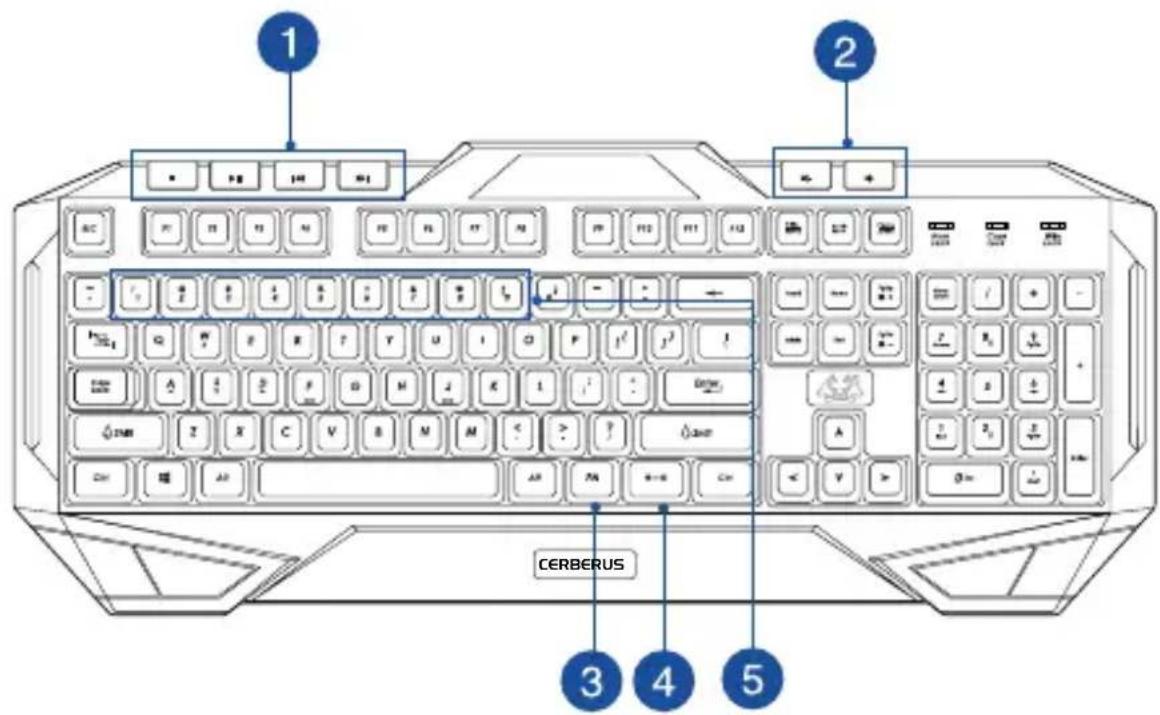
| 1 | Media player controls(Stop, play/pause, previous,next) | 4 | Backlight control on/off |
| 2 | Volume down / volume up [FN]+[1]~[9]: Multi-colorlighting controls | ||
| 3 | [FN] key | ||
Installing your gaming keyboard
Connect the USB connector of your gaming keyboard to the USB port of your computer. Your computer automatically detects and installs the keyboard driver. When the installation is completed, you can start using your gaming keyboard.
19 Key anti-ghosting
| Q | Space |
| A | ↑ |
| Z | ↓ |
| W | ← |
| S | → |
| X | Tab |
| E | Alt (Left) |
| D | Ctrl (Left) |
| C | Shift (Left) |
| B |
Hot keys
 | Stop |
 | Play/Pause |
 | Previous |
 | Next |
 | Volume down |
 | Volume up |
Function keys
Combine the [FN] key and some keys to quickly access your mails, files, and other functions on your computer.
| [FN] + [F1] Launch Media Player |
| [FN] + [F2] Volume down |
| [FN] + [F3] Volume up |
| [FN] + [F4] Mute |
| [FN] + [F5] Stop |
| [FN] + [F6] Previous |
| [FN] + [F7] Play/Pause |
| [FN] + [F8] Color Cycle |
| [FN] + [F9] Launch Mail |
| [FN] + [F10] Launch the web browser |
| [FN] + [F11] Lock the keyboard |
| [FN] + [F12] Launch the calculator |
| [FN] + [Q] Launch the Rapid fire mode (repeating keystrokes) |
| [FN] + [Tab] Transfer W / A / S / D keys to arrow keys |
| [FN] + [Win] Disable the Windows key |
NOTE: Once you disconnect the gaming keyboard from the USB port of your computer, [FN] + [F11], [FN] + [Q], [FN] + [Tab], and [FN] + [Win] function keys will be reset to factory defaults.
Using the Macro, Swap, and Rapid fire modes
Macro mode
Configure the function keys (F1~F12) as macro keys to conveniently launch frequently-used apps or key combinations, and perform repetitive tasks or actions with a single keystroke.
To configure a macro key:
- Press [FN] + [Insert] and wait for the Win Lock key to light up and turn red, indicating that the macro mode is enabled.
- Press a function key (F1~F12) and wait for the Win Lock key to flash red.
- Press the keys that you want to assign for the macro key.
- When done, press [FN] + [ESC] to exit the recording mode.
- To configure more macro keys, ensure that the Win Lock key is still solid red, then repeat steps 2 to 4.
- To exit the macro mode, long press [FN] + [ESC]. Wait for the keyboard backlight to flash twice and the Win Lock key LED to turn off.
Swap mode:
The swap mode lets you change the functions of some keys.
Media keys, function keys, and Macro keys are excluded from the swap mode.
To use the Swap mode:
- Press [FN] + [Home] and wait for the Win Lock key to light up and turn red, indicating that the Swap mode is enabled.
- Press a key (for example, key F), and the Win Lock LED flashes red.
- Press another key (for example, key V) and the Win Lock LED turns to solid red, indicating that the functions of the keys are swapped. Repeat steps 2 and 3, making sure the Win Lock key is still lit up, to swap the functions of more keys.
- To disable the Swap mode, press [FN] + [ESC].
Rapid Fire mode:
Repeating keystrokes on keyboard, especially useful for games require pressing repeatedly a special key. When you assign new rapid keys, keyboard will remove latest rapid record.
To use the Rapid Fire mode:
- Press [FN] + [End] and wait for the Win Lock key to light up and turn red, indicating that the Rapid Fire mode is enabled.
- Press a key or keys that you want to have repeating keystroke, and the Win Lock LED flashes red.
- Press [FN] + [ESC] once to end.
- Press [FN] + [Q] to enable/disable the Rapid Fire mode.
Mode Switch
| PROFILE DESCRIPTION | |
| Gaming Profile (default) | With 343-color backlightThe Macro, Swap and Rapid fire functions are enabled. |
| Normal Profile With mint color backlightThe Macro, Swap and Rapid fire functions are disabled. | |
NOTE: To switch profiles, press [FN] + [Caps Lock]. The backlight flashes twice to indicate the profile mode switch.
Backlit setting
Multi-color
You can on-the-fly set the backlighting color of the keyboard to 343 color combinations.
There are several options for setting the backlight color:
- Press [FN] + [1]~[7] for pre-set colors. • Press [FN] + [8] for color cycle.
- Press [FN] + [9] for custom color. Use the [R], [G], [B] keys to adjust to your preferred color.
| [FN] + [1] Red |
| [FN] + [2] Orange |
| [FN] + [3] Yellow |
| [FN] + [4] Green |
| [FN] + [5] Blue |
| [FN] + [6] Indigo |
| [FN] + [7] Violet |
| [FN] + [8] Custom |
| [FN] + [9] Custom |
NOTE: [R], [G] or [B], each has 7 levels.
Brightness effect
- Press [FN] + [PgUp]/[PgDn] to increase/decrease the breathing light levels. There are 4 light levels available.
Breathing light effect
To use the breathing light function:
- Press [FN] + ☐ to enable/disable the breathing light function.
- Press [FN] + [PgUp]/[PgDn] to increase/decrease the breathing light speed. There are 10 breathing light speed levels available.
Reset
NOTE: The Reset function restores the system to the default settings.
To reset to the default settings:
- Press and hold [FN] + [Delete] for about three (seconds) until the Nums Lock, Caps Lock, and Win Lock LEDs flash thrice, then flash once to indicate that the reset process is completed.


- CALIFORNIA PROPOSITION
- PACKAGE CONTENTS
- SYSTEM REQUIREMENTS
- GETTING TO KNOW YOUR GAMING KEYBOARD
- INSTALLING YOUR GAMING KEYBOARD
- KEY ANTI-GHOSTING
- HOT KEYS
- FUNCTION KEYS
- USING THE MACRO, SWAP, AND RAPID FIRE MODES
- MACRO MODE
- TO CONFIGURE A MACRO KEY
- SWAP MODE
- TO USE THE SWAP MODE
- RAPID FIRE MODE
- TO USE THE RAPID FIRE MODE
- MODE SWITCH
- BACKLIT SETTING
- MULTI-COLOR
- BRIGHTNESS EFFECT
- BREATHING LIGHT EFFECT
- RESET
Brand : ASUS
Model : Cerberus MKII
Category : Keyboard