
Cerebrus Mech RGB - Keyboard ASUS - Free user manual and instructions
Find the device manual for free Cerebrus Mech RGB ASUS in PDF.


| Product Type | Gaming Keyboard (Mechanical) |
| Brand | ASUS |
| Model | Cerberus Mech RGB |
| Interface | USB |
| Switch Type | Mechanical (Cherry MX or equivalent) |
| Backlight | RGB with 7 modes: Static, Breathing, Reactive, Explosion, Color Cycle, Wave, Customize |
| Number of Keys | 104 (Full-size layout) |
| Onboard Memory | Yes (stores profiles) |
| Software | Cerberus Interface for customization (macro, backlight, key assignment) |
| Operating System Support | Windows 7/8.1/10 (32-bit and 64-bit) |
| Cable Length | 1.8 m braided USB cable |
| Dimensions (L x W x H) | 460 x 160 x 40 mm |
| Weight | 1.2 kg |
| Power Source | USB bus power |
| Warranty | 2 years |
| Box Contents | Keyboard, user manual |
| Maintenance & Cleaning | Wipe with a soft dry cloth; avoid liquids |
| Safety | Use only with compatible USB ports; avoid excessive force on keys |
| Spare Parts & Repairability | Not available separately; contact ASUS support |
Frequently Asked Questions - Cerebrus Mech RGB ASUS
User questions about Cerebrus Mech RGB ASUS
0 question about this device. Answer the ones you know or ask your own.
Ask a new question about this device
Download the instructions for your Keyboard in PDF format for free! Find your manual Cerebrus Mech RGB - ASUS and take your electronic device back in hand. On this page are published all the documents necessary for the use of your device. Cerebrus Mech RGB by ASUS.
USER MANUAL Cerebrus Mech RGB ASUS
Cerberus Mechanical RGB Keyboard
Software Guide
Operating System
The software supports the following operating systems:
• Windows ^® 7 (32-bit/64-bit)
• Windows® 8.1 (32-bit/64-bit)
• Windows® 10 (32-bit/64-bit)
Installation
- Plug Cerberus Mech RGB into the USB port of your computer.
- Visit https://www.asus.com/support/ to download and install the latest driver. The icon is displayed on the lower right taskbar after installation.

Cerberus interface
NOTE: The following screenshots are for reference only. The menu bar may vary accordingly.
![CERBERUS 11 7 x 10 -9 1 PC MODE | PROFILE 1 | PROFILE 2 | PROFILE 3 | PROFILE 4 | PROFILE 5 Esc F1 F2 F3 F4 F5 F6 F7 F8 F9 F10 F11 F12 - 1! 2 @ 3# 4S 5% 6^ 7& 8* 9( 0) - = + Tab Q W E R T Y U I O P [ ( ] ) \ | Caps Lock A S D F G H J K L : : Enter Shift Z X C V B N M ,< . > / ? Shift Ctrl Alt Alt Fn Ctrl < ▼ ▶ ▶ ▶ Macro Setting 14 Launch Program 16 Disable 2 3 5 4 Key Assignment 15 SYNC Program 17 Default Import Export Cancel OK Apply 8 F 18 BACKLIT SETTING 6 PROFILE RESET 7 76% Done](/content/2026/05/1070599/images/b522d83f5d9fa908dd82fc42a916db8c1f41e0120f84a206cf7fb626ac12f79a.jpg)
| 1 | Click any of the tabs to select a profile. |
| 2 | Click to import your configuration file. |
| 3 | Click to export your configuration file. |
| 4 | Click to apply the setting to the current profile. |
| 5 | Click to save the current profile and exit the screen. |
| 6 | Click to reset to the default profile settings. |
| 7 | Shows the memory space. |
| 8 | Shows the key indicator. |
| 9 | Minimizes the screen. |
| 10 | Closes the software. |
| 11 | Launches the help file. |
| 12 | Launches the Macro Setting.NOTE: For more details, refer to the sectionMacro Setting. |
| 13 | Click to assign keys. |
| 14 | Click to assign a key to launch the program. |
| 15 | Auto-switches to PF1~PF5 when a specific program is launched.NOTE: For more details, refer to the sectionSync Setting. |
| 16 | Assign single key to disable |
| 17 | Assign single key to default |
| 18 | Click to configure the backlit settings.NOTE: For more details, refer to the sectionBacklit Setting. |
Macro Setting
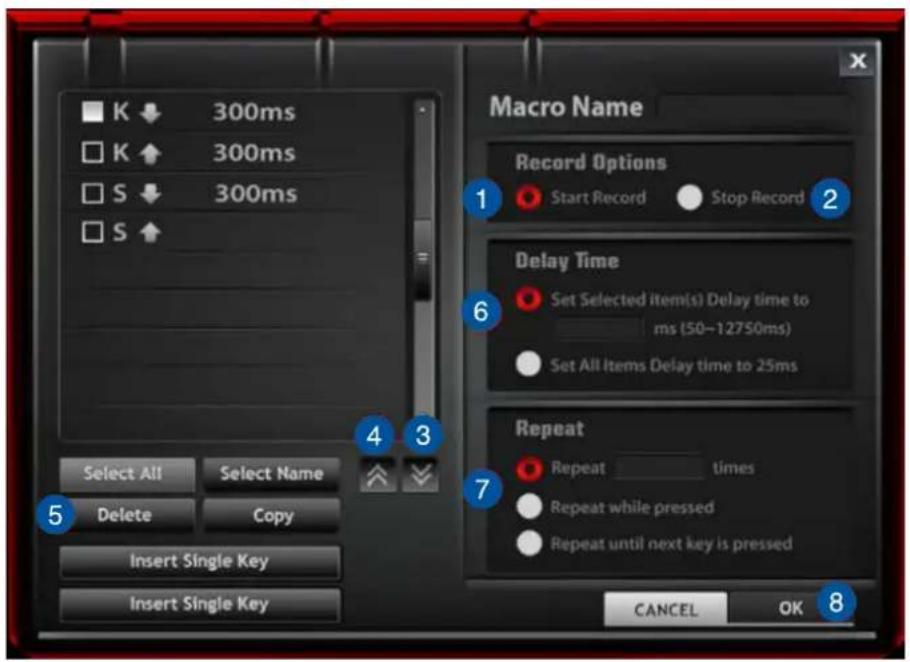
| 1 | Tick this item to start recording a macro key. |
| 2 | Tick this item to stop recording a macro key. |
| 3 | Click to move the key sequence down. |
| 4 | Click to move the key sequence up. |
| 5 | Click to delete a key. |
| 6 | Select the Delay Time setting. |
| 7 | Select the Repeat mode. |
| 8 | Click to save the macro settings. |
Creating a macro profile
To create a macro profile:
- Click the Cerberus keyboard ico on the lower right taskbar.
- Select the profile that you want to configure.
- Select and click a key from the onscreen keyboard. The selected key turns red.
- Click Macro Setting to launch the Macro Setting screen.
- Click Start Record to start recording all your keystrokes and button presses.
- Click Stop Record to end the recording, and then click APPLY to save the macro settings. You may also click OK to save the macro settings and exit the screen.
- Click Yes on the confirmation message to save the macro settings to the profile.
- When done, click APPLY to save the current profile.
- Wait until the macro setup is completed.

Sync Setting
To configure the backlight settings:
- From the Cerberus interface, click SYNC PROGRAM.
- Click the file icon.
- Click the program's executable file (.exe file).
- Click OK, then go back to the home screen.
- Click APPLY or OK to save the sync setting.
Backlit Setting
The keyboard provides six (6) preset and one (1) customized backlight LED modes. You can also change the settings of brightness and background color.
To configure the backlight settings:
- From the Cerberus interface, click BACKLIT SETTING to launch the Backlit Setting screen.
- Adjust the brightness, select an LED effect and background color, and click APPLY to save the changes.
![PC MODE | PROFILE 1 | PROFILE 2 | PROFILE 3 | PROFILE 4 | PROFILE 5 CERBERUS Esc F1 F2 F3 F4 F5 F6 F7 F8 F9 F10 F11 F12 Tab Q W E B T Y U I O P [ ] [ ] [ ] Caps Lock A S D F G H J K L J [ ] Enter Shift Z X C V R N M < / ? Shift Ctrl AR AN Fn Ctrl Brightness Effect Background 0 20% 30% 70% 100% Brightness Effect Apply EXIT](/content/2026/05/1070599/images/bd78419603e6c6cfae4c5177ef7a516b4963c9b0c724a618bdc2c0f9cb44714e.jpg)
| 1 | Move the slider to adjust the brightness level. |
| 2 | Select any of the effects to set the backlit mode. |
| NOTE: For more details, refer to the section Backlit modes. | |
| 3 | Select the backlit color from this bar. |
BACKLIT modes
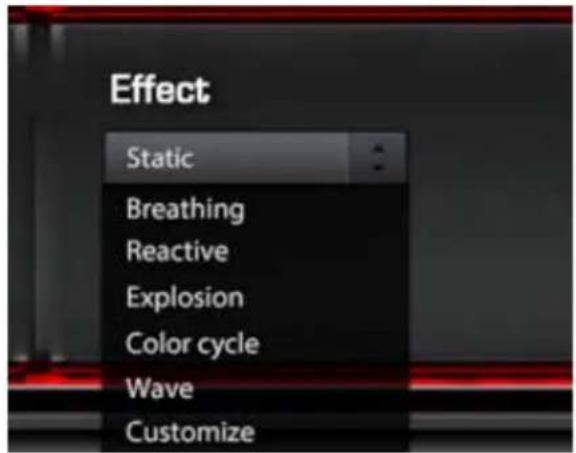
| Static The keyboard backlight displays a static color. | |
| Breathing The keyboard backlight pulsates light that resembles breathing. | |
| Reactive The keyboard backlight lights up when a key is pressed. | |
| Explosion The keyboard backlight displays a burst of light when a key is pressed. | |
| Color cycle The keyboard backlight cycles through a color spectrum. | |
| Wave | The keyboard backlight resembles a flowing wave, lighting up from left to right or right to left continuously. You can select the wave direction. |
| Customize | Allows you to define the keys' LED colors and lighting effects. Tick Background to set the backlight color. Tick Single Key to set the colors for each key. |


Brand : ASUS
Model : Cerebrus Mech RGB
Category : Keyboard