Sportcam DVR 75HD - Camcorder i-Joy - Free user manual and instructions
Find the device manual for free Sportcam DVR 75HD i-Joy in PDF.



| Product Type | Camcorder |
| Brand | i-Joy |
| Model | Sportcam DVR 75HD |
| Dimensions | 58.3 mm × 32.51 mm × 23.84 mm |
| Power Supply | Built-in 3.7V rechargeable lithium battery |
| Image Sensor | 1.3 Mega pixel CMOS |
| Image Resolution | Lo: 1M (1280x1024), Hi: 3M (2048x1536) |
| Video Resolution | Hi: HD 1280x720 (30fps), Lo: VGA 640x480 (60fps) |
| Memory | External TF card (4GB to 32GB, class 4 or above) |
| File Format | JPEG (photo), AVI (video) |
| Display | Black and white digital screen |
| Lens Focal Length | f=5.8mm |
| Iris Aperture | F2.8 |
| White Balance | Automatic |
| Exposure Control | Automatic |
| USB Port | USB 2.0 |
| TV Output | NTSC |
| Automatic Power-Off | After 3 minutes of inactivity |
| Operating System Requirements | Microsoft Windows 7, 2000, XP, VISTA |
| Menu Language | English |
Frequently Asked Questions - Sportcam DVR 75HD i-Joy
User questions about Sportcam DVR 75HD i-Joy
0 question about this device. Answer the ones you know or ask your own.
Ask a new question about this device
Download the instructions for your Camcorder in PDF format for free! Find your manual Sportcam DVR 75HD - i-Joy and take your electronic device back in hand. On this page are published all the documents necessary for the use of your device. Sportcam DVR 75HD by i-Joy.
USER MANUAL Sportcam DVR 75HD i-Joy
Thank you for purchasing this digital camera. Please carefully read through this product manual before using, and keep this manual properly for future reference.
The contents of this product manual are based on the updated information at the time of compilation. The screen displays and figures used in the manual are for detailed and visual operation of the camera. Due to technical development and different production lots, they may differ from the digital camera you actually use.
Operation Notice
This camera uses a TF card (Multimedia memory card). Instructions for using the memory card:
- When using a new memory card for the first time, or when there is unrecognized data on the card or images shot with other cameras, please format the memory card first.
- Please power off the camera before inserting or removing the memory card. After many uses, the performance of the memory card may degrade. If this happens, please purchase a new one. The memory card is a precision electronic device. Do not bend it, and protect it from falls or heavy loads.
- Keep the memory card away from environments with strong electromagnetic or magnetic fields, such as near speakers or TV receivers.
- Keep the memory card away from environments with extremely high or low temperatures.
- Keep the memory card clean and prevent it from coming into contact with liquids. If it does get wet, clean and dry it with a soft cloth. When not in use, store the memory card in its protective case.
- Please note that the memory card may become hot after long-term use; this is normal.
- Do use memory cards that have been used in other digital video recorders or digital cameras. If using such a card, please format it first.
- Using memory cards formatted with other digital video recorders or digital cameras is prohibited.
- In case of any of the following, the recorded data may be damaged:
- Improper use of the memory card.
- Power-off or removal of the memory card during recording, deleting (formatting), or reading;
It is recommended to back up important data on other media such as floppy disks, hard disks, or CDs. To ensure image quality, a minimum Class 4 high-speed card is required for the TF card.
Camera maintenance
- Use a proper protective cover to avoid scratching the lens and display.
- Blow off dust and sand from the lens surface before cleaning, then gently clean the lens with a cloth or paper suitable for cleaning optical devices. If needed, use lens cleaner. It is strictly prohibited to clean the camera with organic solutions or to touch the lens surface with fingers.
System Requirements
When operating and using this digital camera, please pay attention to the minimum system requirements. You are strongly recommended to use a better computer to control the camera for better performance. The minimum system requirements are as follows:
| System Requirements | |
| Operating system | Microsoft Windows 7, 2000, XP, VISTA |
| CPU | Intel PIII667above or CPU with equivalent performance |
| International memory | 512 MB or above |
| Sound card, graphics card | Sound card and graphics card support DirectX8 or above |
| CD-ROM | 4X speed or above |
| Hardisk | Minimum 1 GB free space |
| Others | One standard USB 1.1 or USB 2.0 interface(s) |
Function Characteristics
This camera is equipped with various characteristics and functions:
Digital video recorder; Digital camera (1.3 megapixels); Black and white digital display; Mass storage (portable disk)
Appearance
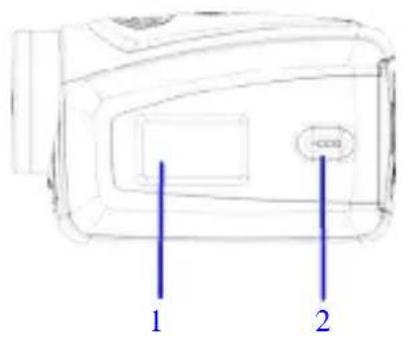
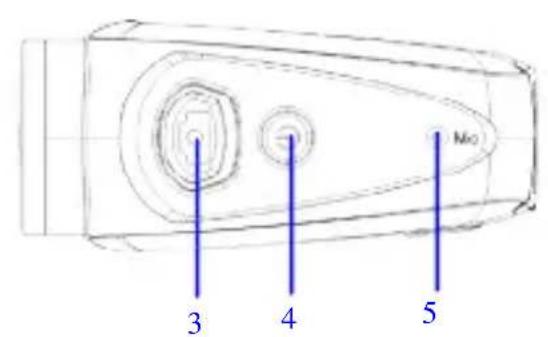
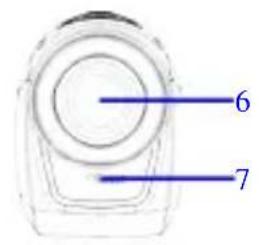
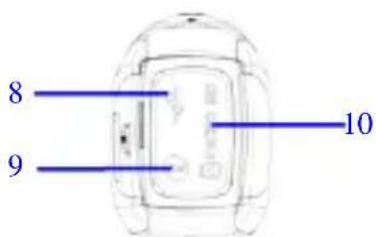
(1) Black and white digital screen (2) MODE key (3) Shutter (4) Power (5) Microphone (6) Lens (7) Reset (8) USB port (9) TV port (10) TF card slot
Key Functions and Indicators
| Key/Indicator | Function |
| Power Power On/Off | |
| Shutter | Video recording mode, Recording/Stop Capture mode, taking pictures Replay mode; after connecting to TV, short press to play the recorded video; long press to enter shortcut for deletion; short press to confirm file deletion. |
| MODE key | Switchover of video recording and capture mode in circle and change image size; In capture mode, long press MODE key to format FT card; Replay mode: after connecting to TV, it is used for next or previous photo, or exit from deletion mode. |
Start Operation
Battery
This camera uses the original packaged built-in rechargeable 3.7V lithium battery. Battery disassembly is prohibited.
Memory card installation
Following the instructions by the card slot, plug the FT memory card into the card slot with the metal pins facing inward.
To remove the memory card, press the FT card downward and take it out.
Attention: Please disconnect the camera's power supply before replacing the memory card;

- Keep the correct direction when plugging in the card. Gently insert the card to avoid damaging the card or camera parts. If it fails to insert, check that it is in the correct direction;
- Please format the memory card before first use, especially if it has been used on other cameras.
Power-on
Press and hold the power key for 2 seconds, then release it to power on the camera.
Mode switchover
After power-on, the camera enters the default video recording mode at a default size of Lo. In video recording mode at Lo size, click the MODE key to switch to HI size; in video recording mode at HI size, click the MODE key to enter capture mode at Lo size, and in capture mode at Lo size, click the MODE key to return to video recording mode at Lo size.
Attention: Video recording mode: Lo indicates VGA (640x480) 60 frames, Hi indicates HD (1280x720) 30 frames
- Capture mode: Lo indicates 1.3M (1280x960), Hi indicates 3.1M (2048x1536)
Video recording
In video recording mode, click the Shutter key to start video recording, and click it again to stop recording.
Capture
In capture mode, press the Shutter key to take pictures.
TV output
When output of image and audio from the camera to TV is needed, please plug the common end of the TV cable into the TV port of the camera. The yellow port is for video input, and the red/white port is for audio.
Replay
After connecting to TV, the camera enters the replay mode. In replay mode, press the MODE key to select photo or recorded video.
After selecting a recorded video file, press the Shutter key to play the file. During playing the recorded video, press the Shutter key to stop playing.
In replay mode, long press the Shutter key to enter shortcut deletion prompt, press the Shutter key to confirm deletion, and press the MODE key to exit from deletion.
Power-off
In power-on mode, long press the Power key to power the camera off.
Connection to computer
Firstly power the camera on, and then connect the camera with the attached USB cable to the USB port of the computer. After connecting to the computer, the camera automatically enters portable disc mode.
Advanced Operation
Video recording, capture mode
After power-on, the camera automatically enters video recording mode. In video recording mode at Lo size, click MODE key to switch the size to HI; in video recording mode at HI size, click MODE key to enter capture mode at Lo size, and in capture mode at Lo size, click MODE key to return to video recording mode at Lo size.
In video recording mode, press Shutter key to start recording and press it again to stop recording, press MODE key to switch to Lo size. In capture mode, press Shutter key to start shooting, and press MODE key to switch to Lo size.
♠ In video recording mode, information is displayed on the screen as below:
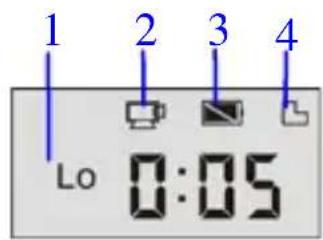
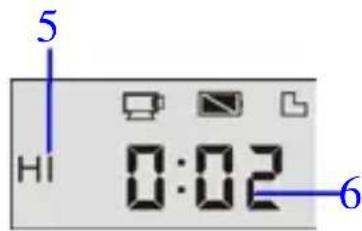
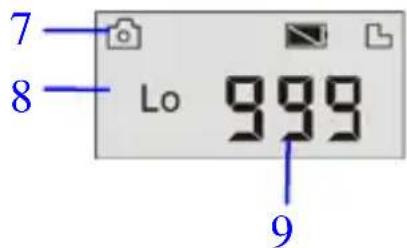
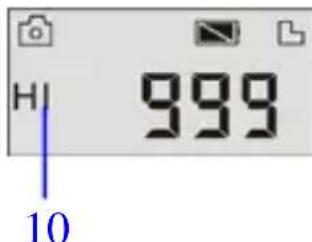
| No. | Icon | Description |
| 1 | Video recording HI | Indicates high resolution in current video recording mode |
| 2 | Video recording icon | Indicates currently in video recording mode (Flashing icon means in the process of video recording) |
| 3 | Battery level | Indicates level of battery |
| 4 | TF card | Indicates a memory card available |
| 5 | Recording Lo | Indicates low resolution in current video recording mode |
| 6 | Time left for recording | Indicates time left in FT card for video recording |
| 7 | Capture mode | Indicates currently in capture mode |
| 8 | Capture HI | Indicates high resolution in current capture mode |
| 9 | Photo to be captured | Indicates quantity of photos to be captured in current internal memory |
| 10 | Capture Lo | Indicates low resolution in current capture mode |

Attention: ● Due to limited characters displayed on the screen, video recording time can be displayed in minimum unit minute;
E.g. 0:02 indicates 2 minutes. During recording, 0:01 indicates video recorded for 1 minute.
Replay Mode
After power-on and connecting to TV, the camera enters the replay mode. In replay mode, press MODE key to select photo and recorded video. After selecting video file, press Shutter key to play it. During playing, press Shutter key to stop playing.
In replay mode, long press Shutter key to enter file deletion mode. In file deletion mode, press Shutter key to confirm deletion, and press MODE key to exit from deletion.
♠ In replay mode, information is displayed on the screen as below:
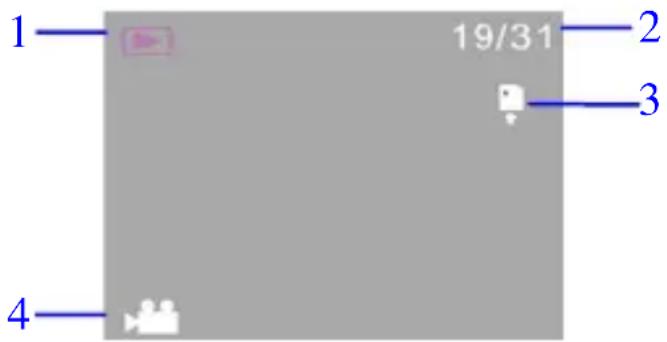
| No. | Icon Description | |
| 1 | Replay mode | Indicates reply mode |
| 2 | File quantity | Indicates there are total 31 files, and the 19th file is being browsed currently. |
| 3 | TF card | Indicates a memory card available |
| 4 | Icon for video recording | Indicates the current file is a video recording file. |
File Deletion
After connecting to TV, the camera enters the replay mode. In replay mode, long press Shutter key to enter file deletion mode, press Shutter key to confirm deletion, and press MODE key to exit from deletion.
Delete This file?
Enter Back
Connect to computer to download photo/video
After connecting to the computer, the camera enters portable disc mode. In the "My Computer" window, a portable disc will appear. The photos or videos are stored under the "DCIM\100MEDIA" folder on the portable disc. You can enter this folder to copy files to your computer's hard drive.

Attention: During file downloading, do not disconnect the USB cable. Plugging or unplugging the USB connection is prohibited to avoid data loss.
Specifications
| Image sensor | 1.30Mega pixel CMOS image sensor |
| Image resolution | Lo 1M(1280x1024), HI 3M(2048 x 1536) |
| Memory | External TF card (4GB to 32GB class 4or above) |
| File format | JPEG, AVI |
| Video resolution | Hi HD 1280X720, Lo VGA 640 x 480 |
| White balance Automatic | |
| Exposure compensation control | Automatic |
| USB port | USB2.0 |
| TV Output NTSC | |
| Display | Black and white digital screen |
| Power supply | Built-in 3.7V rechargeable lithium battery |
| Menu language English | |
| Focal length | f=5.8mm |
| Iris aperture F2.8 | |
| Automatic power-off | 3 minutes |
| Requirements for operating system | Microsoft Windows 7, 2000, XP, VISTA |
| Dimensions | 58.3 mm ×32.51 mm × 23.84 mm |
Attention: The design and specifications of the product are based on the latest information available at the time the manual was compiled. Specifications are subject to change without prior notice.
FAQ
| Failure of camera startup after placing battery in | Battery low. Recharging battery is required. |
| Fail to take picture or record video by pressing Shutter key | Full memory. Please store filed achieved on other memories. |
| Blur photo | Trembling hand when taking the photo. Hold the camera steady with two hands, or fix the camera stable with assistance of tripod to keep the camera from of moving during taking photo. |
| Dull photo or video | Insufficient light. Please take photo with sufficient light or use lamp to increase brightness. |
| Automatic power-off of the camera | Battery low. Recharge the battery. |
| To save power, the camera will automatically power off if no any operation performed for over 3 minutes. |
Warranty Conditions
- For the warranty to be honored, all products must be delivered to IJOY perfectly packed, preferably in their original packaging, with all accessories, user manuals, and drivers that the packaging would originally contain. Otherwise, IJOY will not be held responsible for damages that might occur during transportation.
- To be able to claim the warranty, it is necessary to have a copy of the proof of purchase, preferably a copy of the original receipt.
- The repair of the products will be carried out according to the problem reported by the customer; therefore, it is essential that the customer clearly and specifically indicates where the problem lies, so that it can be resolved correctly. In the case that there is no problem with the product, a diagnosis and transportation charge may apply.
- The customer must have made a backup copy of the data, as during the repair process there is a possibility that such data may be lost and/or erased. In any case, IJOY will not be held responsible for the loss of data contained in hard drives, as well as any other non-original accessories, such as batteries, memory cards, CDs, DVDs, etc.
- In the case that the product cannot be repaired, it may be replaced with another of similar or superior characteristics, taking into consideration the condition of the product received, such as usage marks, scratches, etc. In any case, the product returned to the customer will have been tested to ensure it functions correctly.
- The warranty only covers errors caused by manufacturing defects and does not cover damage caused by misuse, modifications, or damages caused by accidents of any nature or caused by the customer. The warranty does not cover: accessories, parts subject to normal wear and tear. The warranty will not be valid if the product is not used for the purpose for which it was originally intended.
- In the case of TFT screens, there may be what are known as dead pixels or bright dots (due to the complexity of the manufacturing process). In such cases, there is a maximum limit permitted by law (ISO 13406/02) that allows this not to be considered defective.
- The power supplies or chargers and batteries will have a guarantee limited to six months as long as they are used within the established operating conditions for correct usage and have not been exposed to power surges.
- It will be necessary that the equipment has a legible serial number, that the guarantee seal has not been manipulated and is in perfect state; that the equipment has all original seals in all components so that the guarantee is valid.
- The guarantee period starts at the moment of first purchase of the product. The reparation or substitution of the product will not imply an extension of the guarantee period.
- In the case that the product is not covered by the guarantee, a budget will be drawn up which has to be approved by the client. In the case that the budget is not approved by the client, the client must pay for the cost incurred in the transportation, manipulation and diagnosis of the product.
- Once the product is repaired after notifying the client, the client will have a period of ten working days to pick up the product. After this period of time, a daily storage charge will be applicable depending on the volume of the product.
i-Joy
C/ Mario Roso de Luna, 31 P.I. Fin de Semana -28022-Madrid (Spain)
Tel. +34 902 55 55 60
E-mail: rma@i-joy.es (Under warranty) | postventa@i-joy.es (Technical doubts)
Web: www.i-joy.es
INSTRUCTIONS
Preface
WARRANTY CONDITIONS
- OPERATION NOTICE
- SYSTEM REQUIREMENTS
- FUNCTION CHARACTERISTICS
- APPEARANCE
- KEY FUNCTIONS AND INDICATORS
- START OPERATION
- BATTERY
- MEMORY CARD INSTALLATION
- POWER-ON
- MODE SWITCHOVER
- VIDEO RECORDING
- CAPTURE
- TV OUTPUT
- REPLAY
- POWER-OFF
- CONNECTION TO COMPUTER
- ADVANCED OPERATION
- REPLAY MODE
- FILE DELETION
- CONNECT TO COMPUTER TO DOWNLOAD PHOTO/VIDEO
- WARRANTY CONDITIONS
- I-JOY
- INSTRUCTIONS
- PREFACE
Brand : i-Joy
Model : Sportcam DVR 75HD
Category : Camcorder