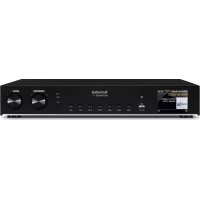
DIGITRADIO 143 - Receiver TECHNISAT - Free user manual and instructions
Find the device manual for free DIGITRADIO 143 TECHNISAT in PDF.



| Product type | Radio receiver with CD player, Internet radio, Bluetooth, DAB+/FM |
| Brand | TechniSat |
| Model | DIGITRADIO 143 CD |
| Dimensions (W x D x H) | 435 x 275 x 77 mm |
| Power supply | 110-240 V ~ 50/60 Hz |
| Power consumption | Operating: approx. 5.5 W, Standby: < 1 W |
| Display | TFT color display 3.2" (8.1 cm) |
| Reception modes | DAB/DAB+, FM, Internet Radio, Spotify Connect, Bluetooth, USB, CD, Line-In |
| Preset memory | DAB: 30, FM: 30, Internet: 30, Spotify Connect: 10 |
| Network connectivity | LAN 10/100, WLAN 802.11 b/g/a/n (2.4 and 5 GHz), WPS |
| Bluetooth | V4.2+EDR, class II, max. range 10 m |
| Audio inputs/outputs | Analog audio output RCA, analog audio input RCA, digital optical output, digital coaxial output, 3.5 mm headphone jack |
| Other connectors | USB port (charging 5V/1A), LAN port, F antenna connector, integrated WLAN antenna |
| Special functions | Dual alarm, sleep timer, equalizer (5 modes), CD programming, random playback, repeat |
| Cleaning | Disconnect before cleaning. Use soft cloth and water for the cabinet. Use dry or slightly damp cotton cloth for the display. |
| Safety | Do not open the device. Use in temperate climate. Avoid humidity. Disconnect during thunderstorms. Keep out of reach of children. |
Frequently Asked Questions - DIGITRADIO 143 TECHNISAT
User questions about DIGITRADIO 143 TECHNISAT
0 question about this device. Answer the ones you know or ask your own.
Ask a new question about this device
Download the instructions for your Receiver in PDF format for free! Find your manual DIGITRADIO 143 - TECHNISAT and take your electronic device back in hand. On this page are published all the documents necessary for the use of your device. DIGITRADIO 143 by TECHNISAT.
USER MANUAL DIGITRADIO 143 TECHNISAT
1.1 Safety 8
1.2 Disposal 9
1.3 Legal notices 11
1.4 Service instructions.. 12
2 Figures and description 13
3 Connecting the device and operation 17
3.1 Scope of delivery 17
3.2 Inserting the batteries 17
3.3 Connection 18
3.4 Switching on/off 18
3.5 Source selection 18
3.6 Adjusting the volume 18
3.7 Menu operation 19
3.8 Activating the mute function 10
3.9 Retrieving visual displays 20
3.10 Visual displays 21
4 Initial set-up 22
5 Internet radio 23
5.1 Last listened to 23
5.2 Station list.. 23
6 Playing music (UPnP media) 25
6.1 Playback via UPnP 25
6.1.1 Playing media 25
6.1.2 Music via Windows Media Player 26
6.2 Playback via a USB mass storage device 26
7 Spotify Connect 26
8 The DAB function 27
8.1 DAB radio reception 27
8.2 Performing a station scan 27
8.3 Selecting the station 28
8.4 Saving DAB stations 28
8.5 Selecting the programmed stations 28
8.6 删除a saved memory slot 29
8.7 Signal intensity 29
8.8 Setting DRC 30
8.9 删除 inactive stations 30
8.10 Sorting the stations 30
9 FM mode 31
9.1 Switching on FM radio mode 31
9.2 USW reception with RDS information 31
9.3 Manual station selection 31
9.4 Automatic station selection 32
9.5 Setting mono/stereo 32
9.6 Saving USW stations 32
9.7 Selecting the programmed stations 33
9.8 Deleting a saved memory slot 33
10 Bluetooth 33
10.1 Activating the Bluetooth mode 33
10.2 Pairing 34
10.3 Playing music 34
11 Audio input 35
12 CD/MP3 player 35
12.1 General information on CDs/MP3 CDs 35
12.1.1 The discs you can use 36
12.2 Playing CDs 36
12.2.1 Setting the track 37
12.2.2 Quick search 38
12.2.3 Repeat function 38
12.2.4 Random playback 38
12.2.5 Programming function 38
12.3 CD advice 39
13 Other functions 40
13.1 Sleep timer 40
13.2 Alarm 40
13.2.1 Setting the alarm time 41
13.2.2 Switching off the alarm after being woken 41
13.2.3 Switching off/deactivating the alarm 42
13.2.4 Switching on/activating the alarm 42
13.3 Using headphones 42
14 System settings. 42
14.1 Equaliser 43
14.2 Internet settings 43
14.2.1 Connection via a network cable 43
14.2.1.1 Network wizard configuration 43
14.2.1.2 Manual configuration 44
14.2.2 Connection via WLAN 44
14.2.2.1 Network wizard configuration 44
14.2.2.2 Configuration via the WPS function 45
14.2.2.3 Manual configuration 45
14.2.3 Display settings 46
14.2.4 Manual setting 46
14.2.5 NetRemote PIN setup.. 46
14.2.6 Delete network profile 46
14.2.7 WLAN/LAN connection on standby 46
14.3 Time settings. 46
14.3.1 Time/date setting 46
14.3.2 Update settings 47
14.3.3 Set format 47
14.3.4 Set time zone (only for NET update) 47
14.3.5 Summertime (only for NET update) 47
14.4 Language 47
14.5 Factory settings 47
14.6 Software update 48
14.7 Set-up wizard 48
14.8 Info 48
14.9 Display illumination 49
15 Cleaning 49
16 Troubleshooting 49
16.1 General problems 50
16.2 Problems with USB media 51
16.3 Problems with the remote control 51
16.4 Problems with the radio 52
16.5 Problems with the CD player 53
16.6 Problems with external input 54
17 Technical data. 55
1 Important information
Please take note of the following information to minimise safety risks, to prevent damage to the device and to make a contribution to environmental protection. Please read all the safety information carefully and keep it for future reference. Always observe all warnings and information in this quick start guide and on the rear of the device.
Caution - This identifies important information that must be observed to prevent device defects, data loss/misuse or undesired operation.
Tip - This identifies information relating to the described function, as well as to another related function that may have to be taken into account, with reference to the corresponding section in the manual.
1.1 Safety
For your own protection you should read the safety notes carefully before using your DIGITRADIO 143 CD. The manufacturer accepts no liability for damage caused by improper handling and by not observing the following safety precautions:
- Never open the device! Touching live parts can be fatal!
- Any required intervention may only be performed by qualified staff.
- The device must only be operated in an appropriate climate.
- In the event of extended transport in the cold and a subsequent change to warm rooms, do not switch on immediately; wait for the temperature to equalise.
Do not expose the device to dripping or splashing water. If water has penetrated the device, switch it off and inform the Service department - Do not expose the device to heat sources which could heat it up more than normal use will.
- In a thunderstorm, disconnect the device from the mains. Overvoltage can damage the device.
If you detect a device defect, odour or smoke, a major malfunction, or damage to the housing, switch off the device and inform the Service department. - The device must only be connected to a mains voltage of 100V-240V~, 50/60 Hz. Never try to operate the device at any another voltage.
-
The device must not be connected until the installation has been completed according to regulations.
-
If the device shows any signs of damage, it must not be switched on.
- When removing the mains cable from the power outlet, pull on the plug, not the cable.
- Do not put the device into operation in the vicinity of baths, swimming pools or splashing water.
- Never try to repair a faulty device yourself. Always contact one of our customer service locations.
Foreign bodies, e.g. nails, coins, etc. must not be allowed to fall inside the device. Do not touch the connection contacts with metal objects or your fingers. This could lead to short-circuits. - Do not place any open flames, such as burning candles, on the device.
- Never allow children to use the device unsupervised.
- Even when switched off and on standby, the device is still connected to the mains power supply. Z
This device is not intended to be used by people (including children) with limited physical, sensory or mental capacities or lack of experience and/or knowledge, unless they are supervised by a person responsible for their safety or they are instructed by them as to how to use the device. - Children must be supervised to ensure that they do not play with the device.
- Modifications to the device are prohibited.
- Damaged devices or damaged accessories must not continue to be used.
1.2 Disposal
The device packaging is exclusively comprised of recyclable materials. Please sort these and take them to the "Dual System". This product is identified according to Directive 2012/19/EU on Electrical and Electronic Waste (WEEE) and, at the end of its service life, must not be disposed of with normal domestic waste, but must be taken to a collection point for recycling electrical and electronic devices.
This is indicated by the symbol on the product, the instruction manual or the packaging.
The materials are recyclable according to their identification. An important contribution is made to protecting our environment by recycling, recovery of materials and other kinds of recycling of old devices.

Please ask local authorities for the location of the relevant disposal point. Ensure that used batteries/rechargeable batteries, as well as electronic waste, are not disposed of with household waste, but are properly disposed of (returned to the specialist dealer, hazardous waste).
Batteries/rechargeable batteries may contain poisonous substances which cause harm to health and the environment. Batteries/ rechargeable batteries are subject to European Directive 2006/66/EC. They must not be disposed of with normal household waste.

Disposal instructions
Disposal of packaging:
Your new device was protected by packaging on its way to you. All materials used are environmentally-friendly and recyclable. Please collaborate and dispose of the packaging in an environmentally-friendly way. Ask for information from your dealer regarding current disposal means or your local disposal facility.

Risk of suffocation! Keep packaging and parts thereof away from children. Risk of suffocation by films and other packaging materials.
Device disposal:
Old devices constitute valuable waste. Valuable raw materials can be recovered by environmentally-friendly disposal. Consult your town or local authority as to the possibilities for environmentally-friendly and proper disposal of the device. Prior to disposal of the device, remove the batteries/rechargeable batteries contained therein.
1.3 Legal notices
i TechniSat herewith declares that the radio system model DIGITRADIO 143 CD corresponds to Directive 2014/53/EU. The complete text of the EU Declaration of Conformity is available at the following web address:
i TechniSat accepts no liability for product damage as a result of external influences, wear or improper handling, unauthorised repairs, modifications or accidents.
Changes and printing errors reserved. Version 09/19. Copying and reproduction are subject to the publisher's consent. The respective current version of the instructions can be downloaded in pdf format in the download area of the TechniSat Homepage at www.technisat.de.
i DIGITRADIO 143 CD and TechniSat are registered trademarks of:
D-54550 Daun/Eifel, Germany
www.technisat.de
The names of the companies, institutions or makes referred to are trademarks or registered trademarks of the respective owners.
The Spotify Software is subject to third party licenses found here: https://www.spotify.com/connect/third-party-licenses.

The device may only be operated in enclosed rooms in the 5 GHz WLAN range in the countries listed below.
| BE CY FI FR HU LV LI | |||||
| LU NL ES SE UK CH | |||||
1.4 Service instructions

This product is quality-tested and provided with the legally-specified warranty period of 24 months from the date of purchase. Please keep your receipt as proof of purchase. In the event of warranty claims please contact the product dealer.

Note!
Should you experience a problem with this unit, or for queries and information, our Technical Hotline is available:
Mon.-Fri.8:00 am-6:00 pm on
+49 (0) 3925 9220 1800.

Repairs can also be ordered directly online at www.technisat.de/reparatur.
If the device needs to be returned, please use the following address only:
39418 Stassfurt, Germany

2 Figures and description
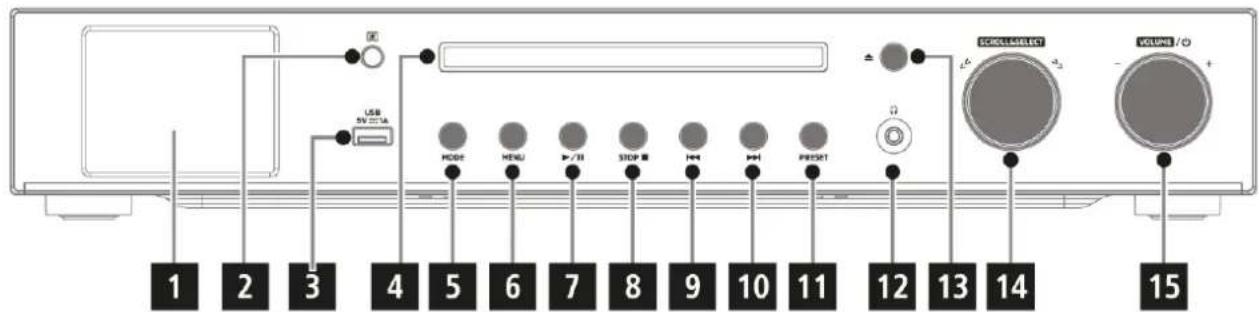
Front view
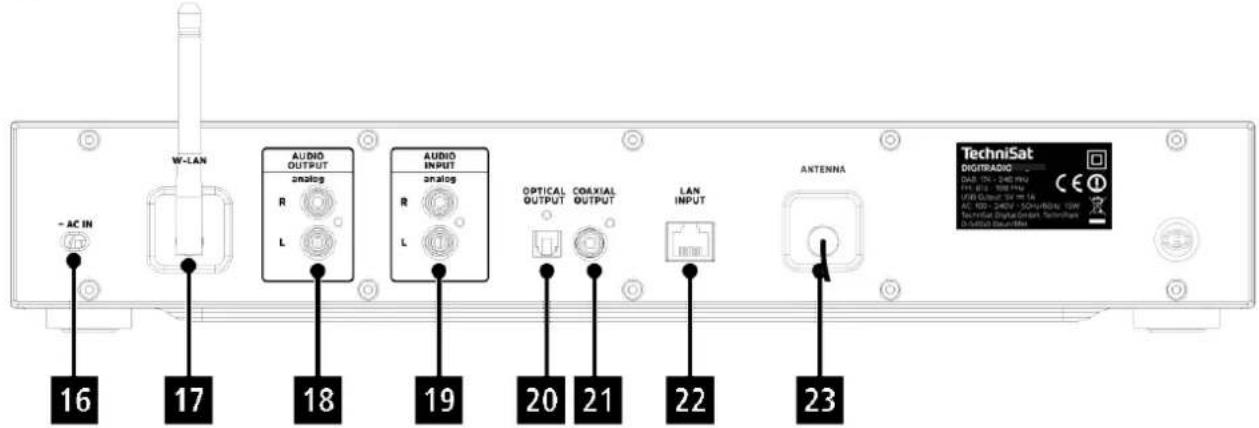
Rear view
Front view description
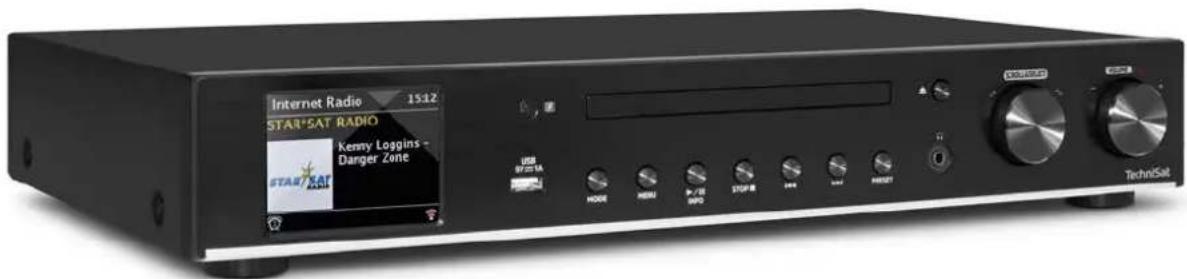
| 1 Display | shows information on the selected source or the menu. |
| 2 IR receiver | |
| 3 USB connection to playback MP3s on USB sticks or USB hard drives, for example. Charging of external devices (5V, 1A charging current). | |
| 4 CD drive for playing back audio or MP3 CDs. | |
| 5 MODE for switching between the playback sources (DAB, FM, Bluetooth, CD, Line IN, Internet Radio, Spotify and music playback using USB or a shared network drive). | |
| 6 MENU - press briefly to retrieve the main menu. | |
| 7 Play/Pause to pause/continue playback in CD/music mode. | |
| 8 STOP - stop playback in CD mode only. | |
| 9 Skip track/search back only in CD/music playback mode. Press briefly to start the current track again, press twice to skip to the previous track, keep pressed to rewind. | |
| 10 Skip track/search forward only in CD/music playback mode. Press briefly to skip to the next track, keep pressed to fast forward. | |
| 11 PRESET to save and retrieve favourites. Keep pressed to save favourites, press briefly to retrieve favourites. | |
| 12 Headphone jack for headphones with a 3.5 mm jack plug. | |
| 13 CD ejector button - press briefly to open/close the CD compartment. | |
| 14 SCROLL &SELECT - rotate knob to browse the menus or to change settings. Press to accept/save the selection. | |
| 15 Volume/on/standby - rotate knob to regulate the volume. Press to switch on the device or to switch to standby. Switch off alarm tone. | |
| Rear view description | |
| 16 Mains connection cable to connect to 110-240 V ~ 50/60Hz. | |
| 17 WLAN antenna - wireless connection to a router. | |
| 18 Audio out analogue to connect to an A/V receiver or a stereo system. | |
| 19 Audio input analogue (Line IN) to play back external audio sources. | |
| 20 Optical output digital - audio output for connecting to an A/V receiver or a stereo system. | |
| 21 Coaxial output digital - audio output for connecting to an A/V receiver or a stereo system. | |
| 22 LAN input for connecting a network cable for the Internet connection. | |
| 23 Antenna connection for receiving DAB+ or FM signals. An active or passive antenna can be connected. |
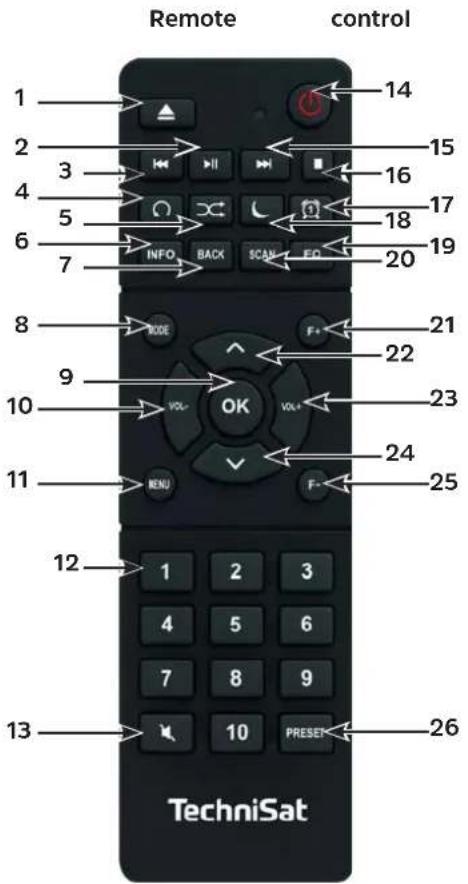
Remote control description
| 1 CD ejector | button - press briefly to open/close the CD compartment. |
| 2 Play/pause | only in CD/music playback mode, to pause/continue playback. |
| 3 | Skip track/search back only in CD/music playback mode. Press briefly to start the current track again, press twice to skip to the previous track, keep pressed to rewind. |
| 4 Track repeat | |
| 5 Shuffle - random track playback. | |
| 6 INFO Switch between multiple displays/information. | |
| 7 BACK moves one step back in menus, cancels settings. | |
| 8 | MODE for switching between the playback sources (DAB, FM, Bluetooth, CD, Line IN, Internet Radio, Spotify and music playback using USB or a shared network drive). |
| 9 OK - accept or save selection, navigate in the menu. | |
| 10 VOL- reduces the volume. | |
| 11 MENU - press briefly to retrieve the main menu. | |
| 12 Number buttons 1 - 10 | |
| 13 Mute function | |
| 14 On/stand by to switch the device on and off. End alarm tone. | |
| 15 | Skip track/search forward only in CD/music playback mode. Press briefly to skip to the next track, keep pressed to fast forward. |
| 16 STOP only in CD/music playback mode, stop playback. | |
| 17 Alarm to activate and set the alarm function. | |
| 18 SLEEP - activates the sleep timer, press repeatedly for different times. | |
| 19 EQ retrieves the equaliser selection. | |
| 20 SCAN starts the station scan in DAB+ and FM mode. | |
| 21 F+ to scroll through the folder structure on a shared network drive or an MP3 CD. | |
| 22 Up arrow button to navigate in menus or change settings. | |
| 23 VOL+ increases the volume. | |
| 24 Down arrow button to navigate in menus or change settings. | |
| 25 F- to scroll through the folder structure on a shared network drive or an MP3 CD. | |
| 26 | PRESET to save and retrieve favourites. Keep pressed to save favourites, press briefly to retrieve favourites. |
3 Connecting the device and operation
3.1 Scope of delivery
The scope of delivery includes: 1 x DIGITRADIO 143 CD, 1 x instruction manual, 1 x remote control + batteries, antenna for DAB+/USW, WLAN antenna
3.2 Inserting the batteries
Slide open the battery compartment cover on the back of the remote control. Insert two "AAA" (Micro), 1.5 V batteries, ensuring the correct polarity, as shown in the battery compartment. Batteries included in the scope of delivery.
Close the battery compartment lid carefully again until the lid engages.
i Promptly change batteries that are losing power.
Always change both batteries at the same time and use the same type of batteries.
Leaking batteries can cause damage to the remote control.
If the device is not being used for a prolonged period, remove the batteries from the remote control.
Important information for disposal: batteries can contain poisonous substances which harm the environment. Therefore, it is imperative to dispose of the batteries according to the legal provisions in force. Never dispose of the batteries with normal domestic waste.
3.3 Connection
The audio outputs audio out analogue (18), optical out digital (20) or coaxial out digital (21) are available on the back of the device to connect an A/V amplifier or a stereo system.
Connect the supplied aerial antenna to the antenna connection (23).
Depending on whether you wish to use the LAN connection or the WLAN connection, connect the LAN cable for your network to the LAN connection (22), or raise the WLAN antenna (17).
Then insert the mains cable into a 110-240V ~ 50/60Hz mains outlet.
3.4 Switching on/off
To switch on the DIGITRADIO 143 CD, press the on/standby button on the device (15) or on the remote control (14).
To switch off, press the on/standby button on the device (15) or on the remote control (14) again.
3.5 Source selection
Press the MODE button on the device (5) or on the remote control (8) repeatedly to scroll through the available sources.
Alternatively:
Open the submenu in the current source by pressing the MENU button and select >Main menu.

The source currently selected is shown on the display.
3.6 Adjusting the volume
Rotate the volume knob (15) on the device to the right or press the VOL+ (23) button on the remote control to increase the volume. Rotate the volume knob (15) on the device to the left or press the VOL- (10) button on the remote control to reduce the volume.

The set volume is shown on the display while it is being adjusted.
3.7 Menu operation
The menu is divided into the Main Menu, the Submenu for the currently selected source, and System Settings, which apply to all sources. Operation within the menu takes place using the SCROLL&SELECT knob (14) on the device or using the up/down arrow buttons (22, 24) and the OK (9) button on the remote control.
To open the submenu corresponding to the currently selected source, press the MENU button on the device or on the remote control.
The source-specific settings and options are in the submenu corresponding to the currently selected source. From here you can also access the > Main Menu and the > System Settings.
You can move the highlight up and down by rotating the SCROLL&SELECT knob to the right and left or by pressing the arrow buttons or on the remote control.
You can confirm your choice by pressing the SCROLL&SELECT knob or the OK button on the remote control. If a setting has been changed, it is saved by pressing the SCROLL&SELECT knob or the OK button. If there is an arrow (≥) next to a menu item, additional settings or functions can be accessed by pressing the SCROLL&SELECT knob or the OK button.
Press the MENU button to exit the menu. Depending on the submenu or option you currently have selected, the MENU button may have to be pressed repeatedly.
Should you wish to cancel a setting without saving it, press the MENU button or, alternatively, the BACK (7) button on the remote control.
The detailed description of the device functions in these instruction manual is given using the buttons on the remote control.
3.8 Activating the mute function
You can mute the volume using the mute button (13). "Mute" appears on the display and the status bar
The sound is switched back on by pressing the button again.
3.9 Retrieving visual displays
By repeatedly pressing the INFO (6) button during the playback of a source, the following information can be viewed and scrolled through:
Internet radio:
Track, artist
Description
Genre
Reliability
Bit rate, sound format
Playback buffer
Date
Music playback (UPnP/USB media):
Artist
Album
Bit rate, sound format
Playback buffer
Date
DAB mode:
Track, artist
DLS: continuous text with additional
information which the stations may
provide
Programme type
Ensemble/multiplex (group name)
frequency, channel
Signal intensity
Signal error rate bit rate in kbps sound
format
Date
Station name
USW mode:
RT radio text (if transmitted) PTY -
programmetype
Frequency, date
CD/MP3 and USB playback:
Track
Artist
Album
Folder
Path
Bit and sampling rate
Playback buffer
Date
Duration
ID3 on/off (show text information if available)
Spotify Connect:
Track
Artist
Album
Bit and sampling rate
Playback buffer
Duration
In DAB mode, various station images or additional information are shown (slideshow) which can fill the entire display. These overlays can be reduced in size using the OK button, thereby enabling the various information and overlays to be displayed using the INFO button.
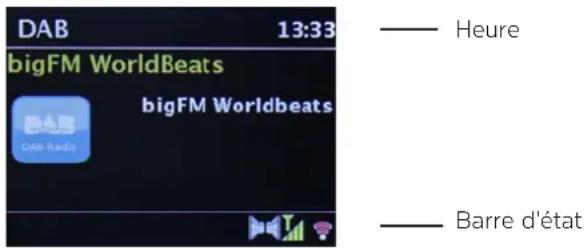
3.10 Visual displays
Depending on the selected function/source, the visual display shown may vary. Take note of the instructions on the display.
Current source
Station name,
track, artist,
additional
information,
menu, lists
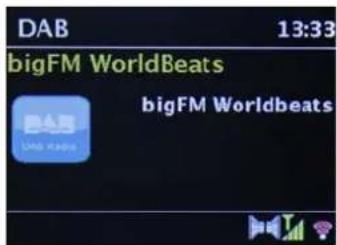
Time
Status bar
4 Initial set-up
After switching on the DIGITRADIO 143 CD for the first time, the initial set-up wizard starts.
i Settings can all be changed at any time in the future.
To launch the initial set-up wizard, use the arrow buttons on the remote control to select the [YES] field and press the OK button.
In the next step you can select the time format. Select the desired setting [12] or [24] and press the OK button to move on to the next step.
Here it is possible to select which source (DAB+, FM or the Internet) the DIGITRADIO uses to obtain and update the time and date. Once selected, proceed to the next step to enter the time zone to ensure that the time is displayed correctly.
Proceed to specify whether summertime or wintertime is applicable at the time of setting.
In the next step you can specify whether the DIGITRADIO should remain connected to the Internet when on standby. Power consumption is, however, increased by using the standby mode.
The network wizard then starts and you can set up an Internet connection. Use the OK button to select your familiar WLAN network and enter the password using the displayed keyboard. Then select OK and press the OK button. If the password entered is correct a connection to the network is now established. The signal bar in the status bar of the display indicates whether the connection has been established. To cancel the entry, select CANCEL and press the OK button. If you make a typing error you can delete the last letter entered using BKSP
When the virtual keyboard is shown on the display, you can browse using the arrows buttons and the VOL+/- buttons on the remote control. The up/down arrow buttons move the highlight upwards and downwards, the VOL+/- buttons move the highlight to the right and left.
If you have connected the DIGITRADIO to the network using a LAN cable, select the [CABLE] item.
After completing the network set-up, confirm the message that the initial set-up has been completed by pressing the OK button.
5 Internet radio
The DIGITRADIO 143 CD is equipped with an Internet radio receiver. In order to receive Internet radio stations/channels, you need an Internet connection using a connected LAN cable or connection to a wireless network. Consult Section 14.2 as to how to set up an Internet connection.
Press the MODE button as often as required until [Internet Radio] is shown on the display.
Alternatively:
Press the MENU button and then select Main menu > Internet radio.

If you are in a submenu, select the main menu as described in Section 3.7.

If you start the Internet radio mode for the first time without having configured a LAN or WLAN connection during the initial set-up, the search wizard appears which shows you all the WLAN stations within range. Use the OK button to select your familiar WLAN network and enter the password using the displayed keyboard. Then select OK press the OK button. If the password entered is correct a connection to the network is now established. The signal bar in the status bar of the display indicates whether the connection has been established. To cancel the entry, select CANCEL and press the OK button. If you make a typing error you can delete the last letter entered using BKSP
5.1 Last listened to
Select MENU > Last listened to, to display a list with the last stations listened to.
Using the up/down arrow buttons select a station and play it by pressing OK.
5.2 Station list

Press the MENU button and select the station list from the available categories.
Under Station list, all Internet radio stations are displayed divided into different categories. You can also access to your Favourites here.
Based on a category/country/genre, select a station and press the OK button.
To add a station to the My favourites list, keep the OK button pressed during playback until [Favourite added] appears. Alternatively:
Keep the PRESET button pressed until [Save default setting] appears on the display. You can now choose from one of 30 favourites memory slots using the up/down arrow buttons. To save the station, press the OK button once the highlight is on the desired favourites memory slot. [saved] appears on the display.
Alternatively:
Keep one of the number buttons 1 - 10 pressed to save a station on a number button.
To obtain additional information on the current station being played, press the INFO button.
To add own stations or favourites, please register them on the website: http://nuvola.link/sr. To do so, you need an access code that you can request in the DigitRadio 143 CD under Internet radio > MENU > Station list > Help. Further information on how to use the NUVOLA website can be found in the download area of the DIGITRADIO 143 CD.
There are several options available for retrieving favourite stations:
Select Internet radio > MENU > Station list> My favourites > Stations. All favourites that you have added by keeping the OK button pressed or via the website are stored here. Select a station with the up/down arrow buttons and play it by pressing the OK button.
Briefly press the PRESET button and select a station from the stored station list using the arrow buttons. Press the OK button to play the station.
Press one of the number buttons 1-10, to directly select the station.
6 Playing music (UPnP media)
You have the option of playing music media stored on a UPnP server or a connected USB mass storage device via the DIGITRADIO 143 CD. In order to be able to access a UPnP server, a connection to a network (router) is required. To do so, observe the instructions in section 14.2 on setting up a network connection.
6.1Playback via UPnP
The UPnP media server has to be located on the same network as the DIGITRADIO 143 CD.
Press the MODE button as often as required until [Play music] is shown on the display.
Alternatively:
Press the MENU button and then select Main menu> Play music.
If you are in a submenu, first of all select the main menu as described in section 3.7.
If you are starting music playback mode for the first time without having configured a WLAN connection, the search wizard appears which shows you all the WLAN stations within range. There is more information on setting up a network connection in section 14.2.
6.1.1 Playing media
Select [Shared media] followed by the server on which your music is located.
The folder structure display depends on the folder structure on your media server.
Select [Playback list], to play lists on your media server.
In the menu you have the [Random playback] and [Repeat] playback options available. A corresponding symbol appears in the status bar.
If you have selected a media server, you can use [Search] to search directly for a track.
Select a music track using the arrow buttons and confirm the selection by pressing the OK button.
The playback buttons Play/Pause (2), Stop (16) and Skip track (3, 15) are used to adjust the playback accordingly.
6.1.2 Music via Windows Media Player
As an alternative to a UPnP server, it is also possible for you to play music using Windows Media Player starting from version 10. To do so, music sharing must be set up in Windows Media Player.
Ensure that the Windows PC and the DigitRadio 143 CD are located in the same network and switched on.
Start the Media Player and enable media streaming sharing.
If required, select the DigitRadio 143 CD in the following device overview and select Allow.
The procedure may vary depending on the Windows/Media Player version.
6.2Playback via a USB mass storage device
Supported music files on a USB mass storage device can be played on the DIGITRADIO 143 CD. To do so, insert the USB mass storage device, e.g. a USB stick in the USB port (3) on the front of the DIGITRADIO 143 CD.
In Play music, select the Submenu > [Play from USB] and press the OK button.
Select a music track using the arrow buttons and confirm the selection by pressing the OK button.
The playback buttons Play/Pause (2), Stop (16) and Skip track (3, 15) are used to adjust the playback accordingly.
7 Spotify Connect
Use your smartphone, tablet or computer as a remote control for Spotify.
You can find out more by going to www.spotify.com/connect.
The Spotify software is subject to third-party licences that you can find here: http://www.spotify.com/connect/third-party-licenses
8 The DAB function
DAB+ is a digital format through which crystal clear sound with no noise can be heard. In contrast to conventional analogue radio stations, DAB+ can be used to broadcast multiple stations on the same frequency. You can find further information, for example, at www.dabplus.de or www.dabplus.ch.
8.1 DAB radio reception
Press the MODE button as often as required until [DAB Radio] appears on the display.
Alternatively:
Press the MENU button and then select Main menu > DAB.
If you are in a submenu, first of all select the main menu as described in section 3.7.
If DAB is being started for the first time, a complete station scan is performed. The station list is then shown (see Section 8.3).
8.2 Performing a station scan
The automatic scan [Complete scan] scans all DAB Band III stations and thereby finds all stations being broadcast within the reception range.
After ending the scan, the first station in alphanumeric order will be played.
In order to perform a complete scan, press the SCAN button. [Scan] appears on the display. The scan starts and the progress bar appears on the display.
When completed, press or and OK to select a station.
Alternatively:
Press the MENU button and use or to select > Complete scan. Confirm by pressing OK.
If no station is found, check the antenna position and change the location if required. Check whether digital radio stations are being broadcast in your area.
8.3 Selecting the station
You can check the stations found on the device. To do so, press or and the station list appears.
To select a station press OK.
Alternatively, you can press the MENU button and, use or to select > Station list.
8.4 Saving DAB stations
The favourites memory can store up to 30 stations in the DAB range.
The saved stations remain stored even in the event of a power cut.
Setting the desired stations.
Keep the PRESET button pressed until the favourites memory list appears.
Using the or buttons, select a memory slot between 1 and 30 and press the OK button. [saved ] appears on the display.
Alternatively:
Press one of the number buttons 1-10 and keep it pressed until [Saved] appears on the display.
Repeat the process to save other stations.
8.5 Selecting the programmed stations
Briefly press the PRESET button.
Using the or buttons, select a memory slot between 1 and 30 and press the OK button to play the station saved there.
Alternatively:
Press the desired number button 1-10. If no station is saved in the selected programme slot, [Memory slot empty] appears.
8.6 Deleting a saved memory slot
Simply save the new station in the respective channel slot as described in Section 8.4.
8.7 Signal intensity
Press the INFO button as often as required until the signal intensity is shown:
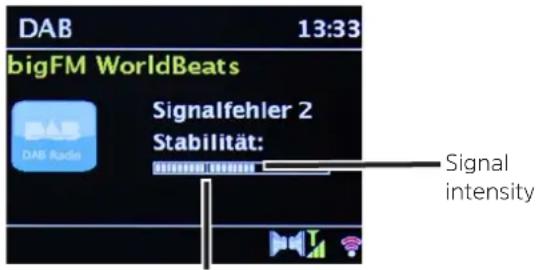
Minimum signal intensity
The bar modulation shows the current level.
Stations with a signal intensity below the required minimum signal intensity are not transmitting a strong enough signal. Adjust the antenna position again if required.
Under the menu item Manual setting, you can select the reception channels individually and see their signal intensity. You can adjust the telescopic antenna optimally for channels suffering from poor reception in the installation location. This is how stations which have not been found during a scan up until now can be found and played. To do so, select MENU > Manual setting and then a station frequency. The signal intensity is thereupon shown in this frequency.
i By pressing the INFO button several times, different information is scrolled through, such as station type, multiplex name, frequency, signal error rate, data bit rate, station format, date, DLS.
8.8 Setting DRC
The compression rate balances dynamic vibrations and thereby any volume variations that occur. Press the MENU button and select >Volume adjustment to choose the desired compression rate.
With the compression rate choose: DRC high - High compression DRC low - Low compression DRC off - Compression switched off.
Confirm by pressing OK.
8.9 Deleting inactive stations
With the function Delete inactive stations, you can clean the station list of stations which are no longer broadcasting or can no longer be received.
Press the MENU button and use or to select > Delete inactive stations.
Confirm by pressing the OK button.
Using ▲ or ▼, select > Yes and confirm by pressing OK.
8.10 Sorting the stations
Press the MENU button and then or to select >Station order.
Select a sorting type and confirm your selection with OK.
You have the choice between: Alphanumeric, Provider and Valid.
9 FM mode
9.1 Switching on FM radio mode
Press the MODE button as often as required until [FM Radio] is shown on the display.
Alternatively:
Press the MENU button and in the Main menu select > FM.
If you are in a submenu, select the main menu as described in Section 3.7.
When switching on for the first time, the frequency 87.5 MHz is set.
If you have already set or saved a station, the radio plays the station last set.
In the case of RDS stations, the station name appears.
To improve reception, readjust the antenna if required.
9.2 USW reception with RDS information
RDS is a procedure for broadcasting additional information via FM stations. Broadcasters with RDS might, for example, broadcast their station name or the programme type. This is shown on the display.
The device can show the following RDS information
RT (Radio text),
PS (Station name),
PTY (Programme type).
9.3 Manual station selection
Press ▲ or ▼ in USW mode to set the desired station. The display shows the frequency in steps of 0.05 MHz.
9.4 Automatic station selection
Press the SCAN button to start the automatic station scan. The station frequency runs upwards on the display.
or
Keep or pressed for approx. 2 seconds to automatically search for the next station with a strong enough signal.
If a FM station with sufficient signal intensity is found, the scan stops and the station is played. If an RDS station is being received, the station name appears and, possibly, radio text.
Please use manual station selection for setting weaker stations.
In Menu > Scan setting, you can set whether the scan only finds strong stations (Strong stations only > YES) or all stations (Strong stations only > NO). To do so press the MENU button and > Scan settings. Confirm the selection with OK.
9.5 Setting mono/stereo
Press the MENU button and use or to select > Audio setting.
Select YES or NO, for playback in mono sound only in the event of weak FM reception.
Confirm by pressing OK.
9.6 Saving USW stations
The favourites memory can store up to 30 stations in the USW range.
The saved stations remain stored even in the event of a power cut.
Setting the desired stations.
Keep the PRESET button pressed until the favourites memory list appears.Using the or buttons, select a memory slot between 1 and 30 and press the OK button. [Saved] appears on the display.
Alternatively:
Press one of the number buttons 1 - 10 and keep it pressed until [Saved] appears on the display.
Repeat the process to save other stations.
9.7 Selecting the programmed stations
Briefly press the PRESET button.
Using the or buttons, select a memory slot between 1 and 30 and press the OK button to play the station saved there.
Alternatively:
Press the desired number button 1-10. If no station is saved in the selected programme slot, [Memory slot empty] appears.
9.8 Deleting a saved memory slot
Simply save the new station in the respective channel slot as described in Section 9.6.
10 Bluetooth
10.1 Activating the Bluetooth mode
Press the MODE button as often as required until [Bluetooth audio] appears on the display.
Alternatively:
Press the MENU button and then select Main menu > Bluetooth.
If you are in a submenu, select the main menu as described in Section 3.7.
In the status bar of the display, a flashing Bluetooth symbol indicates the pairing mode.
If the DIGITRADIO 143 CD has already been paired with another device which is within range, the connection is automatically established.
10.2 Pairing
Activate Bluetooth on your music player, e.g. a smartphone or tablet.
If you activate Bluetooth on your music player, please consult the corresponding instruction manual for the devices which you wish to pair with the DigitRadio.
Please note that only 1 device can be connected to the DIGITRADIO 143 CD at any time.Select the list of Bluetooth devices found on your music player.
In the list, search for the item DIGITRADIO 143 CD and select it. If the selection requires a PIN, enter 0000 (4 x zero).
If the pairing is completed successfully, the Bluetooth symbol on the DIGITRADIO display stops flashing.
10.3 Playing music
Select a music track on your music player and play it.
The sound is now played via the DIGITRADIO 143 CD.
i With the help of the Play buttons on the DigitRadio remote control, you can control the playback on your music player (only with compatible devices). Alternatively, use the playback controls on your playback device.
Ensure that the volume on your music player is not set too low.
Ensure that you do not exceed the maximum Bluetooth range of 10 metres to guarantee excellent playback quality.
11 Audio input
You can play sound from an external device via the DIGITRADIO 143 CD.
Connect the external device to the Audio Input (19) on the DIGITRADIO 143 CD.
Press the MODE button as often as required until [Line in] is shown on the display.
Alternatively:
Press the MENU button and then select Main menu >Line in.
For an optimum volume setting, use the volume control on the radio, as well as the one on the connected device.
Take into account that, when the volume setting is very low on the connected device and the volume setting on the radio is higher, irritating noises/murmurs are amplified accordingly and can be heard more clearly. It is recommended that you set the volume on the DIGITRADIO 143 CD on a DAB+ or USW station, for example, switch to audio input and then adjust the volume on the connected device in such a way that the overall volume of the audio input corresponds approximately to the volume of the DAB+/USW station. In this way you can also avoid considerable volume differences when switching between functions on the DIGITRADIO 143 CD.
12 CD/MP3 player
12.1 General information on CDs/MP3 CDs
The device is designed for music CDs that are played with audio data (CD-DA or MP3 for CD-R and CD-RW). MP3 formats must be created with ISO 9660 Level 1 or Level 2. Multi-session CDs cannot be read. In MP3 mode, the terms "Folder" = Album and "Track" are critical. "Album" corresponds to the folder on the PC, "title" of the file on the PC or a CD-DA track. The device sorts the albums or the tracks of an album into alphabetical order by name. If you prefer a different order, change the name of the track or album and place a number in front of the name.
When burning a CD-R and CD-RW with audio data, various problems can arise which could occasionally compromise smooth playback. This is caused by faulty software and hardware settings or the blank disc being used. Should such errors arise, you should contact your CD burner/burner software manufacturer or search for the relevant information, e.g. on the Internet.
If you create audio CDs, observe the legal requirements and do not breach third-party copyrights.
Always keep the CD compartment closed to prevent the accumulation of dust on the laser optics.
The device can play CDs with mp3 data and normal audio CDs (CD-DA). Do not use any other extensions such as .doc, .txt, .pdf, etc. if audio files are being converted to mp3. Music files ending in .AAC, .DLF, .M3U and .PLS or .WMA and some others cannot be played back.
Given the variety of different encoder software, it cannot be guaranteed that every mp3 file can be played without a problem.
In the event of tracks/files being faulty, playback will continue with the next track/file.
When burning the CD, it is worth doing so at low speed and creating the CD as a single session and finalised.
12.1.1 The discs you can use
The CD player is compatible with CD, CD-R/RW and MP3 CD media. All the discs referred to here (disc size 12 cm/8 cm CDs, playing time 74 min. or 24 min. max.) can be played with this device without an adapter.
If you transport the device, remove the discs from the drive. This prevents damage to the CD player and the disc.
The playback quality with mp3 CDs depends on the bit rate setting and the burning software used.
12.2 Playing CDs
Press the MODE button as often as required until [CD] is shown on the display.
Alternatively:
Press the MENU button and then select Main menu > CD.
To insert CDs, briefly press the CD ejector button on the device (13) or on the remote control (1). The CD compartment (4) opens outwards. It should not be prevented from doing so.
When the CD compartment is open, ensure that no foreign objects can penetrate the device. The lens of the laser sensor must not be touched under any circumstances.
1 Only open the CD compartment when the CD has stopped.
Insert the CD carefully with the printed side facing upwards. Ensure that the CD is not positioned at an angle.
To insert/remove the CD, please hold it by the edge.
Close the CD compartment using the ejector button on the device (13) or on the remote control (1). The CD is read and this is shown on the display (1).
After completing the reading process [Stop] appears on the display. With MP3 CDs, the album number also appears. If the CD is inserted incorrectly or if the CD appears to be faulty, "No CD" appears on the display.
Do not perform any operation until the CD content has been completely read, to ensure that all the required information on the CD has been read. With MP3 CDs in particular, this process can take some time.
By pressing the Play/Pause button on the remote control (2) you can start/pause the playback (the playing time flashes on the display).
The STOP button on the remote control (16) stops the playback. The total number of tracks appears on the display.
Always stop the playback prior to removing the CD.
If there is no playback, the DIGITRADIO 143 CD switches to standby after approx. 15 minutes.
12.2.1 Setting the track
Folders/albums can be selected using the F- or F+ buttons (25, 21) on the remote control.
With the help of the Skip track forward/back buttons (3, 15) on the remote control, it is possible to skip to the next or previous track respectively.
The display shows the set track number (F = folder/album, T = track)
12.2.2 Quick search
Whilst the track is running, it is possible to perform a quick search forward or back to search for a specific position. There is no playback during the search process.
Keep the Skip track forward/back (3, 15) buttons on the remote control pressed to perform a quick search forward or back within a track for as long as the button is pressed.
12.2.3 Repeat function
You can select whether you wish to repeat a track, the entire folder/album (only for MP3 CDs) or all of the elements on the CD.
To do so, press the Repeat track button repeatedly on your remote control (4). The selected mode is shown on the display (Repeat track, Repeat folder/album, Repeat all tracks).
To switch off the function again, press the Repeat track button as often as required until the repeat display is no longer shown.
12.2.4 Random playback
With the random generator, the CD tracks can be played back in random order.
During ongoing playback, press the Shuffle button on the remote control (5) and the display shows the symbol for random playback ×
To switch the function off again, press the Shuffle button again.
12.2.5 Programming function
The programming function allows you to play up to 32 tracks on a music CD or 64 tracks on an MP3/WMA-CD in an order of your choice.
i You can only undertake the programming if there is a disc in the closed CD compartment and if the device is in stop mode.
You access the stop function by pressing the STOP button on the remote control (16).
Press the PRESET (26) button on the remote control.
The display will show (for a normal audio CD) [Programme], the track number [T001] flashes, as well as the memory slot [P01].
Using the Skip track forward/back (3, 15) buttons on the remote control, select the first track to be programmed.
Save the desired track number using the OK button on the remote control (9). The track is now programmed as the first track in programme slot P01.
On the display you now see the number of the next programme slot P02.
Programme the desired order of all the tracks in this way.
You can cancel the programming using the PRESET button or the STOP button on the remote control (26, 16).
Press the Play/Pause button on the remote control (2) to start the playback of the programmed selection.
If you wish to interrupt the programmed selection, press the Play/Pause button on the remote control (2) once.
To end the programmed playback, press the STOP button on the remote control (16).
If you open the CD compartment or activate another source, the programme memory is deleted. The programming is also ended by pressing the STOP (16) button twice.
With MP3 CDs, enter the folder/album number (F) as well.
After starting the programming process by pressing the PRESET button, first of all an F flashes, followed by the folder/album number. Select the folders/albums using the F- or F+ (25, 21) buttons on the remote control.
i Track entry then takes place as for the audio CD.
12.3 CD advice
Always keep the CD in its cover and only hold it by the edges. The rainbow-coloured, shimmering surface must never be touched and must always be kept clean. Do not stick paper or adhesive tape on the label side of the disc. The CD should be kept away from intense sunlight and heat sources such as radiators.
Likewise, a CD must not be left in a parked car located directly in the sun, since the interior temperature in the car can rise considerably. Clean off fingerprints and dust on the silver side using a clean, dry cleaning cloth. To clean CDs, do not use record cleaning agents such as record spray, cleaning liquids, anti-static spray or solvents such as petrol, thinners or other commercially available chemicals. Tough stains can sometimes be removed using a moist chamois leather.
Wipe from the centre to the edge of the disc. Circular movements when cleaning cause scratches. This can lead to errors during playback.
13 Other functions
13.1 Sleep timer
The sleep timer can be used to switch the DIGITRADIO 143 CD to standby automatically after a set time.
Press the MENU button and select Main menu > Sleep timer.
If you are in a submenu, select the main menu as described in Section 3.7.
You can use the or buttons to set the period for Sleep off in 15, 30, 45, 60 minute intervals, after which the device switches to standby while in any operating mode.
Alternatively:
Press the SLEEP button several times.
In the display status bar, a clock symbol appears with the available remaining time until the DigitRadio switches to standby.
13.2 Alarm
Using MENU > Main menu> alarm you can retrieve the alarm settings.
Alternatively:
Press the ALARM (17) button on the remote control, in order to access the alarm settings directly.
13.2.1 Setting the alarm time
The alarm function cannot be used until the correct time has been set. Depending on the set-up, this either occurs automatically or needs to be set manually. The time can either be set manually or automatically using DAB USW or updated using the Internet. See Section 14.3 for further information.
Select one of the alarm time memories (Alarm 1 or Alarm 2) and set the desired values point by point using the arrow buttons / (22, 24) and OK (9) on the remote control.
Repeat Choose between repeat options Off (the alarm is switched off), Daily, Once, Weekend (SAT-SUN), Working days (MON-FRI).
Time Set the time at which you wish to be woken.
If you have chosen Once as the repeat option, the date is also required.
Mode Select the source with which you wish to be woken. The following are available
Buzzer, Internet Radio, DAB, FM
Programme Select whether playback should be from the source set beforehand, the Last listened to or one of the Favourites memory settings.
Volume Select the volume with which you wish to be woken.
Save This saves the alarm settings.
The alarm settings are not accepted until selecting [Save].
The alarm is active provided you have set the alarm repeat to Daily, Once, Weekend, or Working days. The status bar shows an alarm symbol with the corresponding number of the active alarm In the Off setting the alarm is not active for the set time.
13.2.2 Switching off the alarm after being woken
Press the On/Standby (14) button or Alarm (17) on the remote control to switch off the alarm.
The display shows [Alarm off] and the alarm symbol is shown again if the alarm repeat is set to Daily, Weekend or Working days.
13.2.3 Switching off/deactivating the alarm
As described under 13.2.1, select the alarm memory (Alarm 1 or Alarm 2) you wish to switch off/deactivate.
Open [Repeat] and set this to [Off], to deactivate the alarm.
The alarm settings are not accepted until selecting [Save].
The alarm settings are retained so that this can be easily switched on/activated again at a later date.
13.2.4 Switching on/activating the alarm
Select the alarm memory (Alarm 1 or Alarm 2) you wish to switch on/actIVATE.
Open [Repeat] and set this to Daily, Once, Weekend, or Working days to activate the alarm with the settings already available (See Section 13.2.1).
If required you can adjust the other settings as described in Section 13.2.1.
The alarm settings are not accepted until selecting [Save].
13.3 Using headphones
Do not listen to music at a high volume when using headphones. Doing so can cause permanent hearing impairment. Turn down the radio volume to the lowest volume before using headphones.
Only use headphones with a 3.5 mm jack plug.
Insert the headphone connector in the headphone socket (12) on the front of the DIGITRADIO.
When the headphones are connected, the sound is played via the headphones and the audio outputs at the same time. Volume adjustment also occurs in parallel.
14 System settings
The system settings are equally applicable to all sources.
To access the system settings, press the MENU button and select > System settings.
14.1 Equaliser
To adjust the sound of the DIGITRADIO 143 CD, the equaliser is available with the preset tuning of Middle, Classical, Rock, Pop and Jazz.
Via MENU > System settings > Equaliser you can access the equaliser settings.
Alternatively:
Press the EQUALISER (EQ.) button on the remote control (19), to directly access the equaliser settings.
Select the desired equaliser setting and press the OK button.
An * highlights the current Selection/Setting.
14.2 Internet settings
Via MENU > System settings > Internet settings you can retrieve and configure the network settings.
14.2.1 Connection via a network cable
To configure the network connection via a network cable (LAN), you have the option of using the network wizard or configuring manually.
14.2.1.1 Network wizard configuration
Connect the LAN cable to the socket labelled LAN Input (22) on the DIGITRADIO.
Select [Network wizard] to launch this.
The network wizard searches for all WLAN networks within range and subsequently shows them to you as well as the [Cable] option.
To use the network connection via a network cable (LAN) option, now select [Cable] and press the OK button.
After confirmation, the required settings, such as IP address, gateway, subnet mask, are automatically retrieved from your router, provided the DHCP function is activated in the router.
14.2.1.2 Manual configuration
Select [Manual settings] and then [Cable] to start manual configuration.
Now select whether to allow automatic retrieval of the IP address, gateway etc. from your router (DHCP active) or if you would like to enter this manually (DHCP inactive).
Please take into account that automatic retrieval of the IP address, gateway, subnet mask etc. only functions if the DHCP function in the router is activated.
One by one, enter the IP address, subnet mask, gateway address, primary DNS and secondary DNS if required, using the Arrow buttons on the remote control. Confirm each set value with the OK button.
14.2.2 Connection via WLAN
To configure the network connection via WLAN, you have the option of using the network wizard or doing so manually.
14.2.2.1 Network wizard configuration
Select [Network wizard] to launch this.
The network wizard now searches for all the WLAN networks within range and displays them to you.
Then select your WLAN network.
i You can now choose whether to use the WPS function or whether you prefer to enter your WLAN password manually.
If you would like to use the WPS function, launch it on your router as per the instruction manual and then select [Press button] in the network wizard.
i Please observe the display overlays. The connection process is generally completed in a few seconds and the WLAN connection can be used.
If you wish to enter your WLAN password manually, or if your router does not support the WPS function, select [Skip WPS].
Then enter your WLAN password using the virtual keyboard display and confirm your selection with OK.
The entered password is now verified. This process is generally completed in a few seconds and the WLAN connection can now be used.
14.2.2.2 Configuration via the WPS function
This establishes a direct connection to the router. Selecting and/or entering a WLAN network (SSID) and password is not required.
Start the WPS function on your router as per the instruction manual.
Then select [PBC WLAN structure] to launch the connection process.
Please observe the display overlays. The connection process is generally completed in a few seconds and the WLAN connection can be used.
14.2.2.3 Manual configuration
Select [Manual settings] then [Wireless] to launch manual configuration.
Now select whether to allow automatic retrieval of the IP address, gateway etc. from your router (DHCP active) or if you would like to enter this manually (DHCP inactive). Please take into account that automatic retrieval of the IP address, gateway, subnet mask only works if the DHCP function is activated in your router.
One by one, enter the IP address, subnet mask, gateway address, primary DNS and secondary DNS if required, using the Arrow buttons on the remote control. Confirm each set value with the OK button.
Now enter the name (SSID) of your WLAN network using the virtual keyboard and confirm with OK.
Select whether your WLAN network is Open, encrypted by WEP or by WPA/WPA2 and confirm the following item.
Continue to use the virtual keyboard to enter your WLAN password and confirm with OK to start the connection process.
In general, the WLAN connection can be used after a few seconds.
14.2.3 Display settings
Select [Display settings] to display the current network settings.
14.2.4 Manual setting
Manual setting of the connection parameters is described for LAN in Section 14.2.1.2 and for a wireless network (WLAN) in Section 14.2.2.3.
14.2.5 NetRemote PIN setup
Under certain circumstances, it may be necessary to secure the connection to the DIGITRADIO 143 CD with a PIN.
Enter a 4-digit PIN under [NetRemote PIN Setup].
14.2.6 Delete network profile
Use this menu item to end an existing connection to a WLAN and to delete the settings carried out. If you want to connect the device to this network again, all the settings need to be carried out again.
14.2.7 WLAN/LAN connection on standby
Under [Allow WLAN/LAN on standby?], select whether the WLAN/LAN connection is to be maintained in standby mode (YES) or not (NO).
14.3 Time settings
Via MENU > System settings > Time and date you can retrieve and configure the settings for the time and date.
14.3.1 Time/date setting
Select [Time/date setting] to set the time and date manually.
Use the or arrow buttons to change a value and confirm by pressing the OK button.
Each time the OK button is pressed, the highlight skips to the next value.
14.3.2 Update settings
Under [Update settings], select whether the time and date update should take place automatically via DAB [Update DAB], via USW [Update FM] or via the Internet [NET update] or whether [No update] should take place.
When selecting NET update, the menu items [Set time zone] and [Summertime] are also available.
When selecting [No update], the date and time must be set manually as described in Section 14.3.1.
14.3.3 Set format
In [Set format] you can choose whether the time is to be shown in 12 or 24 hour format.
14.3.4 Set time zone (only for NET update)
In [Time zone] select the time zone corresponding to your location.
14.3.5 Summertime (only for NET update)
In [Summertime] you stipulate whether it is currently summertime (On) or wintertime (Off).
14.4 Language
Via MENU > System settings > Language you can selected the preferred menu language.
14.5 Factory settings
Go to MENU > System settings > Factory settings to reset your DIGITRADIO 143 CD to the factory settings.
Please note that, in this case, all the settings carried out by you (e.g. network connection or saved stations) will be lost and must subsequently be carried out again to be able to use the radio as usual.
If you actually wish to reset the radio, select the security prompt [YES] or abort the process with [NO].
After completion of the factory settings the radio switches to standby. When next switched on, the set-up wizard is launched again (Section 4).
14.6 Software update
From time to time software updates may be provided which could contain improvements or bug fixes. This keeps the DIGITRADIO permanently up-to-date.
Go to MENU > System settings > Software update.
If the DIGITRADIO 143 CD is to search periodically for new software versions, go to [Auto update] and select > [YES], or select [NO] if this is not to be carried out automatically.
Select [Check now], if you want to check directly whether a new software version is available.
If a software update has been located, follow the instructions on the display.
In order to find and upload software updates, the radio must be connected to the Internet.
Do not switch the DIGITRADIO 143 CD off during the update process!
14.7 Set-up wizard
The set-up wizard starts automatically after switching on the DIGITRADIO 143 CD for the first time, after retrieving the factory settings, or can be launched manually in MENU > System settings > Set-up wizard. Go to Section 4 to see how to configure the set-up wizard.
14.8 Info
In MENU > System settings > Info you can see the software version currently installed in the device as well as, for example, the Spotify version.
14.9 Display Illumination
Via MENU > System settings > Illumination, you can retrieve the settings for the display illumination.
Select [Operating mode] or [Standby mode] in order to carry out the setting for operation or standby.
You can now set the brightness for operation in three steps from High, Medium to Low and for standby in [Display illumination] to High, Medium, Low and Off.
Moreover, for the standby mode you can use [Timeout] to set the duration after which the display illumination changes to the set brightness after switching off.
15 Cleaning
To prevent the risk of an electric shock, you must not clean the device using a wet cloth or under running water. Remove the mains plug prior to cleaning!
You must not use scouring pads, scouring powder and solvents such as alcohol, petrol, white spirit, thinners, etc.; they could damage the surface of the device.
Do not use any of the following substances: salt water, insecticides, chlorine or acid-based solvents (ammonium chloride).
Clean the housing using a soft, damp cloth.
Only clean the display with a soft, cotton cloth. If required, use the cotton cloth with a reduced volume of non-alkaline, diluted water-based soap solution.
Use the cotton cloth to gently rub the surface until it is completely dry.
16 Troubleshooting
If the device does not operate as intended, check the following tables for information.
16.1 General problems
| Symptom Possible cause/ remedy | |
| The device cannot be switched on. The device is not being supplied with power. Connect the mains plug correctly to the mains outlet. If necessary, select another power outlet. | |
| No sound can be heard. Increase the volume. If necessary, the incorrect source has been selected. The mute function may be active. | |
| The display does not switch on. Switch off the device, disconnect from the mains. Switch on the device. | |
| Interference can be heard. In the vicinity of the device, a mobile phone or other device is emitting disruptive radio waves. Remove the mobile phone or the device from the environment of the unit. | |
| Other operational malfunctions, loud noises or a malfunctioning display indication are occurring. | Electronic device components are faulty. Remove the mains plug. Leave the device disconnected from the power source for approx. 10 seconds. Reconnect the device. |
16.2 Problems with USB media
| Symptom Possible cause/ remedy | |
| No playback possible. The device is not in USB mode. | Switch to the respective source using MODE. |
| Medium not inserted or empty. Insert the medium correctly or provide it with music data. | |
16.3 Problems with the remote control
| Symptom Possible cause/r | remedy |
| The remote control does not work. Batteries | are inserted incorrectly or are low. Check the polarity. Change the batteries. |
| IR connection interrupted. Remove objects located between the remote control and the device. | |
| Distance too great. Max. distance from the device: approx. 4 metres |
16.4 Problems with the radio
| Symptom Possible cause/remedy | |
| No radio stations are being received. The device is not in radio mode. Press the MODE button and select DAB or FM. | |
| No DAB signal is being received. Check whether DAB reception in your region is possible. Readjust the antenna. Try to receive other stations. Perform a station scan. | |
| The sound is low or of poor quality. Other devices, e.g. televisions, are interfering with reception. Move the unit further away from these devices. | |
| The antenna is incorrectly routed or aligned. Change the position of the aerial antenna |
16.5 Problems with the CD player
| Symptom Possible cause/remedy | |
| The CD is not playing or skips during playback. | The device is not in CD mode. Faulty CD inserted. |
| The CD compartment is not closed. Close the CD compartment. | |
| The CD is incorrectly inserted. Insert the CD with the labelled side facing upwards. The CD must be properly centred in the CD compartment. | |
| The CD is dirty or faulty. Clean the CD, use another CD. | |
| Moisture has penetrated the CD compartment. Remove the CD and leave the CD compartment open for approx. 1 hour to dry. | |
| The CD playing time is more than 74 minutes. | |
| The sound is intermittent. The volume is set too high. | Decrease the volume. |
| The CD is damaged or dirty. Clean the CD or replace it. | |
| The device is being exposed to vibration. Install the device in a location with low vibration. | |
16.6 Problems with external input
| Symptom Possible cause/remedy |
| No sound from the external input (AUX). Is the device correctly connected? |
| Is AUX selected as the input source? |
| Has playback been started on the external device and has the output volume been set? |
If the malfunction has not been resolved, even after performing the checks described, please contact the Technical Hotline (for further information see Seite 12).
17 Technical data
| Reception channels DAB/DAB+, USW, Bluetooth, Internet, Spotify Connect, USB, CD, network drive | |
| LAN WLAN/Bluetooth frequencies | LAN: 10/100 WLAN 802.11b, g, a, n, 2412 - 2472 MHz (max. +20dBm EIRP), 5180 - 5700MHz (max. +19.5dBm EIRP) Bluetooth: V4.2+EDR, 2402 - 2480 MHz (max. 4dBm Class II) L2CAP/A2DP |
| Display 3.2" TFT colour display | |
| WLAN encryption WEP, WPA, WPA2, WPS | |
| DAB frequencies 174 - 240 MHz | |
| USW frequencies 87.5 - 108 MHz | |
| Power supply 110-240V ~ 50/60Hz | |
| Power consumption Operation: ~5.5W Standby: <1W | |
| Connections Analogue Audio-Out | RCA L+R, Analogue Audio-In RCA L+R, Digital Optical and Coaxial, 3.5 mm headphone jack, LAN jack, USB jack, antenna F connector WLAN antenna connection |
| Favourites memory slots DAB/DAB+: 30 USW: 30 Internet: 30 Spotify Connect: 10 | |
| Operating temperature 0° - 40°C | |
| Dimensions mm (W x D x H) 435 x 275 x 77 | |
Mode d'emploi
DIGITRADIO 143 CD
TechniSat
Sommaire
1 Consignes importantes 62
1.3 Mentions legales

The Spotify Software is subject to third party licenses found here: https://www.spotify.com/connect/third-party-licenses.

Station, Title, Intowns
Interpret,
Informations
supplémentaires,
menu,lists
ll software Spotify esoggetto a licenze di terze parti riortate qui: https://www.spotify.com/connect/third-party-licenses.

The Spotify Software is subject to third party licenses found here: https://www.spotify.com/connect/third-party-licenses.

http://www.spotify.com/connect/third-party-licenses
8 De DAB-functie
http://www.spotify.com/connect/third-party-licenses
8 Funkcja DAB
8.4 Ulozeni DAB stanic
The Spotify Software is subject to third party licenses found here: https://www.spotify.com/connect/third-party-licenses.

V niizie uvedenych krajinach sa sme pristoj prevadzkovat' v sieti WLAN s dosahom 5 GHz iba v uzavretych miestnostiich.
| BE CY FI FR HU LV LI | |||||
| LU NL ES SE UK CH | |||||
1.4 Servis a podpora
http://www.spotify.com/connect/third-party-licenses
8 Funkcia DAB
16.2 Problemy's USB medlami

- Important information
- Safety
- Disposal
- Disposal instructions
- Legal notices
- Service instructions
- Figures and description
- Front view description
- Connecting the device and operation
- Scope of delivery
- Inserting the batteries
- Connection
- Switching on/off
- Source selection
- Adjusting the volume
- Menu operation
- Activating the mute function
- Retrieving visual displays
- Internet radio:
- Music playback (UPnP/USB media):
- DAB mode:
- USW mode:
- CD/MP3 and USB playback:
- Spotify Connect:
- Visual displays
- Initial set-up
- Internet radio
- Last listened to
- Station list
- Playing music (UPnP media)
- 6.1Playback via UPnP
- Playing media
- Music via Windows Media Player
- 6.2Playback via a USB mass storage device
- Spotify Connect
- The DAB function
- DAB radio reception
- Performing a station scan
- Selecting the station
- Saving DAB stations
- Alternatively:
- Selecting the programmed stations
- Deleting a saved memory slot
- Signal intensity
- Setting DRC
- Deleting inactive stations
- Sorting the stations
- FM mode
- Switching on FM radio mode
- USW reception with RDS information
- Manual station selection
- Automatic station selection
- Setting mono/stereo
- Saving USW stations
- Selecting the programmed stations
- Deleting a saved memory slot
- Bluetooth
- Activating the Bluetooth mode
- Pairing
- Playing music
- Audio input
- CD/MP3 player
- General information on CDs/MP3 CDs
- The discs you can use
- Playing CDs
- Setting the track
- Quick search
- Repeat function
- Random playback
- Programming function
- CD advice
- Other functions
- Sleep timer
- Alarm
- Setting the alarm time
- Buzzer, Internet Radio, DAB, FM
- Switching off the alarm after being woken
- Switching off/deactivating the alarm
- Switching on/activating the alarm
- Using headphones
- System settings
- Equaliser
- Internet settings
- Connection via a network cable
- Network wizard configuration
- Manual configuration
- Connection via WLAN
- Network wizard configuration
- Configuration via the WPS function
- Manual configuration
- Display settings
- Manual setting
- NetRemote PIN setup
- Delete network profile
- WLAN/LAN connection on standby
- Time settings
- Time/date setting
- Update settings
- Set format
- Factory settings
- Software update
- Set-up wizard
- Info
- Display Illumination
- Cleaning
- Troubleshooting
- General problems
- Problems with USB media
- Problems with the remote control
- Problems with the radio
- Problems with the CD player
- Problems with external input
- Technical data
- Mode d'emploi
- Sommaire
- Mentions legales
- De DAB-functie
- Funkcja DAB
- Ulozeni DAB stanic
- Servis a podpora
- Funkcia DAB
- Problemy's USB medlami
Brand : TECHNISAT
Model : DIGITRADIO 143
Category : Receiver