You Color E501 - Smartphone NGM - Free user manual and instructions
Find the device manual for free You Color E501 NGM in PDF.


| Product Type | Smartphone |
| Brand | NGM |
| Model | You Color E501 |
| Dual SIM | Yes, management of two SIM cards |
| Operating System | Android |
| Connectivity | Bluetooth, Wi-Fi |
| Battery | Removable, insert after removing the battery |
| Power | Rechargeable battery |
| Main Functions | Dual SIM, calls, SMS/MMS, data connection, 3G, personalized ringtones per SIM |
| Maintenance and Cleaning | Wipe with a soft dry cloth, avoid moisture |
| Safety | Turn off before removing the battery, follow SIM insertion instructions |
| Spare Parts and Repairability | Removable battery, SIM cards and memory accessible |
| General Information | User manual available, compatibility with 3G networks (SIM1 slot) |
Frequently Asked Questions - You Color E501 NGM
User questions about You Color E501 NGM
0 question about this device. Answer the ones you know or ask your own.
Ask a new question about this device
Download the instructions for your Smartphone in PDF format for free! Find your manual You Color E501 - NGM and take your electronic device back in hand. On this page are published all the documents necessary for the use of your device. You Color E501 by NGM.
USER MANUAL You Color E501 NGM
Copyright © 2015 NGM Italia
Welcome to the NGM Android™ Dual SIM world. With your new smartphone NGM YouColor E501 you will enjoy the convenience of Dual SIM, that is the ability to handle two SIM cards and consequently two telephone numbers with a single device. You will discover useful features such as setting the preferred SIM for calls, messages and data connection and the possibility to quickly move the data connection, and automatically the 3G, from one SIM to
the other without physically having to exchange them. At any time you can manage ringtones and notifications for each SIM card independently, exactly as if you had two separate devices.
Copyright © 2015 NGM Italia
No part of this manual may be reproduced, distributed, translated, or transmitted in any form or by any means, electronic or mechanical, including photocopying, recording, or storing in any information storage and retrieval system, without the prior written permission of NGM Italia.
Bluetooth® is a registered trademark of the Bluetooth SIG, Inc. worldwide.
Wi-Fi® and the Wi-Fi logo are registered trademarks of the Wi-Fi Alliance.
ENGLISH
Warning: insert SIM and SD card only after removing the battery, in order to prevent data loss.
Setup
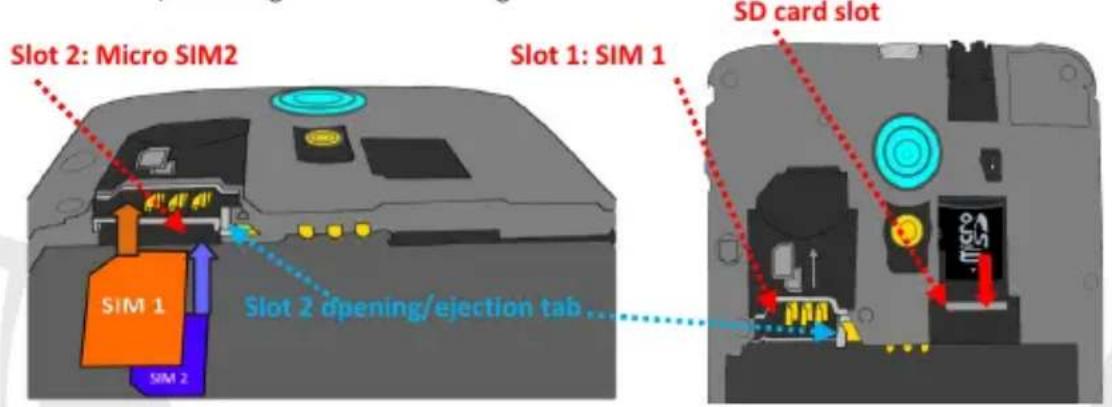
Insert the SIM cards: To access the compartment containing the SIM slots, turn off the phone and lift up the cover starting from the slit on the bottom right corner. Remove the battery and insert the SIM cards as shown in the figure. It is advisable to first insert the SIM2 that shall be placed into the inner slot with the gold contacts facing upwards. To insert the micro-SIM 2, carefully pull out the metal tab next to slot 2 that opens the slot and will also help to remove the micro-SIM card from slot 2. Then, insert SIM1 into slot 1 above slot 2, with its gold contacts facing downwards.
Managing the two SIM cards: from the main menu, select Settings > SIM Management. Select the on/off keys next to the phone operators corresponding to "SIM1" and "SIM2" to activate or deactivate selectively the SIM at any time. From this menu you can also customize the color and name for each SIM icon and decide which SIM to use as default for calls, messages and data connection or choose "always ask" if you don't want to set a SIM card as default. By selecting a SIM for data connection, the 3G service will be automatically activated on the same SIM. This allows you to move the 3G connection (normally available on slot1 only) from one SIM to the other without physically exchanging them.
SET RINGTONES WITH DUAL SIM
The Dual SIM management allows you to set a different ringtone for each SIM. From the main menu, select Settings > Sound and Notification > General.
Select Voice call ringtone > SIM1 or SIM2 and choose the desired ringtone for each SIM card. If you want to set a custom ringtone: in Music, select the desired audio track and choose Use as Ringtone in the contextual menu. The audio file will be added to the available ringtones list.
ENGLISH 11
MANAGE CALLS WITH DUAL SIM
From the main screen touch the Phone icon; use the virtual keypad to enter the desired phone number (select icon to display the virtual keypad)
Press the handset icon and choose the desired SIM to call with.
To end the call press the red end call key.
To answer a call, select Reply on the popup that appears at the top of the screen, or tap the pop-up itself to display the call screen. Now drag the phone icon to the right onto the blue handset to answer the call; to reject it, drag it to the left onto the red handset, to reject with a message drag the phone icon upwards. To silence an incoming call, press Volume "+" or "-" (on the right side of the phone).
Call a number from the call log
From the main menu, first select the Phone App and then select Call Log from the contextual menu (hide the virtual keypad first); this will display the call logs with the missed, received and outgoing calls.
Select the desired number and then Call back. In case no default SIM has been set choose which SIM to call with.
Send SMS and MMS with Dual SIM: from the main menu, choose Messaging and then the icon on the top. Type the first letters of a name into the recipients field to search for a contact and select it from the pop-up or directly enter the phone number; otherwise select the icon next to the field and select the recipient(s) from the contacts. Write the text into the dedicated space with the virtual keypad. Select the "+" icon to insert multimedia files (the message will automatically be converted into MMS) and press key, selecting the SIM you want to use.
Choose the preferred SIM for data connection: to better use the potentiality provided by the device and its operating system, you must have an active data connection; data connection of NGM YouColor E501 is active when you first power ON the phone. If it is not included into your mobile phone plan, data traffic may cause you extra costs, so it is recommended to configure an Internet connection via WiFi. To enable data traffic on one of the SIM cards, select Settings > SIM Settings > Data connection, and choose the SIM on which activate data connection and automatically the 3G service, then activate it from the Quick Setup buttons in the notifications panel.
Warning: formatting and delivery of this user manual is based on the Android™ operating system, NGM Italia will not bear responsibility for any incompliance with the above guidelines or improper use of the mobile phone. NGM reserves the right to modify any of the content in this user guide without previous public announcement. The content of this manual may vary from the actual content displayed in the mobile phone. In that case, the latter shall govern.
ENGLISH
Copyright © 2015 NGM Italia
Copyright © 2015 NGM Italia
Copyright © 2015 NGM Italia
Brand : NGM
Model : You Color E501
Category : Smartphone