Explorer - Smartphone NGM - Free user manual and instructions
Find the device manual for free Explorer NGM in PDF.


| Type | Smartphone |
| Brand | NGM |
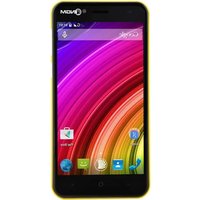
| Model | Explorer |
| Dimensions | Rugged design, approx. 152 x 80 x 16 mm (estimated) |
| Weight | Approx. 250 g (estimated for IP68 rugged phone) |
| Battery | Lithium-ion, replaceable, charge via USB or AC adapter |
| Display | Touchscreen with Corning Gorilla Glass |
| SIM Card | Dual USIM (USIM1 supports WCDMA, USIM2 supports GSM) |
| Memory | microSD card slot (under USIM1 slot) |
| Operating System | Proprietary OS (likely Android-based, not specified) |
| Processor | Not specified, but supports GPS, Wi-Fi, Bluetooth |
| Connectivity | Wi-Fi 802.11 b/g/n, Bluetooth, GPS, WCDMA/GSM |
| Water/Dust Resistance | IP68 certified (dust-tight, waterproof up to 1.5m) |
| Camera | Not specified, but typical for rugged phone |
| Special Features | SOS key with GPS SMS, SwiftKey keyboard, Corning Gorilla Glass |
| SAR Value | 0.498 W/kg (at ear), 1.5 cm distance from body |
| Maintenance | Keep dry, clean with soft cloth, use original accessories |
| Safety | Do not use while charging, avoid voltage jumps, keep 1.5 cm from body |
| Spare Parts | Use only original NGM batteries and chargers |
| Certifications | R&TTE Directive 1999/5/EC, CE |
| Charging | USB cable + wall adapter, PC USB port, LED indicator (red charging, green full) |
Frequently Asked Questions - Explorer NGM
User questions about Explorer NGM
0 question about this device. Answer the ones you know or ask your own.
Ask a new question about this device
Download the instructions for your Smartphone in PDF format for free! Find your manual Explorer - NGM and take your electronic device back in hand. On this page are published all the documents necessary for the use of your device. Explorer by NGM.
USER MANUAL Explorer NGM
natural_image
Technical diagram of an electronic device casing with internal components and a red arrow pointing to a component (no text or symbols present)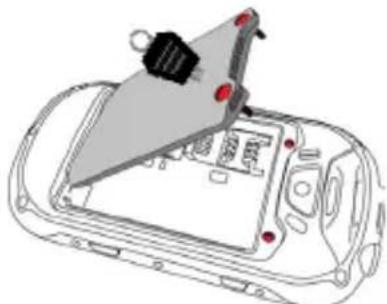
natural_image
Technical line drawing of a car interior with a mounted device (no text or symbols visible)
S.A.R. (Specific Absorption Rate)
Installing the USIM cards
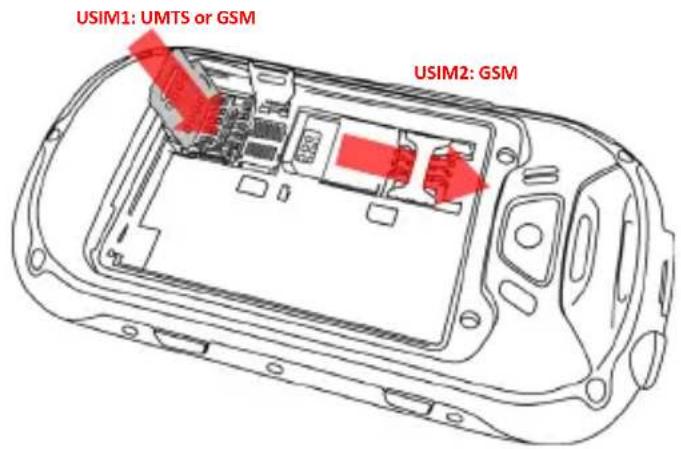
The USIM card stores information as your personal phone number, PIN code, carrier services numbers, contacts and other important details. To access the USIM slots, turn off the phone, take off the back cover by unscrewing the two big screws on the cover and lifting it up and extract the battery. Insert USIM2 by sliding it with its golden contacts facing downwards. USIM1 supports WCDMA, it should be installed after installing the memory card since its slot contains the micro-SD slot. Open the metallic grid by pushing it into the “open” position. Insert the USIM card into the metallic grid so that the metallic contact will be turned downwards when you close the grid. Push the grid into the “Lock” direction to close it.
Installing the memory card
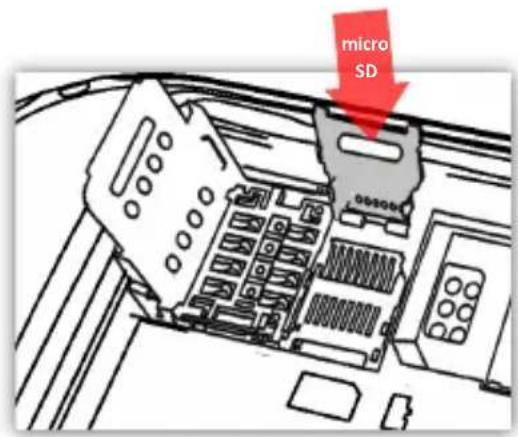
In order to use all functions of NGM WEMOVE EXPLORER, it is advisable to install a micro-SD card: it must be inserted in the back side of the phone, after powering it off and removing the battery. A dedicated slot fort the memory card is placed under the USIM1-slot. Unlock the micro-SD grid by pushing it into the "Open" direction. Slide in the memory card into the opened metallic grid so that the gold contacts will be facing downwards when you close the grid. Close the grid and push it into the "Lock" position.
Inserting the battery
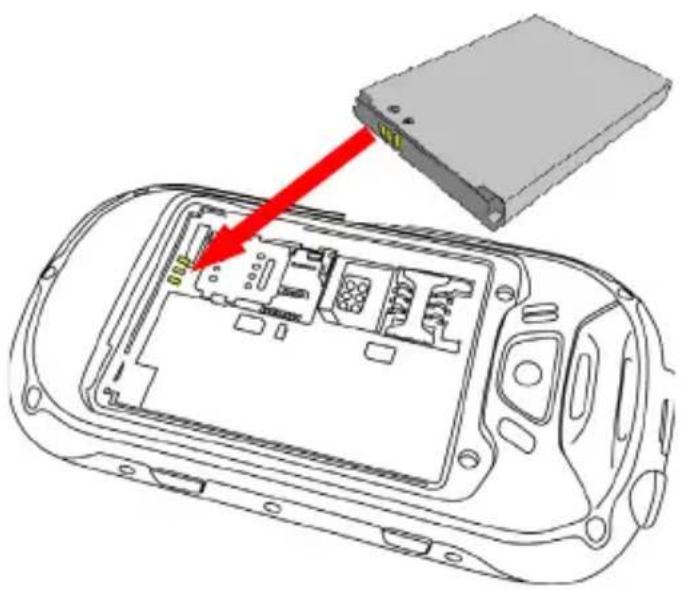
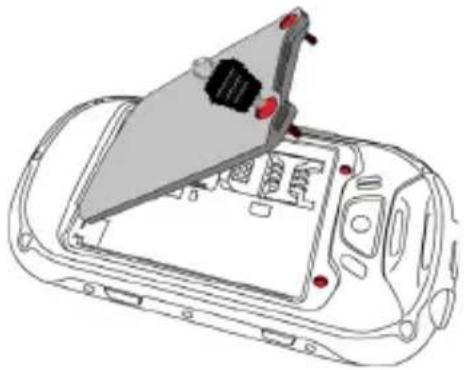
Your device is provided with a lithium-ion battery and is designed to be used exclusively with original NGM batteries and chargers. The battery must be inserted into the backside of the phone (see illustration below) with the battery contacts facing the contacts in the battery tray. When done, put the hind cover back into position and close the screws by turning them clockwise with the dedicated screwdriver.
natural_image
Technical diagram of an electronic device casing with internal components and a red arrow indicating assembly (no text or symbols present)Charging the battery
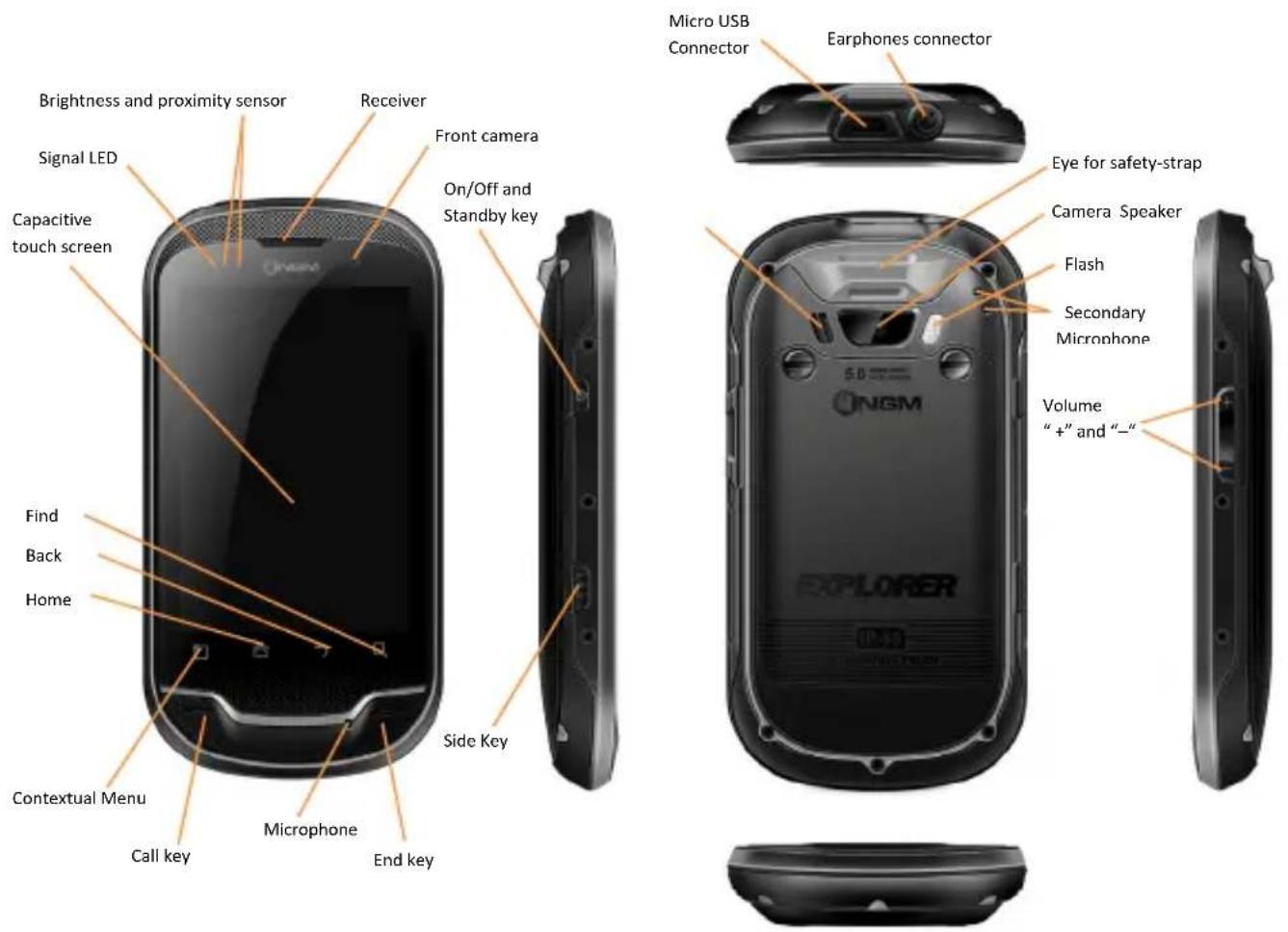
Please charge the battery completely before starting to use the device. Use the provided USB cable, connecting one end to the provided wall socket adaptor (placed into a socket) and the other end to the USB connector placed on the lower side of the phone. The phone can also be charged by connecting it to a PC USB port. While the battery is charging, an animation on screen will show the charging progress if the phone is on. Once charge is completed, the icon will be filled and the phone can be disconnected from the grid. If the phone is off, the signaling LED will be red during the charging process and it will turn green when charging is completed.
Warning: Do not connect the phone to a booting-up or running down PC to avoid voltage jumps. In order to preserve the correct functioning of the device and in order not to compromise warranty, the sole use of original NGM battery chargers and accessories are recommended. Please charge the battery indoors, in a dry and favorable environment. It's normal for the battery to get slightly warm during the charging process. The battery will reach the full capacity when cycled several times.
natural_image
Technical line drawing of a car interior with a mounted device component (no text or symbols visible)
Turn on, turn off and standby
Press and hold the Power key to turn the phone on. Press and hold the same key and confirm your intention to turn off the phone. A quick pressure of the on/off key sets the phone on standby-mode (screen off) or to go back to the standby screen (see below).
The main screen
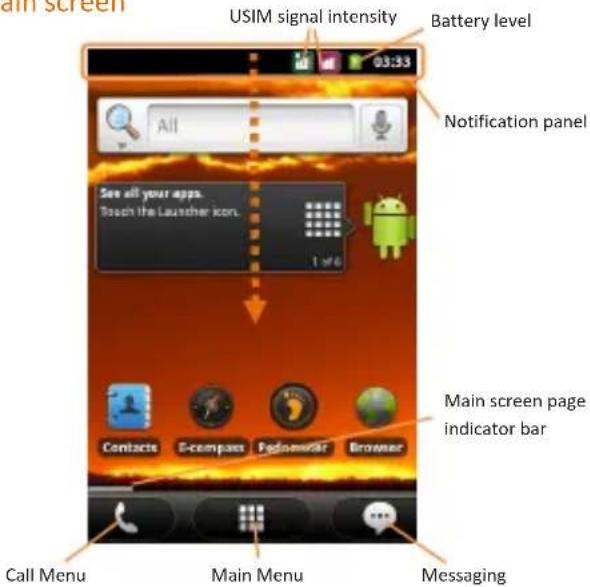

The main screen is the starting point for the use of all applications of the phone. Other main screen pages are available (as indicated by the white bar), just swipe the screen left or right. These pages can be freely personalized with one's favorite applications, shortcuts and widgets. Just keep pressed the icon of the wished function in the application menu and then place the icon on the preferred main screen. To remove the icons, keep them pressed and drag them to the bin that appears in the lower part of the screen.
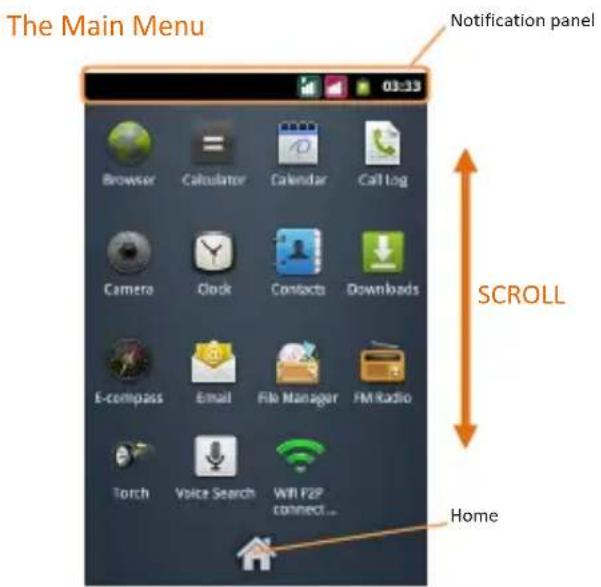
Use the touch screen by touching, pressing, sliding your finger over it. Select an application from the main menu or scroll the main menu pages up and down to find the desired one. Press the back key to get back to the previous screen or press Home to get back into the main screen.
SOS Key – Side key
By pressing the side key for more than 3 seconds, the phone will turn on the GPS, gather information coordinates and send them by SMS to the max 5 numbers set in Menu > Settings > Location > One Key SOS Settings.
Managing the two USIM cards
From the main menu, select Settings > SIM Management. Select the "USIM1" and/or "USIM2" checkboxes to activate/deactivate the USIM cards selectively in any moment. Select Select SIM when bootup if you want to choose whether to activate each SIM or not at every bootup.
Managing calls
Voice calls
From the main screen, touch the Call Menu icon in order to open the calling screen. Use the virtual keypad to digit the desired phone number.
Select either calling icon 1 or 2 (by color) to choose the USIM card that you want to call with.
To end the call, press the End key.
To answer a call, drag the green phone icon to the right or use the Call key; to reject a call drag the red phone icon to the left or use the End key. To silence an incoming call, briefly press the Volume "+" or "-" keys on the right side of the device.
Call a number from the call history
From the main screen, select Call Menu and the Call log folder to access rapidly all last sent, missed and received calls.
Click onto the green icon to the right of the number to call it back.
Managing contacts
Add a new contact
From the main screen/menu, select the Contacts icon.
Select the contextual menu and the New Contact icon.
Insert Name, Number and eventual other details (if saving on the phone memory).
Confirm by selecting Done.
Add a new contact from the call history
From the main screen, select Call Menu and the Call log folder.
Keep the desired number pressed until a popup with various options appears.
Select Add to Contacts and confirm if you want to add the number to an existing contact or if you want to create a new one.
Enter the name and eventual other information and confirm by selecting Done.
Set ringtones
Select a ringtone
From the main menu, select Settings > Audio Profiles > General.
In Voice call ringtone, select the desired ringtone, separately for the two USIM cards.
If you wish to set a personalized ringtone, from Music you can select a song and by pressing the contextual menu, choose Set as ringtone. After, the song will be available in the list of selectable ringtones.
Note: you can use *mid, *wav or *mp3 files as ringtones.
Screen lock and shortcuts
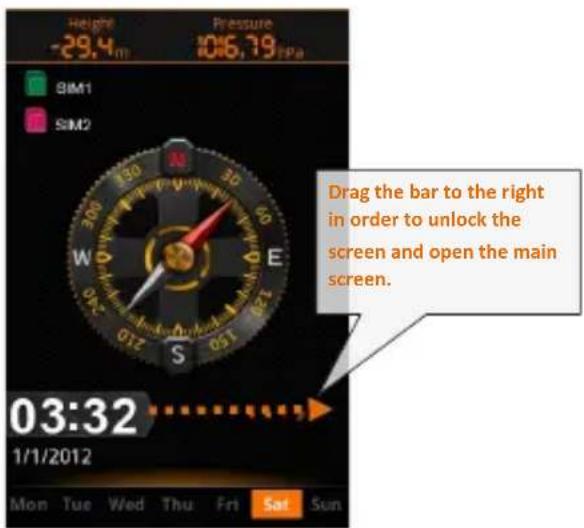
From the main menu, select Settings > Security > Set up screen lock. Select the desired unlocking mode (None, Pattern, PIN or Password) and confirm. In order to quickly lock the screen, briefly press on the power on/off key of the phone. To unlock it, follow the instructions on the screen.
Rapid activation of vibration mode
Rapidly disable ringtones and message alerts by pressing Volume "-" from the main screen until it gets to minimum and then switches to Vibration mode.
Send and receive messages
Send SMS and MMS
From the main screen or menu, select Messaging > Compose new message to access the text input screen.
Write the first few letters of a contact name into the recipients bar and select the desired contact from the popup contact list that will appear, or directly insert the recipient's number.
Write the text into the dedicated space.
Open the contextual menu and Attach to insert multimedia files (the message will automatically be converted into MMS).
Press either colored Send key, depending on the USIM that you want to use.

Connectivity
The operation system requires an active data connection. If data traffic is not included in your phone contract, it could imply extra costs. In that case it is advisable to configure the internet access through WiFi. The activation/deactivation of the data traffic on the USIM is in Settings > SIM Management > Data Connection.
Connect to the Internet using Wi-Fi
Connect to the wireless net using the Wi-Fi function. In order to activate it, from the main menu choose Settings > Wireless and Networks > WLAN. Configure Wi-Fi and manage the access points with the WLAN Settings. Rapid activation/deactivation is possible on the notification panel with the dedicated key. Please follow all warnings and indications concerning the use of wireless devices in areas where the use of such functions is restricted (airplanes, hospitals, etc.). Switch to Offline mode when you have to use only the functions that do not need Network access.
Connecting to a Bluetooth device
Switch on the other Bluetooth™ device. Refer to the documentation of the device.
From the main menu, select Settings > Wireless and Networks > Bluetooth to activate Bluetooth. For a rapid activation/deactivation use the dedicated key on the notification panel.
Select Bluetooth Settings > Scan for devices to find other Bluetooth devices.
Among the found devices, select the name of the device that you want to pair. The phone will try to pair the device, eventually asking for a pairing code.
Navigate the Web
Connect to the Internet
From the main screen or the main menu, select Browser. Write the URL into the address bar to start navigation. If you choose to navigate with the phone network data connection, please make sure to be informed about the costs or choose a "flat" data tariff with your operator. Alternatively, you can use the Wi-Fi connection (see paragraph "Connectivity").
Configure an account in the Email application of the Main Menu, following the indications.
GPS geolocalization
The Global Positioning System (GPS) is a system based on the satellite-related position determination, with global and continuous covering. In order to access the function, select Settings > Location > use GPS satellites. Inside the same menu you can also activate Use Wireless Networks, that contributes in the position finding using the available Wireless Networks. When the GPS function is active, the phone begins to collect data from the available satellites and determines the current position. Limit the use of battery and memory by switching off this function when you don't need it. The phone integrates the NGM NAVIGATION SYSTEM©, that is accessible through the quick pressure of the side key. For more details please visit www.ngm.eu.
Rapid access
Notification panel
Open the notification panel by touching the upper area containing the battery and signal-intensity icons and drag it downwards. To hide the panel, push it up again starting from the bottom. From the panel you have rapid access to a list of notifications from the USIM or the System and in the upper part, to maximum 5 management widgets at once; scroll the widget-bar left and right to visualize other ones.
Display settings: Brightness, Timeout, Auto rotation.
Connectivity: Wi-Fi, Bluetooth, GPS, Data connection, Airplane mode.
User profiles: General, Silent, Meeting and Outdoor.
Rapid access to recent applications
When you are inside any application, press and hold the Home key: a list of the most recent applications that have been opened will be shown and can be directly selected.
Contextual menu
Inside every application, press the menu key to visualize a contextual menu, that refers to the application with related functions.
SwiftKey text input
The default text input method is the SwiftKey keyboard. SwiftKey is an advanced predictive text input system; when writing SMS, MMS or E-mails, this mode predicts the word while you are writing it, changing it at every key pressure.
During the first use, the program will suggest with popups the innovations and peculiarities of this writing system.
SwiftKey has an “intelligent” Dictionary that retrieves words also from other applications in the phone, such as the phonebook or the social networks etc. For the correct use of this function, the micro-SD contained in the selling package has to be installed into the phone.
To change the text input parameters, select Settings > Language and Keyboard > SwiftKey for NGM-Mobile
Technical notes
Corning Gorilla Class
NGM WEMOVE EXPLORER has a touch panel with Corning Gorilla Glass™ technology, a special glass made with a construction procedure that makes it extremely resistant to shocks and scratches. No need to use protection films.
IP-68 Protection
NGM WEMOVE EXPLORER is a IP-68 certified mobile phone, resisting extreme conditions: complete protection to dust to shocks or falls, resistance to up to 1.5m deep water.
Warning: NGM Italia will not bear responsibility for any incompliance with the above guidelines or improper use of the mobile phone. The company reserves the right to modify any of the content in this user guide without previous public announcement. The content of this manual may vary from the actual content displayed in the mobile phone. In such case, the latter shall govern.

Certifications
Declaration of conformity (R&TTE)
We, NGM Italia
Declare under our sole responsibility that the product identified as GSM / WCDMA / Wi-Fi Mobile Phone:
NGM WEMOVE EXPLORER
Conforms to the following standards and specifications:
Health EN 50360, EN 62209-1
Safety EN 60950-1+A11
EMC EN 301 489-1/-7/-17
Radio EN 301 511
EN 300 328
We declare that all the series of fundamental radio test have been conducted and that the aforesaid product meets all the essential requirements of the Directive 1999/5/EC.
The conformity assessment procedure referred to in Article 10 and detailed in Annex IV of Directive 1999/5/EC has been followed with the involvement of the following notified bodies:
EMCCert DR. RAŠEK GmbH
Stoernhofer Berg 15,
All technical documents conserved at NGM Italia S.r.l.
Available on request.
(UE Authorized Representative)
NGM Italia S.r.l.
Via L. Da Vinci, 7 – Ponticelli
56020 Santa Maria a Monte (Pi)
S.A.R. (Specific Absorption Rate)
Information on SAR certifications
Cell phones are radio transceivers. They have been projected not to exceed the radio wave exposition limits recommended by international guidelines. These guidelines have been determined by the international independent scientific organizations ICNRP and IEEE and include security limits to ensure protection to all persons, independently from their age and health conditions.
This phone meets European Union (EU) requirements concerning exposure to radio waves coming from telecommunication and radio devices. The exposure standard for mobile phones employs a unit of measurement known as SAR (Specific Absorption Rate). The SAR limit recommended by the EU Council is 2.0 W/kg averaged over ten grams of body tissue.
The highest SAR value for this model phone when tested for use at the ear was 0,498 watt/kg [1,2]. Although the SAR is determined at the highest certified power level, the actual SAR of the phone while operating can be well below the maximum value. This is because the phone is designed to operate at multiple power levels so as to use only the power required to reach the network. In general, the closer you are to a base station, the lower the power output of the phone. The
Declaration of Conformity here above proves that the designated product is in compliance with the essential requirements and other relevant provisions of the R&TTE - Directive (European Radio & Terminal Telecommunications Equipment)1999/5/EC
[1] These controls have been made according to international guidelines on controls.
[2] For the use next to the body, this telephone model has been controlled and is conform to the directives for the exposition to electromagnetic radiation, when used with accessories provided by or approved by NGM and not containing metallic parts and that position the mobile phone at least at 1.5 cm distance from the body.
Warnings
WHO (World Health Organization) confirms that the actual scientific information does not indicate the necessity to adapt particular precautions for the use of cell phones.
Nevertheless, for all those users not comforted by these data, NGM advises to limit their own and their children's exposure, for instance by reducing the calling time, or by using earpieces or hands-free devices to keep the mobile phone distant from the body and the head.
For more information on the argument, NGM invites to consult the WHO document (Fact sheet N°193, June 2011) entitled Electromagnetic fields and public health: mobile phones at the following web address:
http://www.who.int/mediacentre/factsheets/fs193/en/index.html
NGM advises to use mobile devices of any brand or model with moderation and to keep them at a minimum distance of 1.5cm from the body or to use earpieces or other hands-free devices.

Copyright © 2012 NGM Italia
No part of this manual may be reproduced, distributed, translated, or transmitted in any form or by any means, electronic or mechanical, including photocopying, recording, or storing in any information storage and retrieval system, without the prior written permission of NGM Italia.
Bluetooth® is a registered trademark of the Bluetooth SIG, Inc. worldwide.
Wi-Fi® and the Wi-Fi logo are registered trademarks of the Wi-Fi Alliance.
EXPLORER
natural_image
Technical line drawing of an electronic device casing with internal components and a red arrow indicating a component (no text or symbols present)Aufladen des Akkus
natural_image
Technical line drawing of a car interior showing internal components and a mechanical assembly (no text or symbols)EXPLORER

Corning Gorilla Class
S.A.R. (Specific Absorption Rate)
Copyright © 2012 NGM Italia
natural_image
Diagram of an electronic device showing internal components and a red arrow pointing to a component (no text or symbols present)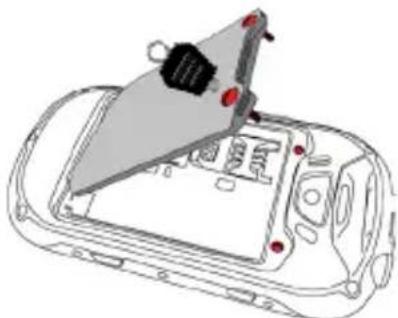
natural_image
Technical line drawing of a vehicle interior with a triangular component mounted on the windshield (no text or symbols visible)Cargar la batería
Corning Gorilla Class
S.A.R. (Specific Absorption Rate)
Copyright © 2012 NGM Italia
- S.A.R. (Specific Absorption Rate)
- Installing the USIM cards
- Installing the memory card
- Inserting the battery
- Charging the battery
- Turn on, turn off and standby
- SOS Key – Side key
- Managing the two USIM cards
- Managing calls
- Voice calls
- Call a number from the call history
- Managing contacts
- Add a new contact
- Add a new contact from the call history
- Set ringtones
- Select a ringtone
- Screen lock and shortcuts
- Rapid activation of vibration mode
- Send and receive messages
- Send SMS and MMS
- Connectivity
- Connect to the Internet using Wi-Fi
- Connecting to a Bluetooth device
- Navigate the Web
- Connect to the Internet
- GPS geolocalization
- Rapid access
- Notification panel
- Rapid access to recent applications
- Contextual menu
- SwiftKey text input
- Technical notes
- Corning Gorilla Class
- IP-68 Protection
- Certifications
- Declaration of conformity (R&TTE)
- NGM WEMOVE EXPLORER
- Information on SAR certifications
- Warnings
- Copyright © 2012 NGM Italia
- EXPLORER
- Aufladen des Akkus
- Cargar la batería
Brand : NGM
Model : Explorer
Category : Smartphone