CPX275W - Projector HITACHI - Free user manual and instructions
Find the device manual for free CPX275W HITACHI in PDF.



| Product type | Liquid crystal display (LCD) projector |
| Brand | Hitachi |
| Model | CPX275W |
| Native resolution | 1024 x 768 pixels (XGA) |
| Lamp | 150 W UHB |
| Lamp life | Approximately 2000 hours (replacement indicator) |
| Lens | Zoom, F=2.0-2.3, f=18-21 mm |
| Keystone correction | Yes (KEYSTONE button) |
| Magnification (digital zoom) | Yes (MAGNIFY function) |
| Built-in speaker | 1.0 W |
| Video inputs | RGB, S-Video, Composite video, Component (Y/Cb/Cr) |
| Audio input | Stereo mini-jack (for RGB) and RCA jacks (L/R) for video |
| Connectivity | RS-232C (Control) |
| Power supply | 100-240 V AC, 50/60 Hz, consumption 240 W |
| Dimensions (W x H x D) | 288 x 84 x 215 mm |
| Weight | 2.5 kg |
| Operating temperature | 0 °C to 35 °C |
| Air filter | Cleaning every approximately 100 hours, replaceable (ref. MU01461) |
| Replacement lamp | Ref. DT00461 |
| Quiet mode | Yes (acoustic noise reduction) |
| Image functions | Brightness, contrast, sharpness, color, tint, white balance, gamma, color temperature |
| Aspect ratio | 4:3, 16:9, 4:3 small (adjustable) |
Frequently Asked Questions - CPX275W HITACHI
User questions about CPX275W HITACHI
0 question about this device. Answer the ones you know or ask your own.
Ask a new question about this device
Download the instructions for your Projector in PDF format for free! Find your manual CPX275W - HITACHI and take your electronic device back in hand. On this page are published all the documents necessary for the use of your device. CPX275W by HITACHI.
USER MANUAL CPX275W HITACHI
Please read this user's manual thoroughly to ensure correct usage through understanding.
BEDIENUNGSANLEITUNG
natural_image
Line drawing of a projector with control panel and projection lens (no text or symbols)Liquid Crystal Projector
USER'S MANUAL
Thank you for purchasing this liquid crystal projector.
WARNING • Please read the accompanying manual “SAFETY INSTRUCTIONS” and this “USER'S MANUAL” thoroughly to ensure correct usage through understanding. After reading, store this instruction manual in a safe place for future reference.
NOTE • The information in this manual is subject to change without notice.
- The manufacturer assumes no responsibility for any errors that may appear in this manual
- The reproduction, transmission or use of this document or contents is not permitted without express written authority.
TRADEMARK ACKNOWLEDGMENT : PS/2, VGA and XGA are registered trademarks of International Business Machines Corporation. Apple, Mac and ADB are registered trademarks of Apple Computer, Inc. VESA and SVGA are trademarks of the Video Electronics Standard Association. Windows is a registered trademark of Microsoft Corporation. Carefully observe the trademarks and registered trademarks of all companies, even when not mentioned.
CONTENTS
Page
FEATURES 2
BEFORE USE 2
Contents of Package 2
Part Names....3
Loading the Battery 4
INSTALLATION ....5
Installation of the Projector and Screen .....5
Angle Adjustment ....5
Cabling 6
Power Connection 7
Example of System Setup 7
Plug & Play....7
OPERATIONS......8
Power ON 8
Power OFF 8
Basic Operation....9
Setup Menu 11
Input Menu....12
Image Menu....13
Options Menu ....14
No Signal Menu....15
MAINTENANCE 16
Lamp....16
Air Filter 18
Other Maintenance....18
Page
TROUBLESHOOTING ....19
OSD Message 19
Indicators Message 20
Symptom 21
SPECIFICATIONS....22
WARRANTY AND AFTER-SERVICE .....23
TABLES
Table 1. Installation Reference......5
Table 2. Cabling ......6
Table 3. Basic Operations .....9
Table 4. Setup Menu ......11
Table 5. Input Menu....12
Table 6. Image Menu....13
Table 7. Options Menu ......14
Table 8. No Signal Menu....15
Table 9. OSD Message .....19
Table 10. Indicator Message .....20
Table 11. Symptom ......21
Table 12. Specifications .....22
For "TECHNICAL" and "REGULATORY
NOTICE", see the end of this manual.
FEATURES
This liquid crystal projector is used to project various computer signals as well as NTSC / PAL / SECAM video signals onto a screen. Little space is required for installation and large images can easily be realized.
Outstanding Brightness
The UHB lamp and high-efficiency optical system assure a high level of brightness.
Partial Magnification Function
Interesting parts of images can be magnified for closer viewing.
Distortion Correction Function
Distortion-free images are quickly available.
Extra-low Noise Function
Acoustic noise level from the unit can be reduced.
BEFORE USE
Contents of package
Make sure all of the following items are included in the package. If anything is missing, please contact your dealer.
NOTE • Keep the original packing material for future reshipment.
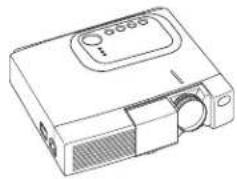
natural_image
Line drawing of a projector device with no visible text or symbolsProjector

Power Cord (US Type)

Power Cord (UK Type)

Power Cord (Europe Type)
User's Manual (this manual)
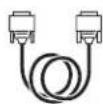
RGB Cable
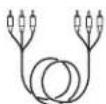
Component
Video Cable
(with green lead)
Safety Instructions
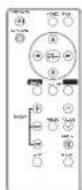
Remote Controller
containing Battery
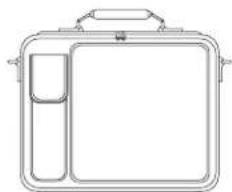
natural_image
Line drawing of a rectangular tray with a side panel and handle (no text or symbols)Carrying Bag
ENGLISH-2
BEFORE USE (continued)
Part Names
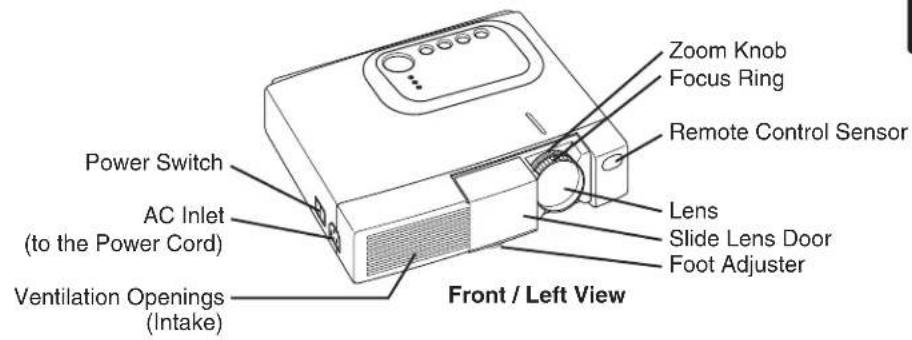
ENSOLID
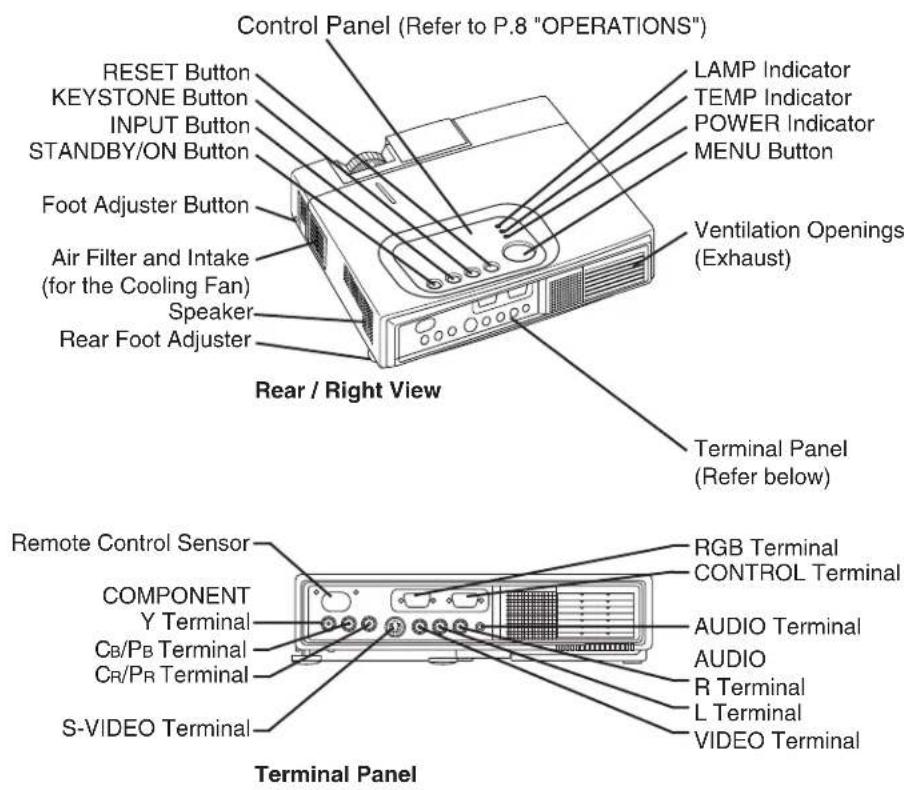
ENGLISH-3
BEFORE USE (continued)
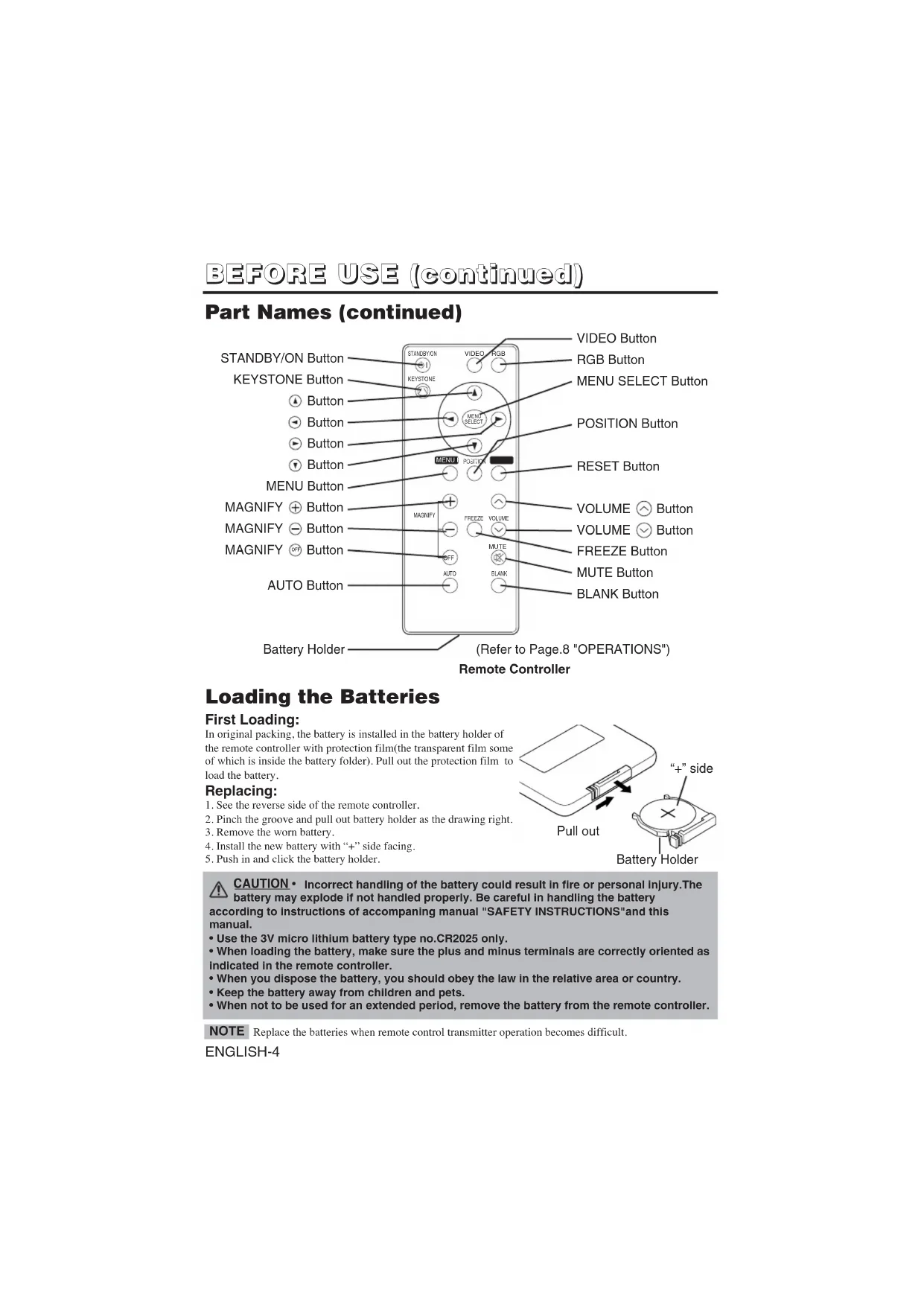
Part Names (continued)
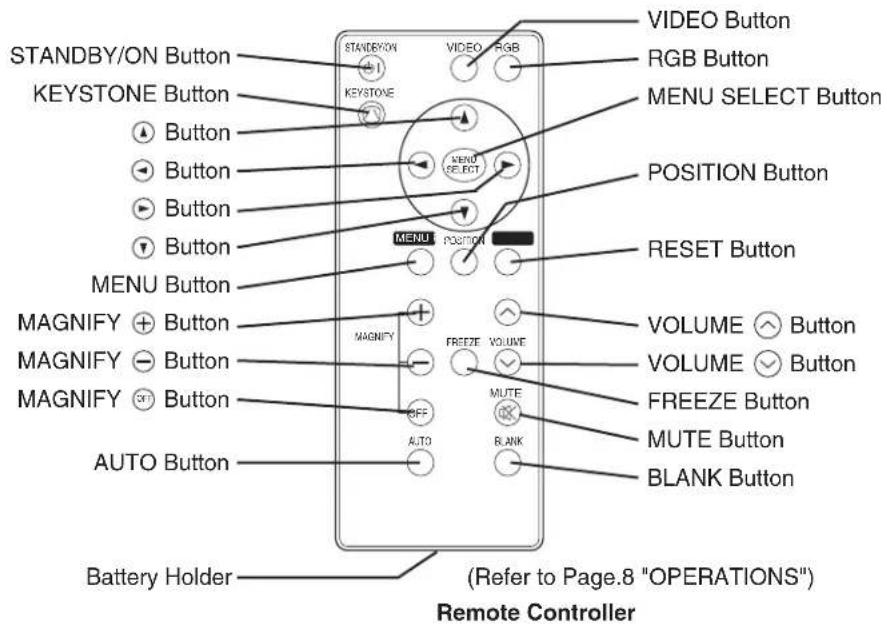
Loading the Batteries
First Loading:
In original packing, the battery is installed in the battery holder of the remote controller with protection film (the transparent film some of which is inside the battery folder). Pull out the protection film to load the battery.
Replacing:
- See the reverse side of the remote controller.
- Pinch the groove and pull out battery holder as the drawing right.
- Remove the worn battery.
- Install the new battery with "+" side facing.
- Push in and click the battery holder.
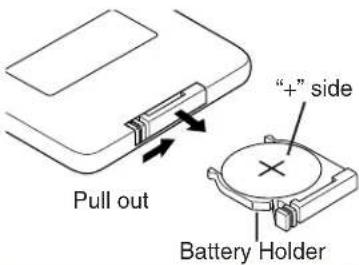
CAUTION • Incorrect handling of the battery could result in fire or personal injury. The battery may explode if not handled properly. Be careful in handling the battery according to instructions of accompanying manual "SAFETY INSTRUCTIONS" and this manual.
- Use the 3V micro lithium battery type no.CR2025 only.
- When loading the battery, make sure the plus and minus terminals are correctly oriented as indicated in the remote controller.
- When you dispose the battery, you should obey the law in the relative area or country.
- Keep the battery away from children and pets.
- When not to be used for an extended period, remove the battery from the remote controller.
NOTE Replace the batteries when remote control transmitter operation becomes difficult.
ENGLISH-4
Installation of the Projector and Screen
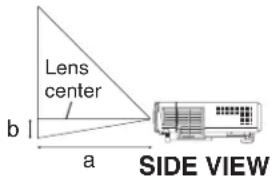
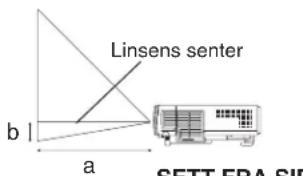
Refer to the drawing and table below for determining the screen size and projection distance.
The projection distances shown in the table below are for full size (CP-S225W:800 x 600 dots / CP-X275W:1024 x 768 dots).
a: Distance from the projector to the screen. (±10%)
b: Distance from the lens center to the bottom of the screen. (±10%)
Table 1. Installation Reference
| Screen size[inches (m)] | a [inches (m)] | b[inches (cm)] | |||
| Min. Max. | |||||
| 40 (1.0) 37 | (0.9) 46 (1 | 2) 3 | (8.7) | ||
| 60 (1.5) 57 | (1.5) 69 (1 | 8) 5 | (13.1) | ||
| 80 (2.0) 77 | (1.9) 93 (2 | 4) 7 | (17.4) | ||
| 100 (2.5) 96 | (2.4) 116 | (2.9) 9 | (21.8) | ||
| 120 (3.0) 116 | (2.9) 139 | (3.5) 10 | (26.1) | ||
| 150 (3.8) 145 | (3.7) 174 | (4.4) 13 | (32.7) | ||
| 200 (5.0) 194 | (4.9) 233 | (5.9) 17 | (43.5) | ||
Screen
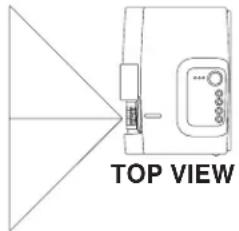
CAUTION • Install the projector in a suitable environment according to instructions of the accompanying manual “SAFETY INSTRUCTIONS” and this manual.
- Please basically use liquid crystal projector at the horizontal position. If you use liquid crystal projector by the lens up position, the lens down position and the side up position, this may cause the heat inside to build up and cause damage. Be especially careful not to install it with ventilation holes blocked.
- Do not install LCD projector in smoke effected environment. Smoke residue may buildup on critical parts (i.e.LCD panel, Lens Assy etc.).
Angle Adjustment
Use the foot adjusters on the bottom of the projector to adjust the projection angle. It is variable within 0irc to 10irc approximately.
-
Lift up the front side of the projector, and pressing the foot adjuster button, adjust the projection angle.
-
Release the button to lock at the desired angle.
-
Make the rear foot adjuster screw to adjust the left-right slope.
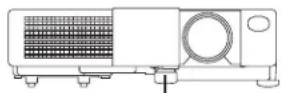
Foot Adjuster
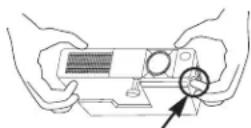
Press the foot adjuster button
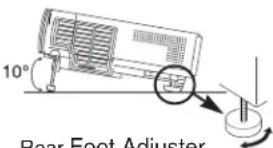
Rear Foot Adjuster
CAUTION • Do not release the foot adjuster button unless the projector is being held; otherwise, the projector could overturn or fingers could get caught and cause personal injury.
INSTALLATION (continued)
Cabling
Refer to the table below for connecting each terminal of the projector to a device.
Table 2. Cabling
| Function Terminal Cable | ||
| Analog RGB input RGB | Accessory RGB cable or optional RGB cable with D-sub 15-pin shrink jack and inch thread screws | |
| RS-232C communication CONTROL Optional RS-232C cable | ||
| Audio input(from the computer) | AUDIO Optional audio cable with stereo mini jack | |
| Component video input | COMPONENT VIDEO Y | Accessory component video cable |
| COMPONENT VIDEO CB/PB | ||
| COMPONENT VIDEO CR/PR | ||
| S-video input S-VIDEO | Optional S-video cable with mini DIN 4-pin jack | |
| Video input VIDEO | Optional video/audio cable with RCA jack | |
| Audio input(from video equipment) | AUDIO L | |
| AUDIO R | ||

CAUTION • Incorrect connecting could result in fire or electrical shock. Please read this manual and the separate "SAFETY INSTRUCTIONS".
- Before connecting, turn off to all devices to be connected, except for the USB cable.
- The cables may have to be used with the core set to the projector side. Use the cables which are included with the projector or specified.
NOTE • Before connecting, read instruction manuals of the devices to be connected, and make sure that the projector is compatible with the device.
- Secure the screws on the connectors and tighten.
- For some RGB input modes, the optional Mac adapter is necessary.
- To select the digital RGB input, the computer may need some settings. See the manuals of the computer for details.
- Some computers may have multiple display screen modes. Use of some of these modes will not be possible with this projector.
- Refer to the "TECHNICAL" section for the pin assignment of connectors.
- Refer to manual of the optional RS-232C cable, for the communication data.
• For others, consult your dealer.
INSTALLATION (continued)
Power Connection
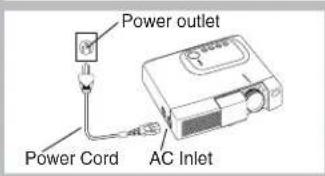
Use the correct power cord depending on the power outlet to be used.
Connect the AC inlet of the projector to the power outlet firmly by the power cord.

CAUTION • Be carful in handling the power cord according to instructions of the accompanying manual "SAFETY INSTRUCTIONS" and this manual.
- Connect the power cord firmly. Avoid using a loose, unsound outlet or failed contact.
Example of system setup
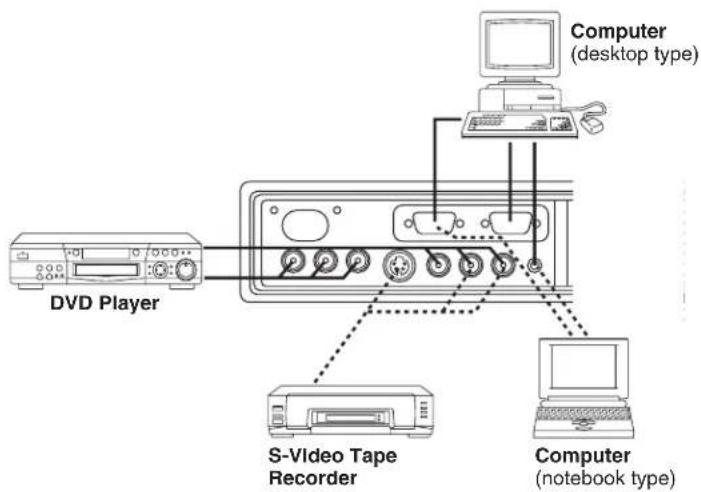
NOTE • When connecting with a notebook computer, set the proper RGB external image output (setting CRT display or simultaneous display of LCD and CRT). Please read instruction manual of the notebook for more information.
Plug & Play
This projector is VESA DDC 1/2B compatible. Plug & play is possible by connecting to a computer that is VESA DDC (Display Data Channel) compatible.
Please use this function by connecting the accessory RGB cable with RGB terminal. Plug & play may not operate by other connections.
NOTE • Plug & play is a system configured with peripheral equipment including a computer, display and an operating system.
- This projector is recognized as a plug & play monitor. Use the standard display drivers.
- Plug & play may not operate by the computer to connect.
OPERATIONS
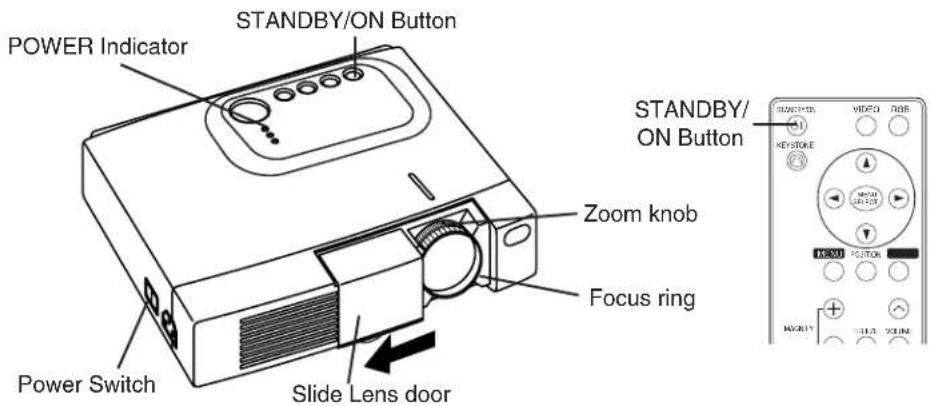
Power ON
- Check that the power cord is connected correctly.
- Set the power switch to [1]. The standby mode is selected, and the POWER indicator is turned to orange.
- Press the STANDBY/ON button on the control panel or the remote controller. Warm-up begins and the POWER indicator blinks in green.
- The POWER indicator ceases blinking and turns to green when power is on. Open the slide lens door.
- Adjust picture size using the Zoom knob.
- Adjust focus using the Focus ring.
Power OFF
-
Press the STANDBY/ON button on the control panel or the remote controller. Then, the message "Power off?" will appear on the screen, and the message will disappear by any operation or no operation for 5 seconds. During this message indication, press the STANDBY/ON button again. The projector lamp is extinguished and lamp cooling begins. The POWER indicator blinks orange during lamp cooling. Pressing the STANDBY/ON button has no effect while the POWER indicator is blinking.
-
The system assumes the Standby mode when cooling is complete, and the POWER indicator ceases blinking and changes to orange. Check that the indicator is orange and set the Power switch to [O].
-
The POWER indicator is extinguished when power is off. Do not forget to close the lens door.
WARNING • Please read this manual, and the separate "SAFETY INSTRUCTIONS" thoroughly before using the equipment. Always ensure that the equipment is used safely.
NOTE • Except in emergencies, do not turn off unless the POWER indicator is orange as it will reduce the life of the projector lamp.
- To prevent any trouble, turn on/off the projector when the computer or video tape recorder is OFF. Providing a RS-232C cable is connected, turn on the computer before the projector.
- When a projector continues projecting the same image, the image may remain as an afterimage. Please do not project the image same for a long time.
ENGLISH-8
OPERATIONS (continued)
Basic Operation
The basic operations shown in Table 3 is performed from the supplied remote controller or the projector control panel. Items indicated by (*) may be used from the control panel.
Table 3. Basic Operation
| Item Description | |
| INPUT SELECT | Select Input Signal (*) : Press the INPUT button. RGB→VIDEO → S-VIDEO → COMPONENT (→ RGB)Select RGB Input : Press the RGB button. VIDEO/S-VIDEO/COMPONENT → RGBSelect Video Input : Press the VIDEO button. RGB →VIDEO/S-VIDEO/COMPONENT VIDEO → S-VIDEO → COMPONENT (→VIDEO)The selected signal name is displayed for approximately 3 seconds when the input signal is changed. |
| POSITION | Set/Clear Position Adjustment Mode :Press the POSITION button. The [icon is displayed in the POSITION mode.Image Position Adjustment:Press the , and buttons in the POSITION mode.Valid only in the MAGNIFY mode with a video signal is input.After approximately 10 seconds of inactivity the [icon is extinguished and the POSITION mode is cleared automatically. |
| RESET (*) | Initialize Each Item : Select an item and press the RESET button.Initialize Position Adjustment : Press the RESET button and the POSITION mode. This function is valid only when RGB signal is input.Valid except for the VOLUME, LANGUAGE, H PHASE and WIHSPER. |
| MAGNIFY | Set MAGNIFY Mode : Press the MAGNIFY button.Move Magnified Area : Run the POSITION in the MAGNIFY mode.Adjust Magnification :Press the MAGNIFY button in MAGNIFY mode.MAGNIFY magnifies the image ↔ MAGNIFY reduces the imageClear MAGNIFY Mode : Press the MAGNIFY button.The MAGNIFY mode is cleared by running or setting the AUTO, ASPECT, INPUT SELECT or VIDEO, or by changing the input signal. |
| FREEZE | Set/Clear FREEZE Mode : Press the FREEZE button. The [II] icon is displayed, and the image frozen, in the FREEZE mode.The FREEZE mode is cleared by running or setting POSITION, VOLUME, MUTE, Automatic Adjustment, BLANK ON/OFF, or MENU ON/OFF, or by changing the input signal.Do not forget to clear frozen static images. |
| KEYSTONE (*) | Set/Clear KEYSTONE Mode : Press the KEYSTONE button.Adjust Keystone : Press the button in the KEYSTONE mode. reduces the bottom size of image ↔ reduces the top size of image |
NOTE • Use the remote controller at a distance of approximately 3m from the sensor on the front of the projector, and within a range of 30irc left-right. Strong light and obstacles will interfere with operation of the remote controller. (It continue the next page.)
(It continue the next page.)
ENGLISH-9
OPERATIONS (continued)
Items indicated by (*) may be used from the control panel.
Table 3. Basic Operation (continued)
| Item Description | |
| VOLUME | Volume Adjustment:Press the VOLUME button. reduces the volume ↔ increases the volume |
| MUTE | Set/Clear Mute Mode:Press the MUTE button.No sound is heard in the MUTE mode. |
| AUTO | Automatic Adjustment at RGB Input:Press the AUTO button.Horizontal position(H.POSIT), vertical position (V.POSIT),clock phase (H.PHASE), and horizontal size(H.SIZE) are automatically adjusted. Use with the window at maximum size in the application display.Automatic Adjustment at Video Input:Press the AUTO button.A signal type appropriate for the input signal is selected automatically. Valid only when AUTO is set for VIDEO on the menu.This operation requires approximately ten seconds. It may not function correctly with some input signals. |
| BLANK ON/OFF | Set/Clear Blank Mode:Press the BLANK button. No image is displayed in the Blank mode. The screen color is as set in BLANK on the Image menu. |
| MENU ON/OFF (*) | Menu Display Start/Stop:Press the MENU button.The menu display is terminated automatically after approximately ten seconds of inactivity. |
| MENU SELECT | Select Menu Type:Press the MENU SELECT button.Allows the user to select the normal menu or the single menu. Only the selected item is displayed on the single menu, and other items are displayed with the and buttons as with the normal menu.Valid only when the Setup menu is used. Push the MENU SELECT button after selecting items such as "BRIGHTNESS".Normal menu Single menu |
OPERATIONS (continued)
Setup Menu
The following adjustments and settings are possible when SETUP is selected at the top of the menu. Part of the Setup menu differs between RGB input and video input. Select an item with the and buttons, and start operation. Use the Single menu to reduce menu size (see Table 3, MENU SELECT).
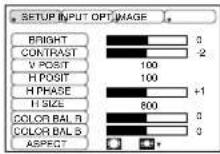
RGB
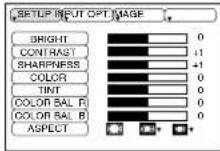
VIDEO/S-VIDEO
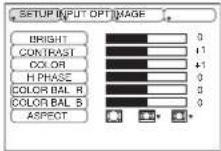
COMPONENT
Table 4. Setup Menu
| Item Description | RGB | VIDEO S-VIDEO | COMPONENT | ||
| 480i575i480P | 720P1080i | ||||
| BRIGHT | Dark Light | √√√√ | |||
| CONTRAST | Weak Strong | √√√√ | |||
| V POSIT | Down Up | √ | --- | ||
| H POSIT | Left Right | √ | --- | ||
| H PHASE | Left RightAdjust to eliminate flicker. | √ | - | √ | √ |
| H SIZE | Small LargeThe image may not be displayed correctly if the horizontal size is excessive. In such cases, press the RESET button, and initialize the horizontal size. | √ | --- | ||
| SHARPNESS | Soft Clear | - | √ | - | - |
| COLOR | Light Dark | - | √√√ | ||
| TINT | Red GreenValid only when NTSC or NTSC 4.43 signal is received. | - | √ | - | - |
| COLOR BAL R | Light Dark | √√√√ | |||
| COLOR BAL B | Light Dark | √√√√ | |||
| ASPECT | Select Image Aspect Ratio:4:3[ ] ← 16:9 [ ]Select Position of Image:Press the button while 16:9 [ ] is selected.Center → Down → Up ( → Center ) | √ | - | - | √ |
| Select Image Aspect Ratio:4:3[ ] → 16:9 [ ] ← 4:3 small [ ] Select Position of Image :Press the button while 16:9 [ ] / small selectedCenter → Down → Up ( → Center )4:3 small may not be displayed correctly with some input signals. | - | √ | √ | - | |
OPERATIONS (continued)
Input Menu
The following functions are available when INPUT is selected on the menu. Select an item with the and buttons, and start operation.
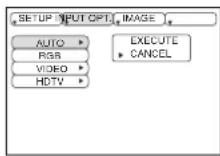
Table 5. Input Menu
| Item Description | |
| AUTO | Operation Start/Stop:Press the ⭕/ button.Automatic Adjustment at RGB Input:Select the EXECUTE with the ⬆ button. Horizontal position (H.POSIT), vertical position (V.POSIT), clock phase (H.PHASE), and horizontal size (H.SIZE) are automatically adjusted. Use with the window at maximum size in the application display.• This operation requires approximately 10 seconds. It may not function correctly with some input signals. Pressing the AUTO button in this case may correct this problem.• This function is the same as for the AUTO function in Basic operation. |
| RGB | Displays RGB Input Frequency:Displays the horizontal and vertical sync signal frequencies for RGB input.• Valid only at RGB input. |
| VIDEO | Operation Start/Stop:Press the ⭕ button.Select Video Signal Type:Select the signal type with the ⭕ and ⭕ buttons. Select NTSC, PAL, SECAM, NTSC4.43, M-PAL, or N-PAL as appropriate for the input signal. The selection of AUTO enables and executes the function AUTO (Automatic Adjustment at Video Input), except for the N-PAL input.• Use this function when the image becomes unstable (eg. the image becomes irregular, or lacks color) at VIDEO/S-VIDEO input.• Automatic Adjustment requires approximately ten seconds. It may not function correctly with some input signals. Pressing the AUTO button in this case may correct this problem except for the N-PAL input.• For the COMPONENT VIDEO input, this function is not effective and the signal type is distinguished automatically. |
| HDTV | Operation Start/Stop:Press the ⭕/ button.Select HDTV Mode:Select the 1080i mode or 1035i mode suitable for the input signal with the ⭕ button.• When the selected HDTV mode is incompatible with the input signal, the image may be incorrect (eg. the display position or color is incorrect). |
OPERATIONS (continued)
Image Menu
The following adjustments and settings are available when IMAGE is selected on the menu. Select an item with the and buttons, and start operation.
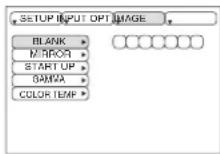
Table 6. Image Menu
| Item Description | |
| BLANK | Select Blank Screen Color: Select color with the and buttons.•The image is cleared and the entire screen is displayed in the selected color, when BLANK mode is set with BLANK ON, or when there is no signal for 5 minutes. |
| MIRROR | Operation Start/Stop: Press the button.Select Mirror Status: Select mirror status with and buttons. |
| START UP | Operation Start/Stop: Press the button.Setup Initial Screen Display: Select TURN ON with the button.Clear Initial Screen Display: Select TURN OFF with the button.• Note that if TURN OFF is selected the blank screen is displayed in blue when there is no signal. |
| GAMMA | Operation Start/Stop: Press the button.Select Gamma Mode : Select the gamma mode with the button. |
| COLOR TEMP | Operation Start/Stop: Press the button.Select Color Temperature:Select the color temperature mode with the button. |
OPERATIONS (continued)
Options Menu
The following adjustments and settings are available when OPT. is selected on the menu. Select an item with the and buttons, and start operation.
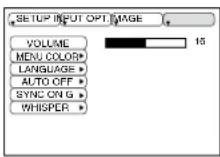
Table 7. Options Menu
| Item Description | |
| VOLUME | Volume Adjustment: Reduce VOLUME ⇌ Increase VOLUME |
| MENU COLOR | Select Menu Background Color: Select with the and buttons. |
| LANGUAGE | Operation Start/Stop: Press the or button.Select Menu Display Language: Select with the and buttons. |
| AUTO OFF | Operation Start/Stop: Press the or button.Set AUTO OFF: Set 1~99 minutes with the and buttons. The system automatically enters the standby mode when a signal is not received for the set time.Clear AUTO OFF: Select STOP (0 min.) with the button. When STOP is selected the system does not enter the standby mode even if no signal is received. |
| SYNC ON G | Operation Start/Stop: Press the or button.SYNC ON G Valid: Select TURN ON with the button.SYNC ON G Invalid: Select TURN OFF with the button.May not be displayed correctly with some input signals when SYNC ON G is valid. In such cases, remove the signal connector so that no signal is received, set SYNC ON G to invalid, and reconnect the signal. |
| WHISPER | Operation Start/Stop: Press the or button.Set/Clear Wisper Mode: Press / button. When the WHISPER is selected, the WHISPER mode is active. In the WHISPER mode, acoustic noise level from the unit is reduced, brightness level on screen is a little lower. |
OPERATIONS (continued)
No Signal Menu
The same adjustments and settings are available with the Image and Options menus when the MENU button is pressed during display of the "NO INPUT IS DETECTED ON ***" or "SYNC IS OUT OF RANGE ON ***" message while no signal is received.
Table 8. No Signal Menu
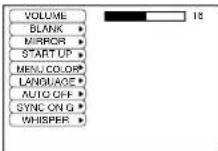
ENGLISH
| Item Description | |
| VOLUME | Volume Adjustment: Reduce VOLUME ➔ ↔ Increase VOLUME ➔When this function is used, audio input is automatically switched to video. The audio input can be switched by moving the DISK PAD left and right during the display of the volume adjustment bar. The volume adjustment bar is displayed by pressing VOLUME ➔ R VOLUME button. |
| BLANK | Select Blank Screen Color: Select the color with the ⓐ and buttons.The image is cleared and the entire screen is displayed in the selected color, when BLANK mode is set with BLANK ON, or when there is no signal for 5 minutes. |
| MIRROR | Operation Start/Stop: Press the ➕ button.Select Mirror Status: Select the mirror status with the ⓐ and buttons. |
| START UP | Operation Start/Stop: Press the ➕ button.Setup Initial Screen Display: Select the TURN ON with the button.Clear Initial Screen Display: Select the TURN OFF with the button.Note that if TURN OFF is selected the blank screen is displayed in blue when there is no signal. |
| MENU COLOR | Select Menu Background Color: Select the color with the ⓐ and buttons. |
| LANGUAGE | Operation Start/Stop: Press the ➕ button.Select Menu Display Language: Select the language with the ⓐ and ⓑ buttons. |
| AUTO OFF | Operation start/stop: Press the ➕ button.Set AUTO OFF: Set 1~99 minutes with the ⓐ and buttons. The system automatically enters the standby mode when a signal is not received for the set time.Clear AUTO OFF: Select the STOP (0 min.) with the button. When the STOP is selected the system does not enter the standby mode even if no signal is received. |
| SYNC ON G | Operation Start/Stop: Press the ➕ button.SYNC ON G Valid: Select the TURN ON with the button.SYNC ON G Invalid: Select the TURN OFF with the button.May not be displayed correctly with some input signals when the SYNC ON G is valid. In such cases, remove the signal connector so that no signal is received, set the SYNC ON G to invalid, and reconnect the signal. |
| WHISPER | Operation Start/Stop: Press the ➕ button.Set/Clear Wisper Mode: Press ➕ button. When the WHISPER is selected, the WHISPER mode is active. In the WHISPER mode, acoustic noise level from the unit is reduced, brightness level on screen is a little lower. |
ENGLISH-15
MAINTENANCE
Lamp


HIGH VOLTAGE HIGH TEMPERATURE HIGH PRESSURE
Contact your dealer before replacing the lamp.
For the optional lamp, see the item "Optional Parts" of the Table 12.
Before replacing the lamp, switch power OFF, remove the power cord from the power outlet, and wait approximately 45 minutes until the lamp has cooled. The lamp may explode if handled at high temperatures.

WARNING • For disposal of used lamp, treat according to the instruction of community priorities.
- Since the lamp is made of glass, do not apply shock to it and do not scratch it.
- Also, do not use old lamp. This could also cause explosion of the lamp.
- If it is probable that the lamp has exploded (explosive sound is heard), disconnect the power plug from the power outlet and ask your dealer to replace lamp. The lamp is covered by front glass, but in rare cases, the reflector and the inside of the projector may be damaged by scattered broken pieces of glass, and broken pieces could cause injury when being handled.
- Do not use the projector with the lamp cover removed.
Lamp
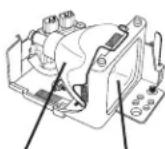
Reflector
Front glass
Lamp Life
Projector lamps have a finite life. The image will become darker, and hues will become weaker, after a lamp has been used for a long period of time.
Replace the lamp if the LAMP indicator is red, or the CHANGE THE LAMP message appears when the projector is switched ON. See Table 9 of P.19 and Table 10 of P.20.
NOTE • The LAMP indicator is also red when the lamp unit reaches high temperature. Before replacing the lamp, switch power OFF, wait approximately 20 minutes, and switch power ON again. If the LAMP indicator is still red, replace the lamp.
MAINTENANCE (continued)
Replacing the Lamp
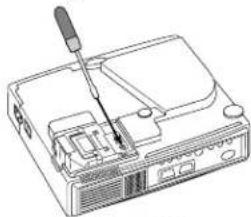
- Switch the projector OFF, remove the power cord from the power outlet, and wait at least 45 minutes for the unit to cool.
- Prepare a new lamp.
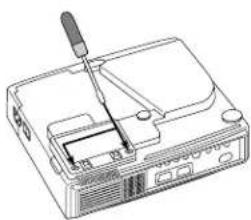
- Check that the projector has cooled sufficiently, and gently turn it upside down.
- Loosen the two screws as shown in the diagram, and remove the lamp cover.
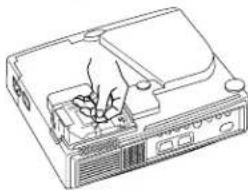
- Loosen the one screw, and gently remove the lamp while holding the grips. Touching the inside of the lamp case may result in uneven coloring.
- Install the new lamp and tighten the one screw firmly. Also steadily push the opposite side of the screwed lamp into the unit.
- Replace the lamp cover in position and tighten the two screws firmly.
- Gently turn the projector right-side up.

CAUTION • Ensure that screws are tightened properly. Screws not tightened fully may result in injury or accidents.
- Do not use the projector with the lamp cover removed.
natural_image
Line drawing of a portable electronic device with a screwdriver inserted (no text or symbols)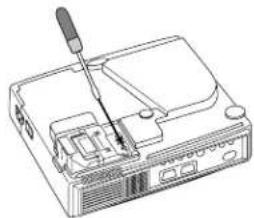
natural_image
Line drawing of a device with a screwdriver inserted into a box (no text or symbols)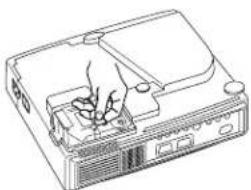
natural_image
Line drawing of a computer monitor with a hand inserting a cable (no text or symbols)Resetting the Lamp Timer
Reset the lamp timer after replacing the lamp. When the message of “CHANGE THE LAMP ... THE POWER WILL TURN OFF AFTER 0 hr.” is displayed, complete the following operation within 10 minutes. The power will be turned off automatically in over 10 minutes.
- Switch power ON, and press the RESET button, for approximately three seconds. The 'LAMP xxxx hr' message will appear on the lamp timer on the bottom of the screen.
- Press the MENU button on the remote control transmitter, or the RESET button on the control panel, while the lamp timer is displayed. The 'LAMP xxxx □ → 0 ■CANCEL' message will then appear.
- Press the and select 0, and wait until the timer display is cleared.
NOTE • Do not reset the lamp timer without replacing the lamp. Reset the lamp timer always when replacing the lamp. The message functions will not operate properly if the lamp timer is not reset correctly.
MAINTENANCE (continued)
Air Filter Maintenance
The air filter should be cleaned as described below at intervals of approximately 100 hours.
- Switch the projector power supply OFF, and remove the power cord from the power outlet.
- Clean the air filter with a vacuum cleaner.
CAUTION • Switch power OFF and remove the power cord from the power outlet before beginning maintenance work. Please read the separate “SAFETY INSTRUCTIONS” thoroughly to ensure that maintenance is performed correctly.
- Replace the air filter if contamination cannot be removed, or if it is damaged. Contact your dealer in such case. For the optional air filter, see the item “Optional Parts” of the Table 12.
- Do not use the equipment with the air filter removed.
- When the air filter is clogged with dust etc. the power supply is switched OFF automatically to prevent the temperature rising inside the projector.
Other Maintenance
Maintenance Inside the Equipment
For safety reasons, ensure that the equipment is cleaned and checked by the dealer once every two years. Maintaining the equipment by yourself is dangerous.
Cleaning the Lens
Gently wipe the lens with lens cleaning paper. Do not touch the lens with your hands.
Cleaning the Cabinet and Remote control transmitter
Gently wipe with a soft cloth. If dirt and stains etc. are not easily removed, use a soft cloth dampened with water, or water and a neutral detergent, and wipe dry with a soft, dry cloth.
CAUTION • Switch power OFF and remove the power cord from the power outlet before beginning maintenance work. Please read the separate “SAFETY INSTRUCTIONS” thoroughly to ensure that maintenance is performed correctly.
- Do not use detergents or chemicals other than those noted above (e.g. benzene or thinners).
- Do not use cleaning sprays.
- Do not rub with hard materials, or tap the equipment.
OSD Message
The messages as described below may appear on the screen at power ON. Take the appropriate measures when such messages appears.
Table 9. OSD Messages
| Message Contents | |
| CHANGE THE LAMP AFTER REPLACING LAMP, RESET THE LAMP TIME. (*1) | The usage time of lamp will be reaching 2000 hr shortly.(*2)It is recommended to replace the lamp soon. Prepare a new lamp as a replacement. |
| CHANGE THE LAMP AFTER REPLACING LAMP, RESET THE LAMP TIME. THE POWER WILL TURN OFF AFTER ** hr. (*1) | The usage time of lamp will be reaching 2000 hr shortly. It is recommended to replace the lamp within * * hours.(*2)It might be happened that the lamp is cut off before * * hr by any chance. Power will be switched OFF automatically in * * hours. Replace the lamp as shown in P.17~18 “Lamp”. Always reset the lamp timer after replacing the lamp. |
| CHANGE THE LAMP AFTER REPLACING LAMP, RESET THE LAMP TIME. THE POWER WILL TURN OFF AFTER 0 hr. | The usage time of lamp is about to reach. Power will be switched OFF in a few minutes.(*2)Switch power OFF immediately and replace the lamp as shown in P.17 ~18 “Lamp”. Always reset the lamp timer after replacing the lamp. |
| NO INPUT IS DETECTED ON *** | No input signal found.Check signal input connections and signal sources. |
| SYNC IS OUT OF RANGE ON *** | The horizontal or vertical frequency of the input signal is not within the specified range.Check the specifications of the equipment and the signal source. |
NOTE (*1) This message is cleared automatically after approximately three minutes, and appears every time power is switched ON.
(*2) The unit has a function to turn the power off which will be active when the usage time reaches 2000 hr. However the life of lamp might be much different among lamps, so that it might be happened that a lamp is cut off before the function is active.
TROUBLESHOOTING (continued)
Indicators Message
The POWER indicator, LAMP indicator, and TEMP indicator are lit and blank as follows. Take the appropriate measures.
Table 10. Indicators Message
| POWER indicator | LAMP indicator | TEMP indicator | Contents |
| Lights orange | Turns off | Turns off | The Standby mode has been set. |
| Blinks green | Turns off | Turns off | Warming up. Please wait. |
| Lights green | Turns off | Turns off | ON. Normal operation possible. |
| Blinks orange | Turns off | Turns off | Cooling. Please wait. |
| Blinks red | - | Cooling. Please wait.The error is found. Take the appropriate measures when the POWER indicator ceases blinking | |
| Blinks /Lights red | Lights red | Turns off | Lamp is not lit.The interior of the equipment may be too hot. Switch power OFF, wait 20 minutes until the equipment cools, and check whether the ventilation openings are blocked, whether the air filter is dirty, or whether the ambient temperature exceeds 35 °C. And switch power ON again. Replace the lamp if the same problem occurs. |
| Blinks /Lights red | Blinks red | Turns off | Lamp or lamp cover is not found, or hasn't been fitted in correctly. Switch power OFF, and wait for 45 minutes until the equipment cools. Check fitting of the lamp and lamp cover, and switch power ON again. Contact your dealer if the same problem occurs again. |
| Blinks /Lights red | Turns off | Blinks red | The cooling fan is not operating.Switch power OFF, and wait for 20 minutes until the equipment cools. Check for foreign matters in the fan, and switch power ON again. Contact your dealer if the same problem occurs again. |
| Blinks /Lights red | Turns off | Lights red | The interior of the equipment is too hot. *2)Switch power OFF, and wait for 20 minutes until the equipment cools. Check whether the ventilation openings are blocked, whether the air filter is dirty, or whether the ambient temperature exceeds 35 °C. Then switch power ON again. Contact your dealer if the same problem occurs again. |
| Lights green | Blinks red | Blinks red | The interior of the equipment is too cool.Check whether the ambient temperature is below 0°C. Contact your dealer if the same problem occurs when the ambient temperature is 0~35°C. |
NOTE *2) When the internal temperature becomes excessive power is switched OFF automatically for safety reasons, and the indicator is extinguished. Set the power switch to [O] and wait for 20 minutes until the equipment has cooled sufficiently.
TROUBLESHOOTING (continued)
Symptom
Before requesting repair, check in accordance with the following chart. If the situation cannot be corrected, then contact your dealer.
Table 11. Symptom
| Symptom Possible cause Remedy Page | |||
| The power is not turned on. | The main power switch is not turned on. | Turn on the main power switch. | 7,8 |
| The power cord is disconnected. | Plug the power cord into an AC power outlet. | ||
| No video or audio. | The input is not correctly set. | Use the projector or remote control transmitter to set. | 9 |
| No signal input. Connect correctly. | 6,7 | ||
| Video is present but no audio. | The projector is not correctly connected. | Connect correctly. | 6,7 |
| The volume is set to minimum. | Press VOLUME on the remote control or display the menu screen and adjust the volume. | 10,14 | |
| Mute is turned on. | Press the MUTE button. | 10 | |
| Audio is present but no video. | The projector is not correctly connected. | Connect correctly. | 6,7 |
| The brightness is set to minimum. | Select BRIGHT with the MENU button and the press the button. | 11 | |
| The slide lens door is still closed. | Open the slide lens door. | 8 | |
| Colors are pale and color matching is poor. | Color density and color matching are not correctly adjusted. | Adjust the video. | 11 |
| Images are dark. | Brightness and contrast are not correctly adjusted. | Adjust the video. | 11 |
| The lamp is nearing the end of its service life. | Replace with a new lamp. | 16,17 | |
| Images are blurred. | Focus or H PHASE is out of adjustment. | Adjust the focus or H PHASE. | 8,11 |
SPECIFICATIONS
Table 12. Specifications
| Item Specification | Lamp: DT00401 (CP-S225W) / DT00461 (CP-X275W)Air Filter: MU01461* For others, consult your dealer. | ||
| Product name Liquid crystal projector | |||
| Liquid crystal panel | Panel size 1.8 cm (0.7 type) | ||
| Drive system TFT active matrix | |||
| Pixels | CP-S225W : 480,000 pixels (800 horizontal x 600 vertical)CP-X275W : 786,432 pixels (1024 horizontal x 768 vertical) | ||
| Lens Zoom lens F=2.0 ~ 2.3 f=18 ~ 21 mm | |||
| Lamp 150 W UHB | |||
| Speaker 1.0 W | |||
| Power supply AC100 ~ 120V, 2.7A / AC220 ~ 240V, 1.3A | |||
| Power consumption 240 W | |||
| Temperature range 0 ~ 35°C (Operating) | |||
| Size 289 (W) x 84 (H) x 215 (D) mm | |||
| Weight (mass) | CP-S225W : 2.4 kgCP-X275W : 2.5 kg | ||
| RGB signal input | RGB IN | Video: Analog 0.7Vp-p, 75Ω terminator (positive)H/V. sync.: TTL level (positive/negative)Composite sync.: TTL levelD-sub 15-pin shrink jack | |
| AUDIO IN | 200mVrms, 47 kΩ (max. 3.0Vp-p)Stereo mini jack | ||
| Video signal input | VIDEO | 1.0Vp-p, 75Ω terminatorRCA jack | |
| S-VIDEO | Brightness signal: 1.0Vp-p, 75Ω terminatorColor signal: 0.286Vp-p (NTSC, burst signal), 75Ω terminator0.3Vp-p (PAL/SECAM, burst signal), 75Ω terminatorMini DIN 4-pin jack | ||
| COMPONENTVIDEO | Y 1.0 | Vp-p, 75 Ω Terminator (Positive) | |
| CB/CR | 0.7 Vp-p, 75 Ω Terminator (Positive) | ||
| PB/PR | 0.7 Vp-p, 75 Ω Terminator (Positive) | ||
| AUDIO | L | 200mVrms, 47 kΩ (max. 3.0Vp-p)RCA jack | |
| R | |||
| Control functions | CONTROL D-sub 15-pin shrink plug | ||
| Optional Parts | Lamp: DT00401 (CP-S225W) / DT00461 (CP-X275W)Air Filter: MU01461* For others, consult your dealer. | ||
NOTE • This specifications are subject to change without notice.
WARRANTY AND AFTER-SERVICE
If a problem occurs with the equipment, first refer to the P.20 “TROUBLESHOOTING” section and run through the suggested checks. If this does not resolve the problem contact your dealer or service company. They will tell you what warranty condition is applied.
natural_image
Line drawing of a projector device with no visible text or symbolsProjektor
natural_image
Line drawing of a rectangular container with a side panel and handle (no text or symbols)Tragetasche
DEUTSCH - 2
natural_image
Line drawing of a device with a screwdriver inserted into a tray (no text or symbols)DEUTSCH
natural_image
Line drawing of a device with a screwdriver inserted into a box (no text or symbols)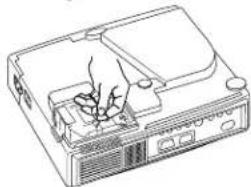
natural_image
Line drawing of a computer monitor with a hand inserting a plug into the front panel (no text or symbols)natural_image
Line drawing of a projector with control panel and display (no text or symbols)Projecteur
natural_image
Line drawing of a rectangular container with a side panel and handle (no text or symbols)Valise de transport
FRANÇAIS - 2
natural_image
Line drawing of a computer monitor with a screwdriver inserted (no text or symbols)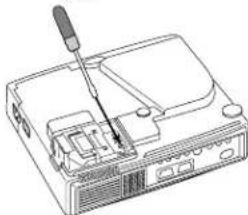
natural_image
Line drawing of a computer monitor with a screwdriver inserted (no text or symbols)FRANÇAIS
natural_image
Line drawing of a computer monitor with a hand inserting a component (no text or symbols)Interesting parts of images can be magnified for closer viewing.
natural_image
Line drawing of a projector with ventilation slots and a display screen (no text or symbols)Proiettore
natural_image
Line drawing of a rectangular container with a side panel and handle (no text or symbols)Borsa per trasporto
ITALIANO - 2
ALTA TENSIONE ALTA TEMPERATURA ALTA PRESSIONE
natural_image
Line drawing of a device with a screwdriver inserted into a box (no text or symbols)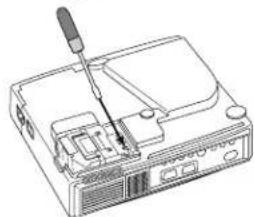
natural_image
Line drawing of a device with a screwdriver inserted into a box (no text or symbols)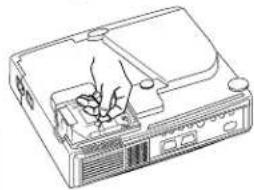
natural_image
Line drawing of a device casing with internal components and a hand inserting a plug (no text or symbols)ITALIANO
natural_image
Line drawing of a projector device with control panel and lens (no text or symbols)Proyector
natural_image
Line drawing of a rectangular container with a side panel and handle (no text or symbols)natural_image
Line drawing of a device with a screwdriver inserted into a box (no text or symbols)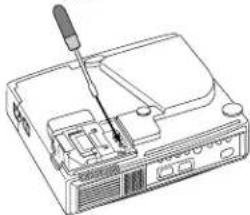
natural_image
Line drawing of a computer monitor with a screwdriver inserted (no text or symbols)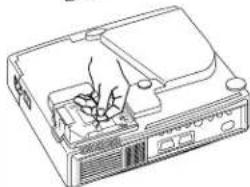
natural_image
Line drawing of a computer monitor with a hand inserting a cable into the case (no text or symbols)Tabel 8. "No Signal" men .....15
Tabel 9. OSD melding .....19
Tabel 10. Indicatormeldin ......20
Tabel 11. Symptoom ......21
"REGULATORY NOTICE" (KENNISGEVING
natural_image
Line drawing of a rectangular electronic device with a circular button and ventilation slots (no text or symbols)Projector
natural_image
Line drawing of a rectangular kitchen appliance with a side sink and handle (no text or symbols)Draagtas
NEDERLANDS - 2
natural_image
Line drawing of a device with a screwdriver inserted into a box (no text or symbols)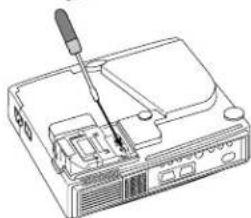
natural_image
Line drawing of a device with a screwdriver inserted into a box (no text or symbols)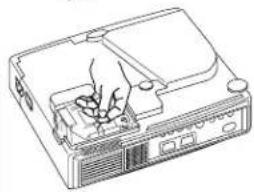
natural_image
Line drawing of a computer case with a hand inserting a component (no text or symbols)natural_image
Line drawing of a projector device with no visible text or symbolsProsjektør

Nettkabel, (US-type)

Nettkabel, (UK-type)

Nettkabel, (Europeisk type)
natural_image
Line drawing of a rectangular container with handle and side compartments (no text or symbols)Bærekoffert
NORSK - 2
Delenes navn
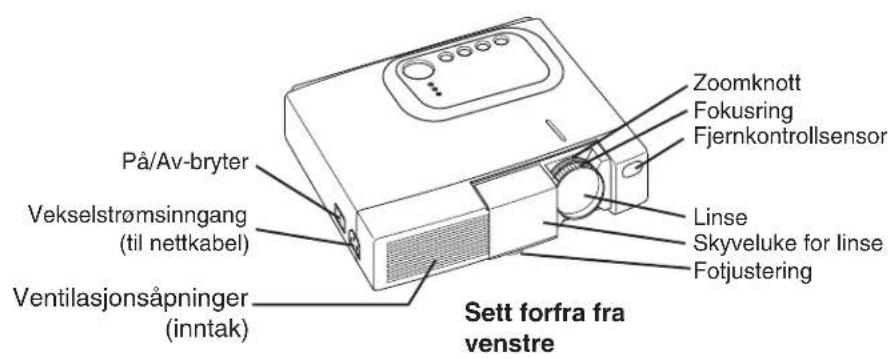
FORSKING • Installer projektøren et egnet sted i samsvar med anvisningene i "SIKKERHETSINSTRUKSJONER" og denne bruksanvisningen.
INSTALLERING (forts.)
Strømtilkopling
Tabell 3. Grunnelggende bruk (forts.)
Tabell 8. kke noe-Meny
VEDLIKEHOLD (forts.)
natural_image
Three-step line drawing of a computer monitor with a screwdriver inserted, showing internal components and wiring (no text or symbols)ESPECIFICAÇÕES......22
GARANTIA E ASSISTÊNCIA
TÉCNICA....23
TABELAS
natural_image
Line drawing of a device with a screwdriver inserted into a slot (no text or symbols)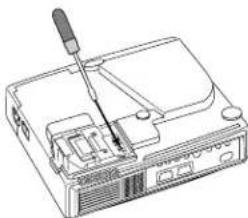
natural_image
Line drawing of a computer monitor with a screwdriver inserted (no text or symbols)
natural_image
Line drawing of a computer case with hands operating the internal components (no text or symbols)Signal Connector Pin Assignment
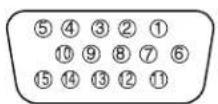
- D-sub 15-pin Shrink Connector (RGB IN)
| Pin No | Signal Pin No | Signal | Pin No | Sig |
| 1 | Video input Red 9 - | |||
| 2 | Video input Green 10 Ground | |||
| 3 | Video input Blue 11 - | |||
| 4 - | 12 SDA(DDC) | |||
| 5 | Ground | 13 | H. sync./ Composite sync. | |
| 6 | Ground Red | 14 | Vertical sync | |
| 7 | Ground Green | 15 | SCL(DDC) | |
| 8 | Ground Blue |
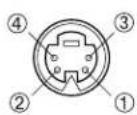
- Mini Din 4-pin Connector (S-VIDEO)
| Pin No Signal | |
| 1 | Color:0.286Vp-p (NTSC, burst signal),75Ω terminator0.3Vp-p (PAL/SECAM, burst signal),75Ω terminator |
| 2 Brightness:1.0Vp-p, 75Ω terminator | |
| 3 Ground | |
| 4 Ground | |
TECHNICAL (continued)
Example of computer signal
| Resolution H × V | fH (kHz) fV (Hz) Rating | Signal mode | Display mode | ||
| CP-S225W | CP-X275W | ||||
| 720 × 400 | 37.9 85.0 | VESA TEXT | Zoom in Zoom in | ||
| 640 × 480 | 31.5 59.9 | VESA VGA | (60Hz) Zoom in Zoom in | ||
| 640 × 480 | 35.0 66.7 | Mac13"mode | Zoom in Zoom in | ||
| 640 × 480 | 37.9 72.8 | VESA VGA | (72Hz) Zoom in Zoom in | ||
| 640 × 480 | 37.5 75.0 | VESA VGA | (75Hz) Zoom in Zoom in | ||
| 640 × 480 | 43.3 85.0 | VESA VGA | (85Hz) Zoom in Zoom in | ||
| 800 × 600 | 35.2 56.3 | VESA SVGA | (56Hz) Zoom in | ||
| 800 × 600 | 37.9 60.3 | VESA SVGA | (60Hz) Zoom in | ||
| 800 × 600 | 48.1 72.2 | VESA SVGA | (72Hz) Zoom in | ||
| 800 × 600 | 46.9 75.0 | VESA SVGA | (75Hz) Zoom in | ||
| 800 × 600 | 53.7 85.1 | VESA SVGA | (85Hz) Zoom in | ||
| 832 × 624 | 49.7 74.5 | Mac16"mode | Zoom out Zoom in | ||
| 1024 × 768 | 48.4 60.0 | VESA XGA | (60Hz) Zoom out | ||
| 1024 × 768 | 56.5 70.1 | VESA XGA | (70Hz) Zoom out | ||
| 1024 × 768 | 60.0 75.0 | VESA XGA | (75Hz) Zoom out | ||
| 1024 × 768 | 68.7 85.0 | VESA XGA | (85Hz) Zoom out | ||
| 1152 × 864 | 67.5 75.0 | VESA SXGA | (75Hz) Zoom out Zoom out | ||
| 1280 × 960 | 60.0 60.0 | VESA SXGA | (60Hz) Zoom out Zoom out | ||
| 1280 × 1024 | 64.0 60.0 | VESA SXGA | (60Hz) Zoom out Zoom out | ||
NOTE • Some computers may have multiple display screen modes. Use of some of these modes will not be possible with this projector.
- Be sure to check jack type, signal level, timing and resolution before connecting this projector to a computer.
- Depending on the input signal, full-size display may not be possible in some cases. Refer to the number of display pixels above.
- The image might be something wrong with computer by computer on the digital RGB mode. In this case, it is recommended to reduce the resolution and / or refresh rate.
TECHNICAL (continued)
Initial set signals
The following signals are used for the initial settings.
The signal timing of some computer models may be different. In such case, refer to adjust the V.POSIT and H.POSIT of the menu.
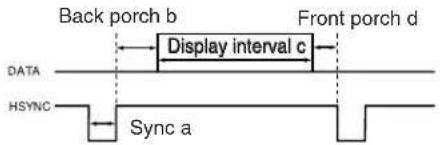
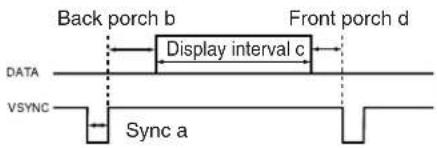
| Computer / Signal | Horizontal signal timing (μs) | ||||
| a | b | c | d | ||
| TEXT 2.0 3.0 | 20.3 | 1.0 | |||
| VGA (60Hz) 3.8 | 1.9 | 25 | 4 0.6 | ||
| Mac 13"mode 2. | 1 | 3.2 | 21 | 2 2.1 | |
| VGA (72Hz) 1.3 | 3.8 | 20 | 3 1.0 | ||
| VGA (75Hz) 2.0 | 3.8 | 20 | 3 0.5 | ||
| VGA (85Hz) 1.6 | 2.2 | 17 | 8 1.6 | ||
| SVGA (56Hz) 2 | 0 | 3.6 | 22 | 2 0.7 | |
| SVGA (60Hz) 3 | 2 | 2.2 | 20 | 0 1.0 | |
| SVGA (72Hz) 2 | 4 | 1.3 | 16 | 0 1.1 | |
| SVGA (75Hz) 1 | 6 | 3.2 | 16 | 2 0.3 | |
| SVGA (85Hz) 1 | 1 | 2.7 | 14 | 2 0.6 | |
| Mac 16"mode 1. | 1 | 3.9 | 14 | 5 0.6 | |
| XGA (60Hz) 2.1 | 2 | 5 | 15 | 8 0.4 | |
| XGA (70Hz) 1.8 | 1.9 | 13 | 7 0.3 | ||
| XGA (75Hz) 1.2 | 2 | 2 | 13 | 0 0.2 | |
| XGA (85Hz) 1.0 | 2 | 2 | 10 | 8 0.5 | |
| 1152×864 (75Hz) | 1.2 | 2 | 4 | 10.7 0 | 6 |
| 1280×960 (60Hz) | 1.0 | 2 | 9 | 11.9 0 | 9 |
| 1280×1024 (60Hz) | 1.0 | 2 | 3 | 11.9 0 | 4 |
| Computer / Signal | Vertical signal timimg (lines) | |||
| a b c d | ||||
| TEXT 3 42 400 1 | ||||
| VGA (60Hz) 2 33 480 10 | ||||
| Mac 13"mode 3 39 480 3 | ||||
| VGA (72Hz) 3 28 480 9 | ||||
| VGA (75Hz) 3 16 480 1 | ||||
| VGA (85Hz) 3 25 480 1 | ||||
| SVGA (56Hz) 2 22 600 1 | ||||
| SVGA (60Hz) 4 23 600 1 | ||||
| SVGA (72Hz) 6 23 600 37 | ||||
| SVGA (75Hz) 3 21 600 1 | ||||
| SVGA (85Hz) 3 27 600 1 | ||||
| Mac 16"mode 3 39 624 1 | ||||
| XGA (60Hz) 6 29 768 3 | ||||
| XGA (70Hz) 6 29 768 3 | ||||
| XGA (75Hz) 3 28 768 1 | ||||
| XGA (85Hz) 3 36 768 1 | ||||
| 1152×864 (75Hz) | 3 32 | 864 1 | ||
| 1280×960 (60Hz) | 3 36 | 960 1 | ||
| 1280×1024 (60Hz) | 3 38 | 1024 1 | ||
TECHNICAL (continued)
Connection to the Mouse Control
This function needs the optional "RMU Accessory kit".
If you need, ask your dealer.
For how to use the kit, please read the manual of the kit.
NOTE • Before connecting, read the instruction manuals of the devices to be connected.
- In the case of notebook type computers with an internal pointing device, the mouse control function will not work unless the internal pointing device is disabled. In such case, disable the internal pointing device and change the BIOS setting to select an external mouse.
Also, some computers may not have a utility program to operate a mouse.
Refer to the computer hardware manual for detail.
TECHNICAL (continued)
RS-232C communication
(1) Turn off the projector and computer power supplies and connect with the RS-232C cable.
(2) Turn on the computer power supply and after the computer has started up, turn on the projector power supply.
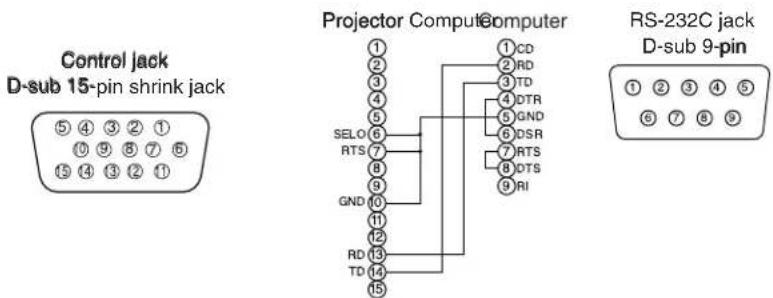
Communications setting
19200bps, 8N1
1 Protocol
Consist of header (7 bytes) + command data (6 bytes).
2 Header
BE + EF + 03 + 06 + 00 + CRC_low + CRC_high CRC_low : Lower byte of CRC flag for command data. CRC_high : Upper byte of CRC flag for command data.
3 Command data
Command data chart
| byte_0 byte_1 byte_2 byte_3 byte_4 byte_5 | |||||
| Action Type Setting code | |||||
| low high | low high | low high | |||
Action (byte_0 - 1)
| Action Classification Content | |
| 1 SET Change setting to desired value. | |
| 2 GET Read projector internal setup value. | |
| 4 INCREMENT Increment setup value by 1. | |
| 5 DECREMENT Decrement setup value by 1. | |
| 6 EXECUTE Run a command. |
TECHNICAL (continued)
Requesting projector status (Get command)
(1) Send the request code Header + Command data ('02H' + '00H' + type (2 bytes) + '00H' + '00H') from the computer to the projector.
(2) The projector returns the response code '1DH' + data (2 bytes) to the computer.
Changing the projector settings (Set command)
(1) Send the setting code Header + Command data ('01H' + '00H' + type (2 bytes) + setting code (2 bytes)) from the computer to the projector.
(2) The projector changes the setting based on the above setting code.
(3) The projector returns the response code '06H' to the computer.
Using the projector default settings (Reset Command)
(1) The computer sends the default setting code Header + Command data ('06H' + '00H' + type (2 bytes) + '00H' + '00H') to the projector.
(2) The projector changes the specified setting to the default value.
(3) The projector returns the response code '06H' to the computer.
Increasing the projector setting value (Increment command)
(1) The computer sends the increment code Header + Command data ('04H' + '00H' + type (2 bytes) + '00H' + '00H') to the projector.
(2) The projector in creases the setting value on the above setting code.
(3) The projector returns the response code '06H' to the computer.
Decreasing the projector setting value (Decrement command)
(1) The computer sends the decrement code Header + Command data ('05H' + '00H' + type (2 bytes) + '00H' + '00H') to the projector.
(2) The projector decreases the setting value on the above setting code.
(3) The projector returns the response code '06H' to the computer.
When a command sent by the projector cannot be understood by the computer
When the command sent by the projector cannot be understood, the error command '15H' is returned by the computer. Some times, the projector ignores RS-232C commands during other works. If the error command '15H' is returned, please send the same command again.
When data sent by the projector cannot be practice
When the command sent by the projector cannot be practiced, the error code '1cH' + 'xxxxH' is returned.
When the data length is greater than indicated by the data length code, the projector will ignore the excess data code.
Conversely, when the data length is shorter than indicated by the data length code, an error code will be returned to the projector.
NOTE • Operation cannot be guaranteed when the projector receives an undefined command or data.
- Provide an interval of at least 40ms between the response code and any other code.
- The projector outputs test data when the power supply is switched ON, and when the lamp is lit. Ignore this data.
- Commands are not accepted during warm-up.
TECHNICAL - 6
TECHNICAL (continued)
Command data chart
| Names Operation type Header | Command data | ||||||
| CRC Action Type Setting code | |||||||
| Blank Color | Set | Red BE EF 03 06 00 3B D3 01 00 00 | 30 00 00 | ||||
| Orange BE EF 03 06 00 AB D2 01 00 00 | 0 30 01 00 | ||||||
| Green BE EF 03 06 00 5B D2 01 00 00 | 30 02 00 | ||||||
| Blue BE EF 03 06 00 CB D3 01 00 00 | 30 03 00 | ||||||
| Purple BE EF 03 06 00 FB D1 01 00 00 | 30 04 00 | ||||||
| White BE EF 03 06 00 6B D0 01 00 00 | 30 05 00 | ||||||
| Black BE EF 03 06 00 | 9B D0 | 01 00 | 00 30 | 06 00 | |||
| Get | BE EF 03 06 00 | 08 D3 | 02 00 | 00 30 | 00 00 | ||
| Mirror | Set | Normal | BE EF 03 06 00 C7 D2 01 | 00 01 | 30 00 00 | ||
| H Inverse | BE EF 03 06 00 57 D3 01 | 00 01 | 30 01 00 | ||||
| V Inverse | BE EF 03 06 00 | A7 D3 | 01 00 | 01 30 | 02 00 | ||
| H&V Inverse | BE EF 03 06 00 37 D2 01 | 00 01 | 30 03 00 | ||||
| Get | BE EF 03 06 00 | F4 D2 | 02 00 | 01 30 | 00 00 | ||
| Freeze | Set | Normal | BE EF 03 06 00 83 D2 01 | 00 02 | 30 00 00 | ||
| Freeze | BE EF 03 06 00 13 D3 01 | 00 02 | 30 01 00 | ||||
| Get | BE EF 03 06 00 | B0 D2 | 02 00 | 02 30 | 00 00 | ||
| Menu Color | Set | Red BE EF 03 06 00 7F D3 01 00 03 | 30 00 00 | ||||
| Orange BE EF 03 06 00 EF D2 01 00 03 | 30 01 00 | ||||||
| Green BE EF 03 06 00 1F D2 01 00 | 03 30 02 00 | ||||||
| Blub BE EF 03 06 00 8F D3 01 00 | 03 30 03 00 | ||||||
| Purple BE EF 03 06 00 BF D1 01 00 08 | 30 04 00 | ||||||
| Transparent BE EF 03 06 00 | 2F D0 | 01 00 | 03 30 | 05 00 | |||
| Gray BE EF 03 06 00 | DF D0 | 01 00 | 03 30 | 06 00 | |||
| Get | BE EF 03 06 00 | 4C D3 | 02 00 | 03 30 | 00 00 | ||
| Startup | Set | Turn ON | BE EF 03 06 00 | 0B D2 | 01 00 | 04 30 | 00 00 |
| Turn OFF | BE EF 03 06 00 | 9B D3 | 01 00 | 04 30 | 01 00 | ||
| Get | BE EF 03 06 00 | 38 D2 | 02 00 | 04 30 | 00 00 | ||
| Language | Set | English BE EF 03 06 00 F7 D3 01 | 00 05 30 | 00 00 | |||
| Français | BE EF 03 06 00 67 D2 01 | 00 05 | 30 01 00 | ||||
| Deutsch | BE EF 03 06 00 97 D2 01 | 00 05 | 30 02 00 | ||||
| Español | BE EF 03 06 00 | 07 D3 | 01 00 | 05 30 | 03 00 | ||
| Italiano | BE EF 03 06 00 37 D1 01 | 00 05 | 30 04 00 | ||||
| Norsk | BE EF 03 06 00 | A7 D0 | 01 00 | 05 30 | 05 00 | ||
| Nederlands | BE EF 03 06 00 57 D0 01 | 00 05 | 30 06 00 | ||||
| Português | BE EF 03 06 00 C7 D1 01 | 00 05 | 30 07 00 | ||||
| Japanese | BE EF 03 06 00 | 37 D4 | 01 00 | 05 30 | 08 00 | ||
| Get | BE EF 03 06 00 | C4 D3 | 02 00 | 05 30 | 00 00 | ||
TECHNICAL
TECHNICAL (continued)
Command data chart
| Names Operation type Header | Command data | |||||||||
| CRC Action Type Setting code | ||||||||||
| Magnify | Get BE EF 03 06 00 7C D2 02 00 07 | 30 00 00 | ||||||||
| Increment BE EF 03 06 00 1A D2 04 00 | 07 30 00 00 | |||||||||
| Decrement BE EF 03 06 00 CB D3 05 00 | 07 30 00 00 | |||||||||
| Auto off | Get BE EF 03 06 00 08 86 02 00 10 | 31 00 00 | ||||||||
| Increment BE EF 03 06 00 6E 86 04 00 | 10 31 00 00 | |||||||||
| Decrement BE EF 03 06 00 BF 87 05 00 | 10 31 00 00 | |||||||||
| Brightness Reset Execute BE EF 03 06 00 58 D3 06 00 00 70 00 | 00 | |||||||||
| Contrast Reset | Execute | BE EF 03 06 00 | A4 D2 | 06 00 | 01 70 | 00 00 | ||||
| V.Position Reset | Execute | BE EF 03 06 00 | E0 D2 | 06 00 | 02 70 | 00 00 | ||||
| H.Position Reset | Execute | BE EF 03 06 00 | IC D3 | 06 00 | 03 70 | 00 00 | ||||
| H.Size Reset | Execute BE EF 03 06 00 68 D2 06 00 00 | 4 70 00 00 | ||||||||
| Color Balance R Reset | Execute | BE EF 03 06 00 | 94 D3 | 06 00 | 05 70 | 00 00 | ||||
| Color Balance B Reset | Execute | BE EF 03 06 00 | D0 D3 | 06 00 | 06 70 | 00 00 | ||||
| Sharpness Reset | Execute BE EF 03 06 00 C4 D0 06 00 | 09 70 00 00 | ||||||||
| Color Reset | Execute | BE EF 03 06 00 | 80 D0 | 06 00 | 0A 70 | 00 00 | ||||
| Tint Reset | Execute | BE EF 03 06 00 | 7C D1 | 06 00 | 0B 70 | 00 00 | ||||
| Keystone_V Reset | Execute | BE EF 03 06 00 | 08 D0 | 06 00 | 0C 70 | 00 00 | ||||
| Auto | Execute | BE EF 03 06 00 | 91 D0 | 06 00 | 0A 20 | 00 00 | ||||
| Blank on/off | Set | off | BE EF 03 06 00 | FB D8 | 01 00 | 20 30 | 00 00 | |||
| on | BE EF 03 06 00 | 6B D9 | 01 00 | 20 30 | 01 00 | |||||
| Get BE EF 03 06 00 C8 D8 02 00 20 | 30 00 00 | |||||||||
| Error Status | Get | BE EF 03 06 00 D9 D8 02 | 00 20 | 50 00 00 | ||||||
| (Example of Return) | ||||||||||
| 00 00 01 00 | 02 00 03 00 | |||||||||
| (Normal) (Cover-error) (Fan-error) (Lamp-error) | ||||||||||
| 04 00 05 00 | 06 00 | |||||||||
| (reserved) (reserved) (Lamp-Time-over) | ||||||||||
| Power | Set | OFF | BE EF 03 06 00 | 2A D3 | 01 00 | 00 60 | 00 00 | |||
| ON | BE EF 03 06 00 | BA D2 | 01 00 | 00 60 | 01 00 | |||||
| Get | BE EF 03 06 00 | 19 D3 | 02 00 | 00 60 | 00 00 | |||||
| Input Source | Set | RGB1 | BE EF 03 06 00 | FE D2 | 01 00 | 00 20 | 00 00 | |||
| Video | BE EF 03 06 00 | 6E D3 | 01 00 | 00 20 | 01 00 | |||||
| SVideo | BE EF 03 06 00 | 9E D3 | 01 00 | 00 20 | 02 00 | |||||
| Component | BE EF 03 06 00 | AE D1 | 01 00 | 00 20 | 05 00 | |||||
| Get | BE EF 03 06 00 | CD D2 | 02 00 | 00 20 | 00 00 | |||||
| Volume | Get | BE EF 03 06 00 | 31 D3 | 02 00 | 01 20 | 00 00 | ||||
| Increment | BE EF 03 06 00 | 57 D3 | 04 00 | 01 20 | 00 00 | |||||
| Decrement | BE EF 03 06 00 | 86 D2 | 05 00 | 01 20 | 00 00 | |||||
TECHNICAL (continued)
Command data chart
| Names Operation type Header | Command data | ||||||
| CRC Action Type Setting code | |||||||
| Mute | Set | Normal BE EF 03 06 00 46 D3 01 00 02 | 20 00 00 | ||||
| Mute BE EF 03 06 00 D6 D2 01 00 02 | 20 01 00 | ||||||
| Get BE EF 03 06 00 75 D3 02 00 02 20 | 00 00 | ||||||
| Brightness | Get BE EF 03 06 00 89 D2 02 00 03 20 | 00 00 | |||||
| Increment BE EF 03 06 00 EF D2 04 00 03 | 20 00 00 | ||||||
| Decrement BE EF 03 06 00 3E D3 05 00 03 | 20 00 00 | ||||||
| Contrast | Get | BE EF 03 06 00 | FD D3 | 02 00 | 04 20 | 00 00 | |
| Increment BE EF 03 06 00 9B D3 04 00 04 | 20 00 00 | ||||||
| Decrement BE EF 03 06 00 4A D2 05 00 04 | 20 00 00 | ||||||
| Color Balance R | Get BE EF 03 06 00 01 D2 02 00 05 20 | 00 00 | |||||
| Increment BE EF 03 06 00 67 D2 04 00 05 | 20 00 00 | ||||||
| Decrement BE EF 03 06 00 B6 D3 05 00 05 | 20 00 00 | ||||||
| Color Balance B | Get BE EF 03 06 00 45 D2 02 00 06 20 | 00 00 | |||||
| Increment BE EF 03 06 00 23 D2 04 00 06 | 20 00 00 | ||||||
| Decrement BE EF 03 06 00 F2 D3 05 00 06 | 20 00 00 | ||||||
| Keystone_V | Get | BE EF 03 06 00 | B9 D3 | 02 00 | 07 20 | 00 00 | |
| Increment BE EF 03 06 00 DF D3 04 00 07 | 20 00 00 | ||||||
| Decrement BE EF 03 06 00 0E D2 05 00 07 | 20 00 00 | ||||||
| Aspect | Set | 4:3, Full BE EF 03 06 00 9E D0 01 00 08 | 20 00 00 | ||||
| 16:9 | BE EF 03 06 00 | OE D1 | 01 00 | 08 20 | 01 00 | ||
| Small BE EF 03 06 00 FE D1 01 00 08 | 20 02 00 | ||||||
| Get BE EF 03 06 00 AD D0 02 00 08 20 | 00 00 | ||||||
| Display Position at 16 : 9 or Small | Set | Default BE EF 03 06 00 62 D1 01 00 09 | 20 00 00 | ||||
| Bottom BE EF 03 06 00 F2 D0 01 00 | 09 20 01 | 00 | |||||
| Top BE EF 03 06 00 02 D0 01 00 | 09 20 02 | 00 | |||||
| Get BE EF 03 06 00 51 D1 02 00 09 20 | 00 00 | ||||||
| V.Position | Get BE EF 03 06 00 0D 83 02 00 00 21 | 00 00 | |||||
| Increment BE EF 03 06 00 6B 83 04 00 00 | 21 00 00 | ||||||
| Decrement | BE EF 03 06 00 | BA 82 | 05 00 | 00 21 | 00 00 | ||
| H.Position | Get | BE EF 03 06 00 | F1 82 | 02 00 | 01 21 | 00 00 | |
| Increment | BE EF 03 06 00 | 97 82 | 04 00 | 01 21 | 00 00 | ||
| Decrement | BE EF 03 06 00 | 46 83 | 05 00 | 01 21 | 00 00 | ||
| H.Size | Get BE EF 03 06 00 B5 82 02 00 02 21 | 00 00 | |||||
| Increment BE EF 03 06 00 D3 82 04 00 02 | 21 00 00 | ||||||
| Decrement | BE EF 03 06 00 | 02 83 | 05 00 | 02 21 | 00 00 | ||
| H.Phase | Get | BE EF 03 06 00 | 49 83 | 02 00 | 03 21 | 00 00 | |
| Increment BE EF 03 06 00 2F 83 04 00 | 03 21 00 | 00 | |||||
| Decrement BE EF 03 06 00 FE 82 05 00 03 | 21 00 00 | ||||||
| Sharpness | Get | BE EF 03 06 00 | F1 72 | 02 00 | 01 22 | 00 00 | |
| Increment | BE EF 03 06 00 | 97 72 | 04 00 | 01 22 | 00 00 | ||
| Decrement | BE EF 03 06 00 | 46 73 | 05 00 | 01 22 | 00 00 | ||
TECHNICAL
TECHNICAL (continued)
Command data chart
| Names Operation type Header | Command data | ||||||
| CRC Action Type Setting code | |||||||
| Color | Get BE EF 03 06 00 B5 72 02 00 02 22 | 00 00 | |||||
| Increment BE EF 03 06 00 D3 72 04 00 02 | 22 00 00 | ||||||
| Decrement BE EF 03 06 00 02 73 05 00 02 | 22 00 00 | ||||||
| Tint | Get BE EF 03 06 00 49 73 02 00 03 22 | 00 00 | |||||
| Increment BE EF 03 06 00 2F 73 04 00 03 | 22 00 00 | ||||||
| Decrement BE EF 03 06 00 FE 72 05 00 03 | 22 00 00 | ||||||
| Video Format | Set | Auto BE EF 03 06 00 9E 75 01 00 00 | 22 0A 00 | ||||
| NTSC BE EF 03 06 00 FE 71 01 00 00 | 22 04 00 | ||||||
| PAL BE EF 03 06 00 6E 70 01 00 00 | 22 05 00 | ||||||
| SECAM | BE EF 03 06 00 6E 75 01 | 00 00 22 09 00 | |||||
| NTSC 4.43 | BE EF 03 06 00 5E 72 01 | 00 00 22 02 00 | |||||
| M-PAL | BE EF 03 06 00 FE 74 01 | 00 00 22 08 00 | |||||
| N-PAL | BE EF 03 06 00 0E 71 01 | 00 00 22 07 00 | |||||
| Get BE EF 03 06 00 0D 73 02 00 00 22 | 00 00 | ||||||
| HDTV | Set | 1080i BE EF 03 06 00 F2 73 01 00 05 | 22 00 00 | ||||
| 1035i BE EF 03 06 00 62 72 01 00 05 | 22 01 00 | ||||||
| Get BE EF 03 06 00 C1 73 02 00 05 22 | 00 00 | ||||||
| Sync on G | Set | off | BE EF 03 06 00 | CB D0 | 01 00 | 08 30 | 01 00 |
| on | BE EF 03 06 00 | 5B D1 | 01 00 | 08 30 | 00 00 | ||
| Get BE EF 03 06 00 68 D1 02 00 08 30 | 00 00 | ||||||
| WHISPER | Set | NORMAL | BE EF 03 06 00 3B 23 01 | 00 00 33 00 00 | |||
| WHISPER | BE EF 03 06 00 AB 22 01 | 00 00 33 01 00 | |||||
| Get BE EF 03 06 00 08 23 02 00 00 33 | 00 00 | ||||||
| GAMMA | Set | NORMAL | BE EF 03 06 00 C7 F0 01 | 00 A1 30 00 00 | |||
| CINEMA | BE EF 03 06 00 | 57 F1 | 01 00 | A1 30 | 01 00 | ||
| DYNAMIC | BE EF 03 06 00 A7 F1 01 | 00 A1 30 02 00 | |||||
| Get | BE EF 03 06 00 | F4 F0 | 02 00 | A1 30 | 00 00 | ||
| COLOR TEMP. | Set | NORMAL | BE EF 03 06 00 FB F5 01 | 00 B0 | 30 00 00 | ||
| LOW | BE EF 03 06 00 | 6B F4 | 01 00 | B0 30 | 01 00 | ||
| Get BE EF 03 06 00 C8 F5 02 00 B0 30 | 00 00 | ||||||
FCC Statement Warning
WARNING: This equipment has been tested and found to comply with the limits for a Class B digital device, pursuant to Part 15 of the FCC Rules. These limits are designed to provide reasonable protection against harmful interference in a residential installation. This equipment generates, uses, and can radiate radio frequency energy and, if not installed and used in accordance with the instructions, may cause harmful interference to radio communications. However, there is no guarantee that interference will not occur in a particular installation. If this equipment does cause harmful interference to radio or television reception, which can be determined by turning the equipment off and on, the user is encouraged to try to correct the interference by one or more of the following measures:
- Reorient or relocate the receiving antenna.
- Increase the separation between the equipment and receiver.
- Connect the equipment into an outlet on a circuit different from that to which the receiver is connected.
- Consult the dealer or an experienced radio/TV technician for help.
INSTRUCTIONS TO USERS: This equipment complies with the requirements of FCC (Federal Communication Commission) equipment provided that the following conditions are met.
The cables may have to be used with the core set to the projector side. Use the cables which are included with the projector or specified.
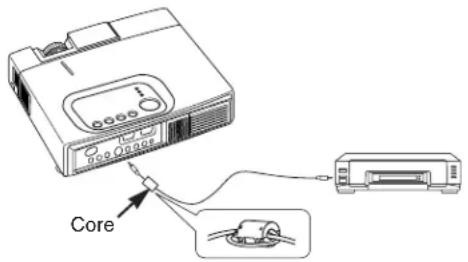
CAUTION: Changes or modifications not expressly approved by the party responsible for compliance could void the user's authority to operate the equipment.
For the Customers in CANADA
NOTICE: This Class B digital apparatus complies with Canadian ICES-003.
Computer Division 2000 Sierra Point Parkway, MS760 Brisbane, CA 94005-1835
Tel: +1-800-225-1741 Fax: +1-650-244-7776 www.hitachi.com/lcd.
Hitachi Canada, Ltd.
6740 Campobello Road, Mississauga, Ontario L5N2L8, Canada
Tel: +1-905-821-4545 Fax: +1-905-821-1101
Hitachi Home Electronics (Europe), Ltd.
Dukes Meadow, Millboard Road, Bourne End, Buckinghamshire SL8 5XF UK
Tel: +44-162-864-3000 Fax: +44-162-864-3400
Hitachi Home Electronics Europe Ltd
426 Bergensesteenweg, 1500 Halle, Belgium Tel: +32-2-363-9901 Fax: +34-2-363-9900
Hitachi Home Electronics Europe Ltd
Gewerbepark, Hintermattlistr, Postfach, 5506 Magenwil, Switzerland
Tel: +41-62-889-8011 Fax: +41-62-896-4771
Hitachi Europe GmbH
Business Systems Division
Via T. Gulli. 39, 20147 Milano, Italy
Tel: +39-2-487861 Fax: +39-2-48786322
Hitachi Sales Europe GmbH
Business Systems Division
Am Seestern 18, 40547 Dusseldorf, Germany Tel: +49-211-529-1551 Fax: +49-211-529-1594
Hitachi Business Systems (Nordic)
Brugata 14, N-0184 Oslo, Norway
Tel: +47-2205-9060 Fax: +47-2205-9061
Hitachi Business Systems (Nordic)
Domnarvsgatan 29, Lunda, Box 62, S-163 91 Spanga, Sweden
Tel: +46-8-621-8260 Fax: +46-8-761-6250
Hitachi Business Systems (Nordic)
Kuldyssen 13, DK-2630 Tåstrup, Denmark Tel: +45-43-99-9200 Fax: +45-43-99-9392
Hitachi Business Systems (Nordic)
Tapiolan Keskustorni 11 Krs. Fin-02100 Espoo, Finland
Tel: +358-9-3487-1188 Fax: +358-9-455-2152
*QR51381*
Hitachi France
Immeuble, 'Ariane', 18 Rue Grange Dame Rose,
B.P. 134, 78148 Velizy, Cedex, France
Tel: +33-1-34630542 Fax: +33-1-34650761
Hitachi Sales Iberica S A
Gran Via Carlos 111, 101, 1-1, 08028 Barcelona, Spain
Tel: +34-3-330-8652 Fax: +34-3-339-7839
Hitachi Home Electronics Asia, (S) Pte Ltd.
16 Collyer Quay #20-00 Hitachi Tower Singapore 049318, Singapore
Tel: +65-536-2520 Fax: +65-536-2521
Hitachi Sales (Malaysia) Sdn. Bhd.
Wisma Hitachi, No.2, Lorong 13/6A, 46200 Petaling
Jaya, Selangor Darul Ehsan, Malaysia
Tel: +60-3-7573455 Fax: +60-3-7556090
Hitachi Sales (Thailand), Ltd.
994,996 Soi Thonglor, Sukhumvit 55 Road, Klongton,
Klongtoey, Bangkok 10110, Thailand
Tel: +66-2-381-8381 Fax: +66-2-381-9520
Hitachi (Hong Kong), Ltd.
8th Floor Park-in Commercial Centre, No.56, Dundas
Street, Kowloon Bay, Kowloon, Hong Kong
Tel: +852-2-7804351 Fax: +852-2-7804915
Hitachi Sales Corp. of Taiwan.
2nd Floor, No.65, Nanking East Road, Section 3, Taipei, Taiwan
Tel: +886-2-516-0500 Fax: +886-2-516-1501
Hitachi Australia Ltd.
13-15 Lyonpark Road, North Ryde NSW 2113, Australia
Tel: +61-2-9888-4100 Fax: +61-2-9888-4144
Hitachi, Ltd.
15-12, Nishi Simbashi 2-chome, Minato-ku, Tokyo, 105 Japan
Tel: +81-3-3502-2111 Fax: +81-3-3506-1440
Printed in Japan

- BEDIENUNGSANLEITUNG
- USER'S MANUAL
- CONTENTS
- TABLES
- FEATURES
- Outstanding Brightness
- Partial Magnification Function
- Distortion Correction Function
- Extra-low Noise Function
- BEFORE USE
- Contents of package
- BEFORE USE (continued)
- Loading the Batteries
- First Loading:
- Replacing:
- Installation of the Projector and Screen
- Angle Adjustment
- INSTALLATION (continued)
- Cabling
- Power Connection
- Example of system setup
- Plug & Play
- OPERATIONS
- Power ON
- Power OFF
- OPERATIONS (continued)
- Basic Operation
- Setup Menu
- Input Menu
- Image Menu
- Options Menu
- No Signal Menu
- MAINTENANCE
- Lamp
- HIGH VOLTAGE HIGH TEMPERATURE HIGH PRESSURE
- Lamp Life
- MAINTENANCE (continued)
- Replacing the Lamp
- Resetting the Lamp Timer
- Air Filter Maintenance
- Other Maintenance
- Maintenance Inside the Equipment
- Cleaning the Lens
- Cleaning the Cabinet and Remote control transmitter
- OSD Message
- TROUBLESHOOTING (continued)
- Indicators Message
- Symptom
- SPECIFICATIONS
- WARRANTY AND AFTER-SERVICE
- ALTA TENSIONE ALTA TEMPERATURA ALTA PRESSIONE
- INSTALLERING (forts.)
- Strømtilkopling
- VEDLIKEHOLD (forts.)
- ESPECIFICAÇÕES......22
- GARANTIA E ASSISTÊNCIA
- TÉCNICA....23
- TABELAS
- Signal Connector Pin Assignment
- TECHNICAL (continued)
- Initial set signals
- Connection to the Mouse Control
- RS-232C communication
- Communications setting
- Protocol
- Header
- Command data
- Requesting projector status (Get command)
- Changing the projector settings (Set command)
- Using the projector default settings (Reset Command)
- Increasing the projector setting value (Increment command)
- Decreasing the projector setting value (Decrement command)
- When a command sent by the projector cannot be understood by the computer
- When data sent by the projector cannot be practice
- FCC Statement Warning
- For the Customers in CANADA
Brand : HITACHI
Model : CPX275W
Category : Projector