EasyManual
Astro Fi 102 - Telescope CELESTRON - Free user manual and instructions
Find the device manual for free Astro Fi 102 CELESTRON in PDF.



User questions about Astro Fi 102 CELESTRON
0 question about this device. Answer the ones you know or ask your own.
Ask a new question about this device
Download the instructions for your Telescope in PDF format for free! Find your manual Astro Fi 102 - CELESTRON and take your electronic device back in hand. On this page are published all the documents necessary for the use of your device. Astro Fi 102 by CELESTRON.
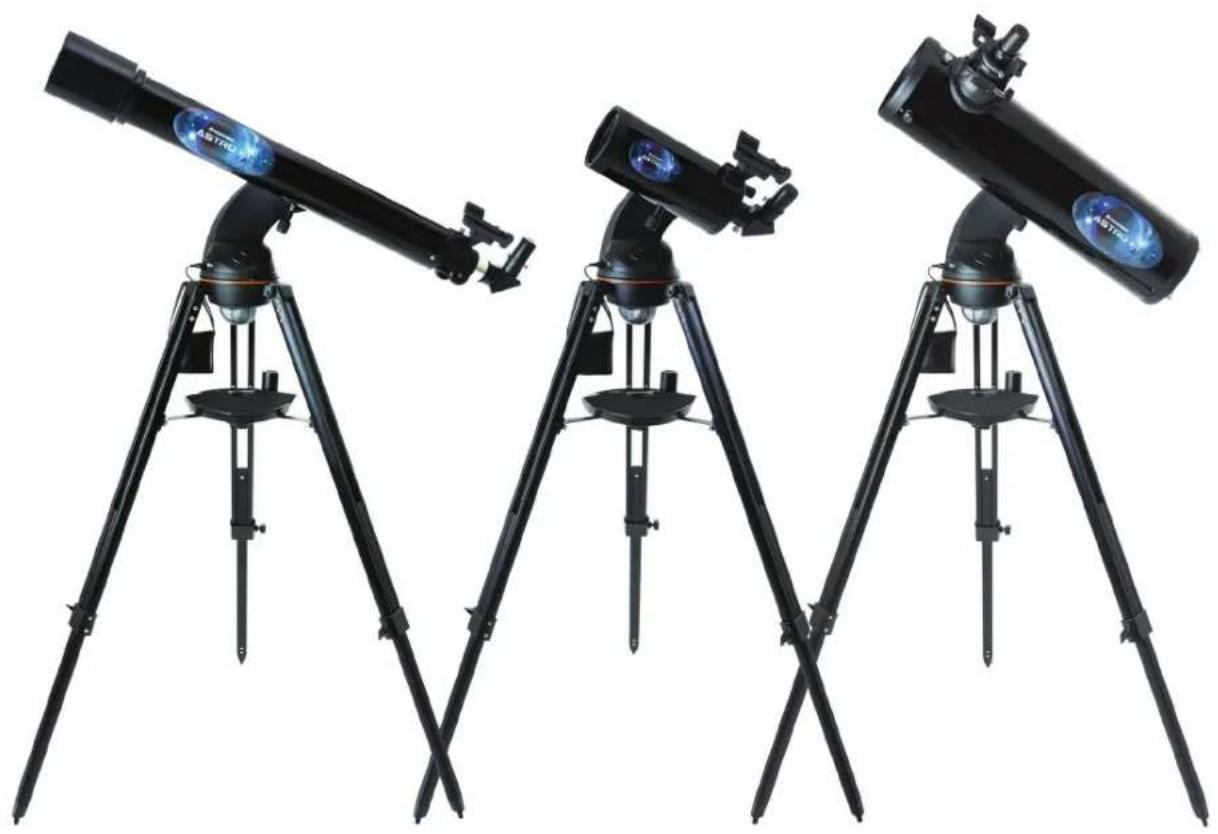
USER MANUAL Astro Fi 102 CELESTRON
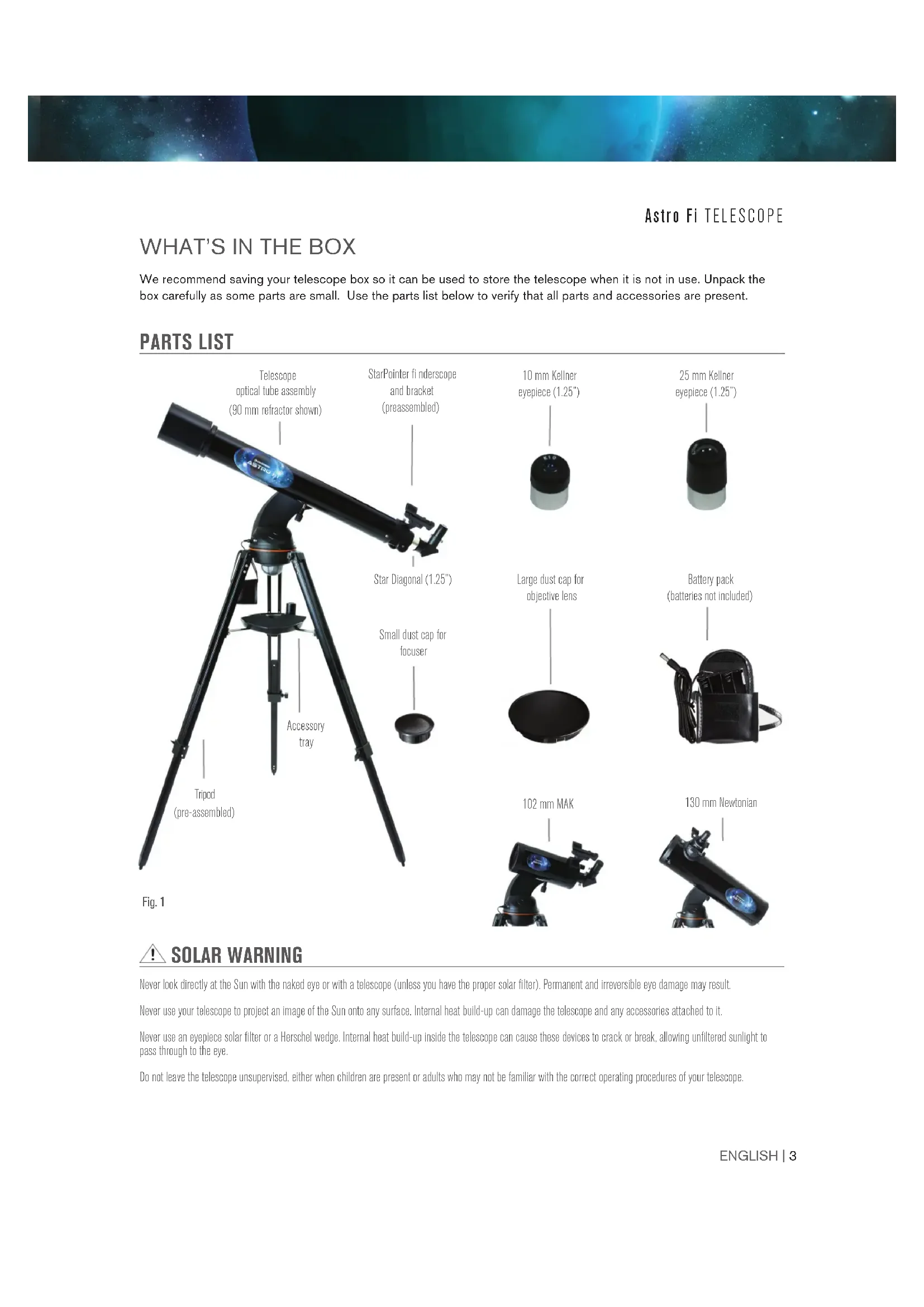
We recommend saving your telescope box so it can be used to store the telescope when it is not in use. Unpack the box carefully as some parts are small. Use the parts list below to verify that all parts and accessories are present.
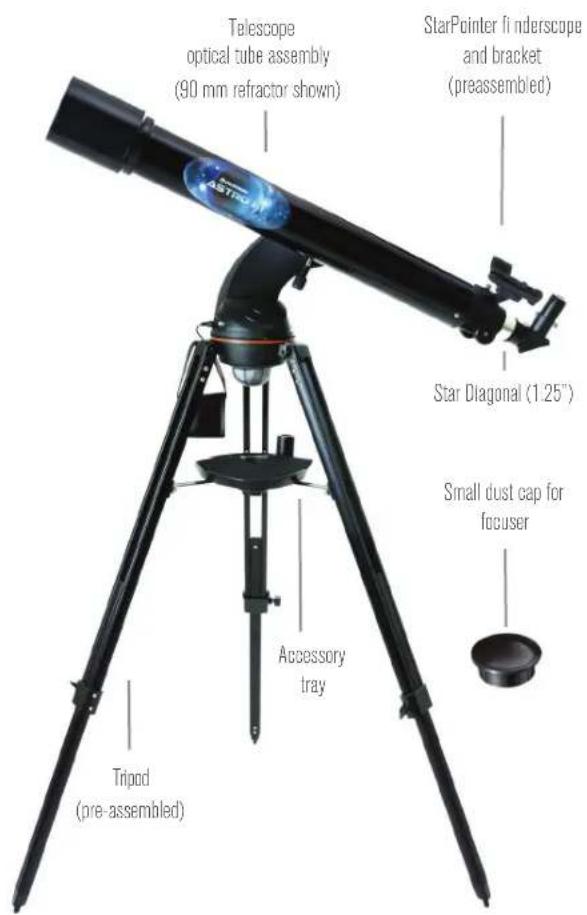
PARTS LIST
Fig. 1
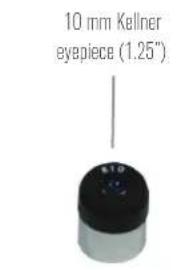
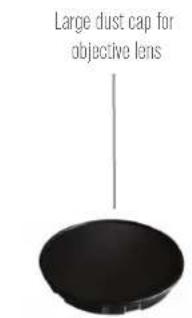
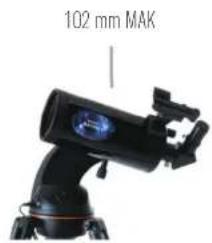
25 mm Kellner eyepiece (1.25")
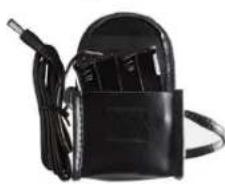
Battery pack (batteries not included)
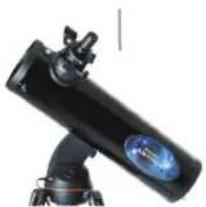
130 mm Newtonian

SOLAR WARNING
Never use your telescope to project an image of the Sun onto any surface. Internal heat build-up can damage the telescope and any accessories attached to it.
Nevse an eepie sor f or a hch wge. nmal heat buid-up insd the teoscpe can cause these devices to crack or break, allowing unfiltered sunlight to pass through to the eye.
Do not leave the telescope unsupervised. either when children are present or adults who may not be familiar with the correct operating procedures of your telescope.
PREREQUISITES
Your Astro Fi Telescope requires one of the following power sources:
- 8 x AA batteries
12 volt DC source with at least 1 ampere of current
Celestron PowerTank (Sold Separately)
You will also need a smartphone or tablet to operate the telescope. Compatible devices include Apple iPhone or iPad with iOS 6 or later, and Samsung smartphones or tablets with Android 4.0. Visit celestron.com for a complete compatibility list.
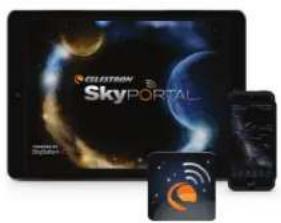
Before you begin, you'll need to install the free Celestron SkyPortal app on your device. Download the app from the App Store or Google Play.
ASSEMBLING YOUR TELESCOPE
You won't need tools to assemble the Astro Fi Telescope. Remove all the items from their packaging, then:
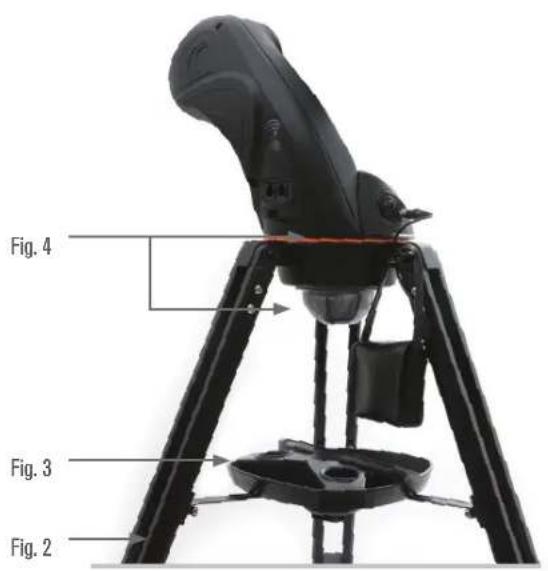
- Open the tripod until the center brace is fully extended (Figure 2).
- Thread the captive center bolt into the accessory tray (Figure 3).
- Place the fork arm assembly on the tripod and secure it using the captive knob under the top of the tripod (Figure 4).
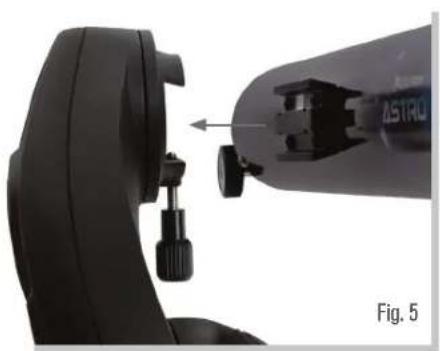
- Attach the telescope optical tube by positioning the dovetail into the dovetail holder on the fork arm. Make sure the bottom of the dovetail is fl at against the dovetail holder. Firmly tighten the thumb bolt. (Figure 5).
- Adjust the tripod to a comfortable height and level it, using the lock knobs to secure each of the tripod legs.
- Install eight AA batteries (not included) into the battery pack, noting the correct position for + and -. Leave the battery pack in the accessory tray.
NOTE: The accessory tray has a special holder suitable for your smartphone or small tablet.
THE EYEPIECES AND STAR DIAGONAL
All models of the Astro Fi come with two eyepieces, a low power 25mm and a high power 10mm. The eyepiece you choose determines your magnific cation and fi eld of view. Whenever you set up your telescope, always start with the 25 mm eyepiece. After locating your target, you can switch to the higher power 10 mm eyepiece to get a more detailed view. The Astro Fi 90 refractor and 102mm Maksutov-Cassegrain also come with a star diagonal. The star diagonal positions the eyepiece at a more comfortable 90 degree angle to the telescope and provide a right side up image, though the image will be mirror reversed left to right.
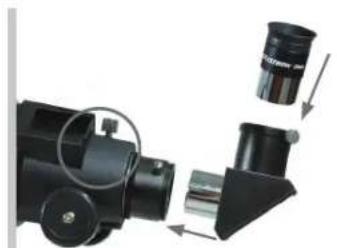
Fig. 6
Remove all dust caps, then insert the star diagonal into the focuser and tighten the 2 silver thumbscrews. Insert the 25 mm eyepiece and secure it by tightening the 2 thumbscrews on the star diagonal. The 130mm Newtonian does not use a star diagonal. The eyepieces are inserted directly into the telescope's focuser. Being an astronomical telescope, the image through the Newtonian will appear rotated upside-down. This is normal for a reflecting telescope.
STARPOINTER FINDERSCOPE
THE
Your telescope comes with a StarPointer red-dot fi nderscope that you will use as a sighting tool when aiming the telescope at a distant target.
To install your StarPointer Finderscope:
- Locate the dovetail clamp on the telescope tube. On the refractor, this is located on the focuser. On the Newtonian and Maksutov, the dovetail clamp is on the telescope tube.
- Slide the base of the StarPointer into the dovetail base on the telescope near the focuser. Lock it in place by tightening the silver thumbscrew.
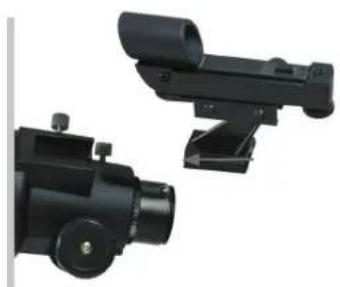
Fig. 7
ALIGNING THE STARPOINTER FINDERSCOPE
The first time you assemble your telescope, you'll need to align the StarPointer finderscope with the main optics of the telescope. This step can be done without powering on the telescope. Although this step can be done out in the field at night, it is significantly easier to accomplish this outdoors in daylight. Once you have completed the finderscope alignment, you should not have to repeat this step unless the finderscope is bumped or dropped.
- Take the telescope outside during the day and, using your naked eye, find an easily recognizable object, such as a streetlight, car license plate, or tall tree. The object should be as far away as possible, but preferably at least a quarter mile away.
- Remove the main dust cover from the front of the telescope by pulling it straight off. Make sure your 25mm eyepiece is installed in the focuser.
- Do not try to move the telescope left and right while it is off. Move the assembled tripod so the telescope is pointed in the direction of the object you chose in step 1.
- Look through the telescope and move it up and down until the object you chose lies in the center of the view. If the image is blurry, gently turn the focus knobs on either side of the telescope until it comes into sharp focus.
NOTE: The image you see in the eyepiece will appear mirror reversed. This is perfectly normal in an astronomical telescope.
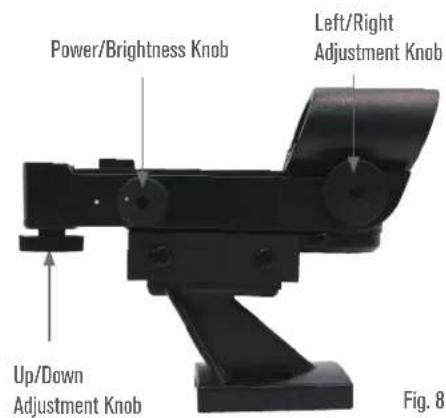
- Once the object is centered in your 25 mm eyepiece, turn on the Red Dot Finder by rotating the power switch knob on the right side of the fi nder clockwise. You will hear an audible click to confirm that the fi nder has been turned on. This knob also controls the brightness of the red dot. Turn the knob all the way to the end to make the dot as bright as possible.
- With your head positioned about a foot behind the fi nder, look through the round window of the fi nder and locate the red dot. It will probably be close to, but not on top of, the object you see when you are looking through the 25 mm eyepiece.
- Without moving the telescope, use the two adjustment knobs located on the side and underneath the StarPointer fi nderscope (Figure 8). One controls the left-right motion of the dot. The other controls the up-down motion of the dot. Adjust both until the red dot appears over the object you are observing in the 25mm eyepiece.
Your StarPointer Finder is now aligned!
NOTE: Be sure to turn off the Starpointer Finder when not in use to conserve battery power.
GET READY TO OBSERVE
Now that your telescope is assembled and the StarPointer is aligned, let's connect it to your smartphone or tablet.
We recommend you familiarize yourself with the telescope and app during the day before using it at night.
CAUTION: Remember to never point the telescope at the Sun during the day without using a proper full aperture solar filter!
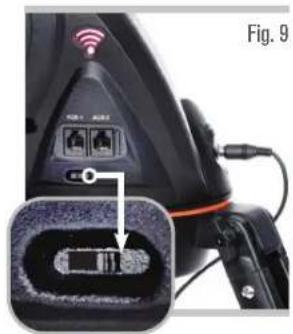
- Plug the battery pack into the power port on the base of the telescope, (Figure 9). The red WiFi light on the arm will light, indicating power and WiFi-ready status. Make sure the small switch near the power socket is in the RIGHT position as shown in the figure.
-
Go to your device's WiFi settings, and connect to the "Celestron-xx" network. Wait for your device to confirm that you have successfully connected.
-
Open Celestron Sky Portal and select "Connect to Telescope". Arrows will appear on your screen for UP/DOWN and LEFT/RIGHT. These motions are referred to as altitude and azimuth, respectively.
- Use the arrows to move your telescope. A slider will adjust the motor speed.
Start by pointing at distant terrestrial objects. Locate something with your StarPointer first, then look at
the object using the 25mm eyepiece. Switch to the 10mm eyepiece, and notice how it increases the magnifi cation and decreases the fi eld of view. When you change eyepieces, you may have to readjust the focus slightly to get the sharpest image.
Astro Fi TELESCOPE
WiFi switch on right position
Now that you are familiar with your telescope, you are ready to begin observing the night sky!
ALIGNING YOUR ASTRO FI
To take full advantage of your motorized Astro Fi, you must first align the telescope with the sky using the Celestron SkyPortal app. Once aligned, your telescope will automatically locate any celestial object you select on your screen! The telescope also automatically tracks objects in the sky as the Earth rotates. This keeps objects centered in the eyepiece, and makes it easy to share views with family and friends.
- Set up your telescope as you did during the day. Make sure your 25mm eyepiece are installed. Set the tripod to a comfortable height and level it. Plug the battery pack into the power port on the telescope.
- Connect to the "Celestron-xx" WiFi network. Open the SkyPortal app and confirm the time and location on your screen. This should automatically update from your device, but if it does not, you can go into the app settings and update this manually. Select the telescope icon at on your screen, then press "Connect and Align".
The app will now walk you through each step. Simply follow the on-screen instructions.
Now that your Astro Fi is aligned, the SkyPortal app will guide you through the universe using its interactive planetarium. Hold your device up to the sky, and you will easily be able to identify bright stars, constellations, planets and deep space objects outside of our Solar System. SkyPortal will point your telescope at any of these objects. Simply tap the object on your screen, and select "GoTo." You can also select the search icon to enter an object name, such as "Orion Nebula", "Jupiter", or "Pleiades."
IMAGING WITH YOUR SMARTPHONE
Now that you have observed with your telescope, the next step is taking a picture of what you are seeing. Your telescope has a smartphone adapter built right into the lens cap. To use this feature:
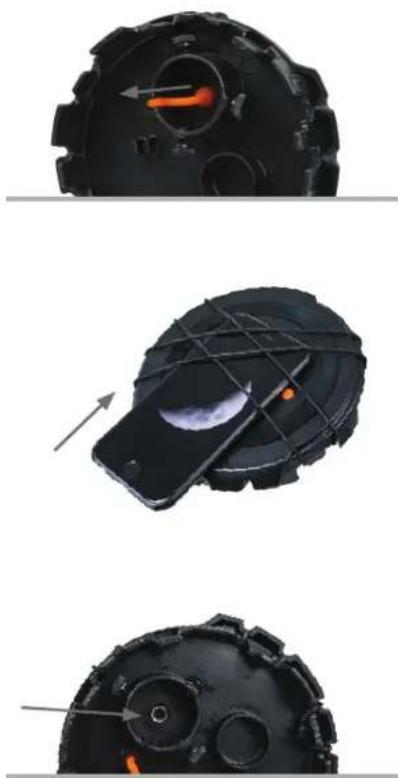
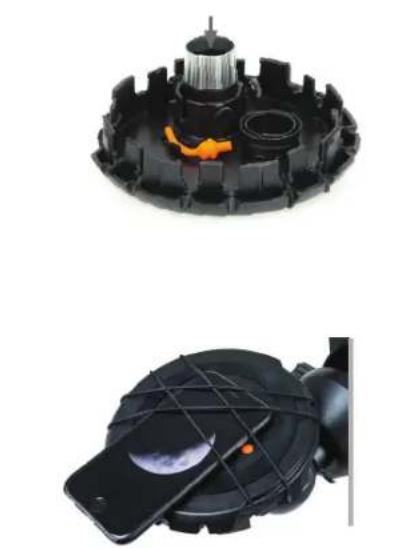
- Start by pulling the orange plug out of the camera opening in the lens cap. You can do this by pulling on the orange rubber lanyard located on the inside of the lens cap. The plug should pop right out. The plug and lanyard can be stowed out of the way by pressing the lanyard into the retaining clip located on the back of the lens cap next to the eyepiece holder.
- Turn the cap so that the outside of the cap is facing upward. Lift the bungee straps and slide your smartphone between the straps and the lens cap so that the camera is looking through the camera opening. The straps should give plenty of tension to hold the device against the cap and the black silicon ring will give enough friction to prevent the phone from sliding around.
HINT: Depending on the design of your smartphone, the camera may be in the middle of the device or in one corner. You may want to change the angle of the bungee straps to better secure the phone. There are eight different anchor points to choose from around the edge of the lens cap. Simply reposition them to different anchor points to achieve the best results. - Turn the cap over and make sure your camera lens is centered in the opening in the lens cap. The better you have this centered, the easier it will be to take images through the telescope.
- Loosen the set screws located on the eyepiece holder on the inside of the lens cap. Place the black portion of the eyepiece into the eyepiece holder and tighten the screws to secure the eyepiece in place.
- Now take the lens cap with the phone and eyepiece attached and insert the chrome barrel of the eyepiece into the diagonal on the back of the telescope's focuser. Secure it in place by tightening the set screws on the diagonal.
- Activate your camera app on your smartphone and adjust the focus, just as you would the eyepiece, this time using the image that appears on your screen.
NOTE: Make sure you turn the phone's fash off.
- When the image appears sharp snap your image.
It is best to try this in the daytime first, then, once everything is setup correctly, take it outside and try shooting the Moon. Once you have practiced and are comfortable using the 20mm eyepiece, try using the camera adapter with the 10mm eyepiece for higher magnification.
IMAGING TIPS AND TRICKS
Camera Controls
The standard camera apps that come preinstalled with your smartphone offer very rudimentary controls and are designed to automatically adjust focus and exposure. This is not a problem for everyday photography such as landscapes or portraits, but can be a problem for imaging a planet or the Moon where you have a very bright object against a very black sky. The phone's camera tries to compensate for the imbalance of lighting by brightening up the dark areas, but this causes the bright areas to overexpose and blow-out the details. If your camera app settings do not allow you to manually select the focus point or have an option to disable the autofocus or auto-exposure, you may want to consider using a different camera app. You can find lots of aftermarket apps for iOS and Android that offer a greater amount of control for your camera. Many of these are free.
Vibration
To help eliminate any vibration induced when you touch the camera to snap the image, try using a shutter delay. Some apps offer a 2, 5, or 10 second delay before snapping the image. This will give the vibrations a chance to dissipate before actually taking the images.
Subjects to Shoot
Using this method, you should be able to take images of daytime terrestrial objects and nighttime astronomical images of the Moon and bright planets (Venus, Mars, Jupiter and Saturn). Unfortunately, smartphone camera sensors are not designed to work well in very low light, so it will not be possible to capture faint astronomical objects such as galaxies or nebulae in this manner.
Magnificatior
When looking at the Moon or planets with a stationary telescope, you will notice that the object appears to drift across the field of view. This is actually caused by the Earth's rotation. If you were looking visually through your 20 mm eyepiece, a planet would take approximately 3.0 minutes to drift across the entire eyepiece's field of view. If you are using the 10 mm eyepiece, it would only take 1.5 minutes. The smartphone does not use the entire eyepiece's field of view and only uses the center of it, making the motion appear even faster. When centering an astronomical object in the phone's field of view, try leading the target. Try to point the scope ahead of the planet so that it is just entering the field of view. This will maximize the amount of time it takes to drift across the entire field, allowing you more time to take images before needing to re-aim the telescope. The 10 mm will have a narrower field of view and will need to be adjusted more often as a result. Working with the 20 mm eyepiece will be easier at the start. Once you are comfortable with it, try stepping up to the 10 mm eyepiece.
ADDITIONAL RESOURCES
How to Contact Celestron
For assistance with this product, please contact our Technical Support department at (310) 328-9560, or you may contact Celestron Support online by going to our website (www.celestron.com) and clicking on the "Support" tab at the top of the page. Here, you may search through a comprehensive database of frequently asked questions or submit a request for assistance.
Written correspondence may be sent to:
Celestron 2835 Columbia Street Torrance, CA 90503
Astro Fi TELESCOPE
SPECIFICATIONS
| SKU # 22201 22202 | ||
| Optical Design Refractor Maksutov | Cassegrain | |
| Aperture 90 mm (3.5") 102 mm (4.0") | ||
| Focal Length 910 mm 1325 mm | ||
| Focal Ratio f/10.1 f/13 | ||
| Optical Coatings Fully-coated Fully-coated | ||
| Eyepiece / Magnification | 25 mm Kellner (1.25") / 36x; 10 mm Kellner (1.25") / 91x | 25 mm Kellner (1.25") / 53x; 10 mm Kellner (1.25") / 132x |
| Finderscope | StarPointer Red-Dot Finderscope | StarPointer Red-Dot Finderscope |
| Resolution | Rayleigh: 1.54 arc seconds / Dawes Limit: 1.29 arc seconds | Rayleigh: 1.37 arc seconds / Dawes Limit: 1.14 arc seconds |
| Light Gathering Power | 165x the unaided eye | 212x the unaided eye |
| Highest Useful Magnification | 213x | 241x |
| Lowest Useful Magnification | 13x | 15x |
| Limiting Stellar Magnitude | 12.3 | 12.5 |
| Tripod | Adjustable-height aluminum Adjustable-height aluminum | |
| Warranty | 2-Years 2-Years | |
| Optical Tube Length | 37.2 inches (94.5 cm) | 11 inches (27.9 cm) |
| Total Telescope Kit Weight | 13.6 lbs | 13.6 lbs |
| SKU # 22203 | ||
| Optical Design Newtonian Reflector | ||
| Aperture 130 mm (5.1") | ||
| Focal Length 650 mm | ||
| Focal Ratio f/5 | ||
| Optical Coatings Aluminum with SiO2 | ||
| Eyepiece / Magnification | 25 mm Kellner (1.25") / 26x; 10 mm Kellner (1.25") / 65x | |
| Finderscope | StarPointer Red-Dot Finderscope | |
| Resolution | Rayleigh: 1.07 arc seconds / Dawes Limit: 0.89 arc seconds | |
| Light Gathering Power | 345x the unaided eye | |
| Highest Useful Magnification | 307x | |
| Lowest Useful Magnification | 19x | |
| Limiting Stellar Magnitude | 13.1 | |
| Tripod | Adjustable-height aluminum | |
| Warranty | 2-Years | |
| Optical Tube Length | 26 inches (66 cm) | |
| Total Telescope Kit Weight | 17.0 lbs |

Astro Fi TELESCOPE
NOTES

Starry Night
BONUS SOFTWARE Your purchase includes software for your computer. You don't need to download this software to use your telescope, but it can enhance your experience.
Celestron Starry Night Astronomy Software
Celestron Starry Night, the premier astronomy software on the market, takes you on a guided tour of our Solar System's past, present, and future. It can help you learn about the night sky and plan your next observing session. Use Starry Night to model exactly how the night sky will appear from your backyard, a neighboring town, or anywhere on Earth.
MINIMUM SYSTEM REQUIREMENTS
Windows:
Windows 7 or higher
- 500MHz or higher processor
128 MB RAM
- 850 MB hard disk space
32 MB OpenGL-capable graphics card
Monitor with 1024x768 pixel resolution (recommended)
Mac:
Universal binary (PPC/Intel-compatible)
- OS X 10.4 or higher (10.5 or higher for Elementary)
- G3 450 MHz or higher processor
128 MB RAM
- 850 MB hard disk space
- 32 MB OpenGL-capable graphics card
- Monitor with 1024x768 pixel resolution (recommended)
SAFETY INSTRUCTIONS
- There is a risk of explosion if the battery is replaced with an incorrect type.
- The included battery is not rechargeable.
- Only use the battery as originally intended to avoid a short circuit. Connecting the conductive material directly to the battery's positive and negative sides will cause a short circuit.
- Do not use a damaged battery.
- Do not store the battery in an extremely cold or hot environment. Doing so can reduce battery life.
- Remove batteries if drained or if product is to be left unused for a long time.
- When replacing the battery, refer to the instruction manual and ensure the positive and negative sides are oriented correctly.
- Do not put the battery in fire.
- Dispose of the battery according to local regulations.
FCC NOTICE: This device complies with Part 15 of the FCC Rules. Operation is subject to the following two conditions: (1) This device may not cause harmful interference, and (2) this device must accept any interference received, including interference that may cause undesired operation.

celestron.com/pages/warranty
| BATTERY WARNING | |
| ·INGESTION HAZARD: This product contains a button cell or coin battery. ·DEATH or serious injury can occur if ingested. ·A swallowed button cell or coin battery can cause Internal Chemical Burns in as little as 2 hours. ·KEEP new and used batteries OUT OF REACH OF CHILDREN ·SEEK IMMEDIATE MEDICAL ATTENTION if a battery is suspected to be swallowed or inserted inside any part of the body. | |
WIFI RADIO INFORMATION
| Maximum EIRP: | 802.11b:19.98dBm; 802.11g:19.95dBm; 802.11n-HT20:19.96dBm |
| RF Function: | 2.4G Wi-Fi |
| Operating Band /Frequency: | 2412-2472 MHz (802.11b/g/n20) |
| Channel Number: | 13(802.11b/g/n20) |
| Channel Separation: | 5MHz |
| Modulation Type: | DSSS, OFDM |
| Antenna Type: | PCB Antenna |
| Maximum Antenna Gain: | 3.18 dBi |

SOLAR WARNING: Never attempt to view the Sun through any telescope.
NEED ASSISTANCE? Contact Celestron Technical Support
celestron.com/pages/technical-support
Product design and specific cations are subject to change without prior notified cation.
This product is designed and intended for use by those 14 years of age and older.

CELESTRON
©2025 Celestron. Celestron and Symbol are trademarks of Celestron, LLC. All rights reserved. Celestron.com
US: Celestron, 2835 Columbia Street, Torrance, CA 90503 USA
UK: Celestron Global Ltd., Unit 2 Transigo, Gables Way, Thatcham RG19 4JZ, United Kingdom
Made in China 04-25





ASTRO FI ™
MODE D'EMPLOI
MODELES N° 22201, 22202, 22203
PHOTOGRAPHIE AVEC VOTRE SMARTPHONE
Separate waste collection. Check your local municipal guidelines.
Separate waste collection. Check your local municipal guidelines.
Separate waste collection. Check your local municipal guidelines.