Hello Kitty HEC080L - Camera INGO - Free user manual and instructions
Find the device manual for free Hello Kitty HEC080L INGO in PDF.



| Product type | Compact digital camera |
| Brand | Ingo |
| Model | Hello Kitty HEC080L |
| Image sensor | CMOS 300KPX (interpolated 1.3 MP) |
| Lens | F2.8, f=3.6 mm |
| LCD screen | 1.1 inches |
| Built-in memory | 8 MB SDRAM |
| Photo resolutions | 640×480 (VGA) and 320×240 (QVGA) |
| File format | JPEG |
| Power supply | 2 AAA batteries (LR03) |
| Dimensions | 100 × 60 × 23 mm |
| Weight | 48 g (without batteries) |
| Main functions | Photo taking, consecutive shooting (3 photos), 10s self-timer, deletion, playback, PC camera |
| Auto power off | After 60 seconds of inactivity |
| Connectivity | USB (cable included) |
| Included accessories | Driver CD, USB cable, wrist strap, interchangeable front panels |
| Maintenance and cleaning | Wipe with a soft, dry cloth. Do not use solvents. |
| Safety | Do not disassemble. Use only recommended batteries. Keep out of reach of children. |
| Spare parts and repairability | Front panels available. For any repairs, contact customer service. |
| General information | Compliant with WEEE directive. Hello Kitty registered trademark. |
Frequently Asked Questions - Hello Kitty HEC080L INGO
User questions about Hello Kitty HEC080L INGO
0 question about this device. Answer the ones you know or ask your own.
Ask a new question about this device
Download the instructions for your Camera in PDF format for free! Find your manual Hello Kitty HEC080L - INGO and take your electronic device back in hand. On this page are published all the documents necessary for the use of your device. Hello Kitty HEC080L by INGO.
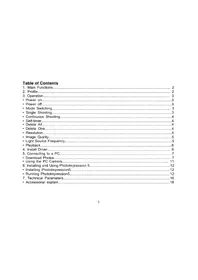
USER MANUAL Hello Kitty HEC080L INGO
- Main Functions.... 2
- Profile.... 2
- Operation.... 3
• Power on....3
• Power off....3 - Mode Switching.... 3
- Single Shooting....3
- Continuous Shooting....4
- Self-timer....4
- Delete All....4
- Delete One....4
- Resolution....4
- Image Quality....5
• Light Source Frequency....5 - Playback....6
- Install Driver....6
- Connecting to a PC....7
- Download Photos....7
- Using the PC Camera.... 11
- Installing and Using Photolmpression 5....12
- Installing Photolmpression5....12
- Running Photolmpression5....12
- Technical Parameters....16
- Accessional explain....18
1. Main Functions
Shooting, Playback and PC Camera.
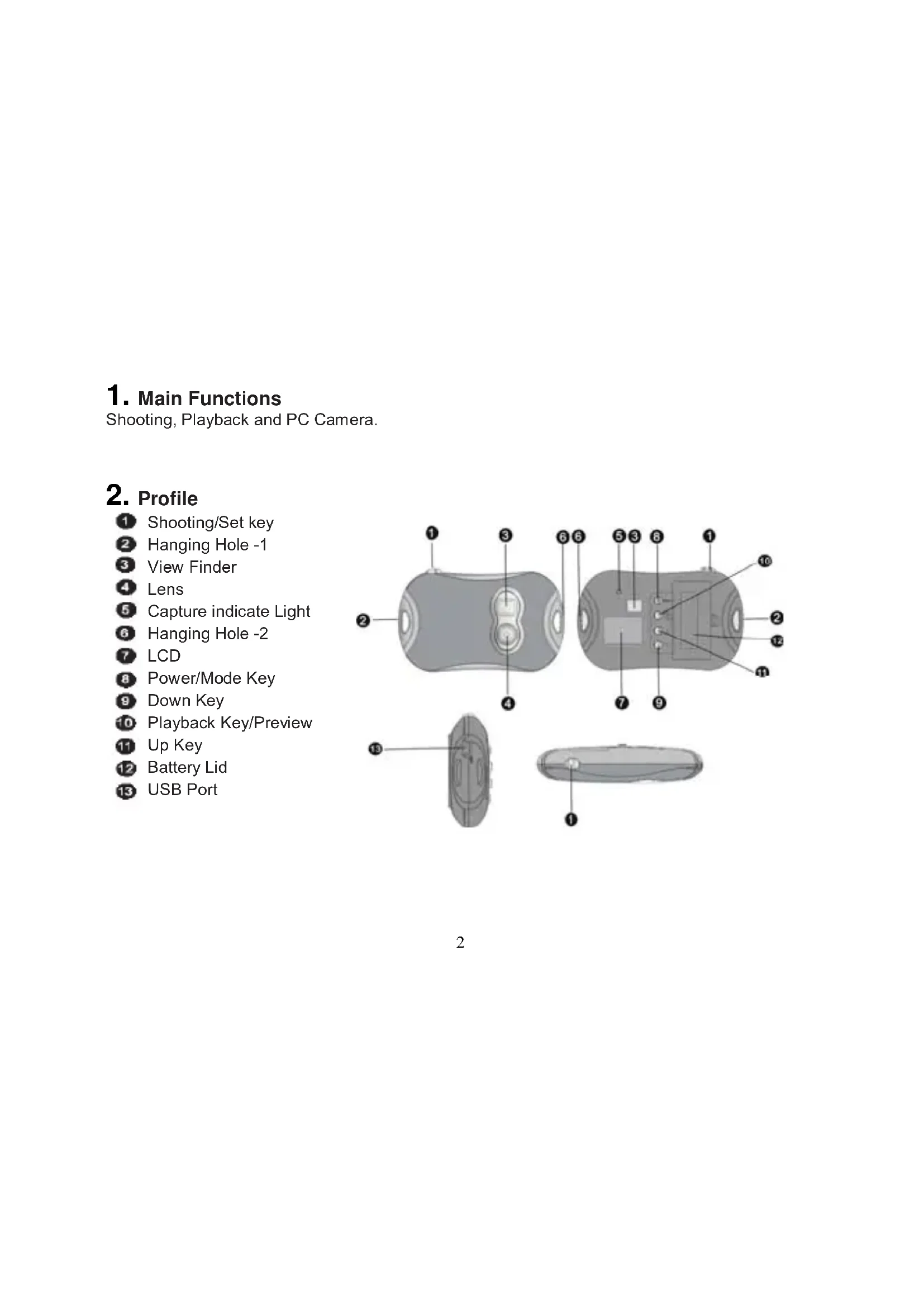
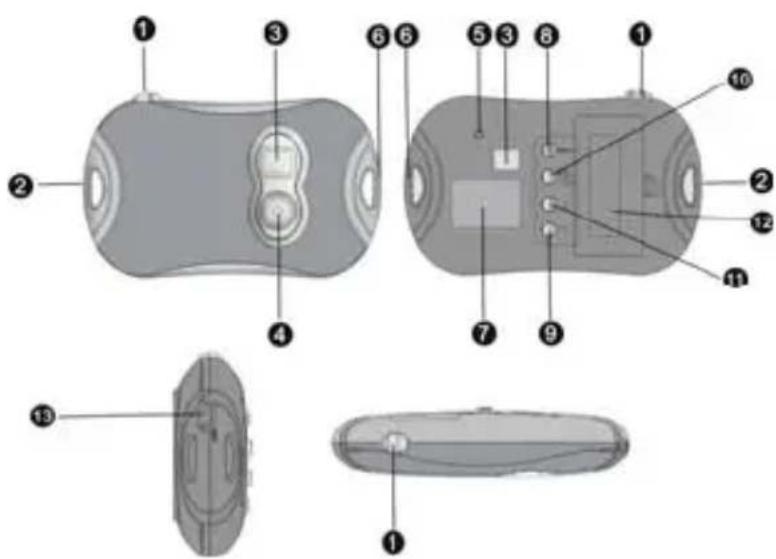
2. Profile
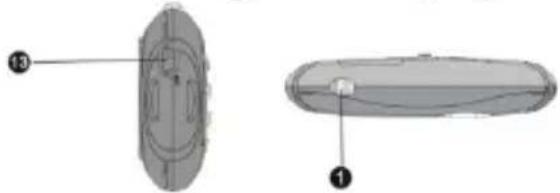
1 Shooting/Set key
2 Hanging Hole -1
3 View Finder
4 Lens
5 Capture indicate Light
6 Hanging Hole -2
7 LCD
Power/Mode Key
9 Down Key
10 Playback Key/Preview
11 Up Key
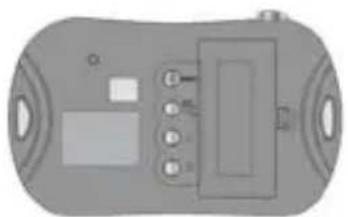
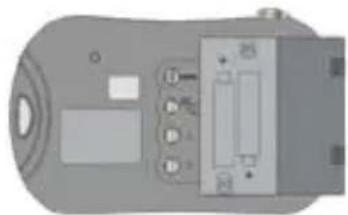
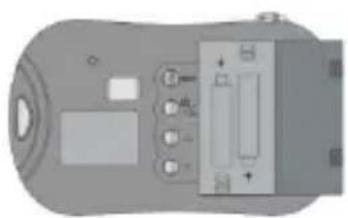
12 Battery Lid
13 USB Port
3.Operation
- Power On
Press 8 Power/Mode Key to turn the camera on.
- Power Off
Hold down 8 Power/Mode Key until the screen turns off.
The camera will turn off automatically after 60 seconds if it is left idle while turned on.
- Mode Switching
After power on, the camera will enter the single shooting mode.
Press ⑧ Power/Mode Key to switch between "Single Shooting", "Continuous Shooting", "Self-timer", "Delete All", "Delete One", "Resolution", "Image Quality" and "Light Source Frequency".
![graph TD A["Mode Key 024"] --> B["Shooting Key"] C["Mode Key 024"] --> D["Shooting Key"] E["Mode Key F 024"] --> F["Shooting Key"] G["Mode Key D 024"] --> H["Shooting Key"] I["Mode Key 024"] --> J["Shooting Key"] K["Mode Key 50 024"] --> L["Shooting Key"] M["Mode Key 60 024"] --> N["Shooting Key"]](/content/2026/03/457654/images/3f874335cb78d46d00e5907856d4cd638d4cd52a6b6322bfe87ed75d42142d37.jpg)
- Single Shooting
After turning the camera on and entering the Single Shooting mode, press ① Shooting/Set Key to take a single photo.
• Continuous Shooting
After turning the camera on, press ⑧ Power/Mode Key to switch to Continuous Shooting mode, then the icon will appear on the top left corner of the screen; within 3 seconds, press ① Shooting/Set Key to take 3 photos continuously.
- Self-timer
After turning the camera on, press Ⓤ Power/Mode Key to switch to Self Timer mode, then the icon Ⓖ will appear on the top left corner of the screen; within 3 seconds, press ⏻ Shooting/Set Key to start a countdown of 10 seconds, after 10 seconds, the camera will take one photo automatically.
- Delete All
After turning the camera on, press ⑧ Power/Mode Key to switch to the Delete All mode, then the icon F will appear on the top left corner of the screen; within 3 seconds, press ① Shooting/Set Key to confirm deleting all the photos in the camera. If you don't want to delete the photos, wait until the icon disappears or press ⑪ Up Key or ⑨ Down Key to go back to Single Shooting mode.
Note: After choosing Delete All and confirming, all photos in the camera will be lost completely. Be careful when using this operation!
- Delete One
After turning the camera on, hold down ⑧ Power/Mode Key to switch to Delete One mode, then the icon D will appear on the top left corner of the screen; within 3 seconds, press ① Shooting/Set Key to confirm deleting the last photo. If you don't want to delete the photos, wait until the icon disappears or press ⑪ Up Key or ⑨ Down Key to go back to Single Shooting mode.
- Resolution
After turning the camera on, Press 8 Power/Mode Key to switch to Resolution mode, then the
icon ★ or ★ will appear on the top left corner of the screen; within 3 seconds, press Shooting/Set Key to switch resolutions.
This camera has two resolutions: high resolution (640×480) and low resolution (320×240); the defaulted one is high resolution. In Resolution mode, when the icon 🙏 appears on the top left corner of the screen, it indicates the current resolution is high. Press ⚠ Shooting/Set Key to switch to the low resolution; when the icon 🙏 appears on the top left corner of the screen, it indicates the current resolution is low; press ⚠ Shooting/Set Key to switch to the high resolution.
- Image Quality
After turning the camera on, hold down ⑧ Power/Mode Key to switch to Image Quality mode, then the icon ☐ or ☐ will appear on the top left corner of the screen; within 3 seconds, press ① Shooting/Set Key to switch to Image Quality. This camera has two kinds of quality: High Quality and Low Quality, the defaulted one is high quality. In Image Quality mode, when the icon ☐ appears on the top left corner of the screen, it indicates the current quality is high; press ①
Shooting/Set Key to switch to the low quality. When the icon 📋 appears on the top left corner of the screen, it indicates the current resolution is low; press ⏻ Shooting/Set Key to switch to the high quality.
• Light Source Frequency
After turning the camera on, hold down ⑧ Power/Mode Key to switch to Light Source Frequency mode, then the icon 50 or 60 will appear on the top left corner of the screen; within 3 seconds, press ① Shooting/Set Key to switch to light source frequencies.
In Light Source Frequency mode, when the icon 50 appears on the top left corner of the screen, it indicates the current light source frequency is 50Hz, press ① Shooting/Set Key to switch to 60Hz.
When the icon 60 appears on the bottom left corner of the screen, it indicates the current light source frequency is 60Hz, press ⏻ Shooting/Set Key to switch to 50Hz.
- Playback
Press 10 Playback Key to enter Playback mode.
Press ⑪ Up Key or ⑨ Down Key to choose the desired file. Hold down ① Shooting/Set Key twice to delete the current photo.
In Play mode, press 10 Playback Key to go back to the shooting mode.
4. Install Driver
Before connecting to PC, be sure to install the desired driver.
1) Insert the attached CD into the CD-ROM of the computer.
2) The system will automatically execute the installation procedure, and the guide window as follows will occur:
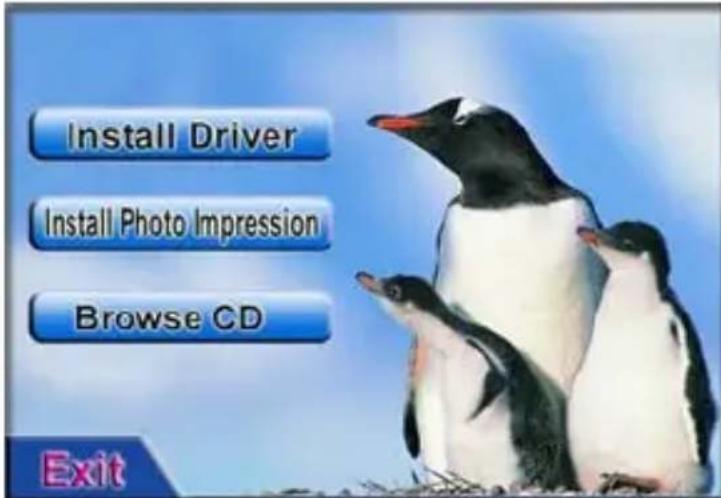
If your CD-ROM does not have automatic installation function or this function is off, please
directly click the autorun.exe program under the root directory of the CD.
3) Click Install Driver button and conduct the installation according to the hints as occurring. After the installation is over, restart the computer.
4) After the driver is installed, a folder named as "913D Camera" will occur on the desktop.
5. Connect to PC
Before connecting to PC, be sure to install the desired driver.
Connect the camera to the USB port of the computer with USB cable. For the first connection, the system will search the driver.
Note: Before connecting the computer and downloading photos, do not take down the battery, otherwise, the photos in the camera will be lost!
Download Photos
Open the folder "913D Camera" on the desktop, double click 213D Camera icon to open the window to download photos.
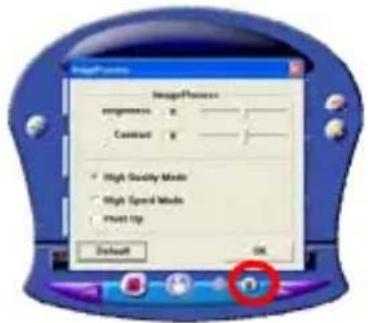
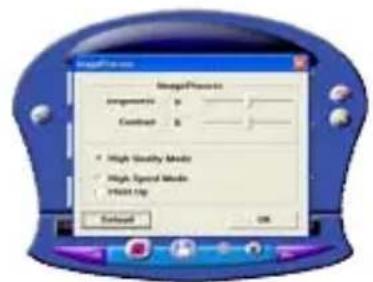
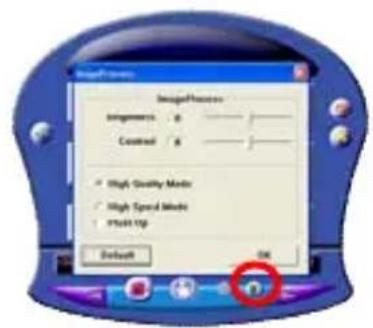
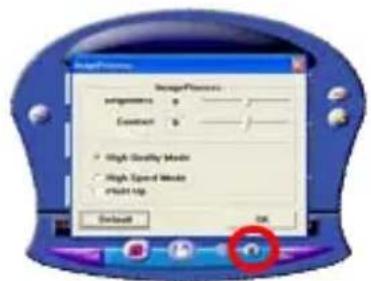
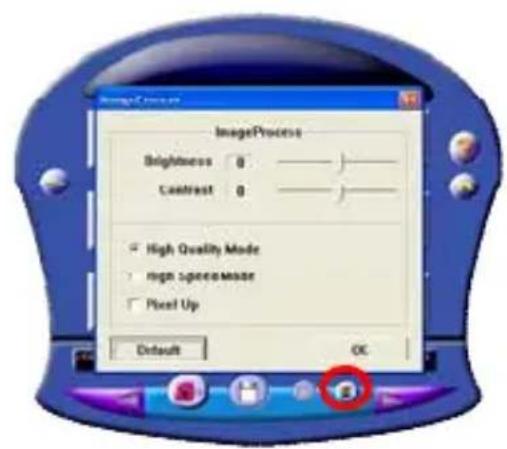
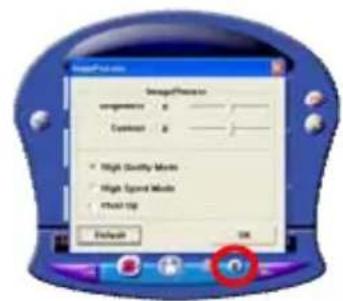
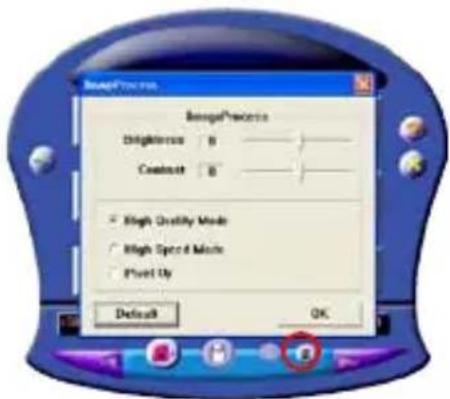
Click the photo adjustment button 📄 to open the window to process photos, and then you can set the contrast, brightness etc for photos. When downloading photos, the software will process them according to these settings.
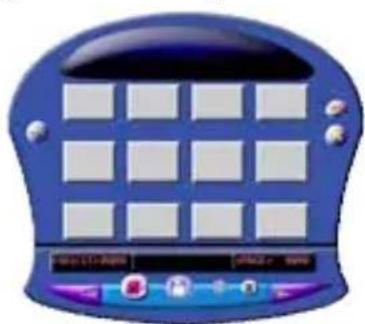
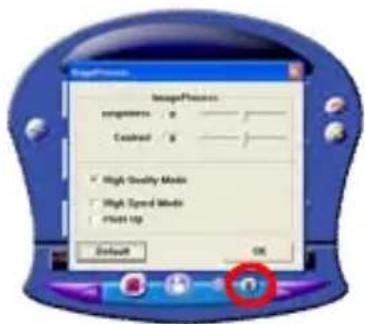
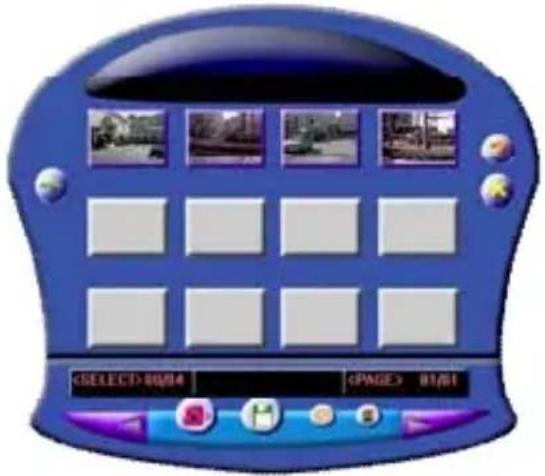
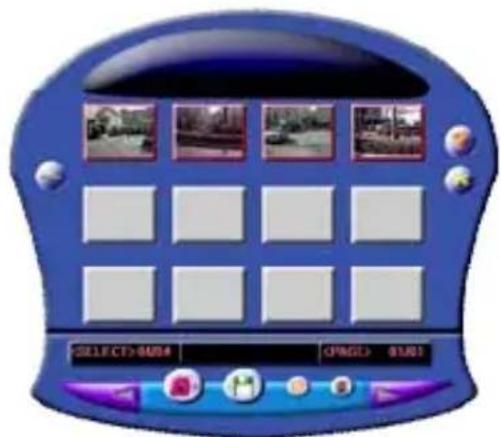
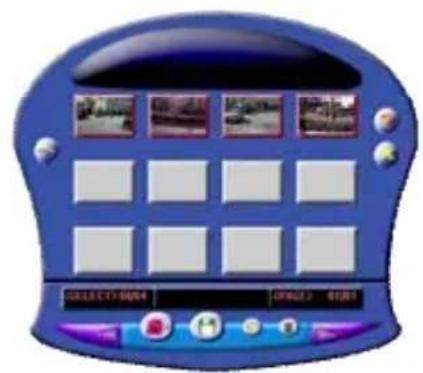
Click the photo download button 📄 to introduce the photos in the camera into the window. If the photos are above 12pcs, display them in multiple pages, click and 🎨 button to switch different pages.
Click the chosen photo with the left key of the mouse; the chosen photo is in a red frame. Or click button to choose all photos on a page.
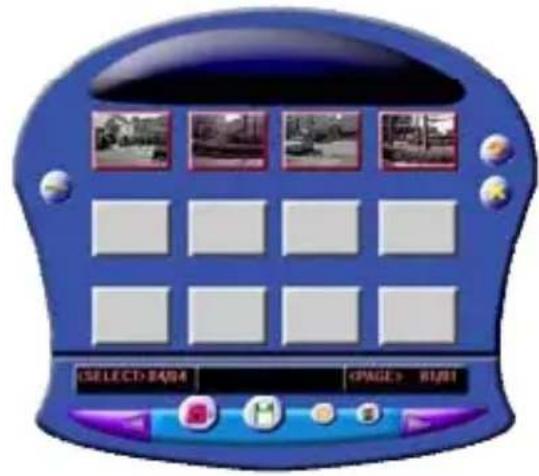
Click the photos in the window with the right key of the mouse to zoom in photos:
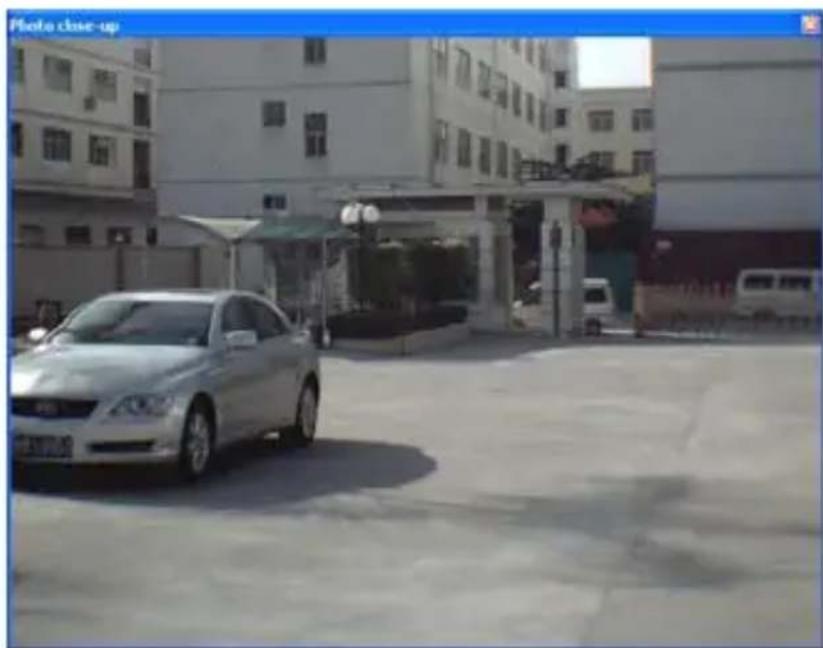
Click

button to save the chosen photo into PC.
![Cassay 8x Case by: My Documents My Music File name: PNG Save as type: JPG File (*.jpg) Save Cancel Please enter file name. Photo number will be appended automatically by the system[from 001] Options Save selected photos Save all photos AVI frame rate 6](/content/2026/03/457654/images/67005b7dabf59e2df9981729962d400adcb60b0ee3fcce10821ec58a9a9a44ff.jpg)
After download is over, click

button to close the photo download window.
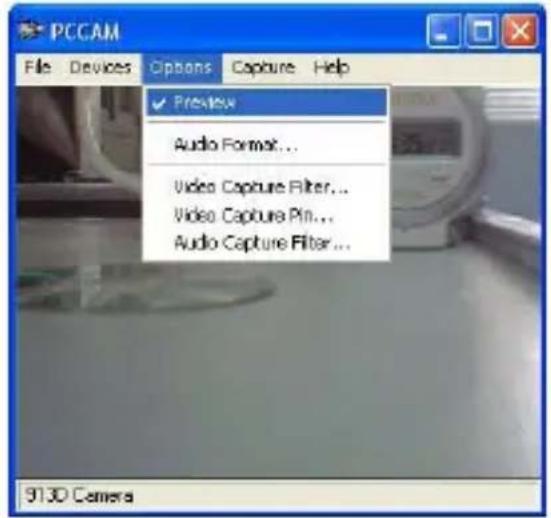
Use PC Camera

PCC am
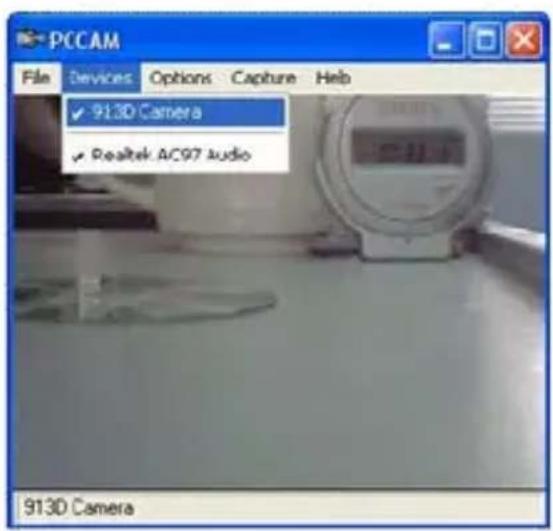
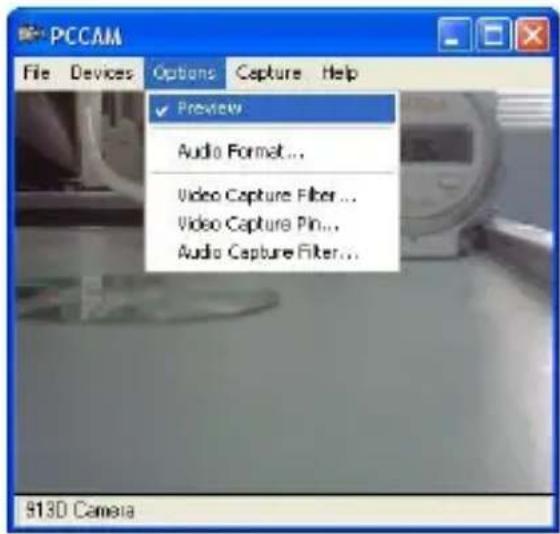
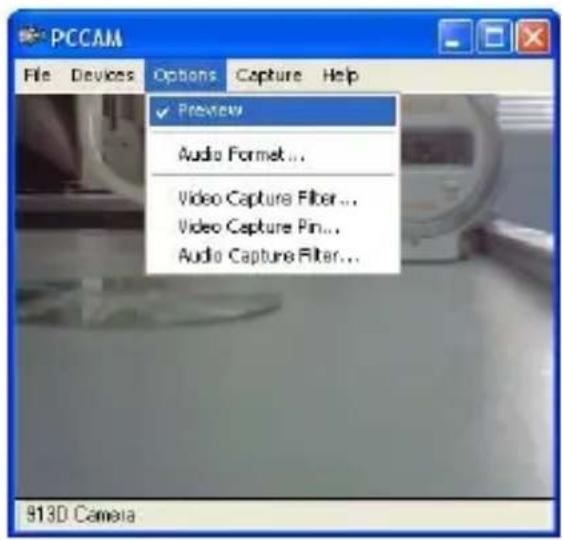
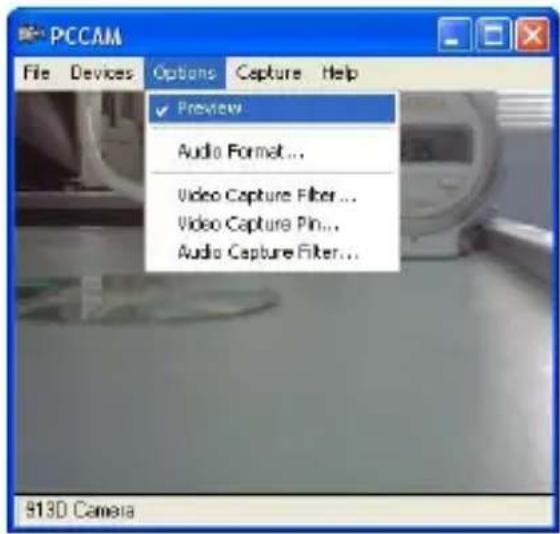
Open the folder "913D Camera" on the desktop, double click icon to open the PC cam window, then you can display the photos corresponding to the lens with the function of PC Camera.
When PC Camera function is used, the icon ☐ will occur on the top left corner of the camera screen.
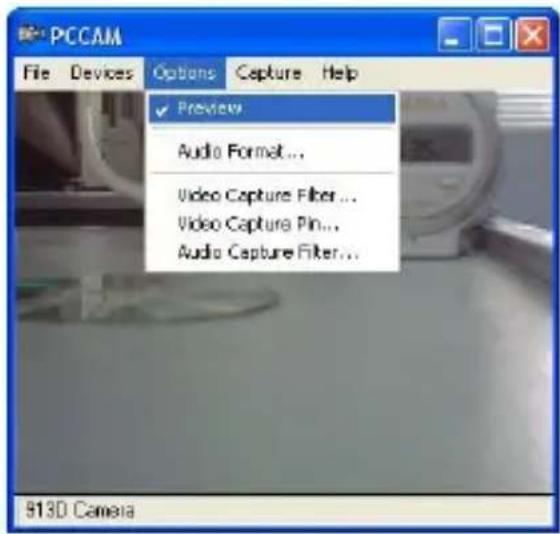
If the window does not display any photos, check whether corresponding ticks are made before the settings in the following figures:
6. Install and Use PhotolImpression 5:
Install PhotolImpression5:
In the CD installation guide window, click Install Photo Impression button and complete the installation step by step according to the hints.
After the installation is over, click Exit button to turn off the window and restart the computer.
Run PhotolImpression5:
On the desktop, double click Photo impression icon, or open PhotoImpression 5 via "Start → Programs".
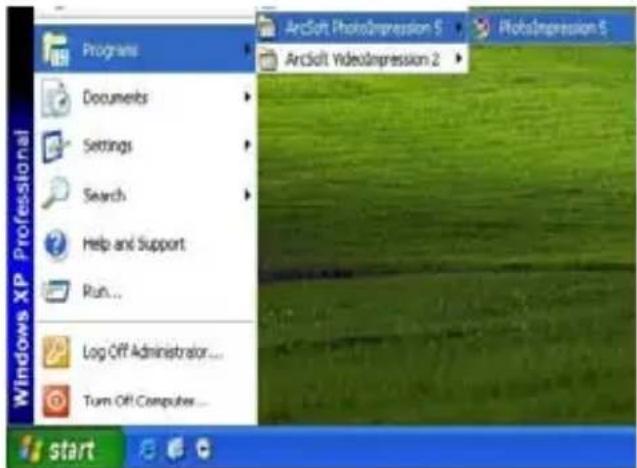
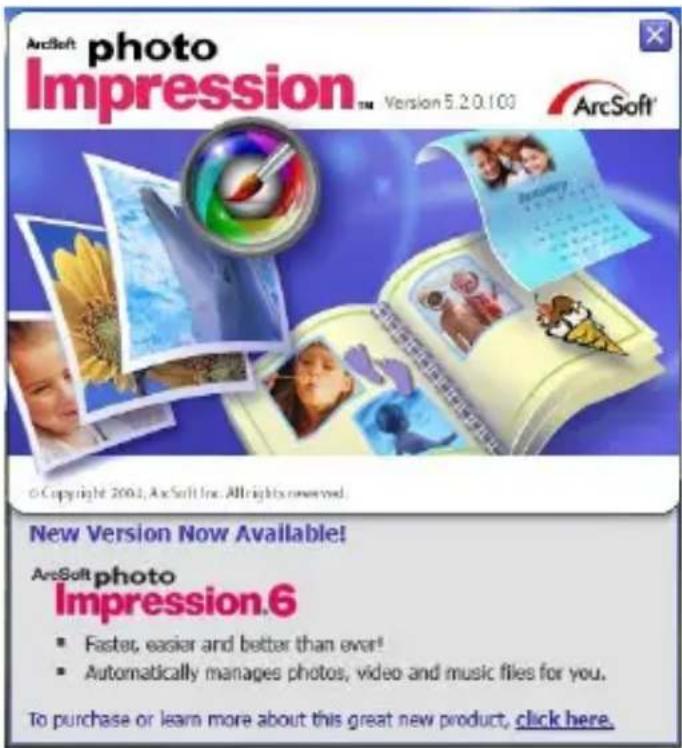
When PhotoImpression5 is opened, the following window will occur. Click the center of the window with the left key of the mouse to shut off the window. You cannot open
PhotoImpression until this window is closed.
After PhotoImpression is opened, "Get Photo" window will occur:
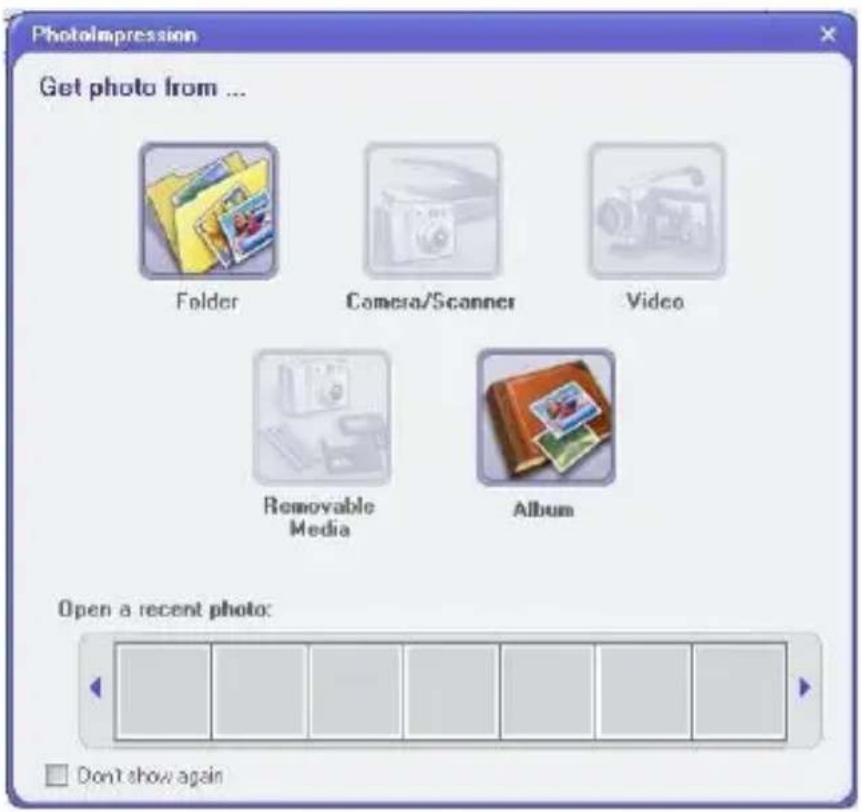
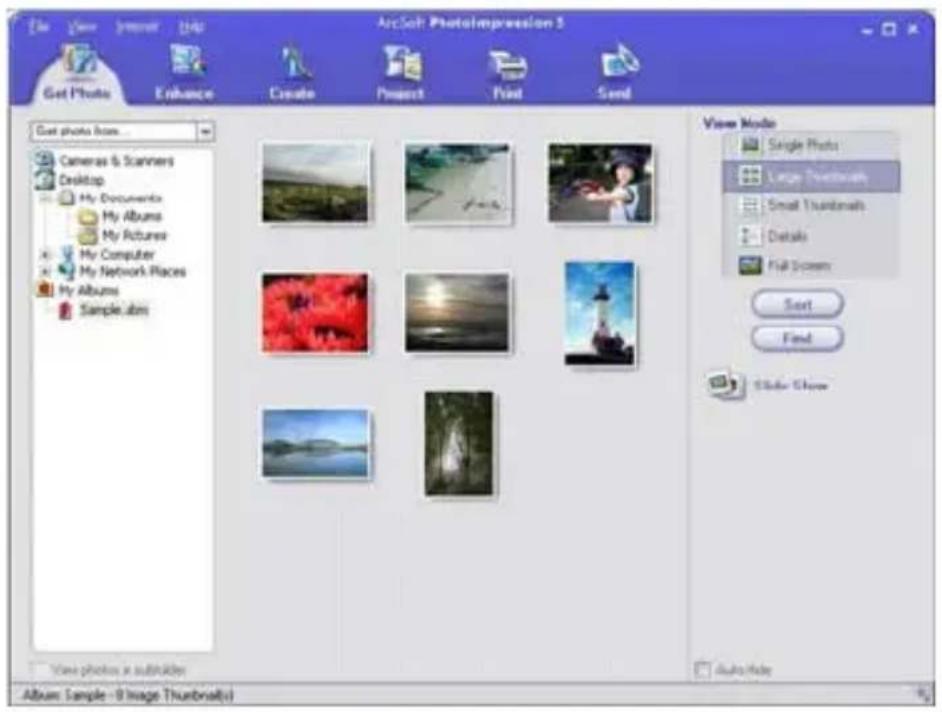
After having the desired selection and opening the desired photo in "Get Photo" window, the selected photo will occur in the central area of the program. After that, you can edit
the selected photo.
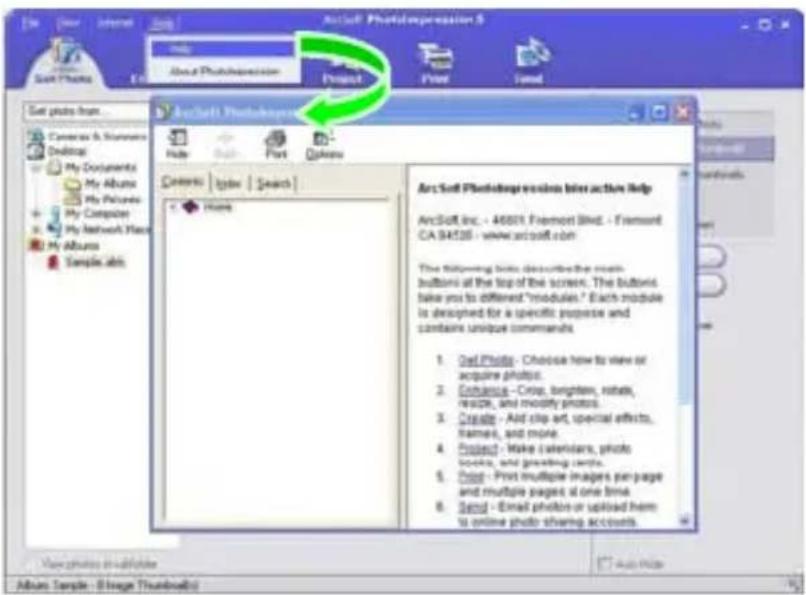
About the detailed use instructions of Photolmpression, please refer to "Help" in the program (as following figure).
7. Technical Parameters
Image sensor: 300KPX CMOS sensor
Image resolution 1.3MPX (interpolated)
Lens: F2.8, f=3.6mm
Screen: 1.1" LCD.
Memory: Inbuilt 8MB SDRAM
Work mode: Shooting, playback
Resolution: QVGA: 320×240, VGA: 640×480
File format: JPEG
Communications interface: USB1.1
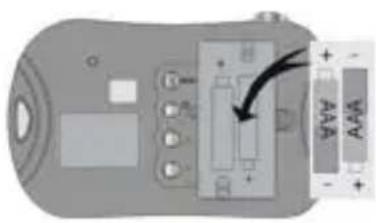
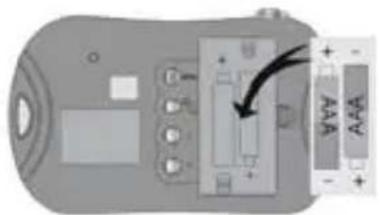
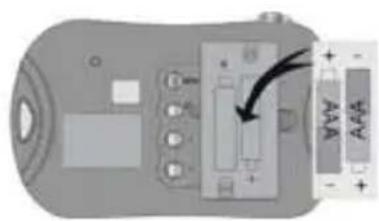
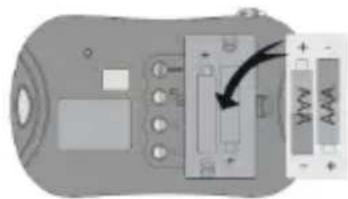
Power supply: 2 batteries type AAA (LR03)
Power control: Manual power-on/off, automatic power-off
Self timer 10s
Auto power-off: 60s
Exterior dimensions: 100x60x23mm
Weight: 48g
Note:

Electricalandelectronicequipment(EEE)containsm aterials,partsand substanceswhichcanbedangeroustotheenviromentandharmfultohuman healthifwasteofelectricalandelectronicequipment(WEEE)isnotdisposed ofcorrectly.
Equipments which are marked with the WEEE logo (as shown on the left), should not be thrown away with your household waste. Contact your Local Authority Waste Disposal Department as they will be able to provide details of therecycling options available by your area.
Accessional explain
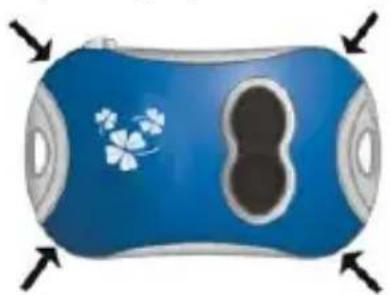
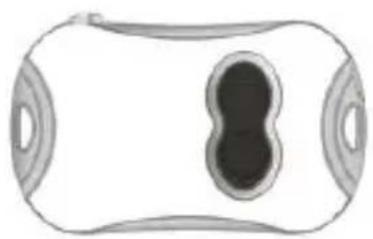
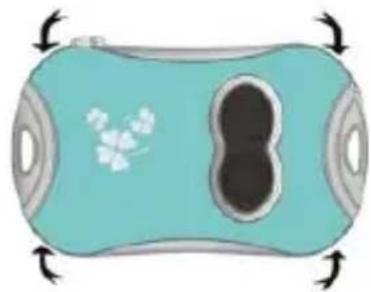
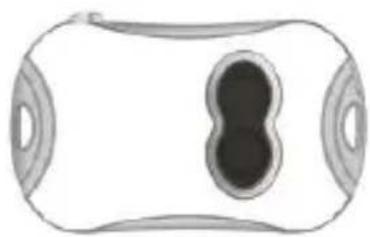
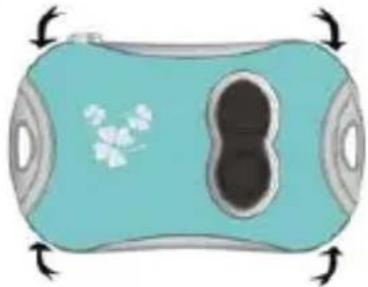
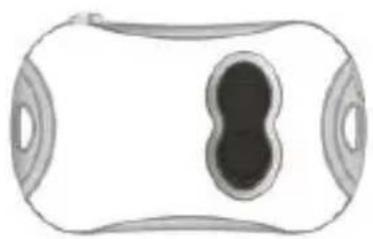
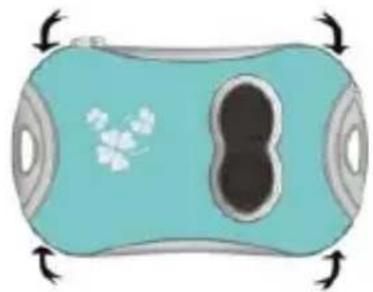
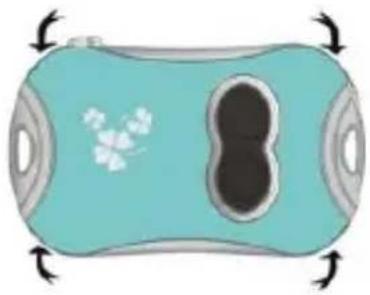
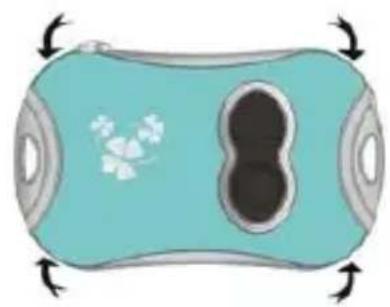
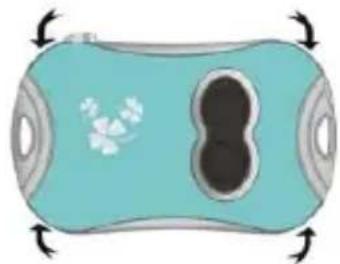
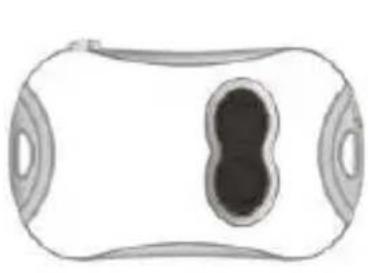
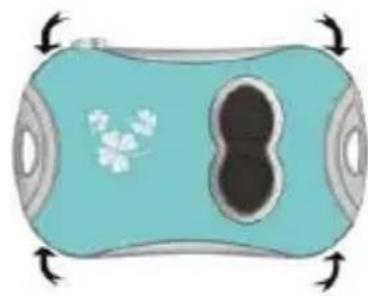
n Change the Shell:
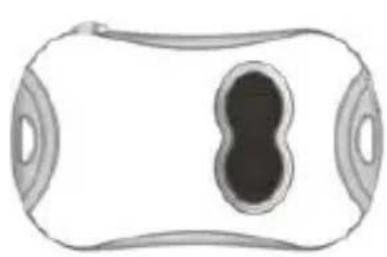
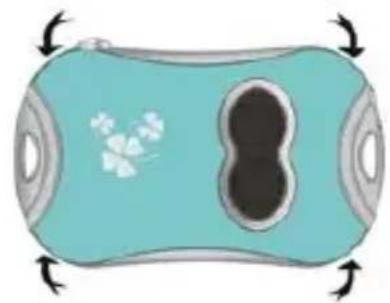
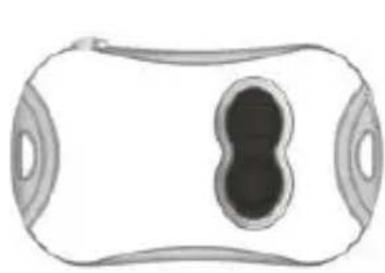
Lightly pull outside the holes on four angles of the front cover of the camera with hands to remove the front cover to be replaced. Put the new front cover according to the button positions and press lightly:
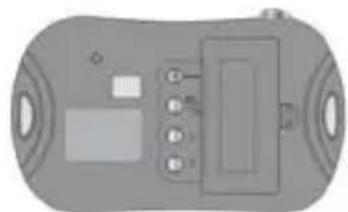
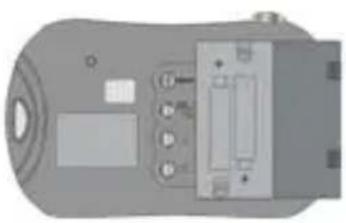
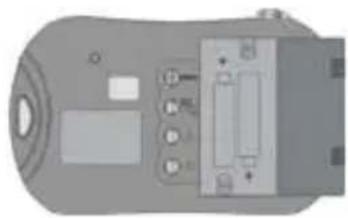
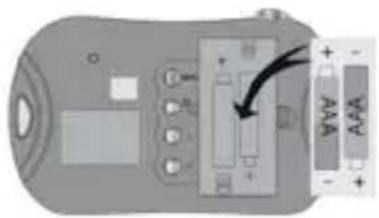
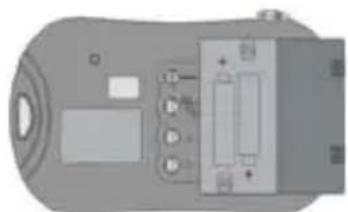
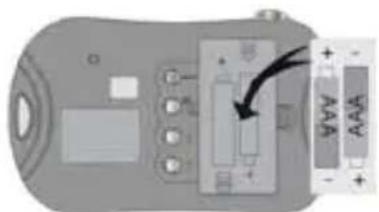
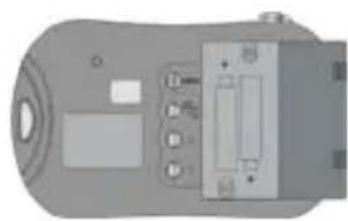
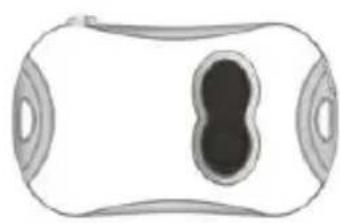
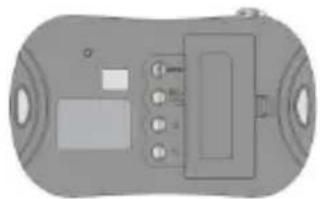
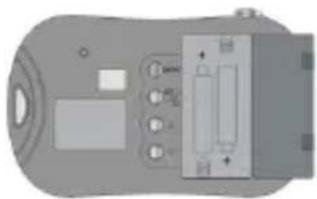
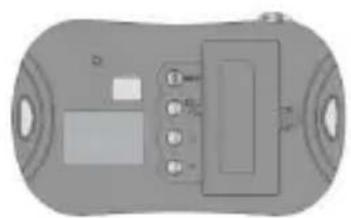
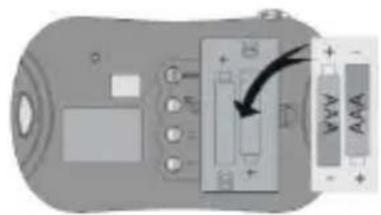
n Battery installation:

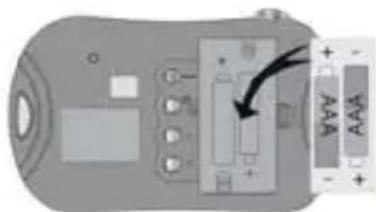
Ingo Devices assumes no responsibility for any errors that may appear in this manual.
Due to our continuous improvement, Ingo Devices reserves the right to change without notice, product offerings, specifications and compatibility.
Contenido
3. Funcionamiento
- Encender

3. Operação
• Ligar
Clique a tecla
![Save As Save in: My Documents My Music File name: 2015 Save as type: JPG File (*.jpg) Save Cancel Please enter file name. Photo number will be appended automatically by the system[from 001] Options Save selected photos Save all photos AVI frame rate 6](/content/2026/03/457654/images/15f53b2657cd5d0ed68f3c18986d89c36efe2b251933d2586e10c20d1ce2d753.jpg)
Clique a tecla download.

6. Instalar e usar Photolmpression 5:
Instalar Photolmpression5:
3. Opération
- Allumer
Cliquer sur
![Save As Save in My Documents My Music File name: Save as type: JPG File (*.jpg) Cancel Please enter file name. Photo number will be appended automatically by the system[from 001] Options Save selected photos Save all photos Art frame rate 6](/content/2026/03/457654/images/5fb5144948c4e759ce7dadcf2788cddd181f2fec9400057b2467f7d22a955352.jpg)
6. Installer et Utiliser Photolmpression 5:
Installer PhotolImpression5:
Interface de communication: USB1.1
n Installation de batterie:
3. Operazione
- Accendere
6. Installare e Usare PhotoImpression 5:
Installare PhotolImpression5:
3. Anwendungen
- Einschaltung
6
7. Technische Daten
Bildsensor:
300KPX CMOS Sensor
Bildauflösung
1.3MPX (interpolated)
Objektiv:
F2.8, f=3.6mm
Bildschirm:
1.1" LCD.
3. Bediening
7. Technische parameters
Beeldsensor:
300KPX CMOS sensor
Beeldresolutie
1.3MPX (interpoleert)
Lens:
F2.8, f=3.6mm
Beeldscherm: 1.1" LCD.
Communicatie-interface: USB1.1
Stroomvoorziening: 2 batterijen type AAA (LR03)
Stroombediening: Handmatig spanning aan/uit, automatisch spanning
uit.
Zelftimer 10s
Auto power-off: 60S
n Batterijinstallatie:
3.Użytkowanie
Włączanie
■ Wymiana baterii:

- MAIN FUNCTIONS
- PROFILE
- 3.OPERATION
- SINGLE SHOOTING
- CONTINUOUS SHOOTING
- SELF-TIMER
- DELETE ALL
- DELETE ONE
- RESOLUTION
- IMAGE QUALITY
- LIGHT SOURCE FREQUENCY
- PLAYBACK
- INSTALL DRIVER
- CONNECT TO PC
- DOWNLOAD PHOTOS
- USE PC CAMERA
- INSTALL AND USE PHOTOLIMPRESSION 5
- INSTALL PHOTOLIMPRESSION5
- RUN PHOTOLIMPRESSION5
- TECHNICAL PARAMETERS
- CONTENIDO
- FUNCIONAMIENTO
- OPERAÇÃO
- INSTALAR E USAR PHOTOLMPRESSION 5
- INSTALAR PHOTOLMPRESSION5
- OPÉRATION
- INSTALLER ET UTILISER PHOTOLMPRESSION 5
- INSTALLER PHOTOLIMPRESSION5
- N INSTALLATION DE BATTERIE
- OPERAZIONE
- INSTALLARE E USARE PHOTOIMPRESSION 5
- INSTALLARE PHOTOLIMPRESSION5
- ANWENDUNGEN
- TECHNISCHE DATEN
- BEDIENING
- TECHNISCHE PARAMETERS
- 3.UŻYTKOWANIE
- WYMIANA BATERII
Brand : INGO
Model : Hello Kitty HEC080L
Category : Camera