Tablet Premium INU020D - Tablet INGO - Free user manual and instructions
Find the device manual for free Tablet Premium INU020D INGO in PDF.



| Product type | Touchscreen tablet |
| Brand | Ingo |
| Model | Tablet Premium INU020D |
| Operating system | Android 4.1 |
| Screen | Capacitive multi-touch |
| Internal memory | 4 GB Flash |
| Expandable memory | MicroSD up to 32 GB |
| Front camera | Yes |
| Rear camera | Yes |
| Connectivity | Wi-Fi, microUSB |
| Power supply | AC adapter included |
| Battery | Built-in rechargeable |
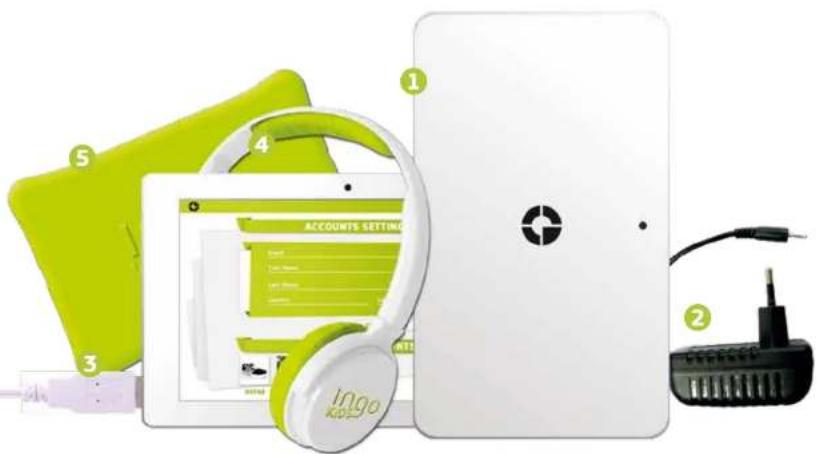
| Package contents | Tablet, charger, microUSB cable, headphones, case |
| Main functions | IngoKids parental control, e-reader, video/music player, gallery, browser |
| Care and cleaning | Clean with a damp cloth, do not use alcohol or chemicals |
| Safety | Keep away from water, do not disassemble, use under adult supervision |
| Spare parts and repairability | Contact customer service via www.ingodevices.com |
| General information | Designed for children with IngoKids parental interface |
Frequently Asked Questions - Tablet Premium INU020D INGO
User questions about Tablet Premium INU020D INGO
0 question about this device. Answer the ones you know or ask your own.
Ask a new question about this device
Download the instructions for your Tablet in PDF format for free! Find your manual Tablet Premium INU020D - INGO and take your electronic device back in hand. On this page are published all the documents necessary for the use of your device. Tablet Premium INU020D by INGO.
USER MANUAL Tablet Premium INU020D INGO
Capacitive touch panel 7
Camera 8
Ebooks 9
Video player 10
Music player 11
Connect to the PC 12
Storage 12
Android interface 13
Automatic updates 13
INITIAL SETUP
-
Language 15
-
Set Time & Date 16
-
Set WiFi 17
-
Set parental account
-
Create a Children Account
-
Apps Filter 20
-
Online content 21
-
Time Limit 22
PARENT AREA
How to access Parent Area 24
Create a new kid account 25
Modify an account 25
Download applications
INFORMATION AND SUPPORT 29
UPDATE INGOKIDS SOFTWARE 29
FAQ / TROUBLESHOOTING 29
SUPPORT 31
WARNING 31
DISPOSAL 32
SPECIFICATIONS
PACKAGE INCLUDES:
- Tablet
- Charger
- micro USB Cable
- Headphones
- Case
text_image
ACCOUNTS SETTING Ingo KDDIMAIN INTERFACE

natural_image
Cartoon illustration of a green smartphone with headphones and a smiling face, wearing a black outfit (no text or symbols)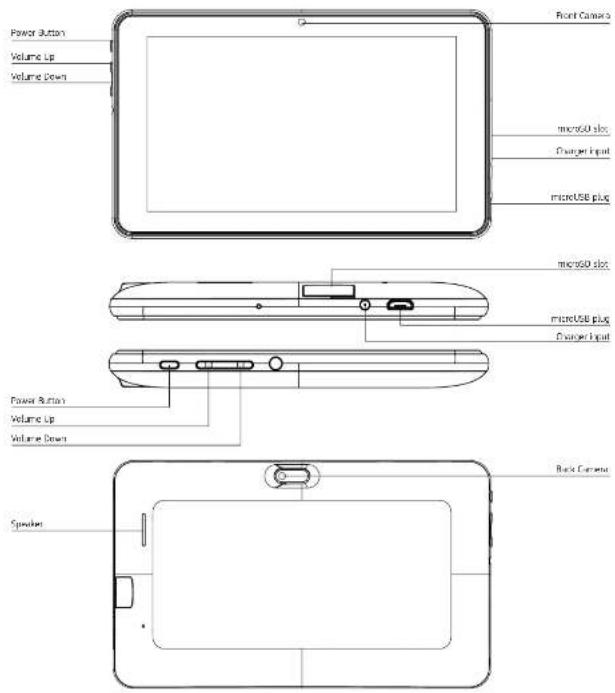
text_image
Power Button Volume Up Volume Down Front Camera micro60 slot Charger Iput microUSB plug micro60 slot microUSB plug Charger Iput Power Button Volume Up Volume Down Speaker Back CameraCHARGING
Your tablet can only be charged with the supplied Power Adaptor. Plug the adaptor to the mains socket and the adaptor cable connector to the Tablet plug.
MAIN SCREEN
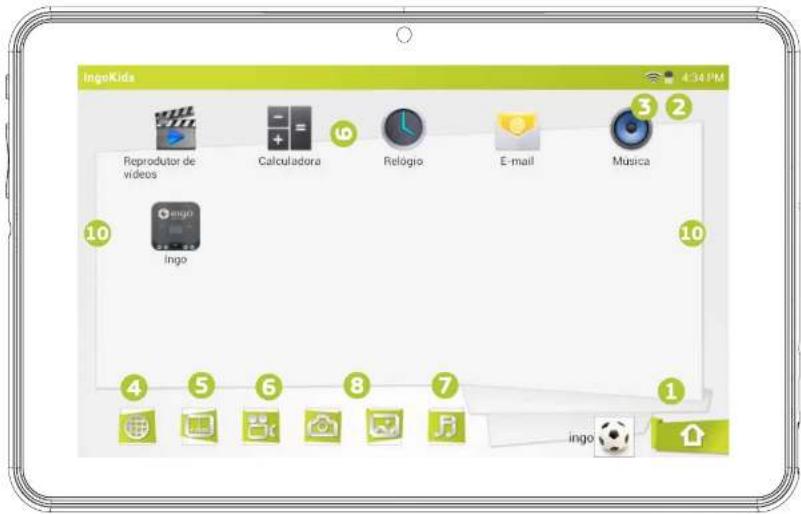
These are the main icons you will find in the main screen of your Ingo tablet:
- Home button
- Battery indicator
- WiFi signal indicator
- Browser
- Ebook reader
- Video and photo gallery
- Camera
- Music player
- Approved apps
- Page navigator
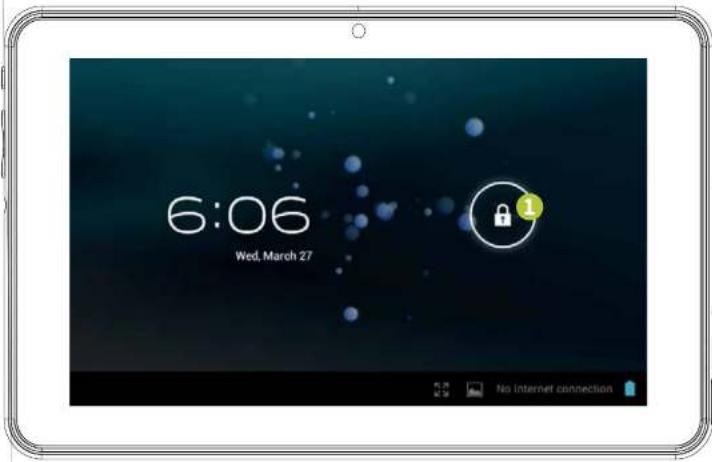
Your Ingo tablet locks automatically the screen after some time inactive. To unlock select the lock icon and slide it to the open lock.
- Lock icon
2.Open lock icon
text_image
6:06 Wed, March 27 No Internet connection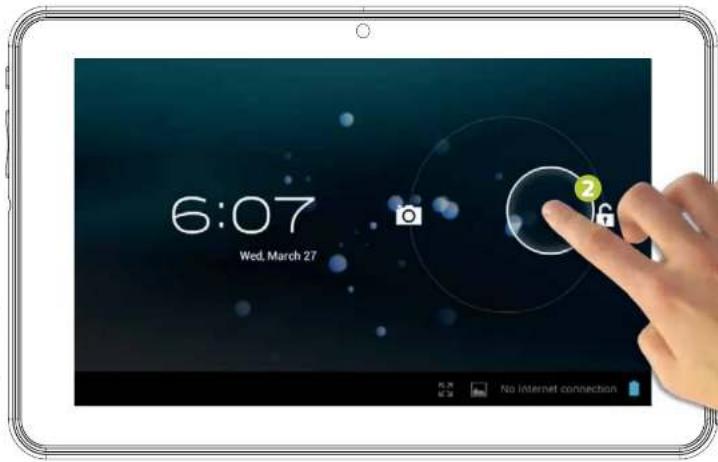
text_image
6:07 Wed. March 27
ingo
(1)
CAPACITIVE TOUCH PANEL
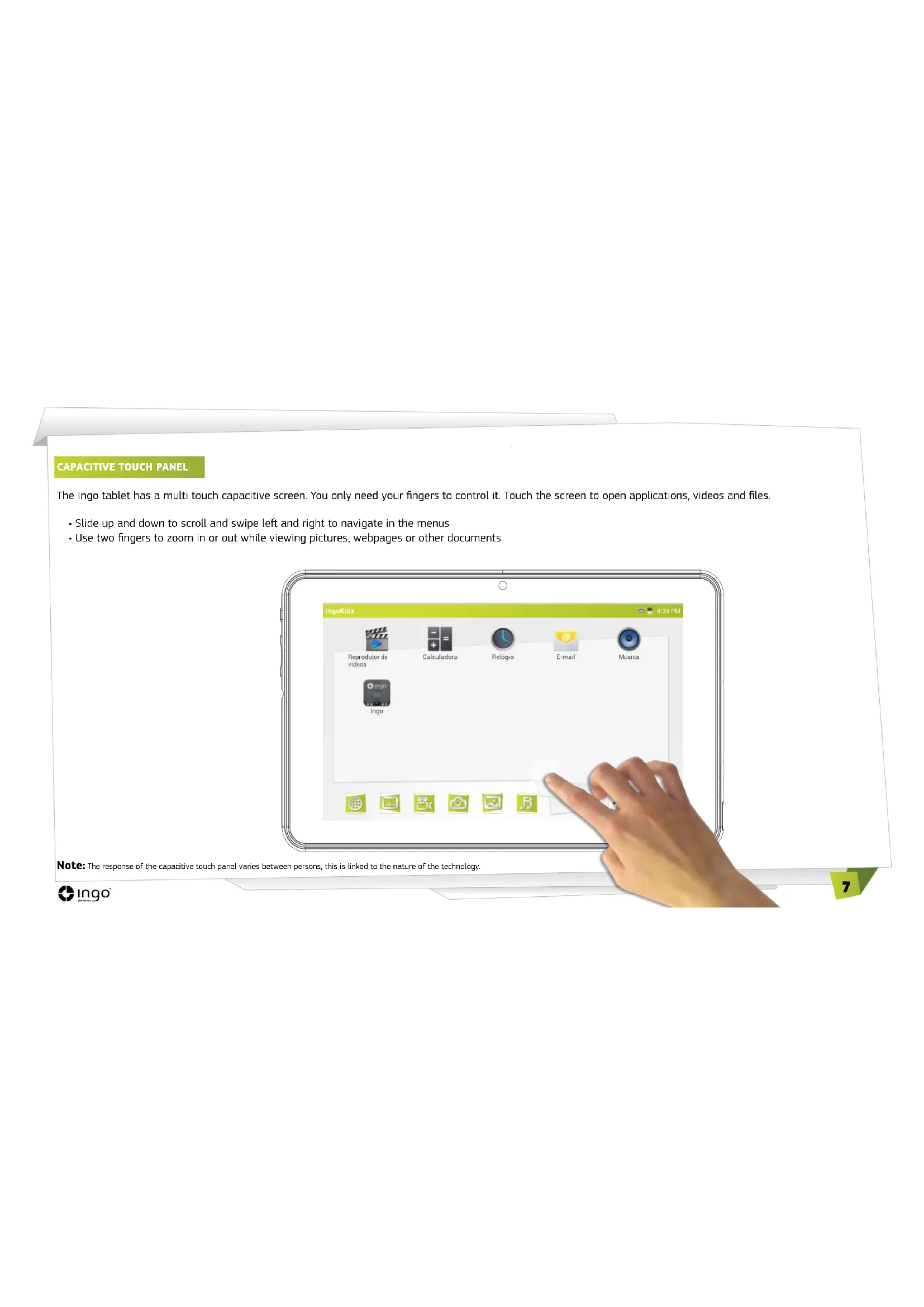
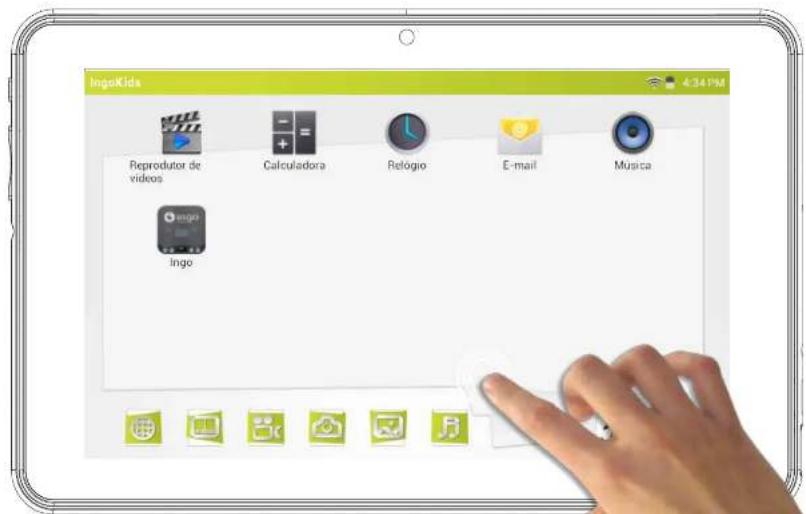
The Ingo tablet has a multi touch capacitive screen. You only need your fingers to control it. Touch the screen to open applications, videos and files.
- Slide up and down to scroll and swipe left and right to navigate in the menus
- Use two fingers to zoom in or out while viewing pictures, webpages or other documents
text_image
IngoKids Reprodutor de videos Calculadora Relógro E-mail Muesca IngoNote: The response of the capacitive touch panel varies between persons, this is linked to the nature of the technology.
CAMERA
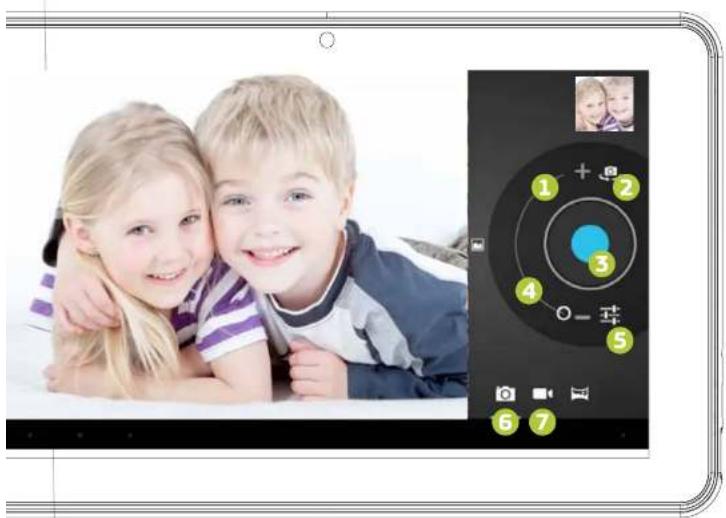
The Ingo Tablet comes with 2 digital cameras to take pictures and make videos, one in the front to take pictures of you and use it for videocalls and another one in the back to take pictures of your family and friends.
text_image
Photo of two smiling children with a camera interface displaying numbered UI elements for photo editing.- Digital Zoom (Enlarge)
- Choose between front and back cameras
- Take a picture / Start recording video / Stop recording video
- Digital zoom (Reduce)
- Camera settings
- Photo mode
- Video mode
All the pictures and videos you take will be stored in the internal memory and you can see them in the gallery.
EBOOKS
The Ingo Tablet comes with an Ebook reader. You can use it to read digital books you purchase or transfer to the internal memory.
- Available ebooks
- Swap views between library view and list view
- Delete
To open an ebook just touch the book cover and it will open.
- Full window view
- Change font size
- View / Add / Edit bookmarks
- Change screen brightness
- To swap pages just slide your finger to the right or left

text_image
1 EBook 2 3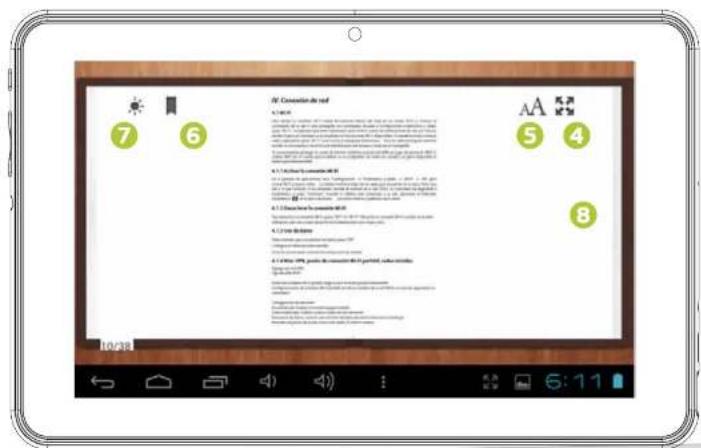
text_image
7 6 A2 Concatation de red A 10 5 4 8 1. A3: 100% concatation de red A 10: 100% concatation de red A 10: 100% concatation de red A 10: 100% concatation de red A 10: 100% concatation de red A 10: 100% concatation de red A 10: 100% concatation de red A 10: 15% A 10: 15% A 10: 15% A 10: 15% A 10: 15% A 10: 15% A 10: 15% A 10: 15% A 10: 15% A 10: 15% A 10: 15% A 10: 15% B https://www.bj.com.cn/ https://www.bj.com.cn/ https://www.bj.com.cn/ https://www.bj.com.cn/ https://www.bj.com.cn/ https://www.bj.com.cn/ https://www.bj.com.cn/ https://www.bj.com.cn/ https://www.bj.com.cn/ https://www.bj.com.cn/ https://www.bj.com.cn/ https://www.bj.com.cn/ https://www.bj.com.cn/ https://www.hfz.com/ https://www.hfz.com/ https://www.hfz.com/ https://www.hfz.com/ https://www.hfz.com/ https://www.hfz.com/ https://www.hfz.com/ https://www.hfz.com/ https://www.hfz.com/ https://www.hfz.com/ https://www.hfz.com/ https://www.hfz.com/ https://www.hfz.com/ https://wfs.com/ https://wfs.com/ https://wfs.com/ https://wfs.com/ https://wfs.com/ https://wfs.com/ https://wfs.com/ https://wfs.com/ https://wfs.com/ https://wfs.com/ https://wfs.com/ https://wfs.com/ https://wfs.com/ https://wfs.com/ https://wfs.com/ https://wfs.com/ https://wfs.com/ https//wfs.com/ https://wfs.com/ https://wfs.com/ https://wfs.com/ https://wfs.com/ https://wfs.com/ https://wfs.com/ https://wfs.com/ https://wfs.com/ https://wfs.com/ https://wfs.com/ https://wfs.com/ https://wfs.com/ https://wfs.com/ https://wfs.com/ https://wfs.com/ https://wfs.com/
ingo
(1)
VIDEO PLAYER
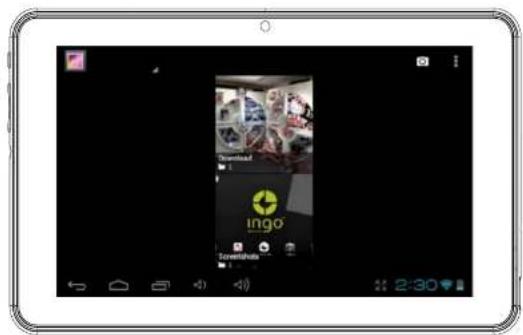
To browse all the available videos you need to access the gallery, there you will see the videos and photos organized in folders.
• To open a folder just touch over the picture,
• To select a folder hold your finger over the picture for a couple of seconds
• To delete all the contents of the folder press the trash icon on the top right of the screen
- When the folder is opened, you can see the video or image thumbnails
• To open a video or image just touch over the thumbnail
text_image
Screenshot of a mobile app interface showing a video player with 'ingo' branding and Chinese text, displayed on a tablet screen.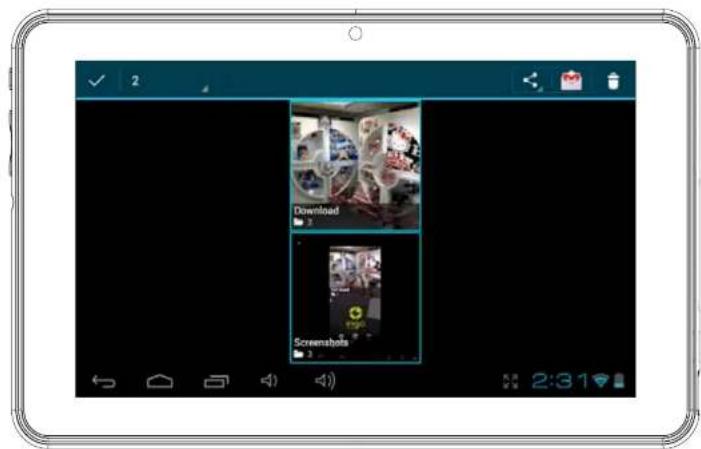
text_image
Download ScreenshotsMUSIC PLAYER
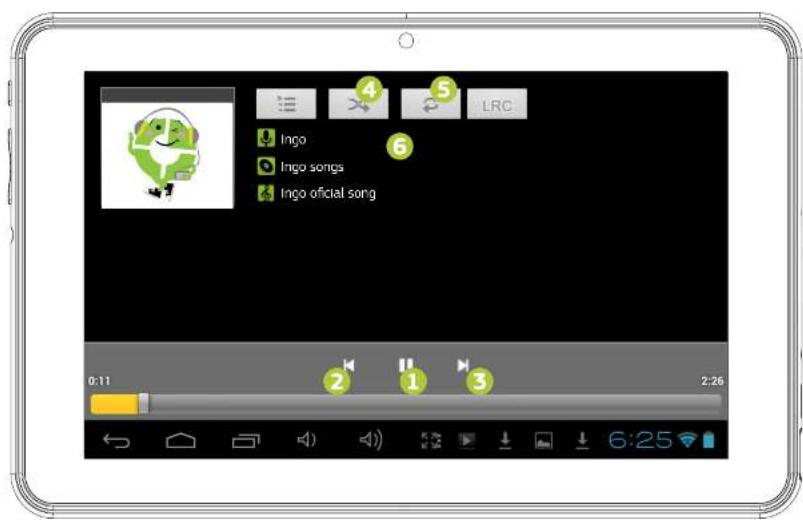
To play music on your tablet press the music icon on the Kids main screen You will be able to select the music sorted by artists, albums, songs and playlists
- Play / Pause
- Back
- Forward
- Shuffle
- Repeat
- Song information
To create a new playlist choose playlist and select add new. Follow the instructions on how to connect the tablet to the computer to add more music to your tablet.
text_image
LRC 4 5 6 Ingo Ingo songs Ingo oficial song 0:11 2 1 3 2:26 6:25CONNECT TO THE PC
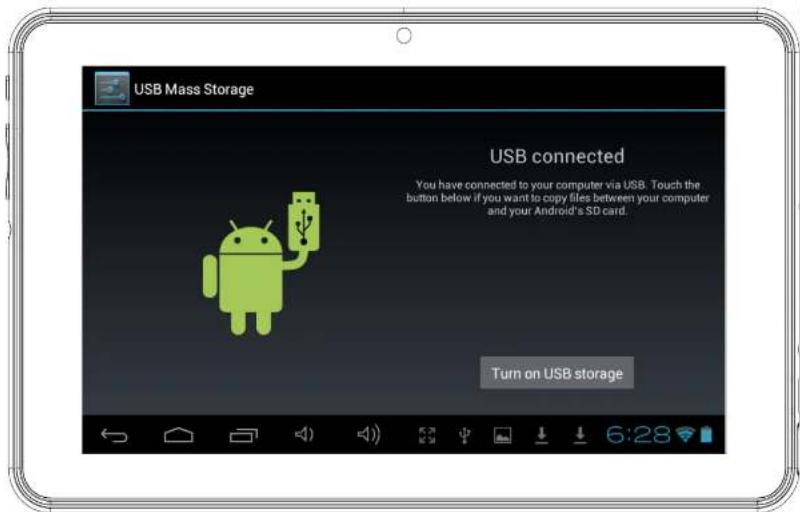
Your Ingo Tablet comes with a microUSB cable so you can connect it to your computer and transfer files, pictures, videos and ebooks. You need to plug the microUSB cable to the Tablet and the USB connector to the computer USB plug. Once connected a window asking if you want to transfer files will appear on your tablet, touch over the button to activate the USB storage function. You must first enable USB connection within Area Settings parental tablet.
STORAGE
Your tablet comes with 4Gb of Flash memory, but not all of it is available as user storage. Some is used to store Android system information, applications and tablet data.
In order to increase the available memory you can add a microSD card (Up to 32Gb) into the slot. Once it's recognised you will be able to see the videos in the gallery and the music in the music player. If you want to transfer files between the internal storage and the microSD card you can use the file explorer available in the Android interface.
The Ingo tablet will be recognised as removable storage on your computer. On the computer open the file explorer to transfer the data.
Note: While the tablet is connected to the PC you will not be able to access the data on your tablet.
text_image
USB Mass Storage USB connected You have connected to your computer via USB. Touch the button below if you want to copy files between your computer and your Android's SD card. Turn on USB storageANDROID INTERFACE
If you not wish to use Ingokids interface can override the settings and go straight to Android default interface. In Android, parental control is disabled and you will not have all the functions available within Ingokids so we recommend use Ingokids interface. The Ingo tablet uses Android 4.1 operating system.
In order to access the Android interface please follow the following steps:
- Exit to the login window by pressing the home button
- Go to the parental area by pressing the lock icon
- Press the Android icon to exit to Android interface, you may be required
• to enter the parental password and confirm
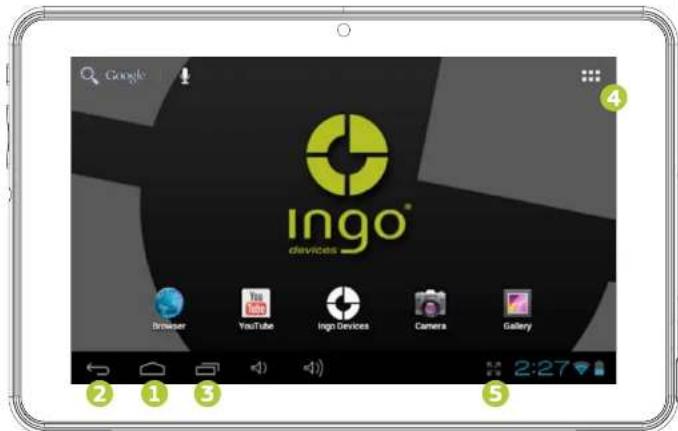
The android interface looks like this:
- Back
- Home
- Recently opened applications
- App menu: You can see all the installed apps
- Date / Time / Battery level / WiFi signal / Access settings and notifications
To go back to IngoKids interface you need to press the IngoKids icon
Android interface should only be used by parents. All the parental controls are not enabled while you are in Android main interface
text_image
Google ingo® devices Browser YouTube Ingo Devices Camera Gallery 2:27AUTOMATIC UPDATES
When WiFi is enabled the system will perform regular checks for software updates. If an update is available we recommend that you accept it as it will contain important upgrades to your system that will enhance performance and functionality.
INITIAL SETUP
We recommend that you fully charge your tablet before starting it. Connect the charger to the AC power socket and the charger plug to the tablet. Tablet will charge completely in some hours.
When you turn on your tablet for the first time you will be prompted to follow the initial setup. During this initial configuration you will set up the following items:
- Language
• Time & date - Enable and configure WiFi connection
- Set a parental account
-
Set a kids account. For this account you will set up the following:
-
Apps filter: Choose what applications can use your child
• Online content: Define how can your child access the internet - Time limit: Setup the amount of time your child can use the tablet

natural_image
Cartoon illustration of a green Earth with headphones and a smiling face, holding a megaphone (no text or symbols)LANGUAGE
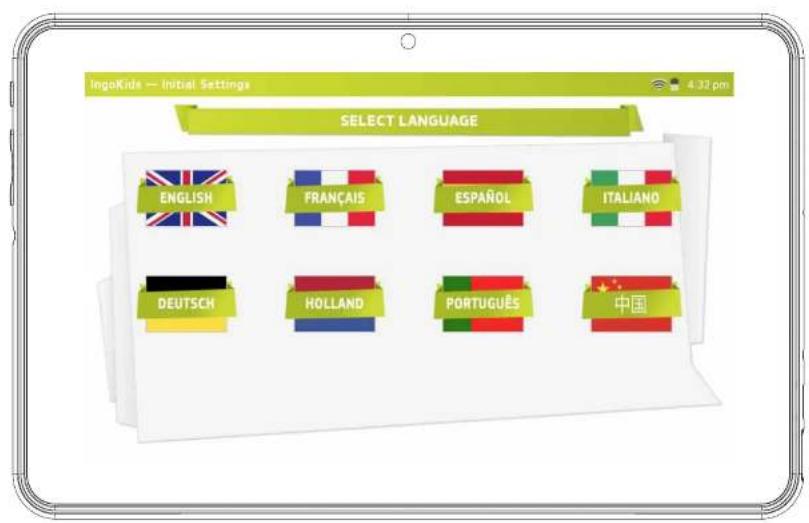
Choose your preferred language for the IngoKids and Android interfaces
text_image
IngoKids — Initial Settings 4.32 pm SELECT LANGUAGE ENGLISH FRANÇAIS ESPAÑOL ITALIANO DEUTSCH HOLLAND PORTUGUÊS 中国WELCOME SCREEN
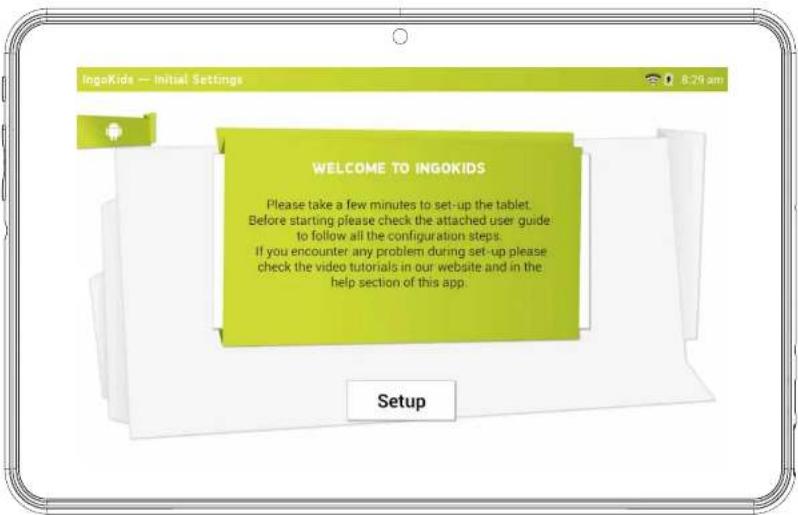
If you do not want to use the Ingokids interface can override the settings and work with Android regardless Ingokids interface (not recommended).
text_image
IngoKids — Initial Settings 8:29 am WELCOME TO INGOKIDS Please take a few minutes to set-up the tablet. Before starting please check the attached user guide to follow all the configuration steps. If you encounter any problem during set-up please check the video tutorials in our website and in the help section of this app. SetupSET TIME & DATE
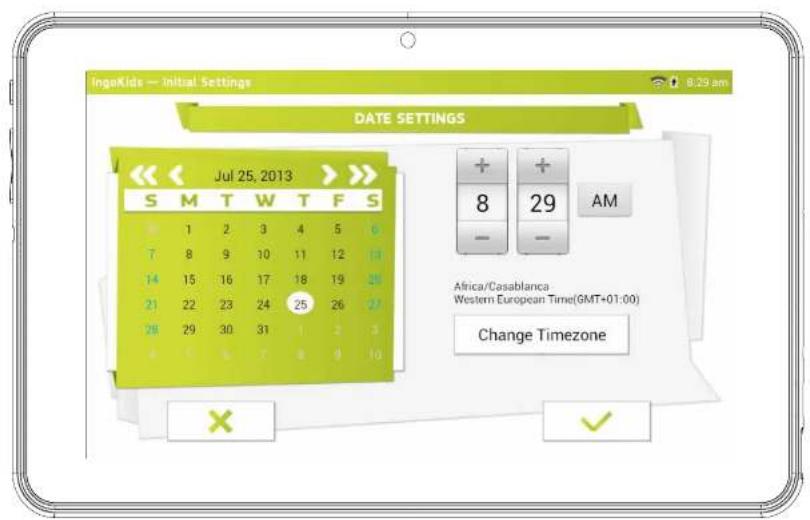
- You can modify the default time settings of your tablet;
- Make sure you check that the timezone is the correct one for your region.
text_image
IngaKids — Initial Settings 8:29 am DATE SETTINGS << << Jul 25, 2013 > >> S M T W T F S 1 2 3 4 5 6 7 8 9 10 11 12 13 14 15 16 17 18 19 20 21 22 23 24 25 26 27 28 29 30 31 3 3 4 5 6 7 8 9 10 + + 8 - 29 - AM Africa/Casablanca Western European Time(GMT+01:00) Change Timezone × ✓SET WIFI
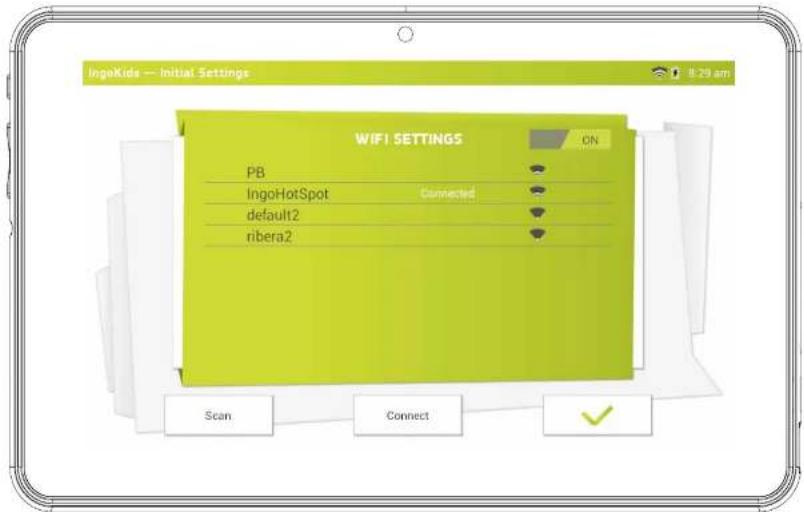
- WiFi comes disabled by default.
• To enable WiFi press the Connect button
• A list of available WiFi networks will appear - Choose your network, if the network is password protected it will prompt you to insert the password (Remember to have it in hand
- If no WiFi networks are found check that your router is on and that the wifi is enabled. Then press Scan to search again for WiFi networks
- You can continue the configuration without activating the Wifi. You can then activate it.
text_image
IngoKids — Initial Settings 8:29 am WIFI SETTINGS PB IngoHotSpot Connected default2 ribera2 CN Scan Connect ✓SET PARENTAL ACCOUNT
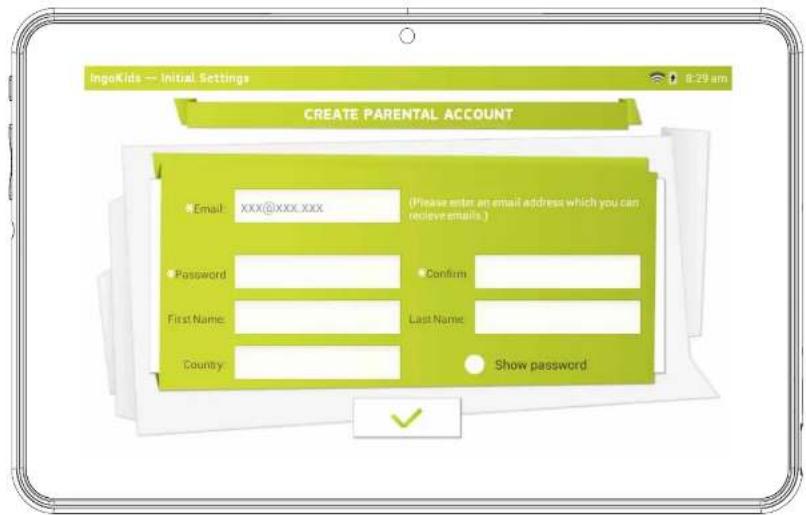
Enter your email
- Enter password: This password helps protect the Parents Area, this way your child can not modify any important setting.
- Enter your name
text_image
IngoKids — Initial Settings 8:29 am CREATE PARENTAL ACCOUNT Email: xxx@xxx.xxx (Please enter an email address which you can retrieve emails.) Password First Name: Country Confirm Last Name: Show passwordNOTE: The parental password is very important as it will be always requested to access the parents area. We strongly suggest that you don't share this passwords with your children as they may use it to access parents area and change important tablet settings.
If you forget the parental password you can request to reset it by sending an email to the provided email address. So it's very important that you have regular access to the email address supplied.
CREATE A CHILDREN ACCOUNT
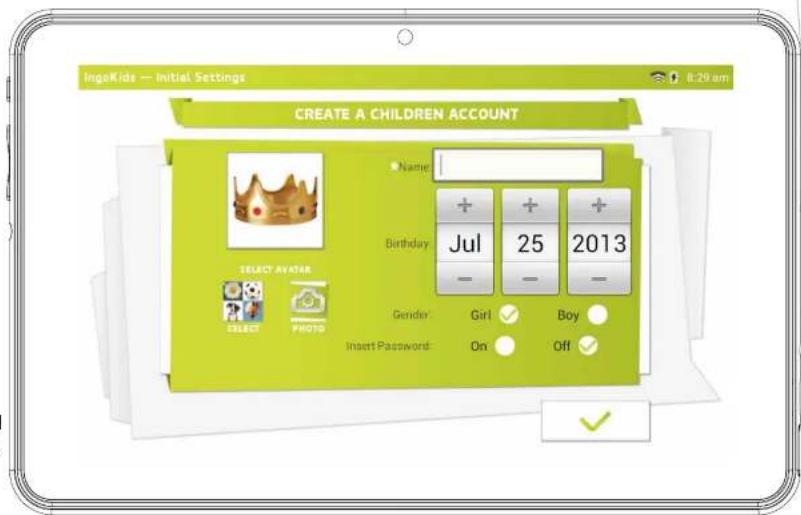
• Name: Insert your child's name
• Birthday: Insert your child's birthday
• Gender: Select your child's gender
- Select: Choose your child's avatar from the preloaded images
- Photo: Take a picture and use it as your child's avatar - Password: You can choose if you want to protect your children account with a password, it's good if the tablet will be shared between different children with different settings.
By default "No password" is selected. If Password is selected you will be prompted to enter the kid password when you confirm the new account.
The password can be from 1 to 14 characters long, with only letters and numbers.
You can also let children use a pattern password instead of characters and numbers. If you want children to have a pattern password select "Pattern". When the child to use your account first prompted to set the password. Then you will be prompted to create a pattern sliding your fingers that links at least 5 dots. In order to make the password easier to remember you can't use the same dot two times.
text_image
IngaKids — Initial Settings 8:29 am CREATE A CHILDREN ACCOUNT Name: Birthday Jul 25 2013 SELECT AVATAR SELECT PHOTO Gender: Girl ✓ Boy ✓ Insert Password: On Off ✓APPS FILTER
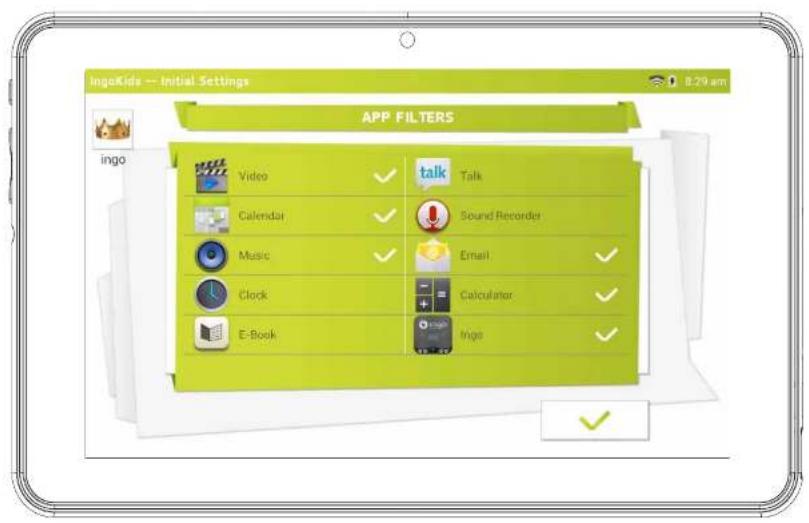
Apps filter allows you to define which applications can your children access. It's a very good way to ensure that the tablet is used the way you intended.
• The installed apps are appro-
ved based on our criteria
- Click over the app icon to select or deselect an application
• To save the changes press the OK button
The applications that are not checked will not be allowed. By default we have approved the apps we consider suitable for all children, but since every child is different we suggest that you check also the preapproved apps.
text_image
IngoKids -- Initial Settings 8:29 am APP FILTERS Video talk Talk Calendar Sound Recorder Music Email Clock Calculator E-Book IngoONLINE CONTENT
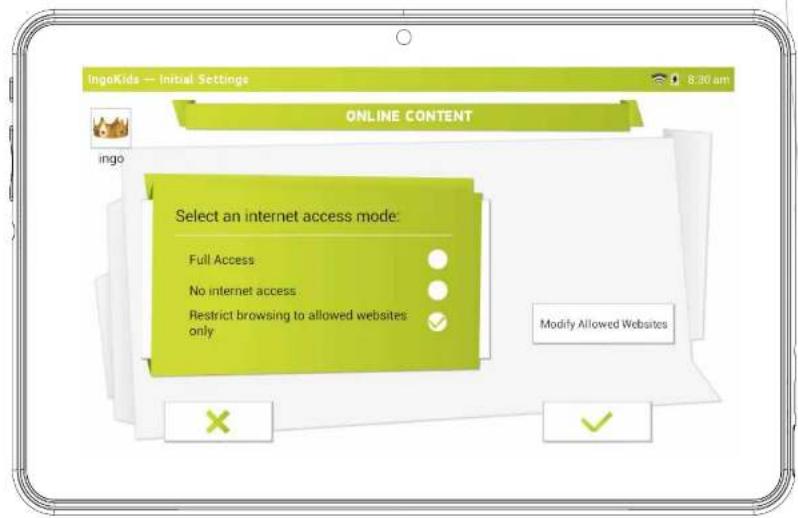
Online content lets you select how your child connects to the internet
• Full access: No restrictions apply, child can visit any website
- No internet access: Internet access is disabled, when child opens browser no website is available. This mode doesn't restrict the internet connection of the apps. If you wish to block completely all data connections you should disable WiFi on the WiFi settings.
- Restrict browsing to allowed websites only: Child can only visit the websites that are on the Allowed websites list.
- Press the Modify Allowed Websites button to access the list and enter new websites your child can visit
• To add a new website you need to press the + button
text_image
IngoKids — Initial Settings 8:30 am ONLINE CONTENT Select an internet access mode: Full Access No internet access Restrict browsing to allowed websites only Modify Allowed Websites X ✓Note: The Online Content filter is only available for the default browser installed in the IngoKids software. If you install a third party browser (Like Google Chrome, Opera, Dolphin Browser, etc) all the online content filters won't work with them.
Note: Even if the restricted browsing is enabled we recommend adult supervision to ensure the correct filtering of the websites. Internet is known for its content being updated instantly, so regular adult checks to the approved content are strongly suggested.
TIME LIMIT
Time Limit is the way to limit how and when your child can use the IngoKids tablet.
- Session control: When enabled it lets you define for how long and how many times your child can use the tablet per day.
- Session control: Set the maximum time the tablet can be used at once
- Rest: Define the time the child must rest after a session has finished
- Sessions per day: Set the maximum
number of sessions your child can do per day
For example: Child can use the tablet 3 times a day for 30 minutes sessions.
After 30 minutes the Kid account will be disabled and will rest for 30 minutes. You will set Sessions per day to 3.

text_image
IngoKids — Parent Area TIME LIMIT ingo Session Control On Off Session Control 60 mm. Rest 30 mm. Sessions per day 3 max. Global Control On Start time 09: End time 09: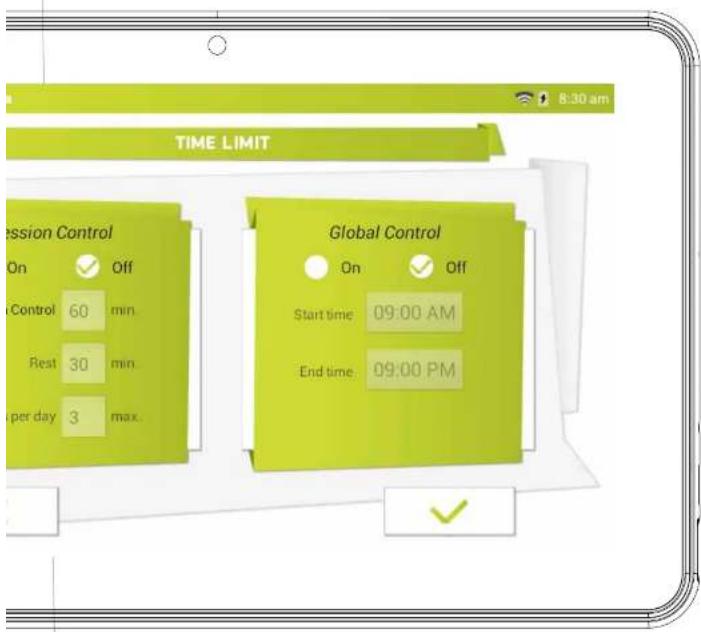
text_image
8:30 am TIME LIMIT Session Control On Off Start Time 09:00 AM Control 60 min Rest 30 min per day 3 max. Global Control On Off Start time 09:00 AM End time 09:00 PM- Global Control: When enabled lets you define the timeframe when your child will be able to use the tablet
- Start time: Input the hour of the day your child can start using the tablet.
Before that time the tablet will turn on but he will not be able to access the account - End time: Input the hour of the day your child will stop using the tablet.
After that time the tablet will turn on but he will not be able to access the account
For example: Child can use the tablet from 9:00am (Start time) to 8:00pm (End time)
Note: The Global control has more importance than the Session control, so even if children has not exhausted all the available session time he will not be able to access his/her account once Global Control daily period expires.
PARENT AREA
HOW TO ACCESS PARENT AREA
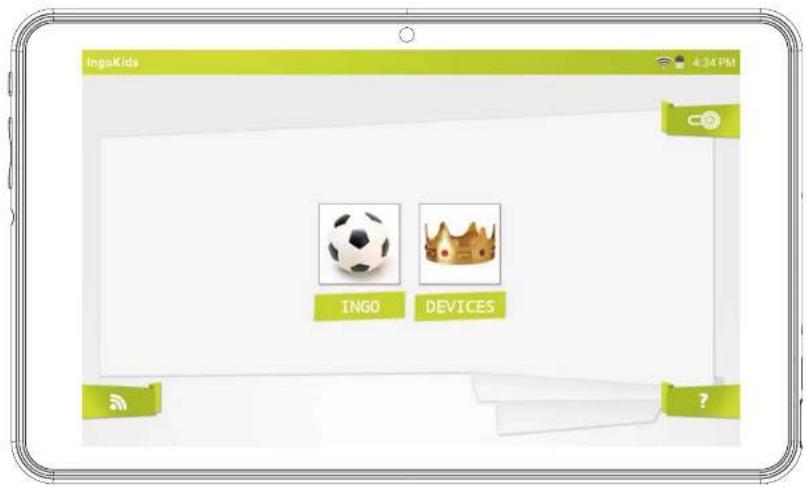
Once setup is complete you will be taken to the login interface.
This screen is what you will see every time you enter in the Parental area.
- Access WiFi Settings
- ParentArea
- Enter the kid account
- Help
Press the Parent Area icon. You will be prompted to insert the parent password you created during initial setup.
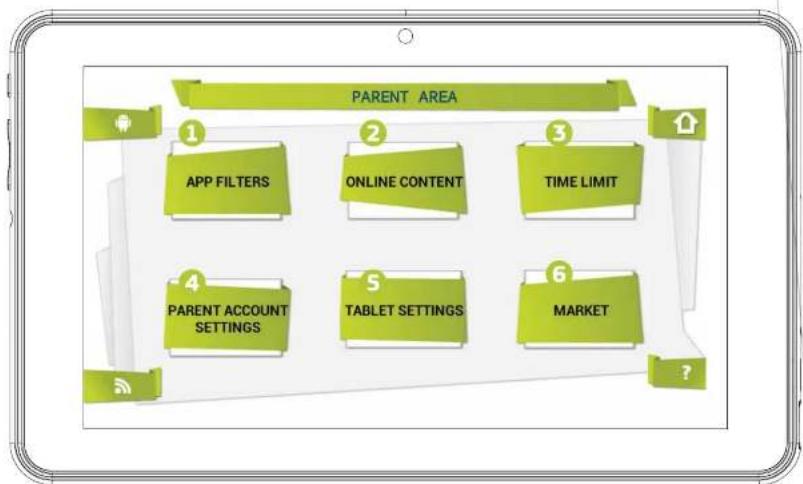
In the Parent Area you can modify the kids settings, create new kid accounts and download apps.
- Apps filter: Choose what applications can use your child
- Online content: Define how can your child access the internet
- Time limit: Setup the amount of time your child can use the tablet
- Parent Account Settings: Modify your settings and password and create new kid accounts
- Tablet settings: Edit some important tablet settings
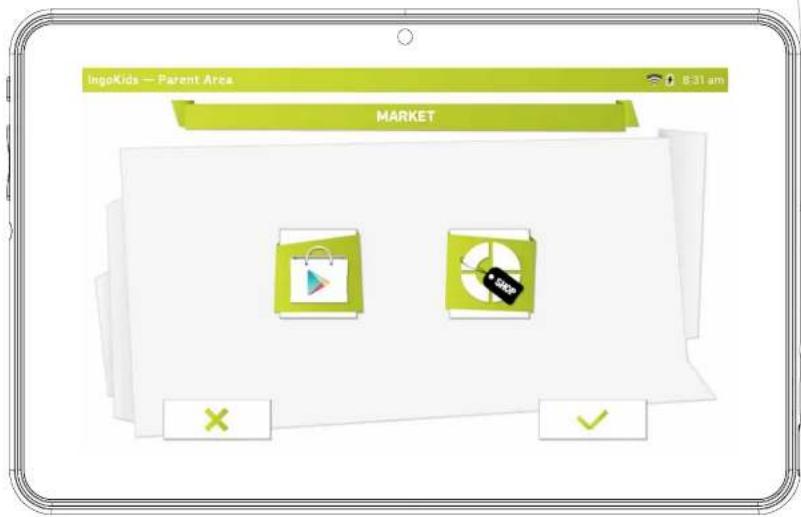
- Market: Access google Play and Ingo market in order to browse and download more applications
flowchart
graph TD
    A["APP FILTERS"] --> B["1"]
    C["ONLINE CONTENT"] --> D["2"]
    E["TIME LIMIT"] --> F["3"]
    G["PARENT ACCOUNT SETTINGS"] --> H["4"]
    I["TABLET SETTINGS"] --> J["5"]
    K["MARKET"] --> L["6"]
    M["?"] --> N["?"]
CHANGE TABLET SETTINGS
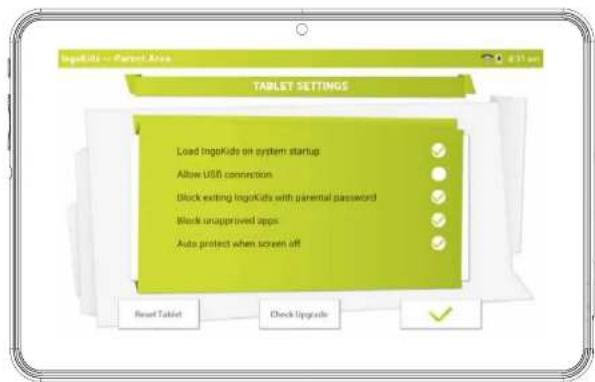
In this page you can change the main settings of the tablet:
- Load IngoKids on system startup: When selected IngoKids will load every time you start the tablet
- Allow USB Connections: It allows to transfer files to your PC within ingoKids interface
- Block exiting Ingokids with parental password: If checked it will require the parental password to go to Android interface
- Block unapproved apps: It will not allow to use any application that has not been previously approved in the App Filter
- Enable screen saver: It turns off the screen after some time of inactivity
You also have Access to some important IngoKids options:
- Reset tablet: It will erase all IngoKids accounts and data
- Check for updates: It will check for software updates if wifi is connected.
Note: our tablet will receive software updates by wifi, this way you will always have an updated version of ingoKids with all the new functions and the latest improvements. By default system is configured to check automatically for software updates.
text_image
IngaKids - Parent Area TABLET SETTINGS Load IngaKids on system startup Allow USB connection Block exiting IngaKids with parental password Block unapproved apps Auto protect when screen off Read Tablet Clock Upgrade ✓CREATE A NEW KID ACCOUNT
In order to create a new kid account you need to Access "Parent Account Settings" and press the + button. From there you need to follow the steps described in the section 2 of this Manual (Initial Setup from point 2.5)
MODIFY AN ACCOUNT
To modify kid settings parent needs to open each function separately (Apps Filter, Online Content and Time Limit).
- The kid account that he is modifying is showed in the top right (parent will see the account avatar and the account name)
- If the tablet has more than one kid account he can choose the kid account to modify in the top right corner.
- Current account being modified
- Choose another account.
text_image
IngoKids 4:34 PM INGO DEVICES ?DOWNLOAD APPLICATIONS
The IngoKids tablet comes with google Play and ingo market presintalled. To access both markets parent needs to go to the Market section of the Parent Area.
- Google Play: The official android app market. Parents need to setup a google account and they will have access to all those apps.
- Ingo official children application marketplace. Parents will find custom apps designed especially for IngoKids tablets and accessories.
By default neither store is available from the IngoKids interface, the only way to access the store is through the Parents Area. If you want your children to access directly any of the two stores (Not recommended) you need to allow the app in the Apps Filter section of the Parents Area
text_image
IngoKids — Parent Area 8:31 am MARKET × ✓Note: Both markets need a WiFi connection to work. Ensure WiFi is enabled and connected to a WiFi network before accessing them.
GOOGLE PLAY
Get access to the official Android store from google and purchase or freely download thousands of applications and games. To access Google Play you need a google account.
- If you already have a gmail address choose "Sign in" and insert your google email and password.
You will be then prompted to enter Credit card information
(If you have not already done it in previous
google products), this is an optional step and you can skip it by pressing the Skip button. -
If you don't have a google account or want to create a new want for the Ingo tablet you need to select "Get a Google Account" and you will be prompted to enter the following information:
-
First and last name
- Choose your new gmail.com address name. If address is not available it will prompt you to insert a different one
- Choose and confirm your password
- Choose a security question and email address to recover your password in case you forget it
- It will prompt you to insert a credit card number. You can choose "Not now" to avoid it.
To download apps from google play you can browse through the Apps section or search using the search button.
INGO MARKET
Ingo market will feature multiple apps suited for your Ingo Tablet. Check it regularly to look for new apps and games available for you.
natural_image
Android robot and dog interacting with a smartphone screen (no text or symbols visible)UNINSTALL APPLICATIONS
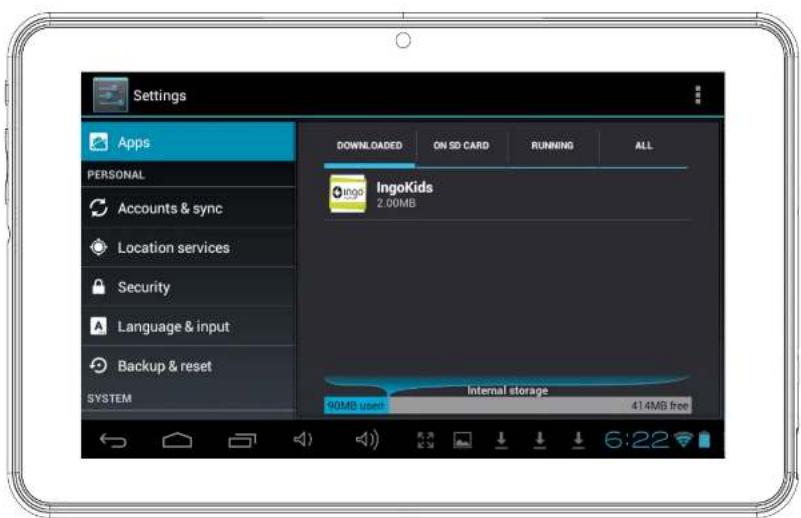
To uninstall an existing apps you need to go to
the Android Interface → Settings → Apps and choose the app you want to remove
Improving software Tablet is continuous and by default each time the tablet will search for new updates to improve the functionality, performance or Apps.
text_image
Settings Apps PERSONAL Accounts & sync Location services Security Language & input Backup & reset SYSTEM DOWNLOADS ON SD CARD RUNNING ALL IngoKids 2.00MB 90MB used Internal storage 41.4MB free 6:22INFORMATION AND SUPPORT
UPDATE INGOKIDS SOFTWARE
Your tablet will check regularly for updates. When WiFi is enabled the system will perform regular checks for software updates. If an update is available we recommend that you accept it as it will contain important upgrades to your system that will enhance performance and functionality.
FAQ / TROUBLESHOOTING
I have lost the parents account password, what can I do
When the tablet prompts you to insert the parents password press the "Forgot password" button and you will be prompted to insert an email address. An email with the instructions about how to reset the password will be sent to that address.
I have enabled the lock screen pattern or PIN and I can't remember it, what can I do
The lock screen security is used to protect your tablet data in case of theft or loss. In case pattern or password the device will lock. In order to use the tablet again contact our customer service.
What is the maximum capacity of the external memory?
The tablet supports up to 32Gb micro SD memory cards.
Where can I find a silicone or rubber case to protect the tablet?
Check our website www.ingodevices.com to check when the accessory products for our tablets are available
Can we connect a 3G USB Dongle to the tablet?
The USB port admits plugging a 3G USB Dongle to connect to the internet using a cellular data plan. You will need a microUSB to USB adaptor in order to plug USB devices to your tablet.
Plug the 3G Dongle to the tablet; in a few seconds it will require you to insert the PIN code of your modem's SIM card (Your mobile carrier should have given it to you together with the SIM card). Once inserted the PIN code you can surf the internet using your data plan.
The tablet sound is low, is it normal?
The tablet volume is limited to protect your children ears.
To ensure the maximum volume you must ensure that it's placed at its maximum level pressing the +. Also we recommend you to have the speaker uncovered, since when leaving the tablet in a desk the speaker will be covered and it will sound low.
Tablet doesn't power ON.
Check the tablet's power level, charge it with the adaptor for 2 hours and check again.
There is no sound coming from earphone
Check if volume is set to '0'. Check if earphone is working properly by testing it in another device.
There is loud noise from earphones or speaker
Check if there is dust in the earphone or speaker.
Tablet gets locked and doesn't respond to touch or buttons.
Reset your tablet by holding the power key for a few seconds. You can press using a paper clip or needle gently the internal reset button.
An application is not working properly
Not all Android apps are compatible with all Android devices. If you have downloaded the app try to download it again and reinstall it.
How do I delete a Google account?
If an account is added, the account is shown in Android Interface → Settings → Accounts & sync, where you may also add another account.
To delete an unwanted account, select the account. The account sync information will load. You can access the account settings in the top right corner (Three aligned dots appear). In the settings menu select "Remove account".
Other questions
If you have other questions about setting up or using our tablet please visit www.ingodevices.com to find more about your tablet, read the realted FAQ, download product guides and watch the online videotutorials.
SUPPORT
IngoKids interface has a help section that will solve most of your issues, if you still need support you can visit our website http://www.ingodevices.com where you will find tutorials, video tutorials and answers to the frequent asked questions.
If you need further support there is a dedicated help line for this product. For help and advice ring:
UK 02035147021
FRANCE 0891 65 0101
SPAIN 902 023 951
Please have your receipt ready when you call. You can also contact us via our website http://www.ingodevlces.com
support website: http://support.ingodevices.com
WARNING
• Packaging material is not part of the product. When unpacking the device make sure no packaging material is left to the reach of children
• Device is not intended to be dismantled
- Only charge the IngoKids tablet with the supplied power adaptor
- Keep the device away from water and moisture
- Clean the screen using a humid tissue. Do not use alcohol, sprays or cleaning products as they may damage the screen
• The tablet is designed to resist soft impacts. We can not guarantee it can resist strong impacts, abuse or inappropriate use.
DISPOSAL

Electrical and electronic equipment (EEE) contains materials, parts and substances which can be dangerous to the environment and harmful to human health if waste of electrical and electronic equipment (WEEE) is not disposed of correctly.
Equipment, which is marked with the WEEE logo (as shown on the left), should not be thrown away with your household waste. Contact your Local Authority Waste Disposal Department as they will be able to provide details of the recycling options available in your area.
Used batteries are hazardous waste and NOT to be disposed of with the household waste! As a consumer you are legally obligated to return all batteries for environmentally responsible recycling – no matter (whether or not the batteries contain harmful substances*).
Return batteries free of charge to public collection points in your community or to shops selling batteries of the respective kind. Only return fully discharged batteries.
*) marked Cd = cadmium, Hg = mercury, Pb = lead
• Only use mercury and cadmium-free batteries.
• Non-rechargeable batteries are not to be recharged.
- Rechargeable batteries should be removed from product before recharging
- Rechargeable batteries should be charged under adult supervision.
• Different types of batteries or new and used batteries are not to be mixed
- Batteries are to be inserted with the correct polarity
- Batteries should be replaced under the supervision of an adult.
• Exhausted batteries are to be removed from the product.
• The supply terminals are not to be short-circuited.
• Used batteries are hazardous waste and NOT to be disposed of the household waste!! Return the batteries to your dealer or to collection points in your community.
- Keep batteries away from children. Children might swallow batteries.
- Contact a physician immediately if a battery was swallowed
- Check your batteries regularly to avoid battery leakage.
- Batteries shall not be exposed to excessive heat such as sunshine, fire or the like.
• CAUTION: Danger of explosion if battery is incorrectly replaced
1. Replace only with the same or equivalent type

Ingo Devices assumes no responsibility for any errors that may appear in this manual.
Due to our continuous improvement, Ingo Devices reserves the right to change without notice, product offerings, specifications and compatibility.
www.ingodevices.com

ingo

ingo devices®
After Sales Service
Spain: 902 023 951
UK:0203 514 7021
Info.uk@ingodevices.com
France: 0891 65 01 01
Other countries:
www.ingodevices.com
Ingo Devices, SL.
Bernat Metge, 77-79
08205 - Sabadell
BARCELONA - SPAIN
Ingo Devices UK, LTD
35 Britannia Row
Islington
LONDON - N1 8QH

/ingodevices @ingodevices
www.ingodevices.com

Ingo ^® devices
TABLET PREMIUM
MANUAL DE USUARIO
ES
ESPECIFICACIONES 3
Pantalla principal 5
natural_image
Cartoon illustration of a green mobile phone ear with headphones, smiling and waving (no text or symbols)
text_image
6:06 Wed, March 27 1 No Internet connection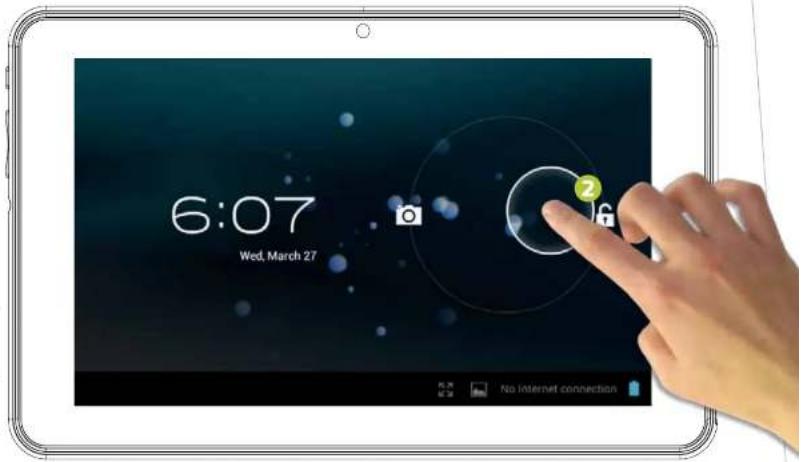
text_image
6:07 Wed, March 27 No Internet connectionPANTALLA TÁCTIL CAPACITIVA
text_image
Photo of two smiling children with a camera interface displaying numbered UI elements for photo editing.text_image
1 EBook 2 3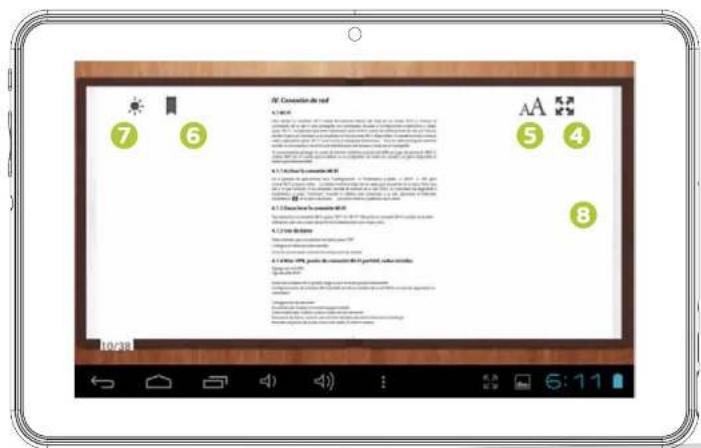
text_image
Reaction to the world 7 6 A 5 4 8 to date 10:00 am 24.000000000000000000000000000000000000000000000000000000000000000000000000000000000000000000000000REPRODUCTOR DE VÍDEOS
text_image
Download ScreenshotsREPRODUCTOR DE MÚSICA
natural_image
Cartoon illustration of a smiling green Earth with headphones and a laptop, no text or symbols present.IDIOMA
natural_image
Android robot and a dog interacting with a smartphone (no text or symbols visible)DESINSTALAR APLICACIONES
text_image
ACCOUNTS SETTING Ingo KidsInterface principale

natural_image
Cartoon illustration of a green smartphone with headphones and a smiling face, wearing a black athletic outfit (no text or symbols)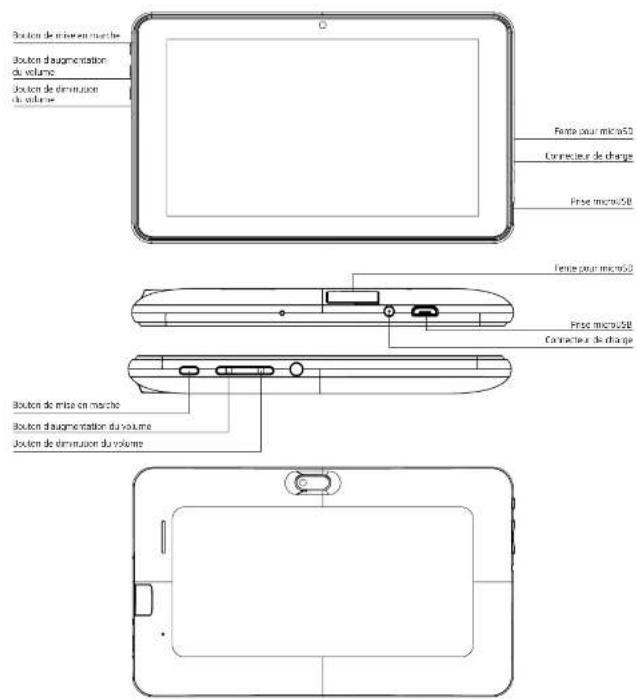
text_image
6:06 Wed, March 27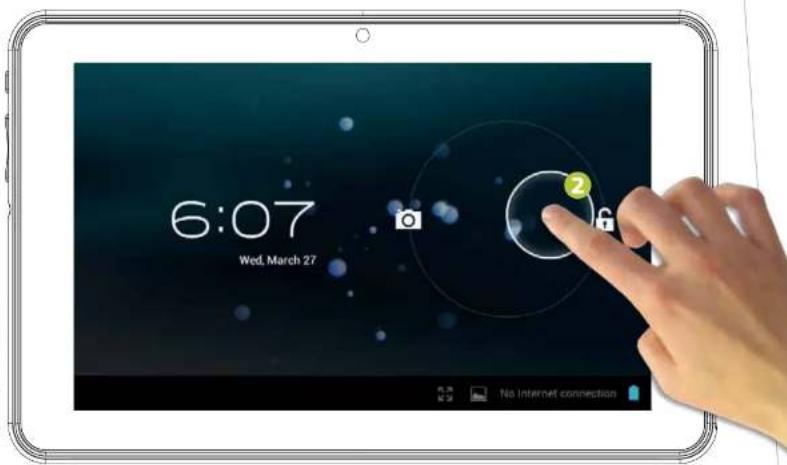
text_image
6:07 Wed. March 27 No Internet connectiontext_image
Photo of two smiling children looking at a smartphone screen displaying camera mode options numbered 1 to 7.text_image
1 HOLD 3.25 μF 2 Ebook 3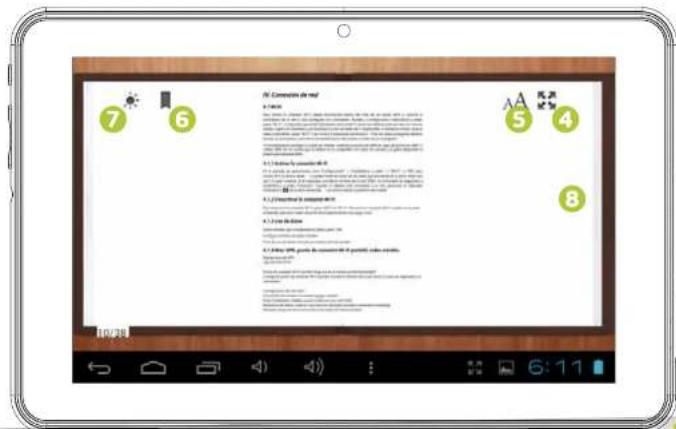
text_image
IV. Connections de me! A: Parle 7 6 AA 5 4 8 9.1.1.2.3.4.5.6.7.8.9.10.11.12.13.14.15.16.17.18.19.20.21.22.23.24.25.26.27.28.29.30.31.32.33.34.35.36.37.38.39.40.41.42.43.44.45.46.47.48.49.50.51.52.53.54.55.56.57.58.59.60.61.62.63.64.65.66.67.68.69.70. A: Parle 7 6 AA 5 4 9 8 9 7 9 6 9 5 9 4 9 3 9 2 9 1 9 0 9 0 9 0 9 0 9 0 9 0 9 0 9 0 9 0 9 0 9 0 9 0 9 0 9 0 9 0 9 0 9 0 9 0 9 0 9 0 9 0 9 0 9 0 9 0 9 0 9 1 9 1 9 1 9 1 9 1 9 1 9 1 9 1 9 1 9 1 9 1 9 1 9 1 9 1 9 1 9 1 9 1 9 1 9 1 9 1 9 1 9 1 9 1 9 1 9 1 9 2 9 2 9 2 9 2 9 2 9 2 9 2 9 2 9 2 9 2 9 2 9 2 9 2 9 2 9 2 9 2 9 2 9 2 9 2 9 2 9 2 9 2 9 2 9 2 9 2 9 3 9 3 9 3 9 3 9 3 9 3 9 3 9 3 9 3 9 3 9 3 9 3 9 3 9 3 9 3 9 3 9 3 9 3 9 3 9 3 9 3 9 3 9 3 9 3 9 3 9 4 9 4 9 4 9 4 9 4 9 4 9 4 9 4 9 4 9 4 9 4 9 4 9 4 9 4 9 4 9 4 9 4 9 4 9 4 9 4 9 4 9 4 9 4 9 4 9 4Reproducteur vidéo
text_image
Download Screenshotstext_image
LRC 4 5 6 Ingo Ingo songs Ingo opening song 0:11 2 1 3 2:26 6:25Connecté a un PC
natural_image
Cartoon illustration of a green Earth with headphones and a smiling face, holding a megaphone (no text or symbols)Langue
text_image
IngeKids — Parent Area 8:31 am MARKET × ✓Google Play
support site web: http://support.ingodevices.com
Avertissement
text_image
ACCOUNTS SETTING Ingo KDDYHAUPTSCHNITTSTELLE

natural_image
Cartoon illustration of a green smartphone with headphones and a smiling face, wearing a black outfit (no text or symbols)
text_image
Power Button Volume Up Volume Down Front Camera microSD slot Charger input microUSB plug microSD slot microUSB plug Charger input Power Button Volume Up Volume Down Back Camera SpeakerLADEN
text_image
6:06 Wed, March 27 No Internet connection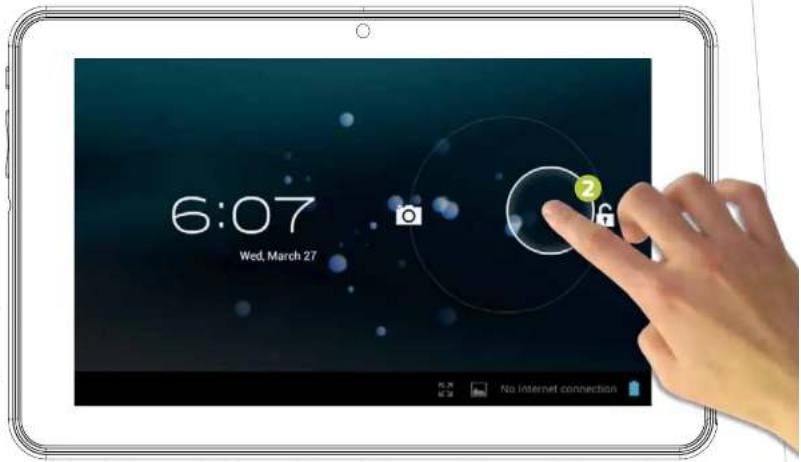
text_image
6:07 Wed, March 27 No Internet connection
ingo
(1)
KAPAZITIVE TOUCHOBERFLÄCHE
text_image
Photo of two smiling children looking at a smartphone screen displaying camera mode options with numbered labelstext_image
1 EBook 2 3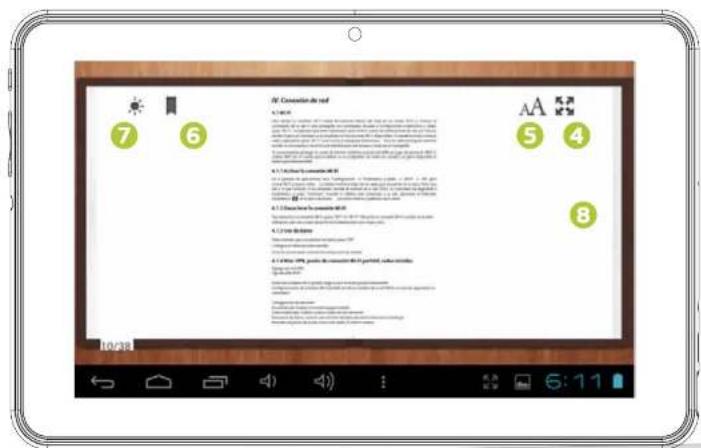
text_image
Reaction to the real 7 6 A 5 4 8 I: A. Use the reaction to the real A. Use the reaction to the real A. Use the reaction to the real A. Use the reaction to the real A. Use the reaction to the real A. Use the reaction to the real A. Use the reaction to the real A. Use the reaction to the real A. Use the reaction to the real A. Use the reaction to the real A. Use the reaction to the real A. Use the reaction to the real A. I: A. Use the reaction to the real A. Use the reaction to the real A. Use the reaction to the real A. Use the reaction to the real A. Use the reaction to the real A. Use the reaction to the real A. Use the reaction to the real A. Use the reaction to the real A. Use the reaction to the real A. Use the reaction to the real A. Use the reaction to the Real A. Use the reaction to the Real A. Use the reaction to the Real A. Use the reaction to the Real A. Use the reaction to the Real A. Use the reaction to the Real A. Use the reaction to the Real A. Use the reaction to the Real A. Use the reaction to the Real A. Use the reaction to the Real A. Use the reaction to the Real A. Use the reaction to the RealVIDEOPLAYER
text_image
Download ScreenshotsMUSICPLAYER
natural_image
Cartoon illustration of a green Earth with headphones and a smiling face, holding a megaphone (no text or symbols)SPRACHE
text_image
IngeKids — Parent Area 8:31 am MARKET × ✓GOOGLE PLAY
natural_image
Android robot and dog interacting with a smartphone screen (no text or symbols visible)support website: http://support.ingodevices.com
WARNUNG
(Wastes of electrical and electronic equipment)
natural_image
Cartoon illustration of a green smartphone with headphones and a smiling face, wearing a black outfit (no text or symbols)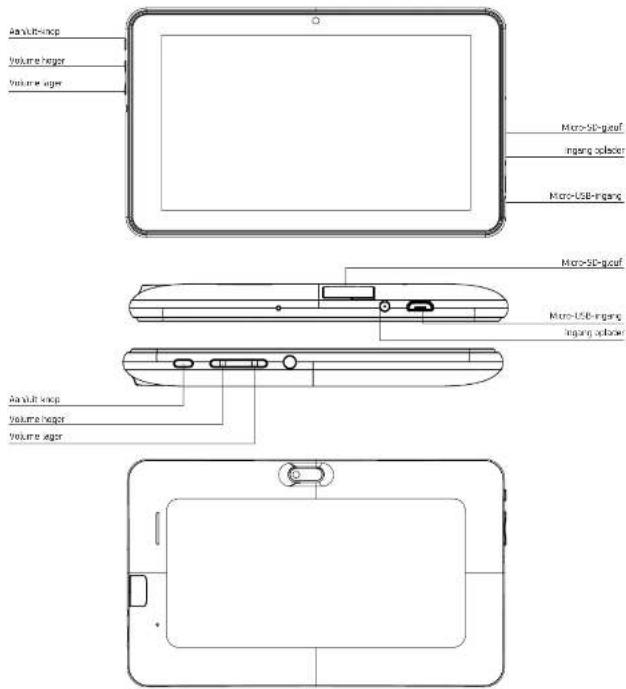
text_image
Audio/USB-loop Volume hanger Volume inger Micro-SD-geeaf ingang socket Micro-USB-ingang Micro-SD-geeaf Micro-USB-ingang ingang socket Audio/USB-loop Volume hanger Volume ingerOpladen
text_image
6:06 Wed, March 27 1 No Internet connection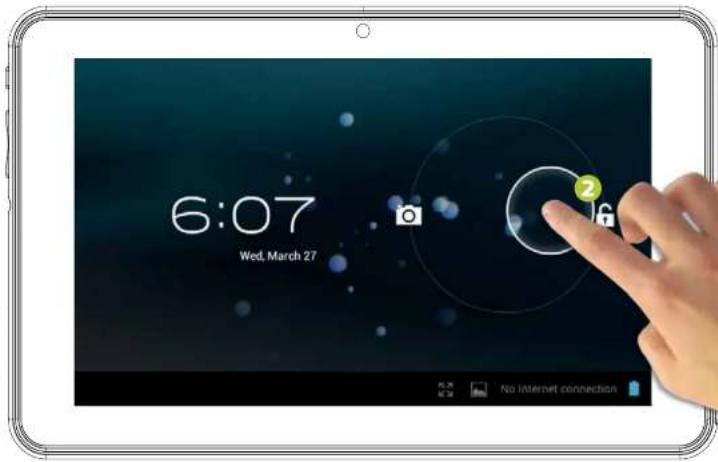
text_image
6:07 Wed, March 27
ingo
(1)
text_image
Photo of two smiling children looking at a smartphone screen displaying camera mode options numbered 1 to 7.text_image
1 EBook 2 3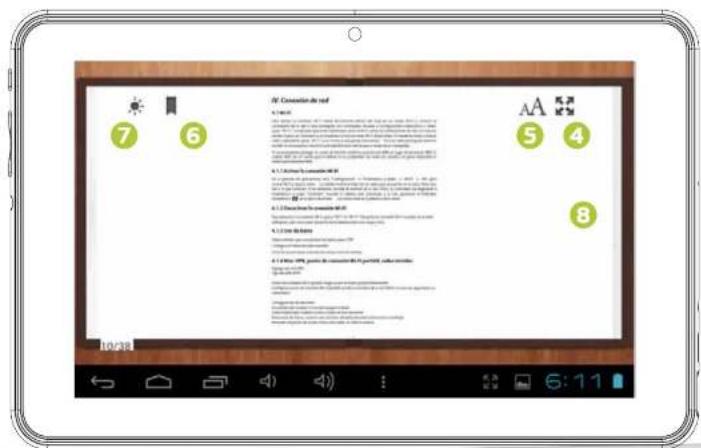
text_image
7 6 A2 Concatation de red A 10 5 4 8 1. A 30% F-100% F-100% F-100% F-100% F-100% F-100% F-100% F-100% F-100% F-100% F-100% F-100% F-100% F-100% F-100% F-100% F-100% F- A 2. A 50% F-100% F-100% F-100% F-100% F-100% F-100% F-100% F-100% F-100% F-100% F- A 3. A 50% F-100% F-100% F-100% F-100% F-100% F-100% F-100% F-100% F- A 4. A 50% F-100% F-100% F-100% F-100% F-100% F-100% F- A 5. A 50% F-100% F-100% F-100% F-100% F-100% F- A 6. A 50% F-100% F-100% F-100% F-100% F-100% F- A 7. A 50% F-100% F-100% F-100% F-100% F- A 8. A 50% F-100% F-100% F-100% F-100% F- A 9. A 50% F-100% F-100% F-100% F- A 10. A 50% F-100% F-100% F-100% F- A 11. A 50% F-100% F-100% F-100% F- A 12. A 50% F-100% F-100% F-100% F- A 13. A 50% F-100% F-100% F-100% F- A 14. A 50% F-100% F-100% F-100% F- A 15. A 50% F-100% F-100% F-100% F- A 16. A 50% F-100% F-100% F-100% F- A 17. A 50% F-100% F-100% F-100% F- A 18. A 50% F-100% F-100% F-1,5,6,7,8,9,1,2,3,4,5,6,7,8,9,1,2,3,4,5,6,7,8,9,1,2,3,4,5,6,7,8,9,1,2,3,4,5,6,7,8,9,1,2,3,4,5,6,7,8,9,1,2,3,4,5,6,7,8,8,9,1,2,3,4,5,6,7,8,9,1,2,3,4,5,6,7,8,9,1,2,3,4,5,6,7,8,9,1,2,3,4,5,6,7,8,9,1,2,3,4,5,6,7,8,9,1,2,4,5,6,7,8,9,1,2,3,4,5,6,7,8,9,1,2,3,4,5,6,7,8,9,1,2,3,4,5,6,7Videospeler
text_image
Download ScreenshotsMuziekspeler
text_image
Ingo Ingo songs Ingo opening songnatural_image
Cartoon illustration of a green Earth with headphones and a smiling face, holding a megaphone (no text or symbols)Taal instellen
natural_image
Android robot and dog interacting with a smartphone (no text or symbols visible)text_image
ACCOUNTS SETTING Ingo KDDIINTERFACCIA PRINCIPALE

natural_image
Cartoon illustration of a green smartphone with headphones and a smiling face, wearing a black outfit (no text or symbols)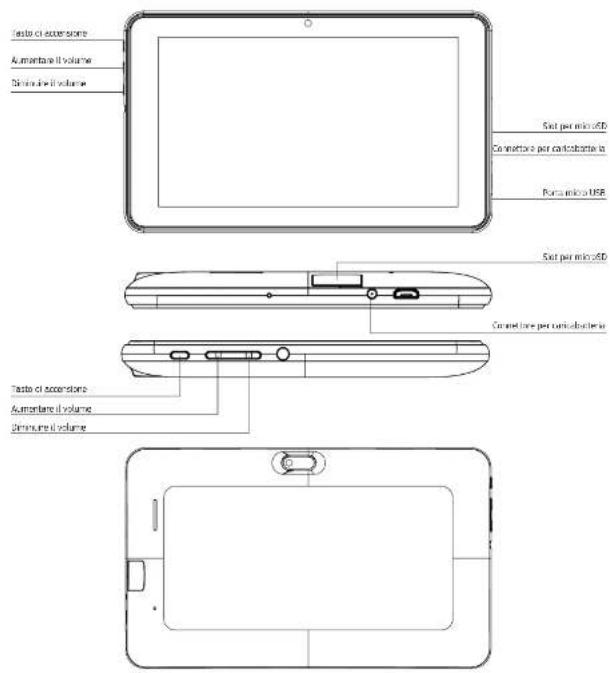
text_image
6:06 Wed, March 27 No Internet connection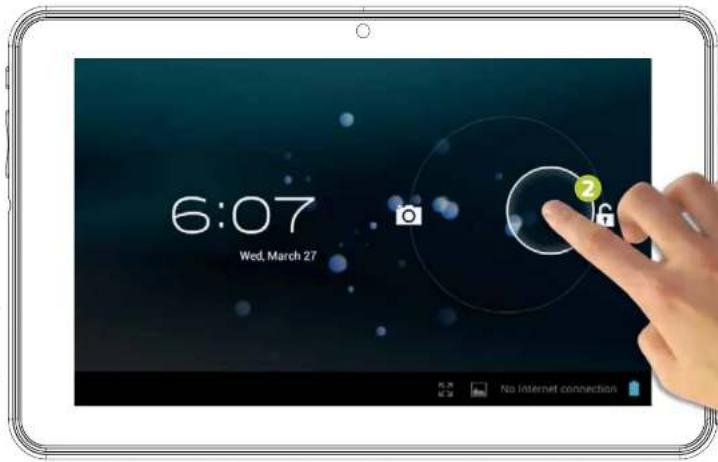
text_image
6:07 Wed. March 27
ingo
(1)
PANNELLO TATTILE CAPACITIVO
text_image
Photo of two smiling children looking at a smartphone screen displaying camera mode options with numbered labelstext_image
1 EBook 2 3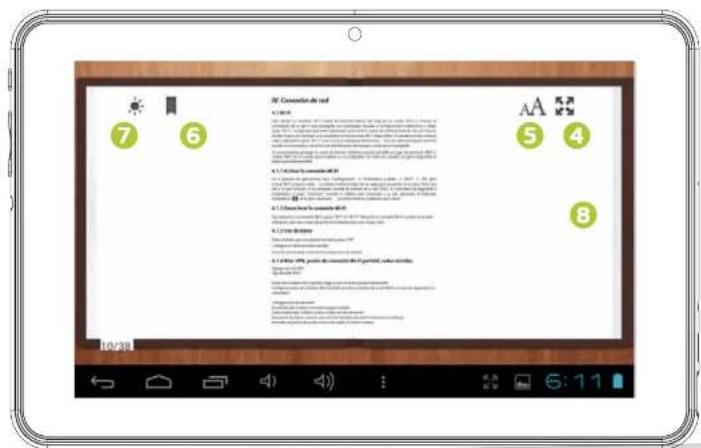
text_image
Reaction to the real 7 6 A 5 4 8 I: A. Use the reaction to the real A. Use the reaction to the real A. Use the reaction to the real A. Use the reaction to the real A. Use the reaction to the real A. Use the reaction to the real A. Use the reaction to the real A. Use the reaction to the real A. Use the reaction to the real A. Use the reaction to the real A. Use the reaction to the real A. Use the reaction to the real A. I: A. Use the reaction to the real A. Use the reaction to the real A. Use the reaction to the real A. Use the reaction to the real A. Use the reaction to the real A. Use the reaction to the real A. Use the reaction to the real A. Use the reaction to the real A. Use the reaction to the real A. Use the reaction to the real A. Use the reaction to the Real A. Use the reaction to the Real A. Use the reaction to the Real A. Use the reaction to the Real A. Use the reaction to the Real A. Use the reaction to the Real A. Use the reaction to the Real A. Use the reaction to the Real A. Use the reaction to the Real A. Use the reaction to the Real A. Use the reaction to the Real A. Use the reaction to the RealLETTORE VIDEO
text_image
Download ScreenshotsLETTORE MUSICALE
natural_image
Cartoon illustration of a green Earth with headphones and a smiling face, holding a megaphone (no text or symbols)LINGUA
IMPOSTATE DATA & ORA
IMPOSTATE UN ACCOUNT GENITORI
CREARE UN NUOVO ACCOUNT BAMBINO
natural_image
Android robot and dog interacting with a smartphone screen (no text or symbols visible)Interface principal 4
Carga
Ecrã principal 5
Bloqueio do ecrã 6
natural_image
Cartoon illustration of a green smartphone wearing headphones and holding a CD, smiling with arms raised (no text or symbols)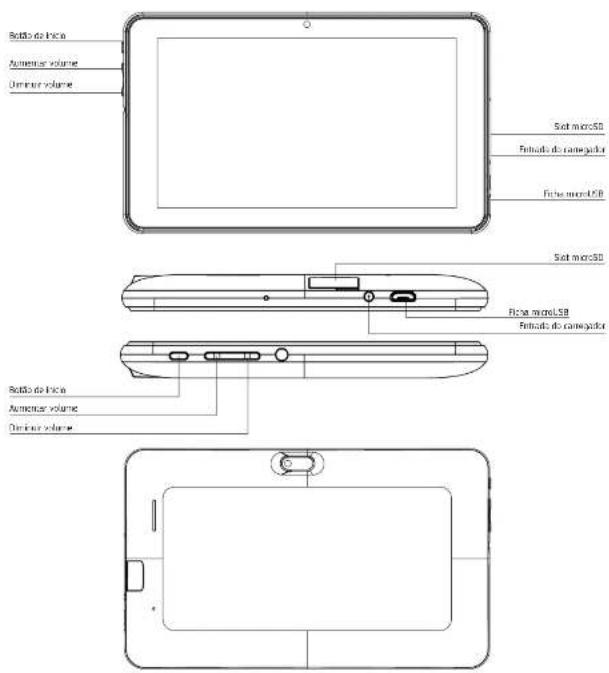
text_image
Sot micro50 Finitada do ranegaster Ficta micro150 Sot micro50 Ficta micro150 Finitada do ranegaster Sot micro50 Sot micro50 Sot micro50 Sot micro50 Sot micro50 Sot micro50 Sot micro50 Sot micro50 Sot micro50 Sot micro50 Sot micro50 Sot micro50 Sot micro50 Sot micro50 Sot micro50 Sot micro50 Sot micro50 Sot microl 50 Sot microl 50 Sot microl 50 Sot microl 50 Sot microl 50 Sot microl 50 Sot microl 50 Sot microl 50 Sot microl 50 Sot microl 50 Sot microl 50 Sot microl 50 Sot microl 50 Din-iruc volumeCarga
text_image
6:06 Wed, March 27 No Internet connection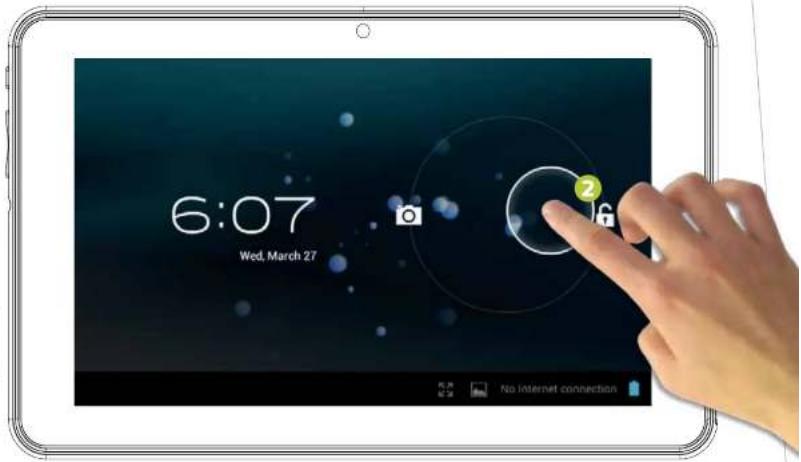
text_image
6:07 Wed, March 27 No Internet connectiontext_image
Photo of two smiling children looking at a smartphone screen displaying camera mode options numbered 1 to 7.text_image
1 EBook 2 3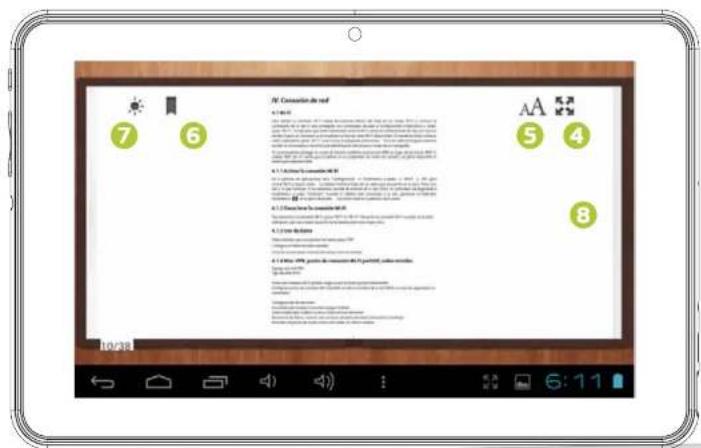
text_image
7 6 9. Consultation de red A 10 5 4 8 10. Use the Web for a new user's profile. 11. Use the Web for a new user's profile. 12. Use the Web for a new user's profile. 13. Use the Web for a new user's profile. 14. Use the Web for a new user's profile. 15. Use the Web for a new user's profile. 16. Use the Web for a new user's profile. 17. Use the Web for a new user's profile. 18. Use the Web for a new user's profile. 19. Use the Web for a new user's profile. 20. Use the Web for a new user's profile. 21. Use the Web for a new user's profile. 22. Use the Web for a new user's profile. 23. Use the Web for a new user's profile. 24. Use the Web for a new user's profile. 25. Use the Web for a new user's profile. 26. Use the Web for a new user's profile. 27. Use the Web for a new user's profile. 28. Use the Web for a new user's profile. 29. Use the Web for a new user's profile. 30. Use the Web for a new user's profile. 31. Use the Web for a new user's profile. 32. Use the Web for a new user's profile. 33. Use the Web for a new user's profile. 34. Use the Web for a new user's profile. 35. Use the Web for a new user's profile. 36. Use the Web for a new user's profile. 37. Use the Web for a new user's profile. 38. Use the Web for a new user's profile. 39. Use the Web for a new user's profile. 40. Use the Web for a new user's profile. 41. Use the Web for a new user's profile. 42. Use the Web for a new user's profile. 43. Use the Web for a new user's profile. 44. Use the Web for a new user's profile. 45. Use the Web for a new user's profile. 46. Use the Web for a new user's profile. 47. Use the Web for a new user's profile. 48. Use the Web for a new user's profile. 49. Use the Web for a new user's profile. 50. Use the Web for a new user's profile. 51. Use the Web for a new user's profile. 52. Use the Web for a new user's profile. 53. Use the Web for a new user's profile. 54. Use the Web for a new user's profile. 55. Use the Web for a new user's profile. 56. Use the Web for a new user's profile. 57. Use the Web for a new user's profile. 58. Use the Web for a new user's profile. 59. Use the Web for a new user's profile. 60. Use the Web for a new user's profile. 61. Use the Web for a new user's profile. 62. Use the Web for a new user's profile. 63. Use the Web for a new user's profile. 64. Use the Web for a new user's profile. 65. Use the Web for a new user's profile. 66. Use the Web for a new user's profile. 67. Use the Web for a new user's profile. 68. Use the Web for a new user's profile. 69. Use the Web for a new user's profile. 70. Use the Web for a new user's profile. 71. Use the Web for a new user's profile. 72. Use the Web for a new user's profile. 73. Use the Web for a new user's profile. 74. Use the Web for a new user's profile. 75. Use the Web for a new user's profile. 76. Use the Web for a new user's profile. 77. Use the Web for a new user's profile. 78. Use the Web for a new user's profile. 79. Use the Web for a new user's profile. 80. Use the Web for a new user's profile.
ingo