GPO Westwood - Speaker

Westwood - Speaker GPO - Free user manual and instructions

Find the device manual for free Westwood GPO in PDF.

📄 72 pages English EN 💬 AI Question
Notice GPO Westwood - page 4
Manual assistant
Powered by ChatGPT
Waiting for your message
Product information

Brand : GPO

Model : Westwood

Category : Speaker

Download the instructions for your Speaker in PDF format for free! Find your manual Westwood - GPO and take your electronic device back in hand. On this page are published all the documents necessary for the use of your device. Westwood by GPO.

USER MANUAL Westwood GPO

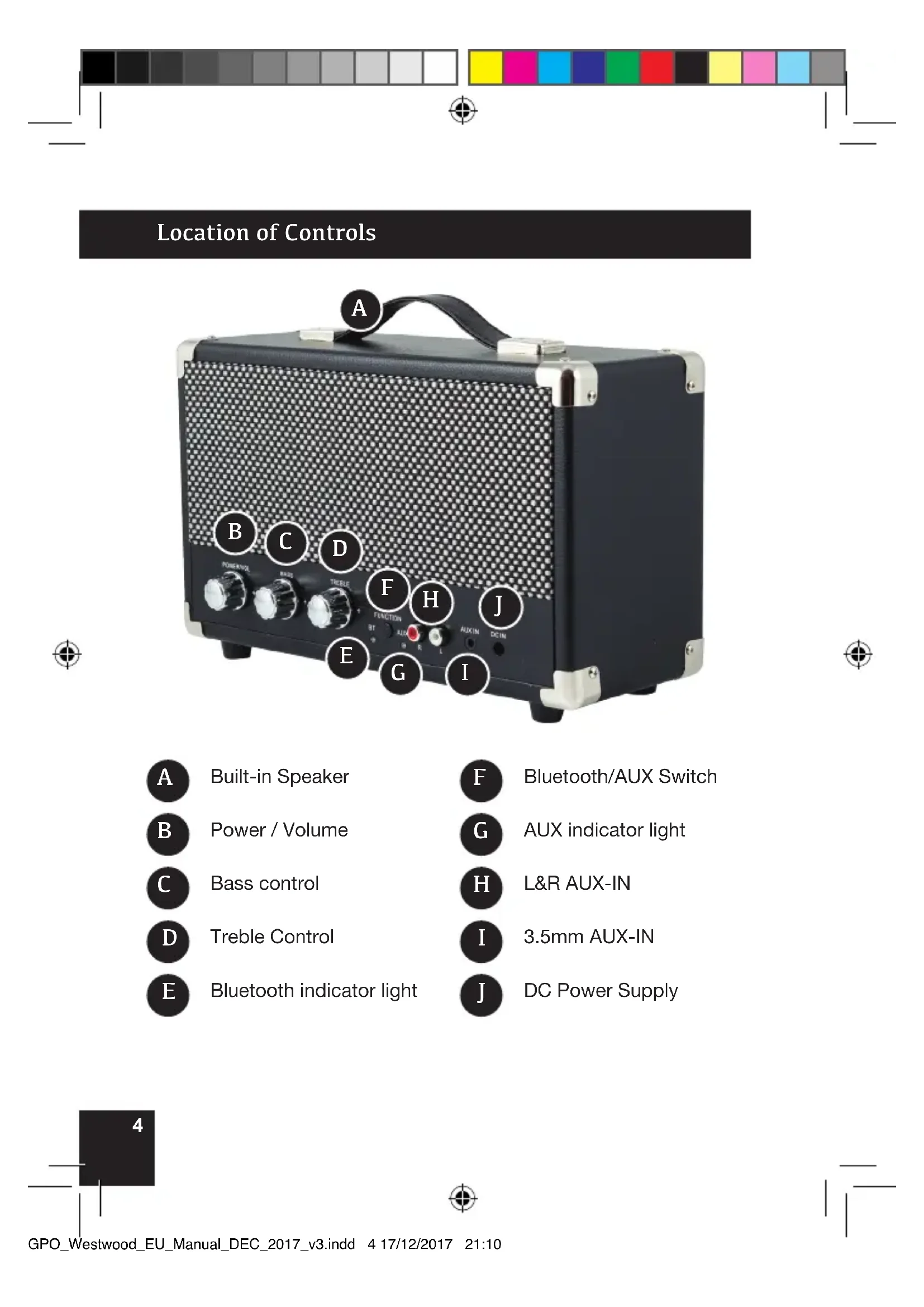
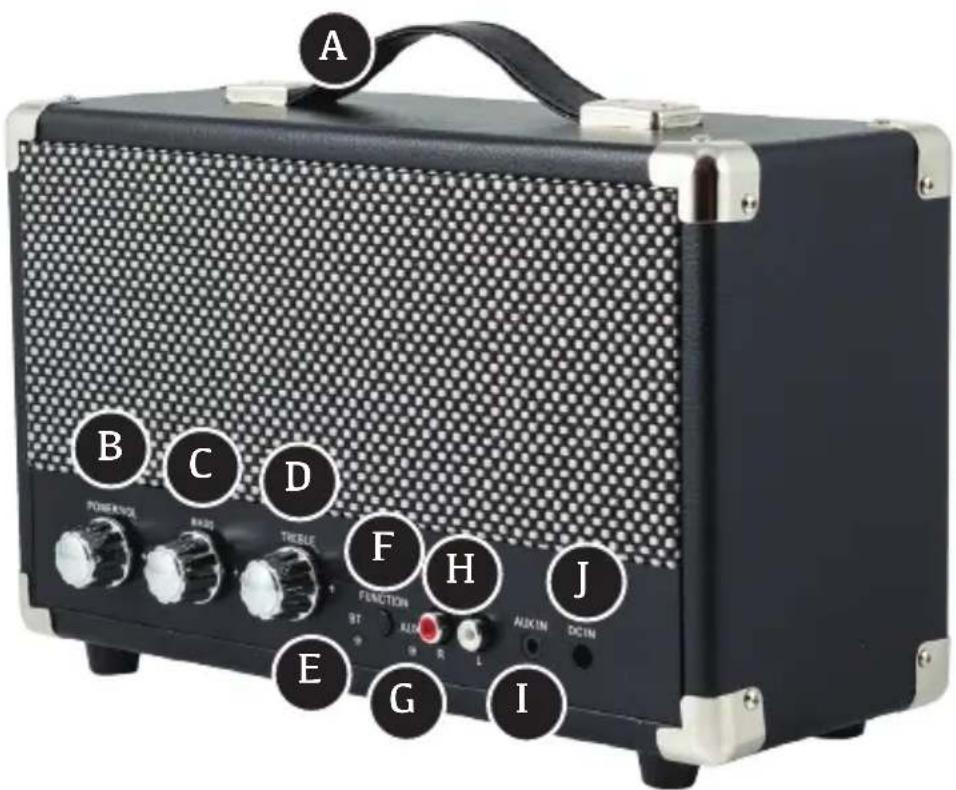
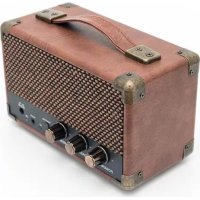
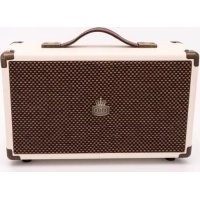
Control Buttons POWER/VOL Turn knob clockwise to switch on the unit and increase volume Turn knob anti-clockwise to reduce the volume and switch off the unit BASS Turn knob clockwise and anti-clockwise to adjust the BASS TREBLE Turn knob clockwise and anti-clockwise to adjust the TREBLE Press Function Button to switch between Bluetooth / AUX input FUNCTION GPO_Westwood_EU_Manual_DEC_2017_v3.indd 4 17/12/2017 21:105 Location of Controls Built-in Speaker



Control Buttons POWER/VOL Turn knob clockwise to switch on the unit and increase volume Turn knob anti-clockwise to reduce the volume and switch off the unit BASS Turn knob clockwise and anti-clockwise to adjust the BASS TREBLE Turn knob clockwise and anti-clockwise to adjust the TREBLE Press Function Button to switch between Bluetooth / AUX input FUNCTION GPO_Westwood_EU_Manual_DEC_2017_v3.indd 5 17/12/2017 21:106 Input and Output

To use your GPO Westwood Speaker with auxiliary (aux) – in connection, please follow the instructions below:

  • Turn your GPO Westwood speaker on using the above instructions.
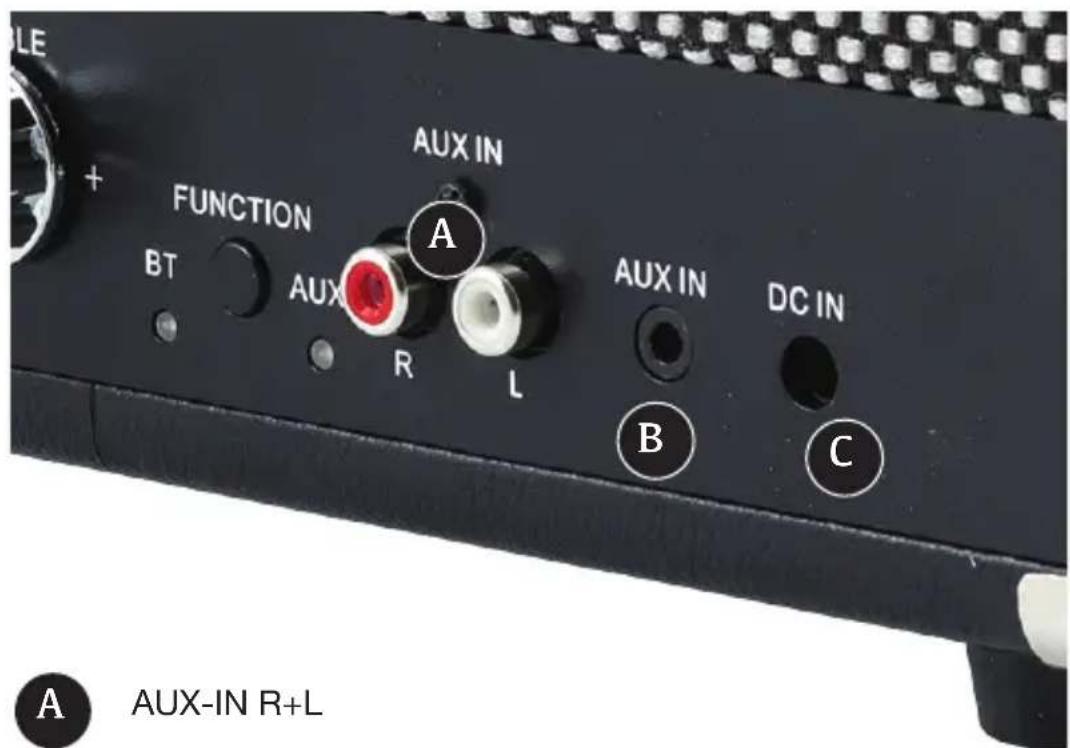
  • Connect the aux cable provided to your speaker by inserting the red jack into the red port and the white jack into the white port. Connect the 3.5mm jack plug into the device of your choice (smartphone, tablet, MP3 player).
  • Press the function button once. It will take the speaker approximately 2 seconds to switch to AUX mode, the red light underneath AUX will light up.
  • Press play on your device and control your music from there. Just like in Bluetooth mode, you can control the volume from your device and your speaker. Turn the bass and treble dials to achieve the sound you desire.
  • To disconnect the device, simply turn off the unit using the instructions provided above, and then disconnect the cables from your device and speaker.
  • We do not advise that you leave any cable connected to the speaker or to your music device when not in use. Operation Instructions: AUX Mode GPO_Westwood_EU_Manual_DEC_2017_v3.indd 6 17/12/2017 21:107 Input and Output

To use your GPO Westwood Speaker with auxiliary (aux) – in connection, please follow the instructions below:

  • Turn your GPO Westwood speaker on using the above instructions.
  • Connect the aux cable provided to your speaker by inserting the red jack into the red port and the white jack into the white port. Connect the 3.5mm jack plug into the device of your choice (smartphone, tablet, MP3 player).
  • Press the function button once. It will take the speaker approximately 2 seconds to switch to AUX mode, the red light underneath AUX will light up.
  • Press play on your device and control your music from there. Just like in Bluetooth mode, you can control the volume from your device and your speaker. Turn the bass and treble dials to achieve the sound you desire.
  • To disconnect the device, simply turn off the unit using the instructions provided above, and then disconnect the cables from your device and speaker.
  • We do not advise that you leave any cable connected to the speaker or to your music device when not in use. Operation Instructions: AUX Mode GPO_Westwood_EU_Manual_DEC_2017_v3.indd 7 17/12/2017 21:108 Operation Instructions: Bluetooth Mode To use you use your GPO Westwood speaker with Bluetooth connection, please follow the instructions below:
  • Connect the power cable to the speaker by inserting the jack plug into the DC-IN port, and then connect the plug to a mains power socket.
  • Rotate the power dial clockwise until you hear a “click”, this will turn the speaker on.
  • The blue light underneath the Bluetooth function (BT) will light up and begin to flash. This means that the unit is searching for another Bluetooth device to pair with.
  • Visit the Bluetooth app or setting on your device and ensure that it is switched on. You may need to click “search for other devices”. Please also make sure that your device is set to ‘discoverable’.
  • Your speaker will appear as “GPO”, select this. Once you have a successful connection between the speaker and your device “GPO” will appear in the “my devices” or “paired devices” section on you device and the blue flashing light on the speaker will become solid.
  • Visit your music app on your phone and press play. You will need to control your music from your device. Please be aware that the volume can be controlled on the speaker by the volume button and on the volume controls on your device.
  • When music is successfully playing through your Westwood speaker the blue light will flash slowly. Turn the bass and treble dials to achieve the sound you desire.
  • To disconnect your device from the Bluetooth connection with your speaker, simply turn the Bluetooth off on your phone, switch off the speaker or press the function button if you choose to connect to the speaker a different way.
  • To turn your GPO Westwood off, rotate the power dial anti-clock- wise until you hear a “click”. Disconnect the jack plug from the DC-IN port, followed by the plug from the mains power source. How To Connect Your GPO Record Player To connect your GPO Westwood speaker to a GPO record player:
  • Turn your GPO Westwood speaker on using the above instructions.
  • Using the aux cable provided, insert the red and white jacks into the corresponding coloured plugs on the back of your GPO record player. Then insert the 3.5mm jack on the other end of the cable into the 3.5mm jack port underneath “AUX IN” on your GPO Westwood speaker.
  • Play music from your GPO record player as normal, the sound will exit from your GPO Westwood speaker. You can control the volume on your record player and your speaker. Turn the bass and treble dials to achieve the sound that you require.
  • To disconnect the speaker from your record player, ensure both units are switched off correctly according to guidelines provided by ProTelX (GPO manufacturers). Then disconnect all cables from your speaker and record player. GPO_Westwood_EU_Manual_DEC_2017_v3.indd 8 17/12/2017 21:109 Operation Instructions: Bluetooth Mode To use you use your GPO Westwood speaker with Bluetooth connection, please follow the instructions below:
  • Connect the power cable to the speaker by inserting the jack plug into the DC-IN port, and then connect the plug to a mains power socket.
  • Rotate the power dial clockwise until you hear a “click”, this will turn the speaker on.
  • The blue light underneath the Bluetooth function (BT) will light up and begin to flash. This means that the unit is searching for another Bluetooth device to pair with.
  • Visit the Bluetooth app or setting on your device and ensure that it is switched on. You may need to click “search for other devices”. Please also make sure that your device is set to ‘discoverable’.
  • Your speaker will appear as “GPO”, select this. Once you have a successful connection between the speaker and your device “GPO” will appear in the “my devices” or “paired devices” section on you device and the blue flashing light on the speaker will become solid.
  • Visit your music app on your phone and press play. You will need to control your music from your device. Please be aware that the volume can be controlled on the speaker by the volume button and on the volume controls on your device.
  • When music is successfully playing through your Westwood speaker the blue light will flash slowly. Turn the bass and treble dials to achieve the sound you desire.
  • To disconnect your device from the Bluetooth connection with your speaker, simply turn the Bluetooth off on your phone, switch off the speaker or press the function button if you choose to connect to the speaker a different way.
  • To turn your GPO Westwood off, rotate the power dial anti-clock- wise until you hear a “click”. Disconnect the jack plug from the DC-IN port, followed by the plug from the mains power source. How To Connect Your GPO Record Player To connect your GPO Westwood speaker to a GPO record player:
  • Turn your GPO Westwood speaker on using the above instructions.
  • Using the aux cable provided, insert the red and white jacks into the corresponding coloured plugs on the back of your GPO record player. Then insert the 3.5mm jack on the other end of the cable into the 3.5mm jack port underneath “AUX IN” on your GPO Westwood speaker.
  • Play music from your GPO record player as normal, the sound will exit from your GPO Westwood speaker. You can control the volume on your record player and your speaker. Turn the bass and treble dials to achieve the sound that you require.
  • To disconnect the speaker from your record player, ensure both units are switched off correctly according to guidelines provided by ProTelX (GPO manufacturers). Then disconnect all cables from your speaker and record player. GPO_Westwood_EU_Manual_DEC_2017_v3.indd 9 17/12/2017 21:1010 To use you use your GPO Westwood speaker with Bluetooth connection, please follow the instructions below:
  • Connect the power cable to the speaker by inserting the jack plug into the DC-IN port, and then connect the plug to a mains power socket.
  • Rotate the power dial clockwise until you hear a “click”, this will turn the speaker on.
  • The blue light underneath the Bluetooth function (BT) will light up and begin to flash. This means that the unit is searching for another Bluetooth device to pair with.
  • Visit the Bluetooth app or setting on your device and ensure that it is switched on. You may need to click “search for other devices”. Please also make sure that your device is set to ‘discoverable’.
  • Your speaker will appear as “GPO”, select this. Once you have a successful connection between the speaker and your device “GPO” will appear in the “my devices” or “paired devices” section on you device and the blue flashing light on the speaker will become solid.
  • Visit your music app on your phone and press play. You will need to control your music from your device. Please be aware that the volume can be controlled on the speaker by the volume button and on the volume controls on your device.
  • When music is successfully playing through your Westwood speaker the blue light will flash slowly. Turn the bass and treble dials to achieve the sound you desire.
  • To disconnect your device from the Bluetooth connection with your speaker, simply turn the Bluetooth off on your phone, switch off the speaker or press the function button if you choose to connect to the speaker a different way. Troubleshooting Why is there no power to my unit?
  • Revisit the instructions and check that you have connected the power cable correctly and that the cables are inserted into the correct places.
  • Make sure you have rotated the power dial clockwise until you have heard a “click”.
  • If you are still experiencing problems, contact ProTelX directly on 0845 521 4095. All power cables are protected by a 12 month warranty, so you will be supplied with a new one free of charge. Why is my speaker buzzing?
  • If your speaker is buzzing when you have a device or record player connected to it, there could be a problem with the connection. Check that all your cables are connected properly and that they are where they should be connected to. Please be aware that when the speaker is connected to power, it is normal for it to emit a very quiet humming/buzzing sound.
  • If you are still experiencing a buzzing sound, there is a chance that the speaker has become damaged. If you are still experiencing problems, contact ProTelX directly on 0845 521 4095. Why can’t I connect through Bluetooth?
  • Revisit the instructions and check that your Bluetooth settings are correct and that you have not missed a step.
  • If you are about to receive a phone call, or your phone is ringing, your music will cut out until the call has ended.
  • The advised range for your GPO Westwood speaker is approximately 10metres. To ensure the best sound quality, please place your musical device close to your speaker. Why can’t I connect through my auxiliary cable?
  • Revisit the instructions and check that all the cables are inserted correctly.
  • Only press the function button once and wait approximately 2 seconds for the speaker to change function.
  • If you are still experiencing problems contact ProTelX directly on 0845 521 4095. The auxiliary cable is protected by a 12 month warranty, so you will be supplied with a new one free of charge. Product Care
  • After removing your GPO Westwood from its gift box and packaging, place it somewhere stable and secure. Make sure that the unit is not in direct sunlight, near a source of heat or near a source of water.
  • Do not use any cleaning fluids to clean your speaker, only use a clean, dry cloth.
  • Do not place any drinks or hot items on top of the speaker as it may damage the finish.
  • When you have finished using your GPO Westwood speaker, make sure that you pack it away somewhere safe, ideally back into the packaging that was provided. ProTelX do not advise that you keep the unit connected to a power source when not in use. Product Support Looking for more help? visit www.gporetro.com or call 0845 521 4095. For your personal safety, do not attempt to open the device. There are no serviceable parts inside and the warrant is void if the device is opened. GPO_Westwood_EU_Manual_DEC_2017_v3.indd 10 17/12/2017 21:1011 To use you use your GPO Westwood speaker with Bluetooth connection, please follow the instructions below:
  • Connect the power cable to the speaker by inserting the jack plug into the DC-IN port, and then connect the plug to a mains power socket.
  • Rotate the power dial clockwise until you hear a “click”, this will turn the speaker on.
  • The blue light underneath the Bluetooth function (BT) will light up and begin to flash. This means that the unit is searching for another Bluetooth device to pair with.
  • Visit the Bluetooth app or setting on your device and ensure that it is switched on. You may need to click “search for other devices”. Please also make sure that your device is set to ‘discoverable’.
  • Your speaker will appear as “GPO”, select this. Once you have a successful connection between the speaker and your device “GPO” will appear in the “my devices” or “paired devices” section on you device and the blue flashing light on the speaker will become solid.
  • Visit your music app on your phone and press play. You will need to control your music from your device. Please be aware that the volume can be controlled on the speaker by the volume button and on the volume controls on your device.
  • When music is successfully playing through your Westwood speaker the blue light will flash slowly. Turn the bass and treble dials to achieve the sound you desire.
  • To disconnect your device from the Bluetooth connection with your speaker, simply turn the Bluetooth off on your phone, switch off the speaker or press the function button if you choose to connect to the speaker a different way. Troubleshooting Why is there no power to my unit?
  • Revisit the instructions and check that you have connected the power cable correctly and that the cables are inserted into the correct places.
  • Make sure you have rotated the power dial clockwise until you have heard a “click”.
  • If you are still experiencing problems, contact ProTelX directly on 0845 521 4095. All power cables are protected by a 12 month warranty, so you will be supplied with a new one free of charge. Why is my speaker buzzing?
  • If your speaker is buzzing when you have a device or record player connected to it, there could be a problem with the connection. Check that all your cables are connected properly and that they are where they should be connected to. Please be aware that when the speaker is connected to power, it is normal for it to emit a very quiet humming/buzzing sound.
  • If you are still experiencing a buzzing sound, there is a chance that the speaker has become damaged. If you are still experiencing problems, contact ProTelX directly on 0845 521 4095. Why can’t I connect through Bluetooth?
  • Revisit the instructions and check that your Bluetooth settings are correct and that you have not missed a step.
  • If you are about to receive a phone call, or your phone is ringing, your music will cut out until the call has ended.
  • The advised range for your GPO Westwood speaker is approximately 10metres. To ensure the best sound quality, please place your musical device close to your speaker. Why can’t I connect through my auxiliary cable?
  • Revisit the instructions and check that all the cables are inserted correctly.
  • Only press the function button once and wait approximately 2 seconds for the speaker to change function.
  • If you are still experiencing problems contact ProTelX directly on 0845 521 4095. The auxiliary cable is protected by a 12 month warranty, so you will be supplied with a new one free of charge. Product Care
  • After removing your GPO Westwood from its gift box and packaging, place it somewhere stable and secure. Make sure that the unit is not in direct sunlight, near a source of heat or near a source of water.
  • Do not use any cleaning fluids to clean your speaker, only use a clean, dry cloth.
  • Do not place any drinks or hot items on top of the speaker as it may damage the finish.