Touch - DJ Equipment Reloop - Free user manual and instructions
Find the device manual for free Touch Reloop in PDF.



| Product Type | Professional MIDI controller with 4-channel sound card and touchscreen |
| Brand | Reloop |
| Model | Touch |
| Category | DJ Equipment |
| Power Supply | 100-240 V AC, 60/50 Hz (external power supply included) |
| Connectivity | USB (PC/Mac), Master output (6.35 mm jack and RCA), headphone output (3.5 mm and 6.35 mm), microphone input (6.35 mm) |
| Main Features | Crossfader, 4 channel faders, EQ 2/3 band, effects (individual and multi-FX), 8 performance pads, jog wheel, pitch bend, sync, touchscreen with 5 views (2 decks, 4 decks, video, browser, settings) |
| Screen | Touchscreen with Deck, browser, effects and settings views |
| Compatible Software | VirtualDJ Pro (license included) |
| Minimum System Requirements | PC: Windows 7/8.1/10, i3/i5/i7 1.07 GHz min, 4 GB RAM, 5 GB free disk, USB 2.0, resolution 1280×720 Mac: i3/i5/i7 1.07 GHz min, 4 GB RAM, 5 GB free disk, USB 2.0, resolution 1280×720 |
| Maintenance and Cleaning | Clean with a slightly damp cloth, without solvents or aerosol products |
| Safety | Read instructions before use; do not expose to humidity or liquids; disconnect before cleaning; indoor use only |
| Spare Parts and Repairability | Replaceable fuses (same type); maintenance by qualified personnel; no user-serviceable internal parts |
| Warranty | Warranty void if instructions not followed or unauthorized modification |
Frequently Asked Questions - Touch Reloop
User questions about Touch Reloop
0 question about this device. Answer the ones you know or ask your own.
Ask a new question about this device
Download the instructions for your DJ Equipment in PDF format for free! Find your manual Touch - Reloop and take your electronic device back in hand. On this page are published all the documents necessary for the use of your device. Touch by Reloop.
USER MANUAL Touch Reloop
For your own safety, please read this operation manual carefully before initial operation! All persons involved in the installation, setting-up, operation, maintenance and service of this device must be appropriately qualified and observe this operation manual in detail. This product complies with the requirements of the applicable European and national regulations. Conformity has been proven. The respective statements and documents are deposited at the manufacturer.
BEDIENUNGSANLETTUNG
ACHTUNG!
text_image
Digital CD/DVD console interface with labeled controls and function buttonsCAUTION!
For your own safety, please read this operation manual carefully before initial operation! All persons involved in the installation, setting-up, operation, maintenance and service of this device must be appropriately qualified and follow this operation manual in detail. This product complies with the requirements of the applicable European and national regulations. Conformity has been proven. The respective statements and documents are deposited at the manufacturer.
INDEX
SAFETY INSTRUCTIONS....2
APPLICATION IN ACCORDANCE WITH REGULATIONS 3
MAINTENANCE 3
SCOPE OF DELIVERY 3
SETUP AND CONNECTIONS ....3
INSTALLATION....3
FEATURES......4
DECK VIEWS....6
2 DECKS 6
VIDEO & VIDEO FULL....6
4 DECKS & 4 DECKS SWAP 7
DECK VIEW ELEMENTS....7
DECK INFO 7
EFFECTS 8
VIDEO EFFECT AND TRANSITION ON MASTER 8
DECK EFFECTS 8
SINGLE FX MODE....9
MULTI FX MODE....9
XY PAD EFFECT VIEW 9
PADS....10
WAVES....10
RHYTHM WAVE VIEW....10
VIDEO....10
BROWSER VIEW....11
BROWSER VIEW WITH MINI DECKS 11
MINI DECKS....11
FOLDERS LIST 12
FILES LIST 12
BROWSER VIEW - WINDOWS ON SCREEN KEYBOARD.....12
SIDEVIEW 13
SETTINGS VIEW 13
DECK SETTINGS....14
BROWSER SETTINGS 14
WAVES SETTINGS 14
TOUCH DISPLAY SETTINGS....15
ON SCREEN KEYBOARD (WINDOWS 10)....15
MINIMUM SYSTEM REQUIREMENTS....15
MAC: 15
WINDOWS: 15
Before operating this equipment we ask you to carefully study and follow all instructions.
Please remove the Reloop TOUCH from its packaging. Before initial operation please make sure that the device has not been visibly damaged during transport.
If you detect any damage to the power cable or the casing, do not operate the device and contact your specialized dealer.
SAFETY INSTRUCTIONS
CAUTION!
Please exercise particular caution when handling AC 100 - 240 V, 60/50Hz power voltage. This voltage rating may lead to a critical electrical shock! Any damage caused by the non-observance of this operation manual excludes any warranty claims. The manufacturer is not liable for any damage to property or for personal injury caused by improper handling or non-observance of the safety instructions.
- This device has left the factory in perfect condition. To maintain this condition and to ensure a risk-free operation the user must observe the safety instructions and warnings contained in this operation manual.
- For reasons of safety and certification (CE) the unauthorized conversion and/or modification of the device is prohibited. Please note that in the event of damage caused by the manual modification to this device any warranty claims are excluded.
- The inside of the device does not contain any parts which require maintenance, with the exception of wear parts that can be exchanged from the outside. Only qualified staff must carry out maintenance, otherwise warranty does not apply!
- The fuse must exclusively be exchanged against fuses of the same class, with the same trigger features and nominal current rating.
- Make sure that the power will only be supplied after the device has been fully set up. Always plug in the mains plug last. Ensure that the mains switch is in the "OFF" position when connecting the device to power.
- Only use cables that comply with regulations. Make sure that all jacks and bushes are tightened and correctly hooked up. Refer to your dealer if you have any questions.
- Ensure that when setting up the product the mains cable is not squashed or damaged by sharp edges.
- Prevent the mains cable from coming into contact with other cables! Exercise great care when handling mains cables and connections. Never touch these parts with wet hands!
- Connect the power cable exclusively to appropriate shock-proof outlets. The only supply point to be used is a supply outlet in accordance with specifications of the public supply network.
- Disconnect the device from the supply outlet when not in use and before cleaning! Be sure to hold the mains plug by the body. Never pull the mains cord!
- Position the device on a horizontal and stable low-flame base.
-
Avoid any concussions or violent impact when installing or operating the device.
-
When selecting the location of installation make sure that the device is not exposed to excessive heat, humidity, and dust. Be sure that no cables lie around openly. You will endanger your own safety and that of others!
- Do not rest any containers filled with liquid that could easily spill onto the device or in its immediate vicinity. If, however, fluids should access the inside of the device, immediately disconnect the mains plug. Have the device checked by a qualified service technician before re-use. Damage caused by fluids inside the device is excluded from the warranty.
- Do not operate the device under extremely hot (in excess of 35^ C) or extremely cold (below 5^ C) conditions. Keep the device away from direct exposure to the sun and heat sources such as radiators, ovens, etc. (even during transport in a closed vehicle). Never cover the cooling fan or vents. Always ensure sufficient ventilation.
- The device must not be operated after being taken from a cold environment into a warm environment. The condensation caused hereby may destroy your device. Do not switch on or operate the device until it has reached ambient temperature!
- Controls and switches should never be treated with spray-on cleaning agents and lubricants. This device should only be cleaned with a damp cloth. Never use solvents or cleaning fluids with a petroleum base for cleaning.
- When relocating, the device should be transported in its original packaging.
- Devices supplied by voltage should not be left in the hands of children. Please exercise particular care when in the presence of children.
- At commercial facilities the regulations for the prevention of accidents as stipulated by the organization of professional associations must be observed.
- At schools, training facilities, hobby and self-help workshops the operation of the device must be monitored with responsibility by trained staff.
- Keep this operation manual in a safe place for later reference in the event of questions or problems.
APPLICATION IN ACCORDANCE WITH REGULATIONS
- This device is a professional DJ MIDI controller with integrated 4-channel soundcard that can control software. The device should be connected via USB cable to a computer or via iOS Connection cable to the iPad / iPhone.
- This product is authorized for connection to 100 - 240 V, 60/50 Hz AC via mains adapter (included) and is designed exclusively for indoor application.
- If the device is used for any other purposes than those described in the operation manual, damage can be caused to the product, leading to exclusion of warranty rights. Moreover, any other application that does not comply with the specified purpose harbours risks such as short circuit, fire, electrical shock, etc.
- The serial number determined by the manufacturer must never be removed to uphold the warranty rights.
MAINTENANCE
- Check the technical safety of the device regularly for damage to the mains cord or the casing, as well as for wearout of wear parts such as rotary knobs and sliding faders.
- If it is to be assumed that a safe operation is no longer feasible, then the device must be disconnected and secured against accidental use. Always disconnect the mains plug from the outlet!
- It must be assumed that a safe operation is no longer feasible, if the device bears visible defects, if the device no longer functions, following longer storage under unfavourable conditions or after major transport stress.
SCOPE OF DELIVERY
- TOUCH controller
- Power supply unit
USB cable - Instruction manual
- License card
SETUP AND CONNECTIONS
natural_image
Diagram of a CD-ROM with headphones and audio equipment (no text or symbols)
text_image
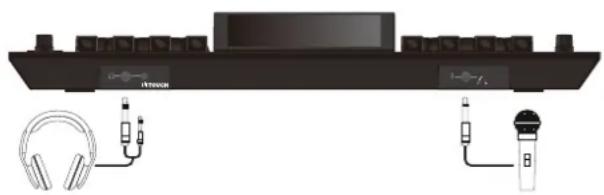
Diagram showing audio equipment connections between a laptop and various speakers and audio equipment- Connect your output devices (headphones, speakers, etc.) to the TOUCH. Audio output takes place via the master output (JACK and RCA).
- Connect your microphone to the TOUCH. The microphone input takes place directly on the master channel.
- Make sure that the Mixon is turned off and that the master faders is in the 'min' position.
- Connect all devices to a power outlet and turn them all on.
INSTALLATION
- Go to http://www.reloop.com/touch and download the "Reloop TOUCH Installer & Driver Package".
- Open the installer file via double-click.
- During installation you will be asked to enter a licence code. You can find this code on the licence card which is included in the TOUCH gift box.
- Follow the instructions in order to complete installation.
- Go to http://www.virtualdj.com/reloop and follow the instructions in order to download and activate VirtualDJ Pro for your TOUCH controller.
- You will be asked to enter another licence code. This can be found on the back of your licence card.
- Now turn on the device and start VirtualDJ.
FEATURES
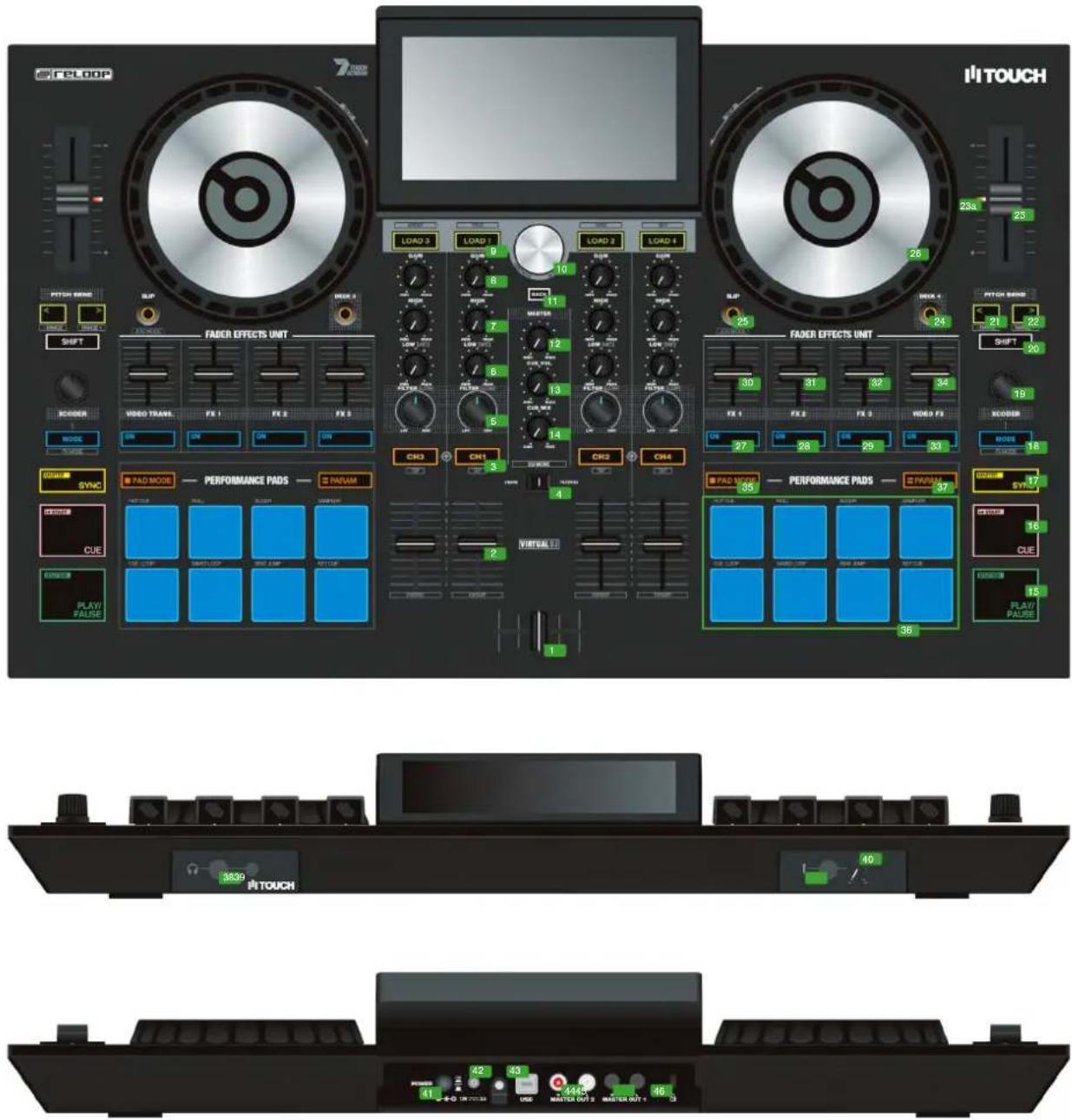
text_image
iITOUCH FADER EFFECTS UNIT FAOD MODE PHYOR SHIFT VIDEO TRANS. FX 1 FX 2 FX 3 MODE SYNC TAD MODE PERFORMANCE PADS PARAM CUE PLAY FALSE PHYOR LOAD 3 LOAD 7 LOAD 2 LOAD 4 LOAD 9 LOAD 10 LOAD 11 METER 12 13 14 15 16 17 18 19 20 21 22 23a 24 25 26 27 28 29 30 31 32 33 34 35 36 37 38a 39a 40a 41a 42a 43a 44a 45a 46a 47a 48a 49a 50a 51a 52a 53a 54a 55a 56a 57a 58a 59a 60a 61a 62a 63a 64a 65a 66a 67a 68a 69a 70a 71a 72a 73a 74a 75a 76a 77a 78a 79a 80a 81a 82a 83a 84a 85a 86a 87a 88a 89a 90a 91a 92a 93a 94a 95a 96a 97a 98a 99a 100aNO. CONTROL / ELEMENT VIRTUALDJ
1 CROSSFADER Fades between channels assigned to the left or right of crossfader
2 CHANNEL FADER Adjusts channel volume
SHIFT + 2 FADER START
Automatically plays track from the current position when fader is moved up. When fader is moved down, playhead returns to floating cue point position and stops.
3 PFL CUE Routes selected channel through cue channel. (Pre-listen channel)
SHIFT + 3 TAP Hold SHIFT and tap to the beat to adjust the track BPM manually.
4 EQ MODE Switches the EQ unit from 2-band EQ + filter to 3-band EQ.
5 FILTER/LOW
Function depends on the EQ MODE switch's position:
Filter-EQ: Turn counterclockwise for a low pass filter, turn clockwise for a high pass filter.
3-Band: Adjusts low frequencies per channel.
6 EQ LOW/MID
Function depends on the EQ MODE switch's position:
Filter-EQ: Adjusts low frequencies per channel.
3-Band: Adjusts mid frequencies per channel.
7 EQ HI Adjust high frequency for channels
B GAIN Adjusts channel gain
NO. CONTROL / ELEMENT VIRTUALDJ
| 9 LOAD Load selected track from library to deck. Instant Doubles by double click | ||
| SHIFT + 9 VIEW Switches between the various touch screen views. | ||
| 10 TRAX (turn) Scrolls through items in currently focused list / selection | ||
| 10 TRAX (press) Moves focus to next area of library or panel | ||
| 11 BACK Moves focus to previous area of library or panel | ||
| 12 MASTER VOL Controls master output volume | ||
| 13 PHONES VOL Adjusts cue volume | ||
| 14 CUE MIX Blends between cue and master signals for pre-listening | ||
| 15 PLAY/PAUSE Activate playback / pause | ||
| SHIFT + 15 STUTTER | Triggers the temporary cue and the playhead will continue from that point. | |
| 16 CUE | During playback: Track will return to temporary cue point and stop.During pause: A new temporary cue point will be set at the current position. When the cue button is pressed again, the temporary cue will be playback as long as cue is held. | |
| SHIFT + 16 GO TO BEG | When pressed, playhead returns to the beginning of the track.Loads previous track when pressed within the 1sec of a track. | |
| 17 SYNC | Activates sync (tempo & beat) | |
| SHIFT + 17 MASTER For more information refer to item 6 of the touch screen functions. | ||
| 18 MODE | ||
| 19 XCODER For more information refer to item 10-12 of the touch screen functions. | ||
| 20 SHIFT Enables 2nd layer functions as indicated on the controller. | ||
| 21 PITCH BEND < | Lowers pitch for as long as the button is being held. | |
| SHIFT + 21 PITCH RANGE - | For more information refer to item 8 of the touch screen functions. | |
| 22 PITCH BEND > | Increases pitch for as long as the button is being held. | |
| SHIFT + 22 PITCH RANGE + | For more information refer to item 8 of the touch screen functions. | |
| 23 PITCH | Determines tempo of track | |
| 23a PITCH LED | Lit when PITCH-fader is in 0% position | |
| 24 DECK | Switches deck related controls between deck 1/3 and deck 2/4. | |
| 25 SLIP | Enables Slip-mode on or off. When Slip-mode is active after various actions (e.g.: cue points or scratches) playback will continue at the point to where it would have been if you had not done anything. | |
| SHIFT + 25 VINYL | Toggle between vinyl (touch sensitive scratch) and jog mode (only pitch bend) for platter. (no. 38a) | |
| 26 JOG-WHEEL | When Jog Touch (SHIFT + no. 25) is enabled, touching platter will hold playhead (or scratch). Also pitch bend is possible by nudging the rim. When Jog Touch is off (SHIFT + no. 25), turning the platter will pitch bend the deck only. | |
| SHIFT + 26 JOG SKIP | Performs a needle search/fast scroll through track | |
| 27 FX1 ON | For more information refer to item 18-39 of the touch screen functions. | |
| 28 FX1 PARAM | For more information refer to item 18-39 of the touch screen functions. | |
| 29 FX2 ON | For more information refer to item 18-39 of the touch screen functions. | |
| 30 FX2 PARAM | For more information refer to item 18-39 of the touch screen functions. | |
| 31 FX3 ON | For more information refer to item 18-39 of the touch screen functions. | |
| 32 FX3 PARAM | For more information refer to item 18-39 of the touch screen functions. | |
| 33 VIDEO FX ON For more information refer to item 18-39 of the touch screen functions. | ||
| 34 VIDEO FX PARAM | For more information refer to item 18-39 of the touch screen functions. | |
| 35 PAD MODE | For more information refer to item 40-43 of the touch screen functions. | |
| 36 Performance PADs | For more information refer to item 40-43 of the touch screen functions. | |
| 37 PARAM | For more information refer to item 40-43 of the touch screen functions. | |
| 38 HEADPHONES OUT | 3,5 mm & 6,3 mm Output | |
| 39 MIC INPUT | Microphone Input 6,3 mm. The audio signal from the microphone is routed directly to the master output. | |
| 40 MIC VOL Microphone Input GAIN adjust | ||
| 41 POWER | Power On/Off. Device requires external power supply. | |
| 42 PSU | Power supply unit connection | |
| 43 USB INPUT | USB connection to PC/MAC | |
| 44 MST OUT (JACK) | Master Volume Output (JACK) | |
| 45 MST OUT (RCA) | Master Volume Output (RCA) | |
46 KENSINGTON Kensington lock connection
DECK VIEWS
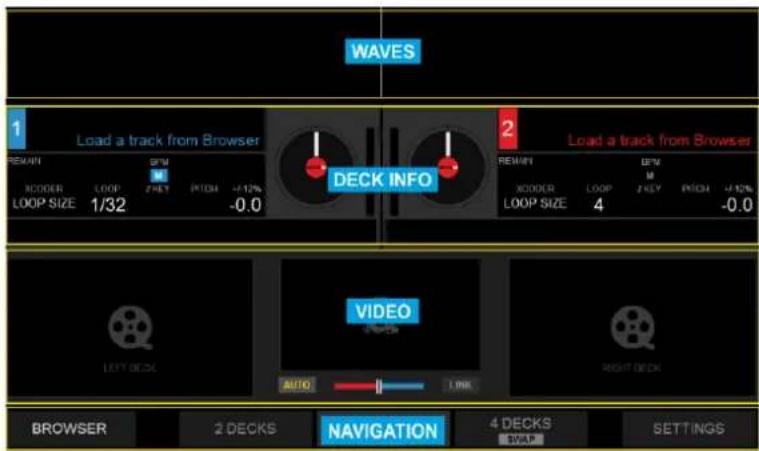
The Display of the Reloop Touch offers 5 different Deck Views. Use the buttons at the bottom Navigation section to select one.
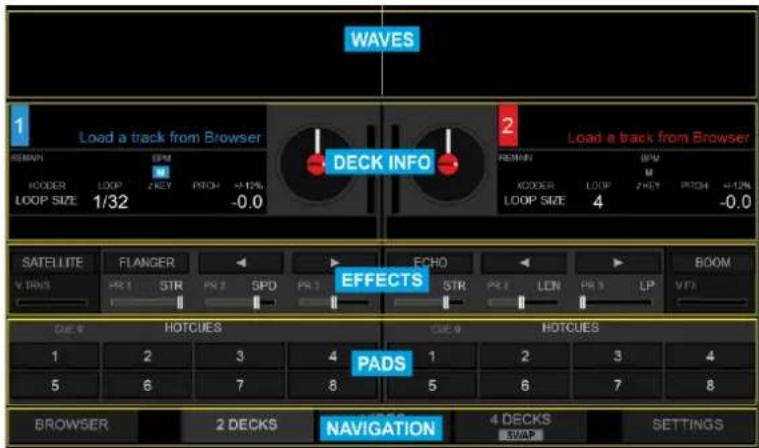
2 DECKS

text_image
BROWSER 2 DECKS VIDEO FULL 4 DECKS SWAP SETTINGSTap the [2 DECKS] button from the bottom Navigation section of the screen to select the 2 Decks View (selected by default on first launch)
text_image
WAVES 1 Load a track from Browser REDAIN SPM KODER LOOP 2KEY PITCH +12% LOOP SIZE 1/32 -0.0 DECK INFO 2 Load a track from Browser REDAIN SPM KODER LOOP 2KEY PITCH +12% LOOP SIZE 4 -0.0 SATELLITE FLANGER V. TRNS PR 1 STR PR 2 SPD PR 3 EFFECTS ECHO STR PR 1 LON PR 3 LP VTR BOOM CUE # ROTCUES 1 2 3 4 1 2 3 4 5 6 7 8 5 6 7 8 PADS BROWSER 2 DECKS NAVIGATION 4 DECKS SETTINGS2 Decks View (default)
VIDEO & VIDEO FULL

text_image
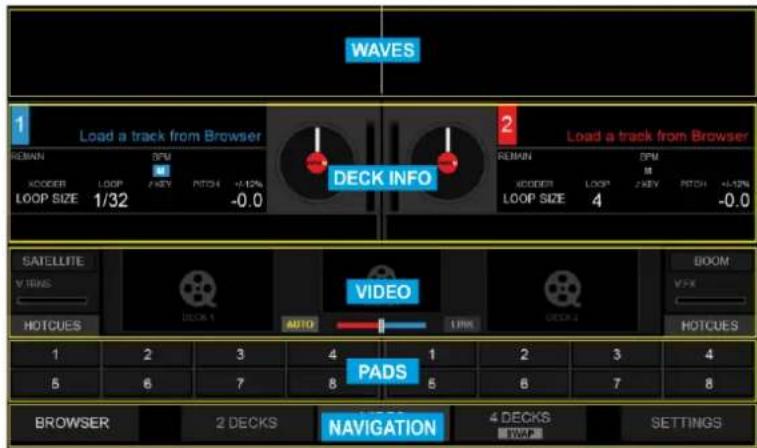
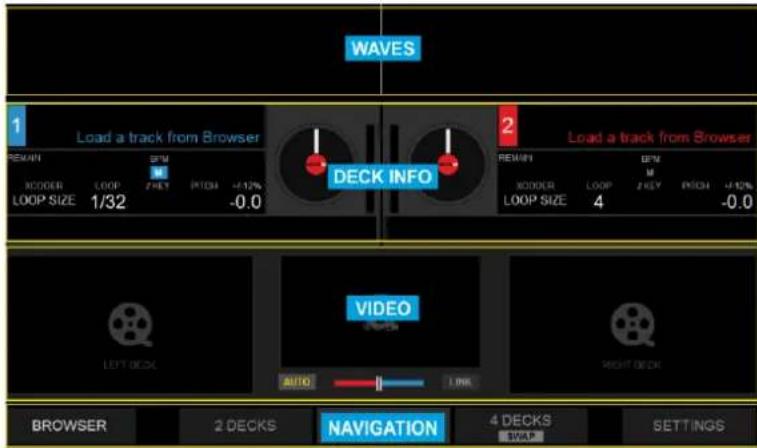
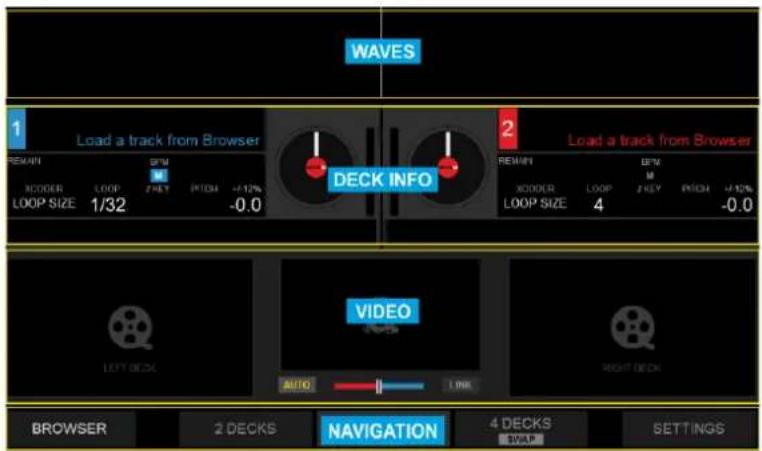
BROWSER 2 DECKS VIDEO 4 DECKS SETTINGSTap the [VIDEO] button from the bottom Navigation section of the screen to select the Video View. Tap the same [VIDEO] button to select the Full Video view (button will have the FULL text highlighted).
text_image
WAVES 1 Load a track from Browser 2 Load a track from Browser REMAIN SPN XODDER LOOP 2HEY PITCH +12% LOOP SIZE 1/32 -0.0 DECK INFO REMAIN SPN XODDER LOOP 2HEY PITCH +12% LOOP SIZE 4 -0.0 SATELLITE VIDEO V TRINS AUTO HOTCUES AUTO LIME PADS 1 2 3 4 1 2 3 4 5 6 7 8 5 6 7 8 BROWSER 2 DECKS NAVIGATION 4 DECKS SETTINGSDecks - Video View
text_image
WAVES 1 Load a track from Browser 2 Load a track from Browser REMARK SPV XODDER LOOP ZHEY PRIOR -0.1% LOOP SIZE 1/32 -0.0 DECK INFO REMARK SPV XODDER LOOP ZHEY PRIOR -0.1% LOOP SIZE 4 -0.0 VIDEO LEFT DECK AUTO LINK RIGHT DECK BROWSER 2 DECKS NAVIGATION 4 DECKS SETTINGS SWAPDecks - Video Full view
4 DECKS & 4 DECKS SWAP

text_image
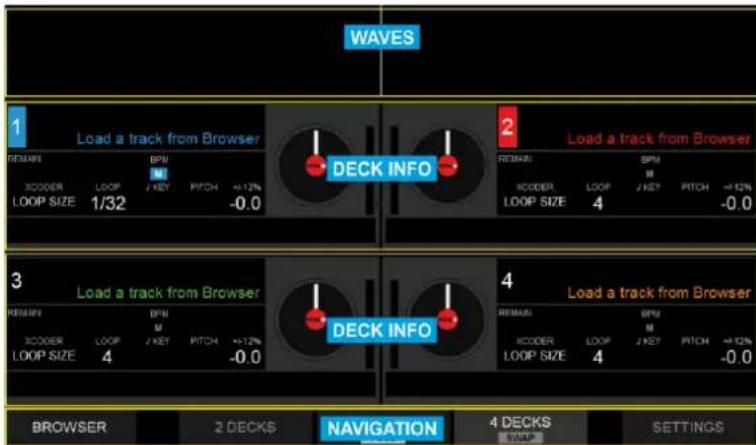
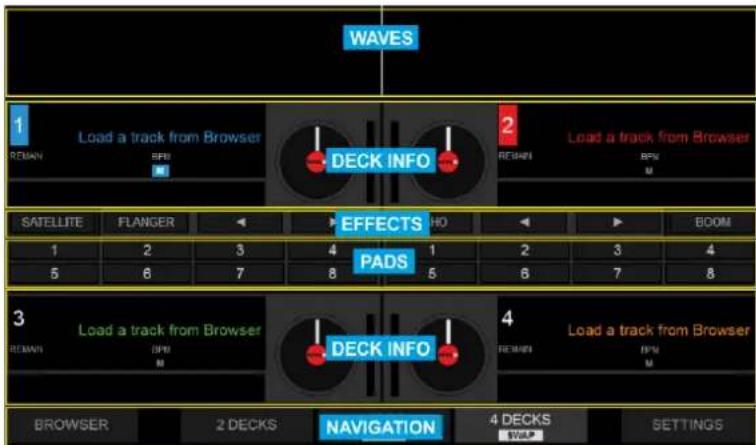
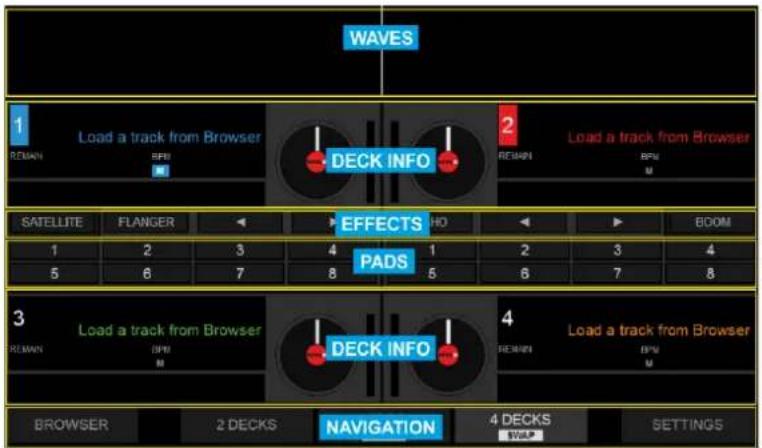
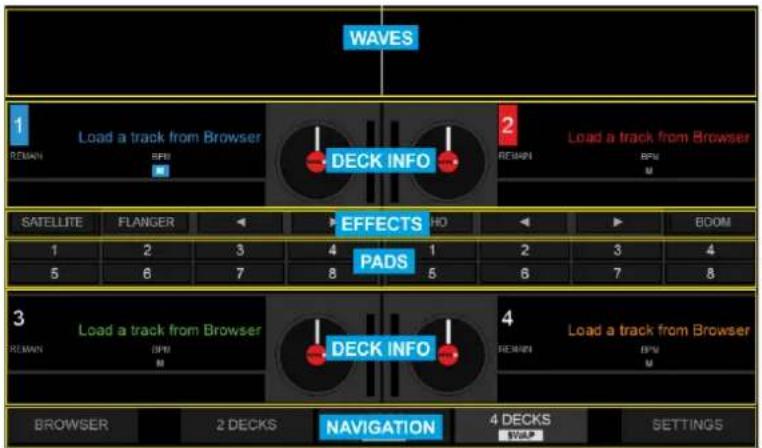
BROWSER 2 DECKS VIDEO 4 DECKS SETTINGSTap the [4 DECKS] button from the bottom Navigation section of the screen to select the 4 Decks View. Tap the same [4 DECKS] button to select the 4 Decks Swap view (button will have the SWAP text highlighted). The Swap view always displays the Left/Right selected decks at the top along with Effects and Pads section.
text_image
WAVES 1 Load a track from Browser REMAIN BPM XCODER LOOP / KEY PITCH -12% LOOP SIZE 1/32 -0.0 2 Load a track from Browser REMAIN BPM XCODER LOOP / KEY PITCH -12% LOOP SIZE 4 -0.0 3 Load a track from Browser REMAIN BPM XCODER LOOP / KEY PITCH -12% LOOP SIZE 4 -0.0 4 Load a track from Browser REMAIN BPM XCODER LOOP / KEY PITCH -12% LOOP SIZE 4 -0.0 BROWSER 2 DECKS NAVIGATION 4 DECKS SETTINGSDecks - 4 Decks view
text_image
WAVES 1 REMAIN Load a track from Browser RPM DECK INFO 2 REMAIN Load a track from Browser RPM M SATELLITE FLANGER EFFECTS HO 4 PADS 1 2 3 4 5 6 7 8 5 6 7 8 3 REMAIN Load a track from Browser RPM M DECK INFO 4 REMAIN Load a track from Browser RPM M BROWSER 2 DECKS NAVIGATION 4 DECKS WCP SETTINGSDecks - 4 Decks Swap view
DECK VIEW ELEMENTS
DECK INFO
The Deck Info element is offered in all Deck Views.
text_image
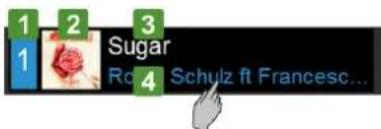
1 2 3 Sugar Ro 4 Schulz ft Francesc...- Indicates the Deck number (1 to 4).
The Left side will display 1 (if the [DECK 3] button on the Reloop Touch is off) or 3 (if the [DECK 3] button on the Reloop Touch is on), The Right side will display 2 (if the [DECK 4] button on the Reloop Touch is off) or 4 (if the [DECK 4] button on the Reloop Touch is on),
- Displays the Album Art of the track loaded to the Deck. Can be hidden from the Setting, to allow a larger space for the Title/Artist.
- Displays the Title or Title (Remix) of the track loaded to the deck, depending on the Title setting selection (see Settings). Tap to scroll the Title if too long and doesn't fit in the area
- Displays the Artist of the track loaded to the deck. Tap to scroll the Artist if too long and doesn't fit in the area
text_image
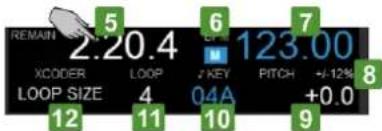
REMAIN 5 2.20.4 6 123.00 7 XCODER LOOP Z KEY PITCH +/-12% LOOP SIZE 4 04A +0.0 12 11 10 9 8- Displays the Track's Remain or Elapsed Time. Tap to view one or the other. The Time will start blinking when track reaches 30 seconds before its end (blink can be turned off from Settings)
- Indicates the selected Master Deck (the one that all other Decks will sync to when [SYNC] is pressed on the Touch unit). Master Deck is automatically selected by VirtualDJ but can be manually selected as well, using the [SHIFT]+[SYNC] buttons on the Touch unit.
- Displays the current BPM (Beats Per Minute) value of the track loaded to the deck.
- Displays the selected % Range within the Pitch fader will move. The Pitch range can be selected with the [SHIFT]+[PITCH BEND] button on the Touch unit and applies to all Decks (global). Not offered in the 4 Decks Swap view
- Displays the % Pitch value (how much in % the original tempo of the track is increased/decreased). Small Up/Down arrows may be displayed on the left side of the Pitch value indicating the direction that the Hardware fader needs to be moved, in order the Hardware fader to be linked with the Software one again. This can happen if [SYNC] is pressed from the Touch unit. Not offered in the 4 Decks Swap view
- Displays the current musical Key of the track. The value form can be changed from the Settings. The Key of the track can be changed via the [XCODER] knob when the KEY mode is enabled. The value will be displayed with the same color as the Deck (blue, red, green or orange) if the current value matches the original Key of the track and in white with all other values. Not offered in the 4 Decks Swap view
- Indicates the selected Loop size in beats. It will be highlighted when a Loop is enabled. The size of the Loop can be adjusted from the [XCODER] on the Touch unit when the Loop Size mode is selected. The Loop can be triggered by pushing the [XCODER] on the Touch unit when the Loop Size mode is selected. Not offered in the 4 Decks Swap view
- Indicates the selected XCODER mode (Loop size, Key or CBG Width/Slide). The XCODER mode can be selected from the [MODE] button on the Touch unit.

text_image
13- Displays the track's progress and wave structure, along with Hot Cue markers and a play-head. You can tap within the area on the Display to navigate through the track, but for more accurate navigation use the [SHIFT]+[JOG] on the Touch unit.
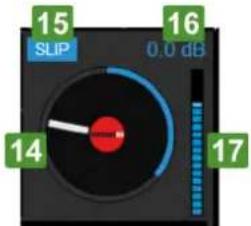
text_image
15 SUP 16 0.0 dB 14 17- Jog display, indicating rotation and song progress (ring)
- Indicates the Slip mode if enabled from the [SLIP] button on the Touch unit.
- Displays the applied Gain dB value from the [GAIN] knobs on the Touch unit.
- Indicates the pre-fader Deck Output Level (after the Gain apply and before the Volume Faders)
EFFECTS
Video Effect and Transition on Master
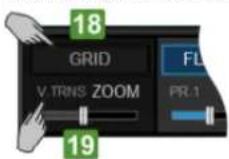
- Displays the selected Video Transition. Tap this button to select a Video Transition (a scroll menu will be offered). The selection can be also made from the [SHIFT]+[VIDEO TRANS ON] button on the left side of the Touch unit. The button will be highlighted when a Video Transition is triggered manually via the [VIDEO TRNS ON] button on the left side of the Touch unit.
- Displays a visual indication of the 1st Parameter value (or the 2nd if [SHIFT] is pressed from the Touch unit) of the selected Video Transition. Use this area to adjust the Parameter value, but for more precise adjustments, use the [MIDEO TRINS FADER] from the right side of the Touch unit.
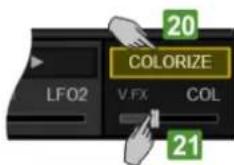
- Displays the selected Video Effect on Master Video output. Tap this button to select a Video Effect (a scroll menu will be offered). The selection can be also made from the [SHIFT]+[VIDEO FX ON] button on the right side of the Touch unit. The button will be highlighted when a Video Effect is enabled via the [VIDEO FX ON] button on the right side of the Touch unit.
- Displays a visual indication of the 1st Parameter value (or the 2nd if [SHIFT] is pressed from the Touch unit) of the selected Video Effect. Use this area to adjust the Parameter value, but for more precise adjustments, use the [VIDEO FX FADER] from the right side of the Touch unit.
Deck Effects
The Effects section of the Touch Display offers indications and controls for the Effects applied on the Left and Right selected decks. Both Left and Right deck Effects offer 2 modes. A Single FX mode with indication and controls for a Single Effect Slot (with more parameters) and a Multi FX mode with indications and controls for 3 FX Slots (with less Parameters but the ability to chain Effects).
The selection between the 2 offered modes can be done via the [SHIFT]+[MODE] buttons of the Touch unit and are deck independent (Left and Right decks can be on different modes).
Single FX mode

text_image
FLANGER PR.1 STR PR.2 SPD PR.3 FBCK PHASER PR.1 STR PR.2 SPD PR.3 LFO2 22 24 26 22 24 26 23 25 27 23 25 27- Displays the selected Effect. Tap this button to select an Effect (a scroll menu will be offered). The selection can be also made from the [FX2 ON] and [FX3 ON] buttons on the Touch unit. The button will be highlighted when the selected Effect is enabled via the [FX1 ON] button on the Touch unit.
When [SHIFT] is pressed from the Touch unit, the button will display the 1st Parameter Button of the selected Effect, which can be controlled via the [SHIFT]+[FX1 ON] button from the Touch unit.
-
Displays a visual indication of the 1st Parameter value (or the 4th if [SHIFT] is pressed from the Touch unit) of the selected Effect. Tap this area to get the XY Pad Effect view to adjust 2 Parameters at the same time. For more precise adjustments of the 1st/4th Parameters, use the [FX1] / [SHIFT]+[FX1] faders of the Touch unit.
-
Displays a Left arrow, indicating the action of the [FX2 ON] button (selects the previous available Effect). Tap this button to select an Effect (a scroll menu will be offered). The selection can be also made from the [FX2 ON] and [FX3 ON] buttons on the Touch unit.
When [SHIFT] is pressed from the Touch unit, the button will display the 2nd Parameter Button of the selected Effect, which can be controlled via the [SHIFT]+[FX2 ON] button from the Touch unit.
-
Displays a visual indication of the 2nd Parameter value (or the 5th if [SHIFT] is pressed from the Touch unit) of the selected Effect. Tap this area to get the XY Pad Effect view to adjust 2 Parameters at the same time. For more precise adjustments of the 2nd /5th Parameter, use the [FX2] / [SHIFT]+[FX2] faders of the Touch unit.
-
Displays a Right arrow, indicating the action of the [FX3 ON] button (selects the next available Effect). Tap this button to select an Effect (a scroll menu will be offered). The selection can be also made from the [FX2 ON] and [FX3 ON] buttons on the Touch unit.
When [SHIFT] is pressed from the Touch unit, the button will display the 3rd Parameter Button of the selected Effect, which can be controlled via the [SHIFT]+[FX3 ON] button from the Touch unit.
- Displays a visual indication of the 3rd Parameter value (or the 6th if [SHIFT] is pressed from the Touch unit) of the selected Effect. Tap this area to get the XY Pad Effect view to adjust 2 Parameters at the same time. For more precise adjustments of the 3rd/6th Parameter, use the [FX3] / [SHIFT]+[FX3] faders of the Touch unit.
Multi FX mode

text_image
28 FLANGER 30 REVERB 32 WAHWAH 28 PHASER 30 FLANGER ECHO PR.1 STR PR.1 STR PR.1 STR PR.1 STR PR.1 STR PR.1 STR PR.1 STR 29 31 33 29 31 33- Displays the selected Effect for the FX Slot 1. Tap this button to select an Effect for FX Slot 1 (a scroll menu will be offered). The selection can be also made from the [SHIFT]+[FX1 ON] button on the Touch unit. The button will be highlighted when the Effect is enabled via the [FX1 ON] button on the Touch unit.
- Displays a visual indication of the 1st Parameter value (or the 2nd if [SHIFT] is pressed from the Touch unit) of the selected Effect of the FX Slot 1. Tap this area to get the XY Pad Effect view to adjust 2 Parameters at the same time. For more precise adjustments of the 1st/2nd Parameters, use the [FX1] / [SHIFT]+[FX1] faders of the Touch unit.
- Displays the selected Effect for the FX Slot 2. Tap this button to select an Effect for FX Slot 2 (a scroll menu will be offered). The selection can be also made from the [SHIFT]+[FX2 ON] button on the Touch unit. The button will be highlighted when the Effect is enabled via the [FX2 ON] button on the Touch unit.
- Displays a visual indication of the 1st Parameter value (or the 2nd if [SHIFT] is pressed from the Touch unit) of the selected Effect of the FX Slot 2. Tap this area to get the XY Pad Effect view to adjust 2 Parameters at the same time. For more precise adjustments of the 1st/2nd Parameters, use the [FX2] / [SHIFT]+[FX2] faders of the Touch unit.
- Displays the selected Effect for the FX Slot 3. Tap this button to select an Effect for FX Slot 3 (a scroll menu will be offered). The selection can be also made from the [SHIFT] + [FX3 ON] button on the Touch unit. The button will be highlighted when the Effect is enabled via the [FX3 ON] button on the Touch unit.
- Displays a visual indication of the 1st Parameter value (or the 2nd if [SHIFT] is pressed from the Touch unit) of the selected Effect of the FX Slot 2. Tap this area to get the XY Pad Effect view to adjust 2 Parameters at the same time. For more precise adjustments of the 1st/2nd Parameters, use the [FX3] / [SHIFT]+[FX3] faders of the Touch unit.
XY Pad Effect view
text_image
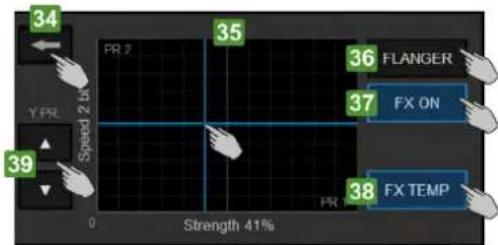
34 PR 2 35 Y PR 39 Speed 2 bit 0 Strength 41% 36 FLANGER 37 FX ON 38 FX TEMPThe XY Pad view is offered when the area displaying the Effect Parameters is tapped.
- Tap this button to close the XY Pad Effect view and go back to the default FX view.
- Offers an X/Y Axis Pad control to simultaneously adjust the Parameters of the selected Effect displayed on the X and Y Axis. By default the 1st Parameter will be displayed on the X Axis and the 2nd Parameter on the Y Axis. Tap and slide inside the Pad control area to adjust the selected Effect Parameters.
- Displays the selected Effect. Tap to select a different Effect (a scroll menu will be offered). The selection can be also made via the [FX ON] button on the Touch unit, depending on the selected FX mode.
- Tap this button to trigger (toggle or momentary depending on the [FX TEMP] mode) the selected Effect.
- Tap this button to enable/disable the FX Temp mode. When enabled, the [FX ON] button will trigger the selected Effect momentary (while tapped) and/or while the XY Axis Pad area is tapped/slided.
- Tap these buttons to select the previous/next available Parameter for the Y Axis. These buttons will not be offered in the view, if the selected Effect has less than 3 Parameters.
PADS
text_image
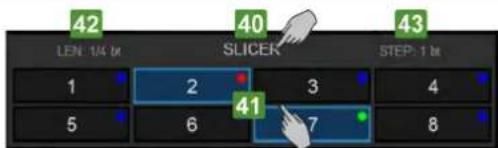
42 LEN: 1/4 bit 40 SLICER 43 STEP: 1 bit 1 2 3 4 5 6 41 7 8- Displays the selected Pad Page (operation mode) for the Pads. Tap this area to get a scrolling menu and select a different Page. The selection can be made from the Touch unit, using the [PAD MODE] + [PADS 1-8]
- Displays the status (triggered or not) and the assigned value of each Pad, depending on the selected Pad Page. Tap a button to trigger the action assigned to the Pad (same as using [PAD 1-B] from the Touch unit)
- Displays the value of the 1st Parameter of the selected Pad Page (if available). The 1st Parameter can be increased/decreased using the [PAD PARAM]+[PAD1/PAD2] buttons on the Touch unit
- Displays the value of the 2nd Parameter of the selected Pad Page (if available). The 2nd Parameter can be increased/decreased using the [PAD PARAM]+[PAD1/PAD2] buttons on the Touch unit.
Read further about Pads and Pad Pages at the VirtualDJ Operation Manual http://www.virtualdj.com/manuals/virtualdj8/interface/decks/decksadvanced/pads.html
WAVES
The top section of the Touch Display will offer the Track's Waveform, regardless the selected Deck View (2 Decks - 4 Decks - Video). The Waveform can be shown as Scratch Wave or as Rhythm Wave (selection from the Settings View)
The amount of the displayed Waveforms can be set to 2 (always show the Left and Right selected Decks), to 4 (show all 4 Decks) or automatically (will show the Left and Right Decks if a 2 Decks View is selected and all 4 Decks if the 4 Decks View is selected). This can be defined from the Settings View.
Scratch Wave View

text_image
Cun 2 44Scratch Wave view - 2 Decks (Left/Right)

text_image
44Scratch Wave view - 4 Decks
- The Scratch Wave view offers the frequency structure of the track (Low, Mid and High frequencies are colored differently). Tap and slide to scratch and/or move the track in time, same as if the [JOG] was used from the Touch unit.
The colors of the Waves indicate the frequency Band (Low, Mid and High) and depend on the selected Waves Color setting (from the Settings view). The Wave can be zoomed in/out from the Settings view as well.
Rhythm Wave View

text_image
Gut 2 45Rhythm Wave view - 2 Decks

text_image
Figure 2 45Rhythm Wave view - 4 Decks
- The Rhythm Wave view offers a structure of the track based mostly on the loudness of each frequency with focus on the Low ones. Tap and slide to scratch and/or move the track in time, same as if the [JOG] was used from the Touch unit.
The color of the Wave matches the color of the Deck. The Wave can be zoomed in/out from the Settings view
VIDEO

text_image
SATELLITE VITING 46 47 50 46 HOTCUES AUTO HOTCUES HOTCUES BOOM VFX 48- Displays the Video Preview for the Left and Right selected decks. Tap this area to show the Deck Video Preview in Full screen and tap again to return to the Video view.
- Displays the Master Video Output. Tap this area to show the Master Video Output in full screen and tap again to return to the Video view.
- Displays the Video Crossfader position (can differ from the Audio Crossfader - controlled by the Touch unit)
- Auto Video Crossfader mode. Tap this button to enable/disable the Auto V.CF mode. When enabled, the Video crossfader will automatically move from the very left position to a middle position and end to the very right position, depending on the position of the Audio Crossfader and Volume faders of the Touch unit, providing a smart video mixing.
- Link Video Crossfader mode. Tap this button to enable/disable the Link V.CF mode. When enabled, the Video Crossfader will follow the position of the Audio Crossfader.
BROWSER VIEW
Tap the [BROWSER] button from the bottom Navigation section of the screen to select the Browser View (the button will blink if no track is loaded to any Deck)
Browser View with Mini Decks
text_image
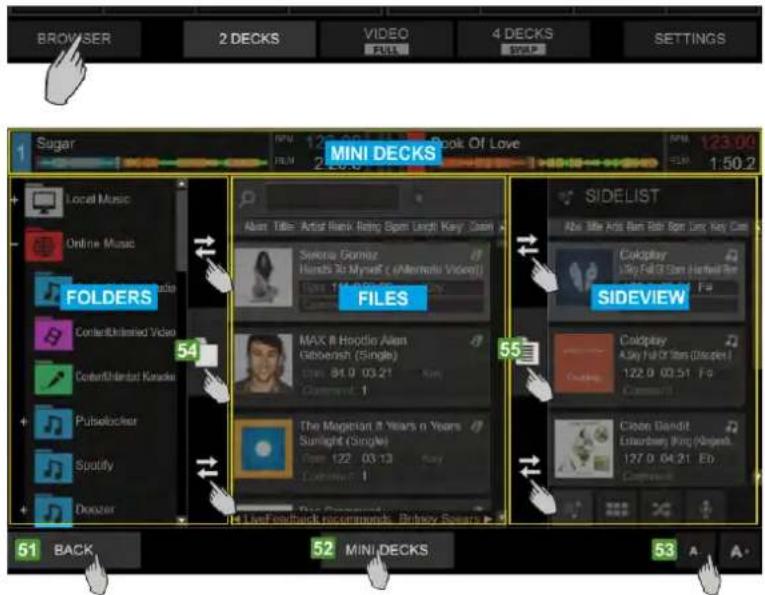
BROWSER 2 DECKS VIDEO 4 DECKS SETTINGS 1 Sugar MINI DECKS 123.00 1:50.2 Local Music Online Music FOLDERS Context/Unlimited Video Context/Unlimited Knacks Pulselocker Spotify Doxzer 54 FILES MAX II Hoodie Alan Goboresh (Single) 122 03:21 Command: 1 The Magellan It Years n Years Sunlight (Single) 122 03:13 Command: 1 SIDELIST Abi Title Artist Rank Rating Box Length Key: Clean A Seena Gomez Hands 30 Myself (Almerio Video) 123.00 SIDEVIEW Coldplay A Sky Full Or Ten (Discple) 122.0 03:51 F8 Coom Bandit Luxembury King (Argens) 127.0 04:21 ED Coom Bandit Luxembury King (Argens) 127.0 04:21 ED 51 BACK 52 MINI DECKS 53 A A- Tap the [BROWSER] button from the bottom NAVIGATION section of the screen, to select the Browser View. Tap the [BACK] button to return to the selected Decks View. The Browser View will be automatically offered if the [BROWSE] encoder or the [BACK] button are used on the Touch unit and will remain visible if no Browsing operation is performed for 5 seconds. This automatic behavior can be disabled from the Touch Settings View.
- Tap the [MINI DECKS] button to show/hide the Mini Decks section at the top of the Browser view. The Mini decks offer information for the loaded tracks and will automatically display the Left and the Right selected Decks if a 2 Decks view is selected and all 4 Decks if the 4 Decks view is selected.
- Tap the [A-]/[A+] buttons to decrease/increase the size of the font for all Browser Lists (Folders, Files and Sideview).
- Folders Separator. This vertical area is used to separate the Folders List from the Files List. Tap the button with the folders icon to open/close the Folders List (and provide more width for the other Lists). Use the area above and below this button and slide to left/right to decrease/increase the width of the Folders List.
- Sideview Separator. This vertical area is used to separate the Sideview from the Files List. Tap the button with the list icon to open/close the Sideview (and provide more width for the other Lists). Use the area above and below this button and slide to left/right to decrease/increase the width of the Sideview.
MINI DECKS

Mini Decks - 2 Decks view

text_image
Sugar 123.00 SFM 2:20.6 Book Of Love 123.00 SFM 1:50.2 Wiggle 84.81 SFM 3:11.7 Sunlight 123.00 SFM 2:16.3Mini Decks - 4 Decks view
When the MINI DECKS button is enabled from the Browser view, the top section will display information about the tracks loaded to the Decks, providing the status and useful information to assist you selecting a track from Browser. However, the available height of the Browser will be limited.
The Left and the Right decks will be displayed automatically when the 2 DECKS or the VIDEO views are selected. All 4 Decks will be automatically displayed when the 4 DECKS view is selected.
The MINI DECKS offer Deck information such as the Title of the track, the BPM value, the Remain/Elapsed Time, a progress bar and VU meter.
When the MINI DECKS section is displayed, you may also load a track from the Browser, by dragging a track (from its Album Art) and dropping that to one of the Mini decks (same operation with the [LOAD] buttons of the Touch unit.
FOLDERS LIST
text_image
FOLDERS Online Music ContentUnlimited Audio ContentUnlimited Video ContentUnlimited Karaoke Puiselocker Spotify Deezer Downloaded Content Download Queue BACK MINI DECKS SIDIELIST Cockplay -50 Full Cast (Untitled from 128.0 03:54 F# Cockplay Able of 10 Cast (Coupet I 122.0 03:51 F# Cobien Bandill Extraordinary (Miz Mirajda 127.0 04:21 Eb Chris Roas Do The Back (King Ben Res)Browser View – Folders List
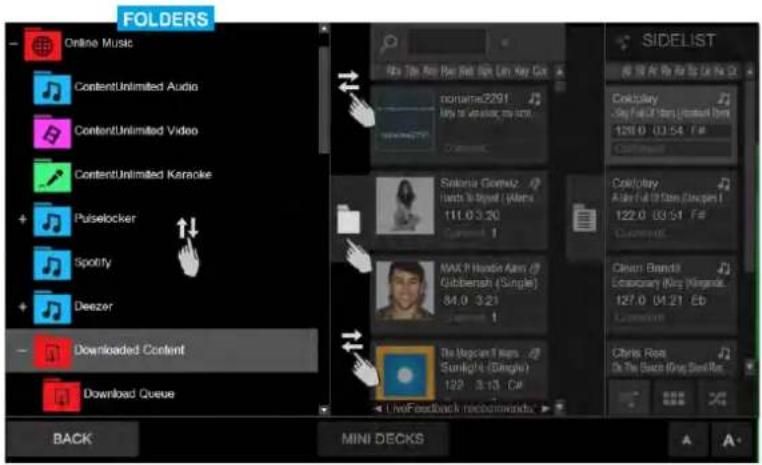
This section offers the Folders List of the VirtualDJ Browser Slide up/down to browse through the folders (same operation with the [BROWSE] encoder of the Touch unit). Tap a folder to select and open/close its subfolders. Read further details about the Folders List at the Operation Manual of VirtualDJ
http://www.virtualdj.com/manuals/virtualdj8/interface/browser/folderlist.html
Tap the button of the vertical separator to open/close the Folders List or slide left/right above or below this button to adjust the width of the List.
text_image
56 Album Art Title Artist Remix 57 Epin Length Key Comment MAX # Hoodie Allen Gobberish (Single) Box: 84.0 Length: 03.21 Key Comment: 1 The Magician # Years n Years Sunlight (Single) Box: 122.1 Length: 03.13 Key C#t Comment: 1 Rae Steammunt No Type Box: Length: 03.17 Key Comment: Calvin Harris Feel So Close [Single] - 1000 - Clean (Single) Box: 128.0 Length: 03.37 Key Comment: 2 Jonas Blue # Dakota Fast Car [Single] - HD - Clean (Single) Box: 114.0 Length: 03.29 Key Comment: 1 Dr. Dre Ft. Snoop Dogg The Next Episode Official Video Box: Length Key Comment: Den Monoune No Made Man - Melissa MEASSES & Dox Mirapolac No Moore Mod) Official Audio Release Box: Length: 03.43 Key Dj Snake Let Me Love You It Justin Bieber (Marchaniko Remix) Box: Length: 03.00 Key. LiveFeedback recommends: Rodney Spears - Perfume (G Duppy Dub Remix) BACK MINI DECKSFILES LIST
Browser View – Files List
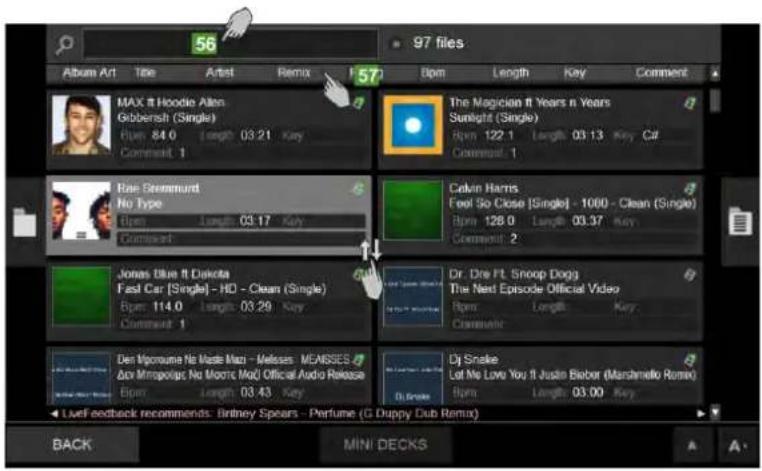
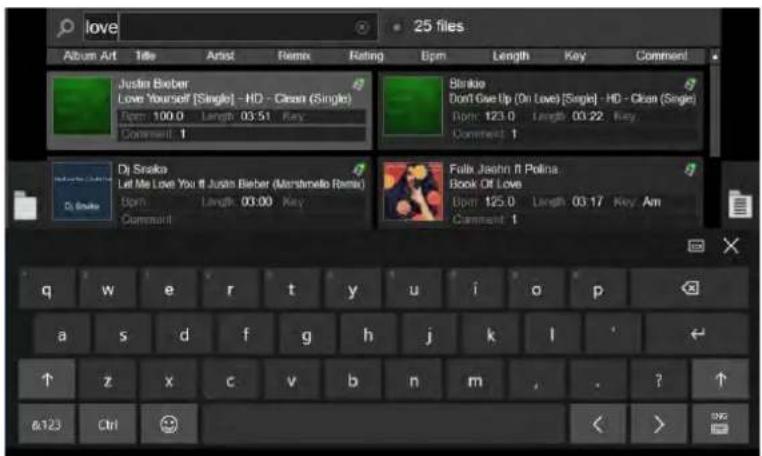
This section offers the Files List of the VirtualDJ Browser and displays the tracks of the selected Folder. Slide up/down to browse through the tracks (same operation with the [BROWSE] encoder of the Touch unit). Tap a track to select and load it to a deck, either by using the [LOAD] buttons on the Touch unit or by dragging and dropping to a Mini Deck (if enabled). Read further details about the Files List at the Operation Manual of VirtualDJ http://www.virtualdj.com/manuals/virtualdj8/interface/browser/filelist.html
text_image
love 25 files Album Art Title Artist Remix Rating Epm Length Key Comment Justin Bieber Love Yourself [Single] - HD - Clean (Single) Epm: 100.0 Length: 03:51 Key Comment: 1 Dr Snake Let Me Love You It Justin Bieber (Marsimello Remix) Epm Length: 00:00 Key Comment: Brake Don't Give Up (On Love) [Single] - HD - Clean (Single) Epm: 123.0 Length: 03:22 Key. Comment: 1 Dol Jahn It Polina Book Of Love Epm: 125.0 Length: 03:17 Key Am Comment: 1 q w e r t y u i o p a s d f g h j k l ↑ z x c v b n m , . ? ↑ @123 Ctrl < > SINGBrowser View - Windows On Screen Keyboard
- Tap this boxed area to reveal the OSK (On Screen Keyboard) to type and search for a track. See how the OSK can be offered in Touch Display Settings Chapter
- Tap any of the Browser header fields buttons to sort the Files List ordered by that (same with [SHIFT]+[LOAD] buttons on the Touch unit). Tap and hold (similar to right-click) any of those Field header buttons to get a List with all the available Browser fields and select which ones you need to show in the Browser View.
SIDEVIEW
text_image
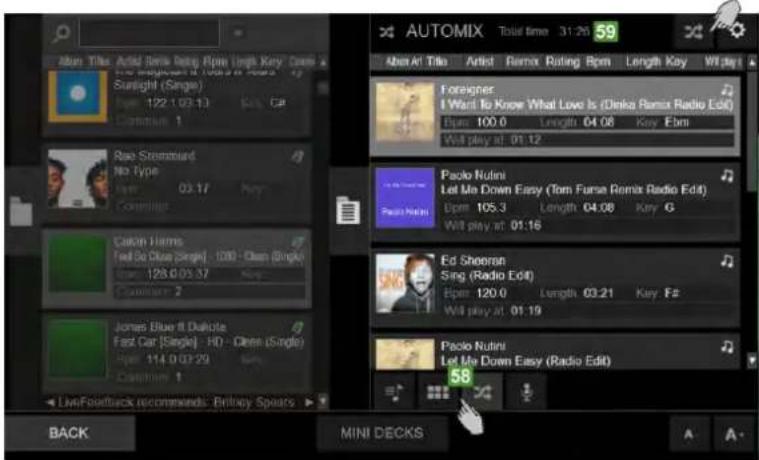
AUTOMIX Total time 31:20 59 Aben Tills Add Dinks Deeq Rpn Length Key Sunlight (Single) Type: 122.1.03.13 Comtrude 1 Rao Streamfund No Type Type: 03.17 Comtrude 2 Caldon Terms Feel Bo Close [Single] - 100 - Open [Single] Type: 128.0.03.17 Comtrude 2 Jones Blue & Dubite Fast Car [Single] - HD - Open (Single) Type: 114.0.03.29 Comtrude 1 Foreigner I Want to Know What Love Is (Dinks Remix Radio Edit) Rpn: 100.0 Length 04.06 Key Ebm Will play at: 01.12 Paclo Nutini Let Me Down Easy (Tom Furse Remix Radio Edit) Rpn: 105.3 Length 04.08 Key G Will play at: 01.16 Ed Sheeran Sing (Radio Edit) Rpn: 120.0 Length 03.21 Key Fat Will play at: 01.19 Paclo Nutini Let Me Down Easy (Radio Edit) 58 LiveFoldback recommends: Britray Spears BACK MINI DECKSBrowser View – Sideview Lists
This section offers the Sideview of the VirtualDJ Browser and offers 4 different Lists (Automix, Sidelist, Karaoke and Sampler). Slide up/down to browse through the tracks (same operation with the [BROWSE] encoder of the Touch unit). Tap a track to select and load it to a deck, either by using the [LOAD] buttons on the Touch unit or by dragging and dropping to a Mini Deck (if enabled). Read further details about the Sideview Lists at the Operation Manual of VirtualDJ http://www.virtualdj.com/manuals/virtualdj8/interface/browser/sideview.html
- Tap one of the 4 available buttons to select a Sideview List (Sidelist, Sampler, Automix and Karaoke).
- At the top of each Sideview List information and additional buttons will be displayed depending on the selected List.
Note. By default, scrolling though tracks/folders is performed by 1 finger and dragging with 1 finger over the Album Art of the track (in case you need to load it or add/move it to the Sideview).
An alternative mode is available from VirtualDJ Settings > OPTIONS tab, via the multiTouchTwoFingerScroll setting. When set to Yes, scrolling through tracks/folders is performed with 2 fingers on the Touch Display and selection/dragging with 1 finger

text_image
OPTIONS & TWEAKS Search finger Browser multiTouchTwoFingerScroll Yes No INTERFACESETTINGS VIEW
text_image
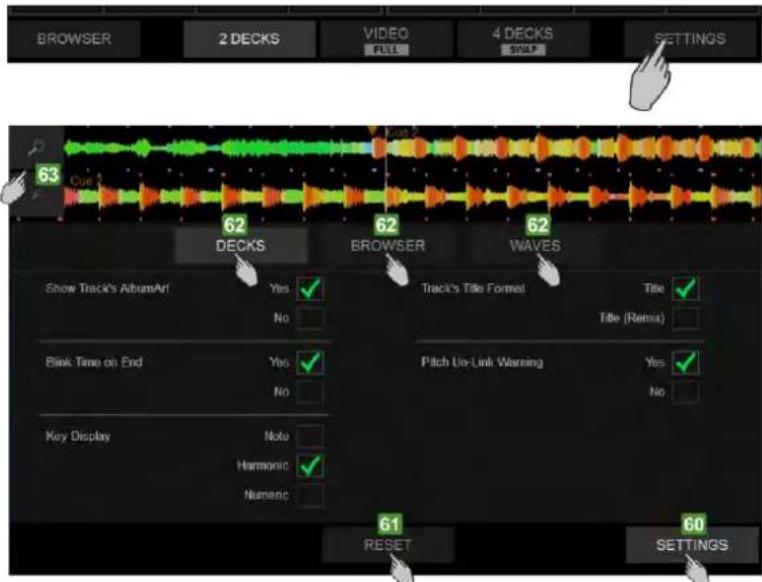
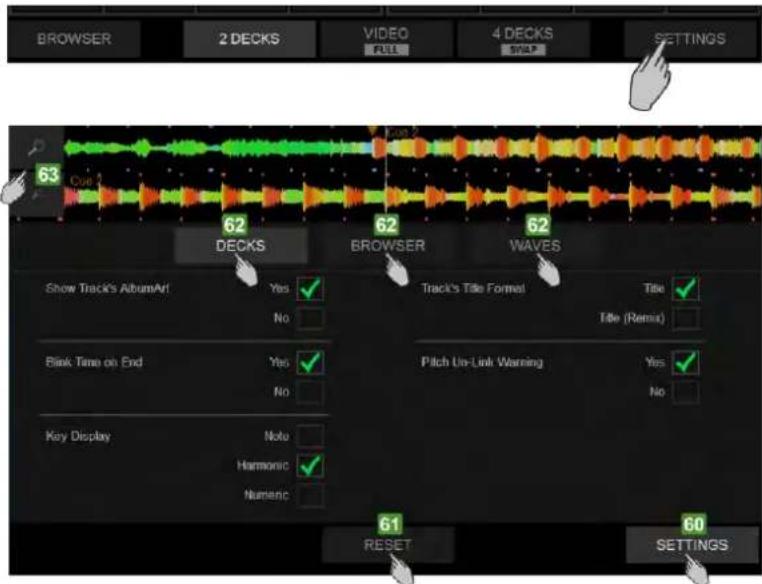
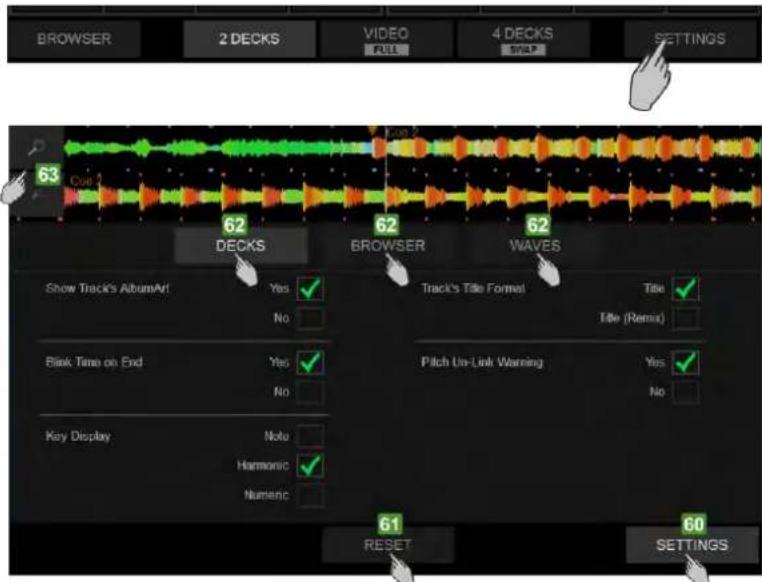
BROWSER 2 DECKS VIDEO FULL 4 DECKS SWAP SETTINGS 63 Cut 62 DECKS BROWSER 62 WAVES Show Track's Album/Art Yes ✓ Track's Tile Format Title ✓ No Blank Time on End Yes ✓ Pitch Un-Link Warning Yes ✓ No No Key Display Note Harmonic ✓ Numenc 61 RESET 60 SETTINGS- Tap the [SETTINGS] button from the bottom NAVIGATION section of the screen, to select the Settings View. Tap again to return to the selected Decks View.
- Tap this button to reset all settings to their default values
- The Settings View offers 3 blocks of settings. Tap one of those buttons to select the Decks, Browser or Waves block of Settings.
- Tap these 2 buttons to Zoom In/Out the selected Wave View.
DECK SETTINGS
text_image
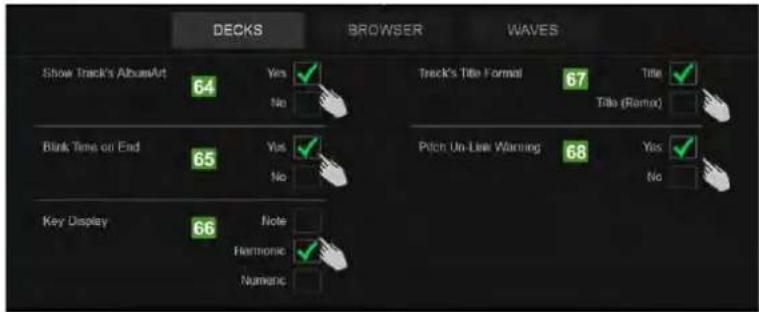
DECKS BROWSER WAVES Show Track's AlbumArt 64 Yes ✓ No Blank Time on End 65 Yes ✓ No Key Display 66 Note Harmonic ✓ Numeric Track's Title Format 67 Title ✓ Title (Rename) Pitch Un-Link Warning 68 Yes ✓ NoTap the [DECKS] button in the Settings View to select the Deck Block of Settings
- Show Track's Album Art. If set to Yes (default value), the Album Art of the Track will be displayed on the Deck INFO section of the Touch Display. When set to No, the Album Art will not be displayed on the Deck INFO section, providing more space for the Artist and Title of the track. Tap the corresponding button to make your selection.
- Blink Time on End. If set to Yes (default value), the Elapsed/Remain Time on the Deck INFO section of the Touch Display will start blinking (from white to gray) when the track reaches 30 seconds before its end. If set to No, the Elapsed/Remain Time will not blink. Tap the corresponding button to make your selection.
- Key Display. If set to Note, the Key value on the Deck INFO section will be displayed in the musical notes form. (A#, Am, B# etc.). If set to Harmonic (default value), the Key value will be displayed in the Camelot form (8A, 12B etc.). If set to Numeric, the Key value will be displayed as a relative value compared to the original Key of the track (0 if the current Key matches the original, -1 if moved one semitone down, +3 if moved 3 semitones up etc). Tap the corresponding button to make your selection.
- Track's Title Format. If set to Title (default value), only the Title of the track will be displayed in the Deck INFO section. If set to Title (Remix), the Title will be displayed along with the Remix of the track in a form of Title (Remix). Tap the corresponding button to make your selection.
- Pitch Un-Link Warning. If set to Yes (default value), Up/Down Arrows will be displayed next to the Pitch value on the Deck INFO section, if the Software and Hardware Pitch values don't match (e.g. [SYNC] is pressed on the Touch unit, the software Pitch is moved to match the BPM value of the other Deck and the Hardware Pitch fader position is on a different position). If set to No, the Up/Down Arrows will not be displayed.). Tap the corresponding button to make your selection
BROWSER SETTINGS
text_image
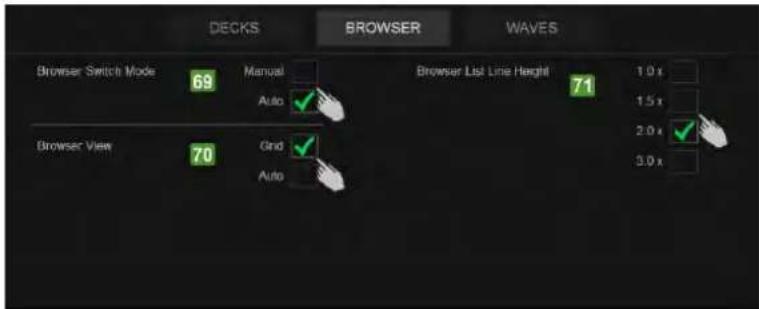
DECKS BROWSER WAVES Browser Switch Mode 69 Manual Auto ✓ Browser List Line Height 71 1.0 x 1.5 x 2.0 x ✓ 3.0 x Browser View 70 Grid ✓ AutoTap the [BROWSER] button in the Settings View to select the Browser Block of Settings
- Browser Switch Mode. If set to Manual, the Browser View will be offered on the Touch Display only via the [BROWSER] button at the bottom Navigation section. If set to Auto (default value), the Browser View will be offered not only via the [BROWSER] button on the Touch Display, but also whenever the [BROWSE] or [BACK] buttons are used from the Touch unit and will automatically return to the Decks view, if a Track is loaded (via the [LOAD] buttons) or no Browsing action is performed from either the Touch Display or the Touch unit. Tap the corresponding button to make your selection.
- Browser View. If set to Grid (default value), the Lists of the Browser View (Folders, Songs and Sideview) will be displayed in boxes, offering an easier navigation/selection. If set to Auto, the Lists of the Browser View will be displayed in Lines or Boxes following the Main Browser View (List or Grid) on the VirtualDJ main GUI. Tap the corresponding button to make your selection.
- Browser List Line Height. Select the height that the Lines will have when the Auto Browser View is selected from the Touch Display Settings and the List view mode is selected from the VirtualDJ main GUI. The value 2.0 x (default) means double the height of the original. The setting has no effect on the Grid Display Browser View.
WAVES SETTINGS
text_image
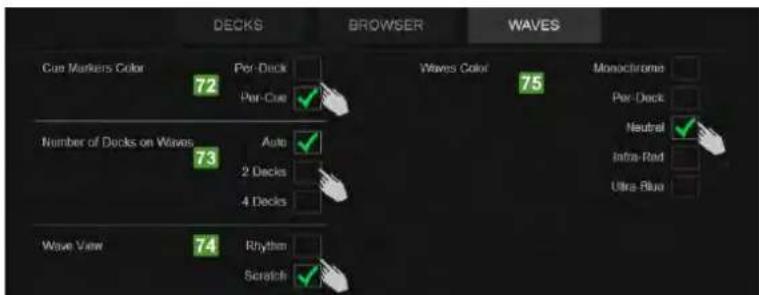
DECKS BROWSER WAVES Cue Markers Color 72 Per-Dock Per-Cue V waves Color 75 Monochrome Per-Deck Number of Docks on Waves 73 Auto 2 Decks 4 Decks Neutral Infra-Rad Ultra-Blue Wave View 74 Rhythm ScratchTap the [WAVES] button in the Settings View to select the Waves Block of Settings
- Cue Markers Color. If set to Per Deck (default value), the Markers for the HotCues on the Waves and Progress Bars will get the color of the corresponding deck (blue for Deck 1, red for Deck 2 etc.) If set to Par Cue, the Markers for the HotCues will get a pre-defined color (depending on their number) or the one assigned from the POI Editor. Tap the corresponding button to make your selection.
- Number of Decks on Waves. If set to Auto (default value), the top Wave section of the Touch Display will automatically show 2 or 4 decks, depending on the Decks view. Will show 2 Decks (Left and Right) if the 2 Decks or the 2 Deck Video views are selected and all 4 decks if the 4 Decks view is selected. If set to 2 Decks, the Waves of the Left and Right selected Decks will be displayed regardless the selected Decks view. If set to 4 Decks, the waves of all 4 Decks will be displayed, regardless the selected Decks view or the loaded tracks. Tap the corresponding button to make your selection.
- Wave View. If set to Rhythm (default value), the Wave of the Decks at the top section of the Touch Display will be displayed in the Rhythm view. If set to Scratch, the Wave of the Decks will be displayed in the Scratch View. Tap the corresponding button to make your selection.
- Waves Color. Select one of the 5 coloring types for the Waves. The selection affects both the Scratch Wave views and the Track's Progress bar at the Deck INFO section. Monochrome is the default value. Tap the corresponding button to make your selection
TOUCH DISPLAY SETTINGS
ON SCREEN KEYBOARD (WINDOWS 10)
The On Screen Keyboard will be offered if your computer has the Pen and Touch mode enabled (e.g. when your computer has a touchscreen already). In case it is not enabled or not offered, you will need to make the following adjustment.
Open the Touch keyboard Settings window.
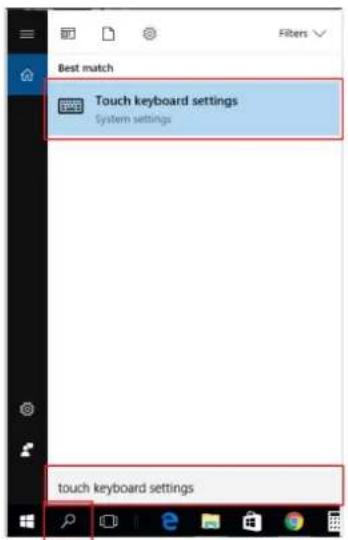
From Windows Taskbar click on the Search button, type Touch Keyboard Settings and select the provided result or find Touch Keyboard Settings from Control Panel All Control Panel Items
text_image
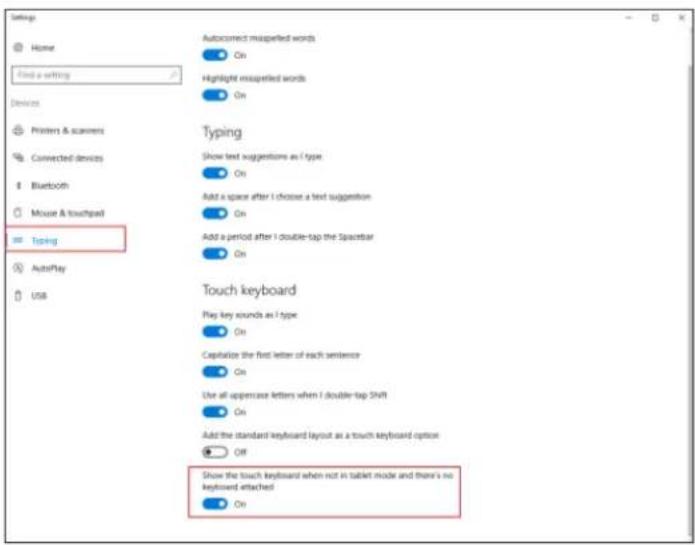
Best match Touch keyboard settings System settings touch keyboard settingsMake sure the Typing setting is selected on the left side.
Scroll down to the Touch keyboard section.
Make sure the last setting is enabled.
Close the window.
text_image
Settings Home Find a writing Devices Printers & scanners Connected devices Bluetooth Mouse & touchpad Typing AutoPlay USB Autocorrect misquirrel words On Highlight misquirrel words On Typing Show text suggestions as I type On Add a space after I choose a text suggestion On Add a period after I double-tap the Spacer On Touch keyboard Play key sounds as I type On Capitalize the first letter of each sentence On Use all appencase letters when I double-tap SNRT On Add the standard keyboard layout as a touch keyboard option Off Show the touch keyboard when not in tablet mode and there's no keyboard attached OnIf you tap on the Search box of the Browser view on the Touch Display but the On Screen Keyboard appears on the primary screen, grab the keyboard and place it at the Display Touch. The position will be remembered and the OSK will be displayed on the Touch Display from now on.
MINIMUM SYSTEM REQUIREMENTS
Mac:
Mac OS X 10.9.+ / 10.10.+ / 10.11.+
32 bit/64 bit: i3 / i5 / i7 with min. 1.07 GHz
minimum 4 GB RAM
5 GB free HDD space
Min. screen resolution 1280*720
Available USB 2.0 port
Windows:
Windows 7 / 8.1 / 10
32 bit/64 bit: i3 / i5 / i7 with min. 1.07 GHz
minimum 4 GB RAM
5 GB free HDD space
Min. screen resolution 1280*720
Available USB 2.0 port
Mac, iOS, iPhone, iPad and OS X are trademarks of Apple Inc., registered in the U.S. and other countries.
Windows is a registered trademark of Microsoft Corporation in the United States and other countries.
Intel (i3/i5/i7) and Intel Core are trademarks of Intel Corporation in the U.S. and other countries.
ACHTUNG!
natural_image
Diagram of a CD-ROM track with headphones and audio equipment (no text or symbols)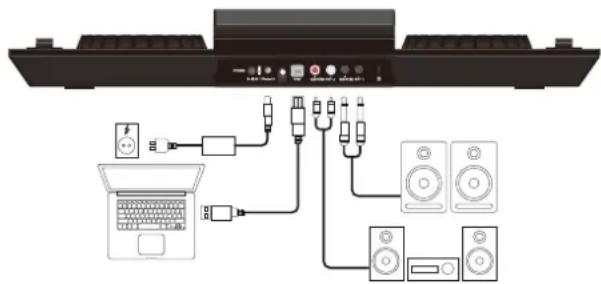
text_image
Diagram showing audio equipment connections between a laptop and various speakers, with labeled ports and cables.text_image
CDELOOP 7000 23A 25 LOAD 3 LOAD 9 LOAD 2 LOAD 4 LOAD 3 LOAD 9 LOAD 2 LOAD 4 LOAD 3 LOAD 9 LOAD 2 LOAD 4 LOAD 3 LOAD 9 LOAD 2 LOAD 4 LOAD 3 LOAD 9 LOAD 2 LOAD 4 LOAD 3 LOAD 9 LOAD 2 LOAD 4 LOAD 3 LOAD 9 LOAD 2 LOAD 4 LOAD 5 LOAD 9 LOAD 2 LOAD 4 LOAD 3 LOAD 9 LOAD 2 LOAD 4 LOAD 3 LOAD 9 LOAD 2 LOAD 4 LOAD 3 LOAD 9 LOAD 2 LOAD 4 LOAD 3 LOAD 9 LOAD 2 LOAD 4 LOAD 3 LOAD 9 LOAD 2 LOAD 4 LOAD 3 LOAD 8 LOAD 2 LOAD 4 LOAD 3 LOAD 9 LOAD 2 LOAD 4 LOAD 3 LOAD 9 LOAD 2 LOAD 4 LOAD 3 LOAD 9 LOAD 2 LOAD 4 LOAD 3 LOAD 9 LOAD 2 LOAD 4 LOAD 3 LOAD 9 LOAD 2 LOAD 4 LOAD 3 LOAD 9 LOAD 18 FADER EFFECTS UNIT FADER EFFECTS UNIT FADER EFFECTS UNIT FADER EFFECTS UNIT FADER EFFECTS UNIT FADER EFFECTS UNIT FADER EFFECTS UNIT FADER EFFECTS UNIT FADER EFFECTS UNIT FADER EFFECTS UNIT FADER EFFECTS UNIT FADER EFFECTS UNIT FADER EFFECTS UNIT FADER EFFECTS UNIT FADER EFFECTS UNIT FADER EFFECTS UNIT FADER EFFECTS UNIT FADER Effect S D A N T E R S T U T V T W T X Y Z X X X X X X X X X X X X X X X X X X X X X X X X X X X X X X X X X X X X X X X X X X X X X X X X X X X X X X X X X X X X X X X X X X X X X X X X X X X X X X X X X X X X X X X X X X X X X X X X X X X X I N T O U C H I N T O U C H I N T O U C H I N T O U C H I N T O U C H I N T O U C H I N T O U C H I N T O U C H I N T O U C H I N T O U C H I N T O U C H I N T O U C H I N T O U C H I N T O U C H I N T O U C H I I N T O U C H I N T O U C H I N T O U C H I N T O U C H I N T O U C H I N T O U C H I N T O U C H I N T O U C H I N T O U C H I N T O U C H I N T O U C H I N T O U C H I N T O U C H I N T O U C H I M M M M M M M M M M M M M M M M M M M M M M M M M M M M M M M M M M M M M M M M M M M M M M M M M M M M M M M M M M M M M M M M M M M M M M M M M M M M M M M M M M M M M M M M M M M M M M M M M M M M m m m m m m m m m m m m m m m m m m m m m m m m m m m m m m m m m m m m m m m m m m m m m m m m m m m m m m m m m m m m m m m m m m m m m m m m m m m m m m m m m m m m m m m m m m m m m m m m m m m m n t o n o n o n o n o n o n o n o n o n o n o n o n o n o n o n o n o n o n o n o n o n o n o n o n o n o n o n o n o n o n o n o n o n o n o n o n o n o n o n o n o n o n o n o n o n o n o n o n o n o n o c h i l e r e f l u v e r a l e s t e r e f l u v e r a l e s t e r e f l u v e r a l e s t e r e f l u v e r a l e s t e r e f l u v e r a l e s t e r e f l u v e r a l e s t e r e f l u v e r a l e s t e r e f l u v e r a l e s t e t e r e f l u v e r a l e s t e r e f l u v e r a l e s t e r e f l u v e r a l e s t e r e f l u v e r a l e s t e r e f l u v e r a l e s t e r e f l u v e r a l e s t e r e f l u v e r a l e s t t h i t h i t h i t h i t h i t h i t h i t h i t h i t h i t h i t h i t h i t h i t h i t h i t h i t h i t h i t h i t h i t h i t h i t h i t h i t h i t h i t h i t h i t h i t h i t h i t h i t h i c k p c c c c c c c c c c c c c c c c c c c c c c c c c c c c c c c c c c c c c c c c c c c c c c c c c c c c c c c c c c c c c c c c c c c c c c c c c c c c c c c c c c c c c c c c c c c c c c c c c c c cNO. CONTROL / ELEMENT VIRTUALDJ
text_image
WAVES 1 Load a track from Browser REMAIN BPM ROODER LOOP ZHEY PITCH +12% LOOP SIZE 1/32 -0.0 2 Load a track from Browser REMAIN BPM ROODER LOOP ZHEY PITCH +12% LOOP SIZE 4 -0.0 SATELLITE FLANGER V. RING PR 1 STR PR 2 SPD PR 3 EFFECTS FCHO STR PR 1 LUN PR 3 LP VFT BOOM CUE # ROTCUES 1 2 3 4 1 2 3 4 5 6 7 8 5 6 7 8 PADS BROWSER 2 DECKS NAVIGATION 4 DECKS SETTINGStext_image
WAVES 1 Load a track from Browser REMAIN SPN XODDER LOOP 2HEY PITCH +12% LOOP SIZE 1/32 -0.0 2 Load a track from Browser DECK INFO REMAIN SPN XODDER LOOP 2HEY PITCH +12% LOOP SIZE 4 -0.0 SATELLITE VIDEO V TRNS AUTO HOTCUES AUTO LINK PADS 1 2 3 4 1 2 3 4 5 6 7 8 5 6 7 8 BROWSER 2 DECKS NAVIGATION 4 DECKS SETTINGStext_image
WAVES 1 Load a track from Browser REMARK XODDER LOOP Z-KEY PTRI +12% LOOP SIZE 1/32 -0.0 DECK INFO 2 Load a track from Browser REMARK XODDER LOOP Z-KEY PTRI +12% LOOP SIZE 4 -0.0 VIDEO LEFT DECK AUTO LINK RIGHT DECK BROWSER 2 DECKS NAVIGATION 4 DECKS SETTINGStext_image
WAVES 1 Load a track from Browser REMAIN BPM 3CDDER LOOP / KEY PITCH <=12% LOOP SIZE 1/32 -0.0 DECK INFO 2 Load a track from Browser REMAIN BPM 3CDDER LOOP / KEY PITCH <=12% LOOP SIZE 4 -0.0 -12% -12% -12% -12% -12% -12% 3 Load a track from Browser REMAIN BPM 3CDDER LOOP / KEY PITCH <=12% LOOP SIZE 4 -0.0 DECK INFO 4 Load a track from Browser REMAIN BPM 3CDDER LOOP / KEY PITCH <=12% LOOP SIZE 4 -0.0 -0.0 -0.0 BROWSER 2 DECKS NAVIGATION 4 DECKS SETTINGStext_image
WAVES 1 Load a track from Browser REMAIN EPB DECK INFO 2 Load a track from Browser REMAIN EPB M SATELLITE FLANGER EFFECTS HO 1 2 3 4 1 2 3 4 5 6 7 8 9 5 6 7 8 PADS 3 Load a track from Browser REMAIN EPB DECK INFO 4 Load a track from Browser REMAIN EPB M BROWSER 2 DECKS NAVIGATION 4 DECKS SWLP SETTINGStext_image
June 2 45text_image
FOLDERS Online Music ContentUnlimited Audio ContentUnlimited Video ContentUnlimited Karaoke Puiselocker Spotify Deezer Downloaded Content Download Queue BACK MINI DECKS SIDIELIST Cockplay -50 Full Cast (Untitled from 128.0 03:54 F# Cockplay Able of 10 Cast (Coupet I 122.0 03:51 F# Cobien Bandill Extraordinary (Miz Mirajda 127.0 04:21 Eb Chris Roas Do The Back (King Ben Res)text_image
56 97 files Album Art Title Artist Remix 57 MAX # Hoodie Allen Gibberish (Single) Box: 84.0 Length 03:21 Key Comment: 1 The Magician # Years n Years Sunlight (Single) Box: 122.1 Length 03:13 Key C# Comment: 1 Rae Steammurd No Type Box: Length 03:17 Key Comment: Calvin Harris Feel So Close [Single] - 1000 - Clean (Single) Box: 128.0 Length 03:37 Key Comment: 2 Jonas Blue # Dakota Fast Car [Single] - HD - Clean (Single) Box: 114.0 Length 03:29 Key Comment: 1 Dr. Dre Ft. Snoop Dogg The Next Episode Official Video Box: Length Key Comment: Den Mpreune No Made Max - Melissa MEASSES &o Mirpoglas No Moore Mail Officai Audio Release Box: Length 03:43 Key Dy Snake Lot Me Love You # Justin Bieber (Marshello Remix) Box: Length 03:00 Key LiveFeedback recommends: Birtney Spears - Perfume (G Duppy Dub Remix) BACK MINI DECKStext_image
love 25 files Album Art Title Artist Remix Rating Epm Length Key Comment Justin Bieber Love Yourself [Single] - HD - Clean (Single) Epm: 100.0 Length: 03:51 Key Comment: 1 Dr Snake Let Me Love You It Justin Bieber (Marshmello Remix) Epm Length: 00:00 Key Comment: Dr Snake Duke Jayohn It Polina Book Of Love Epm: 125.0 Length: 03:17 Key Am Comment: 1 q w e r t y u i o p a s d f g h j k l ↑ z x c v b n m , . ? ↑ &123 Ctrl < > SNGtext_image
OPTIONS & TWEAKS Search finger Browser multiTouchTwoFingerScroll Yes Notext_image
DECKS BROWSER WAVES Show Track's AlbumArt 64 Yes ✓ No Blank Time on End 65 Yes ✓ No Key Display 66 Note Harmonic ✓ Numeric Track's Title Format 67 Title ✓ Talls (Ramo) Pitch Un-Link Warning 68 Yes ✓ Notext_image
DECKS BROWSER WAVES Browser Switch Mode 69 Manual Auto ✓ Browser List Line Height 71 1.0 x 1.5 x 2.0 x ✓ 3.0 x Browser View 70 Grid ✓ Autotext_image
Best match Touch keyboard settings System settings touch keyboard settingstext_image
Settings Home Find a writing Devices Printers & scanners Connected devices Bluetooth Mouse & touchpad Typing AutoPlay USB Autocorrect mislabelled words On Highlight mislabelled words On Typing Show text suggestions as I type On Add a space after I choose a text suggestion On Add a period after I double-tap the Spacettar On Touch keyboard Play key sounds as I type On Capitalize the first letter of each sentence On Use all appencase letters when I double-tap Shift On Add the standard keyboard layout as a touch keyboard option Off Show the touch keyboard when not in tablet mode and there's no keyboard attached OnMac, iOS, iPhone, iPad and OS X are trademarks of Apple Inc., registered in the U.S. and other countries.
Windows is a registered trademark of Microsoft Corporation in the United States and other countries.
Intel (13/15/17) and Intel Core are trademarks of Intel Corporation in the U.S. and other countries.
ATTENTION!
natural_image
Diagram of a CD-ROM track with headphones and audio equipment (no text or symbols)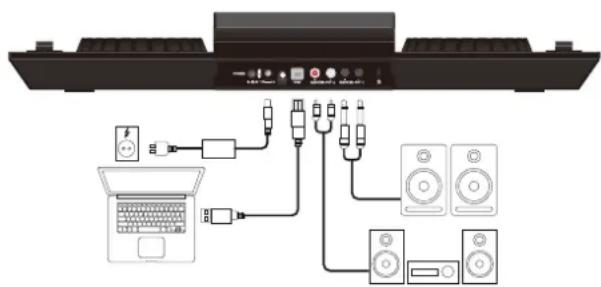
text_image
Diagram showing audio equipment connections between a laptop and various speakers, with labeled ports and cables.text_image
WAVES 1 Load a track from Browser REMAIN BPM ROODER LOOP ZHEY PITCH +12% LOOP SIZE 1/32 -0.0 2 Load a track from Browser REMAIN BPM ROODER LOOP ZHEY PITCH +12% LOOP SIZE 4 -0.0 SATELLITE FLANGER V. TRNS PR 1 STR PR 2 SPD PR 3 EFFECTS FCHO STR PR 1 LUN PR 3 LP VFT BOOM CUE # ROTCUES 1 2 3 4 1 2 3 4 5 6 7 8 5 6 7 8 PADS BROWSER 2 DECKS NAVIGATION 4 DECKS SETTINGSVue 2 Decks (standard)
VIDEO & VIDEO FULL

text_image
BROWSER 2 DECKS VIDEO 4 DECKS SETTINGStext_image
WAVES 1 Load a track from Browser 2 Load a track from Browser REMAIN SPN XODDER LOOP 2HEY PITCH +12% LOOP SIZE 1/32 -0.0 DECK INFO REMAIN SPN XODDER LOOP 2HEY PITCH +12% LOOP SIZE 4 -0.0 SATELLITE VIDEO V TRINS AUTO HOTCUES AUTO LINK PADS 1 2 3 4 1 2 3 4 5 6 7 8 5 6 7 8 BROWSER 2 DECKS NAVIGATION 4 DECKS SETTINGSVues Decks - Video
text_image
WAVES 1 Load a track from Browser REMARK XODDER LOOP Z-KEY PTRI +12% LOOP SIZE 1/32 -0.0 DECK INFO 2 Load a track from Browser REMARK XODDER LOOP Z-KEY PTRI +12% LOOP SIZE 4 -0.0 VIDEO LEFT DECK AUTO LINK RIGHT DECK BROWSER 2 DECKS NAVIGATION 4 DECKS SETTINGStext_image
WAVES 1 Load a track from Browser REDAINS BPM 3CDDER LOOP / KEY PITCH -12% LOOP SIZE 1/32 -0.0 2 Load a track from Browser DECK INFO REDAINS BPM 3CDDER LOOP / KEY PITCH -12% LOOP SIZE 4 -0.0 3 Load a track from Browser REDAINS BPM 3CDDER LOOP / KEY PITCH -12% LOOP SIZE 4 -0.0 4 Load a track from Browser DECK INFO REDAINS BPM 3CDDER LOOP / KEY PITCH -12% LOOP SIZE 4 -0.0 BROWSER 2 DECKS NAVIGATION 4 DECKS SETTINGSVue Decks - 4 Decks
flowchart
graph TD
    A["WAVES"] --> B["1"]
    B --> C["Load a track from Browser"]
    C --> D["FFM"]
    D --> E["DECK INFO"]
    E --> F["2"]
    F --> G["Load a track from Browser"]
    G --> H["FFM"]
    H --> I["BPM"]
    I --> J["MODE"]
    J --> K["SATELLITE"]
    K --> L["FLANGER"]
    L --> M["1"]
    M --> N["2"]
    N --> O["3"]
    O --> P["4"]
    P --> Q["5"]
    Q --> R["6"]
    R --> S["7"]
    S --> T["8"]
    T --> U["EFFECTS"]
    U --> V["PADS"]
    V --> W["1"]
    W --> X["2"]
    X --> Y["3"]
    Y --> Z["4"]
    Z --> AA["5"]
    AA --> AB["6"]
    AB --> AC["7"]
    AC --> AD["8"]
    AD --> AE["BOOM"]
    AF["3"] --> AG["Load a track from Browser"]
    AG --> AH["FFM"]
    AH --> AI["DECK INFO"]
    AI --> AJ["1"]
    AJ --> AK["2"]
    AK --> AL["3"]
    AL --> AM["4"]
    AM --> AN["5"]
    AN --> AO["6"]
    AO --> AP["7"]
    AP --> AQ["8"]
    AQ --> AR["BOOM"]
    AS["BROWSER"] --> AT["2 DECKS"]
    AT --> AU["NAVIGATION"]
    AU --> AV["4 DECKS SWLP"]
    AV --> AW["SETTINGS"]
Vue Decks - 4 Decks Swap
ÉLÉMENTS DE LA VUE DECK
Deck-INFO
text_image
Figure 2 45Vue Rhythm Wave - 4 Decks
text_image
Sugar 123.00 SFM 2:20.6 Book Of Love 123.00 SFM 1:50.2 Wiggle 84.81 SFM 3:11.7 Sunlight 123.00 SFM 2:16.3Mini Decks – vue 4 Decks
text_image
FOLDERS Online Music ContentUnlimited Audio ContentUnlimited Video ContentUnlimited Karaoke Puiselocker Spotify Deezer Downloaded Content Download Queue BACK MINI DECKS SIDIELIST Cockplay -50 Full Cast (Untitled from 128.0 03:54 F# Cockplay Able of 10 Cast (Coupet I 122.0 03:51 F# Cobien Bandill Extraordinary (Miz Mirajda 127.0 04:21 Eb Chris Roas Do The Back (King Ben Res)text_image
56 Album Art Title Artist Remix 57 Epin Length Key Comment MAX # Hoodie Allen Gobberish (Single) Box: 84.0 Length 03.21 Key Comment: 1 The Magician # Years n Years Sunlight (Single) Box: 122.1 Length 03.13 Key C# Comment: 1 Rae Steammunt No Type Box: Length 03.17 Key Comment: Calvin Harris Feel So Close [Single] - 1000 - Clean (Single) Box: 128.0 Length 03.37 Key Comment: 2 Jonas Blue # Dakota Fast Car [Single] - HD - Clean (Single) Box: 114.0 Length 03.29 Key Comment: 1 Dr. Dre Ft. Snoop Dogg The Next Episode Official Video Box: Length Key Comment: Den Monoune No Made Man - Melissa MEASSES Dox Mirapolac No Moore Mod) Official Audio Release Box: Length 03.43 Key Dj Snake Let Me Love You It Justin Bieber (Marchanello Remix) Box: Length 03.00 Key LiveFeedback recommends: Rodney Spears - Perfume (G Duppy Dub Remix) BACK MINI DECKStext_image
love 25 files Album Art Title Artist Remix Rating Epm Length Key Comment Justin Bieber Love Yourself [Single] - HD - Clean (Single) Epm: 100.0 Length: 03:51 Key Comment: 1 Dr Snake Let Me Love You It Justin Bieber (Marsimello Remix) Epm Length: 00:00 Key Comment: Brake Don't Give Up (On Love) [Single] - HD - Clean (Single) Epm: 123.0 Length: 03:22 Key. Comment: 1 Dol Jahn It Polina Book Of Love Epm: 125.0 Length: 03:17 Key Am Comment: 1 q w e r t y u i o p a s d f g h j k l ↑ z x c v b n m , . ? ↑ @123 Ctrl < > SINGtext_image
OPTIONS & TWEARS Search finger Browser multiTouchTwoFingerScroll Yes No INTERFACEVUE RÉGLAGES
text_image
BROWSER 2 DECKS VIDEO FULL 4 DECKS SWAP SETTINGS 63 Cut 62 DECKS 62 BROWSER 62 WAVES Show Track's AlbumArt Yes ✓ No Blank Time on End Yes ✓ No Key Display Note Harmonic ✓ Numeric 61 RESET 60 SETTINGStext_image
DECKS BROWSER WAVES Show Track's AlbumArt 64 Yes ✓ No Blank Time on End 65 Yes ✓ No Key Display 66 Note Harmonic ✓ Numeric Track's Title Format 67 Title ✓ Title (Rename) Pitch Un-Link Warning 68 Yes ✓ Notext_image
DECKS BROWSER WAVES Browser Switch Mode 69 Manual Auto ✓ Browser List Line Height 71 1.0 x 1.5 x 2.0 x ✓ 3.0 x Browser View 70 Grid ✓ Autotext_image
Best match Touch keyboard settings System settings touch keyboard settingstext_image
Setup Home Find a setting Devices Printers & scanners Connected devices Bluetooth Mouse & touchpad Typing AutoPlay USB Autocorrect misappelled words On Highlight misappelled words On Typing Show text suggestions as I type On Add a space after I choose a text suggestion On Add a period after I double-tap the Spacebar On Touch keyboard Play key sounds as I type On Capitalize the first letter of each sentence On Use all uppercase letters when I double-tap Shift On Add the standard keyboard layout as a touch keyboard option On Show the touch keyboard when not in tablet mode and there's no keyboard attached Onnatural_image
Diagram of a CD-ROM with headphones and audio equipment (no text or symbols)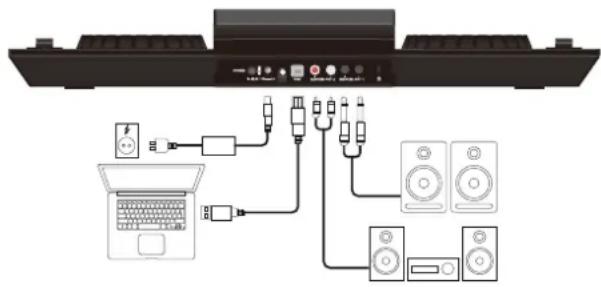
text_image
Diagram showing audio equipment connections between a laptop and various speakers, with labeled ports and cables.text_image
WAVES 1 Load a track from Browser ROMAN BPM 30000 LOOP 2HEY PITCH +12% LOOP SIZE 1/32 -0.0 DECK INFO 2 Load a track from Browser ROMAN BPM 30000 LOOP 2HEY PITCH +12% LOOP SIZE 4 -0.0 SATELLITE VIDEO V TRNS AUTO AUTO PADS HOTCUES HOTCUES 1 2 3 4 1 2 3 4 5 6 7 8 5 6 7 8 PADS BROWSER 2 DECKS NAVIGATION 4 DECKS SETTINGSVista de vídeo
text_image
WAVES 1 Load a track from Browser REMARK XODDER LOOP Z/KEY PTR 4+12% LOOP SIZE 1/32 -0.0 DECK INFO 2 Load a track from Browser REMARK XODDER LOOP Z/KEY PTR 4+12% LOOP SIZE 4 -0.0 VIDEO LEFT DECK AUTO LINK RIGHT DECK BROWSER 2 DECKS NAVIGATION 4 DECKS SWAP SETTINGStext_image
WAVES 1 Load a track from Browser REDAINS BPM 3CDDER LOOP / KEY PITCH -12% LOOP SIZE 1/32 -0.0 2 Load a track from Browser DECK INFO REDAINS BPM 3CDDER LOOP / KEY PITCH -12% LOOP SIZE 4 -0.0 3 Load a track from Browser REDAINS BPM 3CDDER LOOP / KEY PITCH -12% LOOP SIZE 4 -0.0 4 Load a track from Browser DECK INFO REDAINS BPM 3CDDER LOOP / KEY PITCH -12% LOOP SIZE 4 -0.0 BROWSER 2 DECKS NAVIGATION 4 DECKS SETTINGSVista de 4 platos
flowchart
graph TD
    A["WAVES"] --> B["1"]
    B --> C["Load a track from Browser"]
    C --> D["FFM"]
    D --> E["DECK INFO"]
    E --> F["2"]
    F --> G["Load a track from Browser"]
    G --> H["FFM"]
    H --> I["BPM"]
    I --> J["MODE"]
    J --> K["SATELLITE"]
    K --> L["FLANGER"]
    L --> M["↓"]
    M --> N["EFFECTS"]
    N --> O["HO"]
    O --> P["↓"]
    P --> Q["BOOM"]
    Q --> R["1"]
    R --> S["2"]
    S --> T["3"]
    T --> U["4"]
    U --> V["5"]
    V --> W["6"]
    W --> X["7"]
    X --> Y["8"]
    Y --> Z["PADS"]
    Z --> AA["1"]
    AA --> AB["2"]
    AB --> AC["3"]
    AC --> AD["4"]
    AD --> AE["5"]
    AE --> AF["6"]
    AF --> AG["7"]
    AG --> AH["8"]
    AH --> AI["MODE"]
    AJ["3"] --> AK["Load a track from Browser"]
    AK --> AL["FFM"]
    AL --> AM["MODE"]
    AM --> AN["DECK INFO"]
    AN --> AO["↓"]
    AO --> AP["Load a track from Browser"]
    AP --> AQ["FFM"]
    AQ --> AR["BPM"]
    AR --> AS["M"]
    AS --> AT["MODE"]
    AT --> AU["BOOM"]
    AU --> AV["2 DECKS"]
    AV --> AW["NAVIGATION"]
    AW --> AX["4 DECKS BWP"]
    AX --> AY["SETTINGS"]
text_image
Figure 2 45Vista Rhythmus Wave - 4 platos
text_image
FOLDERS Online Music ContentUnlimited Audio ContentUnlimited Video ContentUnlimited Karaoke Puiselocker Spotify Deezer Downloaded Content Download Queue BACK MINI DECKS SIDIELIST Cockplay -50 Full Cast (Untitled from 128.0 03:54 F# Cockplay Able of 10 Cast (Coupet I 122.0 03:51 F# Cobien Bandill Extraordinary (Miz Mirajda 127.0 04:21 Eb Chris Roas Do The Back (King Ben Res)text_image
56 97 files Album Art Title Artist Remix 57 MAX # Hoodie Allen Gibberish (Single) Box: 84.0 Length 03:21 Key Comment: 1 The Magician # Years n Years Sunlight (Single) Box: 122.1 Length 03:13 Key C# Comment: 1 Rae Steammurd No Type Box: Length 03:17 Key Comment: Calvin Harris Feel So Close [Single] - 1000 - Clean (Single) Box: 128.0 Length 03:37 Key Comment: 2 Jonas Blue # Dakota Fast Car [Single] - HD - Clean (Single) Box: 114.0 Length 03:29 Key Comment: 1 Dr. Dre Ft. Snoop Dogg The Next Episode Official Video Box: Length Key Comment: Den Mpreune No Made Max - Melissa MEASSES &o Mirpoglas No Moore Mail Officai Audio Release Box: Length 03:43 Key Dy Snake Lot Me Love You # Justin Bieber (Marshello Remix) Box: Length 03:00 Key LiveFeedback recommends: Birtney Spears - Perfume (G Duppy Dub Remix) BACK MINI DECKStext_image
love 25 files Album Art Title Artist Remix Rating Epm Length Key Comment Justin Bieber Love Yourself [Single] - HD - Clean (Single) Epm: 100.0 Length: 03:51 Key Comment: 1 Dr Snake Let Me Love You It Justin Bieber (Marshmello Remix) Epm Length: 00:00 Key Comment: Dr Snake Duke Jashn It Polina Book Of Love Epm: 125.0 Length: 03:17 Key Am Comment: 1 q w e r t y u i o p a s d f g h j k l ↑ z x c v b n m , . ? ↑ &123 Ctrl < > SNGtext_image
OPTIONS & TWEAKS Search finger Browser multiTouchTwoFingerScroll Yes NoVISTA DE AJUSTES
text_image
BROWSER 2 DECKS VIDEO FULL 4 DECKS SWAP SETTINGS 63 Cut 62 DECKS 62 BROWSER 62 WAVES Show Track's Album/Art Yes ✓ Track's Tile Format Title ✓ No Blank Time on End Yes ✓ Pitch Un-Link Warning Yes ✓ No No Key Display Note Harmonic ✓ Numenc 61 RESET 60 SETTINGStext_image
DECKS BROWSER WAVES Show Track's AlbumArt 64 Yes ✓ No Blank Time on End 65 Yes ✓ No Key Display 66 Note Harmonic ✓ Numeric Track's Title Format 67 Title ✓ Talls (Ramo) Pitch Un-Link Warning 68 Yes ✓ Notext_image
DECKS BROWSER WAVES Browser Switch Mode 69 Manual Auto ✓ Browser List Line Height 71 1.0 x 1.5 x 2.0 x ✓ 3.0 x Browser View 70 Grid ✓ Autotext_image
Best match Touch keyboard settings System settings touch keyboard settingstext_image
Setup Home Find a setting Devices Printers & scanners Connected devices Bluetooth Mouse & touchpad Typing AutoPlay USB Autocorrect mispecified words On Highlight mispecified words On Typing Show text suggestions as I type On Add a space after I choose a text suggestion On Add a period after I double-tap the Spacebar On Touch keyboard Play key sounds as I type On Capitalize the first letter of each sentence On Use all uppercase letters when I double-tap Shift On Add the standard keyboard layout as a touch keyboard option On Show the touch keyboard when not in tablet mode and there's no keyboard attached OnOutputs: Master 6.3 mm jack (balanced)
Master RCA (unbalanced)
Headphones 6.3/3.5 mm jack
Interfaces: USB for audio, video and touch transmission
Power supply unit: 12V/3A
Dimensions: 594 x 377 x 43 mm
Weight: 3,7 kg
MEASUREMENT ITEM MEASUREMENT SIGNAL MICROPHONE VR SPECIFICATION REMARKS
| OUTPUT LEVEL | MASTER OUT(RCA) | MIN | 2.0 ± 0.2 V | - 0dB- 1kHz Sine Wave from PC- No Microphone Input |
| MASTER OUT(TRS) 2.0 ± 0.2V | ||||
| HEADPHONE MIN 1.2V ± 0.2V | - 0dB- 1kHz- No audio from PCC- No Microphone Input- Headphone (load32Ω) | |||
| MIC (RCA) MAX 1.0V ± 0.2V | - No audio from PC- + 3mV Vrms Microphone Input- 50-ohm UNbalanced AP audio generator output | |||
| S/N NOISE LEVEL | MASTER OUT(RCA) | MIN | Less than -80dBr | - 0dB- 1kHz Sine Wave from PC- No Microphone Input |
| MASTER OUT(TRS) Less than | -80dBr | |||
| HEADPHONE MIN Less than | -80dBr | - 0dB- 1kHz Sine Wave from PC- No Microphone Input | ||
| THD + N | MASTER OUT(RCA) | MIN | Less than 0.05% | - 0dB- 1kHz Sine Wave from PC- No Microphone Input |
| MASTER OUT(TRS) Less than | 0.05% | |||
| HEADPHONE MIN Less than | 0.05% | - 0dB- 1kHz Sine Wave from PC- No Microphone Input |

WARNUNG!
To prevent fire or avoid an electric shock do not expose the device to water or fluids! Never open the housing!
ATTENTION!
Keep information for further reference!