
SRU1020 - Universal remote PHILIPS - Free user manual and instructions
Find the device manual for free SRU1020 PHILIPS in PDF.

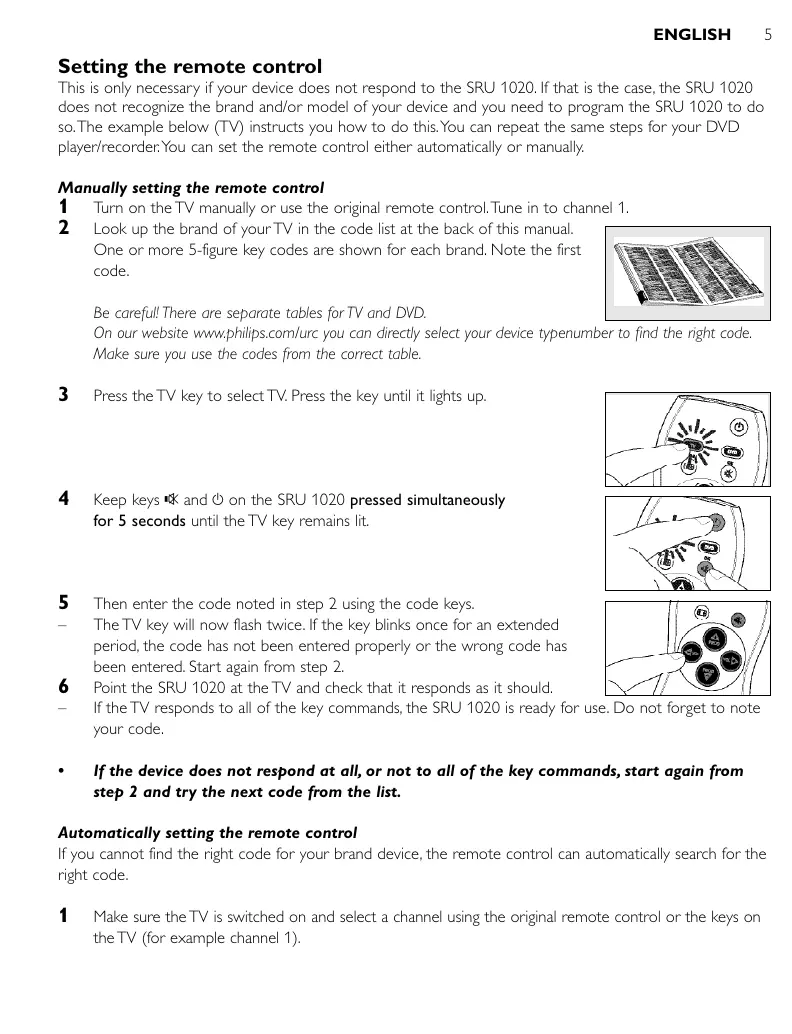


| Product Type | Universal Remote Control |
| Brand | PHILIPS |
| Model | SRU1020 |
| Category | Universal Remote Control |
| Power Supply | 2 AAA batteries (1.5 V each) |
| Battery Type | AAA (R03, UM3) |
| Number of Batteries | 2 |
| Rated Voltage | 3 V (2 x 1.5 V) |
| Controllable Devices | 2 (TV and DVD/recorder player) |
| Available Modes | TV, DVD |
| Infrared Range | Approximately 10 m |
| Learning Frequency | 30 to 60 kHz |
| Main Functions | Power On/Off, Volume, Channels, Menu, Navigation, Mute, Favorite Channels (A-E), Parental Lock, Learning |
| Display | None |
| Dimensions (L x W x H) | Approximately 200 x 50 x 25 mm |
| Weight (without batteries) | Approximately 90 g |
| Material | ABS Plastic |
| Cleaning | Dry, soft cloth |
| Safety | Do not expose to moisture; remove batteries if not used for extended periods |
| Reset | Yes, factory reset (see manual) |
| Included Accessories | User manual, code list |
| Compatibility | Brands listed in the manual (over 100 brands) |
Frequently Asked Questions - SRU1020 PHILIPS
User questions about SRU1020 PHILIPS
0 question about this device. Answer the ones you know or ask your own.
Ask a new question about this device
Download the instructions for your Universal remote in PDF format for free! Find your manual SRU1020 - PHILIPS and take your electronic device back in hand. On this page are published all the documents necessary for the use of your device. SRU1020 by PHILIPS.
USER MANUAL SRU1020 PHILIPS
Quick, Clean & Easy Setup
www.philips.com/urc
Contents
- Introduction 4
- Installing the remote control 4-6
Inserting the batteries. 4
Testing the remote control. 4
Setting the remote control. 5-6
- Keys and functions 6-7
- Extra possibilities 7-9
Adjusting device selection (Mode keys) 7
Activating/deactivating child lock function. 7-8
Storing favorite TV channels/Learning keys. 8-9
Restoring the original functions of your remote control. 9
- Troubleshooting 9
Code list of all brands/equipment 94-101
Information to the Consumer. 103
1. Introduction
Congratulations on your purchase of the Philips SRU 1020 universal remote control. After installing the remote control you can operate a maximum of 2 different devices with it:TV and DVD players/recorders. You can find information about how to prepare this remote control for use in the chapter 'Installing the remote control'.
2. Installing the remote control
Inserting the batteries
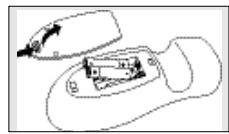
1 Press the cover inwards and lift it up.
2 Place two R03, UM4 or AAA type batteries into the battery compartment, as shown.
3 Replace the cover and click it firmly into place.
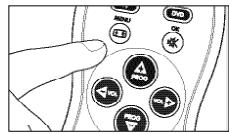
Testing the remote control
Because the SRU 1020 may use different signals for each brand and even for different models of the same brand, it is advisable to test whether your device responds to the SRU 1020. The example below (TV) instructs you how to do this. You can repeat the same steps for your DVD player/ recorder.
1 Turn your TV on manually or use the original remote control. Tune to channel 1.
2 Check whether all the keys are working. For an overview of the keys and their functions see '3. Keys and functions'.
- If the TV responds as it should to all of the key commands the SRU 1020 is ready for use.
If the device does not respond at all or not to all of the key commands, follow the instructions under 'Setting the remote control' or for online setup got to: www.philips.com/urc.
Setting the remote control
This is only necessary if your device does not respond to the SRU 1020. If that is the case, the SRU 1020 does not recognize the brand and/or model of your device and you need to program the SRU 1020 to do so. The example below (TV) instructs you how to do this. You can repeat the same steps for your DVD player/recorder. You can set the remote control either automatically or manually.
Manually setting the remote control
1 Turn on the TV manually or use the original remote control. Tune in to channel 1.
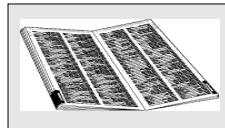
2 Look up the brand of your TV in the code list at the back of this manual. One or more 5-figure key codes are shown for each brand. Note the first code.
Be careful! There are separate tables for TV and DVD.
On our website www.philips.com/urc you can directly select your device typenumber to find the right code. Make sure you use the codes from the correct table.
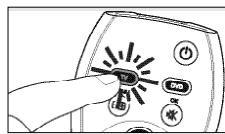
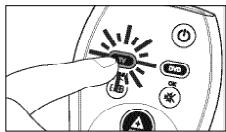
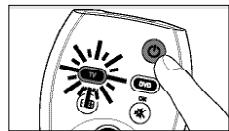
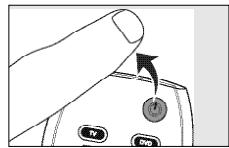
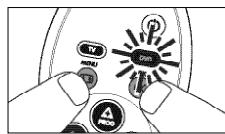
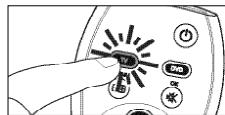
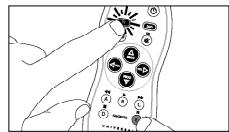
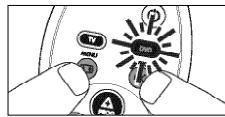
3 Press the TV key to select TV. Press the key until it lights up.
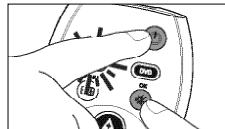
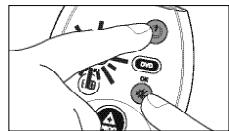
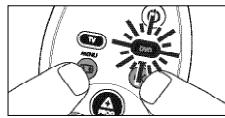
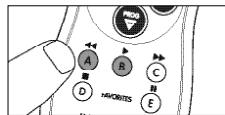
4 Keep keys 和 on the SRU 1020 pressed simultaneously for 5 seconds until the TV key remains lit.
5 Then enter the code noted in step 2 using the code keys.
- The TV key will now flash twice. If the key blinks once for an extended period, the code has not been entered properly or the wrong code has been entered. Start again from step 2.
6 Point the SRU 1020 at the TV and check that it responds as it should.
If the TV responds to all of the key commands, the SRU 1020 is ready for use. Do not forget to note your code.
- If the device does not respond at all, or not to all of the key commands, start again from step 2 and try the next code from the list.
Automatically setting the remote control
If you cannot find the right code for your brand device, the remote control can automatically search for the right code.
1 Make sure the TV is switched on and select a channel using the original remote control or the keys on the TV (for example channel 1).
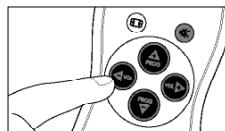
6
ENGLISH
2 Press the TV key to select TV. Press the key until it lights up.
3 Keep keys and on the SRU 1020 pressed simultaneously for 5 seconds until the TV key remains lit.
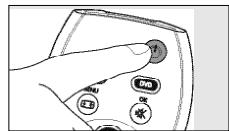
4 Press the key of the SRU 1020 and keep it pressed.
- The SRU 1020 now starts emitting all known 'TV off' signals, one by one. Each time a code is sent, the TV key flashes.
5 When your TV switches off (stand-by), immediately release the key of the SRU 1020 to confirm.
The SRU 1020 has now found a code that works on your TV.
6 Check if you can operate all functions on your TV with the SRU 1020.
If this is not the case, you can redo the automatic setting. The SRU 1020 will then search for a code that perhaps works better.
After the SRU 1020 has run through all the known codes, the search will stop automatically and the TV key stops flashing.
Automatic programming of a TV takes a maximum of 6 minutes. For DVD this time is 2 minutes.
3. Keys and functions
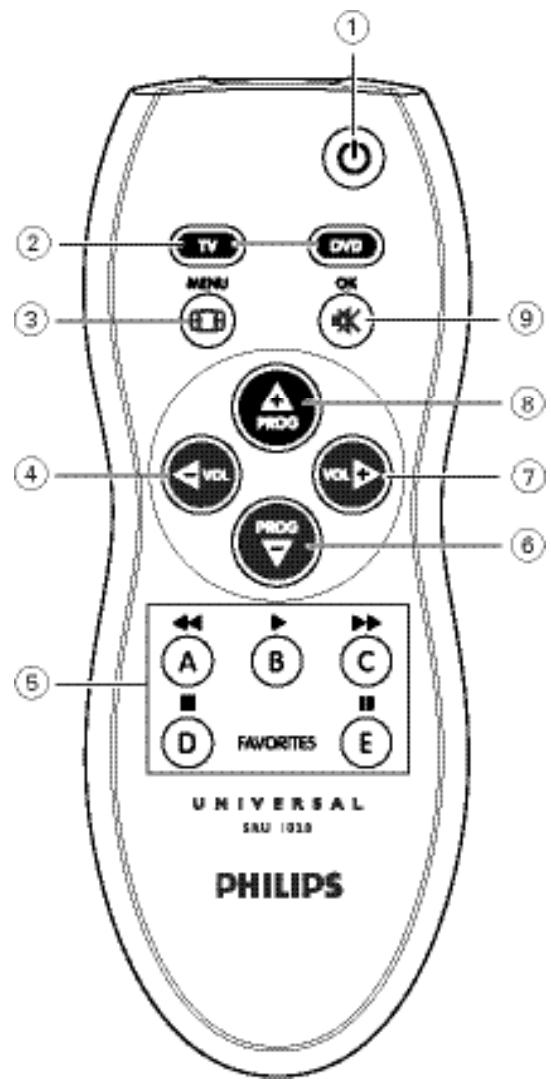
The illustration on page 3 gives an overview of all keys and their functions.
① (Standby)……switches the TV on or off.
② TV - DVD . selects TV or DVD mode.
③ / MENU . . . . . . . . . . . . . . . . . . . . . . . . . . . . . . . . . . . . . . . . . . . . . . . . . . . . . . . . . . . . . . . . . . . . . . . . . . . . . . . . . . . . . . . . . .
(16:9) TV.
DVD: opens disc menu.
④ VOL - TV: reduces the TV volume.
DVD: menu navigation (cursor left).
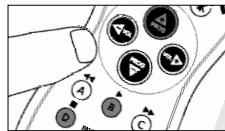
(5) A . TV: favorite channel A. DVD: rewind.
/ B . TV: favorite channel B.
/C .TV:favorite channel C.
I D. . TV: favorite channel D.
II / E. . TV: favorite channel E.
DVD: rewind.
DVD: play.
DVD: wind.
DVD: stop.
DVD: pause.
PROG - . . . . . . . . . . . . . . . . . . . . . . . . . . . . . . . . . . . . . . . . . . . . . . . . . . . . . . . . . . . . . . . . . . . . . . . . . . . . . . . .
DVD: menu navigation (cursor down).
⑦ VOL + . . . . . . . . . . . . . . . . . . . . . . . . . . . . . . . . . . . . . . . . . . . . . . . . . . . . . . . . . . . . . . . . . . . . . . . . . . . . . .
TV: increases the TV volume.
DVD: menu navigation (cursor right).
PROG+ .TV: selects a following channel. DVD: menu navigation (cursor up).
(9) (Mute) / OK . . . TV: mutes the sound of the TV. DVD: confirms actions in the menu.
4. Extra possibilities
Adjusting device selection (Mode keys)
The SRU 1020 is default set for operating TV or DVD. You can select the device you wish to operate with the TV and DVD selection keys. Each key allows operation of one device only. If desired, you can program the keys to select a different kind of device. For example, if you want to operate a second TV. In the following example you will see how to configure the DVD key for a second TV.
1 Switch on the second TV.
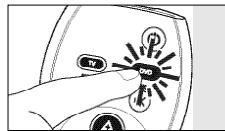
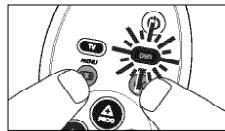
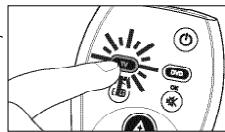
2 Press the DVD key to select DVD. Press the key until the it lights up.
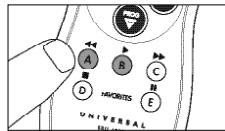
3 Keep keys and on the SRU 1020 pressed simultaneously for 5 seconds, until the DVD key lights up.
4 Press keys A and B in that order.
5 Press the TV key to select TV. Press the key until it lights up.
- The DVD key blinks twice. The DVD key will now allow you to operate your second TV and the DVD device mode will be deleted.
If the DVD key blinks once for a longer period of time, adjusting device selection failed. Start again from step 1.
6 Program the SRU 1020 to operate the second TV. See 'Setting the remote control'.
Activating/deactivating child lock function
The FAVORITES keys (A, B, C, D and E) are default set to select the first five channels on your TV. If you wish to prevent your children (or others) from zapping through all available TV channels, you can activate the child lock function. Only the channels stored under the FAVORITES keys are then accessible via the FAVORITES and + PROG - keys.
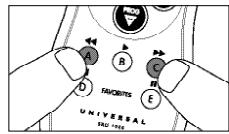
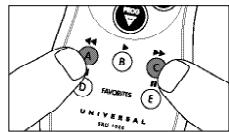
- Keep keys / A and / C pressed simultaneously for 3 seconds to activate the child lock function.
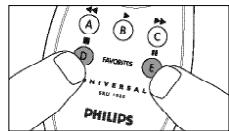
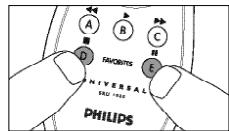
- Keep keys / D and / E pressed simultaneously for 3 seconds to deactivate the child lock function.
Storing favorite TV channels/Learning keys
The FAVORITES keys (A, B, C, D and E) are default set to select the first five channels on your TV. If you wish, you can reassign these keys to another function. You can store other (favorite) TV channels under them or learn the keys functions from your original remote control that you miss on the SRU 1020. The example below (reassigning the E key for TV) instructs you how to do this.
1 Make sure you have the original TV remote control at hand.
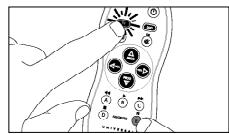
2 Keep keys E and TV pressed simultaneously for 5 seconds until the TV key remains lit.
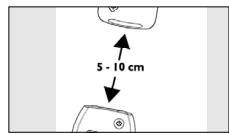
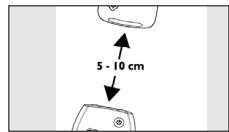
3 Place both SRU 1020 and original remote control on a flat surface (e.g. a table) and aim them head-to-head with about 5 - 10cm in between.
4 Storing favorite TV channels
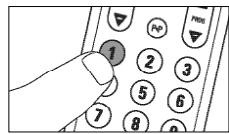
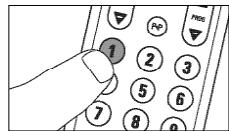
On the original remote control: enter the favorite station number (e.g. 11). Be sure to enter the second digit within 30 seconds after the first one.
OR
4 Learning keys
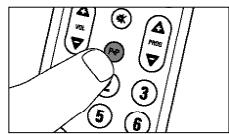
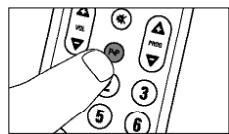
On the original remote control: press the key which function you wish to copy (e.g. P&P).
After a while, the TV key blinks twice to confirm that:
- channel 11 is stored under the E key, or
- the new function is stored under the E key.
- If the TV key blinks once for a longer period, the TV channel or function is not stored. Repeat the above steps and be sure the remote controls are aligned as described in step 3.
5 Repeat steps 2 to 4 to store other favorite TV stations/learn other functions.
- If you only wish to watch the stations, stored under the FAVORITES keys, you can disable selection of non favorite stations via the + PROG - keys as described under 'Activating/deactivating child lock function'.
- You can learn the FAVORITES keys functions from you original DVD remote control as well. For this, repeat above steps.
Restoring the original functions of your remote control
Follow the instructions below to revert the SRU 1020 back to the factory default settings:
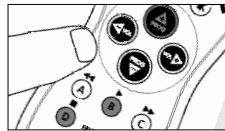
1 Keep keys 串 and 串 pressed simultaneously for 5 seconds, until the key of the currently selected mode (TV or DVD) blinks twice and then remains lit.
2 Press keys / B, PROG ^+ and D in that order.
- The mode key (TV or DVD) blinks twice to confirm that resetting was successful. The SRU 1020 is now reverted back to the state it was when you first took it out of the packaging.
4. Troubleshooting
Problem
Solution
The device you want to operate does not respond when you press a key.
Replace the old batteries with two new R03, UM4 or AAA type batteries.
- Point the SRU 1020 at the device and make sure that there are no obstructions between the SRU 1020 and the device.
The SRU 1020 does not respond properly to commands.
- Maybe you are using the wrong code. Try programming the SRU 1020 again using another code, which is mentioned under the brand of your device, or reset for automatic search to find the right code.
- Your brand of device is not in the code list.
Try to set the SRU 1020 automatically. See 'Automatically setting the remote control'.
- None of the codes works during manual setting of the remote control.
If that is the case, follow the instructions under 'Automatically setting the remote control'.
A code cannot be learned / a TV channel cannot be stored under the FAVORITES keys.
The IR signal of the original remote control is out of range. The SRU 1020 only recognizes IR signals with a carrier signal of 30 - 60kHz
- The SRU 1020 memory is full. Revert the SRU 1020 back to the factory default settings in order to create memory space. See 'Restoring the original functions of your remote control'.
- The SRU 1020 stopped the learning / programming process after 30 seconds for no IR signals were received. Check if the original remote control is working properly.
Sommaire
I B .TV:chaine favorite B. DVD: lecture.
/C .TV:chaine favorite C. DVD:avance rapide.
EvpyoioiOn/aevpeyonoioiOn naDikns aoaiaeia
⑥ PROG- .TV: BBi6paet npeBdyuyn KaHaA.
DVD: nOaTbepKdaeT AeIcTBnB M MeHIO.
4. AONHOHHTeAhBHe B03MOXHOCTH
PeyAmpoBka Bbl6opa yctpoiCTBa (KHOJIKN peKIMOB)
IIO yMOUHINIO SRU 1020 NaCTPOEN AIA YnpaBHeHn TaeBn3Opom HmN DVY-ycTPOIcTBOM.KHOJKN Bb6Opa TaeBn3Opa n DVD-yctpoCTBa NsOBAOHT Bb6PaTb YcTPOIcTB, KOtOpBM Bb XOTNe YnpaBAArTa. KaKDa KHOJNa IIOBOAer TynPABArToT bOko OADHM ycTPOIcTBOM.PpI JKeAHN Bb MOKeTe 3AnporpAMMnPoBA TbKHOJKN DAA Bb6oja YcTPOIcTB ApyrTO TnHa.HanPImep,Bbl XOTNe YnpaBAArB BTOBIM TEAEBn3Opom.Ceayuioi npimep DeMoOHCTpPyetyet,Kak CkOHfHyprpOABtb KHOJNK DVd Aya YnpaBAAHn BTOBIM TeAEBn3Opom.
1 BkUOHTe BTOPOI TeAeBUN3Op.
2 HaKMMTe KHOIIky DVD, YTO6bI Bbl6paTb DVD-ycTroiCTBO.HaKMnTe ydePKeMBAJIte KHOIIky, noka OHa He 3acBETTCra.
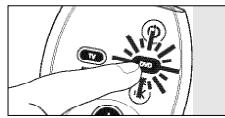
3 HaKMnTe OJHOBpeMeHHo KHOHKn Ha NpAte SRU 1020 nyaepKbaiTe Hx B TeueHe 5 cekyHa, noka He 3acBeTITcR KHOHka DVD.
4 HaKMTe KHOIIKN A N B TaKOM nopAKe.
5 HaKMMTe KHOKNyTV,TO6bI Bb6paTb TeLeBn3Op.HaKMITE n ydepeKINBaITe KHOKNy,IOKA OHa He 3acBETNTCA.
KHOIIKA DVD BCnblxINBaET DaBa pa3a. Tepepb KHOIIKA DVD IO3BOANT BaM yIpaBAArTb BAuIM BTObpIM TeAEBn3OpOM, a peXmMDVD-ycTroPoiCTBA 6yEt ydaAeH.
- Ecam KhoIka DVD BCbIbIXHET OAnHOKpaTHO 6oAee dAnTeAIBHO, peryAmPOBa Bbl6opa yCTpOiCTBa He BblIOHaHeHa. NaHTe CHOba c wara 1.
3aIporpaMMnpyTe SRU 1020 aY npabEHHB TOpbIM TeAebH3Opom.CM.IyHKT 'HaCTpoika IyBta AINCTaHIOHOY npabEHHA'.
BkIoueHne/BbIKIoueHne yHKunn 3aunTa ot AeTe'
KhoNkFavorITES (IO6MbIe KaHaIbI) (A, B, C, D n E) NO yMOuAHnIO HaCTPoeHbI dA BbIbOpa nepBbIX pTn KHaAOB BaIero TeAEBnOpa. ECm Bbl XOTnTE cAeATb TAK, YTObIb BauIN DeTH (nM APyTne 1oA3OBaTeN) He MOn N BbIpaTBe CDOCTYInhIe TEAEBn3IOHNHbI KaHaIbI, Bbl MoKeTe BkIAOHTb FyHKUIO 3aAsnta OT dTeI. Pnir nTo mnp HauTNI KHOONF AVOFRITES n + PROG - bdyT DOCTyINbI ToAkbO KaHaIbI, 3anporpammmioBaHbIbe dA KHOON FAVORITES.
HaKMnTe OAnHOBpeMeHHO KHOHKn/ A u N C u yApexKbAte nX B TeueHne 3 ckyH, TTO6bl BkAOHTb fHKUIO 3aunTa OT aTei.
HaKMnTe OAnHOBpeMeHNO KHOJI N D n I / E ny aepKnae TeX B TeueHne 3 cekyH, yTObbl bIKIOHTb fHKUIO '3aunTa OT deTei.
CoxpaHeHne AIO6MbIX TeAeKaHaAOB/IpOprpaMMnpoBaHne KHOJOK nOpceAcTBOM '06yueHn'
KhoNFAVORITES (A,B,C,DnE) no yMoAnHIO HAcTPOeHbI ABy Bb6opa nepBbX pTIN KaHaAOB BaJero TeAEBnOpa. Ipn JKeAHN Bbl MoKeTe 3anPporpammmpoBaTb ABy 3TNX KHOJOK apTyne fHKUIN. Bbl MoKeTe 3anPporpammmpoBaTb ABy HNX dpTyne (AIOBmMbIe) TeLEBn3IOHbIe KaHaBI nMfHKUIN KHOJOK BaJero oprInHaBHO rnyTa dNCTAHIOHHO ynpabEAHn, OTCyTCTBYIOUme BR SRU 1020. Ta npOeDpya OINcaHa C nCIOAIBoAHiem npBBeDAHOrO HnKe npimepa (pepeHa3NaueHne KhoJIEN E ABy TeAEBnOpa).
1 O6ecnebte Haunue Iod pykoB BaWero opuHaHbHOro npTa dNCTaHcHOnHOrO ynpabAeHnTeAebn3Opom.
2 HaKMnTe OAnHOBpeMeHHo N yApEeKbAaTe KhoNk E nTV B TeueHne 5ceyHa, noka KhoNka TV He 3acBETTcra.
3 P0AnxTe SRU 1020 nOpunHaBbIyBnTnCTaHIOHHOro ynpabEnHa pOBHyIO NOBepxHOCTb (HaNPmEp, Ha cToA) n HApabTe Ix APyr Ha Apyra, PnIT OTM paCtOAHme MEXdY HIMN DOANKHO COCTABr5-10 cm.
4 CoXpaHeHne AIO6MbIX TEAEBn3HOHbIX KaHaAOB
Ha opunnaHbHOM NbTe dntaHOnHOY npabEHHa: BBeNTe Homep AIO6mOHTAHn (HaPIMep,11).O63aTeAHO BBeNTe BTOpy UΦpy He nO3DHee Yem Upe3 30 cekyHd nocle nepBOi.
MAN
4 IporpammpoBaHne KhoNOK nocpegCTbOM 'obyuHn'
Ha opunHaHOM npAte DnCTaHIOHHO ynpaBHeHr: HaKmTe KhoNkY,dyHKUIO KOTOpO BbXoTInTe cKOnPiPoBaTb (HaPImep,P).
Yepe3 HeKOTOpoe Bpem KHOIIaTV BCbIXHeT DaBxbl, YTO6bl NOATBepAnTb, YTO: - KaHa1 11 coXpaHEn noD KHOIIKO E, HnN
-
HOBAJ φ YHKUIN CoXpaHeHa NOD KHOHKOJE.
-
EcH KHOJaTV BCbIXINBaET OaIH pa3 6oAee dNITeABHO, TeAEBnIOHHK KaHaI IaN ΦHKUH He coXpaHeB. TOBTOPTE OINCAHNBE BbIe WAr, oEcbneHb PpABnHoe B3aIMHoe paCNOOKeHne pYbTOB DnCTaHIOHOrO ynpabAeHna, Ka ONCaHO Ha 3.
5 NOBTOPIte 2-4,HTO6bI COXPAHINb APYrNE AIO6MbIe TEAeBUNHOHHbIe cTAHcIMN HfHKUIM.
- Ecam Bby XOTnTE CMOTpeb ToaBko CTaHUN, COxpaehHHBe IoA KHOJIKAmF AVORITES, Bbl MoKeTe OTKIOUHTB Bby6Op dpyrnx C TAHUN C NOMOUIK KO HONOK + PROG - , KaK OINCAHO BnyHKTe 'BkIoueHHe/ByIKIoueHHe fHyKUn 3aunTa oT deTe'.
BbI TaKHe MoKeTe 3aNpOprpaMmPobBaT bHKnU KHOIOFFAVORITES c BaWero opuHaNbHO rYbTaA nCTaHcUNHOrO ynpaBaeHnRA DVD-ycTroPcntBa. ATO NOBTopnPte OINCaHhbIe BblSe IaRn.
BocctaHOBaeHne HcXoAHyix yHKun BaIeO nyIbTa AnCTaHIOHOHorO ynpabAEHH
BbIIOHInTe npMBeHHe HnKe yKa3aHnIy, TTO6bl BOCCTaHOBNTb 3aBOADCKne YCTaHOBKN IIO yMOAnHIO nyTa SRU 1020:
1 YdepKbBaIe OAOBpeMeHHO KHOKN HaxaTbIMN B TeueHne 5ceyHa, NOKA KHONKa TEkyuero Bb6paHHoro pexima (TV mN DVD) He MHTET DaJxbln 3aTEM OCTaHeTCBETaJIeC.
2 HaKMnTe KHOPIKNI B,PROG + n D TaKOM IopAKe.
KhoIka peKIMa (TV mnn DVD) BCbIxINBaet DABKaDb, YTO6bI NIOATBepAHTb, TTO nepeyctaHOBA BblIOAnHe YA CNEUHa. Teep bnybT SRU 1020 BO3BpaueH B COCTOAHne, B KOTOPOM OH HAXOANCA, KOrDa Bbl BnepBBie I3BAeKAn erO n3 ynaKOBKn.
A K▼, 4444, 4477, 44K
V▼,▲△△,▲△K,▲△K,
Sound & Vision.
Soundwave
Standard.
Starlight
Stern
Sunkai.
Sunwood. △
Superla.
Supra.
Susumu.
Sutron.
Sydney
Sysline
Tandberg
Tandy.
Tashiko
Tatung.
TCM. 1
Tec. ▲
Telefunken.....A#V,4A,4A,A4A,A4A
Teletech.
Teleton.
Tensai.
Tesmet.
Tevion.
Texet
Thomson.
...
...
...
Thorn.
Tokai.
Tokyo
Toshiba.
A▼△,▲▼<△,▲▼>△,▲▼>△
...
.
...
...
Towada
Uher.
Ultravox.....
United.
Universum
Vestel.
Vexa.
Victor
Videologique.
Videosat.
VideoSystem
Viewsonic.
Visiola.
Vision
Vortec.
Voxson.
Waltham.
Watson
Watt Radio.
Wega.
Weltblick
Weston.
White Westinghouse..., ,
Yoko.
Yorx.
Zanussi
SETUP CODES FOR DVD
Aiwa. ▲▼,△▼,,
Akai
Alba
Apex
Brandt.
Bush. ▲△, ▲△, △▼
Classic
CyberHome... ▲△◇, ▲△◇, ▲△▼, ▲△▶, ▲▼
Daewoo.
Daytek.
Denon
Denver
DK Digital. ▲△, △▼△
Dmtech.
A# ▲,△K▼K,△K#K,△K#K,△
A△A△,A△▼A△▼A△▼A△▼
Philips Magnavox
Pioneer. ▲△□,△△□,△□
A▼▲,▲▼▲,▲▲▲,▲▲▼
RCA.
Saba. ▲▼, △△
Sampo.
Samsung. ▲▼△, ▲▼, △▼, △▼, △▼, △▼, △▼
Sanyo. ▲▼,▲△△,△▼
ScanMagic.
Schneider
Scott.
SEG. ▲▼,△▼▼,
Sharp.
Sherwood
Shinco.
Skymaster.
Sony.
△△V,△△V,△BVD,△B
...
AOKAOKB,AKD▼,AOK
Thomson.
A
Toshiba.
A#▼△,A#▼△,A#▼▼,
Wharfedale.
Yamaha. △▼△, △▼△, △▼△, △▼
Yukai
Zenith
SETUP CODES FOR VCR
Aiwa.
Akai. ▲△, ▲△, ▲△, ▲△, ▲△
Akiba
Akura. ▲
Alba.
Ambassador
Amstrad.
Anitech.
ASA
Asuka.
Baird. ▲△, △△, △△
Basic Line.
Baur.
Bestar
Black Panther Line
Blaupunkt
Bondstec
Bush. 1
Catron
CGE. ▲△·, ▲△
Cimline.
Clatronic
Condor
Crown.
Daewoo.
Dansai.
Dantax
Daytron.
De Graaf.
Decca
Dual.
Dumont.
Elta
ESC
Etzuko
Ferguson
Fidelity
Finlandia
Disposal of your old product
Your product is designed and manufactured with high quality materials and components, which can be recycled and reused.
When this crossed-out wheeled bin symbol is attached to a product, it means the product is covered by the European Directive 2002/96/EC.
Please inform yourself about the local separate collection system for electrical and electronic products.
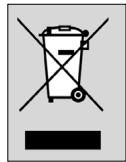
Please act according to your local rules and do not dispose of your old products with your normal household waste. The correct disposal of your old product will help prevent potential negative consequences for the environment and human health.

- CONTENTS
- INTRODUCTION
- INSTALLING THE REMOTE CONTROL
- INSERTING THE BATTERIES
- TESTING THE REMOTE CONTROL
- SETTING THE REMOTE CONTROL
- MANUALLY SETTING THE REMOTE CONTROL
- AUTOMATICALLY SETTING THE REMOTE CONTROL
- ENGLISH
- KEYS AND FUNCTIONS
- EXTRA POSSIBILITIES
- ADJUSTING DEVICE SELECTION (MODE KEYS)
- ACTIVATING/DEACTIVATING CHILD LOCK FUNCTION
- STORING FAVORITE TV CHANNELS/LEARNING KEYS
- 4 STORING FAVORITE TV CHANNELS
- OR
- 4 LEARNING KEYS
- RESTORING THE ORIGINAL FUNCTIONS OF YOUR REMOTE CONTROL
- TROUBLESHOOTING
- SOMMAIRE
- EVPYOIOION/AEVPEYONOIOION NADIKNS AOAIAEIA
- AONHOHHTEAHBHE B03MOXHOCTH
- PEYAMPOBKA BBL6OPA YCTPOICTBA (KHOJIKN PEKIMOB)
- BKIOUEHNE/BBIKIOUEHNE YHKUNN 3AUNTA OT AETE
- COXPAHEHNE AIO6MBIX TEAEKAHAAOB/IPOPRPAMMNPOBAHNE KHOJOK NOPCEACTBOM '06YUEHN
- 4 COXPAHEHNE AIO6MBIX TEAEBN3HOHBIX KAHAAOB
- MAN
- 4 IPORPAMMPOBAHNE KHONOK NOCPEGCTBOM 'OBYUHN
- BOCCTAHOBAEHNE HCXOAHYIX YHKUN BAIEO NYIBTA ANCTAHIOHOHORO YNPABAEHH
- SETUP CODES FOR DVD
- SETUP CODES FOR VCR
- DISPOSAL OF YOUR OLD PRODUCT
Brand : PHILIPS
Model : SRU1020
Category : Universal remote