GuitarLink - Hi-fi system ION - Free user manual and instructions
Find the device manual for free GuitarLink ION in PDF.



| Product Type | USB Audio Interface for Guitar |
| Brand | ION |
| Model | GuitarLink |
| Category | Hi-Fi System |
| System Compatibility | Windows XP/Vista/7, Mac OS 9 or higher |
| Connectivity | USB |
| Power | Via USB port |
| Installation | Plug-and-play, automatic drivers |
| Main Function | Analog-to-digital conversion for guitar recording |
| Audio Latency | Adjustable via software, recommended < 15-20 ms |
| ASIO Support | Yes, via ASIO4ALL driver (downloadable) |
| Audio Configuration | Default settings, manual selection possible |
| Dimensions (approx.) | 8 x 3 x 1.5 cm |
| Weight (approx.) | 30 g |
| Color | Black |
| Material | Plastic |
| Maintenance | Wipe with a dry cloth |
| Safety | Do not expose to moisture, use on a stable surface |
| Spare Parts | Not available |
| Repairability | Not user-serviceable |
Frequently Asked Questions - GuitarLink ION
User questions about GuitarLink ION
0 question about this device. Answer the ones you know or ask your own.
Ask a new question about this device
Download the instructions for your Hi-fi system in PDF format for free! Find your manual GuitarLink - ION and take your electronic device back in hand. On this page are published all the documents necessary for the use of your device. GuitarLink by ION.
USER MANUAL GuitarLink ION
AudioLink Series 1/4"-to-USB Cable
QUICKSTARTGUIDE
ENGLISH (1-3)
GUIA DE INICIO RAPIDO
ESPANOL(4-6)
GUIDE D'UTILISATION RAPIDE
FRANÇAIS (7-9)
GUIDA RAPIDA
ITALIANO (10-12)
KURZANLEITUNG
DEUTSCH(13-15)
SNELSTARTGIDS
NEDERLANDS (16-18)
CONNECTING THE GUITARLINK
ION GUITARLINK is a plug-and-play device, which means that there are no drivers to install. The first time you connect it to your computer, it will automatically install all the necessary driver components and be ready to use.
SYSTEM REQUIREMENTS:
PC:WindowsXP,Vistaor7
Mac: OS 9 or higher
USB Port
ABOUT AUDIO LATENCY
"Latency" is the time it takes for your computer's soundcard to process incoming data and output a sound. The lower your latency is, the faster your computer will respond to commands and output sound.
If you experience significant delay between the time you play and the time that the computer outputs audio, we recommend going into your software's "Preferences" settings to make sure that your soundcard's latency (or buffer) is set to a low number - ideally lower than 15-20ms.
If you still experience too much latency after adjusting your software latency settings, download the free ASIO4ALL (Audio Stream Input/Output) driver for PC at www.asio4all.com. ASIO drivers generally perform better and with lower latency since they create a more efficient communication between audio devices and software.
AUDIO SETUP
In most cases (especially if you are using Windows) GUITARLINK will be automatically selected as your computer's default recording device. If you find you are unable to record any audio with GUITARLINK, follow the instructions below for your operating system.
You can use GUITARLINK with any digital audio workstation or recording software that supports USB audio devices. Be sure your audio software program is set up to receive audio via GUITARLINK. This can usually be done in your software's "Preferences" or "Device Setup." Please consult your software manual for more information.
WINDOWS7
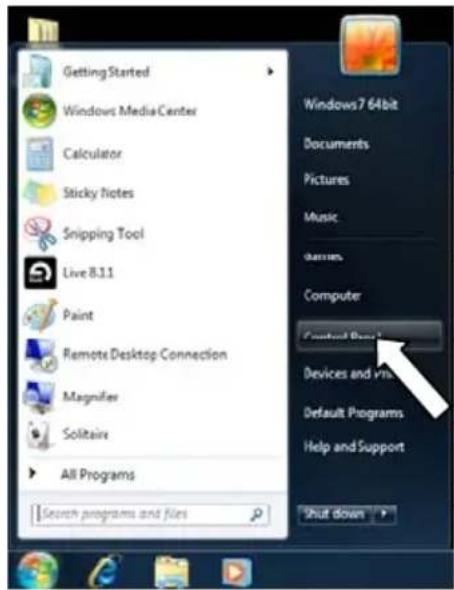
- Go to Start Menu Control Panel Hardware and Sound Sound.
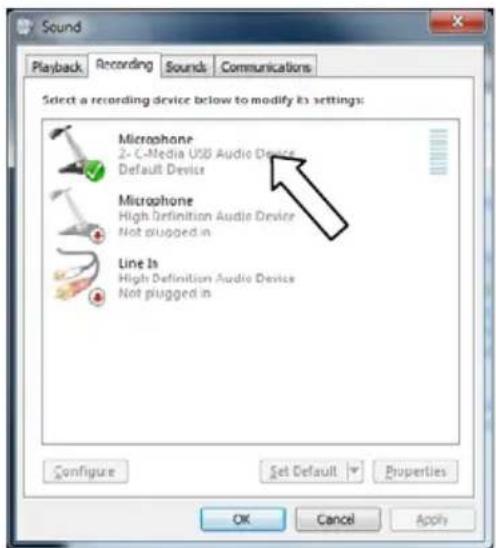
- Select the "Recording" tab.
- Make sure Microphone - C-Media USB Audio Device is set as the default device, then click "OK."
WINDOWS VISTA
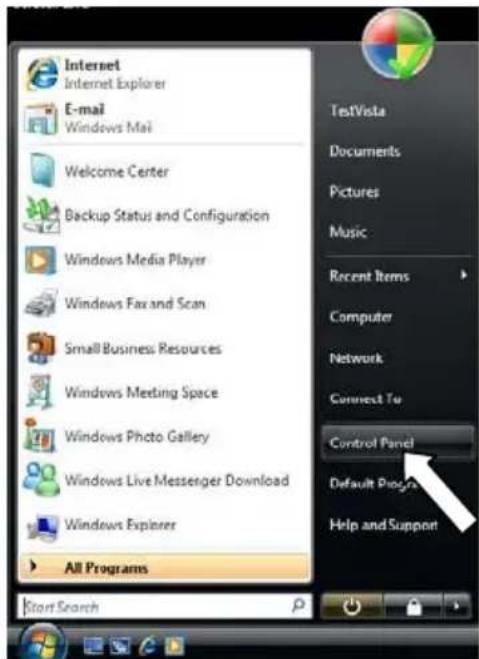
- Go to Start Menu Control Panel Sound. (If you don't see Sound, select "Switch to Classic View," and the Sound Control Panel should become available.)
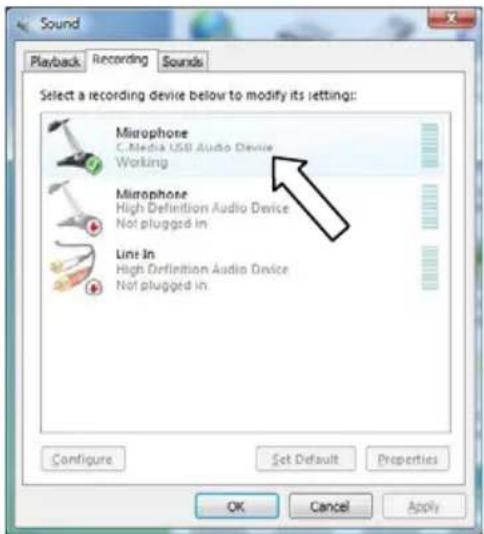
- Select the "Recording" tab.
- Make sure Microphone - C-Media USB Audio Device is set as the default device, then click "OK."
WINDOWSXP
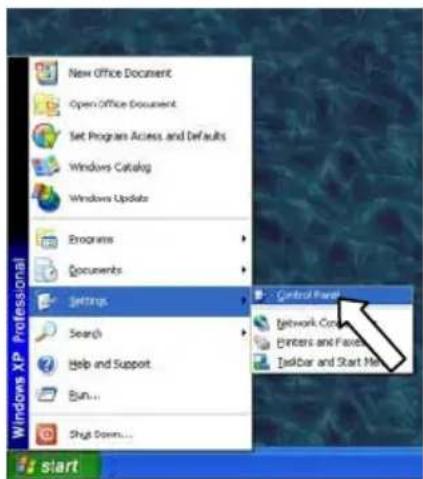
- Go to Start Menu Control Panel Sounds and Audio Devices.
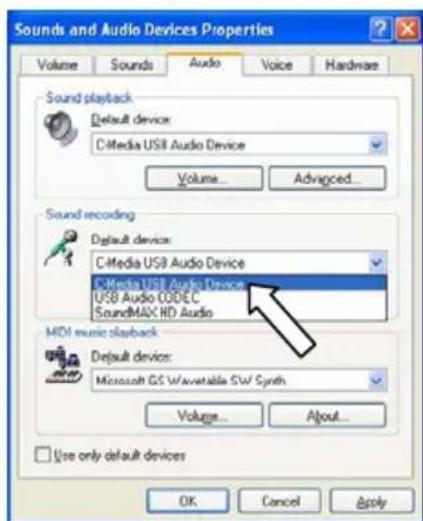
- Click the "Audio" tab.
- Under "Sound Recording," make sure C-Media USB Audio Device is selected as the default device, then click "OK."
MAC
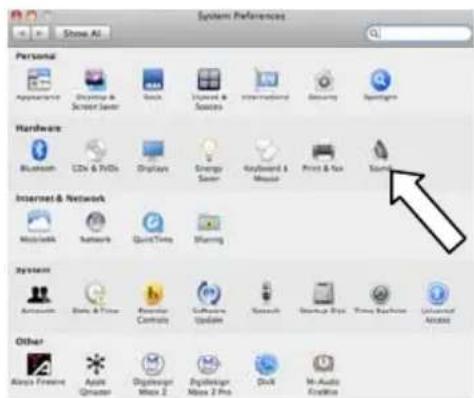
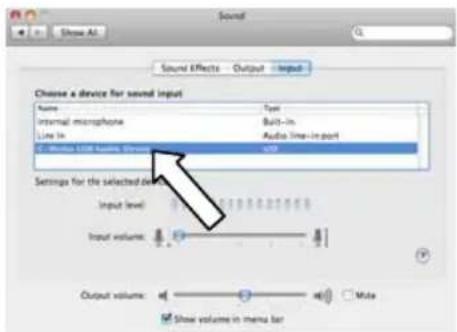
- Go to System Preferences Sound.
- Click the "Input" tab.
- Make sure C-Media USB Audio Device is selected, then close the window.
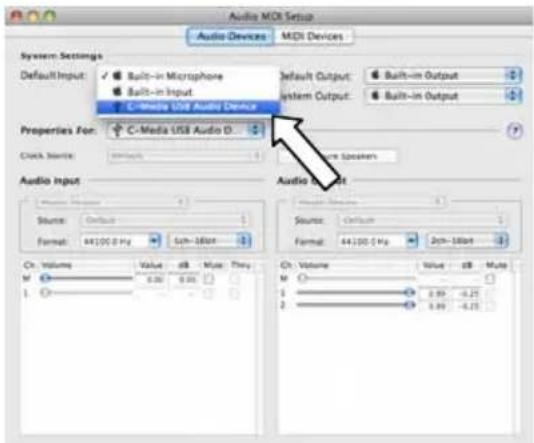
- Go to Applications Utilities Audio MIDI Setup.
- In the "Audio Devices" tab under "System Settings," select C-Media USB Audio Device as your Default Input, then close the window.
Tel: (U.S.) 401.658.3743
Email: support@ionaudio.com
www.ionaudio.com

Brand : ION
Model : GuitarLink
Category : Hi-fi system