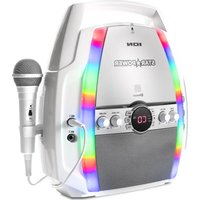
Star Power - Hi-fi system ION - Free user manual and instructions
Find the device manual for free Star Power ION in PDF.


| Product Type | Karaoke system with CD player and Bluetooth |
| Brand | ION |
| Model | Star Power |
| Power | Mains (power cable included) or 8 C-type batteries (not included) |
| Disc player | CD, CD+G (karaoke with lyrics) |
| Wireless connectivity | Bluetooth for audio streaming |
| Audio inputs | 2 microphone inputs 6.35mm (Mic 1 and Mic 2), 1 stereo auxiliary input 3.5mm |
| Audio/Video outputs | Composite RCA video output, RCA audio outputs (for powered speakers) |
| Microphone functions | Microphone volume control, echo effect, AVC function (automatic voice control) |
| CD playback functions | Play, pause, next/previous track, forward/backward scanning, repeat one track or entire disc, program track order |
| Lighting effects | Yes, activation by dedicated button |
| Display | Operation display screen |
| Built-in microphone holder | Yes, on the top panel |
| Dimensions | Approximately 40 x 25 x 30 cm (estimated) |
| Weight | Approximately 3.5 kg (estimated) |
| Box contents | Star Power, microphone, power cable, RCA audio/video cable, karaoke compact disc, quick start guide |
| Care and cleaning | Clean with a soft, dry cloth. Avoid liquids. |
| Safety | Follow the safety instructions provided in the manual |
| Repairability | Spare parts not specified. Contact ION customer service if issues arise. |
Frequently Asked Questions - Star Power ION
User questions about Star Power ION
0 question about this device. Answer the ones you know or ask your own.
Ask a new question about this device
Download the instructions for your Hi-fi system in PDF format for free! Find your manual Star Power - ION and take your electronic device back in hand. On this page are published all the documents necessary for the use of your device. Star Power by ION.
USER MANUAL Star Power ION
Quickstart Guide English (2-4)
Appendix English (11)
Quickstart Guide (English)
Introduction
Box Contents
Star Power
Microphone
Power Adapter
RCA Audio/Video Cable
Karaoke Disc ( + )
Quickstart Guide
Safety & Warranty Manual
Support
For the latest information about this product (system requirements, compatibility information, etc.) and product registration, visit ionaudio.com.
Quick Setup
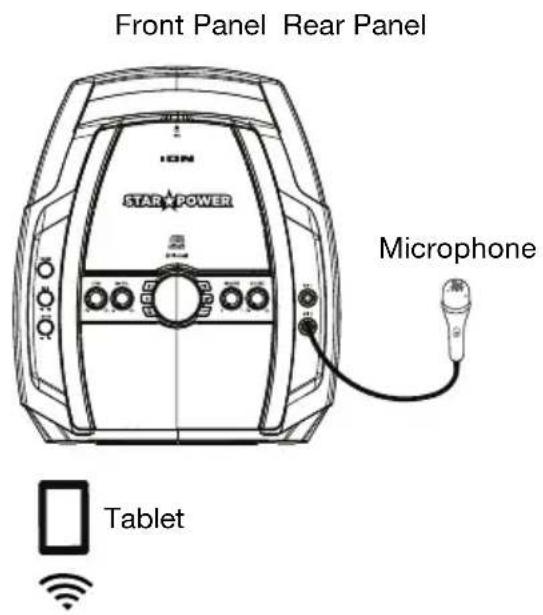
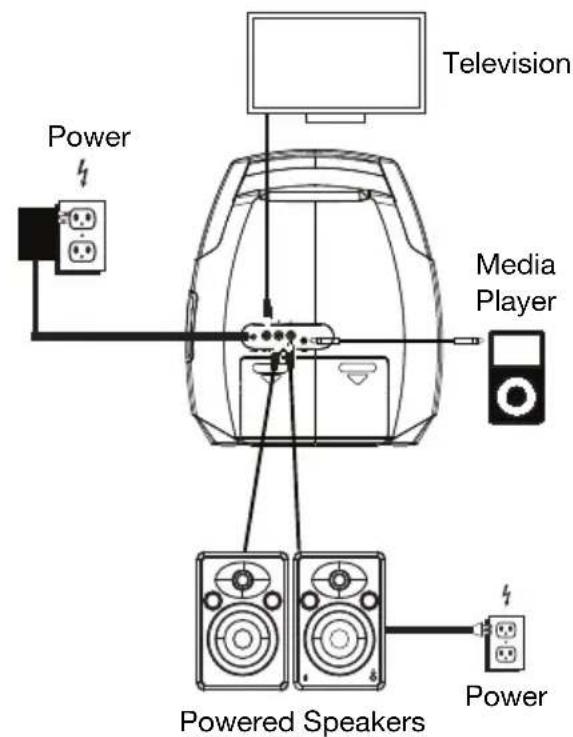
Connection Diagram
Items not listed under Introduction > Box Contents are sold separately.
Features
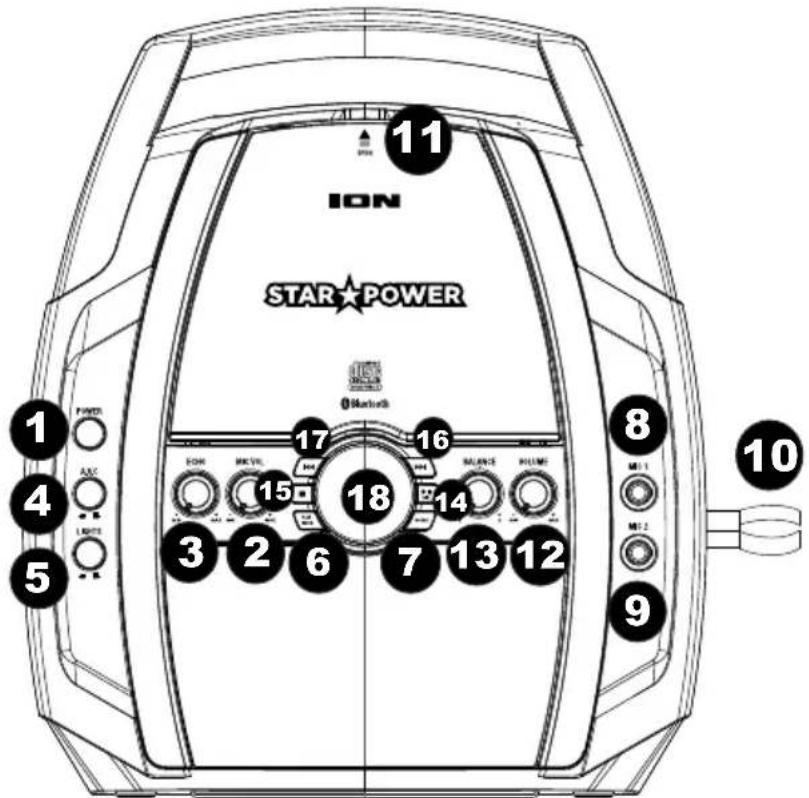
Top Panel
-
Power: Press this button to turn Star Power on or off.
-
Microphone Volume: Adjust this knob to increase or decrease the signal gain for the Mic 1 and Mic 2 inputs.
-
Echo: Adjust this knob to add an echo effect to the Mic 1 and Mic 2 signal.
-
AVC (Automatic Voice Control): When the AVC function is activated, the main vocal on a multiplex track (split track) is removed when the singer begins singing into the microphone. When the singer stops singing, the main vocal on the multiplex track is automatically re-activated. This is useful during practice sessions when a singer is learning a song. Note: The AVC function only works with multiplex
split track) recordings and not with standard audio recordings.
-
Lights: Press this switch in to activate the light effects.
-
Play Mode: While a CD is playing, press this button once to repeat a single track (a blinking dot will appear near the REP option on the display). While a CD is playing, press this button again to repeat the entire CD (a solid dot will appear near the REP option on the display). While a CD is playing, press this button again to turn off repeat (the dot near the REP option on the display will disappear). When a CD is stopped, press this button to program the track playback order. See Programming CD TrackPlayback Order for more details on using this function.
-
Source: Press this button to cycle through the sources for Bluetooth, Aux Input, and CD.
-
Mic 1: Connect the included dynamic microphone to this 1/4 (6.35 mm) input.
-
Mic 2: For duet singing, connect another dynamic microphone (sold separately) to this 1/4 ” (6.35 mm) input.
-
Mic Holder: Secure your mic here when it is not being used.
-
CD Compartment: Open the CD compartment to load/remove a CD.
-
Volume: Adjust this knob to control the overall volume of the internal speakers and RCA outputs from the CD audio, Bluetooth, microphone inputs, and Aux In sources.
-
Balance: Adjust this knob to control the separation between the left and right channel signal going to the internal speakers.
-
Play/Pause/Pair: Press this button to play or pause the CD. In Bluetooth mode, press and hold this button for 3 seconds to disconnect from a paired Bluetooth device.
-
Stop: Press this button to stop CD playback.
-
Next Track/Scan Forward: Press and release this button to go to the next CD track. Press and hold this button to scan forward through the current track. Note: Scan-forward will not work with CD + G discs.
-
Previous Track/Scan Backward: Press and release this button to go to the previous CD track. Press and hold this button to scan backward through the current track. Note: Scan backward will not work with CD+G discs.
-
Display: This screen shows the unit's current operation.
Rear Panel
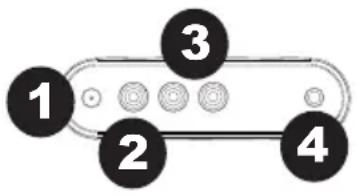
- Power Adapter Input: Connect the included power adapter from here to a standard power outlet.
- Video Output: Connect this composite video output to a computer monitor or television.
- RCA Output: Connect these audio outputs to powered speakers.
- Aux In: Connect a smartphone, MP3 player, or other audio source to this stereo 1/8" (3.5 mm) input.
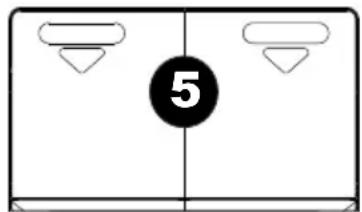
- Battery Compartment: For mobile use, install 8 "C" type batteries here to power Star Power.
Note: If a CD will not spinup or playback, try installing fresh batteries.
Programming CD TrackPlayback Order
Follow these steps to program a sequence of tracks to playback in a certain order.
- Press the button to stop a loaded disc.
- Press the Play Mode button.
- Press the Previous Track/Next Track buttons to select a track.
- Press the Play Mode button to add the selected track to the program.
- Repeat steps 2-3 to add more tracks in a specified order.
- Press to start playback of the tracks.
Pairing a Bluetooth Device
- Power on your Bluetooth device.
- Power on Star Power.
- Press the Source button to switch to Bluetooth (BT) mode. If you have previously connected to another Bluetooth device, Star Power will reconnect. If this is the first time connecting, the Bluetooth icon will flash on Star Power's screen to search for Bluetooth devices.
- Navigate to your Bluetooth device's setup screen, find "Star Power" and connect. The Bluetooth icon will be lit solid when a device is "paired" to Star Power.
Note: If your Bluetooth device prompts for a pairing code, enter "0000".
- To disconnect pairing while the Bluetooth icon is lit solid, press and release the Play/Pause/Pair button.
Using the Video Output
- Load a CD + G disc into Star Power.
- Select a + track with the Previous Track/Next Track buttons and press to start playback.
- Connect a RCA video cable from the Video Output of Star Power to a composite video input on your television or computer monitor.
- Adjust the television/computer monitor to select the composite video input. Video content played through Star Power will now be seen on the connected television/computer monitor.
Assistance technique
Technical Specifications
| Output Power | 3W (RMS) |
| Supported CD Formats | CD, CD-R, CD-RW, CD+G |
| Bluetooth Range | 33 ft. 10 m |
| Power | Power Adapter: 100-240V, 50/60 Hz Batteries: (8) “C” batteries |
| Dimensions (width x depth x height) | 5.1" x 10.6" x 13.4" 130 x 270 x 340 mm |
| Weight | 3.64 lbs. 1.65 kg |
Specifications are subject to change without notice.
Trademarks & Licenses
ION Audio is a trademark of ION Audio, LLC, registered in the U.S. and other countries.
All other product names, company names, trademarks, or trade names are those of their respective owners.
ionaudio.com

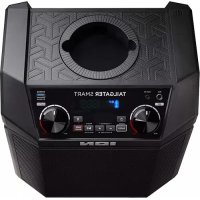
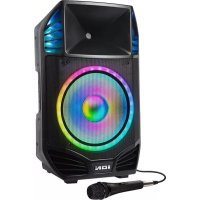
Brand : ION
Model : Star Power
Category : Hi-fi system