
SBCRU510 - Remote control PHILIPS - Free user manual and instructions
Find the device manual for free SBCRU510 PHILIPS in PDF.




| Product type | Universal remote control |
| Brand | Philips |
| Model | SBC RU510 |
| Power supply | 2 AAA 1.5V batteries (type R03, UM4) |
| Dimensions (W x D x H) | Approx. 20 x 5 x 2 cm |
| Weight (without batteries) | Approx. 100 g |
| Main functions | Power/standby, mute, volume and channel control, numeric keys, teletext (subject to TV compatibility), color and brightness adjustment via Shift key |
| Programming | Manual entry of 4-digit code or auto search |
| Compatibility | TVs of many brands (code list included) |
| Memory | Stores up to 1 TV code |
| Additional function keys | Shift, Menu, OK, Teletext, colors (red, green, yellow, blue) |
| Maintenance and cleaning | Wipe with a soft, dry cloth. Do not use abrasive products. |
| Battery life | Approximately 1 year (replace once a year) |
| Reset | Can reset to factory settings (keys 1+6, then 981) |
| LED indicator | Green LED for transmission confirmation |
| Spare parts and repairability | Not applicable - no spare parts available. In case of failure, replace the remote. |
| General information | User manual included (108 pages). Philips telephone support available. |
Frequently Asked Questions - SBCRU510 PHILIPS
User questions about SBCRU510 PHILIPS
0 question about this device. Answer the ones you know or ask your own.
Ask a new question about this device
Download the instructions for your Remote control in PDF format for free! Find your manual SBCRU510 - PHILIPS and take your electronic device back in hand. On this page are published all the documents necessary for the use of your device. SBCRU510 by PHILIPS.
USER MANUAL SBCRU510 PHILIPS
You just made a great choice by buying this Philips universal remote control! It can operate the most-used functions of almost any brand of TV.
Installing the batteries
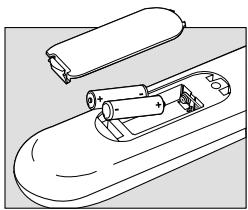
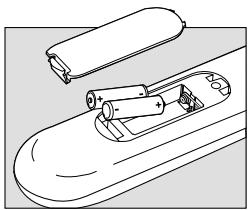
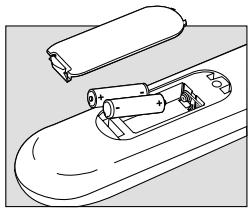
Your SBC RU 510 needs two 1.5V batteries, type R03, UM4 or AAA.
Put them in like this:
TIP
- Remember to replace the batteries at least once a year.
- Don't leave the batteries out for longer than one hour, otherwise you will need to set-up the SBC RU510 again.
KEYS & FUNCTIONS

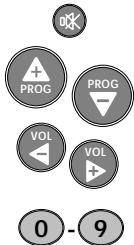
Power: to switch TV on and off.
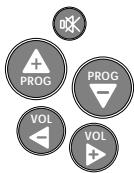
Mute: to switch the TV sound on and off.
Channel Up/Down: to select next / previous channel.
Volume Up/Down: to control the TV volume.
Number Keys: for direct channel selection and other functions.
To switch between one and two-digit channel selection and display.


SHIFT: to get access to additional functions (press together with other function keys). Depending on the age of your equipment, the result is for example:
SHIFT + PROG+: increases brightness or menu up function. SHIFT + PROG-: decreases brightness or menu down function. SHIFT + VOL+: increases colour or menu right function. SHIFT + VOL-: decreases colour or menu left function.


To operate menu control.
To confirm your selection.
Try other shift/key combinations on your TV to discover which functions are available.
Remember that you can't get access to additional functions if these functions were not available on the original remote control of your TV!


To switch on teletext.
To enlarge the teletext display on screen.
To stop changing teletext pages.
To switch off teletext.
If you use the memory out key () to access the next teletext page on your Philips TV, see Troubleshooting.
Fasttext

Red

Green

Yellow

Blue
SET-UP FOR USE
ADVICE
Carefully read the complete procedure before starting!

Your TV is a Philips brand:
1 Press the power key to test.
- The green LED lights up to confirm transmission.
CHECK
Press a few keys to check correct response.
If response is not correct, go to the next paragraph.
Your TV is of another brand, or your TV is a Philips brand, but not all keys respond correctly:

1 Look up the brand name of the TV you want to operate in the code list (centre of this manual). 2 Make sure the TV is switched on. 3 Press and hold keys 1 and 3 simultaneously - for about three seconds - until the green LED lights up. (Release the keys: the green LED should stay on) 4 Enter your 4-digit code using the number keys, within 30 seconds. - The green LED flashes twice.
CHECK
That's it! Press a few keys to check correct response. If response is not correct, repeat procedure beginning at step 1, using the next 4-digit code in the code list.
NOTE
- If the LED displays one long flash, the code was not recognised. Please go back to step 1 and repeat the procedure, using the next 4-digit code in the list.
- If no key is pressed within 30 seconds, you have to start again at step 1.
- If no correct code is in the list, go to the next paragraph.
ADVICE
Carefully read the complete procedure before starting!
You do not know the brand of your TV/you cannot find the right code in the code list -> auto search:
1 3

1 Make sure the TV is switched on. 2 Press and hold keys 1 and 3 simultaneously - for about three seconds - until the green LED lights up. (Release the keys: the green LED should stay on) 3 Press the power key to start the search. Make sure that you keep the remote control pointed at your TV. Each time the green LED flashes, another code is sent. When the right code is found, the TV switches off. Immediately press the power key to stop the search. If the green LED flashed again after the TV switched off, this means you missed the correct code! If you missed the code, follow the next procedure, starting at step 4. If the LED did not flash again after the TV switched off, go to step 6.

4 Switch the TV manually back on. 5 Press 'PROG-' (down only!) repeatedly to send previous codes until the TV switches off again.

6 Press the power key to lock the correct code in the SBC RU510's memory. The green LED flashes twice.
CHECK
Switch TV on manually. Press a few keys to check correct response. If response is not correct, repeat procedure beginning at step 1.
NOTE
- The search time averages about 90 seconds. (Maximum search time is 5 minutes for TV).
- Autosearch stops automatically after all codes have been tested.
MAKE A NOTE OF YOUR CODE!
ADVICE
Carefully read the complete procedure before starting!
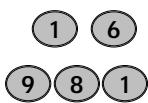
① ⑥
Note the code inside the battery case and in the code list in the centre of this booklet. This may be useful if you ever need to set up the SBC RU510 again. You used the auto search procedure or you forgot to note the code after set up? No problem! You can still 'read out' the code from the remote:
1 Press and release keys 1 and 6 simultaneously. Important: after pressing the keys, you have to release them immediately! - The green LED lights up. 2 Press the two digits key. - The green LED goes out.
① 2 3 4
3 Press key 1 and count the number of times the green LED flashes. This is the first digit of the 4-digit code. (No flashes means the digit is zero.) 4 Press key 2 and count the number of flashes for the second digit. 5 Press key 3 and count the number of flashes for the third digit. 6 Press key 4 and count the number of flashes for the fourth digit. 7 Note the code.
Add a specific function to your remote control
In case you do not find the function you want to use (e.g. a specific teletext function), it can easily be added to your remote control's functionality. All you have to do is contact the Philips Universal Remote Control helpline to obtain the 3-digit code for the missing function. The rest of the procedure is quite simple:
SHIFT
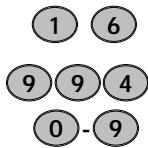
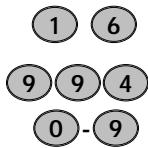
1 Press and hold keys 1 and 6 simultaneously - for about three seconds - until the green LED lights up. 2 Enter 9, 9 and 4, using the number keys. 3 Enter the 3-digit code you received from the helpline using the number keys, within 30 seconds. 4 Press the key under which you want to store the new function. The LED flashes twice to indicate a successful installation.
If you want to store the function under a Shift/Key combination; first press Shift, then press the required function key.
NOTE
- The original function of the key will be overwritten. If you want to return to its original function see the following section about resetting.
- Remember: no functions can be performed by this remote control that are not present on the equipment you are operating!
Reset your remote control to its original presets:
If you want to return to the original functions of all keys and delete all added functions under programmed keys, a simple reset procedure is sufficient:
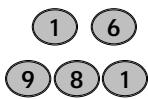
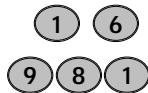
1. Press and hold keys 1 and 6 simultaneously for about three seconds until the green LED lights up. 2. Enter 9, 8, and 1 using the number keys. The LED flashes twice to indicate a successful reset.
The keys on your remote control will now perform their default functions.
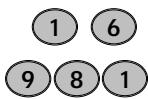
① ⑥
981
TROUBLESHOOTING GUIDE
Problem:
- Solution:
Device is not responding and the green light does not flash when you press a button.
- Replace batteries with two new 1.5 volt, type RO3, UM4 or AAA batteries.
Device is not responding, but the green light does flash when you press a button.
- Aim the SBC RU510 at the TV and be sure that there are no obstructions between the SBC RU510 and the TV.
- The SBC RU510 is not performing commands properly.
- You may be using the wrong code. Try repeating Set up using another code, listed under your brand, or start the Autosearch Set-up over again to locate the proper code. If the TV still doesn't respond, call the help-line and we'll put you back on track.
- You can't access teletext pages and you were used to use this (⇔) button to access teletext.
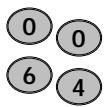
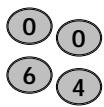
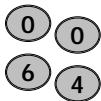
- Follow Set up procedure and at step 5 of section "Your equipment is of another brand, or your equipment is a Philips brand, but not all keys respond correctly" press keys 0, 0, 6 and 4. To enter teletext pages, press the teletext cancel button.
- The teletext buttons do not work.
- Be sure your TV has teletext capabilities. The SBC RU510 does not extend the capabilities of your TV!
- Having problems operating all the functions on your TV.
- The SBC RU510 may just need customising for your model type. Just call our help-line and we'll put you back on track.
- Your brand is not listed in the code list.
Try the hands-free Autosearch method.
- You want to reset the remote control to its factory preset.
1 Press and hold keys 1 and 6 simultaneously - for about 3 seconds - until the green LED lights up.
- 2 On the keypad, press keys 9, 8, and 1. The LED flashes twice to indicate a successful reset.
NEED HELP?
If you have any questions about the SBC RU510, please call our help-line for assistance! You can find the number in the code list section of this booklet.
Before you call, please read this manual carefully. You will be able to solve most of your problems. If you don't find an answer to your questions, make a note of your TV in the table at the back of the code list section of this booklet. This makes it easier and faster for our operators to help you. Look for the model numbers in the TV instruction manual, or on the back of your TV. When calling our help-line please have your TV close by, so our operators can help you verify the functionality of your remote control.
The model number of your Philips universal remote control is: SBC RU510
Date of purchase: // day/month/year
AR Systems. .0583, 0379
Arthur Martin. 0427, 0190
Asberg .0103
Asuka 0245
Atlantic. 0233
Atori 0036
Auchan. 0427, 0190
Audiosonic 0064, 0136
Audioton .0244, 0513
Ausind .0103
Autovox. 0233, 0264, 0114, .0571, 0103, 0363
AWA. 0038
Ayomi. 0265
BPL. 0309
BSR. 0321
BTC 0245
Baird. 0136, 0099, 0256
Bang & Olufsen. .0114
Barco 0579
Basic Line 0036, 0245
Bastide 0244
Baur. 0064, 0539, 0388, 0037, 0376, 0571
Bazin 0244
Beko 0513,0397
Beon 0064
Best 0364,0397,0448
Bestar .0583,0397
Binatone 0244
Black Star 0274
Blacktron 0309
Blackway. 0309
Blaupunkt 0354,0355,0218
Blue Sky. 0245
Blue Star 0309
Bondstec 0274
Boots 0244
Brandt. 0360, 0223, 0136, 0362
Brinkmann. 0445, 0583
Brionvega .0114,0389
Brittania 0244
Bruns 0114
Bush. 0064, 0398, 0245, 0036, .0376, 0579, 0063, 0299, 0309, .0321, 0401
CGE.0111,0274,0103,0579
CTC 0274
Carena. 0482, 0583
Carrefour 0063
Cascade 0036
Cathay .0064
Centurion 0064
Century 0114
Cimline 0036
City 0036
Clarivox 0064
Clatronic 0103, 0274, 0397
Concorde 0036
Condor 0347, 0397
Contec 0036, 0063
Continental Edison 0223, 0360, 0426
Cosmel 0036, 0364
Crosley 0111, 0114, 0103, 0374
Crown 0397, 0036, 0064, 0103, 0445
Crystal 0458
CS Electronics 0274, 0245
Cybertron 0245
Daewoo .0401, 0036, 0064
Dainichi .0242, 0245
Dansai .0064
Dantax .0397, 0513
Dawa 0583
Dayton 0036
De Graaf 0235,0575
Decca .0064,0099,0299
Desmet. 0347, 0583
Diamant 0583
Dixi 0036,0064
DTS .0036
Dual 0363,0379,0571
Dual Tec. 0244
Dumont .0114,0097,0374
D-Vision 0583
Dynatron 0583
Elbe 0286
Elcit 0114, 0274
Elekta 0309
Elin 0064, 0575
Elite 0245, 0347
Elman 0129
Elta 0036
Emerson 0114, 0388
Emperor 0309
Erres 0064
Etron 0036, 0190, 0583
Euroman 0291, 0583, 0244, 0397
Europhon 0583, 0543
Expert 0233
Fenner. .0401, 0036
Ferguson..0100, 0265, 0136, 0314, 0362, 0064
Fidelity. 0388, 0571
Finlandia. 0373, 0386, 0235
Finlux.0114,0373,0064,0131 0132,0097,0099,0374
Firstline. 0348,0036,0244 0274,0321
Fisher....0571,0244,0235,0131 0397,0582
Flint 0482
Formenti. .0347,0064,0374 0579,0114
Fortress 0120, 0114
Fraba. 0397, 0583
Frontech. 0458, 0190, 0274
Fujitsu .0099, 0233
Funai 0321
Galaxis. 0397, 0583
GBC. 0579
GEC. 0070, 0099, 0064, 0244
GPM 0245
Geloso. 0036, 0374
General Technic. 0036
Genexxa .0190,0245
Goldline 0364
GoldStar ...0064, 0244, 0136, 0317
Goodmans.0064,0099,0398 0063,0244,0262,0401
Gorenje 0397
Graetz 0388,0374,0190
Granada. 0386,0064,0099 0235,0378,0244,0366
Grandin 0309
Grundig ...0097, 0218, 0264, 0514
HCM .0036, 0309
Halifax. 0291, 0244
Hampton 0244
Hanseatic .0388,0064,0347 0455,0571,0583
Hantarex .0036, 0583
Hema .0244, 0036
Hinari.....0036,0063,0064,0245
Hisawa .0309, 0427, 0482
Hitachi. 0190, 0252, 0070, .0376, 0383, 0136, 0071, 0244, .0063, 0223, 0132, 0374, 0575
Huanyu 0401
Hornyphon .0583
Hoshai 0245
Hygashi .0244
Hyper 0036, 0244, 0274
Hypersonic. 0388
Hypson. 0064, 0309
ICE. 0244, 0398
ICeS 0245
ITC 0579
ITS. 0398
ITT. 0374, 0388, 0378, 0190, .0571, 0575
Imperial .0274,0111,0445 0579,0103,0397
Indesit 0264
Indiana .0064
Ingelen .0190
Ingersol 0036
Inno Hit .0099
Interbuy.0036,0291,0274
Interfunk. .0064,0388,0539 0190,0274
Intervention. 0064, 0129, 0244
Irradio. 0036, 0064, 0245
Isukai 0245
JEC 0062
JVC .0080, 0121, 0063, 0398
Kaisui.....0245,0244,0036,0309
Kapsch .0190, 0233
Karcher 0583,0448
Kathrein .0583
Kendo. 0064, 0262, 0389
Kennedy .0579
Kolster 0583
Konka 0245,0398
Kneissel 0286,0462
Korpel .0064
Korting 0114
Koyoda 0036
Lenco. 0036, 0131
Lenoir 0036
Lesa 0274
Leyco .0099, 0064, 0321
Liesenk & Tter 0064
Lifetec .0036,0291
Lloyds 0036
Loewe.....0539,0114,0102,0316
Logik .0038
Luma 0233,0332
Lux May 0583
Luxor.0264,0388,0384,0376 0383
M Electronic. 0373, 0132, 0131, .0244, 0036, 0064, 0136, 0190, .0314, 0401, 0507
MTC. 0376, 0539
Magnadyne .0114, 0374, 0129, 0274, 0571
Magnafon 0129, 0103
Manesth .0347, 0244, 0262
Marantz. 0064, 0583
Marelli .0114
Mark 0064
Matsui. .0036, 0262, 0064, 0204, .0235, 0244, 0398, 0571, 0038, .0062, 0063, 0099, 0299, 0321, .0514
McMichael 0070
Mediator 0064
Memorex .0036
Memphis 0364
Mercury. 0583
Metz. 0302, 0266, 0114, 0394
Minerva .0514, 0097, 0264
Mitsubishi 0063, 0539, 0135, 0114, 0264
Mivar. 0317, 0318, 0319
Motion .0103
Multistandard 0129
Multitech.0036,0103,0129
Murphy. 0131
NEC. 0197
NEI 0064,0364,0458
National. 0264
Neckermann.0376,0064,0114 0583,0218
Nesco .0274
Newtech. 0583, 0036
New World 0245
Nicam .0571
Nikkai .0064,0062,0245,0364 0099
Nobliko .0103, 0129
Nokia .0507, 0575, 0388, 0500
Nordmende. 0223, 0136, 0314
Oceanic....0388,0242,0374,0190
Okano .0397,0583
Onwa. 0398
Opera 0583
Orbit 0583
Orion.0204,0321,0262,0571 0064,0347,0348
Osaki. 0099, 0244, 0245
Oso .0245
Osume 0099
Otto Versand....0064,0539,0374 0376,0037,0063,0218,0244 0347,0579,0583
Palladium 0397,0445
Panama .0244
Panasonic .0253,0153,0264 0677,0190,0374,0394
Panavision .0583
Pathe Cinema.....0347, 0265, 0579
Pathe Marconi. 0223, 0360
Pausa 0036
Perdio .0347
Perfekt 0583
Philco.0114,0111,0274,0579 0103
Philex .0378
Philharmonic 0244
Philips....0064,0583,0359,0350 0070,0114,0401,0632,0883
Phoenix. .0114
Phonola. 0064, 0114
Pioneer 0136,0314,0190
Plantron. 0291, 0583
Poppy .0036
Prandoni-Prince .0273,0543
Precision 0244
Prima 0036, 0291
Prinz 0099
Profex .0036,0103,0388
Profi-Tronic 0583
Proline 0348
Prosonic .0397,0401,0583
Protech...0064,0129,0036,0458, .0244,0274,0364,0445,0579
Pye 0583
Pymi 0036
Quasar .0274
Quelle .0064, 0097, 0539, 0037, .0111, 0038, 0279, 0354, 0388, .0579, 0131, 0355, 0571
Questa 0063
R-Line 0064
RBM 0097
RFT .0455,0114
Radialva. 0136
Radiola. 0064, 0350
Radiomarelli. 0114
Radiotone. 0036, 0445, 0583
Rank Arena 0063
Rediffusion 0388,0378
Revox .0064
Rex .0332,0233,0190,0286
Roadstar 0036, 0245, 0445
Robotron. 0114
Royal Lux 0448
SBR. 0064, 0070
SEG 0244, 0063, 0103, 0579
SEI: 0571, 0129, 0374, 0037, 0114, 0204, 0321
Saba: 0136, 0114, 0190, 0223, 0314, 0362, 0102, 0374
Saccs: 0265
Sagem: 0482
Saisho: 0038, 0204, 0571, 0036, 0262, 0458
Salora: 0388, 0376, 0575, 0190, 0383, 0386
Sambers: 0129, 0103
Samsung: 0064, 0244, 0317, 0397, 0036, 0583
Sansui: 0583
Sanyo: 0063, 0235, 0038, 0099, 0131, 0366
Schaub Lorenz: 0388, 0374
Schneider: 0064, 0363, 0350, 0571, 0245, 0274, 0379, 0398
Seleco: 0233, 0286, 0190, 0332, 0389
Sencora: 0036
Sentra: 0062
Sharp. 0120, 0063
Shorai 0321
Siarem. .0114, 0129, 0374
Siemens .0354,0218,0355 0064,0374
Sierra .0583
Siesta 0397
Silver 0063
Singer 0114
Sinudyne .0571, 0129, 0037, .0114, 0204, 0262, 0321, 0374
Skantic. 0384, 0383
Sogera 0347
Solavox .0378, 0190
Sonitron 0235
Sonoko. 0036, 0064
Sonolor. 0190, 0235, 0242
Sontec. 0064
Sony. 0038, 0037, 0063, 0256
Sound & Vision 0245, 0401
Soundwave 0064, 0445
Standard. 0244, 0245, 0036
Star Lite. 0583
Sten Way 0245,0309
Stern.0233,0190,0286,0332
Sunkai. 0321, 0348
Sunwood. 0036, 0583
Supertech. 0036, 0583
Supra .0401, 0036
Susumu .0245
Sutron. 0036
Sysline 0064
Tandy .0190, 0245, 0099, 0244
Tashiko.....0063, 0070, 0244, 0386
Tatung. 0099, 0244, 0064
Tec. 0579, 0244, 0274
Technema .0347
Technics 0677
Teleavia. 0360
Telecor .0190, 0244, 0245
Telefunken.0136,0279,0128 0111,0362
Telegazi. 0190, 0245, 0583
Telemeister 0347
Telesonic 0583
Teletech 0036
Teleton.....0233, 0063, 0244, 0376
Televideon 0347
Temco 0321
Tensai 0245,0321,0347
Texet 0245
Thomson 0136,0360,0223,0314,0264,0426,0376
Thorn 0064,0062,0099,0111,0131,0388,0539
Tokai 0099,0190,0583
Tomashi 0309
Toshiba 0062,0063,0097
Towada 0579
Trans Continens 0244
Triumph 0204
Uher 0233,0347
Ultravox 0129,0378
Universum 0132,0373,0064,0579,0131,0397,0448,0519
Univox 0114,0583
Vestel 0064
Vexa. 0036, 0583
Videosat .0274
VideoSystem .0583
Videotechnic 0244
Videoton 0458
Visa .0036, 0190
Vision 0347
Vortec 0583
Voxson .0114, 0190
Waltham. 0383, 0244
Watson. 0347, 0064
Watt Radio. 0129, 0571, 0579
Wega 0114,0063
Weltblick. 0347, 0583
White Westinghouse...0347, 0064
Yamashi .0245, 0583
Yoko. 0244, 0064, 0458
Yorx .0245
Zanussi .0332,0233
TV
Equipment
Brand
Model number
Number of original remote
Code
Helpline

EeIyvac 0080031221219
Ireland 016011158
Italia 0248271158
KEYS & FUNCTIONS




Dealer's name, address and signature
You just made a great choice by buying this Philips universal remote control! It can operate the most-used functions of almost any brand of TV.
Installing the batteries
Your SBC RU 510 needs two 1.5V batteries, type R03, UM4 or AAA.
Put them in like this:
TIP
- Remember to replace the batteries at least once a year.
- Don't leave the batteries out for longer than one hour, otherwise you will need to set-up the SBC RU510 again.
KEYS & FUNCTIONS

Mute: to switch the TV sound on and off.
Channel Up/Down: to select next / previous channel.
Volume Up/Down: to control the TV volume.

Number Keys: for direct channel selection and other functions.

To switch between one and two-digit channel selection and display.

SHIFT: to get access to additional functions (press together with other function keys). Depending on the age of your equipment, the result is for example:
SHIFT + PROG+: increases brightness or menu up function. SHIFT + PROG-: decreases brightness or menu down function. SHIFT + VOL+: increases colour or menu right function. SHIFT + VOL-: decreases colour or menu left function.

To operate menu control.

To confirm your selection.
Try other shift/ key combinations on your TV to discover which functions are available.
Remember that you can't get access to additional functions if these functions were not available on the original remote control of your TV!


To switch on teletext.
To enlarge the teletext display on screen.
To stop changing teletext pages.
To switch off teletext.
If you use the memory out key () to access the next teletext page on your Philips TV, see Troubleshooting.
Fasttext

Red

Green

Yellow

Blue
SET-UP FOR USE
ADVICE
Carefully read the complete procedure before starting!

Your TV is a Philips brand:
1 Press the power key to test.
- The green LED lights up to confirm transmission.
C H E C K
Press a few keys to check correct response.
If response is not correct, go to the next paragraph.
Your TV is of another brand, or your TV is a Philips brand, but not all keys respond correctly:

1 Look up the brand name of the TV you want to operate in the code list (centre of this manual).
2 Make sure the TV is switched on.
3 Press and hold keys 1 and 3 simultaneously - for about three seconds- until the green LED lights up. (Release the keys: the green LED should stay on)
4 Enter your 4-digit code using the number keys, within 30 seconds.
- The green LED flashes twice.
CHECK
That's it! Press a few keys to check correct response. If response is not correct, repeat procedure beginning at step 1, using the next 4-digit code in the coderlist.
NOTE
- If the LED displays one long flash, the code was not recognised. Please go back to step 1 and repeat the procedure, using the next 4-digit code in the list.
- If no key is pressed within 30 seconds, you have to start again at step 1.
- If no correct code is in the list, go to the next paragraph.
ADVICE
Carefully read the complete procedure before starting!
You do not know the brand of your TV/you can not find the right code in the code list >> auto search:
1 3
1 Make sure the TV is switched on. 2 Press and hold keys 1 and 3 simultaneously -for about three seconds- until the green LED lights up. (Release the keys: the green LED should stay on) 3 Press the power key to start the search. Make sure that you keep the remote control pointed at your TV. Each time the green LED flashes, another code is sent. When the right code is found, the TV switches off. Immediately press the power key to stop the search. If the green LED flashed again after the TV switched off, this means you missed the correct code! If you missed the code, follow the next procedure, starting at step 4. If the LED did not flash again after the TV switched off, go to step 6.

4 Switch the TV manually back on. 5 Press 'PROG-' (down only!) repeatedly to send previous codes until the TV switches off again.

6 Press the power key to lock the correct code in the SBC RU510's memory. The green LED flashes twice.
CHECK
Switch TV on manually. Press a few keys to check correct response. If response is not correct, repeat procedure beginning at step 1.
NOTE
- The search time averages about 90 seconds. (Maximum search time is 5 minutes for TV).
- Autosearch stops automatically after all codes have been tested.
MAKE A NOTE OF YOUR CODE!
ADVICE
Carefully read the complete procedure before starting!
① ⑥
Note the code inside the battery case and in the coderlist in the centre of this booklet. This may be useful if you ever need to set up the SBC RU510 again. You used the auto search procedure or you forgot to note the code after set up? No problem! You can still 'read out' the code from the remote:

1 Press and release keys 1 and 6 simultaneously. Important: after pressing the keys, you have to release them immediately! - The green LED lights up. 2 Press the two digits key. - The green LED goes out.
① 2 3 4
3 Press key 1 and count the number of times the green LED flashes. This is the first digit of the 4-digit code. (No flashes means the digit is zero.) 4 Press key 2 and count the number of flashes for the second digit. 5 Press key 3 and count the number of flashes for the third digit. 6 Press key 4 and count the number of flashes for the forth digit. 7 Note the code.
Add a specific function to your remote control
In case you do not find the function you want to use (e.g. a specific teletext function), it can easily be added to your remote control's functionality. All you have to do is contact the Philips Universal Remote Control helpline to obtain the 3-digit code for the missing function. The rest of the procedure is quite simple:
SHIFT
1 Press and hold keys 1 and 6 simultaneously - for about three seconds - until the green LED lights up. 2 Enter 9, 9 and 4, using the number keys. 3 Enter the 3-digit code you received from the helpline using the number keys, within 30 seconds. 4 Press the key under which you want to store the new function. The LED flashes twice to indicate a successful installation.
If you want to store the function under a Shift/Key combination; first press Shift, then press the required function key.
NOTE
- The original function of the key will be overwritten. If you want to return to its original function see the following section about resetting.
- Remember: no functions can be performed by this remote control that are not present on the equipment you are operating!
Reset your remote control to its original presets:
If you want to return to the original functions of all keys and delete all added functions under programmed keys a simple reset procedure is sufficient:
1 Press and hold keys 1 and 6 simultaneously - for about three seconds - until the green LED lights up. 2 Enter 9, 8 and 1, using the number keys. - The LED flashes twice to indicate a successful reset.
The keys on your remote control will now perform their default functions.
① ⑥
9 8 1
TROUBLESHOOTING GUIDE
Problem:
- Solution:
Device is not responding and the green light does not flash when you press a button.
- Replace batteries with two new 1.5 volt, type RO3, UM4 or AAA batteries.
Device is not responding, but the green light does flash when you press a button.
- Aim the SBC RU510 at the TV and be sure that there are no obstructions between the SBC RU510 and the TV.
- The SBC RU510 is not performing commands properly.
- You may be using the wrong code. Try repeating Set up using another code, listed under your brand, or start the Autosearch Set-up over again to locate the proper code. If the TV still doesn't respond, call the help-line and we'll put you back on track.
- You can't access teletext pages and you were used to use this (⇔) button to access teletext.
- Follow Set up procedure and at step 5 of section "Your equipment is of another brand, or your equipment is a Philips brand, but not all keys respond correctly" press keys 0, 0, 6 and 4. To enter teletext pages, press the teletext cancel button.
- The teletext buttons do not work.
- Be sure your TV has teletext capabilities. The SBC RU510 does not extend the capabilities of your TV!
- Having problems operating all the functions on your TV.
- The SBC RU510 may just need customising for your model type. Just call our help-line and we'll put you back on track.
- Your brand is not listed in the code list.
Try the hands-free Autosearch method.
- You want to reset the remote control to its factory preset.
1 Press and hold keys 1 and 6 simultaneously - for about 3 seconds - until the green LED lights up.
- 2 On the keypad, press keys 9, 8, and 1. The LED flashes twice to indicate a successful reset.
NEED HELP?
If you have any questions about the SBC RU510, please call our help-line for assistance! You can find the number in the code list section of this booklet.
Before you call, please read this manual carefully. You will be able to solve most of your problems. If you don't find an answer to your questions, make a note of your TV in the table at the back of the code list section of this booklet. This makes it easier and faster for our operators to help you. Look for the model numbers in the TV instruction manual, or on the back of your TV. When calling our help-line please have your TV close by, so our operators can help you verify the functionality of your remote control.
The model number of your Philips universal remote control is: SBC RU510
Date of purchase: // day/month/year
AR Systems: 0583, 0379
Arthur Martin: 0427, 0190
Asberg: 0103
Asuka: 0245
Atlantic: 0233
Atori: 0036
Auchan: 0427, 0190
Audiosonic: 0064, 0136
Audioton: 0244, 0513
Ausind: 0103
Autovox: 0233, 0264, 0114, 0571, 0103, 0363
AWA. 0038
Ayomi. .0265
BPL .0309
BSR. 0321
BTC 0245
Baird. 0136, 0099, 0256
Bang & Olufsen. .0114
Barco 0579
Basic Line 0036, 0245
Bastide 0244
Baur. 0064, 0539, 0388, 0037, 0376, 0571
Bazin 0244
Beko 0513,0397
Beon 0064
Best 0364,0397,0448
Bestar .0583,0397
Binatone 0244
Black Star 0274
Blacktron 0309
Blackway. 0309
Blaupunkt 0354,0355,0218
Blue Sky. 0245
Blue Star 0309
Bondstec 0274
Boots 0244
Brandt. 0360, 0223, 0136, 0362
Brinkmann. 0445, 0583
Brionvega .0114,0389
Brittania .0244
Bruns 0114
Bush. 0064, 0398, 0245, 0036, .0376, 0579, 0063, 0299, 0309, .0321, 0401
CGE. 0111, 0274, 0103, 0579
CTC 0274
Carena. 0482, 0583
Carrefour 0063
Cascade 0036
Cathay .0064
Centurion 0064
Century .0114
Cimline 0036
City 0036
Clarivox. 0064
Clatronic. 0103, 0274, 0397
Concorde 0036
Condor .0347, 0397
Contec. 0036, 0063
Continental Edison....0223, 0360, .0426
Cosmel 0036,0364
Crosley.....0111, 0114, 0103, 0374
Crown.0397,0036,0064,0103 0445
Crystal .0458
CS Electronics 0274, 0245
Cybertron .0245
Daewoo .0401, 0036, 0064
Dainichi .0242, 0245
Dansai. 0064
Dantax .0397, 0513
Dawa 0583
Dayton 0036
De Graaf 0235,0575
Decca .0064,0099,0299
Desmet. 0347, 0583
Diamant 0583
Dixi 0036, 0064
DTS 0036
Dual 0363,0379,0571
Dual Tec. 0244
Dumont .0114,0097,0374
D-Vision 0583
Dynatron .0583
Elbe 0286
Elcit .0114, 0274
Elekta 0309
Elin 0064, 0575
Elite. 0245, 0347
Elman 0129
Elta 0036
Emerson .0114,0388
Emperor 0309
Erres .0064
Etron. 0036, 0190, 0583
Euroman ...0291, 0583, 0244, 0397
Europhon. .0583, 0543
Expert 0233
Fenner. .0401, 0036
Ferguson..0100, 0265, 0136, 0314, 0362, 0064
Fidelity. 0388, 0571
Finlandia. 0373, 0386, 0235
Finlux.0114,0373,0064,0131 0132,0097,0099,0374
Firstline. 0348,0036,0244 0274,0321
Fisher....0571,0244,0235,0131 0397,0582
Flint 0482
Formenti. .0347,0064,0374 0579,0114
Fortress 0120, 0114
Fraba. 0397, 0583
Frontech. 0458, 0190, 0274
Fujitsu .0099, 0233
Funai 0321
Galaxis. 0397, 0583
GBC. 0579
GEC. 0070, 0099, 0064, 0244
GPM 0245
Geloso. 0036, 0374
General Technic. 0036
Genexxa .0190,0245
Goldline 0364
GoldStar ...0064, 0244, 0136, 0317
Goodmans.0064,0099,0398 0063,0244,0262,0401
Gorenje 0397
Graetz 0388,0374,0190
Granada. 0386,0064,0099 0235,0378,0244,0366
Grandin 0309
Grundig ...0097, 0218, 0264, 0514
HCM .0036, 0309
Halifax. 0291, 0244
Hampton 0244
Hanseatic .0388,0064,0347 0455,0571,0583
Hantarex 0036, 0583
Hema .0244,0036
Hinari.....0036,0063,0064,0245
Hisawa .0309, 0427, 0482
Hitachi. 0190, 0252, 0070, .0376, 0383, 0136, 0071, 0244, .0063, 0223, 0132, 0374, 0575
Huanyu 0401
Hornyphon .0583
Hoshai 0245
Hygashi. 0244
Hyper 0036, 0244, 0274
Hypersonic. 0388
Hypson. 0064, 0309
ICE. 0244, 0398
ICeS 0245
ITC 0579
ITS. 0398
ITT. 0374, 0388, 0378, 0190, .0571, 0575
Imperial .0274,0111,0445 0579,0103,0397
Indesit 0264
Indiana .0064
Ingelen .0190
Ingersol 0036
Inno Hit .0099
Interbuy.0036,0291,0274
Interfunk. .0064,0388,0539 0190,0274
Intervention. 0064, 0129, 0244
Irradio. 0036, 0064, 0245
Isukai 0245
JEC 0062
JVC .0080, 0121, 0063, 0398
Kaisui.....0245,0244,0036,0309
Kapsch .0190, 0233
Karcher 0583,0448
Kathrein. 0583
Kendo. 0064, 0262, 0389
Kennedy. 0579
Kolster 0583
Konka 0245, 0398
Kneissel 0286, 0462
Korpel. 0064
Korting 0114
Koyoda 0036
Lenco. 0036, 0131
Lenoir 0036
Lesa 0274
Leyco. 0099, 0064, 0321
Liesenk & Tter 0064
Lifetec. 0036, 0291
Lloyds 0036
Loewe.....0539,0114,0102,0316
Logik .0038
Luma 0233,0332
Lux May 0583
Luxor.0264,0388,0384,0376 0383
M Electronic. 0373, 0132, 0131, .0244, 0036, 0064, 0136, 0190, .0314, 0401, 0507
MTC. 0376, 0539
Magnadyne .0114,0374,0129 0274,0571
Magnafon 0129, 0103
Manesth .0347,0244,0262
Marantz. 0064, 0583
Marelli .0114
Mark 0064
Matsui. .0036, 0262, 0064, 0204, .0235, 0244, 0398, 0571, 0038, .0062, 0063, 0099, 0299, 0321, .0514
McMichael .0070
Mediator 0064
Memorex .0036
Memphis 0364
Mercury 0583
Metz. 0302, 0266, 0114, 0394
Minerva .0514,0097,0264
Mitsubishi 0063,0539,0135 0114,0264
Mivar. 0317, 0318, 0319
Motion 0103
Multistandard 0129
Multitech. 0036, 0103, 0129
Murphy. .0131
NEC. 0197
NEI 0064,0364,0458
National. 0264
Neckermann. 0376, 0064, 0114, 0583, 0218
Nesco 0274
Newtech. 0583, 0036
New World 0245
Nicam. 0571
Nikkai. 0064, 0062, 0245, 0364, 0099
Nobliko 0103, 0129
Nokia. 0507, 0575, 0388, 0500
Nordmende. 0223, 0136, 0314
Oceanic. 0388, 0242, 0374, 0190
Okano 0397, 0583
Onwa. 0398
Opera. 0583
Orbit 0583
Orion. 0204, 0321, 0262, 0571, 0064, 0347, 0348
Osaki. 0099, 0244, 0245
Oso. 0245
Osume. 0099
Otto Versand. 0064, 0539, 0374, 0376, 0037, 0063, 0218, 0244, 0347, 0579, 0583
Palladium. 0397, 0445
Panama. 0244
Panasonic. 0253, 0153, 0264, 0677, 0190, 0374, 0394
Panavision. 0583
Pathe Cinema. 0347, 0265, 0579
Pathe Marconi. 0223, 0360
Pausa. 0036
Perdio. 0347
Perfekt. 0583
Philco. 0114, 0111, 0274, 0579, 0103
Philex .0378
Philharmonic 0244
Philips....0064,0583,0359,0350 0070,0114,0401,0632,0883
Phoenix. .0114
Phonola 0064, 0114
Pioneer 0136,0314,0190
Plantron. 0291, 0583
Poppy .0036
Prandoni-Prince 0273,0543
Precision 0244
Prima 0036, 0291
Prinz 0099
Profex .0036, 0103, 0388
Profi-Tronic 0583
Proline 0348
Prosonic .0397,0401,0583
Protech...0064,0129,0036,0458 0244,0274,0364,0445,0579
Pye 0583
Pymi .0036
Quasar 0274
Quelle .0064, 0097, 0539, 0037, .0111, 0038, 0279, 0354, 0388, .0579, 0131, 0355, 0571
Questa 0063
R-Line 0064
RBM 0097
RFT .0455,0114
Radialva .0136
Radiola. 0064, 0350
Radiomarelli. 0114
Radiotone.0036,0445,0583
Rank Arena 0063
Rediffusion 0388,0378
Revox .0064
Rex .0332, 0233, 0190, 0286
Roadstar.0036,0245,0445
Robotron 0114
Royal Lux .0448
SBR. 0064, 0070
SEG 0244, 0063, 0103, 0579
SEI. .0571, 0129, 0374, 0037, 0114, 0204, 0321
Saba. 0136, 0114, 0190, 0223, 0314, 0362, 0102, 0374
Saccs. 0265
Sagem .0482
Saisho....0038,0204,0571,0036 0262,0458
Salora.0388,0376,0575,0190 0383,0386
Sambers. 0129, 0103
Samsung..0064, 0244, 0317, 0397, 0036, 0583
Sansui 0583
Sanyo0063, 0235, 0038, 0099, 0131, 0366
Schaub Lorenz. 0388, 0374
Schneider .0064,0363,0350 0571,0245,0274,0379,0398
Seleco .0233,0286,0190,0332 0389
Sencora 0036
Sentra 0062
Sharp. 0120, 0063
Shorai 0321
Siarem. .0114, 0129, 0374
Siemens .0354,0218,0355 0064,0374
Sierra .0583
Siesta 0397
Silver 0063
Singer 0114
Sinudyne .0571, 0129, 0037, .0114, 0204, 0262, 0321, 0374
Skantic. 0384, 0383
Sogera 0347
Solavox .0378, 0190
Sonitron 0235
Sonoko. 0036, 0064
Sonolor. 0190, 0235, 0242
Sontec. 0064
Sony. 0038, 0037, 0063, 0256
Sound & Vision 0245, 0401
Soundwave 0064, 0445
Standard. 0244, 0245, 0036
Star Lite. 0583
Sten Way 0245,0309
Stern. 0233, 0190, 0286, 0332
Sunkai. 0321, 0348
Sunwood. 0036, 0583
Supertech. 0036, 0583
Supra. 0401, 0036
Susumu. 0245
Sutron. 0036
Sysline 0064
Tandy. 0190, 0245, 0099, 0244
Tashiko. 0063, 0070, 0244, 0386
Tatung. 0099, 0244, 0064
Tec. 0579, 0244, 0274
Technema. 0347
Technics 0677
Teleavia. 0360
Telecor .0190, 0244, 0245
Telefunken.0136,0279,0128 0111,0362
Telegazi. 0190, 0245, 0583
Telemeister 0347
Telesonic 0583
Teletech 0036
Teleton.....0233, 0063, 0244, 0376
Televideon 0347
Temco 0321
Tensai 0245,0321,0347
Texet 0245
Thomson. .0136,0360,0223 0314,0264,0426,0376
Thorn .0064,0062,0099,0111 0131,0388,0539
Tokai. 0099, 0190, 0583
Tomashi 0309
Toshiba. 0062, 0063, 0097
Towada 0579
Trans Continens 0244
Triumph .0204
Uher 0233,0347
Ultravox .0129,0378
Universum. 0132, 0373, 0064, .0579, 0131, 0397, 0448, 0519
Univox .0114, 0583
Vestel 0064
Vexa. 0036, 0583
Videosat .0274
VideoSystem .0583
Videotechnic 0244
Videoton 0458
Visa .0036, 0190
Vision 0347
Vortec 0583
Voxson .0114, 0190
Waltham. 0383, 0244
Watson. 0347, 0064
Watt Radio. 0129, 0571, 0579
Wega 0114,0063
Weltblick. 0347, 0583
White Westinghouse...0347, 0064
Yamashi .0245, 0583
Yoko. 0244, 0064, 0458
Yorx .0245
Zanussi .0332,0233
TV
Equipment
Brand
Model number
Number of original remote
Code
Helpline

EeIyvac 0080031221219
Ireland 016011158
Italia 0248271158
Install it in the following way:
Tip:
Press the battery cover and remove it. - If the remote control SBC RU 510 is left without batteries for one hour, you will have to do the whole programming again.
Buttons and functions
Standby: To switch the TV on/off. Sound: To switch the TV sound on/off.


Channel selection: To select the next/previous channel.
Volume: To control the TV volume.


Key: to switch between modes and other functions.
The device is equipped with a two-button control.

SHIFT
SHIFT: to access additional functions (press simultaneously with other keys or functions) depending on the device model, the result may vary.
SHIFT + PROG+: increase speed for viewing up
SHIFT + PROG: decrease speed for viewing down
SHIFT + VOL+: increase brightness of the display for the function menu
SHIFT + VOL: decrease brightness for the function menu

Preparation for use
Advice
Please read the instructions carefully before use.

If your device is marked Philips:
1 Press the power button to turn on or check.
Press both keys to confirm the device's response.
If the device responds correctly, proceed to the next paragraph.
The equipment is designed to operate with Philips, HN BCD codes:
1. Find the brand of your equipment, which you intend to use, in the list of codes (in the instructions). 2. Make sure the equipment is turned on. 3. Press and hold buttons 1 and 3 simultaneously for about three seconds until the green indicator lights up (release buttons: the green indicator should continue to burn). 4. Using the buttons with arrows, enter the 4-digit code. - The green indicator blinks twice.
Check
Attention! Press several buttons to verify the correct operation. If the device operates correctly, repeat the setup from step 1, entering the same 4-digit code.
Note
- If the indicator gives one long flash, the code is not correct. Return to step 1 and repeat the setup, entering the 4-digit code again.
- If within 30 seconds you do not press any button, you will have to start the setup again from step 1.
- If you have not found the correct code, refer to the following paragraph.
Tip
Read all instructions carefully!
You do not know the brand of your equipment / You cannot find the code in the list of codes >> auto search:
1)
3
1. Make sure the device is turned on. 2. Press and hold buttons 1 and 3 simultaneously for about three seconds until the green indicator lights up. (Release buttons: the green indicator should continue to burn) 3. Press the power button to start the search. Make sure the device is pointed directly at the equipment. - When the equipment turns off, the search stops. Immediately press the power button to stop the search. If the green indicator blinks after the equipment turns off, it means you have not entered the correct code! In that case, perform the following, starting from step 4. If the indicator blinks again after the equipment turns off, go to step 6.

4. Turn on the equipment manually. 5. Press 'PROG-' (only down!) several times to adjust the following code until the equipment turns off again.

6. Keep the code in the memory of the SBC RU510. The green indicator should flash three times.
Check
Turn on the device. Press several buttons to test the response of the device. If the device reacts incorrectly, repeat the procedure, starting from step 1.1.
Search
- The search usually takes about 90 seconds. (Maximum search time is 5 minutes for TV). - The auto search automatically stops after checking all codes.
Save your code!
Tip
Before starting, carefully read the entire procedure!
Remember the code indicated inside the battery compartment and in the code list in the middle of the instructions. This may be useful when setting up your SBC RU 510 in the future. If you used auto search or forgot to write down the code after setup - don't worry! You can read it from your remote control:



1. Simultaneously press and hold buttons 1 and 6.
Attention: after pressing these buttons, they must be released immediately!
- The green LED will light up.
2. Press two digit buttons. - The green LED will flash. 3. Press button 1 and count how many times the green LED flashes. This is the first digit of the 4-digit code. (If the LED does not flash, it means the first digit is zero.) 4. Press button 2 and count the number of flashes for the second digit. 5. Press button 3 and count the number of flashes for the third digit. 6. Press button 4 and count the number of flashes for the fourth digit. 7. Save the code.
Return the remote control to previous settings
If you want to return the previous functions of all buttons and cancel all additional functions of the programmed buttons, perform a simple procedure:
1 Press and hold the 1 and 6 buttons simultaneously for about 3 seconds until the green LED lights up. 2 Enter 9.8 using the numeric keypad.
- The LED blinks twice and indicates that the reprogramming has been carried out.
Now the buttons of your remote control will perform the original functions.
Troubleshooting
- Problem: - Solution: - The device does not respond and the green LED does not blink when pressing the buttons. - Replace the batteries with two new 1.5 V batteries, type AAA. - The device responds, but the green LED blinks when pressing the buttons. Check the SBC RU 510 on the device to ensure there are no obstacles between the SBC RU 510 and the device. The SBC RU 510 does not execute commands correctly. You are probably using the wrong code. Program the setup with another code from the list of your device, or try the automatic search again to find the required code. - You do not get access to the teletext pages, although you previously used the button (⇔) for teletext access. Perform the setup procedure in section B.5 of "Your equipment of the Philips brand" for your equipment of the Philips brand, but not all buttons work correctly. Press the button 0, 0, 6, and 4. For entering the teletext pages, press the teletext cancel button. The teletext buttons do not work. - Make sure that your television has teletext. The SBC RU 510 cannot increase the capabilities of your television! Check all functions on the device. You probably just need to set up your SBC RU 510 for your model. Just call us, we will help you. - Your brand is not in the code list. - Try the automatic search method. Or reset your device to the factory settings. 1 Press and hold the 1 and 6 buttons simultaneously for about 3 seconds until the green LED lights up. 2 Enter 9.8. The LED blinks twice and indicates that the reprogramming has been carried out.
Model number of your Philips universal remote control: SBC RU510
Purchase date:
/ 1 Place/Country
- INSTALLING THE BATTERIES
- TIP
- KEYS & FUNCTIONS
- FASTTEXT
- SET-UP FOR USE
- YOUR TV IS A PHILIPS BRAND
- YOUR TV IS OF ANOTHER BRAND, OR YOUR TV IS A PHILIPS BRAND, BUT NOT ALL KEYS RESPOND CORRECTLY
- NOTE
- ADVICE
- YOU DO NOT KNOW THE BRAND OF YOUR TV/YOU CANNOT FIND THE RIGHT CODE IN THE CODE LIST -> AUTO SEARCH
- MAKE A NOTE OF YOUR CODE
- ADD A SPECIFIC FUNCTION TO YOUR REMOTE CONTROL
- RESET YOUR REMOTE CONTROL TO ITS ORIGINAL PRESETS
- TROUBLESHOOTING GUIDE
- NEED HELP
- TV
- HELPLINE
- YOU DO NOT KNOW THE BRAND OF YOUR TV/YOU CAN NOT FIND THE RIGHT CODE IN THE CODE LIST >> AUTO SEARCH
- BUTTONS AND FUNCTIONS
- SHIFT
- PREPARATION FOR USE
- IF YOUR DEVICE IS MARKED PHILIPS
- THE EQUIPMENT IS DESIGNED TO OPERATE WITH PHILIPS, HN BCD CODES
- CHECK
- YOU DO NOT KNOW THE BRAND OF YOUR EQUIPMENT / YOU CANNOT FIND THE CODE IN THE LIST OF CODES >> AUTO SEARCH
- SEARCH
- SAVE YOUR CODE
- RETURN THE REMOTE CONTROL TO PREVIOUS SETTINGS
- TROUBLESHOOTING
Brand : PHILIPS
Model : SBCRU510
Category : Remote control