305360 - Mouse Titanwolf - Free user manual and instructions
Find the device manual for free 305360 Titanwolf in PDF.



| Product type | Wired gaming mouse |
| Brand | Titanwolf |
| Model | 305360 |
| Sensor | Pixart |
| Buttons | 17 programmable (Omron) |
| Maximum DPI | 10000 (6 configurable levels) |
| Number of profiles | 4 storable |
| Transfer rate | Up to 1000 Hz (variable) |
| LED lighting | Configurable per DPI level (color, brightness, pulsation) |
| Included weights | 4 × 5 g removable |
| Connectivity | Wired USB (gold-plated plug) |
| OS compatibility | Windows 10/8.1/8/7/Vista/XP (32/64-bit) |
| Operating temperature | 0 – 40 °C |
| Required disk space | 30 MB |
| Advanced functions | Macro creation, sensitivity settings, double-click and scrolling |
| Side buttons | Interchangeable (extra paddles included) |
| Safety | Do not open, avoid moisture, high temperatures and impacts |
| Maintenance | Clean with a soft, dry cloth |
| Spare parts provided | Additional weights and side buttons |
| Warranty | Warranty void if opened or modified |
Frequently Asked Questions - 305360 Titanwolf
User questions about 305360 Titanwolf
0 question about this device. Answer the ones you know or ask your own.
Ask a new question about this device
Download the instructions for your Mouse in PDF format for free! Find your manual 305360 - Titanwolf and take your electronic device back in hand. On this page are published all the documents necessary for the use of your device. 305360 by Titanwolf.
USER MANUAL 305360 Titanwolf
SYSTEM Wired Gaming Mouse
Mod.-Nr.: 305360
Table of contents
- Deutsch. 3
- English 11
- Français 20
- Italiano 29
- Espanol 38
Inhaltsverzeichnis
ENG: Latest information, drivers, user manuals and data sheets can be found at www.ganzeinfach.de in our download area.
- Scope of supply 12
- Specifications 12
- System requirements 12
4.Installation 13 - Software settings 13
- Adjusting the weight 17
- RESTOREting to factory settings 18
- Safety instructions and Disclaimer 18
- Disposal instructions 18
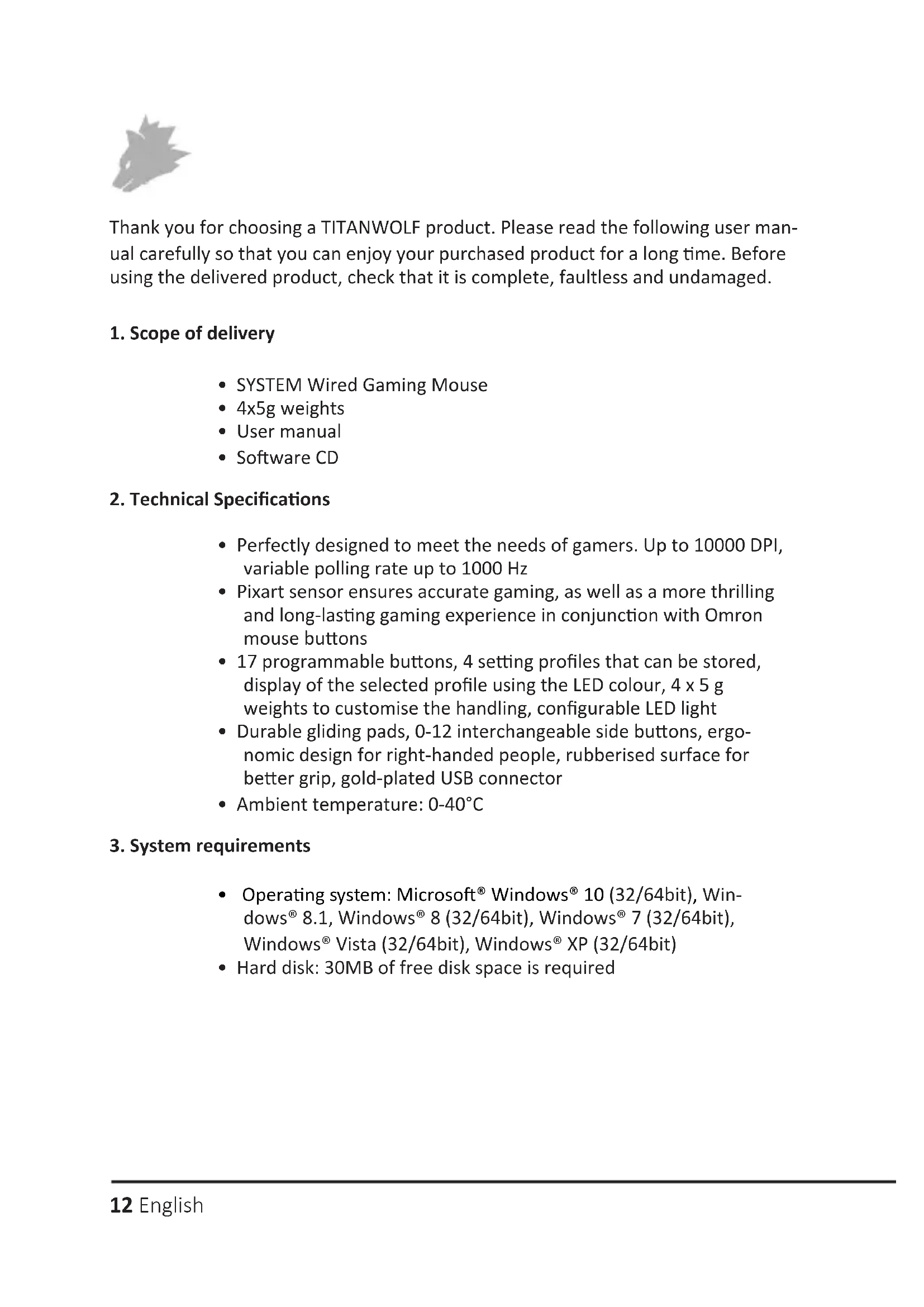
Thank you for choosing a TITANWOLF product. Please read the following user manual carefully so that you can enjoy your purchased product for a long time. Before using the delivered product, check that it is complete, faultless and undamaged.
1. Scope of delivery
SYSTEM Wired Gaming Mouse
4x5g weights
- User manual
- Software CD
2. Technical Specifications
- Perfectly designed to meet the needs of gamers. Up to 10000 DPI, variable polling rate up to 1000Hz
- Pixart sensor ensures accurate gaming, as well as a more thrilling and long-lasting gaming experience in conjunction with Omron mouse buttons
- 17 programmable buttons, 4 setting profiles that can be stored, display of the selected profile using the LED colour, 4 × 5g weights to customise the handling, configurable LED light
- Durable gliding pads, 0-12 interchangeable side buttons, ergonomic design for right-handed people, rubberised surface for better grip, gold-plated USB connector
- Ambient temperature: 0 - 40^
3. System requirements
- Operating system: Microsoft® Windows® 10 (32/64bit), Windows® 8.1, Windows® 8 (32/64bit), Windows® 7 (32/64bit), Windows® Vista (32/64bit), Windows® XP (32/64bit)
- Hard disk: 30MB of free disk space is required
4. Installation
Connect the device to a free USB port on your computer.
An installation is necessary to use the gaming mouse that you have purchased. For this purpose, insert the driver CD into your drive. The automatic playback opens. Click on "Run autorun.exe" to access the installation menu.
Installation can be started by selecting the "Install" button in the installation menu. A confirmation prompt is displayed that needs to be accepted with "Yes".
Now follow the instructions of the installation wizard to carry out the installation properly.
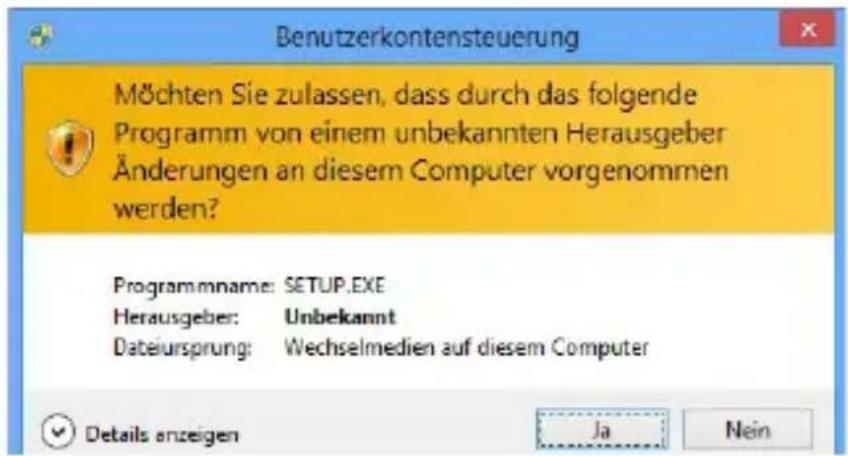
Once the process is completed, you can stop the installation program by clicking on "Finish". The software is now fully installed and can be used immediately.
5. Software settings
You have the option of carrying out many settings in the configuration software of the gaming mouse. Free configurable profiles are available, which you can choose from using the software. Additional information about the setting options are given below, which are profile-independent and relate to a specific profile.
5.1 General profile settings
- Restore everything: With the button "RESTORE" it is possible to reset the settings of all profiles to the factory settings.
5.2 Configuring the profiles
The options, which are explained in detail below, can be individually configured and saved for each of the profiles. Select the profile which you want to change at the bottom of the window using the mouse. You can also set that a specific profile should be loaded at program start. To do this, save the profile you want to use via "Save". Then click on "+" , enter the profile name exactly as you saved it and select the program link. Finally, click on "Apply" to apply the settings.
5.2.1 General
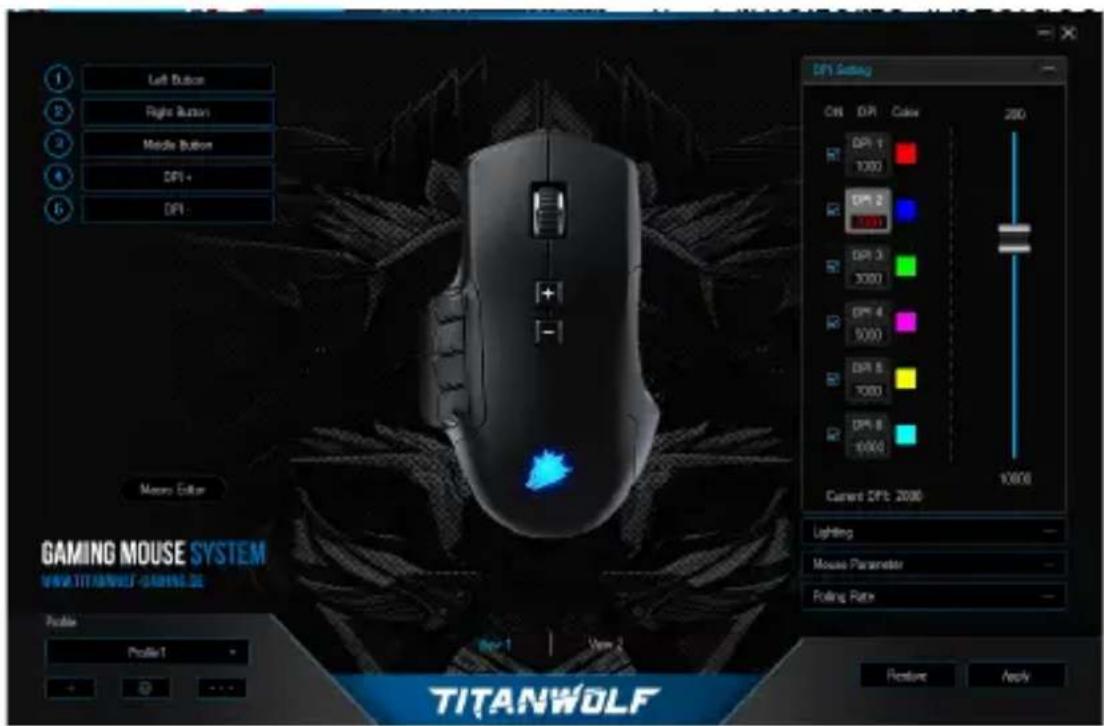
Lightning: In this menu, you can adjust the light effects individually. You can choose between continuous light and pulsating light (breathing). These can be configured according to your wishes.
- DPI settings: In this menu, you can configure the DPI levels and the corresponding DPI values.
14 English
-
Mouse Parameter: In this menu you can adjust the sensitivity, double-click speed and scroll speed.
-
Double-click speed: The double-click speed defines the maximum time between two clicks, so that it can be registered as a double click and not two individual clicks.
-
Scrolling speed: The scrolling speed of the mouse wheel can be configured here
-
Polling rate: Select your preferred polling rate to define the intervals at which the mouse sends the position data to the computer. A polling rate of 1000Hz means that data is sent 1000 times per second
-
Configuring the mouse buttons: The buttons at the top of the mouse as well as those at the side can be freely configured. Please click on "VIEW 1" or "VIEW 2" to make the desired settings. To reassign a button, click on the assigned button in the list to the left of the mouse illustration. You can not only choose from preconfigured options, but also make individual settings. A special feature is the option of creating macros, which is explained in detail in section 5.3. Save the configuration with the "Apply" key.
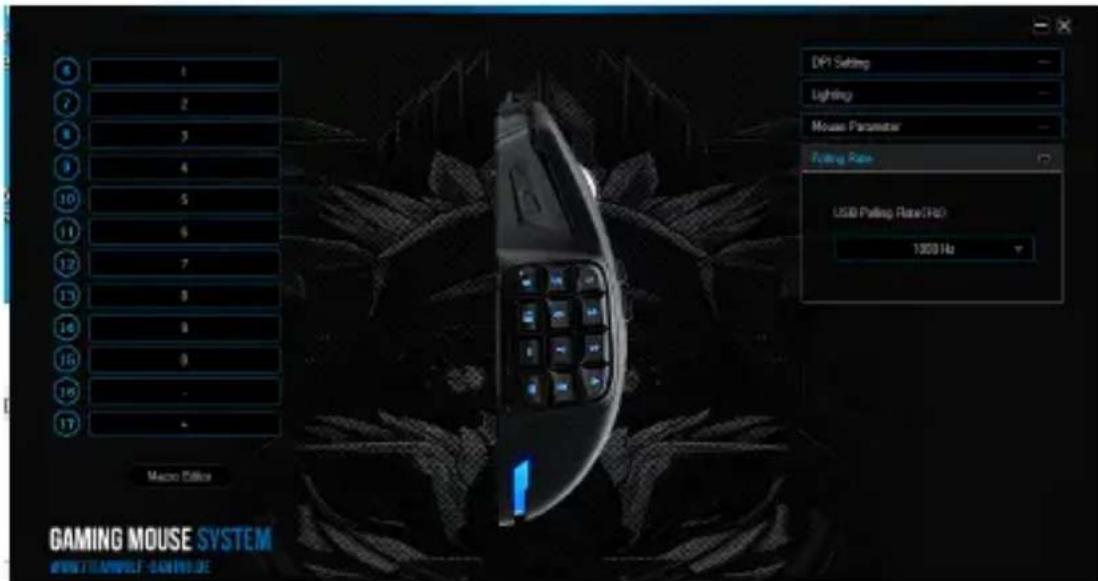
Note: Please remember the "Z" and "Y" are reversed. To configure, use the other letter than the one desired to get the right result.
5.2.2 DPI
In the DPI settings, you have the option of configuring 6 individual DPI levels for each profile.
5.2.3 LED
The logo light indicates which profile is currently active. The following are the default colours of the pRESTORE DPI levels:
Red: DPI level 1
Blue DPI level 2
- Blue: DPI level 3
Violet: DPI level 4
Yellow: DPI level 5
Turquoise: DPI level 6
You can adjust the LED lighting of the logo separately for each DPI level. You can select the colour, brightness and breathing-speed (pulsing) as desired to customise the appearance. The respective DPI colours can be adjusted under "Lightning".
5.3 Creating macros
Macros are recordings of specific key sequences, which can be run by pressing a single mouse button depending on the configuration. This can, for example, be keystrokes or mouse commands. To define a macro, please click on the desired key as described in section 5.2.1. and then select the corresponding macro from the list.
To start recording a new macro, open the "Macro Editor" and click on "NEW MACRO" first and then specify a name. Afterwards, the recording can be started by clicking on "START RECORD" and finished with "STOP". Additional recording options are available for recording the steps:
1) "Cycle until the key released" - Repeats the macro as often as the key is held down.
2) Cycle until any key pressed - Repeats the macro until you press the key again.
3) Specified cycle times" - Repeats the macro as often as specified.
When "Delay between buttons" is enabled, the intervals between button presses are recorded. It is also possible to record individual in order to edit the recorded steps afterwards by choosing Right-click on the corresponding button in the Macro Manager. After creating the macro, press "Confirm". Your macro is created now and can be assigned to any mouse button. Save the configuration of the mouse by pressing the "Apply" button.
Note: Please remember the "Z" and "Y" are reversed. To configure, use the letter other than the one desired to obtain the right result. Also there is a limit of 60 characters max. per macro. It is only possible to delete a stored macro if this has not been assigned to a mouse button.
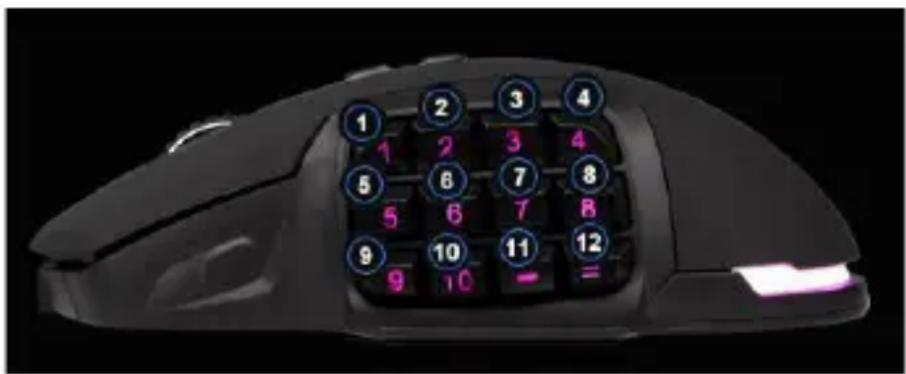
6. Interchanging the buttons
You have the option of customising the side buttons as desired. For this purpose, a slider is located at the bottom of the mouse, which unlocks the side buttons. These can be subsequently removed. Once the slider is in the unlocked position, the buttons can no longer be held.
Other side buttons and dummy caps are included in the box. Customise the side keys as desired. Please note that you may have to change your keyboard layout to accommodate the new button. The pressure point of the buttons is indicated by a small plastic projection on the retainer of the button.
7. Adjusting the weight
There is a circular cover on the underside of the mouse behind which the weights of the mouse are located. A total of four weights of 5g each are provided.
Carefully rotate the cover to remove it from the mouse. Now you can add or remove weights to arrive at your preferred mouse weight. Before closing the cover, ensure that the weights are complete and placed straight inside the place holders, to prevent any damage to the mouse.
8. RESTORE to factory settings
The button "RESTORE" allows you to reset the settings of all profiles to the factory settings.
9. Safety instructions and liability disclaimer
Never try to open the device to carry out repairs or conversions. Avoid contact with mains voltages. Do not short-circuit the product. The device is not certified for use in the open air; only use it in dry conditions. Protect it from high humidity, water and snow. Keep it away from high temperatures. Do not subject the device to sudden changes in temperature or heavy vibration as this might damage electronic components.
Examine the device for damage before using it. The unit should not be used if it has received an impact or has been damaged in any other way. Please observe national regulations and restrictions. Do not use the device for purposes other than those described in the instructions. This product is not a toy. Keep it out of the reach of children or mentally impaired persons.
Any repair or alteration to the device not carried out by the original supplier, will invalidate the warranty or guarantee. The product may only be used by persons who have read and understood these instructions. The device specifications may change without any separate prior notice to this effect.
10. Disposal instructions
Electrical and electronic devices may only be disposed of in accordance with the European WEEE Directive and not with household rubbish. Components must be disposed of or recycled separately as dangerous, toxic elements can inflict sustained damage on the environment if they are disposed of incorrectly. As a consumer, you are bound by the Electrical and Electronic Devices Act (ElektroG) to return electrical and electronic goods free of charge at the end of their useful life to the manufacturer, the place of purchase or to specially set up, public collection points. The details in each case are governed by national law. The symbol on the product, the operating instructions and/or the packaging refers to these regulations. By separating materials in this way, recycling and disposing of old devices, you are making an important contribution towards protecting our environment.


WEEE guideline: 2012/19/EU
WEEE register number: DE 67896761
WD Plus GmbH, herewith declares that this product 305360 conforms to the principle requirements and other relevant stipulations. The complete Declaration of Conformity can be obtained from: WD Plus GmbH, Wohlenbergstraße 16, 30179 Hanover