303166 - Mouse Titanwolf - Free user manual and instructions
Find the device manual for free 303166 Titanwolf in PDF.


User questions about 303166 Titanwolf
0 question about this device. Answer the ones you know or ask your own.
Ask a new question about this device
Download the instructions for your Mouse in PDF format for free! Find your manual 303166 - Titanwolf and take your electronic device back in hand. On this page are published all the documents necessary for the use of your device. 303166 by Titanwolf.
USER MANUAL 303166 Titanwolf
natural_image
Silhouette of a wolf head with spiky mane (no text or symbols)TITANWOLF
Table of contents
- Deutsch....3
- English....11
- Français....20
- Italiano....29
- Español....38
Inhaltsverzeichnis
text_image
TITANWOLF LIGHT SETTING SENSITIVITY SETTING SYSTEM SETTING BUTTON SETTING DPI Setting DPi Setting #1 DPi Setting #2 DPi Setting #3 DPi Setting #4 DPi Setting #5 DPi Setting #6 Sensitivity Setting X -5.4.3.2.1 0 1 2 3 4 5 Y -5.4.3.2.1 0 1 2 3 4 5 XY Sync direction of movement Profile 1 Profile 2 Profile 3 Profile 4 OK Apply Canceltext_image
TITANWOLF LIGHT SETTING SENSITIVITY SETTING SYSTEM SETTING BUTTON SETTING Button Setting 12 Key #1 14 Key #2 18 Key #3 16 Key #4 17 Frank rolling Middle key Deck rolling Side view Top view- Scope of supply 12
- Specifications .... 12
- System requirements .... 12
- Installation.... 13
- Software settings ...... 13
- Adjusting the weight ..... 17
- Resetting to factory settings.... 18
- Safety instructions and Disclaimer .... 18
- Disposal instructions .... 18
Thank you for choosing a TITANWOLF product. Please read the following user manual carefully so that you can enjoy your purchased product for a long time.
1. Scope of delivery
• SYSTEM Wired Gaming Mouse
- 4x5g weights
- User manual
- Software CD
2. Technical Specifications
- Perfectly designed to meet the needs of gamers. Up to 10000 DPI, variable polling rate up to 1000 Hz
- Pixart sensor ensures accurate gaming, as well as a more thrilling and long-lasting gaming experience in conjunction with Omron mouse buttons
- 17 programmable buttons, 4 setting profiles that can be stored, display of the selected profile using the LED colour, 4 x 5 g weights to customise the handling, configurable LED light
- Durable gliding pads, 0-12 interchangeable side buttons, ergonomic design for right-handed people, rubberised surface for better grip, gold-plated USB connector
3. System requirements
- Operating system: Microsoft® Windows® 10 (32/64bit), Windows® 8.1, Windows® 8 (32/64bit), Windows® 7 (32/64bit), Windows® Vista (32/64bit), Windows® XP (32/64bit)
- Hard disk: 30MB of free disk space is required
4. Installation
Connect the device to a free USB port on your computer.
An installation is necessary to use the gaming mouse that you have purchased. For this purpose, insert the driver CD into your drive. The automatic playback opens. Click on "Run autorun.exe" to access the installation menu.
Installation can be started by selecting the "Install" button in the installation menu. A confirmation prompt is displayed that needs to be accepted with "Yes".
Now follow the instructions of the installation wizard to carry out the installation properly.
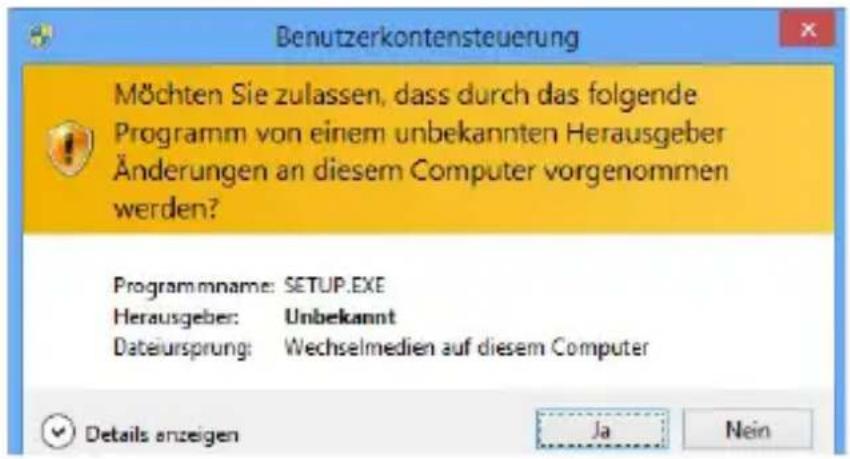
Once the process is completed, you can stop the installation program by clicking on "Finish". The software is now fully installed and can be used immediately.
5. Software settings
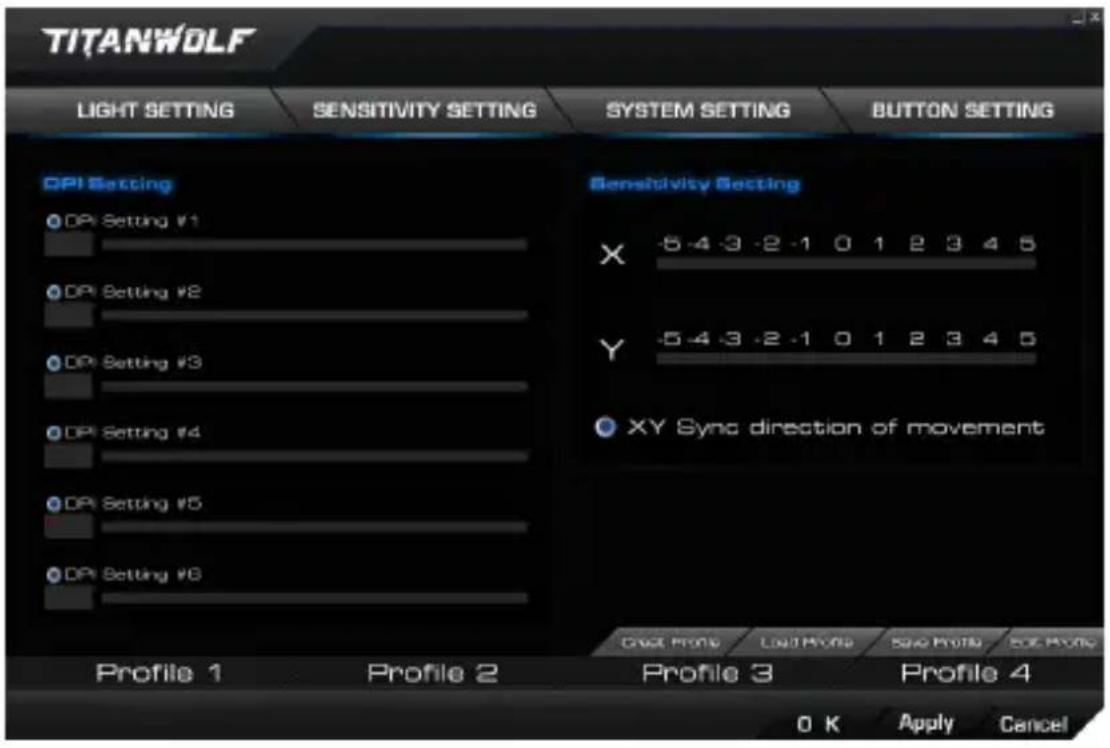
You have the option of carrying out many settings in the configuration software of the gaming mouse. Four configurable profiles are available, which you can choose from using the software. Additional information about the setting options are given below, which are profile-independent and relate to a specific profile.
5.1 General profile settings
- Resetting everything: It is possible to reset the settings of all the profiles back to the factory settings using the "Reset" button in the "System setting" menu.
5.2 Configuring the profiles
The options, which are explained in detail below, can be individually configured and saved for each of the profiles. Select the profile which you want to change at the bottom of the window using the mouse. You can also set that a specific profile should be loaded at program start. To do this, save the profile you want to use via "Save". Then click on "Create Profile", enter the profile name exactly as you saved
text_image
TITANWOLF LIGHT SETTING SENSITIVITY SETTING SYSTEM SETTING BUTTON SETTING DPI Setting DPi Setting #1 DPi Setting #2 DPi Setting #3 DPi Setting #4 DPi Setting #5 DPi Setting #6 Sensitivity Setting X -5-4-3-2-1 0 1 2 3 4 5 Y -5-4-3-2-1 0 1 2 3 4 5 XY Sync direction of movement Profile 1 Profile 2 Profile 3 Profile 4 OK Apply Cancelit and select the program link. Finally, click on "Apply" to apply the settings.
5.2.1 General
• Light setting: In this menu, you can adjust the light effects individually. You can choose between continuous light and pulsating
light (breathing). These can be configured according to your wishes.
- DPI settings: In this menu, you can configure the DPI levels and the corresponding DPI values.
- X/Y sensitivity: You can adjust the sensitivity of the Y and X axis in this menu
- Double-click speed: The double-click speed defines the maximum time between two clicks, so that it can be registered as a double click and not two individual clicks.
- Scrolling speed: The scrolling speed of the mouse wheel can be configured here
- Polling rate: Select your preferred polling rate to define the intervals at which the mouse sends the position data to the computer. A polling rate of 1000 Hz means that data is sent 1000 times per second
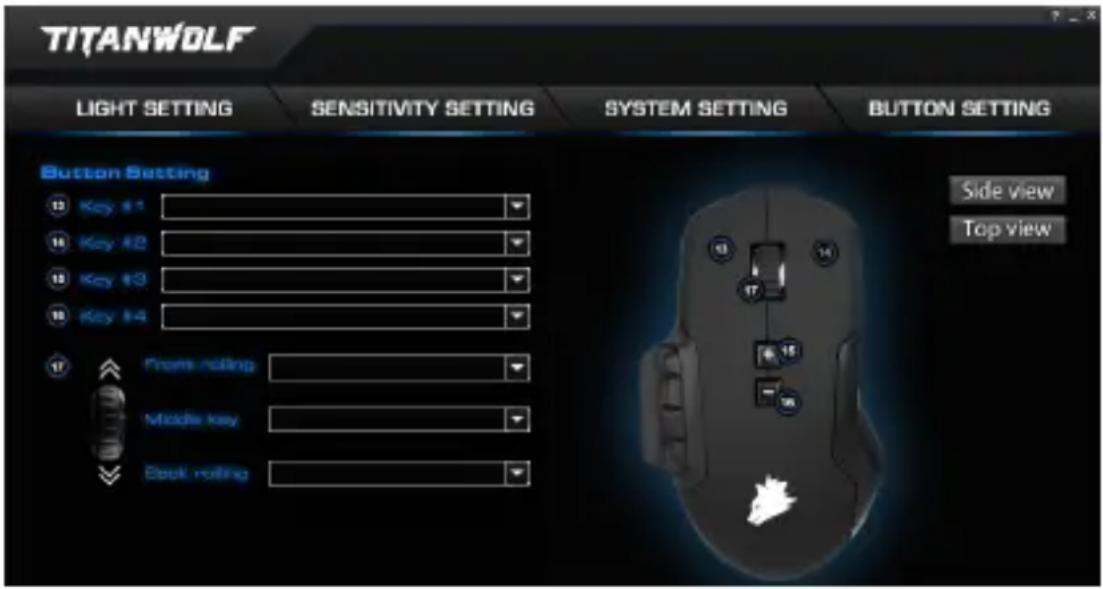
- Configuring the mouse buttons: The buttons at the top of the mouse as well as those at the side can be freely configured. Please click on "Top View" or "Side View" to make the desired settings. To reconfigure a button, click on the number corresponding to the desired button in the list on the right of the mouse diagram. The mapping of numbers and buttons is shown in the diagram. You can not only choose from preconfigured options, but also make individual settings. A special feature is the option of creating macros, which is explained in detail in section 5.3.
text_image
TITANWOLF LIGHT SETTING SENSITIVITY SETTING SYSTEM SETTING BUTTON SETTING Button Setting 12 Key #1 14 Key #2 15 Key #3 16 Key #4 17 Phone roller Middle key Book roller Side view Top viewNote: Please remember the "Z" and "Y" are reversed. To configure, use the other letter than the one desired to get the right result.
5.2.2 DPI
In the DPI settings, you have the option of configuring 6 individual DPI levels for each profile.
5.2.3 LED
The logo light indicates which profile is currently active. The following are the default colours of the preset DPI levels:
- Red: DPI level 1
- Green: DPI level 2
- Blue: DPI level 3
- Violet: DPI level 4
• Turquoise: DPI level 5
• Yellow: DPI level 6
You can adjust the LED lighting of the logo separately for each DPI level. You can select the colour, brightness and breathing-speed (pulsing) as desired to customise the appearance. The respective DPI colours can be adjusted under "Light setting".
5.3 Creating macros
Macros are recordings of specific key sequences, which can be run by pressing a single mouse button depending on the configuration. This can, for example, be keystrokes or mouse commands. To define a macro, please click on the desired button and then select "Macro" and "Macro Manager" from the list as described in section 5.2.1.
To start recording a new macro, first click on "NEW" and then specify a name. The recording can be started using the "START" button and stopped using the "STOP" button. Additional options are available on the right side of the Macro Manager for recording the steps. In this way, you can define whether the time between pressing the individual buttons and the stop times are measured and recorded,
whether you want to configure a fixed delay as desired, or whether the recorded macro is executed several times when the mouse button is pressed. The option of editing the recorded steps subsequently is also available.
Note: Please remember the "Z" and "Y" are reversed. To configure, use the letter other than the one desired to obtain the right result. Also there is a limit of 60 characters max. per macro.
6. Interchanging the buttons
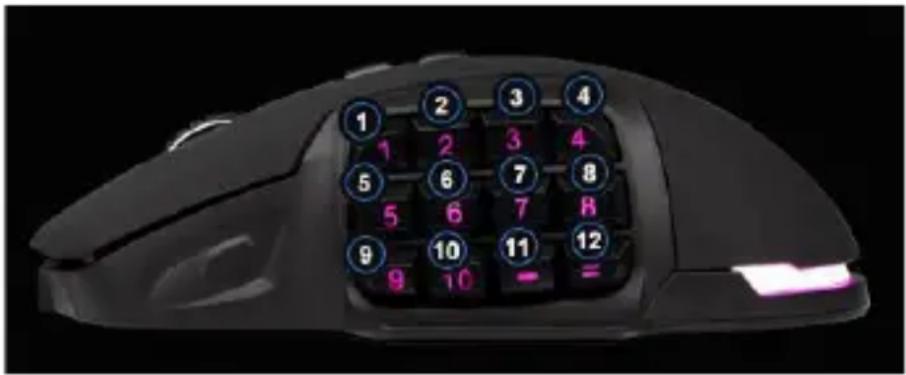
You have the option of customising the side buttons as desired. For this purpose, a slider is located at the bottom of the mouse, which unlocks the side buttons. These can be subsequently removed. Once the slider is in the unlocked position, the buttons can no longer be held.
Other side buttons and dummy caps are included in the box. Customise the side
text_image
Labeled image of a black computer mouse with numbered keypad and function keys, showing numeric keypad positions.keys as desired. Please note that you may have to change your keyboard layout to accommodate the new button. The pressure point of the buttons is indicated by a small plastic projection on the retainer of the button.
7. Adjusting the weight
There is a circular cover on the underside of the mouse behind which the weights of the mouse are located. A total of four weights of 5g each are provided.
Carefully rotate the cover to remove it from the mouse. Now you can add or remove weights to arrive at your preferred mouse weight. Before closing the cover,
ensure that the weights are complete and placed straight inside the place holders, to prevent any damage to the mouse.
8. Reset to factory settings
It is possible to reset the settings of all the profiles back to the factory settings using the "RESET" button in the "System setting" menu of the software.
9. Safety instructions and liability disclaimer
Never try to open the device to carry out repairs or conversions. Avoid contact with mains voltages. Do not short-circuit the product. The device is not certified for use in the open air; only use it in dry conditions. Protect it from high humidity, water and snow. Keep it away from high temperatures. Do not subject the device to sudden changes in temperature or heavy vibration as this might damage electronic components. Examine the device for damage before using it. The unit should not be used if it has received an impact or has been damaged in any other way. Please observe national regulations and restrictions. Do not use the device for purposes other than those described in the instructions. This product is not a toy. Keep it out of the reach of children or mentally impaired persons. Any repair or alteration to the device not carried out by the original supplier, will invalidate the warranty or guarantee. The product may only be used by persons who have read and understood these instructions. The device specifications may change without any separate prior notice to this effect.
10. Disposal instructions
Electrical and electronic devices may only be disposed of in accordance with the European WEEE Directive and not with household rubbish. Components must be disposed of or recycled separately as dangerous, toxic elements can inflict sustained damage on the environment if they are disposed of incorrectly. As a consumer, you are bound by the Electrical and Electronic Devices Act (ElektroG) to return electrical and electronic goods free of charge at the end of their useful life to the manufacturer, the place of purchase or to specially set up, public collection points. The details in each case are governed by national law. The symbol on the product, the operating instructions and/or the packaging refers to these regula-
tions. By separating materials in this way, recycling and disposing of old devices, you are making an important contribution towards protecting our environment.


WEEE guideline: 2012/19/EU
WEEE register number: DE 67896761
WD Plus GmbH, herewith declares that this product 303166/20171218SZ032 conforms to the principle requirements and other relevant stipulations. The complete Declaration of Conformity can be obtained from: WD Plus GmbH, Wohlenbergstraße 16, 30179 Hanover