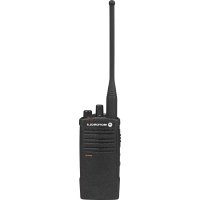
USER MANUAL RDU4100 MOTOROLA
RDX™ Series Two-way Radios User Guide

en-US fr-CA
RDU4100, RDU4103 & RDV5100 Non-Display Model
Open Source Software Legal Notices:
This Motorola Solutions product contains Open Source Software. For information regarding licenses, acknowledgements, required copyright notices and other usage terms, refer to the documentation for this Motorola Solutions product at:
http://businessonline.motorolasolutions.com
Go to: Resource Center > Product Information > Manual > Accessories.
Canada Licensing Information. 10
General Information. 10
The License Application 10
Batteries and Chargers Safety Information . 11
Operational Safety Guidelines. 12
Radio Overview 13
Parts Of The Radio 13
On/Off/Volume Knob. 14
Channel Selector Knob. 14
Accessory Connector 14
Model Label 14
Microphone 14
Antenna. 14
LED Indicator 14
Side Buttons. 14
The Lithium-Ion (Li-Ion) Battery 15
RDX Non Display Models. 15
Battery Features. 16
About the Li-Ion Battery 16
Battery Recycling and Disposal 17
Installing the Lithium-Ion (Li-Ion) Battery 18
Removing the Lithium-Ion (Li-Ion) Battery. 18
Attaching the Antenna 19
Removing the Antenna 19
Installing Spring Action Belt clip. 20
Power Supply, Adaptor and Drop-in Tray Charger 20
Battery Life Information 21
Charging the Battery 22
Drop-in Tray Charger LED Indicators . . 24
Estimated Charging Time 26
Multi-Unit Charger LED Indicators 28
Getting Started 29
Turning radio ON/OFF 29
Adjusting Volume 29
Selecting a Channel 29
Talking and Monitoring 29
Receiving a Call 30
Talk Range 30
RadioLEDIndicators. 32
Hands-Free Use/VOX 33
With Compatible VOX Accessories. 33
Hands Free without Accessories (iVOX).34
Setting VOX/IVOX Sensitivity 34
Toggle Voice Prompt in User Mode 34
PowerUp-ToneMode. 34
Reset to Factory Defaults 34
Microphone Gain. 34
Programming Features 36
Advanced Configuration Mode 36
Entering Advanced Configuration Mode .36
Entering Frequencies Values 37
Reading CTCSS/DPL Values 37
Reading Auto-Scan Values 37
Active Channels 38
Weather Channel Programming (Not for RDU4103). 38
Saving Settings 38
Programming Mode FAQ 38
Programming Values Examples. 39
Example of Programming a Frequency. 39
Example of Programming a Code 40
Example of Programming Auto-Scan .. 40
Example of Programming Active Channels 41
Example of Programming Weather Channels (Not valid for RMU4103). 41
Other Programming Features 42
Scan. 42
Editing Scan List 42
Nuisance Channel Delete 42
Customer Programming Software (CPS) 43
Time-Out Timer 44
Power Select 44
Call Tones 44
Scramble 44
ReverseBurst 44
Text-to-Speech (Changing Pre-Defined Voice
Aliases) 44
Enable User Pre-Defined Voice Prompt (VP) checkbox. 44
User Pre-Defined Voice Prompt (VP) Text
45
Import Voice File. 45
Listen to User Customized Voice Prompt (VP) Text. 45
Weather Feature (Not for RDU4103) .45 Weather Alert Mode .46
Weather Channel Frequencies Table . . .46
The Weather Alert has two modes of operations: 47
EOM Enabled 47
New Alert Tone Timer. 47
Event Type Filter 48
All Events 48
Alert Test Event 48
Warning. 48
Watch 48
Emergency 49
Statement 49
Event Code Filter. 49
Block Event 49
Event Code 49
The Critical Events Table 50
Geographic Filter 51
State. 52
County 52
FIPS 52
Cloning Radios. 52
Cloning with a Multi Unit Charger (MUC) 53
Cloning Radio using the Radio to Radio (R2R) Cloning Cable (Optional Accessory). 54
Cloning using the Customer Programming Software (CPS) 56
Troubleshooting. 58
Use and Care 62
Frequency and Code Charts 64
RDX UHF Frequencies Chart. 66
RDU4100-UHF Default Frequencies Chart 69
RDU4103 - UHF Default Frequencies Chart 70 CTCSS and PL/DPL Codes 71
Motorola Solutions Limited Warranty for the United States and Canada. 76
English
PRODUCT SAFETY
PRODUCT SAFETY AND RF EXPOSURE COMPLIANCE

Caution
Before using this product, read the operating instructions and RF energy awareness information contained in the Product Safety and RF Exposure booklet enclosed with your radio.
ATTENTION!
This radio is restricted to occupational use only to satisfy FCC RF energy exposure requirements.
For a list of Motorola Solutions-approved antennas, batteries and other accessories, visit the following website which lists approved accessories:
www.motorolasolutions.com/RDX
NOTES
INTRODUCTION
Thank you for purchasing the Motorola Solutions® RDX Series™ Radio. This radio is a product of Motorola Solutions' 80 plus years of experience as a world leader in the designing and manufacturing of communications equipment. The RDX Series radios provide cost-effective communications for businesses such as retail stores, restaurants, schools, construction sites, manufacturing, property and hotel management and more. Motorola Solutions professional two-way radios are the perfect communications solution for all of today's fast-paced industries.
Note: Read this user guide carefully to ensure you know how to properly operate the radio before use
PACKAGE CONTENTS
Radio
- Belt Clip
Lithium-lon Battery
Power Supply
- Quick Reference Guide
- Drop-in Tray Charger
Product Safety & RF Exposure Booklet
- Antenna
For a copy of a large-print version of this user guide or for product-related questions, contact
1-800-448-6686 in the USA
1-800-461-4575 in Canada
1-888-390-6456 on TTY (Text Telephone)
For product related information, visit us at:
www.motorolasolutions.com/RDX
Or
Business Radios
RPSD 1C15, Motorola
8000 West Sunrise Boulevard
Plantation, Florida 3332
This device complies with Part 15 of the FCC Rules. Operation is subject to the condition that this device does not cause harmful interference.
RDX Series Business two-way radios operate on radio frequencies that are regulated by the Federal Communications Commission (FCC).
To transmit on these frequencies, you are required to have a license issued by the FCC. Application is made available on FCC Form 601 and Schedules D, H, and Remittance Form 159.
To obtain these FCC forms, request document 000601 which includes all forms and instructions. If you wish to have the document faxed, mailed or have questions, use the following contact information.
| Faxed contact the Fax-On- Demand system at: | Mailed call the FCC forms hotline at: | Questions regarding FCC license contact the FCC at: |
| 1-202-418-0177 1-800-41 | 8-FORM1-800-418-3676 | 1-888-CALL-FCC1-888-225-5322Or: http://www.fcc.gov |
English
Before filling out your application, you must decide which frequency(ies) you can operate on. See "Frequencies and Code Charts". For questions on determining the radio frequency, call Motorola Solutions Product Services at:
1-800-448-6686
Changes or modifications not expressly approved by Motorola Solutions may void the user's authority granted by the FCC to operate this radio and should not be made. To comply with FCC requirements, transmitter adjustments should be made only by or under the supervision of a person certified as technically qualified to perform transmitter maintenance and repairs in the private land mobile and fixed services as certified by an organization representative of the user of those services.
Replacement of any transmitter component (crystal, semiconductor and more.) not authorized by the FCC equipment authorization for this radio could violate FCC rules.
Use of this radio outside the country where it was intended to be distributed is subject to government regulations and may be prohibited.
The operation of your Motorola Solutions radio is subject to the Radiocommunications Act and must comply with rules and regulations of the Federal Government's department of Industry Canada. Industry Canada requires that all operators using Private Land Mobile frequencies obtain a radio license before operating their equipment.
An application for your Industry Canada license is made on the form included with your radio. Additional forms and latest license application versions can be obtained from the nearest Industry Canada District office. A list of these offices is included for your information.
This device complies with Industry Canada's licence-exempt RSSs. Operation is subject to the following two conditions:
- This device may not cause interference; and
- This device must accept any interference, including interference that may cause undesired operation of the device.
THE LICENSE APPLICATION
General Instructions
- Fill in the items as per the instructions. If you need additional space for any item use the reverse side of the application.
- Be sure to use a typewriter or print legibly.
- Make a copy for your files.
- Prepare a cheque or money order made out to the "Receiver General for Canada", for an amount, which is on the following schedule, for each radio purchased. (License is valid until April 1st of each year, and the renewed.
- Mail your completed application, along with your cheque or money order to the closest Industry Canada District office, according to the list on pages.
To obtain the latest Canadian License Application form, please go to:
www.ic.gc.ca
This document contains important safety and operating instructions. Read these instructions carefully and save them for future reference. Before using the battery charger, read all the instructions and cautionary markings on
the charger,
the battery, and
- the radio using the battery
- To reduce risk of injury, charge only the rechargeable Motorola Solutions-authorized batteries. Other batteries may explode, causing personal injury and damage.
-
Use of accessories not recommended by Motorola Solutions may result in risk of fire, electric shock, or injury.
-
To reduce risk of damage to the electric plug and cord, pull by the plug rather than the cord when disconnecting the charger.
- An extension cord should not be used unless absolutely necessary. Use of an improper extension cord could result in risk of fire and electric shock. If an extension cord must be used, make sure that the cord size is 18AWG for lengths up to 100 ft (30.48 m), and 16AWG for lengths up to 150 ft (45.72 m).
- To reduce risk of fire, electric shock, or injury, do not operate the charger if it has been broken or damaged in any way. Take it to a qualified Motorola Solutions service representative.
- Do not disassemble the charger; it is not repairable and replacement parts are not available. Disassembly of the charger may result in risk of electrical shock or fire.
- To reduce risk of electric shock, unplug the charger from the AC outlet before attempting any maintenance or cleaning
OPERATIONAL SAFETY GUIDELINES
- Turn the radio OFF when charging battery.
- The charger is not suitable for outdoor use. Use only in dry locations/conditions.
- Connect charger only to an appropriately fused and wired supply of the correct voltage (as specified on the product).
- Disconnect charger from line voltage by removing main plug.
- The outlet to which this equipment is connected should be nearby and easily accessible.
- In equipment using fuses, replacements must comply with the type and rating specified in the equipment instructions.
Maximum ambient temperature around the power supply equipment must not exceed 40^ (104 F).
- Power output from the power supply unit must not
exceed the ratings stated on the product label located at the bottom of the charger.
- Make sure that the cord is located where it will not be stepped on, tripped over, or subjected to water, damage, or stress.
RADIO OVERVIEW
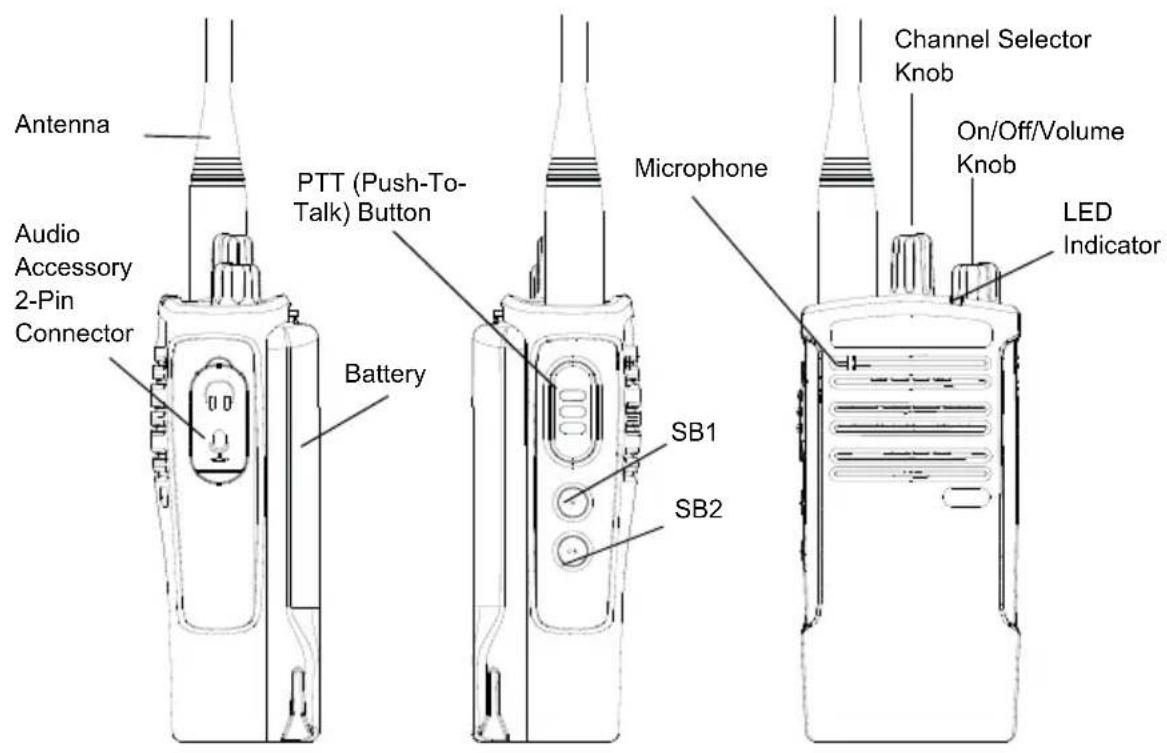
PARTS OF THE RADIO
On/Off/Volume Knob
Used to turn the radio ON or OFF and to adjust the radio's volume.
Channel Selector Knob
Used to switch the radio to different channels.
Accessory Connector
Used to connect compatible audio accessories.
Model Label
Indicates the model of the radio.
Microphone
Speak clearly into the microphone when sending a message.
Antenna
For models RDU4100 and RDU4103 there are 2 removable antennas. For RDV5100 there is one VHF removable antenna.
LED Indicator
Used to give battery status, power-up status, radio call information and scan status.
- Press and hold down this button to talk, release it to listen.
- The Side Button 1 is a general button that can be configured by the Customer Programming Software - CPS. The default setting of SB1 is 'Monitor'.
- The Side Button 2 is a general button that can be configured by the CPS. The SB2 default setting is 'Scan/Nuisance Channel Delete'.
The Lithium-Ion (Li-Ion) Battery
RDX Series comes with a Standard Capacity Li-Ion battery. Other batteries may be available. For more information, see "Battery Features" on page 16.
RDX NON DISPLAY MODELS
This User Guide covers multiple RDX Series models, and may detail some features your radio does not have. The radio's model is shown on the bottom of the radio and provides the following information:
Table 1: RDX Series Radio Specifications
| Model | Frequency Band | Transmit Power (W) | Number of Channels | Antenna |
| RDU4100 | UHF | 4 | 10 | Removable |
| RDU4103 UHF | 4 10 Removable | | | |
| RDU5100 VHF | 5 10 Removable | | | |
BATTERY FEATURES
RDX Series radios provide Lithium-lon batteries that come in different capacities that defines the battery life.
About the Li-Ion Battery
The RDX Series radio comes equipped with a rechargeable Li-1on battery. This battery should be fully charged before initial use to ensure optimum capacity and performance.
Battery life is determined by several factors. Among the more critical are the regular overcharge of batteries and the average depth of discharge with each cycle. Typically, the greater the overcharge and the deeper the average discharge, the fewer cycles a battery will last. For example, a battery which is overcharged and discharged 100% several times a day, lasts fewer cycles than a battery that receives less of an overcharge and is discharged to 50% per day. Further, a battery which receives minimal overcharging and
averages only 25% discharge, lasts even longer.
Motorola Solutions batteries are designed specifically to be used with a Motorola Solutions charger and vice versa. Charging in non-Motorola Solutions equipment may lead to battery damage and void the battery warranty. The battery should be at about 77^ (25^) (room temperature), whenever possible. Charging a cold battery (below 50^ [10^] ) may result in leakage of electrolyte and ultimately in failure of the battery. Charging a hot battery (above 95^ [35^] ) results in reduced discharge capacity, affecting the performance of the radio. Motorola Solutions rapid-rate battery chargers contain a temperature-sensing circuit to ensure that batteries are charged within the temperature limits stated above.
Battery Recycling and Disposal
Li-ON rechargeable batteries can be recycled. However, recycling facilities may not be available in all areas. Under various U.S. state laws and the laws of several other countries, batteries must be recycled and cannot be disposed of in landfills or incinerators. Contact your local waste management agency for specific requirements and information in your area. Motorola Solutions fully endorses and encourages the recycling of Li-ON batteries. In the U.S. and Canada, Motorola Solutions participates in the nationwide Rechargeable Battery Recycling Corporation (RBRC) program for Li-ON battery collection and recycling.
Many retailers and dealers participate in this program. For the location of the drop-off facility closest to you, access RBRC's Internet web site at:
http://www.call2recycle.org
or call:
(877)723-1297
This internet site and telephone number also provides other useful information concerning recycling options for consumers, businesses, and governmental agencies.
Installing the Lithium-Ion (Li-Ion) Battery
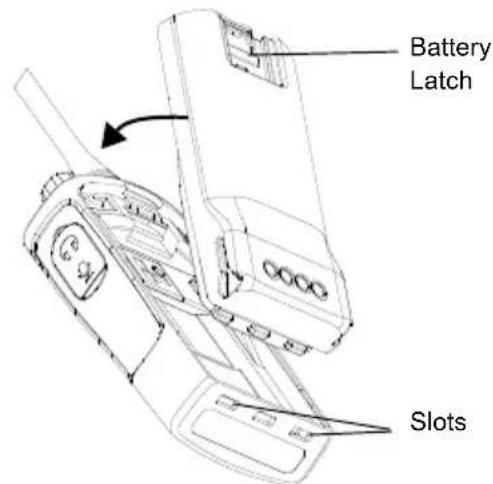
- Turn OFF the radio.
- With the Motorola Solutions logo side up on the battery pack, fit the tabs at the bottom of the battery into the slots at the bottom of the radio's body.
- Press the top part of the battery towards the radio until a click is heard.
Note: To learn about the Li-Ion Battery Life features, refer to "About the Li-Ion Battery" on page 16
Removing the Lithium-Ion (Li-Ion) Battery
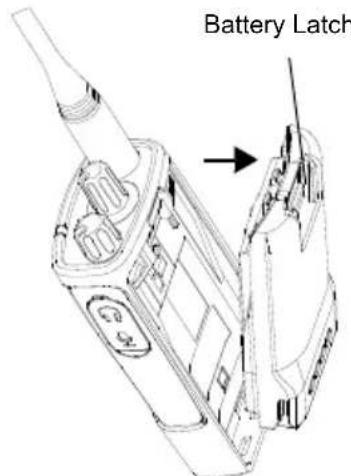
- Tum OFF the radio.
- Push down the battery latch and hold it while removing the battery.
- Pull the battery away from the radio.
Attaching the Antenna
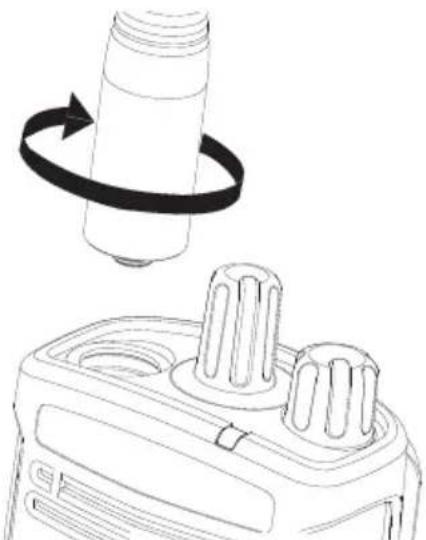
-
Align the threaded end of the antenna with the radio's antenna connector.
-
Turn the antenna clockwise to fasten it.
Removing the Antenna
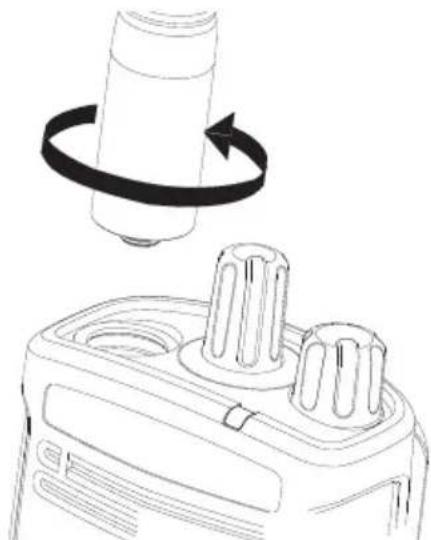
- Turn the antenna counter-clockwise until you can remove it.
Note: These instructions apply ONLY to models RDU4100 and RDV5100. Do not attempt to remove the antenna if your radio is not one of these models.
Installing Spring Action Belt clip.
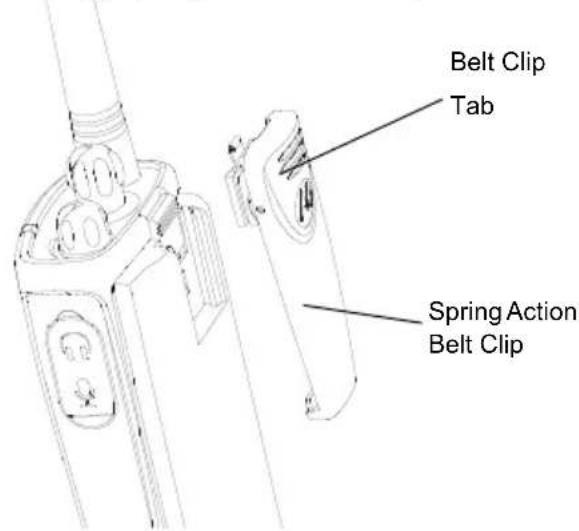
- Slide the spring action belt clip rails into the belt clip grooves on the back of the battery pack and slide it down until the belt clip tab snaps into place.
- To remove, pull back the metal release tab on the belt clip tab and push the spring action belt clip upward to remove.
Power Supply, Adaptor and Drop-in Tray Charger
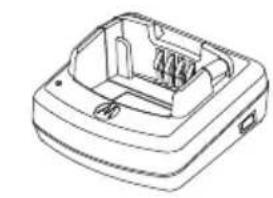
Drop-in Tray Charger
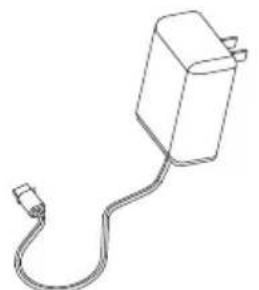
Power Supply
The radio is equipped with one Drop-in Tray Charger and one Power Supply with Adaptor. For more information, refer to "Chargers" on page 80.
When the Battery Save feature is set to ON (enabled by default), the battery life lasts longer. The following table summarizes battery life estimations:
Table 2: Li-Ion Battery Life with Battery Save feature ON
| Battery Type 5 W 4 W |
| High Capacity 15 hr 15 hr | | |
Note: Battery life is estimated based on 5% transmit / 5% receive / 90% standby standard duty cycle.
Charging the Battery
The RDX Series radio offers two types of Chargers:
- Standard Charger and,
Rapid Charger
Note: The radio comes with a Standard Power Supply.
To charge the battery (with the radio attached), place it in a Motorola Solutions-approved Drop-in Tray Single Unit Charger or Drop-in Tray Multi Unit Charger.
Note: When acquiring additional chargers or power supplies, make sure you have similar drop-in tray chargers and power supplies sets (all "rapid" or all "standard"). For part number details, refer to "Chargers" on page 80.
Charging with the Drop-in Tray Single Unit Charger (SUC)
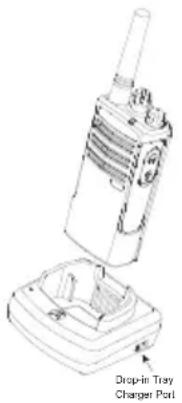
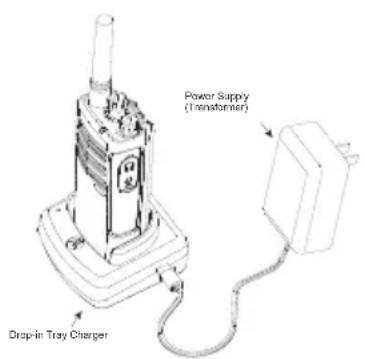
- Place the Drop-in Tray Charger on a flat surface.
- Insert the connector of the Power Supply into the charger port on the back of the Drop-in Tray Charger.
- Plug the AC Adaptor into a power outlet.
- Insert the radio into the Drop-in Tray Single Unit Charger with the radio facing the front, as shown.
Note: When charging a battery attached to the radio, turn the radio OFF to ensure a full charge. See "Operational Safety Guidelines" on page 12 for more information.
Charging A Stand-Alone Battery
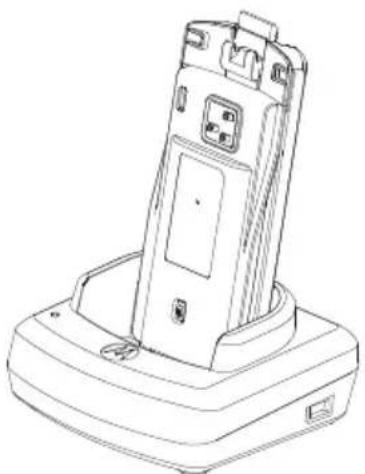
To charge only the battery - at step 4 on page 22, insert the battery into the tray, with the inside surface of the battery facing the front of the Drop-in Tray Single Unit Charger as shown above. Align the slots in
the battery with the alignment ribs in the Drop-in Tray Single Unit Charger.
Note: Ensure that the bracket in the charger is adjusted to the correct position for either Standard or High capacity battery. See "Charging a Standard Battery" on the right.
English
Top-in Tray Charger LED Indicators
Table 3: Standard Charger LED Indicator
| Status LED Indicator Comments |
| Power On Steady red indication for 3 s The charger has powered up | |
| Charging Blinking red (slow) The charger is currently charging | |
| Charging Complete | Steady red indication | Battery is fully charged |
| Battery Fault (*) Blinking red (fast) | Battery had a fault when battery was inserted |
(*) Normally, re-positioning the battery pack will correct this issue.
Table 4: Rapid Charger LED Indicator
| Status LED Indicator Comments |
| Power On | Steady green indication for 3 s | The charger has powered up |
| Charging Blinking green The charger is currently charging | |
| Top-off Charging | Blinking green (slow) | Battery is near fully charged |
| Charging Complete | Steady green indication | Battery is fully charged |
| Battery Fault (*) Blinking red (fast) | Battery had a fault when battery was inserted |
| Waiting to Charge (**) Double-blink yellow indications | Battery charging conditions not suitable |
(^) Normally, re-positioning the battery pack will correct this issue.
(^*) Battery temperature is too warm or too cold or wrong power voltage is being used.
English
Rated Charging Time
The following table provides the estimated charging time of the battery. For more information, see "Audio Accessories" on page 79.
Table 5: Battery Estimated Charging Time
| Charging Solutions | Estimated Charging Time |
| High Capacity Battery |
| Standard Charging Solutions | 12 hr |
| Rapid Charging Solutions 3 hr | |
Charging a Radio and Battery using a Multi Unit-Charger - MUC (Optional Accessory)
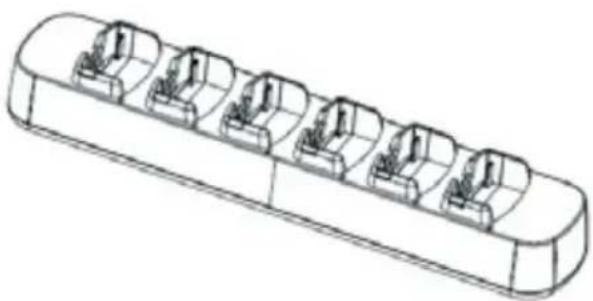
The Multi-Unit Charger (MUC) allows drop-in charging of up to 6 radios or batteries. Batteries can be charged with the radios or removed and placed in the MUC separately. Each of the 6 charging pockets can hold a radio (with or without the Holster) or battery, but not both.
- Place the Multi-Unit Charger on a flat surface.
- Insert the power cord plug into the MUC's dual pin connector .
- Plug the power cord into an AC outlet.
- Turn the radio OFF.
- Set removable bracket for battery type
- Insert the radio or battery into the charging pocket with the radio.
Note:
- This Multi-Unit Charger clones up to 3 radios (3 Source radios and 3 Target radios). Refer to "Cloning with a Multi Unit Charger (MUC)" on page 53 for more information.
- More information on the Multi-Unit Charger's operation is available in the Instruction Sheets provided with the MUC. For more information on the parts and their part numbers, refer to Chapter "Accessories" on page 79.
English
Multi-Unit Charger LED Indicators
Table 6: MUC Charger LED Indicator
| Status LED Indicator Comments |
| Charging | Steady Red Indication | The charger is currently charging |
| Charging Complete | Steady Green Indication | Battery is fully charged |
| Battery Fault (*) Blinking red (fast) Battery was faulty when inserted | |
(^*) Normally, re-positioning the battery pack will correct this issue.
GETTING STARTED
For the following explanations, refer to "Parts Of The Radio" on page 13.
To turn ON the radio, rotate the On/Off/Volume Knob clockwise. The radio plays one of the following:
- Power up tone and channel number announcement, or
- Battery level and channel number announcements, or
- Silent (Audible tones disabled)
The LED blinks red briefly.
To turn the radio OFF, rotate the On/Off/Volume Knob counterclockwise until you hear a 'click' and the radio LED Indicator turns OFF.
ADJUSTING VOLUME
Turn the On/Off/Volume Knob clockwise to increase the volume, or counterclockwise to decrease the volume.
Note: Do not hold the radio too close to the ear when the volume is high or when adjusting the volume
SELECTING A CHANNEL
To select a channel, turn the Channel Selector Knob until you reach the desired channel. An audible voice indicates the selected channel.
Each channel has its own Frequency, Interference Eliminator Code and Scan Settings.
TALKING AND MONITORING
It is important to monitor for traffic before transmitting to avoid 'talking over' someone who is already transmitting
To monitor, long press and hold the SB1(*) button to access channel traffic. If no activity is present, you will hear 'static'. To release, press SB1 again. Once channel traffic has cleared, proceed with your call by pressing the PTT button. When transmitting, the LED Indicator stays solid red.
Note:
- To listen to all activity on a current channel, short press the SB1 to set the CTCSS/DPL code to 0. This feature is called 'CTCSS/DPL Defeat (Squelch set to SILENT)'.
- () This assumes SB1 is not being programmed for a different mode.
English
RECEIVING A CALL
- Select a channel by rotating the Channel Selector Knob until you reach the desired channel. An audible voice indicates the selected channel.
- Make sure the PTT button is released and listen for voice activity.
- The LED Indicator stays solid red when the radio is receiving a call.
- To respond, hold the radio vertically 1 to 2 inches (2.5 to 5cm ) from mouth. Press the PTT button to talk; release it to listen.
TALK RANGE
| TALK RANGE |
| Model | Industrial Multi-Level |
| Inside steel/concrete Industrial buildings | Inside multi-level buildings |
| UHF 4W Up to 350,000 ft2 Up to 30 Floors |
| VHF 5W Up to 300,000 ft2 Up to 18 Floors |
To establish a proper two-way communication, the channel, frequency, and interference eliminator codes must be the same on both radios. This depends on the stored profile that has been preprogrammed on the radio:
- Channel: Current channel that the radio is using, depending on radio model.
- Frequency: The frequency the radio uses to transmit/receive.
- Interference Eliminator Code: These codes help minimize interference by providing a choice of code combinations.
- Scramble Code: Codes that make the transmissions sound garbled to anyone listening who is not set to that specific code.
- Bandwidth: Some frequencies have selectable channel spacing, which must match other radios for optimum audio quality (Only applicable to RDU4103).
For details on how to set up frequencies and CTCSS/DPL codes in the channels, refer to "Advanced Configuration Mode" on page 36.
RADIO LED INDICATORS
| RADIO STATUS LED INDICATION |
| Channel Busy Solid Orange | |
| Cloning Mode Double Orange Heartbeats | |
| Cloning In Progress Solid Orange | |
| Fatal Error at Power up | One Green Blink, One Orange Blink, One Green Blink, then repeat for 4 seconds |
| Low Battery Orange Heartbeat | |
| Low Battery Shutdown Fast Orange Heartbeat | |
| Monitor LED is OFF | |
| Power-Up Solid Red for 2 s | |
| ‘Idle’ Programming Mode / Channel Mode | Green Heartbeat |
| Scan Mode Fast Red Heartbeat | |
| Transmit (TX)/Receive (RX) Solid Red | |
| Transmit in Low Power Select Solid Orange | |
| VOX/iVOX Mode Double Red Heartbeats | |
English
HANDS-FREE USE/VOX
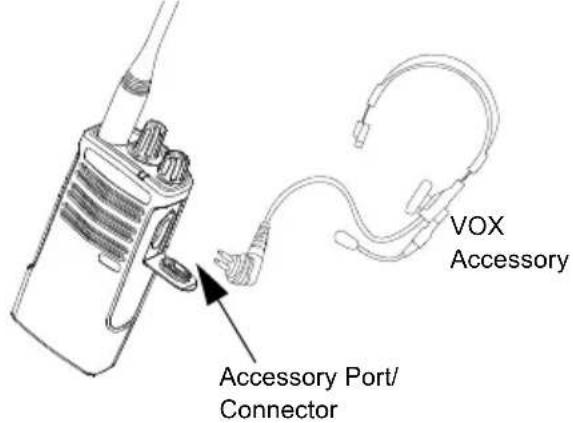
Motorola Solutions RDX Series radios can operate hands-free (VOX) when used with compatible VOX accessories.
With Compatible VOX Accessories
The default factory setting for VOX sensitivity level is OFF (level '0'). Before using VOX, set VOX level to a level different from '0' via the Customer Programming Software (CPS). Then, perform the following steps:
- Turn the radio OFF.
-
Open accessory cover.
-
Insert the audio accessory's plug firmly into accessory port.
- Turn radio ON. The LED Indicator will blink double red
- Lower radio volume BEFORE placing accessory near ear.
- To transmit, speak into accessory microphone and to receive, stop talking.
- VOX can be temporarily disabled by pressing the PTT button or by removing the audio accessory.
VOX can also be activated using the (Menu) button without using the CPS.
Note: To order accessories, refer to: www.motorolasolutions.com/RDX, call 1 (800) 448-6686, or contact your Motorola Solutions point of purchase.
Hands Free without Accessories (iVOX)
- Enable iVOX by pressing the PTT Button while turning ON the radio.
- A short press of the PTT Button re-enables iVOX.
- There is a short delay between the time when you start talking and when the radio transmits.
SETTING VOX/IVOX SENSITIVITY
The sensitivity of the radio's accessory or microphone can be adjusted to suit different operating environments. VOX sensitivity can be programmed via the CPS.
Default value is OFF. If you want to use the VOX feature, VOX level should be set at a different level.
- 1 = High audio input level will trigger the Tx
2 = Medium sensitivity
- 3 = Low audio input level will trigger the Tx
TOGGLE VOICE PROMPT IN USER MODE
Short press the SB1 Button while turning ON the radio to enable/disable the Voice Prompt in User Mode. (Default is set to ON).
POWER UP - TONE MODE
To enable/disable power up tone mode, press SB1 and SB2 buttons simultaneously for 2-3 seconds while powering up the radio until you hear the pre-programmed power up tone. Three different power-up tones are available.
RESET TO FACTORY DEFAULTS
Reset to Factory Defaults will set back all radio features to the original factory default settings. To do so, press PTT, SB2 and SB1 simultaneously while turning ON the radio until you hear a high tone chirp.
MICROPHONE GAIN
The sensitivity of the microphone can be adjusted to fit different users or operating environments.
This feature can be adjusted only through the CPS. Microphone default setting is set to level 2 (medium gain).
NOTES
PROGRAMMING FEATURES
To easily program all the features in your radio, it is recommended to use the Customer Programming Software (CPS) and the programming cable.
CPS software download is available for free at www.motorolasolutions.com/RDX.
Advanced Configuration is a configuration mode that allows the customization of additional features via the radio's front panel.
For non-display model radios, the navigation is guided by an audible voice prompt.
When the radio is set to Advanced Configuration, you are able to read and modify four features:
Frequency Selection,
- Codes (CTCSS/DPL),
- Auto-Scan,
Active Channels, and
- Enable/Disable/Program the Weather Channel
The Frequencies Select feature allows you to choose frequencies from a pre-defined list.
The Interference Eliminator Code (CTCSS/DPL) helps minimize interference by providing you with a choice of code combinations that filter out static, noise, and unwanted messages.
The Auto-Scan feature allows you to set a particular channel to automatically enable Scan each time you switch to that channel.
The Active Channels feature allows you to increase or decrease the amount of active channels (In the range of maximum channels allowed).
The Weather Programming feature allows you to alternate the channel function between 2 way radio channel and weather channel. There are seven received frequencies available for this feature.
Entering Advanced Configuration Mode
Note: Before configuring the features, make sure your radio is set to the channel you wish to program. You can do so before entering Advanced Configuration Mode or at any time during the Advanced Configuration Mode by rotating the Channel Selector Knob until you reach the desired channel.
To read or modify Frequencies, Codes, Auto- Scan, Active Channels and Weather Channel set the radio to 'Advanced Configuration Mode' by long pressing
both the PTT and the SB1 button simultaneously for 3 to 5 seconds while turning ON the radio until you hear an audible voice saying "Programming Mode" and "Channel Number". The LED Indicator starts blinking a green heartbeat.
Note: 'Idle' Programming Mode is the stage in the Programming Mode where the radio waits for the user to start the radio programming cycle.
Once you are in the 'Idle' Programming Mode, you will be able to hear the Frequencies, Codes, Auto-Scan, Active Channels and Weather Channel settings by short pressing the PTT button to navigate along the different programmable features.
RDU4100 has 89 frequencies, 27 frequencies for RDV5100 and 2 for RDU4103.
- In 'Idle' Programming mode, the Channel number becomes the first changeable value. Select the desired channel by turning the Channel Selector Knob. An audible voice indicated the selected channel to configure. Short pressing the PTT button allows you to cycle through the other features available for configuration. Use the SB1
and SB2 button to change the values. An audible voice indicates the value selected.
READING CTCSS/DPL VALUES
Cycle through the features available for configuration by short pressing the PTT button until you hear the current code. The radio moves to the programming CTCSS/PL codes mode.
Enter a new code value using the SB1 and SB2 buttons.
The RDX Series radios have up to 219 codes available. For more information, refer to "Frequency and Code Charts" on page 64.
READING AUTO-SCAN VALUES
After hearing the CTCSS/DPL codes, short pressing the PTT button moves you to Auto-Scan mode.
Auto-Scan has only two values:
ACTIVE CHANNELS
While in Auto-Scan mode, short pressing the PTT button shifts the radio to 'Active Channels' feature. Modify the amount of channels available using the SB1 and SB2 buttons.
WEATHER CHANNEL PROGRAMMING (NOT FOR RDU4103)
After setting the amount of Active Channels, short pressing the PTT button moves you to Weather Channel feature.
Use the SB1 and SB2 buttons to Enable/ Disable the feature.
SAVING SETTINGS
Once you are satisfied with the settings, you can either:
- short press the PTT button to continue programming,
- long press the PTT button to save and return to 'Idle' Programming Mode, or
- long press the PTT button twice to exit 'Idle'.
PROGRAMMING MODE FAQ
I got distracted while programming and forgot which feature I was programming. What should I do?
-
Return to 'Idle' Programming Mode and start over. You will not be able to return to Programming Mode (the radio does not provide further way to let you know the specific stage you are at in the Programming Mode).
Therefore you can:
-
Long press the PTT button. The radio will return to 'Idle' Programming Mode or,
- Turn OFF the radio and enter Programming Mode again. (Refer to "Entering Advanced Configuration Mode" on page 36 for more information)
I am trying to program a frequency (or a code) value but the radio would not do it. It rolled over and took me back to value '0'.
- The radio disallows you to program any value that is not available in the frequencies and codes pool. For example, if you try to program code 220, the radio would not accept it as the maximum value allowed is 219. Same goes for the frequencies. Refer to the "Frequency and
Code Charts" on page 64 to make sure you are programming a valid value.
I am trying to enter the Programming Mode but the radio would not do it.
- The radio may be locked using the CPS to disallow Front Panel Programming. To re- enable, use the CPS.
I programmed the wrong value when I was programming. How can I erase or re-program the value?
If you programmed the wrong value, you can either:
- 'Roll-over' the radio. The radio 'roll-over' each time it reaches the maximum value allowed. Keep increasing (short press the SB1 button) or decreasing (short press the SB2 button) until you get the desired value or,
- Turn OFF the radio and start over.
I just programmed the value I wanted. How do I exit the Programming Mode?
You can either:
-
Long press the PTT button twice to exit if you're in the Programming Mode or,
-
Long press the PTT button once if you are already in the 'Idle' Programming mode.
I am done programming the features in this channel. How do I program another channel?
- Short press the PTT button several times until you hear "Channel Number". Switch channel by rotating the Channel Selector Knob. If you wish to save the changes, make sure you are in the 'Idle' Programming Mode before switching the channel, otherwise you will lose the changes made.
PROGRAMMING VALUES EXAMPLES
Example of Programming a Frequency
Assuming current frequency value is set to Channel 1, with the UHF default frequency set to '02' (equivalent to 464.5500 MHz), and you want to change it to Frequency Number = '13' (which is mapped to 461.1375 MHz), follow this sequence:
- Enter Advanced Configuration Mode.
-
Short press the PTT button to enter Frequency Mode. The radio audible voice announces that the current value is '2'.
-
Press the SB1 button eleven times to increase frequencies and you will hear frequency "One, three" (13).
- Long press the PTT button. LED Indicator shows a green heartbeat to indicate 'Idle' Programming Mode.
- Long press the PTT button again to exit Programming Mode or turn OFF the radio.
Example of Programming a Code
Assuming the current code value is set to factory default '001', and you want to change it to CTCSS/DPL Code = 103 . Follow the sequence indicated below:
- Enter Advanced Configuration Mode.
- Short press the PTT button twice. The radio audible voice announced "Code Number" (Entering CTCSS/DPL Programming Selection Mode).
- Pressing and holding SB1 or SB2 button fast forwards / rewrites the value at the nearest 10's. When released, the radio audible voice announces the first, second and third digit in
full. Keep pressing the SB1 or SB2 button several times until you hear "103".
- Long press the PTT button. LED Indicator shows a green heartbeat to indicate 'Idle' Programming Mode.
- Long press the PTT button again to exit Programming Mode or turn OFF the radio.
Example of Programming Auto-Scan
Auto-Scan is the third available feature in the Programming Mode and can be set to either ON or OFF on a particular channel.
To set Auto-Scan to ON:
- Enter Advanced Configuration Mode and select the desired channel.
- Short press the PTT button three times to enter the Active Channels Programming Selection Mode. The audible voice in the radio announces "Auto-Scan" and the setting (Enabled or Disabled).
- To change the setting, press SB1 or SB2.
- Long press the PTT button. LED Indicator
shows a green heartbeat to indicate 'Idle' Programming Mode.
- Long press the PTT button again to exit Programming Mode or turn OFF the radio.
Example of Programming Active Channels
Active Channels is the fourth* Programming Mode. It allows you to modify the number of active channels the radio is programmed to support.
To set Active Channels:
- Enter Advanced Configuration Mode and select the desired channel.
- Short press the PTT button four times to enter the Active Channels Programming Selection Mode. The audible voice in the radio announces "Active Channels" and the current value.
- Short press the SB1 or SB2 button until you get the number of channels desired.
-
Long press the PTT button. LED Indicator shows a green heartbeat to indicate 'Idle' Programming Mode.
-
Long press the PTT button to exit Programming Mode or turn OFF the radio.
Note: (*) For RDU4103 it is the fifth menu.
Example of Programming Weather Channels (Not valid for RMU4103)
Weather Channels is the last Programming mode. It allows you to toggle a radio channel between 2 way radio mode and weather alert mode.
To set channels to Weather Alert Mode:
- Enter Advanced Configuration Mode and select the desired channel.
- Short press the PTT button five times to enter the Weather Channels Programming Mode.
- An audible voice announces "Weather Channel and Frequency Used" and instructions on how to change values. Refer to "Weather Channel Frequencies Table" on Short press the SB1 or SB2 button to enable/disable the feature.page 48 for the frequency table.
- Short press the SB1 or SB2 button to enable/ disable the feature.
- Long press the PTT button. LED Indicator
shows a green heartbeat to indicate 'Idle' Programming Mode.
- Long press the PTT button again to exit Programming mode or turn OFF the radio.
OTHER PROGRAMMING FEATURES
Scan
Scan allows you to monitor other channels to detect conversations. When the radio detects a transmission, it stops scanning and goes to the active channel. This allows you to listen and talk to people in that channel without having to change channel manually. If there are transmissions on another channel, you will not hear that activity once the radio has stopped scanning. Once the activity on transmitting channel stops, the radio waits for 5 seconds before resuming scan again.
- To start scanning, press the SB1 or SB2 button.
Notes: Scan has to be programmed either to SB1 or SB2 button via CPS. SB2 is by default Scan/Nuisance Channel delete button.
-
To stop scanning, short press the SB1 or SB2 button (programmed for scan) again.
-
By pressing the PTT button while the radio is scanning, the radio will transmit on the channel which was previously selected before Scan is activated. If no transmission occurs within 5 seconds, scanning resumes.
- If you want to scan a channel without the Interference Eliminator Codes (CTCSS/DPL), set the code settings for the channels to '0' in the CTCSS/DPL Programming Selection Mode
Notes: Whenever the radio is set to Scan, the LED Indicator blinks a Red Heartbeat.
Editing Scan List
Scan List can be edited by using the CPS. For more information refer to "Customer Programming Software (CPS)" on page 43
Nuisance Channel Delete
Nuisance Channel Delete allows you to temporarily remove channels from the Scan List. This feature is useful when irrelevant conversations on a 'nuisance' channel ties up the radio's scanning feature.
To delete a channel from the Scan List:
-
Start Scan mode by short pressing the SB1 or SB2 (programmed for scan) button.
-
Wait until the radio stops at the channel you wish to eliminate. Long press the SB2 button to delete it. You cannot delete the channel with scan enabled (home channel).
- The channel will not be scanned again until you exit the Scan mode by short pressing the SB1 or SB2 (programmed for scan) button again or by turning OFF the radio and back ON.
CUSTOMER PROGRAMMING SOFTWARE (CPS)
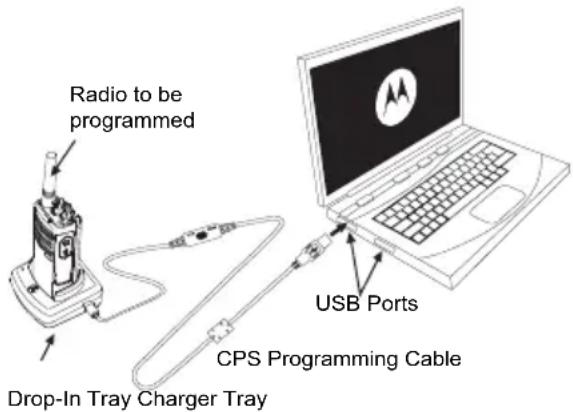
Figure 1: Setting up the radio to the CPS
The easiest way to program or change features in your radio is by using the Customer Programming Software (CPS) and the CPS Programming Cable ^(*) . CPS Software is available for free as web based downloadable software at:
www.motorolasolutions.com/RDX
To program, connect the RM Series radio via the Drop-in Charger Tray and CPS Programming Cable as shown in Figure 1 on page 43. Toggle the cable switch of the CPS Programming Cable to 'CPS Mode'.
CPS allows you to program frequencies, PL/DPL Codes as well as other features such as: Bandwidth Select, Time-out Timer, Power Select, Scan List, Call Tones, Scramble, Reverse Burst, etc. CPS is a very useful tool as it can also lock the Front-Panel Radio Programming or restrict any specific radio feature to be changed (to avoid accidentally erasing the preset radio values). It also provides security by giving the option to set up a password for profile radio's management. For more information, refer to Features Summary Chart Section at the end of the User Guide.
Note: (*) CPS Programming Cable P/N# HKKN4027_is an accessory sold separately. Please contact your Motorola
Solutions point of purchase for more information.
Time-Out Timer
This timer sets the amount of time that the radio can continuously transmit before the transmission is automatically terminated. The default setting is 60 seconds and can be changed using the CPS.
Power Select
Power Select allows you to select between high and low transmission power per frequency in each channel. The power levels for RDX High Power are 2/4W for UHF and 2/5W for VHF.
Call Tones
Call Tones feature allows you to transmit an audible tone to other radios on the same channel to alert them that you are about to talk or to alert them without speaking.
To use this feature, the Call Tones must be programmed to either SB1 or SB2 and 1 of the 3 prerecorded tones is selected.
Scramble
The Scramble feature makes transmissions sound garbled to anyone listening without the same code.
Scramble default value is OFF. To change the scramble code during radio's normal operation, the Scramble feature must be programmed to either SB1 or SB2.
Reverse Burst
Reverse Burst eliminates unwanted noise (squelch tail) during loss of carrier detection. You can select values of either 180 or 240 to be compatible with other radios. The default value is 180.
Notes:
- The features described in previous pages are just some of the features CPS has. CPS offers more capabilities. For more information refer to the HELP file in the CPS.
- Some of the features available with the CPS software may vary depending on the radio model.
TEXT-TO-SPEECH (CHANGING PRE-DEFINED VOICE ALIASES)
Enable User Pre-Defined Voice Prompt (VP) Checklist
Check the box to enable user-defined voice on the selected channel. The user is given the option to
either use the Text-to-Speech synthesizer in order to generate automated voice, or import a wave (.wav) file containing the voice data.
User Pre-Defined Voice Prompt (VP) Text
This field is used by the Text-to-Speech synthesizer embedded in the CPS to generate user-defined voice for the selected channel.
Note:
- The length of the string cannot exceed 18 characters.
- The string can only contain ISO-8859-1 characters.
Import Voice File
This field allows the user to upload a pre- existing wave (.wav) file from the local hard drive. The first eight characters of the wave files are used to populate the channel "Name".
Note:
The wave file must be sampled at 8kHz
- The wave file cannot exceed 65,000kB in length.
Listen to User Customized Voice Prompt (VP) Text
This field allows the user to play the output voice signal generated from the Text-to-Speech synthesizer.
WEATHER FEATURE (NOT FOR RDU4103)
The RDX radio weather mode can be programmed to operate and receive weather channels that are broadcast by the National Weather Radio (NWR). The NWR system is a nationwide network of radio stations (more than 1000 stations in United States) that broadcast continuous weather information for the public. The NWR broadcasts all types of weather service warnings, watches, forecasts and other hazard information. The NWR can also broadcast non-weather alerts such as national security, natural, environmental, and public safety in conjunctions with the Emergency Alert System (EAS).
The RDX radio weather feature can detect weather alerts/warnings that are broadcast by NWR. The RDX + radio can be programmed to detect the analog tone or digital-over-audio protocol. The analog tone is a 1050Hz tone (Warning Alarm Tone), which is issued for 10 seconds immediately before the warning message by the NWR transmitter. When RDX radio detects the Warning Alarm tone, it unmutes audio and
allows the user to hear the weather alert message. As for digital-over- audio protocol, it is a newer technology called Specific Area Message Encoding (SAME) that allows weather radio to receive digital data stream about the type of weather events, timing, duration, and location. When RDX radio detects these special warnings, the radio can be programmed to automatically generate a loud tone, enable LED indicator, and display "hazard" status on the display. With the SAME technology, the RDX radio weather mode can be programmed to detect the type of weather warnings or watches for a specified the county or counties.
Further information about the National Weather Radio system such as network updates, transmitter coverage maps, and SAME event codes can be found on the Internet at www.nws.noaa.gov/nwr/.
Weather Alert Mode
Select the alert mode the radio will respond to alerts sent from the National Weather Service, which transmitted prior to the broadcast of any message about a life or property threatening event.
Choices available are:
Weather Channel Frequencies Table
| Frequency Number Value (Mhz) |
| 1 162.4000 | |
| 2 162.4250 | |
| 3 162.4500 | |
| 4 162.4750 | |
| 5 162.5000 | |
| 6 162.5250 | |
| 7 162.5500 | |
THE WEATHER ALERT HAS TWO MODES OF OPERATIONS:
- In Weather Channel Mode, the radio is in a muted state until it detects the WAT/SAME. When the radio detects the WAT, the radio unmutes and allows the user to hear the weather alert message.
- In two-way mode (on two-way channel), Weather Alert feature becomes a special scan feature. The radio scans between the current selected two-way channel and the selected weather channel. When the radio detects WAT/ SAME signal on the weather channel, the radio unmutes to allow the user to listen the weather message. For Tone Alert, the radio stays in receiving mode until weather signal is weak or user presses the PTT button or changes the channel using the Channel Selector Knob. For SAME alert, whether the radio stays in receiving mode or switches back to two-way mode depending on the setting of the EOM Enabled.
Warning: RDX radio does not detect Weather Alert while it is receiving or transmitting on a two-way channel.
EOM Enabled
This feature is only available for SAME Alert mode and it is only effective when the radio operates in two-way mode or Weather Channel mode. When checked and in two-way mode, the radio switches back to two-way channel and continues to weather scan after it receives end of message (EOM). For weather channel, the radio mutes and continues to look for new SAME alert after it receives EOM. When unchecked, it stays in receiving mode until weather signal is weak or user presses the PTT button or changes the channel using the Channel Selector Knob.
New Alert Tone Timer
Select a pre-defined time for a radio to play the new alert tone. When a radio receives a new SAME alert message, the LED screen lights up and the radio starts playing the new alert tone at the end of the message. Users have the ability to configure how long the alert tone will be played.
Choices available are:
- 0 - forever until a button is pressed, or user switches channel, or the new alert message is expired.
5 m i n
10 min.
- 30 min.
Note: Embedded in the SAME message is the duration of the alert message. The RDX radio continues to display the alert until the duration expiration time.
EVENT TYPE FILTER
The RDX radio is a programmable weather radio that allows users to choose the type of weather warnings and watches that will alarm. The radio can be programmed to allow or block an event by its type.
All Events
When checked, the radio allows for all SAME events.
Alert Test Event
When SAME alert is enabled, the radio responds to any test events. When checked, the radio alerts the same way as other SAME alert messages. When unchecked, the radio displays only the Message,
lights the alert LED without unmuting the radio. The radio does not play the new alert tone at this time.
Note: No matter how the user programs the event filter, some critical events cannot be blocked. The National Weather Service broadcast a test alert every week on Wednesday between 11 AM and Noon. Users should use test alert to ensure that their radios are functioning properly. See also: The Critical Events Table.
WARNING
When checked, the radio allows all warning events. Warning events are events that alone pose a significant threat to public safety and/or property.
Note: No matter how the user programs the event filter, some critical events cannot be blocked. See also: "The Critical Events Table" on page 50.
WATCH
When checked, the radio allows all watch events. Watches are events that meet the classification of a warning, but either the onset time, probability of occurrence or location is uncertain.
Note: No matter how the user programs the event filter, some critical events cannot be blocked. See also: "The Critical Events Table" on page 50.
EMERGENCY
When checked, the radio allows all emergency events. Emergency event is an event that by itself would not kill or injure or do property damage, but indirectly may cause other things to happen that result in a hazard.
Note: No matter how the user programs the event filter, some critical events cannot be blocked. See also: "The Critical Events Table" on page 50.
STATEMENT
When checked, the radio allows all statement events. Statement is message that contains follow-up information to a warning, watch, or emergency.
Note: No matter how the user programs the event filter, some critical events cannot be blocked. See also: "The Critical Events Table" on page 50.
EVENT CODE FILTER
A specific SAME event can be allowed or blocked. There are maximum of five Event Codes can be programmed.
BLOCK EVENT
When checked, the Event Codes entered below shall be blocked.
Note: No matter how the user programs the event filter, some critical events cannot be blocked. See also: "The Critical Events Table" on page 50.
EVENT CODE
The Event Code field accepts wild card (^*) . The following are examples of valid Event Code format.
- "***" - all events
- FL “*” - FLA or FLW
FLA
The "blank" means unprogrammed and the radio will bypass it without doing anything.
Note: No matter how the user programs the event filter, some critical events cannot be
blocked. See also: "The Critical Events
Table" on page 50.
THE CRITICAL EVENTS TABLE
| Abbreviation Description |
| BHW | Biological Hazard Warning |
| CDW Civil Danger Warning |
| CEM | Civil Emergency Message |
| CHW | Chemical Hazard Warning |
| CWW | Contaminated Water Warning |
| DBW Dam Break Warning |
| DEW | Contagious Disease Warning |
Abbreviation Description
| EAN | Emergency Action Notification |
| EAT | Emergency Action Termination |
| EQW Earthquake Warning |
| EVI | Evacuation Immediate |
| FCW | Food Contamination Waming |
| HMW | Hazardous Materials Waming |
| HUW Hurricane Warning |
| IEW | Immediate Evacuation Warning |
| Abbreviation Description |
| IFW | Industrial Fire Warning |
| LAE | Local Area Emergency |
| LEW | Law Enforcement Warning |
| LSW Land Slide Warning |
| NHW | National Hazard Warning |
| NUW | Nuclear Power Plant Warning |
| RHW | Radiological Hazard Warning |
| SPW | Shelter In Place Warning |
| Abbreviation Description |
| TOR Tornado | Warning |
| TOW Tornado | Warning |
| TRW | Tropical Storm Warning |
| TSA Tsunami | Watch |
| TSW Tsunami | Warning |
| VOW Volcano | Warning |
| WFW Wild Fire | Warning |
GEOGRAPHIC FILTER
There are maximum of six geographic codes can be programmed. When all fields are unselected, or any of the geographic code is "ALL" for both State and County code (FIPS is "000000"), the radio bypasses the Geographic Filter check.
There are two ways to enter the geographic code,
- Select State and County Code
- Enter the FIPS code directly (must be 6 digits)
STATE
Selects the State, Territory and Offshore (Marine Area) portion (SS) the radio alerts for.
COUNTY
Select a county, province, or major metropolitan area (CCC) the radio alerts for.
FIPS
Federal Information Processing Standards (FIPS) contains six digits which represent PSSCCC, where P is the region code, SS is the state code and CCC is the county code.
Enters/Edits a specific FIPS whenever it is necessary.
Further information about FIPS can be found on the Internet at www.nws.noaa.gov/nwr/ indexnw.htm or call the National Weather Service Toll-Free Number SAME county code - 1888-NWS-SAME (1-888-697-7263).
CLONING RADIOS
You can clone RDX Series radio profiles from one Source radio to a Target radio by using any one of these three methods:
- Using a Multi Unit Charger (MUC-optional accessory),
- Using two Single Unit Chargers (SUC) and a Radio-to-Radio cloning cable (optional accessory),
- the CPS (free software download)
Cloning with a Multi Unit Charger (MUC)
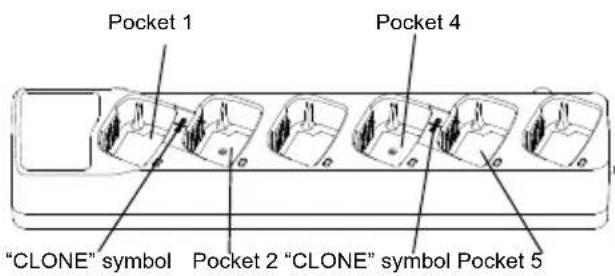
To clone radios using the MUC, there must be at least two radios:
- a Source radio (the radio which profiles will be cloned or copied from) and
- a Target radio (the radio which profile will be cloned from the source radio.)
The Source radio has to be in Pocket 1, 3 or 5 while the Target radio has to be in Pocket 2, 4 or 6, matching in the MUCs pockets by pairs as follows:
1 and 2 or,
3 and 4 or,
- 5 and 6 (*).
When cloning, the MUC does not need to be plugged into a power source, but ALL radios require charged batteries.
- Turn ON the Target radio and place it into one of the MUC Target Pockets.
-
Power the Source radio following the sequence below:
-
Long Press the PTT button and SB2 simultaneously while turning the radio ON.
-
Wait for 3 seconds before releasing the buttons until the audible tone "Cloning" is heard.
-
Place the Source radio in the source pocket that pairs with the target pocket you chose in step 1. Press and release the SB1 button.
- After cloning is completed, the Source radio will announce either "successful" (cloning is successful) or "fail" (cloning has failed). The 'successful' tone sounds like a good key 'chirp' whereas the 'fail' tone sounds similar to a 'bonk' tone. If the Source radio is a display model, it
will either show 'Pass' or 'Fail' on the display (a tone will be heard within 5 s).
- Once you have completed the cloning process, turn the radios OFF and ON or, long press the PTT button to exit the 'cloning' mode.
Further details on how to clone radios are explained in the Instructions Sheet provided with the MUC.
When ordering the MUC, refer to P/N# RLN6309_.
Notes:
- If cloning fails, refer to "What To Do If Cloning Fails" on page 55.
- Paired Target radios and Source radios must be of the same band type in order for the cloning to run successfully.
- MUC pockets numbers should be read from left to right with the Motorola Solutions logo facing front.
Cloning Radio using the Radio to Radio
(R2R) Cloning Cable (Optional Accessory)
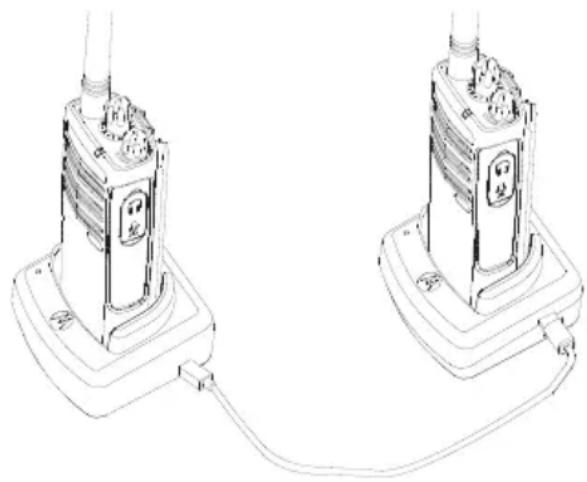
Operating Instructions
-
Before starting the cloning process, make sure you have:
-
A fully charged battery on each of the radios.
- Two Single-Unit Chargers (SUC).
- Turn OFF the radios and,
-
Both radios are of the same radio model.
-
Unplug any cables (power supply or USB cables) from the SUCs.
-
Plug one side of the cloning cable mini USB connector to the first SUC and the other end to the second SUC.
Note: During the cloning process, no power is being applied to the SUC. The batteries will not be charged. Only data communication is being established between the two radios.
- Turn ON the Target Radio and place it into one of the SUCs.
-
For the Source Radio, power ON the radio with the following sequence:
-
Long press the PTT button and SB2 simultaneously while turning the radio ON.
-
Wait for 3 s before releasing the buttons until a distinctive audible tone is heard.
-
Place the Source radio in its SUC, press and release SB1.
- After cloning is completed, the Source radio will sound either a 'pass' tone (cloning was successful) or a 'fail' tone (cloning process has failed). The 'pass' tone sounds like a good key 'chirp' whereas the 'fail' tone sounds similar to a
'bonk' tone. If the Source radio is a display model, it will either show 'Pass' or 'Fail' on the display (a tone will be heard within 5 seconds).
8. Once you have completed the cloning process, turn the radios OFF and ON to exit 'clone' mode.
What To Do If Cloning Fails
The radio will emit an audible "bonk" indicating that the cloning process has failed. In the event that the cloning fails, perform each of the following steps before attempting to start cloning process again:
- Ensure that the batteries on both radios are fully charged.
- Check the cloning cable connection on both SUCs.
- Ensure that the battery is engaged properly on the radio.
- Ensure that there is no debris in the charging tray or on the radio contacts.
- Ensure that the Target radio is turned ON.
-
Ensure that the Source radio is in cloning mode.
-
Ensure that the two radios are both from the same frequency band, same region and have the same transmission power.
Note: This cloning cable is designed to operate only with compatible Motorola SUC RLN6175_ and RLN6304_.
When ordering Optional Cloning Cable, please refer to P/N# RLN6303_. For more information about the accessories, refer to "Accessories" on page 79.
Cloning using the Customer Programming Software (CPS)
When cloning using this method, you need the CPS software, a Drop-In Tray Charger and the CPS Programming Cable.
To order the CPS Programming Cable, please refer to P/N# RKN4155_.
Information on how to clone using the CPS is available either in:
- the CPS Help File --> Content and Index -->
Cloning Radios, or
- in the CPS Programming Cable Accessory Leaflet.
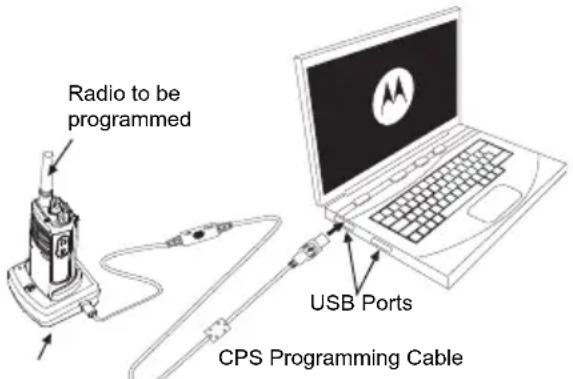
Drop-In Tray Charger Tray
NOTES
TROUBLESHOOTING
| Symptom Try This... |
| No Power | Recharge or replace the Li-1on battery.
Extreme operating temperatures may affect battery life.
Refer to “About the Li-1on Battery” on page 16. |
| Hearing other noises or conversation on a channel | Confirm Interference Eliminator Code is set.
Frequency or Interference Eliminator Code may be in use.
Change settings: either change frequencies or codes on all radios.
Make sure radio is at the right frequency and code when transmitting.
Refer to “Talking and Monitoring” on page 29. |
| Message Scrambled | Scramble Code might be ON, and/or setting does not match the other radios' settings. |
| Audio quality not good enough | Radio settings might not be matching up correctly. Double check frequencies, codes and bandwidths to make sure they are identical in all radios. |
| Limited talk range | Steel and/or concrete structures, heavy foliage, buildings or vehicles decrease range. Check for clear line of sight to improve transmission.
Wearing radio close to body such as in a pocket or on a belt decreases range.
Change location of radio. To increase range and coverage, you can reduce obstructions or increase power. UHF radios provides greater coverage in industrial and commercial buildings. Increasing power provides greater signal range and increased penetration through obstructions.
Refer to “Talking and Monitoring” on page 29. |
| Message not transmitted or received | Make sure the PTT button is completely pressed when transmitting.
Confirm that the radios have the same Channel, Frequency, Interference Eliminator Code and Scramble Code settings. Refer to “Talking and Monitoring” on page 29 for further information.
Recharge, replace and/or reposition batteries. Refer to “About the Li-Ion Battery” on page 16.
Obstructions and operating indoors, or in vehicles, may interfere. Change location. Refer to “Talking and Monitoring” on page 29.
Verify that the radio is not in Scan. Refer to “Scan” on page 42 and “Nuisance Channel Delete” on page 42. |
| Heavy static or interference | Radios are too close; they must be at least five feet apart. Radios are too far apart or obstacles are interfering with transmission. Refer to “Talking and Monitoring” on page 29. |
| Low batteries | Recharge or replace Li-1on battery. Extreme operating temperatures affect battery life. Refer to “About the Li-1on Battery” on page 16. |
| Drop-in Charger LED light does not blink | Check that the radio/battery is properly inserted and check the battery/charger contacts to ensure that they are clean and charging pin is inserted correctly. Refer to “Charging the Battery” on page 22, “Drop-in Tray Charger LED Indicators” on page 24 and “Installing the Lithium-Ion (Li-Ion) Battery” on page 18. |
| Low battery indicator is blinking although new batteries are inserted | Refer to “Installing the Lithium-Ion (Li-Ion) Battery” on page 18, and “About the Li-Ion Battery” on page 16. |
| Cannot activate VOX | VOX feature might be set to OFF.Use the CPS to ensure that the VOX Sensitivity level is not set to ‘0’.Accessory not working or not compatible.Refer to “Hands-Free Use/VOX” on page 33. |
| Battery does not chargealthough it has been placed inthe drop-in charger for a while | Check drop-in tray charger is properly connected and correspond to acomppatible power supply.Refer to “Charging with the Drop-in Tray Single Unit Charger (SUC)” onpage 22 and “Charging A Stand-Alone Battery” on page 23.Check the charger's LEDs indicators to see if the battery has a problem. Referto “Drop-in Tray Charger LED Indicators” on page 24. |
| User voice prompt does notclone. | Check the front radio name plate. Radios with an orange color font will notsupport customize voice prompt. |
Note: Whenever a feature in the radio seems to not correspond to the default or preprogrammed values, check to see if the radio has been programmed using the CPS with a customized profile.
USE AND CARE
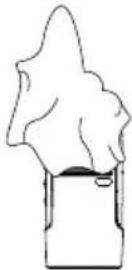
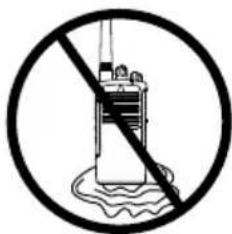
Use a soft damp cloth to clean the exterior
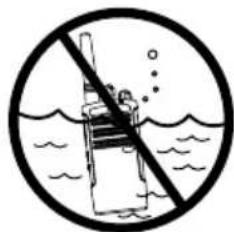
Do not immerse in water
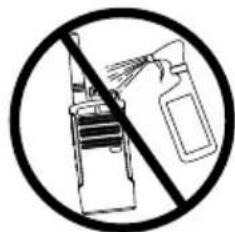
Do not use alcohol or cleaning solutions
If the radio is submerged in water...
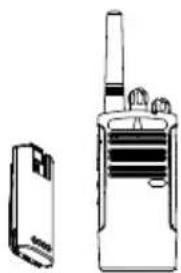
Turn radio OFF and remove batteries
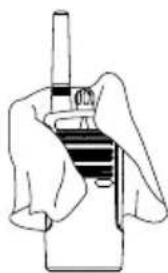
Dry with soft cloth Do not use radio until
completely dry
NOTES
FREQUENCY AND CODE CHARTS
RDX VHF FREQUENCIES CHART
The charts in this section provide Frequency and Code information. These charts are useful when using the Motorola RDX Series two-way radios with other business radios.
VHF Frequencies - BRUS
| Frequency # Frequency (MHz) Bandwidth |
| 1(*) | 151.6250 | 12.5 kHz |
| 2(*) | 151.9550 | 12.5 kHz |
| 3 152.88 | 50 12.5 kHz 17 151.8 | 950 12.5 kHz |
| 4 152.91 | 50 12.5 kHz 18 151.9 | 250 12.5 kHz |
| 5 151.70 | 00 12.5 kHz 19 152.9 | 000 12.5 kHz |
| 6 | 151.7600 | 12.5 kHz |
| 7 | 152.9450 | 12.5 kHz |
| 8 151.83 | 50 12.5 kHz 22 154.5 | 275 12.5 kHz |
| 9 151.80 | 50 12.5 kHz 23 154.5 | 400 12.5 kHz |
| 10(*) | 151.5125 | 12.5 kHz |
| 11 | 151.6550 | 12.5 kHz |
| 12(*) | 151.6850 | 12.5 kHz |
| 13 151.71 | 150 12.5 kHz 27 158.4 | 4075 12.5 kHz |
| 14 151.74 | 450 12.5 kHz | |
| Frequency # Frequency (MHz) Bandwidth |
| 15(*) | 151.7750 | 12.5 kHz |
| 16 | 151.8650 | 12.5 kHz |
| | |
| | |
| | |
| | |
| 20(*) | 154.4900 | 12.5 kHz |
| 21(*) | 154.5150 | 12.5 kHz |
| | |
| | |
| 24 | 153.0050 | 12.5 kHz |
| 25 | 154.5475 | 12.5 kHz |
| 26 | 158.4000 | 12.5 kHz |
| | |
| | |
Note: (*) Default Frequencies
Note: (^**) Warning,Receive only Frequency
RDX VHF 10CH Radios Default Frequencies - RDV5100
| Channel Frequency # | Frequency (MHz) | Code# Code Bandwidth |
| 1 1 151.6250 1 67.0 Hz 12.5 kHz | | | |
| 2 1 151.6250 4 77.0 Hz 12.5 kHz | | | |
| 3 1 151.6250 8 88.5 Hz 12.5 kHz | | | |
| 4 1 151.6250 29 179.9 Hz 12.5 kHz | | | |
| 5 1 151.6250 0 - 12.5 kHz | | | |
| 6 2 151.9550 1 67.0 Hz 12.5 kHz | | | |
| 7 2 151.9550 6 82.5 Hz 12.5 kHz | | | |
| 8 | WC | 162.4000 | 10 | 67.0 Hz |
| 9 2 151.9550 29 179.9 Hz 12.5 kHz | | | |
| 10 | 2 | 151.9550 | 0 | - |
Notes: WC = Weather Channel Frequency
RDX UHF FREQUENCIES CHART
RDX UHF Frequencies
| Frequency # Frequency (MHz) Bandwidth |
| 1 464.50 | 00 12.5 kHz 15 461.1 | 875 12.5 kHz |
| 2 464.55 | 00 12.5 kHz 16 461.2 | 125 12.5 kHz |
| *3 | 467.7625 | 12.5 kHz |
| *4 | 467.8125 | 12.5 kHz |
| *5 | 467.8500 | 12.5 kHz |
| *6 | 467.8750 | 12.5 kHz |
| *7 | 467.9000 | 12.5 kHz |
| *8 | 467.9250 | 12.5 kHz |
| 9 | 461.0375 | 12.5 kHz |
| 10 | 461.0625 | 12.5 kHz |
| 11 | 461.0875 | 12.5 kHz |
| 12 | 461.1125 | 12.5 kHz |
| 13 | 461.1375 | 12.5 kHz |
| 14 | 461.1625 | 12.5 kHz |
| Frequency # Frequency (MHz) Bandwidth |
| | |
| | |
| 17 | 461.2375 | 12.5 kHz |
| 18 | 461.2625 | 12.5 kHz |
| 19 | 461.2875 | 12.5 kHz |
| 20 | 461.3125 | 12.5 kHz |
| 21 | 461.3375 | 12.5 kHz |
| 22 | 461.3625 | 12.5 kHz |
| *23 | 462.7625 | 12.5 kHz |
| *24 | 462.7875 | 12.5 kHz |
| *25 | 462.8125 | 12.5 kHz |
| *26 | 462.8375 | 12.5 kHz |
| *27 | 462.8625 | 12.5 kHz |
| *28 | 462.8875 | 12.5 kHz |
RDX UHF Frequencies (Continued)
Frequency # Frequency (MHz) Bandwidth
| *29 | 462.9125 | 12.5 kHz |
| 30 | 464.4875 | 12.5 kHz |
| 31 | 464.5125 | 12.5 kHz |
| 32 | 464.5375 | 12.5 kHz |
| 33 | 464.5625 | 12.5 kHz |
| 34 | 466.0375 | 12.5 kHz |
| 35 466.0625 12.5 kHz 53 469.4875 12.5 kHz |
| 36 466.0875 12.5 kHz 54 469.5125 12.5 kHz |
| 37 466.1125 12.5 kHz 55 469.5375 12.5 kHz |
| 38 466.1375 12.5 kHz 56 469.5625 12.5 kHz |
| 39 466.1625 12.5 kHz 57 462.1875 12.5 kHz |
| 40 466.1875 12.5 kHz 58 462.4625 12.5 kHz |
| 41 466.2125 12.5 kHz 59 462.4875 12.5 kHz |
| 42 466.2375 12.5 kHz 60 462.5125 12.5 kHz |
| 43 466.2625 12.5 kHz 61 467.1875 12.5 kHz |
| 44 466.2875 12.5 kHz 62 467.4625 12.5 kHz |
| 45 466.3125 12.5 kHz 63 467.4875 12.5 kHz |
| 46 466.3375 12.5 kHz 64 467.5125 12.5 kHz |
Frequency # Frequency (MHz) Bandwidth
| 47 | 466.3625 | 12.5 kHz |
| *48 | 467.7875 | 12.5 kHz |
| *49 | 467.8375 | 12.5 kHz |
| *50 | 467.8625 | 12.5 kHz |
| *51 | 467.8875 | 12.5 kHz |
| *52 | 467.9125 | 12.5 kHz |
| | |
| | |
| | |
| | |
| | |
| | |
| | |
| | |
| | |
| | |
| | |
RDX UHF Frequencies (Continued)
| Frequency # Frequency (MHz) Bandwidth |
| 65 451.1 | 875 12.5 kHz 82 456.4375 12.5 kHz |
| 66 451.2 | 875 12.5 kHz 83 456.5375 12.5 kHz |
| 67 451.2 | 875 12.5 kHz 84 456.6375 12.5 kHz |
| 68 451.3 | 875 12.5 kHz 85 457.3125 12.5 kHz |
| 69 451.4 | 875 12.5 kHz 86 457.4125 12.5 kHz |
| 70 451.5 | 875 12.5 kHz 87 457.5125 12.5 kHz |
| 71 451.6 | 875 12.5 kHz 88 457.7625 12.5 kHz |
| 72 452.3 | 125 12.5 kHz 89 457.8625 12.5 kHz |
| 73 452.5 | 875 12.5 kHz 90 468.2125 12.5 kHz |
| 74 452.4 | 125 12.5 kHz 91 468.2625 12.5 kHz |
| 75 452.5 | 125 12.5 kHz 92 468.3125 12.5 kHz |
| 76 452.7 | 625 12.5 kHz 93 468.3625 12.5 kHz |
| 77 452.8 | 625 12.5 kHz 94 468.4125 12.5 kHz |
| 78 456.1 | 875 12.5 kHz 95 468.4625 12.5 kHz |
| 79 456.2 | 875 12.5 kHz 96 468.5125 12.5 kHz |
| 80 456.2 | 875 12.5 kHz 97 468.5625 12.5 kHz |
| 81 456.3 | 875 12.5 kHz 98 468.6125 12.5 kHz |
| 82 456.4 | 875 12.5 kHz 99 468.6625 12.5 kHz |
| Frequency # Frequency (MHz) Bandwidth |
| | |
| | |
| | |
| | |
| | |
| | |
| | |
| | |
| | |
| | |
| | |
| | |
| | |
| | |
| | |
| | |
Note: (*) Frequency limited to 2 W maximum power output.
RDU4100 - UHF DEFAULT FREQUENCIES CHART
RDX UHF 10CH Radios Default Frequencies - RDU4100
| Channel Frequency # | Frequency (MHz) | Code # Code Bandwidth | |
| 1 1 464.5000 1 67.0 Hz 12.5 kHz | | | | |
| 2 1 464.5000 4 77.0 Hz 12.5 kHz | | | | |
| 3 1 464.5000 8 88.5 Hz 12.5 kHz | | | | |
| 4 1 464.5000 29 179.9 Hz 12.5 kHz | | | | |
| 5 1 464.5000 0 - 12.5 kHz | | | | |
| 6 2 464.5500 1 67.0 Hz 12.5 kHz | | | | |
| 7 2 464.5500 6 82.5 Hz 12.5 kHz | | | | |
| 8 | WC | 162.4000 | 10 | 67.0 Hz | 25.0 kHz |
| 9 2 464.5500 29 179.9 Hz 12.5 kHz | | | | |
| 10 | 2 | 464.5500 | 0 | - | 12.5 kHz |
Note: WC = Weather Channel Frequency
RDU4103 - UHF DEFAULT FREQUENCIES CHART
RDX UHF 10CH Radios Default Frequencies - RDU4103
| Channel Frequency # | Frequency (MHz) | Code # Code Bandwidth | |
| 1 1 458.6625 1 67.0 Hz 12.5 kHz | | | | |
| 2 2 469.2625 1 67.0 Hz 12.5 kHz | | | | |
| 3 1 458.6625 2 71.9 Hz 12.5 kHz | | | | |
| 4 2 469.2625 2 71.9 Hz 12.5 kHz | | | | |
| 5 1 458.6625 3 74.4 Hz 12.5 kHz | | | | |
| 6 2 469.2625 3 74.4 Hz 12.5 kHz | | | | |
| 7 1 458.6625 4 77.0 Hz 12.5 kHz | | | | |
| 8 2 469.2625 4 77.0 Hz 12.5 kHz | | | | |
| 9 1 458.6625 5 79.7 Hz 12.5 kHz | | | | |
| 10 | 2 | 469.2625 | 5 | 79.7 Hz | 12.5 kHz |
Note: WC = Weather Channel Frequency
CTCSS AND PL/DPL CODES
CTCSS Codes
| CTCSS Hz CTCSS Hz | SS Hz |
| 1 67.0 | 14 | 107.2 | 27 167.9 | |
| 2 71.9 | 15 | 110.9 | 28 173.8 | |
| 3 74.4 | 16 | 114.8 | 29 179.9 | |
| 4 77.0 | 17 | 118.8 | 30 186.2 | |
| 5 79.7 | 18 | 123 | 31 192.8 | |
| 6 82.5 | 19 | 127.3 | 32 203.5 | |
| 7 85.4 | 20 | 131.8 | 33 210.7 | |
| 8 88.5 | 21 | 136.5 | 34 218.1 | |
| 9 91.5 | 22 | 141.3 | 35 225.7 | |
| 10 94.8 | 23 | 146.2 | 36 233.6 | |
| 11 97.4 | 24 | 151.4 | 37 241.8 | |
| 12 100.0 | 25 | 156.7 | 38 250.3 | |
| 13 103.5 | 26 | 162.2 | 39 222 (* ) 69 | 3 |
Note: (*) New CTCSS code.
|
| |
| |
| |
| |
| |
| |
| |
| |
| |
| |
| |
| |
| DPL Code DPL Code |
| 39 23 | 5 116 71 243 |
| 40 25 | 6 125 72 244 |
| 41 26 | 7 131 73 245 |
| 42 31 | 8 132 74 251 |
| 43 32 | 9 134 75 261 |
| 44 43 | 0 143 76 263 |
| 45 47 | 1 152 77 265 |
| 46 51 | 2 155 78 271 |
| 47 54 | 3 156 79 306 |
| 48 65 | 4 162 80 311 |
| 49 71 | 5 165 81 315 |
| 50 72 | 6 172 82 331 |
| 51 73 | 7 174 83 343 |
| 52 74 | 8 205 84 346 |
| 53 114 | 9 223 85 351 |
| 54 115 | 0 226 86 364 |
PL/DPL Codes
PL/DPL Codes (Continued)
| DPL Code DPL Code | Code |
| 87 365 | 104 565 121 754 | | |
| 88 371 | 105 606 123 645 | | |
| 89 411 | | 106 6 | 12 124 Customized PL |
| 90 412 | 107 624 125 Customized PL | | |
| 91 413 | 108 627 126 Customized PL | | |
| 92 423 | 109 631 127 Customized PL | | |
| 93 431 | 110 632 128 Customized PL | | |
| 94 432 | 111 654 129 Customized PL | | |
| 95 445 | 112 662 130 Inverted DPL | 39 | |
| 96 464 | 113 664 131 Inverted DPL | 40 | |
| 97 465 | 114 703 132 Inverted DPL | 41 | |
| 98 466 | 115 712 133 Inverted DPL | 42 | |
| 99 503 | 116 723 134 Inverted DPL | 43 | |
| 100 506 | 117 731 135 Inverted DPL | 44 | |
| 101 516 | 118 732 136 Inverted DPL | 45 | |
| 102 532 | 119 734 137 Inverted DPL | 46 | |
| 103 546 | 120 743 138 Inverted DPL | 47 | |
|
| |
| |
| |
| |
| |
| |
| |
| |
| |
| |
| |
| |
| |
| |
| |
| |
| DPL Code DPL Code |
| 139 | Inverted DPL 48 |
| 140 | Inverted DPL 49 |
| 141 | Inverted DPL 50 |
| 142 | Inverted DPL 51 |
| 143 | Inverted DPL 52 |
| 144 | Inverted DPL 53 |
| 145 | Inverted DPL 54 |
| 146 | Inverted DPL 55 |
| 147 | Inverted DPL 56 |
| 148 | Inverted DPL 57 |
| 149 | Inverted DPL 58 |
| 150 | Inverted DPL 59 |
| 151 | Inverted DPL 60 |
| 152 | Inverted DPL 61 |
| 153 | Inverted DPL 62 |
| 154 | Inverted DPL 63 |
| 155 | Inverted DPL 64 |
| ode |
| 156 | Inverted DPL 65 |
| 157 | Inverted DPL 66 |
| 158 | Inverted DPL 67 |
| 159 | Inverted DPL 68 |
| 160 | Inverted DPL 69 |
| 161 | Inverted DPL 70 |
| 162 | Inverted DPL 71 |
| 163 | Inverted DPL 72 |
| 164 | Inverted DPL 73 |
| 165 | Inverted DPL 74 |
| 166 | Inverted DPL 75 |
| 167 | Inverted DPL 76 |
| 168 | Inverted DPL 77 |
| 169 | Inverted DPL 78 |
| 170 | Inverted DPL 79 |
| 171 | Inverted DPL 80 |
| 172 | Inverted DPL 81 |
| 173 | Inverted DPL 82 |
| 174 | Inverted DPL 83 |
| 175 | Inverted DPL 84 |
| 176 | Inverted DPL 85 |
| 177 | Inverted DPL 86 |
| 178 | Inverted DPL 87 |
| 179 | Inverted DPL 88 |
| 180 | Inverted DPL 89 |
| 181 | Inverted DPL 90 |
| 182 | Inverted DPL 91 |
| 183 | Inverted DPL 92 |
| 184 | Inverted DPL 93 |
| 185 | Inverted DPL 94 |
| 186 | Inverted DPL 95 |
| 187 | Inverted DPL 96 |
| 188 | Inverted DPL 97 |
| 189 | Inverted DPL 98 |
| DPL | Code |
| 190 | Inverted DPL 99 |
| 191 | Inverted DPL 100 |
| 192 | Inverted DPL 101 |
| 193 | Inverted DPL 102 |
| 194 | Inverted DPL 103 |
| 195 | Inverted DPL 104 |
| 196 | Inverted DPL 105 206 |
| 197 | Inverted DPL 106 |
| 198 | Inverted DPL 107 208 |
| 199 | Inverted DPL 108 |
| DPL | Code |
| 200 | Inverted DPL 109 |
| 201 | Inverted DPL 110 |
| 202 | Inverted DPL 111 |
| 203 | Inverted DPL 112 |
| 204 | Inverted DPL 113 |
| 205 | Inverted DPL 114 |
| ed DPL | 115 216 Customize |
| 207 | Inverted DPL 116 |
| ed DPL | 117 218 Customize |
| 209 | Inverted DPL 118 |
| DPL | Code |
| 210 | Inverted DPL 119 |
| 211 | Inverted DPL 120 |
| 212 | Inverted DPL 121 |
| 213 | Inverted DPL 123 |
| 214 | Customized DPL |
| 215 | Customized DPL |
| |
| 217 | Customized DPL |
| |
| 219 | Customized DPL |
MOTOROLA SOLUTIONS LIMITED WARRANTY FOR THE UNITED STATES AND CANADA
What Does this Warranty Cover?
Subject to the exclusions contained below, Motorola Solutions, Inc. warrants its telephones, pagers, and consumer and business two-way radios (excluding commercial, government or industrial radios) that operate via Family Radio Service or General Mobile Radio Service, Motorola Solutions-branded or certified accessories sold for use with these Products ("Accessories") and Motorola Solutions software contained on CD-ROMs or other tangible media and sold for use with these Products ("Software") to be free from defects in materials and workmanship under normal consumer usage for the period(s) outlined below.
This limited warranty is a consumer's exclusive remedy, and applies as follows to new Motorola Solutions Products, Accessories and Software purchased by consumers in the United States, which are accompanied by this written warranty.
Products and Accessories
| Products Covered Length of Coverage |
| Products and Accessories as defined above, unless otherwise provided for below. | One (1) year from the date of purchase by the first consumer purchaser of the product unless otherwise provided for below. |
| Decorative Accessories and Cases. Decorative covers, bezels, PhoneWrap™ covers and cases. | Limited lifetime warranty for the lifetime of ownership by the first consumer purchaser of the product. |
| Business Two-way Radio Accessories | One (1) year from the date of purchase by the first consumer purchaser of the product. |
| Products and Accessories that are Repaired or Replaced. | The balance of the original warranty or for ninety (90) days from the date returned to the consumer, whichever is longer. |
Exclusions
Normal Wear and Tear. Periodic maintenance, repair and replacement of parts due to normal wear and tear are excluded from coverage.
Batteries. Only batteries whose fully charged capacity falls below 80% of their rated capacity and batteries that leak are covered by this limited warranty.
Abuse & Misuse. Defects or damage that result from: (a) improper operation, storage, misuse or abuse, accident or neglect, such as physical damage (cracks, scratches, etc.) to the surface of the product resulting from misuse; (b) contact with liquid, water, rain, extreme humidity or heavy perspiration, sand, dirt or the like, extreme heat, or food; (c) use of the Products or Accessories for commercial purposes or subjecting the Product or Accessory to abnormal usage or conditions; or (d) other acts which are not the fault of Motorola Solutions, are excluded from coverage.
Use of Non-Motorola Solutions Products and
Accessories. Defects or damage that result from the use of Non-Motorola Solutions branded or certified Products, Accessories, Software or other peripheral equipment are excluded from coverage.
Unauthorized Service or Modification. Defects or damages resulting from service, testing, adjustment, installation, maintenance, alteration, or modification in any way by someone other than Motorola Solutions, or its authorized service centers, are excluded from coverage.
Altered Products. Products or Accessories with (a) serial numbers or date tags that have been removed, altered or obliterated; (b) broken seals or that show evidence of tampering; (c) mismatched board serial numbers; or (d) nonconforming or non-Motorola Solutions housings, or parts, are excluded from coverage.
Communication Services. Defects, damages, or the failure of Products, Accessories or Software due to any communication service or signal you may subscribe to or use with the Products Accessories or Software is excluded from coverage.
Software
Products Covered Length of Coverage
Software. Applies only to physical defects in the media that embodies the copy of the software (e.g. CD-ROM, or floppy disk).
Ninety (90) days from the date of purchase.
Exclusions
Software Embodied in Physical Media. No warranty is made that the software will meet your requirements or will work in combination with any hardware or software applications provided by third parties, that the operation of the software products will be
uninterrupted or error free, or that all defects in the software products will be corrected.
Software NOT Embodied in Physical Media. Software that is not embodied in physical media (e.g. software that is downloaded from the internet), is provided "as is" and without warranty.
WHO IS COVERED?
This warranty extends only to the first consumer purchaser, and is not transferable.
Contact your Motorola Solutions point of purchase.
SOFTWARE COPYRIGHT NOTICE
The Motorola Solutions products described in this manual may include copyrighted Motorola Solutions and third party software stored in semiconductor memories or other media. Laws in the United States and other countries preserve for Motorola Solutions and third party software providers certain exclusive rights for copyrighted software, such as the exclusive rights to distribute or reproduce the copyrighted software. Accordingly, any copyrighted software contained in the Motorola Solutions products may not be modified, reverse-engineered, distributed, or reproduced in any manner to the extent allowed by law.
Furthermore, the purchase of the Motorola Solutions products shall not be deemed to grant either directly or by implication, estoppel, or otherwise, any license under the copyrights, patents, or patent applications of Motorola Solutions or any third party software provider, except for the normal, non-exclusive, royalty-free license to use that arises by operation of law in the sale of a product.
PATENT NOTICE
This product is covered by one or more of the following United States patents. 5896277 5894292 5864752 5699006 5742484 D408396 D399821 D387758 D389158 5894592 5893027 5789098 5734975 5861850 D395882 D383745 D389827 D389139 5929825 5926514 5953640 6071640 D413022 D416252 D416893 D433001
EXPORT LAW ASSURANCES
This product is controlled under the export regulations of the United States of America. The Governments of the United States of America may restrict the exportation or re-exportation of this product to certain destinations. For further information contact the U.S. Department of Commerce.
ACCESSIONS
ANTENNA
| Part No. Description |
| RAN4031 | UHF Whip Antenna 438-470 MHz |
| RAN4041 | VHF Helical Antenna 146-174 MHz |
| RAN4033 | UHF Stubby Antenna 438-470 MHz |
AUDIO ACCESSORIES
| Part No. Description |
| HKLN4601 Surveillance Earpiece BR |
| 53815 | Headset with Boom Microphone BR |
| HMN4606 Remote Speaker Mic BR |
| Part No. Description |
| 53865 Headset with Swivel Boom Mic |
| HKLN4599 Earpiece with Inline Mic Swivel |
| HKLN4604 Earpiece BR |
BATTERY
| Part No. Description |
| RLN6308 High Capacity Li-Ion Battery |
| RLN6351 Standard Li-Ion Battery |
CABLES
| Part No. Description |
| RLN6303 Radio | to Radio Cloning Cable |
| RKN4155 CPS | Programming Cable |
CHARGERS
Part No. Description
RLN6304
Rapid ACCY Charging Kit - Americas (^*)
RLN6309
Multi Unit Charger (MUC) Kit - North America
RLN6175 Standard Drop-in Tray Charger
CARRY ACCESSORIES
Part No. Description
RLN6307 Spring Action Belt Clip
RLN6302 Hard Leather Carry Case
SOFTWARE APPLICATIONS
Part No. Description
RVN5147
Customer Programming Software (CPS)
POWER SUPPLIES AC PIN ADAPTERS
Part No. Description
RLN6349 North
America AC Pin Adapter
POWER SUPPLIES
Part No. Description
| RPN4054 | Standard US Fixed Power Supply |
| RPN4058 | Standard Exchg AC pin Pwr Supply |
| PMPN4005 Rapid Exchg AC pin Pwr Supply |
Note: Certain accessories may be or may not be available at the time of purchase. For latest information on accessories, contact your Motorola Solutions point of purchase or visit: www.motorolasolutions.com/RDX
(*) Americas Rapid Charging Kit includes Power Supply, Drop-in Tray Charger, and AC Pin adapters.
NOTES
TABLE DES MATIÈRES
Table des matieres 1
www.motorolasolutions.com/RDX
REMARQUES
INTRODUCTION
www.motorolasolutions.com/RDX
Ou
Plantation, Florida 33322
RENSEIGNEMENTS DELICENCE FCC
(NON APPLICABLE AU MODELE EDR4103)
www.motorolasolutions.com/RDX
FONCTION MÉTÉO (NON APPLICABLE AU MODELE RDU4103)
Codes PL/DPL (suite)
Codes PL/DPL (suite)
| DPL Code DPL Code |
| 139 | DPL 48 inversé |
| 140 | DPL 49 inversé |
| 141 | DPL 50 inversé |
| 142 | DPL 51 inversé |
| 143 | DPL 52 inversé |
| 144 | DPL 53 inversé |
| 145 | DPL 54 inversé |
| 146 | DPL 55 inversé |
| 147 | DPL 56 inversé |
| 148 | DPL 57 inversé |
| 149 | DPL 58 inversé |
| 150 | DPL 59 inversé |
| 151 | DPL 60 inversé |
| 152 | DPL 61 inversé |
| 153 | DPL 62 inversé |
| 154 | DPL 63 inversé |
| 155 | DPL 64 inversé |
| ode |
| 156 | DPL 65 inversé |
| 157 | DPL 66 inversé |
| 158 | DPL 67 inversé |
| 159 | DPL 68 inversé |
| 160 | DPL 69 inversé |
| 161 | DPL 70 inversé |
| 162 | DPL 71 inversé |
| 163 | DPL 72 inversé |
| 164 | DPL 73 inversé |
| 165 | DPL 74 inversé |
| 166 | DPL 75 inversé |
| 167 | DPL 76 inversé |
| 168 | DPL 77 inversé |
| 169 | DPL 78 inversé |
| 170 | DPL 79 inversé |
| 171 | DPL 80 inversé |
| 172 | DPL 81 inversé |
| 173 | DPL 82 inversé |
| 174 | DPL 83 inversé |
| 175 | DPL 84 inversé |
| 176 | DPL 85 inversé |
| 177 | DPL 86 inversé |
| 178 | DPL 87 inversé |
| 179 | DPL 88 inversé |
| 180 | DPL 89 inversé |
| 181 | DPL 90 inversé |
| 182 | DPL 91 inversé |
| 183 | DPL 92 inversé |
| 184 | DPL 93 inversé |
| 185 | DPL 94 inversé |
| 186 | DPL 95 inversé |
| 187 | DPL 96 inversé |
| 188 | DPL 97 inversé |
| 189 | DPL 98 inversé |
Français (Canada)
Codes PL/DPL (suite)
| DPL Code |
| 190 | DPL 99 inversé |
| 191 | DPL 100 inversé |
| 192 | DPL 101 inversé |
| 193 | DPL 102 inversé |
| 194 | DPL 103 inversé |
| 195 | DPL 104 inversé |
| 196 DPL | 105 inversé 206 |
| 197 | DPL 106 inversé |
| 198 DPL | 107 inversé 208 |
| 199 | DPL 108 inversé |
DPL 115 inverse 216 DPL person nalisé
DPL 207 DPL 116 inversé
DPL 17 inverse 218 DPL person nalisé
DPL 209 DPL 118 inversé
| DPL Code |
| 200 | DPL 109 inversé |
| 201 | DPL 110 inversé |
| 202 | DPL 111 inversé |
| 203 | DPL 112 inversé |
| 204 | DPL 113 inversé |
| 205 | DPL 114 inversé |
| 5 inversé | 216 DPL person |
| 207 | DPL 116 inversé |
| 7 inversé | 218 DPL person |
| 209 | DPL 118 inversé |
AVIS RELATIF AUX BREVETS
ACCESSIONS DE TRANSPORT
APPLICATIONS LOGICIELLES
| N° de piece Description |
| RVN5147 | Logiciel CPS (programmation client) |
ADAPTATEURSC.A.À BROCHES POUR BLOCSD'ALIMENTATION
Motorola Solutions, Inc.
1301 E. Algonquin Rd.
Schaumburg, IL 60196-1078, U.S.A.
http://www.motorolasolutions.com
MOTOROLA, MOTOROLA SOLUTIONS and the Stylized M logo are trademarks or registered trademarks of Motorola Trademark
Holdings, LLC and are used under license. All other trademarks are the property of their respective owners.
© 2016 Motorola Solutions, Inc.
All rights reserved.

MN002895A01-AB