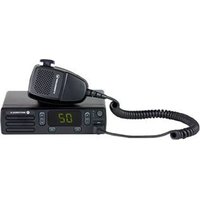
MOTOTRBO CM300d - Radio MOTOROLA - Free user manual and instructions
Find the device manual for free MOTOTRBO CM300d MOTOROLA in PDF.


| Brand | Motorola |
| Model | MOTOTRBO CM300d |
| Category | Two-way mobile radio |
| Power supply | 12 V DC, 15–20 A (power cable provided) |
| Operating modes | Analog conventional, digital conventional, IP site connect, Capacity Plus (single site and multi-site) |
| Call types | Group, private (individual), all call, selective (DTMF) |
| Scanning | Up to 250 lists of 16 channels with priorities |
| Emergency function | Emergency alarm and emergency voice call |
| Text messaging | Predefined messages, free text, quick messages |
| Display | LCD screen with status icons (RSSI, scanning, etc.) |
| LED indicators | Green (transmit/receive), red (error/emergency), yellow (monitor/scan) |
| Programmable keys | 6 assignable keys (short/long press) |
| Antenna | Compatible with approved VHF/UHF antennas (list in user manual) |
| Connectivity | 16-pin accessory port, external speaker, keypad microphone (optional) |
| Safety | Compliant with FCC Part 15 Class B / IC; follow RF exposure instructions |
| Warranty | 2 years (radio), 1 year (accessories) |
| Maintenance | Clean with a soft dry cloth; avoid moisture and solvents |
| Software information | Firmware version R01.01.30.0000 or later |
Frequently Asked Questions - MOTOTRBO CM300d MOTOROLA
User questions about MOTOTRBO CM300d MOTOROLA
0 question about this device. Answer the ones you know or ask your own.
Ask a new question about this device
Download the instructions for your Radio in PDF format for free! Find your manual MOTOTRBO CM300d - MOTOROLA and take your electronic device back in hand. On this page are published all the documents necessary for the use of your device. MOTOTRBO CM300d by MOTOROLA.
USER MANUAL MOTOTRBO CM300d MOTOROLA
© 2018 Motorola Solutions, Inc. All rights reserved.

68009612001-BC
English
Declaration of Conformity
This declaration is applicable to your radio only if your radio is labeled with the FCC logo shown below.
Declaration of Conformity
Per FCC CFR 47 Part 2 Section 2.1077(a)

Responsible Party
Name: Motorola Solutions, Inc.
Address: 1303 East Algonquin Road, Schaumburg, IL 60196-1078, U.S.A.
Phone Number: 1-800-927-2744
Hereby declares that the product:
Model Name: CM300d
conforms to the following regulations:
FCC Part 15, subpart B, section 15.107(a), 15.107(d), and section 15.109(a)
Class B Digital Device
2 Send Feedback
As a personal computer peripheral, this device complies with Part 15 of the FCC Rules. This device complies with Industry Canada licence-exempt RSS standard(s). Operation is subject to the following two conditions:
1 This device may not cause harmful interference, and
2 This device must accept any interference received, including interference that may cause undesired operation.

NOTICE:
This equipment has been tested and found to comply with the limits for a Class B digital device, pursuant to part 15 of the FCC Rules. These limits are designed to provide reasonable protection against harmful interference in a residential installation. This equipment generates, uses and can radiate radio frequency energy and, if not installed and used in accordance with the instructions, may cause harmful interference to radio communications. However, there is no guarantee that interference will not occur in a particular installation.
If this equipment does cause harmful interference to radio or television reception, which can be determined by turning the equipment off and on, the user is encouraged to try to correct the interference by one or more of the following measures:
- Reorient or relocate the receiving antenna.
- Increase the separation between the equipment and receiver.
- Connect the equipment into an outlet on a circuit different from that to which the receiver is connected.
- Consult the dealer or an experienced radio or TV technician for help.
English
Contents
Declaration of Conformity....2
Important Safety Information.... 10
Notice to Users (FCC and Industry Canada)......11
Software Version.... 12
Copyrights.... 13
Computer Software Copyrights.... 15
Chapter 1: Introduction......16
Icon Information....16
Conventional Analog and Digital Modes......16
IP Site Connect 17
Capacity Plus-Single-Site 17
Capacity Plus–Multi-Site 18
Chapter 2: Basic Operations.... 20
Powering Up the Radio....20
Resetting the Radio.... 20
Powering Off the Radio.... 20
Adjusting the Volume....20
Chapter 3: Radio Controls....22
Programmable Buttons....22
Assignable Radio Functions.... 23
Assignable Settings or Utility Functions..24
Accessing Programmed Functions...... 25
Push-To-Talk Button 25
Keypad Microphone Buttons.... 26
Chapter 4: Status Indicators....28
Icons.... 28
LED Indicators 30
Tones....31
Indicator Tones.... 31
Audio Tones....31
Chapter 5: Zone and Channel Selections.... 32
Selecting Zones 32
Selecting Zones by Using the Alias Search.....32
Selecting Channels....33
Chapter 6: Calls....34
Group Calls....34
Making Group Calls.... 34
Making Group Calls by Using the Contacts List 35
Making Group Calls by Using the Alias Search 36
4 Send Feedback
English
Making Group Calls by Using the
Programmable Number Key 📄...... 37
Responding to Group Calls....38
Private Calls 📁 39
Making Private Calls 📁 39
Making Private Calls by Using the
Contacts List 📄......40
Making Private Calls by Using the Alias
Search 41
Making Private Calls by Using the
Manual Dial 42
Making Private Calls by Using the
Programmable Number Key 43
Responding to Private Calls 📁...... 43
All Calls....44
Making All Calls.... 44
Making All Calls by Using the Alias
Search 45
Making All Calls by Using the
Programmable Number Key 46
Receiving All Calls.... 47
Selective Calls 47
Making Selective Calls......47
Responding to Selective Calls 📄......48
Chapter 7: Advanced Features.... 49
Talkaround....49
Toggling Between Repeater and
Talkaround Modes.... 49
Permanent Monitor.... 50
Turning Permanent Monitor On or Off.... 50
Scan Lists.... 50
Viewing Entries in the Scan List .... 51
Viewing Entries in the Scan List by
Using the Alias Search 51
Adding New Entries to the Scan List..... 51
Adding New Entries to the Scan List by
Using the Alias Search 📄 52
Deleting Entries from the Scan List..... 53
Deleting Entries from the Scan List by
Using the Alias Search.... 54
Setting Priority for Entries in the Scan
List.... 55
Setting Priority for Entries in the Scan
List by Using the Alias Search...... 55
English
Scan.... 56
Turning Scan On or Off 57
Responding to Transmissions During Scanning....57
Deleting Nuisance Channels.... 58
Restoring Nuisance Channels.... 58
Vote Scan 58
Contacts Settings.... 59
Adding New Contacts 60
Setting Default Contact 📄......60
Assigning Entries to Programmable Number Keys 61
Removing Associations Between Entries and Programmable Number Keys 62
Call Indicator Settings....62
Activating or Deactivating Call Ringers for Call Alerts.... 62
Activating or Deactivating Call Ringers for Private Calls 📄 63
Activating or Deactivating Call Ringers for Selective Calls 📞 64
Activating or Deactivating Call Ringers for Text Messages .....65 Turning Alarm Escalation Tone On or Off.....65
Call Log Features....66 Viewing Recent Calls....66
Viewing Call List Details 67 Storing Aliases or IDs from the Call List 67
Deleting Calls from the Call List 📄...... 68 Deleting All Calls from the Call List 📄... 68
Call Alert Operation 69
Responding to Call Alerts .... 69 Making Call Alerts....70
Making Call Alerts by Using the Contacts List....70 Making Call Alerts by Using the Manual Dial....71
Emergency Operation ....71
Receiving Emergency Alarms....72 Responding to Emergency Alarms....72
Sending Emergency Alarms 73
English
Emergency Alarms with Voice to
Follow 74
Sending Emergency Alarms with Voice
to Follow 74
Reinitiating Emergency Mode....75
Exiting Emergency Mode....76
Text Messaging.... 76
Text Messages 77
Viewing Text Messages ...... 77
Responding to Text Messages
77
Responding to Text Messages
with Quick Text 📁 78
Resending Text Messages ..... 79
Forwarding Text Messages 📝 .... 79
Forwarding Text Messages by
Using the Manual Dial 📁 🙏...... 80
Deleting Text Messages from
the Inbox....80
Deleting All Text Messages from
the Inbox 81
Sent Text Messages 82
Viewing Sent Text Messages
82
Sending Sent Text Messages
83
Deleting Sent Text Messages
from the Sent Items Folder ..... 84
Deleting All Sent Text Messages
from the Sent Items Folder ..... 84
Quick Text Messages 📄 85
Sending Quick Text Messages
85
Analog Message Encode 📄 86
Sending MDC Encode Messages to
Dispatchers 86
Analog Status Update 📄 86
Sending Status Updates to Predefined
Contacts 87
Analog Scrambling 87
Turning Analog Scrambling On or Off
88
Setting Analog Scrambling Codes .....88
Lone Worker....89
English
Notification List 89
Accessing Notification List 90
Auto-Range Transponder System 📄......90
Received Signal Strength Indicator.... 91
Viewing RSSI Values....91
Dual Tone Multi Frequency.... 91
Initiating DTMF Calls.... 91
Password Lock Features.... 91
Accessing Radios by Using Passwords..92
Unlocking Radios in Locked State...... 92
Turning Password Lock On or Off...... 93
Changing Passwords....93
Front Panel Programming.... 94
Entering Front Panel Programming Mode....95
Chapter 8: Utilities....96
Turning Radio Tones/Alerts On or Off...... 96
Turning Keypad Tones On or Off.... 96
Setting Tones/Alerts Volume Offset Levels..... 97
Turning Talk Permit Tone On or Off.... 97
Turning Power Up Tone On or Off....98
Power Levels.... 98
Setting Power Levels.... 99
Adjusting Display Brightness.... 99
Turning Horns/Lights On or Off 100
Squelch Levels 100
Setting Squelch Levels 101
Turning LED Indicators On or Off.... 101
Setting Languages....102
Voice Operating Transmission 102
Turning Voice Operating Transmission On or Off.... 103
Turning Voice Announcement On or Off ..... 103
Turning Analog Microphone AGC On or Off ...104
Turning Digital Microphone AGC On or Off .... 105
Turning Trill Enhancement On or Off......105
General Radio Information 106
Checking Radio Alias and ID 106
Checking Firmware and Codeplug Versions....106
Chapter 9: Authorized Accessories List.... 108
Chapter 10: Limited Warranty.... 110
English
MOTOROLA SOLUTIONS
COMMUNICATION PRODUCTS.... 110
I. WHAT THIS WARRANTY COVERS AND
FOR HOW LONG: 110
II. GENERAL PROVISIONS.... 111
III. STATE LAW RIGHTS:....111
IV. HOW TO GET WARRANTY SERVICE.....111
V. WHAT THIS WARRANTY DOES NOT
COVER....111
VI. PATENT AND SOFTWARE PROVISIONS112
VII. GOVERNING LAW.... 113
English
Important Safety Information
RF Energy Exposure and Product Safety Guide for Mobile Two-Way Radios
ATTENTION!
This radio is restricted to Occupational use only. Before using the radio, read the RF Energy Exposure and Product Safety Guide for Mobile Two-Way Radios which contains important operating instructions for safe usage and RF energy awareness and control for Compliance with applicable standards and Regulations.
For a list of Motorola Solutions-approved antennas and other accessories, visit the following website:
http://www.motorolasolutions.com
Any modification to this device, not expressly authorized by Motorola Solutions, may void the user's authority to operate this device.
Under Industry Canada regulations, this radio transmitter may only operate using an antenna of a type and maximum (or lesser) gain approved for the transmitter by Industry Canada. To reduce potential radio interference to other users, the antenna type and its gain should be so chosen
that the equivalent isotropically radiated power (e.i.r.p.) is not more than that necessary for successful communication.
This radio transmitter has been approved by Industry Canada to operate with Motorola Solutions-approved antenna with the maximum permissible gain and required antenna impedance for each antenna type indicated. Antenna types not included in this list, having a gain greater than the maximum gain indicated for that type, are strictly prohibited for use with this device.
Notice to Users (FCC and Industry Canada)
This device complies with Part 15 of the FCC rules and Industry Canada's license-exempt RSS's per the following conditions:
- This device may not cause harmful interference.
- This device must accept any interference received, including interference that may cause undesired operation.
- Changes or modifications made to this device, not expressly approved by Motorola Solutions, could void the authority of the user to operate this equipment.
English
Software Version
All the features described in the following sections are supported by the software version R01.01.30.0000 or later.
See Checking Firmware and Codeplug Versions on page 106 to determine the software version of your radio.
Check with your dealer or system administrator for more information.
Copyrights
The Motorola Solutions products described in this document may include copyrighted Motorola Solutions computer programs. Laws in the United States and other countries preserve for Motorola Solutions certain exclusive rights for copyrighted computer programs. Accordingly, any copyrighted Motorola Solutions computer programs contained in the Motorola Solutions products described in this document may not be copied or reproduced in any manner without the express written permission of Motorola Solutions.
© 2018 Motorola Solutions, Inc. All Rights Reserved
No part of this document may be reproduced, transmitted, stored in a retrieval system, or translated into any language or computer language, in any form or by any means, without the prior written permission of Motorola Solutions, Inc.
Furthermore, the purchase of Motorola Solutions products shall not be deemed to grant either directly or by implication, estoppel or otherwise, any license under the copyrights, patents or patent applications of Motorola Solutions, except for the normal non-exclusive, royalty-free license to use that arises by operation of law in the sale of a product.
Disclaimer
Please note that certain features, facilities, and capabilities described in this document may not be applicable to or licensed for use on a specific system, or may be dependent upon the characteristics of a specific subscriber unit or configuration of certain parameters. Please refer to your Motorola Solutions contact for further information.
Trademarks
MOTOROLA, MOTO, MOTOROLA SOLUTIONS, and the Stylized M Logo are trademarks or registered trademarks of Motorola Trademark Holdings, LLC and are used under license. All other trademarks are the property of their respective owners.
European Union (EU) Waste of Electrical and Electronic Equipment (WEEE) directive

The European Union's WEEE directive requires that products sold into EU countries must have the crossed out trash bin label on the product (or the package in some cases).
As defined by the WEEE directive, this cross-out trash bin label means that customers and end-users in EU countries
English
should not dispose of electronic and electrical equipment or accessories in household waste.
Customers or end-users in EU countries should contact their local equipment supplier representative or service centre for information about the waste collection system in their country.
Computer Software Copyrights
The Motorola Solutions products described in this manual may include copyrighted Motorola Solutions computer programs stored in semiconductor memories or other media. Laws in the United States and other countries preserve for Motorola Solutions certain exclusive rights for copyrighted computer programs including, but not limited to, the exclusive right to copy or reproduce in any form the copyrighted computer program. Accordingly, any copyrighted Motorola Solutions computer programs contained in the Motorola Solutions products described in this manual may not be copied, reproduced, modified, reverse-engineered, or distributed in any manner without the express written permission of Motorola Solutions. Furthermore, the purchase of Motorola Solutions products shall not be deemed to grant either directly or by implication, estoppel, or otherwise, any license under the copyrights, patents or patent applications of Motorola Solutions, except for the normal non-exclusive license to use that arises by operation of law in the sale of a product.
The AMBE+2 ^™ voice coding Technology embodied in this product is protected by intellectual property rights including patent rights, copyrights and trade secrets of Digital Voice Systems, Inc.
This voice coding Technology is licensed solely for use within this Communications Equipment. The user of this Technology is explicitly prohibited from attempting to decompile, reverse engineer, or disassemble the Object Code, or in any other way convert the Object Code into a human-readable form.
U.S. Pat. Nos. #5,870,405, #5,826,222, #5,754,974, #5,701,390, #5,715,365, #5,649,050, #5,630,011, #5,581,656, #5,517,511, #5,491,772, #5,247,579, #5,226,084 and #5,195,166.
Open Source Software Legal Notices
This Motorola Solutions product contains Open Source Software. For more information regarding licenses, acknowledgements, required copyright notices, and other usage terms, refer to the documentation for this Motorola Solutions product at: https://businessonline.motorolasolutions.com
English
Introduction
This user guide covers the operation of your radios.
Your dealer or system administrator may have customized your radio for your specific needs. Check with your dealer or system administrator for more information.
You can consult your dealer or system administrator about the following:
- Is your radio programmed with any preset conventional channels?
- Which buttons have been programmed to access other features?
- What optional accessories may suit your needs?
- What are the best radio usage practices for effective communication?
- What maintenance procedures that helps promote longer radio life?
Icon Information
Throughout this publication, the icons described are used to indicate features supported in either the conventional analog or conventional digital mode.

Indicates a conventional Analog Mode-Only feature.

Indicates a conventional Digital Mode-Only feature.
For features that are available in both conventional analog and digital modes, both icons are not shown.
Conventional Analog and Digital Modes
Each channel in your radio can be configured as a conventional analog or conventional digital channel.
Certain features are unavailable when switching from digital to analog mode. The icons for digital features reflect this change by appearing “grayed out”. The disabled features are hidden in the menu.
Your radio also has features available in both analog and digital modes. The minor differences in the way each feature works do not affect the performance of your radio.

NOTICE:
Your radio also switches between digital and analog modes during a dual mode scan. See Scan on page 56 for more information.
IP Site Connect
This feature allows your radio to extend conventional communication beyond the reach of a single site by connecting to different available sites by using an Internet Protocol (IP) network. This is a conventional multi-site mode.
When the radio moves out of range from one site and into the range of another, the radio connects to the repeater of the new site to send or receive calls or data transmissions. This is done either automatically or manually depending on your settings.
In an automatic site search, the radio scans through all available sites when the signal from the current site is weak or when the radio is unable to detect any signal from the current site. The radio then locks on to the repeater with the strongest Received Signal Strength Indicator (RSSI) value.
In a manual site search, the radio searches for the next site in the roam list that is currently in range but which may not have the strongest signal and locks on to the repeater.

NOTICE:
Each channel can only have either Scan or Roam enabled, not both at the same time.
Channels with this feature enabled can be added to a particular roam list. The radio searches the channels in the roam list during the automatic roam operation to locate the best site. A roam list supports a maximum of 16 channels, including the selected channel.

NOTICE:
You cannot manually add or delete an entry in the roam list. Check with your dealer or system administrator for more information.
Capacity Plus-Single-Site
Capacity Plus–Single-Site is a single-site trunking configuration of the MOTOTRBO radio system, which uses a pool of channels to support hundreds of users and up to 254 Groups. This feature allows your radio to efficiently utilize the available number of programmed channels while in Repeater Mode.
English
You hear a negative indicator tone if you try to access a feature not applicable to Capacity Plus–Single-Site by using a programmable button press.
Your radio also has features that are available in conventional digital mode, IP Site Connect, and Capacity Plus. However, the minor differences in the way each feature works does not affect the performance of your radio.
Check with your dealer or system administrator for more information on this configuration.
Capacity Plus–Multi-Site
Capacity Plus–Multi-Site is a multi-channel trunking configuration of the MOTOTRBO radio system, combining the best of both Capacity Plus and IP Site Connect configurations.
Capacity Plus–Multi-Site allows your radio to extend trunking communication beyond the reach of a single site, by connecting to different available sites which are connected with an IP network. It also provides an increase in capacity by efficiently utilizing the combined available number of programmed channels supported by each of the available sites.
When the radio moves out of range from one site and into the range of another, it connects to the repeater of the new site to send or receive calls/data transmissions. Depending on your settings, this is done automatically or manually.
If the radio is set to do this automatically, it scans through all available sites when the signal from the current site is weak or when the radio is unable to detect any signal from the current site. It then locks on to the repeater with the strongest RSSI value.
In a manual site search, the radio searches for the next site in the roam list that is currently in range (but which may not have the strongest signal) and locks on to it.
Any channel with Capacity Plus–Multi-Site enabled can be added to a particular roam list. The radio searches these channels during the automatic roam operation to locate the best site.

NOTICE:
You cannot manually add or delete an entry to the roam list. Check with your dealer or system administrator for more information.
Similar to Capacity Plus–Single Site, icons of features not applicable to Capacity Plus–Multi-Site are not available in the menu. You hear a negative indicator tone if you try to
English
access a feature not applicable to Capacity Plus–Multi-Site by using a programmable button press.
English
Basic Operations
This chapter explains the operations to get you started on using the radio.
Powering Up the Radio
Follow the procedure to power up your radio.
Press the On/Off button.
If successful:
- A tone sounds.
• The green LED lights up. - The display shows MOTOTRBO (TM), followed by a welcome message or image.
• The Home screen lights up.
If the Tones/Alerts function is disabled, there is no tone upon powering up.
Check your battery if your radio does not power up. Make sure that it is charged and properly attached. Contact your dealer if your radio still does not power up.
Resetting the Radio
You can force a radio reset if your radio is locked, and unresponsive to button presses. Follow the procedure to reset your radio.
Press and hold the On/Off button for at least seven seconds.
Powering Off the Radio
Follow the procedure to power off your radio.
Press and hold the On/Off button.
The radio may take up to seven seconds to completely turn off.
The display shows Powering Down.
Adjusting the Volume
Follow the procedure to change the volume level of your radio.
Do one of the following:
- Press the Volume Up button to increase the volume.
- Press the Volume Down button to decrease the volume.

NOTICE:
Your radio can be programmed to have a minimum volume offset where the volume level cannot be lowered past the programmed minimum volume. Check with your dealer or system administrator for more information.
English
Radio Controls
This chapter explains the buttons and functions to control the radio.

1 On/Off Button
2 LED Indicators
3 Volume Up/Down Buttons
4 Display
5 Channel Up/Down Buttons
6 Speaker
7 Return/Home Button
8 Front Programmable Buttons
9 Menu/OK Button
10 Accessory Connector
Programmable Buttons
Depending on the duration of a button press, your dealer can program the programmable buttons as shortcuts to radio functions, and a maximum of six preset channels or groups.
Short press
Pressing and releasing rapidly.
Long press
Pressing and holding for the programmed duration.
Hold down
Keeping the button pressed.
The programmed duration of a button press is applicable to all assignable radio/utility functions or settings.

NOTICE:
See Emergency Operation on page 71 for more information on the programmed duration of the Emergency button.
Assignable Radio Functions
The following radio functions can be assigned to the programmable buttons.
Analog Scrambling
Toggles analog scrambling on or off.
Contacts
Provides direct access to the Contacts list.
Call Alert
Provides direct access to the contacts list for you to select a contact to whom a Call Alert can be sent.
Call Log
Selects the call log list.
Channel Announcement
Plays zone and channel announcement voice messages for the current channel.
Emergency
Depending on the programming, initiates or cancels an emergency.
Manual Dial
Initiates a Private Call by keying in any subscriber ID.
Mic AGC
Toggles the internal microphone automatic gain control (AGC) on or off.
Monitor
Monitors a selected channel for activity.
Notifications
Provides direct access to the Notifications list.
Nuisance Channel Delete ^1
Temporarily removes an unwanted channel, except for the Selected Channel, from the scan list. The Selected Channel refers to the selected zone or channel combination of the user from which scan is initiated.
One Touch Access
Directly initiates a predefined Private, Phone or Group Call, a Call Alert, a Quick Text message, or Home Revert.
Permanent Monitor ^1
Monitors a selected channel for all radio traffic until function is disabled.
Privacy
Toggles privacy on or off.
English
Radio Alias and ID
Provides radio alias and ID.
Repeater/Talkaround ^1
Toggles between using a repeater and communicating directly with another radio.
Scan²
Toggles scan on or off.
Status
Selects the status list menu.
Trill Enhancement
Toggles trill enhancement on or off.
Voice Announcement On/Off
Toggles voice announcement on or off.
Voice Operating Transmission (VOX)
Toggles VOX on or off.
Zone Selection
Allows selection from a list of zones.
Assignable Settings or Utility Functions
The following radio settings or utility functions can be assigned to the programmable buttons.
Tones/Alerts
Toggles all tones and alerts on or off.
Analog Scrambling Codes
Toggles scrambling codes between 3.29 kHz and 3.39 kHz.
Backlight Brightness
Adjusts the brightness level.
Channel Up/Down
Depending on the programming, changes channel to previous or next channel.
Power Level
Toggles transmit power level between high and low.
Squelch
Toggles squelch level between tight and normal.
Accessing Programmed Functions
Follow the procedure to access programmed functions in your radio.
1 Do one of the following:
- Press the programmed button. Proceed to step 3.
- Press to access the menu.
2 Press P2 or R3 to the menu function, and press OK to select a function or enter a sub-menu.
3 Do one of the following:
- Press to return to the previous screen.
- Long press to return to the Home screen.
Your radio automatically exits the menu after a period of inactivity and returns to the Home screen.
The Menu Navigation Buttons are also available on a keypad microphone. See Keypad Microphone Buttons on page 26.
Push-To-Talk Button
The Push-to-Talk (PTT) button serves two basic purposes:
- While a call is in progress, the PTT button allows the radio to transmit to other radios in the call. The microphone is activated when the PTT button is pressed.
- While a call is not in progress, the PTT button is used to make a new call (see Calls on page 34).
Long press the PTT button to talk. Release the PTT button to listen.
If the Talk Permit Tone or the PTT Sidetone is enabled, wait until the short alert tone ends before talking.
If the Channel Free Indication feature is enabled on your radio (programmed by your dealer), you hear a short alert tone the moment the target radio (the radio that is receiving your call) releases the PTT button, indicating the channel is free for you to respond.
You hear a continuous Talk Prohibit Tone if your call is interrupted. You should release the PTT button if you hear a continuous Talk Prohibit Tone.
English
Keypad Microphone Buttons
You can use the alphanumeric keypad on the Four-Way Navigation Keypad Microphone (Motorola Solutions part number PMMN4089_) to access your radio features, and enter subscriber aliases or IDs. Many characters require that you press a key multiple times. The table shows the number of times a key needs to be pressed to generate the required character.
| Key Number of Times Key is Pressed | |
| 1 2 3 4 5 6 7 8 9 10 11 12 13 | |
| 1 | 1 . , ? ! @ & ' % — : * # |
| 2 abc | A B C 2 |
| 3 def | D E F 3 |
| 4 ghi | G H I 4 |
| 5 jkl | J K L 5 |
| 6 mno | M N O 6 |
| 7 pqrs | P Q R S 7 |
| 8 tuv | T U V 8 |
| 9 wxyz | W X Y Z 9 |
| 0 | 0 NOTICE:Press to enter "0" and long press to activate the CAPS lock. Another long press to turn off the CAPS lock. |
| * or del | NOTICE:Press during text entry to delete the character. Press during numeric entry to enter a "*". |
| # or space | NOTICE:Press during text entry to insert a space. Press during numeric entry to enter a "#". |
English
Status Indicators
This chapter explains the status indicators and audio tones used in the radio.
Icons
This chapter explains the status indicators and audio tones used in the radio.
Table 1: Display Icons
The following icons appear on the status bar at the top of the radio display. The icons are arranged left most in order of appearance or usage, and are channel-specific.
 | EmergencyRadio is in Emergency mode. |
| [4W84] | MonitorSelected channel is being monitored. |
 | NotificationNotification List has one or more missed events. |
 | Received Signal Strength Indicator (RSSI)The number of bars displayed represents the radio signal strength. Four bars indicate the strongest signal. This icon is only displayed while receiving. |
 | ScanScan feature is enabled. |
 | Scan- Priority 1Radio detects activity on channel/group designated as Priority 1. |
 | Scan- Priority 2Radio detects activity on channel/group designated as Priority 2. |
 | SecureThe Privacy feature is enabled. |
| [2G6S] | TalkaroundIn the absence of a repeater, radio is currently configured for direct radio to radio communication. |

Tones Disable
Tones are turned off.

Unsecure
The Privacy feature is disabled.

Vote Scan
Vote scan feature is enabled.
Table 2: Call Icons
The following icons appear on the display during a call. These icons also appear in the Contacts list to indicate alias or ID type.

Private Call
Indicates a Private Call in progress. In the Contacts list, it indicates a subscriber alias (name) or ID (number).

Group Call/All Call
Indicates a Group Call or All Call in progress. In the Contacts list, it indicates a group alias (name) or ID (number).
Table 3: Mini Notice Icons
The following icons appear momentarily on the display after an action to perform a task is taken.

Failed Transmission (Negative)
Failed action taken.

Successful Transmission (Positive)
Successful action taken.

Transmission in Progress (Transitional)
Transmitting. This is seen before indication for Successful Transmission or Failed Transmission.
Table 4: Sent Items Icons

The following icons appear at the top right corner of the display in the Sent Items folder.

In Progress
The text message to a subscriber alias or ID is pending transmission, followed by waiting for acknowledge-
English
| ment. The text message to a group alias or ID is pending transmission. | |
 | Send FailedThe text message cannot be sent. |
 | Sent SuccessfullyThe text message has been successfully sent. |
 | Individual or Group Message UnreadThe text message has not been read. |
LED Indicators
LED indicators show the operational status of your radio.
Blinking Red
Radio has failed the self-test upon powering up.
Radio is receiving an emergency transmission.
Radio has moved out of range if Auto-Range
Transponder System is configured.
Solid Green
Radio is powering up.
Radio is transmitting.
Radio is sending a Call Alert or an emergency transmission.
Blinking Green
Radio is receiving a call or data.
Radio is detecting activity over the air.

NOTICE:
While in conventional mode, when the LED blinks green, it indicates the radio detects activity over the air. Due to the nature of the digital protocol, this activity may or may not affect the radio's programmed channel.
Double Blinking Green
Radio is receiving a privacy-enabled call or data.
Solid Yellow
Radio is monitoring a conventional channel.
Blinking Yellow
Radio is scanning for activity.
Radio has yet to respond to a Call Alert.
Double Blinking Yellow
Radio has yet to respond to a Group Call Alert.
Radio is locked.
Tones
The following are the tones that sound through on the radio speaker.

High Pitched Tone

Low Pitched Tone
Indicator Tones
Indicator tones provide you with audible indications of the status after an action to perform a task is taken.

Positive Indicator Tone

legative Indicator Tone
Audio Tones
Audio tones provide you with audible indications of the status, or response to data received on the radio.

Continuous Tone
A monotone sound. Sounds continuously until termination.

Periodic Tone
Sounds periodically depending on the duration set by the radio. Tone starts, stops, and repeats itself.

Repetitive Tone
A single tone that repeats itself until it is terminated by the user.

Momentary Tone
Sounds once for a short duration set by the radio.
English
Zone and Channel Selections
This chapter explains the operations to select a zone or channel on your radio. A zone is a group of channels.
Your radio supports up to 99 channels and 25 zones, with a maximum of channels per zone.
Each channel can be programmed with different features and/or support different groups of users. After selecting the relevant Zone, select the relevant channel you require to transmit or receive on.
Selecting Zones
Follow the procedure to select the required zone on your radio.
1 Do one of the following:
- Press the programmed Zone Selection button. Proceed to step 3.
- Press to access the menu.
2 Press of to line. Press to select
The display shows √ and the current zone.
3 Press of to the required zone. Press to OK
The display shows
Selecting Zones by Using the Alias Search
Follow the procedure to select the required zone on your radio by using the alias search.
1 Press OK to access the menu.
2 Press of to line. Press to select
The display shows √ and the current zone.
English
3 Enter the first character of the required alias.
The display shows a blinking cursor.
4 Enter the rest of the characters of the required alias.
The alias search is case-insensitive. If there are two or more entries with the same name, the display shows the entry listed first in the list.
The first text line shows the characters you entered. The following text lines show the shortlisted search results.
5 Press to select.
The display shows
- Press the programmed Channel Up/Down buttons.
- Press the programmed Volume Up/Down buttons.
Selecting Channels
Follow the procedure to select the required channel on your radio after you have selected a zone.
Do one of the following:
English
Calls
This chapter explains the operations to receive, respond to, make, and stop calls.
You can select a subscriber alias or ID, or group alias or ID after you have selected a channel by using one of these features:
Alias Search
This method is used for Group, Private, and All Calls only with a keypad microphone.
Contacts List
This method provides direct access to the Contacts list.
Manual Dial (by using Contacts)
This method is used for Private and Phone Calls only with a keypad microphone.
Programmed Number Keys
This method is used for Group, Private, and All Calls only with a keypad microphone.

NOTICE:
You can only have one alias or ID assigned to a number key, but you can have more than one number key associated to an alias or ID. All the number keys on a keypad microphone can be assigned. See Assigning Entries to Programmable Number Keys on page 61 for more information.
Programmed One Touch Access Button
This method is used for Calls only.
You can only have one ID assigned to a One Touch Access button with a short or long programmable button press. Your radio can have multiple One Touch Access buttons programmed.
Group Calls
Your radio must be configured as part of a group to receive a call from or make a call to the group of users.
Making Group Calls
Follow the procedure to make Group Calls on your radio.
1 Do one of the following:
- Select a channel with the active group alias or ID. See Selecting Channels on page 33.
- Press the programmed One Touch Access button.
2 Press the PTT button to make the call.
The green LED lights up. The display shows the Group Call icon and the group call alias.
3 Do one of the following:
- Wait for the Talk Permit Tone to end and speak clearly into the microphone if enabled.
- Wait for the PTT Sidetone to end and speak clearly into the microphone if enabled.
4 Release the PTT button to listen.
The green LED lights up when the target radio responds. The display shows the Group Call icon, the group alias or ID, and the transmitting radio alias or ID.
5 If the Channel Free Indication feature is enabled, you hear a short alert tone the moment the
transmitting radio releases the PTT button, indicating the channel is free for you to respond. Press the PTT button to respond to the call.
The call ends when there is no voice activity for a predetermined period. The radio returns to the screen you were on prior to initiating the call.
Making Group Calls by Using the Contacts List
Follow the procedure to make Group Calls on your radio by using the Contacts list.
1 Press to access the menu.
2 Press of to contacts. Press to select
3 Press 182 to the required alias or ID.
4 Press the PTT button to make the call.
The green LED lights up.
5 Do one of the following:
English
- Wait for the Talk Permit Tone to end and speak clearly into the microphone if enabled.
- Wait for the PTT Sidetone to end and speak clearly into the microphone if enabled.
6 Release the PTT button to listen.
The green LED blinks when any user in the group responds. The display shows the Group Call icon, and alias or ID, and the transmitting radio alias or ID.
7 If the Channel Free Indication feature is enabled, you hear a short alert tone the moment the transmitting radio releases the PTT button, indicating the channel is free for you to respond. Press the PTT button to respond to the call.
The call ends when there is no voice activity for a predetermined period.
Making Group Calls by Using the Alias Search
You can also use alias or alphanumeric search to retrieve the required subscriber alias. This feature is only applicable while in Contacts.

NOTICE:
Press button or to exit alias search.
1 Press OK to access the menu.
2 Press 107 to Contacts. Press to select The display shows the entries in alphabetical order.
3 Enter the first character of the required alias.
The display shows a blinking cursor.
4 Enter the rest of the characters of the required alias.
The alias search is case-insensitive. If there are two or more entries with the same name, the display shows the entry listed first in the list.
The first text line shows the characters you entered. The following text lines show the shortlisted search results.
5 Press the PTT button to make the call.
The green LED lights up. The display shows the destination ID, call type, and Group Call icon.
6 Wait for the Talk Permit Tone to end and speak clearly into the microphone if enabled.
7 Release the PTT button to listen.
The green LED blinks when the target radio responds. The display shows the destination alias.
8 If the Channel Free Indication feature is enabled, you hear a short alert tone the moment the transmitting radio releases the PTT button, indicating the channel is free for you to respond. Press the PTT button to respond to the call.
The call ends when there is no voice activity for a predetermined period. A tone sounds. The display shows Call Ended.
Making Group Calls by Using the Programmable Number Key
Follow the procedure to make Group Calls on your radio by using the programmable number key.
1 Long press the programmed number key to the predefined alias or ID when you are on the Home screen.
If a number key is assigned to an entry in a particular mode, this feature is not supported when you long press the number key in another mode.
A negative indicator tone sounds if the number key is not associated to an entry.
2 Press the PTT button to make the call.
The green LED lights up. The display shows the Group Call icon at the top right corner. The first text line shows the caller alias. The second text line
English
displays either the call status for a Private Call or All Call for All Call.
3 Wait for the Talk Permit Tone to end and speak clearly into the microphone if enabled.
4 Release the PTT button to listen.
The green LED lights up when the target radio responds. The display shows the destination alias.
5 If the Channel Free Indication feature is enabled, you hear a short alert tone the moment the transmitting radio releases the PTT button, indicating the channel is free for you to respond. Press the PTT button to respond to the call.
The call ends when there is no voice activity for a predetermined period. The radio returns to the screen you were on before initiating the call.
See Assigning Entries to Programmable Number Keys on page 61 for more information.
Responding to Group Calls
To receive a call from a group of users, your radio must be configured as part of that group. Follow the procedure to respond to Group Calls on your radio.
When you receive a Group Call:
- The green LED blinks.
- The display shows the caller ID information at the top right corner.
- The first text line shows the Group Call icon and alias.
- Your radio unmutes and the incoming call sounds through the speaker.
1 If the Channel Free Indication feature is enabled, you hear a short alert tone the moment the transmitting radio releases the PTT button, indicating the channel is free for you to respond. Press the PTT button to respond to the call.
The green LED lights up.
2 If the Channel Free Indication feature is enabled, you hear a short alert tone the moment the transmitting radio releases the PTT button, indicating
the channel is free for you to respond. Press the PTT button to respond to the call.
The green LED lights up.
3 Do one of the following:
- Wait for the Talk Permit Tone to end and speak clearly into the microphone if enabled.
- Wait for the PTT Sidetone to end and speak clearly into the microphone if enabled.
4 Release the PTT button to listen.
The call ends when there is no voice activity for a predetermined period.
Private Calls
A Private Call is a call from an individual radio to another individual radio.
There are two ways to set up a Private Call. The first type sets up the call after performing a radio presence check, while the second type sets up the call immediately. Only one of these types can be programmed to your radio by your dealer.
Making Private Calls
Your radio must be programmed to initiate a Private Call. If this feature is not enabled, a negative indicator tone sounds when you initiate the call. Follow the procedure to make Private Calls on your radio.
Use the Text Message or Call Alert features to contact an individual radio. For more information, see Text Messaging on page 76 or Call Alert Operation on page 69.
1 Do one of the following:
- Select a channel with the active subscriber alias or ID.
- Press the programmed One Touch Access button.
2 Press the PTT button to make the call.
The green LED lights up. The display shows the Private Call icon, and subscriber alias alternating with Calling.
3 Wait for the Talk Permit Tone to end and speak clearly into the microphone if enabled.
English
4 Release the PTT button to listen.
The green LED blinks when the target radio responds.
5 If the Channel Free Indication feature is enabled, you hear a short alert tone the moment the transmitting radio releases the PTT button, indicating the channel is free for you to respond. Press the PTT button to respond to the call.
The call ends when there is no voice activity for a predetermined period. A tone sounds. The display shows Call Ended.
Making Private Calls by Using the Contacts List
Follow the procedure to make Private Calls on your radio by using the Contacts list.
1 Press to access the menu.
2 Press 2 to 3 tacts. Press to select
3 Press or to the required alias or ID. Press OK to select.
4 Press the PTT button to make the call.
The green LED lights up. The display shows the destination alias.
5 Wait for the Talk Permit Tone to end and speak clearly into the microphone if enabled.
6 Release the PTT button to listen.
The green LED blinks when the target radio responds. The display shows the transmitting user alias or ID.
7 If the Channel Free Indication feature is enabled, you hear a short alert tone the moment the transmitting radio releases the PTT button, indicating the channel is free for you to respond. Press the PTT button to respond to the call.
The call ends when there is no voice activity for a predetermined period. A tone sounds. The display shows Call Ended.
Making Private Calls by Using the Alias Search
You can also use alias or alphanumeric search to retrieve the required subscriber alias. This feature is only applicable while in Contacts.

NOTICE:
Press button or to exit alias search.
1 Press OK to access the menu.
2 Press 1P2 to P3tacts. Press to select
The display shows the entries in alphabetical order.
3 Enter the first character of the required alias.
The display shows a blinking cursor.
4 Enter the rest of the characters of the required alias.
The alias search is case-insensitive. If there are two or more entries with the same name, the display shows the entry listed first in the list.
The first text line shows the characters you entered. The following text lines show the shortlisted search results.
5 Press the PTT button to make the call.
The green LED lights up. The display shows the destination ID, call type, and Private Call icon.
6 Wait for the Talk Permit Tone to end and speak clearly into the microphone if enabled.
7 Release the PTT button to listen.
The green LED blinks when the target radio responds. The display shows the destination alias.
8 If the Channel Free Indication feature is enabled, you hear a short alert tone the moment the transmitting radio releases the PTT button, indicating the channel is free for you to respond. Press the PTT button to respond to the call.
English
The call ends when there is no voice activity for a predetermined period. A tone sounds. The display shows Call Ended.
Making Private Calls by Using the Manual Dial
Follow the procedure to make Private Calls on your radio by using the manual dial.
1 Press to access the menu.
2 Press of to contacts. Press to select
3 Press of to manual Dial. Press to select.
4 Press P2 or Radio Number. Press to select.
5 Do one of the following:
- Enter the subscriber ID, and press to proceed.
- Edit the previously dialed subscriber ID, and press to proceed.
6 Press the PTT button to make the call.
The green LED lights up. The display shows the destination alias.
7 Wait for the Talk Permit Tone to end and speak clearly into the microphone if enabled.
8 Release the PTT button to listen.
The green LED lights up when the target radio responds. The display shows the transmitting user alias or ID.
9 If the Channel Free Indication feature is enabled, you hear a short alert tone the moment the transmitting radio releases the PTT button, indicating the channel is free for you to respond. Press the PTT button to respond to the call.
The call ends when there is no voice activity for a predetermined period. A tone sounds. The display shows Call Ended.
Making Private Calls by Using the Programmable Number Key
Follow the procedure to make Private Calls on your radio by using the programmable number key.
1 Long press the programmed number key to the predefined alias or ID when you are on the Home screen.
If a number key is assigned to an entry in a particular mode, this feature is not supported when you long press the number key in another mode.
A negative indicator tone sounds if the number key is not associated to an entry.
2 Press the PTT button to make the call.
The green LED lights up. The display shows the Private Call icon at the top right corner. The first text line shows the caller alias. The second text line shows the call status.
3 Wait for the Talk Permit Tone to end and speak clearly into the microphone if enabled.
4 Release the PTT button to listen.
The green LED blinks when the target radio responds. The display shows the destination alias.
5 If the Channel Free Indication feature is enabled, you hear a short alert tone the moment the transmitting radio releases the PTT button, indicating the channel is free for you to respond. Press the PTT button to respond to the call.
The call ends when there is no voice activity for a predetermined period. A tone sounds. The radio returns to the screen you were on before initiating the call.
See Assigning Entries to Programmable Number Keys on page 61 for more information.
Responding to Private Calls
Follow the procedure to respond to Private Calls on your radio.
When you receive a Private Call:
• The green LED blinks.
English
- The first text line shows the Private Call icon and the caller alias.
- Your radio unmutes and the incoming call sounds through the speaker.
1 If the Channel Free Indication feature is enabled, you hear a short alert tone the moment the transmitting radio releases the PTT button, indicating the channel is free for you to respond. Press the PTT button to respond to the call.
The green LED lights up.
2 Wait for the Talk Permit Tone to end and speak clearly into the microphone if enabled.
3 Release the PTT button to listen.
The call ends when there is no voice activity for a predetermined period. The display shows Call Ended.
All Calls
An All Call is a call from an individual radio to every radio on the channel. An All Call is used to make important
announcements, requiring full attention from the user. The users on the channel cannot respond to an All Call.
Making All Calls
Your radio must be programmed for you to make an All Call. Follow the procedure to make All Calls on your radio.
1 Select a channel with the active All Call group alias or ID.
2 Press the PTT button to make the call.
The green LED lights up. The display shows the Group Call icon and All Call.
3 Do one of the following:
- Wait for the Talk Permit Tone to end and speak clearly into the microphone if enabled.
- Wait for the PTT Sidetone to end and speak clearly into the microphone if enabled.
Users on the channel cannot respond to an All Call.
Making All Calls by Using the Alias Search
You can also use alias or alphanumeric search to retrieve the required subscriber alias. This feature is only applicable while in Contacts.

NOTICE:
Press button or to exit alias search.
1 Press OK to access the menu.
2 Press ▶P2 to ▶P3 to contacts. Press to select
The display shows the entries in alphabetical order.
3 Enter the first character of the required alias.
The display shows a blinking cursor.
4 Enter the rest of the characters of the required alias.
The alias search is case-insensitive. If there are two or more entries with the same name, the display shows the entry listed first in the list.
The first text line shows the characters you entered. The following text lines show the shortlisted search results.
5 Press the PTT button to make the call.
The green LED lights up. The display shows the destination ID, call type, and Group Call icon.
6 Press the PTT button to make the call.
The green LED lights up. The display shows the destination ID, call type, and Call icon.
7 Wait for the Talk Permit Tone to end and speak clearly into the microphone if enabled.
8 Release the PTT button to listen.
The green LED blinks when the target radio responds. The display shows the destination alias.
English
9 If the Channel Free Indication feature is enabled, you hear a short alert tone the moment the transmitting radio releases the PTT button, indicating the channel is free for you to respond. Press the PTT button to respond to the call.
The call ends when there is no voice activity for a predetermined period. A tone sounds. The display shows Call Ended.
Making All Calls by Using the Programmable Number Key
Follow the procedure to make All Calls on your radio by using the programmable number key.
1 Long press the programmed number key assigned to the predefined alias or ID when you are on the Home screen.
If a number key is assigned to an entry in a particular mode, this feature is not supported when you long press the number key in another mode.
A negative indicator tone sounds if the number key is not associated to an entry.
2 Press the PTT button to make the call.
The green LED lights up. The first text line shows the caller alias. The second text line shows the call status.
3 Wait for the Talk Permit Tone to end and speak clearly into the microphone if enabled.
4 Release the PTT button to listen.
The green LED lights up when the target radio responds. The display shows the destination alias.
5 If the Channel Free Indication feature is enabled, you hear a short alert tone the moment the transmitting radio releases the PTT button, indicating the channel is free for you to respond. Press the PTT button to respond to the call.
The call ends when there is no voice activity for a predetermined period. The radio returns to the screen you were on prior to initiating the call. For a Private Call, you hear a short tone when the call ends.
See Assigning Entries to Programmable Number Keys on page 61 for more information.
Receiving All Calls
When you receive an All Call:
- A tone sounds.
• The green LED blinks. - The display shows the caller ID information at the top right corner.
- The first text line shows the Group Call icon and A11 Call.
- Your radio unmutes and the incoming call sounds through the speaker.
The radio returns to the screen before receiving the All Call when the call ends.
An All Call does not wait for a predetermined period before ending.
If the Channel Free Indication feature is enabled, you hear a short alert tone when the transmitting radio releases the PTT button, indicating the channel is free for you to use.
You cannot respond to an All Call.

NOTICE:
The radio stops receiving the All Call if you switch to a different channel while receiving the call. You are not able to continue with any menu navigation or editing until the end of an All Call.
Selective Calls
A Selective Call is a call from an individual radio to another individual radio. It is a Private Call on an analog system.
Making Selective Calls
Your radio must be programmed for you to initiate a Selective Call. Follow the procedure to make Selective Calls on your radio.
1 Select a channel with the active subscriber alias or ID.
2 Press the PTT button to make the call.
The green LED lights up. The display shows the Private Call icon, the subscriber alias, and call status.
English
3 Wait for the Talk Permit Tone to end and speak clearly into the microphone if enabled.
4 Release the PTT button to listen.
The green LED blinks when the target radio responds.
5 The call ends when there is no voice activity for a predetermined period. A tone sounds. The display shows Call Ended.
Responding to Selective Calls
Follow the procedure to respond to Selective Calls on your radio.
When you receive a Selective Call:
- The green LED blinks.
- The first text line shows the Private Call icon and Selective Call or Alert with Call.
- Your radio unmutes and the incoming call sounds through the speaker.
1 Press the PTT button to respond to the call.
The green LED lights up.
2 Wait for the Talk Permit Tone to end and speak clearly into the microphone if enabled.
3 Release the PTT button to listen.
The call ends when there is no voice activity for a predetermined period. A tone sounds. The display shows Call Ended.
Advanced Features
This chapter explains the operations of the features available in your radio.
Your dealer or system administrator may have customized your radio for your specific needs. Check with your dealer or system administrator for more information.
Talkaround
This feature allows you to continue communication when your repeater is not operational, or when your radio is out of range from the repeater but within talking range of other radios.
The talkaround setting is retained even after powering down.
Toggling Between Repeater and Talkaround Modes
Follow the procedure to toggle between Repeater and Talkaround modes on your radio.
1 Do one of the following:
- Press the programmed Repeater/Talkaround button. Skip the following steps.
- Press to access the menu.
2 Press 2 to 3 lities. Press to select
3 Press of to Radio Settings. Press to select.
4 Press 2 to 3 around. Press to select.
If enabled, √ appears beside Enabled.
If disabled, √disappears beside Enabled.
The screen automatically returns to the previous screen.
English
Permanent Monitor
The Permanent Monitor feature is used to continuously monitor a selected channel for activity.
Turning Permanent Monitor On or Off
Follow the procedure to turn Permanent Monitor on or off on your radio.
Press the programmed Permanent Monitor button.
When the radio enters the mode:
- An alert tone sounds.
• The yellow LED lights up. - The display shows Permanent Monitor On and the Monitor icon.
When the radio exits the mode:
- An alert tone sounds.
• The yellow LED turns off.
• The display shows Permanent Monitor Off.
Scan Lists
Scan lists are created and assigned to individual channels or groups. Your radio scans for voice activity by cycling through the channel or group sequence specified in the scan list for the current channel or group.
Your radio can support up to 250 scan lists, with a maximum of 16 members in a list.
Each scan list supports a mixture of both analog and digital entries.
You can add, delete, or prioritize channels by editing a scan list.
You can attach a new scan list to your radio by using Front Panel Programming.
The Priority icon appears on the left of the member alias, if set, to indicate whether the member is on a Priority 1 or Priority 2 channel list. You cannot have multiple Priority 1 or Priority 2 channels in a scan list. There is no Priority icon if priority is set to None.
Viewing Entries in the Scan List
Follow the procedure to view the entries in the Scan list on your radio.
1 Press to access the menu.
2 Press 2 to 3 . Press to select
3 Press to select.
4 Press of to view each member on the list.
Viewing Entries in the Scan List by Using the Alias Search
Follow the procedure to view entries in the Scan list on your radio by using the alias search.
1 Press OK to access the menu.
2 Press 182 to 83. Press to select
3 Press of to Clean List. Press to select
4 Enter the first character of the required alias.
The display shows a blinking cursor.
5 Enter the rest of the characters of the required alias.
The alias search is case-insensitive. If there are two or more entries with the same name, the display shows the entry listed first in the list.
The first text line shows the characters you entered. The following text lines show the shortlisted search results.
Adding New Entries to the Scan List
Follow the procedure to add new entries to the Scan list on your radio.
1 Press to access the menu.
2 Press P2 or R3 to Scan. Press to select.
3 Press for to Edit List. Press to select.
English
4 Press 187 to Member. Press to select.
5 Press 12 to the required alias or ID. Press OK to select.
6 Press 482 to the required priority level. Press OK to select.
The display shows a positive mini notice and then, Add Another?.
7 Do one of the following:
- Press of P2 to Yes to add another entry. Press to select. Repeat step 5 and step 6.
- Press of No save the current list. Press to select.
Adding New Entries to the Scan List by Using the Alias Search 😊
Follow the procedure to add new entries to the Scan list on your radio by using the alias search.
1 Press to access the menu.
2 Press of to select. Press to select
3 Press of to list. Press to select
4 Press of to Member. Press to select.
5 Enter the first character of the required alias.
The display shows a blinking cursor.
6 Enter the rest of the characters of the required alias.
The alias search is case-insensitive. If there are two or more entries with the same name, the display shows the entry listed first in the list.
The first text line shows the characters you entered. The following text lines show the shortlisted search results.
7 Press to select.
8 Press ☐ to the required priority level. Press ☐ to select.
The display shows a positive mini notice and then, Add Another?.
9 Do one of the following:
- Press of P2 to P3 to add another entry.
Press select. Repeat Step step 5 to Step step 8.
- Press
Deleting Entries from the Scan List
Follow the procedure to delete entries from the Scan list.
1 Press to access the menu.
2 Press for to. Press to select
3 Press of to Edit List. Press to select.
4 Press ☐ to the required alias or ID. Press ☑ to select.
5 Press 487 to Delete. Press to select The display shows Delete Entry?.
6 Do one of the following:
- Press or P2 to Y P3 to delete the entry. Press OK to select. The display shows a positive mini notice. - Press 4P2 or R3 No to return to the preview screen. Press OK select.
7 Repeat step 4 to step 6 to delete other entries.
8 Long press to return to the Home screen after deleting all required aliases or IDs.
English
Deleting Entries from the Scan List by Using the Alias Search
Follow the procedure to delete entries from the Scan list on your radio by using the alias search.
1 Press ☐ok to access the menu.
2 Press of to. Press to select
3 Press ☐ to ☐ in List. Press to select
4 Enter the first character of the required alias. The display shows a blinking cursor.
5 Enter the rest of the characters of the required alias. The alias search is case-insensitive. If there are two or more entries with the same name, the display shows the entry listed first in the list.
The first text line shows the characters you entered. The following text lines show the shortlisted search results.
6 Press to select.
7 Press 187 to Delete. Press to select The display shows Delete Entry?.
8 Do one of the following:
- Press or P2 to Y3 to delete the entry. Press select. The display shows a positive mini notice. - Press 4P2 or R3 No to return to the preview screen. Press OK to select.
9 Repeat step 4 to step 7 to delete other entries.
10 Long press 30 return to the Home screen after deleting all required aliases or IDs.
Setting Priority for Entries in the Scan List
Follow the procedure to set priorities for entries in the Scan list on your radio.
1 Press OK to access the menu.
2 Press of to. Press to select
3 Press to select.
4 Press ☐ to the required alias or ID. Press ☐ to select.
5 Press 482 to 310 t Priority. Press to select.
6 Press P2 or R2 the required priority level. Press OK to select.
The display shows a positive mini notice before returning to the previous screen. The Priority icon appears on the left of the member alias.
Setting Priority for Entries in the Scan List by Using the Alias Search
Follow the procedure to set priorities for entries in the Scan list on your radio by using the alias search.
1 Press to access the menu.
2 Press of to clean. Press to select
3 Press 4P2 to P3-1n List. Press to select
4 Enter the first character of the required alias.
The display shows a blinking cursor.
5 Enter the rest of the characters of the required alias.
The alias search is case-insensitive. If there are two or more entries with the same name, the display shows the entry listed first in the list.
The first text line shows the characters you entered. The following text lines show the shortlisted search results.
English
6 Press to select.
7 Press of to Print Priority. Press to select.
8 Press or to the required priority level. Press OK to select.
The display shows a positive mini notice before returning to the previous screen. The Priority icon appears on the left of the member alias.
Scan
Your radio cycles through the programmed scan list for the current channel looking for voice activity when you start a scan.
During a dual-mode scan, if you are on a digital channel, and your radio locks onto an analog channel, it automatically switches from digital mode to analog mode for the duration of the call. This is also true for the reverse.
There are two ways of initiating scan:
Main Channel Scan (Manual)
Your radio scans all the channels or groups in your scan list. On entering scan, your radio may, depending on the settings, automatically start on the last scanned active channel or group, or on the channel where scan was initiated.
Auto Scan (Automatic)
Your radio automatically starts scanning when you select a channel or group that has Auto Scan enabled.
NOTICE:
When you configure Receive Group Message In Scan, your radio is able to receive group messages from non-home channels. Your radio is able to reply the group messages on home channel but is not able to reply on non-home channels. Check with your dealer or system administrator for more information.
Turning Scan On or Off
Follow the procedure to turn scan on or off on your radio.

NOTICE:
While scanning, the radio only accepts data (for example: text message, location, or PC data) if received on its Selected Channel.
1 Do one of the following:
- Press the programmed Scan button to start or stop Scan.
- Select a channel with a scan list.
2 Press OK to access the menu.
3 Press P2 or to Scan. Press to select.
4 Do one of the following:
- Press of P2 to T P3. On. Press to select.
- Press of P2 to Turn Off. Press to select.
n is enabled:
- The display shows Scan On and Scan icon.
• The yellow LED blinks.
If scan is disabled:
• The display shows Scan Off.
• The Scan icon disappears.
- The LED turns off.
Responding to Transmissions During Scanning
During scanning, your radio stops on a channel or group where activity is detected. The radio stays on that channel for a programmed duration known as hang time. Follow the procedure to respond to transmissions during scanning.
1 If the Channel Free Indication feature is enabled, you hear a short alert tone the moment the transmitting radio releases the PTT button, indicating the channel is free for you to respond. Press the PTT button during hang time.
The green LED lights up.
2 Do one of the following:
English
- Wait for the Talk Permit Tone to end and speak clearly into the microphone if enabled.
- Wait for the PTT Sidetone to end and speak clearly into the microphone if enabled.
3 Release the PTT button to listen.
The radio returns to scanning other channels or groups if you do not respond within the hang time.
Deleting Nuisance Channels
If a channel continually generates unwanted calls or noise, (termed a "nuisance" channel), you can temporarily remove the unwanted channel from the scan list. This capability does not apply to the channel designated as the Selected Channel. Follow the procedure to delete nuisance channels on your radio.
1 When your radio locks on to an unwanted or nuisance channel, press the programmed Nuisance Channel Delete button until you hear a tone.
2 Release the programmed Nuisance Channel Delete button.
The nuisance channel is deleted.
Restoring Nuisance Channels
Follow the procedure to restore nuisance channels on your radio.
Do one of the following:
- Turn the radio off and then power it on again.
- Stop and restart a scan using the programmed Scan button or menu.
- Change the channel using the Channel Up/Down button.
Vote Scan
Vote Scan provides you with wide area coverage in areas where there are multiple base stations transmitting identical information on different analog channels.
Your radio scans analog channels of multiple base stations and performs a voting process to select the strongest
received signal. Once that is established, your radio receives transmissions from that base station.
During a vote scan, the yellow LED blinks and the display shows the Vote Scan icon.
Follow the same procedures as Responding to Transmissions During Scanning on page 57, to respond to a transmission during a vote scan.
Contacts Settings
Contacts provides address book capabilities on your radio. Each entry corresponds to an alias or ID that you use to initiate a call. The entries are alphabetically sorted.
Each entry, depending on context, associates with the different call types: Group Call, Private Call, All Call, PC Call, or Dispatch Call.
PC Call and Dispatch Call are data-related. They are only available with the applications. Refer to the data applications documentation for further details.
Additionally, Contacts menu allows you to assign each entry to a programmable number key or more on a keypad microphone. If an entry is assigned to a number key, your radio can perform a quick dial on the entry.

NOTICE:
You see a checkmark before each number key that is assigned to an entry. If the checkmark is before Empty, you have not assign a number key to the entry.
Your radio supports two Contacts lists, each for Analog contacts and Digital contacts, with a maximum of 500 members for each Contacts list.
Each entry within Contacts displays the following information:
- Call Type
- Call Alias
- Call ID
English

NOTICE:
You can add, or edit subscriber IDs for the Digital Contacts list. Deleting subscriber IDs can only be performed by your dealer.
You can only view the subscriber IDs, edit the subscriber IDs, and initiate a Call Alert for the Analog Contacts list. Adding and deleting capabilities can only be performed by your dealer.
If the Privacy feature is enabled on a channel, you can make privacy-enabled Group Calls, Private Calls, and All Calls on that channel. Only target radios with the same Privacy Key, or the same Key Value and Key ID as your radio will be able to decrypt the transmission.
Adding New Contacts
Follow the procedure to add new contacts on your radio.
1 Press to access the menu.
2 Press P2 or R3 to Contacts. Press to select.
3 Press ☐ to ☐ Contact. Press to ☐ select.
4 Press 187 to select contact type Radio Contact or Phone Contact. Press to select.
5 Enter the contact number with the keypad, and press OK to proceed.
6 Enter the contact name with the keypad, and press to proceed.
7 Press for to the required ringer type. Press to select.
A positive indicator tone sounds. The display shows a positive mini notice.
Setting Default Contact
Follow the procedure to set the default contact on your radio.
1 Press ☐ OK to access the menu.
2 Press of to contacts. Press to select
3 Press or to the required alias or ID. Press OK to select.
4 Press ☐ to ☐ as Default. Press to ☐ select.
A positive indicator tone sounds. The display shows a positive mini notice. The display shows ▼beside the selected default alias or ID.
Assigning Entries to Programmable Number Keys
Follow the procedure to assign entries to programmable number keys on your radio.
1 Press to access the menu.
2 Press of to contacts. Press to select
3 Press 482 to the required alias or ID. Press OK to select.
4 Press 487 to Program Key. Press to select.
5 Do one of the following:
- If the desired number key has not been assigned to an entry, press 482 to the desired number key. Press 10 select.
- If the desired number key has been assigned to an entry, the display shows The Key is Already Used and then, the first text line shows Overwrite?. Do one of the following: Press ☐ to ☐. Press to select
The radio sounds a positive indicator tone and the display shows Contact Saved and a positive mini notice. Press ◀P2 or □No to return to the previous step.
English
Removing Associations Between Entries and Programmable Number Keys
Follow the procedure to remove the associations between entries and programmable number keys on your radio.
1 Do one of the following:
- Long press the programmed number key to the required alias or ID. Proceed to step 4.
- Press to access the menu.
2 Press 2 to 3 . tacts. Press to select
3 Press 182 to 194 required alias or ID. Press 50 OK to select.
4 Press ☑ to ☐ to ☐ to ☐ to ☐ to ☐ to ☐ to ☐ to ☐ to ☐ to ☐ to ☐ to ☐ to ☐ to ☐ to ☐ to ☐ to ☐ to ☐ to ☐ to ☐ to ☐ to ☐ to ☐ to ☐ to ☐ to ☐ to ☐ to ☐ to ☐ to ☐ to ☐ to ☐ to ☐ to ☐
5 Press P2 or R3 Empty. Press to select.
The first text line shows Clear from all keys.
6 Press of to. Press to select
NOTICE: When an entry is deleted, the association between the entry and its programmed number key(s) is removed.
A positive indicator tone sounds. The display shows Contact Saved. The screen automatically returns to the previous menu.
Call Indicator Settings
This feature allows the radio users to configure call or text message ringing tones.
Activating or Deactivating Call Ringers for Call Alerts
Follow the procedure to activate or deactivate call ringers for Call Alerts on your radio.
1 Press to access the menu.
2 Press of to abilities. Press to select
3 Press of to Radio Settings. Press to select.
4 Press or to P3. Press to select.
5 Press 187 to F3h1 Ringers. Press to select.
6 Press of to 1 Alert. Press to select.
The display shows √ and the current tone.
7 Do one of the following:
- Press P2 or P3 the required tone. Press to select. The display shows √ and the selected tone.
- Press of P2 to Off Press to select OK If the ringing tones were earlier enabled, the display shows beside Off.
If the ringing tones were earlier disabled, the display does not show √beside Off.
Activating or Deactivating Call Ringers for Private Calls
Follow the procedure to activate or deactivate call ringers for Private Calls on your radio.
1 Press to access the menu.
2 Press of to abilities. Press to select
3 Press 4P2 to Radio Settings. Press to select.
4 Press P2 or P3 Tones/Alerts. Press to OK select.
5 Press 187 to 1 Ringers. Press to select.
English
6 Press 187 to Private Call. Press to select.
The display shows ▼ beside On if Private Call ringing tones are enabled.
The display shows ▼ beside Off if Private Call ringing tones are disabled.
7 Do one of the following:
- Press P2 or R3 On. Press to select. The display shows beside On.
- Press ▲P2 to □P3 ▲Press to select ▲OK The display shows ▼beside □Off.
Activating or Deactivating Call Ringers for Selective Calls 🙏
Follow the procedure to activate or deactivate call ringers for Selective Calls on your radio.
1 Press ☐ access the menu.
2 Press of to abilities. Press to select
3 Press of to Radio Settings. Press to select.
4 Press 187 to P31. to Press to select.
5 Press 187 to 1 Ringers. Press to select.
6 Press 42 to 83 Active Call. Press to select.
The display shows √ and the current tone.
7 Do one of the following:
- Press P2 or P3 to the required tone. Press to select. The display shows √ and the selected tone.
- Press of P2 to Off Press to select OK If the ringing tones were earlier enabled, the display shows beside Off.
If the ringing tones were earlier disabled, the display does not show ▼ beside Off.
Activating or Deactivating Call Ringers for Text Messages
Follow the procedure to activate or deactivate call ringers for text messages on your radio.
1 Press to access the menu.
2 Press 2 to 3 lities. Press to select
3 Press ☐ to ☐ Radio Settings. Press to ☐ select.
4 Press P2 or R3 Tones/Alerts. Press to ☐OK select.
5 Press ☐ to ☐1 Ringers. Press to ☐ok select.
6 Press of to passages. Press to select
The display shows √at the current tone.
7 Do one of the following:
- Press of the required tone. Press to select. The display shows √ and the selected tone.
- Press P2 or R3 Off. Press to Select. If the ringing tones were earlier enabled, the display shows √ beside Off. If the ringing tones were earlier disabled, the display does not show √ beside Off.
Turning Alarm Escalation Tone On or Off
You can program your radio to continually alert you when a radio call remains unanswered. This is done by automatically increasing the alarm tone volume over time.
English
This feature is known as Escalert. Follow the procedure to turn Alarm Escalation Tone on or off on your radio.
1 Press to access the menu.
2 Press of toilities. Press to select
3 Press of to Radio Settings. Press to select.
4 Press 187 to P31. Press to select.
5 Press ▶ to ▶ Alert. Press to select
6 Do one of the following:
- Press of P2 to On. Press to select The display shows beside On.
- Press ▶P2 to ▶P8 ▶Press to select OK The display shows √ beside Off.
Call Log Features
Your radio keeps track of all recent outgoing, answered, and missed Private Calls. The call log feature is used to view and manage recent calls.
Missed Call Alerts may be included in the call logs, depending on the system configuration on your radio. You can perform the following tasks in each of your call lists:
- Store Alias or ID to Contacts
- Delete Call
- View Details
Viewing Recent Calls
Follow the procedure to view recent calls on your radio.
1 Press to access the menu.
2 Press P2 or to Call Log. Press to select.
3 Press of to the preferred list. The options are Missed, Answered, and Outgoing lists.
Press to select.
The display shows the most recent entry.
4 Press of to view the list.
You can start a call with the alias or ID the display is currently showing by pressing the PTT button.
Viewing Call List Details
Follow the procedure to view call details on your radio.
1 Press OK to access the menu.
2 Press of to Log. Press to select
3 Press for to the required list. Press to select.
4 Press 1P2 or to the required alias or ID. Press OK to select.
5 Press 187 to 193. Details. Press to select.
The display shows the call details.
Storing Aliases or IDs from the Call List
Follow the procedure to store aliases or IDs on your radio from the Call list.
1 Press OK to access the menu.
2 Press 4P2 to P3M1 Log. Press to select
3 Press 187 to the required list. Press to select.
4 Press 187 to the required alias or ID. Press OK to select.
5 Press P2 or Store. Press to select.
The display shows a blinking cursor.
English
6 Enter the rest of the characters of the required alias.
Press to select.
You can store an ID without an alias.
The display shows a positive mini notice.
Deleting Calls from the Call List
Follow the procedure to delete calls from the Call list.
1 Press OK to access the menu.
2 Press or to 1 Log. Press to select
3 Press or to the required list. Press to select.
If the list is empty:
- A tone sounds.
• The display shows List Empty.
4 Press P2 or R3 to the required alias or ID. Press OK to select.
5 Press of to filter. Press to select
6 Do one of the following:
- Press to select Yes to delete the entry. The display shows a positive mini notice.
- Press of P2 to N3. Press to select OK
The radio returns to the previous screen.
Deleting All Calls from the Call List
Follow the procedure to delete all calls on your radio from the Call list.
1 Press to access the menu.
2 Press of to call Log. Press to select
3 Press or to the required list. Press to select.
4 Press or to the required alias or ID. Press OK to select.
5 Press 187 to 93. to 11. Press to select.
6 Do one of the following:
- Press to select Yes to delete all entries. The display shows a positive mini notice.
- Press of P2 to No P3 press to select OK The radio returns to the previous screen.
Call Alert Operation
Call Alert paging enables you to alert a specific radio user to call you back.
This feature is applicable for subscriber aliases or IDs only and is accessible through the menu using Contacts, manual dial, or a programmed One Touch Access button.
Responding to Call Alerts
Follow the procedure to respond to Call Alerts on your radio.
When you receive a Call Alert:
• A repetitive tone sounds.
- The yellow LED blinks.
- The display shows the notification list listing a Call Alert with the alias or ID of the calling radio.
Depending on the configuration by your dealer or system administrator, you can respond to a Call Alert by doing one of the following:
- Press the PTT button and respond with a Private Call directly to the caller.
- Press the PTT button to continue normal talkgroup communication. The Call Alert is moved to the Missed Call option at the Call Log menu. You can respond to the caller from the Missed Called log.
See Notification List on page 89 and Call Log Features on page 66 for more information.
English
Making Call Alerts
Follow the procedure to make Call Alerts on your radio.
1 Press the programmed One Touch Access button. The display shows Call Alert and the subscriber alias or ID. The green LED lights up.
2 Wait for acknowledgment. If the Call Alert acknowledgment is received, the display shows a positive mini notice. If the Call Alert acknowledgment is not received, the display shows a negative mini notice.
Making Call Alerts by Using the Contacts List
Follow the procedure to make Call Alerts on your radio by using the Contacts list.
1 Press to access the menu.
2 Press of to contacts. Press to select
3 Press 4P2 to the required alias or ID. Press OK to select.
4 Press ☐ to ☐1 Alert. Press to ☐OK select. The display shows Call Alert and the subscriber alias or ID. The green LED lights up.
5 Wait for acknowledgment.
- If the Call Alert acknowledgment is received, the display shows a positive mini notice.
- If the Call Alert acknowledgment is not received, the display shows a negative mini notice.
Making Call Alerts by Using the Manual Dial
Follow the procedure to make Call Alerts on your radio by using the manual dial.
1 Press OK to access the menu.
2 Press of to contacts. Press to select
3 Press ☑ to ☐ual Dial. Press to ☐OK select.
The display shows a blinking cursor.
4 Enter the subscriber ID and press to proceed.
5 Press 482 to P3n1 Alert. Press to select.
The display shows Call Alert and the subscriber alias or ID. The green LED lights up.
6 Wait for acknowledgment.
- If the Call Alert acknowledgment is received, the display shows a positive mini notice.
- If the Call Alert acknowledgment is not received, the display shows a negative mini notice.
Emergency Operation
An Emergency Alarm is used to indicate a critical situation. You are able to initiate an Emergency at any time even when there is activity on the current channel.

NOTICE:
Only one of the Emergency Alarms above can be assigned to the programmed Emergency button or the Emergency footswitch.
In addition, each alarm has the following types:
Regular
Radio transmits an alarm signal and shows audio and/or visual indicators.
Silent
Radio transmits an alarm signal without any audio or visual indicators. Radio receives calls without any
English
sound through the speaker, until you press the PTT button.
Silent with Voice
Radio transmits an alarm signal without any audio or visual indicators, but allow incoming calls to sound through the speaker.
Receiving Emergency Alarms
Follow the procedure to receive Emergency Alarms on your radio.
When you receive an Emergency Alarm:
- A tone sounds.
- The red LED blinks.
- The display shows the Emergency icon, and the Emergency caller alias or if there is more than one alarm, all emergency caller aliases are displayed in an Alarm List.
1 Do one of the following:
- If only one alarm, press to view more details.
- If more than one alarm, press 2 or 3 to the required alias, and press 40 view more details.
2 Press ☐ view the action options.
3 Press and select Yes to exit the Alarm list.
4 Press to access the menu.
5 Select Alarm List to revisit the Alarm list.
Responding to Emergency Alarms
Follow the procedure to respond to Emergency Alarms on your radio.
1 Make sure the display shows the Alarm List. Press 2 or 3 to the required alias or ID.
2 If the Channel Free Indication feature is enabled, you hear a short alert tone the moment the transmitting radio releases the PTT button, indicating the channel is free for you to respond. Press the PTT
button to transmit non-emergency voice to the same group the Emergency Alarm targeted.
The green LED lights up. Your radio remains in the Emergency mode.
3 Do one of the following:
- Wait for the Talk Permit Tone to end and speak clearly into the microphone if enabled.
- Wait for the PTT Sidetone to end and speak clearly into the microphone if enabled.
4 Release the PTT button to listen.
When the emergency initiating radio responds:
• The green LED blinks.
- The display shows the Group Call icon, and alias or ID, transmitting radio alias or ID, and the Alarm list.
Emergency voice can only be transmitted by the emergency initiating radio. All other radios, including the emergency receiving radio, transmit non-emergency voice.
Sending Emergency Alarms
This feature allows you to send an Emergency Alarm, a non-voice signal, which triggers an alert indication on a group of radios. Your radio does not display any audio or visual indicators during Emergency mode when it is set to Silent.
Follow the procedure to send Emergency Alarms on your radio.
1 Press the programmed Emergency On button or the Emergency footswitch.
You see one of these results:
2 Wait for acknowledgment.
If successful:
• The Emergency tone sounds.
- The red LED blinks.
• The display shows Alarm Sent.
If unsuccessful after all retries have been exhausted:
- A tone sounds.
• The display shows Alarm Failed.
English
The radio exits the Emergency Alarm mode and returns to the Home screen.
Emergency Alarms with Voice to Follow
This feature allows you to send an Emergency Alarm with Voice to Follow to a group of radios. Your radio microphone is automatically activated, allowing you to communicate with the group of radios without pressing the PTT button. This activated microphone state is also known as hot mic.
If your radio has Emergency Cycle Mode enabled, repetitions of hot mic and receiving period are made for a programmed duration. During Emergency Cycle Mode, received calls sound through the speaker.
If you press the PTT button during the programmed receiving period, you hear a prohibit tone, indicating that you should release the PTT button. The radio ignores the PTT button press and remains in Emergency mode.
If you press the PTT button during hot mic, and continue to press it after the hot mic duration expires, the radio continues to transmit until you release the PTT button.
If the Emergency Alarm request fails, the radio does not retry to send the request, and enters the hot mic state directly.

NOTICE:
Some accessories may not support hot mic. Check with your dealer or system administrator for more information.
Sending Emergency Alarms with Voice to Follow
Follow the procedure to send Emergency Alarms with voice to follow on your radio.
1 Press the programmed Emergency On button or the Emergency footswitch.
You see one of these results:
- The display shows Tx Alarm and the destination alias.
- The display shows Tx Telegram and the destination alias.
The green LED lights up. The Emergency icon appears.
2 Once the display shows Alarm Sent, speak clearly into the microphone.
When hot mic has been enabled, the radio automatically transmits without a PTT press until the hot mic duration expires. The green LED lights up while transmitting. The Emergency icon appears.
The radio automatically stops transmitting when:
- The cycling duration between hot mic and receiving calls expires, if Emergency Cycle Mode is enabled.
- The hot mic duration expires, if Emergency Cycle Mode is disabled.
3 Do one of the following:
- Press the PTT button to transmit again.
- Press the Emergency Off button to exit the Emergency mode.

NOTICE:
If your radio is set to Silent with Voice, it will not display any audio or visual indicators during Emergency mode when you are making the call with hot mic, but allow sound through the speaker when the target radio responds after the programmed hot mic transmission period is over.
The indicators will only appear when you press the PTT button.
The radio returns to the Home screen.
Reinitiating Emergency Mode
This feature is only applicable to the radio sending the Emergency Alarm. Follow the procedure to reinitiate Emergency mode on your radio.
Do one of the following:
- Change the channel while the radio is in Emergency mode. The radio exits the Emergency mode, and reinitiates Emergency, if Emergency Alarm is enabled on the new channel.
English
- Press the programmed Emergency On button during an Emergency initiation or transmission state. The radio exits this state, and reinitiates Emergency.
Exiting Emergency Mode
This feature is only applicable to the radio sending the Emergency Alarm.
Your radio exits Emergency mode when:
- An acknowledgment is received (for Emergency Alarm only).
• An Emergency Exit Telegram is received. - All retries to send the alarm have been exhausted.

NOTICE:
Your radio does not reinitiate the Emergency mode automatically when it is powered up again.
Follow the procedure to exit Emergency mode on your radio.
Do one of the following:
- Press the programmed Emergency Off button.
- Turn off the radio and then, power it on again, if your radio has been programmed to remain on the Emergency Revert channel even after acknowledgment is received.
- Change the channel to a new channel that has no emergency system configured. The display shows No Emergency.
Text Messaging
Your radio is able to receive data, for example a text message, from another radio or a text message application.
There are two types of text messages, Digital Mobile Radio (DMR) Short Text Message and text message. The maximum length of a DMR Short Text Message is 23 characters. The maximum length of a text message is 280 characters, including the subject line. The subject line only appears when you receive messages from e-mail applications.

NOTICE:
The maximum character length is only applicable for models with the latest software and hardware. For radio models with older software and hardware, the maximum length of a text message is 140 characters. Check with your dealer or system administrator for more information.
Text Messages
The text messages are stored in an Inbox, and sorted according to the most recently received.
Viewing Text Messages
Follow the procedure to view text messages on your radio.
1 Press 📋 access the menu.
2 Press OF to P3sages. Press to select
3 Press 2 to 3 . Press to select
If the Inbox is empty:
• The display shows List Empty.
- A tone sounds, if the Keypad Tone is turned on.
4 Press ☐ to the required message. Press ☐ to select.
The display shows a subject line if the message is from an e-mail application.
Responding to Text Messages
Follow the procedure to respond to text messages on your radio.
When you receive a text message:
- The display shows the Notification list with the alias or ID of the sender.
• The display shows the Message icon.

NOTICE:
The radio exits the Text Message alert screen and sets up a Private or Group Call to the sender of the message if the PTT button is pressed.
1 Do one of the following:
- Press of P2 to R2. Press to select OK
English
The display shows the text message. The display shows a subject line if the message is from an e-mail application.
- Press of P2 to Read Later. Press to select.
The radio returns to the screen you were on prior to receiving the text message.
- Press or P2 to Delete. Press to select OK
2 Do one of the following:
- Press to return to inbox.
- Press a second time to reply, forward, or delete the text message.
Responding to Text Messages with Quick Text
Follow the procedure to respond to text messages with Quick Text messages on your radio.
1 Do one of the following:
- Press the programmed Text Message button. Proceed to Step step 3.
- Press OK to access the menu.
2 Press of to messages. Press to select
3 Press of to P3. Press to select
4 Press ☐ to the required message. Press ☐ to select.
The display shows a subject line if the message is from an e-mail application.
5 Press to access the sub-menu.
6 Press of to play. Press to select
7 Press 4P2 to R3 atck Reply. Press to select.
8 Press P2 or R3 the required message. Press OK to select.
The display shows a transitional mini notice, confirming the message is being sent.
9 Wait for acknowledgment.
If successful:
- A tone sounds.
- The display shows a positive mini notice.
If unsuccessful:
- A tone sounds.
- The display shows a negative mini notice.
- The radio returns to the Resend option screen.
Resending Text Messages
Follow the procedure to resend text messages on your radio.
When you are at the Resend option screen:
Press OK to resend the same message to the same subscriber or group alias or ID.
If successful:
• A positive indicator tone sounds.
- The display shows a positive mini notice.
If unsuccessful:
- The display shows a negative mini notice.
Forwarding Text Messages
Follow the procedure to forward text messages on your radio.
When you are at the Resend option screen:
1 Press 4P2 to P3.1, and press to send F10K the same message to another subscriber or group alias or ID.
2 Press or to the required alias or ID. Press OK to select.
The display shows a transitional mini notice, confirming your message is being sent.
3 Wait for acknowledgment.
If successful:
• A positive indicator tone sounds.
- The display shows a positive mini notice.
English
If unsuccessful:
- A negative indicator tone sounds.
- The display shows a negative mini notice.

NOTICE:
You can also manually select a target radio address (see Forwarding Text Messages by Using the Manual Dial on page 80).
Forwarding Text Messages by Using the Manual Dial 📂
Follow the procedure to forward text messages by using the manual dial on your radio.
1 Press P2 or R3 Forward. Press to select.
2 Press 📄 send the same message to another subscriber or group alias or ID.
3 Press or to manual Dial. Press to select.
The display shows Radio Number:
4 Enter the subscriber ID, and press to proceed.
The display shows a transitional mini notice, confirming your message is being sent.
5 Wait for acknowledgment.
If successful:
- A tone sounds.
- The display shows a positive mini notice.
If unsuccessful:
- A tone sounds.
- The display shows a negative mini notice.
Deleting Text Messages from the Inbox
Follow the procedure to delete text messages from the Inbox on your radio.
1 Do one of the following:
- Press the programmed Text Message button. Proceed to step 3.
- Press to access the menu.
2 Press of to messages. Press to select
3 Press of to inbox. Press to select
4 Press 187 to the required message. Press OK to select.
The display shows a subject line if the message is from an e-mail application.
5 Press to access the sub-menu.
6 Press of to rete. Press to select
7 Press or to press. Press to select.
The display shows a positive mini notice. The screen returns to the Inbox.
Deleting All Text Messages from the Inbox
Follow the procedure to delete all text messages from the Inbox on your radio.
1 Do one of the following:
- Press the programmed Text Message button. Proceed to step 3.
- Press to access the menu.
2 Press 2 to 3 messages. Press to select
3 Press ☐ to ☐. Press to select If the Inbox is empty:
• The display shows List Empty.
- A tone sounds.
4 Press 187 to 32.ete All. Press to select.
English
5 Press of to. Press to select
The display shows a positive mini notice.
Sent Text Messages
Once a message is sent to another radio, it is saved in Sent Items folder. The most recent sent text message is always added to the top of the Sent Items folder. You can resend, forward or delete a Sent text message.
The Sent Items folder is capable of storing a maximum of 30 last sent messages. When the folder is full, the next sent text message automatically replaces the oldest text message in the folder.
If you exit the message sending screen while the message is being sent, the radio updates the status of the message in the Sent Items folder without providing any indication in the display or via sound.
If the radio changes mode or powers down before the status of the message in Sent Items folder is updated, the radio cannot complete any In-Progress messages and automatically marks it with a Send Failed icon.
The radio supports a maximum of five In-Progress messages at one time. During this period, the radio cannot
send any new message and automatically marks it with a Send Failed icon.
If you long press at any time, the radio returns to the Home screen.
Viewing Sent Text Messages
Follow the procedure to view sent text messages on your radio.
1 Do one of the following:
- Press the programmed Text Message button. Proceed to step 3.
- Press OK to access the menu.
2 Press 187 to P3. passages. Press to select
3 Press 487 to 521t Items. Press to 50OK select.
4 Press 187 to the required message. Press OK to select.
The display shows a subject line if the message is from an e-mail application. The icon at the top right corner of the screen indicates the status of the message. See Sent Item Icons.
Sending Sent Text Messages
You can either select Resend or Forward options while viewing text messages. Follow the procedure to send a sent text message on your radio.
When you are viewing a Sent message:
1 Press ☐ while viewing the message.
2 Press of to end. Press to select
The display shows a transitional mini notice, confirming your message is being sent.
3 Changing the volume, or pressing any button except OK, and , refirms you to the message.
The radio exits the Respond option screen when you press the PTT button to initiate a Private or Group Call, or to respond to a Group Call. It also exits the screen when the radio receives a text message, an emergency call or alarm, or a call alert.
The display returns to the Resend option screen if you press the PTT button to respond to a Private Call (except if the radio is displaying the Missed Call screen), and at the end of an All Call.
4 Press 187 to access the Forward or Resend option screen. Do one of the following:
- Select Forward to send the selected text message to another target radio. See Forwarding Text Messages on page 79 for more information. You can also manually select a target radio address using a keypad microphone. See Forwarding Text Messages by Using the Manual Dial on page 80 for more information.
- Delete to delete the text message.
5 Wait for acknowledgment.
If successful:
• A positive indicator tone sounds.
English
- The display shows a positive mini notice.
If unsuccessful:
• A negative indicator tone sounds. - The display shows a negative mini notice.
- The radio proceeds to the Resend option screen. See Resending Text Messages on page 79 for more information.
Deleting Sent Text Messages from the Sent Items Folder 📂
Follow the procedure to delete sent text messages from the Sent Items folder on your radio.
When you are viewing a Sent message:
1 Press OK.
2 Press ☑ to ☐ to ☐ to ☐ to ☐ to ☐ to ☐ to ☐ to ☐ to ☐ to ☐ to ☐ to ☐ to ☐ to ☐ to ☐ to ☐ to ☐ to ☐ to ☐ to ☐ to ☐ to ☐ to ☐ to ☐ to ☐ to ☐ to ☐ to ☐ to ☐ to ☐ to ☐ to ☐ to ☐ to ☐
Deleting All Sent Text Messages from the Sent Items Folder
Follow the procedure to delete all sent text messages from the Sent Items folder on your radio.
1 Do one of the following:
- Press the programmed Text Message button. Proceed to step 3.
- Press to access the menu.
2 Press of to passages. Press to select
3 Press 4P2 to P3L1t Items. Press to select.
If the Sent Items folder is empty:
• The display shows List Empty.
- A tone sounds.
4 Press ☐ to ☐ to All. Press to ☐ select.
5 Do one of the following:
- Press of P2 to Yes Press to select OK The display shows a positive mini notice.
- Press of P2 to No P3 Press to select OK The radio returns to the previous screen.
Quick Text Messages
Your radio supports a maximum of 50 Quick Text messages as programmed by your dealer.
Sending Quick Text Messages
Follow the procedure to send predefined Quick Text messages on your radio to a predefined alias.
1 Do one of the following:
- Press the programmed Text Message button. Proceed to step 6.
- Press the programmed One Touch Access button.
The display shows a transitional mini notice, confirming your message is being sent.
Proceed to step 6.
- Press OK to access the menu.
2 Press of to messages. Press to select
3 Press of to check Text. Press to select.
4 Press of to the required Quick Text message. Press to select.
5 Press or to the required alias or ID. Press OK to select.
6 Wait for acknowledgment.
If successful:
• A positive indicator tone sounds.
- The display shows a positive mini notice. If unsuccessful:
- A negative indicator tone sounds.
- The display shows a negative mini notice.
English
- The radio proceeds to the Resend option screen. See Resending Text Messages on page 79 for more information.
Analog Message Encode
Your radio is able to send preprogrammed messages from the Message list to a radio alias or the dispatcher.
Sending MDC Encode Messages to Dispatchers 🔒
Follow the procedure to send MDC Encode messages to dispatchers on your radio.
1 Press OK to access the menu.
2 Press ☑ to Message. Press to select
3 Press 182 to 834ck Text. Press to select.
4 Press 187 to the required message. Press OK to select.
The display shows a transitional mini notice, confirming the message is being sent.
5 Wait for acknowledgment.
If successful:
• A positive indicator tone sounds.
- The display shows a positive mini notice.
If unsuccessful:
• A negative indicator tone sounds.
- The display shows a negative mini notice.
Analog Status Update
Your radio is able to send preprogrammed messages from the Status list indicating your current activity to the dispatcher.
The last acknowledged message is kept at the top of the Status list. The other messages are arranged in alphanumeric order.
Sending Status Updates to Predefined Contacts
Follow the procedure to send status updates to predefined contacts on your radio.
1 Press OK to access the menu.
2 Press of to status. Press to select
3 Press 487 to 193e required status. Press to select.
4 Press ☐ to ☐ as Default. Press to ☐ select.
The display shows a transitional mini notice, confirming the status update is being sent.
5 Wait for acknowledgment.
If successful:
• A positive indicator tone sounds.
- The display shows a positive mini notice.
- The display shows beside the acknowledged status.
If unsuccessful:
• A negative indicator tone sounds. - The display shows a negative mini notice.
- The display shows beside the previous status.
Analog Scrambling
This is an analog-only feature designed to prevent eavesdropping by unauthorized users on a channel by the use of a software-based scrambling solution. The signaling and user identification portions of a transmission are not scrambled.
Your radio must have analog scrambling enabled on the channel to send and receive an analog scrambling-enabled transmission. While on an analog scrambling-enabled channel, the radio is not able to receive clear or unscrambled transmissions.
Your radio supports two analog scrambling codes that can be toggled via the programmable button.
English
Turning Analog Scrambling On or Off
Follow the procedure to turn analog scrambling on or off on your radio.
1 Do one of the following:
- Press the programmed Analog Scrambling button to enable or disable this function. Skip the steps below.
- Press to access the menu.
2 Press or to 11ities. Press to select
3 Press ☐ to ☐ Radio Settings. Press to ☐ OK select.
4 Press ☑ to ☐ amble. Press to select
5 Press ☐ enable or disable analog scrambling. The display shows one of the following results:
- If enabled, appears beside Enabled.
- If disabled, √ disappears beside Enabled.
Setting Analog Scrambling Codes
Follow the procedure to set the analog scrambling codes on your radio.
1 Do one of the following:
- Press the programmed Analog Scrambling Codes button. Skip the steps below.
- Press to access the menu.
2 Press P2 or to Utilities. Press to select.
3 Press 4P2 to 8R3 No Settings. Press to select.
4 Press or to scramble. Press to select.
5 Press 4P2 to the required code. Press to select.
Lone Worker
This feature prompts an emergency to be raised if there is no user activity, such as any radio button press or channel selection, for a predefined time.
Following no user activity for a programmed duration, the radio pre-warns you using an audio indicator once the inactivity timer expires.
If there is still no acknowledgment by you before the predefined reminder timer expires, the radio initiates an Emergency Alarm.
Only one of the following Emergency Alarms is assigned to this feature:
- Emergency Alarm
• Emergency Alarm with Call
• Emergency Alarm with Voice to Follow
The radio remains in the emergency state, allowing voice messages to proceed until action is taken. See Emergency Operation on page 71 for more information on ways to exit Emergency.
NOTICE: This featu
This feature is limited to radios with this function enabled. Check with your dealer or system administrator for more information.
Notification List
Your radio has a Notification list that collects all your unread events on the channel, such as unread text messages, telemetry messages, missed calls, and call alerts.
The display shows the Notification icon when the Notification list has one or more events.
The list supports a maximum of 40 unread events. When the list is full, the next event automatically replaces the oldest event. After the events are read, they are removed from the Notification list.
NOTICE:
Your radio suspends Scan when the Notification list is displayed. Scanning resumes when your radio exits the Notification list. Press 📄 or wait for the menu timer to expire to exit the Notification list.
English
Accessing Notification List
Follow the procedure to access the Notification list on your radio.
1 Do one of the following:
- Press the programmed Notification button. Skip the steps below.
- Press to access the menu.
2 Press OK to access the menu.
3 Press of to R3ification. Press to select.
4 Press or to the required event. Press to select.
Long press to return to the Home screen.
Auto-Range Transponder System
The Auto-Range Transponder System (ARTS) is an analog-only feature designed to inform you when your radio is out-of-range of other ARTS-equipped radios.
ARTS-equipped radios transmit or receive signals periodically to confirm that they are within range of each other.
Your radio provides indications of states as follows:
First-Time Alert
A tone sounds.
The display shows In Range after the channel alias.
ARTS-in-Range Alert
A tone sounds, if programmed.
The display shows In Range after the channel alias.
ARTS-Out-of-Range Alert
A tone sounds. The red LED rapidly blinks.
The display shows Out of Range alternating with the Home screen.

NOTICE:
Check with your dealer or system administrator for more information.
Received Signal Strength Indicator
This feature allows you to view the Received Signal Strength Indicator (RSSI) values.
The display shows the RSSI icon at the top right corner. See Display Icons for more information on the RSSI icon.
Viewing RSSI Values
Follow the procedure to view RSSI values on your radio.
When you are at the Home screen:
1 Press three times and long press once, all in 8 seconds.
The display shows the current RSSI values.
2 Long press 📋 to return to the Home screen.
Dual Tone Multi Frequency
The Dual Tone Multi Frequency (DTMF) feature allows the radio to operate in a radio system with an interface to the telephone systems.
You can turn off the DTMF tone by disabling all radio tones and alerts. See Turning Radio Tones/Alerts On or Off on page 96 for more information.
Initiating DTMF Calls
Follow the procedure to initiate DTMF calls on your radio.
1 Press and hold the PTT button.
2 Do one of the following:
- Enter the desired number to initiate a DTMF call.
- Press * to initiate a DTMF call.
- Press to initiate a DTMF call.
Password Lock Features
This feature allows you to restrict access to the radio by asking for a password when the device is turned on.
You can use a keypad microphone or Scroll Up/Down buttons to enter the password.
English
Accessing Radios by Using Passwords
Follow the procedure to access your radio by using a password.
1 Power up the radio.
A continuous tone sounds.
2 Enter the current four-digit password.

NOTICE:
The use of Emergency footswitch cancels out password input to access the radio.
- Use a keypad microphone.
- Press 2 or 3 to edit the numeric value of each digit, and press OK to enter and move to the next digit.
A positive indicator tone sounds for every digit entered.
3 Press to enter the password.
If successful, the radio powers up. If unsuccessful:
- After the first and second attempt, the display shows wrong Password. Repeat step 2.
• After the third attempt, the display shows wrong Password and then, Radio Locked. A tone sounds. The yellow LED double blinks. Your radio enters into locked state for 15 minutes.

NOTICE:
In locked state, your radio responds to inputs from the On/Off/Volume Control Knob and programmed Backlight button only.
Unlocking Radios in Locked State
Your radio is unable to receive calls in locked state. Follow the procedure to unlock your radio in locked state.
Do one of the following:
- If the radio is powered on, wait for 15 minutes and then repeat the steps in Accessing Radios by Using Passwords on page 92 to access the radio.
- If the radio is powered off, power up the radio. Your radio restarts the 15-minute timer for locked state. A tone sounds. The yellow LED double blinks. The display shows Radio Locked.
Wait for 15 minutes and then repeat the steps in Accessing Radios by Using Passwords on page 92 to access the radio.
Turning Password Lock On or Off
Follow the procedure to turn password lock on or off on your radio.
1 Press OK to access the menu.
2 Press P2 or R3 Utilities. Press to select.
3 Press 182 to 81Aio Settings. Press to select.
4 Press or to Read Lock. Press to select.
5 Enter the current four-digit password.
- Use a keypad microphone.
- Press of P2 to edit the numeric value of each digit, and press to enter and move to the next digit.
A positive indicator tone sounds for every digit pressed.
6 Press ☐ enter the password.
If the password is incorrect, the display shows wrong Password and automatically returns to the previous menu.
7 Do one of the following:
- Press of P2 to T R3 On. Press to select. The display shows √ beside Turn On.
- Press P2 to T P3 Off. Press to select.
The display shows ▼ beside Turn Off.
Changing Passwords
Follow the procedure to change passwords on your radio.
1 Press 50 access the menu.
2 Press 107 to 831 lities. Press to select
1 Press 50 access the menu.
2 Press 107 to 831 lities. Press to select
English
3 Press of to Radio Settings. Press to select.
4 Press or to swd Lock. Press to select.
5 Enter the current four-digit password, and press to proceed.
If the password is incorrect, the display shows wrong Password and automatically returns to the previous menu.
6 Press ☑ to Change PID. Press to select.
7 Enter a new four-digit password, and press proceed.
8 Re-enter the new four-digit password, and press to proceed.
If successful, the display shows Password Changed. If unsuccessful, the display shows Passwords Do Not Match.
The screen automatically returns to the previous menu.
Front Panel Programming
You are able to customize certain feature parameters in Front Panel Programming (FPP) to enhance the use of your radio.
The following buttons are used as required while navigating through the feature parameters.
Left/Right Navigation Button
Press to navigate through options horizontally or vertically, or increase or decrease values.
Menu/OK Button
Press to select the option or enter a sub-menu.
Return/Home Button
Short press to return to the previous menu or exit the selection screen.
Long press at any time to return to the Home screen.
Entering Front Panel Programming Mode
Follow the procedure to enter front panel programming mode on your radio.
Long press 📋 at any time to return to the Home screen.
1 Press to access the menu.
2 Press ▶B2 to ▶R3 ▶lities. Press to select
3 Press ☐ to Program Radio. Press to ☑ select.
English
Utilities
This chapter explains the operations of the utility functions available in your radio.
Turning Radio Tones/Alerts On or Off
You can enable and disable all radio tones and alerts, if needed, except for incoming Emergency alert tone. Follow the procedure to turn tones and alerts on or off on your radio.
1 Do one of the following:
- Press OK to access the menu.
2 Press P2 or R3 Utilities. Press to select.
3 Press of to Radio Settings. Press to select.
4 Press of to Times/Alerts. Press to select.
5 Press of to Tones. Press to select
6 Do one of the following:
- Press of P2 to P3 press to select the display shows beside On.
- Press o to P2. Press to select. The display shows √ beside Off.
Turning Keypad Tones On or Off
Follow the procedure to turn keypad tones on or off on your radio.
1 Press to access the menu.
2 Press 2 to 3 lities. Press to select
3 Press 187 to 11Nio Settings. Press to select.
4 Press 187 to 31 Pres/Alerts. Press to select.
5 Press of toepad Tones. Press to select.
6 Press to enable or disable keypad tones. The display shows one of the following results:
- If enabled, appears beside Enabled.
- If disabled, √ disappears beside Enabled.
Setting Tones/Alerts Volume Offset Levels
This feature adjusts the volume of the tones or alerts, allowing it to be higher or lower than the voice volume. Follow the procedure to set the tones and alerts volume offset levels on your radio.
1 Press 10 access the menu.
2 Press 2 to 3 lities. Press to select
3 Press ☐ to ☐ Radio Settings. Press to ☐ select.
4 Press of to Press to select.
5 Press 487 to 931. Offset. Press to 98 OK select.
6 Press ☐ to the required volume offset level.
A feedback tone sounds with each corresponding volume offset level.
7 Do one of the following:
- Press to select. The required volume offset level is saved.
- Press to exit. The changes are discarded.
Turning Talk Permit Tone On or Off
Follow the procedure to turn Talk Permit Tone on or off on your radio.
1 Press to access the menu.
English
2 Press of to abilities. Press to select
3 Press 4P2 to radio Settings. Press to select.
4 Press 187 to Tabes/Alerts. Press to select.
5 Press 482 to P31k Permit. Press to select.
6 Do one of the following:
- Press 4P2 to On. Press to select The display shows √ beside On.
- Press <P2 or R3 Off. Press to select. The display shows √ beside Off.
Turning Power Up Tone On or Off
Follow the procedure to turn Power Up Tone on or off on your radio.
1 Press to access the menu.
2 Press of to abilities. Press to select
3 Press 482 to Radio Settings. Press to select.
4 Press 187 to Tines/Alerts. Press to select.
5 Press of to Power Up. Press to select
6 Do one of the following:
- Press to press to select the display shows √ beside On.
- Press <P2 or R3 Off. Press to select. The display shows √ beside Off.
Power Levels
You can customize the power setting to high or low for each channel.
High
This enables communication with radios located at a considerable distance from you.
Low
This enables communication with radios in closer proximity.
Setting Power Levels
Follow the procedure to set the power levels on your radio.
1 Do one of the following:
- Press the programmed Power Level button. Skip the steps below.
- Press to access the menu.
2 Press P2 or R3 Utilities. Press to select.
3 Press of to Radio Settings. Press to select.
4 Press or to Power. Press to select
5 Do one of the following:
- Press of P2 to High Press to select OK The display shows beside High.
- Press P2 or R3 to Low. Press to select. The display shows beside Low. Screen returns to the previous menu.
6 Long press to return to the Home screen. The display shows the Power Level icon.
Adjusting Display Brightness
Follow the procedure to adjust the display brightness on your radio.
1 Do one of the following:
- Press the programmed Brightness button. Skip the following steps.
- Press to access the menu.
2 Press of to abilities. Press to select
3 Press 487 to Radio Settings. Press to select.
English
4 Press 187 to brightness. Press to select.
The display shows the progress bar.
5 Press 187 to decrease or increase the display brightness. Press 500 to select.
Turning Horns/Lights On or Off
Your radio is able to notify you of an incoming call through the horns and lights feature. When activated, an incoming call sounds the horn and turns on the lights of your vehicle. This feature needs to be installed through your radio rear accessory connector by your dealer. Follow the procedure to turn all horns and lights on or off on your radio.
1 Do one of the following:
- Press the programmed Horns/Lights button. Skip the steps below.
- Press to access the menu.
2 Press 182 to P3.5 lities. Press to select
3 Press of to Radio Settings. Press to select.
4 Press of to Lights. Press to select.
5 Do one of the following:
- Press of P2 to T P3. On. Press to select.
The display shows beside Turn On.
- Press P2 or P3 Turn Off. Press to OK select.
The display shows ▼ beside Turn Off.
Squelch Levels
You can adjust the squelch level to filter out unwanted calls with low signal strength or channels with noise higher than normal background.
Normal
This is the default setting.
Tight
This setting filters out unwanted calls and/or background noise. Calls from remote locations may also be filtered out.
Setting Squelch Levels
Follow the procedure to set the squelch levels on your radio.
1 Do one of the following:
- Press the programmed Squelch button. Skip the following steps.
- Press OK to access the menu.
2 Press P2 or to Utilities. Press to select.
3 Press ☐ to ☐ Radio Settings. Press to ☐ select.
4 Press of to check. Press to select
5 Do one of the following:
- Press of to Normal. Press to select OK
Send Feedback 101
The display shows √ beside Normal.
- Press or to Tight. Press to select.
The display shows beside Tight.
The screen automatically returns to the previous menu.
Turning LED Indicators On or Off
Follow the procedure to turn the LED indicators on or off on your radio.
1 Press OK to access the menu.
2 Press P2 or R3 Utilities. Press to select.
3 Press ☐ to ☐ No Settings. Press to ☐ select.
4 Press ☐ to ☐ Indicator. Press to ☐ select.
5 Do one of the following:
English
- Press of P2 to On. Press to select The display shows beside On.
- Press or to Off. Press to select OK The display shows √ beside Off.
Setting Languages
Follow the procedure to set the languages on your radio.
1 Press to access the menu.
2 Press 4P2 to P3.1ities. Press to select
3 Press ☐ to ☐ Radio Settings. Press to ☐ select.
4 Press of to languages. Press to select
5 Press or to the required language. Press OK to select.
The display shows √beside the selected language.
Voice Operating Transmission
The Voice Operating Transmission (VOX) allows you to initiate a hands-free voice-activated call on a programmed channel. The radio automatically transmits, for a programmed period, whenever the microphone on the VOX-capable accessory detects voice.
The microphone source must be preconfigured and the VOX-capable accessory attached to the preconfigured port.

NOTICE:
The radio may need to be turned off and powered up again after detaching the VOX-capable microphone to allow the radio to switch to another valid accessory.
You can enable or disable VOX by doing one of the following:
- Turn the radio off and then power it on again to enable VOX.
- Change the channel by using the Scroll Up/Down buttons to enable VOX.
- Change the channel by using the Channel Up/Down buttons to enable VOX.
- Press the PTT button during radio operation to disable VOX.

NOTICE:
Turning this feature on or off is limited to radios with this function enabled. Check with your dealer or system administrator for more information.
Turning Voice Operating Transmission On or Off
Follow the procedure to turn VOX on or off on your radio.
1 Do one of the following:
- Press the programmed VOX button. Skip the steps below.
- Press to access the menu.
2 Press ☑ to ☐ lities. Press to select
3 Press ☐ to ☐ Ratio Settings. Press to ☐ select.
4 Press ☑ to ☐. Press to select
5 Do one of the following:
- Press P2 or R3 On. Press to select. The display shows beside On.
- Press o to P3. Press to select OK The display shows √ beside Off.

NOTICE:
If the Talk Permit Tone is enabled, use a trigger word to initiate the call. Wait for the Talk Permit Tone to finish before speaking clearly into the microphone. See Turning Talk Permit Tone On or Off on page 97 for more information.
Turning Voice Announcement On or Off
This feature enables the radio to audibly indicate the current zone or channel the user has just assigned, or the programmable button the user has just pressed. This is typically useful when the user has difficulty reading the content shown on the display.
English
This audio indicator can be customized according to customer requirements. Follow the procedure to turn Voice Announcement on or off on your radio.
1 Do one of the following:
- Press the programmed Voice Announcement button. Skip the following steps.
- Press to access the menu.
2 Press 2 to 3 lities. Press to select
3 Press 4P2 or R3 Radio Settings. Press to OK select.
4 Press 187 to 1835c Announcement. Press OK to select.
5 Do one of the following:
- Press of P2 to Q3. Press to select The display shows beside On.
- Press oP2 to O P3. Press to select OK The display shows √ beside Off.
Turning Analog Microphone AGC On or Off
The Analog Microphone Automatic Gain Control (AGC) controls the microphone gain of the radio automatically while transmitting on an analog system.
This feature suppresses loud audio or boosts soft audio to a preset value in order to provide a consistent level of audio. Follow the procedure to turn Analog Microphone AGC on or off on your radio.
1 Press to access the menu.
2 Press of toilities. Press to select
3 Press 4P2 or R3 Radio Settings. Press to OK select.
4 Do one of the following:
- Press of P2 to P3. Press to select The display shows √ beside On.
- Press to Select The display shows beside Off.
Turning Digital Microphone AGC On or Off
The Digital Microphone Automatic Gain Control (AGC) controls the microphone gain of the radio automatically while transmitting on a digital system.
This feature suppresses loud audio or boosts soft audio to a preset value in order to provide a consistent level of audio. Follow the procedure to turn Digital Microphone AGC on or off on your radio.
1 Press to access the menu.
2 Press of to P3.1ities. Press to select
3 Press 4P2 or Radio Settings. Press to ☑OK select.
4 Do one of the following:
- Press of P2 to On. Press to select The display shows √ beside On.
- Press of P2 to Off. Press to select OK The display shows beside Off.
Turning Trill Enhancement On or Off
You can enable this feature when you are speaking in a language that contains many words with alveolar trill (rolling "R") pronunciations. Follow the procedure to turn Trill Enhancement on or off on your radio.
1 Do one of the following:
- Press the programmed Trill Enhancement button. Skip the steps below.
- Press to access the menu.
2 Press of to liabilities. Press to select
3 Press 2 or 3 Radio Settings. Press to select.
4 Press 482 to P3.11 Enhance. Press to 50 OK select.
5 Do one of the following:
- Press or to On. Press to select The display shows √ beside On.
English
- Press or P2 to P3. Press to select OK The display shows beside Off.
General Radio Information
Your radio contains information on various general parameters.
The general information of your radio is as follows:
- Radio alias and ID.
- Firmware and Codeplug versions.

NOTICE:
Press to return to the previous screen. Long press to return to the Home screen. The radio exits the current screen once the inactivity timer expires.
Checking Radio Alias and ID
Follow the procedure to check the radio alias and ID on your radio.
1 Do one of the following:
- Press the programmed Radio Alias and ID button. Skip the following steps.
A positive indicator tone sounds.
You can press the programmed Radio Alias and ID button to return to the previous screen. - Press to access the menu.
2 Press of to abilities. Press to select
3 Press of to Radio Info. Press to select.
Checking Firmware and Codeplug Versions
Follow the procedure to check the firmware and codeplug versions on your radio.
1 Press to access the menu.
2 Press of to abilities. Press to select
English
3 Press 187 to radio Info. Press to select.
4 Press of to versions. Press to select The display shows the current firmware and codeplug versions.
English
Authorized Accessories List
Your radio is compatible with the following accessories.
Antenna
- VHF, 136–144 MHz, 1/4 Wave Roof Mount, Mini-U (HAD4006_)
- VHF, 144–150.8 MHz, 1/4 Wave Roof Mount, Mini-U (HAD4007_)
- VHF, 150.8–162 MHz, 1/4 Wave Roof Mount, Mini-U (HAD4008_)
- VHF, 162–174 MHz, 1/4 Wave Roof Mount, Mini-U (HAD4009_)
- VHF, 132–174 MHz, 3 dB Gain, Through-Hole Mount, Mini-U (HAD4022_)
- UHF, 403–430 MHz, 1/4 WaveRAD4198_) Roof Mount, Mini-U (HAE4002_)
- UHF, 450–470 MHz, 1/4 Wave Roof Mount, Mini-U (HAE4003_)
-
UHF, 406–420 MHz, 3.5 dB Gain Roof Mount, Mini-U (HAE4010_)
-
UHF, 450–470 MHz, 3.5 dB Gain Roof Mount, Mini-U (HAE4011_)
- UHF, 403–527 MHz, 2 dB Gain, Through-hole Mount, Mini-U (HAE6022_)
- UHF, 445–470 MHz, 5 dB Gain Roof Mount, Mini-U (RAE4004_RB)
Audio
- Visor Microphone (Omni-Direction) (GMMN4065_)
- Microphone Hang-up Clip (requires installation) (HLN9073_)
- Microphone Hang-up Clip (Universal – no installation required) (HLN9414_)
- External Speaker 7.5 W (HSN8145_)
- Telephone Style Handset (Includes hang up cup) (PMLN6481_)
- Enhanced Keypad Microphone (PMMN4089_)
- Compact Microphone with clip (PMMN4090_)
• Heavy Duty Microphone (PMMN4091_) - External Speaker 13 W (RSN4001_)
Cables
- Speaker Extension Cable (GMKN4084_)
- Mobile Power Cable 10 ft, 14 AWG, 15 A (HKN4137_)
- Mobile Power Cable 10 ft, 12 AWG, 20 A (HKN4191_)
- Mobile Power Cable 20 ft, 10 AWG, 20 A (HKN4192_)
- Ignition Switch Cable (HKN9327_R)
- Back 16 Pin MAP Universal Cable (PMKN4151_)
Mounting Kits
- Trunnion Wing Screw M5x0.8x9.9 mm (03012045001)
• DIN Mount (FTN6083_) - Low Profile Trunnion Kit (RLN6466_)
• High Profile Trunnion Kit (RLN6467_)
• Key Lock Trunnion Kit (RLN6468_)
Miscellaneous Accessories
- Rear Accessory Connector Seal with Connector and Pins (GMBN1021_)
• 16 Pin MAP Connector Kit (HLN9457_) -
Connector Extender – 20 Pieces (PMLN5620_)
-
External PTT with Emergency Footswitch (RLN4836_R)
- Footswitch with Remote PTT (RLN4856_)
- Pushbutton with Remote PTT (RLN4857_)
Limited Warranty
MOTOROLA SOLUTIONS COMMUNICATION PRODUCTS
I. WHAT THIS WARRANTY COVERS AND FOR HOW LONG:
Motorola Solutions, Inc. ("Motorola Solutions") warrants the Motorola Solutions manufactured Communication Products listed below ("Product") against defects in material and workmanship under normal use and service for a period of time from the date of purchase as scheduled below:
Mobile Radios Two (2) Years
Product Accessories One (1) Year
Motorola Solutions, at its option, will at no charge either repair the Product (with new or reconditioned parts), replace it (with a new or reconditioned Product), or refund the purchase price of the Product during the warranty period provided it is returned in accordance with the terms of this warranty. Replaced parts or boards are warranted
for the balance of the original applicable warranty period. All replaced parts of Product shall become the property of Motorola Solutions.
This express limited warranty is extended by Motorola Solutions to the original end user purchaser only and is not assignable or transferable to any other party. This is the complete warranty for the Product manufactured by Motorola Solutions. Motorola Solutions assumes no obligations or liability for additions or modifications to this warranty unless made in writing and signed by an officer of Motorola Solutions.
Unless made in a separate agreement between Motorola Solutions and the original end user purchaser, Motorola Solutions does not warrant the installation, maintenance or service of the Product.
Motorola Solutions cannot be responsible in any way for any ancillary equipment not furnished by Motorola Solutions which is attached to or used in connection with the Product, or for operation of the Product with any ancillary equipment, and all such equipment is expressly excluded from this warranty. Because each system which may use the Product is unique, Motorola Solutions disclaims liability for range, coverage, or operation of the system as a whole under this warranty.
II. GENERAL PROVISIONS
This warranty sets forth the full extent of Motorola Solutions responsibilities regarding the Product. Repair, replacement or refund of the purchase price, at Motorola Solutions option, is the exclusive remedy. THIS WARRANTY IS GIVEN IN LIEU OF ALL OTHER EXPRESS WARRANTIES. IMPLIED WARRANTIES, INCLUDING WITHOUT LIMITATION, IMPLIED WARRANTIES OF MERCHANTABILITY AND FITNESS FOR A PARTICULAR PURPOSE, ARE LIMITED TO THE DURATION OF THIS LIMITED WARRANTY. IN NO EVENT SHALL MOTOROLA SOLUTIONS BE LIABLE FOR DAMAGES IN EXCESS OF THE PURCHASE PRICE OF THE PRODUCT, FOR ANY LOSS OF USE, LOSS OF TIME, INCONVENIENCE, COMMERCIAL LOSS, LOST PROFITS OR SAVINGS OR OTHER INCIDENTAL, SPECIAL OR CONSEQUENTIAL DAMAGES ARISING OUT OF THE USE OR INABILITY TO USE SUCH PRODUCT, TO THE FULL EXTENT SUCH MAY BE DISCLAIMED BY LAW.
III. STATE LAW RIGHTS:
SOME STATES DO NOT ALLOW THE EXCLUSION OR LIMITATION OF INCIDENTAL OR CONSEQUENTIAL DAMAGES OR LIMITATION ON HOW LONG AN IMPLIED
WARRANTY LASTS, SO THE ABOVE LIMITATION OR EXCLUSIONS MAY NOT APPLY.
This warranty gives specific legal rights, and there may be other rights which may vary from state to state.
IV. HOW TO GET WARRANTY SERVICE
You must provide proof of purchase (bearing the date of purchase and Product item serial number) in order to receive warranty service and, also, deliver or send the Product item, transportation and insurance prepaid, to an authorized warranty service location. Warranty service will be provided by Motorola Solutions through one of its authorized warranty service locations. If you first contact the company which sold you the Product (for example, dealer or communication service provider), it can facilitate your obtaining warranty service. You can also call Motorola Solutions at 1-800-927-2744.
V. WHAT THIS WARRANTY DOES NOT COVER
1 Defects or damage resulting from use of the Product in other than its normal and customary manner.
English
2 Defects or damage from misuse, accident, water, or neglect.
3 Defects or damage from improper testing, operation, maintenance, installation, alteration, modification, or adjustment.
4 Breakage or damage to antennas unless caused directly by defects in material workmanship.
5 A Product subjected to unauthorized Product modifications, disassembles or repairs (including, without limitation, the addition to the Product of non-Motorola Solutions supplied equipment) which adversely affect performance of the Product or interfere with Motorola Solutions normal warranty inspection and testing of the Product to verify any warranty claim.
6 Product which has had the serial number removed or made illegible.
7 Rechargeable batteries if:
- any of the seals on the battery enclosure of cells are broken or show evidence of tampering.
- the damage or defect is caused by charging or using the battery in equipment or service other than the Product for which it is specified.
8 Freight costs to the repair depot.
9 A Product which, due to illegal or unauthorized alteration of the software/firmware in the Product, does not function in accordance with Motorola Solutions published specifications or the FCC certification labeling in effect for the Product at the time the Product was initially distributed from Motorola Solutions.
10 Scratches or other cosmetic damage to Product surfaces that does not affect the operation of the Product.
11 Normal and customary wear and tear.
VI. PATENT AND SOFTWARE PROVISIONS
Motorola Solutions will defend, at its own expense, any suit brought against the end user purchaser to the extent that it is based on a claim that the Product or parts infringe a United States patent, and Motorola Solutions will pay those costs and damages finally awarded against the end user purchaser in any such suit which are attributable to any such claim, but such defense and payments are conditioned on the following:
1 Motorola Solutions will be notified promptly in writing by such purchaser of any notice of such claim,
2 Motorola Solutions will have sole control of the defense of such suit and all negotiations for its settlement or compromise, and
3 Should the Product or parts become, or in Motorola Solutions opinion be likely to become, the subject of a claim of infringement of a United States patent, that such purchaser will permit Motorola Solutions, at its option and expense, either to procure for such purchaser the right to continue using the Product or parts or to replace or modify the same so that it becomes non-infringing or to grant such purchaser a credit for the Product or parts as depreciated and accept its return. The depreciation will be an equal amount per year over the lifetime of the Product or parts as established by Motorola Solutions.
Motorola Solutions will have no liability with respect to any claim of patent infringement which is based upon the combination of the Product or parts furnished hereunder with software, apparatus or devices not furnished by Motorola Solutions, nor will Motorola Solutions have any liability for the use of ancillary equipment or software not furnished by Motorola Solutions which is attached to or used in connection with the Product. The foregoing states the entire liability of Motorola Solutions with respect to infringement of patents by the Product or any parts thereof.
Laws in the United States and other countries preserve for Motorola Solutions certain exclusive rights for copyrighted Motorola Solutions software such as the exclusive rights to reproduce in copies and distribute copies of such Motorola Solutions software. Motorola Solutions software may be used in only the Product in which the software was originally embodied and such software in such Product may not be replaced, copied, distributed, modified in any way, or used to produce any derivative thereof. No other use including, without limitation, alteration, modification, reproduction, distribution, or reverse engineering of such Motorola Solutions software or exercise of rights in such Motorola Solutions software is permitted. No license is granted by implication, estoppel or otherwise under Motorola Solutions patent rights or copyrights.
VII. GOVERNING LAW
This Warranty is governed by the laws of the State of Illinois, U.S.A.
Français (Canada)
VI. DISPOSITIONS RELATIVES AUX BREVETS ET AUX LOGICIELS......124
VII. LOI APPLICABLE.... 125
Français (Canada)
https://businessonline.motorolasolutions.com
Français (Canada)
Introduction
VI. DISPOSITIONS RELATIVES AUX BREVETS ET AUX LOGICIELS
Motorola Solutions, Inc.
500 W Monroe Street
Chicago, IL 60661 U.S.A.
MOTOROLA, MOTO, MOTOROLA SOLUTIONS and the Stylized M Logo are trademarks or registered trademarks of Motorola Trademark Holdings, LLC and are used under license. All other trademarks are the property of their respective owners. © 2013 and 2018 Motorola Solutions, Inc. All rights reserved.

