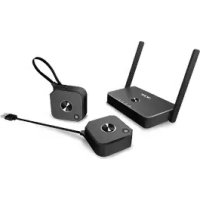
CastMaster - Projector ACER - Free user manual and instructions
Find the device manual for free CastMaster ACER in PDF.



| Product type | Wireless video projector (CastMaster transmitter/receiver) |
| Brand | Acer |
| Model | CastMaster |
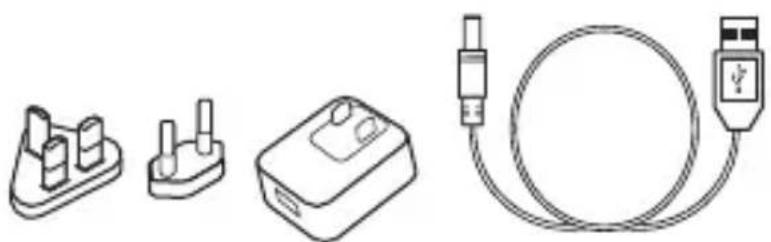
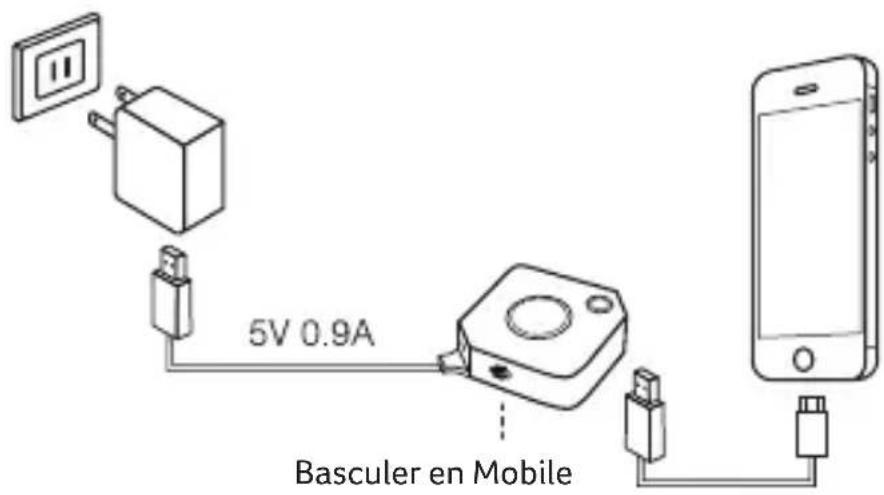
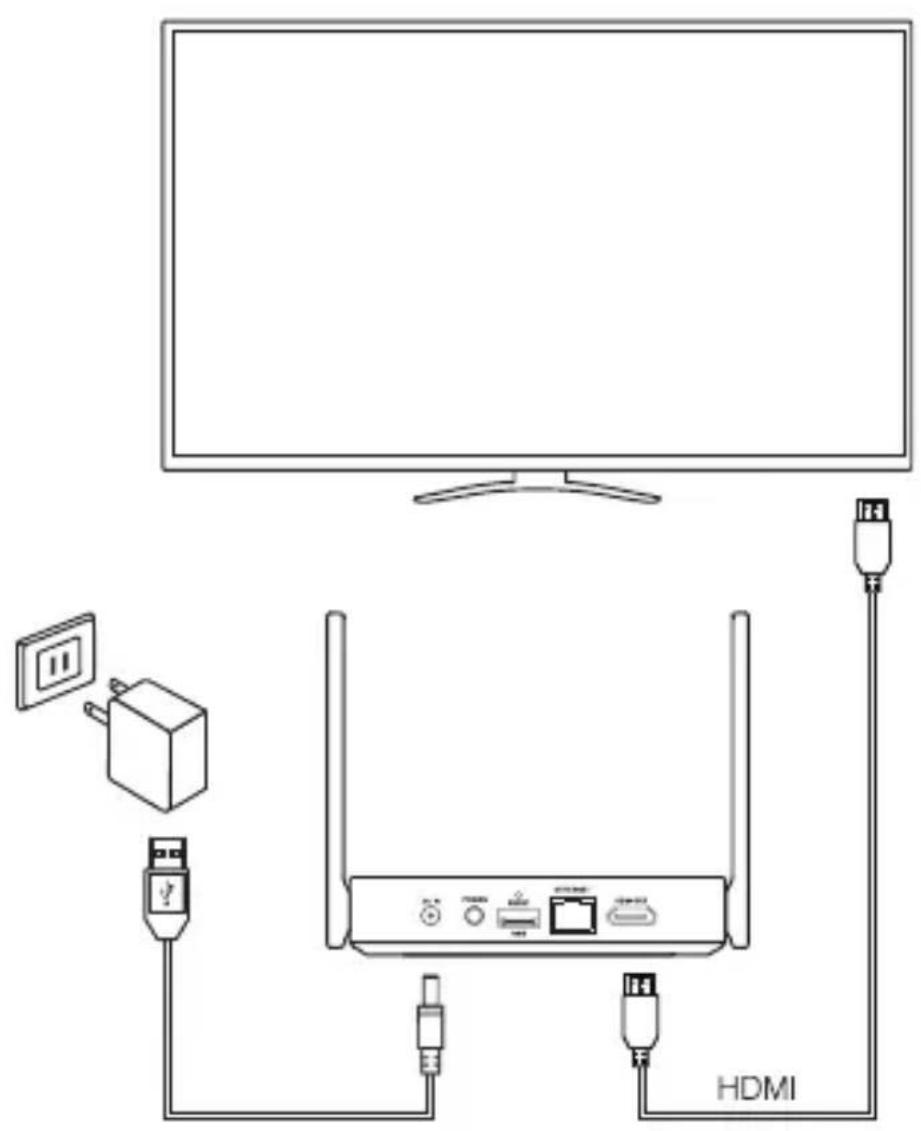
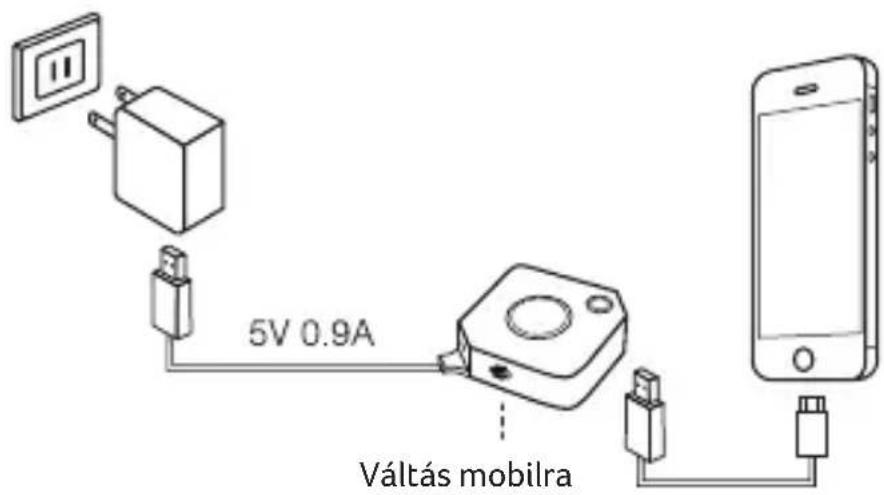
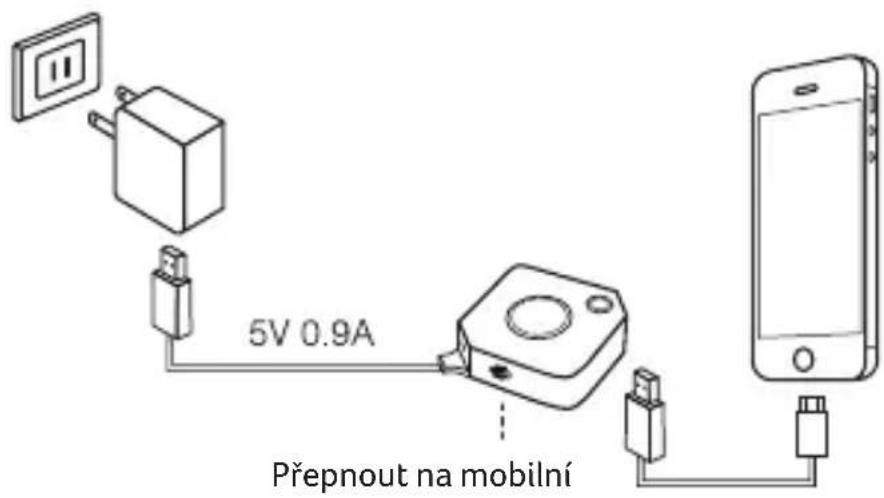
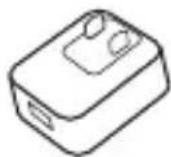
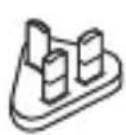
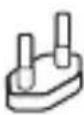
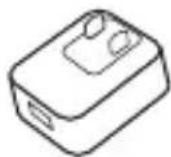
| Power supply | Universal adapter 5V / 0.9A |
| Connectivity | HDMI (type A), USB (for pairing and debugging) |
| Main functions | Wireless screen mirroring (smartphone, tablet, computer), full-screen casting, host/guest mode, mirror request management |
| Compatibility | Android (with USB debugging enabled), Windows, iOS (via AirPlay not mentioned) |
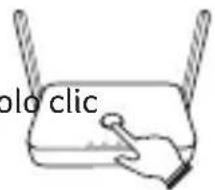
| Buttons | Main button (mirror/disconnect), side button (allow/deny/stop) |
| LEDs | LED indicators for connection status, casting, OTA |
| Software update | OTA via USB key (pairing file) |
| Operating temperature | Do not exceed 40 °C / 104 °F |
| Maintenance and cleaning | Unplug before cleaning, use a slightly damp cloth |
| Safety | Do not expose to water, humidity, direct sunlight, shocks; do not open the device; keep 20 cm distance from body (FCC) |
| Compliance | FCC Part 15, Class B |
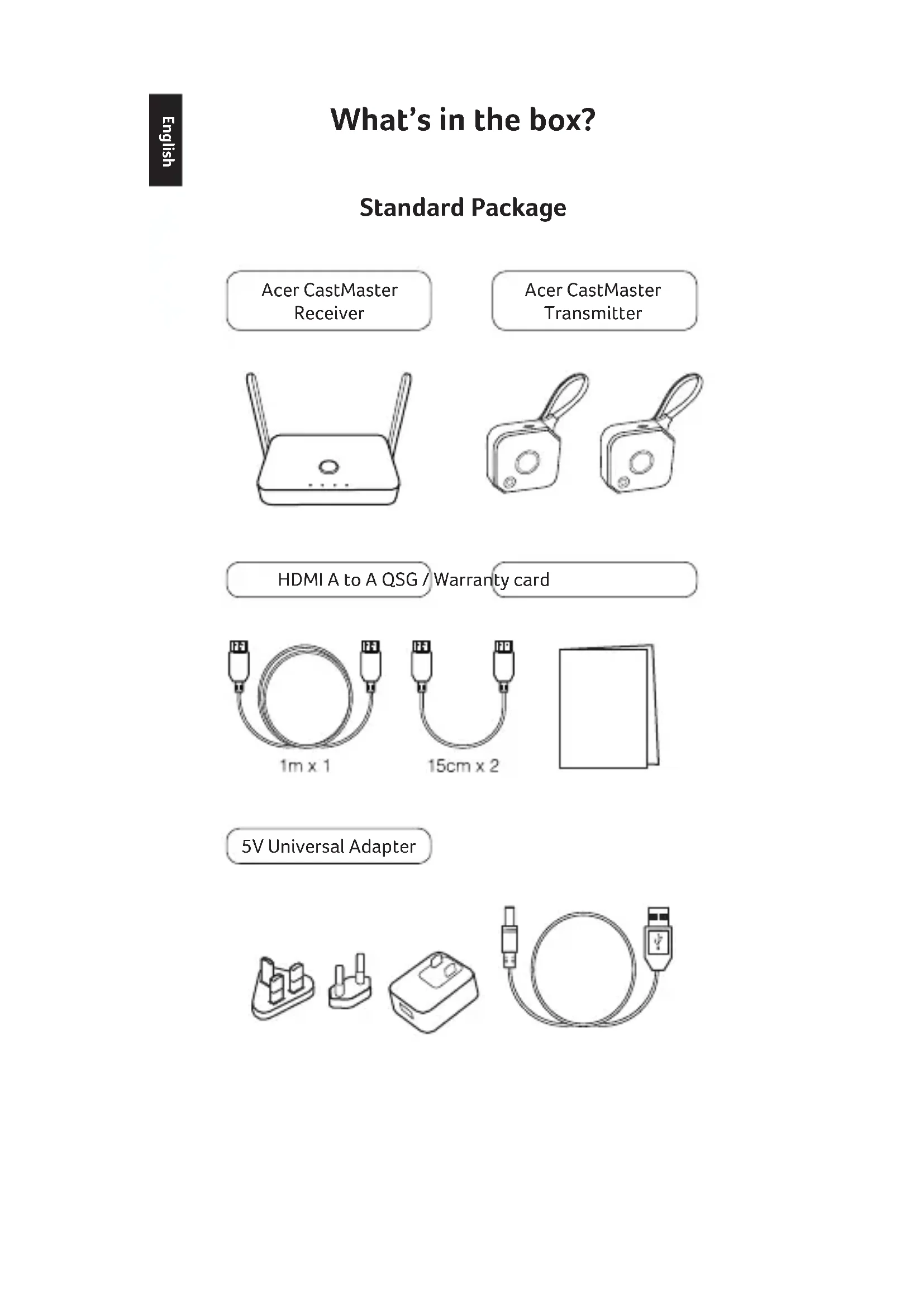
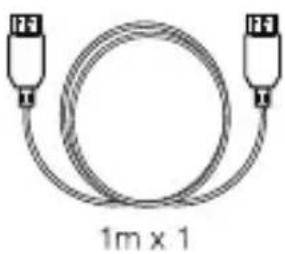
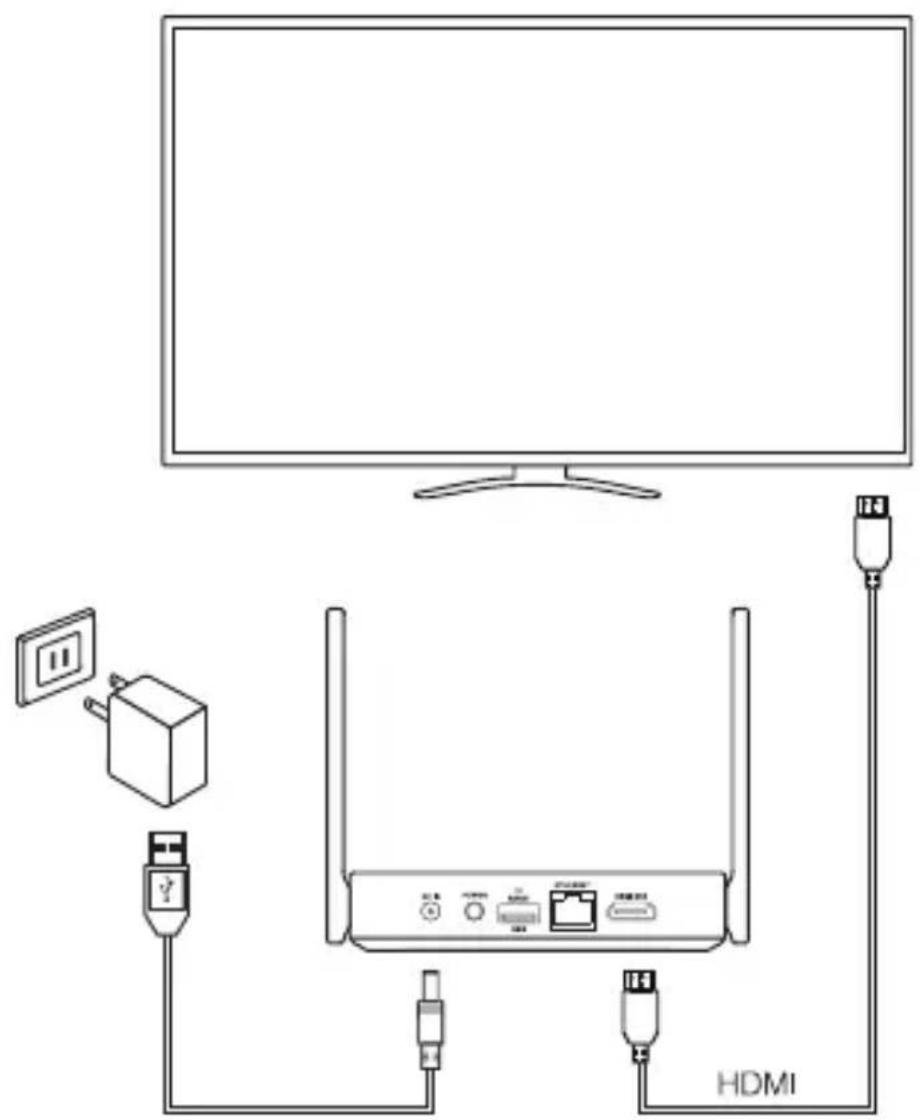
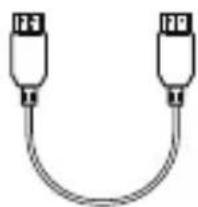
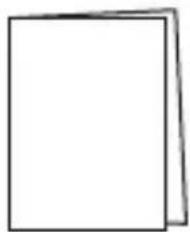
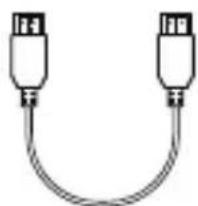
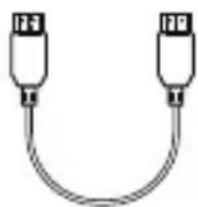
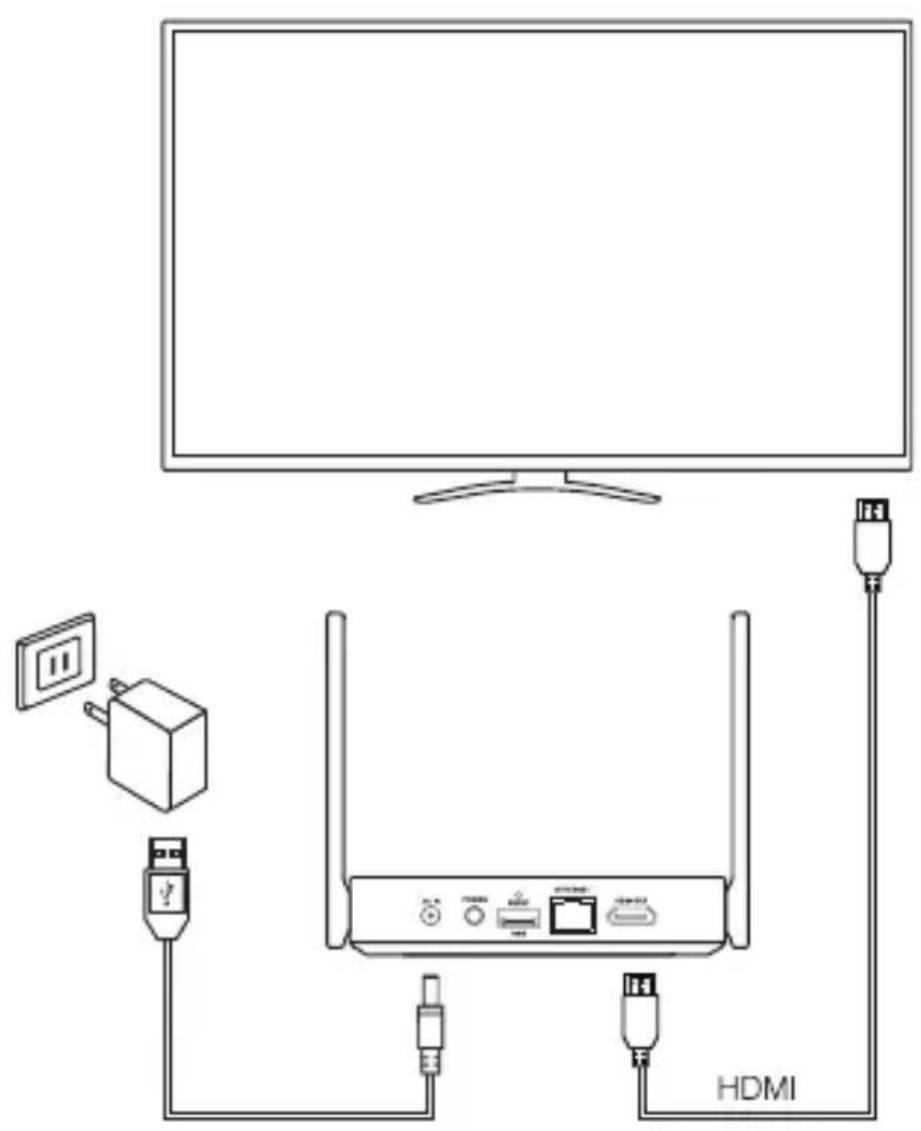
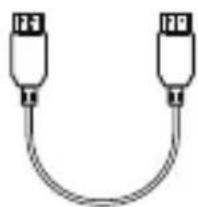
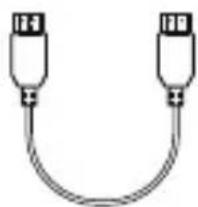
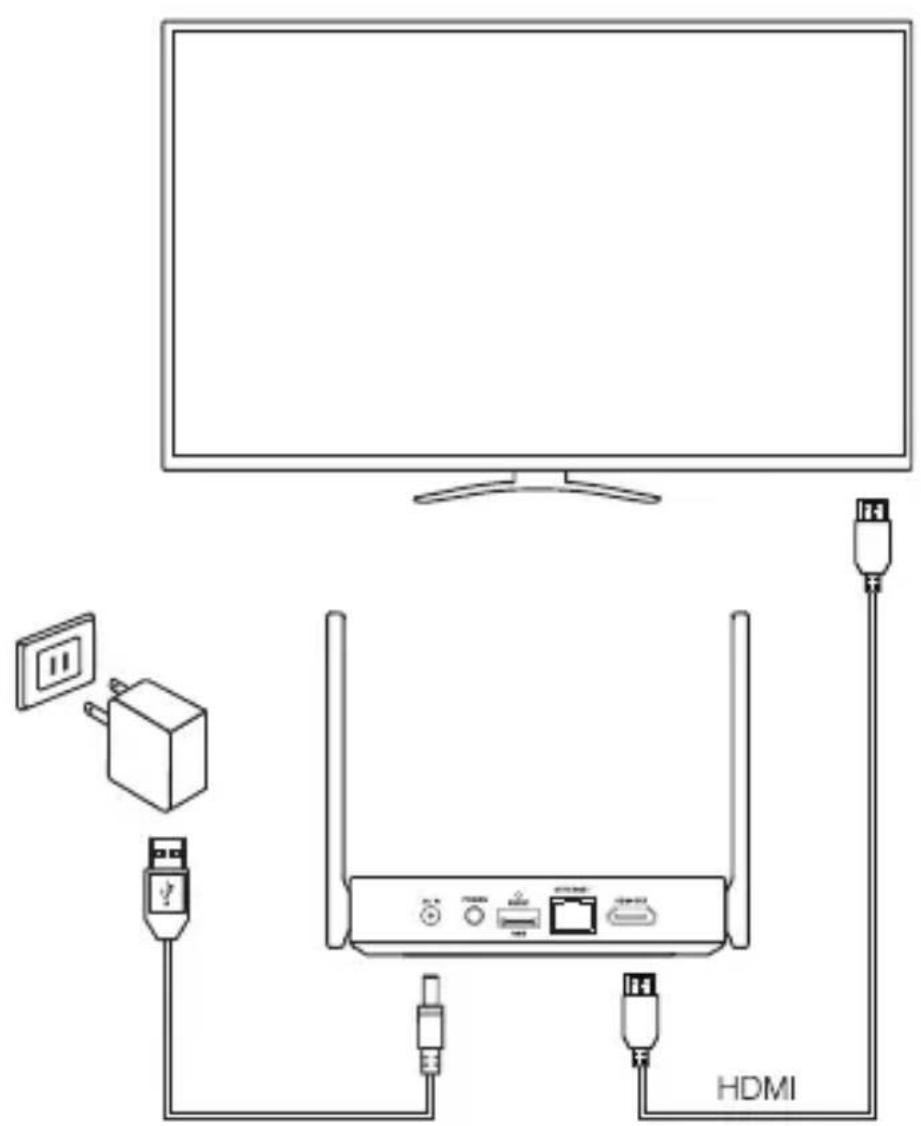
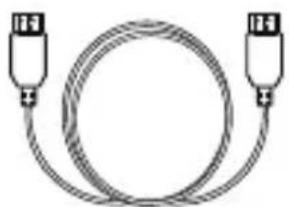
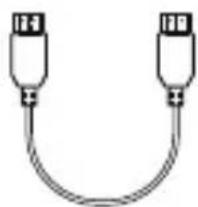
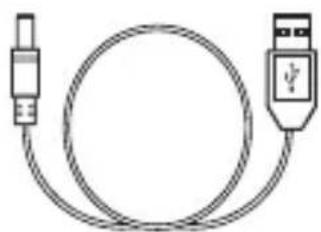
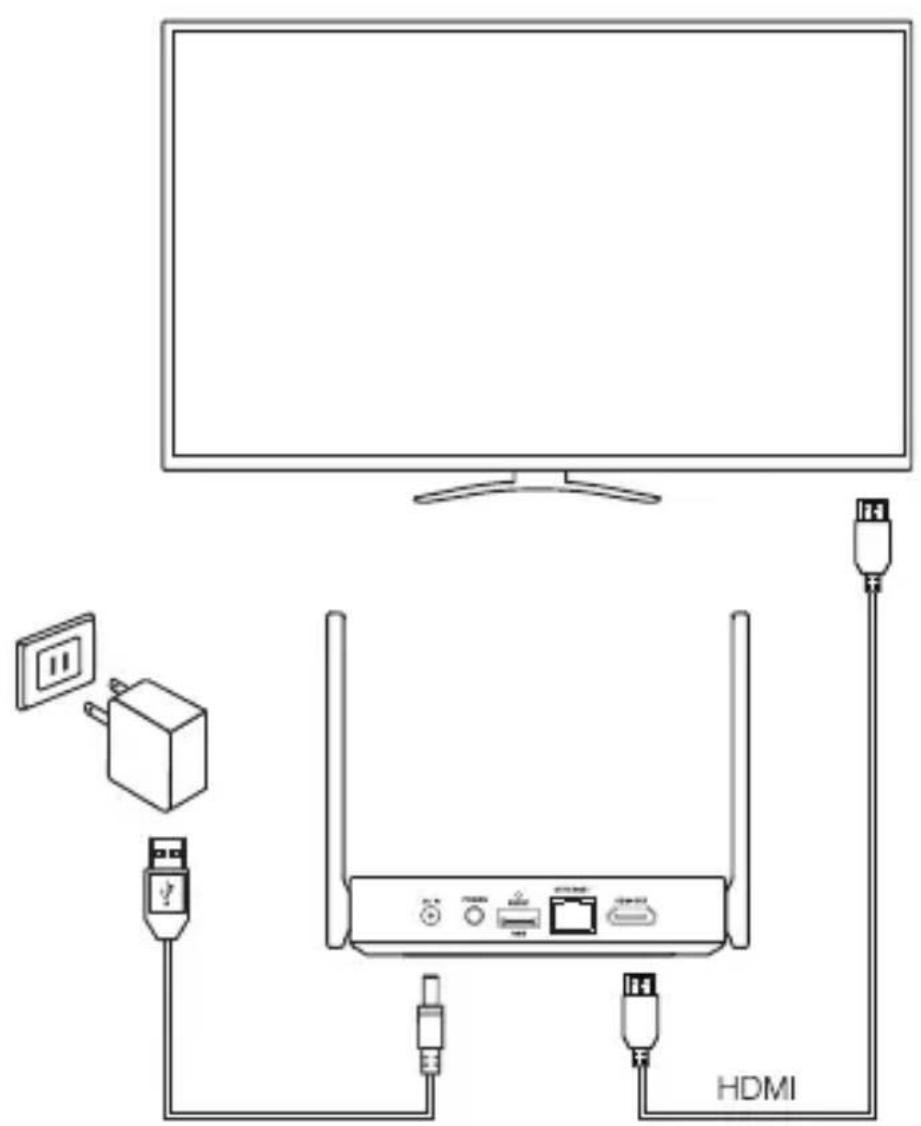
| Box contents | Acer CastMaster receiver, Acer CastMaster transmitter, HDMI A/A cable, universal 5V adapter, warranty card |
Frequently Asked Questions - CastMaster ACER
User questions about CastMaster ACER
0 question about this device. Answer the ones you know or ask your own.
Ask a new question about this device
Download the instructions for your Projector in PDF format for free! Find your manual CastMaster - ACER and take your electronic device back in hand. On this page are published all the documents necessary for the use of your device. CastMaster by ACER.
USER MANUAL CastMaster ACER
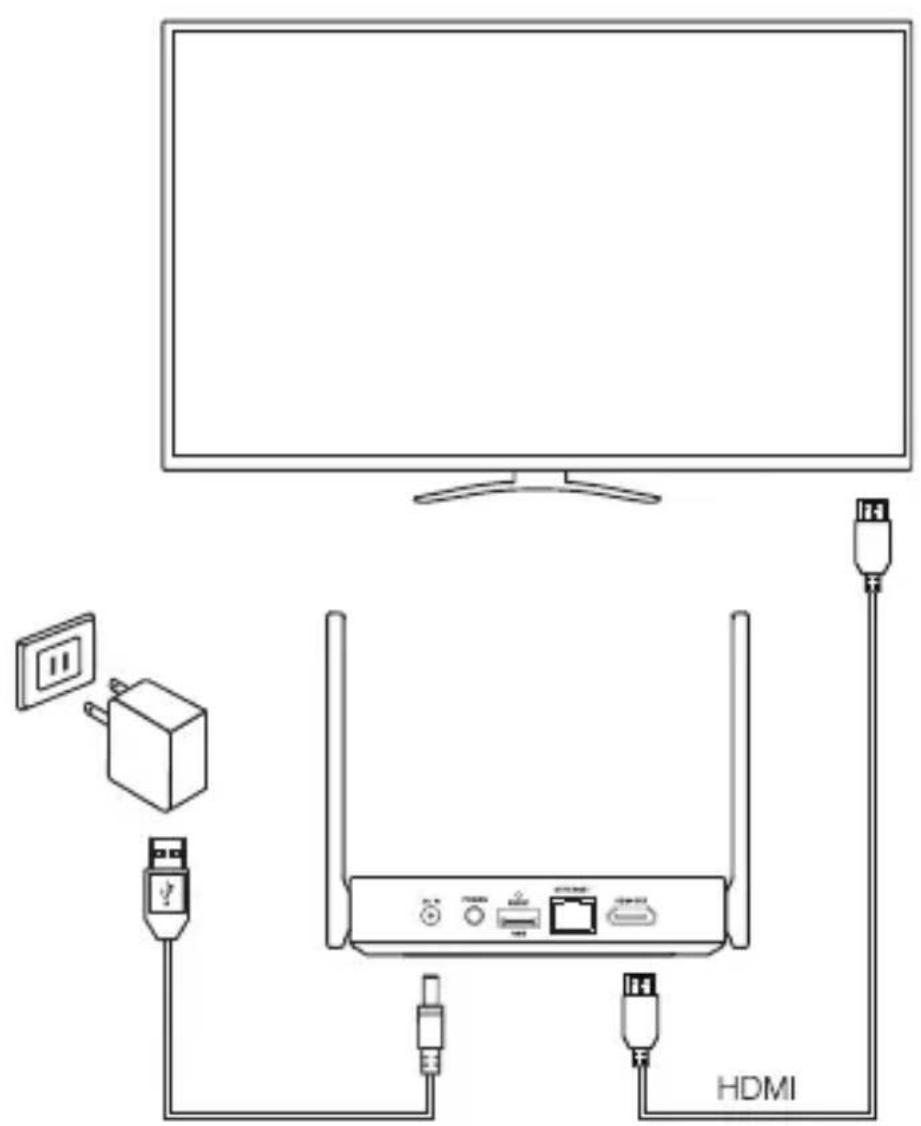
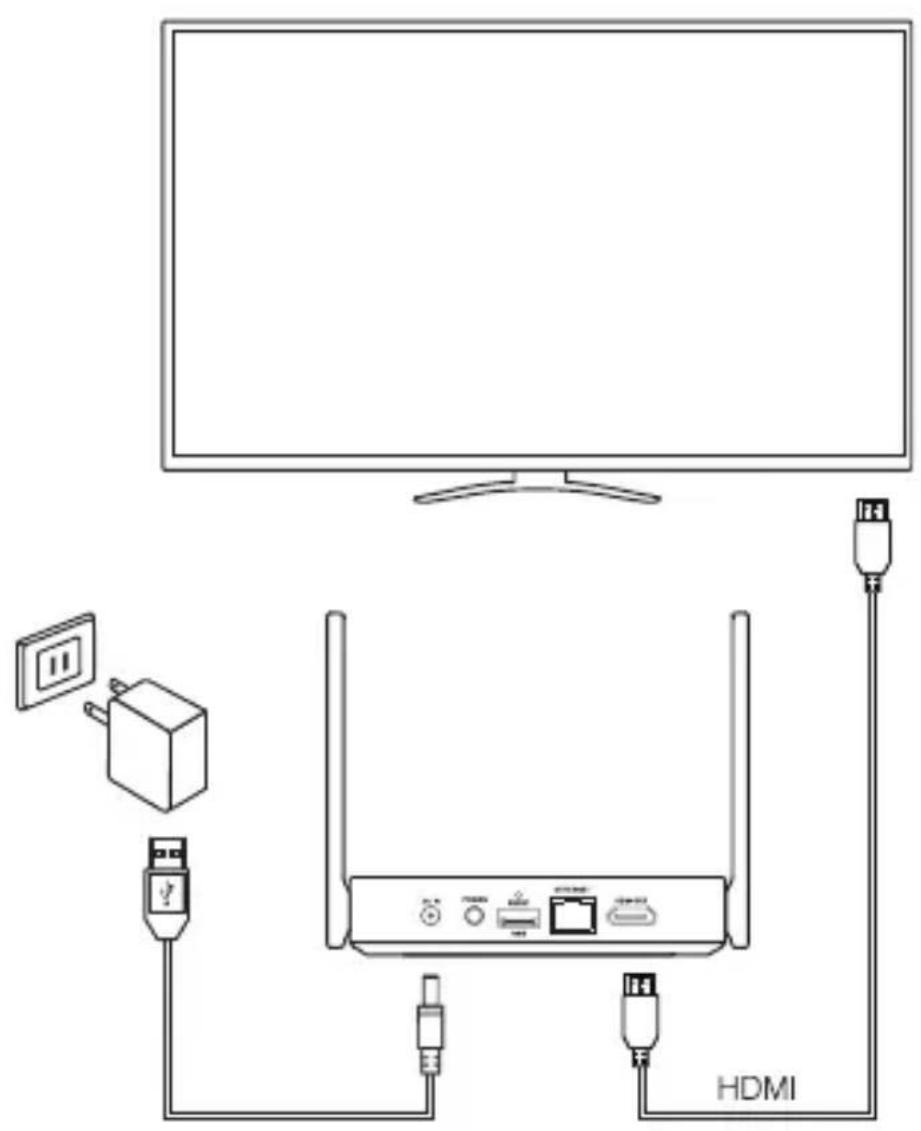
Acer CastMaster Receiver
Acer CastMaster Transmitter
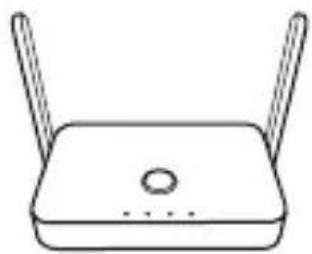
natural_image
Simple line drawing of a wireless router with two leads and a central hub (no text or symbols)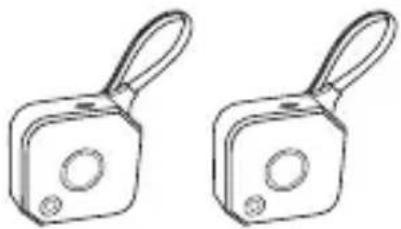
natural_image
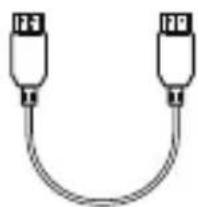
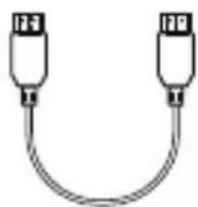
Two identical rectangular buttons with handles and circular cutouts, no text or symbols presentHDMI A to A QSG / Warranty card
natural_image
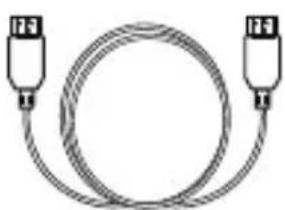
Coiled cable with two connectors, labeled '1m x 1' below (no additional text or symbols)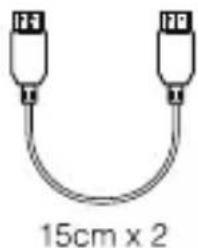
natural_image
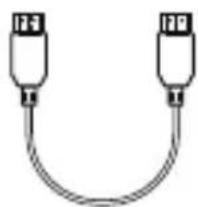
Simple line drawing of two connectors with a 15cm x 2 label below (no text or symbols on the diagram itself)
natural_image
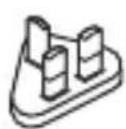
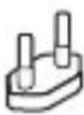
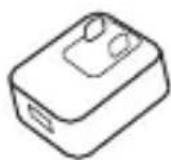
Blank white document page with a thin black outline (no text or symbols)5V Universal Adapter
natural_image
Line drawings of four electronic components: a battery pack, a plug-in box, a cable with a USB port, and a separate plug (no text or symbols present)Acer CastMaster Receiver
Transmitter Operation
Transmitter
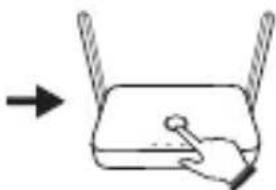
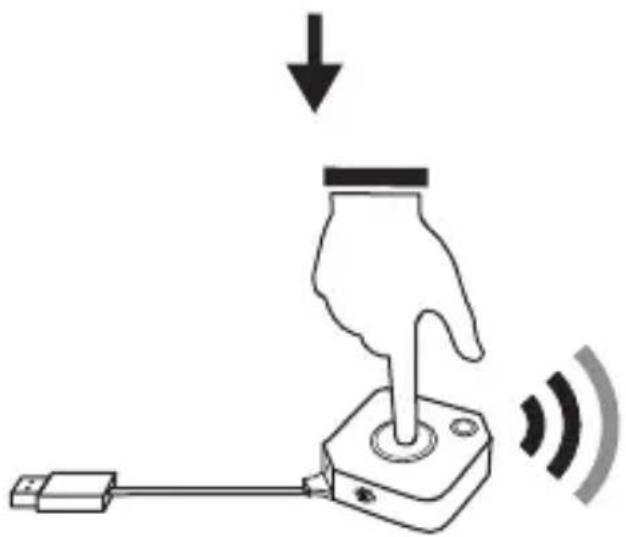
| Main button (Mirror button) | Host Guest | ||
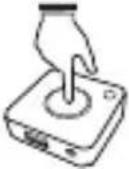 | Single click | Mirror/Disconnect | Send mirror request |
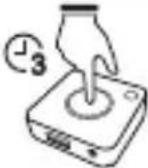 | Hold for 3 seconds | Full screen mirror | Send full screen mirror request |
| Side button (Control button) | Host Guest | ||
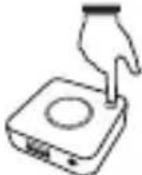 | Single click | Allow guest to mirror | - |
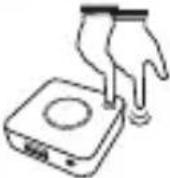 | Double click Deny request - | ||
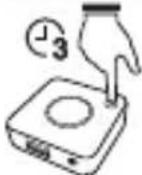 | Hold for 3 seconds | Quit all display - | |
Receiver
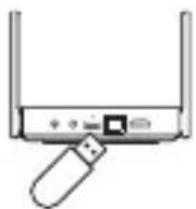
natural_image
Simple line drawing of a network device with a USB port and indicator lights (no text or symbols)Main button Single click
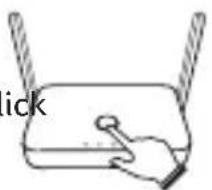
natural_image
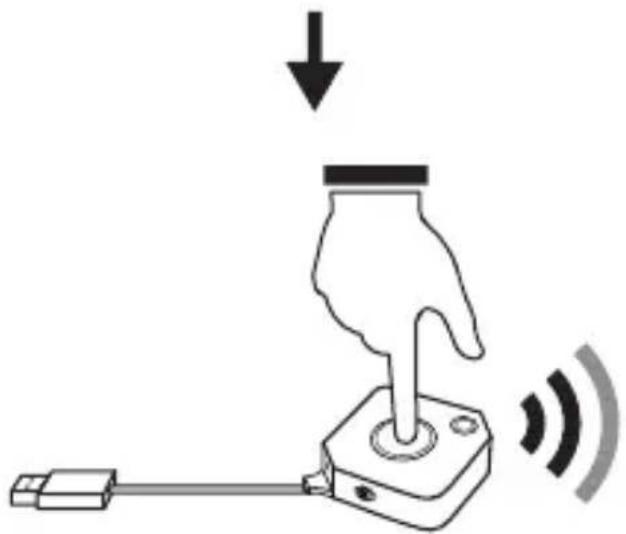
Simple line drawing of a hand pressing a button on a device (no text or symbols)
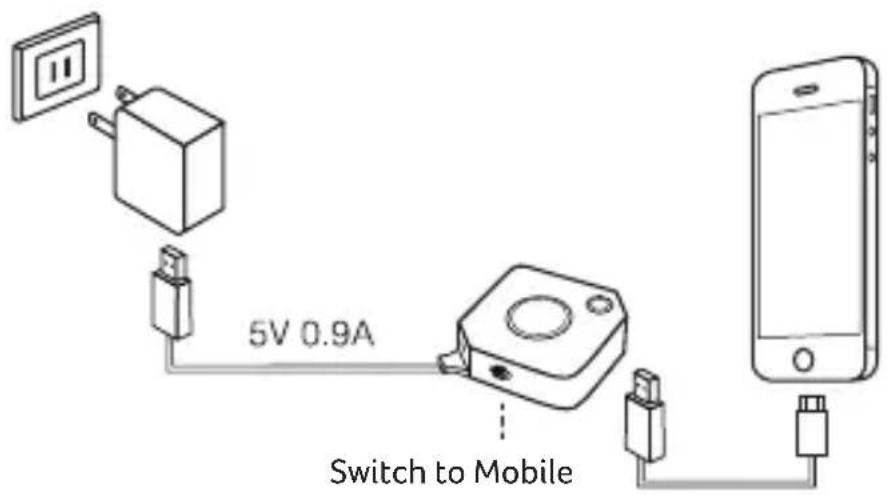
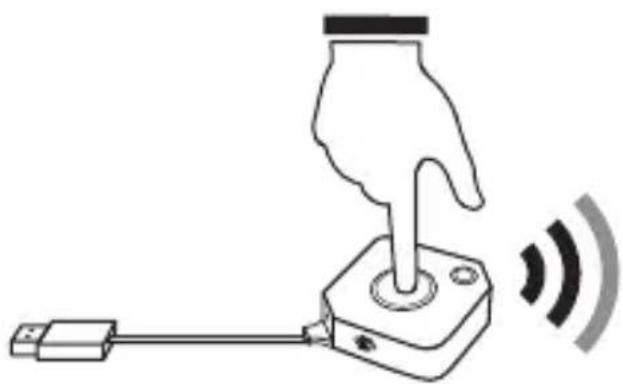
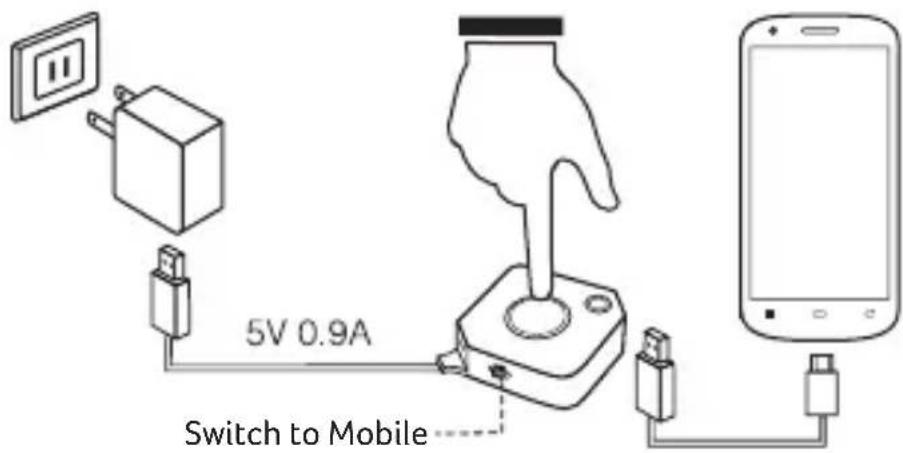
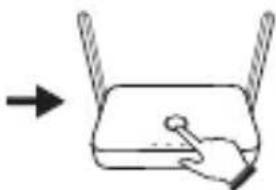
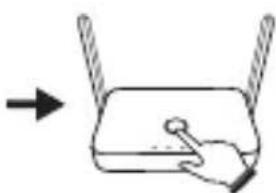
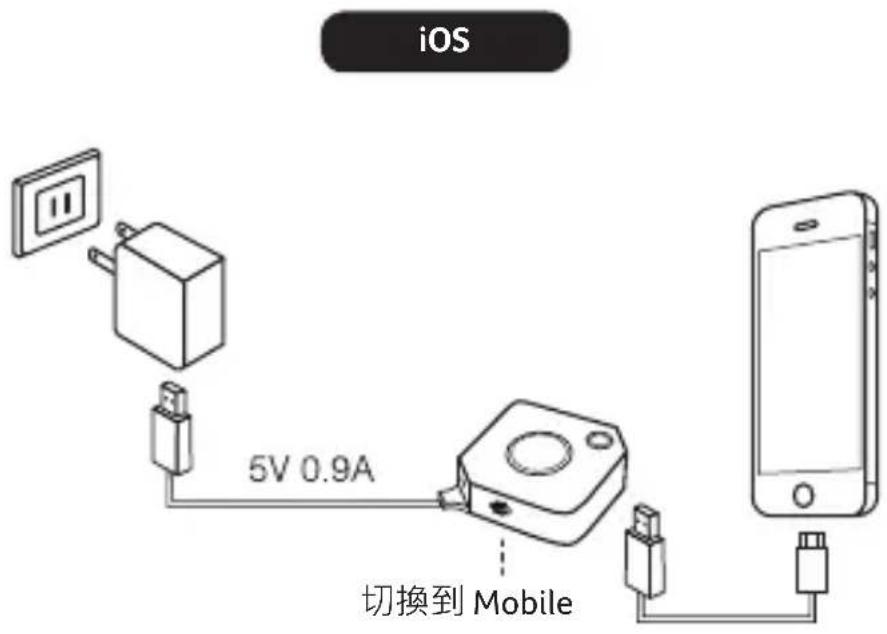
Download pairing file to USB disk. Plug USB disk to TX box & switch to "Mobile" side to start paring.
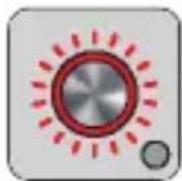
LED Status list
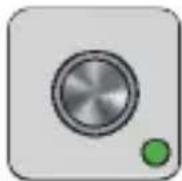
Enable Host w/o source input.
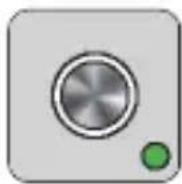
Enable Host and casting.
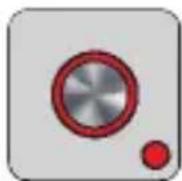
Guest standby w/o casting.
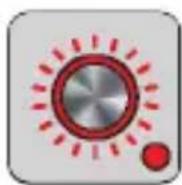
Guest requests casting and wait for allow.
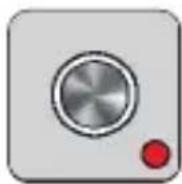
Enable Guest and casting.
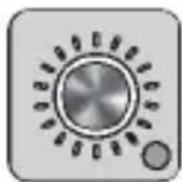
Transmitter OTA Completed.
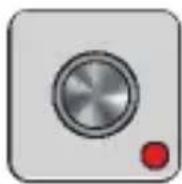
Enable Guest w/o source input.
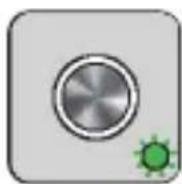
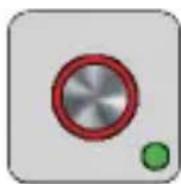
Host received request of cast.
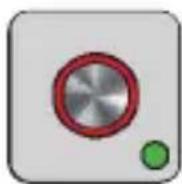
Host standby w/o casting.
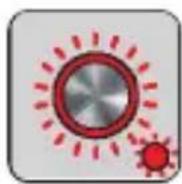
- Under connection.
- Pairing/Transmitter OTA download and installation.
- Fail to connection(blinking for 1 minutes or more).
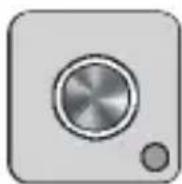
Pairing done.
Transmitter OTA Fail.
Acer CastMaster Transmitter
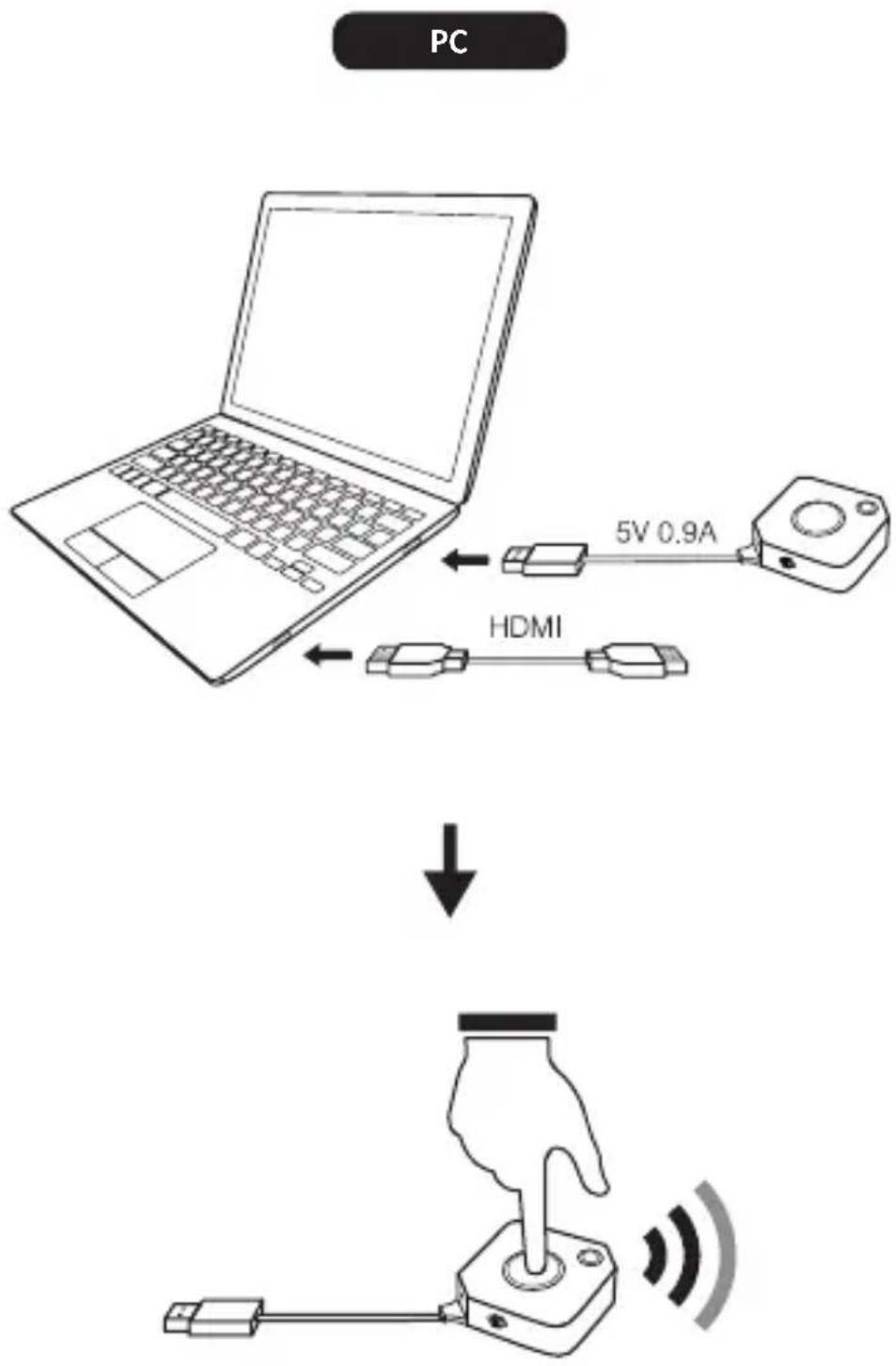
flowchart
graph TD
    A["PC"] --> B["Laptop"]
    B --> C["5V 0.9A Cable"]
    B --> D["HDMI"]
    D --> E["Handheld Device"]
    E --> F["Signal Output"]
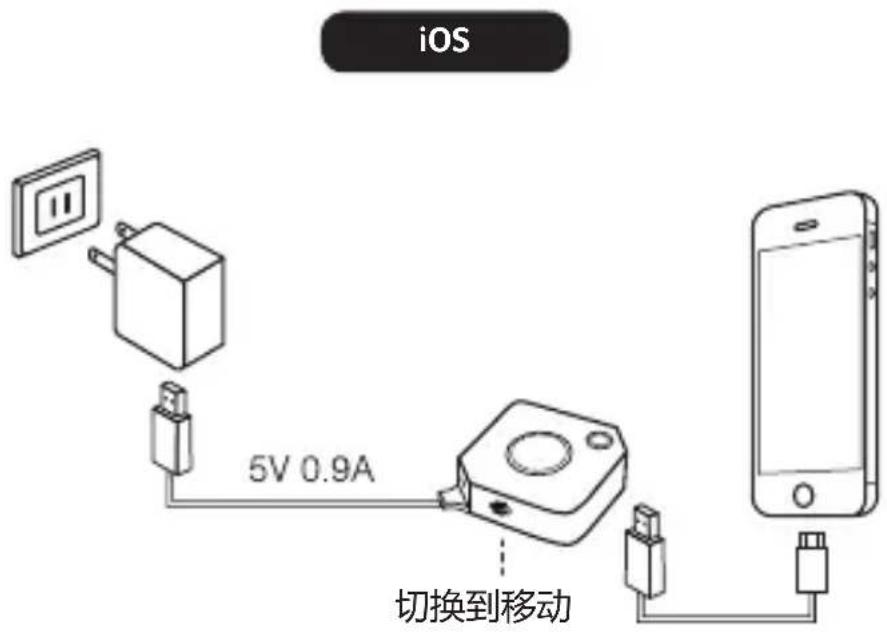
iOS
| Trust This Computer? | |
 Trust Don't Trust Trust Don't Trust |
natural_image
Illustration of a hand using a joystick controller to press a button, with sound waves indicating signal (no text or symbols)Android
⚠️ Please enable USB Debugging before using.
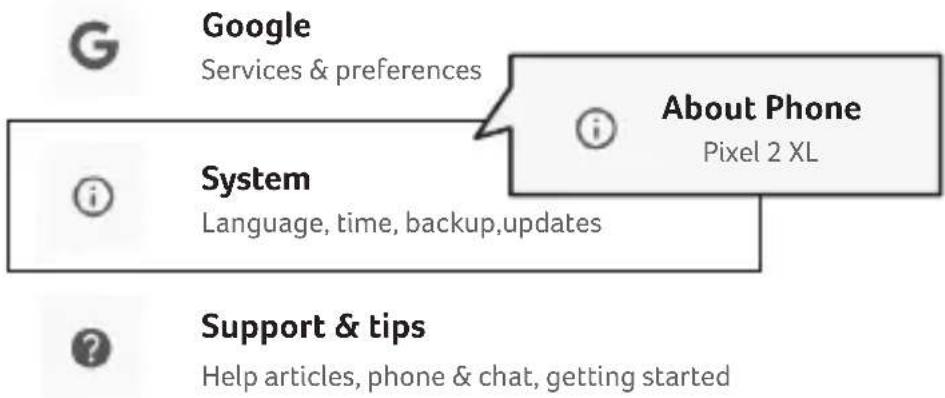
- Go to Setting → System → About Phone
flowchart
graph TD
    A["Google<br>Services & preferences"] --> B["About Phone<br>Pixel 2 XL"]
    C["System<br>Language, time, backup, updates"] --> B
    D["Support & tips<br>Help articles, phone & chat, getting started"] --> B
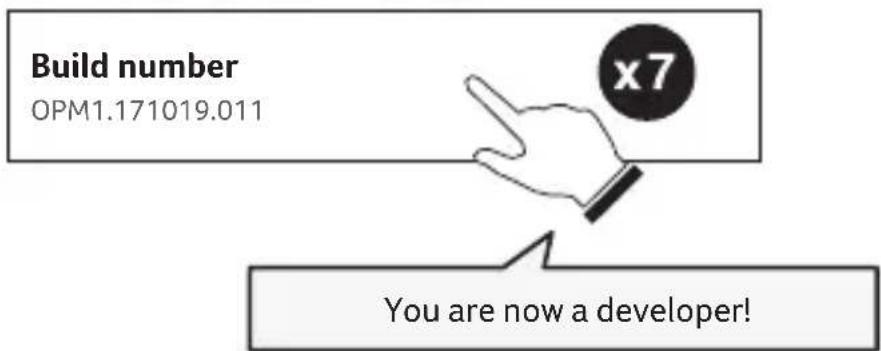
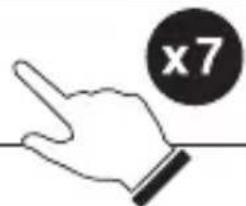
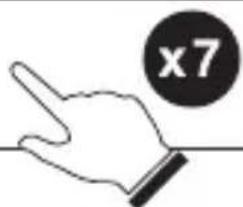
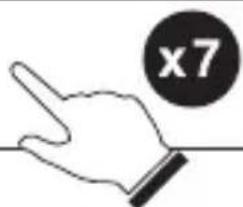
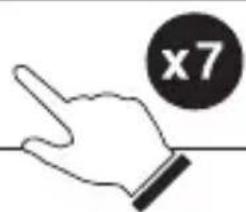
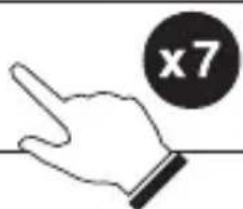
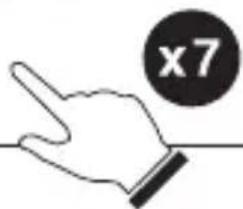
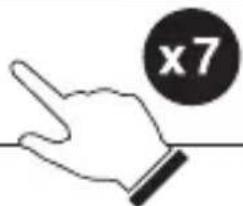
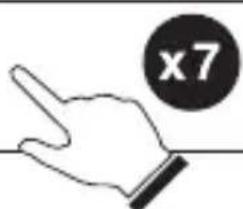
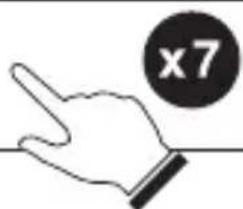
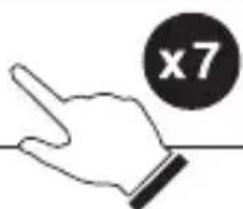
- Click Build Number for 7 times to enable Developer Option
Kernel version
4.4.88-gb86dd0bc9690 (Android clang version
5.0.300080 (based on LLVM 5.0.300080))
android-build@wpra8.hot.corp.google.com #1
Wed Nov 8 06:19:15 UTC 2017
- Go to Developer option → USB Debugging → On
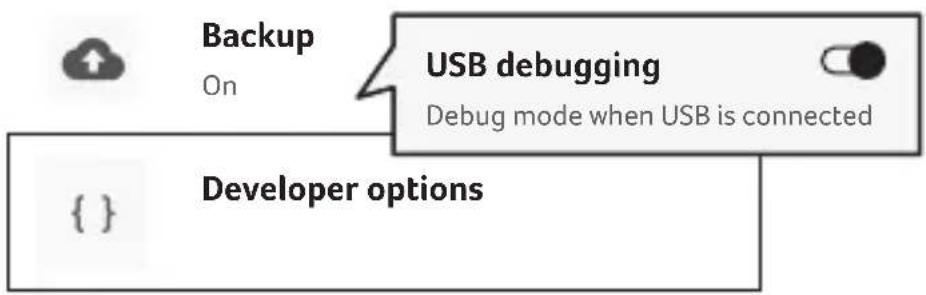
flowchart
graph TD
    A["Backup On"] --> B["USB debugging"]
    B --> C["Debug mode when USB is connected"]
    D["Developer options"] --> E["End"]

System update
Updated to Android 8.1.0
- Plug to Acer CastMaster Transmitter and Allow USB debug
* Note: Please select MTP or File Transferring in the notifications when USB is connected.
FCC STATEMENT
- This device complies with Part 15 of the FCC Rules. Operation is subject to the following two conditions:
(1) This device may not cause harmful interference.
(2) This device must accept any interference received, including interference that may cause undesired operation.
- Changes or modifications not expressly approved by the party responsible for compliance could void the user's authority to operate the equipment.
NOTE: This equipment has been tested and found to comply with the limits for a Class B digital device, pursuant to Part 15 of the FCC Rules. These limits are designed to provide reasonable protection against harmful interference in a residential installation.
This equipment generates uses and can radiate radio frequency energy and, if not installed and used in accordance with the instructions, may cause harmful interference to radio communications. However, there is no guarantee that interference will not occur in a particular installation. If this equipment does cause harmful interference to radio or television reception, which can be determined by turning the equipment off and on, the user is encouraged to try to correct the interference by one or more of the following measures:
- Reorient or relocate the receiving antenna.
- Increase the separation between the equipment and receiver.
- Connect the equipment into an outlet on a circuit different from that to which the receiver is connected.
- Consult the dealer or an experienced radio/TV technician for help.
FCC Radiation Exposure Statement
This equipment complies with FCC radiation exposure limits set forth for an uncontrolled environment. This equipment should be installed and operated with minimum distance 20cm between the radiator & your body.
Follow all warnings and instructions before using this device:
- Do not use this device near water.
- Only use the accessory provided with this device.
- Slots and openings must not be blocked or covered.
- Do not expose this device to rain or moisture.
- Unplug this device from the wall outlet before cleaning. Use a damp cloth for cleaning.
- Do not attempt to service this device yourself.
- Do not expose this device to direct sunlight.
- Do not subject this device to heavy shock or vibration.
- Do not expose this device to temperature above 40 °C/104 °F.
Acer CastMaster
Kurzanleitung
V1.0
natural_image
Simple line drawing of a two-wire router (no text or symbols)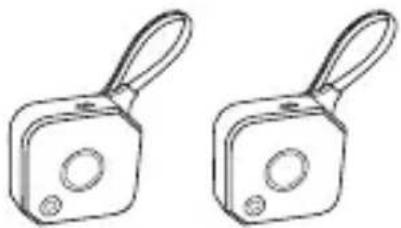
natural_image
Two identical mechanical components with handles and circular features, no text or symbols visiblenatural_image
Pure electrical circuit lines without any symbols1m×1
natural_image
Pure electrical connector diagram showing two terminals connected by a curved cable (no text or symbols)15cm×2
natural_image
Blank white document page with a thin black outline (no text or symbols)natural_image
Simple line drawing of a USB cable with two connectors (no text or symbols)natural_image
Simple line drawing of a wireless router with a USB port and indicator lights (no text or symbols)natural_image
Simple line drawing of a router with two blades and a handle (no text or symbols)natural_image
Illustration of a hand using a joystick controller to press a button, with sound waves indicating vibration (no text or symbols)Android
Sprache, Zeit, Backup, Updates

Support & Tipps
5.0.300080 (based on LLVM 5.0.300080))
android-build@wpra8.hot.corp.google.com #1
Wed Nov 8 06:19:15 UTC 2017
Build-Nummer
OPM1.171019.011
natural_image
Simple line drawing of a wireless router with two leads (no text or symbols)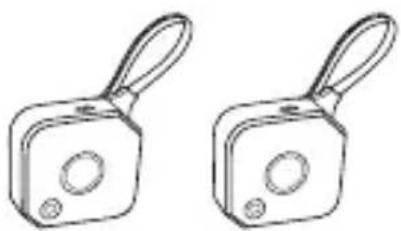
natural_image
Two identical mechanical components with handles and circular features, no text or symbols presentnatural_image
Coiled cable with two connectors, labeled '1m x 1' below (no additional text or symbols)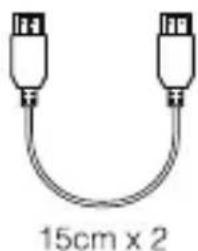
natural_image
Pure diagram of two USB connectors with a 15cm x 2 length label (no text or symbols beyond the label)
natural_image
Blank document page with no text or symbols visiblenatural_image
Simple line drawing of a USB cable with two connectors (no text or symbols)natural_image
Simple line drawing of a USB flash drive with ports and indicator lights (no text or symbols)Bouton principal
natural_image
Simple line drawing of a device with two antennas and a handle, no text or symbols presentClic simple
flowchart
graph TD
    A["PC"] --> B["5V 0.9A"]
    B --> C["HDMI"]
    C --> D["Hand with joystick on right"]
iOS
natural_image
Illustration of a hand using a joystick controller to press a button, with signal waves indicating sound or vibration (no text or symbols)Android
5.0.300080 (based on LLVM 5.0.300080))
android-build@wpra8.hot.corp.google.com #1
Wed Nov 8 06:19:15 UTC 2017
Numéro de build
OPM1.171019.011
natural_image
Simple line drawing of a wireless router with two leads (no text or symbols)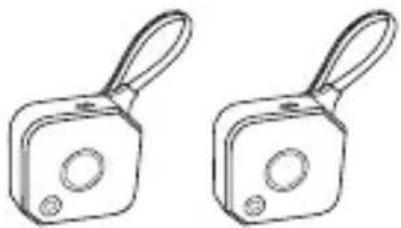
natural_image
Two identical mechanical components with handles and circular features, no text or symbols visibleHDMI A - A Guida rapida
Garanzia
natural_image
Pure electrical circuit lines without any symbols1m×1
natural_image
Pure electrical connector diagram showing two terminals connected by a curved wire (no text or symbols)15cm×2
natural_image
Blank white square with a thin black border (no text or symbols)natural_image
Simple line drawing of a USB cable with two connectors (no text or symbols)Ricevitore Acer CastMaster
natural_image
Simple line drawing of a USB flash drive with ports and indicator lights (no text or symbols)Pulsante principale
natural_image
Simple line drawing of a device with two leads and a handle, no text or symbols presentClic singolo
natural_image
Illustration of a hand using a joystick to press a button with signal waves (no text or symbols)Android
5.0.300080 (based on LLVM 5.0.300080))
android-build@wpra8.hot.corp.google.com #1
Wed Nov 8 06:19:15 UTC 2017
Numero build
OPM1.171019.011
natural_image
Simple line drawing of a wireless router with two leads (no text or symbols)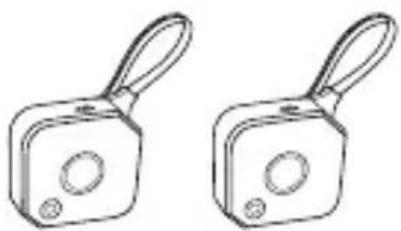
natural_image
Two identical mechanical components with handles and circular holes, no text or symbols presentnatural_image
Coiled cable with two connectors, labeled '1m x 1' below (no additional text or symbols)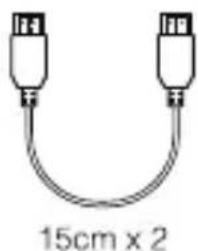
natural_image
Coiled cable with two connectors, labeled 15cm x 2 (no additional text or symbols)
natural_image
Blank white document page with no text or symbols visiblenatural_image
Simple line drawing of a USB cable with two connectors (no text or symbols)Acer CastMaster Alicısı
Vericinin Çalışması
Verici
natural_image
Illustration of a hand using a joystick controller to press a button, with signal waves indicating sound or vibration (no text or symbols)Android
5.0.300080 (based on LLVM 5.0.300080))
android-build@wpra8.hot.corp.google.com #1
Wed Nov 8 06:19:15 UTC 2017
Yapı numarası
OPM1.171019.011
natural_image
Simple line drawing of a wireless router with two leads (no text or symbols)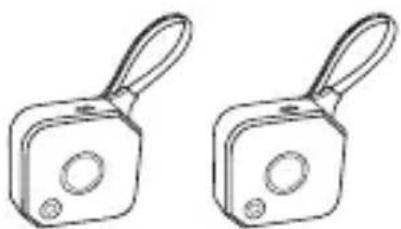
natural_image
Two identical rectangular buttons with handles and circular cutouts, no text or symbols presentnatural_image
Coiled cable with two connectors (no text or symbols)1m×1
natural_image
Pure electrical connector diagram showing two terminals connected by a coiled cable (no text or symbols)15cm×2
natural_image
Blank white document page with a thin black outline (no text or symbols)natural_image
Pure diagram of a USB cable with two connectors (no text or symbols)natural_image
Simple line drawing of a USB flash drive with ports and indicator lights (no text or symbols)Главная кнопка
natural_image
Simple line drawing of a device with two antennas and a handle, no text or symbols presentОдно нажатие
natural_image
Illustration of a hand using a joystick to press a button with signal waves (no text or symbols)Android
4.4.88-gb86dd0bc9690 (Android clang version 5.0.300080 (based on LLVM 5.0.300080)) android-build@wpra8.hot.corp.google.com #1 Wed Nov 8 06:19:15 UTC 2017
Номер сборки
OPM1.171019.011
natural_image
Simple line drawing of a two-wire router (no text or symbols)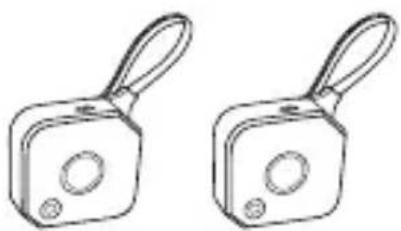
natural_image
Two identical mechanical components with handles and circular holes, no text or symbols presentnatural_image
Coiled cable with two connectors (no text or symbols)1m×1
natural_image
Simple line drawing of two USB connectors with a curved cable (no text or symbols)15cm×2
natural_image
Blank white document page with no text or symbols visibleУніверсальний
адаптер 5В

natural_image
Simple line drawing of a USB cable with two connectors (no text or symbols)Приймач Acer CastMaster
Робота передавача
Передавач
natural_image
Simple line drawing of a device with two antennas and a handle, no text or symbols presentОдне клацання
natural_image
Illustration of a hand using a joystick controller to press a button, with signal waves indicating sound or vibration (no text or symbols)Android
5.0.300080 (based on LLVM 5.0.300080))
android-build@wpra8.hot.corp.google.com #1
Wed Nov 8 06:19:15 UTC 2017
Номер збірки
OPM1.171019.011
natural_image
Simple line drawing of a wireless router with two leads (no text or symbols)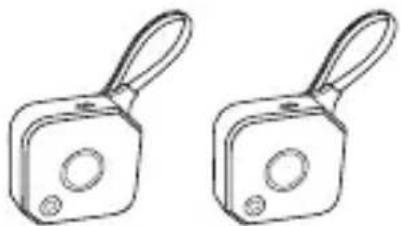
natural_image
Two identical mechanical components with handles and circular ports, no text or symbols visiblenatural_image
Pure electrical circuit lines without any symbols1m×1
natural_image
Pure electrical connector diagram showing two terminals connected by a curved wire (no text or symbols)15cm×2
natural_image
Blank white square with a thin black border (no text or symbols)natural_image
Simple line drawing of a USB cable with two connectors (no text or symbols)natural_image
Simple line drawing of a USB flash drive with a USB cable (no text or symbols)natural_image
Simple line drawing of a hand holding a device with two antennas above it (no text or symbols)flowchart
graph TD
    A["PC"] --> B["5V 0.9A"]
    B --> C["HDMI"]
    C --> D["↓"]
    D --> E["Hand with joystick"]
iOS
natural_image
Illustration of a hand pressing a button on a device with signal waves (no text or symbols)Android
5.0.300080 (based on LLVM 5.0.300080))
android-build@wpra8.hot.corp.google.com #1
Wed Nov 8 06:19:15 UTC 2017
Buildszám
OPM1.171019.011
natural_image
Simple line drawing of a wireless router with two leads (no text or symbols)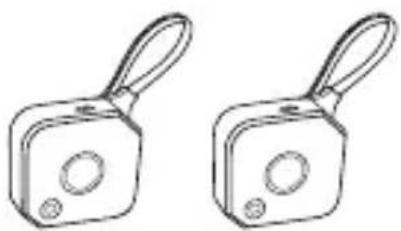
natural_image
Two identical mechanical components with handles and circular cutouts, no text or symbols visiblenatural_image
Pure electrical circuit lines without any symbols1m×1
natural_image
Pure electrical connector diagram showing two terminals connected by a curved cable (no text or symbols)15cm×2
natural_image
Blank white document page with a thin black border (no text or symbols)natural_image
Simple line drawing of a USB cable with two connectors (no text or symbols)Receptor Acer CastMaster
natural_image
Simple line drawing of a USB drive with ports and indicator lights (no text or symbols)Botón principal Unsolo clic
natural_image
Illustration of a hand using a joystick controller to press a button, with signal waves indicating sound or vibration (no text or symbols)Android
5.0.300080 (based on LLVM 5.0.300080))
android-build@wpra8.hot.corp.google.com #1
Wed Nov 8 06:19:15 UTC 2017
natural_image
Simple line drawing of a wireless router with two leads (no text or symbols)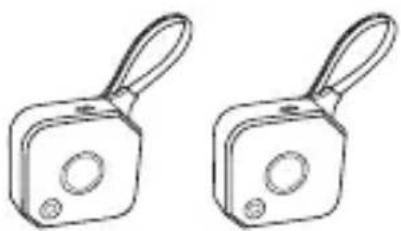
natural_image
Two identical mechanical components with handles and circular cutouts, no text or symbols visiblenatural_image
Pure electrical circuit lines without any symbols1m×1
natural_image
Pure electrical connector diagram showing two terminals connected by a curved wire (no text or symbols)15cm×2
natural_image
Blank white document page with a thin black outline (no text or symbols)natural_image
Simple line drawing of a USB cable with two connectors (no text or symbols)natural_image
Simple line drawing of a wireless router with USB cable (no text or symbols)natural_image
Illustration of a hand using a joystick controller to press a button, with sound waves indicating signal (no text or symbols)ios
natural_image
Illustration of a hand using a joystick to press a button with signal waves (no text or symbols)Android
5.0.300080 (based on LLVM 5.0.300080))
android-build@wpra8.hot.corp.google.com #1
Wed Nov 8 06:19:15 UTC 2017
Číslo sestavení
OPM1.171019.011
Ted'jste vývojář!
natural_image
Simple line drawing of a wireless router with two leads (no text or symbols)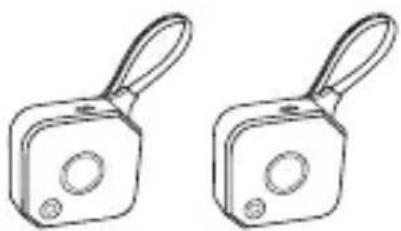
natural_image
Two identical mechanical components with handles and circular ports, no text or symbols visiblenatural_image
Simple line drawing of a cable with two connectors (no text or symbols)1m×1
natural_image
Pure electrical connector diagram showing two terminals connected by a curved cable (no text or symbols)15cm×2
natural_image
Blank white document page with a slightly curled corner (no text or symbols)5V通用适配器
natural_image
Simple line drawing of a USB cable with two connectors (no text or symbols)Acer CastMaster 接收器
发射器操作
发射器
natural_image
Illustration of a hand using a joystick controller to interact with a sensor, emitting sound waves (no text or symbols)简体中文
| 信任此电脑? | ||
 | 信任 | 不信任 |
natural_image
Illustration of a hand pressing a joystick on a device with signal waves (no text or symbols)Android
请在使用前启用 USB 调试。
4.4.88-gb86dd0bc9690 (Android clang version 5.0.300080 (based on LLVM 5.0.300080)) android-build@wpra8.hot.corp.google.com #1 Wed Nov 8 06:19:15 UTC 2017
内部版本号
OPM1.171019.011
您现在已处于开发者模式!
natural_image
Simple line drawing of a two-wire router (no text or symbols)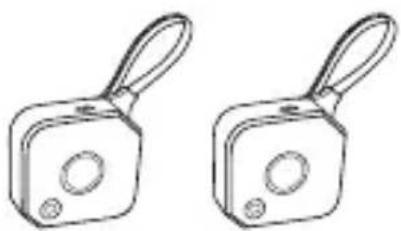
natural_image
Two identical mechanical components with handles and circular cutouts, no text or symbols visibleHDMI A 對 A 快速入門指南 /
保固卡
natural_image
Simple line drawing of a cable with two connectors (no text or symbols)1m x 1
natural_image
Pure electrical connector diagram showing two terminals connected by a curved cable (no text or symbols)15cm×2
natural_image
Blank document page with no text or symbols visible電源供應器
natural_image
Simple line drawing of a USB cable with two connectors (no text or symbols)Acer CastMaster 接收器
發送器操作
發送器
natural_image
Illustration of a hand using a joystick controller to press a button, with sound waves indicating signal (no text or symbols)繁體中文
| 信任這台電腦? | ||
 | 信任 | 否 |
natural_image
Illustration of a hand pressing a joystick on a device with signal waves (no text or symbols)Android
5.0.300080 (based on LLVM 5.0.300080))
android-build@wpra8.hot.corp.google.com #1
Wed Nov 8 06:19:15 UTC 2017
版本號碼
OPM1.171019.011
你現在已成為開發人員!
繁體中文




- Acer CastMaster Receiver
- Transmitter Operation
- Receiver
- LED Status list
- Android
- ⚠️ Please enable USB Debugging before using.
- Kernel version
- System update
- FCC STATEMENT
- FCC Radiation Exposure Statement
- Acer CastMaster
- Support & Tipps
- Build-Nummer
- iOS
- Numéro de build
- Ricevitore Acer CastMaster
- Numero build
- Acer CastMaster Alicısı
- Vericinin Çalışması
- Yapı numarası
- Номер сборки
- Приймач Acer CastMaster
- Робота передавача
- Номер збірки
- Buildszám
- Receptor Acer CastMaster
- Číslo sestavení
- Acer CastMaster 接收器
- 发射器操作
- 请在使用前启用 USB 调试。
- 内部版本号
- 發送器操作
- 版本號碼
- 繁體中文
Brand : ACER
Model : CastMaster
Category : Projector