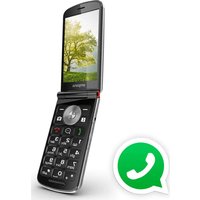
Select Basic - Phone EMPORIA - Free user manual and instructions
Find the device manual for free Select Basic EMPORIA in PDF.



| Product type | Mobile phone |
| Brand | Emporia |
| Model | Select Basic |
| Dimensions | 119 × 58 × 13 mm |
| Weight | 88 g |
| Battery | Li-Ion 3.7 V / 1000 mAh (rechargeable) |
| Standby time | 350 h (depending on network) |
| Talk time | 300 min (depending on network) |
| Network | GSM dual band 900/1800 MHz |
| Internal antenna SAR | 0.961 W/kg |
| Power supply | AC adapter 100-240 V, 50/60 Hz |
| Main functions | FM radio, flashlight, emergency button, alarm clock, calculator, Bluetooth, SMS, contacts, alarm, calendar |
| Care and cleaning | Protect from moisture and shocks. Clean with a soft cloth. Do not expose to sunlight. |
| Safety | Emergency button, keypad lock, PIN/PUK code |
| Spare parts and repairability | Replaceable battery, USB cable, charger, charging station. Warranty: phone 24 months, battery 6 months. |
| General information | Compliant with EC directives. Lamp protection class: 3. Do not use at high volume for extended periods. |
Frequently Asked Questions - Select Basic EMPORIA
User questions about Select Basic EMPORIA
0 question about this device. Answer the ones you know or ask your own.
Ask a new question about this device
Download the instructions for your Phone in PDF format for free! Find your manual Select Basic - EMPORIA and take your electronic device back in hand. On this page are published all the documents necessary for the use of your device. Select Basic by EMPORIA.
USER MANUAL Select Basic EMPORIA
Deutsch
English
Italiano
Francais
Nederla
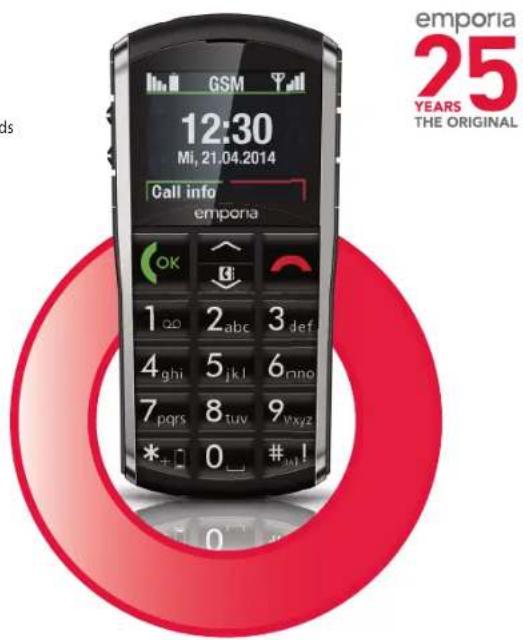
emporiaPURE Simplify your communication.
Thank you for purchasing a product emporia! Please read through the instruction manual before using the phone in operation. The English description see page 22.
Emporia Service Center
11. DECLARATION OF CONFORMITY (DOC)
R&TTE Directive 1999/5/EC
- Use these to flick through your Contacts and the menu
- When the phone is on standby, press to access Contacts.
11 Heng up / Back / Delete key
- When in a call: End
- When in the menu: One step back
- When entering digits or letters: Delete
12 key (voicemail)
ENGLISH-22

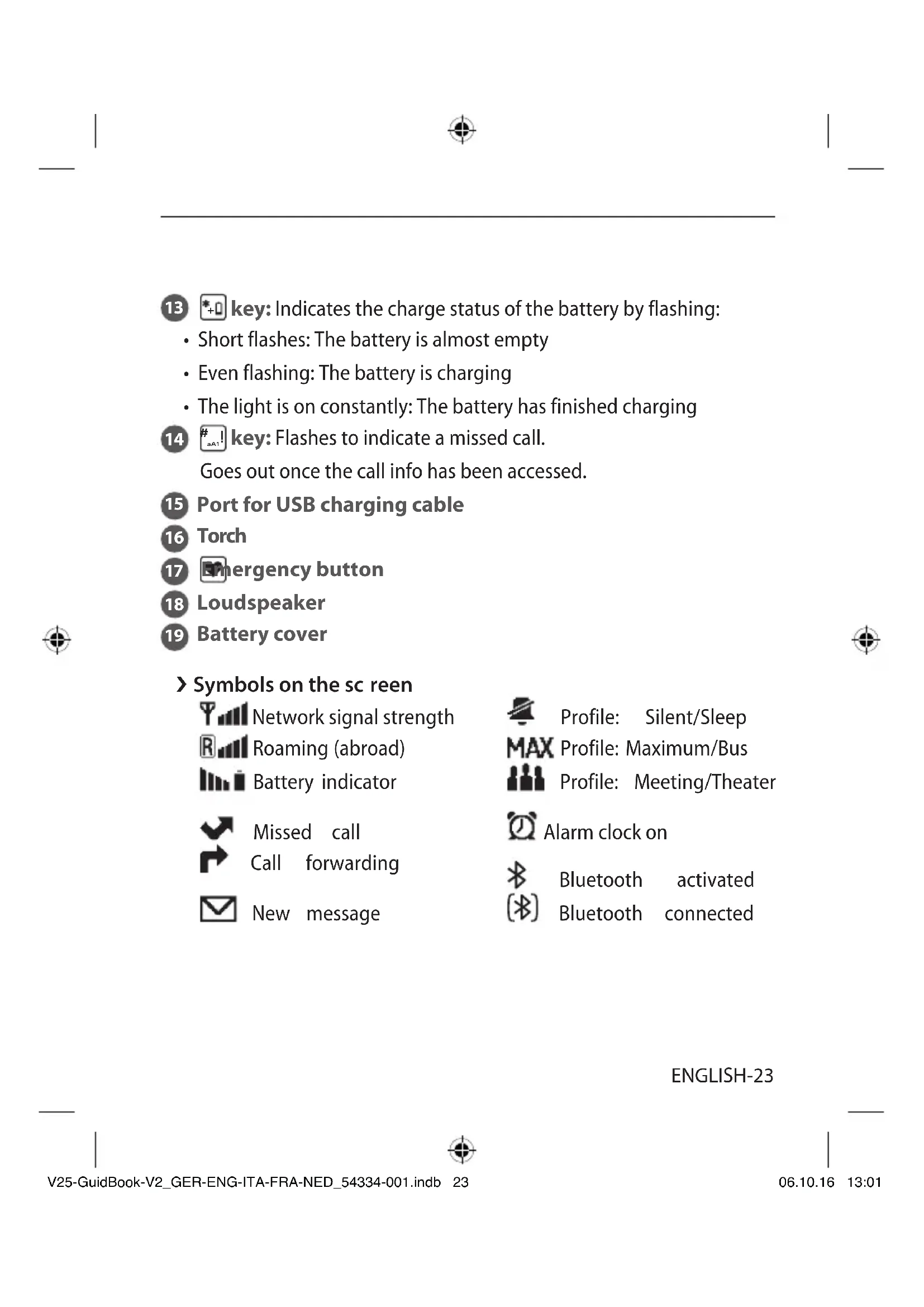
13 *0 key: Indicates the charge status of the battery by flashing:
- Short flashes: The battery is almost empty
Even flashing: The battery is charging - The light is on constantly: The battery has finished charging
14 #! key: Flashes to indicate a missed call. Goes out once the call info has been accessed.
15 Port for USB charging cable
16 Torch
17 Emergency button
18 Loudspeaker
19 Battery cover
Symbols on the sc reen
Network signal strength
Roaming (abroad)
Battery indicator
Missed call
Call forwarding
New message

Profile: Silent/Sleep
MAX Profile: Maximum/Bus
Profile: Meeting/Theater

Alarm clock on

Bluetooth activated

Bluetooth connected
ENGLISH-23

1. GETTING STARTED
> Inserting a SIM card
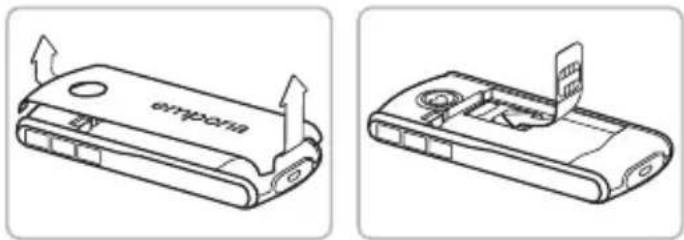
- Lift off the battery cover - begin with the recess at the top left corner of the cover.
- Slide the SIM card into the SIM card holder with the gold contacts facing down.
> Inserting and charging the battery
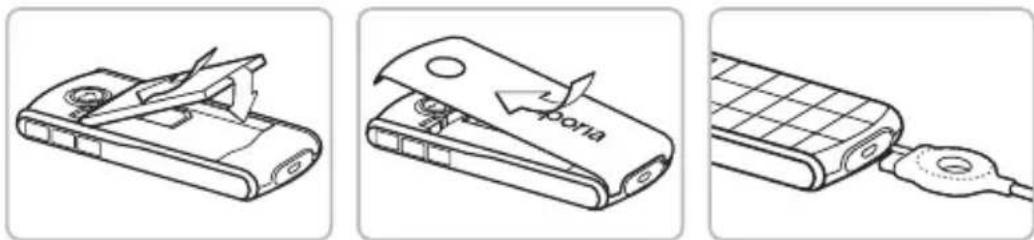
- Insert the battery, making sure that the battery contacts touch the phone's gold contacts.
- Put on the battery cover - press the battery cover down onto the phone until it clicks into place on each side. Begin with the bottom edge of the phone.
- Plug the charging cable into the USB port on the bottom of the phone.
Attention: Charge the battery for at least four hours before you use it for the first time. Only use batteries and chargers that are permitted for use with this specific model.
ENGLISH-24

>Turning on the phone
- Pressing the key for at least two seconds switches the phone on.
To turn the phone off, press the key for two seconds again.
> Using a new SIM card for the first time:
Enter the four-digit PIN code (personal identification number)
Press to confirm the code
The PIN code is a four-digit number that is intended to prevent somebody else from being able to switch on your mobile phone. You have a maximum of three attempts to enter the correct number. If you enter the wrong number three times in a row, you will only be able to unblock the SIM card with the PUK code. You will find the PIN code and PUK code in the documents supplied by your network operator.
Select a Language by pressing and
Set time (ok) Set date (ok)
Select a Text size by pressing 一 and
You can choose Small or Large OK
> Saving energy
If a few seconds pass without the phone receiving any input from you, the screen will go blank to save energy. In the event of an incoming call or you pressing any key, the screen will automatically light up again. If the keypad is set to lock automatically, the phone will only respond if the green OK button or the key is pressed.
ENGLISH-25


2. USING THE PHONE
In standby mode the phone is on, but is not running any applications (calls, SMS messages, etc.).
Using the menu
Press to open the menu.
- Press and/or flick through the menu items.
- Press OK to open a menu item.
- Options which you can select by pressing OK or are displayed at the bottom of the screen.
To return to standby mode, press several times.
> Dual-function keys
Some keys have additional functions if they are pressed and held down for a few seconds:
key: Listen to your voicemail
key: + for country code, e.g. +49 for Germany
key: Show missed calls
Torch button: Torch on continuously when the phone is on
ENGLISH-26

3. CALLS
> Incoming call
To answer:Accept the call by pressing
To reject: Press
To mute the ringtone temporarily: Press the button (on the side of the phone).
Ending a call
Press
Dialling
Enter the number you want to dial (incl. the area code) using the keypad. Start the call by pressing
> Redialling
When the phone is on standby, press OK to view your call history. Press and select a number. Start the call by pressing OK.
> Hands-free mode
Press OK during a call to open the Options and turn the hands-free function on or off.
ENGLISH-27

4. SMS MESSAGES
Menu items: Write message, Received, Unsent, Sent, Delete messages, Text templates, Blocked numbers for messages, Send contact by SMS, SMS in PhoneBK, SMS settings
Writing a message
menu Messages Write message
Enter text using the keypad.
Each key has several characters assigned to it, which can be selected by pressing the respective key several times.
(E.g. 2 × 4_gh , 1 × 2_abc , 3 × 5_jkl , 3 × 5_jkl and 3 × 6_mno for Hallo)
The symbols available vary according to which language you are using.
Press to change the input method.
abc Lower case only
Abc Upper and lower case
ABC Upper case only
123 Digits
Sending a message
Options Send to Enter a number or
open Contacts by pressing Search.
Receiving a message
Received messages are indicated by an audio signal and the symbol.
- Press to open a received message immediately.
To view your message list, select Messages Received.
ENGLISH-28

5. FM RADIO
Menu items in Options: Channel list, Manual input, Auto search, Loudspeaker, Info, Exit
Station search:
You can set the station with the or key.
Adjusting the volume:
You can adjust the volume of the radio with + and on the side of the phone.
You cannot change the volume if you are in an Options menu item. In this case first close the Options menu.
Channel list
This list shows all radio channels already saved.
Manual input
If you know the frequency of the station you want, you can enter it here directly. Press the # key for the decimal point.
Auto search
This function searches for all detectable stations and saves them in the station list together with their frequencies.
ENGLISH-29
6. TOOLS
Menu items: Alarm clock, Birthday reminder, Calendar, Calculator, Bluetooth
6.1 Alarm clock
- Set time
Enable the alarm clock Enter the time Confirm by pressing OK. The alarm clock will now go off at the time you have set every day.
- Off: Disable alarm clock
- Switch off the ringing alarm clock by pressing
- Mute the alarm by pressing (ok) or (it will ring again after five minutes).
6.2 Bluetooth
This function allows you to use Bluetooth-enabled hands-free kits wirelessly.
- Bluetooth on/off
- Connect Search for new devices
Search for devices you want to connect Select devices by pressing OK.
Devices that have been connected before will be recognised and connected automatically.
- Manage devices Visibility On
Make your phone visible so that it can connect to a Bluetooth device.
ENGLISH-30
7. CONTACTS
Menu items: Search name, Add contact, Edit contact, Delete, Send contact by SMS, Copy contact, My number, Speed dial keys, Emergency numbers, Phone book settings, SMS in PhoneBK.
Saving contacts (name and number)
Contacts Add contact
Enter name and number
Save each new entry by pressing OK.
Always save names and numbers with the international dialling code, e.g. save +41 for Switzerland, +43 for Austria and +49 for Germany.
Searching for contacts:
Contacts Search name
Press and flick through the entries
or enter the first few letters of the entry you're looking for using the keypad (and continue flicking with if necessary).
Once you've selected an entry, press to start a call.
ENGLISH-31
8. SETTINGS
Menu items: Silent/Sleep mode, Sound & alert, Handset volume, Handsfree volume, Display & light, Time & date, Language, Text size, Call waiting, Call forward, Suppress number, Help texts, Auto keylock, Network selection, Favorite key, Voicemail number, Emergency numbers, Emergency button, Security settings, Phonebook settings, 0000 to enter Settings, Master reset
8.1 Sound & alert
You can personalise the settings for tones, signals and vibration or select a set of predefined settings (profile).
Menu items: Ringtone, Alarm melody, Ringer volume, Silent/Sleep mode, Meeting/Theater mode, Maximum/ Bus mode, Increasing ring, Vibra for call, Vibra for alarm, Key tones, Message tone, Vibra for messages, Handset volume, Handsfree volume, Confirmation tone, Emergency tone
ENGLISH-32
> Silent/Sleep mode
Visual notifications only (torch LED flashes, notifications on the external display), no ringtone, no vibration function
> Meeting/Theater mode
Visual notifications (torch LED flashes, notifications on the external display), device vibrates, no ringtone
> Maximum/Bus mode
Key tones, SMS tone and vibration function activated, ringtone volume is set on maximum
8.2 Voicemail number
Enter the number for your voicemail.
You will find this number in the documents supplied by your network provider.
Press and hold the 1 key to listen to your voicemail.
8.3 Security settings
PIN: PIN request on/off, change PIN
- Phone code: on/off, change (factory preset code: 1234)
8.4 Master reset
You can restore all the factory settings on your phone (factory preset code: 1234).
ENGLISH-33
8.5 Keypad lock
You can protect your phone against accidental pressing of keys with the key lock.
> Manual key lock
Press the key for two seconds.
Keypad locked appears on the screen.
The symbol on the screen then shows that the keypad is locked.
> Automatic keypad lock
Open the menu Settings and then the item Auto key lock and select whether the keypad is to be locked automatically after 15 sec., 30 sec., 1 minute or 5 minutes without use or whether this function is to be switched off.
> Unlocking the key lock
Press the key for two seconds.
Keypad unlocked appears on the screen.
The phone then responds to every press of a key again.
If the key lock is active, the phone will only respond if the green button or the key is pressed. If any other key is pressed, the screen will remain dark to save energy.
ENGLISH-34
9. EMPORIA EMERGENCY CALL FUNCTION
Read the instructions carefully and set the emergency call function according to your needs.
You can save up to five emergency numbers (family members, friends and official institutions).
- In an emergency, press and hold the emergency button on the back of the phone. (This works even when the phone is closed.)
- The five preset numbers will be dialled automatically in the order you have saved them in.
If it is not possible to get through to anyone on the first number, the second number will automatically be dialled.
If it is not possible to get through to anyone on the second number, the third number will automatically be dialled, and so on.
(The phone will go through a list of five numbers a maximum of three times.)
- At the same time as each emergency call, a text message (SMS) will be sent to the contact, saying:
»You are about to receive an emergency call. An audible warning signal will sound when you answer the call.
Please press the 0 key three times to establish the connection.«
The contact must press the 0 key three times within 60 seconds, or the call will be disconnected (to prevent your emergency call going through to a contact's mailbox).
ENGLISH-35

- From the moment you make an emergency call, your emporia phone will automatically answer any incoming calls for one hour. To disable this function, press and hold the button for approx. three seconds or turn your device off completely using the button and then turn it on again.
To cancel the emergency call, press and hold - During the emergency call, a warning tone will sound continuously, to alert anyone nearby and the person being called.
- If you do not have any emergency numbers saved, have no credit on your prepaid phone card or are connected to a foreign network without permission (e.g. roaming is not activated), 112 will be dialled when you press the emergency button.
If you want to add the number of an official institution such as the police or fire brigade as an emergency number, you must check that this is okay with the respective institution beforehand. We do not assume liability for any costs incurred through you calling such an institution by mistake.
ENGLISH-36


Adding/editing emergency numbers
In the Settings menu Emergency numbers
Add emergency number
Select an entry (e.g. EmNo. 1) by pressing
Select Ok by pressing OK
Select Private or Help organisation (ok)
Select a contact
Activating the emergency button
In the Settings menu
Emergency numbers
Emergency button
On/Off
Pre alarm
The pre alarm is a warning tone that sounds for ten seconds and alerts anyone nearby to the emergency call.
After this, the emergency call sequence starts.
In the Settings menu
Emergency numbers
Pre alarm
On/Off
ENGLISH-37
10. GUARANTEE AND SERVICE
> Safety information
- Turn off the phone in hospitals and whenever you are near medical equipment. There should always be a distance of at least 20cm between pacemakers and the phone when it is on.
- Never try to control a vehicle while holding the phone in your hand. Always comply with relevant national laws and traffic regulations.
- Turn off the phone whenever you are travelling in an aeroplane.
- The phone must be switched off whenever it is near a petrol station or other places with explosive substances.
- Never shine the LED torch in the eyes of people or animals! (Protection class 3)
- To prevent hearing impairments, do not use the phone on a high speaker volume for extended periods of time. Do not hold the phone to your ear when the hands-free mode is activated or the emergency button has been pressed.
- Using a headset on a high volume can cause hearing impairments. Check the volume of the headset you are using.
- The phone and the accessories may contain small parts. Keep the phone out of the reach of young children.
- As a precaution, we recommend disconnecting the phone from the charger during thunderstorms.
- The mains adapter serves as a separator between the product and your mains supply. The mains supply must be close to the device and easily accessible.



ENGLISH-38
> Guarantee
- This guarantee is only valid if the original batteries supplied by emporia have been used.
- Mobile phone: 24 months
Battery: 6 months
Support
- Emporia Service Centre
Industriezeile 36·4020 Linz·Austria·www.emporia.eu
Germany: +49 (0) 800 · 400 4711
Austria: +43·(0) 732·77 77 17·446
Switzerland: +41 (0) 8484·50004
> Intended use
- This phone is robust and designed for mobile use. However, it still needs to be protected from moisture (rain, bathroom water, etc.) and heavy impacts.
- Do not leave it where it will be directly exposed to the sun.
- Using the phone for any purpose other than that described above will result in damage to the product. Doing this also entails hazards such as fire, electric shocks, etc. This product must not be changed or modified, and the casing must not be opened.
- The adapter is only suitable for use in conjunction with a standard household mains socket that is connected to your electrical grid and uses 100-240 volts/50/60Hz (10/16A) of alternating voltage.
> Scope of delivery
- Mobile phone
- Battery: Li-ion 3.7V / 1000mAh
- USB cable with USB AC adapter
- Charging unit
ENGLISH-39

> Technical data
- Dual-band GSM 900/1800 MHz
- Dimensions: 119 mm × 58 mm × 13 mm
Weight: 88g - Battery: Li-ion 3.7V/1000mAh (replaceable)
- Internal antenna: SAR 0.961 W/kg
- Standby time: 350 hrs*
- Talk time: 300min^ ( Depending on network coverage and activated applications the battery life can be reduced.)
> Disposal
- Disposing of the packaging
The packaging and packaging aids are recyclable and should be made available for reuse.
- Disposing of the battery
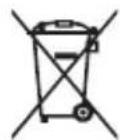
Batteries should never be disposed of as domestic refuse!
As a consumer you are legally required to return used batteries.
They can be handed in at one of your community's local collection points or at specialised stores.
- Disposing of the device
If this product ever wears out, please don't dispose of it as domestic refuse.
To ensure you don't cause damage to the environment, take it to a collection station or recycling centre where used devices are processed for recycling in an environmentally friendly manner.


ENGLISH-40

11. DECLARATION OF CONFORMITY (DOC)
We, Emporia Telecom GmbH & Co.KG., Industriezeile 36, 4020 Linz, Austria, hereby declare that the construction of the device described in the following complies with the relevant EC directives stated below.
Item description: Dual-band mobile phone
Item number: V25
Relevant EC directives
Directive 1999/5/EC on radio equipment and telecommunications terminal equipment (R&TTE Directive 1999/5/EC)
Harmonised EN basic and engineering standards
Health and safety: EN 50332-1 (2000); EN 50360+A1 (2012);
EN 60950-1 (2006) +A11 (2009) +A1 (2010) +A12 (2011); EN 50566 (2013);
EN 62209-1 (2006)/-2 (2010); EN 62479 (2010)
EMC: EN 301489-1 (V1.9.2) /-7 (V1.3.1) /-17 (V2.2.1); EN 55013+A2 (2006);
EN 55020+A11 (2011)
- Radio spectrum: EN 300 328 (V1.7.1); EN 301 511 (V9.0.2)
Eveline Pupeter 12.07.2014, Linz/Austria
emporia Telecom
ENGLISH-41
> PANORAMICADELCELLULARE
Emporia Service Center
Symboles sur I'ec ran
Emporia Service Center
12 -toets (voicemail)
NEDERLANDS-82

Emporia Service Center
EN Misprints, errors and technical changes excepted.