USER MANUAL TOUCHsmart.3 EMPORIA
emporia
TOUCH smart.3
DEUTSCH 02
ENGLISH 50
FRANÇAIS 97
ITALIANO 145
NEDERLANDS193
- Messenger App .....25
Eveline Pupeter
CEO, emporia Telecom
-
- 2021, Linz/Austria
DEUTSCH-48
DEUTSCH-49
Thank you for purchasing an emporia product!
Please read this user guide before
attempting to use your phone.
(Wi-Fi connection or mobile data tariff required)

Eveline Pupeter, emporia Telecom
www.emporia.eu
ENGLISH
> CONTENTS
1. Your mobile phone at a glance ....54
Symbols and operating the phone 56
2. Getting started .....58
2.1 Inserting a SIM card.....58
2.2 Inserting the battery.....58
2.3 Charging the battery .....59
2.4 Turning on the phone.....60
2.5 Entering a SIM PIN code....60
2.6 Saving battery power.....61
3. Setting up your phone...62
3.1 Setting up a messaging app. .
62
3.2 Personalising the menu .... 63
3.3 Updating your system and apps....63
4. Using the phone .....64
4.1 Using the home screen .... 64
4.2 Dual-function keys .....64
4.3 Using the menu .....65
4.4 Writing text 66
5. Calls ......67
5.1 Accepting, rejecting or ending a call ....67
5.2 Calling someone .....67
6.1 Searching for a contact in the phone book....68
6.2 Adding a contact ..... 68
6.3 Block unwanted numbers..68
6.4 Transferring contacts ..... 69
6.5 Opening and editing a contact record....70
6.6 Contact options .....71
7. Messages (SMS) ..... 72
7.1 Writing and sending a message....72
7.2 Reading a message ..... 72
8. Messaging app.....73
8.1 Setting up a messaging app....73
8.2 Using the messaging app . . 73
8.3 Closing the messaging app 73
ENGLISH-52
9. Info centre .....74
9.1 Receiving a notification .... 74
9.2 Opening a notification ..... 74
9.3 Deleting notifications.....74
10. Camera....75
10.1 Taking a photo or recording a video.....75
10.2 Changing the camera settings .....75
11. Photo album.....76
11.1 Viewing a photo or video .. 76
11.2 Sending or editing a photo 76
12. Settings .....78
12.1 Alarm....78
12.2 Silent mode ..... 78
12.3 Wi-Fi....79
12.4 Bluetooth 79
12.5 Mobile data .....80
12.6 Flight mode....80
12.7 Location (GPS)....80
12.8 Open to answer calls.....80
12.9 Voice assistant ..... 81
12.10 Wi-Fi hotspot....81
12.11 Wallpaper 81
12.12 ChatApps.....81
12.13 Battery optimisation .....82
12.14 Power saving mode ..... 82
12.15 More settings....82
13. Internet 84
14. Calendar 85
14.1 Entering a new event ..... 85
14.2 Opening an event you've entered....86
14.3 Searching for an event ..... 86
15. System updates ..... 87
- Weather.....88
17. Emporia emergency call function....89
> Guarantee and service ....92
ENGLISH-53
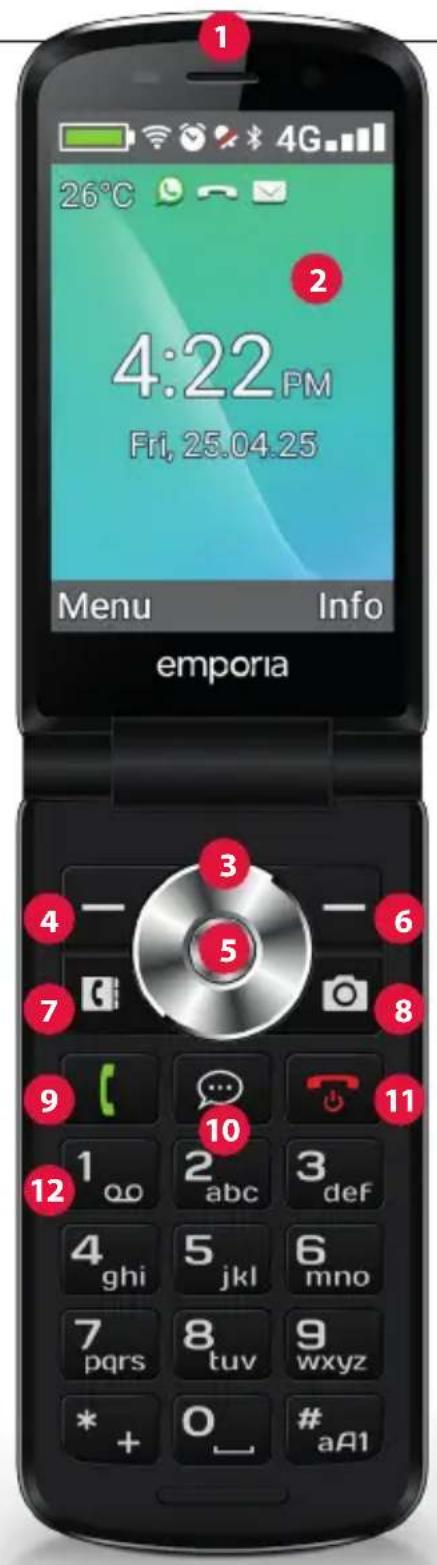
1. YOUR MOBILE PHONE AT A GLANCE
1 Loudspeaker
2 Homescreen
3 Navigation ring
4 Left function key
5 Selection key
6 Right function key
7 Phone book key
8 Camera key
9 Green key
10 Chat app key
11 Red key
12 1∞ key (voicemail)
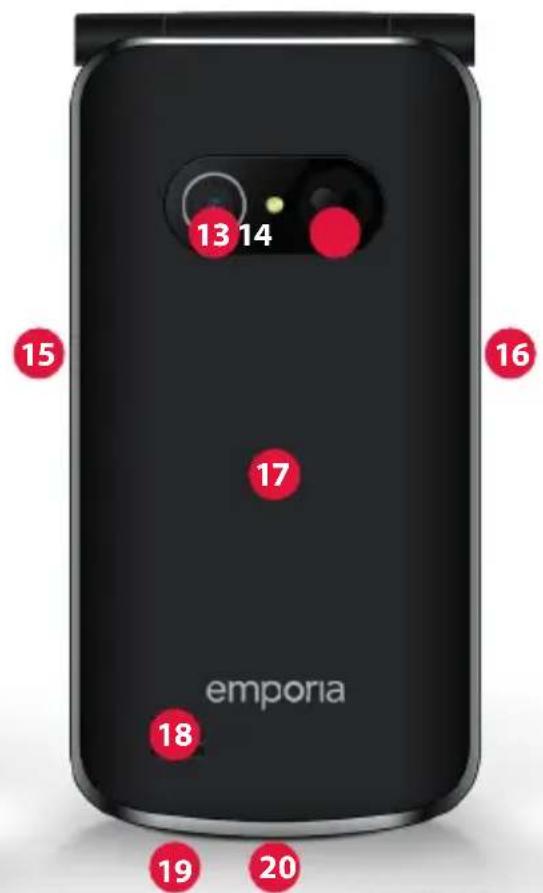
13 Camera lens and flash
14 Heart Emergency button
15 Torch button
16 Volume controls

17 Battery cover
18 Loudspeaker
19 Microphone
20 Port for USB charging cable
ENGLISH-54
Other symbols on the home screen
Reception indicator
Wi-Fi
Alarm
Silent mode
Bluetooth
26°C Temperature
ENGLISH-55
> SYMBOLS AND OPERATING THE PHONE
> How do I return a missed call?
-
Tap on the word View on the screen below the notification Missed call.
-
The call function will open and the number or name of the caller will be highlighted by a red bar.
> How do I access a new SMS message?
-
Tap on the word View on the screen below the notification New message.
-
The text message function will open.
-
The number or name of the sender will be highlighted by a bar.
-
Tap on the new SMS to read it.
> How do I access a new messaging app message?
- Tap on the chat app key to open the app.
> How do I remove indicators for missed calls, SMS messages and messaging app notifications?
The symbols on the display and along the top of the screen will disappear as soon as you've read the SMS, opened the messaging app or had a look to see who the missed call was from.
ENGLISH-56
ENGLISH-57
2. GETTING STARTED
2.1 Inserting a SIM card
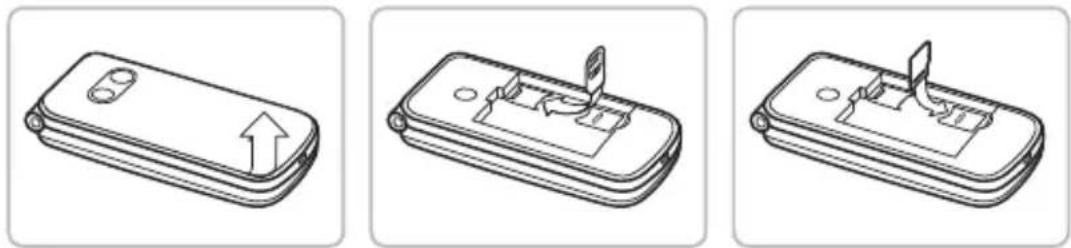
-
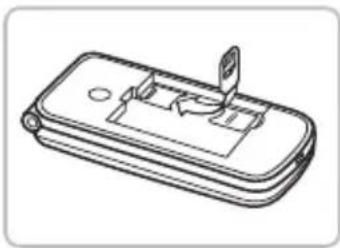
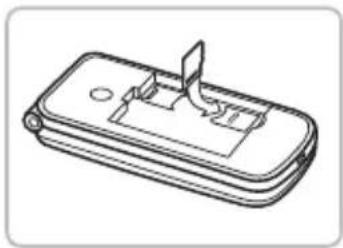
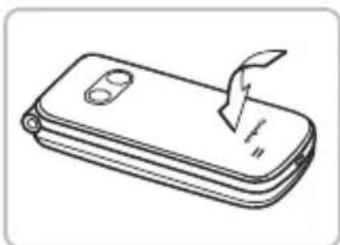
Remove the battery cover (opening in the bottom left-hand corner).
-
Slide the SIM card into the SIM card holder with the gold contacts facing down.
-
To add more storage, insert a memory card into the memory card holder with the gold contacts facing down.
2.2 Inserting the battery
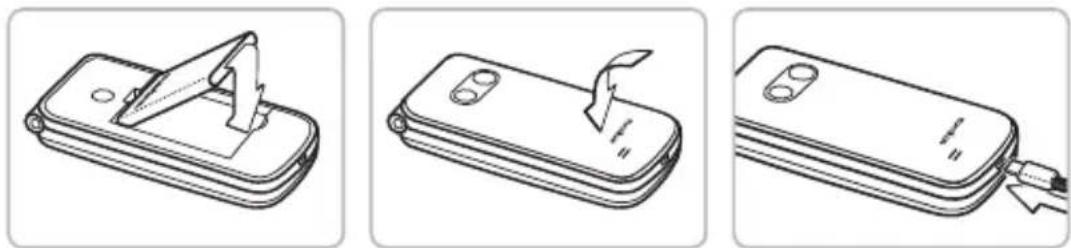
-
Insert the battery, making sure that the battery contacts touch the phone's gold contacts.
-
Place the battery cover over the battery and click it into place.
Charge the battery for at least four hours before the first time you use it. Only use batteries and chargers that are permitted for use with this specific model.
ENGLISH-58
2.3 Charging the battery
Use a standard mains plug that you have at home. You can find suitable original emporia accessories in the emporia webshop at https://www.emporiamobile.com/en/collections/accessories
Never connect the phone to the charger or a PC if a battery has not been inserted. Do not attempt to operate the phone without a battery inserted. Doing this can damage the phone.
Charging with the charging cable
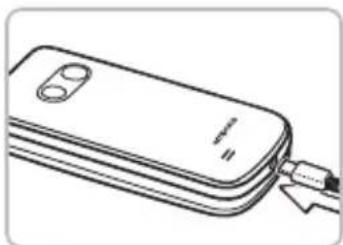
To avoid contact faults with the USB connector, only use the charging cable supplied with the phone for charging.
- Connect the USB cable to the mains plug.
- Plug the charging cable into the USB port on the phone.
- Then plug the mains plug into a wall socket.
Using the charging cradle
- Connect the USB cable to the mains plug.
- Plug the charging cable into the USB port on the back of the charging cradle and then place the phone in the charging cradle.
If you intend to use this method to charge your phone every time, you can leave the charging cable plugged into the charging cradle permanently.
ENGLISH-59
2.4 Turning on the phone
- Press and hold the key for at least two seconds until the emporia logo appears. It will take a few seconds for the home screen to be displayed.
- To turn the phone off, press and hold the 🔒 key for 2 seconds again.
2.5 Entering a SIM PIN code
- Enter the four-digit PIN code for your SIM card when asked to do so and confirm the entry.
- You can change or turn off the PIN code in Menu ⇒ Settings ⇒ More settings ⇒ SIM lock.
You have a maximum of three attempts to enter the correct number. If you enter the wrong number three times in a row, you will only be able to unblock the SIM card with the PUK code. You will find your original PIN code and PUK code in the documents supplied with your SIM card by your network operator.
ENGLISH-60
2.6 Saving battery power
After a few seconds of inactivity, the display will turn off to save battery power. In the event of an incoming call or you pressing any key, the screen will automatically light up again.
ENGLISH-61
3. SETTING UP YOUR PHONE
When you use a new SIM card for the first time, you need to set the language, date, time and any data connections. You can also configure and change these later in Menu → Settings if you wish (See »12. Settings« on page 78).
If you use the phone's mobile data facility, your network tariff must include mobile data. Ask your retailer or network provider for more information.
3.1 Setting up a messaging app
-
When on the home screen, press the chat app key and select YES to confirm your answer to the security question.
-
Select the messaging app you want to install.
You can choose from Signal, Telegram and WhatsApp.
-
Pressing the chat app key 📞 again now will open the messaging app you've selected straight away.
More information on setting up a messaging app is available in the messaging app manual, which is supplied separately.
ENGLISH-62
- The menu has been preset to display the following functions: Contacts, Messages, Chat app, Calendar, Camera, Photo album, Settings and Applications.
- The placement of each of these functions can be altered individually, apart from that of the unmovable Applications button.
- To replace a function with another one, tap and hold one of the buttons for approx. 3 seconds and select your chosen function from the list that appears.
3.3 Updating your system and apps
Updates are not performed automatically on the emporiaTOUCHsmart. When a system update is available, you will receive a notice in the info centre.
Always carry out these updates.
(See »15. System updates« on page 87)
If the notice Update app appears when you're opening your messaging app, proceed as follows:
- Tap on Download and grant permission to any requests.
- Go to the info centre and tap on the downloaded document.
- The new version of your messaging app will be installed.
ENGLISH-63
4. USING THE PHONE
This phone can be controlled both via its touchscreen and via its numeric keypad and navigation ring. In the following, operating the phone using the keys has been prioritised.
4.1 Using the home screen
- Left function key : opens the menu
- Right function key ☐: opens the info centre (can be made visible for present notifications)
• Phone book 📄: opens Contacts
- Camera: opens the photo function
• ☐ key: opens your call history
- Chat app key: opens the messaging app installed
4.2 Dual-function keys
Some keys have additional functions if they are pressed and held down for a few seconds:
• 1∞ key: allows you to listen to your voicemail
Changing your voicemail settings:
Menu → Contacts → Voicemail → Setup → Voicemail number
• * + key: + for country code, e.g. +49 for Germany
• key: turns the torch on continuously
ENGLISH-64
- When on the home screen, press the left function key open the Menu.
- Scroll through the menu items with the navigation ring.
Your current selection will be highlighted by a blue border.
- Press the selection key ● to open the selected menu item.
- Options which you can select with the function keys will be shown at the bottom of the screen.

The left function key ☐ is normally the OK button, while the right function key is normally for BACK.
Note the terms displayed along the bottom of the screen and match these with the function keys below them.
- To return to the home screen, press the red key 🔍.
ENGLISH-65
4.4 Writing text
You enter text using the keypad.
- To input text, press a number key multiple times (e.g. 2x 4ghi , 1x 2abc , 3x 5jkl , 3x 5jkl and 3x 6mno for Hallo).
- Special characters and symbols have been assigned to the various keys, but can differ in some languages:
![1 _o . , ! ? 1 ' " @ : 2 _abc a b c 2 ä à ä ä â æ 3 _def d e f 3 d é ë è € ê ë 4 _ghl g h i 4 í í í í í ğ í í 5 _jkl j k l 5 £ 6 _mnc m n o 6 ö ñ ó ø ó 7 _pqrs p q r s 7 β $ § 8 _tuv t u v 8 ü ù û ú ú 9 _wxyz w x y z 9 ŵ ý ů O _ Space 0 * + + * # - _ = < > % () [ ] : ; / \ & ~ ^](/content/2026/04/726862/images/82eaaa5c7832ed6c1cd755c9acce94aef44f128ad6f4d6ac73c91db6f62a91ce.jpg)
- Use the #aA1 key to switch between the abc, ABC, Abc and 123 input methods.
The virtual keyboard has been preset to be off, but can be enabled in Menu → Settings → More settings → Language & input → On-screen keyboard → Virtual keyboard → On
Once you've done this, the virtual keyboard will be available as a fifth option assigned to the # aA1 key.
ENGLISH-66
5. CALLS
5.1 Accepting, rejecting or ending a call
- To answer: Open the phone and press Accept.
- To reject or end a call: Press the red button 📊 or close the phone.
- To mute the ringtone temporarily, press the volume control button.
The Open to answer calls function is preset to be off, but can be enabled in Menu → Settings → Open to answer calls → On.
5.2 Calling someone
> Dialling a number
- Enter the phone number you want to dial (incl. the area code) using the keypad.
- Start the call by pressing ☐.
> Using the redial function
-
When on the home screen, press the green key ☐.
Your call history will be displayed.
-
Use the navigation ring ⚙ to select a number.
-
Start the call by pressing ☐.
To go hands-free during a call, open Options and turn on the speaker.
ENGLISH-67
- When on the home screen, press the phone book key or open Menu → Contacts → Phone book.
-
Use the navigation ring ⚙ to scroll through the entries or use the keypad to type the first letters of the contact you are looking for in the search bar.
-
Start the call by pressing ☐.
-
Open Menu ⇒ Contacts ⇒ Phone book ⇒ Add contacts.
-
Enter the contact's phone number and then confirm it by pressing Next.
-
Enter the person's name and save it. You have now created a contact record for this person and can expand it by adding other details such as a contact photo, their landline number, their email address and their birthday.
Always save names and numbers with the international dialling code, e.g. +41 for Switzerland, +43 for Austria and +49 for Germany.
6.3 Block unwanted numbers
Select Block list at the end of the list in the phone book. Add numbers from which you do not want to receive calls or text messages. Numbers for internet calls and apps such as WhatsApp must be blocked separately in the respective app.
- Save all your contacts onto the SIM card while the SIM card is in your old phone.
- As soon as you insert the SIM card into your new device for the first time, you will be asked if you want to transfer the contacts that are stored on the SIM card.
- Once you've done this, the imported contacts will appear in the phone book.
- To import contacts from the SIM card later on, select Menu → Contacts → Phone book → Import/export contacts → Import from SIM card. Tap on the contact you want to import or open Options and select Import all.
- Save all the contacts on your old phone in a VCF file.
- Transfer the file to your new device on a memory card or via a Bluetooth connection.
- Select Import/export contacts ⇒ Import from memory at the end of the list in the phone book. The VCF file will be detected automatically and the contacts imported.
ENGLISH-69
There are two ways to open a saved contact record.
- Open Menu ⇒ Contacts ⇒ Phone book.
-
Use the navigation ring ⚙ to select the contact record.
Your current selection will be highlighted by a blue border.
-
Press the left navigation button for Options.
A menu consisting of Call, Send message and Contact details will appear.
-
Select Contact details. The contact record containing the contact's Photo, Mobile number, Landline number, Email address and Birthday will then be displayed.
-
Select Edit using the left function key. You can then change any of the contact details.
-
Confirm any changes you make by selecting Save.
> Using the touchscreen:
- Open Menu → Contacts → Phone book.
- Search for the contact and tap on the contact picture (photo or head icon) next to the name.
- A menu button containing icons for Call ( ) , Send message ▼ and Contact information ▼ will appear.
- Tap on i and the Contact details will appear.
ENGLISH-70
Send message
Write the contact currently open a text message.
Send details
Copy the name and number of the contact currently open into a text message and send them to a third person.
Call history for a contact
In the call history, you will see all the calls you've had with this contact. As well as the date, time and, if applicable, duration of the call, you can see the type of call beside each entry here:
Outgoing calls (duration)
Incoming calls (duration)
? Missed call
Setting the contact as a favourite
If you set the contact as a favourite, it will be displayed at the beginning of the list in the phone book.
It is not possible to use one of the number keys to put a contact on speed dial.
Deleting a contact
If you tap on Delete, the contact will be permanently deleted from your phone.
ENGLISH-71
7. MESSAGES (SMS)
7.1 Writing and sending a message
- Open Menu ⇒ Messages.
- Select Write message.
- Enter the text using the keypad.
- To specify a recipient for the SMS, open Options and select Send.
- You can now select a Contact from the phone book, type in a Phone number using the keypad, select a number from your Recent calls list or select Multiple contacts at the same time.
72 Reading a message
ENGLISH-72

8. MESSAGING APP
8.1 Setting up a messaging app
(See »12.12 ChatApps« on page 81)

8.2 Using the messaging app
- The emporia TouchSMART.3 doesn't have all the functions of a smartphone. With regard to messaging apps, the device has been designed in a way that enables messages in chats including photos, short videos and audio files to be received and replied to.
- Make sure you regularly delete photos and videos received or sent via your messaging app to free up storage space. Recording and sending videos that are too large can prevent the device from running smoothly.
- This device is not connected to a Google account. It is therefore also not possible to back up messaging app communication using Google.
8.3 Closing the messaging app
It is best to close the messaging app installed by pressing the red key 📊 or simply closing the phone.
Pressing the Back key to exit the app can have a negative effect on notifications and indicators for new messaging app messages.
ENGLISH-73
9. INFO CENTRE
The Info centre basically collects all the information your phone wants to share with you. This gives you a better overview and ensures you don't miss any notifications. It can include missed call notifications, new messages, messaging app message notifications and update notices for new available system updates.

9.1 Receiving a notification
- If you have missed a call or received a new message (SMS or your messaging app), a notice will appear on the home screen.
- Select Show to see the call or message immediately (See »Symbols and operating the phone« on page 56).
9.2 Opening a notification
As soon as an unread notification is available, INFO will be displayed in the bottom right-hand corner of the home screen.
- To open the Info centre, press the right function key or select Menu ⇒ Info centre.
- Tap on a notification in the list displayed. You will be taken straight to the app the notification refers to.
9.3 Deleting notifications
A notification will normally disappear as soon as you have tapped on it. Regardless of this, however, you can also delete the entire list by tapping on Clear all.
ENGLISH-74
10. CAMERA
10.1 Taking a photo or recording a video
Make sure you are not accidentally covering the camera lens on the back of the phone with your finger.
10.2 Changing the camera settings
When the camera is active, open Options and switch
• from Back camera to Front-facing camera for selfies;
- between Photo mode and Video mode;
• to the preview of your last photo;
- between Flash off, Flash on and Flash auto;
- between different picture sizes.

ENGLISH-75
11. PHOTO ALBUM
11.1 Viewing a photo or video
Open Menu → Photo album.

All the photos and videos you take will be sorted chronologically according to the month in which they were taken.
- Press the selection key ● to open the highlighted photo.
- Use the navigation ring ⚙ to scroll through the photos.
You can use an SD card to increase the storage capacity of your phone. You can purchase these cards from electronics stores.
11.2 Sending or editing a photo
Open Options when in photo view:
Delete, Set as wallpaper, Share, Zoom in, Zoom out and Rotate
Selecting Share allows you to send the photo to others by Bluetooth, a messaging app, Messages (as an MMS) and other applications.
If you want to send more than one photo at the same time, tap and hold your finger on one photo on the photo album overview screen. You can then select multiple photos and share or delete them in one go.
ENGLISH-76
> Backing up photos on your PC
- Plug the USB cable supplied with the phone into your PC and the other end into your phone.
- Tap on Info on the home screen or open the Info centre from the menu.
- Open the notification "Device being charged via USB".
- Select Transfer files from the list displayed.
- The PC will now detect your phone and display the phone's internal memory or, if available, the phone's SD card.
- You can then select files and copy them onto the PC.
ENGLISH-77
12. SETTINGS
Alarm, Silent mode, Wi-Fi, Bluetooth, Mobile data, Flight mode, Location, Open to answer calls, Voice assistant, Wi-Fi hotspot, Wallpaper, ChatApps, and More settings

> Enabling a function
-
If you tap on a grey Off button, it will change to a blue On button.
-
For detailed indicators or settings for an option, tap on the function's text button, e.g. Wi-Fi.
12.1 Alarm
Turn the alarm On or Off and, if necessary, change the Alarm time. You can change more settings for the Alarm ringtone and Alarm volume in the alarm app. (Menu → Applications → Alarm)
If the phone is turned off, the alarm is turned off as well. The alarm will therefore not go off when the phone is off.
12.2 Silent mode
This function will mute your phone's ringtone. You can enter a time when you want the ringtone to be re-enabled, so that the phone will ring again from that point onwards.
If you turn the phone off and then on again, silent mode is turned off. The phone will ring normally from when it's turned on again.
12.3 Wi-Fi
- If you are already connected to a Wi-Fi network, the name of the network will be displayed in Settings in Wi-Fi.
- To set up a Wi-Fi connection, you need the name of the Wi-Fi network and the corresponding password.
If you have a Wi-Fi network at home, you can usually find this information on the underside of the Wi-Fi router.
Connecting your phone to a Wi-Fi network
- Turn the Wi-Fi function On.
- Tap on Wi-Fi and select one of the networks shown in the list of Available networks.
- Enter the password for your chosen network and tap on Connect.
- Connected will then appear under the name of the Wi-Fi network in the list of available networks.
12.4 Bluetooth
- Turn the Bluetooth function On.
- Tap on Bluetooth and then on Pair new device.
A list of available devices will be displayed.
- Select the device you want to pair the phone with from the list.
- Follow the instructions to pair the devices.
Devices that have been connected before will be recognised and connected automatically.
ENGLISH-79
12.5 Mobile data
- Turn the mobile data function On.
- The overview will show you how much data you have already used in the current billing period.
If you use the phone's mobile data facility, your network tariff must include mobile data.
12.6 Flight mode
Flight mode will disable the phone's cellular radio and other communication functions like Bluetooth and Wi-Fi, and therefore prevent them from interfering with other electronic devices on board an aircraft. All the other functions on the phone will be able to be used without restriction.
12.7 Location (GPS)
- Turn the location function On.
- Select a Mode for the level of accuracy with which you want your location to be able to be determined.
- In Permissions, you can see which apps are using the location function.
12.8 Open to answer calls
Turn this function On if you want calls to be answered automatically as soon as you open the phone.
ENGLISH-80
12.9 Voice assistant
If the voice assistant is enabled, a voice announcement will be added to the following functions:
- You have received a new SMS message.
- Someone is calling you.
- The torch has been turned on or off.
- The camera has been turned on.
- The volume has been increased or decreased.
- The emergency button has been pressed.
12.10 Wi-Fi hotspot
Make your mobile data Internet connection available to other devices.
12.11 Wallpaper
Select a picture from the photo album you want to set as the background on your home screen.
12.12 ChatApps
Change the messaging app the chat app key opens.
If you switch to another messaging app, all the data and chats in your current messaging app will be lost!
ENGLISH-81
12.13 Battery optimisation
Enable to limit charging to 80 % capacity of battery to extend battery lifespan.
12.14 Power saving mode
Power saving mode will turn off Bluetooth and lower LCD brightness for reduced power usage.
12.15 More settings
Mobile network, Battery, Display, Sound, SIM lock, Date and time, Languages and input, Factory Reset, About phone
> Changing the font size
The font size can be changed from Normal to Small.
- Open Menu → Settings → More settings
→ Display → Font size.
- Tap on the slide controller to change the font size.
ENGLISH-82
> Permitting roaming
-
Open Menu → Settings → More settings
→ Mobile network → Roaming.
-
Permit the phone to use other networks to transfer data.
For tariff providers without their own network infrastructure (MVNO), data roaming is required for the mobile data connection to work.
> Enabling the virtual keyboard
- Open Menu → Settings → More settings → Language/input → Virtual keyboard.
- Turn the virtual keyboard On.
- The virtual keyboard will now be available as a fifth option assigned to the #aA1 key.
ENGLISH-83
13. INTERNET
Like you do on a computer, you use a browser on a smartphone to search for information on the Internet. The emporia Internet app is such a browser.

- Open Menu ⇒ Applications ⇒ Internet.
- The search bar is the main element of the browser. It is where you enter search terms you want to find information on. Tap in the search bar to open the keyboard. Enter a search term.
-
When the term you're looking for appears, you can tap on the suggested word(s) or you can finish entering your term and then confirm you want to search for it by tapping on Go.
-
The browser will now search the Internet for web pages related to your search term.
-
The results of your search will be displayed as a list of web pages. The domain of each website will be written underneath the respective site's title. The domain is the address of the web page. Each web page will also be accompanied by a short description, which can help you decide whether the page will be of interest to you.
-
A suggested web page will only open when you tap on its domain. Tap on Back to return to the list of search results.
ENGLISH-84
14. CALENDAR
On the menu screen, select Applications and then open the Calendar.
- The current month will be shown in the overview.
The overview cannot be changed to display the current week instead of the current month.
• Today's date will be in blue.
- Tap on the day button to open a detailed view of that day.
14.1 Entering a new event
- Tap on Options and specify whether you want to enter an Event or a Birthday.
- Enter a name for the new event. This name is what the event will be shown as on the calendar.
- Now enter a time frame for the event. To do this, tap on the default settings for the date and time to change these details.
- In Reminders, you can specify how long before the event you would like to receive a notification.
- In Repetition, you can set the event you've just entered to recur daily, weekly, monthly or yearly.
Don't forget to save every event you enter and any changes you make!
ENGLISH-85
14.2 Opening an event you've entered
In the month calendar overview, the days you've entered events on will be highlighted.
- If you tap on a day button, a list of all the hours of this day will be displayed.
- Events that have already been entered will be highlighted by coloured areas and labelled with the name of the event.
- If you tap on an event, the details of the event will open and you can make changes to them.
Be aware that the list is long! Some events may not be visible at first glance. Swipe up and down over the list, so that you can see events entered at other times of the day.
14.3 Searching for an event
- To do this, tap on Options in the month overview and then on Upcoming.
- All your events from today's date onwards will now be listed in chronological order.
- Tap on the name of an event to open all its details and to edit the event.
ENGLISH-86
15. SYSTEM UPDATES
You can download the latest software for the phone yourself and therefore update the system and improve applications yourself. Use a Wi-Fi network to transfer the data here.

- Check that the battery is at least 30% charged. If it isn't, the download cannot start.
- Open Menu ⇒ Applications ⇒ System updates.
- Then to begin downloading the new software, select Check for updates.
- A message will appear telling you whether or not there is any new software available. If there is, select Download to start the update process. The green bar indicates how the download is progressing.
- Once the download has been completed, select Update now. You will be informed that you cannot use the phone during the update process. Do not press the on/off button during the update process and do not start using your phone again until this message has appeared: The installation was successful.
ENGLISH-87
16. WEATHER
The emporia weather app is simple with a clear layout and also shows the current temperature on the home screen.

Please note that the weather app requires constant access to the Internet, so that its data can be updated continuously.
- Open Menu → Applications → Weather.
- Turn the weather function On.
- Next, add a Location you want to know the weather for.
- Enter the name of your desired place in the Search bar. A list of places will be displayed. Select the place you want from these.
Your phone needs to be connected to the Internet, otherwise it won't be able to suggest any places for you to choose from!
- Your desired place has now been set as a weather location.
Select Back to view the weather forecast for the next few days for this location. The current temperature in this place will be shown above the date on the home screen.
- You can select multiple locations and confirm your selection using the green tick.
Please note that some cities may only be found by entering their international name.
ENGLISH-88
17. EMPORIA EMERGENCY CALL FUNCTION
Your phone has an emergency call function that you can tailor to your specific needs.
- Save your personal emergency contacts.
- Do not enable the Emergency system until you have specified your emergency contacts.
i Important! If you do not have any emergency contacts saved, have no credit on your prepaid phone card or have no reception, the European emergency number 112 will be dialled when the enabled button is pressed. This will put your call through to the nearest police station.
Emporia does not assume liability for any costs incurred through you calling such an institution by mistake.
How do I make an emergency call?
-
In an emergency, press and hold the emergency button on the back of the phone.
(This works even when the phone is closed.)
-
The five preset numbers will be dialled automatically in the order in which you have saved them.
-
At the same time as each emergency call, a text message (SMS) will be sent to the contact, saying:
»You are about to receive an emergency call that will be ended after 1 minute. Return the call immediately. Your call will automatically be answered.«
ENGLISH-89
How do I stop an accidental emergency call?
-
If you've started an emergency call by mistake, press the red key for 3 seconds to hang up.
This will interrupt the emergency call cycle.
-
Next, turn the phone off and on again to restore your emergency call status settings.
How do I save an emergency contact?
-
Open Settings menu ⇒ Emergency contacts ⇒ Add emergency contact
-
Select an empty position.
-
Specify whether the contact is a private individual or a help organisation and also whether they should be sent an emergency call message in addition to receiving the call itself.
-
The list of your contacts will open. Tap on a contact you want to be notified in an emergency.
ENGLISH-90
What does the recipient of an emergency call have to do?
-
The emergency contact has to end the call and ring back the person in need of help. If this doesn't happen, the call will be ended automatically after 1 minute and the next emergency contact will be called.
-
The emporia phone will automatically answer the callback, reestablishing the connection to the emergency contact.
ENGLISH-91
> GUARANTEE AND SERVICE
Manufacturer: emporia Telecom GmbH & Co. KG
Industriezeile 36, 4020 Linz, Austria
Importer: Emporia UK and Ireland Limited · Cardinal Point, Park Road,
Rickmansworth, Hertfordshire, WD3 1RE, United Kingdom
Contact: www.emporiatelecom.co.uk or www.emporiatelecom.ie
Brand name:emporia
Model: emporiaTOUCHsmart.3 (V188.LTE.v3)
> Scope of delivery
- Mobile phone: emporiaTOUCHsmart.3 (V188.LTE.v3)
- Battery: AK-V188
- USB cable: USB-C/USB-C
• Table charging unit: TL-V188-C
- User guide
> Support
• Emporia Service Centre
service@emporiatelecom.co.uk
Monday-Friday, 12 00 -4 00 pm
• United Kingdom · EN
www.emporiatelecom.co.uk/support/contact
+44 1923 94 77 78
- Ireland · EN
www.emporiatelecom.ie/support/contact
+353 0818 000 102
> Guarantee
This guarantee is only valid if original batteries supplied by emporia have been used.
• Mobile phone: 12 months
- Battery: 6 months
> Technical details
• Dimensions: 113.8×56.7×20.6 mm
- Weight: 150 g
- Battery: Li-ion 3.8 V, 1400 mAh, 5.32 Wh (replaceable)
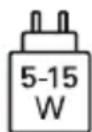
- Table charging unit: input = output
- Standby time: 200 h*
- Talk time: 470 min*
(*The battery life can be reduced depending on network coverage and active applications.)
- Internal antenna:
SAR body: 1.81 W/kg
SAR head: 0.35 W/kg
SAR-limbs: 2.92 W/kg
- Operating temperature range: -10° - +40°C
• Hearing Aid Compatible M4/T4
- Bluetooth V5.0
• Display: 3.47"; 400 × 800 px
- Camera: 8 MP / 2 MP
• RAM: 2 GB
- Memory (ROM): 16 GB
- SD card: < 64 GB
ENGLISH-92
> Frequencies
- BT: 2402 MHz - 2480 MHz
Transmitter power: <0.010 W
• BT LE: 2402 - 2480 MHz
Transmitter power: < 0.0005 W
• GPS: 1575.42 - 1575.42 MHz
• FM: 87.6 MHz - 107.9 MHz
• 2.4G WiFi: 2412 - 2472 MHz
Transmitter power: <0.063 W
• 5G WiFi: 5150 - 5350 MHz
Transmitter power: <0.015 W
• 5G WiFi: 5725 - 5850 MHz
Transmitter power: < 0.025 W
• E-GSM 900/GPRS 900/EGPRS 900: TX: 880 - 915MHz; RX: 925 - 960 MHz
Transmitter power: < 1.60 W
• E-GSM 1800/GPRS 1800/EGPRS 1800: TX: 1710 - 1785 MHz; RX: 1805 - 1880 MHz
Transmitter power: <0.721 W
- WCDMA Band I:
TX:1920 - 1980 MHz; RX: 2110 - 2170 MHz
Transmitter power: <0.199 W
• WCDMA Band VIII:
TX: 880 - 915 MHz; RX: 925 - 960 MHz
Transmitter power: <0.218 W
• LTE Band I:
TX:1920 - 1980 MHz, RX:2110 - 2170 MHz
Transmitter power: <0.221 W
- LTE Band III:
TX:1710 - 1785 MHz, RX:1805 - 1880 MHz
Transmitter power: < 0.229 W
• LTE Band VII:
TX:2500 - 2570 MHz; RX: 2620 - 2690 MHz
Transmitter power: <0.221 W
• LTE Band VIII:
TX: 880 - 915 MHz; RX: 925 - 960 MHz
Transmitter power: <0.233 W
• LTE Band XX:
TX: 832 - 862 MHz; RX: 791 - 821 MHz
Transmitter power: < 0.237 W
- Turn off your phone in hospitals and whenever you are near medical equipment. There should always be a distance of at least 20 cm between a pacemaker and the phone when it is on.
- Never try to control a vehicle while holding the phone in your hand. Always comply with relevant national laws and traffic regulations.
- Turn off the phone whenever you are travelling in an aeroplane.
- The phone must be switched off whenever it is near a petrol station or other places with explosive substances.
- Never shine the LED torch in the eyes of people or animals! (Protection class 3)
• To prevent hearing

impairments, do not use the phone on a high speaker volume for extended periods of time. Do not hold the phone to your ear when hands-free mode is activated or the emergency button has been pressed.
- Using a headset on a high volume can cause hearing impairments. Check the volume of the headset you are using.
• The phone and the accessories may contain small parts. Keep the phone out of the reach of young children.
- As a precaution, we recommend disconnecting the phone from the
ENGLISH-93
charger during thunderstorms.
- The mains adapter serves as a separator between the product and your mains supply. The mains supply must be close to the device and easily accessible.
- This device has been tested for typical applications where the device is carried on the body. To meet the RF exposure requirements, the minimum distance between the body, in particular the user's head, and the handset including the antenna must be 0 cm. Belt clips, holsters and similar accessories from third parties used with this device must not contain metallic components. Accessories carried on the body that do not meet these requirements may not meet the RF exposure requirements and should be avoided. Only use the device's built-in antenna or an approved antenna.
- This device complies with the essential requirements and other relevant provisions of 2014/53/EU Radio Equipment Directive (RED). All the important radio test
cases have been written.
- Caution: Risk of explosion if the battery is replaced by the wrong type. Dispose of the used batteries according to the instructions.
- The device complies with RF specifications when the device is 5mm from the body.
-
Only use the device under good reception conditions to reduce the amount of radiation received.
-
Use a hands-free device or loudspeaker.
• Children and adolescents should use wireless devices such as mobile phones sensibly, e.g. by avoiding night-time calls and limiting the frequency and duration of calls.
- Keep the device away from the abdomen of pregnant women.
- Keep the device away from the lower abdomen of teenagers.
- Think about your health – use your cell phone in moderation, use a headset and choose a device with a low SAR-value.
ENGLISH-94
> Intended use
- This phone is robust and designed for mobile use. However, it still needs to be protected from moisture (rain, bathroom water, etc.) and heavy impacts.
- It is only designed for European network standards (AT, BE, CZ, DE, DK, ES, FI, FR, GB, HR, HU, IE, IT, NL, NO, PL, PT, SE, SI, SK, SZ and TR).
- Do not leave it where it will be directly exposed to the sun.
- Using it for any purpose other than that described above will result in damage to the product. Doing this also entails hazards such as fire, electric shocks, etc. This product must not be changed or modified, and the casing must not be opened.
- The adapter is only suitable for use in conjunction with a standard household mains socket that is connected to your electrical grid and uses 100-240 volts, 50/60Hz (10/16A), of alternating voltage.
> Disposal
- Disposing of the packaging
The packaging and packaging aids are recyclable and should be recycled.
- Disposing of the battery
Batteries should never be disposed of as domestic refuse! As a consumer you are legally required to return

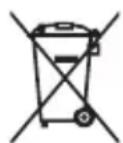
used batteries. They can be handed in at one of your community's local collection points or at specialist stores.
- Disposing of the device
If this product ever wears out, please don't dispose of it as domestic refuse. To ensure you don't cause damage to the environment, take it to a collection or recycling centre where used devices are processed for recycling in an environmentally friendly manner.
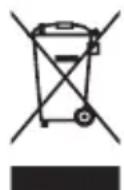
- Your device is equipped with a replaceable battery. Use your device only with an original battery.
Although the battery can be charged and discharged hundreds of times, it will eventually wear out. If the talk and standby times are noticeably shorter than normal, replace the battery.
Please follow the relevant instructions on our website or contact our customer service team by email (see appendix).
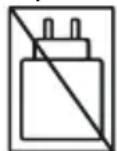
- For environmental reasons this package does not include a charger. This device can be powered with most USB power adapters and a cable with USB Type-C plug.
ENGLISH-95
(Industriezeile 36, 4020 Linz, Austria), hereby declares that the
emporiaTOUCHsmart.3
(V188.LTE.v3)
telecommunication or radio device complies with:
• 1907/2006 REACH
• 2011/65/EU RoHS
• 2014/53/EU Radio Equipment Directive (RED)
• (EU) 2022/2380 Making radio equipment available on the market
The full text of the declarations of conformity can be viewed on this web page:
https://www.emporiamobile.com

Eveline Pupeter
CEO, emporia Telecom
12/05/2025, Linz/Austria
ENGLISH-96
Eveline Pupeter, emporia Telecom
www.emporia.eu
EANCANS
> SOMMAIRE
12.9 Assistant vocal
support-fr@emporiatelecom.com
support-nl@emporiatelecom.com
support-fr@emporiatelecom.com
> Garantie
SAR corps: 1.81 W/kg
SAR tête: 0.35 W/kg
SAR-membres: 2.92 W/kg
Eveline Pupeter
CEO, emporia Telecom
Eveline Pupeter, emporia Telecom
www.emporia.eu
ONAVNO
> INDICE
-
Panoramica del cellulare 151
Simboli e uso .... 153
-
Primi passi ..... 155
Eveline Pupeter
CEO, emporia Telecom
12/05/2025, Linz/Austria
ITALIANO-195
ITALIANO-196
> Guarantee and service. 239
NEDERLANDS-200
1. OVERZICHT VAN UW MOBIELE TELEFOON
Eveline Pupeter
CEO, emporia Telecom