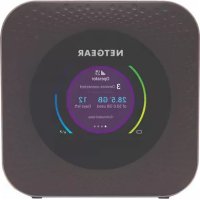
Nighthawk M1 MR1100 - Router NETGEAR - Free user manual and instructions
Find the device manual for free Nighthawk M1 MR1100 NETGEAR in PDF.



| Features | Details |
|---|---|
| Product Type | 4G LTE Mobile Router |
| Dimensions | 11.6 x 7.6 x 2.4 cm |
| Weight | 240 g |
| Connectivity | Wi-Fi 802.11 a/b/g/n/ac, 2.4 GHz and 5 GHz |
| Download Speed | Up to 1 Gbps |
| Upload Speed | Up to 150 Mbps |
| Battery Capacity | 5040 mAh |
| Battery Life | Up to 24 hours |
| Number of Connected Devices | Up to 20 devices simultaneously |
| Ports | 1 USB Type-C port, 1 Ethernet port |
| Operating System | Compatible with Windows, macOS, iOS, Android |
| Security Features | WPA/WPA2, VPN pass-through |
| Remote Management | Nighthawk app for management and control |
| Warranty | 1 year |
Frequently Asked Questions - Nighthawk M1 MR1100 NETGEAR
User questions about Nighthawk M1 MR1100 NETGEAR
0 question about this device. Answer the ones you know or ask your own.
Ask a new question about this device
Download the instructions for your Router in PDF format for free! Find your manual Nighthawk M1 MR1100 - NETGEAR and take your electronic device back in hand. On this page are published all the documents necessary for the use of your device. Nighthawk M1 MR1100 by NETGEAR.
USER MANUAL Nighthawk M1 MR1100 NETGEAR
4GX Gigabit LTE Mobile Router/Mobiler 4GX-Gigabit-LTE-Router
Routeur mobile 4GX Gigabit LTE/Router 4GX Gigabit LTE Mobile
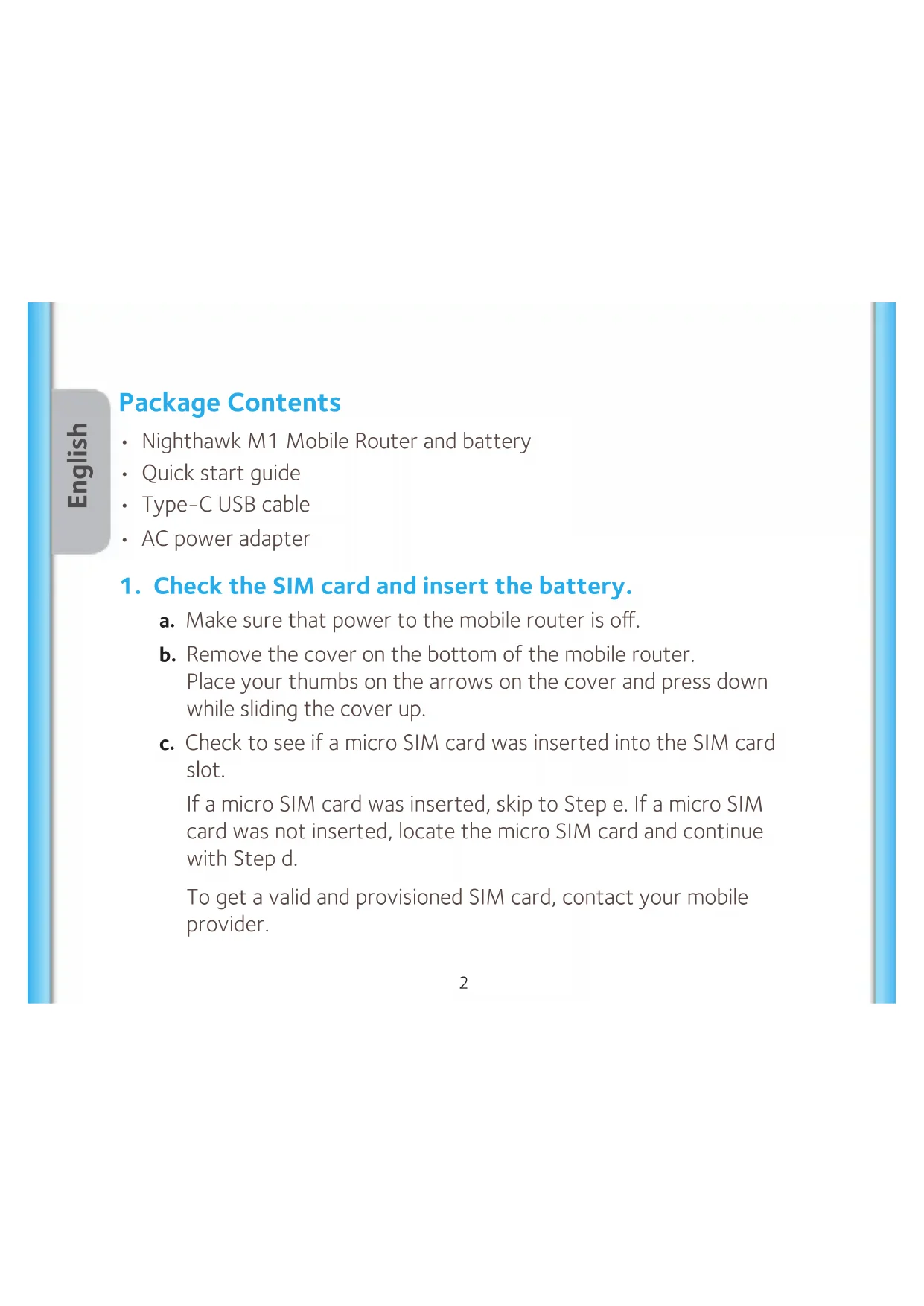
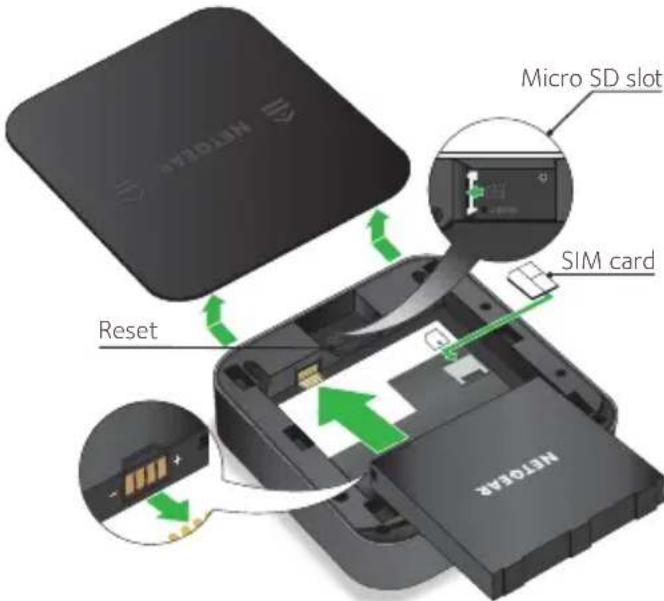
1. Check the SIM card and insert the battery.
a. Make sure that power to the mobile router is off.
b. Remove the cover on the bottom of the mobile router.
Place your thumbs on the arrows on the cover and press down while sliding the cover up.
c. Check to see if a micro SIM card was inserted into the SIM card slot.
If a micro SIM card was inserted, skip to Step e. If a micro SIM card was not inserted, locate the micro SIM card and continue with Step d.
To get a valid and provisioned SIM card, contact your mobile provider.
d. Carefully slide the micro SIM card into the slot.
e. Align the battery connectors and insert the battery.
f. If you purchased a micro SD card, insert the card into the micro SD slot.
g. Replace the mobile router cover.
2. Download the NETGEAR Mobile app.
Use the NETGEAR Mobile app to change your WiFi network name and password. You can also use it to play and share media, and enable the travel router feature.
a. Connect your mobile device to the Internet.
b. Download the NETGEAR Mobile app from netgear.com/mobileapps.
3. Power on your mobile router.
Press and hold the Power button ⏻ on the mobile router for three seconds.
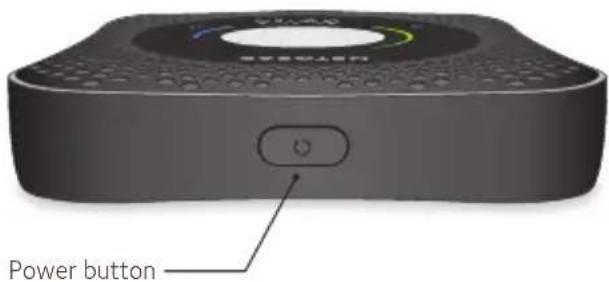
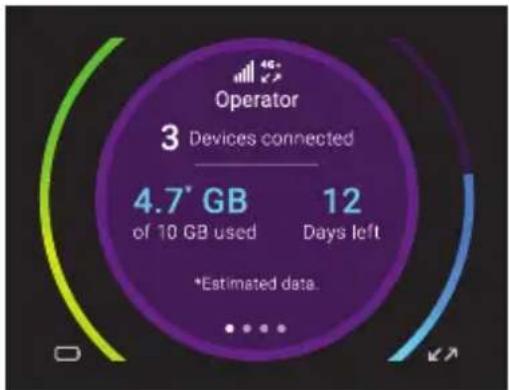
To view the WiFi name and password, press and release the Power button to toggle through Nighthawk M1 router LCD displays.
4. Connect your devices.
a. Check to make sure that WiFi is enabled on your computer or mobile device and search for WiFi networks. Refer to the following table or the manual for your WiFi-enabled device for further details on searching for WiFi networks.
| Windows | Click the Internet Access icon, which is usually found on the bottom right side of your screen. |
| Mac Select | WiFi > Network. |
| Mobile devices | Tap Settings > WiFi. |
b. To view the WiFi name and password, press and release the Power button to toggle through Nighthawk M1 router LCD displays.
c. Select the WiFi name displayed on your Nighthawk M1 screen.
d. Enter the WiFi password exactly as shown on the Nighthawk M1 screen.
NOTE: Your password is case-sensitive. We strongly recommend that you change the default admin password.
e. To use the router as an internet gateway, connect an Ethernet device to the Nighthawk M1 router Ethernet port.
5. Set up the device.
a. Use the NETGEAR Mobile app or visit http://m1login.net or http://192.168.1.1 from a device that is connected to the Nighthawk M1 router.
b. Follow the on screen instructions.
Advanced Configuration and Features
To log in to the Nighthawk M1 router home page:
-
Launch a web browser from a device that is connected to the Nighthawk M1 router.
-
In the address field of the web browser, enter http://m1login.net or http://192.168.1.1.
-
In the Sign In field, enter the default password and click the Sign In button. See the modem label for the default password. While the password that you enter is unique to your device and is secure, we recommend that you change it to a password that you want to use.
Upload Media Files to the Nighthawk M1 Router
You can upload media files to either a micro SD card or a USB drive connected to the Nighthawk M1 router. Micro SD cards and USB drives are sold separately. To enable media and Ethernet support, you must first select the Charge Only option (Settings > Router Setup > Use USB port for).
To upload media files to the Nighthawk M1 router with a computer:
- Log in to the Nighthawk M1 router home page.
- Click the MyMedia tab.
- Drag and drop your files onto the page.
Use the Nighthawk M1 Router to Charge Other Devices
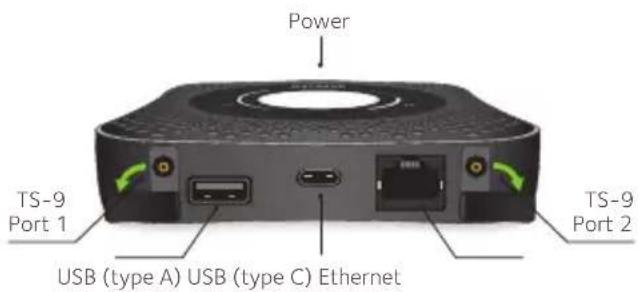
If the battery power is low on your smartphone or other device, you can give it a boost by connecting it to the M1's USB port A connector. Jump boost begins automatically once the devices are connected.
LED Status
| Slow blue blink The Nighthawk M1 router is ready. |
| Fast blue blink The Nighthawk M1 router is transferring data. |
| Slow amber blink The Nighthawk M1 router is not ready. |
Power Button
| Turn on the router. Press and hold the Power button for three seconds. |
| Turn off the router. Press and hold the Power button for five seconds. |
| Wake the router. Press and quickly release the Power button. |
| Switch between screens. Press and quickly release the Power button. |
Support
For additional information, visit netgear.com/support to access the full user manual and to download firmware updates.
Compliance
For the current EU Declaration of Conformity, visit http://kb.netgear.com/app/answers/detail/a_id/11621.
For regulatory compliance information, visit: http://www.netgear.com/about/regulatory/. See the regulatory compliance document before connecting the power supply.
Lieferumfang
http://kb.netgear.com/app/answers/detail/a_id/11621.
http://www.netgear.com/about/regulatory/.
http://www.netgear.com/about/regulatory/.
First Floor, Building 3,
University Technology Centre.
Curraheen Road, Cork, Ирландия
Тел.: +353-21-2333-200
Факс: +353-21-2333-299
www.nelgear.com
Представительство:
NETGEAR INTERNATIONAL LTD.
WNC (Kunshan) Corporation
No.88, Central Avenue, Area B, Export
Processing Zone,
Kunshan City, Jiangsu Province, Китай
© NETGEAR, Inc., NETGEAR and the NETGEAR Logo are trademarks of NETGEAR, Inc. Any non-NETGEAR trademarks are used for reference purposes only. NETGEAR, Inc., 350 E. Plumeria Drive, San Jose, CA, 95134 USA.


NETGEAR INTL LTD
Building 3, University Technology Centre
Curraheen Road, Cork, Ireland

201-22716-04
January 2018