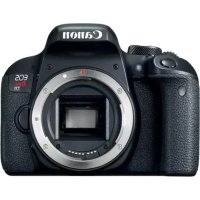
EOS Rebel T7i - Camera CANON - Free user manual and instructions
Find the device manual for free EOS Rebel T7i CANON in PDF.



| Product Type | Digital SLR Camera (DSLR) |
| Brand | Canon |
| Model | EOS Rebel T7i (EOS 800D) |
| Sensor | 24.2 MP APS-C CMOS |
| Image Processor | DIGIC 7 |
| Viewfinder | Optical pentamirror viewfinder, 95% coverage |
| Screen | 3-inch (7.5 cm) vari-angle touchscreen LCD, 1,040,000 dots |
| Video Resolution | Full HD 1920x1080 up to 60 fps |
| Image Stabilization | Digital stabilization (in video mode) |
| Connectivity | Wi-Fi, NFC, Bluetooth |
| Power Source | LP-E17 rechargeable battery |
| Dimensions (W x H x D) | 131.0 x 99.9 x 76.2 mm |
| Weight (with battery and card) | Approx. 532 g |
| Storage | SD/SDHC/SDXC card (UHS-I compatible) |
| Lens Mount | EF/EF-S mount |
| ISO Range | 100 - 25600 (expandable to 51200) |
| Shutter Speed | 30 s - 1/4000 s, bulb |
| Shooting Modes | Auto, Scene, Manual, Shutter/ Aperture Priority, Program |
| Maintenance | Clean the sensor carefully, use a blower and microfiber cloth for the exterior |
| Safety | Avoid humidity, shocks, and extreme temperatures |
| Spare Parts and Repairability | LP-E17 battery, LC-E17 charger, USB cable, strap, repair by Canon authorized service center |
| General Information | Digital SLR camera for amateurs, compatible with EF/EF-S lenses, released in 2017 |
Frequently Asked Questions - EOS Rebel T7i CANON
User questions about EOS Rebel T7i CANON
0 question about this device. Answer the ones you know or ask your own.
Ask a new question about this device
Download the instructions for your Camera in PDF format for free! Find your manual EOS Rebel T7i - CANON and take your electronic device back in hand. On this page are published all the documents necessary for the use of your device. EOS Rebel T7i by CANON.
USER MANUAL EOS Rebel T7i CANON
EOS REBEL T7i EOS 800D
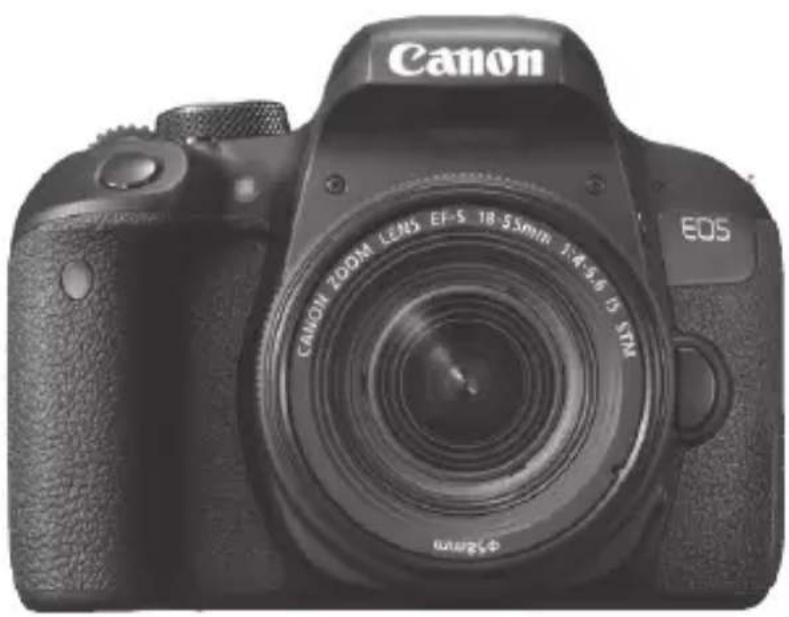
natural_image
Black Canon DSLR camera with visible lens and control buttons (no text-heavy elements)Basic Instruction Manual
The Camera Basic Instruction Manual covers the most basic operations and functions.
Instruction manuals (PDF files) and software can be downloaded from the Canon Web site (p.4, 163).
www.canon.com/icpd
Introduction
The EOS REBEL T7i or EOS 800D is a digital single-lens reflex camera featuring a fine-detail CMOS sensor with approx. 24.2 effective megapixels, DIGIC 7, high-precision and high-speed 45-point AF (up to 45 cross-type AF points), maximum continuous shooting speed of approx. 6.0 shots/sec., Live View shooting, Full High-Definition (Full HD) movie shooting, and Wi-Fi/NFC/Bluetooth (wireless communication) function.
Before Starting to Shoot, Be Sure to Read the Following
To avoid botched pictures and accidents, first read the “Safety Precautions” (p.15-17) and “Handling Precautions” (p.18-20). Also, read this manual carefully to ensure that you use the camera correctly.
Refer to This Manual while Using the Camera to Further Familiarize Yourself with the Camera
While reading this manual, take a few test shots and see how they come out. You can then better understand the camera. Be sure to store this manual safely, too, so that you can refer to it again when necessary.
Testing the Camera Before Use and Liability
After shooting, play images back and check whether they have been properly recorded. If the camera or memory card is faulty and the images cannot be recorded or downloaded to a computer, Canon cannot be held liable for any loss or inconvenience caused.
Copyrights
Copyright laws in your country may prohibit the use of your recorded images or copyrighted music and images with music on the memory card for anything other than private enjoyment. Also be aware that certain public performances, exhibitions, etc., may prohibit photography even for private enjoyment.
Item Check List
Before starting, check that all the following items are included with your camera. If anything is missing, contact your dealer.
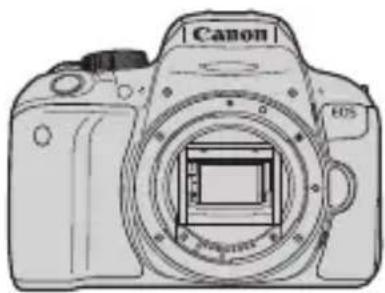
natural_image
Line drawing of a Canon DSLR camera with lens and frame (no text or symbols on body)Camera
(with eyecup and body cap)
natural_image
Simple line drawing of a tool or tool with a curved handle and pointed tip (no text or symbols)Strap
Battery Pack
LP-E17
(with protective cover)
Battery Charger
LC-E17/LC-E17E*
* Battery Charger LC-E17 or LC-E17E is provided. (The LC-E17E comes with a power cord.)
- The camera does not come with the Software CD-ROM, an interface cable or HDMI cable.
The Instruction Manuals are listed on the next page. - If you purchased a Lens Kit, check that the lenses are included.
- Be careful not to lose any of the above items.

When you need Lens Instruction Manuals, download them from the Canon Web site (p.4).
The Lens Instruction Manuals (PDF) are for lenses sold individually. Note that when purchasing the Lens Kit, some of the accessories included with the lens may not match those listed in the Lens Instruction Manual.

Software can be downloaded from the Canon Web site (p.163) for your use.
Instruction Manuals
Camera and Wi-Fi (Wireless Communication) Function Basic Instruction Manual
The booklet is the Basic Instruction Manual.
More detailed Instruction Manuals (PDF files) can be downloaded from the Canon Web site.
Downloading and Viewing the Instruction Manuals (PDF Files)
1 Download the Instruction Manuals (PDF files).
- Connect to the Internet and access the following Canon Web site.
www.canon.com/icpd
- Select your country or region of residence and download the Instruction Manuals.
Instruction Manuals Available for Download
- Camera Instruction Manual
- Wi-Fi (Wireless Communication) Function Instruction Manual
- Camera and Wi-Fi (Wireless Communication) Function Basic Instruction Manual
- Lens Instruction Manuals
- Software Instruction Manuals
2View the Instruction Manuals (PDF files).
- Double-click a downloaded Instruction Manual (PDF file) to open it.
- To view the Instruction Manuals (PDF files), Adobe Acrobat Reader DC or other Adobe PDF viewer (most recent version recommended) is required.
- Adobe Acrobat Reader DC can be downloaded for free from the Internet.
- To learn how to use PDF viewing software, refer to the software's Help section.
The Instruction Manuals (PDF files) can also be downloaded using the QR code.
www.canon.com/icpd
A software application is required to read out the QR code.
- Select your country or region of residence, then download the Instruction Manuals.
- The QR code can also be displayed under [¶4: Manual/software URL].
Quick Start Guide
1
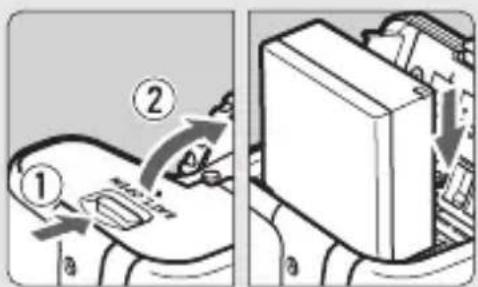
Insert the battery (p.32).
- Upon purchase, charge the battery to start using (p.30).
2
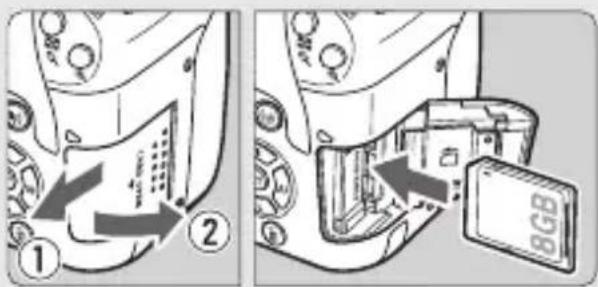
Insert the card (p.33).
- With the card's label facing toward the back of the camera, insert it into the card slot.
3
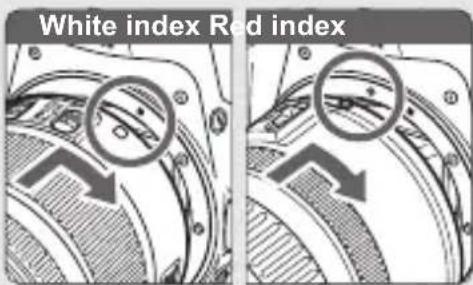
Attach the lens (p.42).
- Align the lens's white or red mount index with the camera's mount index of the same color to attach the lens.
4
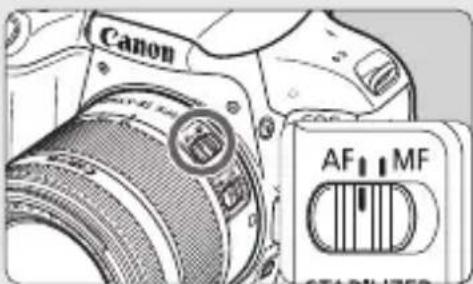
Set the lens's focus mode switch to <AF> (p.42).
5
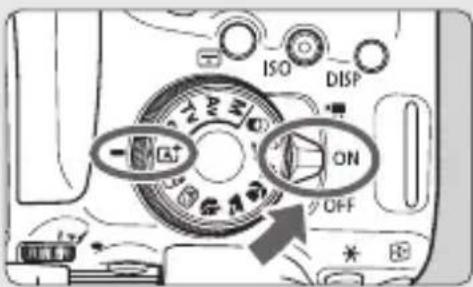
Set the power switch to , then set the Mode Dial to (Scene Intelligent Auto) (p.66).
- All the necessary camera settings will be set automatically.
6
natural_image
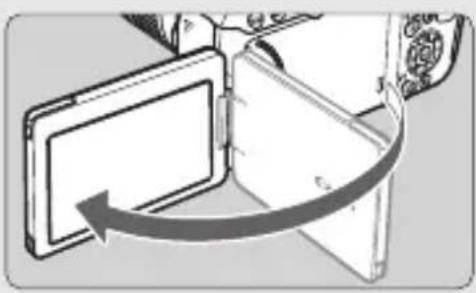
Diagram showing a device with an arrow indicating rotation or movement, no text or symbols presentFlip out the LCD monitor (p.35).
- When the LCD monitor displays the date/time/zone setting screen, see page 38.
7
natural_image
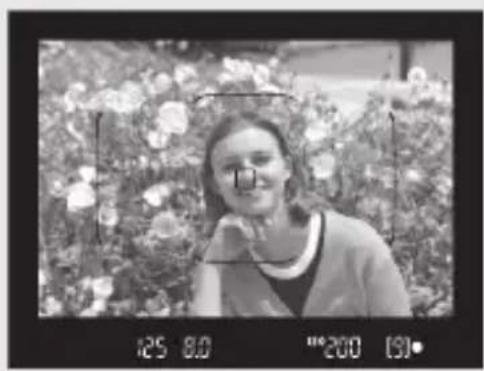
Black-and-white photo of a smiling woman surrounded by flowers, captured with camera lens (no visible text or symbols)Focus on the subject (p.45).
- Look through the viewfinder and aim the viewfinder center over the subject.
- Press the shutter button halfway, and the camera will focus on the subject.
● The built-in flash will be raised as necessary.
8
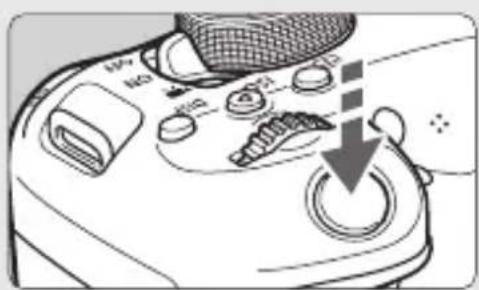
Take the picture (p.45).
- Press the shutter button completely to take the picture.
9
natural_image
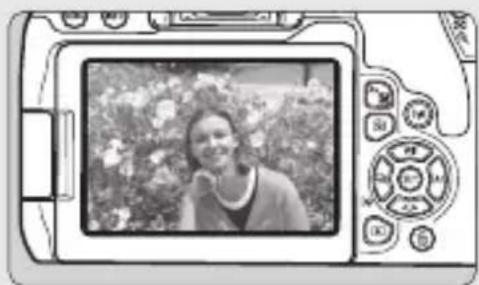
Black-and-white photo of a person holding a phone to the left, displayed within a DSLR camera case (no visible text or symbols)Review the picture.
● The image just captured will be displayed for approx. 2 sec. on the LCD monitor.
- To display the image again, press the <▶> button (p.90).
- To shoot while looking at the LCD monitor, see “Live View Shooting” (p.127).
To view the images captured so far, see "Image Playback" (p.90). - To delete images, see "Erasing Images" (p.160).
Compatible Cards
The following cards can be used with the camera regardless of capacity. If the card is new or was previously formatted (initialized) by another camera or computer, format the card with this camera (p.61).
SD/SDHC*/SDXC* memory cards
* UHS-I cards supported.
Cards that Can Record Movies
When shooting movies, use a large-capacity card with a reading/writing speed class at least as high as shown in the following table.
| Movie Recording Size (p.146) | Recording Formats | ||
| MOV MP4 | |||
| ALL-I* | UHS Speed Class 3 or faster | - | |
| IPB (Standard) | FHD: 59.94P 50.00P - | SD Speed Class 10 or faster | |
| Other than above | - | SD Speed Class 6 or faster | |
| IPB (Light) - | SD Speed Class 4 or faster | ||
* Image-recording quality that is automatically set for time-lapse movie shooting.
- If you use a slow-writing card when shooting movies, the movie may not be recorded properly. Also, if you play back a movie on a card with a slow reading speed, the movie may not be played back properly.
- To check the card's reading/writing speed, refer to the card manufacturer's Web site.

In this manual, “card” refers to SD memory cards, SDHC memory cards, and SDXC memory cards.
* The camera does not come with a card for recording photos/movies. Please purchase it separately.
Chapters
| Introduction | 2 | |
| 1 | Getting Started and Basic Camera Operations | 29 |
| 2 | Basic Shooting and Image Playback | 65 |
| 3 | Setting the AF and Drive Modes | 93 |
| 4 | Image Settings | 105 |
| 5 | Advanced Operations for Photographic Effects | 117 |
| 6 | Shooting with the LCD Monitor (Live View Shooting) | 127 |
| 7 | Shooting Movies | 143 |
| 8 | Handy Features | 149 |
| 9 | Image Playback | 153 |
| 10 | Software Start Guide / Downloading Images to a Computer | 161 |
Conventions Used in this Manual
Icons in this Manual
<☀> : Indicates the Main Dial.

: Indicate up, down, left, and right on the <◆> cross keys respectively.

: Indicates that each function remains active for approx. 4 sec., 6 sec., 10 sec., or 16 sec. after you let go of the button.
* In addition to the above, the icons and symbols used on the camera's buttons and displayed on the LCD monitor are also used in this manual when discussing relevant operations and functionality.
MENU : Indicates a function that can be changed by pressing the
- All operations described in this manual assume that the power switch is set to
(p.36). - It is assumed that all the menu settings and Custom Functions are set to their defaults.
- The illustrations in this manual describe the camera attached with the EF-S18-55mm f/4-5.6 IS STM lens as an example.
- The sample photos displayed on the camera and used in this manual are only for illustrative purposes to show the effects more clearly.
Contents
Introduction 2
Item Check List ....3
Instruction Manuals....4
Quick Start Guide....6
Compatible Cards ....8
Chapters 9
Conventions Used in this Manual 10
Safety Precautions....15
Handling Precautions....18
Nomenclature....21
1 Getting Started and Basic Camera Operations 29
Charging the Battery....30
Installing and Removing the Battery ....32
Installing and Removing the Card....33
Using the LCD Monitor....35
Turning on the Power....36
Setting the Date, Time, and Zone 38
Selecting the Interface Language ....41
Attaching and Detaching a Lens....42
Basic Shooting Operations ....44
Setting the Screen Display Level....46
☐ Quick Control for Shooting Functions....52
MENU Menu Operations and Configurations ....54
Operating the Camera with Touch Screen....58
Formatting the Card....61
Switching the LCD Monitor Display....62
Displaying the Electronic Level....63
2 Basic Shooting and Image Playback 65
A ^+ Fully Automatic Shooting (Scene Intelligent Auto)...... 66
A ^+ Full Auto Techniques (Scene Intelligent Auto)...... 69
Shooting When You Cannot Use Flash.... 70
CA Creative Auto Shooting 71
Shooting Portraits....72
▲ Shooting Landscapes.... 73
Shooting Close-ups 74
Shooting Moving Subjects.... 75
SCN: Special Scene Mode.... 76
Shooting Group Photos 77
Photographing Children....78
¶1 Shooting Food....79
Shooting Candlelight Portraits.... 80
Shooting Night Portraits (With a Tripod).... 81
Shooting Night Scenes (Handheld).... 82
Shooting Backlit Scenes 83
Shooting with Creative Filter Effects.... 84
Q Quick Control 86
Adjusting the Brightness.... 89
▶ Image Playback 90
3 Setting the AF and Drive Modes 93
AF: Changing the Autofocus Operation (AF operation).... 94
Selecting the AF Area and AF Point 96
AF Area Selection Modes.... 99
MF: Manual Focus.... 101
☐ Selecting the Drive Mode 102
Using the Self-timer.... 103
4 Image Settings 105
Setting the Image-Recording Quality....106
ISO: Setting the ISO Speed for Still Photos....108
Selecting a Picture Style ....109
WB: Matching the Light Source (White balance) 111
Auto Correction of Brightness and Contrast (Auto Lighting Optimizer)... 112
Setting Noise Reduction 113
Reducing Flicker 115
5 Advanced Operations for Photographic Effects 117
P: Program AE....118
Tv: Conveying the Subject's Movement (Shutter priority AE) ..... 119
Av: Changing the Depth of Field (Aperture priority AE) .....120
M: Manual Exposure....121
Setting the Desired Exposure Compensation....122
Auto Exposure Bracketing (AEB)......123
* Locking the Exposure (AE Lock)....124
Using the Built-in Flash 125
6 Shooting with the LCD Monitor (Live View Shooting) 127
Shooting with the LCD Monitor....128
Shooting with Creative Filter Effects 131
Changing the Autofocus Operation (AF operation)....133
Focusing with AF (AF method) 136
Shooting with the Touch Shutter 141
7 Shooting Movies 143
Shooting Movies 144
Autoexposure Shooting....144
Setting the Movie Recording Size....146
8 Handy Features 149
Handy Features.... 150
Disabling the Beeper 150
Card Reminder 150
Setting the Image Review Time.... 151
Setting the Auto Power Off Time 151
Reverting the Camera to the Default Settings 152
9 Image Playback 153
▶ Searching for Images Quickly 154
Playing Back with the Touch Screen 156
Playing Back Movies 158
Erasing Images.... 160
10 Software Start Guide / Downloading Images to a Computer 161
Software Start Guide 162
Downloading and Viewing the Software Instruction Manuals (PDF Files)... 164
Downloading Images to a Computer 165
Index.... 173

For Troubleshooting guide and Specifications, refer to the Instruction Manual downloadable from the Canon Web site. For how to download the Instruction Manual, see page 4.

Certification Logo
Select [4: Certification Logo Display] and press
Safety Precautions
The following precautions are provided to prevent harm or injury to yourself and others. Make sure to thoroughly understand and follow these precautions before using the product.
If you experience any malfunctions, problems, or damage to the product, contact the nearest Canon Service Center or the dealer from whom you purchased the product.

Warnings Follow the warnings below. Otherwise, death or serious injuries may result.
- To prevent fire, excessive heat, chemical leakage, explosions, and electrical shock, follow the safeguards below:
- Do not use any batteries, power sources, or accessories not specified in the Instruction Manual. Do not use any home-made or modified batteries, or the product if it is damaged.
- Do not short-circuit, disassemble, or modify the battery. Do not apply heat or solder to the battery. Do not expose the battery to fire or water. Do not subject the battery to strong physical shock.
- Do not insert the battery's plus and minus ends incorrectly.
- Do not recharge the battery in temperatures outside the allowable charging (working) temperature range. Also, do not exceed the recharge time indicated in the Instruction Manual.
- Do not insert any foreign metallic objects into the electrical contacts of the camera, accessories, connecting cables, etc.
- When disposing of a battery, insulate the electrical contacts with tape. Contact with other metallic objects or batteries may cause a fire or an explosion.
- If excessive heat, smoke, or fumes are emitted when recharging the battery, immediately unplug the battery charger from the power outlet to stop recharging. Otherwise, it may cause a fire, heat damage, or electrical shock.
- If the battery leaks, changes color, deforms, or emits smoke or fumes, remove it immediately. Be careful not to get burned in the process. It may cause a fire, electrical shock or burns if you keep using it.
- Prevent any battery leakage from contacting your eyes, skin, and clothing. It can cause blindness or skin problems. If the battery leakage comes in contact with your eyes, skin, or clothing, flush the affected area with lots of clean water without rubbing it. See a physician immediately.
- Do not leave any cords near a heat source. It can deform the cord or melt the insulation and cause a fire or electrical shock.
- Do not hold the camera in the same position for long periods of time. Even if the camera does not feel too hot, prolonged contact with the same body part may cause skin redness or blistering due to low-temperature contact burns. Using a tripod is recommended for people with circulation problems or very sensitive skin, or when using the camera in very hot places.
-
Do not fire the flash at anyone driving a car or other vehicle. It may cause an accident.
-
When the camera or accessories are not in use, make sure to remove the battery, and disconnect the power plug and connecting cables from the equipment before storing. This is to prevent electrical shock, excessive heat, fire, and corrosion.
- Do not use the equipment where there is flammable gas. This is to prevent an explosion or a fire.
- If you drop the equipment and the casing breaks open to expose the internal parts, do not touch the exposed internal parts. There is a possibility of an electrical shock.
- Do not disassemble or modify the equipment. High-voltage internal parts can cause electrical shock.
- Do not look at the sun or an extremely bright light source through the camera or lens. Doing so may damage your vision.
- Keep equipment out of the reach of children and infants, including when in use. Straps or cords may accidentally cause choking, electrical shock, or injury. Choking or injury may also occur if a child or infant accidentally swallows a camera part or accessory. If a child or infant swallows a part or accessory, consult a physician immediately.
- Do not use or store the equipment in dusty or humid places. Likewise, keep the battery away from metallic items and store it with its protective cover attached to prevent short-circuit. This is to prevent fire, excessive heat, electrical shock, and burns.
- Before using the camera inside an airplane or hospital, check if it is allowed. Electromagnetic waves emitted by the camera may interfere with the plane's instruments or the hospital's medical equipment.
- To prevent a fire and electrical shock, follow the safeguards below:
• Always insert the power plug all the way in. - Do not handle a power plug with wet hands.
- When unplugging a power plug, grasp and pull the plug instead of the cord.
- Do not scratch, cut, or excessively bend the cord or put a heavy object on the cord. Also do not twist or tie the cords.
- Do not connect too many power plugs to the same power outlet.
- Do not use a cord whose wire is broken or insulation is damaged.
- Unplug the power plug periodically and clean off the dust around the power outlet with a dry cloth. If the surrounding is dusty, humid, or oily, the dust on the power outlet may become moist and short-circuit the outlet, causing a fire.
- Do not connect the battery directly to an electrical outlet or a car's cigarette lighter outlet. The battery may leak, generate excessive heat or explode, causing fire, burns, or injuries.
- A thorough explanation of how to use the product by an adult is required when the product is used by children. Supervise children while they are using the product. Incorrect usage may result in electrical shock or injury.
- Do not leave a lens or lens-attached camera in the sun without the lens cap attached. Otherwise, the lens may concentrate the sun's rays and cause a fire.
- Do not cover or wrap the product with a cloth when using it. Doing so may trap heat within and cause the casing to deform or catch fire.
- Be careful not to get the camera wet. If you drop the product in the water or if water or metal get inside the product, promptly remove the battery. This is to prevent fire, electrical shock, and burns.
- Do not use paint thinner, benzene, or other organic solvents to clean the product. Doing so may cause fire or a health hazard.

Cautions Follow the cautions below. Otherwise, physical injury or property damage may result.
- Do not use or store the product in a high-temperature location such as inside a car under the hot sun. The product may become hot and cause burns. Doing so may also cause battery leakage or explosion, which will degrade the performance or shorten the life of the product.
- Do not carry the camera around when it is attached to a tripod. Doing so may cause an injury or an accident. Also make sure the tripod is sturdy enough to support the camera and lens.
- Do not leave the product in a low-temperature environment for an extended period of time. The product will become cold and may cause injury when touched.
- Do not fire the flash near the eyes. It may hurt the eyes.
Handling Precautions
Camera Care
- This camera is a precision instrument. Do not drop it or subject it to physical shock.
- The camera is not waterproof and cannot be used underwater. If you accidentally drop the camera into water, promptly consult the nearest Canon Service Center. Wipe off any water droplets with a dry and clean cloth. If the camera has been exposed to salty air, wipe it with a clean, well-wrun wet cloth.
- Never leave the camera near anything having a strong magnetic field such as a magnet or electric motor. Also, avoid using or leaving the camera near anything emitting strong radio waves, such as a large antenna. Strong magnetic fields can cause camera misoperation or destroy image data.
- Do not leave the camera in excessive heat, such as in a car in direct sunlight. High temperatures can cause the camera to malfunction.
- The camera contains precision electronic circuitry. Never attempt to disassemble the camera yourself.
- Do not block the built-in flash or mirror operation with your finger, etc. Doing so may cause a malfunction.
- Use only a commercially-available blower to blow away dust when it adheres to the lens, viewfinder, reflex mirror, focusing screen, etc. Do not use cleaners that contain organic solvents to clean the camera body or lens. For stubborn dirt, take the camera to the nearest Canon Service Center.
- Do not touch the camera's electrical contacts with your fingers. This is to prevent the contacts from corroding. Corroded contacts can cause camera malfunction.
-
If the camera is suddenly brought in from the cold into a warm room, condensation may form on the camera and internal parts. To prevent condensation, first put the camera in a sealed plastic bag and let it adjust to the warmer temperature before taking it out of the bag.
-
If condensation forms on the camera, do not use the camera. This is to avoid damaging the camera. If there is condensation, remove the lens, card and battery from the camera, and wait until condensation has evaporated before using the camera.
- If the camera will not be used for an extended period, remove the battery and store the camera in a cool, dry, well-ventilated location. Even while the camera is in storage, press the shutter button a few times once in a while to check that the camera is still working.
- Avoid storing the camera where there are chemicals that result in rust and corrosion such as in a chemical lab.
- If the camera has not been used for an extended period, test all its functions before using it. If you have not used the camera for some time or if there is an important shoot such as a foreign trip coming up, have the camera checked by your nearest Canon Service Center or check the camera yourself and make sure it is working properly.
- If you repeat continuous shooting or perform Live View shooting or movie shooting for a prolonged period, the camera may become hot. This is not a malfunction.
- If there is a bright light source inside or outside the image area, ghosting may occur.
LCD Monitor
- Although the LCD monitor is manufactured with very high precision technology with over 99.99% effective pixels, 0.01% or fewer of the pixels may be dead, and there may also be spots of black, red, or other colors. Dead pixels are not a malfunction. They do not affect the images recorded.
- If the LCD monitor is left on for a prolonged period, screen burn-in may occur where you see remnants of what was displayed. However, this is only temporary and will disappear when the camera is left unused for a few days.
- The LCD monitor display may seem slightly slow in low temperatures, or look black in high temperatures. It will return to normal at room temperature.
Cards
To protect the card and its recorded data, note the following:
- Do not drop, bend, or wet the card. Do not subject it to excessive force, physical shock, or vibration.
- Do not touch the card's electronic contacts with your fingers or anything metallic.
- Do not affix any stickers, etc., on the card.
- Do not store or use the card near anything that has a strong magnetic field, such as a TV set, speakers, or magnets. Also avoid places prone to having static electricity.
- Do not leave the card in direct sunlight or near a heat source.
- Store the card in a case.
- Do not store the card in hot, dusty, or humid locations.
Smudges adhering to the front of the sensor
Besides dust entering the camera from outside, in rare cases, lubricant from the camera's internal parts may adhere to the front of the sensor. If smudges are visible on the images, having the sensor cleaned by a Canon Service Center is recommended.
Lens
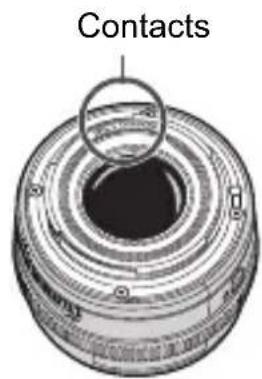
After detaching the lens from the camera, put down the lens with the rear end up and attach the rear lens cap to avoid scratching the lens surface and electrical contacts.
Nomenclature
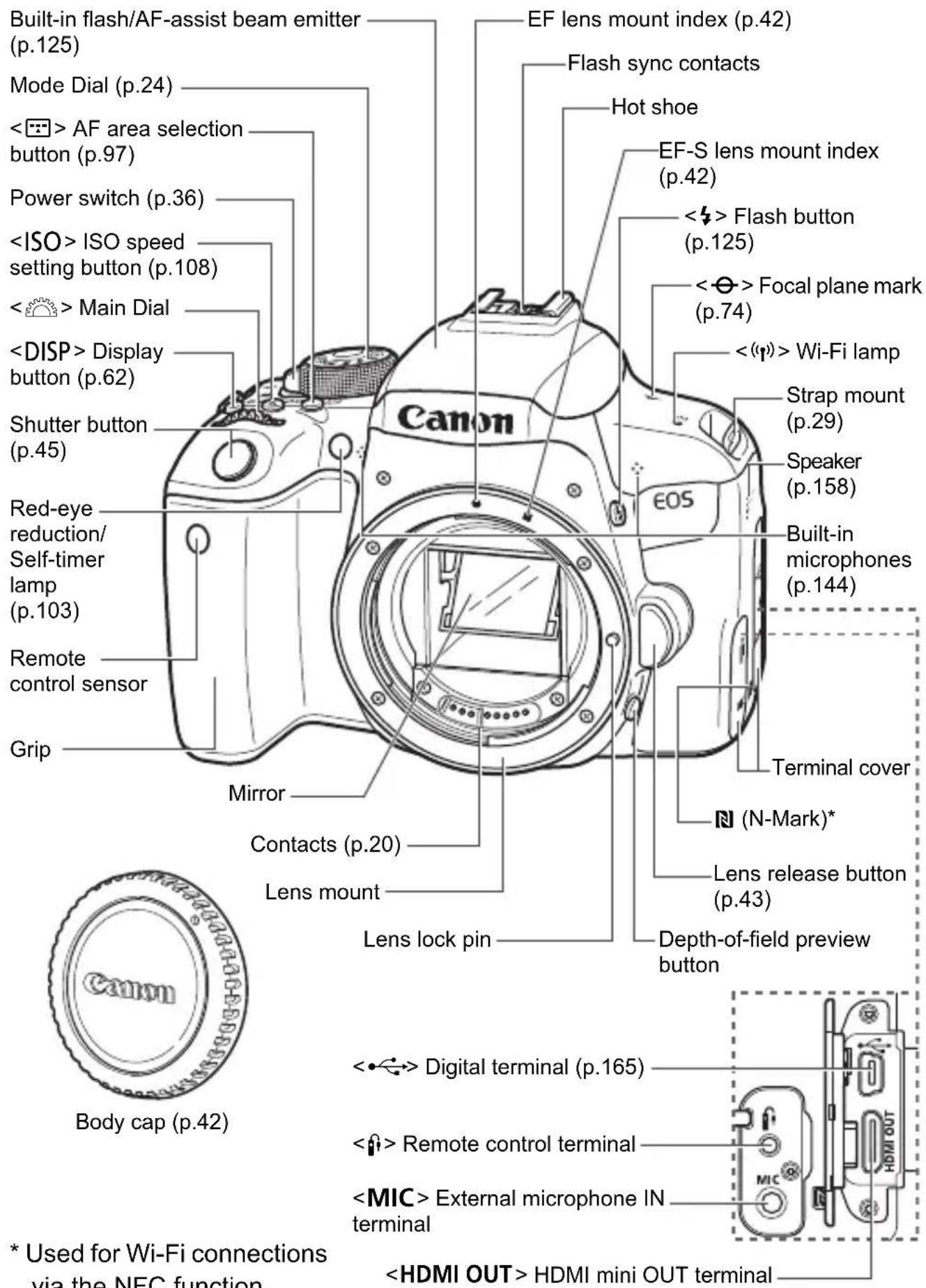
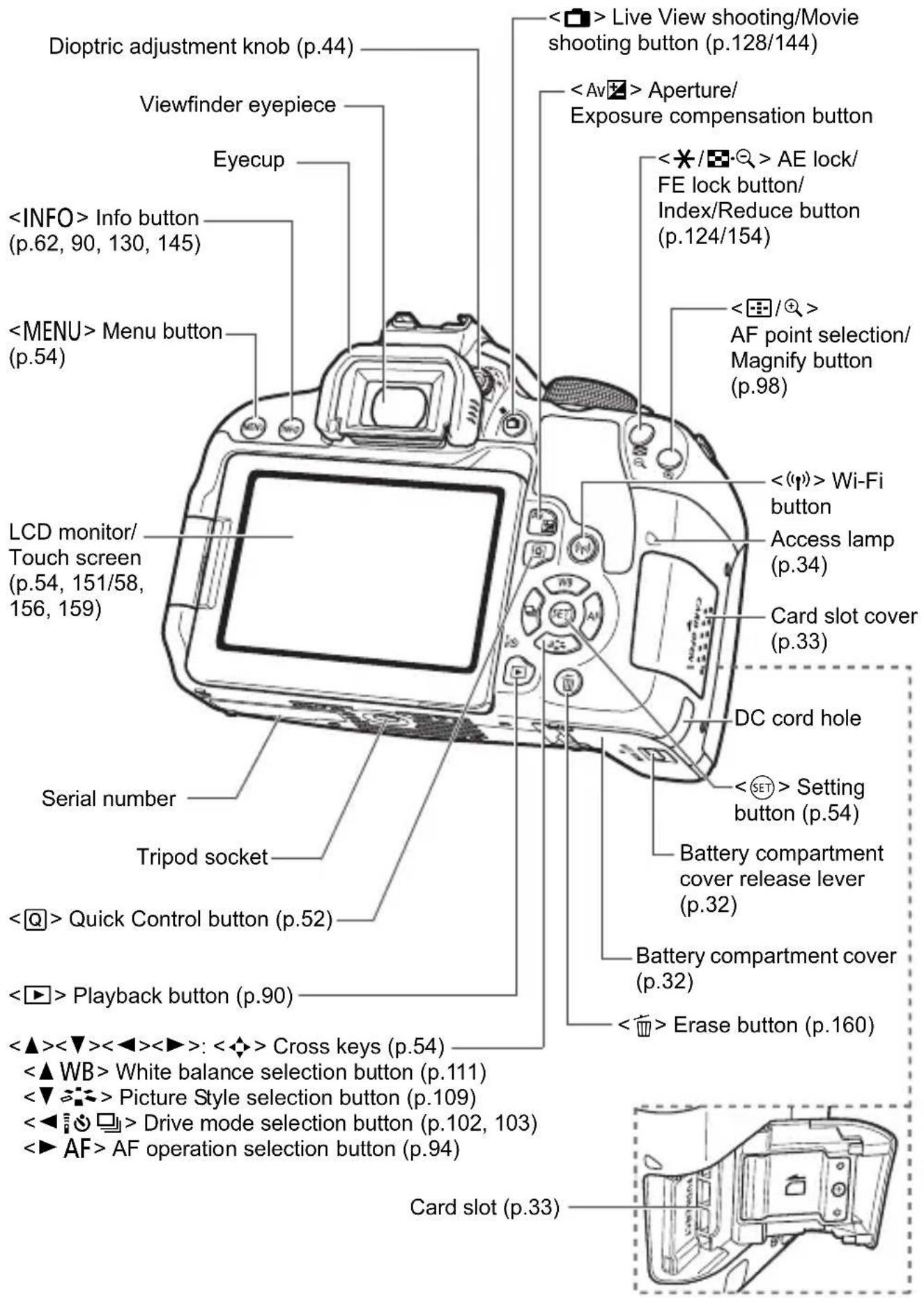
Quick Control Screen
(Example in the
mode with [☐: Shooting screen: Standard] set (p.52))
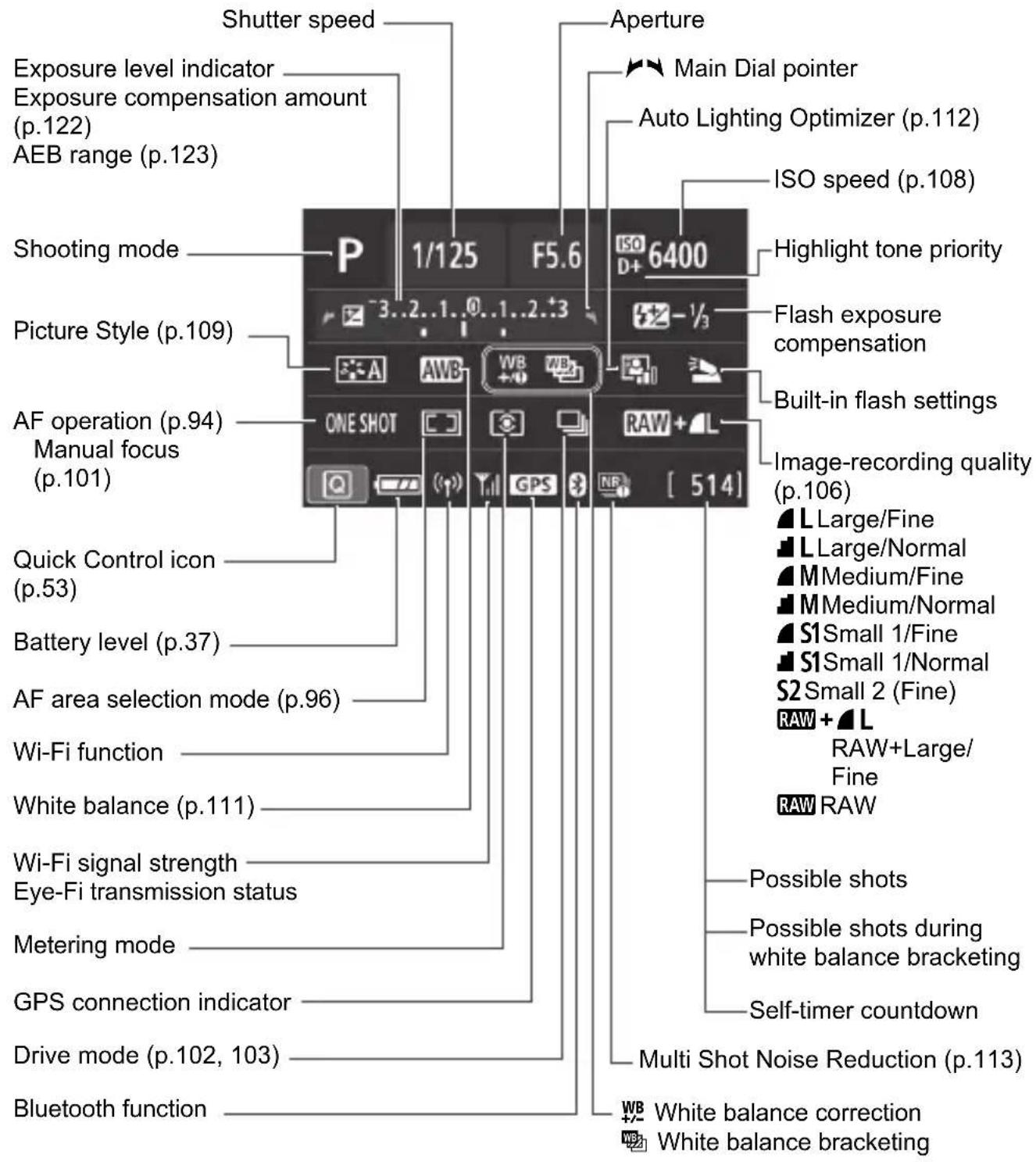
● The display will show only the settings currently applied.
Mode Dial
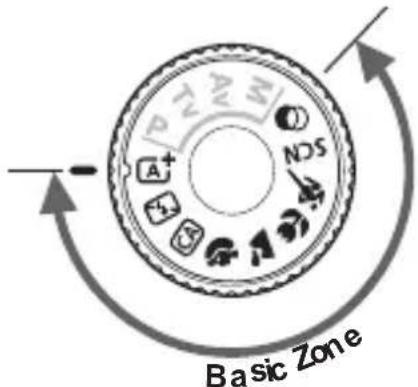
The Mode Dial includes the Basic Zone modes and Creative Zone modes.
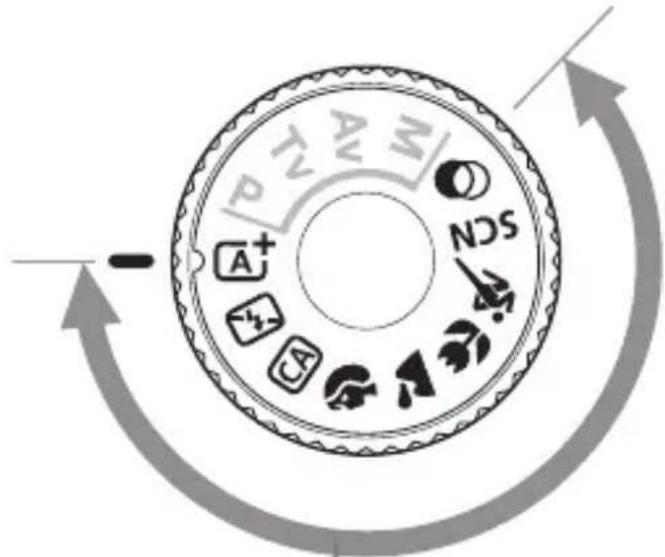
Basic Zone
All you do is press the shutter button. The camera sets everything to suit the subject or scene for shooting.
^+ : Scene Intelligent Auto (p.66)
: Portrait (p.72)
: Landscape (p.73)
: Close-up (p.74)
: Sports (p.75)
: Flash Off (p.70)
CA: Creative Auto (p.71)
SCN: Special scene (p.76)
| Group Photo (p.77)Night Portrait (p.81) | ||
| Kids (p.78) Handheld Night Scene (p.82) | ||
| Food (p.79) HDR Backlight Control (p.83) | ||
| Candlelight (p.80) | ||
◎ : Creative filters (p.84)
| Grainy B/W | Miniature effect | ||
| Soft focus | HDR art standard | ||
| Fish-eye effect | HDR art vivid | ||
| Water painting effect | HDR art bold | ||
| Toy camera effect | HDR art embossed |
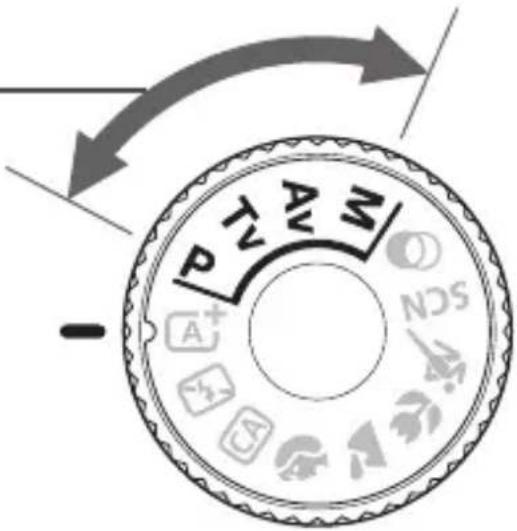
Creative Zone
These modes give you more control for shooting various subjects as desired.
P: Program AE (p.118)
Tv: Shutter-priority AE (p.119)
Av: Aperture-priority AE (p.120)
M: Manual exposure (p.121)
Viewfinder Information
![Spot metering circle Focusing screen Area AF frame (p.96) Electronic level (p.64) Warning icon <*> AE lock (p.124) AEB in-progress (p.123) <‡> Flash-ready (p.125) Improper FE lock warning <‡_H> High-speed sync <‡*>FE lock / FEB in-progress <‡> Flash exposure compensation Shutter speed (p.119) Bulb exposure (buLb) FE lock (FEL) Busy (buSY) Built-in flash recharging (‡ buSY) No card warning (Card) Card error (Card) Card full warning (FuLL) Error code (Err) Large Zone AF frame (p.96) AF point (p.96) Grid Aspect ratio line Flicker detection (p.115) ISO speed indicator (p.108) <●> Focus indicator Maximum burst ISO speed (p.108) Highlight tone priority Exposure level indicator Exposure compensation amount (p.122) AEB range (p.123) Red-eye reduction lamp ON <‡> Exposure compensation (p.122) AF point selection ([___]AF, SEL [ ], SEL AF) Aperture (p.120)](/content/2026/03/434806/images/ba9aee7d74747680b9838e83cbfc47d6ea64996a6240086699f8dcc6fcdf62c0.jpg)
● The display will show only the settings currently applied.
Battery Charger LC-E17
Charger for Battery Pack LP-E17 (p.30).
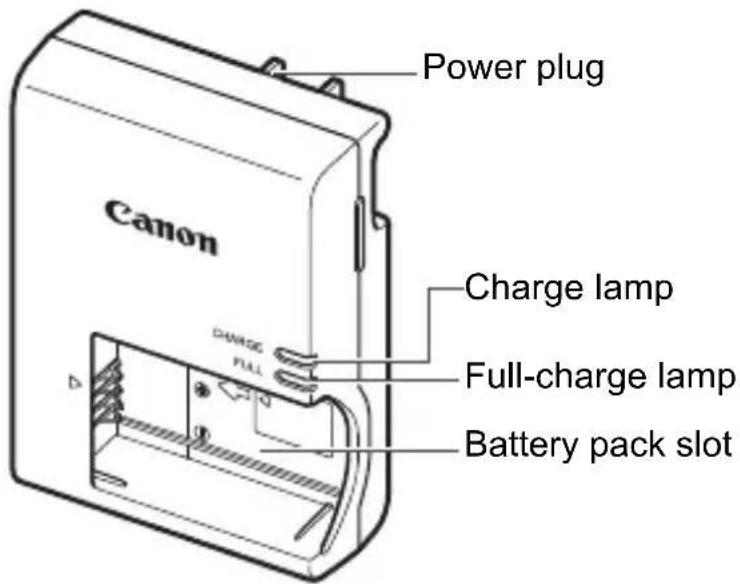
IMPORTANT SAFETY INSTRUCTIONS-SAVE THESE INSTRUCTIONS. DANGER-TO REDUCE THE RISK OF FIRE OR ELECTRIC SHOCK, CAREFULLY FOLLOW THESE INSTRUCTIONS.
For connection to a supply not in the U.S.A., use an attachment plug adapter of the proper configuration for the power outlet, if needed.
Battery Charger LC-E17E
Charger for Battery Pack LP-E17 (p.30).
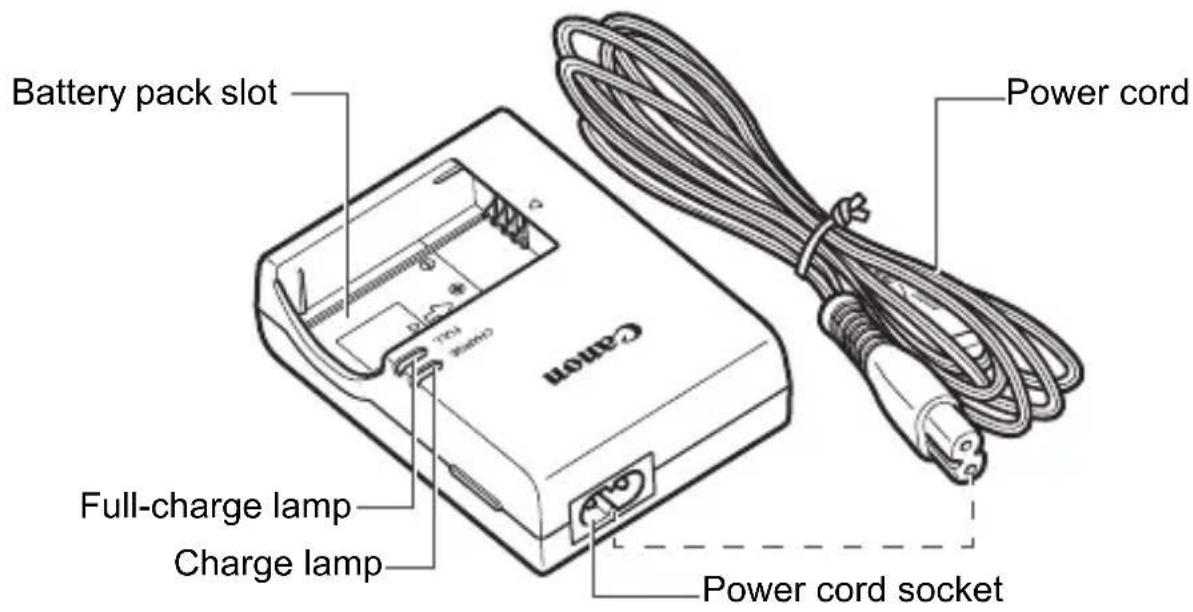
1
Getting Started and Basic Camera Operations
This chapter describes preparatory steps before you start shooting and the basic camera operations.
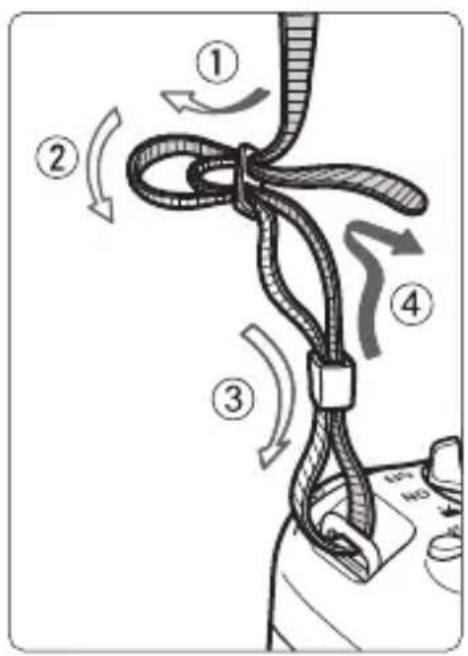
Attaching the Provided Strap
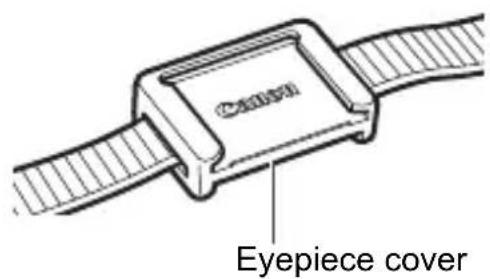
Pass the end of the strap through the camera's strap mount eyelet from the bottom. Then pass it through the strap's buckle as shown in the illustration. Pull the strap to take up any slack and make sure the strap will not loosen from the buckle.
- The eyepiece cover is also attached to the strap.
Charging the Battery
natural_image
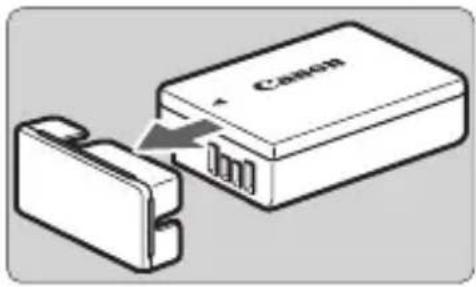
Diagram showing a Canon device being inserted into a smaller case (no text or symbols present)1 Remove the protective cover.
- Detach the protective cover provided with the battery.
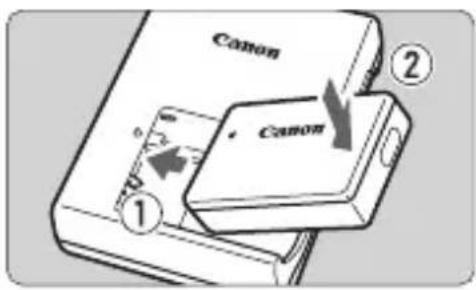
2 Attach the battery.
As shown in the illustration, attach the battery securely to the charger.
- To detach the battery, follow the above procedure in reverse.
LC-E17
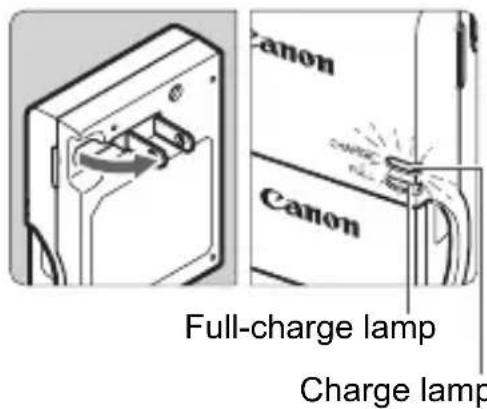
3 Recharge the battery. For LC-E17
As shown by the arrow, flip out the battery charger's prongs and insert the prongs into a power outlet.
For LC-E17E
- Connect the power cord to the charger and insert the plug into a power outlet.
▶ Recharging starts automatically and the charge lamp lights up in orange.
When the battery is fully recharged, the full-charge lamp will light up in green.
LC-E17E
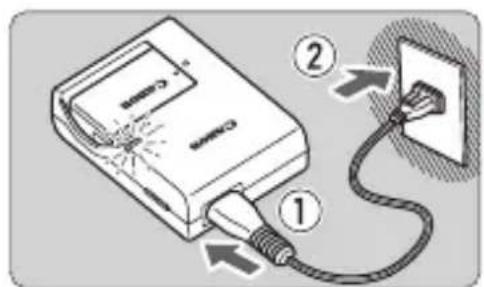
It takes approx. 2 hours to fully recharge a completely exhausted battery at room temperature (23°C / 73°F). The time required to recharge the battery will vary greatly depending on the ambient temperature and the battery's remaining capacity.
- For safety reasons, recharging in low temperatures (5°C - 10°C / 41°F - 50°F) will take longer (up to approx. 4 hr.).

Tips for Using the Battery and Charger
- Upon purchase, the battery is not fully charged.
Charge the battery before use.
- Recharge the battery on the day before or on the day it is to be used.
Even during storage, a charged battery will gradually drain and lose its capacity.
- After recharging the battery, detach it and disconnect the charger from the power outlet.
- When not using the camera, remove the battery.
If the battery is left in the camera for a prolonged period, a small amount of power current will keep released, resulting in excess discharge and shorter battery life. Store the battery with the protective cover (provided) attached. Storing the battery when it is fully charged may lower the battery performance.
● The battery charger can also be used in foreign countries.
The battery charger is compatible with a 100 V AC to 240 V AC 50/60 Hz power source. If necessary, attach a commercially-available plug adapter for the respective country or region. Do not attach any portable voltage transformer to the battery charger. Doing so may damage the battery charger.
- If the battery becomes exhausted quickly even after having been fully charged, the battery has reached the end of its service life.
Check the battery's recharge performance and purchase a new battery.

- After disconnecting the charger's power plug, do not touch the prongs for approx. 5 sec.
- Do not charge any battery other than a Battery Pack LP-E17.
- Battery Pack LP-E17 is dedicated to Canon products only. Using it with an incompatible battery charger or product may result in malfunction or accidents for which Canon cannot be held liable.
Installing and Removing the Battery
Load a fully charged Battery Pack LP-E17 into the camera. The camera's viewfinder becomes bright when a battery is installed, and darkens when the battery is removed. If the battery is not installed, the image in the viewfinder becomes blurred and you cannot perform focusing.
Installing the Battery
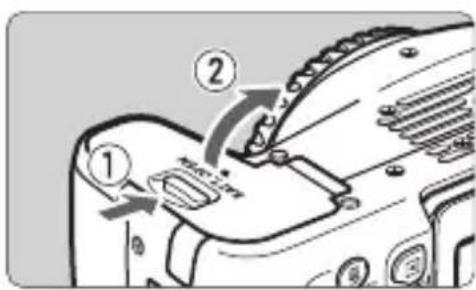
1 Open the cover.
- Slide the lever as shown by the arrows and open the cover.
natural_image
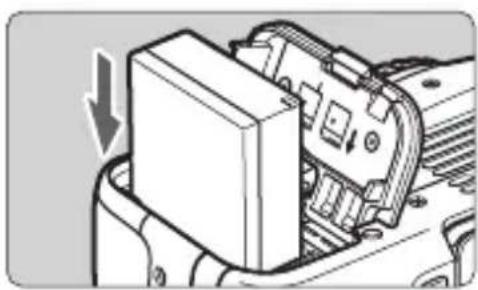
Mechanical component diagram showing a box inserted into a housing with an arrow indicating direction (no text or symbols present)Insert the battery.
- Insert the end with the electrical contacts.
- Insert the battery until it locks in place.
natural_image
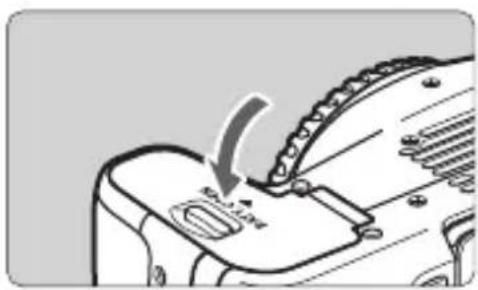
Diagram of a mechanical component with a curved arrow indicating a step or transition (no text or symbols present)3 Close the cover.
- Press the cover until it snaps shut.
Removing the Battery
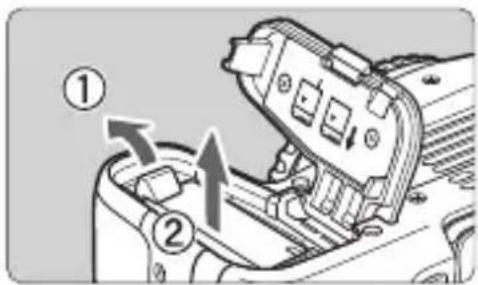
Open the cover and remove the battery.
- Press the battery lock lever as shown by the arrow and remove the battery.
- To prevent short circuiting, be sure to attach the provided protective cover (p.30) to the battery.
Installing and Removing the Card
You can use an SD, SDHC, or SDXC memory card (sold separately) with the camera. SDHC and SDXC memory cards with UHS-I can also be used. The captured images are recorded onto the card.

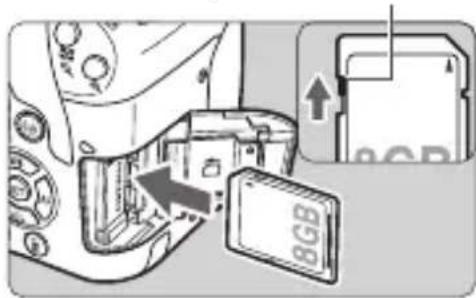
Make sure the card's write-protect switch is set upward to enable writing and erasing.
Installing the Card
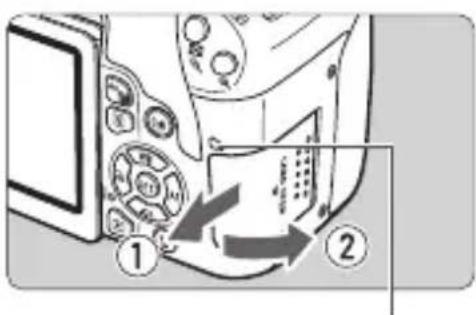
Write-protect switch
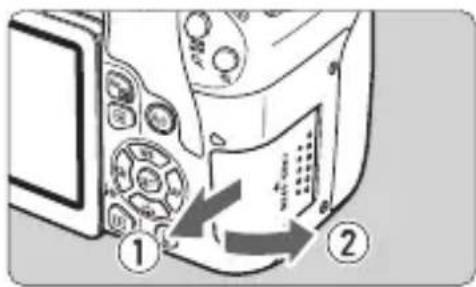
1 Open the cover.
- Slide the cover as shown by the arrows to open it.
2 Insert the card.
As shown by the illustration, face the card's label side toward you and insert it until it clicks in place.
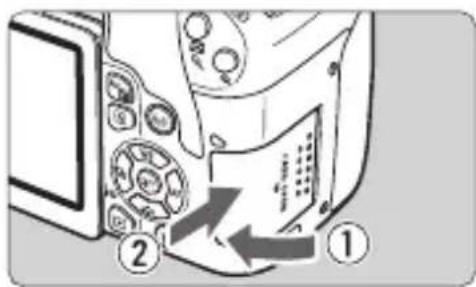
3 Close the cover.
- Close the cover and slide it in the direction shown by the arrows until it snaps shut.
- When you set the power switch to
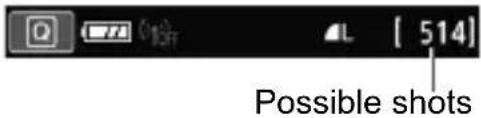
, the number of possible shots will be displayed on the LCD monitor.
Removing the Card
Access lamp
1 Open the cover.
- Set the power switch to
. - Check that the access lamp is off, then open the cover.
- If [Recording...] is displayed, close the cover.
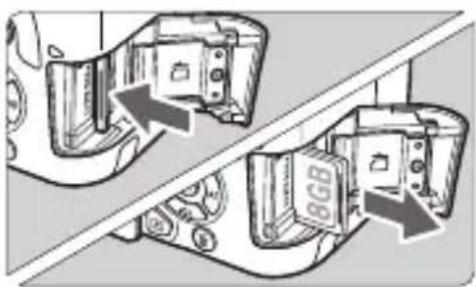
Remove the card.
Gently push in the card, then let it go to eject.
- Pull the card straight out, then close the cover.

When the access lamp is lit or blinking, it indicates that images are being written to, read from, or erased from the card, or data is being transferred. Do not open the card slot cover during this time.
Also, never do any of the following while the access lamp is lit or blinking. Otherwise, it can damage the image data, card, or camera.
- Removing the card.
- Removing the battery.
- Shaking or banging the camera around.
- Unplugging and connecting a power cord (when household power outlet accessories (sold separately) are used).
Using the LCD Monitor
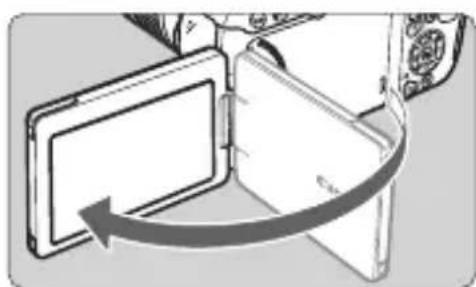
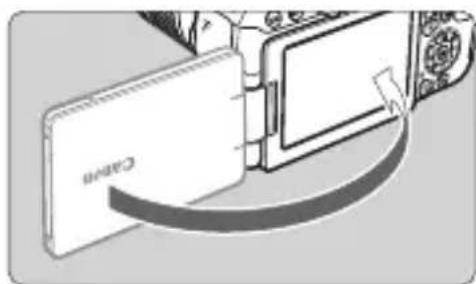
After you flip out the LCD monitor, you can set menu functions, use Live View shooting, shoot movies, or play back photos and movies. You can change the direction and angle of the LCD monitor.
natural_image
Diagram showing a device with an open panel and a curved arrow indicating rotation or movement (no text or symbols present)1 Flip out the LCD monitor.
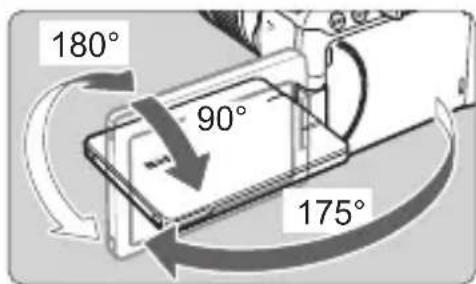
Rotate the LCD monitor.
- When the LCD monitor is swung out, you can rotate it up, down, or over 180° to face the subject.
- The indicated angle is only approximate.
natural_image
Diagram of a device with a 'Cash' label and connecting cable, showing no readable text or symbols.3 Face it toward you.
- Normally, use the camera with the LCD monitor facing you.
Turning on the Power
If you turn on the power switch and the date/time/zone setting screen appears, see page 38 to set the date/time/zone.
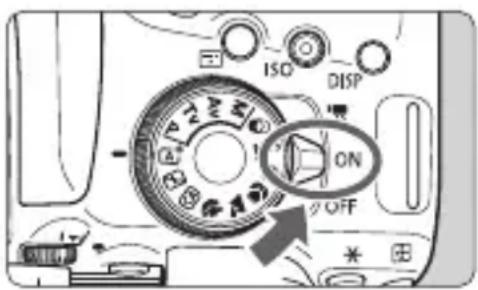
<■> : The camera turns on. You can shoot movies (p.144).
Automatic Sensor Cleaning
- Whenever you set the power switch to
or , sensor cleaning will be performed automatically. (A small sound may be heard.) During the sensor cleaning, the LCD monitor will display <□>. - Even during the sensor cleaning, if you press the shutter button halfway (p.45), cleaning operation will be stopped, and you can take a picture immediately.
- If you repeatedly turn the power switch
/ at a short interval, the <+□> icon may not be displayed. This is normal and not a malfunction.
MENU Auto Power Off
To save battery power, if the camera is not operated for a prolonged period, the power will turn off automatically after the time set under [2: Auto power off] (p.151). To turn on the camera again, just press the shutter button halfway (p.45).
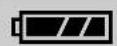
Battery Level Indicator
When the power is turned on, the battery level will be indicated in one of the four levels.
Battery level is sufficient.
Battery level is low, but the camera can still be used.
: Battery will be exhausted soon.
(Blinks)
☐: Recharge the battery.
Number of Possible Shots with Viewfinder Shooting
(Approx. number of shots)
| Temperature | Room Temperature (23°C / 73°F) | Low Temperatures (0°C / 32°F) |
| No Flash 820 770 | ||
| 50% Flash Use 600 550 |
- The figures above are based on a fully-charged Battery Pack LP-E17, no Live View shooting, and CIPA (Camera & Imaging Products Association) testing standards.
MENU Setting the Date, Time, and Zone
When you turn on the power for the first time or if the date/time/zone have been reset, the date/time/zone setting screen will appear. Follow the steps below to set the time zone first. Set the camera to the time zone in which you currently live so that, when you travel, you can simply change the setting to the correct time zone for your destination, and the camera will automatically adjust the date/time.
Note that the date/time appended to recorded images will be based on this date/time setting. Be sure to set the correct date/time.
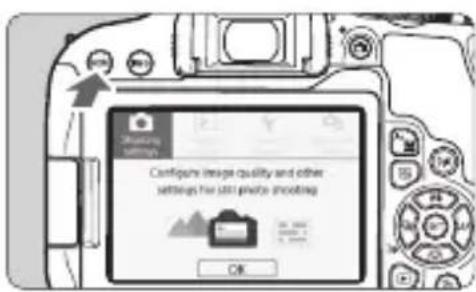
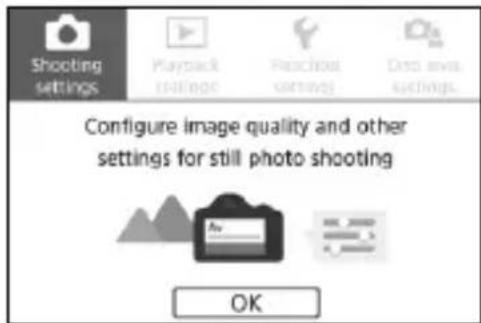
1 Display the main tabs.
- Press the
- Press the
button to select the [¶] tab, then press
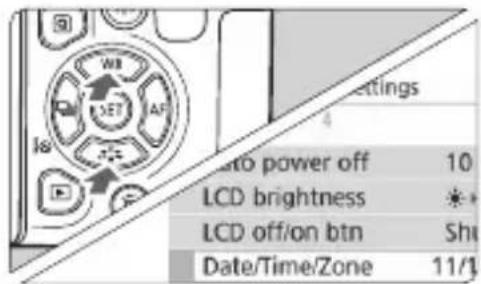
. - Press the <◀> <▶> keys to select the [⚡2] tab.
- Press the <> < > keys to select [Date/Time/Zone], then press <> .
3 Set the time zone.
• [London] is set by default.
- Press the <> <> keys to select [Time zone], then press <> .
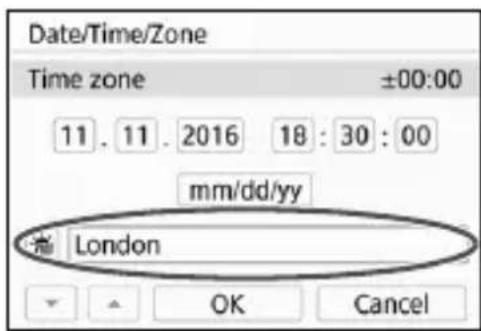
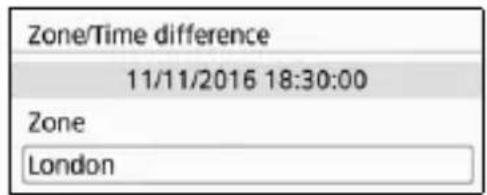
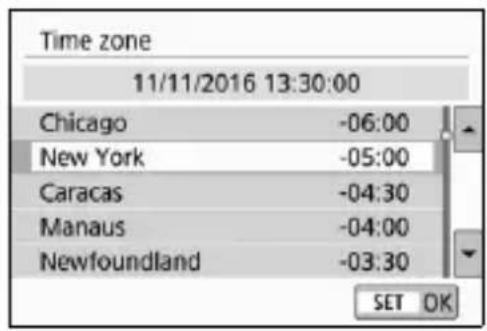
- Press < SET > again.
- Press the <> < > keys to select the time zone, then press <> .
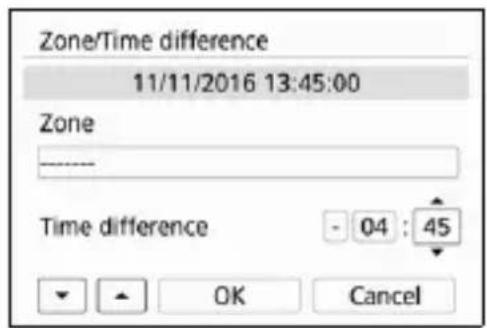
- If your desired time zone is not listed, press the
- To set the time difference from UTC, press the <> <> keys to select a parameter (+/-/hour/minute) for [Time difference].
- Press < > so < > is displayed.
- Press the <> < > keys to set it, then press <> . (Returns to <> .)
- After entering the time zone or time difference, press the <> <> keys to select [OK], then press <> .
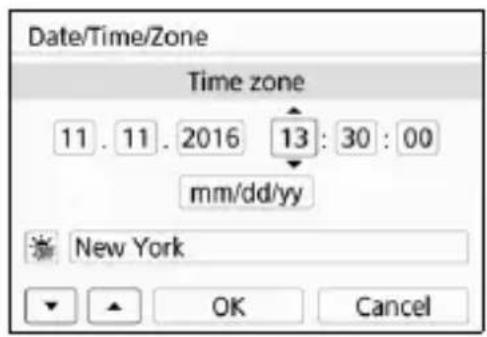
4 Set the date and time.
- Press the <◀> <▶> keys to select the number.
- Press < > so < > is displayed.
- Press the <> < > keys to set it, then press <> . (Returns to <> .)
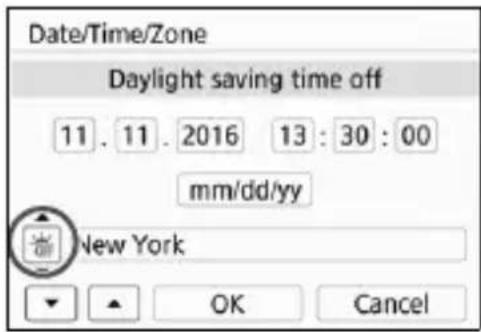
5 Set the daylight saving time.
- Set it if necessary.
- Press the <◀> <▶> keys to select [OFF].
- Press < > so < > is displayed.
- Press the <> <> keys to select [☀️], then press <> .
- When the daylight saving time is set to [★], the time set in step 4 will advance by 1 hour. If [★] is set, the daylight saving time will be canceled and the time will go back by 1 hour.
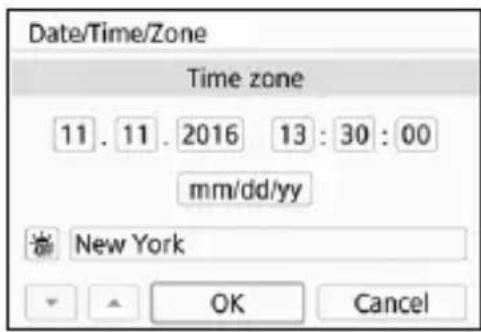
6 Exit the setting.
- Press the <◀> <▶> keys to select [OK], then press
.
The date/time/zone and daylight saving time will be set and the menu will reappear.
MENU Selecting the Interface Language
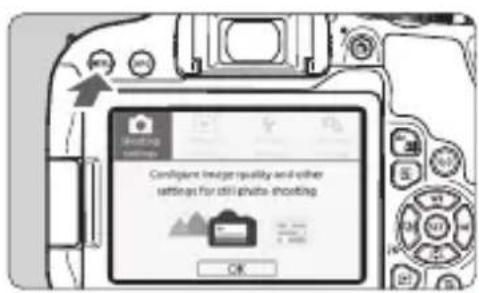
1 Display the main tabs.
- Press the
- Press the
button to select the [♀] tab, then press <(SET)>
- Press the <◀> <▶> keys to select the [◆2] tab.
- Press the <▲> <▼> keys to select the [Language ☐], then press
.
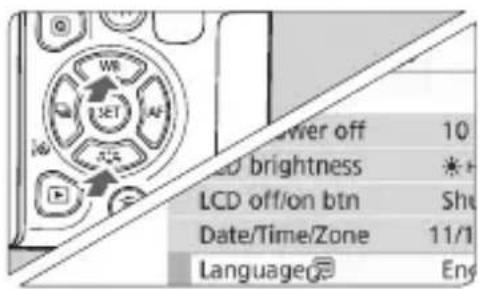
3 Set the desired language.
- Press the < > < > keys to select the language, then press < > .
The interface language will change.
Attaching and Detaching a Lens
The camera is compatible with all Canon EF and EF-S lenses. Note that you cannot use the EF-M lenses.
Attaching a Lens
natural_image
Close-up illustration of a cylindrical mechanical component with no visible text or symbols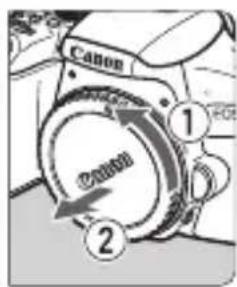
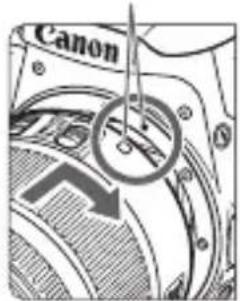
White index
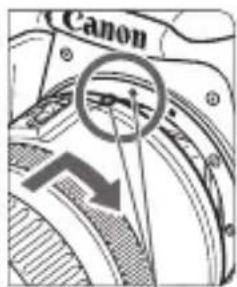
Red index
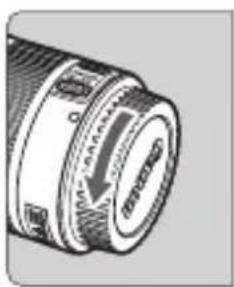
1 Remove the caps.
- Remove the rear lens cap and the body cap by turning them as shown by the arrows.
2 Attach the lens.
- Align the lens's red or white index with the camera's index matching the same color. Turn the lens as shown by the arrow until it clicks in place.
natural_image
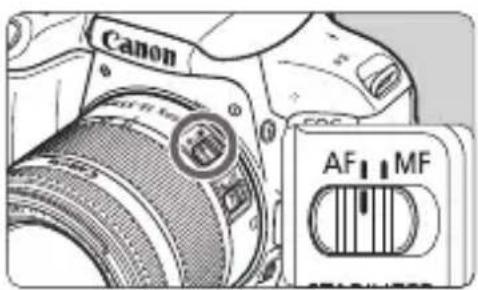
Close-up of a Canon DSLR camera with AF and MF control buttons (no text or symbols on main body)3 Set the lens's focus mode switch to .
stands for autofocus. stands for manual focus.
4 Remove the front lens cap.
Tips for Avoiding Smudges and Dust
- When changing lenses, do it quickly in a place with minimal dust.
- When storing the camera without a lens attached, be sure to attach the body cap to the camera.
- Remove dust on the body cap before attaching it.
Zooming
natural_image
Line drawing of a DSLR camera with lens and control buttons (no text or symbols)Detaching the Lens
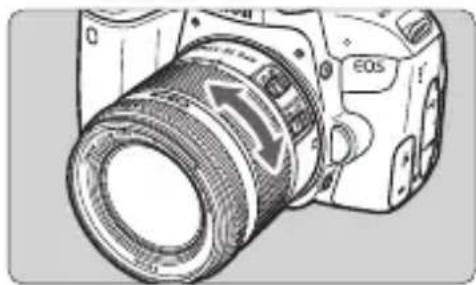
Turn the zoom ring on the lens with your fingers.
- If you want to zoom, do it before focusing. Turning the zoom ring after achieving focus may throw off the focus.
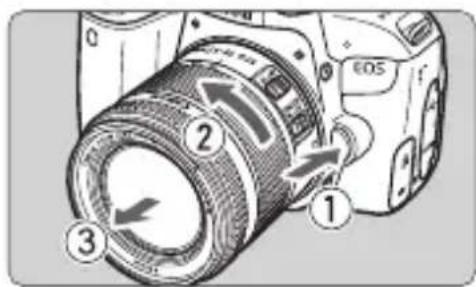
While pressing the lens release button, turn the lens as shown by the arrow.
- Turn the lens until it stops, then detach it.
- Attach the rear lens cap to the detached lens.

Do not look at the sun directly through any lens. Doing so may cause loss of vision.
Basic Shooting Operations
Adjusting the Viewfinder Clarity
natural_image
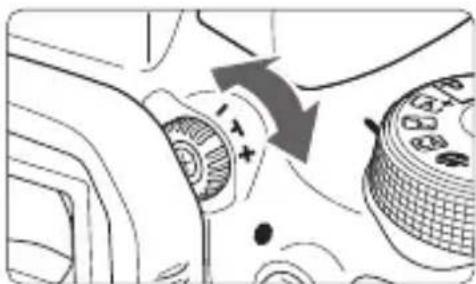
Close-up of a camera mode dial with directional arrows indicating rotation (no text or symbols)Turn the dioptric adjustment knob.
- Turn the knob left or right so that the AF points in the viewfinder look sharp.
- If the knob is difficult to turn, remove the eyecup.
Holding the Camera
To obtain sharp images, hold the camera still to minimize camera shake.
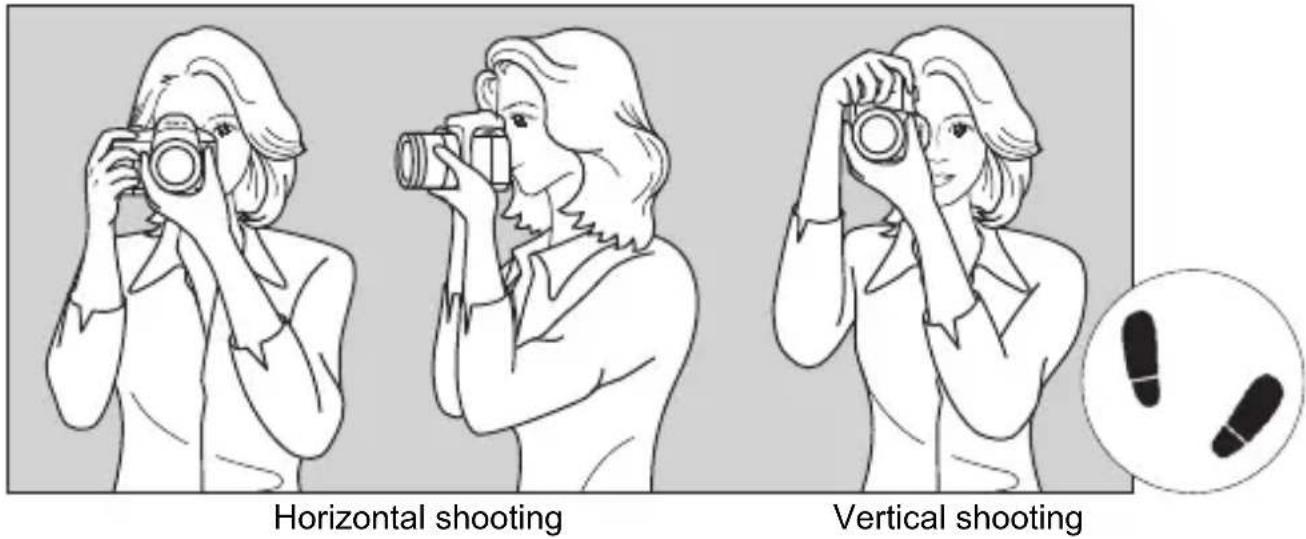
- Wrap your right hand around the camera grip firmly.
- Hold the lens bottom with your left hand.
- Rest your right index finger lightly on the shutter button.
- Press your arms and elbows lightly against the front of your body.
- To maintain a stable stance, place one foot slightly ahead of the other.
- Press the camera against your face and look through the viewfinder.
Shutter Button
The shutter button has two steps. You can press the shutter button halfway. Then you can further press the shutter button completely.
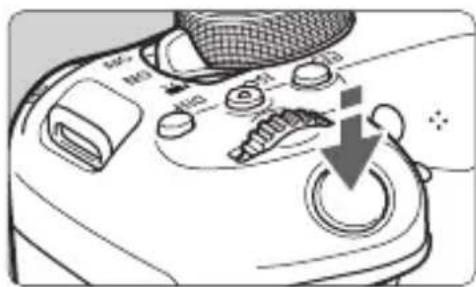
Pressing Halfway
This activates autofocusing and the automatic exposure system that sets the shutter speed and aperture.
The exposure setting (shutter speed and aperture) is displayed in the viewfinder ( ♦4 ).
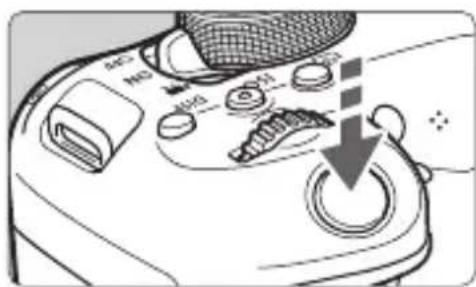
Pressing Completely
This releases the shutter and takes the picture.
Preventing Camera Shake
Hand-held camera movement during the moment of exposure is called camera shake. It can cause blurred pictures. To prevent camera shake, note the following:
- Hold and steady the camera as shown on the preceding page.
- Press the shutter button halfway to autofocus, then slowly press the shutter button completely.
MENU Setting the Screen Display Level
You can set how information is displayed on the screen according to your preference. Change the settings as necessary.
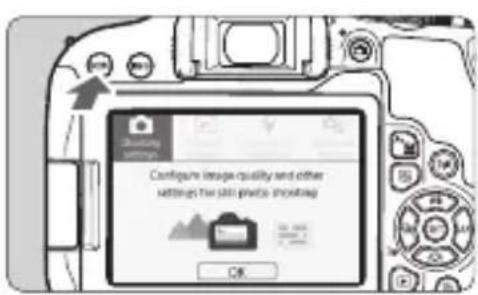
1 Display the main tabs.
- Press the
- To further blur the background (with the lowest aperture value set in the <Av> mode).
• The image is likely to be overexposed. - The image is likely to be underexposed.
- Camera shake is likely to occur (only in Basic Zone modes).
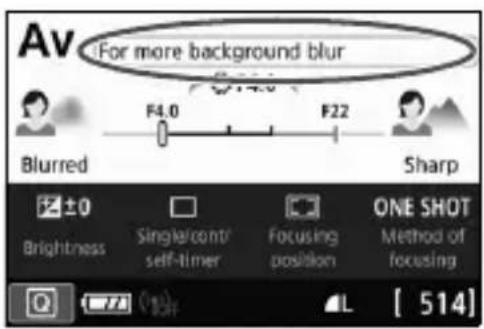
1
Tap on the area within the frame.
The shooting tips will appear.
- You can also display the shooting tips by pressing the <图标> button.
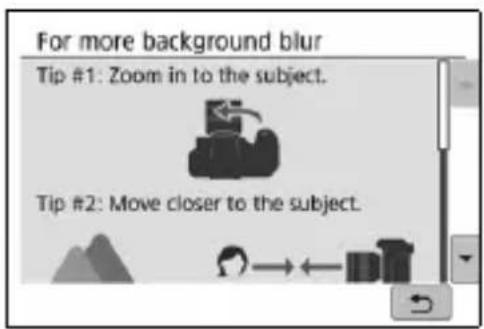
2
Check the shooting tips.
- You can scroll up and down by tapping on the screen.
- You can also scroll by pressing the <> <> keys.
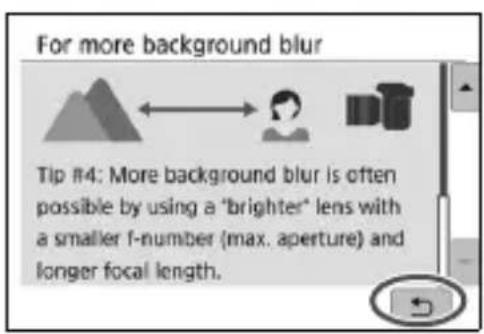
3
Tap on [↔].
▶ Shooting tips will disappear, and the screen in step 1 will reappear.
- You can also hide the shooting tips by pressing < > .
Q Quick Control for Shooting Functions
You can directly select and set the shooting functions displayed on the LCD monitor with intuitive operations. This is called Quick Control.
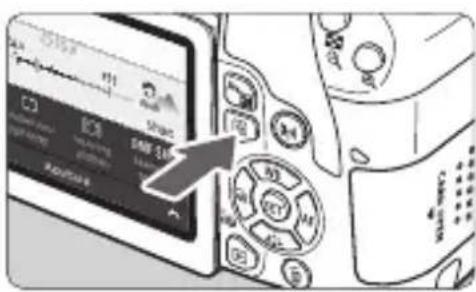
1 Press the button (♂10).
The Quick Control screen will appear.
Set the desired functions.
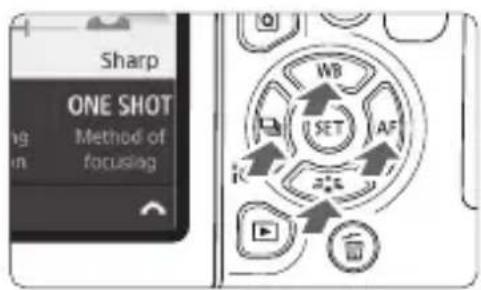
- Press the <◆> cross keys to select a function.
The settings of the selected function and Feature guide (p.50) will appear. - Turn the < img src="12"> dial to change the setting.
Basic Zone modes Creative Zone modes
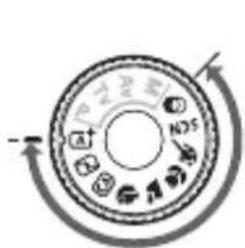
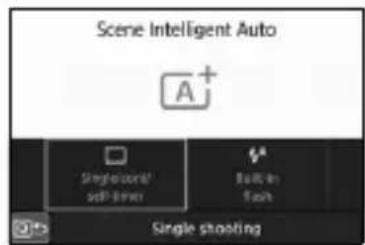
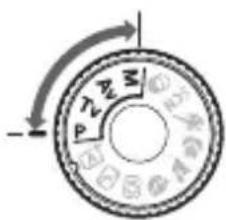
3 Take the picture.
- Press the shutter button completely to take the picture.
The captured image will be displayed.
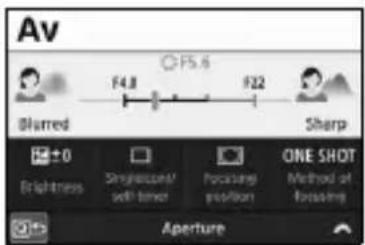
Sample Quick Control Screen
- When [☐: Shooting screen: Guided] is Set
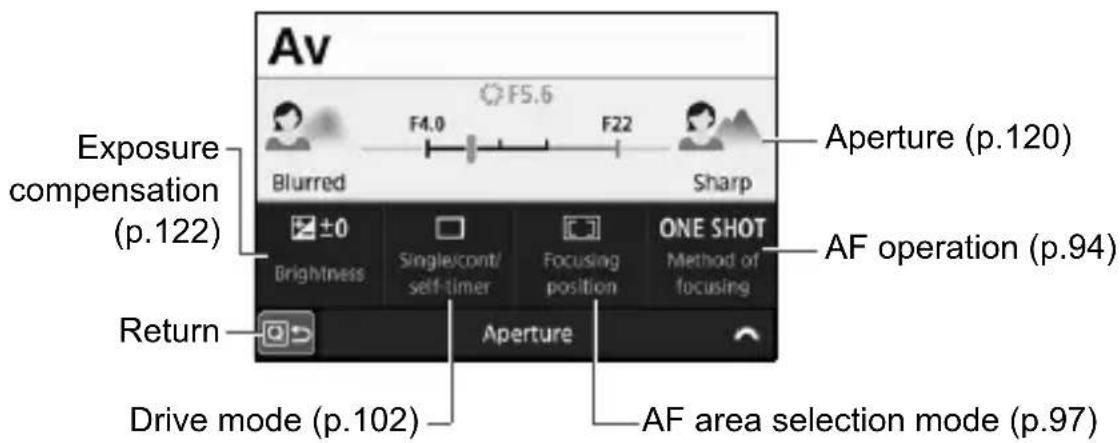
- When [☐: Shooting screen: Standard] is Set
![Aperture (p.120) Shutter speed (p.119) Shooting mode* (p.24) Exposure compensation/ AEB setting (p.122/123) Picture Style (p.109) AF operation (p.94) Return White balance (p.111) AF area selection mode (p.97) White balance correction Metering mode Highlight tone priority* AV 1/125 F5.6 ISO D+ AUTO ISO speed (p.108) Flash exposure compensation Built-in flash settings Image-recording quality (p.106) RAW + L 24V 6000×4000 [ 999] Auto Lighting Optimizer (p.112) Drive mode (p.102) White balance bracketing](/content/2026/03/434806/images/8df02fada1b6db179f67f684bbcc75406e5dc3be0f268e0bc3cd5ddf1bde49af.jpg)
![CANON EOS Rebel T7i - - When [☐: Shooting screen: Standard] is Set - 2](/content/2026/03/434806/images/0afc0ccddb85fd54339b95549f84b765821486a7d6e0f5a916bb434abc6bcd3d.jpg)
* These functions cannot be set with Quick Control.
MENU Menu Operations and Configurations
You can configure various settings with the menus such as the image-recording quality, date/time, etc.
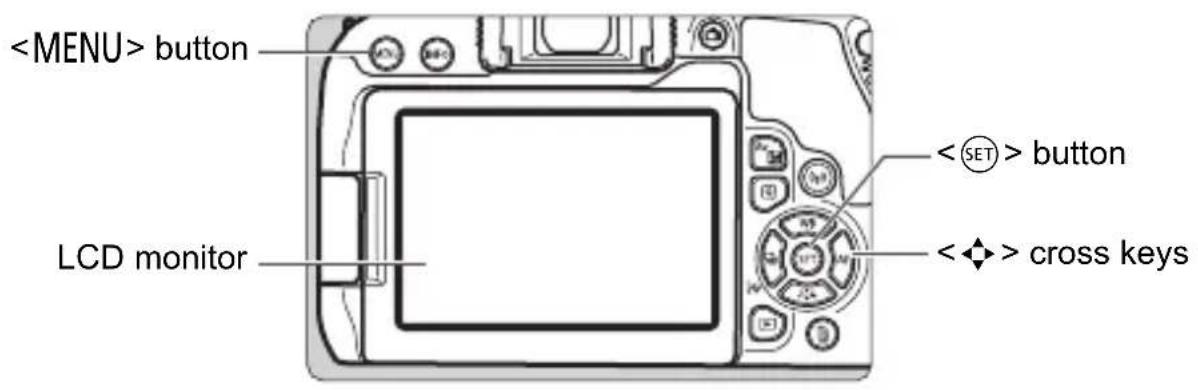
Menu Screen
The menu tabs and items displayed vary depending on the shooting mode.
Basic Zone modes Movie shooting

Creative Zone modes
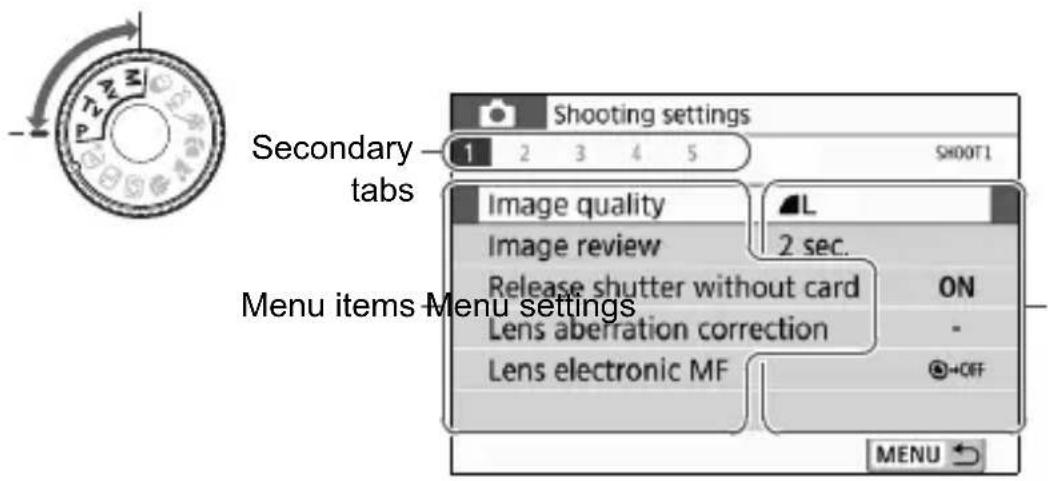
Menu Setting Procedure
- When [图标: Menu display: Guided] is Set
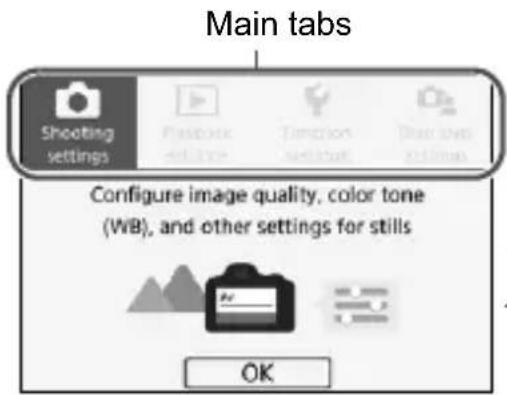
1 Display the main tabs.
- When you press the
- Press < SET> to display the menu screen.
- To return to the main tab screen, press the
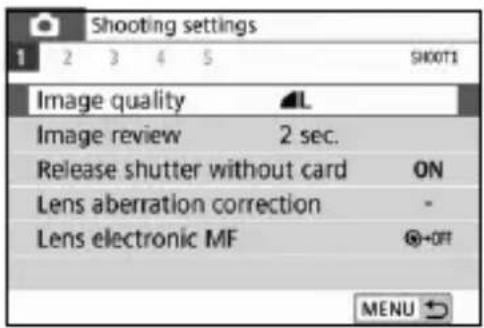
4 Select a secondary tab.
- Press the <> <> keys of the cross keys to select a secondary tab.
- For example, in this manual, the [3] tab refers to the screen displayed when the (Shooting) tab's [3] is selected.
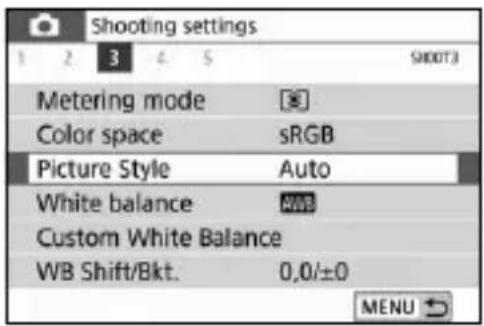
5 Select the desired item.
- Press the < > < > keys of the cross keys to select the item, then press < > .
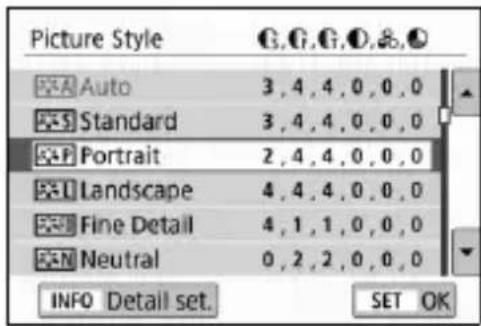
6 Select the setting.
- Press the <> < > or <> < > keys of the cross keys to select the desired setting. (Some settings are selected with the <> and <> keys, and others are selected with the <> and <> keys.)
- The current setting is indicated in blue.
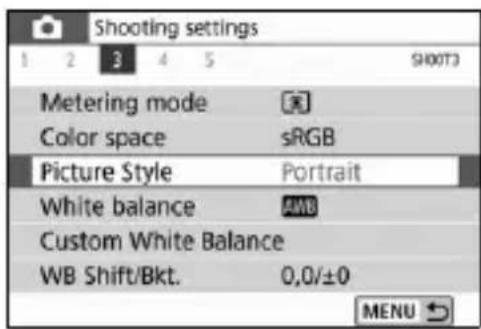
7 Set the setting.
- Press < SET> to set it.
If you change the setting from the default, it will be indicated in blue (available only for the menu items under the [☐] tab).
8 Exit the setting.
- Press the
- In step 2, you can also use the < img src=""> dial or the < img src> button.
- You can also go to the menu screen by tapping on [OK] in step 3.
- In steps 2 to 8, you can also tap on the LCD monitor to perform the operation (p.58).
- The description of menu functions hereafter assumes that the menu screen is displayed.
- To cancel the operation, press the
- When [图标] : Menu display: Standard] is Set
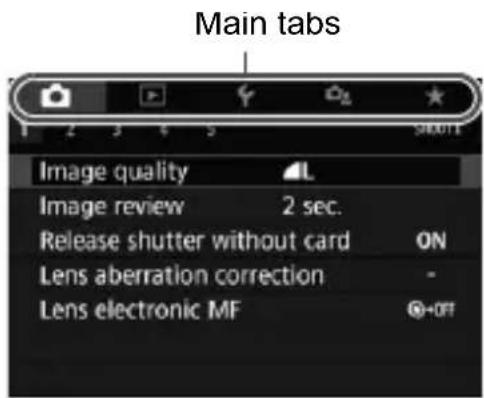
1 Display the menu screen.
- Press the
- Each time you press the
button, the main tab (group of functions) will switch.
- Press the <> <> keys of the cross keys to select a secondary tab.
- For example, in this manual, the [3] tab refers to the screen displayed when the (Shooting) tab's [3] is selected.
- The subsequent operations are the same as those for [☐: Menu display: Guided]. See the steps on page 55, starting with step 5.
- To exit the setting, press the

Operating the Camera with Touch Screen
You can operate the camera by tapping on the LCD monitor (touch-sensitive panel) with your fingers.
Tap
Sample Screen (Quick Control)
![P ±0 -3..2..1..0..1..2..3 Darker Brighter Single/cont/ self-timer Focusing position ONE SHOT Method of focusing [514]](/content/2026/03/434806/images/7ef59ce7099417876f246cbcd9a6ef80dd33558ead5d9c0b6b219f5b85db1408.jpg)
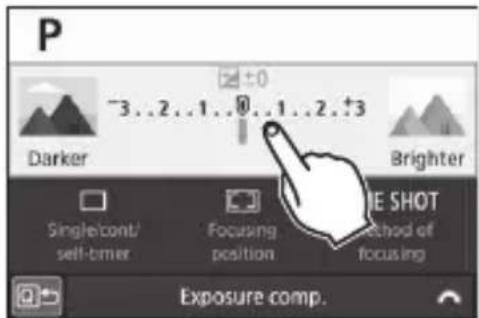
- Use your finger to tap on (touch briefly and then remove your finger from) the LCD monitor.
- By tapping, you can select menus, icons, etc., displayed on the LCD monitor.
- For example, when you tap on [Q], the Quick Control screen appears. By tapping on [Q↔], you can return to the preceding screen.
Operations possible by tapping on the screen
- Setting menu functions after pressing the
- Quick Control
- Setting functions after pressing the <☐>,
, <☐>, <▲WB>, <▼> , <◀> , or <▶ AF> button - Touch AF and touch shutter in Live View shooting
• AF point selection in movie shooting - Setting functions in Live View shooting and movie shooting
- Playback operations
Drag
Sample Screen (Menu screen)
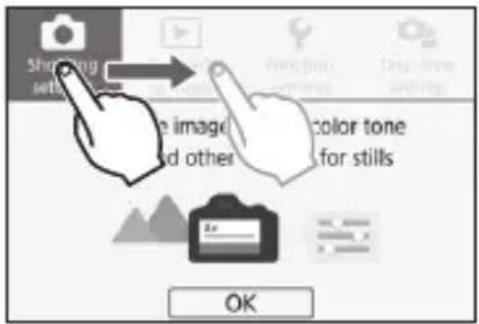
- Slide your finger while touching the LCD monitor.
Sample Screen (Scale display)
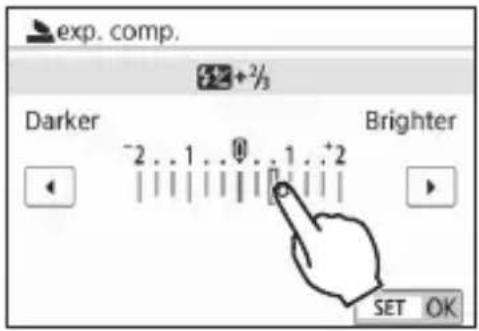
Operations possible by dragging your finger on the screen
- Selecting a menu tab or item after pressing the
- Setting with scale display
- Quick Control
- Selecting AF points
- Setting functions in Live View shooting and movie shooting
- Playback operations
MENU Setting the Touch Control Response
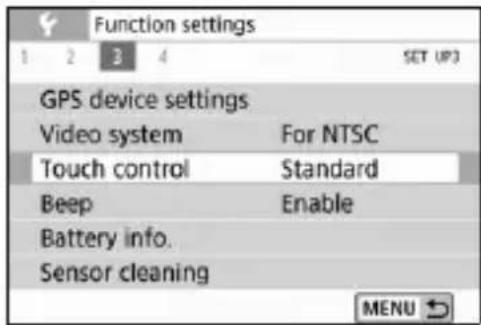
1 Select [Touch control].
● Under the [3] tab, select [Touch control], then press
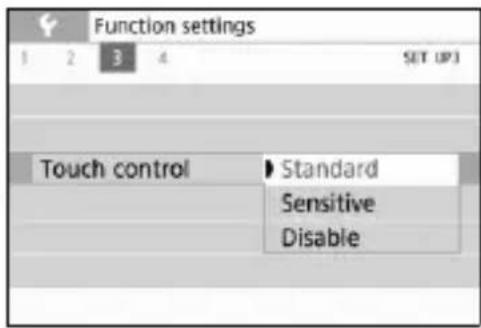
2 Set the touch control response setting.
- Select the desired setting, then press < SET> .
• [Standard] is the normal setting. - [Sensitive] provides a more reactive touch screen response than [Standard]. Try using both settings and select the one you prefer.
- To disable touch operations, select [Disable].
Cautions for Touch Control Operations
- Since the LCD monitor is not pressure sensitive, do not use any sharp objects, such as your fingernail or a ballpoint pen, for touch operations.
- Do not use wet fingers for touch operations.
- If the LCD monitor has any moisture or if your fingers are wet, the touch screen may not respond or malfunction may occur. In such a case, turn off the power and wipe off the moisture with a cloth.
- Attaching any commercially-available protective sheet or sticker on the LCD monitor may degrade the touch operation response.
- If you quickly perform touch operation when [Sensitive] is set, the touch operation response may be slower.
MENU Formatting the Card
If the card is new or was previously formatted by another camera or computer, format the card with this camera.

When the card is formatted, all images and data on the card will be erased. Even protected images will be erased, so make sure there is nothing you need to keep. If necessary, transfer the images and data to a computer, etc., before formatting the card.
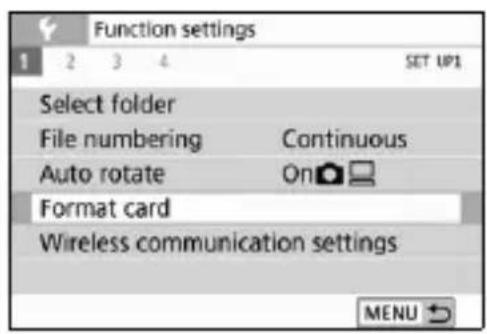
1 Select [Format card].
● Under the [1] tab, select [Format card], then press
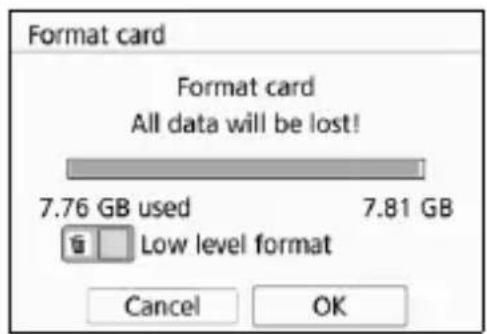
Format the card.
- Select [OK], then press < SET> .
The card will be formatted.
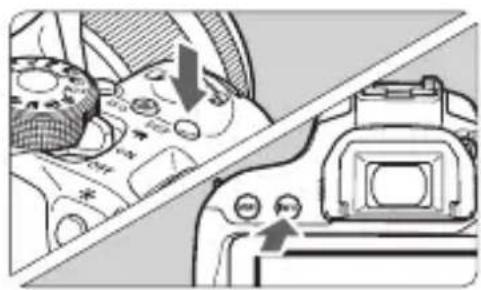
When the formatting is complete, the menu will reappear. - For low-level formatting, press the <图标> button to add a checkmark <✓> to [Low level format], then select [OK].

Switching the LCD Monitor Display
The LCD monitor can display the Quick Control screen, menu screen, captured images, etc.
![Scene Intelligent Auto A+ Single/cont/ self-timer Built-in flash Q [514]](/content/2026/03/434806/images/bea614fc322e236072c3ca104b5db6030057050c80c6b6d3d7f4a77bbd000ded.jpg)
natural_image
Diagram showing a camera with an arrow indicating direction, no text or symbols present- When you turn on the power, the Quick Control screen will appear. You can then check the current shooting function settings.
- When you press the shutter button halfway, the display will turn off. And when you let go of the shutter button, the display will turn on.
- You can also turn off the display by pressing the
button. Press the button again to turn on the display. - By pressing the
button, you can toggle the display between the electronic level and Quick Control screen.
Menu Functions Captured Image
- Appears when you press the
- Each time you press the
button, the screen display will change.
• Display the electronic level.
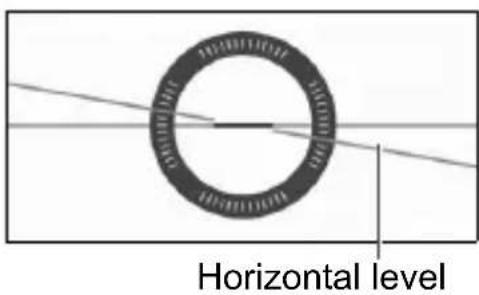
Check the camera's tilt.
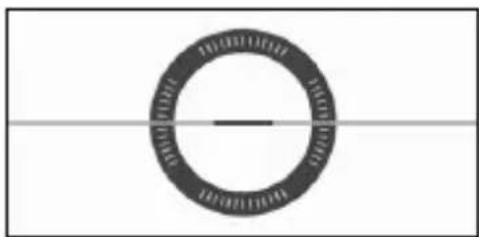
- The horizontal tilt is displayed in 1° increments. The tilt scale is marked in 5° increments.
- When the red line turns green, it indicates that the tilt is almost corrected.
natural_image
Simple circular diagram with concentric rings and a horizontal line, no text or symbols present.MENU Displaying the Electronic Level in the Viewfinder
A simple electronic level using a camera icon can be displayed in the viewfinder. Since this indicator is displayed during shooting, you can take the picture while checking the camera tilt.
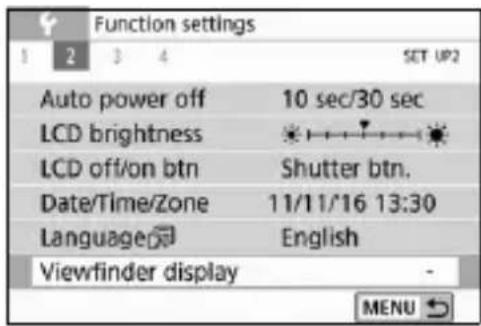
1 Select [Viewfinder display].
- Under the [♦2] tab, select [Viewfinder display], then press
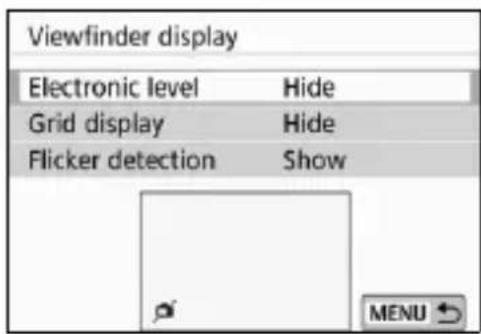
2 Select [Electronic level].
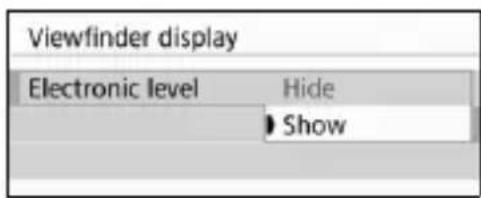
3 Select [Show].
![CANON EOS Rebel T7i - Select [Show]. - 1](/content/2026/03/434806/images/4ddd74c7b672d3832b7df4be334c84183f3b34117bbd12310a61ea04d563b19a.jpg)
natural_image
Simple line drawing of a rectangular frame with two horizontal lines and a small circular icon at the bottom left (no text or symbols)Electronic level
4 Press the shutter button halfway.
The electronic level will appear at the position shown in the illustration.

Horizontal


Tilt 2^ or higher
- This level also works with vertical shooting.
2
Basic Shooting and Image Playback
This chapter describes how to use the Basic Zone modes on the Mode Dial for best results and how to play back images.
With Basic Zone modes, all you do is point and shoot, and the camera sets everything automatically (p.87). Also, because advanced shooting function settings cannot be changed, you can enjoy shooting photographs without worrying about botched pictures due to misoperation.
![Scene Intelligent Auto A+ Single/cont/ self-timer Built-in flash Q [514]](/content/2026/03/434806/images/7a18ea596299e7d2c6af7ecfc91b2f8cf75eb9282eec916f68edbcc4dc1b40eb.jpg)

Before Shooting in the or <○> Mode
When the LCD monitor is turned off, press the button (p.76, 84) to check which shooting mode is set before shooting.
*
* <@> : Creative filters
A+ Fully Automatic Shooting (Scene Intelligent Auto)
< A^+ > is a fully automatic mode. The camera analyzes the scene and sets the optimum settings automatically. It can also adjust focus automatically on either the still or moving subject by detecting the motion of the subject (p.69).
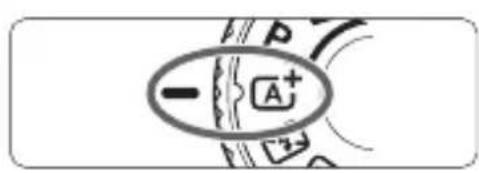
1 Set the Mode Dial to < ^+> .
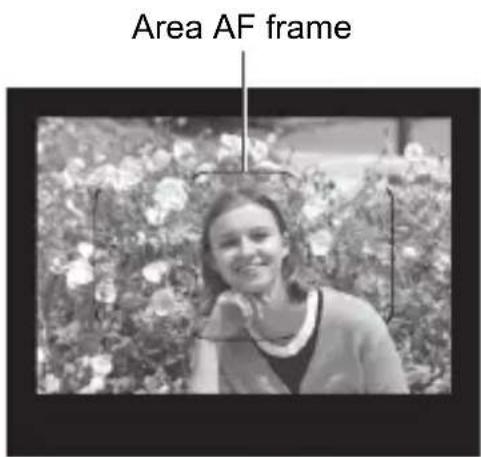
2 Aim the Area AF frame over the subject.
- All the AF points will be used to focus, and the camera will focus on the closest object.
- Aiming the center of the Area AF frame over the subject will make focusing easier.
natural_image
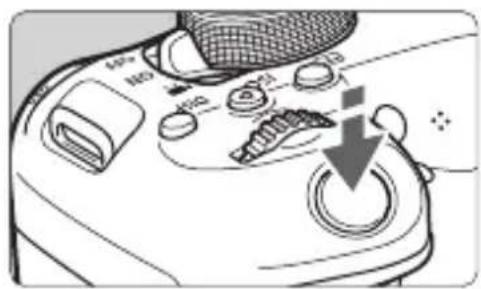
Diagram of a car dashboard with control buttons and a downward arrow indicating action (no text or symbols present)3 Focus on the subject.
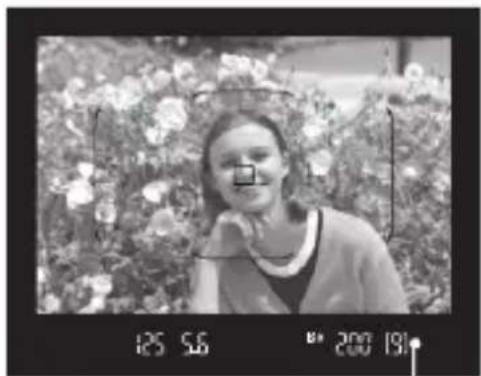
- Press the shutter button halfway. The lens elements will shift to focus.
When achieving focus, the AF point that has achieved focus will be displayed. At the same time, the beeper will sound and the focus indicator <●> in the viewfinder will light up.
In low light, the AF point(s) will light up briefly in red.
If necessary, the built-in flash will be raised automatically.
natural_image
Black-and-white photo of a smiling woman standing in front of a floral background (no visible text or symbols)Focus indicator

If a description of the shooting mode appears in step 1, press < SET> to hide it (p.49).
natural_image
Diagram showing a camera with a download icon and a person's photo frame (no text or symbols)4 Take the picture.
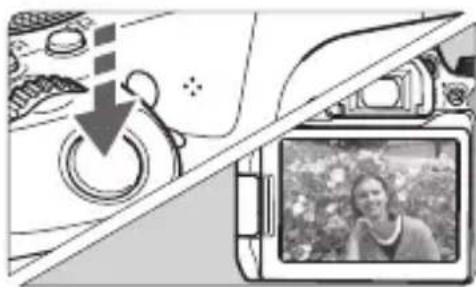
- Press the shutter button completely to take the picture.
The captured image will be displayed for approx. 2 sec. on the LCD monitor. - When you finish shooting, push down the built-in flash with your fingers.

The <^+> mode makes the colors look more impressive in nature, outdoor, and sunset scenes. If you do not obtain the desired color tones, change the mode to a Creative Zone mode and select a Picture Style other than <^+> , then shoot again (p.109).

FAQ
- The focus indicator <●> blinks and focus is not achieved.
- Aim the Area AF frame over an area with good contrast, then press the shutter button halfway (p.45).
- If you are too close to the subject, move away and shoot again.
- Change the AF area selection mode and shoot again (p.96). The default setting is Automatic selection AF.
- When focus is achieved, the AF points do not light up in red.
The AF points light up in red only when focus is achieved in low light or with a dark subject.
● Multiple AF points light up simultaneously.
Focus has been achieved at all those points. You can take the picture as long as an AF point covering the target subject is lighting up.
- The beeper continues to beep softly. (The focus indicator <●> does not light up.)
It indicates that the camera is focusing continuously on a moving subject. (The focus indicator <●> does not light up.) You can take sharp pictures of a moving subject.
Note that focus lock (p.69) will not work in this case.
- Pressing the shutter button halfway does not focus on the subject.
If the focus mode switch of the lens is set to
● The flash fired even if it was daylight.
For a backlit subject, the flash may fire to help lighten the subject's dark areas. If you do not want the flash to fire, use the Quick Control to set [Built-in flash firing] to [⚡] (p.86) or set the <⚡> (Flash Off) mode and shoot (p.70).
- The built-in flash fired and the picture came out extremely bright.
Move further away from the subject and shoot. When shooting with flash, if the subject is too close to the camera, the picture may come out extremely bright (overexposure).
- In low light, the built-in flash fired a series of flashes.
Pressing the shutter button halfway may trigger the built-in flash to fire a series of flashes to assist autofocusing. This is called the AF-assist beam. Its effective range is approx. 4 meters / 13.1 feet. The built-in flash will make a sound when firing continuously. This is normal and not a malfunction.
- When flash was used, the bottom part of the picture came out unnaturally dark.
The shadow of the lens barrel was captured in the picture because the subject was too close to the camera. Move further away from the subject and shoot. If a hood is attached to the lens, remove it before taking the flash picture.
A ^+ Full Auto Techniques (Scene Intelligent Auto)
Recomposing the Shot
natural_image
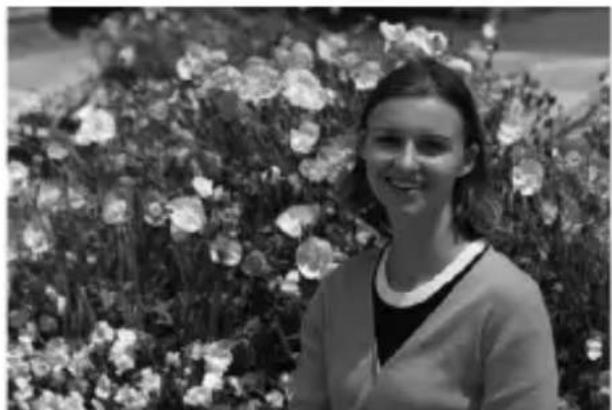
Black-and-white photo of a smiling woman standing in front of a floral field (no text or symbols visible)Depending on the scene, positioning the subject toward the left or right to include a balanced background will result in a picture with better perspective. In the <^+> mode, pressing the shutter button halfway to focus on a still subject will lock the focus on that subject. Recompose the shot while keeping the shutter button pressed halfway, and then press the shutter button completely to take the picture. This is called "focus lock". Focus lock is also possible in other Basic Zone modes (except <^+>
Shooting a Moving Subject
natural_image
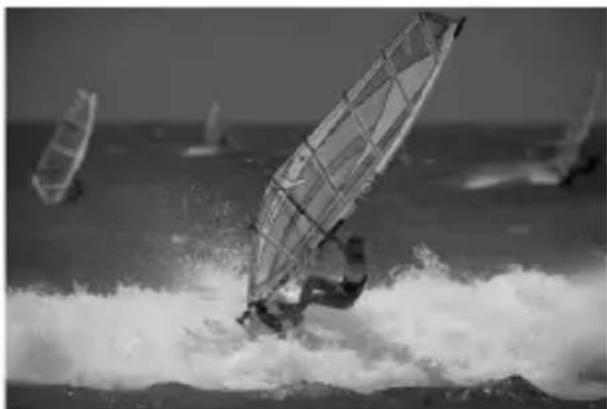
Black-and-white photo of windsurfing on the ocean with multiple winds visible in the background (no text or symbols)In the < ^+> mode, if the subject moves (distance to camera changes) during or after focusing, AI Servo AF will take effect to focus on the subject continuously. (The beeper will continue beeping softly.) As long as you keep the Area AF frame positioned over the subject while pressing the shutter button halfway, focusing will be continuous. At the decisive moment, press the shutter button completely to take the picture.
Shooting When You Cannot Use Flash
The camera analyzes the scene and sets the optimum settings automatically. In places where flash photography is prohibited such as in a museum or an aquarium, use the <图标> (Flash Off) mode.
![Flash Off Singlecostshell timer [ 514 ]](/content/2026/03/434806/images/4db40513fb672dd88c812b81c888c84a4f1d27295a23db5cf3a51380c46168fb.jpg)
natural_image
Black-and-white photo of a museum gallery with framed paintings on the walls and visitors observing (no visible text or signage)
Shooting Tips
- Prevent camera shake if the numeric display (shutter speed) in the viewfinder blinks.
Under low light when camera shake is prone to occur, the viewfinder's shutter speed display will blink. Hold the camera steady or use a tripod. When using a zoom lens, use the wide-angle end to reduce blur caused by camera shake even with handheld shooting.
Take portraits without flash.
In low-light conditions, tell the subject to keep still until the picture is taken. Any movement by the subject during shooting may result in the subject being blurred in the picture.
CA Creative Auto Shooting
In the <> mode, you can set the following functions for shooting: (1) Ambience-based shots, (2) Background blur, (3) Drive mode, and (4) Built-in flash firing. The default settings are the same as the <^+> mode.
* CA stands for Creative Auto.
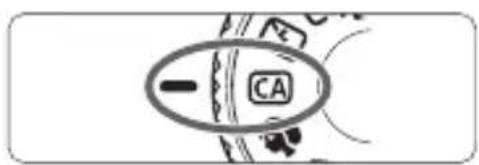
1 Set the Mode Dial to .
![Antenna Standard [514]](/content/2026/03/434806/images/fd42ecb25a4a318151df41de17e1b88b02236227f2c736d3e396336cf960692d.jpg)
Press the button (①10).
The Quick Control screen will appear.
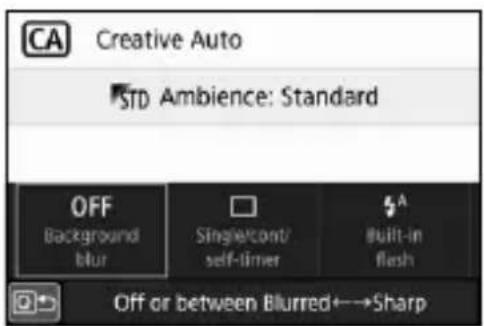
3 Set the desired functions.
- Press the <◆> cross keys to select a function.
The settings of the selected function and Feature guide (p.50) will appear.
4 Take the picture.
- Press the shutter button completely to take the picture.

Shooting Portraits
The <♂> (Portrait) mode blurs the background to make the human subject stand out. It also makes skin tones and hair look softer.
![Portrait Brightness Single-comi self-timer Built-in Flash [514]](/content/2026/03/434806/images/e076f9a077351cef2304ff9054ee4f387faecc86a64f15713a63bb4cfa20a524.jpg)
natural_image
Black-and-white portrait of a smiling woman with shoulder-length hair (no text or symbols visible)
Shooting Tips
- Select the location where the distance between the subject and the background is the farthest.
The further the distance between the subject and background, the more blurred the background will look. The subject will also stand out better against an uncluttered dark background.
• Use a telephoto lens.
If you have a zoom lens, use the telephoto end to fill the frame with the subject from the waist up. Move in closer if necessary.
• Focus on the face.
Check that the AF point covering the face lights up. For close-ups of the face, focus on the eyes.

Shooting Landscapes
Use the <▶> (Landscape) mode for wide scenery or to have everything in focus from near to far. For vivid blues and greens, and very sharp and crisp images.
![Landscape Brightness Simple/contr self-to-man [ 514 ]](/content/2026/03/434806/images/a66aef097179412be574161488ee8f13652fcedb9686379e84069070a84fc6e6.jpg)
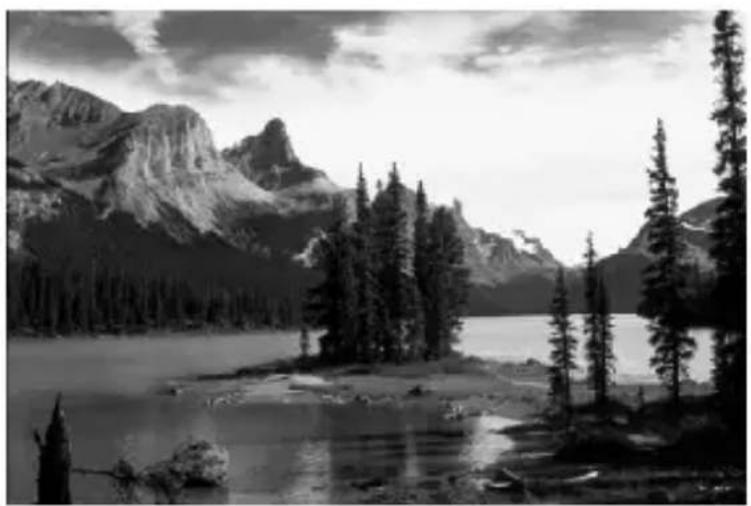
natural_image
Black-and-white landscape photo of a mountain lake with evergreen trees and snow-capped peaks in the background (no text or symbols)
Shooting Tips
With a zoom lens, use the wide-angle end.
When using a zoom lens, set the lens to the wide-angle end to make the objects near and far in focus. It also adds breadth to landscapes.
- Shooting night scenes.
The <▶> mode is also good for night scenes because it disables the built-in flash. When shooting night scenes, use a tripod to prevent camera shake.

Shooting Close-ups
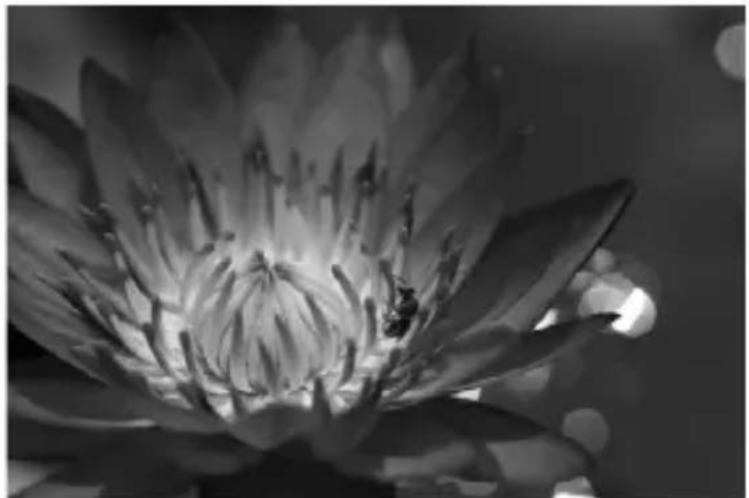
When you want to shoot flowers or small things up close, use the <◀> (Close-up) mode. To make small things appear much larger, use a macro lens (sold separately).
natural_image
Black-and-white close-up of a blooming water lily flower with visible petals and stamens (no text or symbols)
Shooting Tips
• Use a simple background.
A simple background makes small objects such as flowers stand out better.
- Move in as close as possible to the subject.
Check the lens for its minimum focusing distance. Some lenses have indications such as <0.25m/0.8ft> on them. The lens minimum focusing distance is measured from the <> (focal plane) mark on the top of the camera to the subject. If you are too close to the subject, the focus indicator <> will blink.
If the built-in flash is fired and the bottom part of the picture comes out unnaturally dark, move away a little from the subject and try again.
With a zoom lens, use the telephoto end.
If you have a zoom lens, using the telephoto end will make the subject look larger.

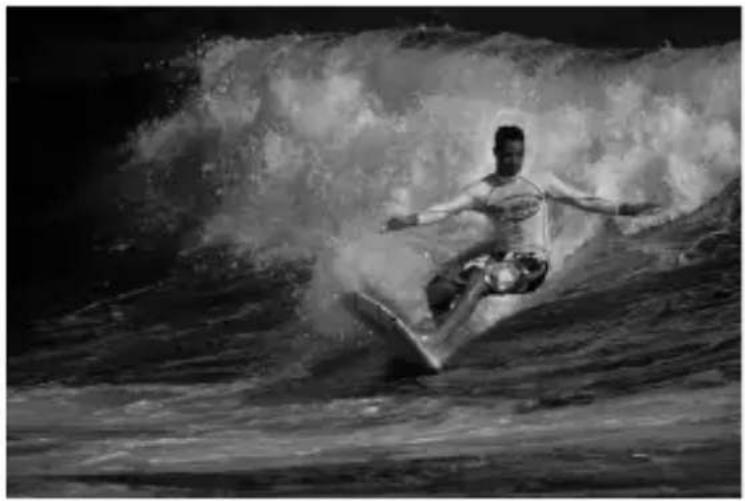
Shooting Moving Subjects
Use the <图标> (Sports) mode to shoot a moving subject, such as a running person or a moving vehicle.
natural_image
Black-and-white photo of a person surfing on waves, no visible text or symbols
Shooting Tips
- Use a telephoto lens.
Use of a telephoto lens is recommended for shooting from a distance.
- Track the subject with the Area AF frame.
Press the shutter button halfway to start autofocusing in Area AF frame. During autofocusing, the beeper will continue beeping softly. If focus cannot be achieved, the focus indicator < > will blink.
The default setting is < H> (High-speed continuous shooting*). At the decisive moment, press the shutter button completely to take the picture. If you keep holding down the shutter button, you can shoot continuously while maintaining autofocusing to capture changes in the subject's movement.
* Viewfinder shooting: max. approx. 6.0 shots/sec., Live View shooting: max. approx. 4.5 shots/sec.
SCN: Special Scene Mode
The camera will automatically choose the appropriate settings when you select a shooting mode for your subject or scene.
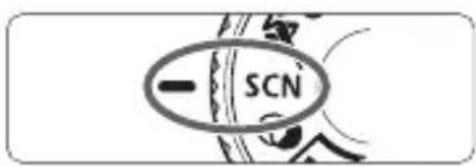
1 Set the Mode Dial to .
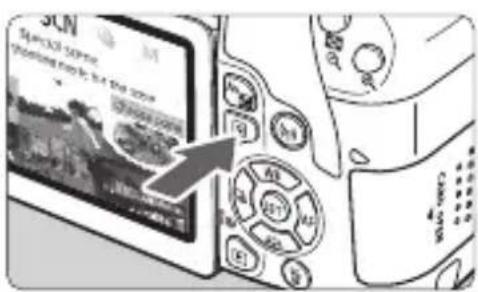
Press the button (②10).
The Quick Control screen will appear.
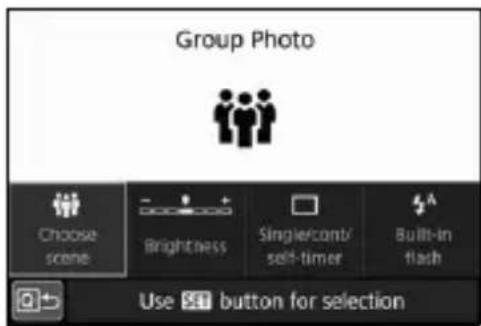
3 Select a shooting mode.
- Select [Choose scene], then press < SET> .
- Press the < > < > keys to select the desired shooting mode, then press < > .
- You can also select by turning the < > dial.

If [Mode guide] is set to [Enable], press
Available Shooting Modes in the
| Shooting Mode Page | Shooting | |
| Group Photo | p.77 | |
| Kids | p.78 | |
| Food | p.79 | |
| Candlelight | p.80 | |
| Mode Page | ||
| Night Portrait | p.81 | |
| Handheld Night Scene | p.82 | |
| HDR Backlight Control | p.83 | |

Shooting Group Photos
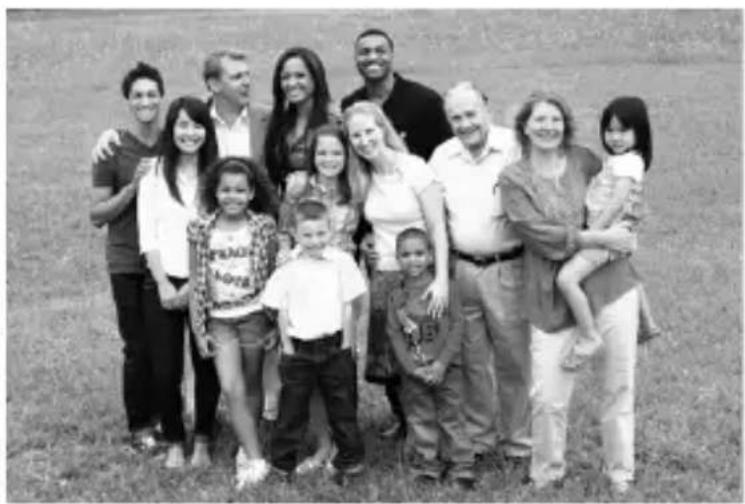
Use the < img src=""> (Group Photo) mode to shoot group photos. You can take a picture in which both the people in the front and people in the back are all in focus.
![Group Photo Choose scene Brightness Single-contire self-timer Built-in (flash) [ 514 ]](/content/2026/03/434806/images/666f13402be9fcb4951dcc253ea6b6f1e625ac7a24f333aa50ee784788dc4241.jpg)
natural_image
Black-and-white group photo of adults and children outdoors on grass (no text or symbols visible)
Shooting Tips
- Use a wide-angle lens.
When using a zoom lens, use the wide-angle end to make it easy to get all the people in the group in focus at once, from the front row to the back. Also, if you place a little distance between the camera and the subjects (so that the subjects' entire bodies are in the shot), the focus range increases.
• Use continuous shooting.
It is recommended to use continuous shooting to shoot multiple photos in case some people close their eyes.

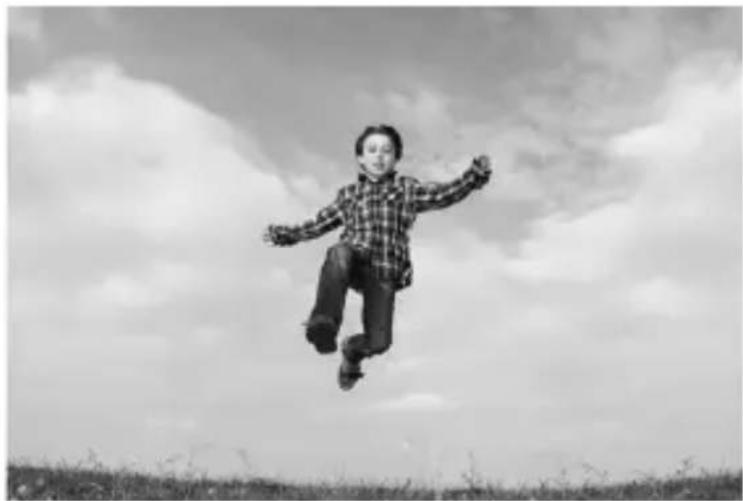
Photographing Children
When you want to continuously focus on and photograph children running around, use <♂> (Kids). Skin tones will look healthy.
![Kids Choose scene Brightness Single/cont/ self-tuner Built-in flash [ 514 ]](/content/2026/03/434806/images/d691604ebde35a8b06a9f31cafbbdd75d691f75a3f5aad83db920e1e3d6aad37.jpg)
natural_image
Black-and-white photo of a boy mid-air in mid-air against a cloudy sky, with grass and trees in the foreground (no text or symbols visible)
Shooting Tips
- Track the subject with the Area AF frame.
Press the shutter button halfway to start autofocusing in Area AF frame. During autofocusing, the beeper will continue beeping softly. If focus cannot be achieved, the focus indicator <> will blink.
Shoot continuously.
The default setting is < H> (High-speed continuous shooting*). At the decisive moment, press the shutter button completely to take the picture. If you keep holding down the shutter button, you can shoot continuously while maintaining autofocusing to capture changes in the subject's facial expression and movement.
* Viewfinder shooting: max. approx. 6.0 shots/sec., Live View shooting: max. approx. 4.5 shots/sec.
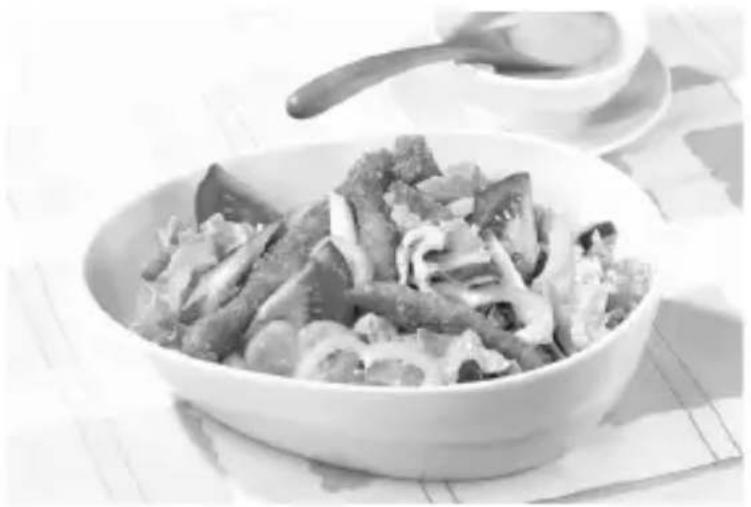
Shooting Food
When shooting food, use < 41> (Food). The photo will look bright and appetizing. Also, depending on the light source, the reddish tinge will be suppressed in the pictures taken under tungsten lights, etc.
![Food Color tone Choose scene Brightness Single-conti self-timer Built-in flash [514]](/content/2026/03/434806/images/6192d7097915c8baae085432c922bca7681db14085d9dee957a7364cec80273a.jpg)
natural_image
Black-and-white photo of a bowl of stir-fried meat and vegetables, with a spoon and saucer in the background (no text or symbols visible)
Shooting Tips
- Change the color tone.
You can change [Color tone]. To increase the food's reddish tinge, set it toward [Warm]. Set it toward [Cool] if it looks too red.
- Avoid using flash.
If you use flash, the light may reflect off the dish or food and results in unnatural shadows. Therefore, <∅> (Built-in flash off) is set by default. Try to prevent camera shake when shooting in low-light locations.
Shooting Candlelight Portraits
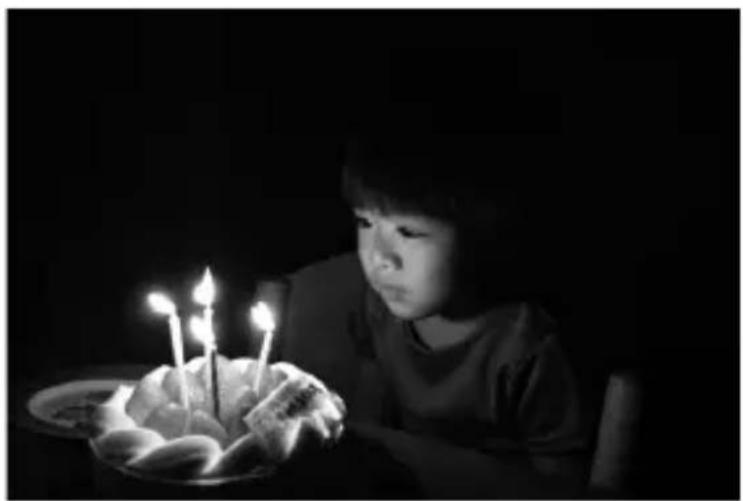
When photographing a human subject lit in candlelight, use <图标> (Candlelight). The atmosphere of candlelight is reflected in the color tones of the picture.
![Candlelight Color tone Choose scene Brightness Single/conv/ set-trim [ 514 ]](/content/2026/03/434806/images/5364c9cee6515673e8497845f6d71bc3c3346d7d2fcf1f0f8f941c6594956aae.jpg)
natural_image
Child sitting at night with a birthday cake and three lit candles (no text or symbols visible)
Shooting Tips
- Use the center AF point to focus.
Aim the center AF point in the viewfinder over the subject, then shoot.
- Prevent camera shake if the numeric display (shutter speed) in the viewfinder blinks.
Under low light where camera shake is prone to occur, the viewfinder's shutter speed display will blink. Hold the camera steady or use a tripod. When using a zoom lens, you can reduce blur caused by camera shake by setting the lens to the wide-angle end, even with handheld shooting.
- Change the color tone.
You can change [Color tone]. To increase the candlelight's reddish tinge, set it toward [Warm]. Set it toward [Cool] if it looks too red.
Shooting Night Portraits (With a Tripod)
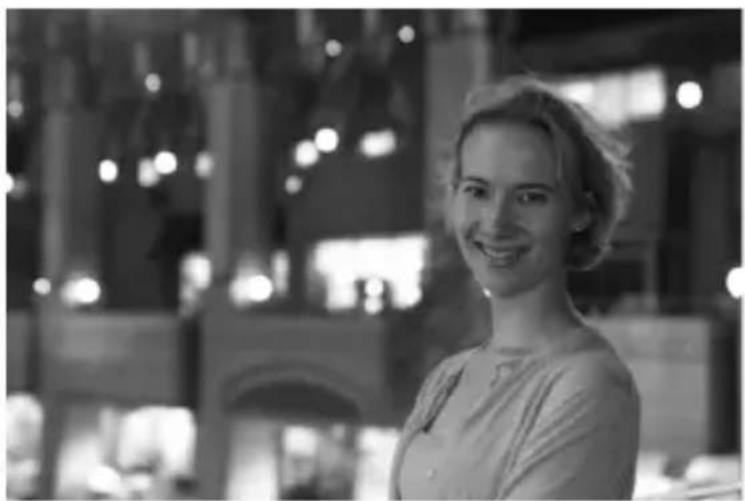
To photograph people at night and obtain a natural-looking night scene in the background, use the <▶> (Night Portrait) mode. Using a tripod is recommended.
natural_image
Black-and-white photo of a smiling woman in front of a building with illuminated windows (no visible text or symbols)![Night Portrait Choose Score Brightness Singleicorn/ with-tanner [514]](/content/2026/03/434806/images/c22da536684437277b55b2ed6ad2b6ab4ef36d5eb5502d105eb2b5cf23cff132.jpg)

Shooting Tips
Use a wide-angle lens and a tripod.
When using a zoom lens, use the wide-angle end to obtain a wide night view. Also, since camera shake is prone to occur with handheld shooting, use a tripod.
- Check the subject's brightness.
Under low light, the built-in flash will fire automatically to obtain a good exposure of the subject.
Note that it is recommended to play back the captured image on location to check the image brightness. If the subject looks dark, move nearer and shoot again.
- Also shoot in other shooting modes.
Since camera shake is prone to occur with night shots, shooting also with <^+> and <> is recommended.

Shooting Night Scenes (Handheld)
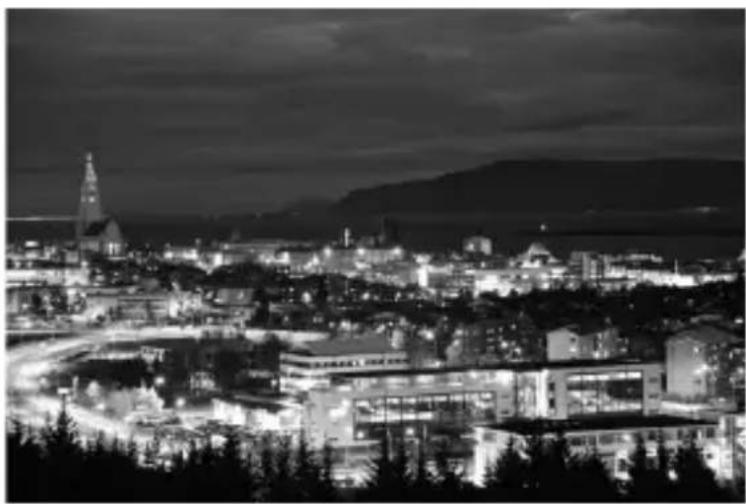
Using a tripod when shooting a night scene gives the best results. However, the <▶> (Handheld Night Scene) mode enables you to shoot night scenes even while handholding the camera. In this shooting mode, four shots are taken consecutively for each picture, and the resulting one image with reduced camera shake is recorded.
natural_image
Nighttime cityscape with illuminated buildings and a distant mountain range (no visible text or signage)
Shooting Tips
- Hold the camera firmly.
During shooting, hold the camera firmly and steadily. In this mode, four shots are aligned and merged into a single image. However, if there is significant misalignment in any of the four shots due to camera shake, they may not align properly in the final image.
For shots including people, fire the flash.
If you want to include people in the night scene shot, press the button to set <⚡> (Built-in flash on). To take a nice portrait, the first shot will use flash. Tell the subject not to move until all four consecutive shots are taken.

Shooting Backlit Scenes
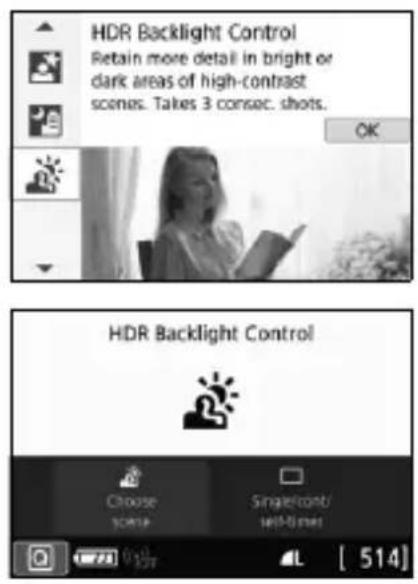
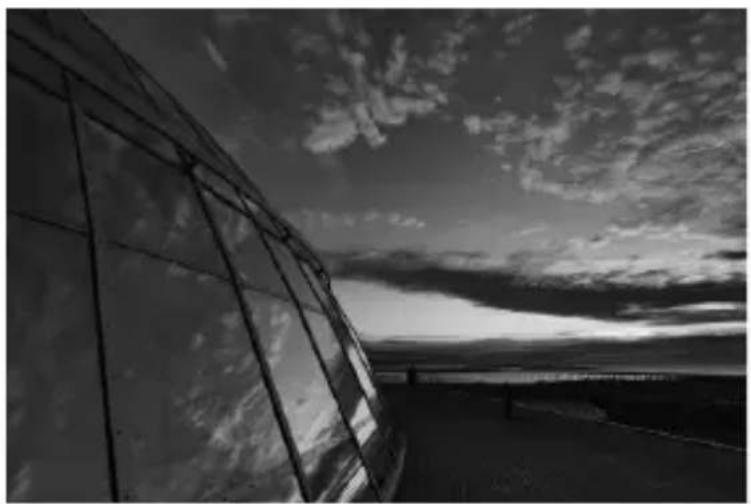
When shooting a scene having both the bright and dark areas, use the < HDR Backlight Control> (HDR Backlight Control) mode. When you take one picture in this mode, three consecutive shots are taken at different exposures. This results in one image, with a wide tonal range, that has minimized the clipped shadows caused by backlighting.
natural_image
Black-and-white exterior view of a modern curved glass building with reflective surfaces against a cloudy sky (no text or symbols visible)
Shooting Tips
- Hold the camera firmly.
During shooting, hold the camera firmly and steadily. In this mode, three shots are aligned and merged into a single image. However, if there is significant misalignment in any of the three shots due to camera shake, they may not align properly in the final image.

Shooting with Creative Filter Effects
In the <◎> (Creative filter) mode, you can apply one of ten filter effects (Grainy B/W*, Soft focus*, Fish-eye effect*, Water painting effect*, Toy camera effect*, Miniature effect*, HDR art standard, HDR art vivid, HDR art bold, and HDR art embossed) for shooting. When the camera is set for Live View shooting, you can see the effect on the screen before you start shooting. The camera saves only the image with the Creative filter applied.
For the effects marked with an asterisk, you can also take a picture without a Creative filter, then apply the effect afterward and save it as a new image.
1 Set the Mode Dial to <○>.
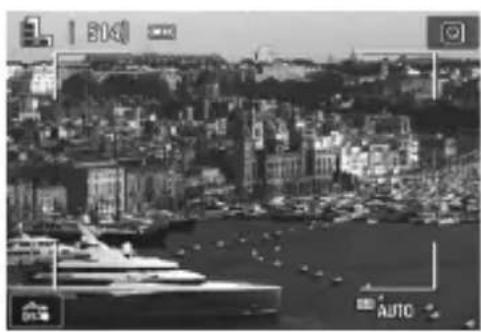
natural_image
Black-and-white aerial view of a coastal city with dense buildings and boats, no visible text or symbolsDisplay the Live View image.
- Press the <☐> button to display the Live View image.
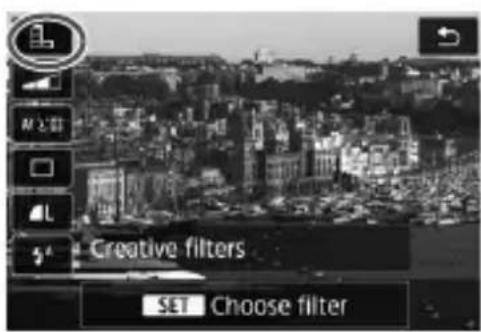
3 Select [Creative filters] with Quick Control.
- Press the button (②10).
- Press the <> < > keys to select [.] on the upper left of the screen, then press <> .
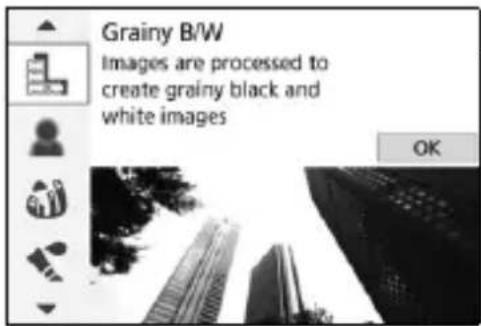
4 Select a shooting mode.
- Press the <> <> keys to select a shooting mode, then press <> .
The image will be displayed with the effects of the filter applied.
Available Shooting Modes in the Ⓞ Mode
| Shooting Mode Shooting Mode | |
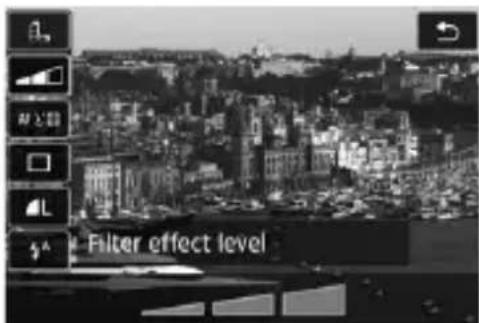
5 Adjust the effect.
- Press the
button and select the icon below [Creative filters] (except for , HDR , HDR , HDR , and HDR ).
- Press the <◀> <▶> keys to adjust the filter effect, then press
.
6 Take the picture.
- Press the shutter button completely to take the picture.
- To return to viewfinder shooting, press the

Quick Control
In Basic Zone modes, press the button to display the Quick Control screen. You can set the items shown in the tables on pages 87-88.
Example: < >
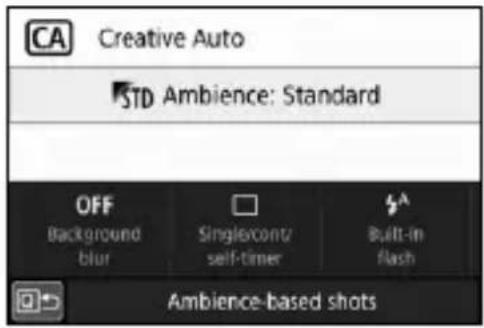
1 Set the Mode Dial to a Basic Zone mode.
Press the button (①10).
The Quick Control screen will appear.
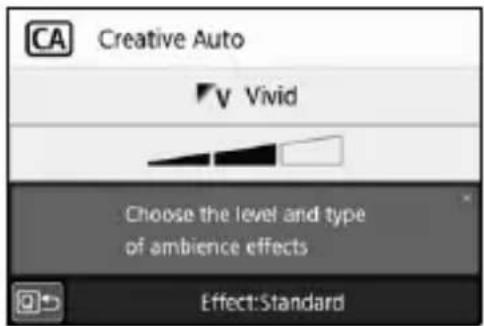
3 Set the desired functions.
- Press the <◆> cross keys to select a function. (This step is not necessary in the ☐ mode.)
The settings of the selected function and Feature guide (p.50) will appear. - Turn the < img src=""> dial to change the setting.
- You can also select from a list by selecting a function and pressing
.
- When [☐: Shooting screen: Standard] is set, a screen such as the following will appear.
Example: < >
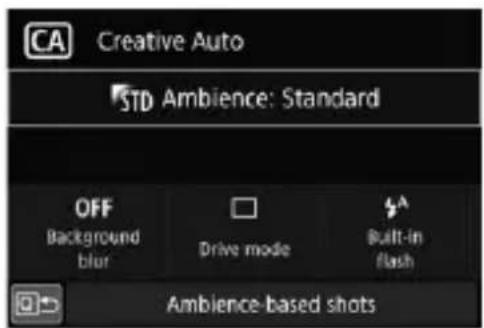
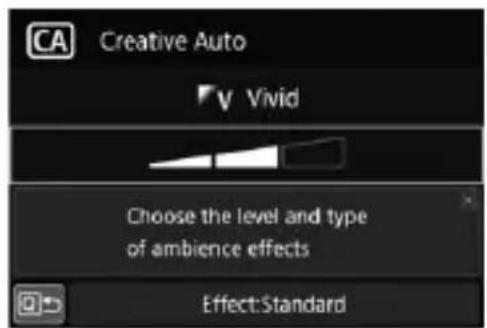
Settable Functions in Basic Zone Modes
●: Default setting ^* ○: User selectable ☐: Not selectable
| Function ^+ | ||||||||
| Drive mode (p.102) | ☐: Single shooting | ●● | ●○ | ●○ | ||||
| ☐H: High-speed continuous shooting | ○○ | ○○ | ○○● | |||||
| ☐: Low-speed continuous shooting | ○○ | ○● | ○○○ | |||||
| ☐: 10sec. | ○○ | ○○ | ○○○ | |||||
| ☐2: 2sec. | ○○ | ○○ | ○○○ | |||||
| ☐c: Continuous shooting | ○○ | ○○ | ○○○ | |||||
| Built-in flash firing | ♦A: Automatic firing | ●● | ●● | |||||
| ♦: Flash on (Fires at all times) | ○○ | ○○ | ||||||
| ♦: Flash off | ○● | ○○ | ●○● | |||||
| Ambience-based shots | ○ | |||||||
| Background blur | ○ | |||||||
| Brightness (p.89) | ○○ | ○○ | ||||||
| Function | SCN | ||||||||
| Drive mode (p.102) | ☐: Single shooting | ● ○ | ● ● | ● ● | |||||
| ☐H: High-speed continuous shooting | ○ ● | ○ ○ | ○ ○ | ||||||
| ☐: Low-speed continuous shooting | ○ ○ | ○ ○ | ○ ○ | ||||||
| ☐: 10sec. | ○ ○ | ○ ○ | ○ ○ | ||||||
| ☐2: 2sec. | ○ ○ | ○ ○ | ○ ○ | ||||||
| ☐c: Continuous shooting | ○ ○ | ○ ○ | ○ ○ | ||||||
| Built-in flash firing | ☐A: Automatic firing | ● ● | ● | ||||||
| ☐: Flash on (Fires at all times) | ○ ○ | ○ ○ | |||||||
| ☐: Flash off | ○ ○ | ● ● | ● ● | ||||||
| Brightness (p.89) | ○ ○ | ○ ○ | ○ ○ | ||||||
| Color tone (p.79, 80) | ○ | ○ | |||||||
* If you change the shooting mode or set the power switch to
●: Default setting ^* ○: User selectable ☐: Not selectable
| Function | ∅ | |||||
| Drive mode (p.102) | ☐: Single shooting | ●● | ●●● | |||
| ☐H: High-speed continuous shooting | ||||||
| ☐: Low-speed continuous shooting | ||||||
| ☐: 10sec. | ○○ | ○○○ | ||||
| ☐2: 2sec. | ○○ | ○○○ | ||||
| ☐c: Continuous shooting | ○○ | ○○○ | ||||
| Built-in flash firing | ☐A: Automatic firing | ●● | ●●● | |||
| ☐: Flash on (Fires at all times) | ○○ | ○○○ | ||||
| ☐: Flash off | ○○ | ○○○ | ||||
| Adjustment of effects (p.84) | ○○ | ○○○ | ||||
| Function | |||||||
| Drive mode (p.102) | ☐: Single shooting | ●● | ●●● | ||||
| ☐H: High-speed continuous shooting | ○○ | ○○ | |||||
| ☐: Low-speed continuous shooting | ○○ | ○○ | |||||
| ☐: 10sec. | ○○ | ○○○ | |||||
| ☐2: 2sec. | ○○ | ○○○ | |||||
| ☐c: Continuous shooting | ○○ | ○○○ | |||||
| Built-in flash firing | ☐A: Automatic firing | ○ | |||||
| ☐: Flash on (Fires at all times) | ○ | ||||||
| ☐: Flash off | ●● | ●●● | |||||
| Adjustment of effects (p.84) | |||||||
* If you change the shooting mode or set the power switch to
Adjusting the Brightness
In Basic Zone modes, when a mode other than <^+> , <4> , <> , <:★> , or <○> is set, you can adjust the brightness for shooting. You can adjust both the brightness and darkness across 3-step ranges with 0 being the standard.
1 Set the Mode Dial to <>, <>, <>, <>, or
- When
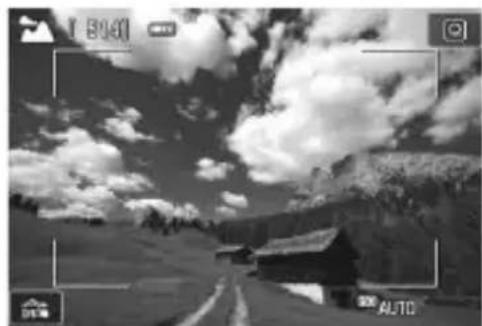
natural_image
Black-and-white landscape photo showing a winding road, distant mountains, and cloudy sky (no text or symbols visible)Display the Live View image.
- Press the
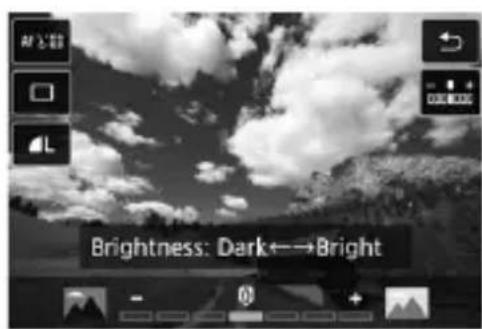
3 With Quick Control, select the desired brightness.
- Press the
button (①10).
- Press the <> <> keys to select [^- + Brightness], then press the <> <> keys to select the desired brightness.
The image with the selected brightness adjustment applied will appear.
4 Take the picture.
- Press the shutter button completely to take the picture.
- To return to viewfinder shooting, press the
- If you change the shooting mode or set the power switch to
, the setting will revert to [0] (standard).

Image Playback
The easiest way to play back images is described below. For more details on the playback procedure, see page 153.
natural_image
Digital camera interface showing a street scene with a tram and buildings, no visible text or symbols on the main screen.1 Play back the image.
- Press the <▶> button.
The last image captured or played back will appear.
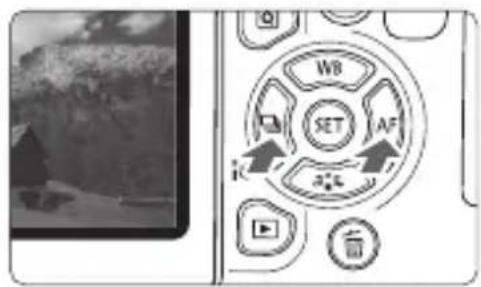
Select an image.
- To play back images starting with the last image captured, press the ◀◀▶ key. To play back images starting with the first captured image, press the ◀▶▶ key.
- Each time you press the
button, the display will change.
natural_image
Black-and-white landscape photo of a mountain valley with a small wooden cabin and snow-capped peaks under a cloudy sky (no text or symbols visible)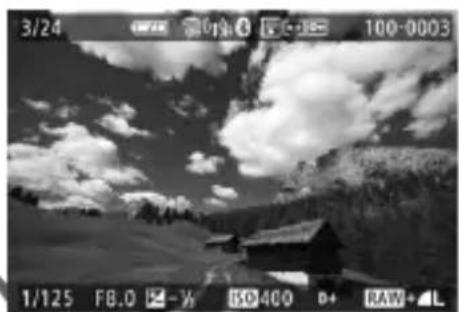
natural_image
Black-and-white landscape photo of a mountain with clouds and a small house, no visible text or symbolsNo information Basic information
display
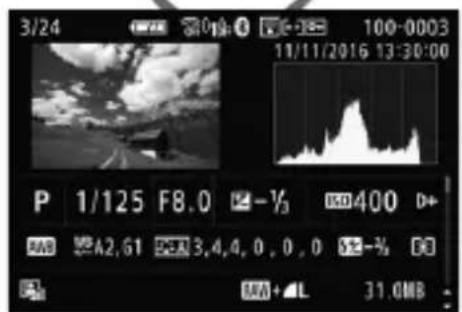
Shooting information display
3 Exit the image playback.
- Press the <▶> button to exit the image playback and return to shooting-ready state.
Shooting Information Display
With the shooting information screen displayed (p.90), you can press the <▲> <▼> keys to change the shooting information displayed at the screen bottom as follows.
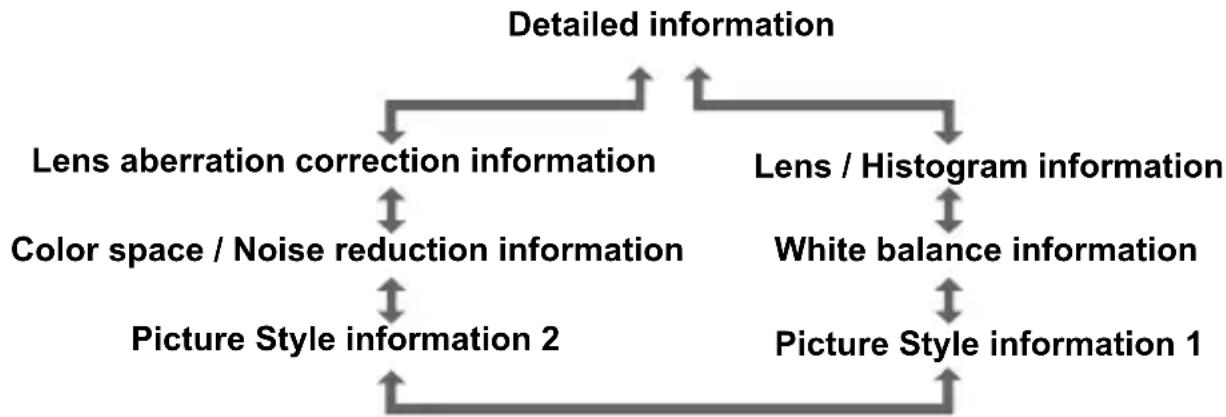
flowchart
graph TD
    A["Detailed information"] --> B["Lens aberration correction information"]
    A --> C["Lens / Histogram information"]
    B <--> D["Color space / Noise reduction information"]
    C <--> E["White balance information"]
    D <--> F["Picture Style information 2"]
    E <--> G["Picture Style information 1"]
3
Setting the AF and Drive Modes
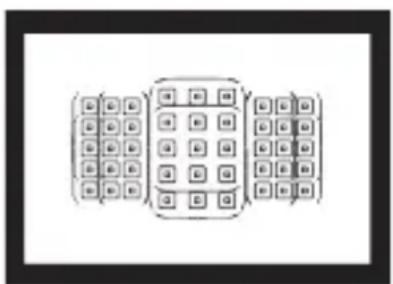
natural_image
Diagram of three rectangular panels with grid patterns, no text or symbols presentThe AF points in the viewfinder are arranged to make AF shooting suitable for a wide variety of subjects and scenes.
You can also select the AF operation and drive mode that best match the shooting conditions and subject.
- The ☆ icon at the upper right of the page title indicates that the function is available only in Creative Zone modes (p.25).
- In Basic Zone modes, the AF operation is set automatically.

AF: Changing the Autofocus Operation ^*
You can select the AF (autofocus) operation characteristics to suit the shooting conditions or subject. In Basic Zone modes, the optimum AF operation is set automatically for the respective shooting mode.
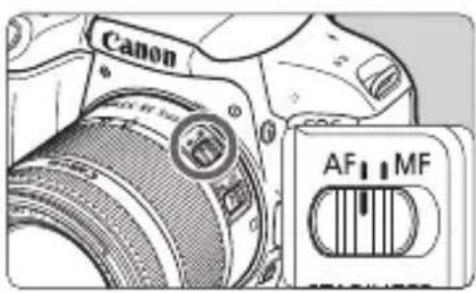
natural_image
Close-up of a Canon EF320 camera with AF and MF control switches (no text or symbols on the device itself)1 Set the lens's focus mode switch to
2 Turn the Mode Dial to a Creative Zone mode.
3 Press the ◀▶ AF> button.
[AF operation] will appear.
![Brighter ONE SHOT Method of focusing [ 514 ]](/content/2026/03/434806/images/4beb3e7191b212f54da14c6d8e70909841925226656324cd26e8e8f1c56c33ec.jpg)
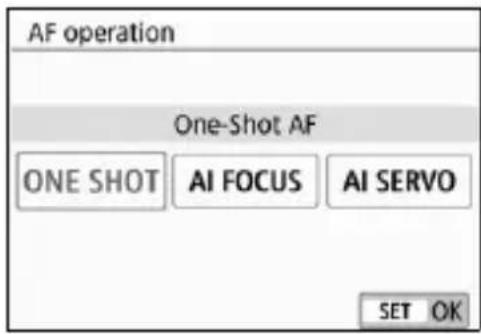
4 Select the AF operation.
- Press the <> <> keys to select the desired AF operation, then press <> .
5 Focus on the subject.
- Aim the AF point over the subject and press the shutter button halfway. The camera will then autofocus in the selected AF operation.
One-Shot AF for Still Subjects
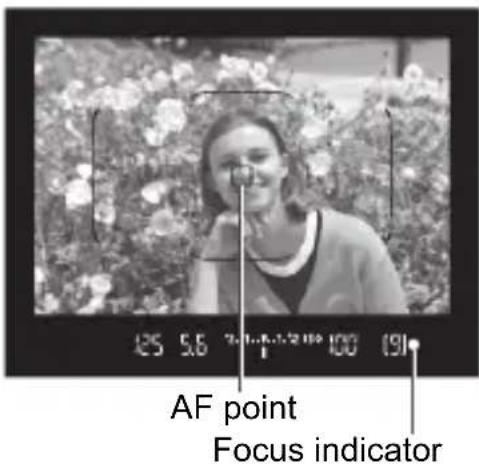
Suited for still subjects. When you press the shutter button halfway, the camera will focus only once.
- The AF point that achieves focus is displayed, and the focus indicator <●> in the viewfinder will also light up.
- With evaluative metering, the exposure setting will be set at the same time focus is achieved.
- While you hold down the shutter button halfway, the focus will be locked. You can then recompose the shot if desired.
AI Servo AF for Moving Subjects
This AF operation is suited for moving subjects when the focusing distance keeps changing. While you hold down the shutter button halfway, the camera will keep focusing on the subject continuously.
The exposure is set at the moment the picture is taken.
- When the AF area selection mode (p.96) is set to Automatic selection AF, focus tracking will continue as long as the Area AF frame covers the subject.
AI Focus AF for Switching the AF Operation Automatically
AI Focus AF switches the AF operation from One-Shot AF to AI Servo AF automatically if a still subject starts moving.
- After the subject is focused in One-Shot AF, if the subject starts moving, the camera will detect the movement, change the AF operation automatically to AI Servo AF, and start tracking the moving subject.

Selecting the AF Area and AF Point
The camera has 45 AF points for autofocusing. You can select the AF area selection mode and AF point(s) suiting the scene or subject.

Depending on the lens used, the number of usable AF points, AF point patterns, Area AF frame shape, etc. vary.
AF Area Selection Mode
You can select one of four AF area selection modes. For the selection procedure, see the next page.
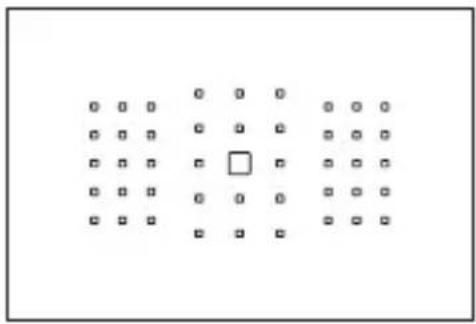
natural_image
Grid of small squares with one square highlighted in white (no text or symbols)☐: Single-point AF (Manual selection)
Select one AF point to focus.

natural_image
Grid of small squares and circles with no text or symbols, arranged in two rows (no readable text or symbols)☐: Zone AF (Manual selection of zone)
One of nine focusing zones is used to focus.
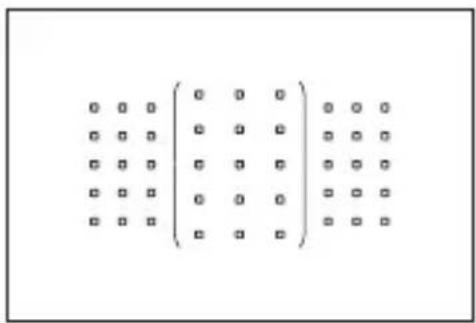
[1]: Large Zone AF (Manual selection of zone)
One of three focusing zones (left, center, and right) is used to focus.
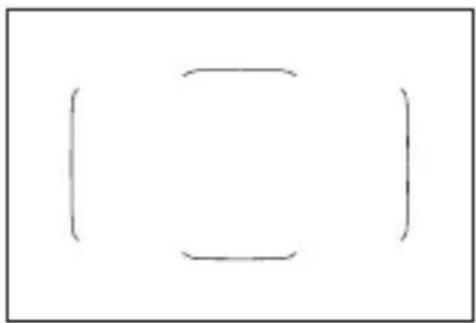
natural_image
Simple line drawing of two empty rectangular boxes with no text or symbols☐: Automatic selection AF
The Area AF frame (entire AF area) is used to focus.
Selecting the AF Area Selection Mode
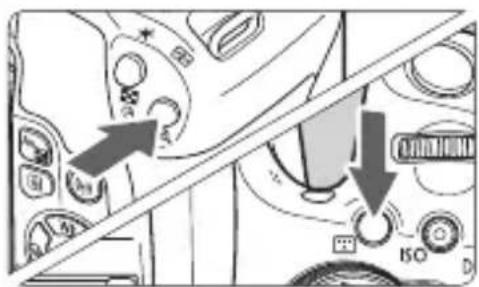
- Look through the viewfinder and press the <☐> or <☐> button.
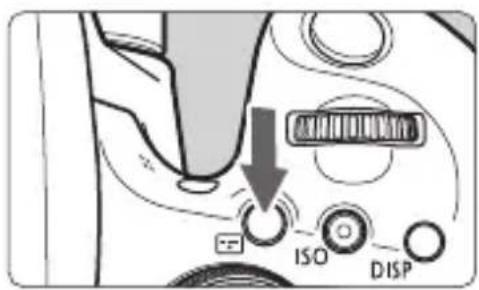
2 Press the
- Each time you press the
Selecting the AF Point Manually
You can manually select the AF point or zone.
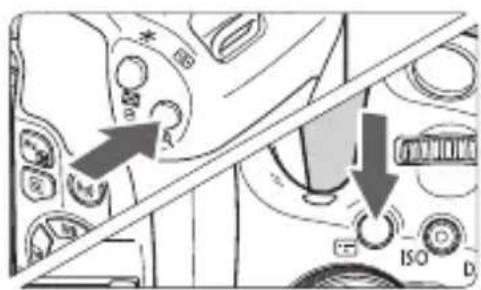
1
The AF points will be displayed in the viewfinder.
- In the Zone AF mode or Large Zone AF mode, the selected zone will be displayed.
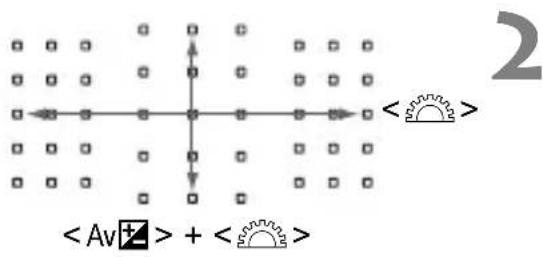
Select an AF point.
- You can select an AF point in horizontal direction with the < img src=""> dial.
- When you hold down the
button and turn the < sun> dial, you can select an AF point in vertical direction. - If you press < SET> , the center AF point (or center zone) will be selected.
- In the Zone AF mode, turning the <☀> dial will change the zone in a looping sequence.
- You can also select an AF point or zone in horizontal direction with the <◀> <▶> keys or vertical direction with the <▲> <▼> keys.
AF Point Display Indications
Pressing the <☑> or <☑> button lights up the AF points that are cross-type AF points for high-precision autofocusing. The blinking AF points are horizontal-line or vertical-line sensitive.
AF Area Selection Modes
☐ Single-point AF (Manual selection)
Select one AF point < > to be used for focusing.
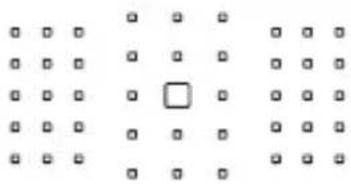
natural_image
Grid of small squares with one highlighted square (no text or symbols)Zone AF (Manual selection of zone)
The AF area is divided into nine focusing zones for focusing. Since all the AF points in the selected zone are used for Automatic selection AF, it is superior to Single-point AF in tracking the subject, and it is also effective for moving subjects.
However, since it is inclined to focus on the nearest subject, focusing on a specific target may be more difficult.
The AF point(s) achieving focus is displayed as <□>.
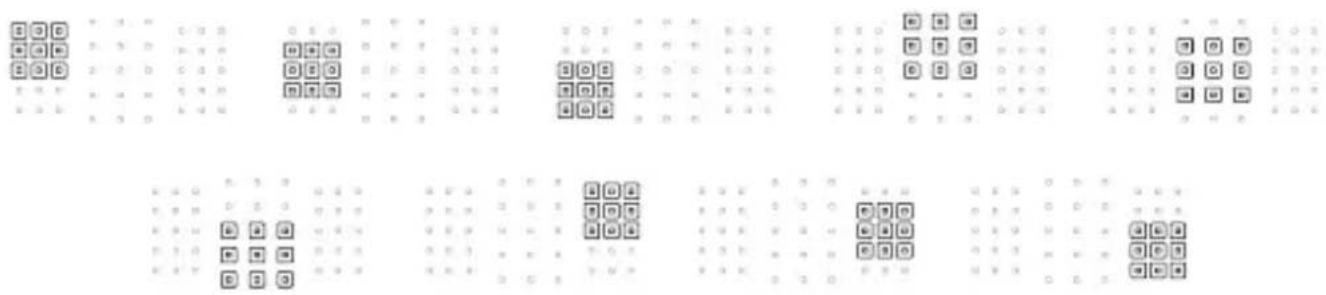
( ) Large Zone AF (Manual selection of zone)
The AF area is divided into three focusing zones (left, center, and right) for focusing. Since the focusing area is larger than with Zone AF and all the AF points in the selected zone are used for Automatic selection AF, it is superior to Single-point AF in tracking the subject, and it is also effective for moving subjects.
However, since it is inclined to focus on the nearest subject, focusing on a specific target may be more difficult.
The AF point(s) achieving focus is displayed as <> .
$$ \left( \begin{array}{cccc}0 & 0 & 0 & 0 & 0 \ 0 & 0 & 0 & 0 & 0 \ 0 & 0 & 0 & 0 & 0 \ 0 & 0 & 0 & 0 & 0 \ 0 & 0 & 0 & 0 & 0 \ 0 & 0 & 0 & 0 & 0 \ 0 & 0 & 0 & 0 & 0 \ 0 & 0 & 0 & 1 & 1 \ 0 & 0 & 0 & 1 & 1 \ 0 & 0 & 0 & 1 & 1 \ 0 & 0 & 0 & 1 & 1 \ 0 & 0 & 0 & 1 & 1 \ 0 & 0 & 0 & 1 & 1 \ 0 & 0 & 0 & 1 & 1 \ 0 & 0 & 0 | x_{2} = x_{3} + x_{4} = x_{5} + x_{6} = x_{7} + x_{8} = x_{9} + x_{10} = x_{11} + x_{12} = x_{13} + x_{14} = x_{15} + x_{16} = x_{17} + x_{18} = x_{19} + x_{20} = x_{21} + x_{22} = x_{23} + x_{24} = x_{25} + x_{26} = x_{27} + x_{28} = x_{29} + x_{30} = x_{31} + x_{32} = x_{33} + x_{34} = x_{35} + x_{36} = x_{37} + x_{38} = x_{39} + x_{40} = x_{41} + x_{42} = x_{43} + x_{44} = x_{45} + x_{46} = x_{47} + x_{48} = x_{49} + x_{50} = x_{51} + x_{52} = x_{53} + x_{54} = x_{55} + x_{56} = x_{57} + x_{58} = x_{59} + x_{60} = x_{61} + x_{62} = x_{63} + x_{64} = x_{65} + x_{66} = x_{67} + x_{68} = x_{69} + x_{70} = x_{71} + x_{72} = x_{73} + x_{74} = x_{75} + x_{76} = x_{77} + x_{78} = x_{79} + x_{80} = x_{81} + x_{82} = x_{83} + x_{84} = x_{85} + x_{86} = x_{87} + x_{88} = x_{89} + x_{90} = x_{91} + x_{92} = x_{93} + x_{94} = x_{95} + x_{96} = x_{97} + x_{98} = x_{99} + y_1 $$
(☐) Automatic selection AF
The Area AF frame (entire AF area) is used to focus. The AF point(s) achieving focus is displayed as < > .
natural_image
Simple geometric diagram of two adjacent rectangles (no text or symbols)With One-Shot AF, pressing the shutter button halfway will display the AF point(s) <□> that achieved focus. If multiple AF points are displayed, it means they all have achieved focus. This mode tends to focus on the nearest subject.
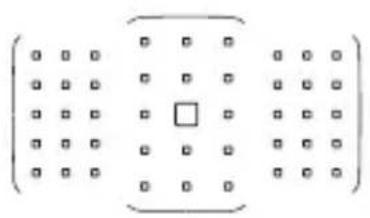
natural_image
Grid pattern with a central square surrounded by 10 squares, no text or symbols presentWith AI Servo AF, the manually-selected (p.98) AF point < > is used first to achieve focus. The AF point(s) achieving focus is displayed as < > .
MF: Manual Focus
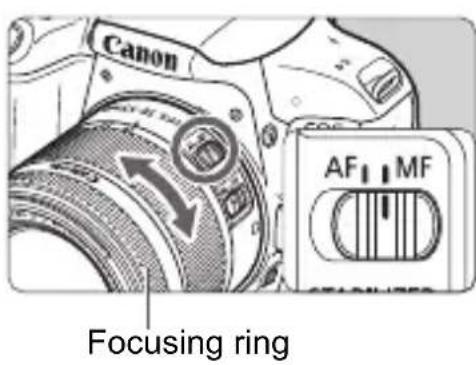
1 Set the lens's focus mode switch to
Focus on the subject.
- Focus by turning the lens focusing ring until the subject looks sharp in the viewfinder.

Selecting the Drive Mode
Single and continuous drive modes are provided.
![Brighter ONE SHOT Method of focusing [ 514 ]](/content/2026/03/434806/images/ea4a48c1af2a0428270ed102ad3546b2028deb251812b71412d3f5035253ab27.jpg)
1 Press the <◀> button.
[Drive mode] will appear.
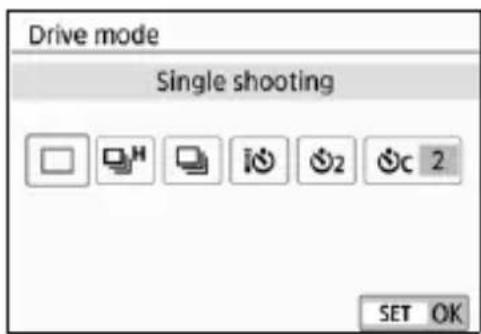
2 Select the drive mode.
- Press the <> <> keys to select the desired drive mode, then press <> .
□: Single shooting
When you press the shutter button completely, only one shot will be taken.
H: High-speed continuous shooting (Max. approx. 6.0 shots/sec.) When you press the shutter button completely, the camera will shoot continuously while you keep holding it down.
☐ : Low-speed continuous shooting (Max. approx. 3.0 shots/sec.) When you press the shutter button completely, the camera will shoot continuously while you keep holding it down.
: 10-sec. self-timer/remote control
2 : 2-sec. self-timer
C: Self-timer: Continuous
For self-timer shooting, see page 103.

Using the Self-timer
![Brighter ONE SHOT Method of focusing [ 514 ]](/content/2026/03/434806/images/e041162b800f1fdf95c48a88386014f33372ad2539ee78b8a4794ccaa7c0829a.jpg)
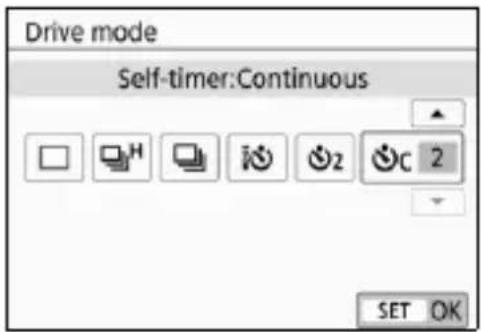
1 Press the <◀> button.
[Drive mode] will appear.
Select the self-timer.
- Press the <> <> keys to select the self-timer, then press <> .
: 10-sec. self-timer
The remote controller can also be used.
2 : 2-sec. self-timer
: 10-sec. self-timer plus continuous shots
Press the < > < > keys to set the number of multiple shots (2 to 10) to be taken with the self-timer.
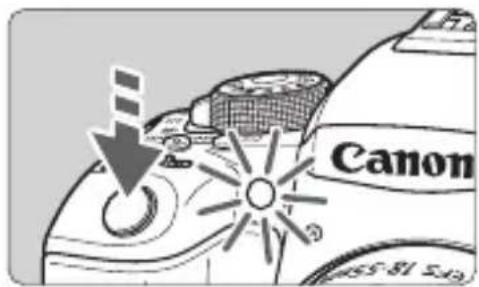
3 Take the picture.
- Look through the viewfinder, focus on the subject, then press the shutter button completely.
You can check the self-timer operation with the self-timer lamp, beeper, and countdown display (in seconds) on the LCD monitor.
2 sec. before the picture is taken, the self-timer lamp will light up and the beeper will sound faster.
4
Image Settings
This chapter describes image-related function settings: Image-recording quality, ISO speed, Picture Style, white balance, Auto Lighting Optimizer, noise reduction, anti-flicker shooting, and other functions.
- The ☆ icon at the upper right of the page title indicates that the function is available only in Creative Zone modes (p.25).
MENU Setting the Image-Recording Quality
You can select the pixel count and its image quality. Nine image-recording quality settings are provided: ▲L, ▲L, ▲M, ▲M, ▲S1, ▲S1, S2, RAW + ▲L, RAW.
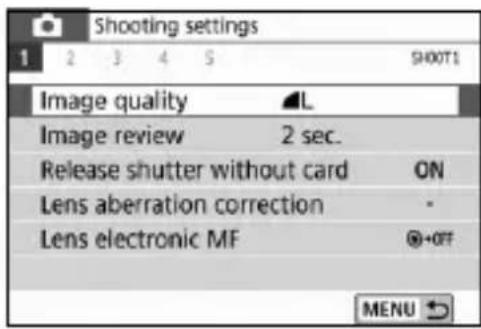
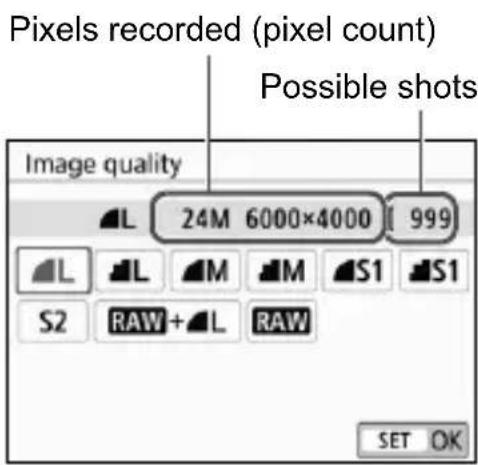
1 Select the image-recording quality.
- Under the [1] tab, select [Image quality], then press
.
▶ [Image quality] will appear.
Set the image-recording quality.
- The respective quality's pixel count and number of possible shots will be displayed to help you select the desired quality. Then press < SET> .
Guide to Image-recording Quality Settings (Approx.)
| Image Quality | Pixels Recorded | File Size (MB) | Possible Shots | Maximum Burst | |||
| L | High quality.9 1840 Full (Full) | 24M | 7.6 950 | 190 (Full) | |||
| L3 | |||||||
| M | Medium quality.0 3480 Full (EGL) | 11M | 4.1 1790 | Full (Full) | |||
| M2 | |||||||
| S1 | Low quality.3 5260 Full (Full) | 5.9M | 2.6 2730 | Full (Full) | |||
| S11 | |||||||
| S2 3.8 | M 1.8 3810 Full (Full) | ||||||
| RAW + L | High quality.10 21(27) | 24M | 29.4+7.6 170 19 (23) | ||||
| RAW 29.4 2 | |||||||
* The file size, possible shots, and maximum burst are based on Canon's testing standards (3:2 aspect ratio, ISO 100 and Standard Picture Style) using an 8 GB card. These figures will vary depending on the subject, card brand, aspect ratio, ISO speed, Picture Style, Custom Functions, and other settings.
* Figures in parentheses for the maximum burst apply to < H> high-speed continuous shooting. Figures in parentheses apply to an UHS-I class 16 GB card based on Canon's testing standards.
- “Full” indicates that shooting is possible until the card becomes full with the listed conditions.
ISO : Setting the ISO Speed for Still Photos ^☆
Set the ISO speed (image sensor's sensitivity to light) to suit the ambient light level. In Basic Zone modes, the ISO speed is set automatically.
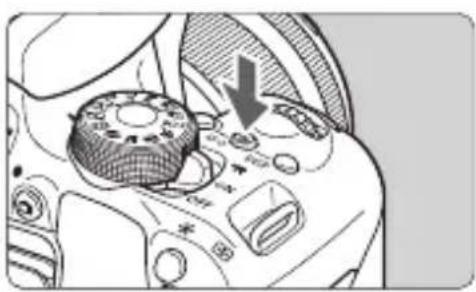
natural_image
Mechanical component diagram showing a gear-like component with a downward arrow indicating motion (no text or symbols present)1 Press the <|ISO> button (💡6).
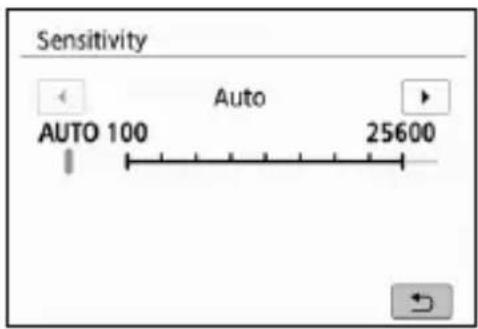
Set the ISO speed.
- While looking in the viewfinder or at the LCD monitor, press the <> <> keys or turn the <扇 > dial to select the desired ISO speed, then press <SET> .
- ISO speed can be set within ISO 100 - ISO 25600.
- With [AUTO] selected, the ISO speed will be set automatically.
- When setting under [2: ISO speed] (shown on the left), you can press the
button to set the ISO speed to [AUTO].
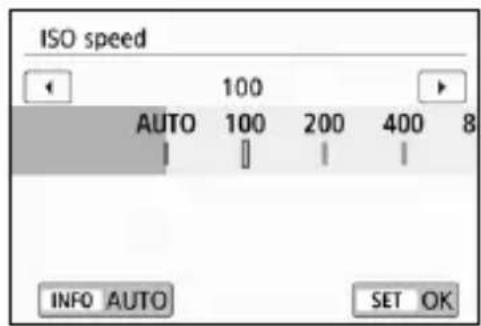
ISO Speed Guide
| ISO Speed | Shooting Situation (No flash) | Flash Range |
| ISO 100 - ISO 400 Sunny outdoors | The higher the ISO speed, the farther the effective flash range will be (p.125). | |
| ISO 400 - ISO 1600 | Overcast skies or evening time | |
| ISO 1600 - ISO 25600, H | Dark indoors or night | |
* High ISO speeds will result in grainier images.
Selecting a Picture Style ^*
Just by selecting a preset Picture Style, you can obtain image characteristics effectively matching your photographic expression or the subject.
![Brighter ONE SHOT Method of focusing [ 514 ]](/content/2026/03/434806/images/a465452ea8ff92f071edd7b1e709a2169a44ec5984047bf30f74db41cdffcdc2.jpg)
1 Press the <▼> button.
The Picture Style selection screen will appear.
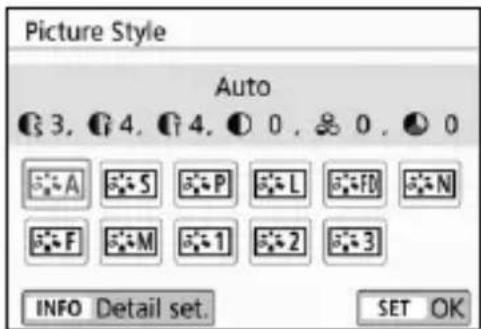
2 Select a Picture Style.
- Select a Picture Style, then press < SET> .
The Picture Style will be set.

You can also set the Picture Style with [3: Picture Style].
Picture Style Characteristics

Auto
The color tone will be adjusted automatically to suit the scene. The colors will look vivid for blue skies, greenery and sunsets, particularly in nature, outdoor and sunset scenes.

If the desired color tone is not obtained with [Auto], use another Picture Style.

Standard
The image looks vivid, sharp, and crisp. This is a general-purpose Picture Style suitable for most scenes.

Portrait
For nice skin tones. The image looks softer. Suited for close-up portraits.
By changing the [Color tone], you can adjust the skin tone.

Landscape
For vivid blues and greens, and very sharp and crisp images.
Effective for impressive landscapes.

Fine Detail
Suited for detailed outline and fine texture description of the subject.
The colors will be slightly vivid.

Neutral
Geared for users who prefer to process images with their computer.
For natural colors and subdued images with modest brightness and color saturation.

Faithful
Geared for users who prefer to process images with their computer.
The color of a subject that is captured in ambient light at a color temperature of 5200K will be adjusted to match the subject's colorimetrical color. For subdued images with modest brightness and color saturation.

Monochrome
Creates black-and-white images.

User Defined 1-3
You can register a basic style such as [Portrait], [Landscape], a Picture Style file, etc. and adjust it as desired. Any User Defined Picture Style that has not been set will have the same default settings as the [Auto] Picture Style.
WB: Matching the Light Source ^☆
White balance (WB) is for making the white areas look white. Normally, the Auto [AWB] (Ambience priority) or [AWB w] (White priority) setting will obtain the correct white balance. If natural-looking colors cannot be obtained with Auto, you can select the white balance to match the light source or set it manually by shooting a white object.
In Basic Zone modes, [AWB] (Ambience priority) is set automatically. (In the <¶> mode, [AWB w] (White priority) is set.)
![Brighter ONE SHOT Method of focusing [ 514 ]](/content/2026/03/434806/images/52cc79013bba5376473c4c0974bad6a0b591b29c7bfe65c98c57b504b7ebf7a5.jpg)
1 Press the <▲ WB> button.
[White balance] will appear.
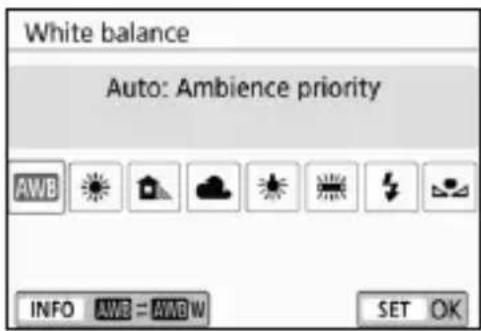
Select a white balance setting.
- Select the desired setting, then press < SET> .
- The “Approx. ****K” (K: Kelvin) displayed for the white balance settings <>, <>, <>, <> or <> is the respective color temperature to be set.

You can also set with [☐3: White balance].
White Balance
To the human eye, a white object looks white regardless of the type of lighting. With a digital camera, the white for color correction basis is decided depending on the color temperature of the illumination, and then the color is adjusted with software to make the white areas look white. With this function, pictures with natural color tones can be taken.
MENU Auto Correction of Brightness and Contrast ☆
If the image comes out dark or the contrast is low, the brightness and contrast can be corrected automatically. This function is called Auto Lighting Optimizer. The default setting is [Standard]. With JPEG images, the correction is applied when the image is captured. In Basic Zone modes, [Standard] is set automatically.
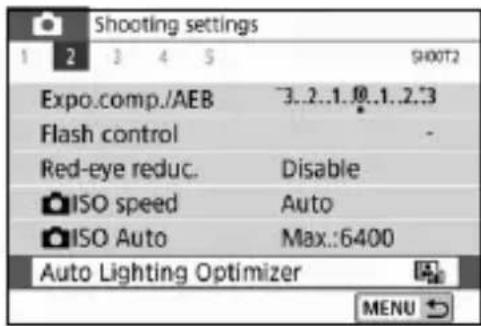
1 Select [Auto Lighting Optimizer].
- Under the [☐2] tab, select [Auto Lighting Optimizer], then press
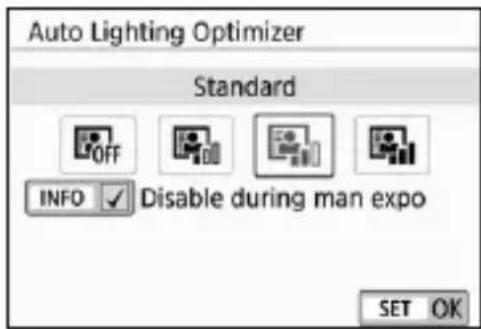
2 Select the setting.
- Select the desired setting, then press < SET> .
3 Take the picture.
- The image will be recorded with the brightness and contrast corrected as necessary.
MENU Setting Noise Reduction ^*
High ISO Speed Noise Reduction
This function reduces the noise generated in the image. Although noise reduction is applied at all ISO speeds, it is particularly effective at high ISO speeds. When shooting at low ISO speeds, the noise in the darker parts of the image (shadow areas) can further be reduced. Change the setting to match the noise level.
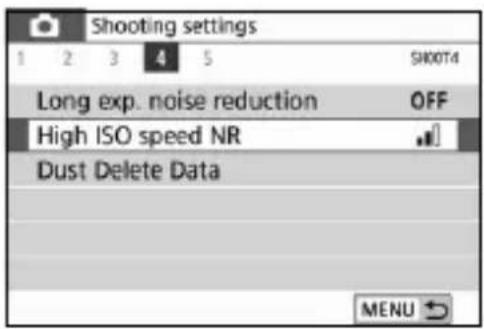
1 Select [High ISO speed NR].
- Under the [4] tab, select [High ISO speed NR], then press
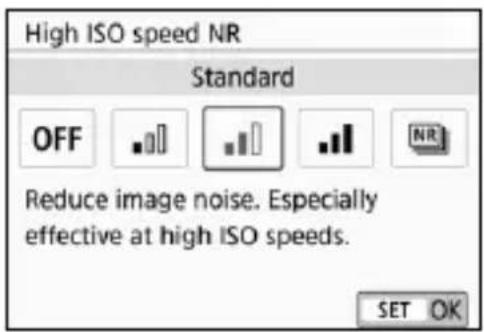
2 Set the level.
- Select the desired noise reduction level, then press < SET> .
[NR] : Multi Shot Noise Reduction]
Applies the noise reduction with higher image quality than [High]. For a single photo, four shots are taken continuously and aligned and merged automatically into a single JPEG image.
If the image-recording quality is set to RAW or RAW + L, you cannot set [Multi Shot Noise Reduction].
3 Take the picture.
- The image will be recorded with noise reduction applied.
Long Exposure Noise Reduction
Noise reduction is possible with images exposed for 1 sec. or longer.
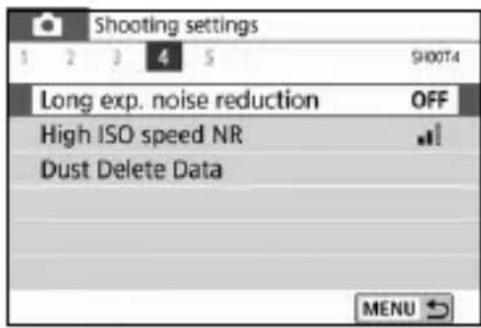
1 Select [Long exp. noise reduction].
- Under the [4] tab, select [Long exp. noise reduction], then press
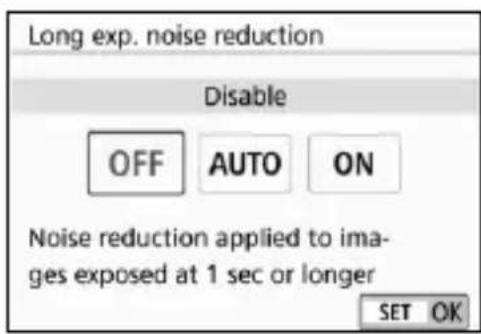
Set the desired setting.
- Select the desired setting, then press < SET> .
[Auto]
For exposures of 1 sec. or longer, noise reduction is performed automatically if noise typical of long exposures is detected. This [Auto] setting is effective enough in most cases.
[Enable]
Noise reduction is performed for all exposures of 1 sec. or longer. The [Enable] setting may reduce noise that cannot be detected with the [Auto] setting.
3 Take the picture.
- The image will be recorded with noise reduction applied.
MENU Reducing Flicker ^
If you shoot an image with a fast shutter speed under a light source such as fluorescent light, the blinking of the light source causes flicker and the image may be vertically unevenly exposed. If continuous shooting is used under these conditions, uneven exposures or colors across the images may result. When you use this feature during viewfinder shooting, the camera detects the flickering frequency of the light source and takes the picture when the flicker causes less effect on exposure or color tone.

1 Select [Anti-flicker shoot.].
- Under the [5] tab, select [Anti-flicker shoot.], then press
![Anti-flicker shoot. Disable Enable If [Enable] is set, the shutter release time lag may become longer or continuous shooting speed may become slower SET OK](/content/2026/03/434806/images/322988bc3caae8da8195b112ded28dfa132b279de51aea068df1295d415e00bd.jpg)
Select [Enable].
3 Take the picture.
- The picture will be taken with reduced unevenness of exposure or color tone caused by the flicker.
5
Advanced Operations for Photographic Effects
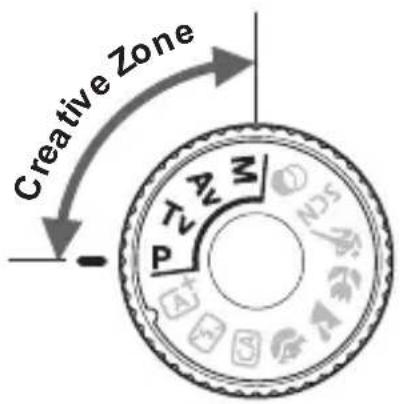
In Creative Zone modes, you can change various settings of the camera as you desire to obtain a wide variety of shooting results, by selecting the shutter speed and/or aperture, adjusting the exposure as you prefer, etc.
- The ☆ icon at the upper right of the page title indicates that the function is available only in Creative Zone modes.
- After you press the shutter button halfway and let it go, the exposure settings will remain displayed in the viewfinder for approx. 4 sec. (💡4) by the metering timer function.

Main Dial Pointer

The pointer icon <▶> displayed together with the shutter speed or aperture setting indicates that you can turn the <▶> dial to adjust the respective setting.
P: Program AE
The camera automatically sets the shutter speed and aperture to suit the subject's brightness. This is called Program AE.
* < P> stands for Program.
* AE stands for Auto Exposure.
1 Set the Mode Dial to
.
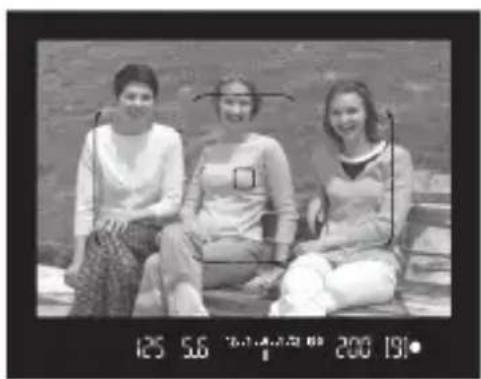
natural_image
Black-and-white photo of three women sitting on a bench, no visible text or symbolsFocus on the subject.
- Look through the viewfinder and aim the AF point over the subject. Then press the shutter button halfway.
When focus is achieved, the focus indicator <> on the viewfinder's bottom right will light up (in One-Shot AF mode).
The shutter speed and aperture will be set automatically and displayed in the viewfinder.

3 Check the display.
- The standard exposure will be obtained as long as the shutter speed and aperture displays do not blink.
4 Take the picture.
- Compose the shot and press the shutter button completely.

If a description of the shooting mode appears in step 1, press < SET> to hide it (p.49).
Tv: Conveying the Subject's Movement
You can either freeze the action or create motion blur with the
* < Tv> stands for Time value.
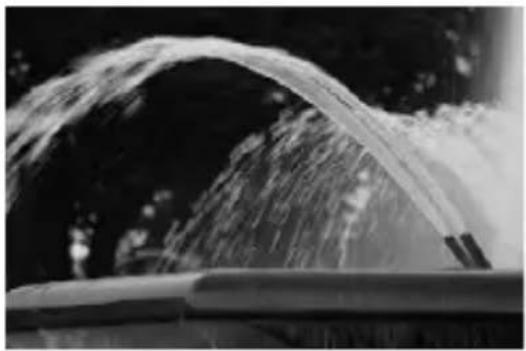
natural_image
Black and white photo of a fountain spraying water, creating a curved arc (no text or symbols visible)Blurred motion (Slow shutter speed: 1/30 sec.)
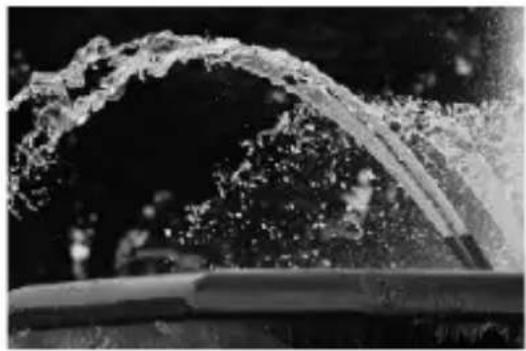
natural_image
Black and white photo of a fountain spraying water, creating splashes (no text or symbols visible)Frozen motion (Fast shutter speed: 1/2000 sec.)
1 Set the Mode Dial to .
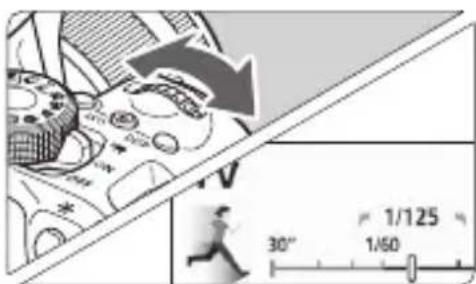
Set the desired shutter speed.
- Turning the < img src=""> dial clockwise sets a faster shutter speed, and turning it counterclockwise sets a slower one.

3 Take the picture.
- When you focus and press the shutter button completely, the picture will be taken at the set shutter speed.
Av: Changing the Depth of Field
To blur the background or to make everything near and far look sharp, set the Mode Dial to
*
natural_image
Close-up of playing cards and a wooden horse, no visible text or symbolsBlurred background (With a low aperture f/number: f/5.6)
natural_image
Black-and-white photo of playing cards and a clover on a checkered background (no text or symbols visible)Sharp foreground and background (With a high aperture f/number: f/32)
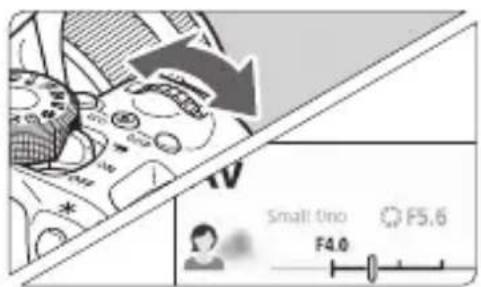
1 Set the Mode Dial to .
Set the desired aperture.
- The higher the f/number, the wider the depth of field where sharper focus is obtained in both the foreground and background.
- Turning the <â> dial clockwise sets a higher f/number (smaller aperture opening), and turning it counterclockwise sets a lower f/ number (larger aperture opening).

3 Take the picture.
- When you focus and press the shutter button completely, the picture will be taken with the set aperture.
M: Manual Exposure
You can set both the shutter speed and aperture manually as desired. While referring to the exposure level indicator in the viewfinder, you can set the exposure as desired. This method is called manual exposure.
* < M> stands for Manual.
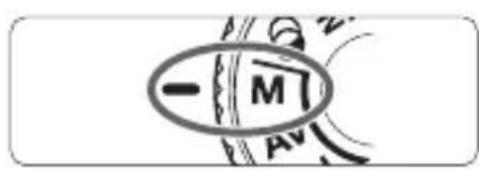
1 Set the Mode Dial to
2 Set the ISO speed (p.108).