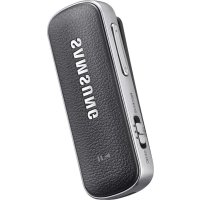
EORG920B - Headphones SAMSUNG - Free user manual and instructions
Find the device manual for free EORG920B SAMSUNG in PDF.



| Product type | Bluetooth audio headset (Level Link) |
| Brand | Samsung |
| Model | EO-RG920 / EORG920B |
| Power source | Rechargeable battery via USB cable (charger not included) |
| Operating modes | Reception (Bluetooth headset) and Transmission (Bluetooth transmitter) |
| Main functions | Music playback/control, hands-free calls, S Voice, volume control, fast forward/rewind |
| Bluetooth connectivity | Bluetooth 2.4 GHz version, range up to 10 meters, simultaneous connection up to 2 devices |
| Buttons and controls | Mode/Power switch, Multifunction/Call button, Volume button, REW/FF buttons |
| Indicator light | Multicolor LED (red, green, blue) for battery and connection status |
| Box contents | Level Link device, earphones, USB cable, audio cable, quick start guide |
| Maintenance and cleaning | Clean with a soft, dry cloth; avoid moisture |
| Safety | Do not use on airplanes/in hospitals; keep earphones away from neck to avoid risk of strangulation |
| Repairability | Battery not user-removable; contact a Samsung service center for replacement |
Frequently Asked Questions - EORG920B SAMSUNG
User questions about EORG920B SAMSUNG
0 question about this device. Answer the ones you know or ask your own.
Ask a new question about this device
Download the instructions for your Headphones in PDF format for free! Find your manual EORG920B - SAMSUNG and take your electronic device back in hand. On this page are published all the documents necessary for the use of your device. EORG920B by SAMSUNG.
USER MANUAL EORG920B SAMSUNG
Please read this manual before using the device to ensure safe and proper use.
Descriptions are based on the device's default settings.
Images may differ in appearance from the actual product. Content is subject to change without prior notice.
Instructional icons

Warning: situations that could cause injury to yourself or others

Caution: situations that could cause damage to your device or other equipment

Note: notes, usage tips, or additional information
Getting started
About Level Link
The Level Link supports receiving mode and sending mode. In receiving mode, you can connect earphones to the Level Link and use it as a Bluetooth headset for Bluetooth-enabled devices, such as smartphones or tablets. In sending mode, you can use the device as a dongle that connects to computers, TVs, Bluetooth headsets, and more.
In receiving mode, you can use the following features:
Launching S Voice
Receiving or ending calls
Controlling multimedia files
In sending mode, you can play sound of the connected multimedia device.
Package contents
Check the product box for the following items:
Device
Earphones
USB cable
Audio cable
Quick start guide

The items supplied with the device and any available accessories may vary depending on the region or service provider.
The supplied items are designed only for this device and may not be compatible with other devices.
Appearances and specifications are subject to change without prior notice.
You can purchase additional accessories from your local Samsung retailer. Make sure they are compatible with the device before purchase.
Use only Samsung-approved accessories. Using unapproved accessories may cause the performance problems and malfunctions that are not covered by the warranty.
Availability of all accessories is subject to change depending entirely on manufacturing companies. For more information about available accessories, refer to the Samsung website.
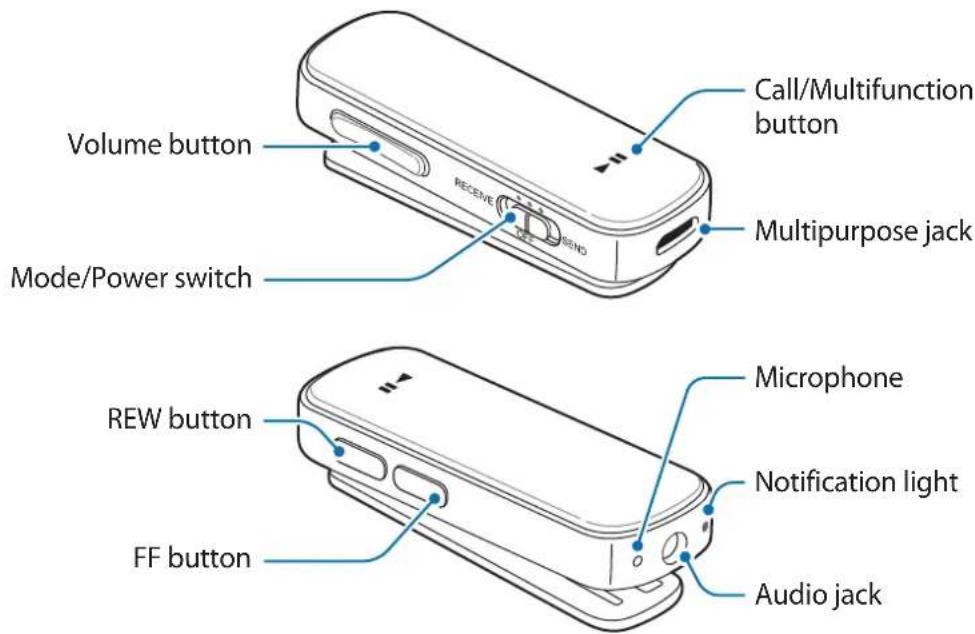
Device layout
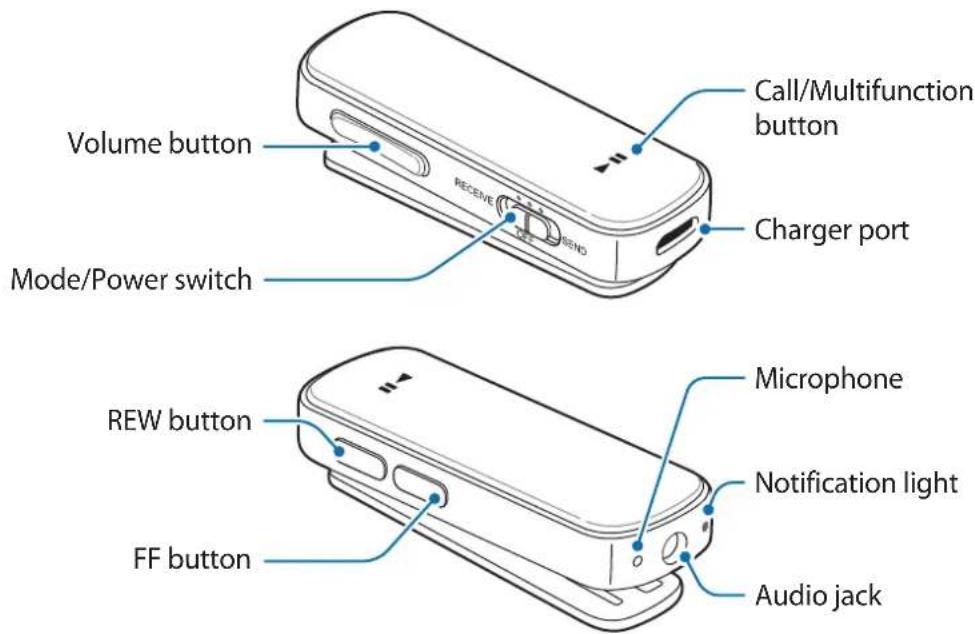
Buttons and functions
| Name Function | |
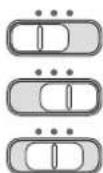
| Mode/Power switch | Slide left to activate receiving mode and slide right to activate sending mode.Slide to OFF to turn off the device. |
| Call/Multifunction button | In receiving mode, press and hold for 1 second to launch S Voice.In receiving mode, press to answer or end a call.In receiving mode, press and hold to reject a call.In receiving mode, press and hold to transfer calls from the Level Link to your other device, or vice versa.In receiving mode, press to play or stop multimedia files.In receiving mode or sending mode, press and hold for 3 seconds to enter Bluetooth pairing mode. |
| Volume button | In receiving mode, press to adjust the volume during a call.In receiving mode, press to adjust the volume while playing multimedia files. |
| REW button / FF buttons | In receiving mode, press to play the previous or next multimedia file during playback.In receiving mode, press and hold to rewind or fast forward a multimedia file during playback. |
Status indicator
| Status Colour | |
| Bluetooth pairing mode | Flashing red, green, and blue |
| Power on or activate modes | Flashing blue 3 times |
| Power off | Flashing red 3 times |
| Incoming call | Flashing blue |
Charging the battery
Charge the battery before using the Level Link for the first time or when the Level Link has been unused for extended periods.

Use only Samsung-approved chargers, batteries, and cables. Unapproved chargers or cables can cause the battery to explode or damage the headset.

If the battery is completely discharged, the headset cannot be turned on immediately when the charger is connected. Allow a depleted battery to charge for a few minutes before turning on the headset.
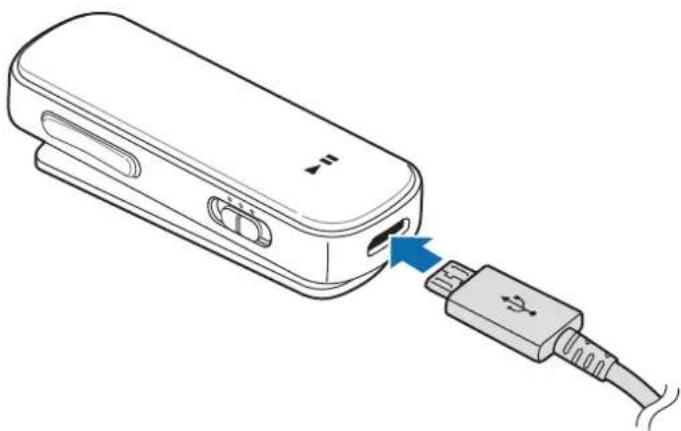
Connect the device to a computer or the USB power adaptor via the USB cable.
natural_image
Line drawing of a USB connector with a blue arrow pointing to the cable (no text or symbols present)
Connecting the charger improperly may cause serious damage to the device. Any damage caused by misuse is not covered by the warranty.

The device can be used while it is charging, but it may take longer to fully charge the battery.
While charging, the device may heat up. This is normal and should not affect the device's lifespan or performance. If the battery gets hotter than usual, the charger may stop charging.
If the device is not charging properly, take the device and the charger to a Samsung Service Centre.
After fully charging, disconnect the device from the charger. First unplug the charger from the device, and then unplug it from the electric socket.

To save energy, unplug the charger when not in use. The charger does not have a power switch, so you must unplug the charger from the electric socket when not in use to avoid wasting power. The charger should remain close to the electric socket and easily accessible while charging.
Checking the battery level
Simultaneously press and hold the Volume up button and the Multifunction button for 1 second. The notification light flashes three times in different colours according to the charging status.
| Status Colour | |
| Less than 30% | Red |
| 30-60% | Yellow |
| More than 60% | Green |
Wearing the device and earphones
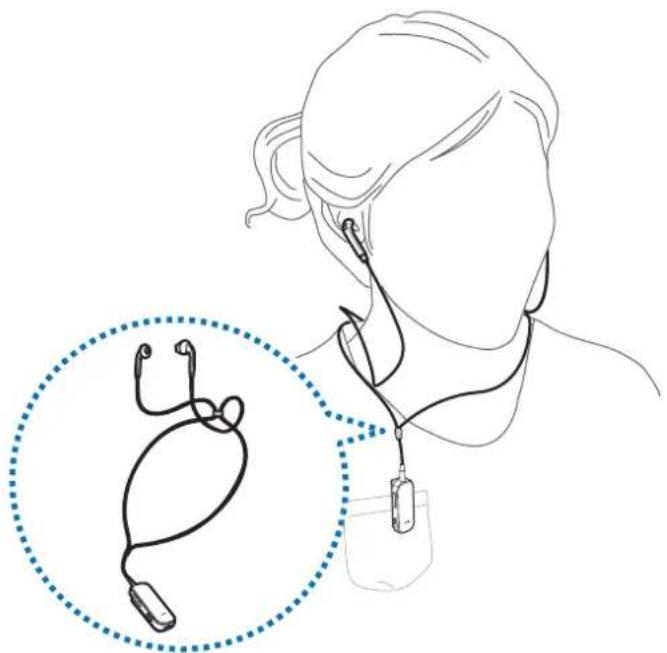
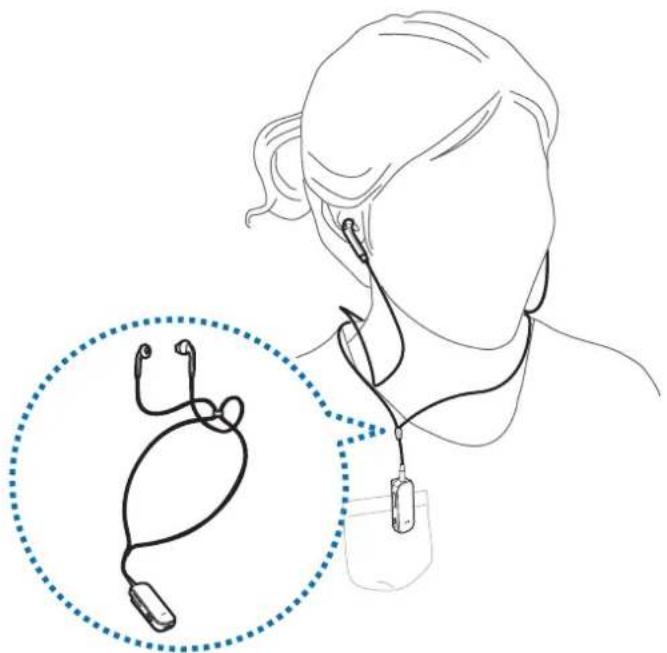
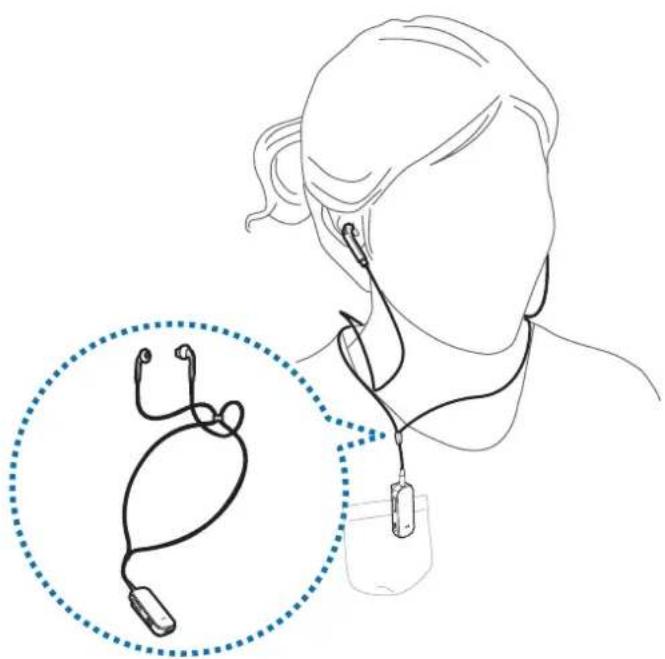
Connect the supplied earphones to the Level Link and wear them around your neck.
1 Plug the earphones into the audio jack of the Level Link.
2 Adjust the earphone clip form a loop large enough to fit your head through.
3 Clip the Level Link on your clothes.
4 Wear the earphones around your neck and plug in the earbuds.
natural_image
Line drawing of a person wearing earphones and holding a medical device, with an inset showing a stethoscope (no text or symbols)
Use caution when using this device with wired earphones. You may choke if the earphones wrap around your neck.
Turning the device on and off
: Activate receiving mode.
: Activate sending mode.
: Turn off the device.

Follow all posted warnings and directions from authorised personnel in areas where the use of wireless devices is restricted, such as aeroplanes and hospitals.
Using the device
Bluetooth
About Bluetooth
Bluetooth is a wireless technology standard that uses a 2.4 GHz frequency to connect to various devices over short distances. It can connect and exchange data with other Bluetooth enabled devices, such as mobile devices, computers, printers, and other digital home appliances, without connecting via cables.
Notices for using Bluetooth
To avoid problems when connecting your device to another device, place the devices close to each other.
Ensure that your device and the other Bluetooth device are within the Bluetooth connection range (10 m). The distance may vary depending on the environment the devices are used in.
Ensure that there are no obstacles between the headset and a connected device, including human bodies, walls, corners, or fences.
Do not touch the Bluetooth antenna of a connected device.
Bluetooth uses the same frequency as some industrial, scientific, medical, and low power products and interference may occur when making connections near these types of products.
Some devices, especially those that are not tested or approved by the Bluetooth SIG, may be incompatible with the headset.
Do not use the Bluetooth feature for illegal purposes (for example, pirating copies of files or illegally tapping communications for commercial purposes).
Connecting to other devices

Sound quality and usage range between the Level Link and connected audio devices may vary depending on the Bluetooth-enabled audio devices.
Connecting in receiving mode
You can receive incoming calls or listen to music when your Level Link is connected to Bluetooth-enabled devices. When you turn on the Level Link for the first time, it enters Bluetooth pairing mode.

When pairing the Level Link with other devices via Bluetooth for the first time, the Level Link automatically connects to the paired devices. If the Level Link fails to connect, it enters Bluetooth pairing mode.
The Level Link can store device information for up to eight devices. If the Level Link has been connected to more than one device, it connects to the most recently paired device.
1 Level Link Slide the Mode switch to the left to activate receiving mode.
2 Level Link Press and hold the Multifunction button for about 3 seconds to enter Bluetooth pairing mode.
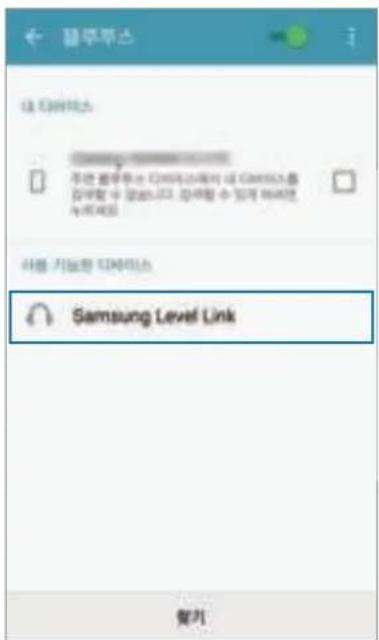
3 Other device Activate the Bluetooth feature and search for Bluetooth devices.
For more information, refer to the other device's user manual.
4 Other device Tap Samsung Level Link from the list.
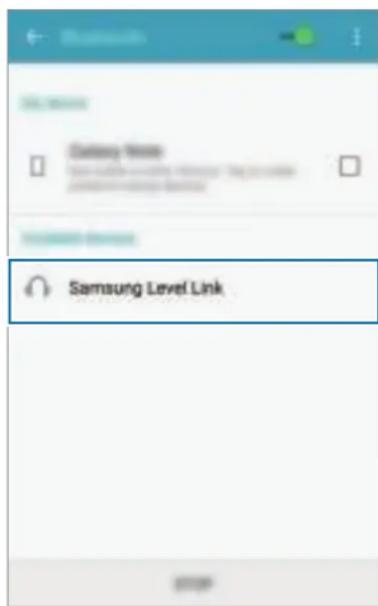
5 Level Link Connect the earphones to the Level Link.
Or, connect the Level Link to the auxiliary input jack of an audio output device via an audio cable.

In this mode, if you connect the Level Link via an audio cable to a TV or computer's audio output jack, your Level Link may be damaged.
Connecting in sending mode
Connect your device to a multimedia player, via the audio cable. You can listen to multimedia files via another audio device, such as a Bluetooth headset. When you turn on the Level Link for the first time, it enters Bluetooth pairing mode.

When pairing the Level Link with other devices via Bluetooth for the first time, the Level Link automatically connects to the paired devices. If the Level Link fails to connect, it enters Bluetooth pairing mode.
The Level Link can store device information for up to eight devices. If the Level Link has been connected to more than one device, it connects to the most recently paired device.
1 Level Link Slide the Mode switch to the right to activate sending mode.
2 Level Link Press and hold the Multifunction button for about 3 seconds to enter Bluetooth pairing mode.
3 Level Link Place your Level Link within 30 cm of the paired audio device.
The Level Link and the audio device are now connected via Bluetooth. If the connection fails, turn off the audio device and turn it on again. Then, repeat the steps above.
4 Plug the audio cable into the audio jack of the Level Link. Then, plug the other end of the audio cable into the audio output jack of the multimedia player.

The method for connecting via Bluetooth may vary depending on the connected devices. For more information, refer to the user manual of the connected device.
When the Level Link is connected to a TV in sending mode, lipsync problems may occur. It is recommended to connect the Level Link to a TV that supports the aptX low-latency codec.
When using the Level Link with a multimedia player, turn down the multimedia player's volume before unplugging the audio cable to prevent sudden, loud sounds.
You may experience drops in volume or noise depending on the connected multimedia player's volume. To avoid this, appropriately adjust the multimedia player's sound.
Connecting additional devices
In receiving mode or sending mode, your Level Link can connect to up to two devices via Bluetooth.
1 In receiving mode or in sending mode, connect your Level Link to the first device.
2 Connect the Level Link to a second device via Bluetooth using the connection method used for the first device.

In receiving mode, if the Level Link does not appear in the detected devices list, press and hold the Multifunction button for about 3 seconds to enter Bluetooth pairing mode.
In sending mode, the Level Link supports the aptX low-latency codec when it is connected to one audio device. If two audio devices are simultaneously connected to the Level Link, the aptX codec is not supported and video and audio output may not be synchronised.
In sending mode, the usage range between the Level Link and other devices may be reduced.
Reconnecting or disconnecting from other devices
Reconnecting the devices
When your Level Link is disconnected from the audio device due to the distance between the devices, bring the devices closer together and press the Multifunction button to pair them again. Or, you can use the Bluetooth menu on the audio device to pair the devices.
Disconnecting the devices
To disconnect the Level Link from the audio device, turn off your device or unpair the devices. If you connected the two devices via an audio cable, unplug the cable from both devices.
Using receiving and sending modes
In receiving mode, you can launch S Voice, answer incoming calls, or play multimedia files. In this mode, use your Level Link with earphones, or connect the Level Link to an audio device via an audio cable.
In sending mode, you can listen to audio from the multimedia player via the connected audio device.

Available features may vary depending on the device you connect to. Some features may not be available if the Level Link is simultaneously connected to two devices.
Some features are available only when the Level Link connects to a device via the Hands-Free Profile (HFP).
The microphone's location varies depending on how you are wearing the Level Link. The position of the Level Link may affect to sound quality during calls.
Launching S Voice
Press the Multifunction button for 1 second. If the connected device support S Voice, you can use the app via the Level Link.
Answering and rejecting calls
Answering a call
Press the Call button to answer calls made to the connected device.
Rejecting a call
Press and hold the Call button to reject calls made to the connected device.
Using options during a call
Adjusting the volume
During a call, press the Volume button to adjust the volume.
Switching sound output
Press and hold the Call button to transfer calls from the Level Link to the connected device. This feature may not be available depending on the connected device.
Ending a call
Press the Call button to end a call.
Playing multimedia files
Play multimedia files in receiving or sending mode. Available features may vary depending on the mode being used.
Playing and stopping a multimedia file
Press the Multifunction button to play the most recent multimedia file on the connected device.
Press the Multifunction button to pause playback. To resume playback, press the Multifunction button again.
Skipping to the previous or next multimedia file
Press the REW button or the FF button to skip to the previous or the next file during playback.
Rewinding or fast forwarding the multimedia file
Press and hold the REW button or FF button to rewind or fast forward the file during playback.
Adjusting the volume
Press the Volume button to adjust the volume.

When the Level Link is connected to two devices, you can play multimedia files from either device. To play a multimedia file from a different device, pause playback from the other device first.
When you play a multimedia file from one device, you can still answer calls from the other device.
If there are differences in the output power of the audio cable and the connected audio device in sending mode, the sound volume on the Level Link may vary.
Performing a data reset
When your Level Link is connected to a device via Bluetooth, the Level Link's information, such as Bluetooth address and device type, is stored on the connected device. To delete the Level Link's connection information, press and hold the Multifunction button for about 3 seconds to enter Bluetooth pairing mode. Then, press and hold the REW, FF, and Multifunction buttons simultaneously for 3 seconds.
Appendix
Troubleshooting
Before contacting a Samsung Service Centre, please attempt the following solutions. Some situations may not apply to your device.
Your device does not turn on
When the battery is completely discharged, your device will not turn on. Charge the battery completely before turning on the device.
The battery does not charge properly (For Samsung-approved chargers)
Ensure that the charger is connected properly.
Visit a Samsung Service Centre and have the battery replaced.
Another Bluetooth device cannot locate your device
Ensure that your device is in Bluetooth pairing mode.
Reset the device and search for Bluetooth devices.
Ensure that your device and the other Bluetooth device are within the Bluetooth connection range (10 m).
If the tips above do not solve the problem, contact a Samsung Service Centre.
Another Bluetooth device is not located
Ensure that the device you wish to connect with supports the Bluetooth wireless feature.
Ensure that your device and the other Bluetooth device are within the maximum Bluetooth range (10 m).
Bluetooth connect is often disconnected
If there are obstacles between the devices, the operating distance may be reduced.
Ensure that your device and the other Bluetooth device are within the maximum Bluetooth range (10 m).
When using the device with other Bluetooth devices, the connection may be affected by electromagnetic waves. Use the device in environments with fewer wireless devices present.
You cannot hear others speaking
Adjust the device volume.
Adjust the volume on the connected device when you cannot hear sounds on your device at full volume.
Sound echoes during a call
Adjust the volume by pressing the Volume button or move to another area.
Others cannot hear you speaking on a call
Ensure that you are not covering the built-in microphone.
Ensure that the microphone is close to your mouth.
Audio quality is poor
Wireless network services may be disabled due to issues with the service provider's network. Ensure to keep the device away from electromagnetic waves.
Ensure that your device and the other Bluetooth device are within the maximum Bluetooth range (10 m).
The device works differently as described in the manual
Available functions may differ depending on the connected device.
Some features cannot be used when two devices are connected with the device at the same time.
The battery depletes faster than when first purchased
When you expose the device or the battery to very cold or very hot temperatures, the useful charge may be reduced.
The battery is consumable and the useful charge will get shorter over time.
Removing the battery (non-removable type)

These instructions are only for your service provider or an authorised repair agent.
Damage or faults caused by the unauthorised removal of the battery are not covered by the warranty.
To remove or replace the battery, contact your service provider or an authorised repair agent.
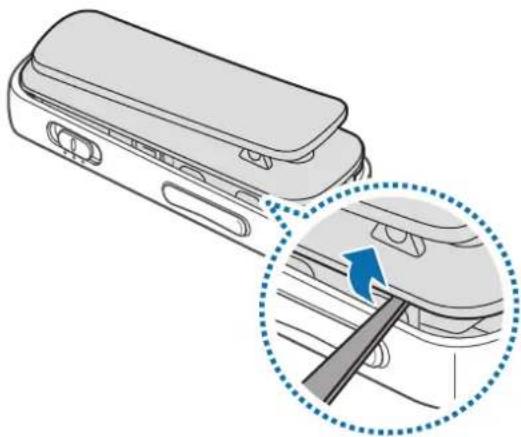
1 Insert a thin, flat tool into the gap between the cover and the device's body. Then, use the tool to pry them apart as shown in the image below.
natural_image
Diagram of a car door handle with a magnified inset showing a tool interacting with the handle (no text or symbols present)
Take care when inserting the tool to avoid damaging the device's internal components.
2 When the cover is separated, put it aside.
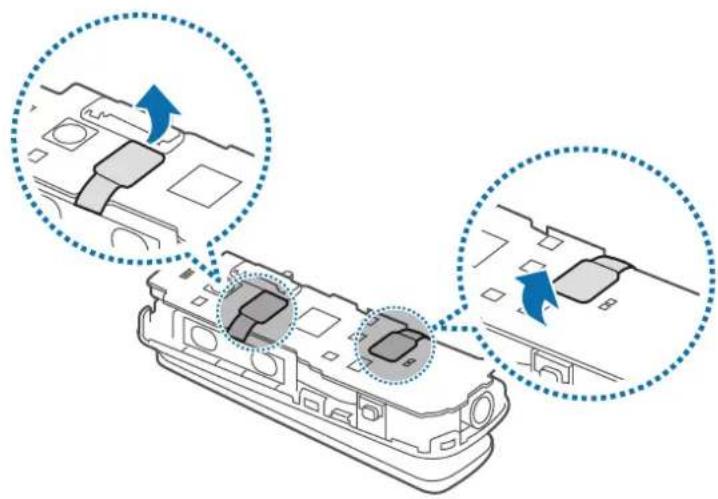
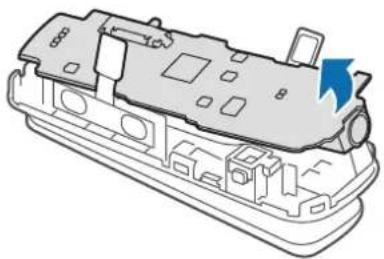
3 Disconnect the battery connectors.
natural_image
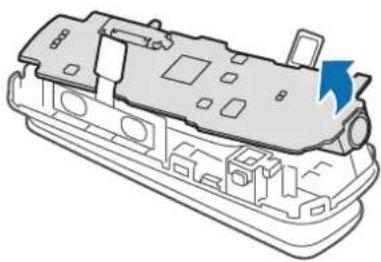
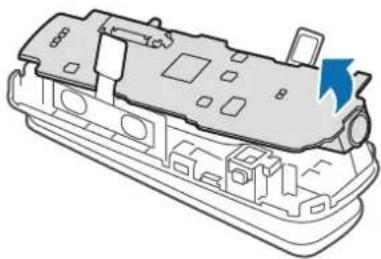
Diagram showing two views of a mechanical component with blue arrows indicating direction (no text or symbols present)4 Remove the circuit board by detaching it from the device's body and place it face down on a flat surface.
natural_image
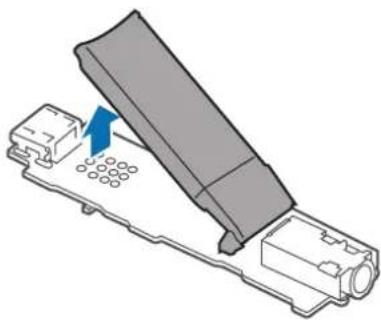
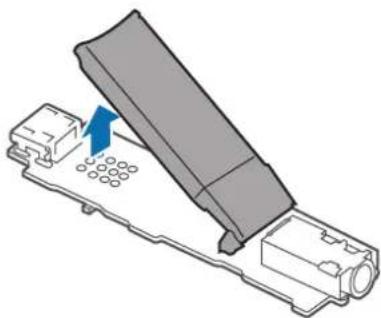
Technical illustration of a mechanical component with no visible text or symbols5 Press down on the charging port and pull the battery upwards to free it from the circuit board.
natural_image
3D diagram of a device component with a blue arrow indicating a specific part (no text or symbols present)Appendix
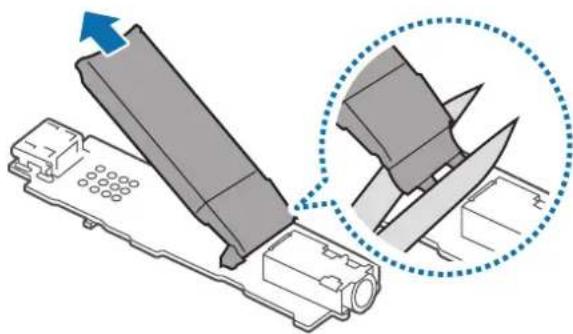
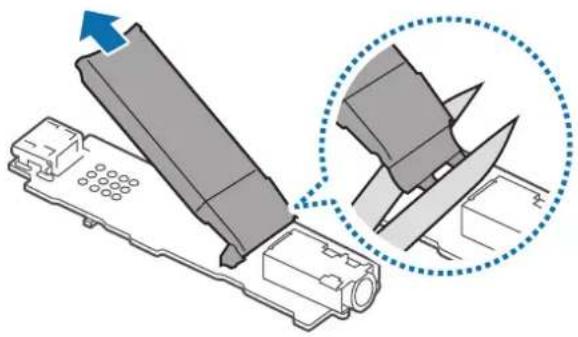
6 Pull the battery away from the circuit board and cut the connections where shown in the image below.
natural_image
Diagram showing a device with a handle and a close-up of its blade assembly (no text or symbols present)7 Remove the battery.
Copyright
Copyright © 2015 Samsung Electronics
This manual is protected under international copyright laws.
No part of this manual may be reproduced, distributed, translated, or transmitted in any form or by any means, electronic or mechanical, including photocopying, recording, or storing in any information storage and retrieval system, without the prior written permission of Samsung Electronics.
Trademarks
SAMSUNG and the SAMSUNG logo are registered trademarks of Samsung Electronics.
Bluetooth ^® is a registered trademark of Bluetooth SIG, Inc. worldwide.
All other trademarks and copyrights are the property of their respective owners.
natural_image
Line drawing of a USB cable connector inserted into a device (no text or symbols)
natural_image
Line drawing of a person wearing earphones and holding a medical device, with an inset showing a stethoscope (no text or symbols)
natural_image
Diagram showing a car door handle with a magnified inset highlighting the lever mechanism (no text or symbols present)
natural_image
Diagram showing two views of a car engine compartment with blue arrows indicating movement or force (no text or symbols present)natural_image
Technical line drawing of a mechanical component with no visible text or symbolsnatural_image
3D diagram of a device with a blue arrow pointing to a component, showing internal structure without any text or symbols.natural_image
Diagram showing a device being processed with a magnified view of the blade assembly (no text or symbols present)7 Retirez la batterie.
Blackbushe Business Park
Saxony Way, Yateley, Hampshire
GU46 6GG, UK
Copyright © 2015 Samsung Electronics
natural_image
Line drawing of a USB device with a blue arrow pointing to its connector (no text or symbols present)
natural_image
Line drawing of a person wearing earphones and holding a medical device, with an inset showing a stethoscope (no text or symbols)
natural_image
Diagram of a car door handle with a magnified inset showing a tool interacting with the door (no text or symbols present)
natural_image
Diagram showing two views of a mechanical component with blue arrows indicating direction (no text or symbols present)natural_image
Technical line drawing of a mechanical component with no visible text or symbolsnatural_image
Diagram of a device with a blue arrow pointing to a component, showing internal structure without any text or symbols.Anhang
natural_image
Diagram showing a device being processed with a magnified view of the blade assembly (no text or symbols present)Blackbushe Business Park,
Saxony Way, Yateley, Hampshire,
GU46 6GG, UK
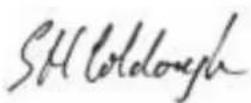
Copyright © 2015 Samsung Electronics
natural_image
Line drawing of a USB device with a blue arrow pointing to its connector (no text or symbols present)
natural_image
Line drawing of a person wearing earphones and holding a medical device, with an inset showing a stethoscope (no text or symbols)
natural_image
Diagram of a car door handle with a magnified inset showing a blue arrow indicating direction (no text or symbols present)
natural_image
Diagram showing two views of a device casing with internal components, no text or symbols presentnatural_image
Technical line drawing of a mechanical component with no visible text or symbolsnatural_image
Diagram of a device component with a blue arrow indicating a specific part (no text or symbols present)Appendice
natural_image
Diagram showing a device being processed with a magnified view of the blade assembly (no text or symbols present)Blackbushe Business Park
Saxony Way, Yateley, Hampshire
GU46 6GG, UK
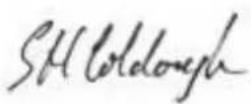
2015.01.27 Stephen Colclough / Rappresentante UE
Copyright © 2015 Samsung Electronics
natural_image
Line drawing of a USB device with a blue arrow pointing to its connector (no text or symbols present)
natural_image
Line drawing of a person wearing earphones and holding a medical device, with an inset showing a stethoscope (no text or symbols)
natural_image
Diagram of a car door handle with a magnified inset showing a blue arrow indicating direction (no text or symbols present)
natural_image
Diagram showing two views of a car engine compartment with blue arrows indicating motion or movement (no text or symbols present)natural_image
Technical line drawing of a mechanical component with no visible text or symbolsnatural_image
3D diagram of a device with a blue arrow pointing to a component, showing internal structure without any text or symbols.Apéndice
natural_image
Diagram showing a device being processed with a magnified view of the blade assembly (no text or symbols present)Blackbushe Business Park
Saxony Way, Yateley, Hampshire
GU46 6GG, UK
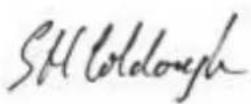
2015.01.27 Stephen Colclough / Representante UE
Copyright © 2015 Samsung Electronics
natural_image
Line drawing of a USB cable connector inserted into a device (no text or symbols)
natural_image
Line drawing of a person wearing earphones and holding a device, with an inset showing a stethoscope (no text or symbols)
natural_image
Diagram of a car door handle with a magnified inset showing the blade being inserted (no text or symbols present)
natural_image
Diagram showing two views of a car engine compartment with blue arrows indicating direction of movement (no text or symbols present)natural_image
Exploded view diagram of a mechanical component with no visible text or symbolsnatural_image
3D diagram of a device with a blue arrow pointing to a component, showing no text or symbols.natural_image
Diagram showing a device being processed with a magnified view of the blade assembly (no text or symbols present)Blackbushe Business Park,
Saxony Way, Yateley, Hampshire
GU46 6GG, UK
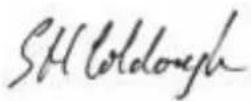
Copyright © 2015 Samsung Electronics
natural_image
Line drawing of a USB device with a blue arrow pointing to its internal port (no text or symbols present)
natural_image
Line drawing of a person wearing earphones and holding a device, with an inset showing a stethoscope (no text or symbols)
natural_image
Diagram of a car door handle with a magnified inset showing the lever mechanism (no text or symbols)
natural_image
Diagram showing two views of a car engine compartment with blue arrows indicating movement or force (no text or symbols present)natural_image
Technical line drawing of a mechanical component with no visible text or symbolsnatural_image
3D diagram of a device with a blue arrow pointing to a component, showing internal structure without any text or symbols.Dodatek
natural_image
Diagram showing a device being inserted into a housing, with an inset close-up highlighting the component (no text or symbols present)7 Wyjmij baterię.
Blackbushe Business Park
Saxony Way, Yateley, Hampshire
GU46 6GG, UK
Copyright © 2015 Samsung Electronics
natural_image
Line drawing of a USB device with a blue arrow pointing to its connector (no text or symbols present)
natural_image
Line drawing of a person wearing earphones and holding a medical device, with an inset showing a stethoscope (no text or symbols)
natural_image
Diagram of a car door handle with a magnified inset showing a blue arrow indicating direction (no text or symbols present)
natural_image
Diagram showing two views of a device casing with internal components, each marked with blue arrows indicating direction (no text or symbols present)natural_image
Technical line drawing of a mechanical component with no visible text or symbolsnatural_image
3D diagram of a device with a blue arrow pointing to a component, showing internal structure without any text or symbols.Anexă
natural_image
Diagram showing a device being processed with a magnified view of the blade assembly (no text or symbols present)7 Scoateți bateria.
Declaratie de conformitate
Datele produsului
Pentru următoarele
Produs: Cheie Bluetooth
Model: EO-RG920

Blackbushe Business Park
Saxony Way, Yateley, Hampshire
GU46 6GG, UK
2015.01.27 Stephen Colclough / Representant UE
natural_image
Line drawing of a USB device with a blue arrow pointing to its connector (no text or symbols present)
natural_image
Line drawing of a person wearing earphones and holding a medical device, with an inset showing a stethoscope (no text or symbols)
natural_image
Diagram of a car door handle with a magnified inset showing a blue arrow pointing to the handle (no text or symbols present)
natural_image
Diagram showing two views of a mechanical component with blue arrows indicating direction (no text or symbols present)natural_image
Technical line drawing of a mechanical component with no visible text or symbolsnatural_image
Diagram of a device component with a blue arrow indicating a specific part (no text or symbols present)natural_image
Diagram showing a device being processed with a magnified view of the blade assembly (no text or symbols present)Blackbushe Business Park
Saxony Way, Yateley, Hampshire
GU46 6GG, UK

2015.01.27 Stephen Colclough / Представител на EC
Copyright © 2015 Samsung Electronics
natural_image
Line drawing of a USB device with a cable inserted, showing port and cable connector (no text or symbols)
natural_image
Line drawing of a person wearing earphones and holding a medical device, with an inset showing a stethoscope (no text or symbols)
natural_image
Diagram of a car door handle with a magnified inset showing a tool interacting with the door (no text or symbols present)
Pri umetanju alata vodite računa da ne oštetite unutrašnje dijelove uređaja.
2 Kad ste odvojili poklopac odložite ga sa strane.
natural_image
Diagram showing two views of a device casing with internal components, no text or symbols present4 Odvojite tiskanu pločicu od kućišta uređaja, izvadite ju i položite licem prema dolje na ravnu površinu.
natural_image
Technical line drawing of a mechanical component with no visible text or symbolsnatural_image
3D diagram of a device with a blue arrow pointing to a component, showing internal structure without any text or symbols.Dodatak
natural_image
Diagram showing a device being processed with a magnified view of the blade assembly (no text or symbols present)7 Uklonite bateriju.
Izjava o sukladnosti
Pojedinosti o proizvodu
Za sljedeći
Blackbushe Business Park
Saxony Way, Yateley, Hampshire
GU46 6GG, UK
2015.01.27 Stephen Colclough / Predstavnik EU
Copyright © 2015 Samsung Electronics
natural_image
Line drawing of a USB device with a blue arrow pointing to its cable (no text or symbols present)
Nepravilno priključivanje punjača može da dovede do ozbiljnih oštećenja uređaja. Sva šteta nastala nepravilnim korišćenjem nije pokrivena garancijom.

Uređaj može da se koristi dok se puni, ali će se tako produžiti vreme do napunjenosti baterije.
Dok ga punite, uređaj može da se zagreje. Ovo je uobičajeno i ne bi trebalo da utiče na životni vek ili rad uređaja. Ukoliko se baterija zagreje više od uobičajenog, punjač može da prekine punjenje.
Ako se uređaj ne puni na odgovarajući način, odnesite uređaj i punjač u servisni centar kompanije Samsung.
natural_image
Line drawing of a person wearing earphones and holding a medical device, with a magnified inset showing the same device (no text or symbols present)
natural_image
Diagram showing a car interior with a magnified view of the door handle and a blue arrow indicating direction (no text or symbols present)
natural_image
Diagram showing two views of a mechanical component with blue arrows indicating direction (no text or symbols present)4 Uklonite štampanu ploču tako što ćete je odvojiti od tela uređaja i stavite je licem nadole na ravnu površinu.
natural_image
Technical line drawing of a mechanical component with no visible text or symbols5 Pritisnite priključak za punjenje i povucite bateriju nagore kako biste je odvojili od štampane ploče.
natural_image
Diagram of a device with a blue arrow pointing to a component, showing internal structure without any text or symbols.Dodatak
6 Izvucite bateriju sa štampane ploče i presecite veze gde je prikazano na slici u nastavku.
natural_image
Diagram showing a device being processed with a magnified view of the internal structure (no text or symbols present)7 Uklonite bateriju.
Blackbushe Business Park
Saxony Way, Yateley, Hampshire
GU46 6GG, UK
2015.01.27 Stephen Colclough / Predstavnik za EU
(mesto i datum izdavanja) (ime i potpis ovlašćene osobe)
* Ovo nije adresa Samsung servisnog centra. Adresu ili broj telefona Samsung servisnog centra potražite garantnoj kartici ili se obratite prodavcu kod kojeg ste kupili proizvod.
Autorska prava
Copyright © 2015 Samsung Electronics
Ovaj priručnik je zaštićen međunarodnim zakonima o autorskim pravima.
Nijedan deo ovog priručnika se ne sme reprodukovati, distribuirati, prevoditi niti prenositi ni u jednom obliku niti bilo kojim putem, elektronskim niti mehaničkim, što podrazumeva fotokopiranje, snimanje i skladištenje u okviru bilo kog skladišta informacija i sistema za preuzimanje, bez prethodne dozvole kompanije Samsung Electronics u pisanom obliku.
Trgovačke marke
SAMSUNG i SAMSUNG logotip su registrovane trgovačke marke kompanije Samsung Electronics.
Bluetooth ^® je registrovana trgovačka marka kompanije Bluetooth SIG, Inc. širom sveta.
natural_image
Line drawing of a USB device with a blue arrow pointing to its connector (no text or symbols present)
natural_image
Line drawing of a person wearing earphones and holding a medical device, with a close-up inset showing the same device (no text or symbols present)
natural_image
Diagram of a car door handle with a magnified inset showing a tool interacting with the door (no text or symbols present)
natural_image
Diagram showing two views of a device casing with internal components, marked by blue arrows indicating direction (no text or symbols present)natural_image
Technical line drawing of a mechanical component with no visible text or symbolsnatural_image
3D diagram of a device with a blue arrow pointing to a component, showing internal structure without any text or symbols.Índice
natural_image
Diagram showing a device being processed with a magnified view of the internal structure (no text or symbols present)7 Retire a bateria.
Blackbushe Business Park
Saxony Way, Yateley, Hampshire
GU46 6GG, UK
2015.01.27 Stephen Colclough / Representante UE
Copyright © 2015 Samsung Electronics
Este manual está protegido pelas leis internacionais de copyright.
natural_image
Line drawing of a device with an attached USB cable and a blue arrow pointing to the cable (no text or symbols present)
natural_image
Line drawing of a person wearing earphones and holding a medical device, with an inset showing a stethoscope (no text or symbols)
natural_image
Diagram of a car door handle with a magnified inset showing the blade being inserted (no text or symbols present)
natural_image
Diagram showing two views of a device casing with internal components, no text or symbols presentnatural_image
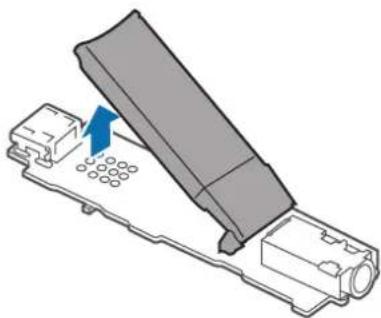
Technical line drawing of a mechanical component with no visible text or symbols5 Uzspiediet uz uzlādes porta un pavelciet akumulatoru uz augšu, lai atbrīvotu to no mikroshēmas plates.
natural_image
3D diagram of a device with a blue arrow pointing to a component, showing internal structure without any text or symbols.Pielikums
natural_image
Diagram showing a device being processed with a magnified view of the blade assembly (no text or symbols present)7 Iznemiet akumulatoru.
Blackbushe Business Park
Saxony Way, Yateley, Hampshire
GU46 6GG, UK
natural_image
Line drawing of a device with an attached USB cable and a blue arrow pointing to the cable (no text or symbols present)
natural_image
Line drawing of a person wearing earphones and holding a medical device, with an inset showing a stethoscope (no text or symbols)
natural_image
Diagram of a car door handle with a magnified inset showing a tool interacting with the door (no text or symbols present)
natural_image
Diagram showing two views of a mechanical component with blue arrows indicating direction (no text or symbols present)natural_image
Technical line drawing of a mechanical component with no visible text or symbolsnatural_image
Diagram of a device with a blue arrow pointing to a component, showing no text or symbols.Priedas
natural_image
Diagram showing a device being processed with a magnified view of the internal components (no text or symbols present)Blackbushe Business Park
Saxony Way, Yateley, Hampshire
GU46 6GG, UK
2015.01.27 Stephen Colclough / ES atstovas
natural_image
Line drawing of a device with an attached USB cable and a blue arrow pointing to the cable (no text or symbols present)
natural_image
Line drawing of a person wearing earphones and holding a medical device, with a magnified inset showing the same device (no text or symbols present)
natural_image
Illustration of a car door handle with a magnified inset showing the blade being inserted (no text or symbols)
natural_image
Diagram showing two views of a device casing with internal components, no text or symbols presentnatural_image
Technical line drawing of a mechanical component with no visible text or symbolsnatural_image
3D diagram of a device with a blue arrow indicating a component or operation, no text or symbols presentLisa
natural_image
Diagram showing a device being processed with a magnified view of the blade assembly (no text or symbols present)7 Eemaldage aku.
Blackbushe Business Park
Saxony Way, Yateley, Hampshire
GU46 6GG, UK
2015.01.27 Stephen Colclough / EL-i volinik
Copyright © 2015 Samsung Electronics
natural_image
Line drawing of a USB cable connector inserted into a device (no text or symbols)
natural_image
Line drawing of a person wearing earphones and holding a device, with an inset showing a stethoscope (no text or symbols)
natural_image
Diagram of a car door handle with a magnified inset showing a blue arrow indicating direction (no text or symbols present)
natural_image
Diagram showing two views of a device casing with internal components, each marked with blue arrows indicating direction (no text or symbols present)natural_image
Technical line drawing of a mechanical component with no visible text or symbolsnatural_image
3D diagram of a device with a blue arrow pointing to a component, showing internal structure without any text or symbols.Bijlage
natural_image
Diagram showing a device being processed with a magnified view of the blade assembly (no text or symbols present)Blackbushe Business Park
Saxony Way, Yateley, Hampshire
GU46 6GG, UK
2015.01.27 Stephen Colclough / EU-vertegenwoordiger
Copyright © 2015 Samsung Electronics
natural_image
Line drawing of a USB device with a blue arrow pointing to its cable (no text or symbols present)
natural_image
Line drawing of a person wearing earphones and holding a medical device, with a magnified inset showing the same device (no text or symbols present)
natural_image
Diagram of a car door handle with a magnified inset showing a tool interacting with the lid (no text or symbols present)
natural_image
Diagram showing two views of a device casing with internal components, no text or symbols presentnatural_image
Technical line drawing of a mechanical component with no visible text or symbolsnatural_image
3D diagram of a device with a blue arrow pointing to a component, showing internal structure without any text or symbols.natural_image
Diagram showing a device being processed with a magnified view of the blade assembly (no text or symbols present)7 Ta bort batteriet.
Blackbushe Business Park
Saxony Way, Yateley, Hampshire
GU46 6GG, UK
2015.01.27 Stephen Colclough / EU-representant
Copyright © 2015 Samsung Electronics
natural_image
Line drawing of a USB device with a blue arrow pointing to its cable (no text or symbols present)
Hvis du kobler til laderen feil, kan dette føre til alvorlige skader på enheten. Skader som er forårsaket av feil bruk, dekkes ikke av garantien.

natural_image
Line drawing of a person wearing earphones and holding a medical device, with a magnified inset showing the same device (no text or symbols present)
natural_image
Diagram showing a car interior with a magnified view of the handle and arrow indicating direction (no text or symbols present)
natural_image
Diagram showing two views of a device casing with internal components, no text or symbols presentnatural_image
Technical line drawing of a mechanical component with no visible text or symbolsnatural_image
3D diagram of a device with a blue arrow pointing to a component, showing internal structure without any text or symbols.natural_image
Diagram showing a device being processed with a magnified view of the internal components (no text or symbols present)7 Ta ut batteriet.
Samsvarserklæring
Produktdetaljer
For følgende
Produkt : Bluetooth-dongle
Blackbushe Business Park
Saxony Way, Yateley, Hampshire
GU46 6GG, UK
2015.01.27 Stephen Colclough / EU-representant
Copyright © 2015 Samsung Electronics
natural_image
Line drawing of a device with an attached USB cable and a blue arrow pointing to the cable (no text or symbols present)
natural_image
Line drawing of a person wearing earphones and holding a medical device, with an inset showing a stethoscope (no text or symbols)
natural_image
Diagram of a car door handle with a magnified inset showing a tool interacting with the lid (no text or symbols present)
natural_image
Diagram showing two views of a device casing with internal components, no text or symbols presentnatural_image
Technical line drawing of a mechanical component with no visible text or symbolsnatural_image
3D diagram of a device with a blue arrow pointing to a component, showing internal structure without any text or symbols.natural_image
Diagram showing a device being processed with a magnified view of the blade assembly (no text or symbols present)7 Irrota akku.
Blackbushe Business Park
Saxony Way, Yateley, Hampshire
GU46 6GG, UK
Copyright © 2015 Samsung Electronics
natural_image
Line drawing of a USB device with a blue arrow pointing to its connector (no text or symbols present)
natural_image
Line drawing of a person wearing earphones and holding a medical device, with a magnified inset showing the same device (no text or symbols present)
natural_image
Diagram of a car door handle with a magnified inset showing a tool interacting with the door (no text or symbols present)
natural_image
Diagram showing two views of a device casing with internal components, no text or symbols presentnatural_image
Technical line drawing of a mechanical component with no visible text or symbolsnatural_image
3D diagram of a device with a blue arrow pointing to a component, showing internal structure without any text or symbols.Appendiks
natural_image
Diagram showing a device being processed with a magnified view of the internal structure (no text or symbols present)7 Fjern batteriet.
Blackbushe Business Park
Saxony Way, Yateley, Hampshire
GU46 6GG, UK
natural_image
Line drawing of a device with an attached USB cable and a blue arrow pointing to the cable (no text or symbols present)
natural_image
Line drawing of a person wearing earphones and holding a medical device, with an inset showing a stethoscope (no text or symbols)
natural_image
Diagram of a car door handle with a magnified inset showing a blue arrow pointing to the handle (no text or symbols present)
natural_image
Diagram showing two views of a mechanical component with blue arrows indicating direction (no text or symbols present)natural_image
Technical line drawing of a mechanical component with no visible text or symbolsnatural_image
Diagram of a device component with a blue arrow indicating a specific part (no text or symbols present)natural_image
Diagram showing a device with a screen and a close-up of its blade assembly (no text or symbols)Blackbushe Business Park
Saxony Way, Yateley, Hampshire
GU46 6GG, UK
natural_image
Line drawing of a USB cable connector inserted into a device (no text or symbols)
natural_image
Line drawing of a person wearing earphones and holding a medical device, with a magnified inset showing the same device (no text or symbols present)
natural_image
Diagram of a car door handle with a magnified inset showing the blade being inserted (no text or symbols present)
natural_image
Diagram showing two views of a device casing with internal components, no text or symbols presentnatural_image
Technical line drawing of a mechanical component with no visible text or symbolsnatural_image
3D diagram of a device with a blue arrow pointing to a component, showing internal structure without any text or symbols.Dodatek
natural_image
Diagram showing a device being processed with a magnified view of the internal components (no text or symbols present)7 Odstranite baterijo.
Izjava o skladnosti
Informacije o izdelku
Za naslednji
Izdelek : Ključ Bluetooth
Model(e) : EO-RG920

Deklaracija in veljavni standardi
Blackbushe Business Park
Saxony Way, Yateley, Hampshire
GU46 6GG, UK
natural_image
Line drawing of a device with a USB cable inserted into a port, showing no text or symbols.
natural_image
Line drawing of a person wearing earphones and holding a medical device, with an inset showing a stethoscope (no text or symbols)
natural_image
Diagram of a car door handle with a magnified inset showing the blade being inserted (no text or symbols present)
natural_image
Diagram showing two views of a mechanical component with internal compartments and blue arrows indicating direction (no text or symbols present)natural_image
Technical illustration of a mechanical component with no visible text or symbolsnatural_image
3D diagram of a device with a blue arrow pointing to a component, showing internal structure without any text or symbols.Ek
natural_image
Diagram showing a device being inserted into a housing, with an inset close-up highlighting the component (no text or symbols present)7 Pili çıkartın.
Telif hakkı © 2015 Samsung Electronics
natural_image
Line drawing of a USB device with a blue arrow pointing to its internal port (no text or symbols present)
natural_image
Line drawing of a person wearing earphones and holding a medical device, with an inset showing a stethoscope (no text or symbols)
Blackbushe Business Park
Saxony Way, Yateley, Hampshire
GU46 6GG, UK
2015.01.27 Stephen Colclough / Представитель EC
© Samsung Electronics, 2015.
natural_image
Line drawing of a USB device with a blue arrow pointing to its cable (no text or symbols present)
natural_image
Line drawing of a person wearing earphones and holding a medical device, with an inset showing a stethoscope (no text or symbols)
Blackbushe Business Park
Saxony Way, Yateley, Hampshire
GU46 6GG, UK
© Samsung Electronics, 2015
natural_image
Line drawing of a USB device with a blue arrow pointing to its connector (no text or symbols present)
natural_image
Line drawing of a person wearing earphones and holding a medical device, with an inset showing a stethoscope (no text or symbols)
Blackbushe Business Park
Saxony Way, Yateley, Hampshire
GU46 6GG, UK
2015.01.27 Stephen Colclough / EO өкілі
Copyright © 2015 Samsung Electronics
Please read this manual before using the device to ensure safe and proper use.
Descriptions are based on the device's default settings.
Images may differ in appearance from the actual product. Content is subject to change without prior notice.
Instructional icons

Warning: situations that could cause injury to yourself or others

Caution: situations that could cause damage to your device or other equipment

Note: notes, usage tips, or additional information
Getting started
About Level Link
The Level Link supports receiving mode and sending mode. In receiving mode, you can connect earphones to the Level Link and use it as a Bluetooth headset for Bluetooth-enabled devices, such as smartphones or tablets. In sending mode, you can use the device as a dongle that connects to computers, TVs, Bluetooth headsets, and more.
In receiving mode, you can use the following features:
Launching S Voice
Receiving or ending calls
Controlling multimedia files
In sending mode, you can play sound of the connected multimedia device.
Package contents
Check the product box for the following items:
Device
Earphones
USB cable
Audio cable
Quick start guide

The items supplied with the device and any available accessories may vary depending on the region or service provider.
The supplied items are designed only for this device and may not be compatible with other devices.
Appearances and specifications are subject to change without prior notice.
You can purchase additional accessories from your local Samsung retailer. Make sure they are compatible with the device before purchase.
Use only Samsung-approved accessories. Using unapproved accessories may cause the performance problems and malfunctions that are not covered by the warranty.
Availability of all accessories is subject to change depending entirely on manufacturing companies. For more information about available accessories, refer to the Samsung website.
Device layout
Buttons and functions
| Name Function | |
| Mode/Power switch | Slide left to activate receiving mode and slide right to activate sending mode.Slide to OFF to turn off the device. |
| Call/Multifunction button | In receiving mode, press and hold for 1 second to launch S Voice.In receiving mode, press to answer or end a call.In receiving mode, press and hold to reject a call.In receiving mode, press and hold to transfer calls from the Level Link to your other device, or vice versa.In receiving mode, press to play or stop multimedia files.In receiving mode or sending mode, press and hold for 3 seconds to enter Bluetooth pairing mode. |
| Volume button | In receiving mode, press to adjust the volume during a call.In receiving mode, press to adjust the volume while playing multimedia files. |
| REW button / FF buttons | In receiving mode, press to play the previous or next multimedia file during playback.In receiving mode, press and hold to rewind or fast forward a multimedia file during playback. |
Status indicator
| Status Color | |
| Bluetooth pairing mode | Flashing red, green, and blue |
| Power on or activate modes | Flashing blue 3 times |
| Power off | Flashing red 3 times |
| Incoming call | Flashing blue |
Charging the battery
Charge the battery before using the Level Link for the first time or when the Level Link has been unused for extended periods.

Use only Samsung-approved chargers, batteries, and cables. Unapproved chargers or cables can cause the battery to explode or damage the headset.

If the battery is completely discharged, the headset cannot be turned on immediately when the charger is connected. Allow a depleted battery to charge for a few minutes before turning on the headset.
Connect the device to a computer or the USB power adapter via the USB cable.

natural_image
Line drawing of a USB connector with a blue arrow pointing to the connector (no text or symbols present)
Connecting the charger improperly may cause serious damage to the device. Any damage caused by misuse is not covered by the warranty.

The device can be used while it is charging, but it may take longer to fully charge the battery.
While charging, the device may heat up. This is normal and should not affect the device's lifespan or performance. If the battery gets hotter than usual, the charger may stop charging.
If the device is not charging properly, take the device and the charger to a Samsung Service Center.
After fully charging, disconnect the device from the charger. First unplug the charger from the device, and then unplug it from the electric socket.

To save energy, unplug the charger when not in use. The charger does not have a power switch, so you must unplug the charger from the electric socket when not in use to avoid wasting power. The charger should remain close to the electric socket and easily accessible while charging.
Checking the battery level
Simultaneously press and hold the Volume up button and the Multifunction button for 1 second. The notification light flashes three times in different colors according to the charging status.
| Status Color | |
| Less than 30% | Red |
| 30-60% | Yellow |
| More than 60% | Green |
Wearing the device and earphones
Connect the supplied earphones to the Level Link and wear them around your neck.
1 Plug the earphones into the audio jack of the Level Link.
2 Adjust the earphone clip form a loop large enough to fit your head through.
3 Clip the Level Link on your clothes.
4 Wear the earphones around your neck and plug in the earbuds.
natural_image
Line drawing of a person wearing earphones and holding a medical device, with an inset showing a stethoscope (no text or symbols)
Use caution when using this device with wired earphones. You may choke if the earphones wrap around your neck.
Turning the device on and off
: Activate receiving mode.
: Activate sending mode.
: Turn off the device.

Follow all posted warnings and directions from authorized personnel in areas where the use of wireless devices is restricted, such as airplanes and hospitals.
Using the device
Bluetooth
About Bluetooth
Bluetooth is a wireless technology standard that uses a 2.4 GHz frequency to connect to various devices over short distances. It can connect and exchange data with other Bluetooth enabled devices, such as mobile devices, computers, printers, and other digital home appliances, without connecting via cables.
Notices for using Bluetooth
To avoid problems when connecting your device to another device, place the devices close to each other.
Ensure that your device and the other Bluetooth device are within the Bluetooth connection range (10 m). The distance may vary depending on the environment the devices are used in.
Ensure that there are no obstacles between the headset and a connected device, including human bodies, walls, corners, or fences.
Do not touch the Bluetooth antenna of a connected device.
Bluetooth uses the same frequency as some industrial, scientific, medical, and low power products and interference may occur when making connections near these types of products.
Some devices, especially those that are not tested or approved by the Bluetooth SIG, may be incompatible with the headset.
Do not use the Bluetooth feature for illegal purposes (for example, pirating copies of files or illegally tapping communications for commercial purposes).
Connecting to other devices

Sound quality and usage range between the Level Link and connected audio devices may vary depending on the Bluetooth-enabled audio devices.
Connecting in receiving mode
You can receive incoming calls or listen to music when your Level Link is connected to Bluetooth-enabled devices. When you turn on the Level Link for the first time, it enters Bluetooth pairing mode.

When pairing the Level Link with other devices via Bluetooth for the first time, the Level Link automatically connects to the paired devices. If the Level Link fails to connect, it enters Bluetooth pairing mode.
The Level Link can store device information for up to eight devices. If the Level Link has been connected to more than one device, it connects to the most recently paired device.
1 Level Link Slide the Mode switch to the left to activate receiving mode.
2 Level Link Press and hold the Multifunction button for about 3 seconds to enter Bluetooth pairing mode.
3 Other device Activate the Bluetooth feature and search for Bluetooth devices.
For more information, refer to the other device's user manual.
4 Other device Tap Samsung Level Link from the list.

5 Level Link Connect the earphones to the Level Link.
Or, connect the Level Link to the auxiliary input jack of an audio output device via an audio cable.

In this mode, if you connect the Level Link via an audio cable to a TV or computer's audio output jack, your Level Link may be damaged.
Connecting in sending mode
Connect your device to a multimedia player, via the audio cable. You can listen to multimedia files via another audio device, such as a Bluetooth headset. When you turn on the Level Link for the first time, it enters Bluetooth pairing mode.

When pairing the Level Link with other devices via Bluetooth for the first time, the Level Link automatically connects to the paired devices. If the Level Link fails to connect, it enters Bluetooth pairing mode.
The Level Link can store device information for up to eight devices. If the Level Link has been connected to more than one device, it connects to the most recently paired device.
1 Level Link Slide the Mode switch to the right to activate sending mode.
2 Level Link Press and hold the Multifunction button for about 3 seconds to enter Bluetooth pairing mode.
3 Level Link Place your Level Link within 30 cm of the paired audio device.
The Level Link and the audio device are now connected via Bluetooth. If the connection fails, turn off the audio device and turn it on again. Then, repeat the steps above.
4 Plug the audio cable into the audio jack of the Level Link. Then, plug the other end of the audio cable into the audio output jack of the multimedia player.

The method for connecting via Bluetooth may vary depending on the connected devices. For more information, refer to the user manual of the connected device.
When the Level Link is connected to a TV in sending mode, lipsync problems may occur. It is recommended to connect the Level Link to a TV that supports the aptX low-latency codec.
When using the Level Link with a multimedia player, turn down the multimedia player's volume before unplugging the audio cable to prevent sudden, loud sounds.
You may experience drops in volume or noise depending on the connected multimedia player's volume. To avoid this, appropriately adjust the multimedia player's sound.
Connecting additional devices
In receiving mode or sending mode, your Level Link can connect to up to two devices via Bluetooth.
1 In receiving mode or in sending mode, connect your Level Link to the first device.
2 Connect the Level Link to a second device via Bluetooth using the connection method used for the first device.

In receiving mode, if the Level Link does not appear in the detected devices list, press and hold the Multifunction button for about 3 seconds to enter Bluetooth pairing mode.
In sending mode, the Level Link supports the aptX low-latency codec when it is connected to one audio device. If two audio devices are simultaneously connected to the Level Link, the aptX codec is not supported and video and audio output may not be synchronized.
In sending mode, the usage range between the Level Link and other devices may be reduced.
Reconnecting or disconnecting from other devices
Reconnecting the devices
When your Level Link is disconnected from the audio device due to the distance between the devices, bring the devices closer together and press the Multifunction button to pair them again. Or, you can use the Bluetooth menu on the audio device to pair the devices.
Disconnecting the devices
To disconnect the Level Link from the audio device, turn off your device or unpair the devices. If you connected the two devices via an audio cable, unplug the cable from both devices.
Using receiving and sending modes
In receiving mode, you can launch S Voice, answer incoming calls, or play multimedia files. In this mode, use your Level Link with earphones, or connect the Level Link to an audio device via an audio cable.
In sending mode, you can listen to audio from the multimedia player via the connected audio device.

Available features may vary depending on the device you connect to. Some features may not be available if the Level Link is simultaneously connected to two devices.
Some features are available only when the Level Link connects to a device via the Hands-Free Profile (HFP).
The microphone's location varies depending on how you are wearing the Level Link. The position of the Level Link may affect to sound quality during calls.
Launching S Voice
Press the Multifunction button for 1 second. If the connected device support S Voice, you can use the app via the Level Link.
Answering and rejecting calls
Answering a call
Press the Call button to answer calls made to the connected device.
Rejecting a call
Press and hold the Call button to reject calls made to the connected device.
Using options during a call
Adjusting the volume
During a call, press the Volume button to adjust the volume.
Switching sound output
Press and hold the Call button to transfer calls from the Level Link to the connected device. This feature may not be available depending on the connected device.
Ending a call
Press the Call button to end a call.
Playing multimedia files
Play multimedia files in receiving or sending mode. Available features may vary depending on the mode being used.
Playing and stopping a multimedia file
Press the Multifunction button to play the most recent multimedia file on the connected device.
Press the Multifunction button to pause playback. To resume playback, press the Multifunction button again.
Skipping to the previous or next multimedia file
Press the REW button or the FF button to skip to the previous or the next file during playback.
Rewinding or fast forwarding the multimedia file
Press and hold the REW button or FF button to rewind or fast forward the file during playback.
Adjusting the volume
Press the Volume button to adjust the volume.

When the Level Link is connected to two devices, you can play multimedia files from either device. To play a multimedia file from a different device, pause playback from the other device first.
When you play a multimedia file from one device, you can still answer calls from the other device.
If there are differences in the output power of the audio cable and the connected audio device in sending mode, the sound volume on the Level Link may vary.
Performing a data reset
When your Level Link is connected to a device via Bluetooth, the Level Link's information, such as Bluetooth address and device type, is stored on the connected device. To delete the Level Link's connection information, press and hold the Multifunction button for about 3 seconds to enter Bluetooth pairing mode. Then, press and hold the REW, FF, and Multifunction buttons simultaneously for 3 seconds.
Troubleshooting
Before contacting a Samsung Service Center, please attempt the following solutions. Some situations may not apply to your device.
Your device does not turn on
When the battery is completely discharged, your device will not turn on. Charge the battery completely before turning on the device.
The battery does not charge properly (For Samsung-approved chargers)
Ensure that the charger is connected properly.
Visit a Samsung Service Center and have the battery replaced.
Another Bluetooth device cannot locate your device
Ensure that your device is in Bluetooth pairing mode.
Reset the device and search for Bluetooth devices.
Ensure that your device and the other Bluetooth device are within the Bluetooth connection range (10 m).
If the tips above do not solve the problem, contact a Samsung Service Center.
Another Bluetooth device is not located
Ensure that the device you wish to connect with supports the Bluetooth wireless feature.
Ensure that your device and the other Bluetooth device are within the maximum Bluetooth range (10 m).
Bluetooth connect is often disconnected
If there are obstacles between the devices, the operating distance may be reduced. Ensure that your device and the other Bluetooth device are within the maximum Bluetooth range (10 m).
When using the device with other Bluetooth devices, the connection may be affected by electromagnetic waves. Use the device in environments with fewer wireless devices present.
You cannot hear others speaking
Adjust the device volume.
Adjust the volume on the connected device when you cannot hear sounds on your device at full volume.
Sound echoes during a call
Adjust the volume by pressing the Volume button or move to another area.
Others cannot hear you speaking on a call
Ensure that you are not covering the built-in microphone.
Ensure that the microphone is close to your mouth.
Audio quality is poor
Wireless network services may be disabled due to issues with the service provider's network. Ensure to keep the device away from electromagnetic waves.
Ensure that your device and the other Bluetooth device are within the maximum Bluetooth range (10 m).
The device works differently as described in the manual
Available functions may differ depending on the connected device.
Some features cannot be used when two devices are connected with the device at the same time.
The battery depletes faster than when first purchased
When you expose the device or the battery to very cold or very hot temperatures, the useful charge may be reduced.
The battery is consumable and the useful charge will get shorter over time.
Copyright
Copyright © 2015 Samsung Electronics
This manual is protected under international copyright laws.
No part of this manual may be reproduced, distributed, translated, or transmitted in any form or by any means, electronic or mechanical, including photocopying, recording, or storing in any information storage and retrieval system, without the prior written permission of Samsung Electronics.
Trademarks
SAMSUNG and the SAMSUNG logo are registered trademarks of Samsung Electronics.
Bluetooth ^® is a registered trademark of Bluetooth SIG, Inc. worldwide.
All other trademarks and copyrights are the property of their respective owners.
natural_image
Line drawing of a USB device with a blue arrow pointing to its connector (no text or symbols present)
natural_image
Line drawing of a person wearing earphones and holding a device, with an inset showing a stethoscope (no text or symbols)
Copyright © 2015 Samsung Electronics
natural_image
Line drawing of a USB device with a blue arrow pointing to its connector (no text or symbols present)
natural_image
Line drawing of a person wearing earphones and holding a medical device, with a magnified inset showing the same device (no text or symbols present)
natural_image
Line drawing of a USB cable connector inserted into a device (no text or symbols)
natural_image
Line drawing of a person wearing earphones and holding a medical device, with a magnified inset showing the stethoscope (no text or symbols)
版權 © 2015 Samsung Electronics
本手册受國際版權法保護。
natural_image
Line drawing of a device with an attached USB cable and a blue arrow pointing to the cable (no text or symbols present)
natural_image
Line drawing of a person wearing earphones and holding a device, with a magnified inset showing the stethoscope (no text or symbols)
Copyright © 2015 Samsung Electronics
本手册受國際版權法保護。
natural_image
Line drawing of a USB cable connector inserted into a device (no text or symbols)
natural_image
Line drawing of a person wearing earphones and holding a device, with an inset showing a stethoscope (no text or symbols)
© Samsung Electronics, 2015.
natural_image
Line drawing of a device with an attached USB cable and a blue arrow pointing to the cable (no text or symbols present)
natural_image
Line drawing of a person wearing earphones and holding a medical device, with an inset showing a stethoscope (no text or symbols)
natural_image
Line drawing of a USB connector with a blue arrow pointing to the cable (no text or symbols present)



natural_image
Line drawing of a person wearing earphones and holding a medical device, with an inset showing a stethoscope (no text or symbols)


1
2
3
4
natural_image
Line drawing of a USB cable connector inserted into a device (no text or symbols)natural_image
Line drawing of a person wearing earphones and holding a device, with an inset showing a stethoscope (no text or symbols)natural_image
Line drawing of a USB device with a blue arrow pointing to its connector (no text or symbols present)natural_image
Line drawing of a person wearing earphones and holding a medical device, with an inset showing a stethoscope (no text or symbols)Copyright © 2015 Samsung Electronics


- Instructional icons
- Getting started
- About Level Link
- Package contents
- Device layout
- Charging the battery
- Checking the battery level
- Wearing the device and earphones
- Turning the device on and off
- Using the device
- Bluetooth
- About Bluetooth
- Notices for using Bluetooth
- Connecting to other devices
- Connecting in receiving mode
- Other device Tap Samsung Level Link from the list.
- Level Link Connect the earphones to the Level Link.
- Connecting in sending mode
- Connecting additional devices
- Reconnecting or disconnecting from other devices
- Reconnecting the devices
- Disconnecting the devices
- Using receiving and sending modes
- Launching S Voice
- Answering and rejecting calls
- Answering a call
- Rejecting a call
- Using options during a call
- Adjusting the volume
- Switching sound output
- Ending a call
- Playing multimedia files
- Playing and stopping a multimedia file
- Skipping to the previous or next multimedia file
- Rewinding or fast forwarding the multimedia file
- Performing a data reset
- Appendix
- Troubleshooting
- Your device does not turn on
- The battery does not charge properly (For Samsung-approved chargers)
- Another Bluetooth device cannot locate your device
- Another Bluetooth device is not located
- Bluetooth connect is often disconnected
- You cannot hear others speaking
- Sound echoes during a call
- Others cannot hear you speaking on a call
- Audio quality is poor
- The device works differently as described in the manual
- The battery depletes faster than when first purchased
- Removing the battery (non-removable type)
- Copyright
- Trademarks
- Anhang
- Appendice
- Apéndice
- Dodatek
- Anexă
- Declaratie de conformitate
- Datele produsului
- Odvojite tiskanu pločicu od kućišta uređaja, izvadite ju i položite licem prema dolje na ravnu površinu.
- Dodatak
- Izjava o sukladnosti
- Pojedinosti o proizvodu
- Autorska prava
- Trgovačke marke
- Pielikums
- Priedas
- Bijlage
- Samsvarserklæring
- Produktdetaljer
- Appendiks
- Izjava o skladnosti
- Informacije o izdelku
- Deklaracija in veljavni standardi
Brand : SAMSUNG
Model : EORG920B
Category : Headphones